
peymanAzad/ario has 29 GitHub stars and 1 forks. Star changes are not measured yet. Last checked 2026-11-12 12:07 UTC. Last push 2026-11-11.
A batteries-included terminal download manager powered by aria2.
可以做什么
- 🌙 No extra window babysitting your downloads — Close the TUI and get on with your work. The separate daemon keeps your downloads and scheduled queues running in the background.
- 🗓️ Download on your schedule — Set one-time, daily, or weekly download windows, including overnight schedules with automatic start and stop times.
- 🧲 HTTP downloads and BitTorrent — Manage HTTP/HTTPS downloads, magnet links, and .torrent files in one interface.
- 📋 Batch imports from your clipboard — Copy text containing download links and press v. Ario automatically finds HTTP/HTTPS URLs and magnet links, then lets you select items, choose a queue, and start downloading immediately or save them for later.
实测星标增长
- 24小时
- 正在收集历史
- 7天
- 正在收集历史
- 15天
- 正在收集历史
- 1个月
- 正在收集历史
各周期内的星标净变化,周期相互重叠,并非每日新增。缺失的测量保持空白。星标代表关注度,不代表软件质量。
README.md
原文Ario
A batteries-included terminal download manager powered by aria2.





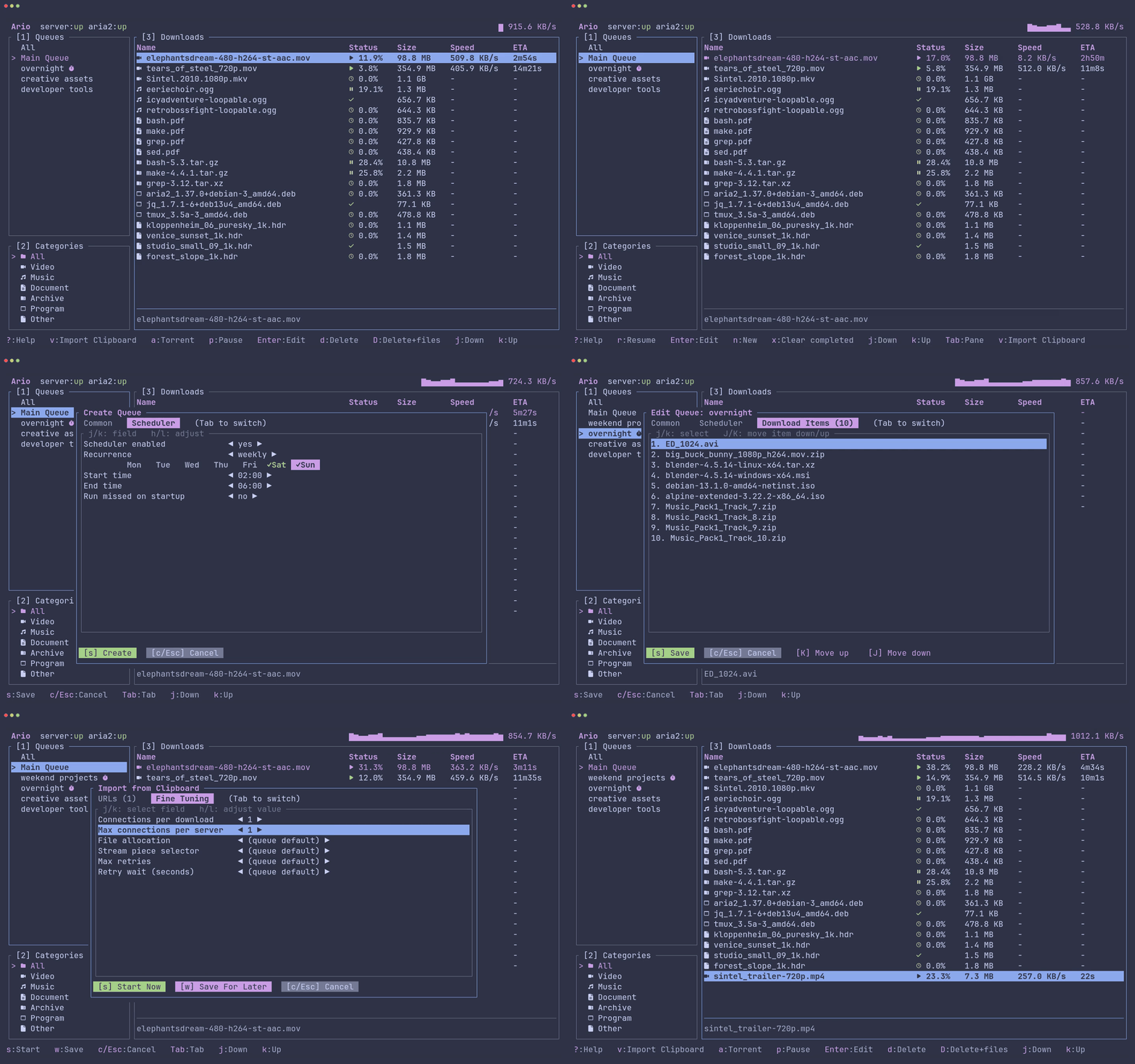
Like the look of the demo? Set theme = "catppuccin-frappe" in tui.toml.
Why Ario? · Features · Installation · Quick start · Configuration · Controls · Contributing · License
Why Ario?
Ario combines aria2 with a managed daemon, scheduled queues, and batch clipboard import in one terminal workflow. It offers a terminal alternative to web front-ends like AriaNg, supports HTTP/HTTPS alongside BitTorrent, and keeps downloads and schedules running after you close the interface. The TUI and daemon can also run on separate machines, connected through an SSH tunnel.
✨ Features
- 🌙 No extra window babysitting your downloads — Close the TUI and get on with your work. The separate daemon keeps your downloads and scheduled queues running in the background.
- 🗓️ Download on your schedule — Set one-time, daily, or weekly download windows, including overnight schedules with automatic start and stop times.
- 🧲 HTTP downloads and BitTorrent — Manage HTTP/HTTPS downloads, magnet links, and
.torrentfiles in one interface. - 📋 Batch imports from your clipboard — Copy text containing download links and press
v. Ario automatically finds HTTP/HTTPS URLs and magnet links, then lets you select items, choose a queue, and start downloading immediately or save them for later. - ⚡ Queue event commands — Run scripts when every download succeeds or when a queue runs out of work or reaches its scheduled stop.
- 🎛️ Your queues, your settings — Prioritize downloads within each queue and control concurrency, connections, retries, file allocation, and piece selection. Set queue defaults and override them for individual downloads.
- 🦀 Built for the terminal — Written in Rust with Ratatui, with keyboard shortcuts and mouse support.
- 🗂️ Automatic file organization — Automatically categorize downloads by file type and save them to configurable folders.
- 🌐 HTTP proxy support — Configure aria2’s HTTP proxy in the daemon and monitor its reachability and ability to transfer data from the TUI.
- 🎨 Make it yours — Choose Catppuccin themes or custom colors, and select Nerd Font, Unicode, or ASCII icons. Configure the server address, automatic daemon startup, and daemon behavior when you exit.
📦 Installation
Every installation includes both ario (the TUI) and ario_daemon. Prebuilt
packages do not require Rust.
Prerequisites
- Nerd Font — Optional, but strongly recommended for displaying Ario's default icons correctly. Select a Nerd Font in your terminal's font settings.
For terminals without a Nerd Font, launch with ario --glyphs=unicode.
Linux (x86_64)
Linux release binaries require glibc 2.35 or newer. If multiple versions of the same package are in your download directory, use the exact filename of the version you want to install.
Debian and Ubuntu
Download ario_<version>-1_amd64.deb from the
latest release, then run
this command in the download directory:
sudo apt install ./ario_*_amd64.deb
APT installs aria2 and the other required dependencies.
Fedora and other RPM-based distributions
Download ario-<version>-1.x86_64.rpm from the
latest release, then run
this command in the download directory:
sudo dnf install ./ario-*.x86_64.rpm
DNF installs aria2 and the other required dependencies from your configured repositories. Use your distribution's package manager if it does not use DNF.
Arch Linux
Download ario-download-bin-<version>-1-x86_64.pkg.tar.zst from the
latest release, then run
this command in the download directory:
sudo pacman -U ./ario-download-bin-*-x86_64.pkg.tar.zst
Pacman installs aria2 and the other required dependencies. The package is named
ario-download-bin; launch it with ario. It conflicts with Arch's unrelated
ario music player because both install /usr/bin/ario.
To upgrade, install the newer package with pacman -U. This package is not
currently published to the AUR.
Other Linux distributions
The archive does not install aria2 automatically.
Install aria2 with your distribution's package
manager and make sure aria2c is in your PATH. Download the
Linux x86_64 archive, then extract and install both executables:
tar -xzf ario-x86_64-unknown-linux-gnu.tar.gz
sudo install -d /usr/local/bin
sudo install -m 755 ario-x86_64-unknown-linux-gnu/ario \
  ario-x86_64-unknown-linux-gnu/ario_daemon /usr/local/bin/
Make sure /usr/local/bin is in your PATH.
macOS (Apple Silicon and Intel)
Install Homebrew, then run:
brew install peymanAzad/tap/ario
Homebrew selects the binary for your Mac and installs aria2 automatically.
Windows (x64)
The ZIP does not install aria2 automatically.
Install aria2 using WinGet:
winget install --id aria2.aria2 --exactDownload the Windows x64 ZIP and extract it to a permanent location.
Add the directory containing both
ario.exeandario_daemon.exeto your userPathenvironment variable. Keep the two executables together.Open a new terminal so the updated
Pathtakes effect, then runario. Make surearia2cis also available in that terminal.
Cargo (all platforms)
Install Rust and Cargo 1.95 or newer using rustup.
Cargo and source installations do not install aria2 automatically; install it
separately so that aria2c is in your PATH.
Install the published ario crate:
cargo install ario --locked
Or build and install from this repository:
git clone https://github.com/peymanAzad/ario.git
cd ario
cargo install --locked --path .
Both commands install ario and ario_daemon. Make sure Cargo's executable
directory, usually ~/.cargo/bin on Linux/macOS or %USERPROFILE%\.cargo\bin
on Windows, is in your PATH.
🚀 Quick start
Launch Ario:
arioThe local daemon and aria2 start automatically with the default configuration.
Add your first download: Copy one or more HTTP/HTTPS URLs or magnet links, then press
vin Ario. Use↑/↓to navigate the detected links andSpaceto select or deselect them.Choose a queue and start: Use
←/→to choose the destination queue. Presssto start the selected downloads immediately, orwto save them for later.Leave downloads running: Press
qfrom the main screen to close the TUI. By default, the daemon stays running while downloads are active or scheduled queues are enabled. Runarioagain to reconnect.
To add a local .torrent file, press a from the main screen, enter its path, press Enter to confirm, then s to start.
Press ? from the main screen to view keyboard shortcuts.
🔧 Configuration
Ario creates server.toml and tui.toml automatically on first launch. Both files live in your configuration directory:
| Platform | Directory |
|---|---|
| Linux | $XDG_CONFIG_HOME/ario/, or ~/.config/ario/ |
| macOS | ~/Library/Application Support/ario/ |
| Windows | %APPDATA%\ario\config\ |
The blocks below contain the default settings. Optional values are shown as commented examples.
Daemon — server.toml
[settings]
default_download_location = "~/Downloads"

# Reserved settings; currently have no effect.
# Configure exit behavior in tui.toml under [on-app-exit].
start_daemon_on_login = false
stop_daemon_on_close = false

[settings.category_locations]
Video = "~/Downloads/Videos"
Music = "~/Downloads/Musics"
Document = "~/Downloads/Documents"
Archive = "~/Downloads/Compressed"
Program = "~/Downloads/Programs"

# Extensions are listed without a leading dot.
# Unrecognized file types use the default download location.
[settings.category_extensions]
Video = [
    "mp4", "mkv", "avi", "mov", "webm", "flv", "m4v", "wmv",
    "mpg", "mpeg", "m2v", "3gp", "3g2", "ogv", "ts", "mts",
    "m2ts", "vob", "asf",
]
Music = [
    "mp3", "flac", "wav", "aac", "ogg", "m4a", "opus", "wma",
    "aiff", "aif", "alac", "ape", "amr", "oga", "mka", "mid", "midi",
]
Document = [
    "pdf", "doc", "docx", "txt", "epub", "odt", "rtf", "xls",
    "xlsx", "ods", "csv", "ppt", "pptx", "odp", "html", "htm",
    "md", "tex", "mobi", "azw", "azw3", "djvu",
]
Archive = [
    "zip", "zipx", "rar", "7z", "tar", "gz", "xz", "bz2",
    "tgz", "tbz", "tbz2", "txz", "zst", "cab", "iso",
]
Program = [
    "exe", "msi", "apk", "deb", "rpm", "app", "dmg", "pkg",
    "bin", "run", "com", "jar", "appimage", "ipa", "appx",
    "msix", "msixbundle", "flatpak", "snap", "sh", "bat", "cmd", "ps1",
]

# Set enabled = true and supply an HTTP proxy host to route downloads through aria2's proxy.
# Port defaults to 80. For authentication, set username and password.
[settings.proxy]
enabled = false
# host = "127.0.0.1"
# port = 8080
# username = "username"
# password = "password"

[aria2]
# Executable name from PATH, or a full path to aria2c.
binary_path = "aria2c"

# Internal aria2 RPC port, separate from Ario's server port (47812).
rpc_port = 6800

# Initial directory passed to aria2.
# Ario routes downloads using the locations under [settings].
download_dir = "~/Downloads"
Aria2 uses the HTTP proxy for HTTP(S), FTP, and SFTP transfers. BitTorrent peers connect directly, and no_proxy exclusions still apply. The all-proxy-user and all-proxy-passwd options in aria2.conf override credentials from server.toml. The TUI shows proxy:up no data when the proxy is reachable but the latest Cloudflare probe failed to retrieve data.
TUI — tui.toml
server_url = "http://127.0.0.1:47812"

# Start and supervise the daemon automatically for a local HTTP address.
# Set to false if you manage the daemon yourself.
auto_start_server = true

# Empty: look for ario_daemon beside the TUI executable, then in PATH.
# Set a full path to use a different executable.
server_binary = ""

mouse_enabled = true

# Choices: "default", "catppuccin-latte", "catppuccin-frappe",
# "catppuccin-macchiato", "catppuccin-mocha".
theme = "default"

# Choices: "nerd", "unicode", "ascii".
# Unset by default: UTF-8 locales use Nerd Font icons; others use ASCII.
# The --glyphs command-line option overrides this setting.
# glyph_mode = "unicode"

[on-app-exit]
# Applies to the TUI-managed daemon; manually started daemons stay running.
# "when_idle": stop only when no downloads are active and no schedules are enabled.
# "never": keep running after the TUI exits.
# "always": stop even when downloads are active.
stop_managed_daemon = "when_idle"

[custom_theme]
# No overrides by default; colors inherit the selected theme.
# Uncomment any example below to override it with a six-digit hex color.
# foreground = "#cdd6f4"
# border = "#6c7086"
# border_focused = "#89b4fa"
# selected_bg = "#313244"
# selected_fg = "#cdd6f4"
# status_ok = "#a6e3a1"
# status_error = "#f38ba8"
# status_warning = "#f9e2af"
# text_muted = "#a6adc8"
# accent = "#cba6f7"
Restart the TUI after changing tui.toml. Changes to server.toml require restarting the daemon; reopening the TUI alone may reconnect to the existing daemon.
Queue event commands
In the queue create/edit modal, open the Events tab and enter either or both commands. Leave a command blank to disable it. Latest results shows the most recent run of each command and refreshes while the modal is open.
| Event | Trigger |
|---|---|
| On success | Every item in a nonempty queue is Completed. Failed, paused, or retained Removed items prevent success. |
| On automatic stop | No active or automatically eligible downloads remain, or all required pauses at the scheduled stop succeed. Failed and manually paused items may remain. |
Successful completion runs On success, then On automatic stop, even if the success command fails. Manually stopping the queue runs neither command; individually pausing its last active download can trigger automatic exhaustion. Aria2 retries still count as work. Empty or already idle queues do not fire events.
Each event runs at most once per run. Work starts a run through queue Start, scheduled starts, Start immediately, or individual starts/retries. Additional work joins an ongoing run; work started after it ends begins another run. An exhausted queue keeps its existing behavior of accepting new work automatically. Exhaustion before a scheduled deadline does not trigger the stop command again at that deadline unless new work has begun. If completion coincides with the deadline, successful completion takes precedence.
Commands execute on the daemon's machine, as the daemon user, with the Ario
configuration directory as their working directory. Linux/macOS use /bin/sh -c;
Windows uses cmd.exe /D /S /C. Use the corresponding shell's quoting and script
syntax. Commands inherit the daemon's environment and receive:
| Variable | Value |
|---|---|
ARIO_QUEUE_ID |
Queue ID |
ARIO_QUEUE_NAME |
Queue name, passed literally through the environment |
ARIO_QUEUE_RUN_ID |
Run number within the queue |
ARIO_EVENT |
success or stop |
ARIO_STOP_REASON |
completed, exhausted, or scheduled_stop |
For example, a Linux/macOS command can invoke a script with the queue name:
/absolute/path/to/script.sh "$ARIO_QUEUE_NAME" "$ARIO_STOP_REASON"
On Windows, use %ARIO_QUEUE_NAME% and %ARIO_STOP_REASON% in the command instead.
Commands have no interactive input or attached terminal. Ario does not collect
passwords or grant administrator access. For a command requiring sudo, use
sudo -n with permission already configured for that specific command; otherwise
sudo exits with an error. Standard output and errors go to the daemon logs
(server.log for a TUI-managed daemon); the modal reports status, timestamps, and
command failures.
There is no execution time limit. Commands run sequentially within a queue,
including across successive runs; other queues and downloads continue normally.
A stuck success command delays that queue's stop command. Queued/running commands
keep a managed daemon alive under the default when_idle exit policy. Forced
shutdown interrupts outstanding commands and does not retry them.
Event attempts and command snapshots are saved before execution. Editing a command affects future events, not attempts already queued. Following a daemon restart, unfinished attempts are marked interrupted and never replayed. A crash between recording an attempt and launching its command can therefore cause a command to be missed. Downloads in a persisted run continue normally.
🧭 Controls
Use keyboard shortcuts or the mouse to navigate Ario. The footer shows available actions for your current selection.
Press ? or click Help from the main screen for the full keyboard reference. Mouse support is enabled by default and can be disabled in tui.toml.
Text inputs
Press Enter to edit the selected text field, such as the
queue name or an event command in the queue modal. Press Enter again to accept the draft or
Esc to discard it. Use Save to apply your queue changes or Cancel to
discard them.
🤝 Contributing
Bug reports, feature requests, documentation improvements, and pull requests are welcome.
For larger changes, open an issue first to discuss your approach. When submitting a pull request, describe what changed, why, and how you tested it.
📄 License
Ario is licensed under the MIT License. See LICENSE for details.