
diegomarzaa/pdf-ocr-obsidian
diegomarzaa/pdf-ocr-obsidian has 348 GitHub stars and 48 forks. GitHot measured 0 stars in 24 hours. Last checked 2026-11-20 04:37 UTC. Last push 2026-09-09.
可以做什么
- Batch processing: Place multiple PDFs in the input folder and process them automatically.
- Text extraction: Converts scanned PDFs into structured markdown format while preserving document hierarchy.
- Image extraction: Saves images separately and links them in the markdown using Obsidian-compatible ![[image-name]] format.
- Automatic organization: Each processed PDF gets its own output folder with the markdown and images.
实测星标增长
- 24小时
- 0
- 7天
- 正在收集历史
- 15天
- 正在收集历史
- 1个月
- 正在收集历史
各周期内的星标净变化,周期相互重叠,并非每日新增。缺失的测量保持空白。星标代表关注度,不代表软件质量。
关于
Convert your PDFs into Markdown files easily with Mistral OCR Software
开发工具README.md
原文PDF OCR Pipeline to Markdown using Mistral AI
This is a workflow to automate the conversion of PDFs to markdown using the Mistral AI OCR API. It extracts text and images from PDFs and organizes the output into structured markdown documents with images properly linked using Obsidian-style wikilinks.
The initial version was a Jupyter Notebook. Recently, I vibe-coded a Local Web App where you can do the same in a more visual and understandable way, might have some defects and problems, feel free to improve it or host it online for others.
You can also find useful the OCR Extractor Plugin for Obsidian, made by jritzi (GitHub). Which uses the same Mistral OCR technology.
Features
- Batch processing: Place multiple PDFs in the input folder and process them automatically.
- Text extraction: Converts scanned PDFs into structured markdown format while preserving document hierarchy.
- Image extraction: Saves images separately and links them in the markdown using Obsidian-compatible
![[image-name]]format. - Automatic organization: Each processed PDF gets its own output folder with the markdown and images.
- OCR caching: Saves the OCR response as JSON to avoid redundant API calls.
- Notebook mode: Running step-by-step OCR processing in a Jupyter Notebook.
Contributions to improve compatibility and robustness are welcome!
Self-hosted Local Web App
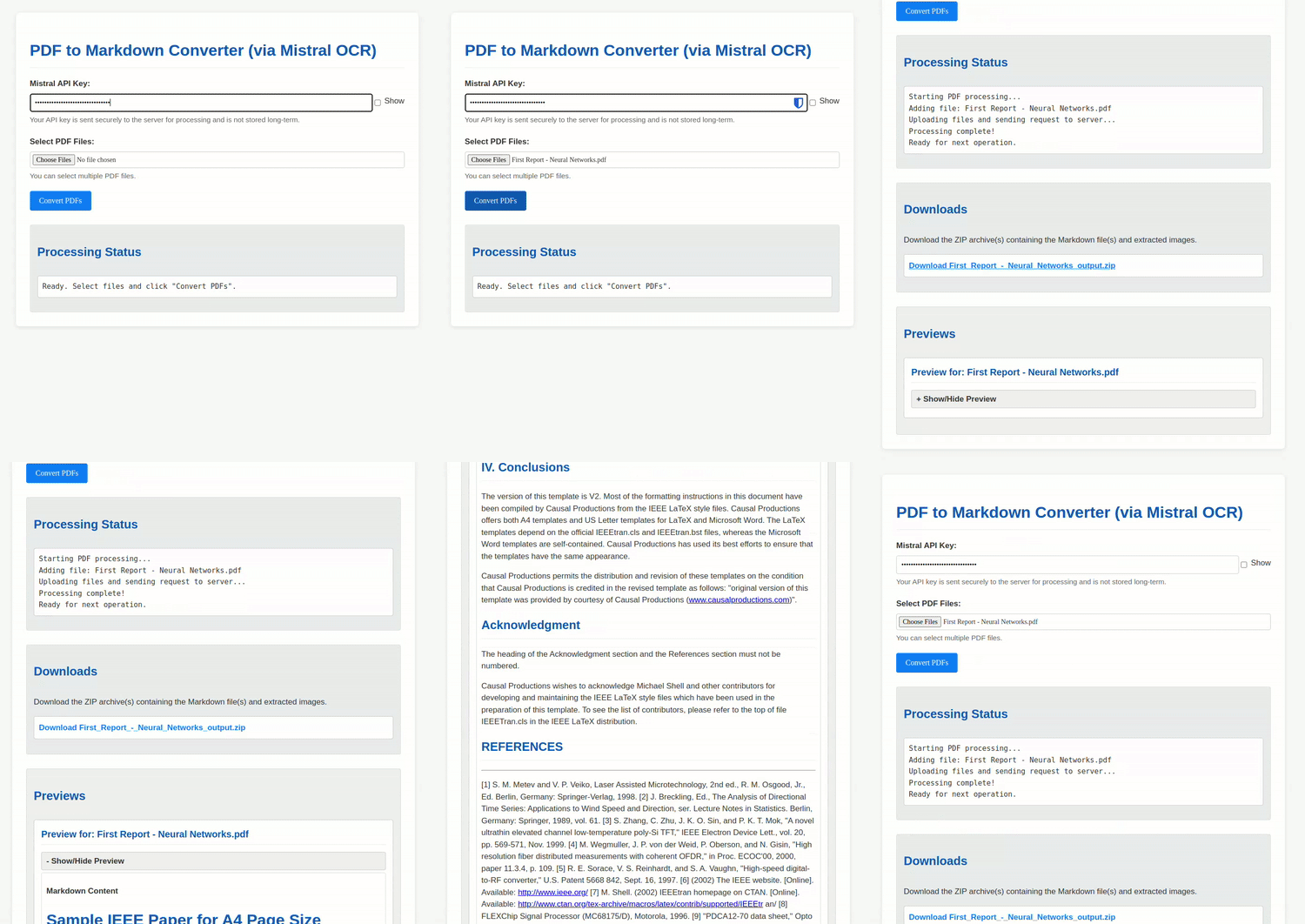
pip install -r requirements.txt    # (I recommend creating a virtual environment to not clutter your OS)
python app.py
Then open your browser at http://localhost:5000/
Customizing Page Separators
The app inserts --- between PDF pages by default. Set the PAGE_SEPARATOR environment
variable to change this text or leave it empty to merge pages without separators.
The web interface also lets you toggle and edit the separator before processing.
Jupyter Notebook
Installation
Ensure you have Python 3.9+. Then install dependencies:
pip install mistralai jupyter python-dotenv
Usage
1. Set Up API Key
Before running the notebook, get your free API key from Mistral's API Key Console. It's free.
Edit the env.example with your key, rename it to .env and you're good to go.
Or set it manually:
export MISTRAL_API_KEY='your_api_key_here'  # For Linux/macOS
set MISTRAL_API_KEY='your_api_key_here'    # For Windows
2. Open the Notebook
jupyter notebook pdf-markdown-ocr.ipynb
Or open the Notebook file directly in your IDE.
3. Place PDFs in pdfs_to_process
Before first use, create a pdfs_to_process folder in the project directory and drop your PDFs in there.
4. Run the Notebook
Go cell by cell and make sure everything runs as expected.
5. Output Structure
Each processed PDF gets its own folder inside ocr_output, structured like this:
ocr_output/
  ├── MyDocument/
  │   ├── output.md            # Extracted markdown with wikilinks
  │   ├── ocr_response.json    # Raw OCR response (for reuse)
  │   ├── images/
  │   │   ├── MyDocument_img_1.jpeg
  │   │   ├── MyDocument_img_2.jpeg
pdfs-done/
  ├── MyDocument.pdf  # Moved here after OCR completion
6. Move Output to Obsidian Vault
Move the generated output.md file into your Obsidian vault and also move the images to your attachments folder.
Heads up!: For now, Obsidian must be configured to support ![[image-name]] style links. If your setup is different, the script might not work as-is. Feel free to fork and tweak it.
How It Works
- The notebook scans
pdfs_to_processfor PDFs. - Each PDF is uploaded to Mistral AI for OCR processing.
- The text is extracted and saved as markdown (
output.md). - Images are extracted, saved in a subfolder, and referenced in the markdown using
![[image-name]]. - The original PDF is moved to
pdfs-doneto avoid duplicate processing. - The full OCR response is saved as JSON for later use.