
bmx666/android-appcachecleaner
关于
Android Cache Cleaner
开发工具实测星标增长
- 24小时
- 0
- 7天
- +8
- 15天
- 正在收集历史
- 1个月
- 正在收集历史
各周期内的星标净变化,周期相互重叠,并非每日新增。缺失的测量保持空白。星标代表关注度,不代表软件质量。
README.md
原文Cache Cleaner
[!IMPORTANT]
Project Status: Maintenance Only
Cache Cleaner is no longer in active development.
The project is in maintenance mode only: it will keep receiving updates to stay compatible with new Android versions for as long as Google keeps the Accessibility Service usable for this purpose. Once a future Android version breaks the Accessibility Service functionality this app depends on, the project will no longer be updated or supported.
Why: this app is free and open-source software, yet it has repeatedly been repackaged, sold and published by others as their own work, without even crediting the original author. Because of this disrespect of FOSS principles, the author has decided to stop development of this project.
Description
Since the release of Android 6 (Marshmallow), the option to clear the cache of all apps at once has been restricted by Google to system apps only. This means that users no longer have the convenience of clearing the cache of all their apps simultaneously. To clear the cache of individual apps, one must manually navigate to each app's "App Info" screen, locate the "Storage" menu, and then select the "Clean cache" button.
To simplify this process and save time, Cache Cleaner requests a list of installed apps on your device and utilizes the Accessibility service to replace the manual steps involved in clearing the cache. This allows for a more convenient and automated process of cache cleaning.
Cache Cleaner provides the added benefit of customizable app lists. This functionality allows you to create personalized lists of specific apps, giving you the flexibility to selectively clear the cache of only the apps you choose.

or get the APK from the Releases Section.
FAQ
- Clear cache process unexpectedly stops -> please read the issue #8
- Clean Cache does not anything -> please read the section Customized Settings UI
VirusTotal shows AhnLab-V3 - PUP/Android.Malct.1180336
The official feedback from AhnLab:
The certificate of the app(SHA2: e83cb39246ba949df1205175cfba3fa6d9852af864a81411b537c7468e2e8aac) has a history of being used by malicious apps.
Therefore, we are diagnosing the file as PUP/Android.Malct.1180336.
Since the certificate is believed to have been leaked, we recommend using the app signed with the new certificate.
Warning ⚠️
Since Android 13 Accessibility APIs is restricted for 3rd party apps, the solution can be found here at the paragraph Allow restricted settings.
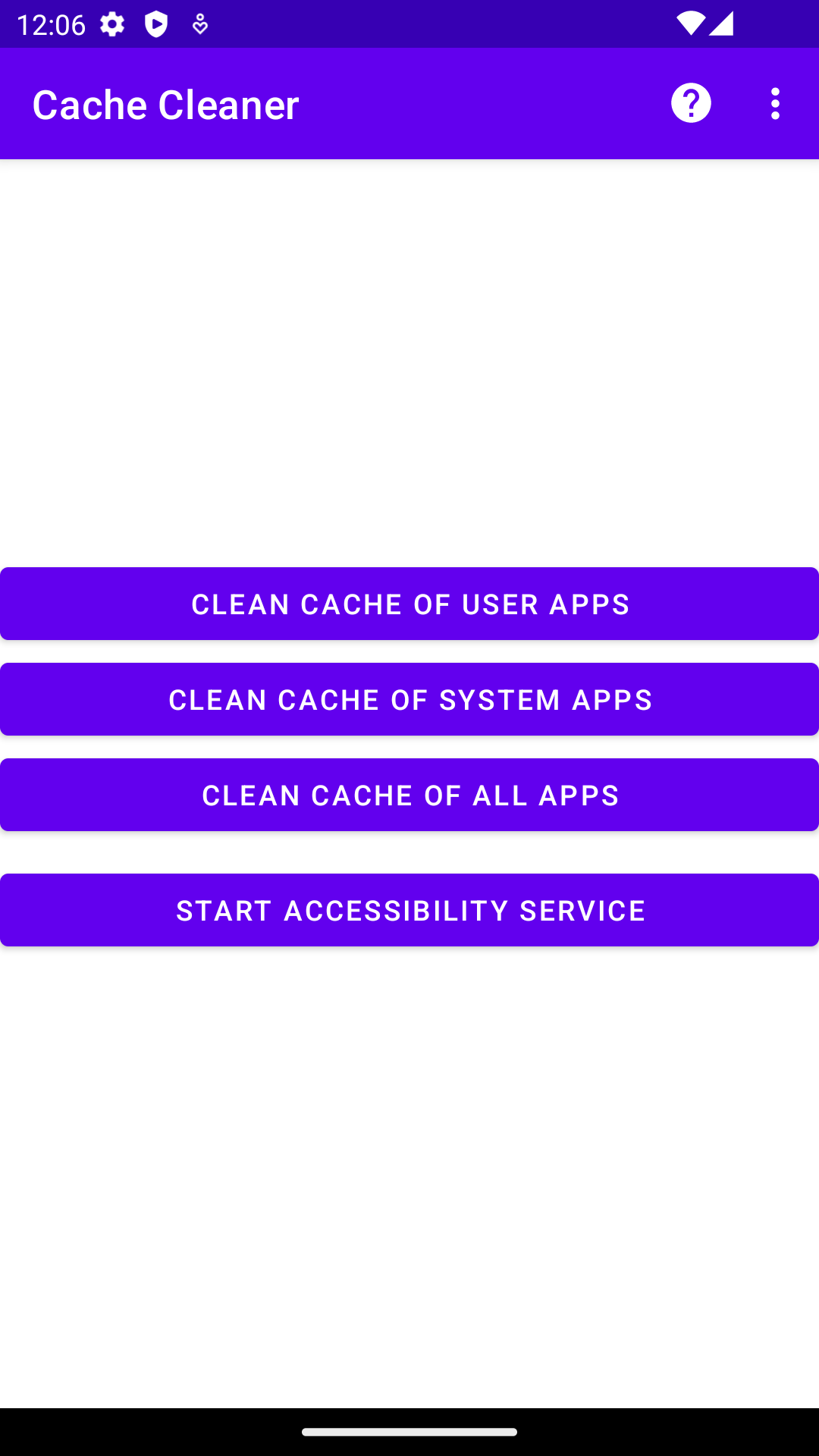
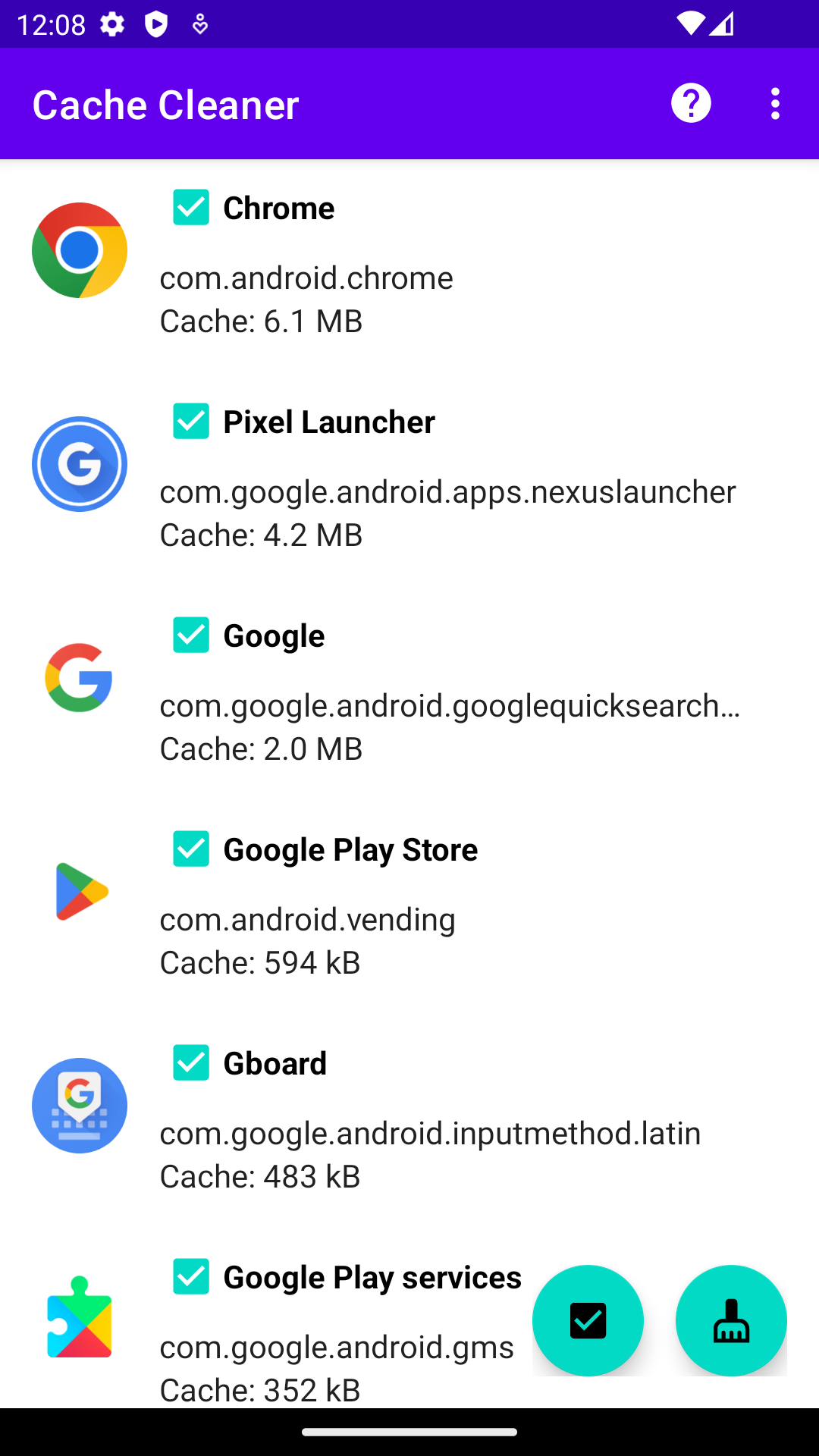
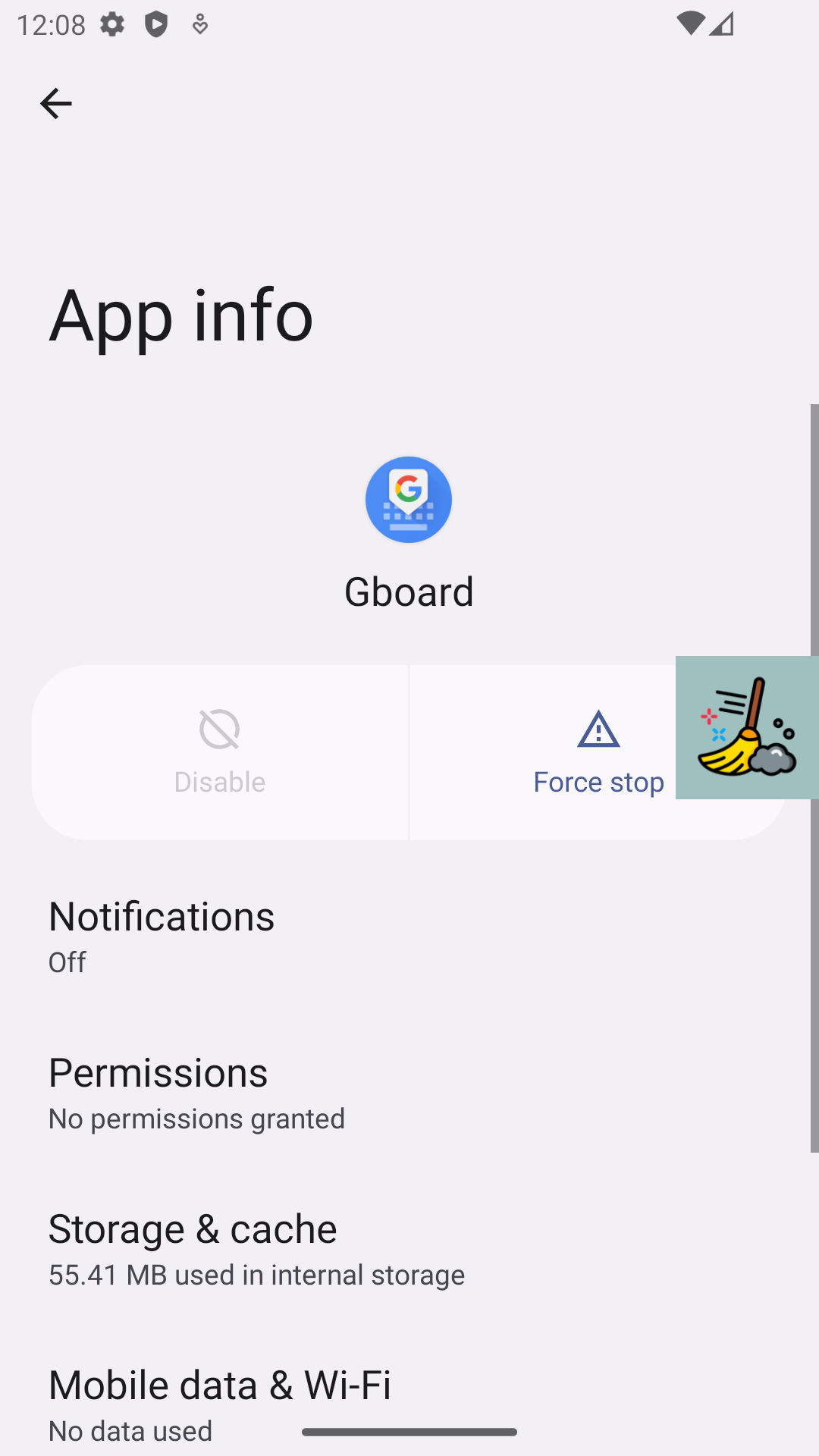
screenshots
| Main Screen | Package list | Cache cleaning process |
|---|---|---|
 |
 |
 |
How to use
- Click clean cache of User Apps, System Apps OR All Apps
- Enable Usage Stats support for Cache Cleaner app if it is required
- Enable Accessibility support for Cache Cleaner app if it is required
- Check required apps in list (use floating button to check/uncheck all apps)
- Press Clean Cache floating button to run cache clean process
- Press Accessibility overlay button to interrupt process OR wait until process will be finished
- (optional) Press Stop Accessibility service to disable Accessibility service
Customized Settings UI
Many companies or Android ROMs add or change default Android UI, including Settings. This can cause an issue because the Cache Cleaner app is looking for specific text and if it doesn't match, the app does nothing.
Please follow the steps below to resolve clear cache issue:
- Select any app and go to "App Info"
- Write down text for "Storage" menu
- Go to "Storage" menu
- Write down text for "Clear Cache" button
- Open Cache Cleaner app with specific locale (change on required locale in Settings and go back into Cache Cleaner app)
- Open Settings menu in the top right corner and find section Add Extra Search Text
- Tap on Clear Cache, enter the custom search text for "Clear Cache" button" in input field and press "OK" to save it. To remove custom search text for "Clear Cache" button" just erase a whole text in input field and press "OK"
- Tap on Storage, enter the custom search text for "Storage" menu" in input field and press "OK" to save it. To remove custom search text for "Storage" menu" just erase a whole text in input field and press "OK"
Xiaomi smartphones with specific regional MIUI firmware must use the different clear cache scenario:
- Open Settings menu in the top right corner and find section Other
- Click Clear cache scenario and select Xiaomi MIUI
ATTENTION ⚠️: Huawei and Xiaomi smartphones often use aggressive battery optimization that can disrupt communication between Cache Cleaner and the Accessibility service, preventing them from working as expected. Please follow the steps below:
- Open Settings menu in the top right corner and find section Show extra buttons
- Enable option Start/Stop Accessibility service
- The next time you start Cache Cleaner, if the Accessibility service is running, stop it by clicking Stop Accessibility service button. Then, enable it again by clicking Start Accessibility service button
Icon copyright
Broom icon created by Smashicons - Flaticon
Support my project



探索相关项目
加载中…