
bannzai/SpreadsheetView
bannzai/SpreadsheetView has 3,533 GitHub stars and 475 forks. GitHot measured 0 stars in 24 hours, +1 in 7 days, and +1 in 15 days. Last checked 2026-11-24 05:31 UTC. Last push 2024-05-10.
可以做什么
- Fixed column and row headers
- Circular infinite scrolling automatically
- Customize gridlines and borders for each cell
- Customize inter cell spacing vertically and horizontally
实测星标增长
- 24小时
- 0
- 7天
- +1
- 15天
- +1
- 1个月
- 正在收集历史
各周期内的星标净变化,周期相互重叠,并非每日新增。缺失的测量保持空白。星标代表关注度,不代表软件质量。
关于
面向 iOS 应用的高度可配置电子表格视图界面。借助此框架,可以像使用 Excel 一样轻松创建日程安排、甘特图或时间表等复杂布局。
开发工具README.md
原文



Full configurable spreadsheet view user interfaces for iOS applications. With this framework, you can easily create complex layouts like schedule, Gantt chart, timetable as if you are using Excel.
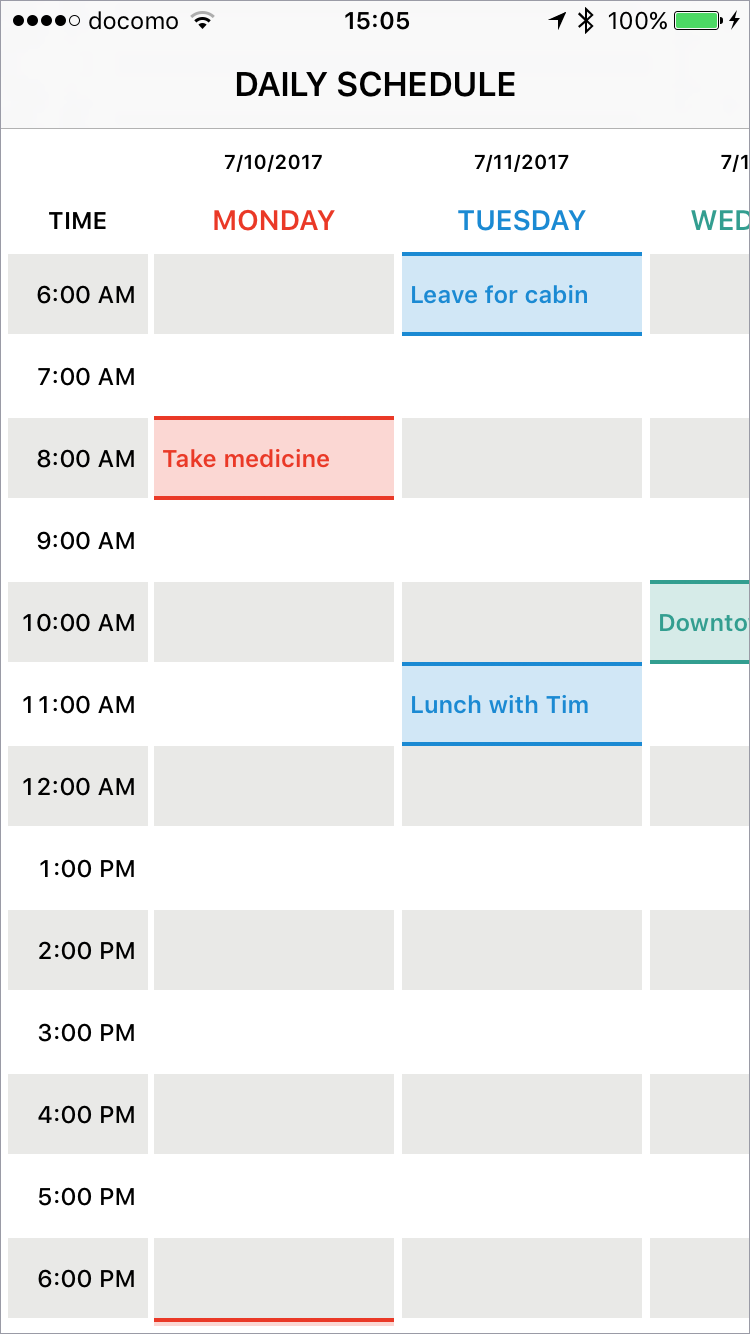
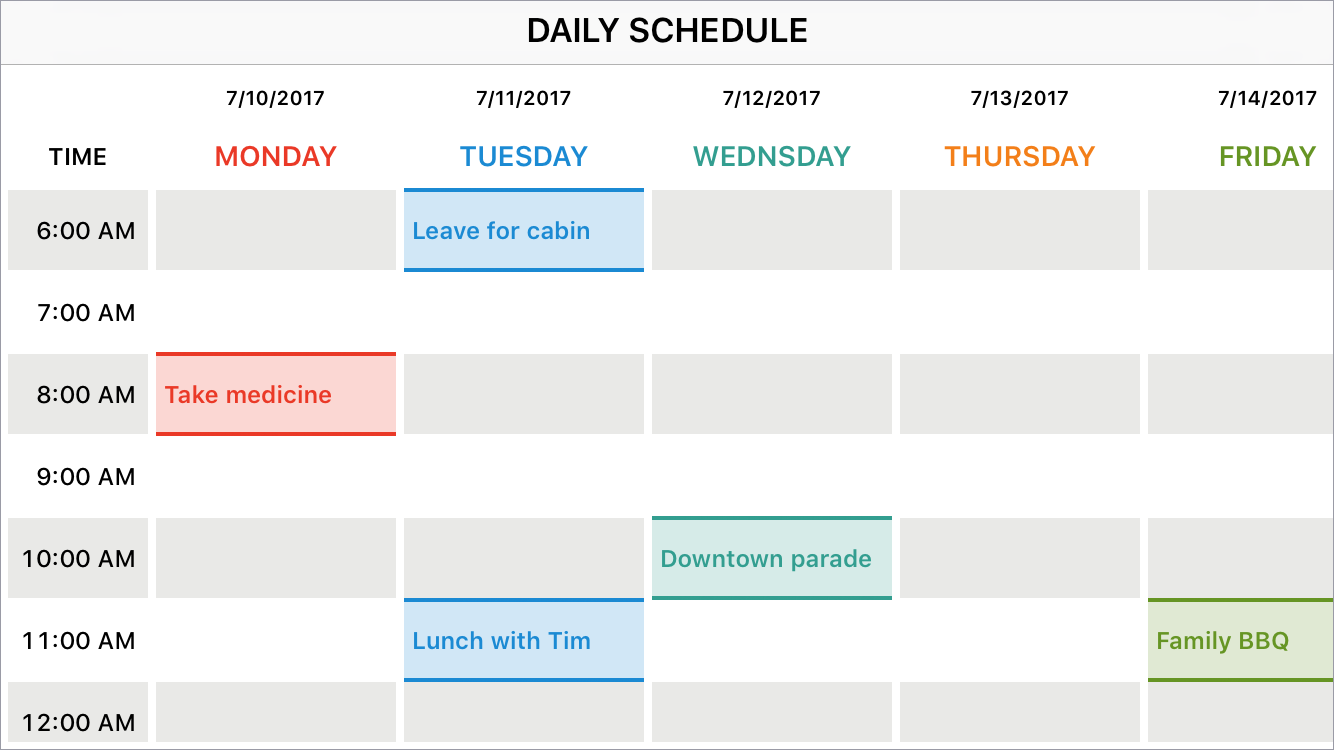
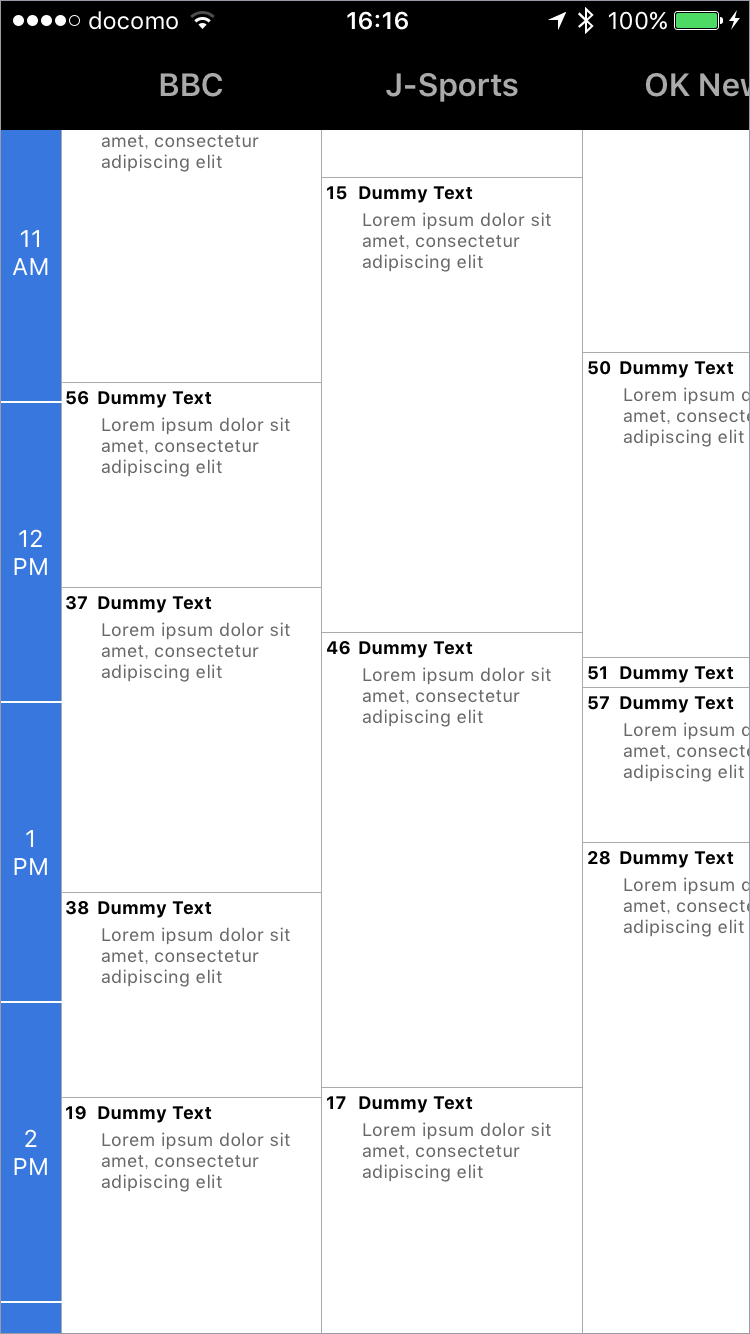
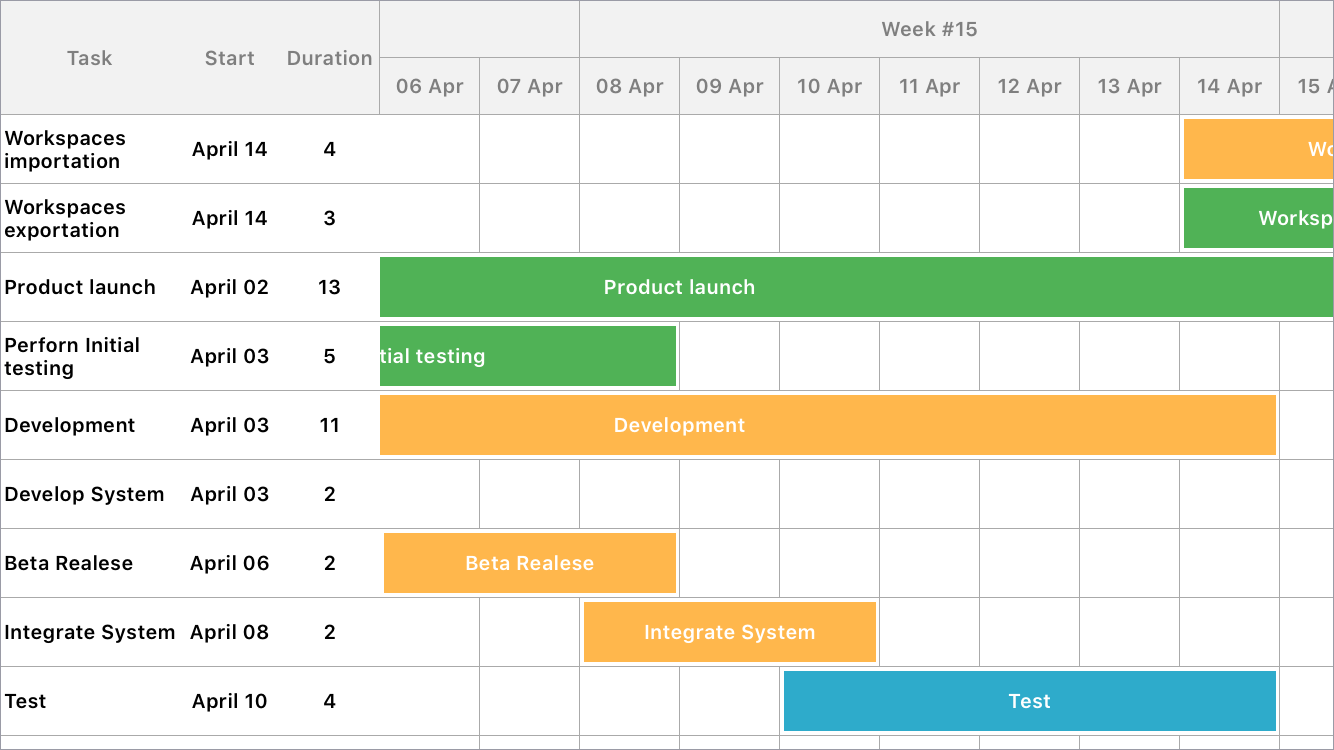
Features
- Fixed column and row headers
- Merge cells
- Circular infinite scrolling automatically
- Customize gridlines and borders for each cell
- Customize inter cell spacing vertically and horizontally
- Fast scrolling, memory efficient
-
UICollectionViewlike API - Well unit tested
Find the above displayed examples in the Examples folder.
Requirements
SpreadsheetView is written in Swift 5. Compatible with iOS 9.0+
Installation
CocoaPods
SpreadsheetView is available through CocoaPods. To install it, simply add the following line to your Podfile:
pod 'SpreadsheetView'
Carthage
For Carthage, add the following to your Cartfile:
github "kishikawakatsumi/SpreadsheetView"
Getting Started
The minimum requirement is connecting a data source to return the number of columns/rows, and each column width/row height.
import UIKit
import SpreadsheetView

class ViewController: UIViewController, SpreadsheetViewDataSource {
    @IBOutlet weak var spreadsheetView: SpreadsheetView!

    override func viewDidLoad() {
        super.viewDidLoad()
        spreadsheetView.dataSource = self
    }

    func numberOfColumns(in spreadsheetView: SpreadsheetView) -> Int {
        return 200
    }

    func numberOfRows(in spreadsheetView: SpreadsheetView) -> Int {
        return 400
    }

    func spreadsheetView(_ spreadsheetView: SpreadsheetView, widthForColumn column: Int) -> CGFloat {
      return 80
    }

    func spreadsheetView(_ spreadsheetView: SpreadsheetView, heightForRow row: Int) -> CGFloat {
      return 40
    }
}
Usage
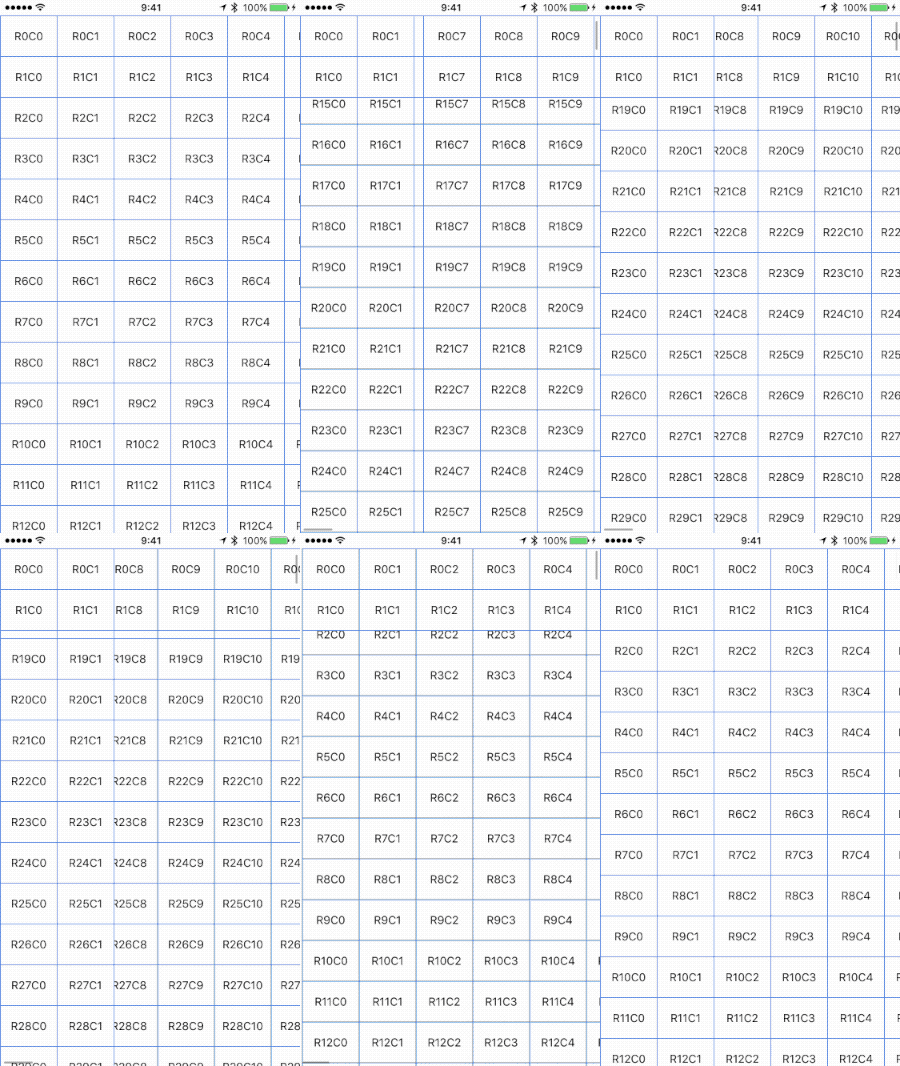
Freeze column and row headers
Freezing a column or row behaves as a fixed column/row header.
Column Header
func frozenColumns(in spreadsheetView: SpreadsheetView) -> Int {
    return 2
}
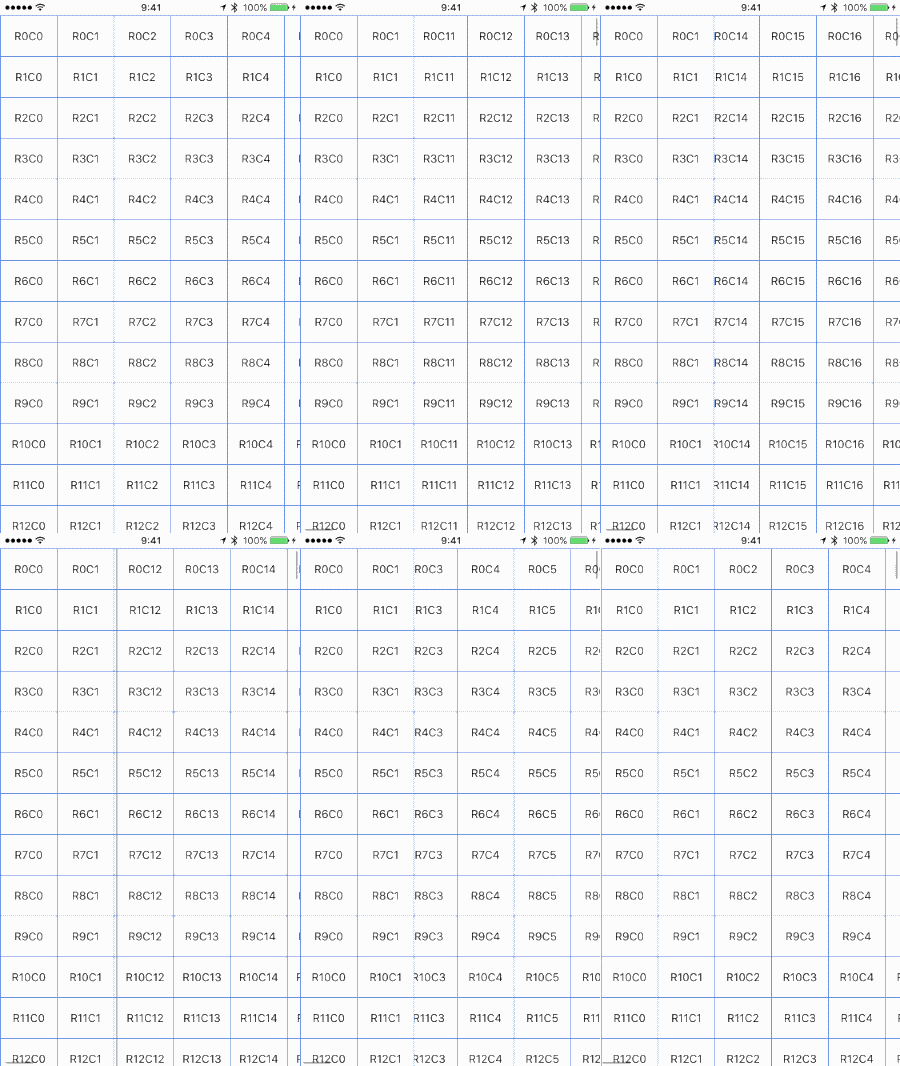
Row Header
func frozenRows(in spreadsheetView: SpreadsheetView) -> Int {
    return 2
}
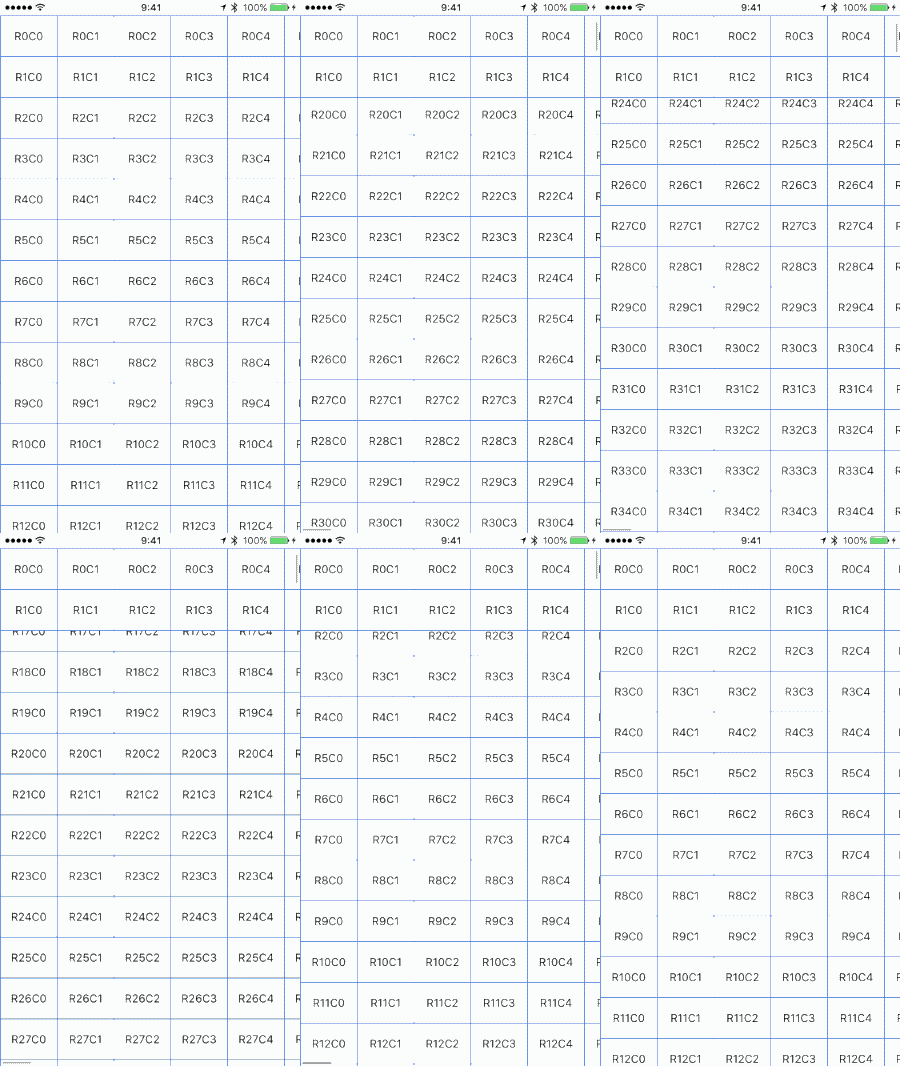
both
func frozenColumns(in spreadsheetView: SpreadsheetView) -> Int {
    return 2
}

func frozenRows(in spreadsheetView: SpreadsheetView) -> Int {
    return 2
}
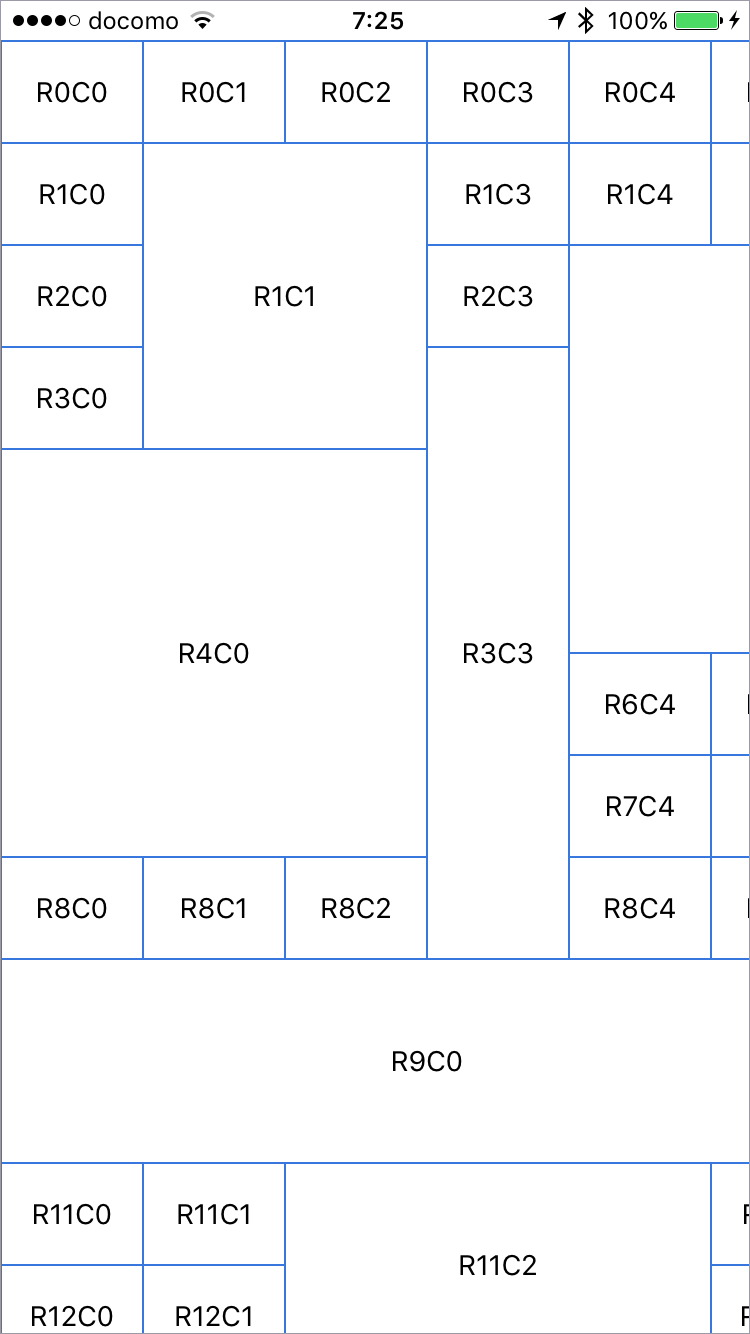
Merge cells
Multiple cells can be merged and then they are treated as one cell. It is used for grouping cells.
func mergedCells(in spreadsheetView: SpreadsheetView) -> [CellRange] {
    return [CellRange(from: (row: 1, column: 1), to: (row: 3, column: 2)),
            CellRange(from: (row: 3, column: 3), to: (row: 8, column: 3)),
            CellRange(from: (row: 4, column: 0), to: (row: 7, column: 2)),
            CellRange(from: (row: 2, column: 4), to: (row: 5, column: 8)),
            CellRange(from: (row: 9, column: 0), to: (row: 10, column: 5)),
            CellRange(from: (row: 11, column: 2), to: (row: 12, column: 4))]
}
Circular Scrolling
Your table acquires infinite scroll just set circularScrolling property.
Enable horizontal circular scrolling
spreadsheetView.circularScrolling = CircularScrolling.Configuration.horizontally
Enable vertical circular scrolling
spreadsheetView.circularScrolling = CircularScrolling.Configuration.vertically
Both
spreadsheetView.circularScrolling = CircularScrolling.Configuration.both
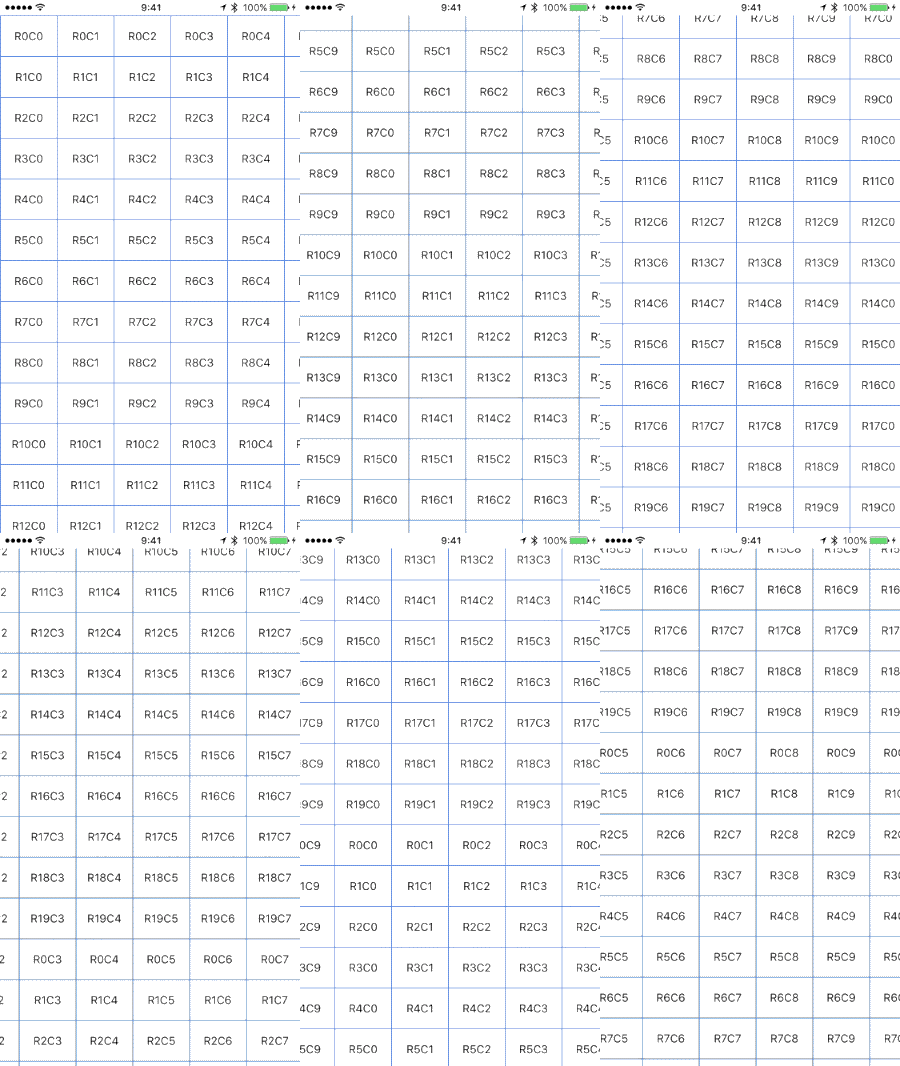
If circular scrolling is enabled, you can set additional parameters that the option not to repeat column/row header and to extend column/row header to the left/top edges. CircularScrolling.Configuration is a builder pattern, can easily select the appropriate combination by chaining properties.
e.g.
spreadsheetView.circularScrolling =
    CircularScrolling.Configuration.horizontally.columnHeaderNotRepeated
spreadsheetView.circularScrolling =
    CircularScrolling.Configuration.both.columnHeaderStartsFirstRow
Customize gridlines, borders and cell spacing
You can customize the appearance of grid lines and borders of the cell. You can specify whether a cell has a grid line or border. Grid lines and borders can be displayed on the left, right, top, or bottom, or around all four sides of the cell.
The difference between gridlines and borders is that the gridlines are drawn at the center of the inter-cell spacing, but the borders are drawn to fit around the cell.
Cell spacing
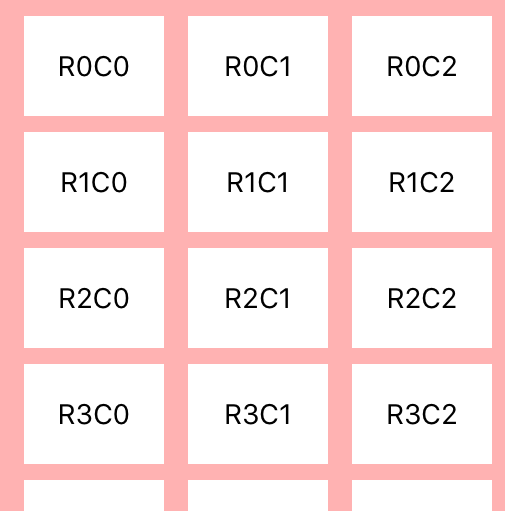
spreadsheetView.intercellSpacing = CGSize(width: 1, height: 1)
Gridlines
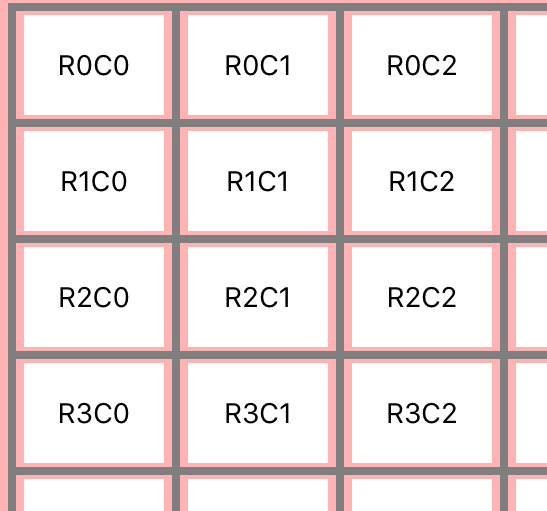
SpreadsheetView's gridStyle property is applied to the entire table.
spreadsheetView.gridStyle = .solid(width: 1, color: .lightGray)
You can set different gridStyle for each cell and each side of the cell. If you set cell's gridStyle property to default, SpreadsheetView's gridStyle property will be applied. Specify none means the grid will not be drawn.
cell.gridlines.top = .solid(width: 1, color: .blue)
cell.gridlines.left = .solid(width: 1, color: .blue)
cell.gridlines.bottom = .none
cell.gridlines.right = .none
Border
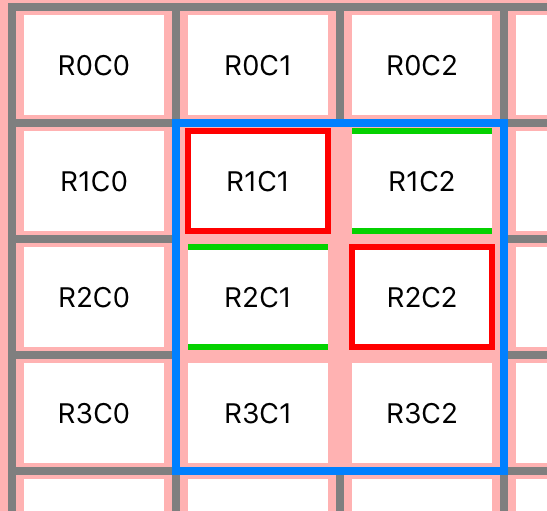
You can set different borderStyle for each cell as well.
cell.borders.top = .solid(width: 1, color: .red)
cell.borders.left = .solid(width: 1, color: .red)
cell.borders.bottom = .solid(width: 1, color: .red)
cell.borders.right = .solid(width: 1, color: .red)
Author
Kishikawa Katsumi, [email protected]
License
SpreadsheetView is available under the MIT license. See the LICENSE file for more info.
探索相关项目
加载中…