
aryaxt/iOS-Rich-Text-Editor
关于
适用于 iOS 的富文本编辑器
开发工具实测星标增长
- 24小时
- 0
- 7天
- 0
- 15天
- 正在收集历史
- 1个月
- 正在收集历史
各周期内的星标净变化,周期相互重叠,并非每日新增。缺失的测量保持空白。星标代表关注度,不代表软件质量。
README.md
原文RichTextEditor-iOS 
RichTextEditor for iPhone & iPad
Features:
- Bold
- Italic
- Underline
- StrikeThrough
- Font
- Font size
- Text background color
- Text foregroud color
- Text alignment
- Paragraph Indent/Outdent
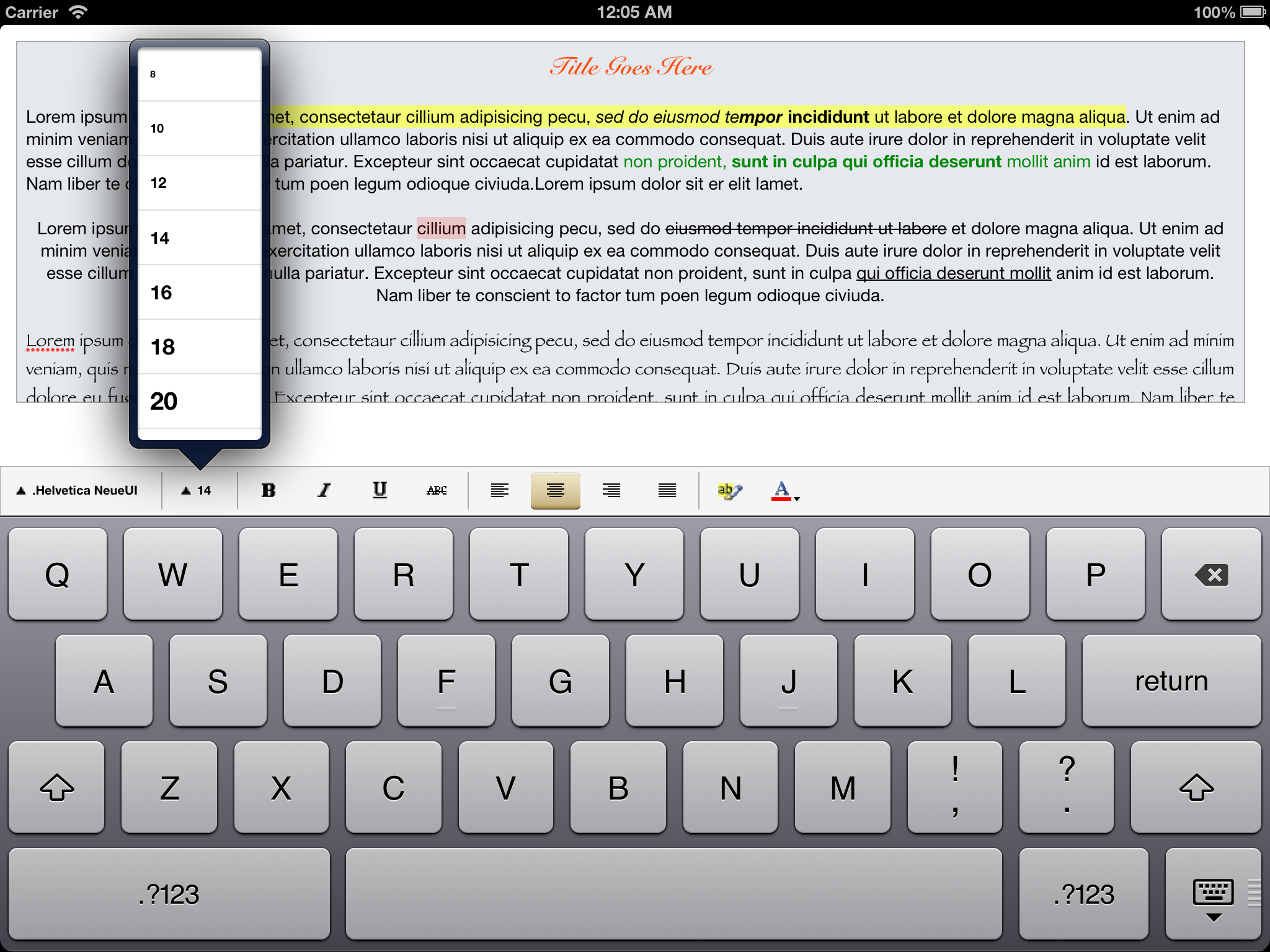

Custom Font Size Selection
Font size selection can be customized by implementing the following data source method
- (NSArray *)fontSizeSelectionForRichTextEditor:(RichTextEditor *)richTextEditor
{
	// pas an array of NSNumbers
	return @[@5, @10, @20, @30];
}
Custom Font Family Selection
Font family selection can be customized by implementing the following data source method
- (NSArray *)fontFamilySelectionForRichTextEditor:(RichTextEditor *)richTextEditor
{
	// pas an array of Strings
  // Can be taken from [UIFont familyNames]
	return @[@"Helvetica", @"Arial", @"Marion", @"Papyrus"];
}
Presentation Style
You can switch between popover, or modal (presenting font-picker, font-size-picker, color-picker dialogs) by implementing the following data source method
- (RichTextEditorToolbarPresentationStyle)presentarionStyleForRichTextEditor:(RichTextEditor *)richTextEditor
{
  // RichTextEditorToolbarPresentationStyleModal Or RichTextEditorToolbarPresentationStylePopover
	return RichTextEditorToolbarPresentationStyleModal;
}
Modal Presentation Style
When presentarionStyleForRichTextEditor is a modal, modal-transition-style & modal-presentation-style can be configured
- (UIModalPresentationStyle)modalPresentationStyleForRichTextEditor:(RichTextEditor *)richTextEditor
{
	return UIModalPresentationFormSheet;
}

- (UIModalTransitionStyle)modalTransitionStyleForRichTextEditor:(RichTextEditor *)richTextEditor
{
	return UIModalTransitionStyleFlipHorizontal;
}
Customizing Features
Features can be turned on/off by iplementing the following data source method
- (RichTextEditorFeature)featuresEnabledForRichTextEditor:(RichTextEditor *)richTextEditor
{
   return RichTextEditorFeatureFont |
          RichTextEditorFeatureFontSize |
          RichTextEditorFeatureBold |
          RichTextEditorFeatureParagraphIndentation;
}
Enable/Disable RichText Toolbar
You can hide the rich text toolbar by implementing the following method. This method gets called everytime textView becomes first responder. This can be usefull when you don't want the toolbar, instead you want to use the basic features (bold, italic, underline, strikeThrough), thoguht the UIMeMenuController
- (BOOL)shouldDisplayToolbarForRichTextEditor:(RichTextEditor *)richTextEditor
{
   return YES;
}
Enable/Disable UIMenuController Options
On default the UIMenuController options (bold, italic, underline, strikeThrough) are turned off. You can implement the follwing method if you want these features to be available through the UIMenuController along with copy/paste/selectAll etc.
- (BOOL)shouldDisplayRichTextOptionsInMenuControllerForRichTextrEditor:(RichTextEditor *)richTextEdiotor
{
   return YES;
}
Credits
iPhone popover by werner77 https://github.com/werner77/WEPopover
探索相关项目
加载中…