
IgorCoraine/TIA_Add-In_VCI_Git_Connector
IgorCoraine/TIA_Add-In_VCI_Git_Connector has 27 GitHub stars and 1 forks. Star changes are not measured yet. Last checked 2026-11-14 02:23 UTC. Last push 2026-09-11.
实测星标增长
- 24小时
- 正在收集历史
- 7天
- 正在收集历史
- 15天
- 正在收集历史
- 1个月
- 正在收集历史
各周期内的星标净变化,周期相互重叠,并非每日新增。缺失的测量保持空白。星标代表关注度,不代表软件质量。
关于
This TIA Add-In allows you to connect your VCI workspace to a Git repository
开发工具README.md
原文TIA_Add-In_VCI_Git_Connector
This TIA Add-In allows you to connect your VCI workspace at TIA Portal to a Git repository
Summary
- About this Project
- How to Use (Installation)
- Functions Documentation
- 3.1 Add
- 3.2 Commit
- 3.3 Log
- 3.4 Status
- 3.5 Reset
- 3.6 Restore
- 3.7 Push
- 3.8 Pull
- 3.9 Free Command
- 3.10 Export Log
- 3.11 Init
- 3.12 Ignore
- 3.13 Clone
- 3.14 Archive and Push
- 3.15 Add/Set Origin
- 3.16 Settings
1. About this Project
This is a TIA Add-In, which is a way to embed functions into your TIA Portal. No additional external applications are required to run TIA Add-Ins (See how to use it on item 2).
This project is based on a Siemens AG - SIMATIC Systems Support project: 109773999_TIA_Add-In_VCI_Git_Connector_1.0.0_CODE, to which functions were added and modified.
With this Add-In you can connect the Version Control Interface of TIA with a git repository and then use all git's power on your project.
1.1 Requirements
- Basic knowledge of Git
- Basic knowledge of TIA Portal
1.2 Supporting Documentations
- VCI Documentation | Using TIA Portal Version Control Interface
- Git Documentation
- Add-In Documentation | Extending TIA Portal functions with add-ins
2. How to Use (Installation)
Follow the steps below
2.1 Installation Requirements
- TIA V16, V17 or V18 installed - V18 TRIAL Download
- Git installed - Latest source Release Download
2.2 Add-In Download
- Version 1.0.0 - VCIGitConnector.addin
2.3 Save .addin File to Correct Location
No installation is required to run the Add-In. You just have to copy the .addin file downloaded above to your AddIns folder.
The AddIns folder is found inside your TIA Portal Installation directory. The standard location is
C:\Program Files\Siemens\Automation\Portal V17\AddIns
When you paste it you will be asked for administrator permission, you just have to confirm if you are already logged in as a Windows administrator.
2.4 Activation
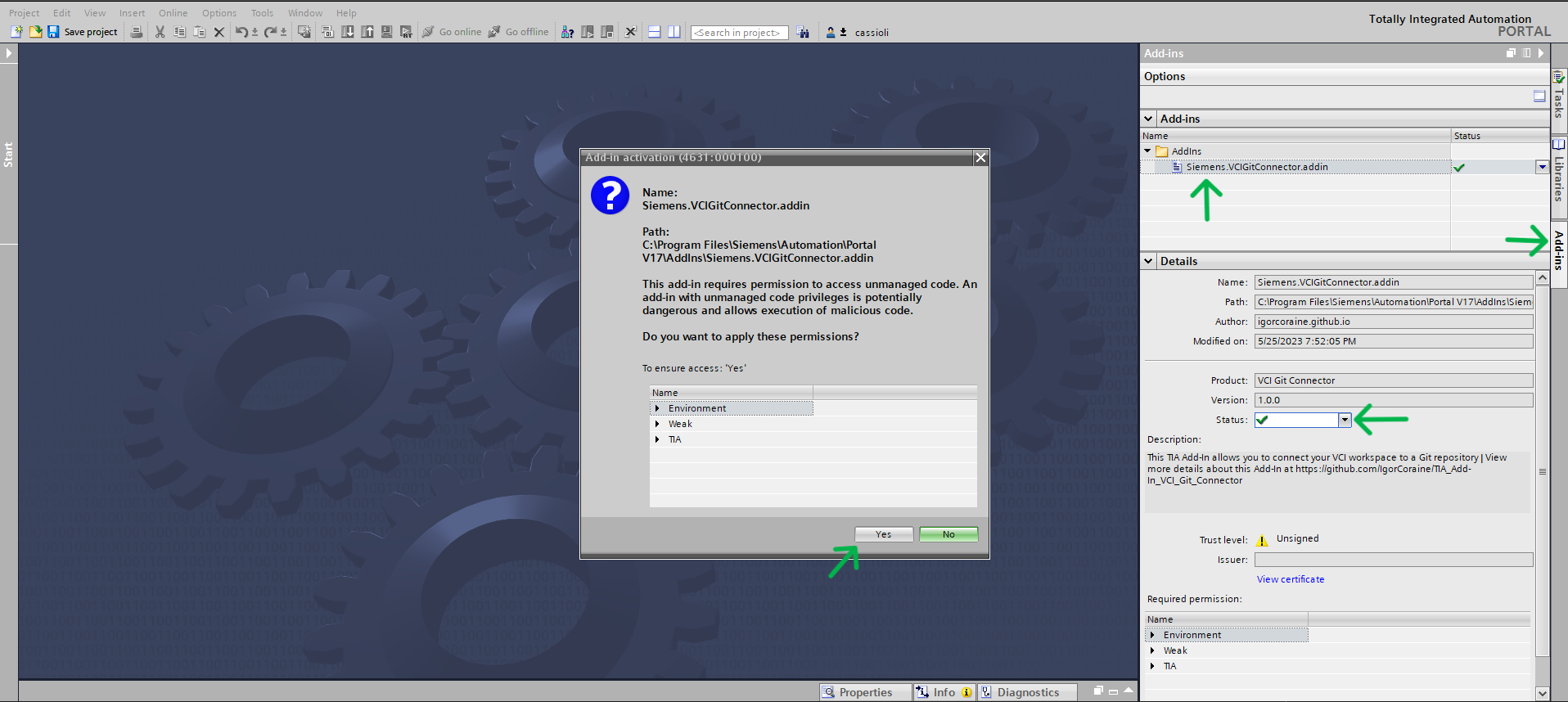
After copying the file, open your TIA Portal and open the project view. On the right of the screen open the Add-ins tab, select VCIGitConnector.addin, and change the status to Activate. You will be asked to apply permissions, click Yes to Activate the Add-In.
2.5 Configuring the Workspace
If you followed the steps above, your Add-In is active on your TIA Portal, independently from the TIA project.
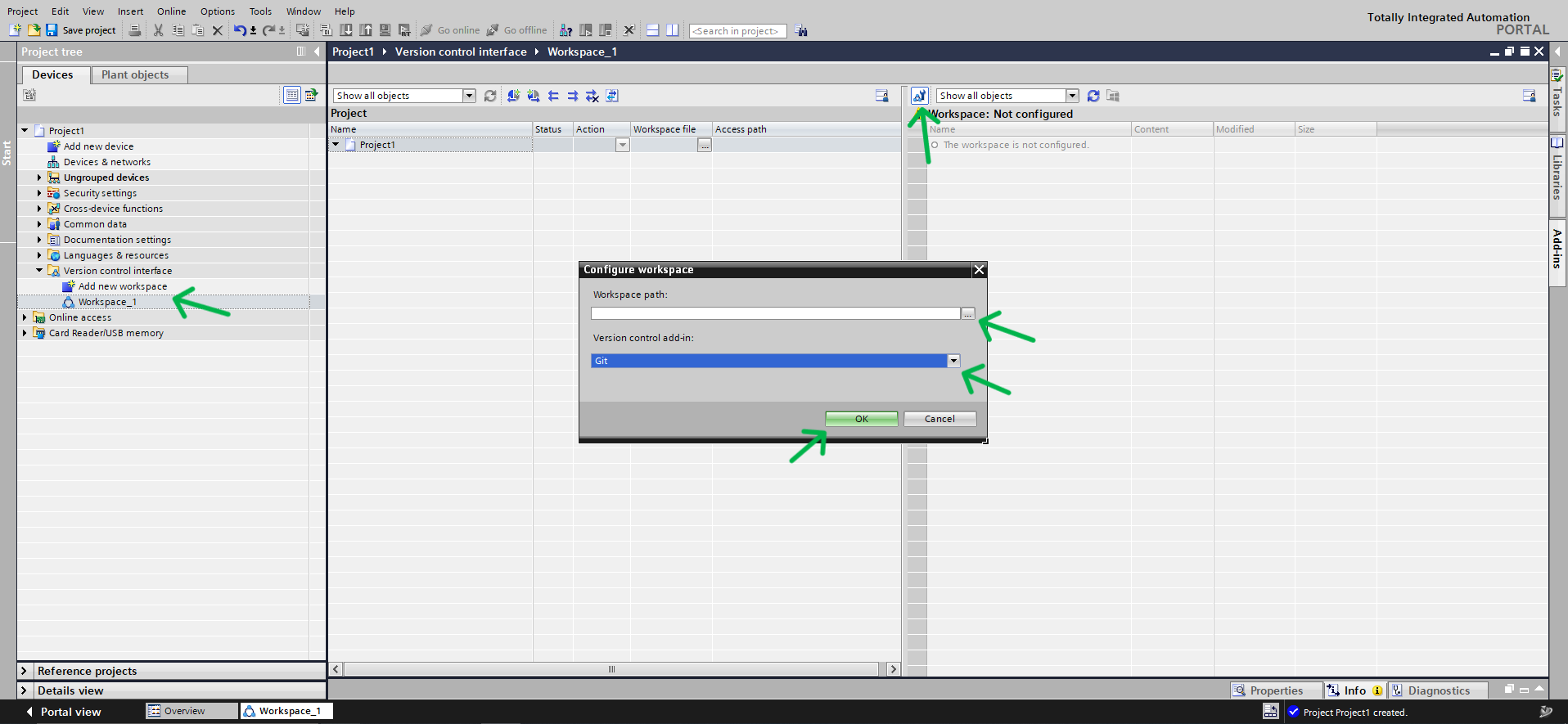
To use Git on your project, create a VCI workspace, configure the repository folder, and select Git as the Version control add-in.
2.6 Using VCI and Git
2.6.1 VCI
To add files from your project to your VCI repository or from your repository to your project, simply drag and drop the files or folders.
To see what can be used with VCI check the specific documentation in item 1.2.
2.6.2 Git
The Git is going to work at the VCI repository making it a Git repository as well. To use any functions you must have at least one file to the configured repository or drag and drop something from the project to the repository.
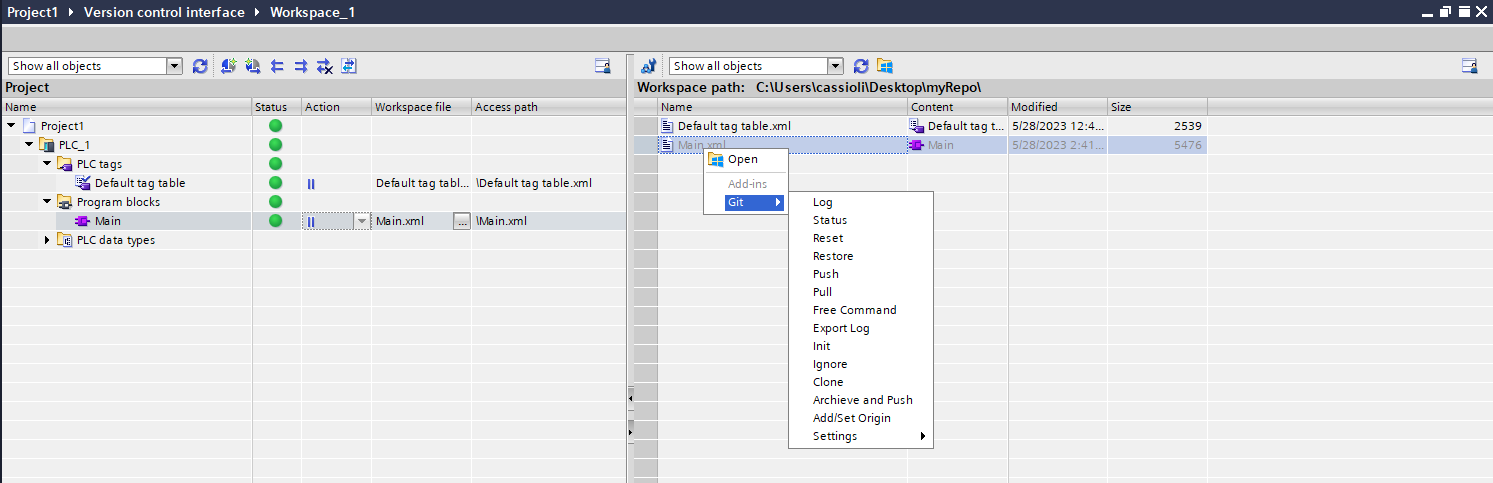
To use the functions right click any of the files or folders on the repository side and choose the command you want, you can select more than one object to apply the command. Check the functions at item 3. To learn more about Git check the specific documentation in item 1.2.
3. Functions Documentation
The commands may differ a little bit from Git's original terminal commands, for example combining more than one command, therefore is recommended to read the documentation before use.
Git commands will not be explained in this documentation. To learn more about Git commands refer to item 1.2.
3.1 Add
Adds the selected objects
git add 'selected objects'
Returns successful or error message on a pop-up
3.2 Commit
Commits the selected objects
git commit 'selected objects' -m "given message"
A commit message will be requested on a pop-up
Returns successful or error message on a pop-up
3.3 Log
Shows resumed log
git log --oneline
Returns the log or error message on a pop-up
3.4 Status
Shows repository status
git status
Returns the status or error message on a pop-up
3.5 Reset
Resets the selected objects
git reset HEAD 'selected objects'
Returns successful or error message on a pop-up
3.6 Restore
Restores the selected objects
git restore 'selected objects'
A confirmation will be requested on a pop-up
Returns successful or error message on a pop-up
3.7 Push
Pushes the repository
git push
Returns successful or error message on a pop-up
It is necessary to add remote origin first
3.8 Pull
Pulls the repository
git pull
Returns successful or error message on a pop-up
It is necessary to add remote origin first
3.9 Free Command
Allows you to execute any git command
The command will be requested on a pop-up and must be written without the 'git'
git 'passed command'
Returns successful or error message on a pop-up
3.10 Export Log
Exports an HTML file with git's log
If a file gitLog.html already exists, it will be overwritten
git log
Returns successful or error message on a pop-up
Creates a gitLog.html file on the current directory
3.11 Init
Initiates a git repository and configures the user
git init
git config user.name 'given name'
git config user.email 'given email'
User name and email will be requested on a pop-up
Returns successful or error message on a pop-up
3.12 Ignore
Ignores the selected files
If the file .ignore doesn't exist, it will be created on the current directory
If the file .ignore exists, the file will be added to the end of it
3.13 Clone
Clones a remote repository
git clone 'given URL'
The remote repository address will be requested on a pop-up
Returns successful or error message on a pop-up
3.14 Archive and Push
Archives the current project to the repository directory, adds, commit, and pushes the changes
project.save()
project.archive()
git add .
git commit -m "Added archived project"
git push
3.15 Add/Set Origin
Adds remote Origin
If Origin already exists, set-url for remote Origin
git remote add origin 'given URL'
git remote set-url origin 'given URL'
The remote origin address will be requested on a pop-up
Returns successful or error message on a pop-up
3.16 Settings
Here you can set up some default configurations
3.16.1 Commit on VCI synchronize
Commits the added files to VCI automatically
git add .
git commit -m 'given message'
A commit message will be requested on a pop-up
Returns successful or error message on a pop-up
3.16.2 Push on VCI synchronize
Commit and pushes the added files to VCI automatically
git add .
git commit -m 'given message'
git push
A commit message will be requested on a pop-up
Returns successful or error message on a pop-up
It is necessary to add remote origin first