
zendegani/XClipper
zendegani/XClipper has 71 GitHub stars and 10 forks. GitHot measured +4 in 7 days. Last checked 2026-11-15 22:17 UTC. Last push 2026-11-07.
Measured star growth
- in 24h
- Update delayed
- in 7 days
- +4
- in 15 days
- Update delayed
- in 1 month
- Update delayed
Net star changes over overlapping periods, not daily totals. Missing measurements are left blank. Stars measure attention, not software quality.
About
The high-fidelity X / Twitter web clipper — save posts, threads & articles to Markdown, PDF, HTML, JSON, CSV & Obsidian, with images & video saved as local files, one at a time or in batch. Featured on the Chrome Web Store and 2,000+ users.
ProductivityREADME.md
Original



The high-fidelity X / Twitter web clipper — save posts, threads & articles to Markdown, PDF, HTML, JSON, CSV & Obsidian, with images & video saved as local files, one at a time or in batch.






Why · Features · Install · Usage · For developers
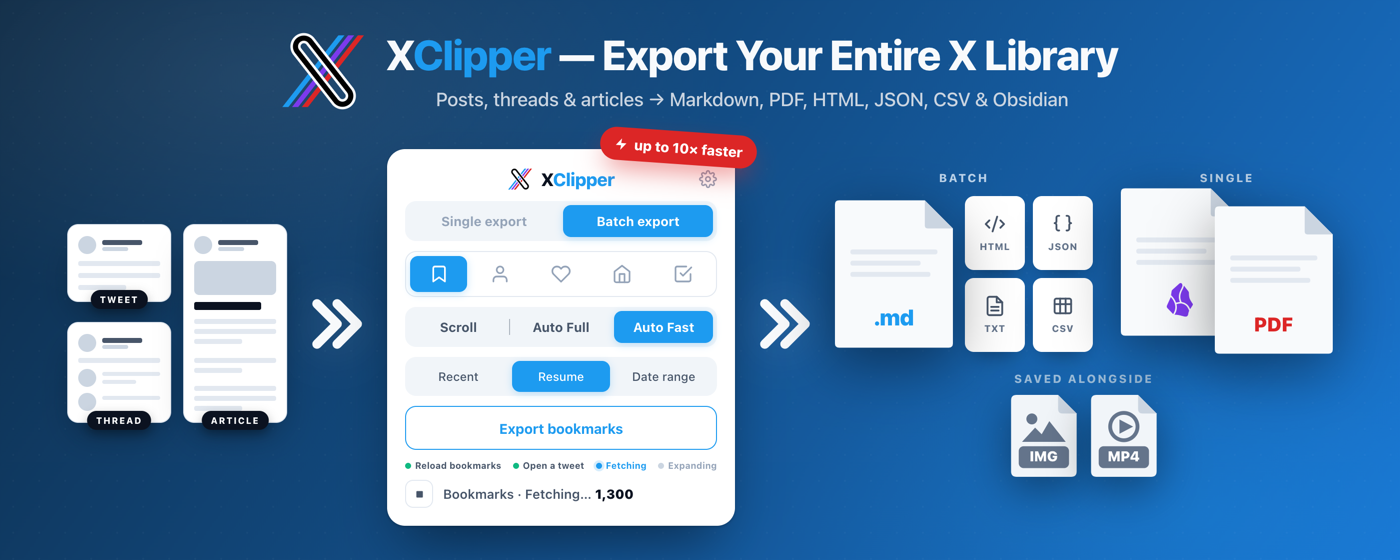
XClipper is a source-available Chrome extension that exports x.com content as Markdown, PDF, HTML, JSON, TXT, CSV, or Obsidian notes — one post at a time, or in batch from your bookmarks, a profile, your likes, your home timeline, or a hand-picked selection. Images, videos, and GIFs come down as real files next to the Markdown — or packed into a single .zip. It runs entirely in your browser: no X API key, no server. Free for noncommercial use (commercial license required to sell or build a paid product on it).
Why XClipper
Most "tweet to markdown" tools run a post through a generic HTML→Markdown converter and stop there. XClipper is built differently, and it shows up in five places:
- Output you won't have to clean up. The DOM is parsed into a typed Content AST before anything is rendered, so structure survives: nested threads, quote tweets, polls, link cards, and full long-form Articles (headings, lists, code blocks) all come through faithfully.
t.colinks are resolved to real URLs, emoji and @mentions stay intact, truncated posts are expanded, and engagement bars, follow prompts, and trackers are stripped. - Real PDFs, not screenshots. PDF export goes through Chrome's native print engine — selectable text, clickable links, embedded images, and full Unicode/emoji — so the result is an actual document, not a flattened image.
- Media saved as files, not links. Images are downloaded next to the Markdown, and each post's video or GIF is saved as a real
.mp4— quoted posts included — with a▶ Videolink in the Markdown pointing at the file, so your notes survive link rot and deleted posts. - Batch, not one-at-a-time. Export your entire Bookmarks, Likes, a Profile, your home Timeline, or a hand-picked Selection in a single background job, with live progress, stop, and dedup — plus the optional Auto Full and Auto Fast engines that pull items straight from your X session for a roughly 10× speed-up.
- 100% local, zero setup. No API keys, no accounts, nothing leaves your browser. Install and clip.
Features
Headline
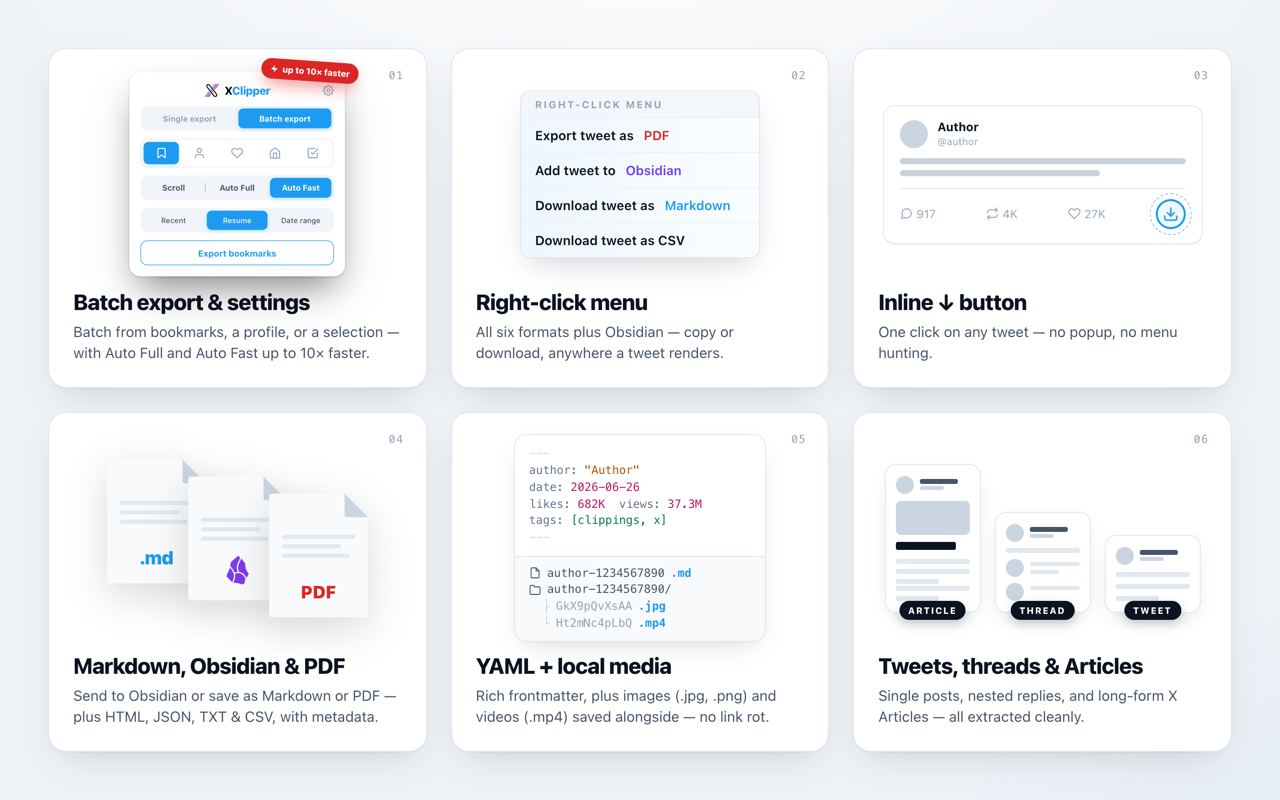
- Batch export — Export many posts at once from five sources via an icon tab strip: Bookmarks, Profile (own posts; reposts skipped), Likes, Timeline (every post loaded in your home feed), or Selection (tick individual tweets with checkboxes on any timeline). Pick the format and the Files: One per post, One for all (a single
x-compilation-<date>file), or Both. Runs in the background (one job at a time) with live progress and stop; Scroll adds a determinate progress bar plus pause / resume (Auto Full and Auto Fast collect open-endedly, so they show a live count instead). Close and reopen the popup mid-job. A dedup ledger skips already-exported items, and you can keep adding newly-scrolled posts to a running job. - Auto Full & Auto Fast engines ⚡ (opt-in) — Two optional accelerated engines for Bookmarks, Profile, and Likes that fetch posts directly through your logged-in X session's internal API instead of rendering each page — roughly 10× faster (minutes → seconds), mapped into the same output so every format and setting works identically. No API key, no password, nothing leaves your browser. Scroll is the default; see the caveats below before switching.
- Six export formats — Save a single post as Markdown, PDF, HTML, JSON, TXT, or CSV, or hand it to Obsidian. Batch jobs support every format except PDF. CSV pairs your metadata columns with a
textcolumn for the post body. - High-fidelity Markdown — Tweets, nested threads, quote tweets, polls, link cards, and X Articles render cleanly via the AST pipeline (no Turndown), with resolved
t.colinks, inlined emoji, and tidy @mentions. - True PDF export — Tweets, threads, and articles printed through Chrome's native engine: selectable text, clickable links, embedded images, full Unicode.
- Obsidian integration — One-click handoff via the
obsidian://URI scheme with optional vault targeting, plus an Obsidian-friendly frontmatter schema ([[@handle]]wikilinks, synthesized title,published/createddates, prose description, and a customizable tags list with{-autocomplete). - Video & GIF downloads — Set local saving to Media and each post's video or animated GIF is saved as an
.mp4beside the Markdown (quoted posts included), linked as▶ Video. Works for a single post and for batch (Auto Full/Auto Fast engines), with Markdown format and One per post files. On Images, embedded pictures come down the same way. - One-file
.zipexport — With Zip files on, a single post lands as one archive holding the Markdown and its media instead of a file plus a sibling folder — one thing to drop into a note, an archive, or an AI chat.
Also included
- Three ways to trigger — Toolbar popup, an inline button on every tweet's action bar, and the right-click context menu.
- Rich YAML frontmatter + field picker — Author, handle, date, source URL, content type, and engagement stats — with per-field toggles, saved separately for the default and Obsidian-friendly schemas.
- Customizable filename template — Placeholders (
{date},{datetime},{handle},{author},{id},{slug},{type}) with a live preview in Settings. - Single-tweet export — Grab one tweet without its thread via the context menu or by Shift/Alt-clicking the inline button.
Plus: copy-to-clipboard or download · optional inline engagement-stats row (💬 284 · 🔁 1.5K · ❤️ 8K · 🔖 253 · 👁 100K) · 6-language UI (extraction works in any language) · light & dark mode.
Inline button — one click on any tweet
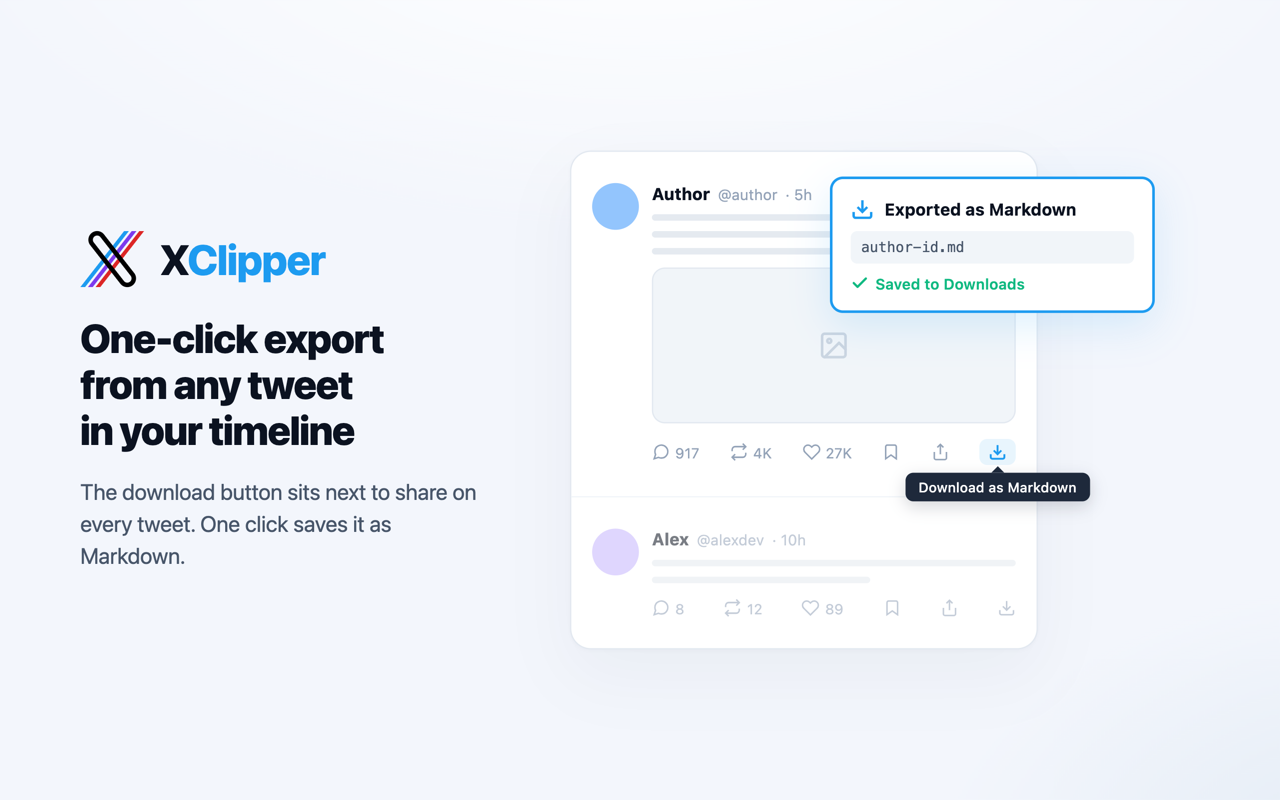
The download icon sits next to share on every tweet. One click opens the permalink in a new tab and exports it automatically. Toggle it to copy instead, and optionally close the tab once done.
Right-click context menu
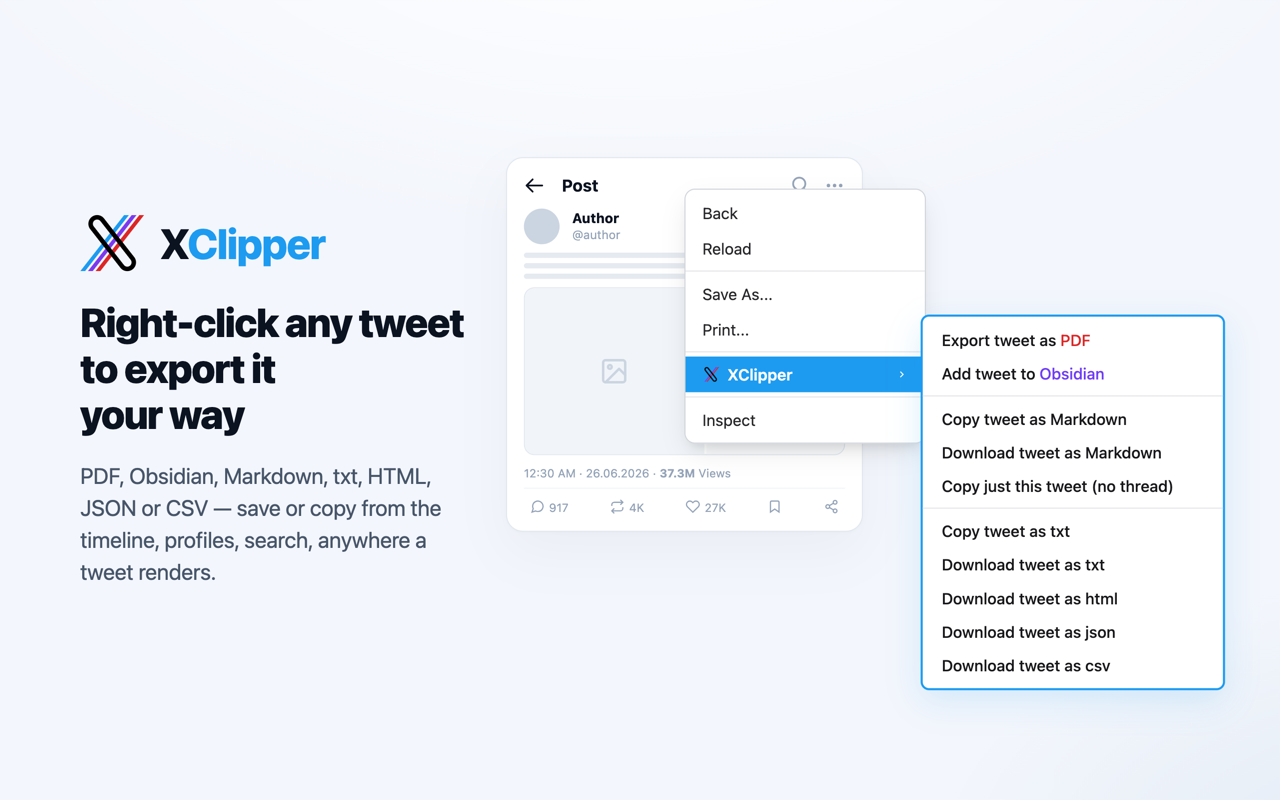
Right-click anywhere on a tweet — body, image, or timestamp — and pick Save tweet as Markdown, Copy tweet as Markdown, or Add tweet to Obsidian. XClipper figures out which tweet you meant.
Faster batch engines (opt-in)
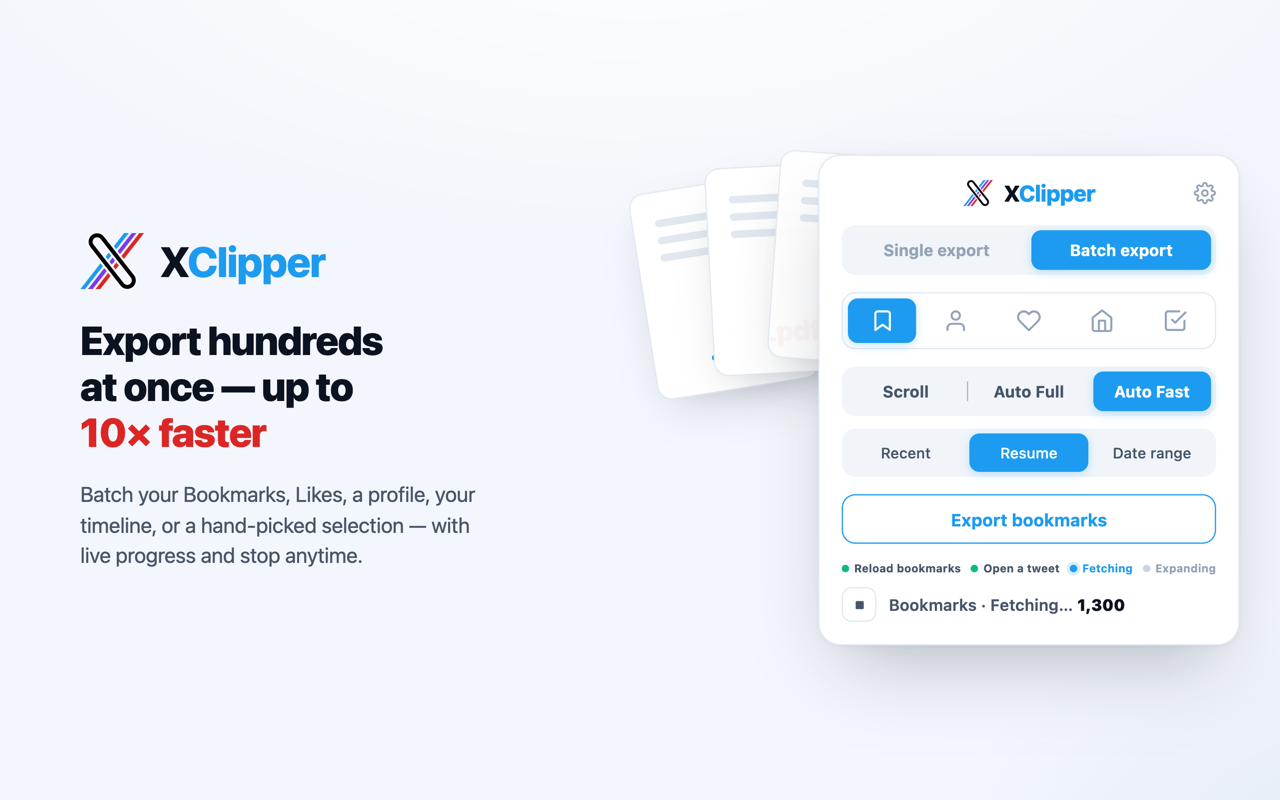
⚡ A Scroll | Auto Full | Auto Fast switch picks the batch engine. This is separate from export mode (Single / Batch), source (Bookmarks / Profile / Likes / Timeline / Selection), and fetch mode (Recent / Resume / Date range for Auto Full/Auto Fast). See the glossary for the shared terms.
Scroll renders each post in a worker tab — reliable, no extra permissions, and the default. Auto Full and Auto Fast are optional engines for Bookmarks, Profile, and Likes that instead replay X's own internal API using your existing logged-in session, turning a multi-minute job into a few seconds (~10×). They map the same data into the same Content AST, so every format and setting behaves identically. (Timeline and Selection stay on Scroll.)
What to know before switching off Scroll:
- They're opt-in; Scroll is the default. Picking Auto Full or Auto Fast grants one optional, X.com-only permission (
webRequest) used to read your session's auth header. There's no API key and no password — and nothing leaves your browser. - Use them judiciously. Because they call X's private API directly, large runs can trip X's rate limit (soft-blocking). Both engines pace themselves and stop politely when X pushes back, so you can resume or re-run later.
- Three fetch modes (a
Recent | Resume | Date rangeswitch) control what each run pulls. Recent grabs your newest items from the top. Resume continues a large backfill from where it last stopped, so thousands of bookmarks export across several sessions without re-scanning what's done. Date range pulls only posts tweeted within a chosen window, crawling deeper each run on its own cursor (so it doesn't disturb a Resume backfill). A shared dedup history skips already-exported posts across all three; Reset history clears it. - Auto Fast trades depth for volume. Pick it over Auto Full when you want reach. Fetching each post's thread is the step that hits X's rate limit and caps an Auto Full run at ~150 posts; skipping it raises the budget to ~3000 posts per run, so a whole bookmarks feed exports in a go or two. Auto Fast skips self-thread expansion; quotes, media, polls, and long-post text still come through. X Articles and replies to other authors are still expanded, and fetched replies can include the author's follow-up posts. Posts exported this way count as done — Reset history if you later want them re-exported with full threads.
- Two quick setup steps, shown as step-lights in the popup: reload the page so its feed request is captured, and open any one tweet so threads and articles can be expanded.
Settings — tune once, forget about it
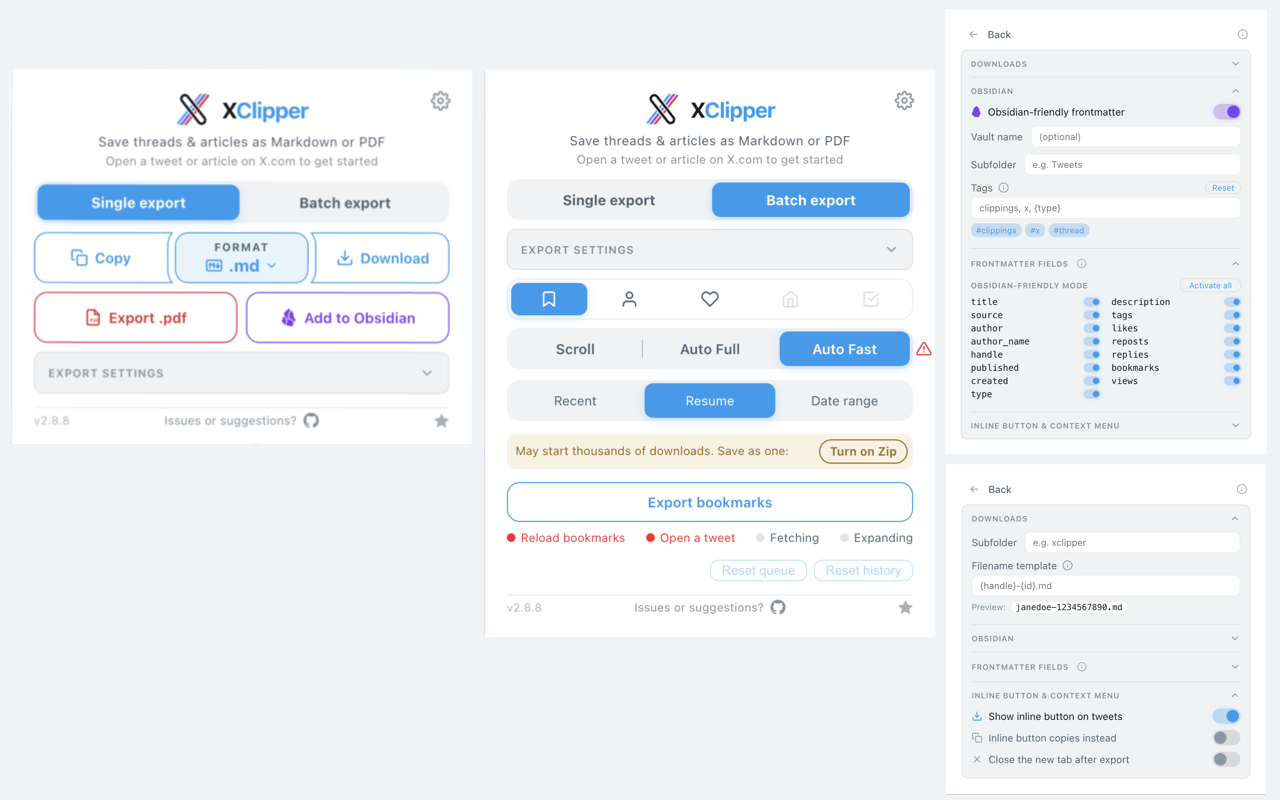
The popup keeps per-export toggles (Save images locally, Show engagement stats inline, Include metadata) front and centre. The gear icon opens Settings, where set-once knobs live in four collapsible sections — Downloads, Obsidian, Frontmatter fields, and Inline button & context menu — persisted across sessions via chrome.storage.
Great For
- Importing X content into Obsidian, Notion, Logseq, Hugo, or any Markdown-based PKM system
- Exporting clean text for LLM prompts, RAG pipelines, or AI workflows
- Archiving research threads, news references, and long-form articles offline
- Building a searchable Second Brain from your Twitter/X activity
- Preparing source material for writing, translation, or summarization
Install
From the Chrome Web Store
Install XClipper from the Chrome Web Store.
From source
git clone https://github.com/zendegani/xclipper.git
cd xclipper
npm install
npm run build
Then open chrome://extensions/ → enable Developer mode → Load unpacked → select dist/.
Usage
Pick whichever entry point you prefer — they all run the same extractor and respect the same toggles:
- Toolbar popup — Click the XClipper icon, then Download .md, Copy .md, Export .pdf, or Add to Obsidian (more formats under the More formats row).
- Inline button — Click the download icon on any tweet's action bar (and at the top of long-form articles). Shift/Alt-click to export just that tweet without its thread.
- Right-click menu — Right-click any tweet and pick Save tweet as Markdown, Copy tweet as Markdown, or Copy just this tweet (no thread).
Per-export toggles live in the main popup; set-once options live under the gear icon. See Settings above.
Add to Obsidian tip: the note is handed to Obsidian through your clipboard, so Add to Obsidian replaces whatever you had copied. Images stay as remote URLs; to archive them permanently, use Download .md with Save images locally and drag the resulting folder into your vault.
Filenames default to @handle-tweetId.md (tweets/threads) or @handle-article-slug.md (articles), and are fully configurable via the filename template.
Current Limitations
- Video is saved at up to 720p; the few posts X serves as a stream with no downloadable file keep their thumbnail instead
- Requires a page reload if the extension was installed or updated after the tab was opened
For developers
Read the developer documentation in CONTRIBUTING.md.
License
XClipper is source-available under the PolyForm Noncommercial License 1.0.0 — not an OSI "open source" license.
- Free for any noncommercial use: personal, research, education, nonprofits, hobby projects.
- Commercial use requires a paid license. To sell XClipper (or a derivative), bundle it in a paid product, or otherwise use it commercially, contact the author to arrange a commercial license: @zendegani.
Copyright © 2026 Ali Zendegani.