
xXRoxXeRXx/lymic
xXRoxXeRXx/lymic has 29 GitHub stars and 0 forks. GitHot measured 0 stars in 24 hours, -1 in 7 days, and +1 in 15 days. Last checked 2026-11-14 10:35 UTC. Last push 2026-11-08.
What you can do
- Efficient synchronization — Unchanged files reuse their cached SHA-1/Base64 after a current size-and-mtime check; only changed or uncached files are streamed for hashing, while Immich bulk checks prevent unnecessary transfers.
- Folder watching — Recursively monitors watched folders, handles changes with a debounce, and rescans after watcher overflow.
- Large-file support — Streams multipart uploads directly from disk without retaining full files in memory.
- Durable queue — Persists synchronization work, pause state, progress, and failures locally; failed items can be retried.
Measured star growth
- in 24h
- 0
- in 7 days
- -1
- in 15 days
- +1
- in 1 month
- Collecting history
Net star changes over overlapping periods, not daily totals. Missing measurements are left blank. Stars measure attention, not software quality.
About
Lymic, high performance desktop app for Immich. Cross-platform synchronization client for Linux, Windows and macOS. Fast, reliable, and built with Rust, Tauri, and SvelteKit.
Self-hostedREADME.md
Original

Lymic — Desktop upload client for Immich




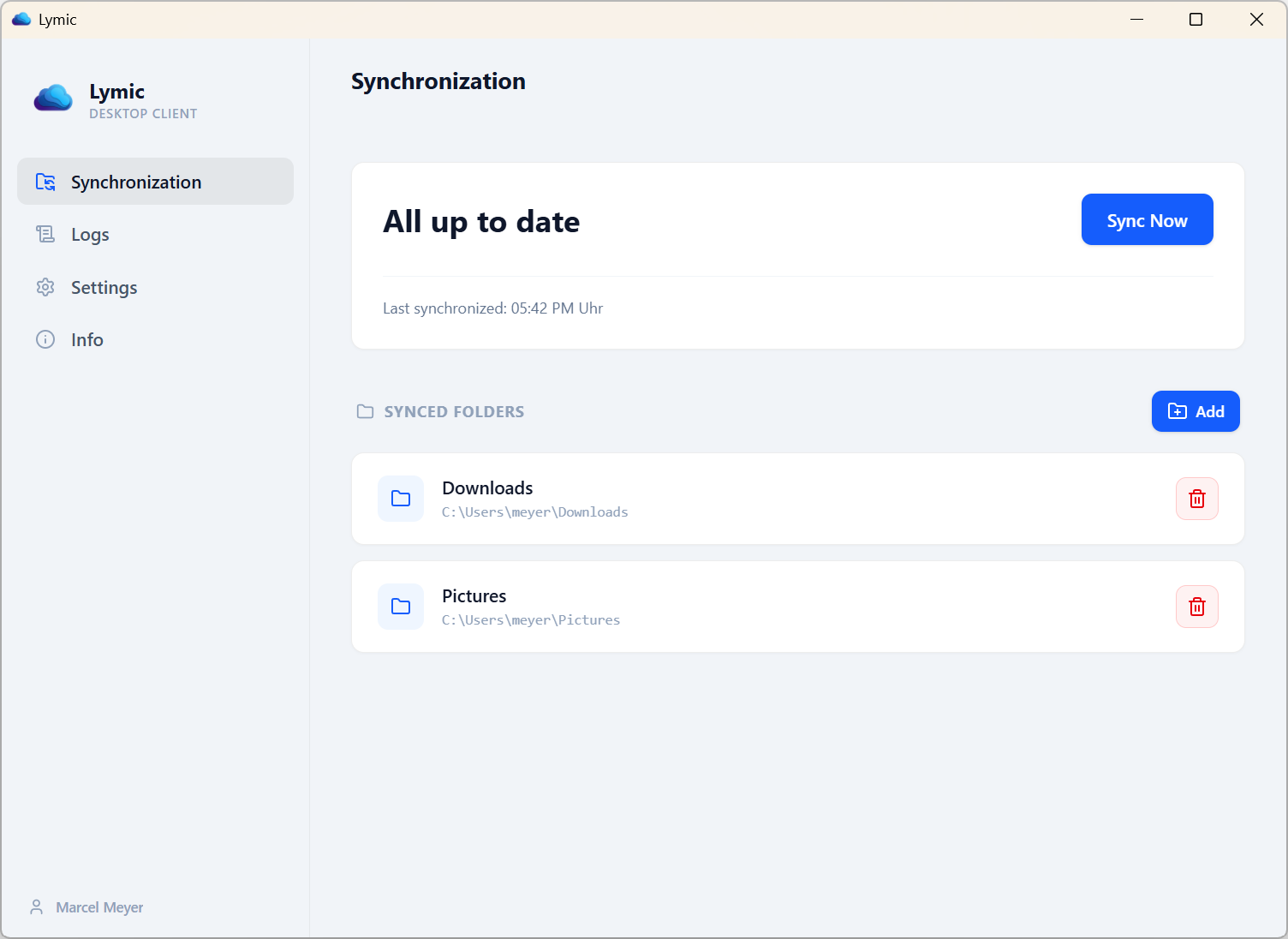
Lymic is an unofficial, cross-platform desktop client for uploading and synchronizing local media with Immich. It watches selected local folders, detects supported media, avoids uploading assets that already exist on Immich, and streams missing files from disk.
Lymic is an upload-oriented client, not a two-way filesystem mirror. It does not download remote assets, mirror remote deletions, rename local files, or manage albums as part of its normal synchronization workflow.
Features
- Efficient synchronization — Unchanged files reuse their cached SHA-1/Base64 after a current size-and-mtime check; only changed or uncached files are streamed for hashing, while Immich bulk checks prevent unnecessary transfers.
- Folder watching — Recursively monitors watched folders, handles changes with a debounce, and rescans after watcher overflow.
- Large-file support — Streams multipart uploads directly from disk without retaining full files in memory.
- Durable queue — Persists synchronization work, pause state, progress, and failures locally; failed items can be retried.
- Secure credentials — Stores API keys in the platform-native keyring (Keychain, Credential Manager, or Secret Service).
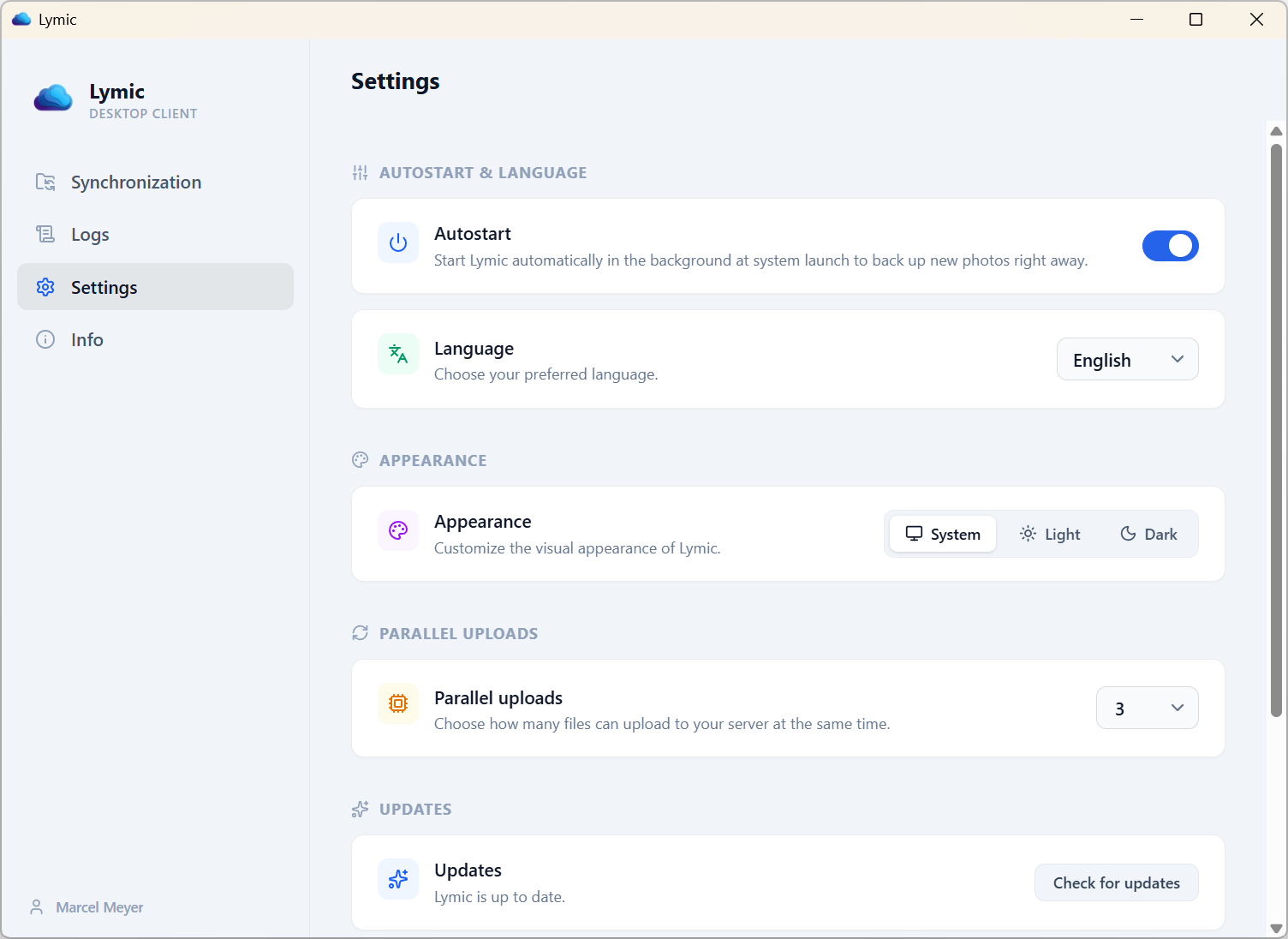
- Desktop experience — Provides real-time status, progress, system-tray controls, notifications, optional autostart, light/dark themes, and English/German UI.
- Media-aware uploads — Supports broad, extension-based media detection, recognized live-photo/motion pairs, and optional XMP sidecars.
Technology
| Layer | Technology |
|---|---|
| Backend | Rust + Tauri v2 |
| Frontend | SvelteKit + TypeScript |
| Styling | Tailwind CSS v4 |
| Icons | Lucide |
| Database | SQLite via SQLx |
| Networking | Reqwest (HTTP / multipart streaming) |
Getting started
Download
Download the latest installer for your operating system from the Lymic releases page.
Linux (Snap)
Ubuntu and Linux users can install and update Lymic directly from the Snap Store:

sudo snap install lymic
macOS (Homebrew)
brew tap xXRoxXeRXx/tap
brew install --cask lymic
See the Homebrew Cask guide for release automation and local installation verification.
[!IMPORTANT] macOS Users: Since this is an open-source project without a paid Apple Developer certificate, macOS will block the app as "unidentified" or "damaged".
Option 1 (Recommended):
- Drag the app into your Applications folder.
- Right-click (or Control-click) the app icon and select Open.
- Click Open in the confirmation dialog.
Option 2 (If Option 1 fails): If you still see the "App is damaged" message, run the following command in your terminal:
xattr -cr /Applications/Lymic.app
Building from Source
Prerequisites
- Rust (latest stable)
- Node.js (v18+)
- OS-specific dependencies (see Tauri prerequisites)
Steps
Clone the repository
git clone https://github.com/xXRoxXeRXx/lymic.git
cd lymic
Install dependencies
npm installRun in development mode
npm run tauri devBuild for production
npm run tauri build
Connect to Immich
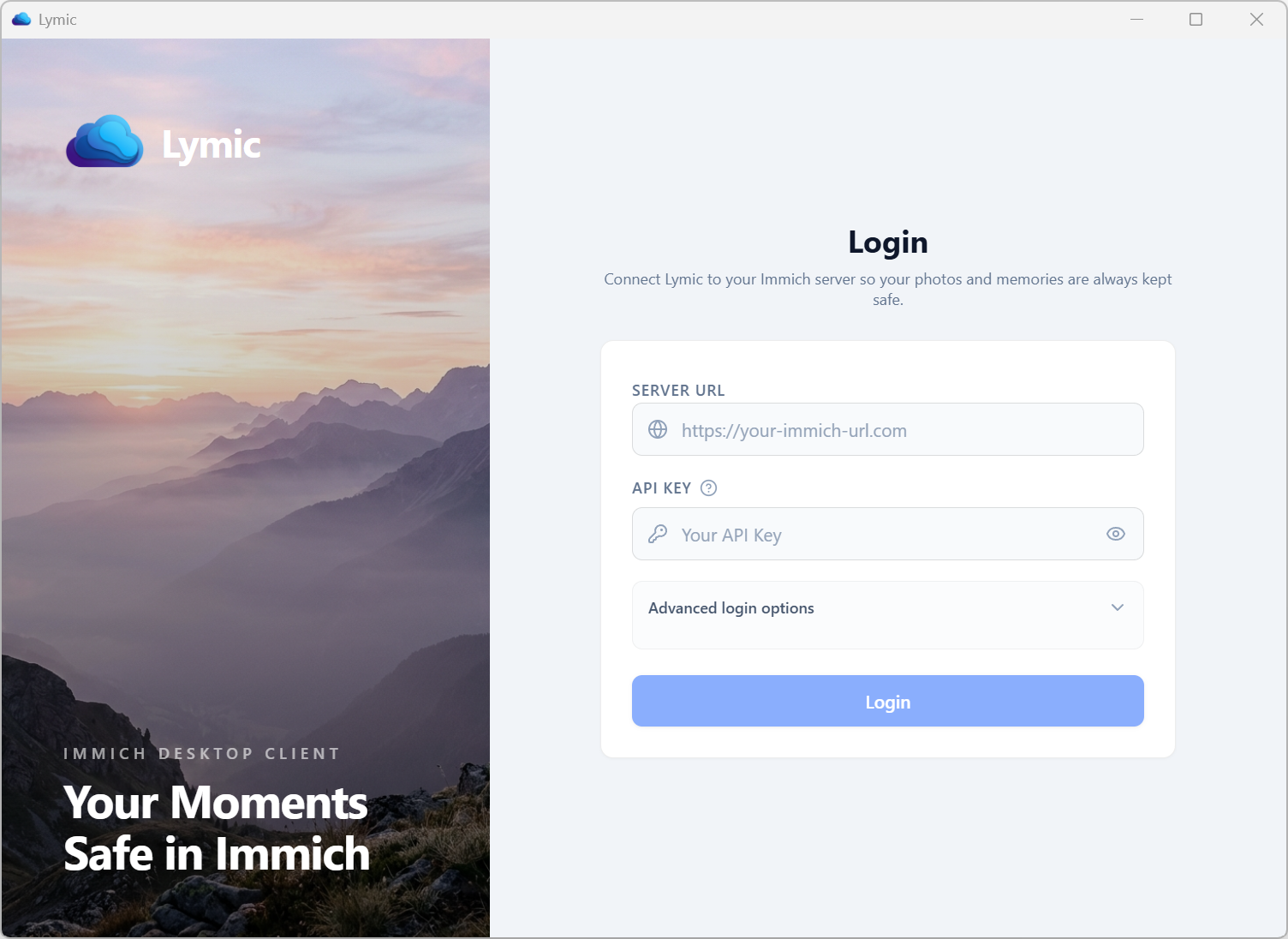
Generate an API key in the Immich web interface under Account Settings → API Keys, then enter the server URL and key in Lymic.
The server URL must use HTTPS by default and must not include embedded credentials, a query string, or a fragment. Redirects are intentionally disabled, so configure your reverse proxy to expose the final HTTPS endpoint directly.
Local HTTP (Optional)
For a local development or self-hosted instance only, Advanced login options includes Allow HTTP for local server. This is off by default and permits HTTP only for localhost, IPv4 loopback addresses in 127.0.0.0/8, and IPv6 loopback [::1]. LAN addresses, .local names, and public hosts remain HTTPS-only. HTTP exposes the API key to local network observers, so use it only when that tradeoff is intentional. The per-server choice is stored with the API key in the native keyring and redirects remain disabled.
Cloudflare Access (Optional)
If Immich is protected by Cloudflare Access, open Advanced login options and enter a Cloudflare Access service-token client ID and client secret. Lymic sends them as CF-Access-Client-Id and CF-Access-Client-Secret only to the configured Immich endpoint, which is HTTPS by default or an explicitly opted-in loopback HTTP endpoint. Both values are stored with the API key in the native keyring and are omitted from logs. See Cloudflare's service-token documentation.
Required Permissions (Scopes)
| Scope | Purpose |
|---|---|
asset.upload |
Transmit new media files to the server |
asset.read |
Verify whether a file already exists before uploading |
album.read |
List available target albums |
album.create |
Create a target album from the app |
albumAsset.create |
Add synchronized media to a target album |
user.read |
Retrieve the signed-in user during login |
Lymic normally does not require asset.delete or album.update permissions.
How synchronization works
- Discover — Lymic recursively scans watched folders at startup and when a folder is added. Filesystem events trigger later incremental work.
- Classify and hash — It detects supported media, live-photo/motion pairs, and optional XMP sidecars. Files whose current size and mtime match their synchronized cache entry reuse its SHA-1/Base64; changed or uncached files are streamed to calculate it. Hashes are cached in SQLite alongside file metadata.
- Check — SHA-1/Base64 values are sent to Immich's bulk check in batches; existing assets are skipped.
- Queue and upload — Missing assets are written to the durable queue and streamed to Immich with configurable parallelism, using SHA-1/Base64 in the
x-immich-checksumheader. - Record — Completion and failure details are persisted and shown in the UI. Paused work can resume safely after a restart.
Duplicate and overlapping watched folders are rejected. Temporarily unavailable folders remain configured and are retried. Closing the main window hides Lymic to the system tray; use the tray menu to quit.
For complete synchronization behavior, supported pairing rules, security details, local-data retention, architecture, development checks, release workflow, and troubleshooting, see the full project documentation.
Contributing
Contributions are welcome! Please read CONTRIBUTING.md before opening a pull request.
Disclaimer
Lymic is an unofficial community project and is not affiliated with, maintained, or endorsed by the official Immich team. Use it at your own risk. Always keep backups of your precious media.
License
This project is licensed under the MIT License.
Made with ❤️ for the Immich Community
Explore related projects
awesome-selfhosted/awesome-selfhosted
A list of Free Software network services and web applications which can be hosted on your own servers
336,897 starsimmich-app/immich
High performance self-hosted photo and video management solution.
119,140 starsStirling-Tools/Stirling-PDF
#1 PDF Application on GitHub that lets you edit PDFs on any device anywhere
96,552 starslouislam/uptime-kuma
A fancy self-hosted monitoring tool
94,029 stars