
wuzf/2fa has 461 GitHub stars and 215 forks. GitHot measured +1 stars in 24 hours. Last checked 2026-11-09 10:43 UTC. Last push 2026-11-07.
Two Factor Authentication
Measured star growth
- in 24h
- +1
- in 7 days
- Collecting history
- in 15 days
- Collecting history
- in 1 month
- Collecting history
Net star changes over overlapping periods, not daily totals. Missing measurements are left blank. Stars measure attention, not software quality.
docs/en/README.md
Original🔐 2FA
A two-factor authentication key management system built on Cloudflare Workers. Free to deploy, globally accelerated, with PWA offline support.



简体中文 · 繁體中文 · English · 日本語 · 한국어 · Deutsch · Français · Español · Português (Brasil) · Italiano · Русский · Türkçe · Bahasa Indonesia · Tiếng Việt · ไทย
Key Features: TOTP/HOTP code auto-generation · QR code scanning/image recognition/paste screenshot/drag & drop image to add keys · AES-GCM 256-bit encrypted storage · Bulk import from Google Authenticator, Aegis, 2FAS, Bitwarden, etc. · Multi-format export (TXT/JSON/CSV/HTML/Google migration QR codes) · Auto backup & restore · WebDAV/S3/OneDrive/Google Drive remote backup sync · Security/sync/preference settings · 15 languages across the project (auto-detection / manual selection) · Light/dark/follow-system themes · Fluent 2-inspired responsive UI
The web app, browser extensions, initial setup, public OTP pages, API messages and backup documents support Simplified Chinese, Traditional Chinese, English, Japanese, Korean, German, French, Spanish, Portuguese (Brazil), Italian, Russian, Turkish, Indonesian, Vietnamese and Thai. Interfaces follow the browser or a manual selection, with English as the fallback for unsupported browser languages. CSV/HTML backups can be imported across interface languages.
🧩 Browser Extension
Install 2FA Verification Assistant: Chrome Web Store · Microsoft Edge Add-ons · Firefox Add-ons.
Open the installation link in the corresponding browser. After installation, enter your self-hosted 2FA instance URL in the extension settings and sign in to that instance in the same browser to view, copy, and fill TOTP codes. Automatic filling requires permission for each website, which you can grant the first time you fill a code there. The extension requires a deployed instance of this project, and its interface supports the 15 languages listed above. Firefox desktop and Android require version 153 or later and normal tabs; desktop container tabs and private tabs on either platform are not supported. Firefox for Android is supported from version 1.2.0 in the add-on store, but has not yet been tested on a physical device. Firefox for Android does not provide extension keyboard shortcuts. A user has confirmed that the extension works in Edge for Android.
Installation and usage guide · Chrome / Edge privacy policy · Firefox privacy policy (Chinese)
📸 Screenshots
| Desktop | Tablet | Mobile |
|---|---|---|
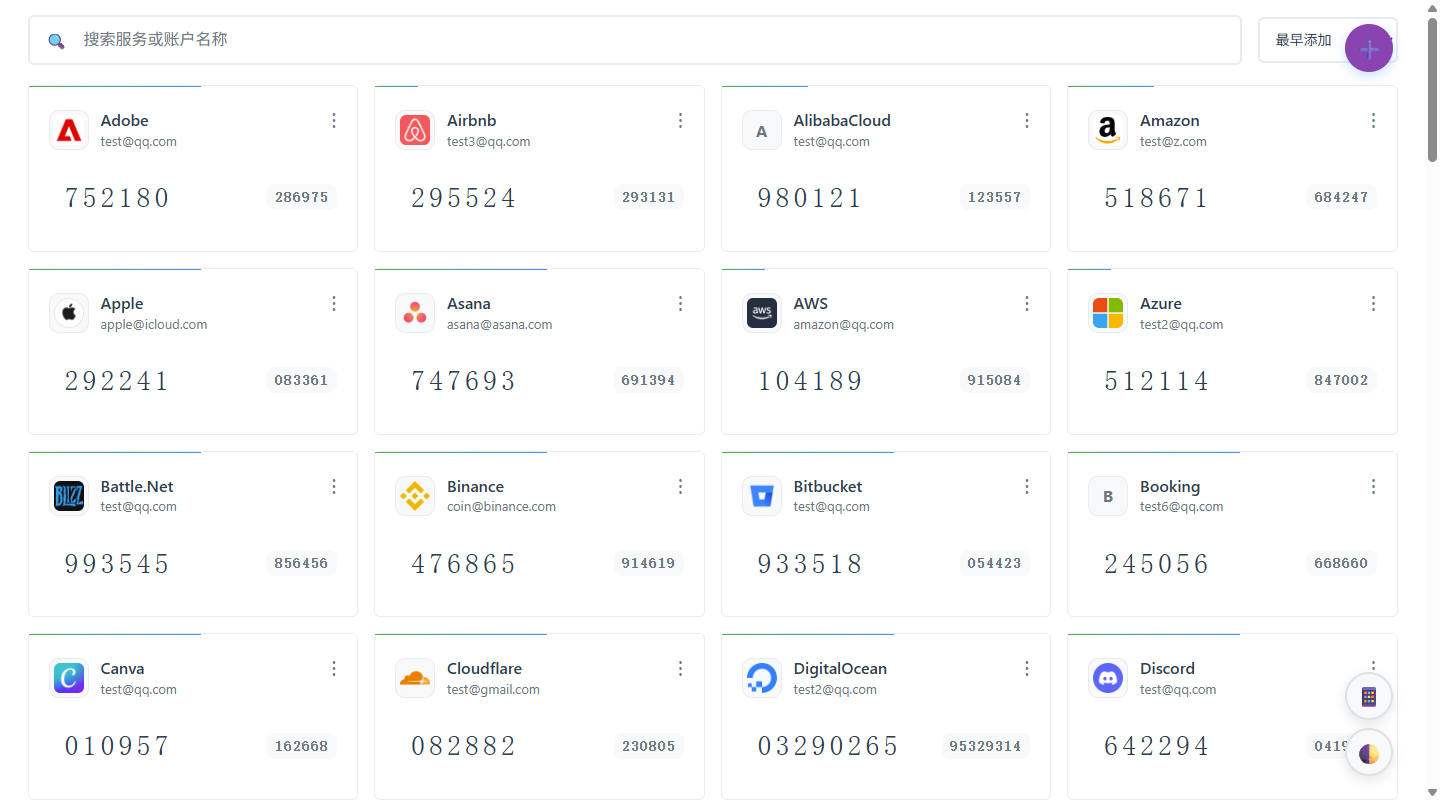 |
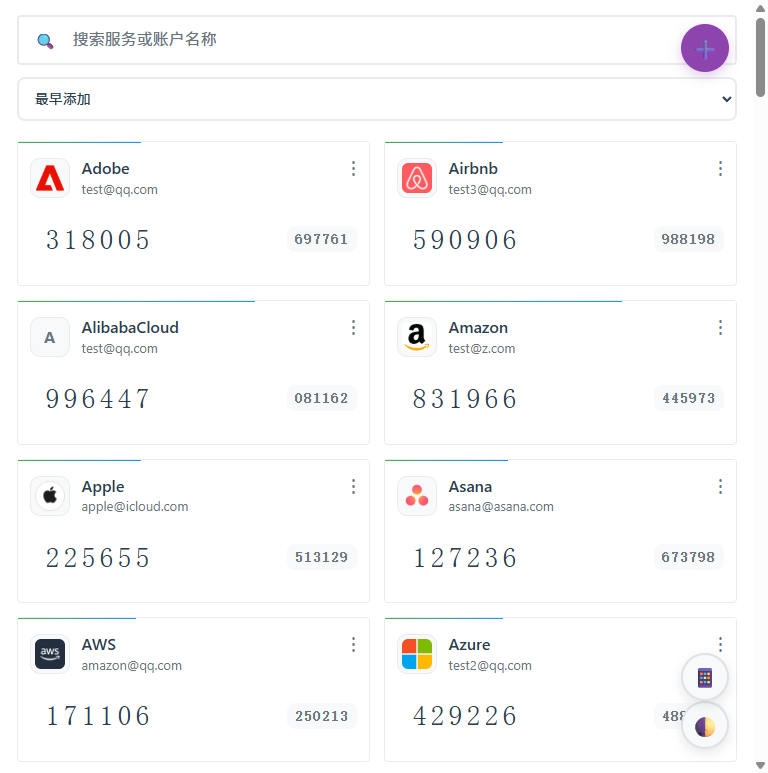 |
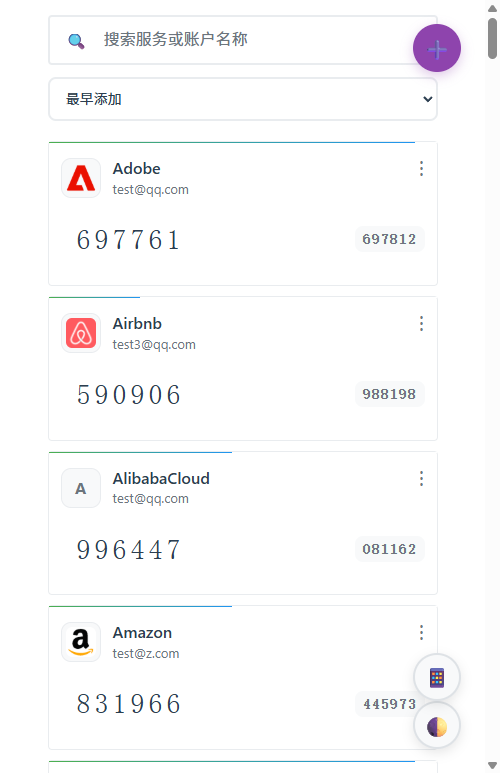 |
🚀 Quick Deployment
Live Demo
Visit the demo site (password 2fa-Demo.): https://2fa-dev.wzf.workers.dev
One-Click Deploy (Recommended)
One-click deploy is recommended. All users should upgrade in-place via the Sync Upstream workflow. Do not upgrade by deleting the Worker, deleting the repository, or reinstalling.
- Click the button above, log in with GitHub and authorize
- Log in to your Cloudflare account, click Deploy and wait for deployment to complete (KV storage is created automatically)
- Open the Workers URL provided by Cloudflare, set your admin password and start using
Git auto-build uses the
wrangler.tomlfrom the repository directly. The current config explicitly declaresSECRETS_KV, and Wrangler will automatically create the required KV on first deploy and continue reusing the resource bound to the current Worker on subsequent deploys. If you manually configure Git build commands in the Cloudflare Dashboard, usenpm run deployas the deploy command, notnpx wrangler deploydirectly, to preserve the version injection flow and stay consistent with the repository's default deploy entry.
Recommended: Enable Data Encryption
After deployment, add a Secret ENCRYPTION_KEY in Cloudflare Dashboard → Worker → Settings → Variables:
# Generate encryption key (choose one)
openssl rand -base64 32
node -e "console.log(require('crypto').randomBytes(32).toString('base64'))"
ENCRYPTION_KEYis the master key for decrypting existing data. Recommended to set up, provided you immediately save the original value to a password manager, offline backup, or other secure location.If you cannot ensure the original value is saved, it's better to not set it at all than to set it and lose it:
- Once set: Secret list, auto backups, and WebDAV/S3/OneDrive/Google Drive credentials are all encrypted
- If lost: Cloudflare will not show the original value again; existing encrypted data and encrypted backups cannot be read or restored
- Current behavior: When encrypted data is detected but
ENCRYPTION_KEYis missing, the system locks reads and writes to prevent accidental overwriting of old data
Version Updates
One-click deploy creates an independent repository (not a Fork). Upgrades are done in-place using the Sync Upstream workflow.
⚠️ Always back up your data before upgrading: Before performing a version update, export your current data via Bulk Export or Restore Config → Export Backup to prevent data loss in case of failure.
- Open the 2fa repository generated on your GitHub account during one-click deploy
- Go to Actions → Sync Upstream
- Click Run workflow, keep the upstream branch set to the default
main, and start a new run - Wait for synchronization and Cloudflare's automatic deployment to finish, then refresh the app
The workflow automatically preserves your repository's Worker name, KV bindings, and common deployment settings, and redeploys the same Worker. Existing workflow files in your repository are also preserved.
If Sync Upstream is missing: One-click deploy does not copy
.github/workflowswhen it imports the repository, so a new repository has no workflows and needs this entry before the first upgrade. ReplaceOWNER/REPOin the link below with your repository (for examplealice/2fa) and open it in your browser. GitHub fills in the file name and contents; click Commit changes:https://github.com/OWNER/REPO/new/main?filename=.github/workflows/sync-upstream.yml&value=%23%20Save%20as%20.github%2Fworkflows%2Fsync-upstream.yml%20in%20your%20repository.%0A%23%20The%20upgrade%20steps%20come%20from%20wuzf%2F2fa%2C%20so%20this%20file%20never%20needs%20updating.%0Aname%3A%20Sync%20Upstream%0A%0Aon%3A%0A%20%20workflow_dispatch%3A%0A%20%20%20%20inputs%3A%0A%20%20%20%20%20%20upstream_ref%3A%0A%20%20%20%20%20%20%20%20description%3A%20Upstream%20branch%20or%20tag%20to%20sync%0A%20%20%20%20%20%20%20%20required%3A%20false%0A%20%20%20%20%20%20%20%20default%3A%20main%0A%0Apermissions%3A%0A%20%20contents%3A%20write%0A%0Ajobs%3A%0A%20%20sync%3A%0A%20%20%20%20uses%3A%20wuzf%2F2fa%2F.github%2Fworkflows%2Fsync-upstream.yml%40main%0A%20%20%20%20with%3A%0A%20%20%20%20%20%20upstream_ref%3A%20%24%7B%7B%20inputs.upstream_ref%20%7D%7D%0AYou can also create
.github/workflows/sync-upstream.ymlyourself and copy its contents from https://github.com/wuzf/2fa/blob/main/.github/sync-upstream-entry.yml. The entry is only a few lines; the upgrade steps come from upstream, so it never needs updating. Then follow the upgrade steps above.
If an earlier upgrade failed with
without workflows permission: Once the fix is published to upstreammain, existing Sync Upstream workflows with the automatic deployment config merge step can upgrade using the steps above, without editing YAML or configuring a PAT. Start a new run withmain; older release tags do not include the fix. For other cases, see upgrade troubleshooting (Chinese).
This approach does not affect existing Workers, KV bindings, or Secrets. If you've already set ENCRYPTION_KEY, you don't need to re-enter it during upgrades; if you haven't set it, you can still use this upgrade process.
⚠️
ENCRYPTION_KEYis the master key for decrypting existing data. Please make sure to save it to a password manager when first created. Cloudflare Secrets cannot be viewed after saving; normal upgrades don't require re-entry, but if you delete it without saving the original value, existing encrypted data cannot be recovered.
⚠️ Rolling back to a version before 1.8.0: Since 1.8.0, HOTP counter increments are stored separately from the main data. Before rolling back, call the compaction endpoint once to write the counters back; otherwise HOTP counters revert to their values at upgrade time. See rollback steps (Chinese). Deployments that only use TOTP are not affected.
Checking the Merge Result
The Sync Upstream workflow is designed to always complete upgrades on the same repository and the same Worker. The workflow now automatically merges wrangler.toml and shows the diff with upstream in the summary, so you can confirm which values come from your local deployment config:
- Check the
wrangler.tomldiff in the GitHub Actions run summary - Open
wrangler.tomlin your repository - Confirm that the Worker name, KV bindings, routes, and existing deployment settings are still correct
- If you maintain very specific
wrangler.tomlconfigurations, make additional commits as needed
If Cloudflare doesn't automatically start redeployment, go to the Deployments page and redeploy the latest commit of your current repository — do not delete and reinstall.
📖 User Guide
Adding Keys
Click the ➕ floating button in the bottom right:
- Scan QR Code — Camera scan of 2FA QR codes, auto-fill
- Select Image — Upload a QR code screenshot, auto-recognize
- Paste Screenshot — Ctrl+V to paste QR code screenshots from clipboard (great for PC users without cameras)
- Drag & Drop Image — Drag QR code images directly into the dialog, auto-recognize
- Manual Add — Enter service name and Base32 secret (expand advanced settings to adjust digits/period/algorithm)
Daily Use
- Copy Code: Click the code digits directly
- Manage Keys: Click ⋯ on the top right of a card → View QR Code / Copy URI / Copy page link / Edit / Delete
- Search: Real-time search by service name or account name in the top search bar
- Smart grouping: Automatically group related services and multiple accounts, with an option to switch back to a flat list; the view used after a refresh can be pinned in Preferences
- Sort: Sort by add time or name
- Theme: Floating action button → Settings → Preferences → Theme Mode, then choose light, dark, or follow system
Bulk Import
Click the floating button → 📥 Bulk Import, supports file import or text paste.
Compatible Formats:
| Source | Format |
|---|---|
| Universal | otpauth:// URI text (TXT), CSV, HTML |
| Google Authenticator | Migration QR code (otpauth-migration://) |
| Aegis | JSON export file |
| 2FAS | .2fas export file |
| Bitwarden | JSON or Authenticator CSV export |
| LastPass Authenticator | JSON export file |
| andOTP | JSON export file |
| Ente Auth | Export file |
Bulk Export
Click the floating button → 📤 Bulk Export, supports TXT, JSON, CSV, HTML formats, as well as generating Google Authenticator migration QR codes (can be scanned to import directly). Standard TXT / JSON / CSV / HTML exports prefer the unified backend format while online, and automatically fall back to a compatible local export when offline or when the request body is too large.
Backup & Restore
The system backs up automatically (triggered on data changes + daily scheduled check), keeping the latest 100 backups (adjustable in settings).
New backup files follow Settings → Default Export Format. Remote auto-backups use the same extension (txt, json, csv, or html).
Click the floating button → 🔄 Restore Config to view backup list, preview content, restore, or export; you can also upload a backup_*.(txt|json|csv|html) file downloaded from WebDAV/S3/OneDrive/Google Drive to preview and restore it.
Remote Backup
Supports syncing backups to remote storage, automatically pushing on data changes, with multiple backup targets configurable:
- WebDAV — Supports standard WebDAV protocol cloud drives or self-hosted services (⚠️ Does not support Cloudflare-proxied services like Nutstore/jianguoyun, which trigger 520 loop errors)
- S3-Compatible Storage — Supports AWS S3, Cloudflare R2, MinIO, Alibaba Cloud OSS, and other S3-compatible services
- OneDrive — After Microsoft OAuth authorization, backups are written into a subfolder inside the app-specific OneDrive folder
- Google Drive — After Google OAuth authorization, backups are written into the configured Google Drive folder
Add and manage remote backup targets in Settings → Sync Settings.
Remote backups store the same backup content generated by the app. If ENCRYPTION_KEY was configured when the backup was created, the remote file is encrypted ciphertext too; restoring it requires keeping the same ENCRYPTION_KEY in the Worker.
Detailed setup steps: Cloud Drive Setup (currently Chinese).
Settings
Click the floating button → ⚙️ Settings:
- Change Password — Change the admin password
- Theme Mode — Choose light, dark, or follow system
- Code Transition Animation — Disable animations or choose flow, flip, or spotlight
- Login Validity — Customize JWT expiration time
- Default Export Format — Controls the default export choice and the extension used for newly created backups and remote auto-backups
- Backup Retention Count — Adjust auto backup retention count
- Remote Backup — Configure WebDAV/S3/OneDrive/Google Drive backup targets
- Sign Out — One-click clear of the current session cookie and local cache; still works locally when the server is unreachable
Install as Mobile App (PWA)
- iOS: Open in Safari → Share button → Add to Home Screen
- Android: Open in Chrome → Menu (⋮) → Add to Home Screen
After installation, use it like a native app in full screen with offline access support.
Chrome / Edge / Firefox TOTP Filling
Click the extension to select an account, or press Ctrl+Shift+U to fill the current TOTP for a previously bound account. Once a website is authorized, the extension can detect and fill its verification fields automatically; multiple matches show an account picker. It supports a single field or 6/8 separate digit fields and does not submit the form.
After signing in to the 2FA instance in the same browser profile and granting instance access, you can close the instance tab. By default, the extension reads secrets through the valid session and computes codes in background memory for each task; sign in again when the session expires. Explicitly enabling offline use saves an independent local secret cache so codes remain available without a network connection or an open instance tab. The cache has no additional password encryption. Authorized extension code can read the entire secret list, but seeds are never sent to the popup or target site. Open Shadow DOM and same-origin iframe fields are supported; HOTP, cross-origin iframes, closed Shadow DOM, and private browsing are not supported.
See the installation and usage guide, Chrome / Edge privacy notice, and Firefox privacy notice (currently Chinese).
🔒 Security
- Password: PBKDF2-SHA256 (100,000 iterations) salted hash, JWT stored in HttpOnly + Secure + SameSite=Strict cookies
- Data Encryption: With
ENCRYPTION_KEYconfigured, all secrets, backups, and WebDAV/S3/OneDrive/Google Drive credentials are encrypted with AES-GCM 256-bit; make sure to save the original key — encrypted data cannot be decrypted if lost - Transport: HTTPS throughout, TLS 1.2+
- Privacy: OTP generated client-side, no usage data collected, fully open source
- Login Validity: Default 30 days, customizable in settings, auto-renewed on active use (auto-extended when < 7 days remaining)
🔗 Public OTP API
Generate verification codes directly via URL without logging in:
https://your-worker.workers.dev/otp/YOUR_SECRET_KEY
https://your-worker.workers.dev/otp/YOUR_SECRET_KEY?digits=8&period=60
https://your-worker.workers.dev/otp/YOUR_SECRET_KEY?type=hotp&counter=5
Parameters: type (totp/hotp), digits (6/8), period (30/60/120), algorithm (sha1/sha256/sha512), counter (for HOTP)
TOTP pages show both the current and next codes, each available to copy, and update in place when the period ends. HOTP pages use the counter specified in the link; copying does not advance it.
📚 More Documentation
| Document | Description |
|---|---|
| Deployment Guide | Manual deployment, KV config, Secrets |
| Cloud Drive Setup | OneDrive / Google Drive setup steps (Chinese) |
| API Reference | Complete API endpoint documentation |
| Architecture | System architecture & technical design |
| Development Guide | Local development, testing, code style |
| PWA Guide | PWA installation & offline features |
| Browser Extension | Chrome / Edge / Firefox installation, usage, and permissions (Chinese) |
🤝 Contributing
Welcome to submit Issues and Pull Requests. For development details, see the Development Guide.
📄 License
🌟 Star History
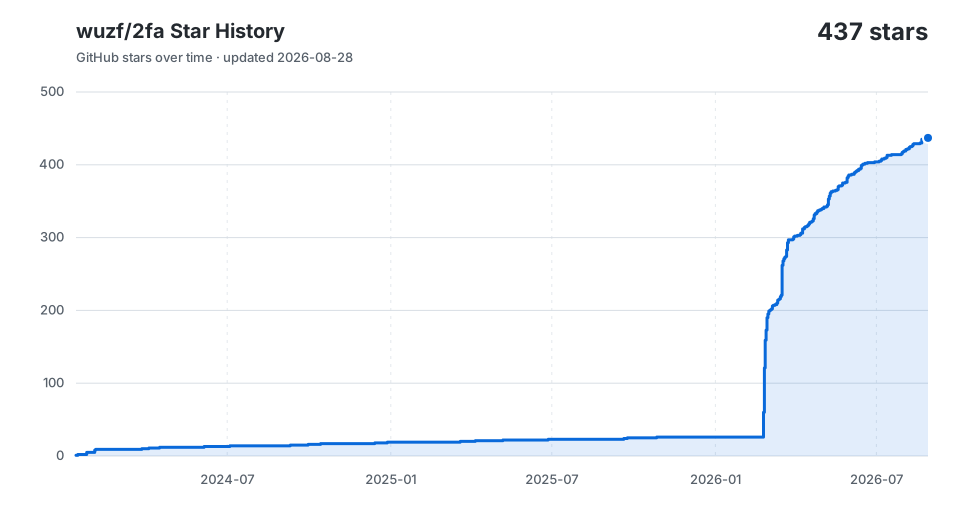
If this project helps you, please give it a ⭐
Made with ❤️ by wuzf
Explore related projects
awesome-selfhosted/awesome-selfhosted
A list of Free Software network services and web applications which can be hosted on your own servers
335,444 starsimmich-app/immich
High performance self-hosted photo and video management solution.
118,568 starsStirling-Tools/Stirling-PDF
#1 PDF Application on GitHub that lets you edit PDFs on any device anywhere
96,048 starslouislam/uptime-kuma
A fancy self-hosted monitoring tool
93,389 stars