
wilsonglasser/oryxis
wilsonglasser/oryxis has 477 GitHub stars and 28 forks. GitHot measured +2 stars in 24 hours. Last checked 2026-11-09 12:22 UTC. Last push 2026-10-30.
Rust SSH Client & Terminal Emulator with an encrypted vault, SFTP, port forwarding, cloud discovery, and P2P sync. Windows, macOS, Linux.
What you can do
- Native and fast. Pure Rust, GPU-accelerated iced UI, single binary. No Electron, no webview.
- Encrypted local vault. Argon2id + ChaCha20-Poly1305 per field, optional master password, biometric unlock (Windows Hello / Touch ID / Linux keyring), idle auto-lock, TOTP autofill for 2FA hosts, and stored passwords offered at sudo prompts (never sent on their own).
- Several vaults. Keep Work and Personal in separate encrypted files, each with its own master password, settings, sync and MCP exposure, open at once: every window works on one vault and switches in place from the Home tab, a per-vault shortcut or the palette, while the other vault's tabs keep running. Two vaults never share a key.
- The full SSH pipeline. Auto-auth, multi-hop jump chains, SOCKS / HTTP / command proxies, agent forwarding, standalone -L/-R/-D port forwarding, expect-style login scripts for menu-driven bastions (JumpServer and friends).
Measured star growth
- in 24h
- +2
- in 7 days
- Update delayed
- in 15 days
- Update delayed
- in 1 month
- Update delayed
Net star changes over overlapping periods, not daily totals. Missing measurements are left blank. Stars measure attention, not software quality.
README.md
Original

Oryxis
A modern SSH client built entirely in Rust. Fast, encrypted, native.
English | 简体中文 | 繁體中文 | 日本語 | 한국어 | فارسی | Português (BR)







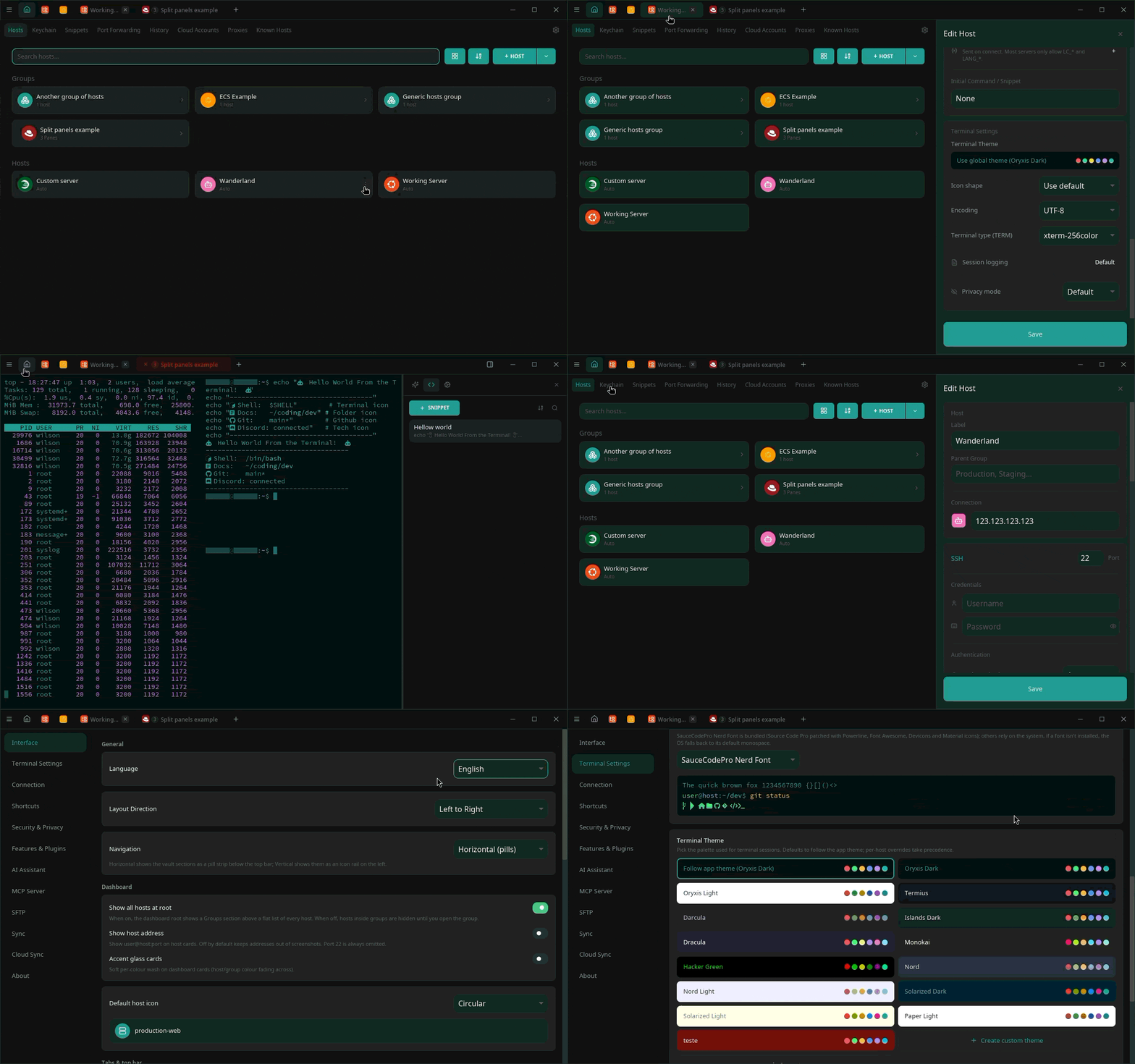
What is Oryxis?
Oryxis is an open-source alternative to Termius: a desktop SSH client with a modern UI, an encrypted local vault for credentials, and no cloud account anywhere in the loop. No Electron, no webview, no vendor servers. Just a single native binary.
Most SSH clients make you pick two out of three: powerful but dated (PuTTY), pretty but Electron-heavy (Termius, Tabby), or minimal and terminal-only (OpenSSH). Oryxis aims at all three: beautiful, fast, and native.
| Oryxis | Termius | PuTTY | Tabby | |
|---|---|---|---|---|
| UI stack | Native Rust (iced + wgpu) | Electron | Native | Electron |
| License | AGPL-3.0, open source | Proprietary | MIT | MIT |
| Credential storage | Local encrypted vault | Vendor cloud account | None | Local config files |
| Device sync | P2P, E2E encrypted, optionally self-hosted relay | Vendor cloud (subscription) | None | Via Tabby Web |
| SFTP | Dual-pane GUI and an interactive console | Paid plan | CLI only | Basic panel |
| Price | Free | Free tier + subscription | Free | Free |
Install
Windows

or, from a terminal:
winget install WilsonGlasser.Oryxis
Arch Linux (AUR)
yay -S oryxis-bin
Direct downloads from the latest release:
| Platform | Architecture | Download |
|---|---|---|
| Linux | x86_64 | .tar.gz · .deb · .AppImage |
| Linux | ARM64 | .tar.gz · .deb · .AppImage |
| macOS | Apple Silicon | .dmg · .tar.gz |
| Windows | x86_64 | setup.exe · user-setup.exe · .zip portable |
| Windows | ARM64 | setup.exe · user-setup.exe · .zip portable |
Which Windows installer? (system vs per-user, VSCode-style)
- System (
oryxis-setup-*.exe): installs toProgram Files, registers underHKLM, requires UAC. Use this for shared machines or when all Windows users should share the install. This is the buildwinget installtargets. - Per-user (
oryxis-user-setup-*.exe): installs to%LOCALAPPDATA%\Programs\Oryxis, registers underHKCU, no admin rights. Use this on locked-down machines or when you don't want UAC prompts on every update.
Both register oryxis and oryxis-mcp on PATH so they resolve from any
shell. The auto-updater detects the install scope and downloads the
matching installer. Windows binaries are Authenticode-signed (see
Code signing policy).
- Portable (
oryxis-windows-*.zip): unzip anywhere (a USB key) and runoryxis.exe; the auto-updater replaces the exe in place. A new copy keeps everything (device settings, the vault list, the vaults, plugins, logs) in adatafolder it creates next tooryxis.exe, so the folder travels with it. On a computer where Oryxis already keeps its data in%USERPROFILE%\.oryxis, the copy keeps using that: create thedatafolder yourself to switch, and copy the contents of%USERPROFILE%\.oryxisinto it to bring the setup along (nothing is moved for you). A vault opened from another drive (a VeraCrypt volume) stays where it is; vaults and folders on the USB key itself are remembered relative to thedatafolder, so another drive letter does not break them. Biometric unlock, the MCP client configs and theoryxis://link registration belong to each computer. On Linux and macOS the same works by creating anoryxis-datafolder next to the binary, the.AppImagefile orOryxis.app(named after the app because those usually sit in a shared folder).
Highlights
- Native and fast. Pure Rust, GPU-accelerated iced UI, single binary. No Electron, no webview.
- Encrypted local vault. Argon2id + ChaCha20-Poly1305 per field,
optional master password, biometric unlock (Windows Hello / Touch ID /
Linux keyring), idle auto-lock, TOTP autofill for 2FA hosts, and
stored passwords offered at
sudoprompts (never sent on their own). - Several vaults. Keep Work and Personal in separate encrypted files, each with its own master password, settings, sync and MCP exposure, open at once: every window works on one vault and switches in place from the Home tab, a per-vault shortcut or the palette, while the other vault's tabs keep running. Two vaults never share a key.
- The full SSH pipeline. Auto-auth, multi-hop jump chains, SOCKS /
HTTP / command proxies, agent forwarding, standalone
-L/-R/-Dport forwarding, expect-style login scripts for menu-driven bastions (JumpServer and friends). - Security keys, natively. A YubiKey or any FIDO2 token signs
sk-ssh-ed25519/sk-ecdsa-sha2-nistp256logins from the app itself on Windows, Linux and macOS (Windows Hello included), with the touch and PIN asked on your screen, a hardware-only Security Key method, and no external agent in between. - Bring your hosts along. One import reads what you already have:
~/.ssh/config, PuTTY, KiTTY, WinSCP, mRemoteNG, MobaXterm, SecureCRT, Xshell, FinalShell, Termius or any CSV. Pick the file (or the sessions folder) and the format is detected for you; an edited host CSV export comes back as updates, removals and folders. - Offline when you say so. One switch, offered at first run and in Settings, and Oryxis makes no request of its own: no update checks, no font or plugin downloads. What you configured yourself still travels. For a machine that never had a network, an offline bundle ships next to every release with the plugins and font packs already inside and the switch already on.
- More than SSH. Telnet and serial consoles for the gear that never learned SSH, raw TCP lines for console servers, ZMODEM transfers, local shells, and one-click RDP/VNC through an SSH tunnel.
- Sessions that survive the network. Switch mosh on for a host and
the shell rides out sleep, a change of Wi-Fi and a change of address,
with the interface saying how long the link has been out of touch
rather than pretending it is fine. A native Rust client speaking the
stock
mosh-server's protocol, so there is nothing extra to install on your machine. - A real terminal. alacritty-based emulator, split panes, session groups, per-host themes, an optional translucent background or background image, bundled Nerd Fonts plus a downloadable font pack (JetBrains Mono, Fira Code, MesloLGS and more), smart tabs that flag long-running commands, per-host command history offered as you type, a caret of your shape, and a per-host East Asian ambiguous-width setting so CJK TUIs line up.
- Snippets that run a sequence. One snippet can type commands, wait for a command to finish or for a line in its output, copy or save what it printed, and call other snippets, all on the terminal you started it on, with variables asked once. The ones you use most can sit as buttons in a snippet bar under the terminal.
- As many windows as you like. One process, any number of windows, each with its own tabs, hosts screen and search. Drag a tab past the edge to tear it off, drop it on another window's tab bar to dock it, or connect a host straight into a new window.
- Files everywhere. Dual-pane SFTP with drag-and-drop, symbolic
links, edit-in-place and server-to-server copy; every SSH tab also
carries a Files sidebar that follows your shell's working directory.
Prefer typing? An
interactive SFTP console speaks
sftp(1)'s commands (get,put,mget,lcd, globs, Tab completion, inline progress), opening as a pane of the session you are already in (stacked, beside or zoomed, your choice) with one switch between terminal, console and files. - Session recording. Encrypted at rest; exports to asciinema
.cast(theme embedded) or plain transcript, output-only by design. - The sysadmin toolbox. An optional network tools panel (off by default, opens as its own tab): DNS records, ping, traceroute, TCP port test, HTTP redirect chain and certificate inspection, WHOIS, and the public spam blocklists.
- Cloud accounts. AWS, Google Cloud, Azure, Alibaba Cloud, Tencent
Cloud and Kubernetes discovery and connect (EC2, SSM, ECS Exec, GKE,
AKS, ACK, TKE,
kubectl), shipped as signed on-demand plugins. - AI where you work. A per-tab assistant (bring your own key: Anthropic, OpenAI, Gemini, or compatible) with layered auto-exec safety, plus an MCP server that exposes your hosts to AI clients like Claude Code, installs itself into seven of them, adds or edits hosts when you allow it, and runs a command as root only after you approve it on screen.
- P2P sync, no cloud. End-to-end encrypted (X25519 + XChaCha20-Poly1305) over QUIC; mDNS on the LAN, optional self-hosted signaling/relay across networks. No account, no vendor server.
- Keyboard-first.
user@hostquick connect (Ctrl+K), Ctrl+Tab by recent use or by the tab bar's order, full keyboard navigation down to the last toggle, every hotkey rebindable, or start from Windows Terminal's, Tabby's or iTerm2's keys. - Private by design. No telemetry, Privacy Mode masking, a paste guard that reads what you're pasting, and 23 languages with full RTL support: English, Português, Español, Français, Deutsch, Italiano, 简体中文, 繁體中文, 日本語, Русский, فارسی, العربية, עברית, 한국어, Polski, Türkçe, Bahasa Indonesia, Tiếng Việt, Українська, ไทย, हिन्दी, Čeština, Ελληνικά.
The complete inventory lives in the feature tour. Using tmux? Logs and command history under tmux explains what works out of the box and what you install yourself. Want the file browser to track your shell exactly? Following the shell's directory has the snippet. Getting a copy of your vault off this machine, into a cloud folder or anywhere else? Backups and where to keep them covers sync, export, and the tools that carry a file the rest of the way.
Screenshots
Click any thumbnail for the full-size image.

Hosts dashboard: card grid, groups, distro auto-detection |

Dual-pane SFTP: drag-and-drop, multi-select, edit-in-place |

Streaming AI sidebar with per-block Copy / Play |

Cloud Accounts: AWS / Kubernetes providers, multi-region fan-out |

Keychain: keys and reusable Identities side by side |

Terminal palettes with inline previews, plus custom schemes |

Settings → Interface: tab styling with live preview, app theme grid |
Quick start
- First launch: choose a master password or continue without one (you can enable it, plus biometric unlock, later in Settings).
- Add hosts: click
+ HOST, or just typeuser@host(Ctrl+K) to connect without saving. Coming from another SSH client? Import brings its saved sessions over in one step. - Connect: click a host card. Split panes, the Files sidebar, SFTP and snippets are one keystroke away.
- Optional extras: AI chat (Settings > AI), MCP server (Settings > Security, setup guide), P2P sync between your devices (Settings > Sync, self-hosting guide).
Questions? Check the FAQ or open a Discussion.
Security
Everything sensitive is encrypted per-field at rest (Argon2id + ChaCha20-Poly1305), host keys are TOFU-pinned, sync payloads are end-to-end encrypted, plugins are Ed25519-signature-verified before execution, and there is no telemetry of any kind.
The full security model and the vulnerability disclosure policy live in SECURITY.md. Please report vulnerabilities privately.
Roadmap
Oryxis ships small and often (roughly weekly). This section is forward-looking: items land incrementally as they are ready rather than being tied to a specific version. Latest stable is v0.23.0; CHANGELOG.md has the full history, and the roadmap discussion tracks it interactively.
Planned
- AI ops toolkit: the assistant graduates from generating shell strings to typed, structured operations synthesized for the host's actual OS, with dry-run previews on every state change, an audit journal, and secrets structurally excluded from model context. Local-first, bring-your-own-key, no hosted backend.
Exploring
- Team vaults over P2P sync: share a vault with teammates with no hosted server; per-member key wrapping, re-key on member removal, optional self-hosted relay mailbox for teams never online together.
- Multi-host AI agent: the typed-operation agent detached from a single tab, investigating across vault hosts over ad-hoc SSH channels, gated by explicit per-host opt-in.
- Storage browser plugins: S3-compatible, SMB, and Chinese-cloud object storage (Huawei OBS / Tencent COS / Alibaba OSS) browsing as optional plugins on the existing signed-plugin pipeline.
Building from source
Rust stable (via rustup), plus:
- Linux:
sudo apt install -y build-essential pkg-config libssl-dev libgtk-3-dev libwayland-dev libxkbcommon-dev - macOS: Xcode Command Line Tools (
xcode-select --install) - Windows: Visual Studio Build Tools with the C++ workload
git clone https://github.com/wilsonglasser/oryxis.git
cd oryxis
cargo run             # debug
cargo build --release # release
cargo test --workspace
The workspace layout is documented in docs/ARCHITECTURE.md.
Contributing
Contributions are welcome. Open an issue to discuss before starting large PRs, and see CONTRIBUTING.md for the dev setup, quality gates and project conventions (i18n, keyboard navigation, secret handling).
License
Copyright (C) 2026 Wilson Glasser. Licensed under AGPL-3.0-or-later. Free and open-source forever: anyone can use, modify, and distribute Oryxis, but any modified version made available over a network must also share its source code under the same license. See NOTICE for details.
Built with Rust, for people who live in the terminal.
Explore related projects
codecrafters-io/build-your-own-x
Master programming by recreating your favorite technologies from scratch.
561,398 starspublic-apis/public-apis
A collective list of free APIs
497,679 starsmorluto/rea
Reverse engineer anything with agents, from app behavior down to native binaries.
447,495 starsopenclaw/openclaw
The AI that really does things. Any OS. Any Platform. The lobster way. 🦞
394,261 stars