
try2love/codex-mobile-bridge
try2love/codex-mobile-bridge has 218 GitHub stars and 35 forks. GitHot measured +2 stars in 24 hours and +20 in 7 days. Last checked 2026-11-16 00:08 UTC. Last push 2026-11-14.
Measured star growth
- in 24h
- +2
- in 7 days
- +20
- in 15 days
- Collecting history
- in 1 month
- Collecting history
Net star changes over overlapping periods, not daily totals. Missing measurements are left blank. Stars measure attention, not software quality.
About
从手机、平板或电脑浏览器继续 Codex Claude DSH Zcode App、CLI、WSL CLI 会话,兼容官方登录、API 与自定义模型服务。Self-hosted browser access to your existing Codex Claude DSH Zcode App、CLI、WSL CLI chats, with local/SSH sessions, approvals and notifications.
Developer ToolsREADME_EN.md
Original 







Platform counts include installation assets from all published stable and preview releases (iOS includes its source archive and IPA), excluding update metadata and checksums. Repeat downloads and updater downloads count; these are not user or installation counts. Updated daily.
Codex Mobile Bridge · A remote workbench for desktop agents
v2.2.0 (stable): Release page · Full release notes · Mobile installation. ZCode, multiple routes per computer, native side chats and lower idle resource usage.
Product guide and interactive demos ↗ · Download desktop and mobile apps
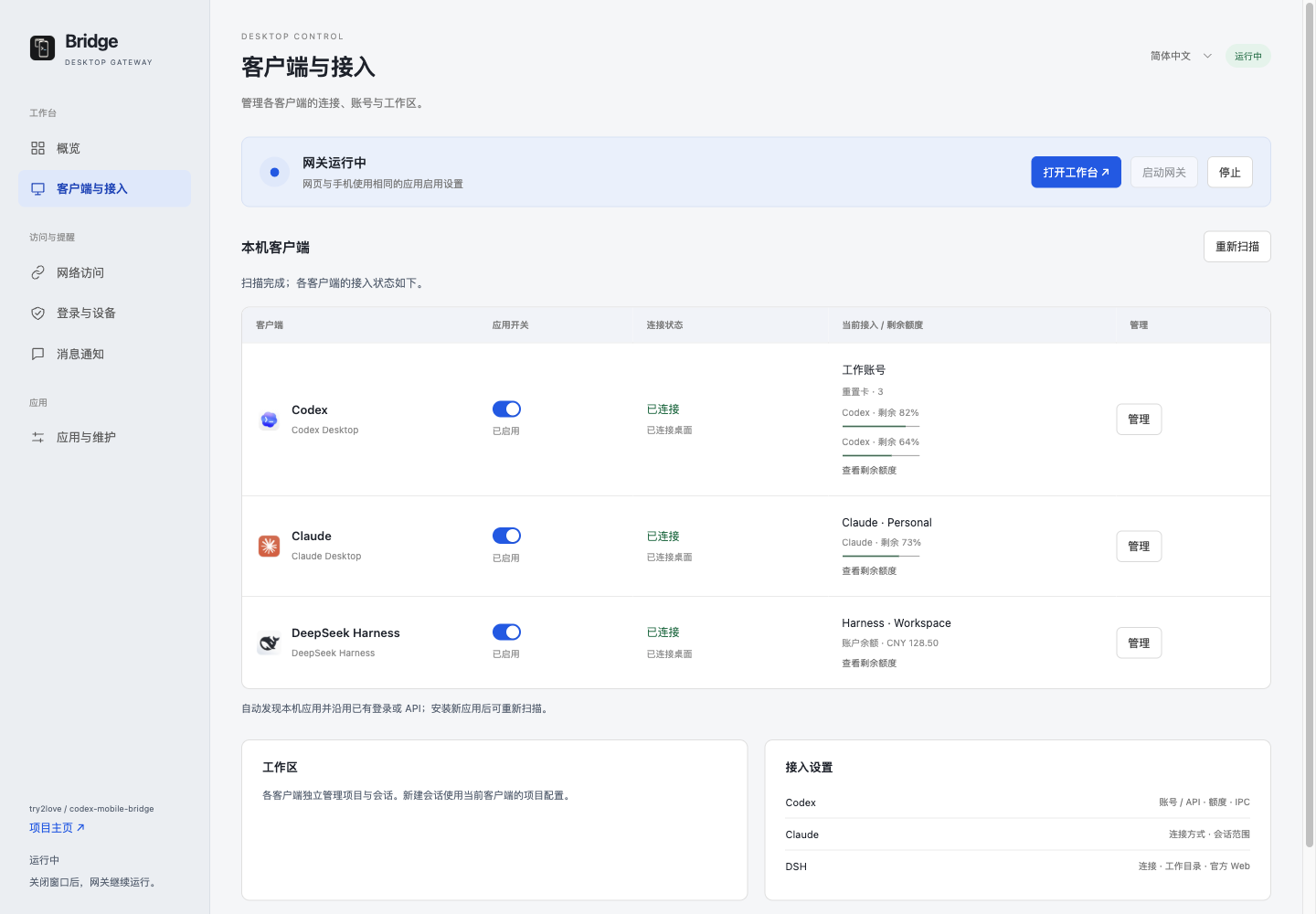
Continue Codex, Claude Code / Cowork, DeepSeek Harness and ZCode sessions from a phone app or browser. Each client keeps its own chats, accounts and workspaces. Create chats within the selected client, read replies, send attachments, select available models/reasoning and respond to approval requests.
Tasks run on the original computer, or the original SSH host for Codex remote sessions. Bridge reuses the desktop session, authentication and execution environment. Your phone does not need the same model-service account: use gateway login or revocable QR pairing.
v2.2.0 updates
- ZCode joins the workbench: continue native chats, send attachments, answer questions and approvals, select models and Skills, and manage API connections and reported quota. Local connections are included on macOS, Windows and Linux; configured official remote access is also supported.
- Multiple routes, one computer: group LAN, fixed HTTPS and temporary HTTPS addresses in one computer card. Inspect latency, select a route or switch automatically while keeping chats, drafts and reading position.
- Native chat management: open Codex side chats under their parent; closing a tab keeps the native chat. Supported local Codex sessions offer permanent deletion with explicit scope confirmation and task checks.
- Models and independent clients: choose a model and reasoning level before creating a chat. Register independent Codex configurations and VS Code environments; independent Claude/DSH profiles remain experimental. Release gateway-owned CLI connections after tasks finish.
- Mobile experience: skip individual supported Codex questions without losing other answers; retain separate Android notifications for separate events and configure per-computer UU remote shortcuts.
- Recovery and efficiency: improve Tailscale route recovery, client initialization, reasoning-only responses and Unicode model IDs; reduce idle polling and preserve reading position.
Update the gateway and mobile app together, keeping the same application identity, signing identity and data directory. iOS still requires your own signing. Native controls depend on the client version and connection; independent profiles and WSL account management remain experimental. See full release notes and limitations.
Thanks to @tiancai123123 (#130), @laozuzhen (#135) and @qybgh (#139).
v2.1.7 updates
- Optional Android background notifications and per-connection notification sources; unified Android/iOS themes and improved iOS foreground reminders (#47, PRs #85/#95).
- Shared session menus and scoped organization, project file references, history image previews, code highlighting and remote project trust confirmation (PR #92, issues #99–#102, #104).
- Safari startup recovery, SSH isolation and catalog improvements, Desktop connection rebuilding and safe send-receipt reconciliation; optional third-party reset outlook and improved formula rendering.
Desktop/mobile version: 2.1.7, Android/iOS build 40. iOS improvements cover foreground notifications, not new APNs background push. WSL account management remains experimental. See the bilingual release notes, contributor credits and remaining limitations.
v2.1.6 updates
- Pin chats locally before gateway synchronization in the recently active list; confirm before disconnecting and archiving supported chats.
- Restore native mobile clipboard writes, add DSH session ID copying, and improve Markdown reading and file-text size controls.
- Improve API setup and upstream model selection while retaining desktop account and quota details; fix list refreshes and cross-platform project grouping.
Desktop/mobile version: 2.1.6, Android/iOS build 39. Some Codex App-owned chats cannot be released externally; Claude and DSH archival requires compatible native support. Cowork archival remains unsupported. See the full release notes and archive limitations; #77 remains open. Thanks to @lanchengjiu for PR #73 and @mc373906408 for PR #82, with original author commits retained.
v2.1.5 updates
- WSL CLI: connect native Codex / Claude Code with their original accounts, history, workspaces, drafts and controls. Discover and resume explicitly; browsing history does not wake stopped distributions. WSL guide
- New project chats: share an environment and directory picker across supported clients, browse other paths and create folders. Claude explicitly uses Create and send. Project guide
- Reply interactions: review cards, follow-up draft actions, Codex/Claude message and selection quotes, image attachments, file citations and paged edited-file location links. Desktop review links preserve their original targets. Interaction guide
- Message management: withdraw unsent messages, edit in place, persist dispatch order, and reconcile or dismiss unconfirmed records. Fix explicit-send-rejection leftovers and interference between open pages. Message guide
- Navigation and performance: fix browser Back (#67) and Windows/UNC grouping; defer optional file/diagram resources, improve caching, slow-link recovery, native output and mobile connection lifecycle.
- Experimental WSL accounts: import, switch and restore supported API configurations per environment, with task and external-manager guards. Compatibility is not guaranteed; real multi-account end-to-end validation remains incomplete. Experimental guide
Desktop/mobile version: 2.1.5, Android/iOS build 38. Thanks to @we-worker for PR #64 (all eight original commits retained), and @lanchengjiu for PR #70 (original commit d62002b retained). Full notes and upgrade limits
v2.1.4 updates
- Public access and caching: improve Cloudflare entry startup, initial resource loading and transient-network recovery; reuse unchanged resources on repeat visits.
- Long chats: fix large snapshots disconnecting sessions; show cached and recent messages first, load older history on demand, and preserve reading position, drafts and the original control connection.
- One-click Web copying: copy replies, code and Mermaid source, including over LAN HTTP; retry and manual fallback remain available when the browser refuses access.
- Optional network recovery: off by default, configurable from desktop or phone/Web. Update working entries after address changes without rebuilding tunnels on every lease renewal or brief outage.
Desktop/mobile version: 2.1.4, Android/iOS build 37. Thanks to @qybgh for network adaptation in PR #63; the original commits are retained.
What's new in v2.1.3
- Multiple Webhooks: add independent destinations and enable, test or edit each one. Editable JSON presets cover Custom Webhook, Feishu, DingTalk, Discord and Telegram; Feishu and DingTalk offer optional signing. Saved addresses and secrets are hidden by default, and tests use saved settings only. Setup guide
- Diagram reading: preview Mermaid fences in chats and Markdown files, view or copy source and zoom fullscreen. iOS also fixes diagram-subframe navigation and needs the matching app update.
- Slow links and connections: content-versioned caching avoids repeated static downloads; Windows packages keep supported Electron locales only. DeepSeek Harness recognizes folded connection settings, and iOS offers native Retry and Back to computers actions when the gateway cannot be reached.
- Mobile controls: dialogs no longer overlap the native More menu; focus appearance and answer-card visibility above the keyboard are refined.
Desktop and mobile apps use version 2.1.3, with Android/iOS build 35. See the full v2.1.3 notes for details and contributor credits.
What's new in v2.1.2
- Direct terminal input: enabled by default on mobile and wide-screen Web, with improved Chinese input, cursor/focus recovery and a dedicated Enter key. Optional Compose & send mode retains staged Tab path completion.
- Interaction and connections: improve touch scrolling in terminal CLIs such as OpenCode, mouse selection and layout after exit; reduce additional network round-trip waits and automatically reconnect to valid terminal sessions.
- Rendering and compatibility: independent 6–24px terminal size, corrected small fonts, mixed Chinese text and background boundaries. Windows includes all required ConPTY components, fixing lost mouse events and omitted installer files.
- Reading settings: theme and language appear first; text size spans 10–32px and code size 8–28px.
What's new in v2.1.1
- Accounts and models: consistent controls across clients; cached catalogs separated by computer, account and access, with update times, manual refresh and 12-hour background updates.
- Drafts and files: keep unsent drafts across chats and computers; smoothly reveal and highlight linked files, return directly to chat lists from the header, and preview tool screenshots.
- Everyday use: fix swipe jumps and repeated list/model loading, improve iOS notification navigation, skip an exact update, and optionally retain valid phone bindings when changing the gateway password.
What's new in v2.1.0
- CLI and file reading: read and explicitly resume Codex/Claude Code CLI chats from mobile or Web; dedicated previews for source, PDF and self-contained HTML.
- Connections and lists: configure an existing HTTPS tunnel or reverse proxy; progressively show Codex chats by host, sort mixed Claude chats by recency and keep source labels visible.
- Cross-platform experience: improve Windows persistent terminals and Claude setup, DSH host detection, the iOS Safari viewport during input and stable client swipes. The gateway remains manageable with every client disabled.
What's new in v2.0.3
- Android updates: download and install updates in the app, choose phone or computer downloads, and resume installation or export a completed APK. See mobile installation and upgrades.
- Third-party notifications: configure, save and test Bark for iPhone, ntfy for Android or PushPlus for WeChat on mobile or Web, using the same settings as the desktop gateway.
- Search and layout: keep Search visible, size filters to their contents, improve English and landscape/tablet lists, add Claude/DSH pull-to-refresh and clear stale errors after recovery.
- Connections and workbench: securely retain valid mobile bindings for sign-in recovery, improve Claude reconnection and setup, clarify settings and file-transfer actions, and preserve occupied split panes when closing tool tabs.
File reading and previews
- Locate and return: smoothly reveal linked files and highlight them for three seconds. Top-left Back returns directly to the chat list. Folder-parent controls and system Back retain hierarchical navigation; system Back exits fullscreen first.
- Source reading: view common languages with syntax highlighting and line numbers. Select Wrap lines to fit long lines to the screen, or restore Original line width. Copy preserves the source without line numbers; previews never edit the file. Unknown languages and larger text use plain text.
- PDF reading: scroll and pinch on touch devices; use page and zoom buttons on desktop browsers. Select text when available; scanned pages do not gain OCR. Fit each page to the available width, including mixed page sizes. During rapid zoom, keep the completed image visible until its replacement is ready to reduce flashes.
- HTML reading: switch between Preview and Source code. Self-contained inline interactions and animations work; external resources, CDN/API requests, popups and form submission are unsupported. Preview content is isolated from gateway sign-in data, the parent page and native mobile interfaces.
- Mermaid diagrams: Markdown files and chat bodies share diagram, source and fullscreen controls. See diagram reading.
- Compact actions and fullscreen: actions sit beside file details, with fullscreen next to Download. Entering or leaving fullscreen preserves PDF position and HTML state. Switching file tabs preserves PDF position but reloads HTML on return.
PDF previews are capped at 20 MiB and the configured ordinary-download limit, whichever is lower. HTML and source previews accept UTF-8 text up to 512 KiB. Download larger or unsupported files to open elsewhere. Update both the gateway and mobile app for the complete feature set; browser users reload after updating the gateway.
CLI chats (v2.1.0)
Saved local and configured SSH CLI chats are readable without starting a runtime. Source badges remain visible above dates; chat-type filters appear when multiple origins are present. If Codex App already owns a chat, Bridge verifies and follows that connection. Otherwise, select Continue chat to connect to or resume the original native CLI chat, even if its terminal has closed. This explicit action may start the already installed managed daemon; Bridge does not install CLI or accept new SSH host keys.
Open SSH diagnostics in Settings to inspect local and remote status and counts, copy a sanitized summary, or export a file. Older mobile apps can read and copy but need an update to export. After connection, supported controls include model/effort, Skills, default/plan modes, permissions and Goals on compatible local/SSH native CLI runtimes. See the CLI guide for limits.
Codex and Claude CLI access are configured in their own account sections. Local CLI sync is opt-in, with separate Desktop and CLI verification results; SSH hosts retain their own configuration. Claude can create CLI chats from existing local or SSH projects with the selected profile and directory. Source labels are always visible; type filters appear when multiple origins are present. Claude uses a blue context ring for known capacity and a neutral ring otherwise.
Platforms and access
Desktop packages cover macOS, Windows and experimental Linux x64/ARM64. Codex and Claude Code CLI run locally or on configured SSH hosts. Linux Claude Code CLI is separate from Claude Desktop; automatic Desktop connection is available on macOS and Windows. See the CLI guide and Linux guide.
The v2 workbench
- Multiple clients: discover installed apps and enable configured ones; manage lifecycle and reconnection from desktop, Web or mobile. Claude Code/Cowork have collapsible groups. Switch by icon or optional swipe gesture.
- Project tools: file, Git, persistent terminal, Codex native side-chat and subagent-history tabs. Resizable split panes on wide screens, tablets and unfolded phones; single-pane layout on narrow screens.
- Files and images: locate linked files in their folder or download them. Adjust the ordinary-download threshold live, and explicitly download large files/folders from the file list. Floating progress, speed, pause/resume, plus pinch/wheel/drag/double-click image zoom.
- Accounts and context: inspect the current client's access, available models and upstream quota. Context usage sits beside permissions. Codex retains Fast, Skills, Plan/Goal, official quota and reset credits.
- Computers and alerts: Android/iOS save multiple paired computers, sort by recent access and refresh availability. App icons show gateway-maintained unread counts and open the matching list. Android users can enable Background notifications in mobile Settings; iOS background alerts can use channels such as Bark, ntfy or PushPlus.
- Network choices: LAN, temporary/fixed Cloudflare HTTPS, fixed Tailscale HTTPS, an existing HTTPS tunnel, your own SSH server, or an advanced NAS proxy.
| Client | Scope | Requirements and limits |
|---|---|---|
| Codex | Local and configured SSH sessions; native actions and workbench | Requires compatible IPC/capabilities in the installed client |
| Claude Desktop | Code and Cowork on macOS/Windows | Regular Chat is excluded; initialization may need an unlocked desktop, accessibility, developer mode and directory trust; no Linux automatic connection |
| DeepSeek Harness | Desktop sessions, local integration plugin, account/model capabilities | Plugin updates may require an idle restart; features depend on the Harness version |
| ZCode | Native chats, projects, attachments, approvals, models, API setup and quota | Local connections on macOS/Windows/Linux or configured official remote access; requires a compatible ZCode version |
Community project, unaffiliated with OpenAI, Anthropic, DeepSeek or ZCode. Internal client interfaces may need adaptation after updates. Sleeping/offline computers are unreachable; Claude cold initialization without unlocking is not guaranteed. See verification history and client integration details.
Supports macOS, Windows and experimental Ubuntu x64/ARM64. See the Linux guide for installation, VMware networking and limits. Contributors should start with the architecture guide and test guide.
Codex message editing, branching and copying
- Copy user messages from their action row. Choose Edit and resend on the latest user message, or Edit in new branch on an older message to keep the original conversation.
- Choose Branch from here under a completed answer. The new chat keeps history through that turn and waits for your next message. Chat details link back to the source.
- Copy complete replies as Markdown, individual code blocks, or Mermaid source. Long replies load their full text. Web copy buttons write directly to the clipboard, including a compatibility attempt on LAN HTTP. Selectable text and a retry button appear only when the browser blocks automatic copying.
- In-place editing requires the turn to be stopped and generates a new answer. Editing and branching do not undo file changes; both chats share the working directory.
- Branching requires a Codex runtime with turn-specific forking and deferred goal continuation; older versions show an update prompt. Copying and latest-message editing do not require those fork capabilities. Creating a branch does not send a model request.
- If delivery is uncertain, check the chat list first; repeating the same request does not replay it. If a branch was created but could not connect, the replacement remains an edit draft for that branch.
Download and quick start (recommended)
Download the desktop App for everyday use. No deployment Agent, Python, Node.js or terminal is required. The links below target v2.2.0 (stable).
| Platform | Download | Open |
|---|---|---|
| Windows x64 (recommended installer) | Download Setup.exe | Run the installer and launch from the shortcut |
| Windows x64 (no installation) | Download full ZIP | Extract the entire ZIP and run Codex Mobile Bridge.exe; do not move just the exe |
| macOS Apple Silicon (M series) | Download arm64 DMG | Open the DMG and drag the App to Applications |
| macOS Intel | Download x64 DMG | Open the DMG and drag the App to Applications |
| Ubuntu x64 (experimental) | Download .deb | Ubuntu 22.04; launch as a regular user |
| Ubuntu ARM64 (experimental) | Download .deb | Ubuntu 22.04 ARM64; no 32-bit ARM build |
All releases and release notes · Download SHA256 checksums. Both Mac architectures also include ZIPs for in-app updates or manual replacement. Windows ARM packages are not available. The Mac build is ad-hoc signed but not notarized and may require manual approval; Windows builds have no certificate signature. See the macOS first-launch instructions below.
- Install and sign in to the desktop clients you need. Open Codex Mobile Bridge, inspect Clients and access, complete required permissions and enable configured clients.
- Keep LAN access or add an HTTPS entry under Network access, save, and select Start gateway from Overview or Clients. Preserve your configured port.
- In the mobile app, select Scan to connect and scan the chosen entry's QR code. A browser can also scan a sign-in code or open the address manually.
- Choose a client and chat, then continue the conversation or open workbench tabs. Keep the computer, gateway and selected client online.
For remote access, choose Tailscale HTTPS, bundled temporary Cloudflare HTTPS, a fixed Cloudflare tunnel, an existing HTTPS tunnel, your own SSH server or an advanced NAS proxy. See Parallel connections. Fixed addresses do not guarantee mainland China performance; test the actual cellular network.
Android APK, unsigned iOS IPA and Xcode source downloads are in the same v2.2.0 Release. Install Android over the existing app; iOS requires your own signing, with no App Store/TestFlight distribution. Source/custom setups are covered by the Deployment Agent instructions.
In-app updates
beta.5 / beta.6 update checks can fail with HTTP 415; manually install beta.7 or later once. Stop the gateway and quit the App before replacing it, preserving the data directory. The corrected updater supports subsequent in-app updates.
Starting with v0.2.0-beta.5, use App updates to check for a release, read its notes, and select Update and restart. The app verifies the signed manifest and package before replacing itself, preserves login, network, notification and watched-chat settings, and restores a previously running gateway. Installation failures attempt to restore the previous app. Older versions need one manual upgrade to a version with this feature. Temporary HTTPS addresses change when the gateway restarts.
Windows beta.7 / 1.0.0 users: the old updater may roll back with WinError 32 because its working directory is locked. Choose Stop gateway and quit in the tray, then install 2.1.3 Setup.exe to the same location. Do not uninstall or delete your data. Version 1.1.0 fixes this working-directory issue for subsequent updates.
Android v2.0.3 adds in-app APK updates with a phone/computer download choice. Older apps can be upgraded manually once; computer-assisted downloads need a compatible gateway. Failed downloads allow another route, and completed APKs remain available for installation or export. iOS still uses the signing and installation flow described in the mobile guide.
Phone reading and display settings
- Mobile appearance and Web settings group Show/Hide icons, Apps and Push alerts together. The file-transfer save action applies only to transfer-size settings.
- Compact chat navigation leaves more room for replies. Tap the title for the full name, project, device and model details.
- Use the arrow beside Model, Notifications and Skill to hide or show the composer and send/stop controls. Drafts are retained; a successful send does not collapse the composer automatically, and a failed send reopens it to show the error.
- Open “··· → Display settings” to independently toggle Reasoning summaries and Execution activity. Activity includes commands, tools, file changes and intermediate progress updates. Turn both off to focus on replies; user messages, errors and pending requests remain visible. Older replies without phase metadata are also retained.
- “Edited X files” cards show file names and line counts only. Click a file name to locate and highlight it in the original chat’s Files tab; deleted files or paths outside the project show an unavailable message.
- Choose light, dark or system theme, an accent color, text and code sizes, and reading spacing. Settings apply immediately and are saved in the current browser; they also work on desktop browsers.
Multiple accounts and API connections
Codex lets you add official accounts and custom APIs or import local configurations in the Bridge desktop app, then switch saved connections on desktop or Web. Switching restarts the official Codex desktop app while keeping the Bridge gateway running. The active connection stays first; official accounts show quota and reset credits, while API chats list models from their upstream. See usage and recovery.
The desktop app can scan the current or a specified Codex data directory and import saved official credentials, API providers and profiles. API forms can fetch the provider's model list for selection, with manual model entry still available.
Native account limits and usage resets
The accounts panel follows the selected client. Codex official accounts show remaining usage, reset times and credits; API connections show access and model information. The active connection stays first. Claude and DSH use their own supported account/provider information, rather than displaying Codex accounts.
Opening the Codex panel queries usage automatically; visible panels update every five minutes. Manual refresh runs immediately and restarts the timer. Failed queries preserve the last successful values and timestamp; unavailable upstream data remains unknown.
In v2.1.0, Claude queries usage only when you select View remaining quota. Opening, revisiting and periodically refreshing its panel show saved usage with the original successful date and time. Failures preserve that snapshot and indicate it was not updated. This reduces unrequested quota credential reads without claiming to eliminate every Keychain prompt. DSH keeps its existing query behavior.
View remaining percentages, reset times and available usage resets. In v2.0.0, reset credits can be used for the current or another saved official account without switching sign-in or enabling Codex's agent usage-reset setting. Confirm the account and credit expiry, then wait five seconds before using a credit. Interrupted requests retain their original redemption ID for retry. Subscription dates are queried online; blocked or missing results remain unconfirmed rather than being inferred from token expiry or old login records. Account credentials are never sent to the phone.
Login validity and device access
- Web sign-in defaults to Remember me (7 days). It keeps a login cookie, not the plaintext password, and renews during authenticated use; inactivity beyond the expiry requires sign-in. Uncheck it to use the normal validity with a browser-session cookie.
- Five consecutive password failures automatically block the source IP. The page shows remaining attempts; counts and blocks survive restarts. Successful authentication resets the count. Unblock and reset attempts only under Login and devices → Automatically blocked IPs in the desktop app.
- Notifications → Login security notifications is enabled by default and uses enabled PushPlus, Bark and ntfy channels. Disabling alerts does not disable blocking.
- Set standard login validity under Login and devices → Login validity (hours) to an integer from 0 to 87600, then restart the gateway. The default is 12 hours; 0 sets no server expiry. A finite deadline starts at login and does not slide with activity.
- Normal gateway restarts and App updates preserve unexpired logins. Changing the account or login mode revokes earlier logins. A password change revokes all logins by default; uncheck Also revoke all bound phones to retain only current, valid logins marked as trusted phones. Ordinary browser logins must sign in again. This mark uses the existing mobile User-Agent check and is not an unforgeable device identity. Stop the gateway before saving a password change that keeps these logins. Logout, clearing browser cookies or changing hostnames requires signing in again; browsers may also remove long-unused cookies.
- Signed-in devices shows browser login records, IPs, browser identifiers, login/expiry times and last activity (updated at most once a minute). Revoke login removes one login; Block this IP revokes every login at that IP and prevents new logins.
- The optional allowlist accepts only listed IPs; the blocklist takes priority. Enter exact IPv4 or IPv6 addresses, one per line. Rules apply immediately and can always be changed in the local desktop App.
- These are browser logins, not immutable hardware identities. Web pages cannot read phone MAC addresses, and phones may use rotating private MAC addresses. IPs can change, and devices sharing a public IP share its access rules.
- LAN connections use the peer IP. Local HTTPS tunnels are trusted automatically. For NAS or other reverse proxies, configure Trusted proxy IPs, and have each proxy append or overwrite
X-Forwarded-For. Headers from untrusted peers are ignored. Missing forwarded addresses are labelled as proxy IPs; blocking a proxy IP affects all its clients. auth-sessions.jsoncontains private session records (only hashes of bearer tokens) and IP rules. Keep it private and preserve it during updates.
First launch on macOS: “damaged” or unidentified developer
The Mac build has an ad-hoc integrity signature, but no Apple Developer ID signature or notarization. macOS can still block the first launch. The older v0.2.0-beta.1 also has a bundle-signing defect; use v1.1.0 or later.
Download the DMG or ZIP for your Mac's chip and
SHA256SUMS.txtfrom this repository's Release. Calculate the downloaded file's hash and compare it with the matching filename in the checksum file. If they differ, download again instead of allowing the app. The example below uses the 2.1.3 Apple Silicon DMG; replace the filename for other downloads.shasum -a 256 "$HOME/Downloads/Codex-Mobile-Bridge-2.1.3-macOS-arm64.dmg"Open the DMG, drag
Codex Mobile Bridge.appto Applications, then eject the disk image. For a ZIP, extract it and move the App instead. Try opening it from Applications, then go to System Settings → Privacy & Security → Open Anyway and confirm.If Open Anyway is unavailable, or macOS still reports the app as damaged, only after verifying the source and hash, remove the download quarantine attribute from this specific app and open it again:
xattr -dr com.apple.quarantine "/Applications/Codex Mobile Bridge.app"Substitute the actual path if installed elsewhere. This does not confer Apple trust or notarization. Do not disable Gatekeeper, SIP or global security checks.
An ad-hoc signature checks bundle integrity; it does not identify the publisher or mean Apple has checked the app. Only allow downloads you trust. See Apple: Safely open apps on your Mac.
Desktop App guide
Use a Release package above for everyday use. The desktop app manages the gateway and client connections; each original desktop client retains execution and model authentication.
Install and use the App
Download links are in the quick start above. Development artifacts are available from successful GitHub Actions → Desktop builds runs, or you can build locally as described below.
On Windows, closing the window hides it to the tray; launching again restores it. The tray offers separate actions to stop the gateway and quit, or quit only the controller. Stop the gateway and exit before manually upgrading or moving the app. Select Chinese or English at the top right; existing Windows language preferences are retained, and tray labels follow the selection. Phone language is independent. Uninstalling does not automatically remove gateway settings or credentials.
The App provides:
- Overview: start/stop the gateway, inspect entries, copy/open URLs and generate QR sign-in.
- Clients and access: scan and configure Codex, Claude and DSH; manage lifecycle, accounts, quota and models, or start/stop the gateway.
- Network access: LAN ports, Cloudflare, Tailscale, SSH servers, NAS/proxy entries and additional HTTPS addresses.
- Login and devices: authentication, validity, trusted devices, login revocation and IP access rules.
- Notifications: Bark, ntfy, PushPlus, mobile inbox, watched chats and delivery tests.
- App and maintenance: startup/data directory, transfer threshold, Bridge updates, logs and advanced diagnostics.
If you already use the command-line gateway, choose its existing .local directory under App and maintenance. Stop the gateway before changing network settings or executable paths. The listening port never changes automatically. Closing the launcher leaves the gateway running; Stop ends phone access. Login changes apply on the next gateway start; notification changes are read while it runs.
Unsaved changes appear as red dots in the affected sidebar section and save bar. Switching pages or languages preserves edits. Saving successfully, or reverting to the original values, clears the indicators.
Desktop builds bundle a pinned cloudflared binary for the target OS and architecture. No first-run download is needed. App and maintenance keeps custom executables and source-run installation under Advanced: custom program and repair.
QR sign-in
- Start the gateway and find a reachable phone address on the overview page.
- Expand Scan to sign in below that address. Each LAN, ready temporary HTTPS or configured fixed HTTPS entry has its own collapsible area; multiple areas can be expanded together. Loopback addresses such as
127.0.0.1have no phone QR code. - Scan with the phone camera and open the link in a browser to sign in without typing a password. The App checks that the entry points to this running gateway before generating a code.
- Each QR code expires after 5 minutes and works once. Collapsing or refreshing revokes it; restarting the gateway invalidates all codes. Browser logins use the configured validity (12 hours by default; 0 disables automatic expiry), independently of QR expiry, and survive gateway restarts.
Treat the QR code as a short-lived login credential and keep screenshots private. It does not contain your username/password, disable password protection or create a network tunnel. Images are generated locally. Opening the ordinary URL still uses the configured login method. LAN reachability or a working public HTTPS entry is required; verify camera scanning and connectivity on your own phone.
Parallel connections
Under Network access → Add connection, choose a type and click Add connection. Name, enable, disable or delete each profile independently. LAN access works independently of these profiles.
| Connection | When to use it | Configuration |
|---|---|---|
| LAN | Phone and computer share a reachable network | Enable LAN access and keep the existing port |
| Temporary Cloudflare HTTPS | No domain or existing public entry | Add a connection, save, and start using the bundled program |
| Existing tunnel / reverse proxy | You already manage trusted HTTPS forwarding to this computer's loopback gateway | Enter only the phone's HTTPS root URL, optionally with a port; see the guide |
| Fixed Cloudflare tunnel | Private domain, no server | Configure Cloudflare DNS and a public hostname; enter the domain and tunnel token |
| Fixed Tailscale HTTPS | A fixed address without your own server | Sign in to the official client, discover its address and authorize Funnel/Serve; see the guide |
| Own server + SSH | A public Linux server; the computer is behind NAT | Prepare HTTPS and forwarding, then use a regular SSH account. Bind a domain to the public IP, or leave the URL blank for HTTPS by public IP with a trusted IP certificate |
| NAS / other device (advanced existing-entry option) | The NAS can reach the computer and already has an HTTPS reverse proxy | Enter the fixed HTTPS URL and the computer's HTTP address as reachable from the NAS |
The existing-tunnel option keeps tunnel software and certificates under your control. Use the gateway's actual loopback port and preserve the public Host; LAN and local browser access may stay off. A proxy on another device belongs under the advanced NAS option. See the illustrated setup.
LAN, a temporary Cloudflare tunnel and multiple fixed entries can run together. Only one temporary tunnel is needed per gateway. Profiles targeting the same SSH server need different loopback ports. Different SSH aliases pointing to the same server can still conflict; choose their ports accordingly.
Cloudflare and Tailscale public relay paths may cross overseas nodes and be slow or time out on mainland China networks. A stable proxy route may help; test the actual network. Private Tailscale can use a direct peer connection where network conditions permit.
All entries reach the same gateway and share the same gateway login. Saved single-entry settings from earlier versions are converted when read; existing files are not rewritten until you save.
Server profiles offer Export manual setup reference, Copy manual setup instructions, and Check fixed entry. NAS profiles retain their deployment ZIP and Agent instructions. The ZIP contains concrete configuration and Chinese/English deployment instructions, without passwords, notification tokens, Codex data or SSH private keys. Clipboard instructions use the current UI language.
The username try2love and URL https://codex.try2love.com are configuration examples, not a live demo site. Replace them with your own settings.
Private domain without a server
Choose Fixed domain · Cloudflare Tunnel. Use Cloudflare DNS for the domain (keep your registrar), create a tunnel, and publish a hostname such as codex.try2love.com pointing to http://localhost:8787. Save the hostname and tunnel token in the App, start the gateway, then check the fixed entry. The token runs the existing tunnel; it does not create DNS records. No public server or inbound computer port is needed. Use a dedicated hostname, not a /codex/ path. Keep the computer, Codex App and gateway online.
See the complete fixed-domain walkthrough (Chinese), or expand the first-time setup guide in the Cloudflare connection card. The guide covers nameservers, the tunnel token, the hostname route and verification over phone mobile data.
Own server
Phone → server HTTPS → server loopback port → SSH → computer gateway → original Codex App
The computer initiates SSH, so the server does not need direct access to the computer's private IP. SSH forwarding starts/stops with the gateway and retries after disconnection. New profiles support password, private key with optional passphrase, SSH agent, and existing SSH configuration. Confirm the host fingerprint in the App; changed keys are rejected. Legacy OpenSSH aliases remain supported. Passwords and tunnel tokens can be stored in the native OS credential store or held only for this app session, never in ordinary configuration or exported packages.
The server must allow remote forwarding and keep the listening socket on loopback (GatewayPorts no or clientspecified, not yes). For the generated Caddy configuration, DNS must point to the server and public TCP 80/443 must be reachable and free. Caddy obtains and renews certificates. Its generated Docker service uses host networking on Linux Docker Engine, on the same host as SSH; it is not a Mac/Windows Docker Desktop deployment.
Everyday SSH forwarding can use a regular user such as try2love, without root or sudo. Follow the server SSH walkthrough (Chinese): manually prepare DNS, HTTPS and forwarding permissions; save the app settings and check SSH sign-in; start the connection and check the fixed entry, then verify over phone mobile data.
Server software installation, firewall rules and SSH permissions must be configured manually by you or your administrator. The app does not accept sudo passwords or run remote installation commands. Preserve existing sites and use their reverse proxy. SSH sign-in success does not verify forwarding or public HTTPS access. Export or copy setup references for manual use; any administrative commands must be run by the user.
If an existing proxy already owns 80/443, keep it. Use the upstream printed in the deployment instructions and preserve the public Host header instead of starting another Caddy instance.
NAS and Docker
Docker hosts the access entry. The original computer still needs to stay awake with Codex App and the gateway running. If the NAS already has an HTTPS proxy that can reach the computer, direct forwarding is usually enough. The optional Nginx container is an HTTP intermediary behind the NAS's existing HTTPS termination.
A domain alone does not make separate private networks reachable. A home NAS cannot directly reach an isolated campus computer; use a working VPN route or the own-server SSH option. See NAS deployment instructions and the English instructions in an exported ZIP.
Verification
Check fixed entry verifies that the HTTPS endpoint returns the identity of this exact running gateway. It checks from the computer only: also disable phone Wi-Fi and test login and chat over mobile data.
The overview lists all enabled fixed URLs. With the notification click URL empty, notifications prefer the first enabled fixed URL, then another HTTPS entry, then LAN. Enter an explicit notification URL if you want a specific entry. Domain/server costs are determined by the services you choose; this project does not purchase or provision resources.
What are “Additional HTTPS addresses”?
This is the gateway's address allowlist. Add a URL only when its HTTPS reverse proxy or tunnel is already configured elsewhere and you need another domain to reach the gateway. Enter one origin per line, such as https://codex.try2love.com, without a path.
Adding a URL does not create a tunnel, configure DNS or obtain a certificate. The proxy must reach the gateway and preserve the public Host header. Fixed URLs in connection profiles are added automatically. Leave this field empty when using only LAN or temporary Cloudflare.
Chinese and English UI
The desktop App and phone website each have a Language / 语言 selector and remember their own choice. Switching language does not restart the gateway or translate chat content, commands, model/Skill descriptions, user input or raw logs. Unsaved settings, message drafts and pending-confirmation form input are preserved. Language switching is disabled while a confirmation is being submitted.
Third-party notifications: Bark, ntfy and PushPlus
v2.1.3 supports multiple Webhook destinations. Name, enable, edit, test and delete each bot independently, with its own HTTPS endpoint, headers and JSON template. Existing single-Webhook settings remain available; notification policies, deduplication and retries still apply. See Webhook setup.
With a direct gateway connection, open Push alerts from mobile appearance settings, Web settings or the chat-list footer. Choose Bark for iPhone, ntfy for Android or PushPlus for WeChat, then open that channel's configuration page. Shared-relay connections do not expose this configuration entry.
Mobile, Web and desktop edit the same gateway settings. Enable a channel, edit its server/topic and credentials, save, then test the saved configuration. Common settings include notification links, title visibility, security events and gateway startup/address-change notifications. Saved secrets are not returned to the mobile page: leave them blank to keep them, and enter them again when changing the server. Confirm actual receipt on the target device.
The steps below describe desktop Bark/ntfy setup; mobile and Web accept the same service details. See PushPlus instructions for WeChat.
- Bark for iPhone: install Bark and allow notifications. In the desktop App, enter the server URL and Device Key from the phone app. For
https://api.day.app/YOUR_KEY, usehttps://api.day.appas the server and onlyYOUR_KEYas the key. Self-hosted servers are supported; register your phone with that server first. Saved keys are hidden, blank keeps the key, and changing the server requires re-entering it. See the Bark guide. - ntfy for Android: install ntfy and allow notifications, lock-screen display and background activity. For an initial test, use
https://ntfy.sh. Generate a random topic in the desktop App and subscribe to exactly that server and topic on the phone. Public anonymous topics need no token and are created automatically. Anyone who knows such a topic can read and publish; use a long random name and leave chat titles hidden. Consider a protected topic for regular use. - Enable the channels you need, save, then click Send Bark test notification or Send ntfy test notification. Either channel or both can receive the same watched-chat notifications. Confirm actual receipt on the phone. This test does not require the gateway to run; server acceptance alone is not proof of phone delivery.
- Start the gateway and refresh the phone website. In Web settings, choose the global defaults for requests and successful run completions. New configurations enable request reminders and disable completion reminders; at least one delivery channel must be configured and enabled.
- New command, file, permission or question requests trigger a notification. Clicking it opens that chat using the normal web login and confirmation flow.
- In each chat's Reminders, requests and completions independently support Follow global settings, On or Off. Existing explicit choices survive upgrades. Completion reminders cover runs observed in progress on the first live connection and future successful runs, not failed, stopped or previously completed history.
- In the desktop App, Notifications → Watched chats shows each chat's name, device, directory and ID. Toggle completion notifications or Remove watch; changes save immediately. Removing a watch stops that chat's reminders without deleting the chat. Manage global defaults and per-chat overrides from Web settings or chat reminders. Saved watches remain manageable when the gateway is stopped or notification channels are disabled. Remote names use the last available title; the device and chat ID remain visible when the name is unavailable.
Watched chats remain monitored after the phone page closes, provided the computer, gateway, original App and relevant SSH connections stay online. Delivery and retries are tracked separately per channel, destination, chat and event, including after restart. Failure in one channel does not affect the other. New channels or destinations do not replay completed history; runs observed in progress on their first live connection and future completions can notify. Existing ntfy configuration and delivery records are preserved. Failed delivery retries with backoff and rechecks whether the request is still pending. Completion retries continue while that chat has the option enabled and stop when it is disabled. Completed history from before the first live connection is not replayed. Strict exactly-once delivery is not guaranteed during network failures.
An explicitly configured notification click URL takes priority over automatic selection. Old notifications retain their old URLs after a temporary domain changes. Android delivery depends on background and battery permissions. See the official phone subscription guide.
Gateway startup and entry notifications
In the desktop App, open Notifications → Gateway startup and entry notifications and enable sending addresses on every gateway start and entry change. Optionally name the gateway. Enable at least one PushPlus, Bark or ntfy channel, save, start the gateway and send a current-entry test. Confirm receipt on your phone.
New configurations enable address notifications by default; saved opt-outs survive upgrades. Configure at least one notification channel for delivery. Every gateway start sends the enabled addresses, even when unchanged: LAN, NAS / existing reverse-proxy domains, personal servers once SSH forwarding connects, and temporary HTTPS once ready. Later-ready entries and address changes trigger an update. Disabled interfaces, disabled entries and loopback addresses are excluded. LAN links require the same network; fixed domains require completed deployment.
This switch is independent of chat notifications, defaults to on for new configurations and preserves saved choices on upgrade. Messages use current entries rather than the chat click URL, contain no passwords or login tokens, and retry per channel. Stopping the gateway or disabling the switch stops new sends. Configure and test after upgrading to v1.3.2 or later before relying on notifications for subsequent restarts; earlier versions do not support this feature.
Codex session features
| Feature | Details |
|---|---|
| Existing App chats | Read history, live replies and tool output |
| New chats | Create in the current client; Codex supports saved local/SSH projects or no project, without calling a model on creation |
| Markdown and math | Headings, lists, tables, code and LaTeX math; assets and fonts are served locally |
| Progressive history | Show the latest 20 records first, silently fill to 100, then load 100 more near the top; expand large tool content on demand |
| Original execution | Send, steer, queue, withdraw queued messages, stop and respond to supported confirmation cards |
| Local and SSH | Execute on the chat's original computer or server |
| Chat navigation | Sort by recent activity or group by expandable projects |
| Model and Skills | Choose model/reasoning effort, toggle Fast for eligible official accounts, or send installed Skills from the chat's host |
| Plan and Goal modes | Start a plan or native goal from the composer; implement or revise a completed plan in the browser |
| Independent authentication | Username/password or explicit passwordless mode |
| Parallel access | LAN, temporary HTTPS and multiple fixed entries |
| Files and images | Project previews, folder location, zoom and resumable downloads; live configurable ordinary-download threshold |
| Bilingual UI | Chinese / English on the desktop and phone |
Large history pages also have a byte budget, so a large reply may require multiple pages. Incremental long polling updates changed records without retransmitting the entire chat. Stale cursors after a gateway restart or replaced desktop snapshot trigger a fresh synchronization. Full model context stays on the computer.
Requirements
- macOS, Windows 10/11 or experimental Ubuntu, with the desktop clients you need installed and configured. Claude automatic connection supports macOS/Windows only.
- Release packages include the gateway runtime; no Python or Node.js installation is needed.
- For command-line deployment: native Python 3.9+. The gateway uses only the Python standard library; no WSL or pip dependencies are needed.
- Desktop App development and packaging additionally require Node.js and the build dependencies below.
- Keep the computer awake, network reachable and gateway running.
- For SSH chats: the host is configured in the App, the SSH alias works non-interactively, and remote Python 3 is available. Model/Skill discovery also needs the remote Codex runtime. On Windows, OpenSSH
ssh.exemust be on PATH. - Desktop builds include cloudflared. Source runs install it separately; new SSH profiles and native credential storage also require the relevant dependencies from
requirements-desktop.txt.
Command-line LAN setup (advanced)
Skip this section if you downloaded the desktop App. These commands are for running the gateway from source.
Windows PowerShell
git clone https://github.com/try2love/codex-mobile-bridge.git
cd codex-mobile-bridge
py -3 -B .\run.py --lan
You can also double-click start.cmd; it tries py -3, then python. Keep the terminal open. Stop with Ctrl+C, py -3 -B .\stop.py, or stop.cmd. With a custom --config, pass the same path to the stop command.
The gateway reads %USERPROFILE%\.codex or CODEX_HOME and uses the local \\.\pipe\codex-ipc named pipe. Run it as the same Windows user as the App. --codex-home changes the data directory, not the pipe name. --ipc-path is a local endpoint override, not a way to connect to another computer.
Runtime discovery includes %LOCALAPPDATA%\OpenAI\Codex\bin, common installation directories, the current user's MSIX package and PATH. For custom installations:
py -3 -B .\run.py --lan --codex-bin 'C:\path\to\codex.exe'
If Windows Firewall prompts, allow only the network scope you need. Files use UTF-8. Restrict access with Windows directory ACLs; POSIX chmod does not replace them.
macOS
git clone https://github.com/try2love/codex-mobile-bridge.git
cd codex-mobile-bridge
python3 -B "$PWD/run.py" --lan
Alternatively, double-click 启动手机网关.command. Stop with Ctrl+C, python3 -B stop.py, or 停止手机网关.command.
Open the printed LAN URL on a phone on the same network, for example http://192.168.1.10:8787. The initial username is admin; the generated password is in .local/首次登录.txt. Select a chat and wait for Connected before sending.
Without --lan, the gateway listens only on 127.0.0.1. It does not install a system login service. Restarting with the same data directory preserves valid sign-ins and trusted phone bindings. If a Desktop chat shows saved history only, open it in the desktop App and reconnect on the phone; the gateway does not replace its original execution owner. Use Continue chat to explicitly connect or resume a CLI chat after its terminal closes. Reading history does not start a runtime.
Temporary HTTPS and existing proxies
Desktop App: add a Temporary HTTPS · Cloudflare connection, save and start. The matching program is bundled. For source runs or repair, expand App and maintenance → Cloudflare component → Advanced: custom program and repair to find Download and install. The App downloads the matching official GitHub Release, verifies its SHA-256 digest, installs it in the gateway data directory and checks --version. It needs no admin privileges, does not change system PATH and does not start a tunnel during installation.
The detected path is filled in as an unsaved change. Save settings, then start the gateway from the overview. Temporary HTTPS has a separate status; its URL and login QR code appear when connected. An existing executable can be selected and checked instead. Supported installer targets: macOS arm64 / x64 and Windows x64 / x86. Other architectures use the linked official guide. Downloads time out after 3 minutes; failed verification, missing digests or network failures leave existing binaries and settings unchanged. The App includes manual steps and an official download link. If a running gateway’s tunnel fails, LAN access remains available; see the Cloudflare section in Runtime logs.
Source / CLI: Install cloudflared from the official download instructions. Then, using the same configuration and port as your existing gateway:
python3 -B run.py --lan --tunnel --cloudflared /path/to/cloudflared
On Windows, use py -3 -B .\run.py and the path to cloudflared.exe. Quick Tunnel URLs are temporary, require no purchased domain and may change after restart. The computer must be able to make outbound connections to the tunnel service. The initial tunnel handshake runs in the background so LAN access can become ready independently.
For an already configured HTTPS reverse proxy:
python3 -B run.py --lan --origin https://codex.try2love.com
Preserve the external Host header, Origin, cookies and CSRF header; disable proxy caching/buffering and allow long requests. Use a dedicated hostname root, not /codex/. The proxy must reach the computer. TLS termination and DNS are configured on your own infrastructure. The App's profile export is the guided route for own-server SSH and NAS deployments.
Phone operations
- New chat: choose a saved desktop project and name. Creation stores an empty chat through the official runtime, closes the helper and opens it in the original App. Sending waits for desktop ownership. Creation may change the desktop's visible chat. Saved request IDs prevent blind duplicate creation after an uncertain result.
- Model/Skills: settings follow the current chat's host and project. Custom model availability depends on the provider. Changing a model does not change authentication or permission policy. Select up to eight Skills to send with the next message.
- Fast mode: the model panel shows a toggle for official ChatGPT login or an explicit native model catalog when the selected model and workspace allow Fast. Route IDs remain intact; speed support comes from that exact model's metadata, not a similarly named base model. Toggle it and select Apply to this chat; changes take effect from the next turn. Turning it off explicitly selects standard speed. The panel reads desktop settings and retains them after a refresh. Leaving the toggle untouched preserves the existing speed tier, including when changing model or reasoning effort. Ordinary API lists without native speed metadata and unsupported models hide it; SSH chats use their remote account and workspace. Fast uses more allowance; see the official speed guide.
- Long model names: the toolbar truncates the name while keeping reasoning effort visible. Open the model panel to read the full ID, or hover over the button on a computer.
- Work mode: choose Default, Plan or Goal between the send-type selector and Send. Plan mode discusses the task first; its completion card lets you view the plan, implement it in Default mode, or send requested changes in Plan mode. Entering revision feedback emphasizes further planning and disables immediate implementation, so feedback cannot be silently ignored.
- Goal mode: enter an objective of up to 4,000 characters after the current turn ends. The bridge sets the goal through the local native Goal API, then starts execution through the original desktop chat owner. The browser displays the confirmed objective, status and token usage; uncertain operations keep their request identity and are not automatically replayed. An unfinished goal or unresolved goal request prevents another start.
- Goal panel: use × to hide it while the goal keeps running. Select Goal progress beside Send to restore it; narrow screens use a target icon. The same goal stays hidden after refreshing the current browser tab, and new goals are shown automatically.
- Attachments: select the paperclip to the left of the send-type selector to add multiple files or images. Up to 10 files per message, 1 byte–20 MiB each and 100 MiB total. Uploads can be removed from the draft or retried individually; drafts stay with their chat and host. Send, queue and steer retain attachments, including after a failed send. Default messages can contain attachments without text. PNG, JPEG, GIF and WebP use native image inputs; other files supply original file paths, subject to model/tool capabilities and chat permissions. Remote chats upload through their configured SSH connection. Uploading does not start a model turn.
- Chat indicators: green means running, blue means completed and unread, amber means failed or stopped. Entering the chat clears its completion marker; a running marker stays. A previously running chat with unavailable live state turns gray. Disable markers under Display settings → Chat list. Preferences and read state are stored in this browser. Existing completed history is not marked unread on first use; loaded list entries refresh about every five seconds while the page is visible. Phone push notifications use their separate watch settings.
- Send modes: new message, queue after the active task, or steer the current task. Queued messages can be withdrawn before submission.
- Confirmations: respond to supported command, file, permission and question requests. Unsupported requests should be handled in the desktop App.
- Unknown result: inspect chat history before trying again. The gateway does not automatically replay an uncertain submission.
Work mode follows the chat unless manually selected. Default and Plan messages can be queued; steering retains the running turn's mode. Modes preserve the original host, model, provider and permissions. After a goal request is accepted, subsequent messages return to ordinary input without cancelling the goal. Compatible local App chats and local/SSH native CLI chats support pausing, resuming, editing and closing goals from the browser. SSH chats executed by an App owner do not support these controls. Pause before editing. Saving replaces the objective and resets usage while retaining the token budget and paused state; resume to continue. Pausing or closing a goal does not interrupt an active reply; use Stop for that. Manage budgets with existing Codex controls. These features require support from the actual execution runtime; see verification scope.
Login settings
The default is independent username/password authentication. To change the password from the CLI:
python3 -B run.py --set-password
Use py -3 -B .\run.py --set-password on Windows. Passwords must contain at least 12 characters. Restart the gateway for login changes to take effect. Passwordless access is explicit through the App or --no-auth; anyone who can reach that entry can then operate connected chats. Keep authentication for public access.
Architecture and stored data
The bridge reads desktop chat metadata/history and forwards actions through the App's original IPC owner. It does not need a matching mobile OpenAI login. Explicit account management stores and switches credentials locally; it never sends them to the phone. Empty-chat creation uses a short-lived official app-server helper and then hands ownership to the App. See architecture.
Gateway data stays in its configured directory, normally .local. It includes login hashes, desktop preferences, notification settings/tokens, watched chats, submission/creation deduplication records, caches, process control records and logs. Each SSH connection has separate status/log files. Do not publish this directory or .tmp. Keep backups private and use the App's directory selector to adopt an existing installation.
Uploaded files are retained in uploads/ or hosts/<host hash>/uploads/ inside gateway data, separated by chat. Remote copies are stored under that host's $CODEX_HOME/mobile-bridge/uploads/ (default ~/.codex/mobile-bridge/uploads/). Removing a draft attachment does not delete uploaded files, and automatic cleanup is not provided. Manually deleting a file can break historical or queued references to it.
The local desktop management interface uses guarded Electron IPC and a private stdio worker. Gateway start/stop, updates and access-scope configuration are not exposed through the phone HTTP API. The default-off network-recovery switch is available to authenticated direct clients with CSRF validation. Signed-in clients connected directly to the gateway can change Bark, ntfy, PushPlus and common notification settings; shared-relay connections do not expose these configuration routes. Public HTTP access remains constrained by authentication, allowed Host/Origin checks and CSRF validation.
Known limits
- Internal Codex App IPC is version-sensitive. Revalidate after App updates.
- The computer, original App and relevant SSH owner must remain available. A NAS container alone cannot replace the desktop App.
- macOS and Windows have automated checks; real GUI, phone delivery and server deployments have separate verification scopes.
- File preview is limited to supported local chat references. Complex approval types may need the desktop.
- Fixed-domain HTTPS requires working DNS, server/NAS routing and TLS configuration. Exported configuration is not proof of a deployed public service.
- Never treat a model/Skill list lookup, server acceptance of ntfy, or a successful package build as proof of end-to-end operation.
Deployment Agent instructions
An Agent is optional for everyday App use. For source deployment, custom network setup or troubleshooting, copy this to an Agent on the computer:
Deploy and run https://github.com/try2love/codex-mobile-bridge for me. Identify whether this computer runs Windows or macOS and read the repository's deployment Agent instructions. Prefer a published desktop App or reuse an existing installation; configure, start and verify it for my needs. Reuse existing Codex App chats and their model authentication. Keep username/password authentication and LAN access enabled by default, preserving any existing LAN port. For external access, reuse an existing NAS/HTTPS reverse proxy when available; with an owned server and domain, prepare references for SSH forwarding and fixed HTTPS, leaving administrative server operations for me to perform manually; otherwise configure a temporary HTTPS tunnel. Connection methods may run together. Verify chat reading, live updates and the available interaction paths. Keep the service running, then return clickable phone URLs, how to obtain login credentials, App start/stop actions or commands, verified results and any steps I still need to complete.
1. Inspect the environment
Read the README and verification records. Identify the OS, project version/branch, running Codex App, current gateway/config directory and protected LAN port. Preserve existing chat owners, model authentication, providers, permission policies and SSH credentials. Reuse an existing gateway rather than starting duplicates.
Choose connections based on actual reachability: LAN, temporary tunnel, an existing NAS proxy, or an owned Linux server with SSH. Profiles can run together. Confirm authorization before installing missing software, changing firewall/DNS/server configuration or creating public exposure. Never publish credentials or copy .codex to a NAS.
2. Prepare and start
Use the packaged App for the guided workflow, or the OS-specific CLI commands above. Keep default password authentication unless the user explicitly chooses otherwise. Preserve the current port. Use an independent temporary directory for tests, and never commit it.
For SSH server entries, export or copy the manual setup reference. The user must perform all administrative server operations manually; Agents may explain and review the configuration. NAS entries retain their deployment ZIP and Agent instructions. Inspect existing sites and ports before applying configuration. If server access is unavailable, deliver the configuration and explain what remains unconfigured. Do not claim a service is deployed solely because the files were generated.
Keep the process running using the user's chosen launcher or an authorized process-management method. Verify which process actually owns the port. Stop through the project's control mechanism; do not kill arbitrary processes based on stale PIDs.
3. Verify the requested paths
- Confirm the gateway responds at the preserved LAN URL; anonymous chat APIs must reject access in password mode.
- Verify login and chat listing, recent history, older-page loading and live synchronization.
- Use only an explicitly authorized test chat for real sends, creation, approvals or model calls. Do not spend model credits or mutate user chats merely to test a page.
- For SSH, verify the existing desktop owner rather than replacing it with an unrelated CLI process.
- For fixed HTTPS, verify the current instance with Check fixed entry and then verify from the phone's external network. Proxy, TLS and phone reachability are separate checks.
- For ntfy, confirm both phone receipt and click-through to the intended chat. Server acceptance alone is insufficient.
- State which checks were automated, simulated or performed on actual hardware.
4. Diagnose by layer
| Symptom | Check |
|---|---|
| Phone cannot reach LAN | Computer wake state, listening address/port, Wi-Fi isolation, VPN/routing, firewall |
| HTTP 502/504 | Proxy upstream, SSH connection and remote loopback port |
| Host/Origin rejection | Exact allowed HTTPS origin and preserved external Host header |
| Login keeps resetting | HTTPS throughout the external path, cookies preserved, caching disabled |
| Only saved history | Desktop: open the chat in its original App and confirm owner connectivity. CLI: choose Continue chat to connect or resume |
| Tunnel fails but LAN works | Outbound network restrictions, executable path and tunnel logs |
QR login shows CERTIFICATE_VERIFY_FAILED |
Update to beta.4 or later, which bundles trusted CA roots. If it persists, check system time, HTTPS interception and the domain's certificate chain; keep verification enabled. Restart the gateway for ntfy to use the updated TLS implementation |
| ntfy receives but chat link fails | Notification click URL, gateway availability and phone network reachability |
| Missing IPC/runtime | Correct OS/user, App version, explicit executable/endpoint overrides |
5. Final handoff to the user
Return concrete results, not just a process-start message:
Status: running / partially configured / blocked
Phone URLs: clickable LAN and configured HTTPS URLs
Login: username and safe credential-retrieval method
Installation: directory, branch/commit, process and log locations
Connections: enabled profiles, server/NAS deployment location, known dependencies
Start / stop / restart: exact commands or App actions
Verified: local/SSH read, live update, send, model/Skill, approval, external access and ntfy — only those actually checked
Not verified / user steps: clear remaining actions and limitations
Do not include actual passwords, tokens or API keys in public issues, commits, screenshots or deployment bundles.
Development and packaging
The product icon source is assets/icon.png. Run npm run icons:desktop to refresh the desktop PNG/ICO, phone and product-site icons. macOS packaging converts the desktop PNG into its system icon.
The product website lives in site/ and is hosted on GitHub Pages. Pushing changes under site/ to main automatically publishes them through the Product website workflow; no separate build step is required.
This section requires Node.js and Python on the target OS, matching the package's CPU architecture. Release users do not need these tools.
On macOS, after building the gateway runtime, run npm run build:mac -- --arm64 for Apple Silicon or npm run build:mac -- --x64 for Intel. Both produce a DMG for drag-to-Applications installation and a ZIP for in-app updates under dist/desktop/. When switching architectures, first rerun scripts/build-desktop.py with Python for the target architecture. CI builds and verifies the complete packages on separate Apple Silicon and Intel runners.
git switch main
npm ci
npm run desktop
For packaging, use a project-local Python environment on the target OS:
python -m pip install -r requirements-desktop.txt
python scripts/build-desktop.py
npm run pack:desktop
On Windows, npm run build:windows produces a Setup installer and a full ZIP under dist/desktop/. Development can use CMB_DATA_DIR for isolated gateway data and CMB_PYTHON for the Python executable. Packaged builds use their bundled runtime.
python -B -m unittest discover -s tests -v
npm run test:desktop
Report the OS, App/runtime version, branch/commit and redacted reproduction steps when opening an issue. Include logs without credentials or private chat content. Current verification boundaries are recorded in VERIFICATION.md.
Acknowledgements
Thanks to the LINUX DO community and its members for their support.
Thanks to @qybgh (Luoran Yau) for contributing mobile Plan and Goal support, attachment previews and UI improvements in PR #8. Version 1.3.1 builds on that contribution with Goal controls, notification preferences and interaction refinements.
Thanks to @heiqiu47 for PRs #85, #86, #92, #95; @mc373906408 (waken) for #88; and @littltstream for #96. Their original commits are retained; v2.1.7 notes describe each contribution.
Thanks to @heiqiu47 for file compatibility, mobile file opening, system-bar and login-startup improvements in PR #24, released in v2.0.2.
Thanks to @SevenPwZ (des1re) for Android in-app updates in PR #32. v2.0.3 builds on that work with gateway-assisted downloads, explicit download choices and installation recovery improvements.
Thanks to @wangzheuser for submitting PR #51, which fixes recognition of wrapped DSH connection settings. Original commit author @w154594742 retains credit.
Thanks to @RigerWu for the native iOS retry and back-to-computers controls when a gateway is unreachable in PR #52.
Thanks to @heiqiu47 for proposing account and model UI and query improvements in PR #40. v2.1.3 integrates only the scoped query lifecycle improvements.
Thanks to @jasongzy for requesting general Webhook notifications in Issue #60.
Thanks to @tiancai123123 for diagnosing and reproducing repeated static-resource downloads on slow connections in Issue #54, and contributing content-hash versioning, browser caching, conditional requests and tests in PR #56. The integration preserves the original commit and reconciles it with the project's existing cache invalidation and resource-version handling.
Thanks to @tiancai123123 for the third-party Codex reasoning-content and streaming fix in PR #130, addressing Issue #110, with Windows and Android validation. The original commit is preserved.
Thanks to @we-worker for Windows WSL Codex support, Magpie compatibility and project-directory capabilities in PR #64. v2.1.5 retains all eight original commits; unified UI and project creation across connection types are separate follow-up changes.
License and references
- OpenAI Codex
- Cloudflare Tunnel documentation
- ntfy documentation
- Docker Compose documentation
- Caddy documentation
- Nginx proxy module
Choose which adapters allow access
In the desktop App, open Network access and choose Automatic LAN addresses or Selected adapters only. Automatic mode publishes private LAN addresses on physical adapters, excluding virtual WSL, VMware, Docker and VPN interfaces. Stop the gateway and save when changing the access scope; unselected adapters remain closed. A failed change never opens all adapters as a fallback.
Recover after network changes is off by default. Toggle it in desktop Network access or, after signing in, Web/mobile App management → Gateway connection. Changes take effect without a gateway restart. When enabled, native network events and infrequent fallback checks update successfully bound entries after DHCP address changes or disconnection/recovery, using existing address-notification settings. Renewing a lease without changing the address does not rebuild entries. Turning it off preserves current entries and stops address monitoring.
After a default-route change, Quick Tunnel gets time to reconnect; only repeated health checks confirming failure can trigger a replacement, with a cooldown. A LAN-only address change does not replace a working public hostname. Fixed domains, Tailscale and SSH forwarding retain their own recovery mechanisms. This feature does not rewrite the old IP saved on a phone: use an existing fallback address, discovery, a new-address notification or pairing QR code if that entry is unreachable. Passwords and phone bindings are retained.
Allow local browser access independently controls 127.0.0.1 / localhost. Turning it off hides local URLs and blocks local browser/API access while keeping a private loopback path for desktop status checks and HTTPS tunnels. Turning off LAN access does not disable configured external entries.
The desktop sidebar links to this project's GitHub home, issues, and pull requests for source code, feedback, and contributions.
PushPlus notifications and chat names
PushPlus delivers notifications through WeChat and requires paid real-name verification, starting at CNY 3.90. Verified users can use the basic allowance without purchasing a membership. This is a verification fee charged by PushPlus, not an unlimited messaging plan. Check the official verification page for current pricing and the verification guide for requirements.
- Sign in to PushPlus with WeChat, follow its service account, and complete real-name verification under Personal center → Profile.
- Copy the user token from your profile. If you have changed the default channel, select WeChat under Function settings → Default delivery settings.
- Save the token and send a test as described below, then enable reminders in each chat. An accepted API request does not guarantee delivery; confirm that the test arrives in WeChat.
Limits: the WeChat channel allows ordinary verified users 200 requests per day and 5 per minute; members receive 2,000 per day and 5 per 10 seconds. Both allow up to 3 identical messages per hour. Failed requests count toward the allowance, and exceeding limits may suspend delivery. All chats and other apps using the same account share this allowance. See the official quota guide and delivery restrictions.
- With a direct gateway connection, open Push alerts → PushPlus from settings or the chat-list footer. Enter the token from PushPlus, enable the channel, save, and test the saved settings. The desktop notification panel also supports PushPlus.
- PushPlus settings are shared across the gateway. Changing the token changes the PushPlus recipient for all watched chats. Every signed-in device can edit these settings; passwordless access also grants this permission to devices that can reach the gateway.
- Enable reminders in each chat you want to follow, optionally including successful run completion. Notifications continue after closing the page while the gateway remains running.
- Saved tokens are never returned to the page. Leave the token blank to keep it, or disable the channel and select the clear option to remove it.
- Click a chat title, choose Rename chat, and save a name of up to 120 characters. The name is saved to Codex on the chat's execution host, including SSH hosts, and the web list and heading update.