
tianemon/EasyMint
tianemon/EasyMint has 92 GitHub stars and 6 forks. GitHot measured +3 stars in 24 hours and +5 in 7 days. Last checked 2026-11-17 15:37 UTC. Last push 2026-11-05.
Measured star growth
- in 24h
- +3
- in 7 days
- +5
- in 15 days
- Collecting history
- in 1 month
- Collecting history
Net star changes over overlapping periods, not daily totals. Missing measurements are left blank. Stars measure attention, not software quality.
About
Open-source desktop AI coding platform with built-in Pi Agent (pi-coding-agent) — a graphical AI programming assistant that lets non-technical users drive AI through the full software development flow (Electron)
AIREADME.en.md
Original简体中文 | English

EasyMint
An open-source AI coding workspace, from your first idea to working software.



Overview
Describe what you want to build, refine the features with Mint, and continue through design, development, and acceptance in one desktop workspace. For UI projects that need a prototype, choose a visual direction and try an interactive page before approving implementation.
EasyMint is powered by the built-in Pi Coding Agent. It supports macOS, Windows, and Linux, with guided project creation for beginners and a multi-agent coding workspace for developers.
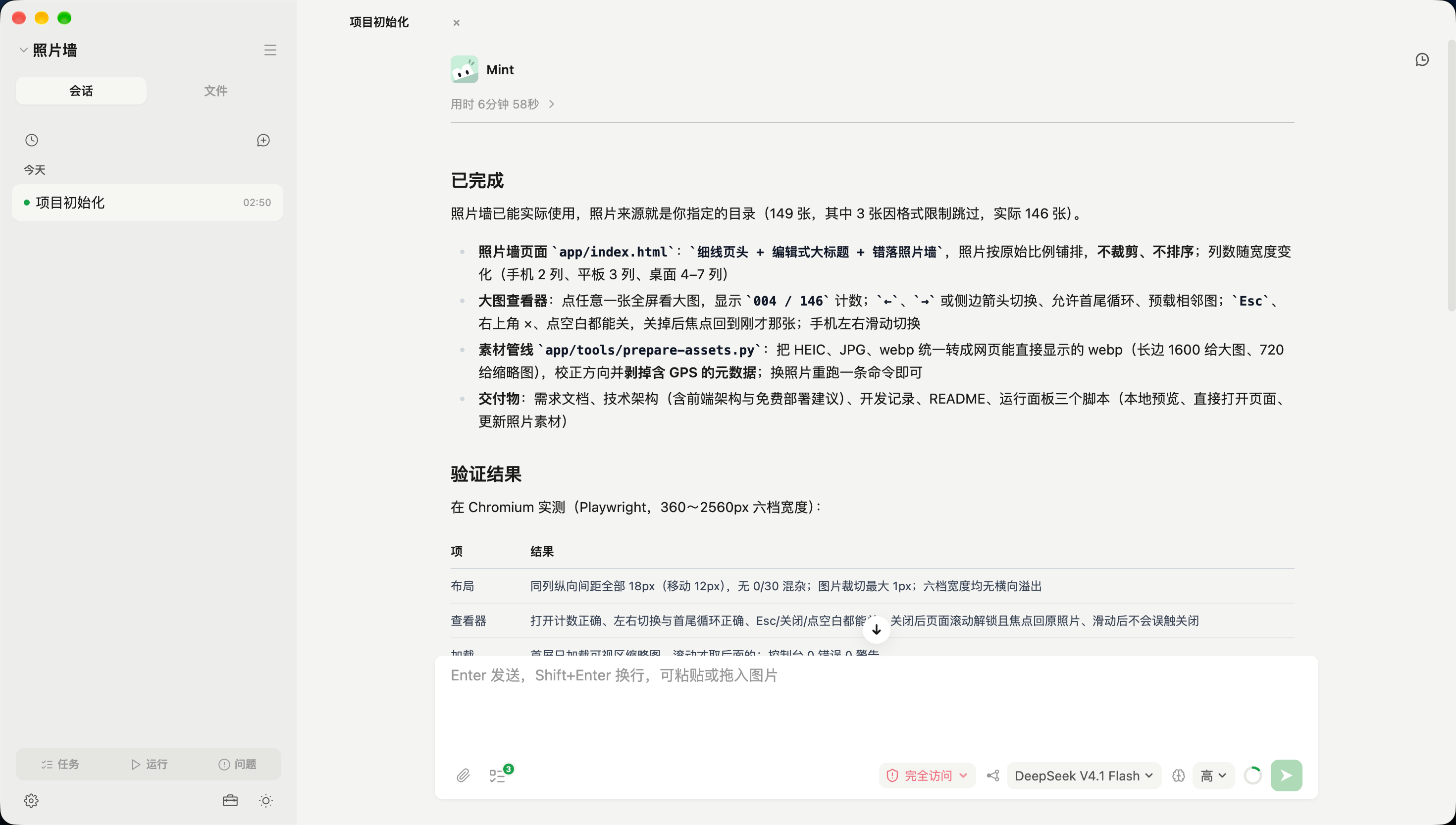
A project conversation in EasyMint. Read the delivery summary first and expand thinking and tool activity when needed. Screenshots currently show the Chinese interface; the application also supports English.
Design philosophy: turn an idea into a project that can be discussed
Many software projects do not begin with a complete requirements document. They begin with a vague observation: a workflow is too cumbersome, a tool is missing something, or someone wants to build a small product for themselves. The real questions appear only after starting—how should the features be separated, how do prototyping, development, and acceptance fit together, and how should the request be expressed to an AI so that the result is usable?
EasyMint does not assume that the user already knows these things. The four-step project definition turns “what I want to make” into constraints that can be selected and revised one at a time: basic information establishes scope; the feature list helps decompose capabilities; visual direction turns aesthetic preference into comparable pages; and delivery preferences make completeness, deployment, AI capabilities, and cost boundaries explicit. The user does not need to learn prompt engineering or understand a project structure first; they only need to make judgments about the choices in front of them.
Once the project begins, Mint moves between implementation, explanation, and review. The user can see how requirements become tasks, how tasks become prototypes and code, which constraints shaped the result, and how the next round of changes can be expressed. EasyMint is not intended to let people skip learning. It is intended to make the first project possible, then build an understanding of software lifecycles and AI collaboration through real work.
Quick start
Download an installer from Releases:
| Platform | Download |
|---|---|
| macOS · Apple Silicon | .dmg |
| Windows · x64 | .exe installer or .zip portable (no install) |
| Linux · x64 | .AppImage, .deb, or .tar.gz |
First launch on macOS
The build has no Apple Developer ID and cannot be notarized, so macOS blocks it once with "Apple cannot check EasyMint for malicious software". The dialog only offers "Done" and "Move to Trash".
Right-click → Open no longer bypasses this since macOS 15. Use either of these (once).
Option 1: terminal (fastest)
sudo xattr -rd com.apple.quarantine /Applications/EasyMint.app
Enter your login password (it stays invisible while typing), then double-click the app. This only clears the quarantine flag for this app; it changes no system security settings and affects no other applications.
Option 2: System Settings
- Click "Done" in the blocking dialog — not "Move to Trash"
- Open System Settings → Privacy & Security
- Scroll down to the Security section; macOS lists EasyMint as blocked
- Click "Open Anyway" and confirm with your password or Touch ID
- Double-click EasyMint again; the dialog now has an "Open" button
Every manual installer download needs this once: a newly downloaded dmg carries the quarantine flag again. In-app auto-updates are unaffected (they bypass the browser, so no quarantine flag is set). Uninstalling the old version deletes no projects, sessions, or settings — they live in ~/.easymint/.
On Windows, if SmartScreen appears, click "More info" → "Run anyway". On Linux, the AppImage needs chmod +x first.
Windows builds include Git and Bash and prepare them on first launch. Recheck or repair them under Settings → Environment. System protection for Standard mode is installed with explicit authorization in Settings; Full Access does not require that component.
See CHANGELOG.md for release and compatibility notes (Chinese).
- Configure an AI provider. Follow the first-launch setup and use an API key or account authorization supported by your provider. EasyMint has no separate account system; model usage follows your provider's billing rules. See AI providers.
- Create or open a project. Describe your idea in chat, use the four-step form, or import an existing directory. The form covers project details, features, visual style, and delivery preferences.
- Try the result. For a UI project that needs a prototype, open its preview and discuss changes before approving implementation. Simple tasks can proceed directly; project guidance adapts to the scope.
- Continue development. Mint implements directly or delegates suitable work. Review the result, use configured project scripts in the run panel, and describe the next change.
Static prototype links are local to your computer and remain available while EasyMint is running. They are not public hosting links. Applications that need a build tool or backend use their own development service.
Features
- Project guidance and visual direction: start from conversation or a four-step form, preview complete page styles for web and mobile, and add your own design brief.
- Interactive prototypes: try a page before implementation. Static HTML previews come with a clickable local link without requiring a separate server setup.
- Multi-agent work: Mint coordinates requirements and tasks; Builder, Evaluator, Mint-D, and custom agents can take on suitable implementation, review, design, and research work. Progress and results stay visible.
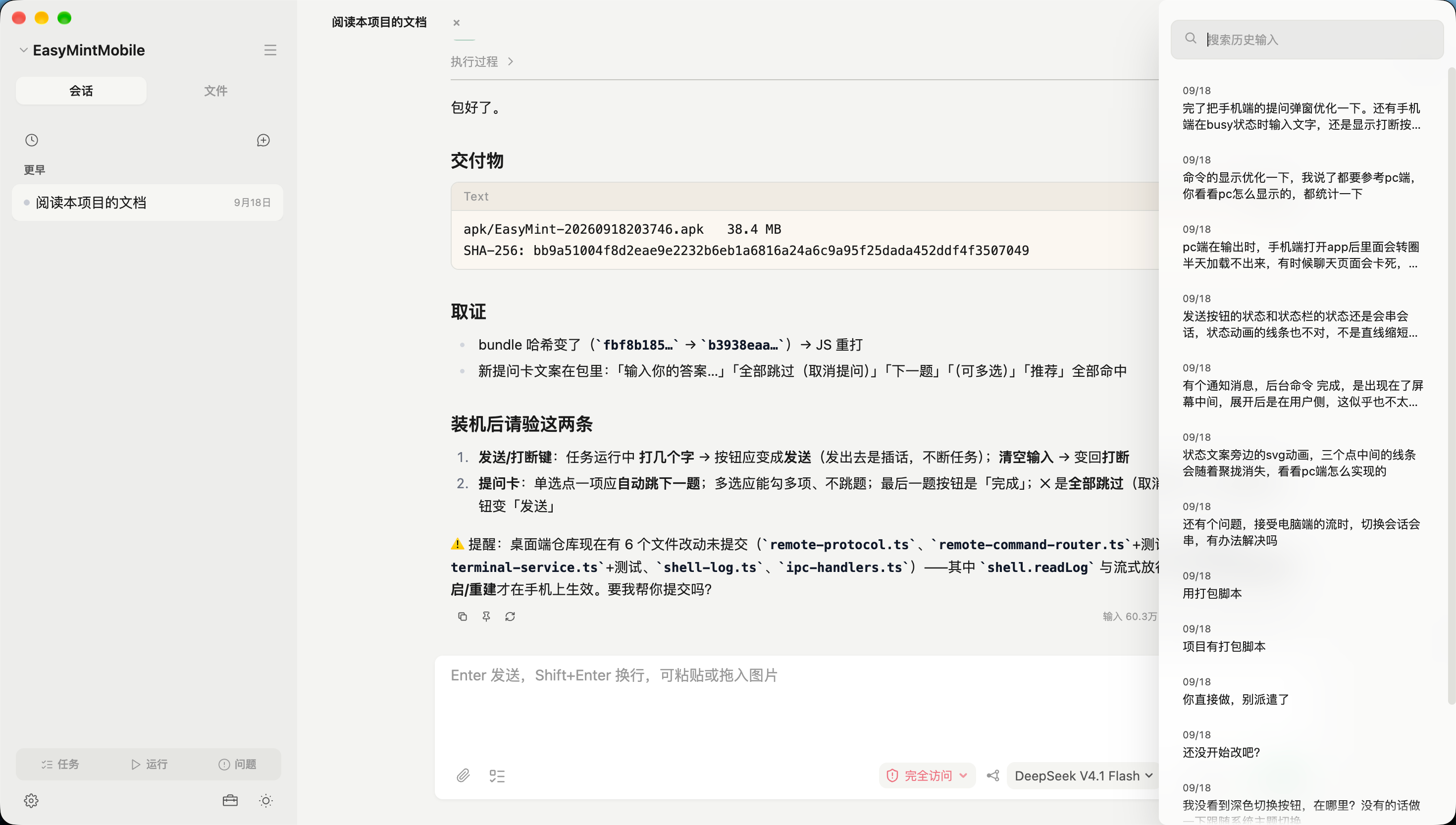
- A conversation workspace: multiple tabs and windows, archived sessions, searchable input history, floating pinned notes, and execution records that keep conclusions visible while thinking and tools stay folded. Monitor context usage and compact long conversations when needed.
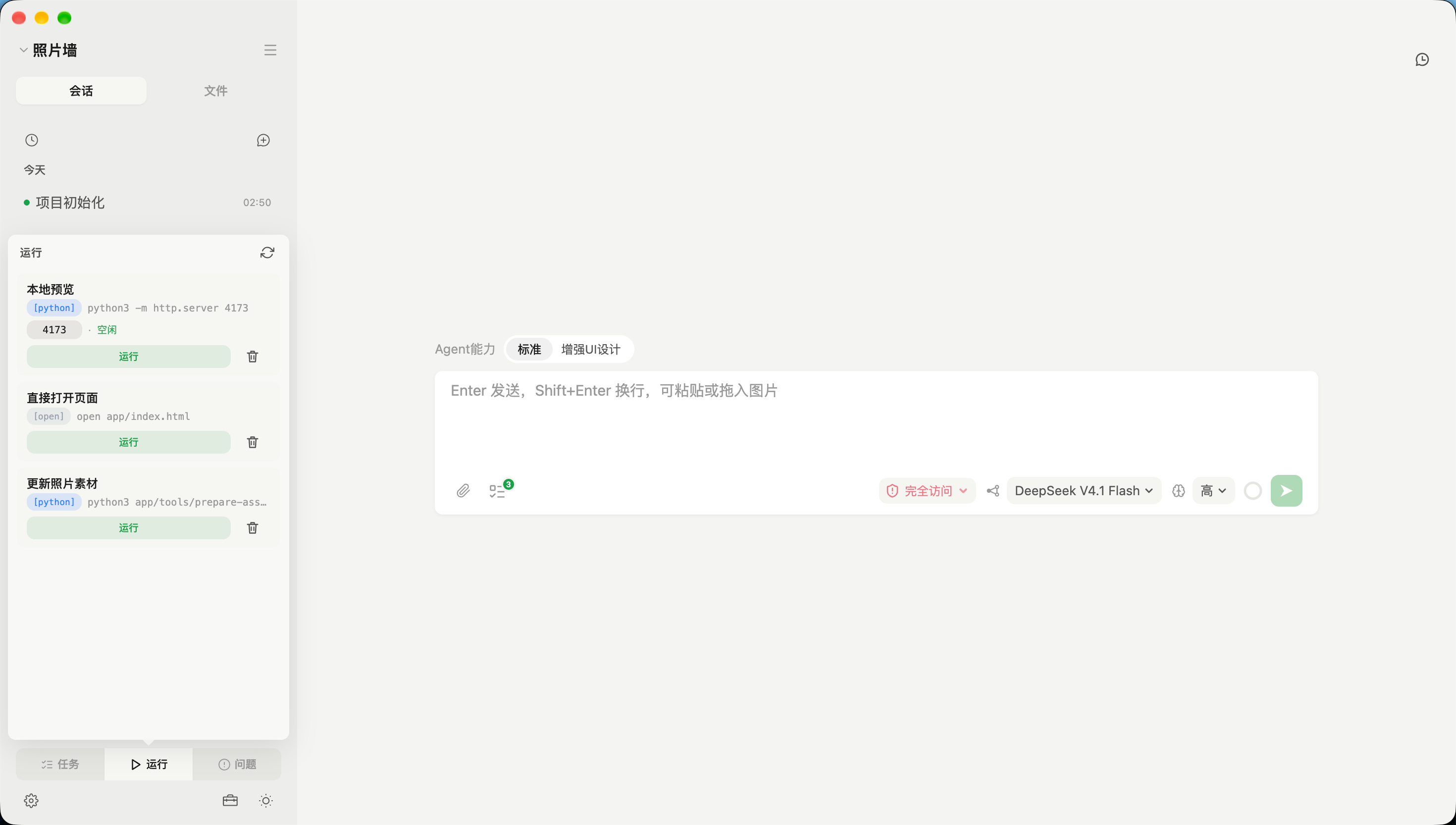
- Tasks, to-dos, and run scripts: track development tasks and issues, collect follow-up ideas, and run configured project commands with port status and colored logs. The run panel reads the project's
.easymint/run.jsonconfiguration. - Models and image tools: choose providers or compatible custom endpoints, configure a separate vision model, generate image assets, or use planning and execution models through automatic routing.
- Skills and integrations: reuse skills from Claude Code, Codex, and GitHub Agent Skills, connect MCP tools, and explicitly approve native Pi extensions for Full access sessions.
- Local data and controlled access: keep project files and sessions on your machine, select Read-only, Standard, or Full access, and transfer projects and sessions between paired devices over the local network.
EasyMint may be a poor fit if you only need inline code completion or want a CLI without project guidance. It does not provide shared cloud-hosted sessions or documents.
How a project begins: four steps, then collaboration
The four-step flow is not a questionnaire that must be completed in one pass. It unfolds the decisions that are easiest to blur into an order of dependency. Each step offers comparable choices and accepts a custom description; the user makes the first decision, and Mint continues to clarify it in conversation.
| Step | What the user decides | What becomes a project constraint |
|---|---|---|
| Step 1 · Basics | What the project is, how it will be used, and where it runs | Name, use case, and target platforms |
| Step 2 · Features | What the first version must accomplish | A feature list that can be discussed and decomposed, with optional recommendations from Mint |
| Step 3 · Visual direction | How it should look and feel | Complete page previews across web and mobile, or a custom design brief |
| Step 4 · Delivery | How complete this version should be, how it runs, and what it may cost | Completeness, deployment, AI capabilities, and budget boundaries |
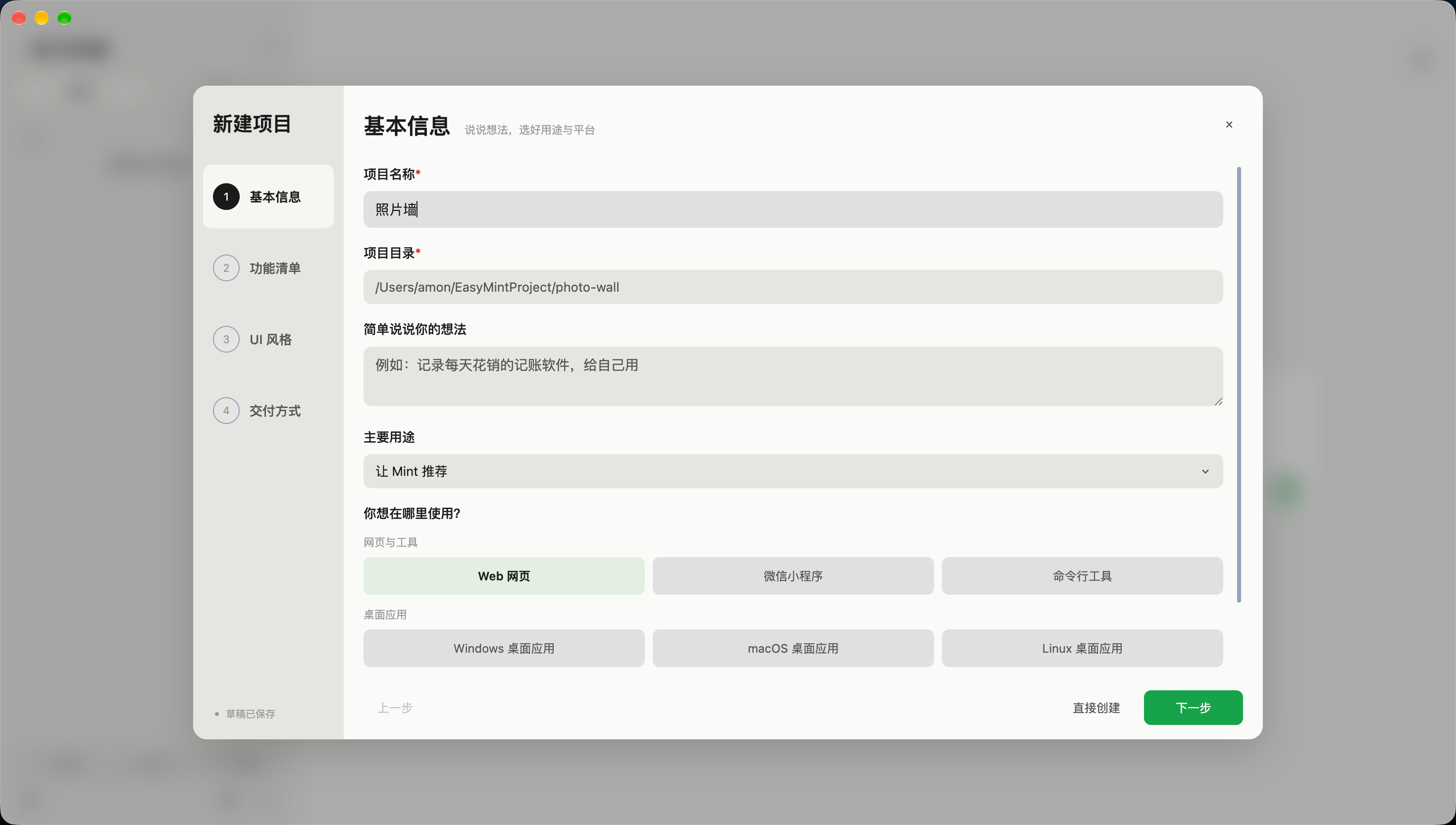
Steps 1–2: turn a vague idea into project scope
Start with a name, purpose, and target platforms, then separate “the thing I want to build” into concrete capabilities. It is acceptable not to know the full requirements yet: choose the closest use case, ask Mint for feature suggestions, and add or remove items from there.
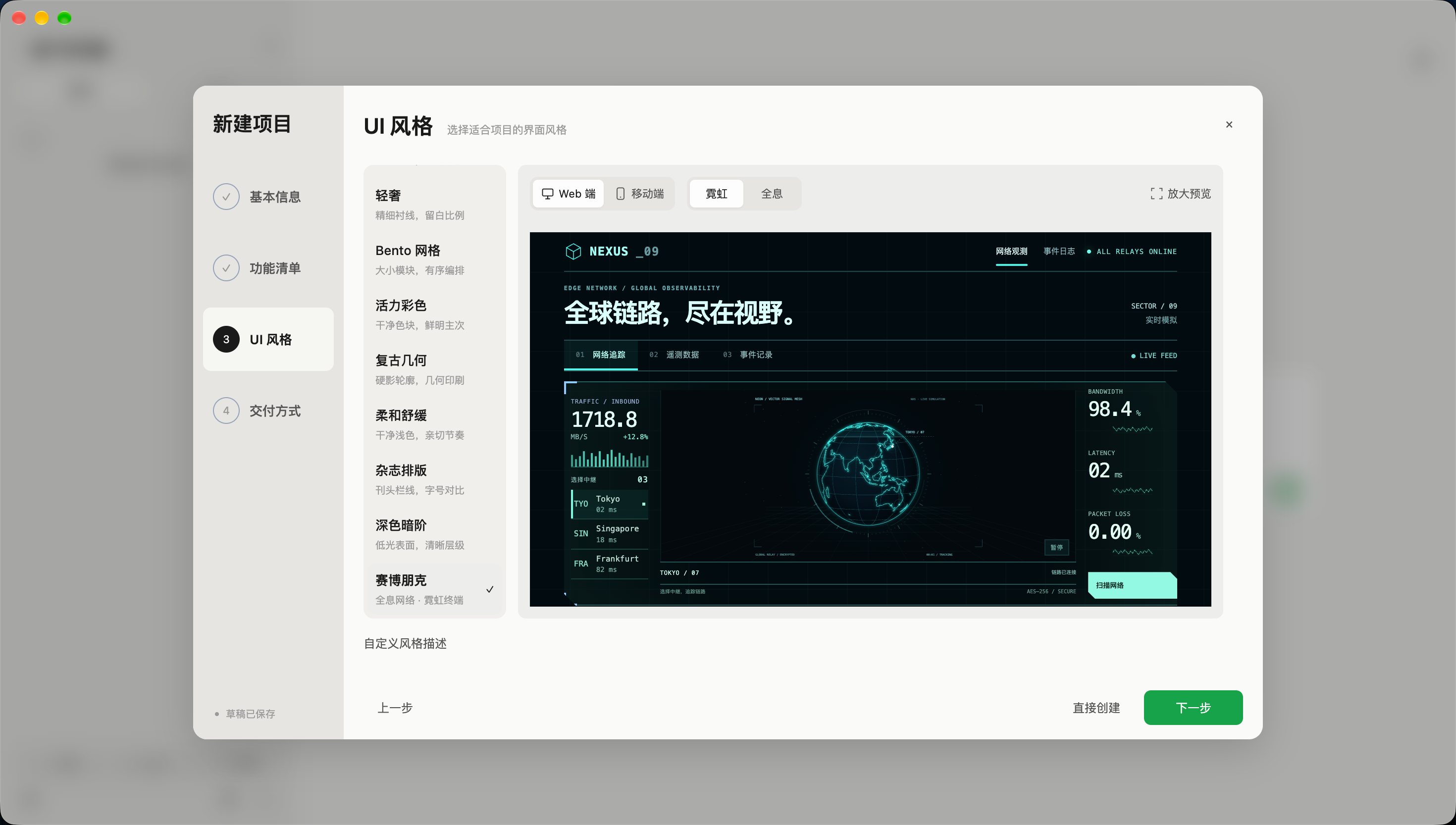
Step 3: express visual preference through pages, not terminology
Visual styles are not presented as abstract labels. Each direction is rendered as a complete page, with web and mobile previews and support for a custom description. The user does not need design vocabulary to judge whether the result feels right.
Step 4: define completeness and delivery boundaries
The final step grounds the project in more concrete constraints: whether this version is a full release, an MVP, or a demonstration prototype; whether it runs locally or in the cloud; whether it needs AI capabilities; and whether the technical budget is flexible, limited, or free-only. These choices do not replace later discussion, but they give the first implementation a clear scope and explicit trade-offs.
After creation: from tasks and prototypes to a runnable project
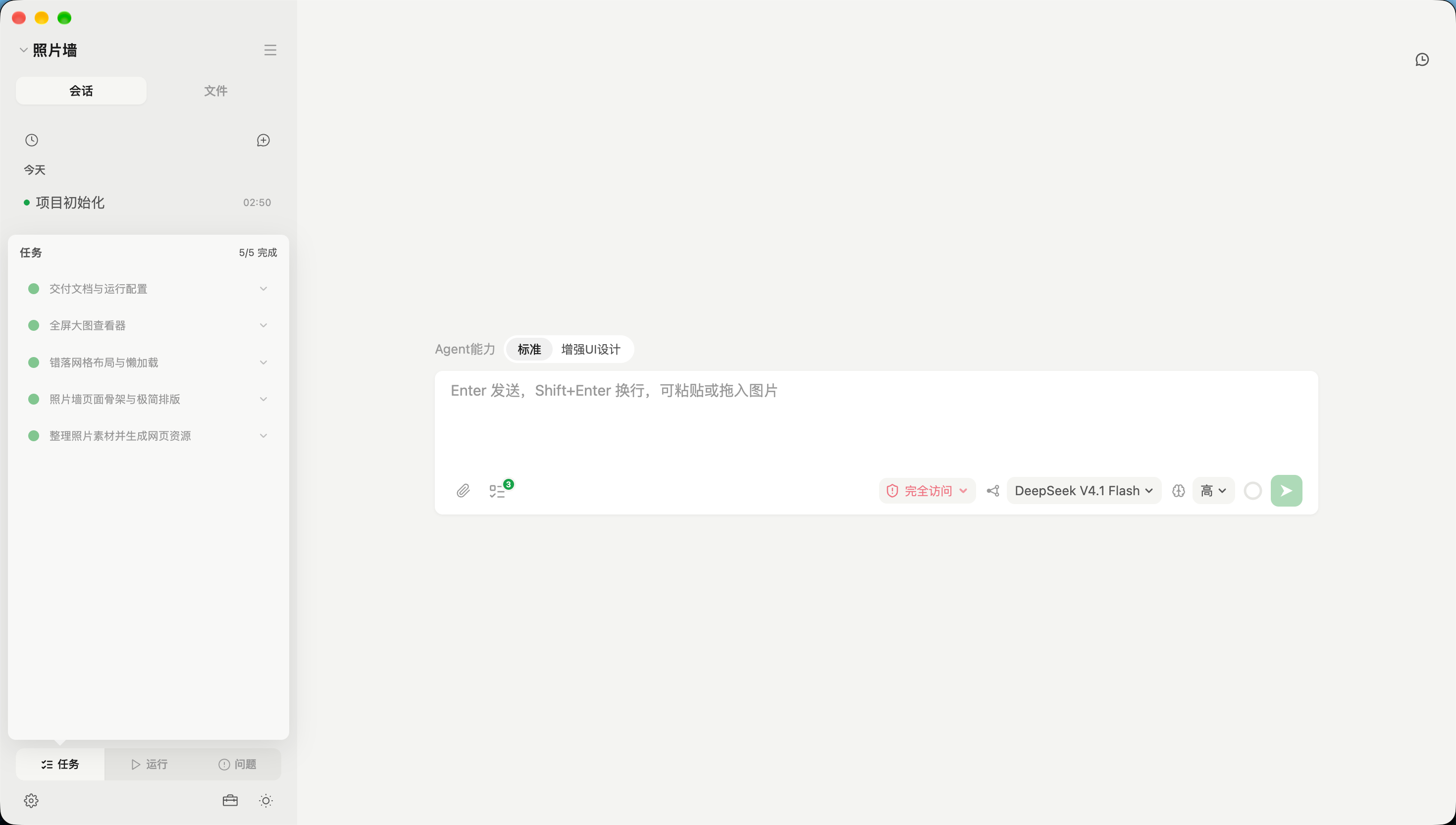
Once the four steps are confirmed, Mint turns the project scope into subsequent tasks. UI projects can be tried through a local prototype link before implementation is approved. During development, task progress and run scripts remain beside the conversation. Repeatable commands live in the run panel, so starting, stopping, and inspecting logs do not require leaving the workspace.
| Task progress | Run scripts |
|---|---|
 |
 |
More workspace tools: agent templates, skills, input history, and pinned notes
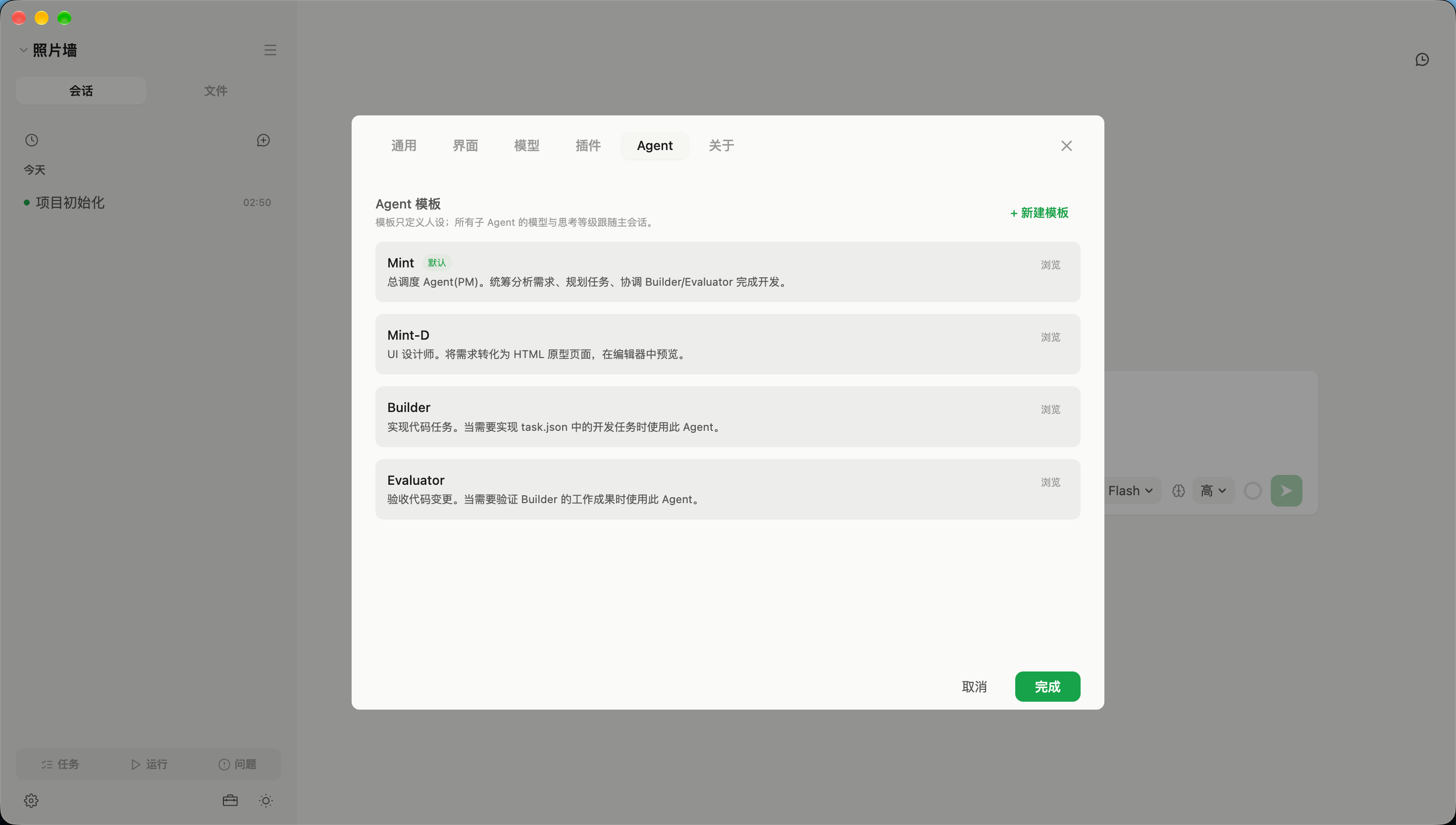
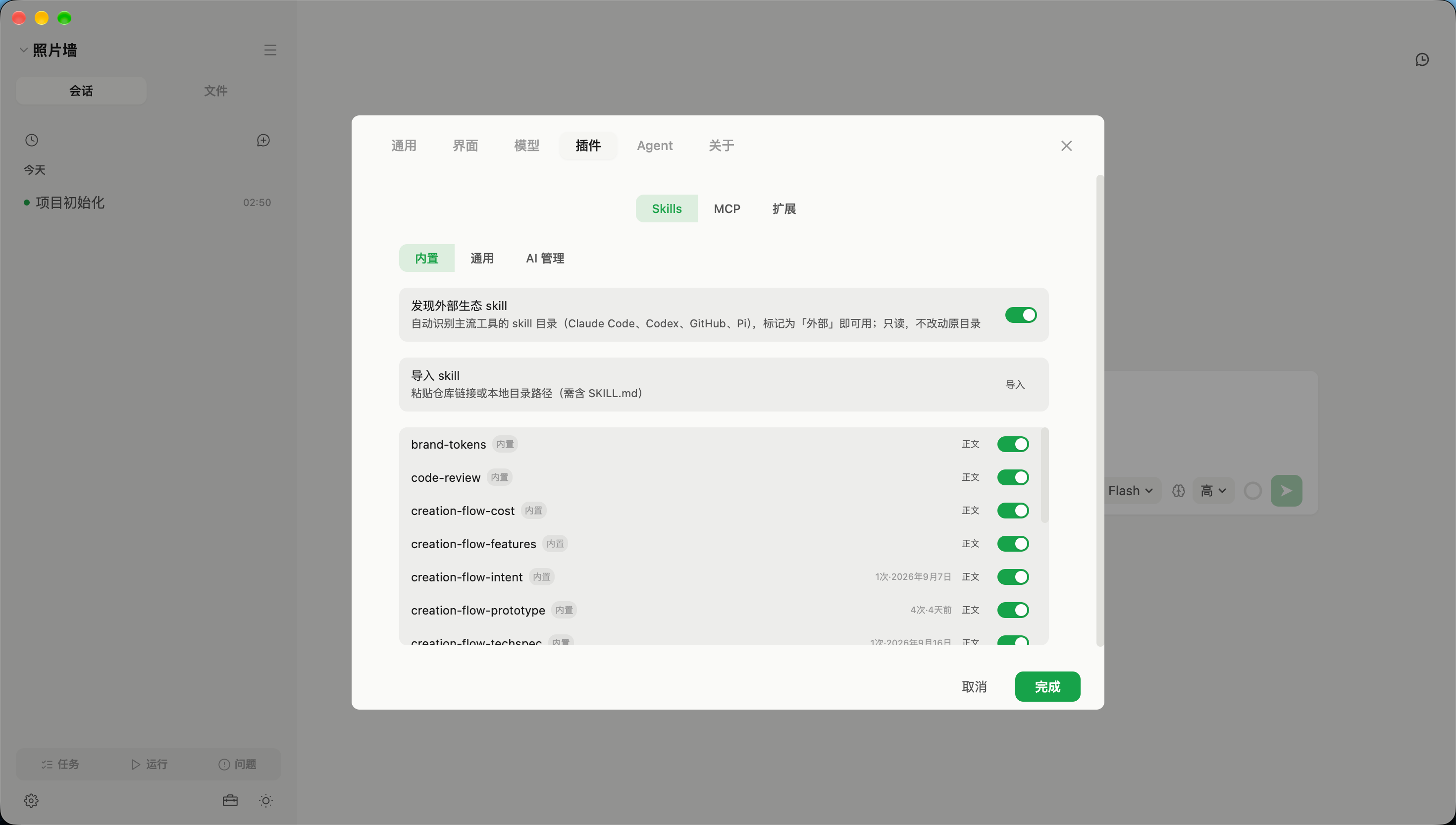
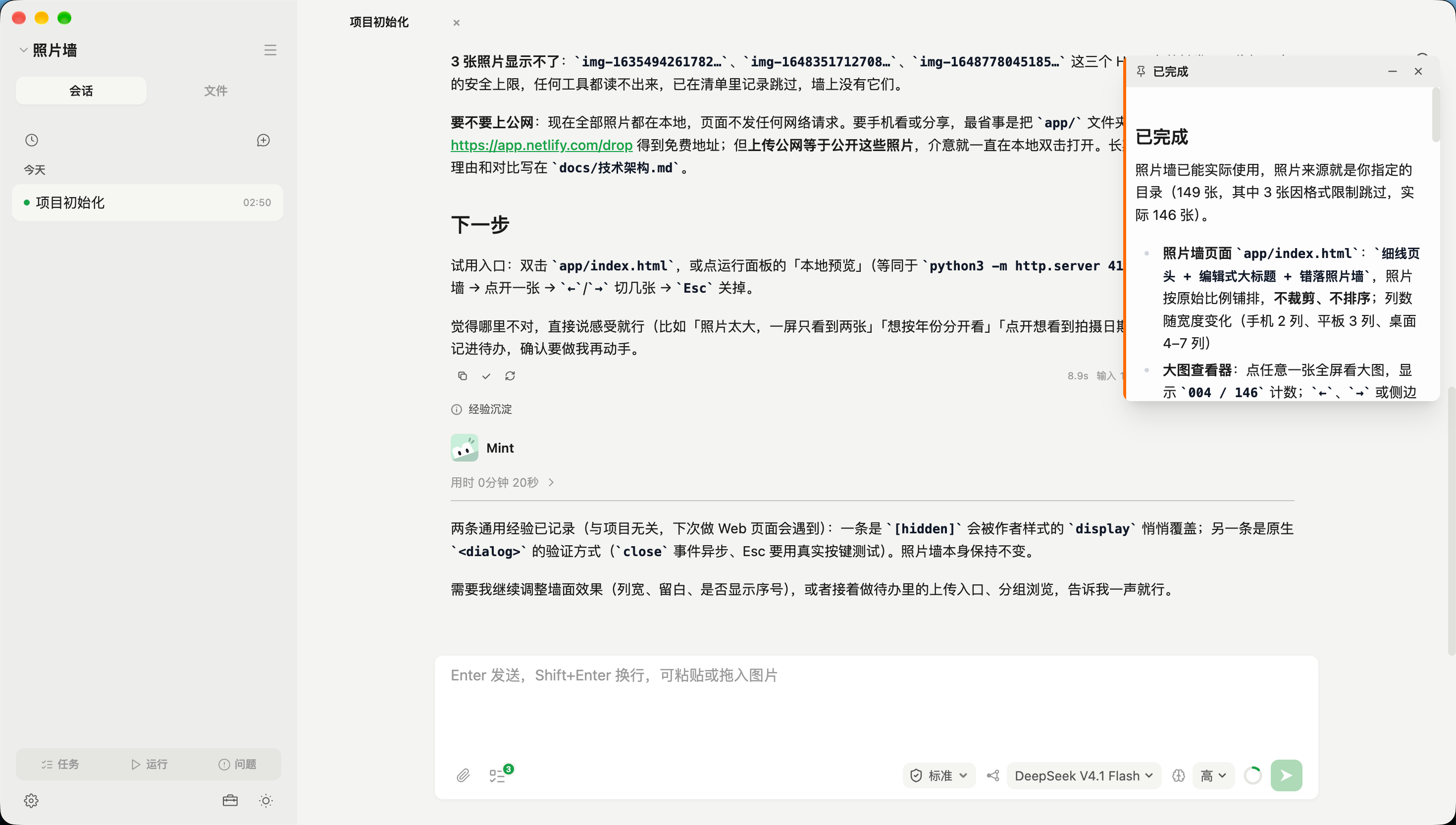
Choose agent responsibilities and reuse skills and MCP integrations in settings. During a conversation, revisit earlier prompts or keep useful output visible as a floating note.
| Agent templates | Skills and integrations |
|---|---|
 |
 |
| Input history | Pinned notes |
|---|---|
 |
 |
Local data and permissions
EasyMint itself has no account system, telemetry, or project cloud storage. AI requests go directly to the provider you configure; messages, files the agent reads, command output, and images may enter those requests. The provider's privacy and retention policies apply. See the bilingual Privacy & Data Handling document.
Default local storage is split across:
| Location | Contents |
|---|---|
| Your project directory | Source code, documents, and generated assets |
<project>/.easymint/ |
Project configuration, to-dos, and project-specific knowledge |
~/.easymint/ |
App settings, provider credentials, sessions, skills, and project runtimes |
Provider credentials are stored locally in plaintext. MCP OAuth credentials use the operating system's secure storage when available, with a plaintext fallback on Linux systems without a keyring. Keep the global data directory private.
| Permission mode | Typical use | Boundary |
|---|---|---|
| Read-only | Inspect project content | Approved read tools; no commands, writes, or network access |
| Standard · default | Develop and run checks | OS sandbox, a separate project runtime, and a network allowlist, with defined compatibility exemptions |
| Full access | Use the host environment and credentials | No OS sandbox; pre-execution checks provide best-effort protection |
Permission enforcement, compatibility exemptions, and Pi extension boundaries
EasyMint checks operations before execution. Standard mode also runs commands inside an operating-system sandbox. Three categories define the boundaries:
- System core: system directories, raw devices, and disk or security mechanisms such as
csrutil,spctl, andfdesetupare blocked in all modes. - Dangerous operations: privilege escalation (
sudo/doas), system service changes, and persistent configurations that can execute code—such as MCP configuration, startup directories, and EasyMint model/provider settings—are blocked in all modes. - Ordinary resources: Read-only mode limits reads to approved ordinary project content. Standard mode confines writes to the project, its runtime, and permitted temporary areas, and blocks highly sensitive credentials. Full access removes the ordinary workspace restriction.
Pi extensions are explicitly approved main-process code and load only in Full access sessions. Extension initialization and event handlers do not pass through the ordinary tool sandbox. When switching to Standard or Read-only, the current response may finish, extension tools stop immediately, and the session is rebuilt with the new permissions when idle.
The modes differ as follows:
- Read-only: allows approved read tools for ordinary project content. Unknown tools, commands, file and application-state changes, MCP, network access, and sensitive credentials are blocked. Builds, tests, dependency installation, and Git operations are unavailable.
- Standard (default): redirects
HOME,TMPDIR, and npm/pip/cargo caches into~/.easymint/runtimes/<project-id>/. Commands run inside the OS sandbox. A compatibility list, single-command exemptions, and network allowlist support development tools. Theopenexemption accepts one HTTP(S) URL; compound commands, pipes, redirections, and command substitution do not qualify.git pushandfetchcan use SSH-agent signing when the key is already loaded. Tools needing host login directories may require Full access. - Full access: uses the real host environment without an OS sandbox. Tools such as
gh, Git, system commands, browsers, and Playwright can use the host environment. Switching requires a risk confirmation. Protection for system-core writes, privilege escalation, and persistent configuration is best effort before execution, not strong isolation against dynamic scripts. - Conservative preflight checks: checks target identifiable paths and privilege escalation. Message text, regular expressions, and script content are not treated as file paths. Kernel enforcement provides the additional boundary in sandboxed modes.
- Visible mode indicators: the input card shows a lock shield for Read-only, a checked shield for Standard, and a warning shield with a danger color for Full access.
Workspace details
Agent roles and templates, project tools, reusable knowledge, and skills
Multi-agent collaboration
- Mint (project manager): understands requirements, plans tasks when needed, coordinates agents, and tracks progress.
- Builder (coding): implements tasks, runs tests, and fixes problems; supports TDD.
- Evaluator (acceptance): checks the result against requirements and returns incomplete work for revision.
- Mint-D (UI design): produces HTML prototypes using the brand library and design guidelines.
- General subagents: handle typed exploration, review, and implementation tasks, returning summaries to the main session.
Task progress is visible in the panel. Role-specific tasks use their assigned templates; general tasks use standard subagents. Delegation depth and task types are controlled.
Agent templates
Mint, Mint-D, Builder, and Evaluator are built-in read-only templates. To customize a role, create a template with its name, responsibility description, and prompt. Subagents inherit the main session's provider, model, and thinking level; those settings are not configured per template.
Project management
- File tree and Monaco editor with syntax highlighting and completion.
- Multiple session tabs and windows.
- Project renaming with automatic session-data migration, relocation, and existing-directory import.
- Git integration.
- Cross-device transfer of files and sessions.
Pinned notes
Pin important AI output as floating notes in the chat area. Notes can be resized, attached as colored sticky notes, and persisted with the session.
Experience retention
When enabled in settings (off by default), Mint can retain useful lessons from completed tasks:
- Two scopes: global knowledge for the local environment and working practices; project knowledge that travels with the project.
- Index-only context: titles, tags, and counts are injected; full entries are read on demand.
- Technology-aware selection: entries tagged for a stack or platform appear only in matching projects.
- Editable Markdown: entries are saved directly without a separate confirmation and can be edited or deleted at any time.
Skills
- Automatic discovery: discover standard skills in Claude Code (
~/.claude/skills/), Codex (~/.codex/skills/), and project GitHub Agent Skills (.github/skills/) directories without changing the original files. - Project precedence: skills in a project's
.claude/skills/,.codex/skills/, and.github/skills/override global skills with the same name. The interface shows their source and shadowed status. - Install from a path or link: send Mint a GitHub repository URL or local skill directory. Installation copies files without running repository scripts.
- AI-managed skills: enable skill management in settings to let Mint create, update, and delete skills in a dedicated area separate from manually authored skills.
AI providers
Presets include Anthropic, OpenAI, OpenAI Codex, GitHub Copilot, OpenRouter, DeepSeek, Zhipu GLM (Z.AI), Kimi, MiniMax, Qwen, Xiaomi MiMo, xAI, Google Gemini, and OpenCode. Custom OpenAI- and Anthropic-compatible providers are also supported. Configure multiple providers and switch between them. A separate vision model can handle image understanding and interface checks.
Authentication depends on the provider:
- Account login (browser authorization): available presets include Anthropic (token-based charges rather than plan allowance), OpenAI Codex (ChatGPT Plus / Pro account), GitHub Copilot (subscription account), OpenRouter, Kimi Coding, and xAI.
- API key: used by the other built-in presets—including OpenAI, DeepSeek, Zhipu GLM / Z.AI, MiniMax, Qwen, Google Gemini, Xiaomi MiMo, and OpenCode—and custom providers. Keys and account credentials are stored locally in plaintext under
~/.easymint/, comparable to.npmrc,git-credentials, or~/.aws/credentials. MCP OAuth credentials use OS-protected storage when available; see the privacy document for fallback behavior. See PRIVACY.md.
Supported authentication methods come from the built-in engine's provider declarations. The settings selector appears only when both methods are supported. OpenAI and OpenAI Codex are separate presets: OpenAI uses the official API (
api.openai.com) with an API key; OpenAI Codex uses the subscription endpoint (chatgpt.com/backend-api) with account login.
Web search
Mint uses Tavily for built-in web search and page extraction. Create an API key at app.tavily.com/home and enter it under Settings → Models → Model capabilities → Web access. Search and extraction share the same key; onboarding configures that same setting.
These tools use basic search and extraction. Free allowances and charges are set by Tavily; see its credits and pricing. If extraction fails, EasyMint may fetch the URL directly from your computer, as described in PRIVACY.md.
Clearing the key disables EasyMint's built-in search and extraction tools; there is no separate toggle. Configured MCP tools or agent-run commands can have their own network capabilities and permission requirements.
Vision
For text-only models, configure a separate vision model through an OpenAI- or Anthropic-compatible endpoint to read images and check screenshots. Providing a key enables the capability; clearing it disables the capability. There is no separate toggle.
Native images and automatic models
In Settings → Models → Native images and automatic models, select an image model from a configured provider. Start or reopen a chat to ask Mint to generate an asset or edit reference images. Assets are saved in an existing project directory and open from their chat links. Calls use provider credentials and incur image API charges.
Configure planning and execution models, then select easymint-auto under the planning provider. Each new message starts with planning; successful file edits switch to execution, while retries keep their model. Replies show the actual provider and model. Wait for an active automatic-model run to finish before changing its configuration. Switching can lose prompt caching or trigger compaction; assess costs on your own workloads.
Mobile client (Android / iOS)
Connect a phone to the desktop application on the same local network. After QR-code pairing, use the phone to send messages, view model thinking and tool calls, answer questions, monitor background tasks and subagents, and attach images or documents to conversations in the currently open desktop project.
Mobile repository: tianemon/EasyMintMobile.
- Install: download the Android APK from EasyMintMobile Releases. iOS requires your own signing; the repository includes local build scripts.
- Pair: open the desktop sidebar toolbox (工具箱), choose “Connect phone” (连接手机), scan the QR code, compare the six-digit code, and confirm on the desktop.
The phone stores pairing credentials only. Projects, sessions, and messages stay on the computer. Communication uses P-256 ECDH and AES-256-GCM encryption. The desktop does not send project absolute paths or API keys to the phone.
Interface language
Choose Simplified Chinese, English, or Follow system on the welcome page or under Settings → General → Interface language (设置 → 通用 → 界面语言). The default is Follow system: both Simplified and Traditional Chinese systems use the Simplified Chinese interface; all other system languages use English. Explicit language choices are preserved.
Application controls support Simplified Chinese and English, including settings, project creation and management, chat actions, permission and error messages, environment checks, device transfers, and the HTML prototype editor. Manual language changes apply without restarting and synchronize across application windows.
Switching language does not rewrite chat history, user-defined names, project files, built-in prompts, or prototype template content. AI responses continue to follow the user's language. Third-party output and raw diagnostics retain their original language; native system controls follow the platform language.
Technology stack
| Layer | Technology |
|---|---|
| Desktop | Electron 43 |
| Frontend | React 19 + Vite + TypeScript 6 |
| UI | Tailwind CSS 4 + custom components |
| State | Zustand 5 |
| Editor / terminal | Monaco Editor / xterm.js |
| Plugins | Pi Extensions / Model Context Protocol SDK |
| AI engine | Pi Coding Agent 1.5.0 |
Local development
git clone https://github.com/tianemon/EasyMint.git
cd EasyMint
node scripts/install-deps.cjs
npm run dev          # Vite dev server + Electron
npm run build        # Production build
npm run lint         # ESLint + TypeScript checks
For Windows source development, first run node scripts/prepare-windows-runtime.cjs --arch x64 (--arch arm64 for ARM64) to prepare the bundled runtime resources. Windows packaging prepares the matching architecture automatically.
Requires a Node.js environment. The installer configures Electron downloads through ELECTRON_MIRROR, preserving an existing value. For lockfile installation, use node scripts/install-deps.cjs ci.
Development story
EasyMint's development is itself an experiment in AI coding: approximately 99% of the project was produced using DeepSeek models (the lowest-cost flash tier since July), growing from a 14-file shell template into a desktop product.
Building a desktop coding agent with a low-cost model (Chinese).
Contact
- Enterprise, private deployment and custom development: [email protected] · [email protected]
- Community group (QQ, Chinese): 730870205
For bug reports and feature requests, please open an issue. You are also welcome to join the QQ group. For enterprise collaboration, on-premise deployment, private-network deployment requirements or custom development, email us with a brief description of your use case, team size and requirements.