
spymastermatt/thunderbird-monterail
spymastermatt/thunderbird-monterail has 1,051 GitHub stars and 73 forks. GitHot measured 0 stars in 24 hours. Last checked 2026-11-09 11:32 UTC. Last push 2020-05-18.
A set of themes for thunderbird inspired by a Monterail blog post
Measured star growth
- in 24h
- 0
- in 7 days
- Update delayed
- in 15 days
- Update delayed
- in 1 month
- Update delayed
Net star changes over overlapping periods, not daily totals. Missing measurements are left blank. Stars measure attention, not software quality.
README.md
Originalthunderbird-monterail
This is a set of userChrome.css files to change the look of Thunderbird, inspired by the mockup by Monterail here: https://monterail.com/blog/2016/the-power-of-email-clients-why-did-we-redesign-thunderbird?utm_source=Thunderbird&utm_campaign=Dribbble&utm_medium=blogpost%22
- 5 theme variants are included
- System: Uses system theme colors
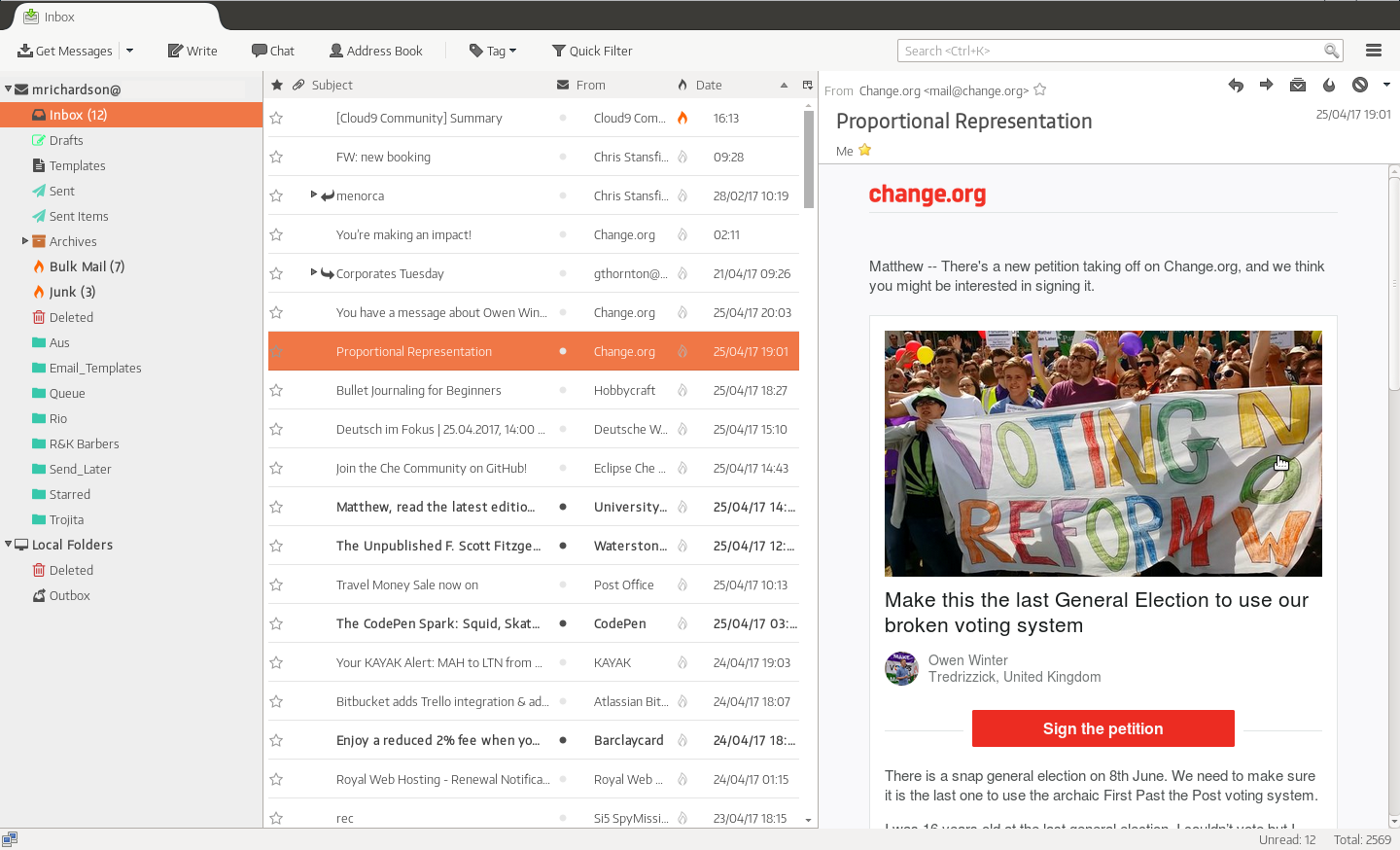
- Light: Light color scheme with orange* highlights
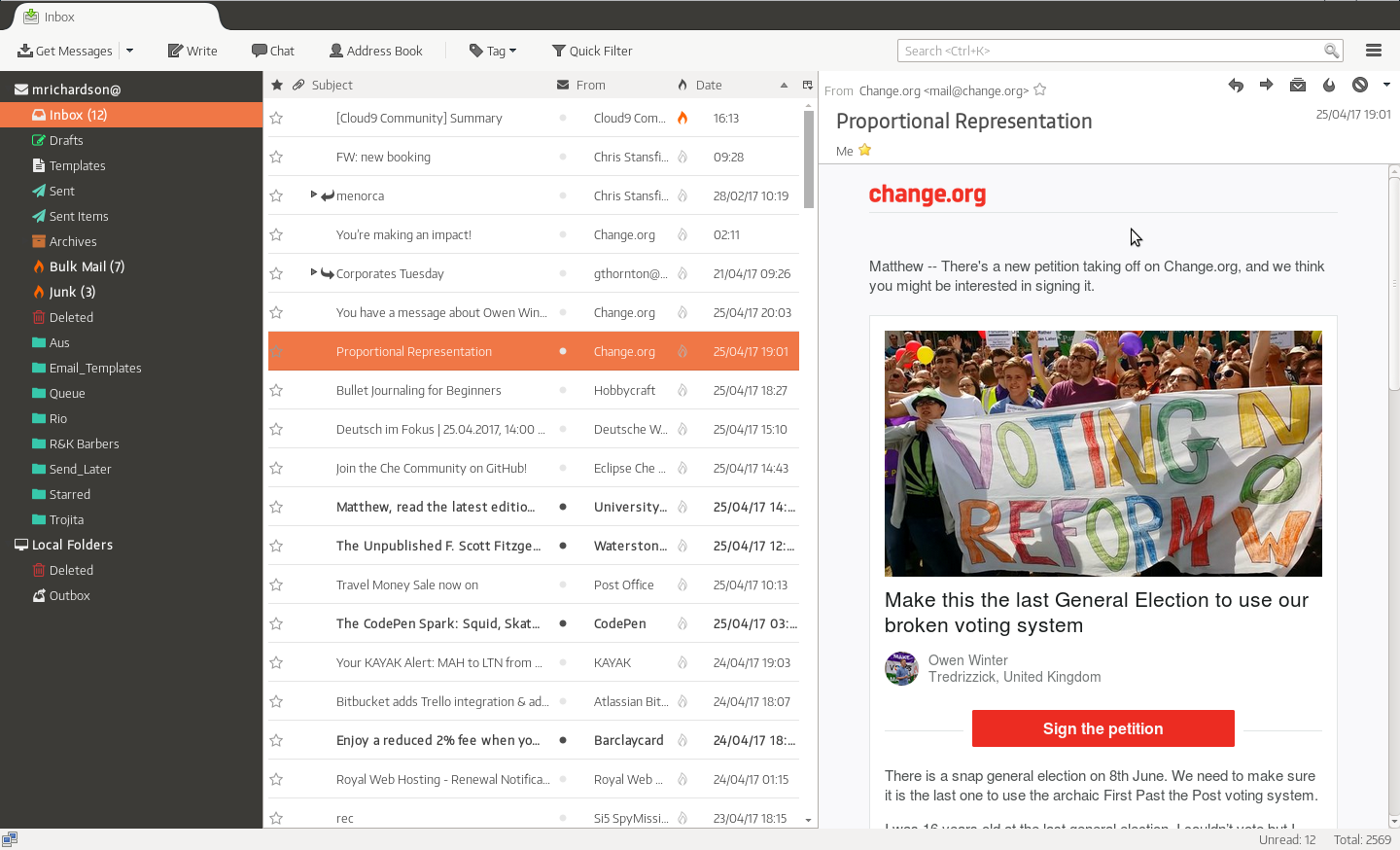
- Dark: Dark color scheme with orange* highlights
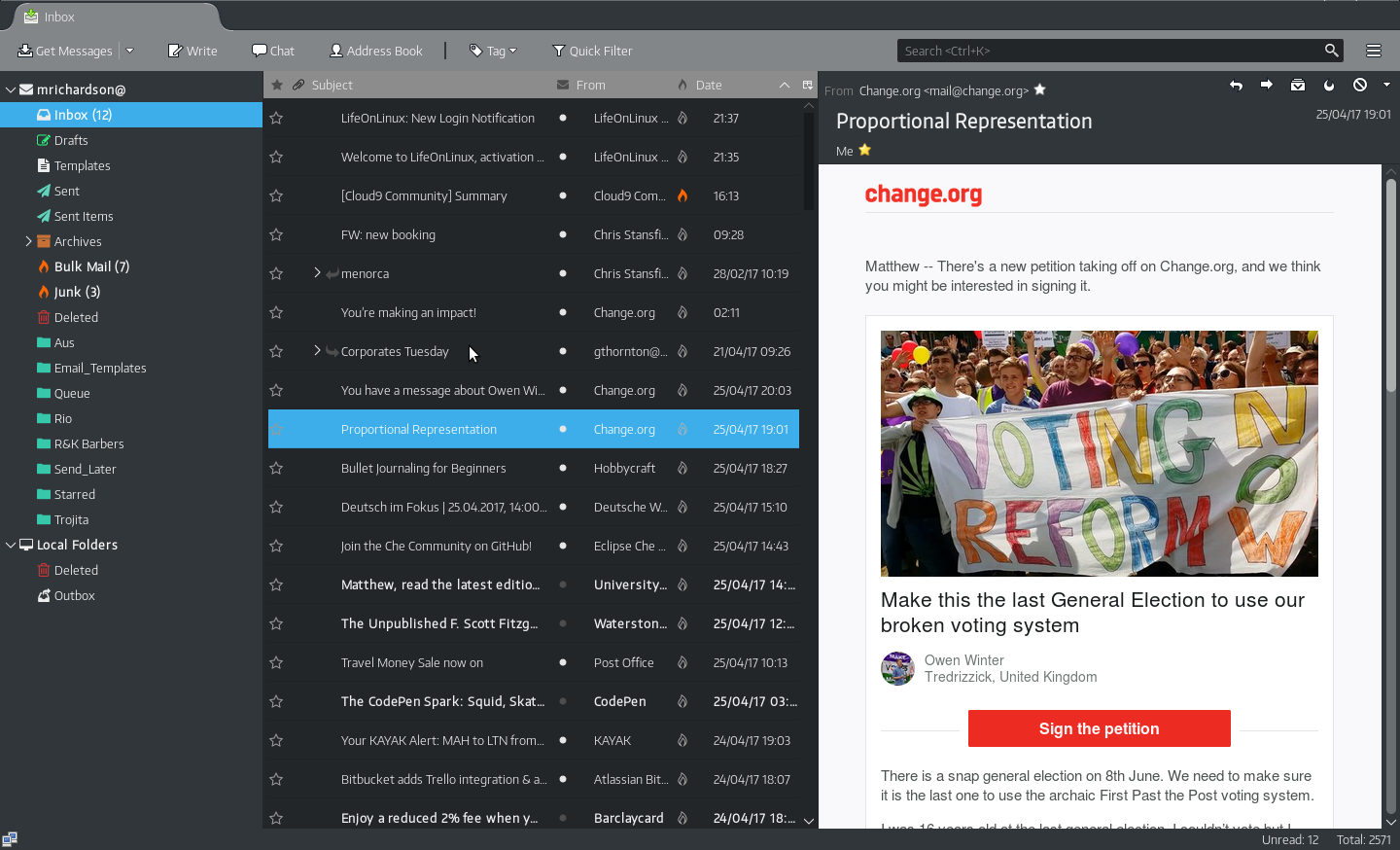
- Full Dark: Dark color scheme with dark message list and blue* highlights
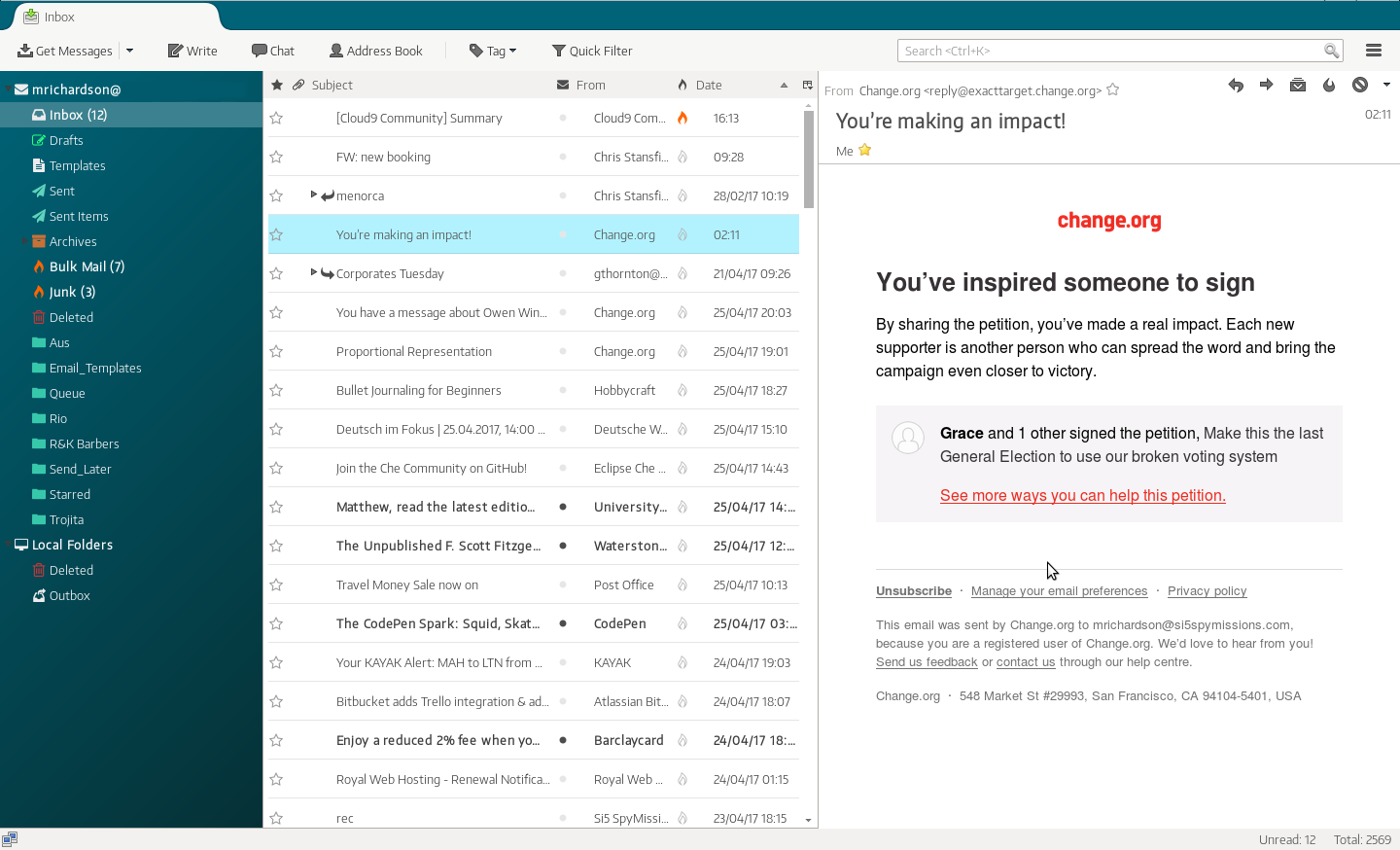
- Monterail: Colored theme inspired by the Monterail mockups *These values are easily customised in userChrome.css
- EncodeSans Narrow is included and used as the default font* throughout thunderbird.
- Also inluded is a set of svg icons which replace the default Thunderbird icons, mostly taken from the incredible Font-Awesome (http://fontawesome.io)
How to use these themes
To use these themes, download the source code as a zip and extract its contents to your thunderbird user config directory.
In Windows OS the chrome folder must be extracted in C:\Users\[user]\AppData\Roaming\Thunderbird\Profiles\[random letters and numbers].default/
In Linux it must be extracted in /home/[user]/.thunderbird/[random letters and numbers].default/
In macOS (OSX), it must be extracted in /home/[user]/Library/Thunderbird/Profiles/[random letters and numbers].default/.
If your profile is located in a different directory, you can find it by going in Thunderbird's preferences (Tools->Options->Advanced). After that, click the 'Config Editor' button, accept the warning and then search for directory. Your directory should be the value of the parameter mail.server.server1.directory. This is the path where you should extract the chrome folder.
Rename the extracted thunderbird-monterail folder to chrome, edit userChrome.css to choose your theme variant, and restart thunderbird.
If using the system variant, please make sure you uncomment the appropriate icon theme line (in userChrome.css) for your system colors (an description of each icon theme is written next to each line)
You can customise various values, including almost all colors, the fonts and some of the sizing by editing the variables in userChrome.css
Screenshots
Light:
Dark:
Full Dark:
Monterail:
Explore related projects
codecrafters-io/build-your-own-x
Master programming by recreating your favorite technologies from scratch.
561,398 starspublic-apis/public-apis
A collective list of free APIs
497,679 starsmorluto/rea
Reverse engineer anything with agents, from app behavior down to native binaries.
447,495 starsopenclaw/openclaw
The AI that really does things. Any OS. Any Platform. The lobster way. 🦞
394,261 stars