
smarzban/herdr-file-viewer
smarzban/herdr-file-viewer has 706 GitHub stars and 64 forks. GitHot measured +2 stars in 24 hours and +11 in 7 days. Last checked 2026-11-11 16:53 UTC. Last push 2026-10-26.
A git-aware, read-only file viewer for herdr. Mouse friendly, keyboard-driven TUI: tree + content pane with diffs, rendered markdown, and syntax highlighting.
What you can do
- f - Fuzzy-find any file in the tree
- s - Search project contents; open a matching path:line with Enter
- p - Pin the current file and keep browsing (compare across worktrees with W)
- a / A - Annotate a file or range; copy the notes out for an agent
Measured star growth
- in 24h
- +2
- in 7 days
- +11
- in 15 days
- Update delayed
- in 1 month
- Update delayed
Net star changes over overlapping periods, not daily totals. Missing measurements are left blank. Stars measure attention, not software quality.
README.md
Originalherdr-file-viewer



A git-aware, read-only file viewer in a herdr pane. Tree on the left. On the right, the view that file deserves: a diff if it changed, rendered markdown, or highlighted code. Agents can drop you on a file or a line. You pin one file, mark a range, and paste those notes back into the chat. It never touches your files.
[!TIP] Get tsk to keep your work and your agents' work on one board. TUI for you, CLI for them.
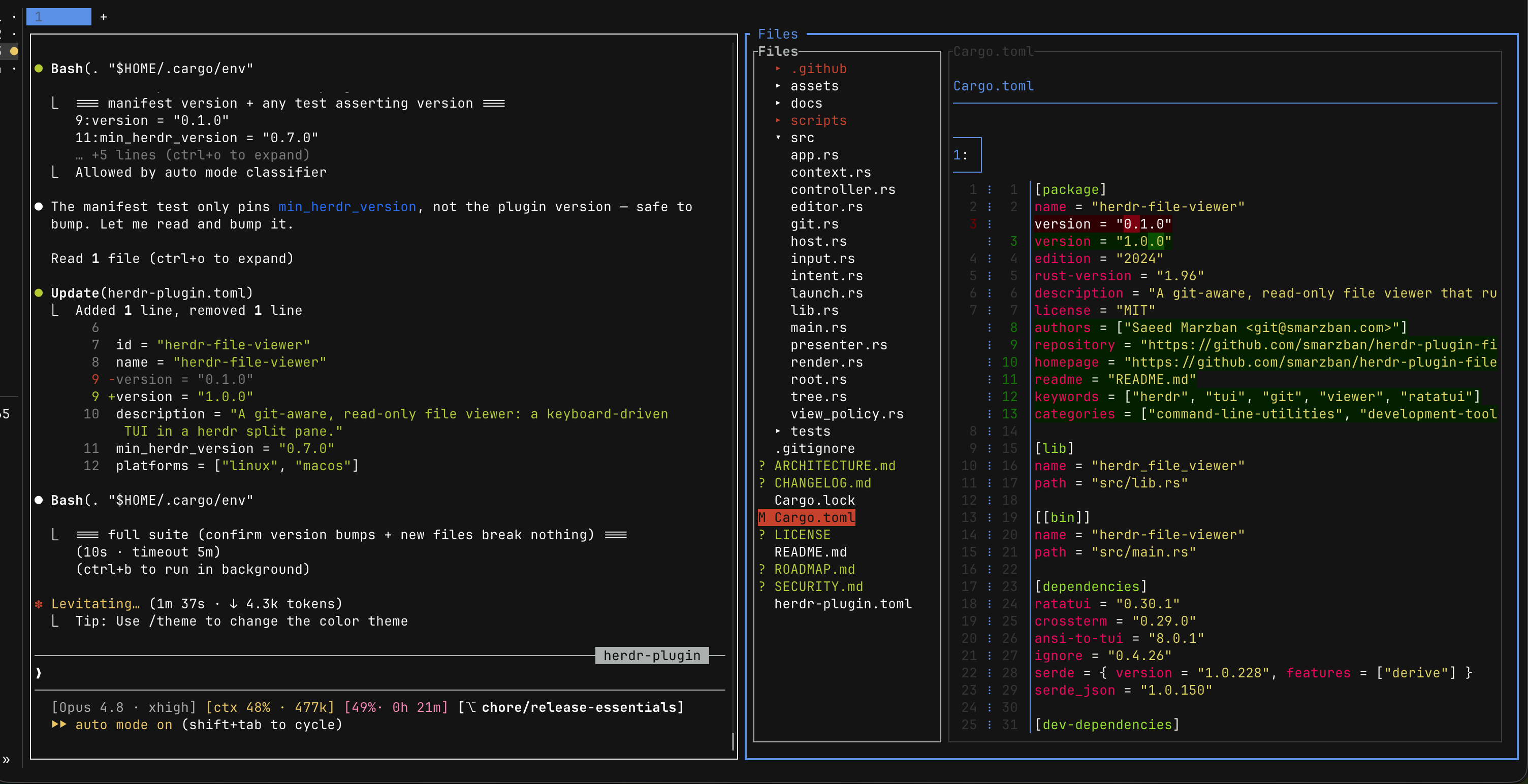
The right view per file, here a markdown file rendered (headings, inline code, tables) in your terminal's theme:
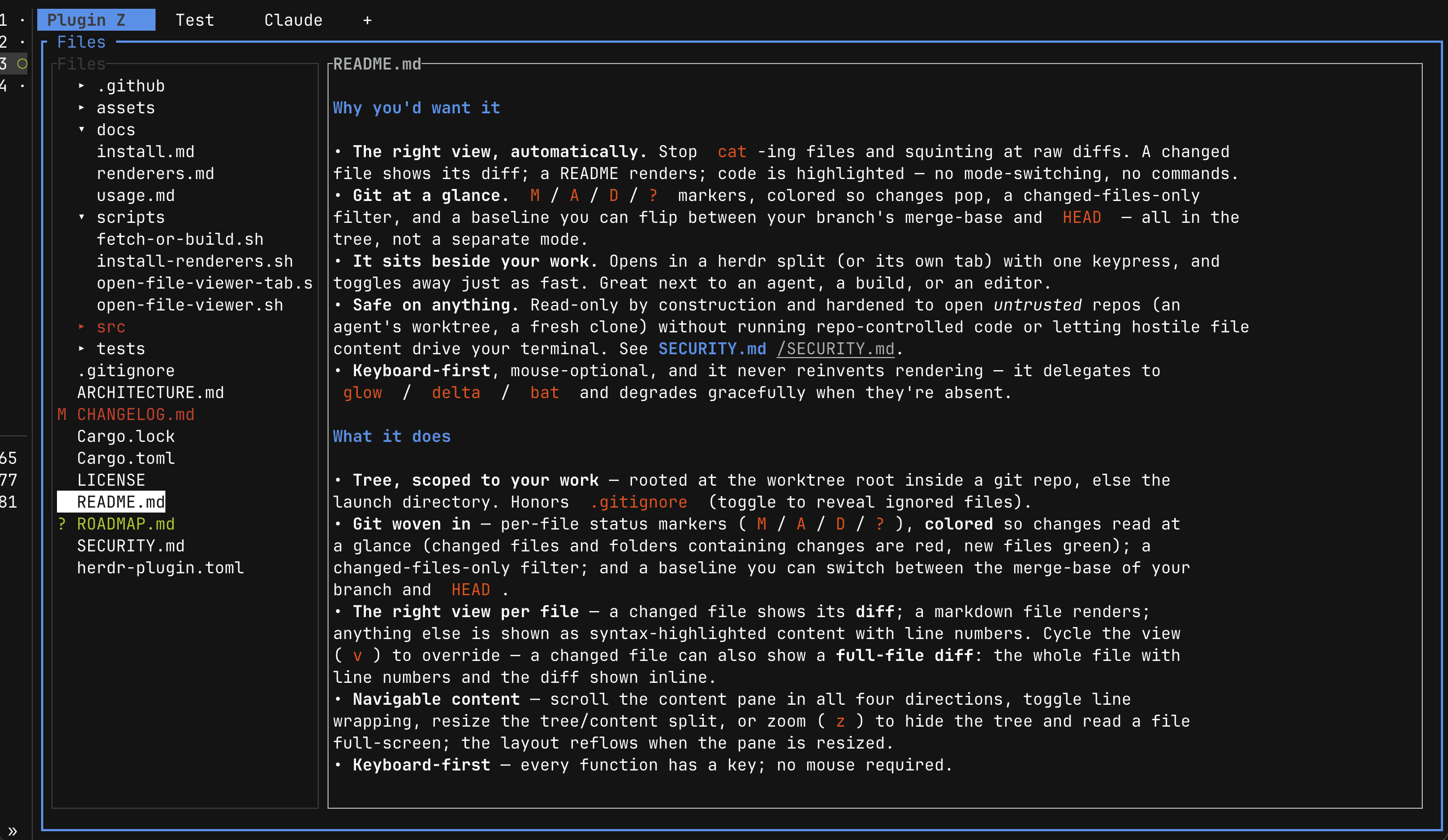
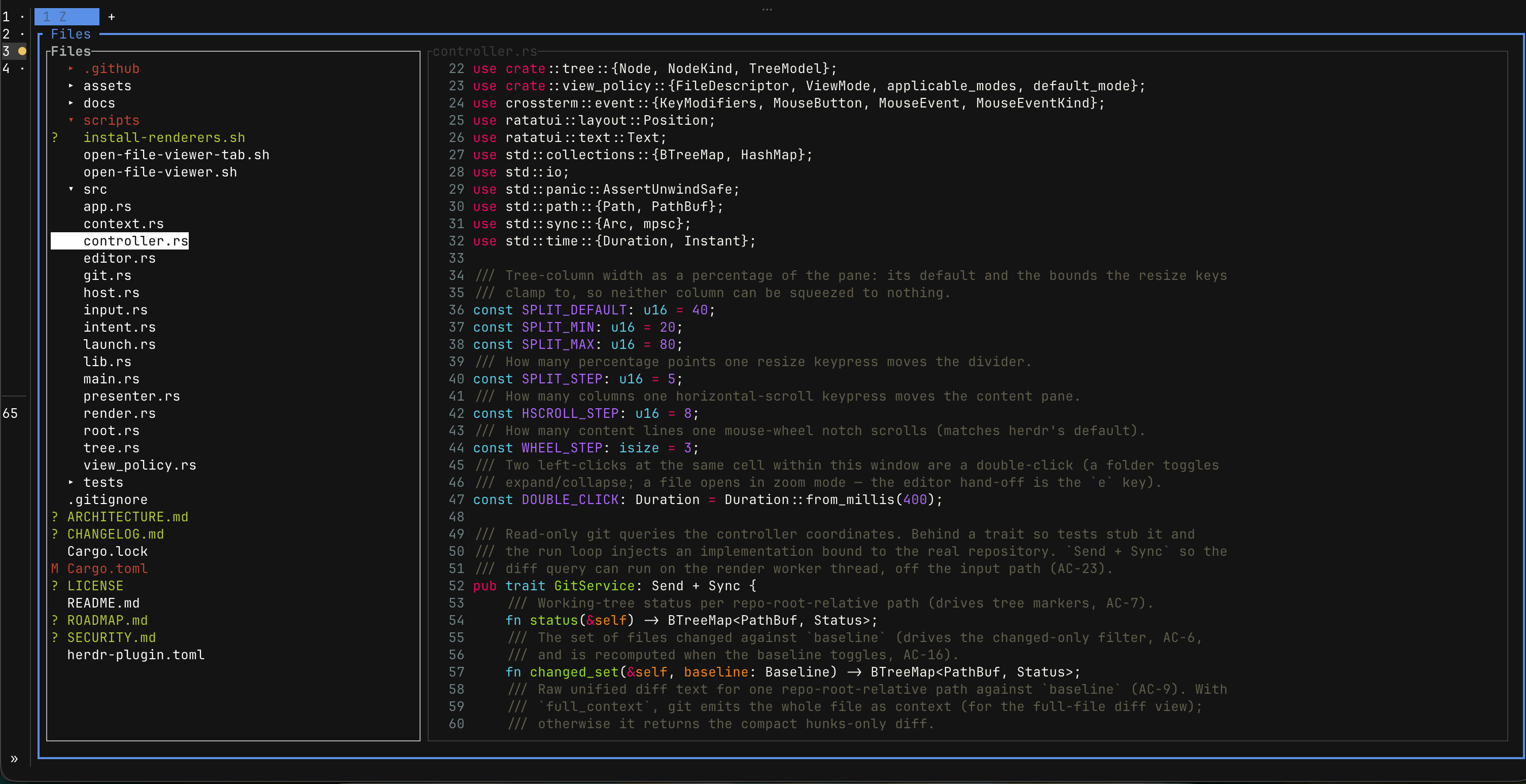
The same tree and content can fill the terminal:
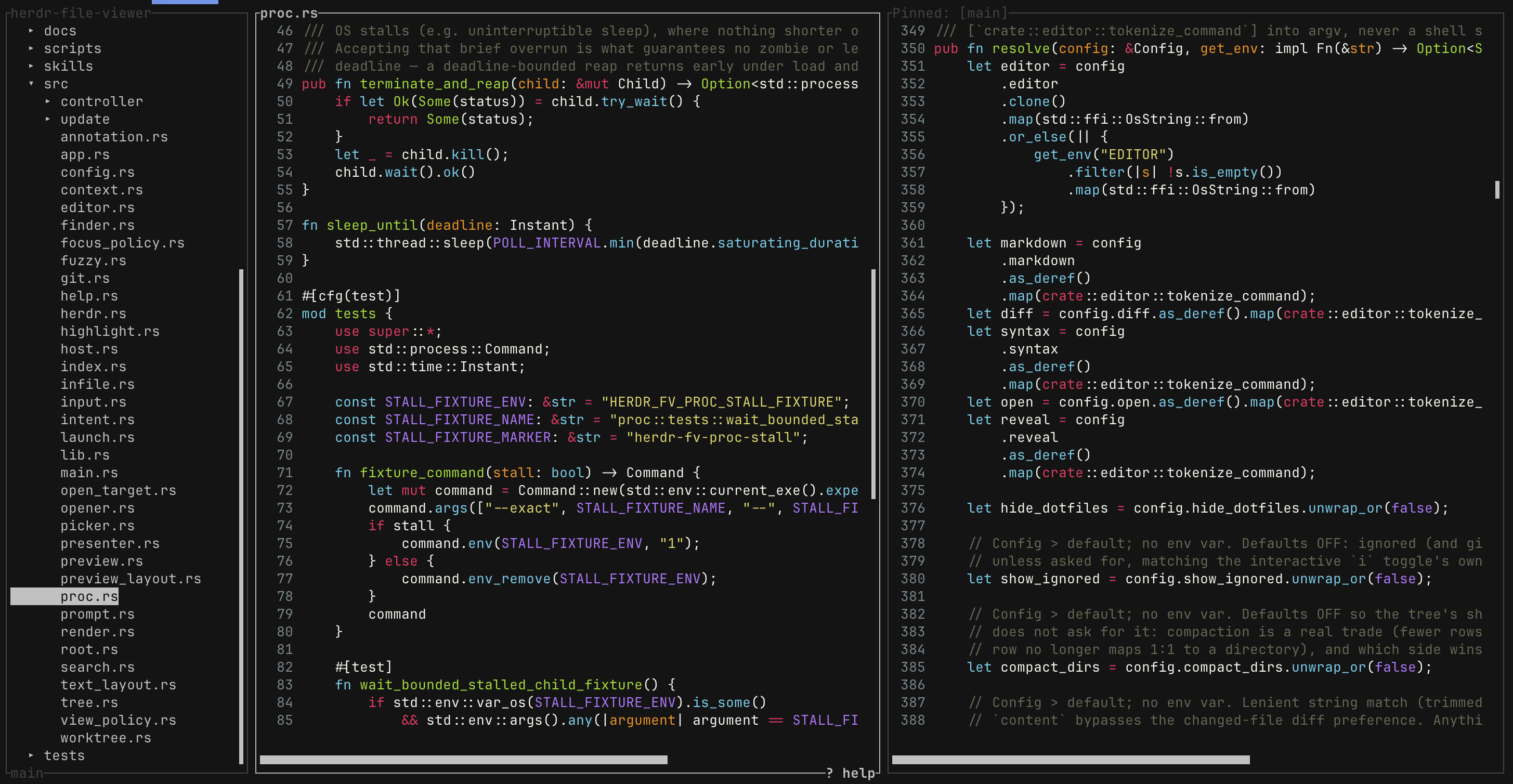
Pin a file with p and keep browsing: tree, the file you are on, and a frozen Pinned: [main] beside it:
Why you'd want it
- The right view, automatically. A changed file opens as a diff. A README renders. Code is
highlighted. No
cat, no mode switch, no commands. Pressvonly when you want something else. - Find the path or the text.
ffuzzy-finds a file name;ssearches project contents and shows each matchingpath:linewith an excerpt. PressEnterto open the source at that line. - Git in the tree.
M/A/D/?on every row, a changed-only filter (c), jump next/prev changed file (]/[), flip the baseline between your branch andHEAD(b). Not a separate git client. - Pin one file, keep browsing.
pfreezes it on the right. Switch worktree (W) and compare it with another checkout, or pin the old version and walk the new one. - Agents show you the spot. You send notes back. Teach them the bundled skill
and "open
src/app.rs:42in Files" lands you there. Mark a file or a range (a), copy the notes (Atheny), paste them into the chat. - Edit in your editor.
esuspends the viewer and opens the file in neovim, vim, micro, or whatever you set aseditor(else$EDITOR). You change the file there; the viewer never writes it, and comes back when you quit the editor. - Beside your work, safe on anything. One keypress in a herdr split (or its own tab). Read-only,
hardened for an agent's worktree or a fresh clone. Delegates rendering to
glow/delta/bat. See SECURITY.md.
Highlights
The full key and mouse reference lists every binding. The usage guide explains each feature. These are the main keys:
| Key | Does |
|---|---|
f |
Fuzzy-find any file in the tree |
s |
Search project contents; open a matching path:line with Enter |
p |
Pin the current file and keep browsing (compare across worktrees with W) |
a / A |
Annotate a file or range; copy the notes out for an agent |
v |
Cycle the view (diff ⇄ rendered ⇄ syntax) |
] / [ |
Jump to the next / previous changed file |
b |
Flip the diff baseline: your branch's merge-base ⇄ HEAD |
W |
Switch to another git worktree, in place |
L |
Copy a path:line reference (or the selected lines) |
Z |
Full-screen the current file |
e / O / R |
Hand off: editor / OS default app / file manager |
? |
Help overlay: What's New, keys, settings, about |
Quick start
# 1. Install the plugin (downloads a prebuilt binary for released versions; otherwise builds from source):
herdr plugin install smarzban/herdr-file-viewer

# 2. (recommended) install the renderers, so markdown / diffs / code are styled, not plain text:
brew install glow git-delta bat     # macOS, or use your package manager
#   Linux / cross-platform: run scripts/install-renderers.sh from the plugin dir (`herdr plugin list`)
Then bind a key in your herdr config (~/.config/herdr/config.toml) so one press summons it:
[[keys.command]]
key = "prefix+f"
type = "plugin_action"
command = "herdr-file-viewer.open-file-viewer"
description = "open file viewer in split"

[[keys.command]]
key = "prefix+shift+f"
type = "plugin_action"
command = "herdr-file-viewer.open-file-viewer-tab"
description = "open file viewer in tab"

[[keys.command]]
key = "prefix+d"
type = "plugin_action"
command = "herdr-file-viewer.open-file-viewer-at"
description = "open file viewer at… (split)"   # asks for a directory in a popup

[[keys.command]]
key = "prefix+alt+d"
type = "plugin_action"
command = "herdr-file-viewer.open-file-viewer-at-tab"
description = "open file viewer at… (tab)"     # same popup, opens a new tab
Run herdr server reload-config, then press your key. The plugin includes the split-pane viewer and
its open actions, which register during installation. You only need to add the keybinding.
Once the viewer has focus, press bare s to search project contents — not prefix+s, which is
Herdr's default shortcut for its own Settings screen. Viewer keys do not use the Herdr prefix.
The docs cover installing and updating,
summoning the viewer (split vs. tab, opening at another directory, the
launcher, --remote), external renderers, and the
keys reference.
Configuration
An optional, read-only TOML config file lets you override the editor, renderer and opener
commands, startup toggles, tree layout, and keybindings. A fully commented
config.example.toml ships in the plugin folder. Copy it as config.toml
into the directory printed by herdr plugin config-dir herdr-file-viewer, then uncomment the
settings you want.
The full reference covers the file location, precedence, every key, and [keys] remapping. Read it
in docs/configuration.md. See your effective settings any time in the
? help overlay's Settings section.
Windows
Native Windows is supported as a preview (install works the same way; the open actions use
-windows action ids and herdr's preview channel). WSL works today with zero extra setup. See
docs/windows.md.
Documentation
Full docs live in docs/:
- Install & updating: prebuilt vs. source, pinning a version, local-dev linking, and remote notices.
- Summoning the viewer: the open actions, the idempotent launcher, split vs. tab, opening at another directory, and the
--remotecaveat. - Usage guide: a feature-by-feature tour of the whole viewer.
- Keys & mouse: the complete key table, mouse gestures, and editor hand-off.
- Configuration: the full
config.tomlreference and[keys]remapping. - External renderers: the optional
glow/delta/batintegrations and the plain-text fallback. - Windows (preview): native-Windows specifics and WSL.
- Architecture: one in-process TUI owning both columns, the component map, and the core decisions.
- Security: the threat model for opening untrusted content, and how to report a vulnerability.
Contributing
Bug reports and feature requests are welcome. Open an issue, or see CONTRIBUTING.md to build, test, and submit a change.
License
MIT © Saeed Marzban
Explore related projects
codecrafters-io/build-your-own-x
Master programming by recreating your favorite technologies from scratch.
561,959 starspublic-apis/public-apis
A collective list of free APIs
498,350 starsmorluto/rea
Reverse engineer anything with agents, from app behavior down to native binaries.
453,555 starsopenclaw/openclaw
The AI that really does things. Any OS. Any Platform. The lobster way. 🦞
394,374 stars