
saad-khan-rind/NOSAtmosphereEffect
saad-khan-rind/NOSAtmosphereEffect has 344 GitHub stars and 12 forks. GitHot measured +1 stars in 24 hours. Last checked 2026-11-18 02:51 UTC. Last push 2026-11-14.
Measured star growth
- in 24h
- +1
- in 7 days
- Collecting history
- in 15 days
- Collecting history
- in 1 month
- Collecting history
Net star changes over overlapping periods, not daily totals. Missing measurements are left blank. Stars measure attention, not software quality.
About
Atmosphere Effect by Nothing for Android Devices on Android 13+
Developer ToolsREADME.md
OriginalAtmo Engine
Atmo Engine is an open-source Android live wallpaper studio inspired by the distinctive Atmosphere transition in Nothing OS. It offers optional lock-screen-to-home-screen transitions or continuously applied effects, accurate previews, flexible image fitting, and wallpaper playlists without uploading your images.
📥 Download
Atmo Engine is available from Google Play Store, F-Droid and Orion Store.

⚠️ Device Support & Disclaimer
Current Testing Status: This application has currently been tested exclusively on the Samsung Galaxy S25 Ultra and Nothing Phone 1.
While it may work on other Android devices running Android 13+ (API 33+), behavior on different manufacturers' skins (FuntouchOS, OxygenOS, etc.) is not guaranteed.
Usage Guide
Follow these steps to set up the effect properly on your device.
⚡ Quick Setup: Share an Image
The fastest way to apply a wallpaper. Instead of opening the app and browsing for a file, you can send an image straight to Atmo Engine from anywhere:
- Find an image in your Gallery, or in any wallpaper app.
- Tap Share and choose Atmo Engine ("Set with Atmo Engine") from the share sheet.
- Pick the effect you want — the app takes you straight to the crop screen and applies it. You can share a single image for a normal wallpaper, or select multiple images before sharing to build a rotating playlist. This skips the extra steps of saving the image, opening the app, and digging through your files to find it again. The regular in-app flow below still works exactly the same.
1. Select Your Effect
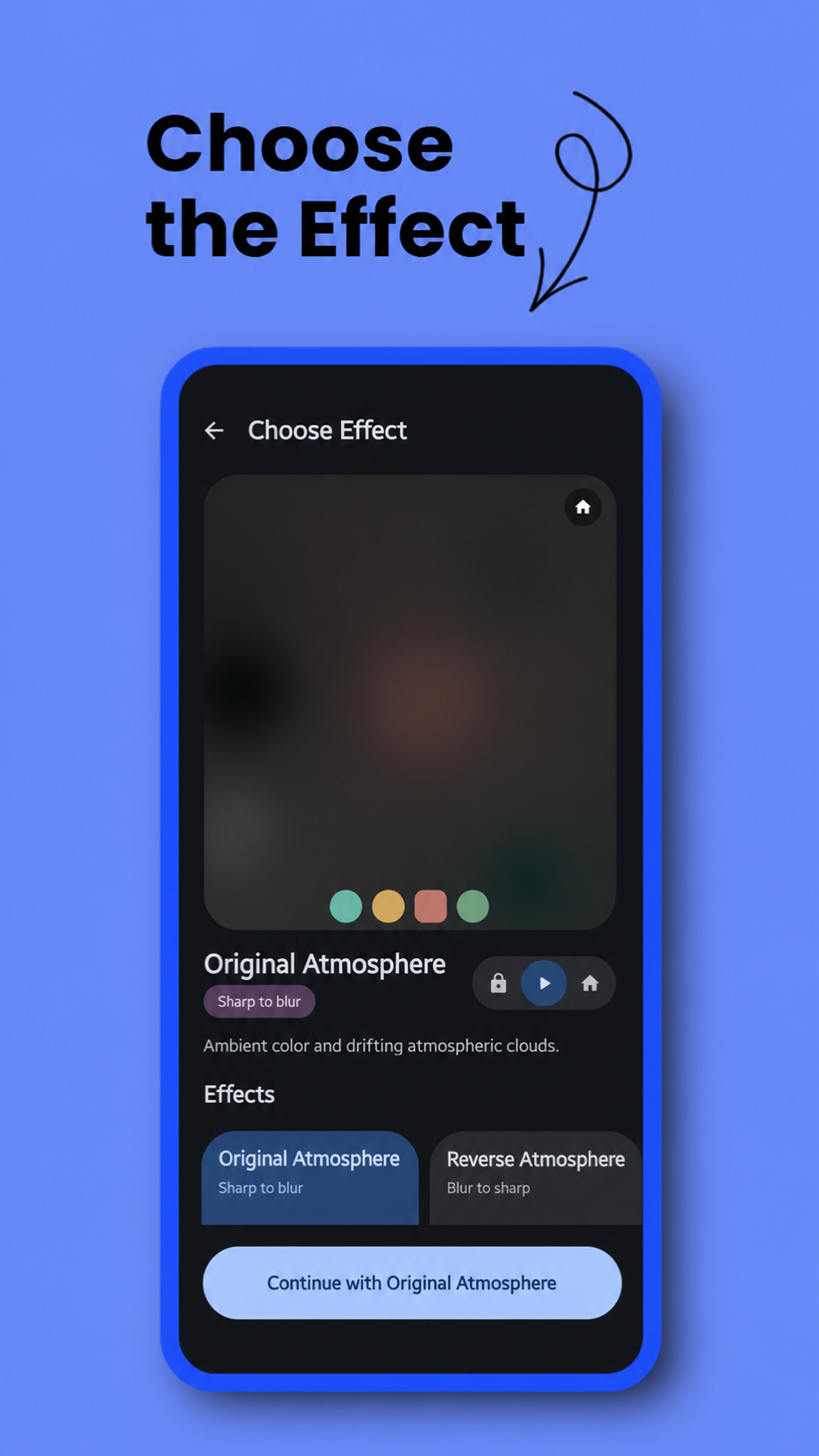
Open the app and choose your desired atmosphere style from the selection screen:
- Atmosphere: Signature style. A sharp wallpaper flows into drifting ambient clouds and blur.
- Atmosphere (Reverse): Mysterious reveal. Deep ambient clouds clear to reveal the wallpaper.
- Glass Effect: Strong, continuous reeded-glass refraction can appear one rib at a time from right to left or fade in.
- Glass Effect (Reverse): The reeded glass can clear from left to right or fade out.
- Color Fill: Liquid awakening. Colors flow outward from your fingerprint.
- Color Fill (Reverse): Fluid drain. Colors wash away into grayscale.
- Canvas Sketch: A soft monochrome sketch transitions into the full wallpaper when unlocked.
- Canvas Sketch (Reverse): The full wallpaper transitions back into its monochrome sketch.
- Simple Frosted: Modern minimalism. Applies a clean, uniform frosted glass blur (no clouds).
- Simple Frosted (Reverse): Elegant clarity. Wakes up from a heavy frosted blur into a crystal clear wallpaper.
- Halftone Print: Retro aesthetic. Sharp view dissolves into comic-book CMYK dots when locked.
- Halftone Print (Reverse): Retro aesthetic. CMYK dots seamlessly expand into continuous color when unlocked.
- VHS Tape: Worn videotape playback (soft colour smear, scanlines, grain and a faded grade) that settles into a clean picture when unlocked, with a tracking roll mid-transition.
- VHS Tape (Reverse): The clean wallpaper rolls into the old videotape look.
- Zoom In: The plain photo zooms in as you unlock. The clock stays where it is.
- Zoom Out: The lock screen starts zoomed in and the photo settles back out as you unlock. Zoom has no dimness or grain: it is the photo itself, only zoomed.
Atmosphere with Glass
For Atmosphere or Atmosphere Reverse, enable Add glass effect while setting the image or from Fine tuning → Effect. The Fine Tune screen also exposes the rib count, rib thickness, and Background only subject isolation while Glass is enabled. With transitions enabled, the animation remains an Atmosphere transition: Atmosphere moves from the glass-treated image into its ambient state, while Atmosphere Reverse finishes on the glass-treated image. With transitions disabled, Atmo holds the fully atmospheric effect state on the selected screen or screens, while any screen assigned the original remains genuinely unchanged.
Subject Isolation for Canvas, Glass, and Halftone
Canvas Sketch, Glass Effect, Atmosphere with Glass, and Halftone Print share the same on-device subject model. Canvas Sketch can use Subject segmentation to anchor its sketch to a prominent person, character, animal, or object. Glass and Halftone provide Background only, which keeps the detected foreground subject clear while applying the selected effect behind it. Model delivery depends on the app distribution:
- Google Play build: Uses the higher-quality ML Kit subject model supplied by Google Play services. The model is not downloaded automatically by Atmo Engine. Fine Tuning has a Subject model group at the top that shows its real installed status and provides an explicit Download subject model button. After installation, segmentation runs on-device and works offline.
- F-Droid build: Includes the open-source U2NetP model and a source-built FOSS LiteRT runtime in the APK. It is ready immediately, requires no download, and does not depend on ML Kit or Google Play services.
- Open Fine Tuning for Canvas Sketch, Glass Effect, or Halftone Print.
- In the Google Play build, download the optional model if it is not already installed.
- Turn on Subject segmentation for Canvas Sketch or Background only for Glass or Halftone.
- Preview or apply the wallpaper normally.
If Canvas Sketch cannot find a confident foreground subject, it falls back to sketching the complete wallpaper. A background-only effect waits for a usable mask instead of applying across an unprotected subject. Wallpaper image contents and generated masks never leave the device. Atmo Engine does not request the INTERNET or ACCESS_NETWORK_STATE permission. In the Google Play build, Google Play services may use its own network access only when the user requests the optional model download.
Wallpaper Clock
Every effect can draw a clock into the wallpaper itself (Advanced Settings → Clock; single-image mode only, because in playlist and theme modes the image changes underneath it). Turn on Show clock on wallpaper, then open Choose style, position & size for a live preview of the clock on your wallpaper. A box is drawn around it: drag inside the box to move the clock, pinch with two fingers anywhere to make it larger or smaller, or pull a corner or edge to reshape it. A centre guide lights up when it is exactly centred. There are no size sliders — the box is the size, and it always stays on screen, clear of the edge where the system back gesture lives. The settings sit in a compact panel with Style, Colour, Adjust and More tabs; tap its handle to fold it down, or tap the photo to hide everything and judge the result. The clock is also always shown in the wallpaper picker's preview, whichever screen it is set to appear on.
Hide the system clock: the wallpaper clock looks best when your phone's own lock-screen clock is hidden, so you don't see two. Tap the ⓘ next to the Clock heading for instructions matched to your device's brand and Android version (Samsung, Google Pixel, Nothing, OnePlus/OPPO/realme, Xiaomi/Redmi/POCO, Motorola), or a suggested web search for other brands. The device is identified from its build information, with no permissions. These methods may not work on every device or software version, so check for your own model.
Six faces, in three kinds, each offered as one row or stacked:
- Glass and Glass Stacked: the original face. Clear through the middle, with the light caught around the bevel at the edge of every stroke.
- Translucent and Translucent Stacked: each digit is a solid piece of glass. The wallpaper bends as it passes through — hardest where the stroke rolls over at its edge, gently across the middle — and what is behind is magnified the way thickness magnifies.
- Adaptive and Adaptive Stacked: modelled on One UI's stretch clock. A solid, condensed face whose digits each stretch to their own length: a digit with open wallpaper beneath it runs long, and one above the subject stops short, so the clock fits itself around the person or object in the photo and never touches it. Only the straight strokes grow; the curves keep their size, so a digit reads the same at any length. The clock is always drawn in front of the subject. When the wallpaper comes into view, the digits arrive from their compact height, overshoot their fit by about a third and settle back in one continuous elastic motion. The clock and date glide into place, and the wallpaper eases out from a slight zoom over the same motion. Adaptive Stacked puts the hours above the minutes in two stretching columns and has no colon.
A stacked glass face puts the hours above the minutes, which goes much larger on a phone, with the separator's two dots turned on their side in the gap between them. Glass in one row is the default.
Colour (on the glass faces, Glass tint) offers a palette, a colour wheel, and an eyedropper that samples the wallpaper itself. Auto follows the image. The Adaptive faces add an Adaptive colour: a light gradient in the colour of the whole wallpaper, a little deeper at the top and paler further down. The shade depends on how far down a stroke is, so every digit shows the same shade at the same length, and at arrival the digits fade from a uniform muted shade into the gradient. Auto and Adaptive also follow the effect as it changes the wallpaper, for example going grey while Color Fill shows the image in black and white.
- Opacity: how strongly the clock shows.
- Frost: (Translucent faces) how diffuse the glass is, from clear — the wallpaper sharp through the digits — through etched to nearly milk-white. The Glass faces have no frost: they are clear except at their bevel, so frosting one would fog an edge and nothing else.
- Weight: (Adaptive faces) the stroke from thin to bold. The digits are drawn from centre lines rather than a font, so every weight is exact.
- Font: (every face but Adaptive) Classic, or one of the drawn fonts: Tower, Heavy, Narrow, Geometric, Soft, Chunky, Bubble, Techno, Block, Wireframe, Dot matrix, Neon lines, Brush, Didone, Serif, Poster, or Chinese numerals. The digits are drawn from strokes, so they have no letters of their own: the date uses the phone's built-in typeface closest to each font (condensed, monospace, serif, casual and so on), and Dot matrix writes the date in its own hand-drawn 5×7 dots, in capitals, like its digits. Neon lines draws its colon as two short tubes cut into the same three lines as its digits.
- Hour format: System, 12-hour, or 24-hour. The clock shows hours and minutes only.
- Show date: adds the day and date in the clock's own style. When switched on it is sized to match the clock and placed above it (below, if there is no room). It then has its own box, placed and sized exactly like the clock: drag or pinch whichever box you are touching, or pick Clock or Date at the top to be explicit. Adjust has shortcuts to centre either one, reset its size, or put the date back above the clock.
- Animate digit changes: digits slide as the time changes.
The glass digits are stored as distance fields rather than as pictures of glyphs, and the Adaptive digits are generated from their strokes, so the wallpaper rebuilds the outlines at whatever size you set — the clock is sharp at any size, and so is the date beside it.
Back in Advanced Settings:
- Show on: Lock screen, Home screen, or Both — offered for effects that keep the photo sharp on both screens (Color Fill, Canvas Sketch, Halftone, VHS Tape, Zoom, and their reverses). Effects that blur or refract one side place the clock on the side that stays clear.
- Depth effect: draws the photo's subject back over the clock, so the clock sits behind them, using the same on-device subject model as subject isolation (see above). It does not apply to the Adaptive faces, which fit around the subject and always stay in front. They use the same model to find where the subject is.
2. Select Image & Playlist Mode
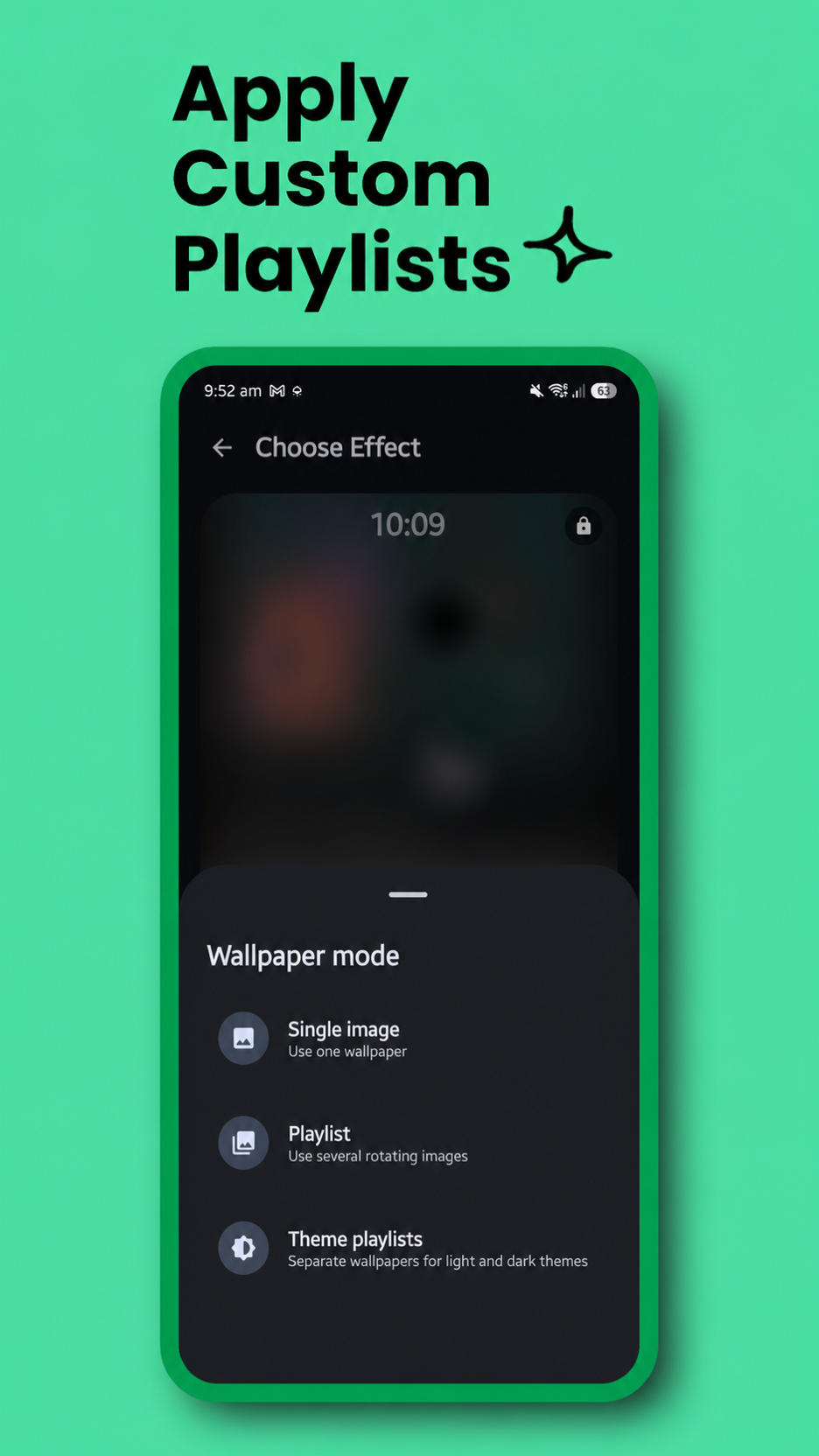
After selecting an effect, you will be prompted to choose your wallpaper mode:
Single Image: Standard mode. Pick one image, crop it, and apply.
Multiple Images (Playlist): Select multiple images from your gallery to create a wallpaper playlist. Apply it directly or adjust and crop each image first. Once finished, Atmo rotates through the collection using your selected interval.
Theme Playlists: Build separate Light and Dark playlists with one or more wallpapers in each. Atmo switches to the matching collection when the system theme changes, then rotates within that collection using your selected interval.
Edit Existing Playlist: If you already have a standard or theme-based playlist running, this option loads your saved wallpapers (including their exact zoom and crop settings). You can remove images, add new ones, or tweak existing crops without starting over. The playlist editor also allows you to define a default crop setting for newly added images.
Saved Playlists: Every playlist you apply is saved automatically, so switching to a single image or to theme playlists no longer discards it. Open Saved playlists to switch back to, rename, or delete any of them. Tap the pencil in the playlist editor to name a playlist.
Playlist from Folder: Pick one or more folders in Android's own folder picker; their images become the playlist, and the playlist stays in sync with them: images you add are added and images you delete are removed, whenever the screen turns off and whenever you open Atmo Engine. If the image on screen is deleted, it is replaced at the next screen-off. A folder playlist is never emptied by a sync, so it keeps its images if its folders become unreadable (for example, an unmounted SD card, or a folder that was renamed or moved; pick it again to resume). No permission is needed: picking a folder gives Atmo Engine read access to that folder alone, so it works in every build. Only images directly inside a picked folder are used, not its subfolders. Android doesn't allow picking the root of the storage or of
Download.
3. Application & Activation
Please follow these simple steps to apply the wallpaper:
- Apply the Wallpaper: Once you are happy with your crop or playlist selection, tap the "Apply" button.
- Review Instructions: A dialog box will explain the live-wallpaper setup. Tap "Set Wallpaper" to proceed.
- Set Wallpaper: The app will redirect you to the Android System's Live Wallpaper preview screen. Tap "Set Wallpaper" (or the checkmark/apply icon, depending on your device).
- Choose Both Screens: Select "Home screen and Lock screen". Atmo must remain the live wallpaper on both screens so it can show either the effect or the original image on each one.
- Finish: Setup is complete. Lock and unlock the screen to test an enabled transition, or use Fine tuning to keep the effect fully applied on the selected screen or screens.
Transitions or a Continuously Applied Effect
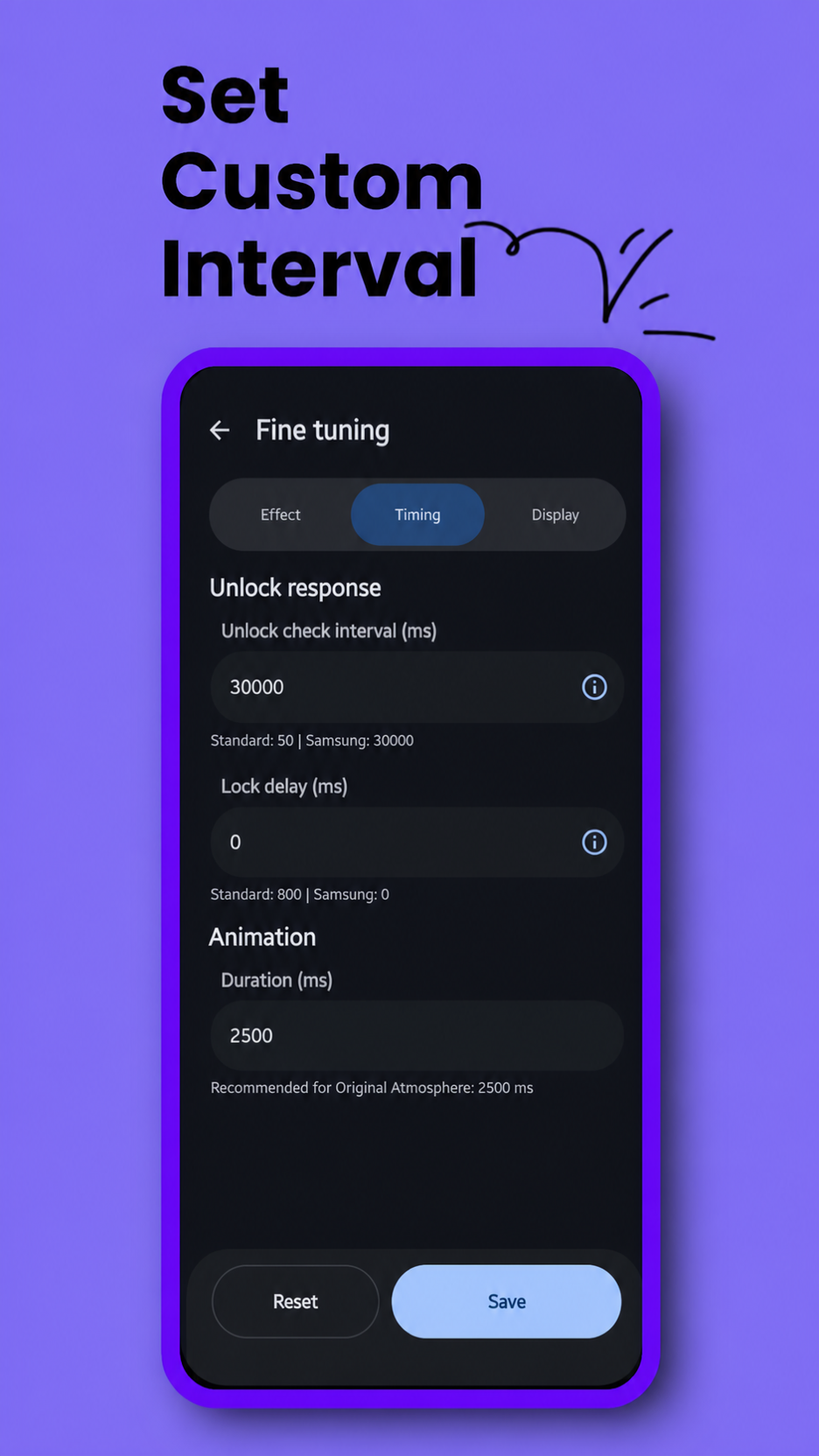
Open Fine tuning → Timing and use Animate transitions to choose how the wallpaper behaves:
- On: Atmo performs the selected lock-screen-to-home-screen transition.
- Off: Atmo keeps the effect fully applied on the selected screen or screens and renders the original image on any other screen, with no unlock transition. This is still a live wallpaper; Atmo does not export or install a baked static image.
When transitions are off, Keep effect applied on controls what the same live-wallpaper service renders:
- Home screen: The selected effect stays on Home while Atmo renders the original image on Lock.
- Lock screen: The selected effect stays on Lock while Atmo renders the original image on Home.
- Both: The selected effect stays visible on both Home and Lock.
These choices do not install a static wallpaper and do not move Atmo to only one destination. Atmo remains the live wallpaper on both screens; only the rendered state changes.
Disabling transitions does not disable other live-wallpaper features. Playlists and theme playlists continue rotating, Fine Tune controls remain available, Background only subject isolation continues working, and wallpaper scrolling remains active where the launcher supports it.
Wake Transitions (Screen On)
Fine tuning → Timing → When the screen turns on adds an animation as the lock screen arrives, whether the phone wakes from off or from the always-on display. It is separate from the unlock transition and works with transitions on or off. Every style has its own settings, and Length (50–1000 ms, default 250 ms) applies to all of them. The wake is timed on the display's own frames rather than Android's animation scale, so it plays at the length you set even on ROMs that lower or turn off animations. It starts when the screen turns on, so it still plays on phones that keep the wallpaper visible while the screen is off.
- Zoom: the photo settles from a zoom. Zoom level 1–150% (default 20%). Only the photo moves; the clock stays put, so a clock with depth shows the subject easing into place in front of it.
- Colour fill: colour spreads out from the centre of the screen. On a lock screen that is already black and white (Color Fill's monochrome side, or Halftone with Black and white on), it plays the other way: it starts in colour and turns black and white.
- Blur: the lock screen sharpens out of a light blur.
- Corner stretch: the corners are pulled Outward past the edges or Inward towards the middle, reaching well in towards the centre, then spring back. Strength 5–30% (default 20%).
- Shake: the whole screen jolts and settles, Sideways, Up and down or as a Twist. Strength 1–8% of the screen height and Shakes 1–8. Edges are mirrored, so no black shows.
- Ripple: a ripple runs out from the centre, like a stone dropped in water. Strength 1–10%.
- Glitch: a burst of torn rows, split colour and broken blocks that settles into the lock screen. Strength 10–100%.
- Venetian blind: the lock screen opens through strips, one after another, over a dimmed copy of itself, as Rows or Columns. Strips 2–24.
- Breathe: the lock screen breathes in from a dimmed frame, swelling just past full brightness before it settles. Swell 0–30%.
- Twirl: the photo starts twisted into a swirl from the centre, with the edges held in place, and unwinds flat. Twist 10–100% (100% is a turn and a half).
- Fabric wave: like a cloth snapped by two opposite edges, Left and right or Top and bottom: a wave starts in the middle, runs out to both edges and settles, its slopes shaded. Depth 1–12%.
- Bubble surge: a dense rush of tiny fizzing bubbles, in two sizes, surges up from the bottom of the screen, each bending the photo like a lens, then is gone. Strength 10–100%.
- Scale up: the lock screen grows out of a small card in the middle of the screen until it fills it, with a slight bounce, over a soft blur of itself (never black). Start size 5–60%.
- Random: a different style on every wake. By default every style plays on its own defaults; turn on Customize each style to tune each one for Random. Random keeps its own copy of every style's settings, so tuning Random's Zoom doesn't change the Zoom you use on its own, and they are kept while Customize each style is off. Styles are drawn like a playlist shuffle (see Shuffle): every style plays once before any repeats, never the same twice in a row, and the end of one round stays away from the start of the next. Corner stretch, Shake, Venetian blind and Fabric wave also pick their direction from their own shuffles. The order carries on through setting changes, Reset and restarts.
Zoom moves only the photo, through the same zoom every renderer already uses. Every other style is drawn over the finished frame, clock included, by one post pass shared by every effect on both Vulkan and OpenGL ES.
Interface and Previews
Atmo Engine uses Jetpack Compose and Material 3 throughout the setup flow. Material Expressive styling follows the device's system color palette when enabled, while the appearance panel also supports fixed colors, System/Light/Dark modes, and an optional pitch-black dark background.
Effect cards, the active-wallpaper dashboard, crop screens, and playlist cards use in-process previews matched to the live effect settings and selected graphics API. This lets you inspect the selected wallpaper and effect behavior before applying it through Android's live wallpaper screen. Controls use short, finite, meaning-aware motion: for example, Settings rotates, Help tilts, and Back nudges in its travel direction. Motion and related haptics follow the existing Material Expressive preference and stop immediately when expressive motion is disabled.
Graphics backend
Every effect and reverse variant can use a native Vulkan renderer for both in-app previews and the live wallpaper when the device and installed driver support it. Fine tuning > Display > Graphics API provides three app-local choices:
- Automatic (recommended): Uses Vulkan when all compatibility checks pass, with a safe OpenGL ES fallback.
- Vulkan: Requests Vulkan, while preserving the same compatibility checks and runtime fallback.
- OpenGL ES: Always uses OpenGL ES and skips the Vulkan probe.
The saved choice is global. In-app effect previews recreate immediately with the new backend, and an already-running live wallpaper safely replaces its active render host without losing the current effect state, surface state, scrolling position, or playlist image. At runtime, Atmo negotiates the highest common core API exposed by the Android Vulkan loader and a render-capable physical device, from Vulkan 1.4 down through 1.1.
Atmo does not use Shizuku, change Android's global graphics settings, or restart other apps. The wallpaper service probes Vulkan inside its own process and switches a failing effect back to its equivalent OpenGL ES renderer if native setup, preprocessing, texture upload, or presentation fails. That effect remains on OpenGL ES for the current device and app version so reopening Android's wallpaper preview cannot enter a crash loop; a failure in one effect does not disable Vulkan for the others. In-app previews use the same source image, progress, and fine-tune state, but a Vulkan failure falls back locally for that preview without changing the live-wallpaper runtime status. The animated renderer footer at the bottom of the main screen reports Vulkan and its negotiated version only after the wallpaper has successfully presented a Vulkan frame. During initialization it makes no active claim, and once OpenGL ES is genuinely active it identifies that backend instead.
Advanced Customization
Take full control of the animation and look. You can now tweak the following settings dynamically:
Fine tuning is kept when you change only the image or playlist under the same effect, including the clock's style and settings. Applying a different effect starts fresh from that effect's defaults.
Visual Adjustments
- Dimness Level: Adjust the darkening overlay to ensure your home screen icons remain readable against bright wallpapers. (Not for Zoom, which shows the photo as it is.)
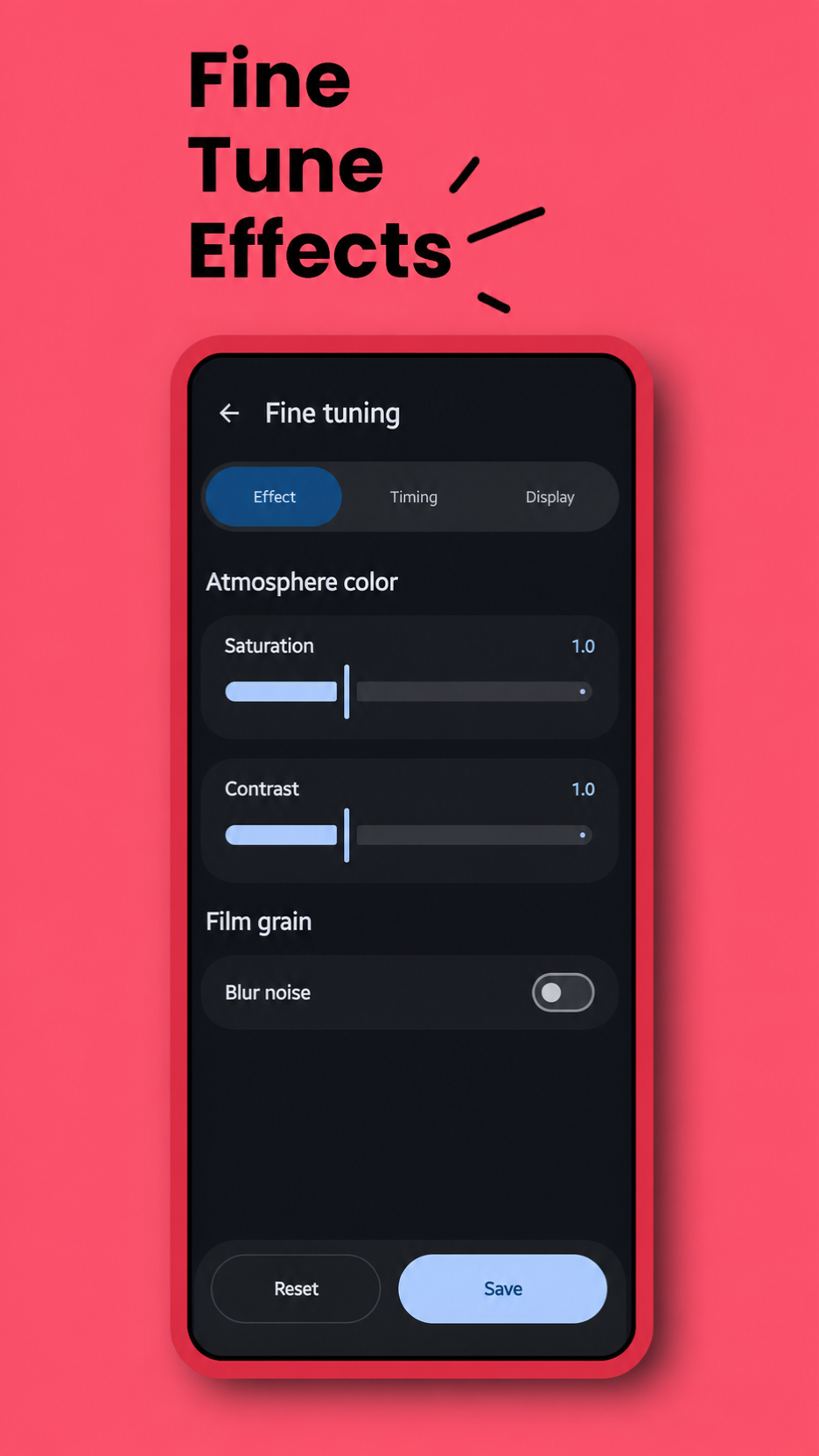
- Blob Saturation: (Atmosphere & Atmosphere Reverse Effects Only) Adjusts the color intensity of the drifting atmospheric clouds. Increase to make the colors vibrant and punchy, or decrease to zero for a muted, grayscale cloud effect.
- Blob Contrast: (Atmosphere & Atmosphere Reverse Effects Only) Adjusts the harshness of the atmospheric clouds. Higher values create distinct, separated color pools, while lower values blend the colors softly and smoothly together.
- Add Glass Effect: (Atmosphere & Atmosphere Reverse Only) Available while setting or editing an image and in Fine Tune. Uses a customizable reeded-glass image for the clear side of the Atmosphere transition. The always-applied mode keeps the fully atmospheric effect state on the selected screen or screens, while any screen assigned the original remains genuinely unchanged.
- Glass Lines: (Glass Effects Only) Adjusts the number of refractive ribs and the shape of each rib.
- Glass Transition Style: (Glass Effects Only) Choose right-to-left or fade-in for Glass Effect, and left-to-right or fade-out for Glass Effect Reverse.
- Blur Strength: (Frosted Effects Only) Use the slider to fine-tune the intensity of the blur radius, from a light mist to heavy glass.
- Film Grain: Enable a film-grain texture on top of the blur. Two sliders set it:
- Grain size: from very fine to very coarse.
- Grain strength: from barely there to heavy.
- Halftone Pixel Size: (Halftone Effects Only) Dynamically adjust the size of the printed dots. Setting this to
0renders the original continuous tones instead of dots. - Black & White Effect: (Halftone Effects Only) Converts the CMYK color halftone pattern into a single-channel grayscale newspaper print.
- Fingerprint Location: (Color Fill Effects Only) Two sliders to adjust the horizontal and vertical position of effect start place sync with the fingerprint location.
- Sketch Detail: (Canvas Sketch Only) Controls how many wallpaper contours are retained.
- Line Thickness: (Canvas Sketch Only) Adjusts the width of the monochrome sketch lines.
- Subject Segmentation: (Canvas Sketch Only) Optionally anchors the sketch to a detected foreground subject.
- Wallpaper Clock: (Single-image mode) A Glass, Translucent, or Adaptive clock drawn into the wallpaper, with its own style, colour, weight, date, and placement controls. See Wallpaper Clock.
- Background Only: (Glass and Halftone Effects Only) Keeps the detected subject clear while applying reeded glass or halftone printing to the background. Canvas, Glass, and Halftone share ML Kit in Google Play builds or bundled U2NetP in F-Droid builds.
Animation & Behavior
- Animate Transitions: Turn lock-to-home animation on, or keep the effect fully applied on the selected screen or screens and the original image on any other screen, with no unlock transition.
- Animation Duration: Control the total transition duration while transitions are enabled.
- When the Screen Turns On: An animation as the lock screen arrives: Zoom, Colour fill, Blur, Corner stretch, Shake, Ripple, Glitch, Venetian blind, Breathe, Twirl, Fabric wave, Bubble surge, Scale up, or Random. See Wake Transitions.
- Lock Delay (Anti-Flicker): While transitions are enabled, adds a configurable pause before the wallpaper resets when you lock the phone. This prevents the visual glitch where the wallpaper "snaps" back to its initial state before the screen turns fully black.
- Unlock Check Interval: While transitions are enabled, adjusts how frequently the app detects unlock events. Tuning this eliminates "delayed start" issues, ensuring the animation begins immediately when you wake your device.
- Sync System Colors: Publishes a locally extracted wallpaper palette to Android whenever a single wallpaper or playlist image changes. Whether the wider system theme refreshes is ultimately controlled by the device manufacturer.
- Graphics API: Choose Automatic, Vulkan, or OpenGL ES for in-app effect previews and the live wallpaper. A forced Vulkan request still falls back safely when support or runtime checks fail.
- Wallpaper Scrolling (Experimental): Lets compatible launchers pan a wider wallpaper across home-screen pages.
Playlist & Rotation
(Available when using Playlist or Theme Playlists mode)
- Rotation Interval: Controls how often the wallpaper changes from your playlist.
- Options: Every Lock (Instant), 1 Minute, 15 Minutes, 1 Hour, up to 24 Hours.
- Theme Playlists: A system Light/Dark change immediately switches collections. The selected interval continues to control rotation inside whichever collection is active.
- Smart Rotation: To prevent lag or visual glitches, the wallpaper only rotates when the screen is OFF.
- Example: If you set "15 Minutes", the app checks the time whenever you lock your phone. If 15 minutes have passed since the last change, it swaps the wallpaper in the background so it's ready the next time you unlock.
- Shuffle: Every playlist (standard, folder, and each collection of theme playlists) plays every image once, in random order, before any repeats. It is a shuffle bag (Fisher-Yates) rather than a random pick each time, so nothing repeats early and nothing is starved:
- The image just shown is never next, so the same image never shows twice in a row.
- When a round ends, the last quarter of it is kept out of the first quarter of the next round, so an image never comes back soon after it was shown.
- Images added to a playlist (or a watched folder) join the current round at random places; removed ones drop out. Neither restarts the round.
- An image that can't be read right now (an unmounted card, an offline cloud file) waits at the end of the round for another try.
- The order is saved, so it carries on through setting changes, Fine tuning's Reset, restarts and updates. It only starts over when a new or edited playlist is applied.
- Switch Delay: (Rotation set to Every lock) How long the next image waits after the screen turns off, 0–3000 ms. Turn the screen back on within it and the wallpaper stays as it is, so a quick lock and unlock doesn't switch it. 0, the default, switches at once.
Palette Diagnostics
When an Atmo wallpaper is active, tap the Atmo Engine title seven times to open the device-specific palette diagnostics screen. It compares Atmo's locally extracted colors, Android's Wallpaper API colors, and the current system color resources. The Force Apply test is available only while Sync System Colors is enabled. Diagnostic values and engine traces remain on the device.
Screenshots
Telegram Group
I've made a Telegram group for discussing issues and feature suggestions. You can join it using this link.
Known Issues
- Clock setup screen: The screen for choosing the clock's style, position, and size (Choose style, position & size) is still buggy and unpolished. I'm actively working on it, so expect rough edges in how its controls behave and look. Bug reports and ideas are very welcome in the Telegram group or as GitHub issues.
- Samsung's own adaptive clock: One UI may disable or limit its built-in adaptive lock-screen clock while a live wallpaper is active. Atmo's Adaptive wallpaper clock (see Wallpaper Clock) is drawn by the wallpaper itself and is not affected.
Build & Installation
This project is built using Kotlin, C++17, the Android NDK, and Gradle. The project pins NDK 29.0.14206865; Android Studio or Gradle can install that accepted SDK component automatically. Vulkan GLSL sources live under app/src/main/shaders, while the packaged SPIR-V binaries for all effect families live under app/src/main/assets/shaders/vulkan (these are generated during the build process to keep the repo clean of binary files).
Atmo Engine keeps one shared codebase and combines two flavor dimensions:
All artifacts in the table below use version name 7.4.6. The version code carries the API tier in its leading digit and the version name in the rest, so every flavor of one release shares a name while Play still sees a higher code for the build with the higher minimum.
| Flavor | Minimum Android | Target SDK | Version code | Intended release |
|---|---|---|---|---|
v33Play |
Android 13 / API 33 | API 33 | 300746 |
ML Kit APK |
v33Fdroid |
Android 13 / API 33 | API 33 | 300746 |
FOSS APK for F-Droid |
v35Play |
Android 15 / API 35 | API 36 | 400746 |
Google Play ML Kit AAB |
v36Play |
Android 16 / API 36 | API 36 | 500746 |
ML Kit APK |
v36Fdroid |
Android 16 / API 36 | API 36 | 500746 |
FOSS APK |
The play source set contains only the ML Kit implementation and explicit model-download controller. The fdroid source set contains only U2NetP, its model files, and the source-built FOSS LiteRT runtime. UI, effects, playlists, palette behavior, and settings remain shared in main. No build requests photo access: folder playlists use the system folder picker. Model and runtime provenance is recorded in THIRD_PARTY_NOTICES.md.
Betas are built from develop and each is published as its own pre-release, titled Beta <build> (<version>) and tagged beta-<build>(<version>), for example beta-108(7.3.7). Their APKs are named <version>-beta.<build> and use a version code one below that version's stable code, so the stable release always installs over them. A beta tag points at an empty commit dated 2000-01-01 rather than at the app's source: F-Droid builds the highest version it finds in the 5 newest tags (ordered by commit date), so it never picks up a beta, and beta tags never crowd a stable tag out of those 5. Only stable releases from master get a version tag (v<version>). After a stable release, raise the version on develop before the next beta, so its betas install over the new stable.
Stable and beta release workflows produce exactly five artifacts: Android 16+ ML Kit and FOSS APKs, Android 13+ ML Kit and FOSS APKs, and an Android 15+ ML Kit AAB for Google Play. None may declare READ_MEDIA_IMAGES; CI fails if any does. CI installs the pinned NDK and inspects every archive before signing: the Vulkan library for all four ABIs and every effect's SPIR-V pair must be present, ML Kit artifacts must not contain the U2NetP model or LiteRT native runtime, both FOSS APKs must contain them, and each ML Kit APK must remain smaller than its matching FOSS APK and below 10 MiB.
- Clone the repository.
- Open in the latest stable Android Studio.
- Sync Gradle.
- Select the required build variant, or run one of these tasks:
./gradlew assembleV33PlayRelease
./gradlew assembleV33FdroidRelease
./gradlew bundleV35PlayRelease
./gradlew assembleV36PlayRelease
./gradlew assembleV36FdroidRelease
Release signing keys are intentionally not stored in the repository. Configure your Play upload key locally before uploading either AAB; F-Droid builds and signs its own APK.
F-Droid should select both v33 and fdroid in its build metadata.
git clone https://github.com/saad-khan-rind/NOSAtmosphereEffect.git
Author
Saad Ullah Khan 📍 Passau, Germany 📧 [email protected] 🔗 LinkedIn 💻 GitHub 📄 Download Resume 🌐 Portfolio
License
This project is open-source and available under the MIT License. Bundled third-party components retain their respective open-source licenses; see THIRD_PARTY_NOTICES.md.
Privacy Policy
The privacy policy is this.
⭐️ Feel free to fork, star, and use this code!