
s4ntrx/S4ntrx-Bot
s4ntrx/S4ntrx-Bot has 145 GitHub stars and 2 forks. Star changes are not measured yet. Last checked 2026-11-13 21:07 UTC. Last push 2026-10-20.
Measured star growth
- in 24h
- Collecting history
- in 7 days
- Collecting history
- in 15 days
- Collecting history
- in 1 month
- Collecting history
Net star changes over overlapping periods, not daily totals. Missing measurements are left blank. Stars measure attention, not software quality.
About
The project is a multi-user cybersecurity education chatbot built with Flask, aimed at a school/classroom project.
SecurityREADME.md
OriginalS4ntrx Bot
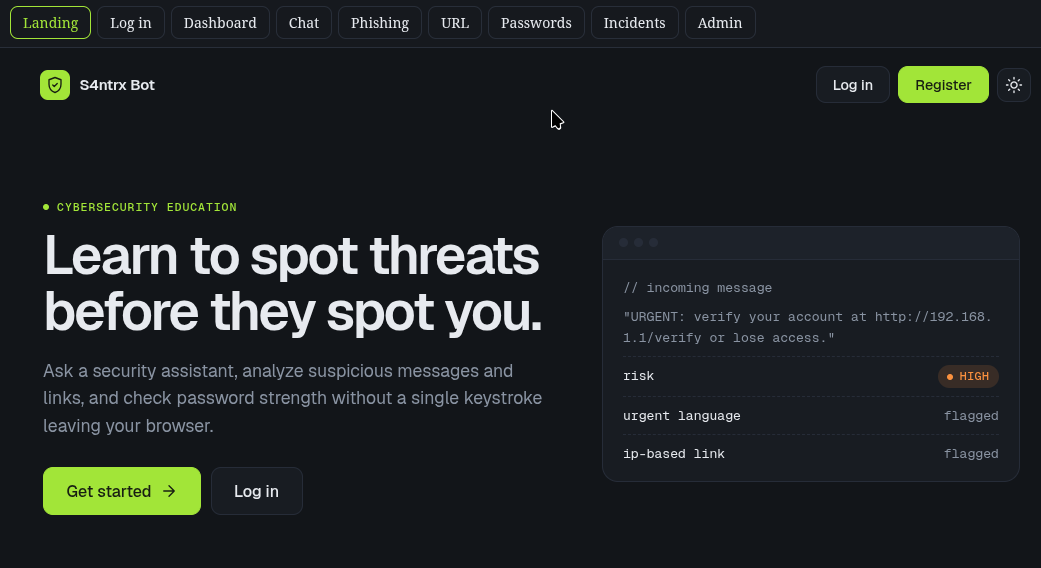
A multi-user cybersecurity education chatbot built for a school project. Students register, chat with an AI security assistant, analyze suspicious messages and URLs, check password strength, file incident reports, and an admin can view aggregate statistics.
Everything in this repo runs with zero paid services and zero external AI API keys. The chatbot works out of the box using a local knowledge-base responder — an optional, more conversational mode using Ollama is documented below but is not required.
1. What's actually built (scope)
| Feature | Status |
|---|---|
| Registration / login / logout, hashed passwords, CSRF, sessions | Done |
| Per-user chat history (IDOR-safe — verified in tests) | Done |
| AI chat: offline knowledge-base responder (default) | Done |
| AI chat: optional Ollama integration | Done, optional, off by default |
| Phishing message analyzer (rule-based, risk-scored) | Done |
| URL structural analyzer (rule-based, risk-scored) | Done |
| Password strength checker (100% client-side, never transmitted) | Done |
| Incident reporting (student-scoped) | Done |
| Admin dashboard (aggregate stats, role-gated) | Done |
| Automated tests, charts, data migrations, RAG/embeddings | Not built — see Limitations |
Nothing below claims to be more finished than this table says.
2. System requirements & storage
| Component | Requirement | Approx. storage |
|---|---|---|
| Python | 3.10 or newer | ~150 MB (if not already installed) |
| pip packages (this project) | Flask, SQLAlchemy, Flask-Login, Flask-WTF, python-dotenv, psycopg2-binary, requests | ~60–90 MB total in a virtual environment |
| Database (default) | SQLite — a single file, created automatically | Negligible (grows with usage, typically a few MB for a class project) |
| Database (optional, multi-server) | PostgreSQL via Supabase free tier | 0 MB local — hosted remotely |
| Ollama (optional, only if you want a more conversational AI) | Ollama runtime | ~700 MB |
— smallest usable model (llama3.2:1b) |
~1.3 GB download | |
— better-quality model (llama3.2:3b) |
~2 GB download | |
— larger model (llama3:8b) |
~4.7 GB download |
Bottom line: the app itself needs well under 200 MB of disk and no GPU. Only enable Ollama if you have the time and bandwidth to download a model tonight — otherwise skip it entirely; the default knowledge-base responder is real, working, and needs nothing extra.
3. Install — step by step
Windows
- Install Python 3.10+ from python.org (check "Add Python to PATH" during install).
- Install Git from git-scm.com.
- Open PowerShell in the project folder:
python -m venv .venv .venv\Scripts\activate pip install -r requirements.txt copy .env.example .env - Generate a secret key and paste it into
.env:python -c "import secrets; print(secrets.token_hex(32))" - Run:
python app.py - Open
http://127.0.0.1:5000in a browser.
macOS / Linux
python3 -m venv .venv
source .venv/bin/activate
pip install -r requirements.txt
cp .env.example .env
python3 -c "import secrets; print(secrets.token_hex(32))"   # paste into SECRET_KEY in .env
python app.py
Then open http://127.0.0.1:5000.
The SQLite database file is created automatically on first run at
instance/s4ntrx.db — no manual database setup needed for local use.
Creating an admin account
flask --app app seed-admin
This prompts for an email; if that email already has an account it's promoted to admin, otherwise it creates a new admin account interactively.
(Optional) Enabling Ollama for a more conversational AI
Only do this if you have time and disk space before your deadline — it is not required for a working bot.
- Install Ollama from ollama.com (or
curl -fsSL https://ollama.com/install.sh | shon Linux). - Pull a small model:
ollama pull llama3.2:1b - In
.env, set:AI_PROVIDER=ollama OLLAMA_HOST=http://localhost:11434 OLLAMA_MODEL=llama3.2:1b - Restart the Flask app. If Ollama isn't reachable, chat automatically falls back to the offline knowledge-base responder instead of crashing.
(Optional) Switching to Postgres/Supabase
Create a free Supabase project, copy its connection string, and set in .env:
DATABASE_URL=postgresql://user:password@host:5432/dbname
No code changes needed.
4. Project structure
s4ntrx-bot/
├── app.py                  # App factory, blueprint registration, CLI commands
├── config.py                # Env-driven configuration
├── extensions.py             # Shared db / login_manager / csrf instances
├── forms.py                  # WTForms (CSRF + validation) for every form
├── requirements.txt
├── .env.example
├── README.md
├── LICENSE
├── models/
│   ├── user.py                # User (hashed password, role)
│   ├── chat.py                 # ChatSession, ChatMessage
│   ├── incident.py             # IncidentReport
│   └── analysis.py             # PhishingAnalysis, UrlAnalysis (logs for admin stats)
├── routes/
│   ├── auth.py                 # register / login / logout
│   ├── main.py                  # landing page, dashboard
│   ├── chat.py                   # chat sessions & messages (IDOR-safe)
│   ├── security.py               # phishing detector, URL analyzer, password page
│   ├── incidents.py               # incident reporting
│   └── admin.py                    # admin dashboard (role-gated)
├── services/
│   ├── ai_service.py               # AIProvider / KnowledgeBaseProvider / OllamaProvider
│   ├── phishing_detector.py         # rule-based message analysis
│   └── url_analyzer.py               # rule-based URL structure analysis
├── knowledge/                          # Markdown knowledge base the AI draws from
│   ├── phishing.md, malware.md, ransomware.md, passwords.md,
│   ├── authentication.md, network_security.md, social_engineering.md,
│   ├── safe_browsing.md, privacy.md, mobile_security.md,
│   └── incident_response.md, cybersecurity_basics.md
│       (each "## Heading" is one searchable answer; keep sections under ~900 chars)
├── templates/                            # Jinja2 + custom CSS (no Bootstrap)
└── static/css, static/js
5. Manual test checklist (no automated test suite yet — see Limitations)
- Register, then log in
- Duplicate email/student ID registration is rejected
- Wrong password shows a generic error (doesn't reveal account existence)
-
/dashboard,/chat,/phishing,/url-analyzer,/incidentsall redirect to login when logged out - Start a chat, ask about phishing/malware/passwords/MFA — response should be topic-relevant
- Log in as a second student — confirm you cannot open the first student's
/chat/<id>URL directly (should 404) - Submit an obviously suspicious message to the Phishing Detector — should show HIGH/CRITICAL
- Submit
http://192.168.1.1/verify-accountto the URL Analyzer — should flag IP-based domain + suspicious keyword - Type a password on the Password Security page — check DevTools Network tab to confirm nothing is sent to the server
- Submit an incident report, confirm it appears only for that student
- Promote a user with
flask --app app seed-admin, confirm/admin/works for them and returns 403 for a student
6. Deployment (free-tier)
Browser
   ↓
Flask app  →  free host (Render/PythonAnywhere free tier, etc.)
   ↓
Supabase PostgreSQL (set DATABASE_URL)
Set FLASK_ENV=production and a real SECRET_KEY in the host's
environment variables — never commit .env. If you enable Ollama,
it must run on a machine you control (Ollama itself generally can't
run on typical free web-hosting tiers) — keep AI_PROVIDER=knowledge
for hosted deployments unless you're self-hosting the whole stack.
7. Security notes
- Passwords hashed with Werkzeug (
generate_password_hash/check_password_hash), never stored in plaintext. - CSRF protection on every form (Flask-WTF).
- Every chat/incident/analysis query filters by
current_user.id— no endpoint trusts a client-supplied user ID. - Password checker never leaves the browser (see
static/js/password_checker.js). - No secrets in source code; everything sensitive comes from
.env/ environment variables. - Generic login error message (doesn't reveal whether the email exists).
8. Limitations (stated plainly, not hidden)
- No automated test suite yet. The manual checklist above covers
the same ground, but there's no
pytestsuite in this repo. - Phishing/URL analysis is heuristic, not threat intelligence. No live blocklist or reputation service is connected — both tools say so in their own output.
- The offline AI is section-level keyword matching against local Markdown files (stop-word removal, light stemming, heading weighting), not a language model. It's accurate because it only ever returns real knowledge-base content, but it isn't as conversational as an LLM. Enabling Ollama (see above) upgrades this if you have time.
- Admin promotion is CLI-only — there's no in-app "make this user an admin" button.
- No charts library wired up yet on the admin dashboard — stats are shown as numbers, not graphs.
Windows Setup (PowerShell)
These steps assume the project folder is not inside OneDrive-synced
folders (Desktop/Documents inside OneDrive can cause file-permission
errors on .env). If possible, keep the project under C:\ directly,
e.g. C:\s4ntrx-bot.
1. Open PowerShell in the project folder
Open the extracted project folder in File Explorer, click the address
bar, type powershell, press Enter.
2. Check Python is installed
python --version
Requires 3.10 or higher. If not installed, get it from python.org and check "Add Python to PATH" during install.
3. Create and activate a virtual environment
python -m venv .venv
.venv\Scripts\activate
Your prompt should now start with (.venv). If activation is blocked
by a script-execution error, run once:
Set-ExecutionPolicy -Scope CurrentUser RemoteSigned
4. Install dependencies
pip install -r requirements.txt
5. Create your .env file
copy .env.example .env
Generate a secret key and write it directly into .env in one step:
$key = python -c "import secrets; print(secrets.token_hex(32))"
(Get-Content .env.example) -replace '^SECRET_KEY=$', "SECRET_KEY=$key" | Set-Content .env
Get-Content .env
Confirm the last command shows a real key after SECRET_KEY=.
If you get "Access to the path '.env' is denied" (a known Windows issue, unrelated to this project — can be OneDrive file locking, antivirus, or a corrupted file ACL), use Python to write the file instead, which sidesteps it:
Remove-Item .env -Force -ErrorAction SilentlyContinue
python -c "
import secrets
content = open('.env.example').read()
content = content.replace('SECRET_KEY=', 'SECRET_KEY=' + secrets.token_hex(32))
open('.env', 'w').write(content)
"
Get-Content .env
6. Run the app
python app.py
Open http://127.0.0.1:5000 in a browser. The SQLite database is
created automatically on first run at instance\s4ntrx.db.
7. Create an admin account
In a second PowerShell window, in the same folder, with the venv
activated (.venv\Scripts\activate):
flask --app app seed-admin
Follow the prompts to promote an existing account or create a new admin.
8. Stop the server
In the terminal running python app.py, press Ctrl+C.
Explore related projects
trimstray/the-book-of-secret-knowledge
A collection of inspiring lists, manuals, cheatsheets, blogs, hacks, one-liners, cli/web tools and more.
258,246 starsHack-with-Github/Awesome-Hacking
A collection of various awesome lists for hackers, pentesters and security researchers
125,443 starsswisskyrepo/PayloadsAllTheThings
A list of useful payloads and bypass for Web Application Security and Pentest/CTF
82,659 starscaddyserver/caddy
Fast and extensible multi-platform HTTP/1-2-3 web server with automatic HTTPS
79,023 stars