
ronb1964/TuxTalk
ronb1964/TuxTalk has 39 GitHub stars and 5 forks. GitHot measured 0 stars in 24 hours and +2 in 7 days. Last checked 2026-11-10 02:28 UTC. Last push 2026-11-03.
Free push-to-talk voice dictation for Linux. Hold a key, talk, let go. Works on Wayland and X11, runs offline with Parakeet or Whisper, and fixes "no wait" slips with an optional local AI.
What you can do
- Two hotkeys, both always on. Hold F8 to talk, or tap F9 to start and tap again to stop. Pick any keys you like.
- Hands-free if you want it. Double-tap F9, talk, and it stops by itself when you go quiet. A single tap still works as a plain on/off switch, so a long dictation with thinking pauses never gets cut off. Say nothing for 10 seconds and it stops without typing anything.
- Your choice of speech model. NVIDIA's Parakeet is the default: fast on any processor, for English and 24 European languages. OpenAI's Whisper covers 99 languages, from Tiny up to Large-v3. Not sure which? What works with what? in Preferences lays it out.
- Only these languages. Tick the languages you actually speak and Whisper's auto-detect sticks to those.
Measured star growth
- in 24h
- 0
- in 7 days
- +2
- in 15 days
- Collecting history
- in 1 month
- Collecting history
Net star changes over overlapping periods, not daily totals. Missing measurements are left blank. Stars measure attention, not software quality.
README.md
Original

TuxTalk
Hold a key, talk, let go. Your words show up wherever your cursor is.
Free voice dictation for Linux. It runs offline, and it works on Wayland.
TuxTalk used to be called TalkType. Same app, new name.



Website • Install • New in 0.20 • What it does • All the features • How it's made • What's new
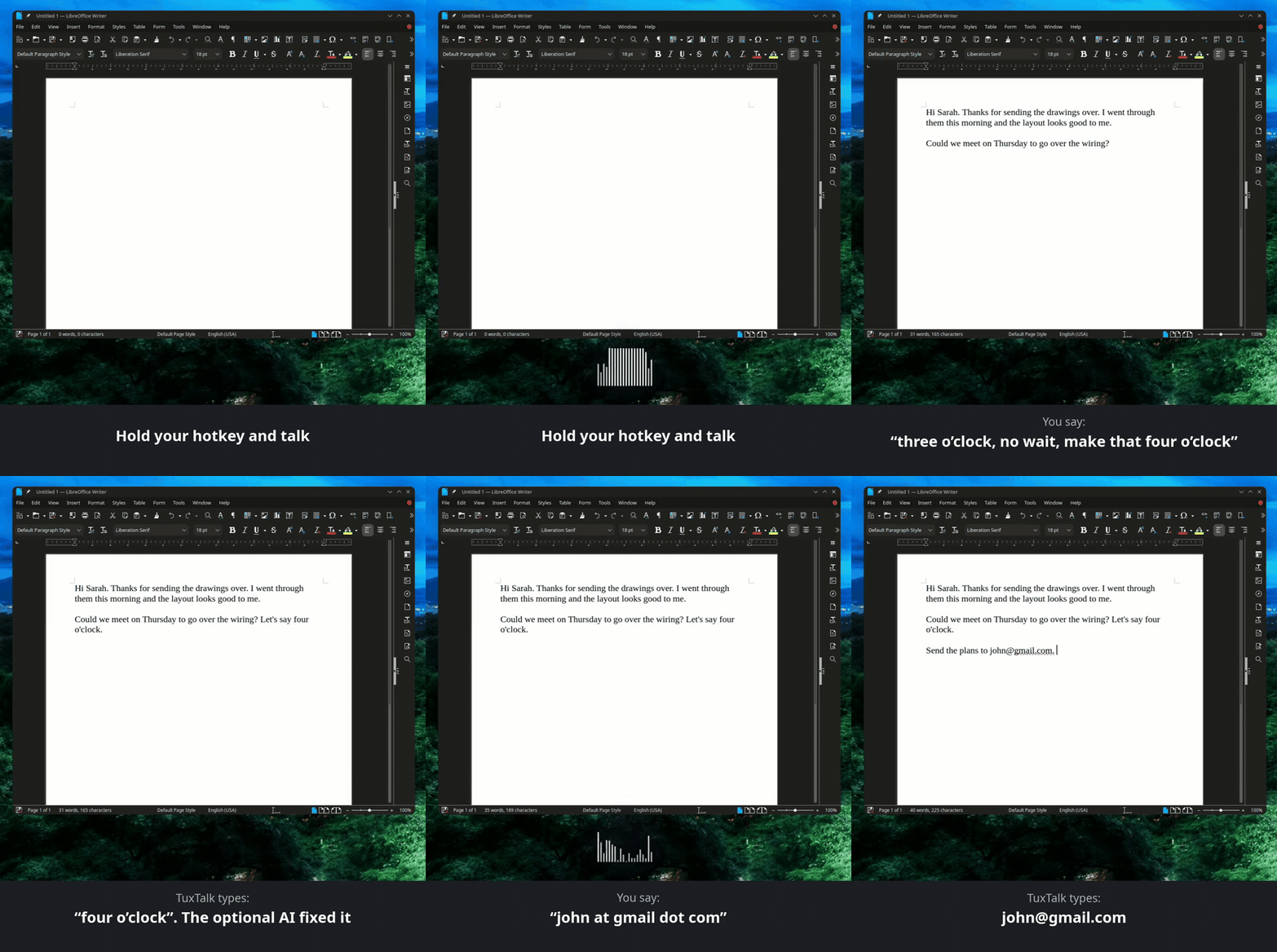
Want to hear it too? Here's the one-minute version, with sound (GitHub starts it muted, so click the speaker icon):
https://github.com/user-attachments/assets/ddedf92d-bbd2-4fc2-94e1-05461e633784
That works on GNOME, KDE, COSMIC, Sway, Hyprland and X11 with no setup, because TuxTalk's little hotkey helper reads the key straight from the keyboard instead of asking the desktop for it, so there's no shortcut to set up in your desktop's settings. It's the only part that reads the keyboard, so other programs you run can't read your typing.
It's free, it runs completely offline, and nothing you say ever leaves your computer.
Claude, Anthropic's AI, writes the code. I test it and use it every day, and I hold the code to a standard a human developer would respect. How it's made says more.
New in 0.20
A voice detector. TuxTalk used to go by loudness, so a dryer's thump, a fan or dishes in the kitchen counted as you talking. Now it has a small voice detector built in (Silero VAD, 1.3 MB, nothing to download), and hands-free and Type at pause both ask it. Hands-free next to a dryer stops by itself far more often now. In our tests with 125 people reading in seven kinds of noise, the times it never stopped went from 1,195 to 353, and what's left is other people talking in the background, which is a voice too. A soft voice is heard like a loud one, and a cough or a clatter after your last word gets typed as "Yeah." a lot less.
"Quote" as a word. "I want to quote him on that" used to come out with a quote mark in the middle. Now it's the word when the words around it say so, and "he said quote hello quote" still puts hello in quotes. "Begin quote" and "end quote" work too.
Esc right after you let go. It cancels the dictation now, and an automatic send with it, up until the text starts going in.
Logitech keyboards work with the hotkey helper. Somebody on CachyOS had F8 do nothing at all on an MX Keys, and the hotkey test said it was working. A Logitech receiver tells Linux its keyboards are mice too, and the helper skipped anything that looked like a mouse. The helper (now 1.13) reads them, and a keyboard it's only allowed to read too. The hotkey test only says Working once dictation can really hear the key, TuxTalk says so when the helper can't read your keyboard, and Report a Problem includes the helper's own log. It only asks you to update the helper where that may matter, like a computer with a Logitech keyboard or mouse.
Safer updates and graphics card. A .deb or .rpm update is checked again somewhere only root can write before it's installed, the graphics engine only answers TuxTalk, and the CUDA download is pinned to the version we tested. The .rpm installs on openSUSE now, too. The changelog has the rest.
What it does
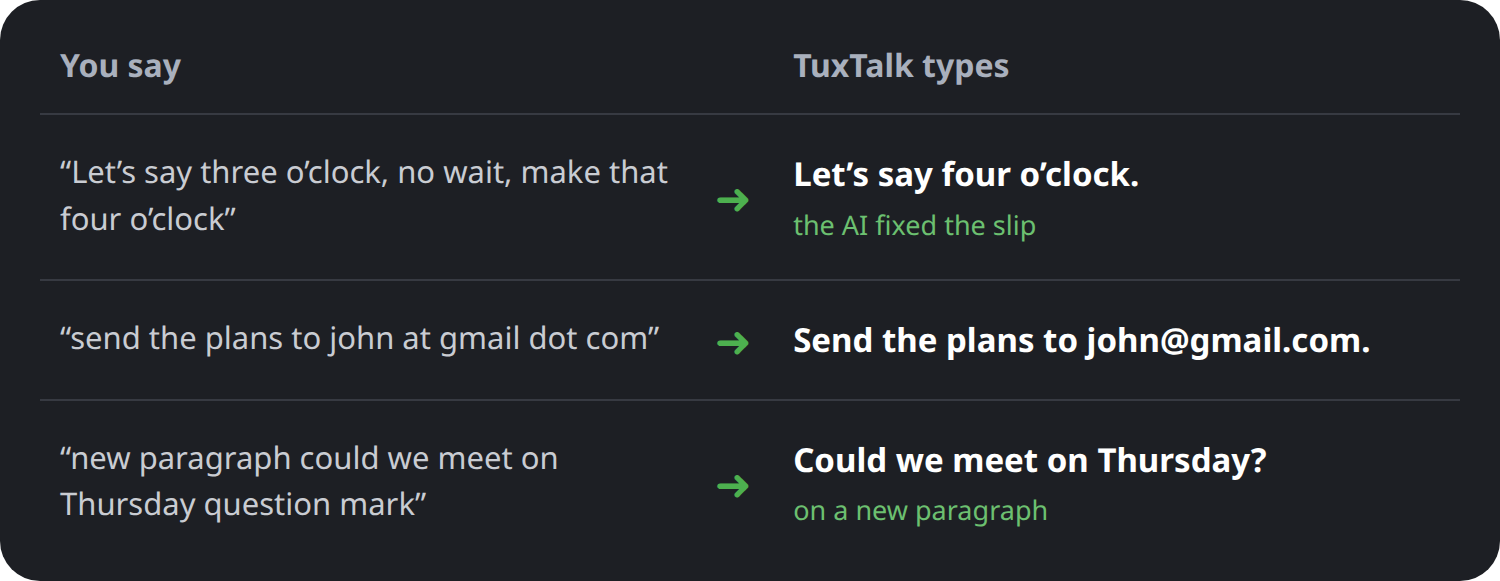
It fixes it when you change your mind. Say "no wait", "scratch that" or "actually" and correct yourself, and a small AI model on your own computer drops the wrong part. Every fix gets checked, and if the AI changed anything else, your words are typed exactly as you said them. It's optional, and it's off until you turn it on.
Commands and addresses come out right. Say "comma", "new paragraph" or "question mark" and you get the punctuation. Say an email or a web address the way you'd say it out loud and it's written the way it should be.
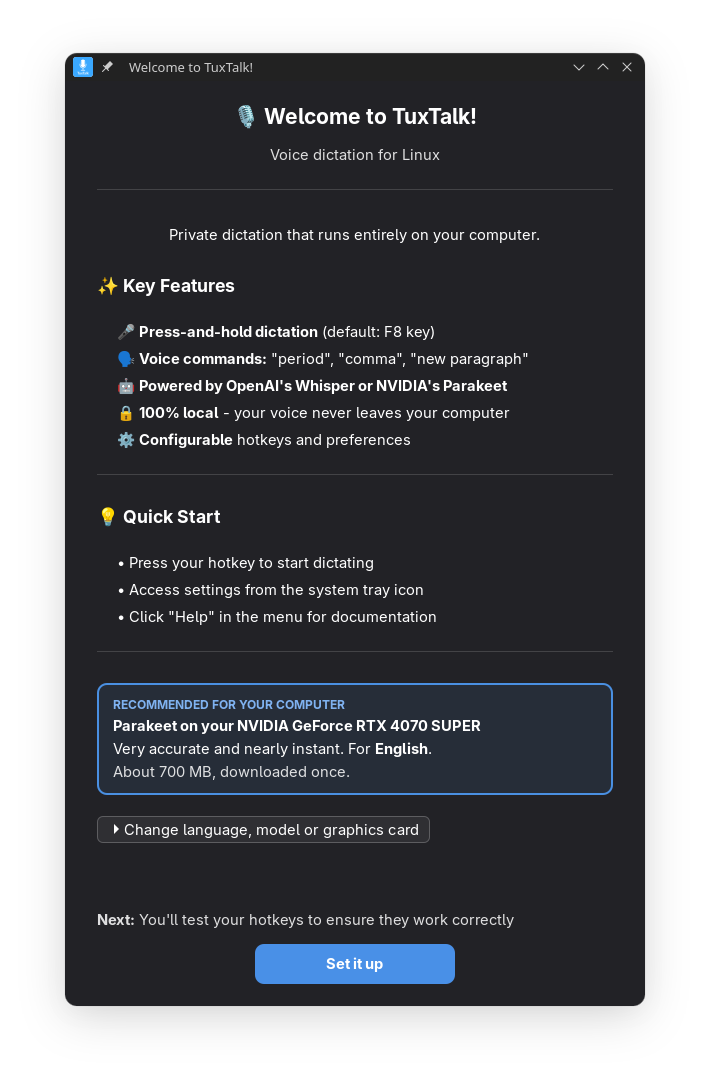 |
Set up for your computerFirst run looks at your graphics card and your language and picks a setup for you. On a graphics card, a sentence is typed out in about a fifth of a second. No graphics card is fine too: the default model is fast on an ordinary processor. Want something else? One button shows every choice, with what it costs you in download size and speed. Later on, Use Recommended in Preferences gets you back to it, and What works with what? shows which models run on which hardware. |
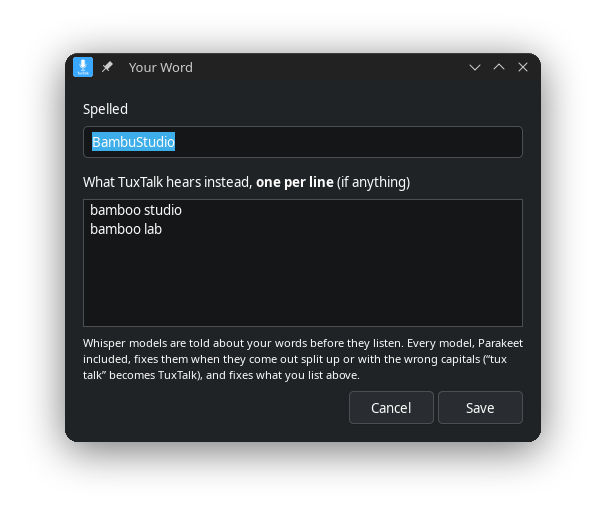
Teach it your wordsNames, brands, the part numbers you use every day. Put them in Your Words, in the Words tab, and they come out spelled your way, with Parakeet or Whisper, even when the model hears them split up, like "tux talk". If one still comes out wrong, say "fix that word" or pick it out of a recent dictation with Fix a Word, type it the right way, and it's fixed from then on. Each fix is kept under its word. Snippets are your own shortcuts, like "my email" for your address. |
 |
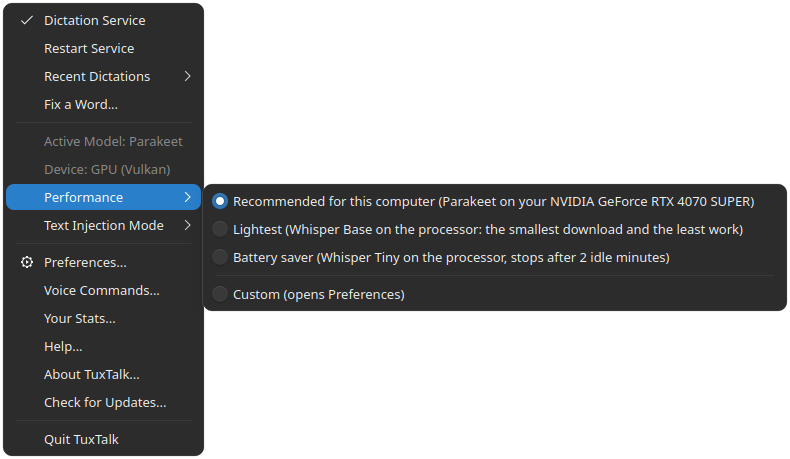 |
Everything from the trayStart and stop dictation, switch between Recommended, Lightest and Battery saver, or grab one of your last 20 dictations back if the text landed in the wrong window. Those are kept in memory only and gone when you log out. |
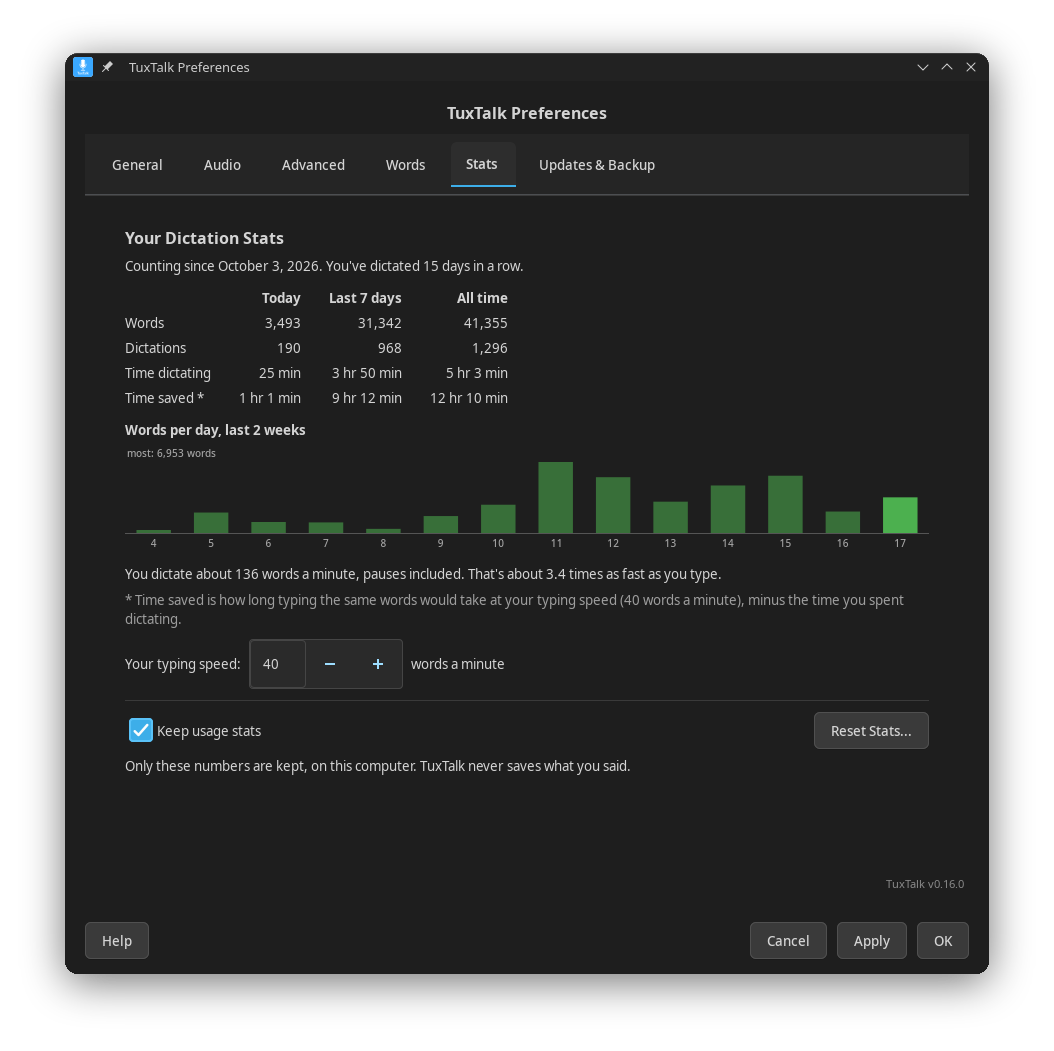
See how much typing it saves youYour Stats shows the words you've dictated today, this week and all time, and how long it would've taken to type them. Only the numbers are kept, never what you said. |
 |
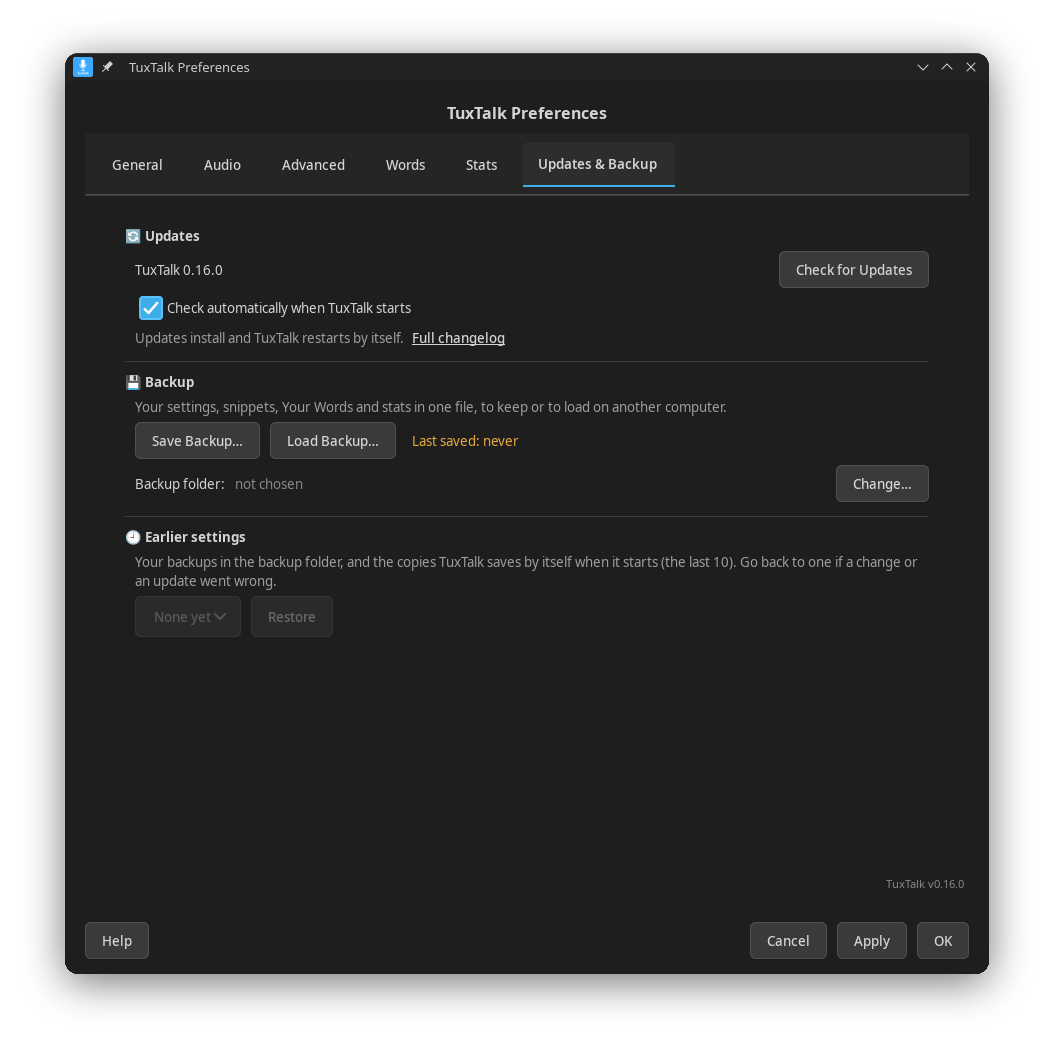 |
Take your setup with youSave your settings, voice commands, Fix a Word words and stats to one file, and load it on a new computer or after a reinstall. TuxTalk also keeps your last 10 settings on its own, so if a change or an update goes wrong you can just go back. |
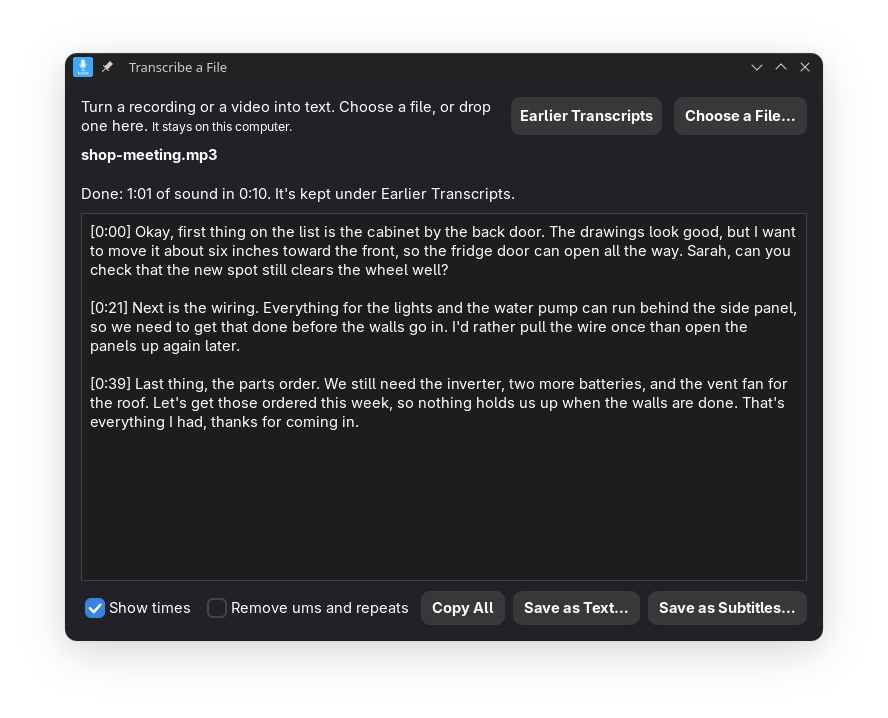
Turn a recording into textGot a recording or a video? Pick Transcribe a File in the tray menu, choose the file or drop it on the window, and you get the text back. MP3, M4A, WAV, MP4, MKV and a bunch more work. It uses the same model you dictate with, so there's nothing new to download, and you can keep dictating while it runs. On my NVIDIA card with Parakeet, three and a half minutes of talking took about nine seconds. You can copy the text or save it as a text file, or as subtitles for the video. The subtitle timing can be a second or two off, which is fine for most things but I wouldn't use it for a film. Remove ums and repeats cleans it up if you want, and your last 10 are kept under Earlier Transcripts. |
 |
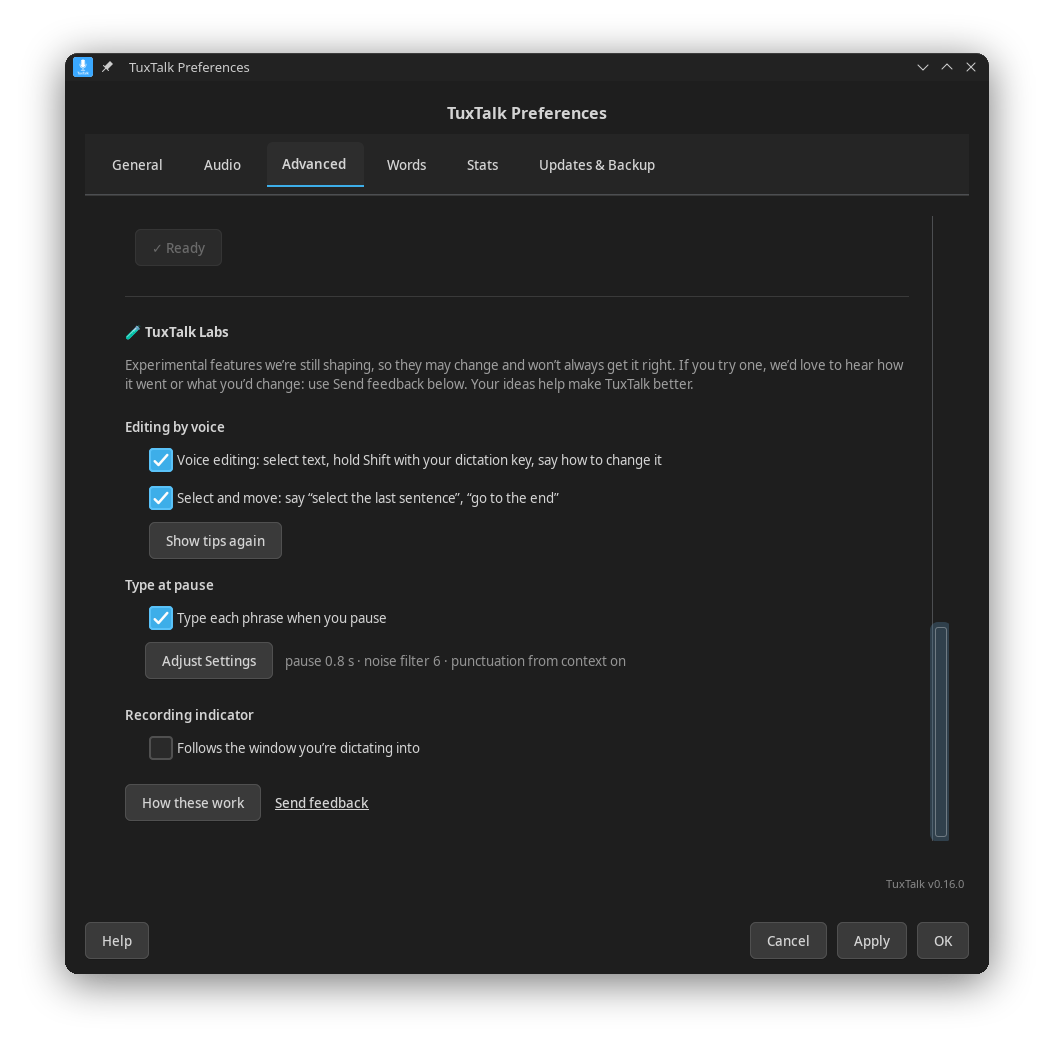 |
Try what's coming nextTuxTalk Labs is at the bottom of Preferences, Advanced. It's for features that work but aren't finished, like Type at pause, voice editing ("edit that, make it shorter") and an indicator that follows the window you're dictating into. They're off until you turn them on, and there's a link right there to tell me how they're working for you. |
How it's made
I'm Ron, and I don't write code. TuxTalk is written by Claude, Anthropic's AI, and every commit says so. My part is deciding what it should do, testing it and living with it. I dictate almost everything I write with it.
I know what a lot of people think of AI-written apps, and plenty of the time they've earned it. Thing is, I don't want TuxTalk to be one of those. Keeping the code clean matters to me as much as the app working. That means nothing left lying around that isn't used, no two pieces of code doing the same job, comments that explain why something is there, and a written checklist every change has to meet before it goes in. The goal is that an experienced developer can open any file and think it's well put together, not just that it happens to work.
And it's not only my word. Over 3,700 automated tests run on every change. Before a release it gets tested in virtual machines on Ubuntu, Linux Mint, Fedora Silverblue, Fedora KDE, Zorin, Pop!_OS, openSUSE Tumbleweed and Debian, plus Nobara, which I use it on every day. The hotkey helper had a security review from another developer, guelz, who went on to contribute a feature too. If you read the code and something looks off, open an issue. I'd rather hear it.
There's more about who's behind TuxTalk on the About page.
Installation
Arch Linux (AUR)
yay -S tuxtalk-appimage
# or
paru -S tuxtalk-appimage
Installed it and it works? A vote on the AUR page helps other Arch users find it — one click if you're logged in.
Debian / Ubuntu / Linux Mint (.deb)
Download tuxtalk_*_amd64.deb from Releases:
sudo apt install ./tuxtalk_*_amd64.deb
Fedora / RHEL / openSUSE (.rpm)
Download tuxtalk-*.x86_64.rpm from Releases:
sudo dnf install ./tuxtalk-*.x86_64.rpm
Both packages install to /opt/talktype (the folder kept its old name so
upgrades from TalkType replace files in place), add a tuxtalk command and an
Applications menu entry, and pull in the few system libraries they need.
AppImage (All Distros)
Download the latest AppImage from Releases:
chmod +x TuxTalk-v*.AppImage
./TuxTalk-v*.AppImage
The AppImage includes everything needed - just download and run!
Note: The AppImage doesn't need libfuse2 anymore. It does need
fusermount, which nearly every desktop already has. If it won't start, install thefuse3package:
- Fedora/RHEL:
sudo dnf install fuse3- Ubuntu/Debian:
sudo apt install fuse3- Arch/Manjaro:
sudo pacman -S fuse3- openSUSE:
sudo zypper install fuse3
Flatpak
There's a sandboxed Flatpak build in packaging/flatpak, but it isn't published
for download yet, and it hasn't been rebuilt since the rename to TuxTalk.
Want a Flatpak version?
👉 Vote in the poll —
enough interest and I'll make it happen.
System Requirements
| Requirement | Details |
|---|---|
| OS | Linux, on Wayland or X11 (GNOME, KDE, COSMIC, Sway, Hyprland and more) |
| Dependencies | None to install by hand. TuxTalk types with its own virtual keyboard, and wl-clipboard ships inside it |
| Permissions | First run asks for your admin password once, to set up the hotkey helper and let TuxTalk type into other apps. No restart needed (without systemd it uses the input group, and then it does) |
| Audio | Working microphone |
| GPU (optional) | Any NVIDIA, AMD or Intel graphics chip (Vulkan), or CUDA on NVIDIA |
Uninstalling
Open Preferences, go to Updates & Backup and click Uninstall TuxTalk… at the bottom. It removes TuxTalk and everything it set up on your computer: the program itself, the hotkey helper and the typing permission, the speech models and everything else it downloaded (CUDA libraries included), start at login, the menu entry and the GNOME extension. It asks for your password once. Your settings and word list stay unless you tick the box to delete them too, so installing again picks up where you left off.
If TuxTalk won't open, the same thing runs from a terminal:
tuxtalk --uninstall                          # .deb, .rpm and AUR
~/AppImages/TuxTalk.AppImage --uninstall     # AppImage
Removing only the package (sudo apt remove tuxtalk, sudo dnf remove tuxtalk,
sudo pacman -R tuxtalk-appimage) takes the hotkey helper with it from 0.17 on,
but leaves your settings and the downloads in your home folder.
Removing everything by hand (any version, including before 0.17)
Quit TuxTalk from its menu first. Then the system parts, which need your password:
sudo systemctl disable --now tuxtalk-hotkeys.service
sudo rm -f /etc/systemd/system/tuxtalk-hotkeys.service /etc/udev/rules.d/70-tuxtalk-uinput.rules /etc/udev/rules.d/99-talktype-uinput.rules
sudo rm -rf /usr/local/libexec/tuxtalk
sudo systemctl daemon-reload
sudo udevadm control --reload-rules
Then remove the package if you installed one (sudo apt remove tuxtalk,
sudo dnf remove tuxtalk or sudo pacman -R tuxtalk-appimage), and what's in
your home folder:
rm -f ~/AppImages/TuxTalk.AppImage ~/AppImages/TalkType.AppImage
rm -f ~/.config/autostart/tuxtalk.desktop ~/.local/share/applications/tuxtalk.desktop
rm -f ~/.local/share/icons/hicolor/*/apps/tuxtalk.png
rm -rf ~/.local/share/TuxTalk ~/.config/tuxtalk
rm -rf ~/.cache/huggingface/hub/models--Systran--faster-whisper-* ~/.cache/huggingface/hub/models--istupakov--parakeet-tdt-0.6b-v3-onnx ~/.cache/huggingface/hub/models--ggml-org--parakeet-GGUF ~/.cache/huggingface/hub/models--ggerganov--whisper.cpp ~/.cache/huggingface/hub/models--Qwen--Qwen2.5-1.5B-Instruct-GGUF
gnome-extensions uninstall [email protected]
The rm -rf ~/.local/share/TuxTalk ~/.config/tuxtalk line also deletes your
settings and word list; leave out ~/.config/tuxtalk to keep them. The last
line only matters on GNOME.
Versions before 0.16 may also have set up a typing service and put you in the
input group. 0.18 and later remove that service when they start; if it's
still there, check first that ~/.config/systemd/user/ydotoold.service says
"TuxTalk keystroke injection" (or TalkType), then:
systemctl --user disable --now ydotoold.service
rm -f ~/.config/systemd/user/ydotoold.service
sudo gpasswd -d $USER input
Skip the last line if another program you use needs the input group (a key
remapper, for instance). Log out and back in afterwards.
Quick Start
- Launch TuxTalk - Run the AppImage or use your app launcher
- First-run setup - TuxTalk will guide you through initial configuration
- Start dictating - Press F8 (hold to record) or F9 (tap to toggle) — both always active
- Speak naturally - Text appears where your cursor is
- Use voice commands - Say "comma", "period", "new line", etc.
Hotkeys (Both Always Active)
| Hotkey | How it works |
|---|---|
| F8 | Hold to record, release to transcribe (hold-to-talk) |
| F9 | Press once to start, press again to stop (tap-to-toggle) |
| Ctrl+Alt+P | Types your last dictation again, wherever your cursor is |
| Shift+F8 | Voice editing: hold it and say how to change the selected text (turn it on in TuxTalk Labs first) |
No easy F-keys on your keyboard? Preferences → General also lets you pick Right Ctrl, Right Alt or Scroll Lock. Right Ctrl and Right Alt then stop working as Ctrl and Alt.
Want your own shortcut, or a script? Run tuxtalk --toggle (or --start, --stop). For the AppImage, use the AppImage file, by its full path, e.g. /home/you/AppImages/TuxTalk.AppImage --toggle (GNOME runs a shortcut without a shell, so ~ doesn't work there; Help shows yours). It starts TuxTalk if it isn't running and waits for the speech model to load, so the toggle is never lost.
All the features
- Two hotkeys, both always on. Hold F8 to talk, or tap F9 to start and tap again to stop. Pick any keys you like.
- Hands-free if you want it. Double-tap F9, talk, and it stops by itself when you go quiet. A single tap still works as a plain on/off switch, so a long dictation with thinking pauses never gets cut off. Say nothing for 10 seconds and it stops without typing anything.
- Your choice of speech model. NVIDIA's Parakeet is the default: fast on any processor, for English and 24 European languages. OpenAI's Whisper covers 99 languages, from Tiny up to Large-v3. Not sure which? What works with what? in Preferences lays it out.
- Only these languages. Tick the languages you actually speak and Whisper's auto-detect sticks to those.
- Any graphics card. NVIDIA, AMD or Intel through Vulkan, a 22 MB download. On NVIDIA you can use CUDA instead. TuxTalk times your graphics chip against your processor first and only uses it if it's really faster.
- Corrections. Say "no wait", "scratch that", "I mean" or "actually" and the optional AI fixes it. A separate setting with no AI drops "um", "uh" and stutters.
- Voice commands. "comma", "period", "new paragraph", "undo last word", "delete last three sentences" and more. See the full list below.
- Email and web addresses. "john at gmail dot com" types [email protected], and "github dot com" types github.com.
- Numbers as digits, if you want them. 25 instead of twenty-five, and 7:30 and 15th too. Works in English and seven other languages.
- Plain text in terminals. No capital at the start and no period at the end when you dictate a command.
- Voice editing (Labs). Select text, hold Shift+F8 and say how to change it. Tone and rewrites go to the AI, while caps, lists, commas and removing a word are done exactly in code. Bold, italics and underline work in LibreOffice and other word processors.
- Select and move by voice (Labs). Say "select the last sentence" or "go to the end" on its own and TuxTalk does it instead of typing it.
- Snippets. Make a phrase type anything you want, like "my email" for your address.
- Your Words. The names and terms you use, spelled your way.
- Fix a Word. Teach it a name or term it keeps getting wrong. Or just say "fix that word" right after a dictation.
- Paste Last Dictation. Ctrl+Alt+P types your last dictation again, for when it landed in the wrong window.
- Transcribe a File. Turns a recording or a video into text or subtitles with the same model you dictate with, and keeps your last 10.
- Pauses your music and videos while you talk, and starts back up only what it paused.
- Recent Dictations. Your last 20, one click to copy. Kept in memory only.
- Your Stats. Words dictated and typing time saved, at your own typing speed.
- Settings backup. Save everything to one file and load it on another computer. TuxTalk also keeps your last 10 settings on its own, so you can roll back a change.
- A recording indicator you can style. Orb, waveform, frequency bars or radial, any color, anywhere on screen. It reacts to your voice so you know it's listening. In Labs it can follow the window you're dictating into.
- Swiss German spelling. Types ss instead of ß, on by itself when your system is set to Swiss German.
- Tells you why when it can't type. If a dictation can't be typed into the window, TuxTalk says why and what fixes it.
- Private. Everything runs on your computer, and what you dictate is never written to a log unless you turn that on for troubleshooting.
- GNOME extension. A native panel menu on GNOME, and a tray icon everywhere else.
- Updates the right way. Through your package manager for the .deb and .rpm, in place for the AppImage, or through your AUR helper on Arch.
More
More screenshots
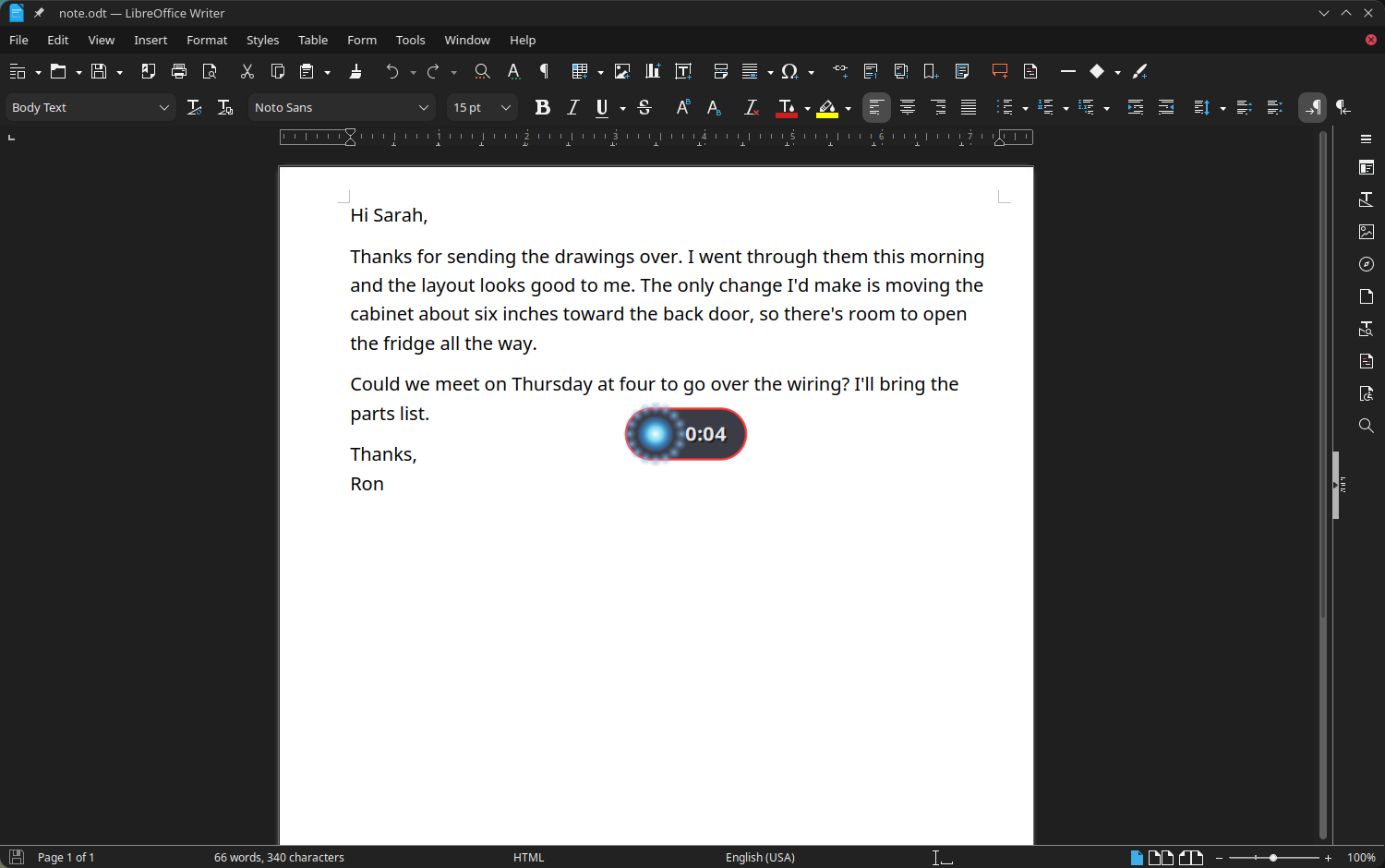
Hold F8 and talk: the indicator shows TuxTalk is listening, and your words land wherever you're typing
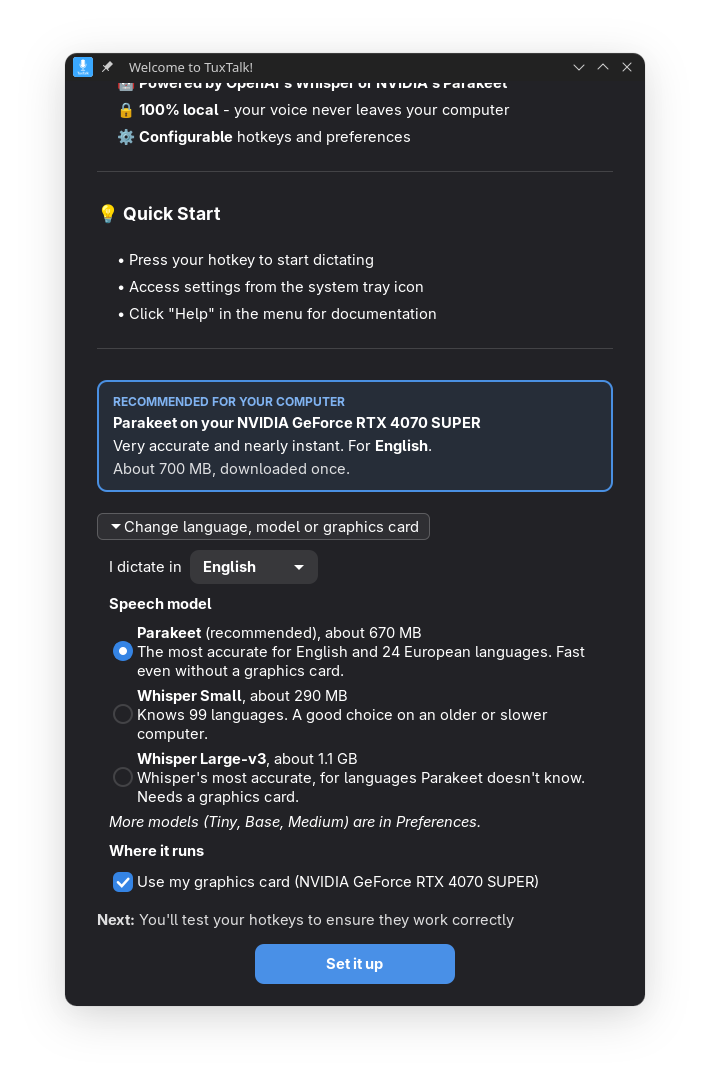
First run recommends a setup • one button shows every choice
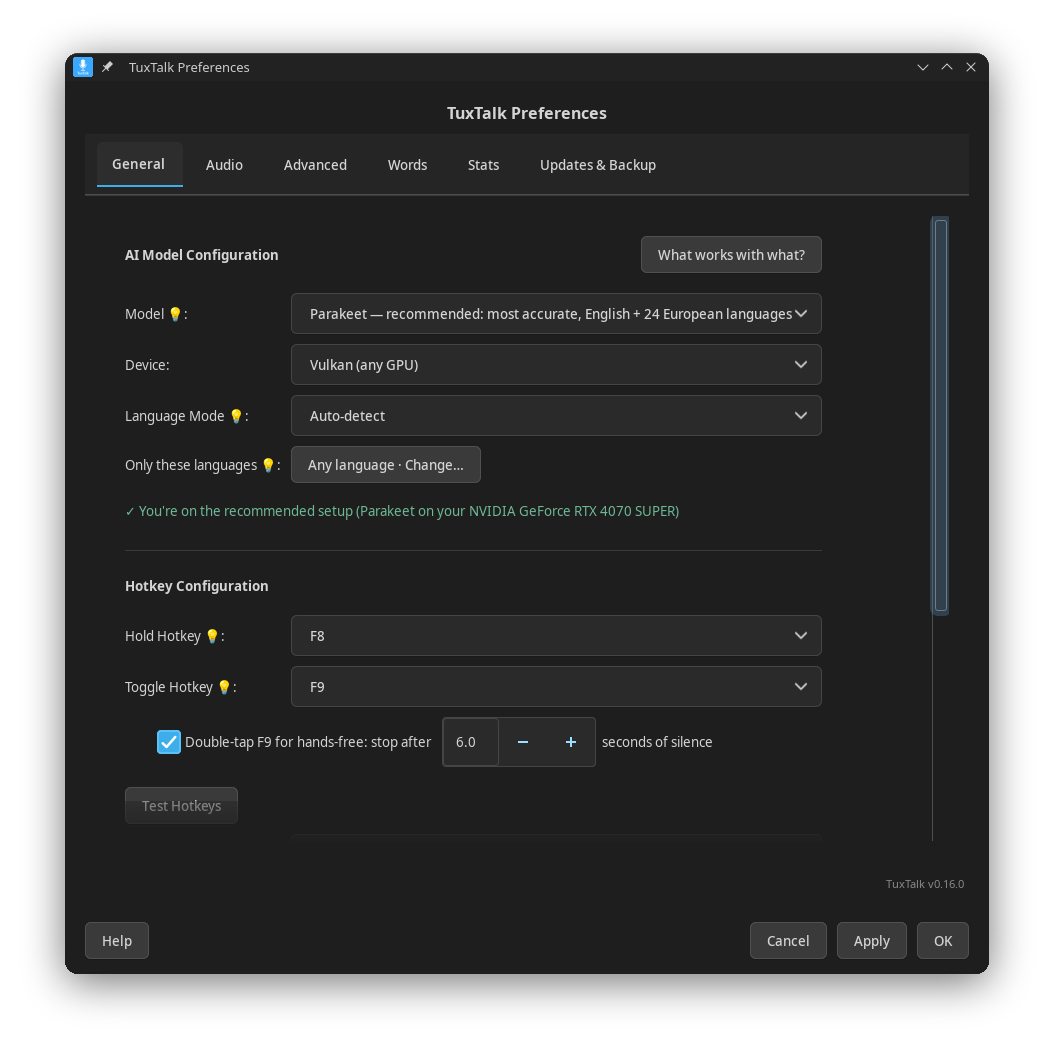
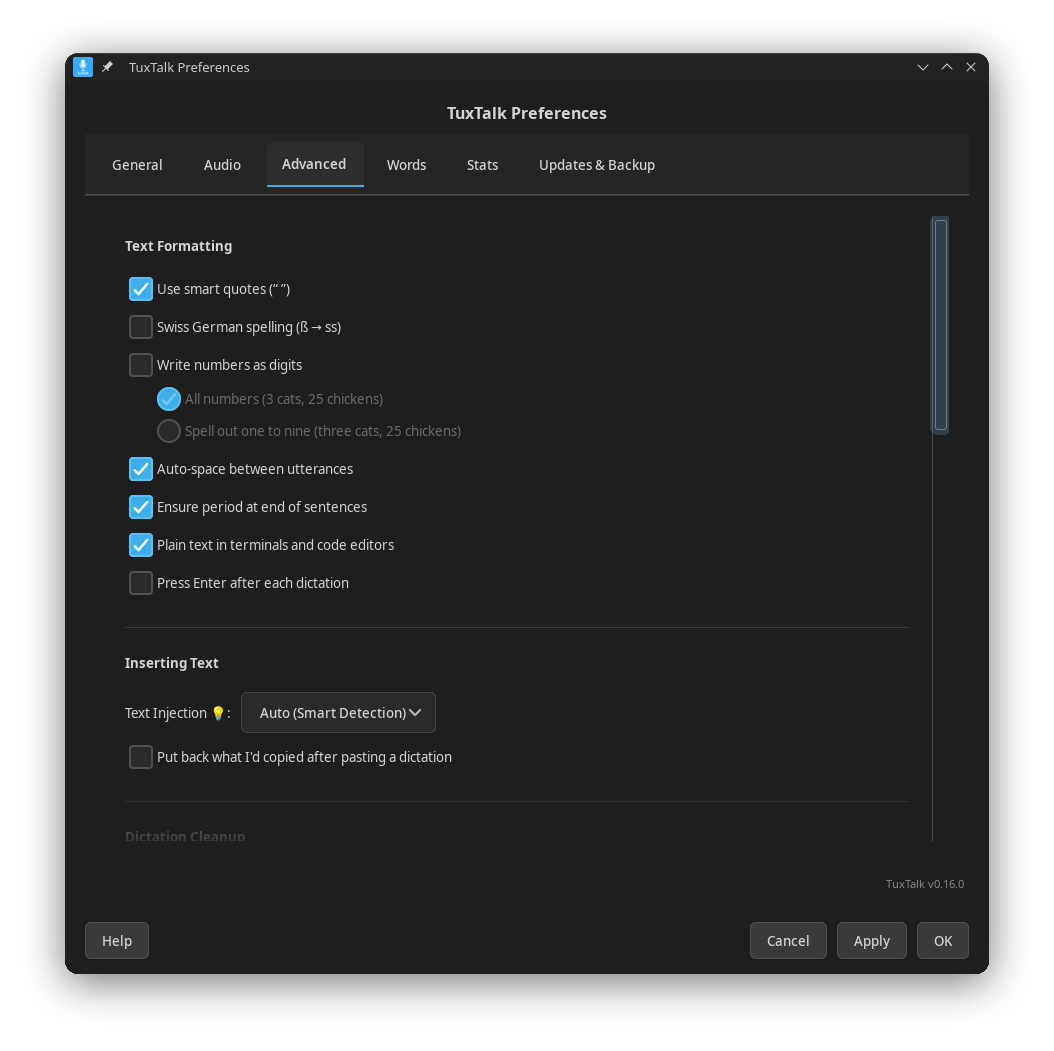
Model, graphics card and hotkeys • Dictation cleanup and AI self-corrections
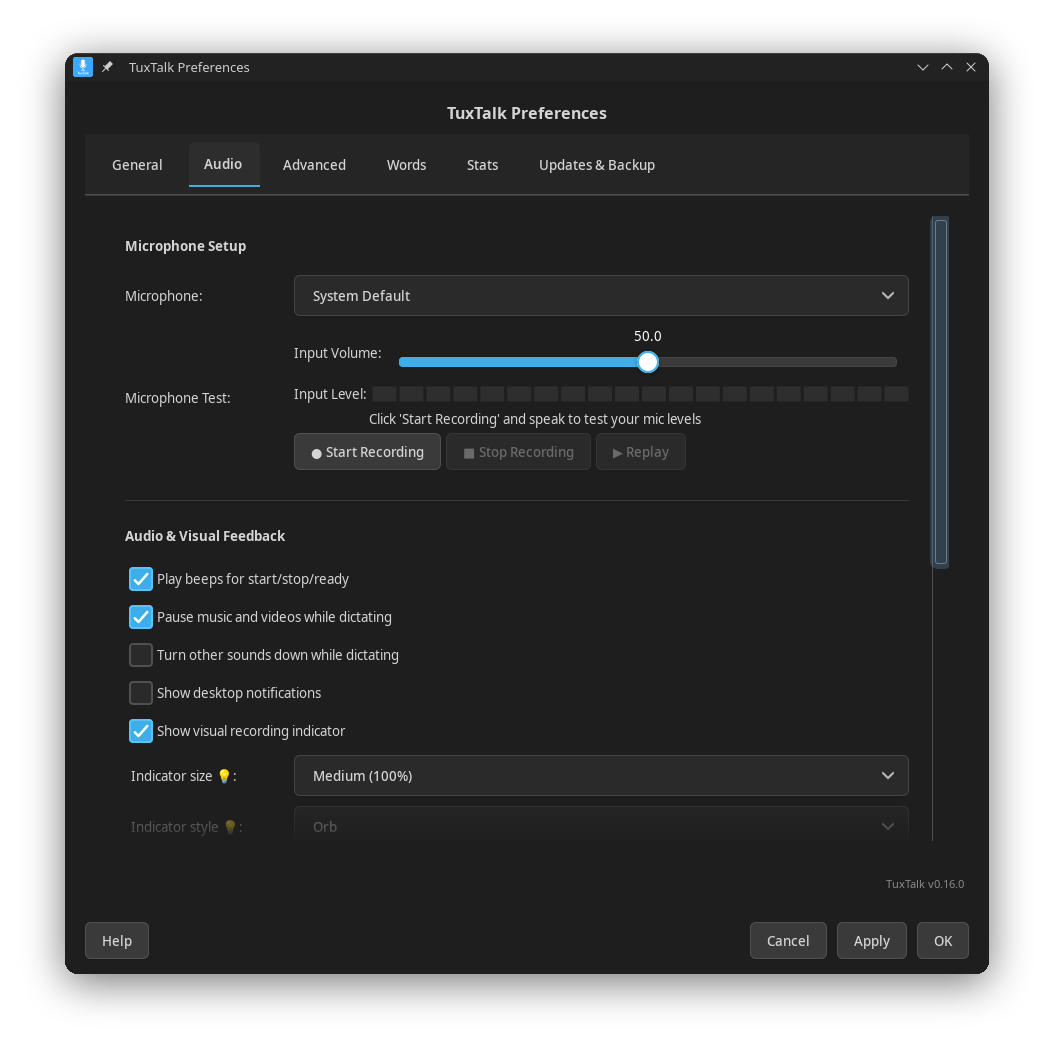
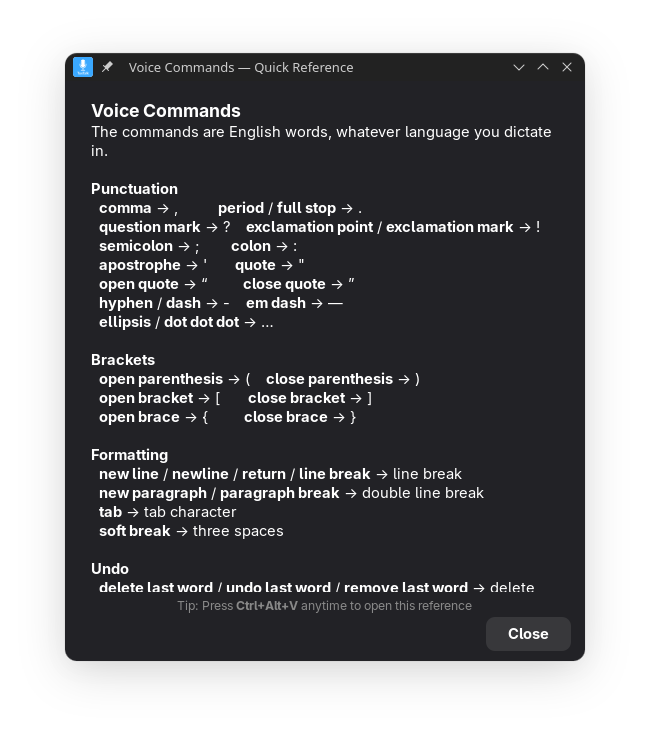
Microphone test and recording indicator • The Voice Commands quick reference
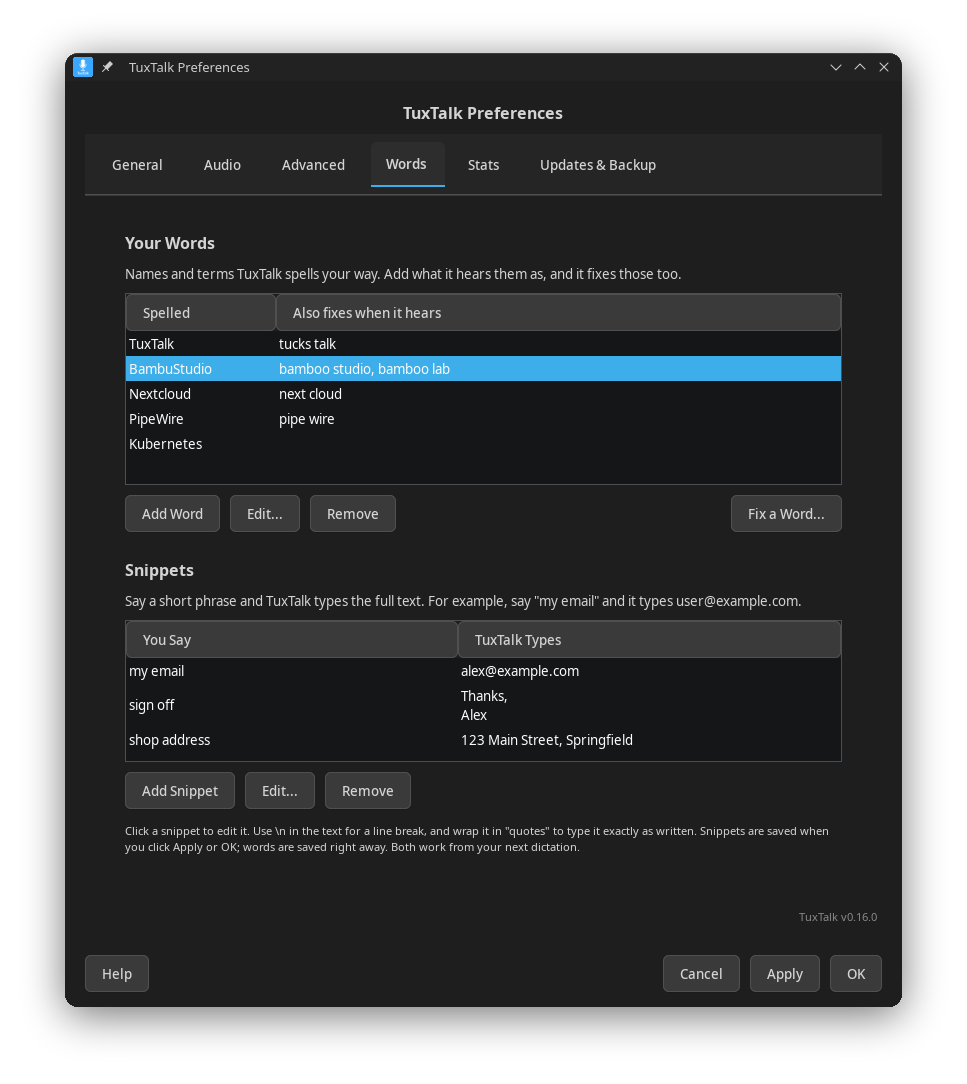
The Words tab: Your Words and Snippets • Your Stats
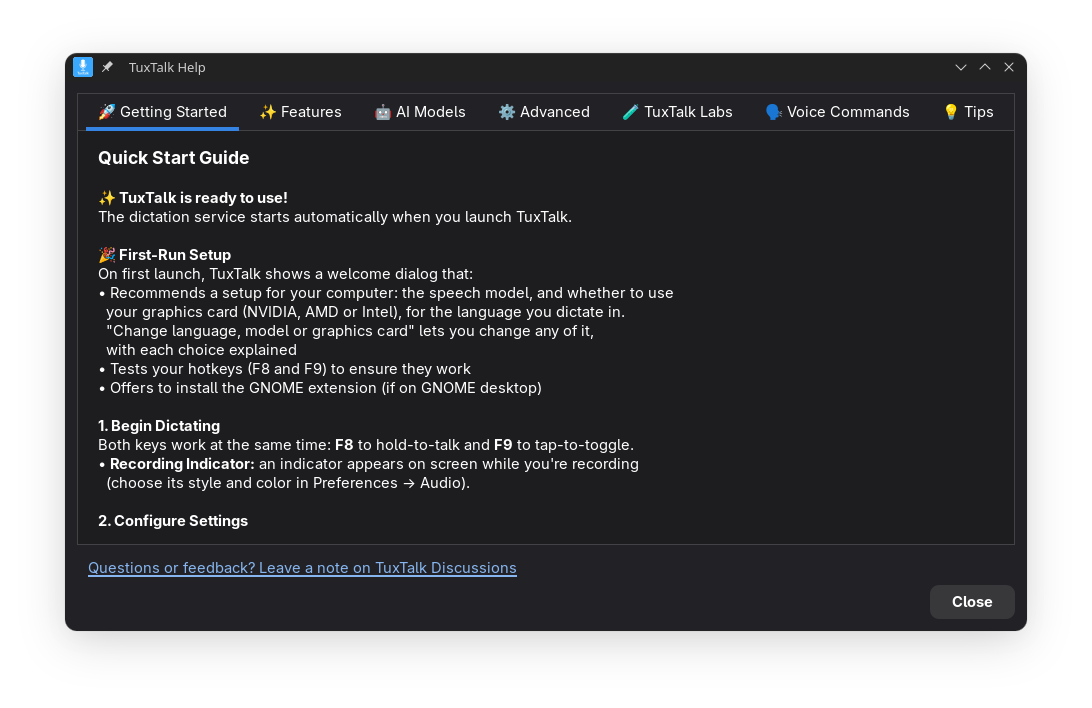
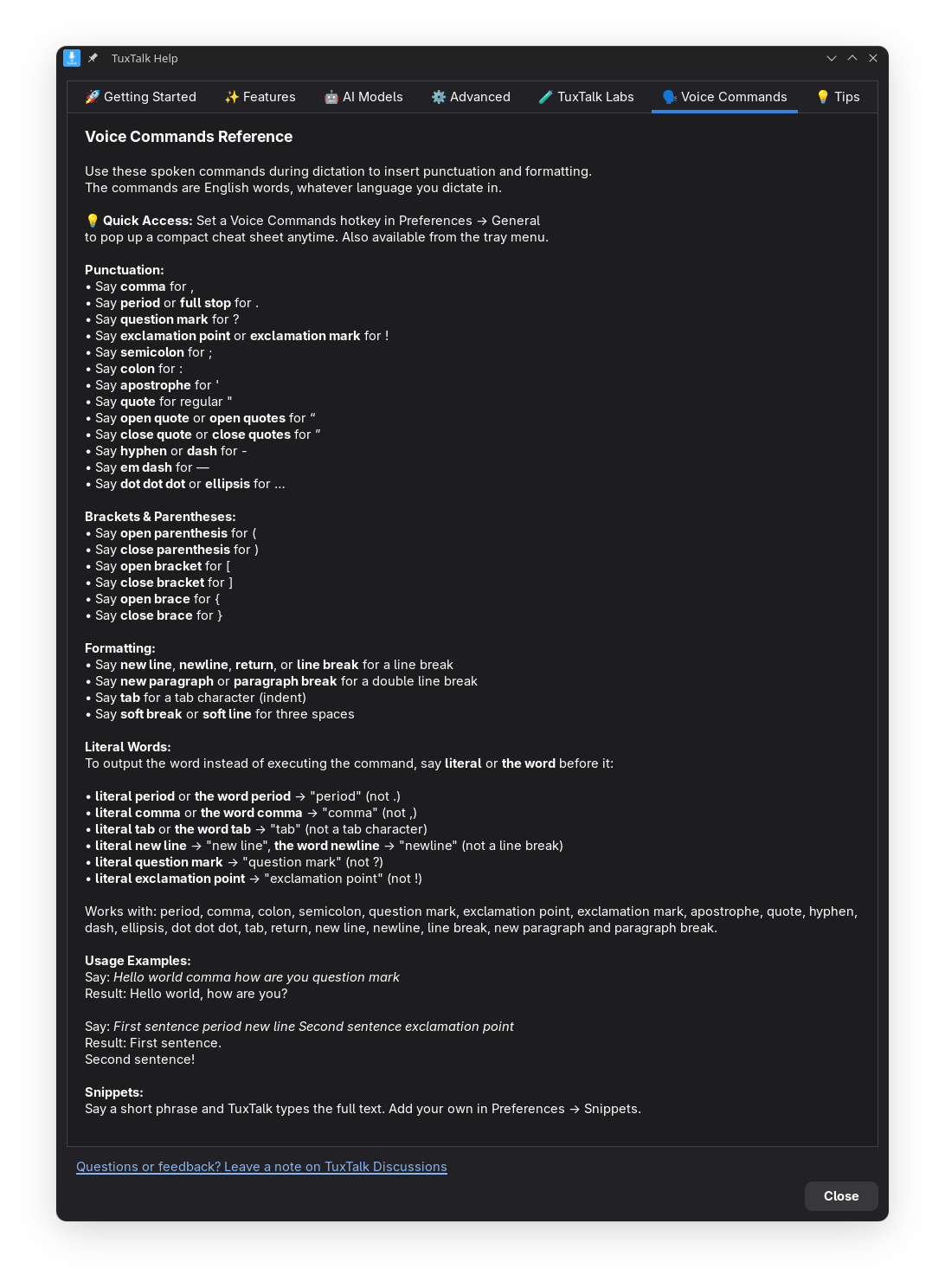
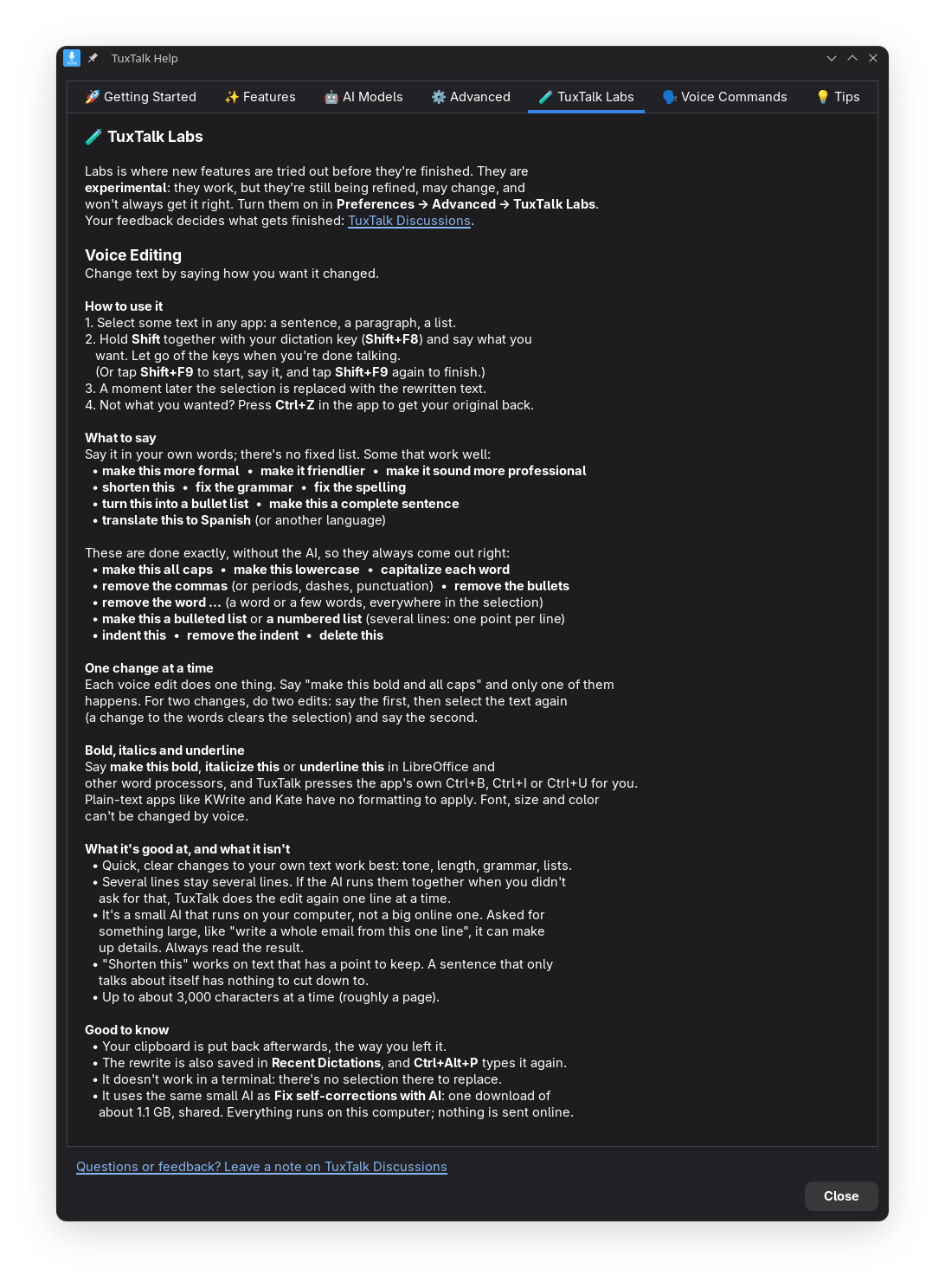
Built-in help, including a page on TuxTalk Labs and voice editing
Voice commands, the full list
Punctuation
| Say This | Result |
|---|---|
| "comma" | , |
| "period" / "full stop" | . |
| "question mark" | ? |
| "exclamation point" | ! |
| "colon" | : |
| "semicolon" | ; |
| "open quote" / "close quote" | " " (smart quotes) |
| "dot dot dot" / "ellipsis" | ... |
Formatting
| Say This | Result |
|---|---|
| "new line" | Line break |
| "new paragraph" | Double line break |
| "press tab" | Tab character ("tab" on its own is just the word). At the end of a dictation it presses the Tab key, so in a form you go to the next box. In Claude Desktop it types four spaces instead, because there the Tab key jumps to the Send button |
Editing
| Say This | Result |
|---|---|
| "undo last word" | Deletes the last word |
| "undo last sentence" | Deletes to the previous sentence |
| "undo last paragraph" | Deletes the last paragraph |
| "delete last three words" | Deletes several at once — words, sentences or paragraphs |
| "delete last 5 sentences" | Digits work too; counts above what you dictated are clamped |
| "clear everything" | Clears the entire input field (see warning below) |
Undo, delete and remove are interchangeable — say whichever comes naturally ("delete last word", "remove last two sentences"). Counts accept digits or the words one through ten.
⚠️ "clear everything" empties the whole field, not just what you dictated. The phrases undo/delete/clear + everything/all — six in total — all do the same thing: select all and delete. That includes text you typed yourself, so it is not limited to the current dictation.
Literal Words
Say "literal" before any command to output the word instead:
- "literal comma" → types "comma" (not ,)
- "literal period" → types "period" (not .)
Speech models
Choose the right model for your needs in Preferences → General:
| Model | Size | Speed | Accuracy | Best For |
|---|---|---|---|---|
| tiny | 78 MB | Fastest | Basic | Quick notes |
| base | 148 MB | Fast | Good | Casual use |
| small | 486 MB | Balanced | Very Good | Any of 99 languages |
| medium | 1.5 GB | Slower | Excellent | Professional |
| large-v3 | 3.1 GB | Slowest | Best | Technical work |
| Parakeet | 670 MB | Fast, even without a GPU | Best | Recommended for English + 24 European languages |
Tip: First run recommends a setup for your computer and language. Use Recommended in Preferences → General, or tray → Performance → Recommended for this computer, puts you back on it any time. Parakeet is the default. It's a different engine that NVIDIA made, and it runs on your processor (or on your graphics card through Vulkan). It doesn't cover Chinese, Japanese, Korean, Arabic and other non-European languages. For those, first run picks Whisper: Small on the processor, or Large-v3 on a graphics card.
Graphics cards
A graphics card makes the Whisper models much faster, and with Vulkan it speeds up Parakeet too. There are two ways to use one:
| Works on | Download | Pick it in | |
|---|---|---|---|
| Vulkan (Light) | NVIDIA, AMD and Intel | 22 MB | Preferences → General → Device → Vulkan (any GPU) |
| CUDA (Full) | NVIDIA only | 585 MB | Preferences → General → Device → CUDA (NVIDIA) |
On an RTX 4070 Super both were equally fast: half a second for 11 seconds of speech with the Large model. First run uses any graphics card through Vulkan. CUDA is set up from Preferences by choosing it as the Device.
Before switching to Vulkan, TuxTalk times your graphics chip against your processor and only switches if the graphics chip is clearly faster. The graphics built into some desktop processors is too small to help, and in that case it tells you and keeps using the processor.
Parakeet doesn't need a graphics card, since it's already fast on the processor. With the device set to Vulkan it runs on the graphics card anyway: on an RTX 4070 Super, a minute of speech took 0.2 seconds instead of 2, with the same accuracy. That needs a second copy of Parakeet in the graphics engine's format (669 MB). The processor copy stays too, as a fallback. CUDA can't run Parakeet.
Settings file
Settings are stored in ~/.config/tuxtalk/config.toml. To keep a copy, use Save Backup in Preferences → Updates & Backup.
model = "parakeet-v3"     # AI model: parakeet-v3, tiny, base, small, medium, large-v3
device = "cpu"            # "cpu", "vulkan" (any GPU) or "cuda" (NVIDIA)
hotkey = "F8"             # Hold-to-talk key (hold to record, release to stop)
toggle_hotkey = "F9"      # Tap-to-toggle key (press once start, press again stop)
# Both hotkeys are always active simultaneously
language_mode = "auto"    # "auto", or "manual" to use the language below
language = ""             # language code for manual mode, e.g. "de"
beeps = true              # Audio feedback sounds
smart_quotes = true       # Use curly quotes " "
auto_space = true         # Auto-space between utterances
auto_period = true        # Add period at end of sentences
Troubleshooting
Text not appearing?
- Look in
~/.config/tuxtalk/tuxtalk.logfor "Made TuxTalk's virtual keyboard". If it says "Can't make TuxTalk's virtual keyboard" instead, open Preferences → Advanced → Show system check and click Fix Typing Permissions - If some letters go missing on a slow computer, add
key_delay = 6(or higher) to~/.config/tuxtalk/config.tomland restart TuxTalk
Hotkey not working?
- Another app may be using F8/F9 - try different keys in Preferences
- Ensure TuxTalk service is running (check tray icon)
No hotkey works at all?
On Wayland a normal program isn't allowed to see keys pressed in other windows, so TuxTalk needs a little help to notice F8.
- Preferences → Advanced → Show system check → Fix Typing Permissions
- On most systems that installs TuxTalk's hotkey helper. It's a small
background service, and it's the only thing that reads the keyboard. It
tells TuxTalk about its hotkeys and Right Ctrl or Right Alt going down,
never what you type, and no other program you run gets to read your keys.
No restart needed. Check it with
systemctl status tuxtalk-hotkeys - On a system without systemd it puts you in the
inputgroup instead. Then restart the computer (logging out often isn't enough) and check withgroups
Why is there a hotkey helper service?
Older versions put you in the input group. That works, but the group lets
every program you run read every key you press, passwords too. The helper
fixes that. It runs as a throwaway system user with no network and no access
to your files, it never reports a letter or a number, only F-keys, Esc and
shortcuts with Ctrl, Alt or Super, and only to whoever's at the screen.
systemd-analyze security tuxtalk-hotkeys rates it 0.6, "SAFE".
A shortcut that isn't an F-key needs two of Ctrl, Alt and Super, and while those stay held the helper reports two different keys at most, so a stuck Ctrl+Alt can't turn your typing into "shortcuts". The check is per user, so two logins of the same user both count as the person at the screen.
To type, TuxTalk still needs /dev/uinput, so whoever's at the screen gets
it, the same rule Steam uses for game controllers. A program can use it to
press keys but not to read them. That's still real power: any program you run
can type into any window, the lock screen included, and so can a Flatpak app
given full device access. It's less than the input group gave, which also
let programs read every key.
Some packages give your user access to the keyboard itself. OpenRGB's rule,
for one, does that for every Logitech device. Programs can then read that
keyboard directly, helper or not. Check with
getfacl /dev/input/event*: a line naming your user means that device is
open to everything you run.
To take the helper off again:
sudo systemctl disable --now tuxtalk-hotkeys
sudo rm -r /etc/systemd/system/tuxtalk-hotkeys.service /etc/udev/rules.d/70-tuxtalk-uinput.rules /usr/local/libexec/tuxtalk
Transcription slow?
- Use your graphics card if you have one (see Graphics cards above)
- Try Parakeet, or a smaller Whisper model (tiny or base)
- Tray menu → Performance → Recommended for this computer
Tray icon not visible (GNOME)?
- TuxTalk offers to install its GNOME extension on first run
- Or manually: Preferences → Advanced → Show system check → Install Extension
Building from source
From Source
GTK's Python bindings can't be installed with pip, so they come from your
system and the rest goes in a venv. run-dev.sh puts the two together.
# Prerequisites (Fedora/Nobara; other distros have the same packages under similar names)
sudo dnf install -y portaudio-devel wl-clipboard \
                    python3-gobject libayatana-appindicator-gtk3 libnotify

# Clone and install
git clone https://github.com/ronb1964/TuxTalk.git
cd TuxTalk
python3 -m venv .venv
.venv/bin/pip install poetry
.venv/bin/poetry install

# Run
./run-dev.sh
To type, TuxTalk needs to make a virtual keyboard through /dev/uinput. First-run
setup's Fix Typing gives it that.
To run the tests (swap in your Python version, python3 --version shows it):
xvfb-run -a dbus-run-session --config-file=tests/dbus-session.conf -- env \
    PYTHONPATH=./src:/usr/lib64/python3.14/site-packages:/usr/lib/python3.14/site-packages \
    .venv/bin/python -m pytest tests -q -p no:cacheprovider
They open windows, so they run on a hidden screen with a session bus of their own, and refuse to start without one.
More in DEV_SETUP.md.
License
MIT License. See LICENSE for details.
TuxTalk's downloads also include other open-source software, like wl-clipboard, each under its own license. THIRD_PARTY_LICENSES.md lists them.
Explore related projects
n8n-io/n8n
Fair-code workflow automation platform with native AI capabilities. Combine visual building with custom code, self-host or cloud, 400+ integrations.
209,942 starslanggenius/dify
Build Agentic workflows, RAG pipelines, with rich AI model and tool support on one collaborative workspace. Deploy on cloud, VPC, or self-hosted, so teams move from prototype to production without rebuilding the stack.
160,773 starsmicrosoft/PowerToys
Microsoft PowerToys is a collection of utilities that supercharge productivity and customization on Windows
140,755 starsstablyai/orca
Orca is the place for working with a fleet of agents (e.g. Grok Bot, Claude Code). Run any coding agent with your own subscription. Available on desktop, mobile and remote runtime.
120,485 stars