
ramalhoboss/PlayBridge
ramalhoboss/PlayBridge has 35 GitHub stars and 4 forks. GitHot measured +5 stars in 24 hours. Last checked 2026-11-15 17:17 UTC. Last push 2026-11-12.
What you can do
- Video - Native console capture, H.264, at 1080p, 1440p (experimental) and 4K (experimental), with a 60 fps capture rate and bitrate targets from 4 to 80 Mbit/s.
- Audio - AAC at 128 kbit/s, decoded to 48 kHz stereo and played through Windows WASAPI.
- Automatic loading - The EXE embeds PlayBridge.elf and sends it to the console's existing ELF loader.
- Games - The PS5's installed games with covers, the game's own music where it has one, play time, last played and size. Play, Resume and Close, search and five rows. Read during a session and kept on the PC.
Measured star growth
- in 24h
- +5
- in 7 days
- Update delayed
- in 15 days
- Update delayed
- in 1 month
- Update delayed
Net star changes over overlapping periods, not daily totals. Missing measurements are left blank. Stars measure attention, not software quality.
About
Your PS5 games, video and audio on your Windows PC, at up to 4K, with GPU video, Gaming Mode and instant replay. Open Payload Manager, launch PlayBridge, and connect. Tested on firmware 13.60.
Creative & MediaREADME.md
Original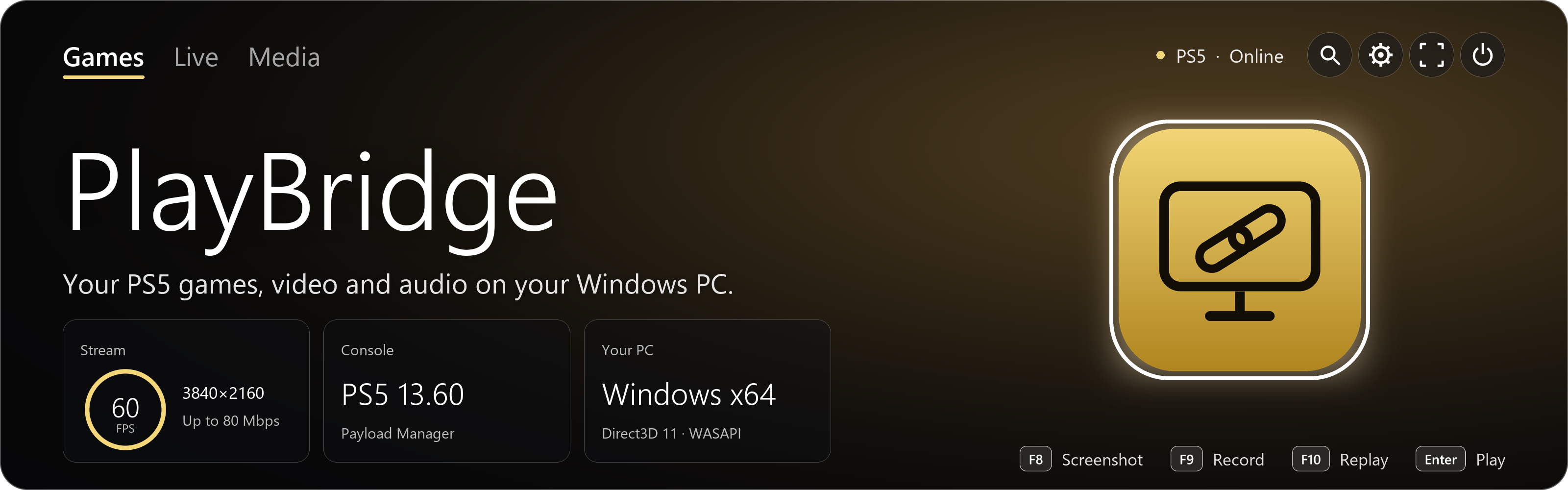




PlayBridge
Created by ramalhoboss · Follow @nuno_leugim_10 on X
Your PS5 games, video and audio on your Windows PC, at up to 4K. Open Payload Manager on your PS5, launch PlayBridge on your PC, and connect.
PlayBridge automatically sends its embedded payload to the console's ELF loader, then opens the live audio/video stream. In automatic mode, you do not need to select or load the ELF manually on every launch.
No HDMI capture card. No official Remote Play client or PSN Remote Play pairing. A jailbreak-capable PS5 with a working Payload Manager ELF loader is required.
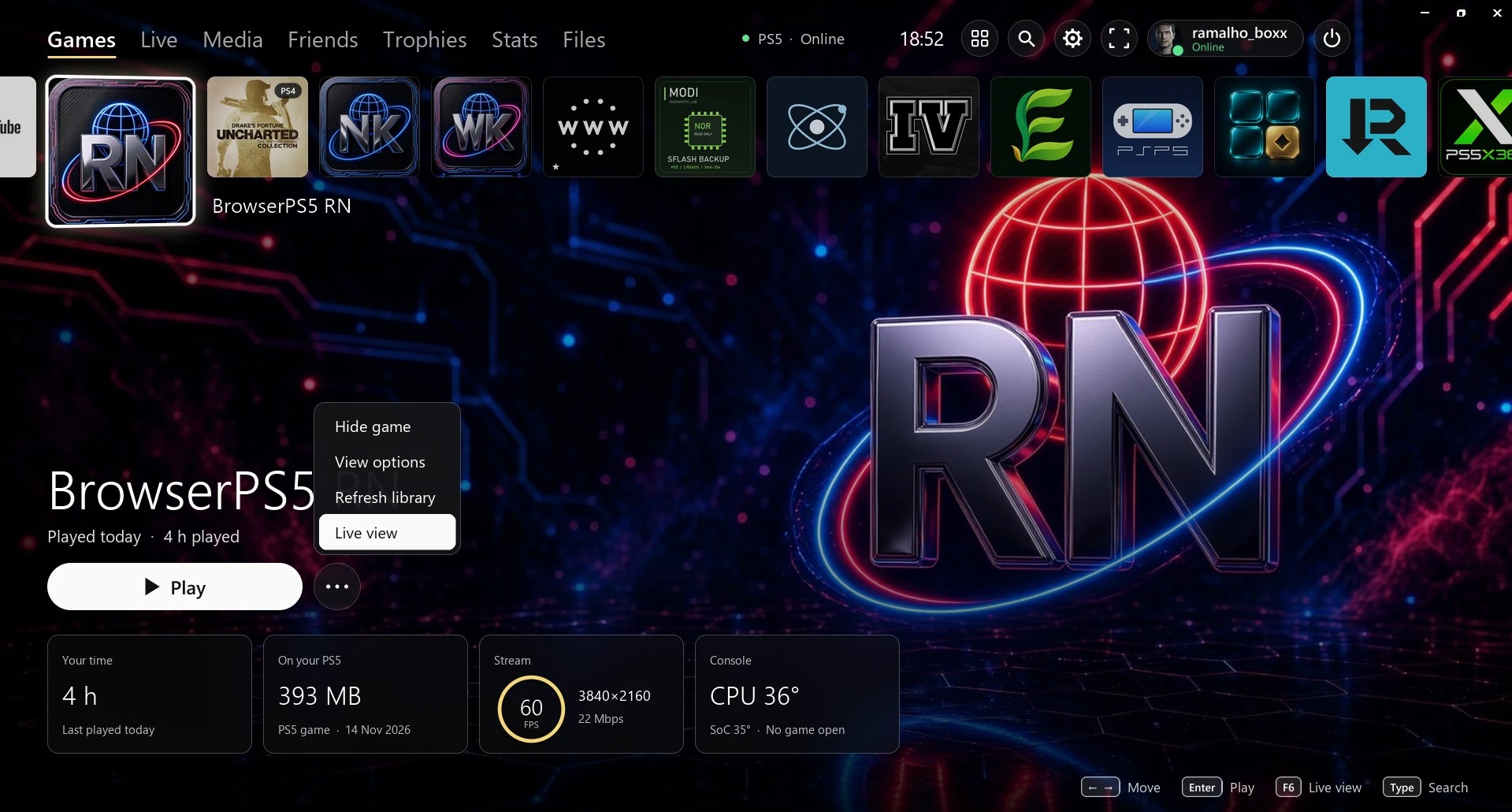
Screenshots show the real application. The Games page above shows a real PS5 library: covers and music come from your own console when you connect, and none are included in the download. The game pictures further down are PS5 captures saved with PlayBridge; the one on the Live page was played back to the app on the PC to take the screenshot. PlayBridge is in English; the console's own language remains whatever you selected on the PS5.
New in v1.6.0
- A new look: glass panels drawn on the graphics card, your game's art filling the window and the game tiles in a row at the top. The selected tile has a soft gold glow behind it and turns in 3D as you move the mouse or the right stick. Settings → Appearance → Glass look brings back the classic window. Nothing in the window moves while a game is on screen.
- Automatic updates: PlayBridge finds a new version on GitHub, downloads it slowly in the background so a stream keeps its speed, checks it against the release's checksums and puts it in when you close the app. Settings → Updates has Check now, Restart and update and Update automatically.
- Tiles that stay current: the library is read again every time PlayBridge connects, so a game's new icon, picture or music shows up.
- Smaller recordings and streams: optional HEVC or AV1 on the graphics card for saved recordings (Settings → Captures) and for Go live to YouTube or another RTMP server.
- Easier settings: everything applies as soon as it changes, except the console's address, which has its own Save button. With a keyboard or a controller, a gold ring shows where you are.
- Notices on the PS5: an optional notice on the console when the stream starts and ends.
- Variable refresh rate checks the screen: PlayBridge reads the screen's EDID, and only a screen that shows FreeSync, HDMI VRR or Adaptive-Sync gets each frame the moment it is due. On a fixed-rate screen the switch is hidden and every frame waits for the next refresh, so the picture no longer tears.
The payload changed: manual users should load the v1.6.0 ELF.
New in v1.5.2
- Variable refresh rate: on a screen with G-Sync, FreeSync or Adaptive-Sync, as on many gaming laptops, each frame is shown the moment it is due, so 60 fps plays evenly at 144 Hz without switching the screen to 60 Hz. Turn on Settings → Picture → Variable refresh rate, shown where the graphics driver supports it, restart PlayBridge and play in full screen (F11). It is off by default, because a screen without variable refresh can show tearing.
- Your voice in captures: Settings → Captures → Microphone mixes your microphone with the game's sound in recordings, instant replays and Go live, with its own volume. F7 turns it on and off, and the status line shows MIC. You do not hear yourself in PlayBridge.
The payload is unchanged from v1.5.0. Earlier versions are described in the changelog.
Download
| File | What it contains |
|---|---|
| PlayBridge.exe | Portable Windows application, including Python dependencies and the embedded ELF. |
| PlayBridge.elf | Standalone PS5 payload for manual loading. |
| PlayBridge-Windows-v1.6.0.zip | Windows EXE and quick-start instructions. |
| PlayBridge-Payload-v1.6.0.zip | ELF and manual-mode instructions. |
| PlayBridge-Complete-v1.6.0.zip | Both files, quick-start instructions and component notices. |
| Third-party-licenses.zip | Component notices for standalone downloads. |
| PlayBridge-Source-v1.6.0.zip | Application and payload source, assets, tests and build instructions. |
| SHA256SUMS.txt | Checksums for the release downloads. |
Download the release assets above to run the application. To inspect or build it, browse app/, payload/ and tools/, or download the source archive. GitHub's source archives contain source files, not the Windows EXE.
Requirements
- A PS5 on firmware 13.60, with the required homebrew/jailbreak environment already working.
- Payload Manager with an ELF loader listening on TCP port 9021 for automatic loading.
- A 64-bit Windows PC and a stereo audio output. The tested environment is Windows 11; other Windows versions are not verified here.
- For the GPU video output: a graphics card with Direct3D 11 and its video decoding. If the GPU cannot decode the stream, PlayBridge decodes on the processor; if Direct3D 11 cannot start, it draws with GDI.
- Console and PC on the same local network. Use Ethernet if you can, especially at the 4K bitrates.
- For 1440p or 4K: a display on the PS5 that accepts that resolution, and an HDMI cable rated for it.
The payload explicitly checks firmware value 0x13600007. Other firmware versions are not supported by this build.
How to use
1. Connect for the first time
- Start your PS5 and open Payload Manager. Make sure its ELF loader is available on port 9021.
- Open PlayBridge.exe on the PC. No separate Python installation is needed.
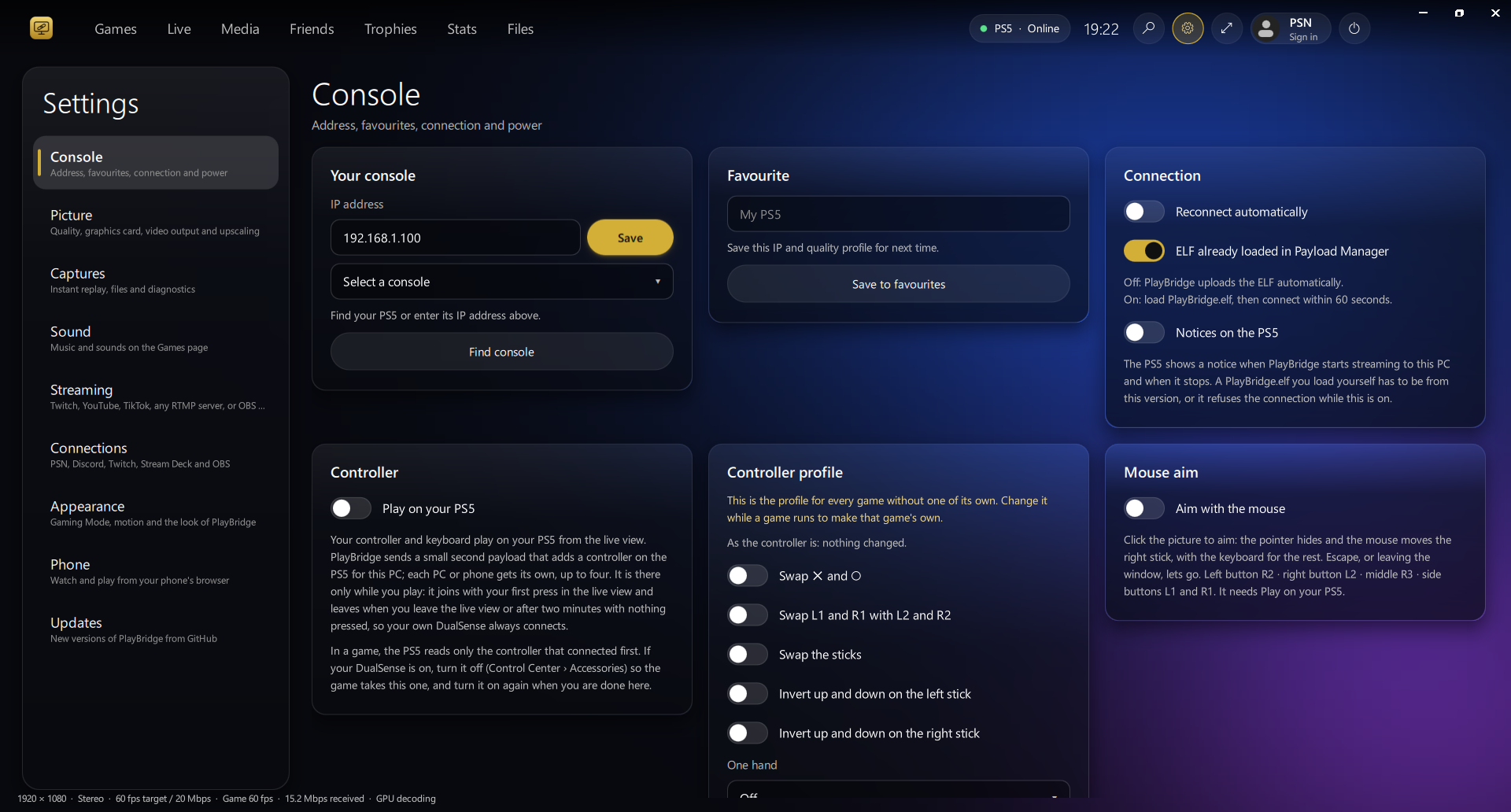
- Select the gear at the top right, or press Ctrl+,, to open Settings.
- Under Picture, choose a Quality profile. Balanced is a good place to start.
- Under Console, leave ELF already loaded in Payload Manager switched off.
- Still under Console, select Find console, or type your console's local IP address, such as 192.168.1.100, then select Save beside it (or press Enter) to connect. With one PS5 on your network you can also leave the address as it is and select Connect at the top: PlayBridge finds the console by itself. An address you type is always used as typed.
The address is the only setting that waits for Save. Every other setting is kept the moment you change it. The line at the bottom of Console and Picture says what a change did, or what is wrong with the address.
PlayBridge uploads its embedded ELF and connects on port 9076. The mark next to PS5 at the top turns gold and says Online while the session runs.
From then on, the usual workflow is simply open Payload Manager → open PlayBridge. It connects at startup using your saved settings.
2. Your games
PlayBridge opens on Games. Once connected, it reads the games installed on your PS5, with their covers, music, play time and size. Covers and music are kept on your PC so the page opens quickly next time; none are included in the download.
| On the Games page | Action |
|---|---|
| ← →, mouse | Move between games. Page Up and Page Down move five at a time. |
| ↑ ↓ / the All games menu | Change the row: All games, Most played, A to Z, PS5 games or PS4 games. |
| Enter / Play | Launch the selected game. The page changes to Live when its picture arrives. |
| Resume | Shown instead of Play for the game that is already running. Goes back to its picture. |
| ⋯ next to Play | Close the running game, refresh the library or open the Live view. |
| Typing, or the search icon | Search your games. |
| F6 | Switch between the game's picture and your games. |
Only one game runs at a time on a PS5, so launching a different game closes the one that is open. The background music and navigation sounds play only while your games are on screen, never over a game. You can turn them off, or change their volume, in Settings → Sound.
Gaming Mode (Ctrl+G, or Settings → Appearance) fills the PC screen with your games and keeps the console's own menu off it: when you leave a game, the PC shows your games again instead of the PS5 home screen. The TV connected to the PS5 still shows the console as usual.
3. Choose a quality
Profiles apply on the next connection. Bitrates are encoder targets: calm scenes use less.
| Profile | Picture | Bitrate target | PS5 video output needed |
|---|---|---|---|
| Data saver | 1080p, painted at about 30 fps on the PC | 4 Mbit/s | 1080p |
| Balanced | 1080p60 | 8 Mbit/s | 1080p |
| High quality | 1080p60 | 12 Mbit/s | 1080p |
| Very high | 1080p60 | 16 Mbit/s | 1080p |
| Ultra | 1080p60 | 20 Mbit/s | 1080p |
| Maximum | 1080p60 | 30 Mbit/s | 1080p |
| 1440p60 | 2560×1440 | 20, 30 or 50 Mbit/s | 1440p or 4K |
| 4K60 | 3840×2160 | 40, 60 or 80 Mbit/s | 4K |
4. Get real 1440p or 4K
The capture follows the console's video output, so the PS5 has to be running at that resolution.
- Connect the PS5 to a display that accepts 1440p or 4K, using an HDMI cable rated for it. On the test setup, a cable that worked at 1080p gave no picture at 2160p, and a different cable fixed it.
- On the PS5, open Settings → Screen and Video → Video Output and set Resolution to that mode or to Automatic.
- In PlayBridge, choose a 1440p or 4K profile. While connected, PlayBridge reconnects with it at once.
- Check the line at the bottom of the window. It shows the resolution you are really receiving, for example 3840 × 2160, and says so if the stream stepped down.
A 1080p PC monitor shows a 4K stream scaled down to its own pixels. Screenshots and recordings keep the full size. The 60 fps is the rate of the capture: a game drawing 30 pictures per second still looks like 30 fps. In the games tested so far, each picture was captured twice.
5. While you play
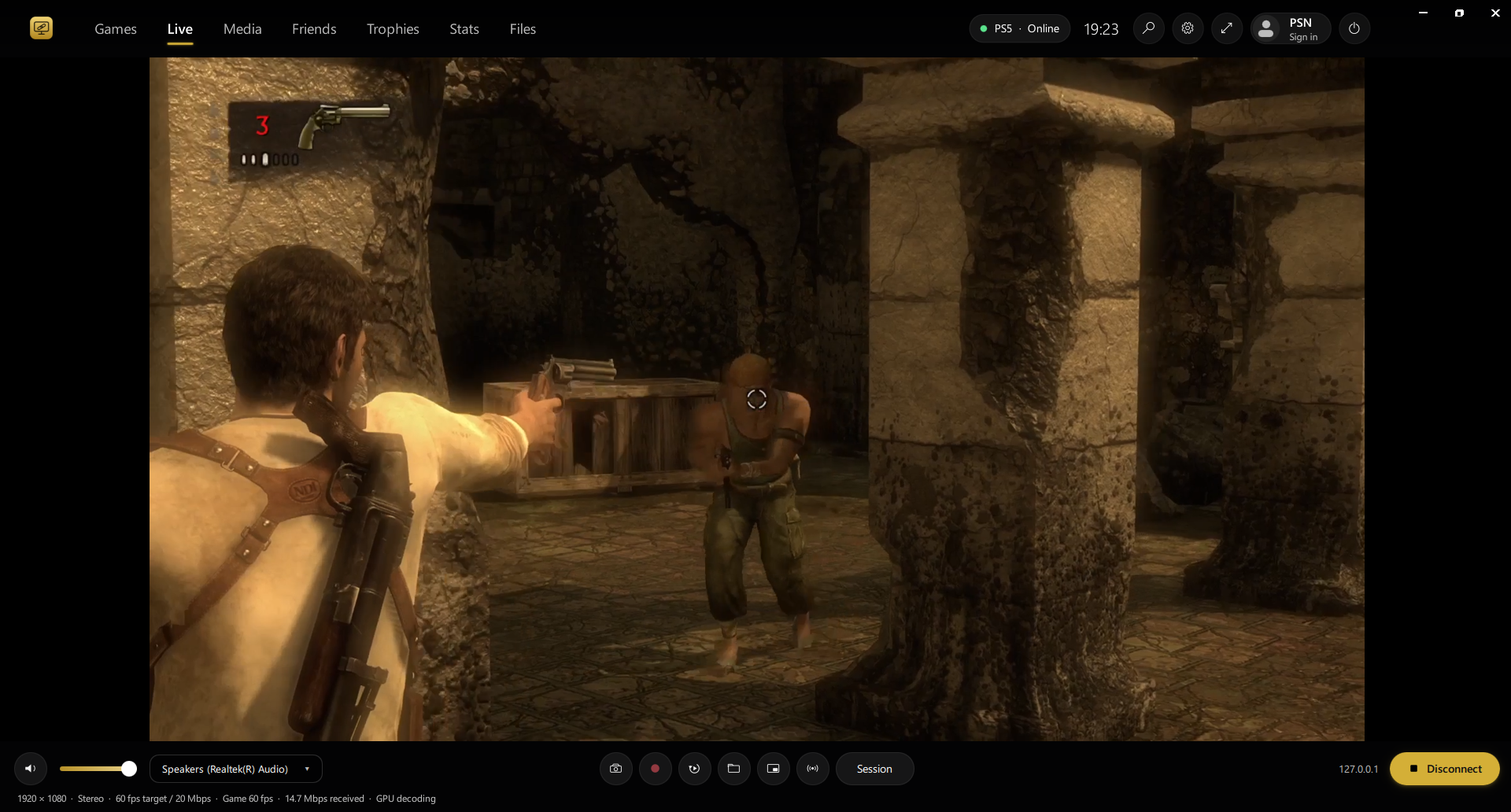
| Control | Action |
|---|---|
| Live / F6 | Show the game's picture. F6 again goes back to your games. |
| Fullscreen icon / F11 / double-click the video | Enter or leave fullscreen. The pointer hides after 2.5 seconds without movement. |
| Escape | Leave fullscreen. |
| Camera icon / F8 | Save a PNG at the stream's full size. Window bars and controls are not included. |
| Record icon / F9 | Start or stop an MP4 with console audio, without re-encoding. |
| Replay icon / F10 | Save the instant replay as an MP4. |
| F7 | Turn your microphone on or off in recordings, instant replays and Go live (Settings → Captures → Microphone). |
| Folder icon / Media / Ctrl+L | Open your captures. |
| Small window icon / Ctrl+M | Keep the game in a small window above your other windows. Press again to return. |
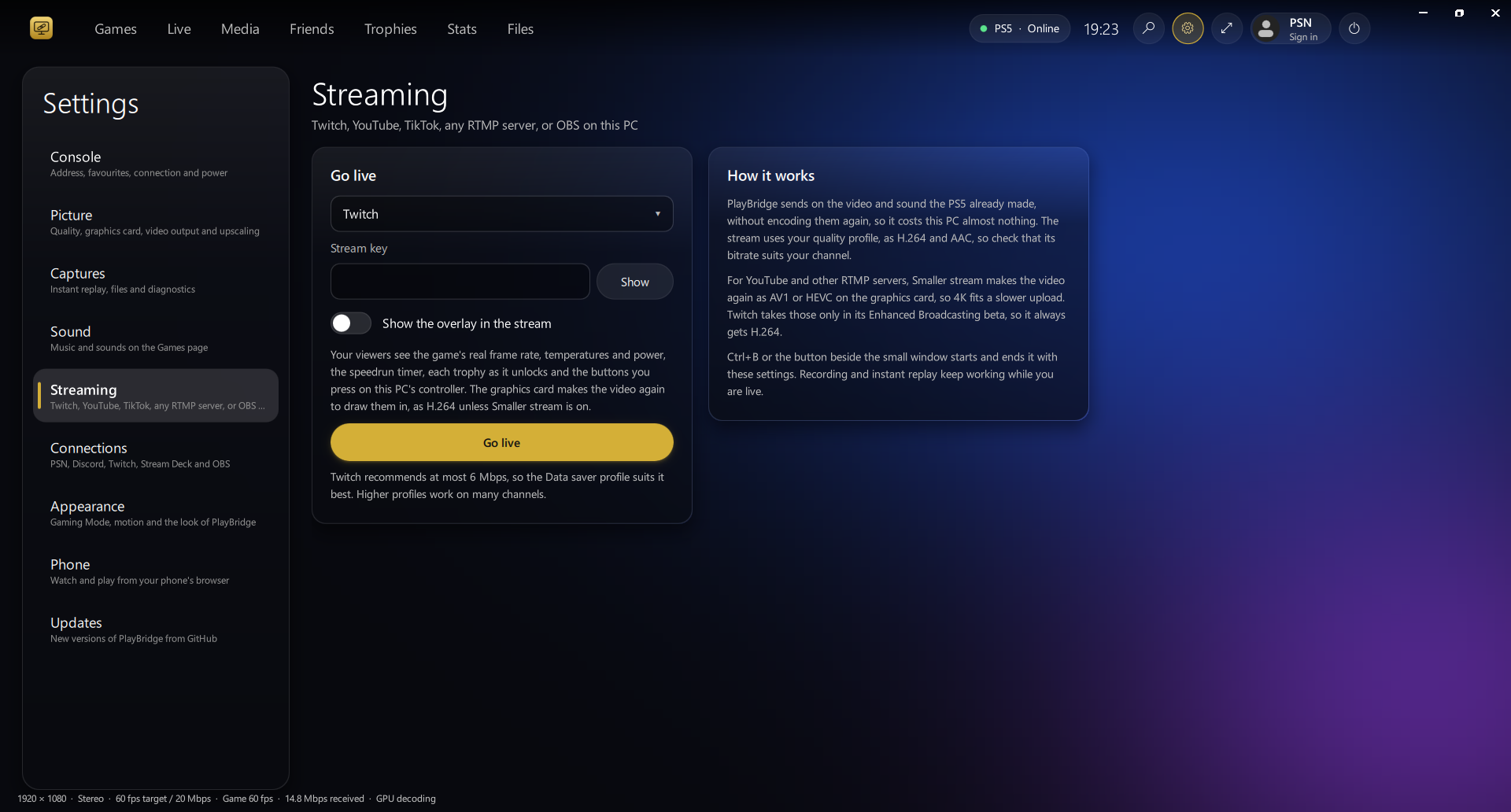
| Go live icon / Ctrl+B | Start or end a broadcast with the settings in Settings → Streaming. |
| Session / Ctrl+I | Show or hide the session panel: frame rate, source size, PC timing, the game in front, a 60-second bitrate graph and the recording state. |
| Gear / Ctrl+, | Open Settings. |
| Power icon | Console power, and leaving Gaming Mode. |
| Speaker icon, slider and audio menu | Mute, set the volume and choose the Windows audio output. |
| Connect / Disconnect | Start or end the streaming session. |
Captures are saved in Videos/PlayBridge, in the Screenshots and Recordings folders. To change the place, use Settings → Captures → Choose capture folder. A recording waits for the next keyframe before it starts, and console audio is recorded even if you mute it on the PC.
Instant replay is set in Settings → Captures: Off, the last 30 seconds, 60 seconds or 2 minutes. It keeps the stream as it arrives, without re-encoding, in this PC's memory up to 1 GB, and nothing changes on the PS5.
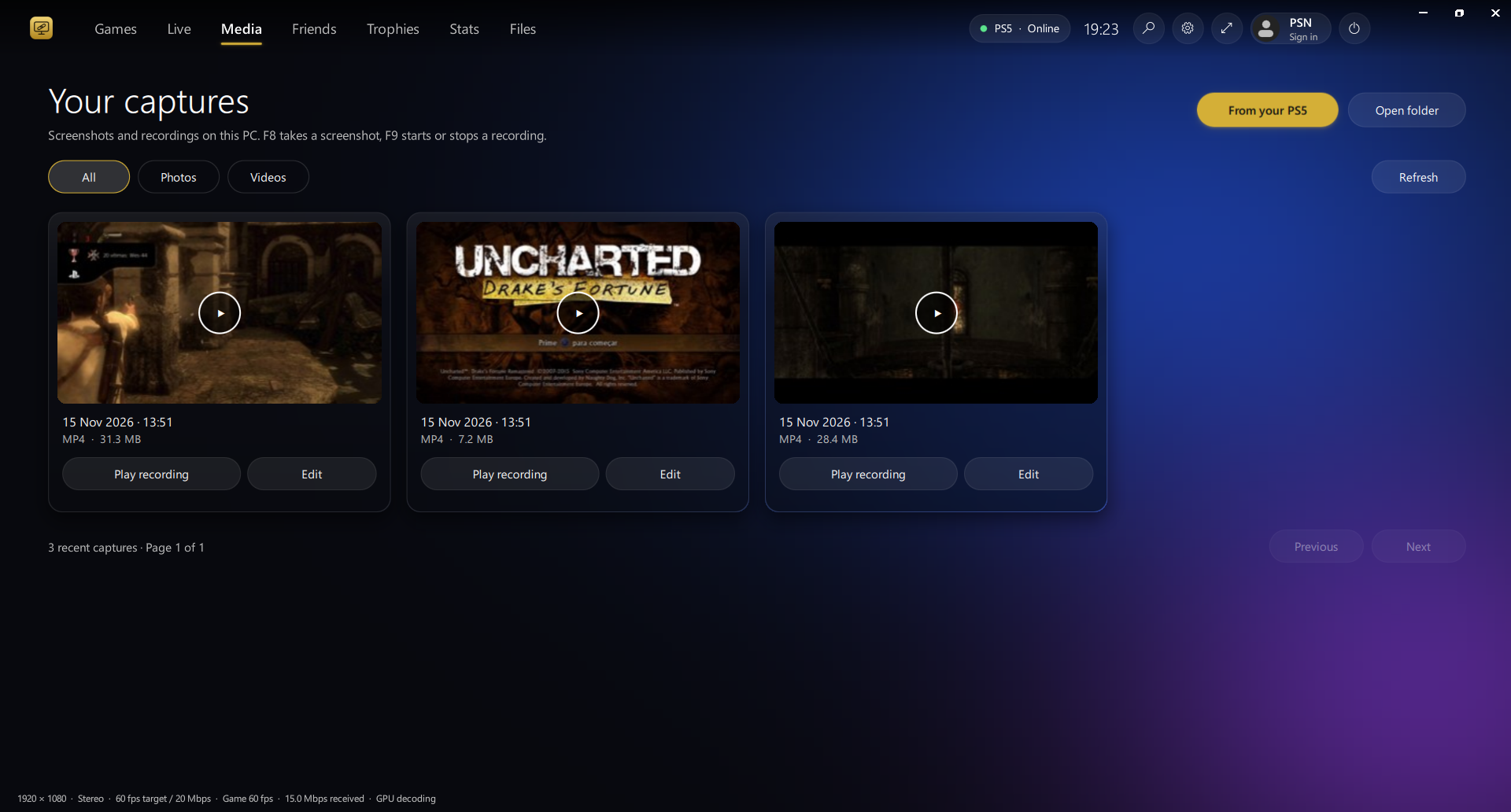
From your PS5, at the top of Media, lists the screenshots and clips the console saved itself, while a session runs. Copy new copies the ones not yet on your PC, and Copy selected the ones you tick. Copies go to your capture folder and appear with your other captures. PlayBridge reads only the console's capture folders.
The line at the bottom of the window shows the stream's size, bitrate target, received bitrate and whether the GPU is decoding. Settings → Picture → Show performance stats adds the frame rate, PC timing and audio queue to it.
6. Console power
The power icon, and Settings → Console → Power, need a connected PS5. Each command asks before it runs.
| Command | What it does | Tested on a PS5 |
|---|---|---|
| Soft reset | Closes the running game and launches it again. The PS5 itself has no soft reset. | Closing and launching each, yes; the two together, not yet |
| Rest mode | Puts the console into rest mode. | Yes |
| Reboot | Restarts the console. You need to load your exploit again afterwards. | Not yet |
| Turn off | Turns the console off. You need to load your exploit again next time. | Not yet |
| Recovery | Explains how to start Safe Mode from the console itself. PlayBridge never starts Safe Mode. | Instructions only |
Save your consoles
In Settings → Console, type a name under Favourite and select Save to favourites. Each favourite keeps its IP address and quality profile. Choosing one from the console menu fills in the settings; select Save to connect to it.
Go live
In Settings → Streaming, choose Twitch, YouTube, Other RTMP server or OBS on this PC, enter your stream key or server where asked, and select Go live. Ctrl+B, or the Go live icon below the picture, starts and ends it with those settings.
PlayBridge sends on the H.264 video and AAC sound the PS5 already made, without encoding them again, so it costs the PC almost nothing, and recording and instant replay keep working while you are live. The broadcast uses your quality profile: Twitch recommends at most 6 Mbit/s, so Data saver suits it best. OBS on this PC receives the stream on UDP port 9100 of this PC.
Send a payload
Settings → Console → Send a payload sends any ELF file you choose to the loader on port 9021, the same way PlayBridge sends its own. It asks first, and the menu keeps your five most recent files. A payload runs with full access to the PS5, so send only files you trust.
Manual mode
- In Settings → Console, switch ELF already loaded in Payload Manager on. It is used from the next connection.
- Load PlayBridge.elf through your preferred PS5 payload loader.
- Connect from the PC within 60 seconds.
The standalone ELF waits for one viewer per execution. After ending a manual session, load it again before connecting another viewer. Automatic mode handles the upload on each new connection.
Features
| Area | Current implementation |
|---|---|
| Video | Native console capture, H.264, at 1080p, 1440p (experimental) and 4K (experimental), with a 60 fps capture rate and bitrate targets from 4 to 80 Mbit/s. |
| Audio | AAC at 128 kbit/s, decoded to 48 kHz stereo and played through Windows WASAPI. |
| Automatic loading | The EXE embeds PlayBridge.elf and sends it to the console's existing ELF loader. |
| Games | The PS5's installed games with covers, the game's own music where it has one, play time, last played and size. Play, Resume and Close, search and five rows. Read during a session and kept on the PC. |
| Gaming Mode | Your games fullscreen on the PC; when the console's menu comes to the front, the PC shows your games instead. |
| Console status | The game in front, CPU and SoC temperature, and whether a console found on the network is resting. |
| Power | Rest mode, soft reset (close and relaunch the game), and reboot and turn off (not yet tested on a console). Each asks first. |
| Graphics card | Settings names the card that decodes the stream and asks it which stream sizes it can decode. |
| Presentation | Direct3D 11 by default: the GPU decodes the video, converts its colour, scales it and presents it, with optional sharpening and optional AMD FSR 1 upscaling when the screen is larger than the stream. Windows GDI remains as the automatic fallback and as a switch in Settings. Both show one frame per monitor refresh from a short queue, and skip frames rather than letting the delay grow. With Variable refresh rate on, Direct3D 11 sends each frame at its own time instead, on a screen whose EDID shows FreeSync, HDMI VRR or Adaptive-Sync; a fixed-rate screen keeps one frame per refresh, so it does not tear. |
| Decoding | Separate from the network thread, so a slow decoder drops video until the next keyframe instead of stalling audio or the connection. Software decoding uses frame threads above 1080p. |
| Audio buffering | Bounded PCM queue; if it exceeds approximately 60 ms, it is trimmed toward 40 ms. Above 1080p these limits are 160 ms and 120 ms. |
| Window modes | Resizable window, fullscreen, centered image and preserved aspect ratio. Black bars can appear when the available area is not 16:9. |
| Sound controls | Output-device selector, volume slider and mute/unmute button. The library's music and navigation sounds have their own switches and volume, and use a separate output that is closed while a game is on screen. |
| Session controls | Connect/disconnect, automatic/manual loading modes and optional automatic reconnect. |
| Console discovery | Find console listens for PS5 replies and scans the local network for Payload Manager. When the saved address does not answer and one PS5 does, PlayBridge follows that console, unless you typed the address yourself. Before sending the ELF, PlayBridge asks the console for its state, and stops with a message if it is resting or runs a firmware other than 13.60. Manual IP entry stays available. |
| Screenshots | Native-source-size PNG with F8; UI controls and window bars are excluded. |
| Recording | Packet-copy H.264/AAC MP4 with F9, bounded background writing and graceful stop/finalization. Optionally made smaller afterwards as HEVC or AV1 on the graphics card, while no stream plays. |
| Instant replay | The last 30 s, 60 s or 2 minutes of the stream kept in PC memory (up to 1 GB) and saved as an MP4 with F10, without re-encoding. |
| Microphone | Optional, off by default: your voice mixed with the console's sound in recordings, instant replays and Go live, with its own volume and F7 to turn it on and off. While it is on, the sound is encoded to AAC again; while it is off, the console's sound is copied untouched. |
| Media | Photos and MP4 recordings with thumbnails, filters and paging, read in the background. From your PS5 lists the console's own screenshots and clips and copies them to the PC. |
| Go live | The console's H.264 and AAC copied, without encoding again, to Twitch, YouTube (RTMPS), any RTMP server, or OBS over UDP on this PC. The stream key is kept encrypted with Windows DPAPI. |
| Game close | When the console stops the capture, for example while a game closes from its menu, the payload waits for it and opens the capture again, so the session continues after a short pause. |
| Send a payload | Any ELF up to 64 MB sent to the loader on port 9021, after a question. |
| Small window | The game in a small window that stays above other windows (Ctrl+M). |
| Diagnostics | Session panel and status line, plus an exported ZIP without IP addresses, device names, file paths or logs. |
| Interface | English, drawn with Qt Quick on the graphics card: frosted glass panels, the focused game's art behind the page, game tiles in a row at the top and gold as a small accent. The selected tile turns in 3D with the mouse or the right stick. Settings flows into columns that use the window's width. Animations are optional, and nothing moves while a game is on screen. Glass look off, or a PC where Qt cannot start, gives the classic window. |
| Updates | Looks for a new release on GitHub when it opens and every six hours, downloads PlayBridge.exe in the background at about 1.5 MB/s, keeps it only when it matches the release's SHA256SUMS.txt, and puts it in when the app closes. Can be turned off. |
| PC controller | A controller connected to the PC (XInput or a standard Windows game controller) can move around the games page. It is not sent to the console. |
| Distribution | A portable single-file Windows EXE; no separate Python installation. |
| Preferences | Saved console, favourites, quality profile, audio output, capture folder, replay length, video output, sounds and Gaming Mode. |
| Runtime | No artificial stream time limit. Long sessions still need wider stability testing. |
How it works

- Load: the PC sends PlayBridge.elf to the existing loader. It does not install firmware or create a jailbreak.
- Reserve and capture: the payload uses firmware-specific native capture/resource interfaces, including SceAvcap2 and ResourceArbitrator, to open the capture session and its resources. It reads the console's video output first and picks the highest capture that output allows. When the console stops the capture, it asks for the capture's state and opens it again once the console allows it.
- Encode on the console: the PS5's capture pipeline supplies H.264 video and AAC audio. The payload sends encoded data rather than uncompressed framebuffer pixels.
- Transport: a small custom TCP framing protocol carries packet type, size and PTS/DTS. TCP_NODELAY and a bounded send buffer help avoid unnecessary batching.
- Decode and present: the PC uses PyAV for H.264/AAC, with Direct3D 11 video decoding on the GPU when it is available. A short frame queue is paced to the monitor's refresh, and Direct3D 11 converts, scales and presents each frame, with GDI as the fallback. Audio uses sounddevice/PortAudio with WASAPI.
- Control: during a session the payload also opens a control port, 9077, on which the PC asks for the console's status and game library, lists and copies the console's own captures, and sends launch, close and power commands. It answers only while the session runs.
- Release: closing/disconnecting the receiver ends the session; the payload stops and closes capture resources through the normal client interfaces.
How we developed it
Development started with analysis of modules obtained from the owner's console memory dumps. Static analysis and decompilation helped identify capture configuration, resource reservation and packet metadata. Small payload probes were then tested on firmware 13.60 before the audio/video sender and PC receiver were built.
The receiver moved from an external playback path to direct decoding, bounded queues and WASAPI audio. Profiling then identified conversion and image upload as the largest PC-side costs, leading to direct GDI presentation. A synthetic-image regression reproduced the flashing left-edge pixels in the conversion stage; deterministic rounding removed them without cropping the frame.
For v1.3.0, live runs on a 4K console output showed where fluidity was being lost: an encoder byte budget that skipped frames after keyframes, decoding on the network thread, and frames painted at uneven times. Each was changed and measured again on the console.
For v1.4.0, the console's own system interfaces were used to read the game library and status, launch and close games, and put the console to rest, each tried on the owner's PS5 before it went into the app. The GPU output was measured against GDI on the same console, and a run that skipped frames in clusters led to the refresh clock fix.
For v1.5.0, the stream ended whenever a game was closed from the PS5 menu. The payload's log showed that the console stops every capture while its close screen is up, and refuses a new one as busy for a fraction of a second. The payload now asks again every 16 ms for up to two seconds, as Remote Play does, and the fix was tried on the owner's PS5 at 4K and 1080p before it went into the app.
This project does not distribute the console's firmware dumps, extracted proprietary system modules or extracted console artwork. Game covers and music shown on the Games page are read from your own console while you use the app, and stay on your PC. Native console modules remain on the user's PS5. The PC receiver, UI, conversion code, native C payload and build scripts are published in this repository. See Building from source. The matching homebrew SDK and third-party libraries are external dependencies; console firmware dumps are not required to build these sources.
Source code
- app/ — Python receiver, English interface, Games page and Gaming Mode, Direct3D 11 and GDI presenters, frame pacing, console control, the console's captures, Go live, payload sending, the library's sounds, Media page and diagnostics.
- payload/ — firmware-13.60 C capture sender, console control port, capture options and packet framing.
- app/assets/ — application icon and control artwork.
- tools/ — payload compiler wrapper, the app's artwork generator and the README art, drawn with the app's own code.
- tests/ — automated tests for conversion, capture, pacing, both presenters, console control, the games page, sounds, metrics, discovery, the desktop features and the theme.
- PlayBridge.spec — portable PyInstaller packaging recipe.
Guides:
- Building from source — dependencies, running from source, tests, compiling the ELF and packaging the EXE.
- Capture options — profiles, encoder budget, presentation and all live measurements.
- Gaming desktop — pages, Games, Gaming Mode, session panel and shortcuts.
- Stream health — what the figures mean, diagnostics export and console discovery.
- Visual theme — how the interface is drawn.
The application source retains the repository's GPL-3.0 license; third-party components keep their own terms.
Measurements
These come from the owner's PS5 13.60 and PC (Radeon RX 6600, 1080p monitor at 59 Hz), in short live runs. The full tables for the earlier versions are in capture options.
v1.4.0, GPU output against the previous GDI output, Wi-Fi, a game being played at 4K, three pairs of runs of 20–40 seconds:
| Direct3D 11 | GDI | |
|---|---|---|
| Processor use of the whole app | 0.22–0.23 cores | 1.29–1.43 cores |
| Screen updates per second | 59.8–59.9 | 59.7–59.9 |
| Frame interval, 95th percentile | 17.2–17.4 ms | 18.3–18.4 ms |
| PC time from receiving a frame to presenting it, median | 36–50 ms | 36–59 ms |
| The same on the quiet console menu | 15 ms | 32–33 ms |
- Over Wi-Fi the PC time depends mostly on how unevenly frames arrive, because the frame queue waits for late frames.
- One early Direct3D 11 run on the console menu showed 47.9 screen updates per second. It did not repeat in later runs, and the queue for frames decoded on the GPU was enlarged afterwards.
- Some runs, with either output, skipped 20–28 frames in clusters about a second long. This was traced to the refresh clock running fast after a missed monitor refresh. With the fix, local runs of 30 seconds skipped 0, 0 and 1 frames instead of 1, 2 and 28. The fix has not yet been measured on the console.
- On the Games page, a library of 54 games read all its covers and music, and a game's picture appeared about 1.1 seconds after selecting Play.
v1.5.0, on the owner's PS5:
- The session held through every game close tried from the PS5 menu, at 4K and at 1080p. Each close stops the capture twice, for about 0.3 seconds of busy answers plus about 0.3 seconds to open it again each time, so the picture pauses for about a second.
- The first connect took about 1.1 seconds. Before, a connection dropped while the payload started could make it about 36 seconds.
- On the Games page, a tile takes about 5–7 ms to draw and a full game picture 100 ms at 1080p to about 250 ms at 4K, which is why tiles in view now come first.
v1.3.0, packaged app, GDI output, runs of about 30 seconds on a 60 Hz monitor:
| 1080p | 4K (80 Mbit/s profile) | |
|---|---|---|
| Screen updates per second | 59.7–59.8 | 58.2–59.2 |
| Refreshes with no update | 0.2–0.4% | 1.3–2.9% |
| Longest hold | 50 ms | 50–100 ms |
| PC time from receiving a frame to painting it | 40–43 ms | 49–62 ms |
- One further 4K run was much worse, with a 400 ms hold and 240 of 1799 frames not painted. It was the first launch after building the app. The cause was not found, and it may happen again.
- A session of about 3.5 minutes on the 4K 80 Mbit/s profile painted 12,219 of 12,582 decoded frames with no connection error, at about 37 Mbit/s for that content.
- A 20-second 4K recording reopened as 3840×2160 at 59.94 fps, with 1191 frames, no missing frames and AAC audio of the same length.
These are PC pipeline measurements, not total HDMI-to-PC latency, controller-to-photon latency or monitor response time. A short test does not prove long-term stability, perfect A/V synchronization or universal device compatibility. The GPU output has been measured on one graphics card only.
Current scope and limitations
- 13.60 only. Firmware-specific interfaces and offsets are used.
- 1080p tested; 1440p and 4K experimental. With a 4K output, the 1440p and 4K profiles streamed at their native size at a 60 fps capture rate, on the console's menus and in a game, where the game itself was drawing about 30 fps. Long sessions have not been tested, and a coded 4K stream does not prove that a game renders at 4K. On a lower output they stream at the highest resolution it allows and say so. See capture options.
- No controller input to the console. Use your controller with the PS5. A controller on the PC only moves around the games page, and few controller models have been tried.
- Reboot and Turn off are untested. They are in the app, each behind a question, but have not yet been run on a console. Rest mode is confirmed. After a reboot or power off you need to load your exploit again.
- No Home button. Calls that should show the console's home screen returned success and changed nothing, so the command was removed. In Gaming Mode the PC shows your games instead.
- One game at a time. This is how the PS5 works: launching another game closes the one that is open.
- Closing a game pauses the picture for about a second while the console's close screen is up.
- Go live has not yet been run on a real Twitch or YouTube broadcast. A local listener on the PC saw it begin the RTMP and RTMPS connections.
- GPU output tested on two PCs: a desktop with an AMD card and a 60 Hz monitor, and a laptop with an NVIDIA card and a 144 Hz screen. It needs Direct3D 11 video decoding. If it fails, PlayBridge falls back to GDI, and Settings → Picture → GPU video output turns it off.
- Variable refresh rate and the microphone are new. Variable refresh was tried on one gaming laptop with a 144 Hz screen, and the microphone on that laptop's built-in microphone. A quiet microphone stays quiet in the mix: raise its level, or its boost, in Windows' sound settings.
- One viewer per payload execution. Only one PlayBridge/legacy receiver session should run on the PC at once.
- Trusted local network. No encrypted Internet relay, remote account service or authenticated stream transport is provided.
- Automatic reconnect retries connection loss with 2/4/8-second backoff. It does not wake the PS5; recovery still requires the console and ELF loader to be available. Every rest-mode/HDMI scenario has not been validated.
- This is a development release, without a signed installer or a verified support matrix for every game/output mode.
Troubleshooting
| Symptom | Check |
|---|---|
| Windows warns before opening the EXE | The EXE is not signed. Compare it with SHA256SUMS.txt, then choose More info → Run anyway if you trust it. |
| Cannot connect | Console IP, same LAN, Payload Manager's ELF loader on 9021, and no other active viewer. The message names the address PlayBridge tried. |
| PlayBridge says no PS5 answered at your address, but one did at another | The address you typed does not belong to your console. Enter the address in the message, or select Find console. |
| Find console finds nothing | VPNs, network isolation and firewalls can block it. Type the IP address instead. Discovery does not wake the console or start Payload Manager. |
| PlayBridge says the PS5 is in rest mode, or runs another firmware | Wake the console and load your exploit. Other firmware than 13.60 is refused before anything is sent. |
| The Games page is empty | Games are read once connected. Use ⋯ → Refresh library. Covers and music arrive one by one the first time. |
| The picture pauses for about a second when I close a game | Expected: the console stops the capture while its close screen is up, and PlayBridge opens it again. |
| Go live stops with an error | Check the stream key, or the server address for another RTMP server. A broadcast needs a connected session. For Twitch, choose a profile of 6 Mbit/s or less, such as Data saver. |
| From your PS5 lists nothing | It needs a connected session. It lists only captures the PS5 saved itself, in its capture folders. |
| A game shows "controller not detected" | That is the game itself on the PS5. Turn on the controller that is paired with the console. |
| Picture looks wrong, black or stutters on the GPU output | Switch off Settings → Picture → GPU video output and restart PlayBridge to use GDI. Please report your graphics card. |
| A 4K profile gives 1080p | The PS5's video output is lower than the profile. Check the line at the bottom of the window, the PS5's Resolution setting, the display and the HDMI cable. |
| No picture on the TV at 2160p | Try an HDMI cable rated for 4K at 60 Hz. |
| 4K does not look sharp on my PC | A 1080p monitor shows the stream scaled down. Try Sharpen picture, or open a screenshot or recording to see the full size. |
| 1080p looks soft on a 1440p or 4K monitor | Turn on Settings → Picture → FSR 1 upscaling, and Sharpen picture for its sharpening. It needs the GPU video output. |
| Stutter at high profiles | Try a lower bitrate, use Ethernet and close heavy programs. Check the session panel: a game at 30 fps will not look like 60. |
| F10 says instant replay is off | Choose a length in Settings → Captures → Instant replay. |
| Manual mode times out | Reload the ELF, then connect within 60 seconds. |
| Picture but no sound | Choose the correct WASAPI output, unmute and check the volume. Some console content may be silent. |
| Music plays on the Games page | Turn off Background music in Settings → Sound, or lower the library volume. It never plays over a game. |
| Black bars in a window | Expected when the video and available window area have different aspect ratios. Try fullscreen. |
| App says another receiver is running | Close the other PlayBridge or earlier receiver, then retry. |
| Stream stopped after sleep or HDMI changes | Automatic reconnect retries if enabled. The console and loader must be running. In manual mode, reload the ELF. |
| Recording is waiting | It waits for a video keyframe and audio before starting a valid MP4. |
| Recording stopped during disconnect | The clip is finalized before recovery; start another recording after reconnection. |
Preferences, the game library and local diagnostic files are stored in %LOCALAPPDATA%\PlayBridge</code>. When reporting an issue, include your version, firmware, display mode, graphics card and a description, or use Export diagnostics in the settings or the session panel. Review logs for personal details before sharing them.
Release history
- v1.6.0: a new look with 3D game tiles, automatic updates, tiles read again on every connection, smaller recordings and Go live streams in HEVC or AV1, settings that apply at once, a focus ring for keys and controllers, notices on the PS5, and variable refresh only on screens that support it.
- v1.5.2: variable refresh rate for G-Sync, FreeSync and Adaptive-Sync screens, and your microphone in recordings, instant replays and Go live.
- v1.5.1: sound on PCs whose output mixes at another rate, the NVIDIA or AMD card on laptops with two graphics cards, 144 and 165 Hz screens switched to a steady rate while a game streams, the screen kept on during a session, and clearer stutter reports.
- v1.5.0: closing a game no longer ends the stream, a faster first connect, captures from the PS5, Go live, Send a payload, a small window, new Settings and Media pages, a graphics card check, and fixes for blank tiles and a black or enlarged GPU picture at start.
- v1.4.2: optional AMD FSR 1 upscaling on the GPU video output, for screens larger than the stream.
- v1.4.1: an IP address typed in Settings is always used, and connection errors name the address tried and any PS5 that answered elsewhere.
- v1.4.0: Games page with Play, Resume and Close, Gaming Mode, Direct3D 11 output with GPU decoding, instant replay, a new one-window design, console status and power, a steadier refresh clock, sharper scaling, encoder recovery and firmware-aware discovery.
- v1.3.0: experimental 1440p and 4K, refresh-paced presentation, larger encoder frame budget, flicker fix, black and gold desktop, capture library with thumbnails, stats panel, console discovery, favourites and diagnostics export.
- v1.2.0: native PNG screenshots, MP4 recording with sound, capture library, quality targets and automatic reconnect.
- v1.1.1: fixed the blinking left-edge conversion artifacts; retained the English console theme and GDI presentation.
- v1.1.0: console-inspired interface, custom control icons and English application text.
- Earlier development builds established combined H.264/AAC streaming and WASAPI playback.
Credits
Created by ramalhoboss · X: @nuno_leugim_10, with iterative testing on the owner's PS5 and PC. Built using Python, PyAV/FFmpeg, Direct3D 11, NumPy, CustomTkinter, Pillow, sounddevice/PortAudio, CFFI, PyInstaller and a PS5 homebrew payload SDK. Firmware research used static analysis/decompilation tools, including Ghidra.
PlayBridge is an independent homebrew project and is not affiliated with Sony Interactive Entertainment. Third-party components retain their respective licenses. No blanket license for third-party software or console firmware is granted by this repository.