
pierlink/Pierlink
pierlink/Pierlink has 39 GitHub stars and 3 forks. GitHot measured 0 stars in 24 hours. Last checked 2026-11-15 01:48 UTC. Last push 2026-11-13.
Measured star growth
- in 24h
- 0
- in 7 days
- Collecting history
- in 15 days
- Collecting history
- in 1 month
- Collecting history
Net star changes over overlapping periods, not daily totals. Missing measurements are left blank. Stars measure attention, not software quality.
About
Windows workbench for running a crew of AI agents: agents on your servers edit Windows files, run commands and drive terminals via MCP, with approvals on desktop or phone · 管一群 AI agent 的 Windows 工作台
Developer ToolsREADME.en.md
Original
Pierlink
A Windows workbench for running a crew of AI agents
AI agents on your servers edit Windows files, run commands and work in terminals through Pierlink, and can direct another agent in another terminal; you approve risky actions on your desktop or phone. Multi-server terminals, file sync and remote desktop live in the same window.
English · 简体中文



Download · Features · Getting started · FAQ · License
Why Pierlink
- An agent on your server works as if it were installed on Windows: no Claude Code on Windows needed. The agent on your server reads, writes and edits lines in the Windows folders you allow, and builds, runs and starts background jobs on Windows.
- One agent directs another: an agent can open a visible terminal, run Claude Code, Codex or another agent in it, send it tasks, wait for its answers and read its output; you can take over at any time.
- The agents work, you stay in charge: anything risky (such as
rm -rfor a force push) asks you first; away from your desk, you can watch terminals and approve from your phone. - Several computers at once: when several computers connect to the same server, the agent on that server works on the one you're using.
- No account: Pierlink needs no sign-up, and your agents can connect however they sign in.
- A handy multi-server tool too: the built-in SSH signs in once (passwords and verification codes included) for terminals, files, port forwarding, sync and the overview; server folders and local Windows folders stay in sync both ways.
Features
Terminals
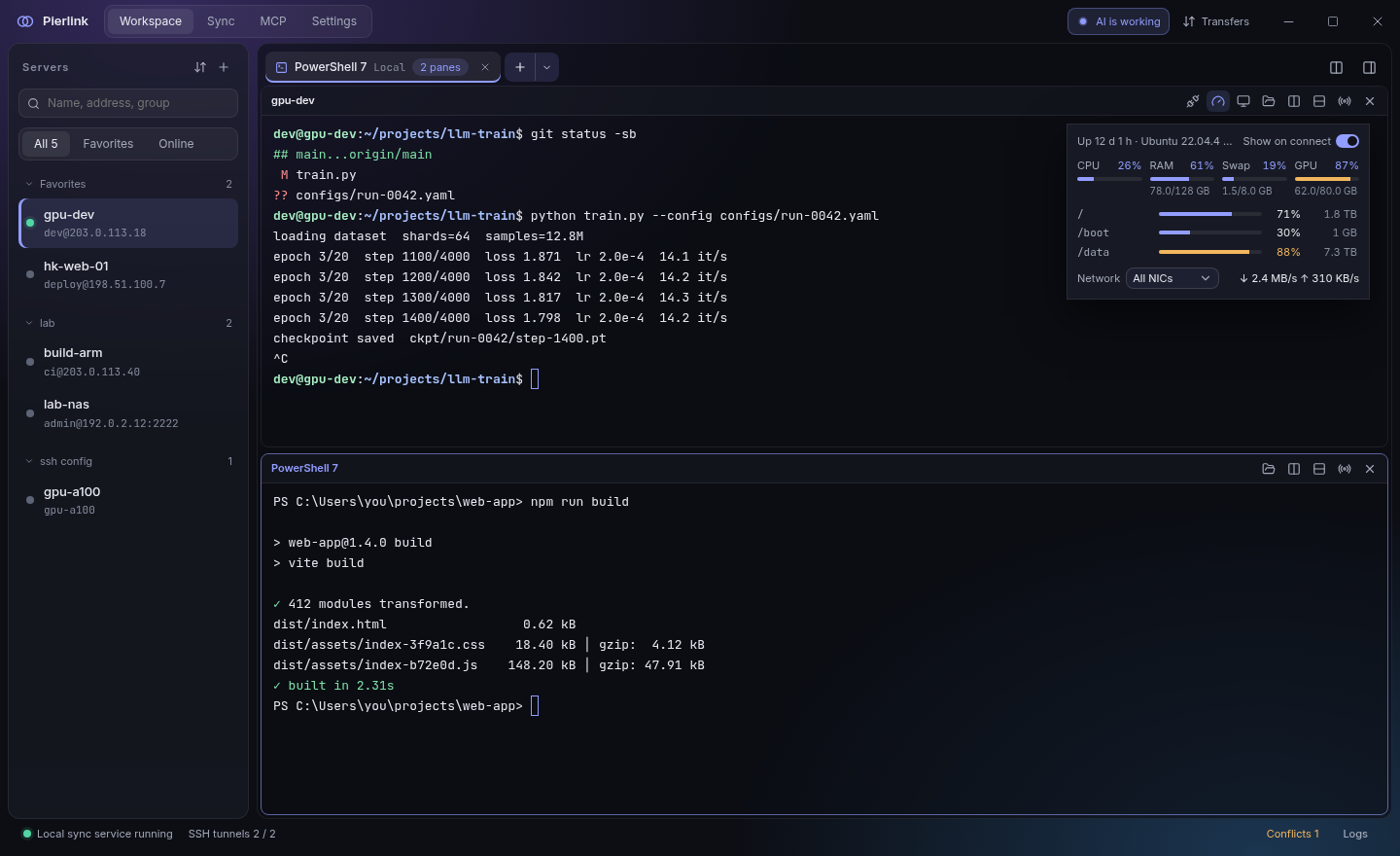
- Server and local terminals with tabs, split panes and drag-to-rearrange; terminals keep running when you switch pages
- Broadcast input to several panes; command snippets with variables
- Command prediction: as you type in bash or zsh on a server or in local Git Bash, commands you have used appear in gray after the cursor; press → to accept. The history stays on this computer
- Shift+Enter inserts a new line without running it (in shells, Claude Code and Codex); Ctrl+C copies selected text and Ctrl+V pastes; right-click copy and paste can be turned on
- Text copied in Claude Code, vim and similar tools lands in your local clipboard (inside tmux too); links in the terminal open in your Windows browser
- Drag files from File Explorer into a local terminal to insert their paths (written the way PowerShell, Command Prompt or WSL expects)
- Paste images into server terminals: the image is uploaded to the server and its path pasted, which Claude Code shows as [Image #1]
- Server overview pinned to the terminal: CPU, memory, swap, GPU, disk per mount point, network speed
Connections
- Built-in SSH (works with servers as old as CentOS 7); or connect with system OpenSSH using
~/.ssh/config, with one-step import - Port forwarding: local, remote and SOCKS proxy, restored automatically after disconnects
- Proxy: follow the system or set an HTTP / SOCKS5 proxy for server connections, updates and local terminals
- File panel: browse, upload, download, rename, delete, and edit text files; drag between panes to transfer files
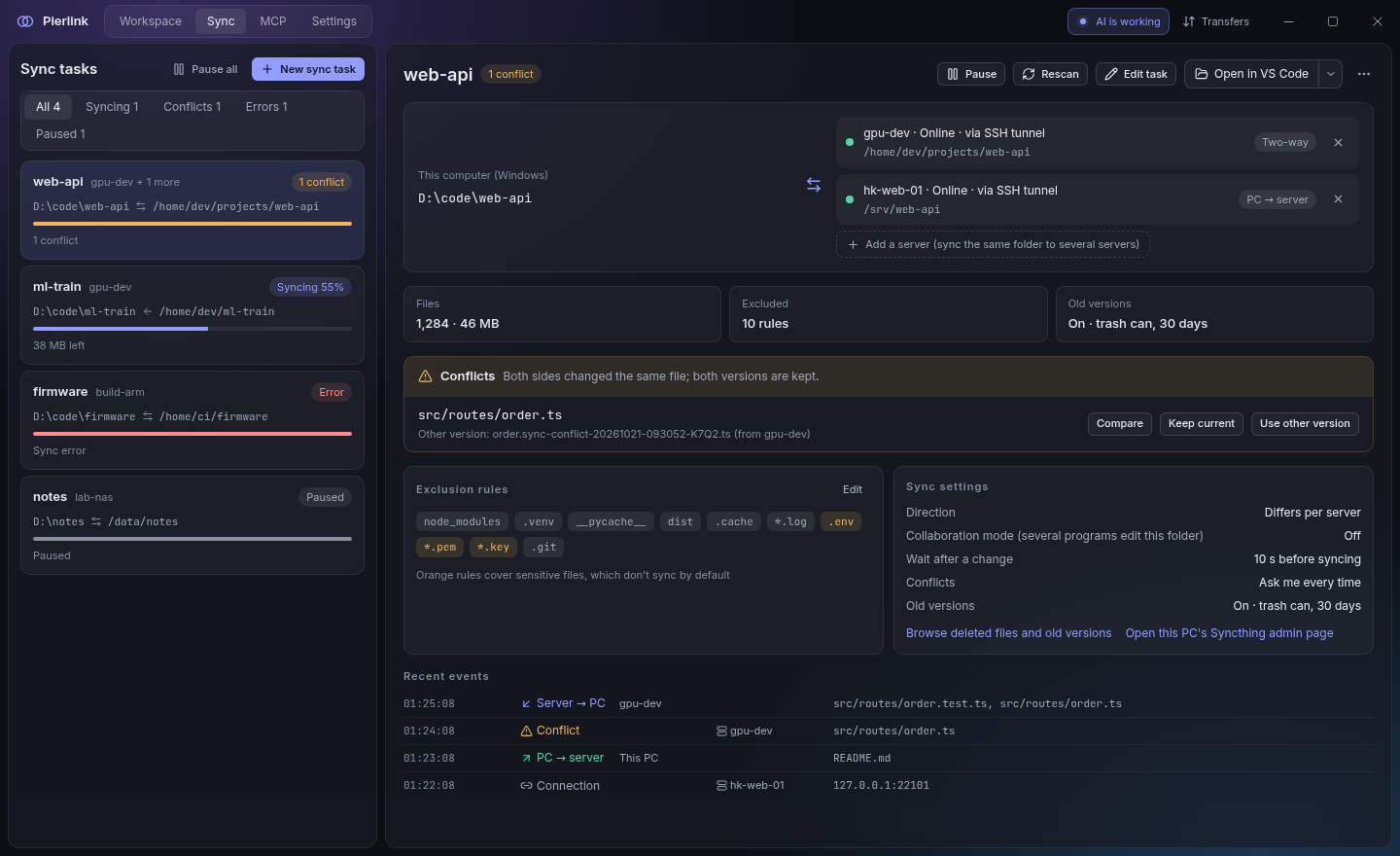
File sync
- Built on Syncthing, over SSH tunnels — no open ports, no root needed on the server
- Preview before the first sync; compare both versions of a conflict before choosing; deleted and overwritten files go to old versions and can be restored
- Sync one local folder to several servers at once; open it in VS Code with one click
- Failed files say which side failed (this PC or which server) and why; fix permission problems on this PC in one click (Windows asks you to confirm), or copy a fix command for a server; open a server's Syncthing admin page for details
AI access (MCP)
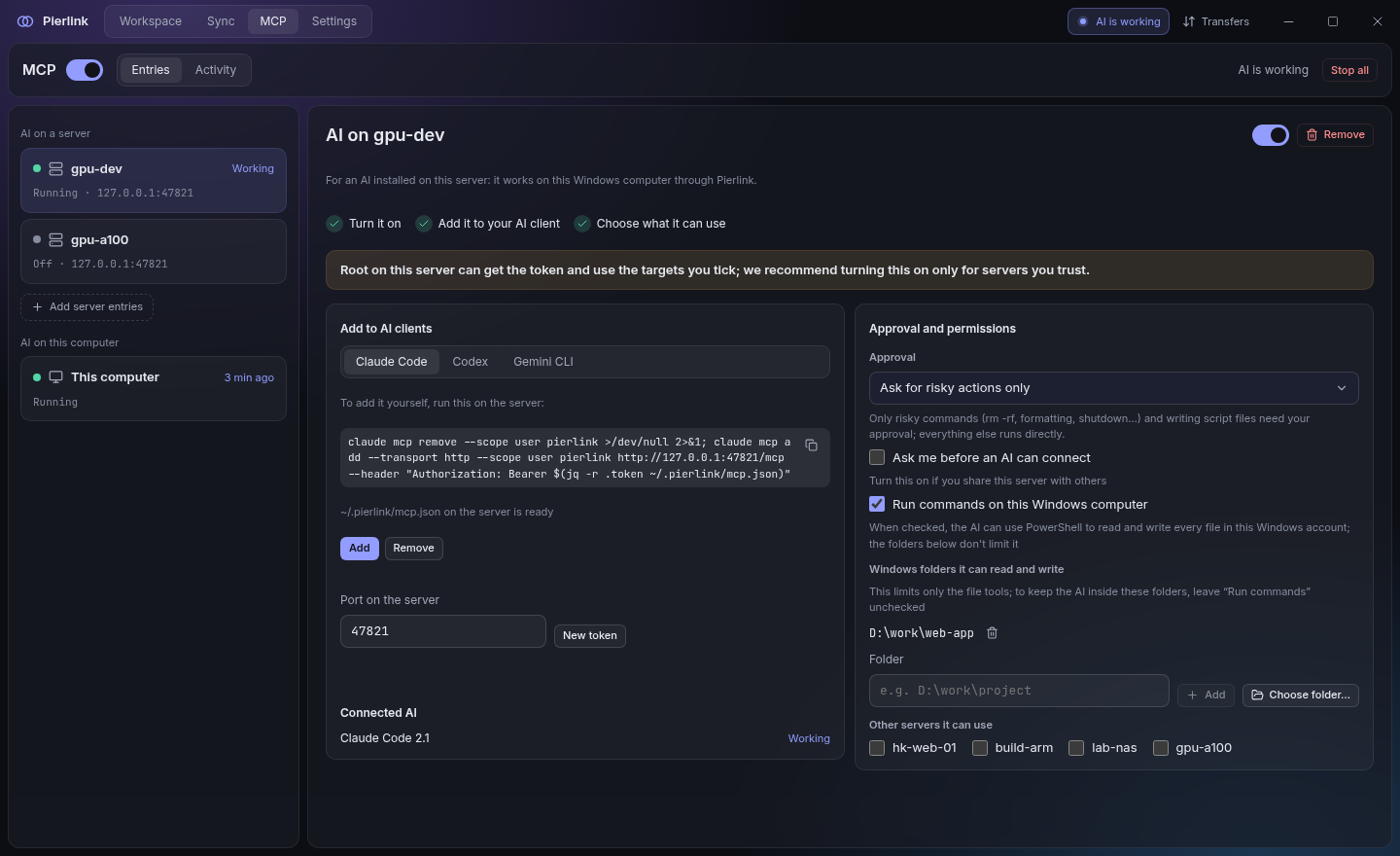
- An AI on a server works as if it were installed on Windows: no Claude Code on Windows needed. The server-side AI can read, edit by line, and search the Windows folders you allow, and build, run and start background tasks on Windows. File encodings and line endings are kept as they are (GBK, UTF-16, CRLF), and long builds aren't cut off
- The AI can see which folders it may use, which shells exist, and where a synced server path lives on Windows; how to use that is up to the AI
- The AI can open a visible terminal to work in, and you can take it over at any time
- Risky actions (like
rm -rfor a force push) need your confirmation; choose the approval mode; every step is logged - One-click setup for Claude Code / Codex / Cursor, and for Claude Code / Codex on a server; the title bar always shows whether an AI is working, what it just did and its command output, with a one-click stop
Server desktop (VNC)
- View a server's VNC desktop in a tab, split next to terminals; over SSH, no ports opened
- Finds existing desktops on the server (TigerVNC and others); enter the password once and remember it
- No desktop on the server? Create one in a click: only you can connect, and it keeps running after you close the tab; TigerVNC is fetched automatically, no admin rights needed
- Quality, scaling, remote resolution that follows the window or a preset, full screen, separate window (optionally by default)
- The clipboard syncs with Windows: text copied on Windows can be pasted in the desktop right away (right-click or Ctrl+V), and text copied in the desktop can be pasted back on Windows
Phone access
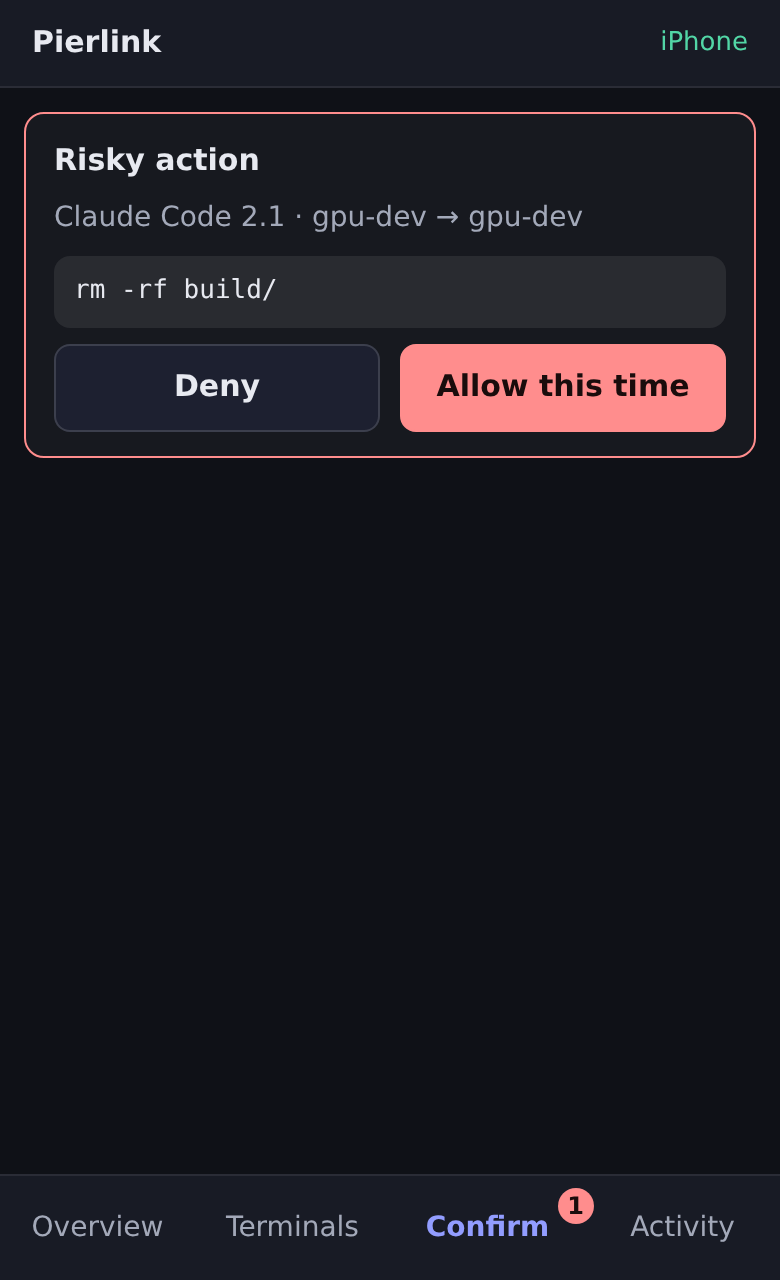
- Away from your PC, talk to Claude Code on your servers from your phone's browser (laid out for the phone's width, options as buttons, photos you can send), answer AI confirmations and check server status; the theme follows the PC
- Connects to your PC over Tailscale or your LAN — never exposed to the internet, and no Pierlink relay service involved
- Pair with a QR code and approve on the PC; per-phone permissions and names, revocable any time
- Works on iPhone and Android, no app to install
More
- Export servers for others to import in one step; back up your servers and settings and move them to a new PC (sync tasks excluded)
- Lives in the tray, so sync keeps running after you close the window; reconnects after network loss or sleep
- Updates itself; English and Chinese UI
Install
- Download
Pierlink_<version>_x64-setup.exefrom Releases. - Run the installer, pick English or Chinese, and follow the steps. No administrator rights needed.
- When a new version is out, a card appears in the bottom-right corner of the window: choose Download update, then Install update once it's downloaded.
Requirements
| Requirement | |
|---|---|
| PC | Windows 10 / 11, 64-bit |
| Servers (terminals, files, port forwarding) | Any server you can reach over SSH |
| Servers (file sync, server overview) | Linux, x86_64 or ARM64 |
| Phone access | Phone and PC on the same Tailscale network or LAN |
Getting started
- Add a server: click "+" above the Workspace server list and enter the address and user. Already have
~/.ssh/config? Use "Import / export servers" next to it. - Open a terminal: double-click the server. Check the server fingerprint on first connect.
- Sync a folder: Sync → "New sync task", pick a local folder and a server folder, check the preview, then start. The first time, Pierlink walks you through deploying the sync component on the server.
- Connect an AI: on the MCP page turn on the main switch and click "Add to Claude Code" (or Codex, Cursor).
- Phone (optional): Settings → Phone, turn on phone access and scan the QR code with your phone.
FAQ
Do I need to install anything on my servers?
Not in advance. Terminals and file transfers only need SSH. The server overview reads system information over the existing SSH connection and installs nothing. On the first sync, Pierlink deploys Syncthing into your home directory — no root, no open ports.
Could an AI run something dangerous?
MCP is off by default. Once on, the default mode asks only about risky actions: deleting files, force pushes, shutdowns and similar commands wait for you to allow them; everything else runs directly. You can switch to asking every time. You choose which servers and folders an AI can touch, every action is logged, and "Stop all" is always one click away.
Are my passwords and keys safe?
Passwords are saved only when you choose to, in Windows Credential Manager. Private keys never leave your PC. Exported settings files contain no passwords.
Does sync keep running after I close the window?
Yes. Closing the window sends Pierlink to the tray, and sync and terminals keep running. Local sync stops only when you quit Pierlink completely, and picks up again next time you open it.
Is there a macOS or Linux desktop version?
Not yet — the desktop app runs on Windows 10 / 11. Servers can run any Linux.
Privacy and security
- No usage data is collected. Pierlink only contacts GitHub to check for updates, plus the servers you add.
- Images you paste into a server terminal are stored in /tmp on that server, readable only by your account, and removed after 7 days the next time you paste one.
- The sync component listens on this PC only, with global discovery, relays and usage reporting turned off; data travels only through SSH tunnels.
- AI access and phone access are off until you turn them on, and you can revoke them any time.
- Found a security issue? Please report it privately as described in SECURITY.md.
Build from source
You need Windows, Node.js 24, Rust stable and the Visual Studio C++ build tools (see Tauri prerequisites):
npm ci
node scripts/fetch-bundled.mjs   # downloads the bundled Syncthing and OpenSSH (pinned versions, SHA-256 checked)
node scripts/gen-notices.mjs     # generates the third-party license notices
npx tauri build                  # the installer ends up in target/release/bundle/nsis/
License
Pierlink is released under the Functional Source License 1.1, Apache 2.0 Future License (FSL-1.1-ALv2, see fsl.software):
- Free for individuals and companies to use, read and modify;
- You may not use it to build a competing commercial product or service;
- Each version becomes Apache 2.0 licensed two years after its release.
Third-party components bundled with the installer are licensed under their own terms; see the licenses folder in the install directory.
Feedback and contributing
- Problems and suggestions: Issues
- Want to contribute code? Read CONTRIBUTING.md first
Acknowledgements
Pierlink is built on these excellent open source projects: Tauri, Syncthing, russh, xterm.js, Win32-OpenSSH, LibreSSL and React.