
pengchujin/aerial-tv
pengchujin/aerial-tv has 11,246 GitHub stars and 962 forks. GitHot measured +217 stars in 24 hours and +1,681 in 7 days. Last checked 2026-11-11 12:59 UTC. Last push 2026-11-06.
A clean home screen for China-market TVs: an open-source Android TV launcher inspired by tvOS, with no ads and automatic takeover at startup. A tvOS-style launcher for Xiaomi, TCL, and other China-market TVs.
Measured star growth
- in 24h
- +217
- in 7 days
- +1,681
- in 15 days
- Update delayed
- in 1 month
- Update delayed
Net star changes over overlapping periods, not daily totals. Missing measurements are left blank. Stars measure attention, not software quality.
README.en.md
Original
Aerial
A calm home screen for Android TV.
A home screen modeled on Apple TV, with no ads and no recommendation feeds: just your apps, your wallpaper and aerial screensavers.
Made for Xiaomi, TCL, Skyworth, Sony and other TVs sold in China, and runs on boxes and projectors too. It starts at boot and survives standby.
中文 · English







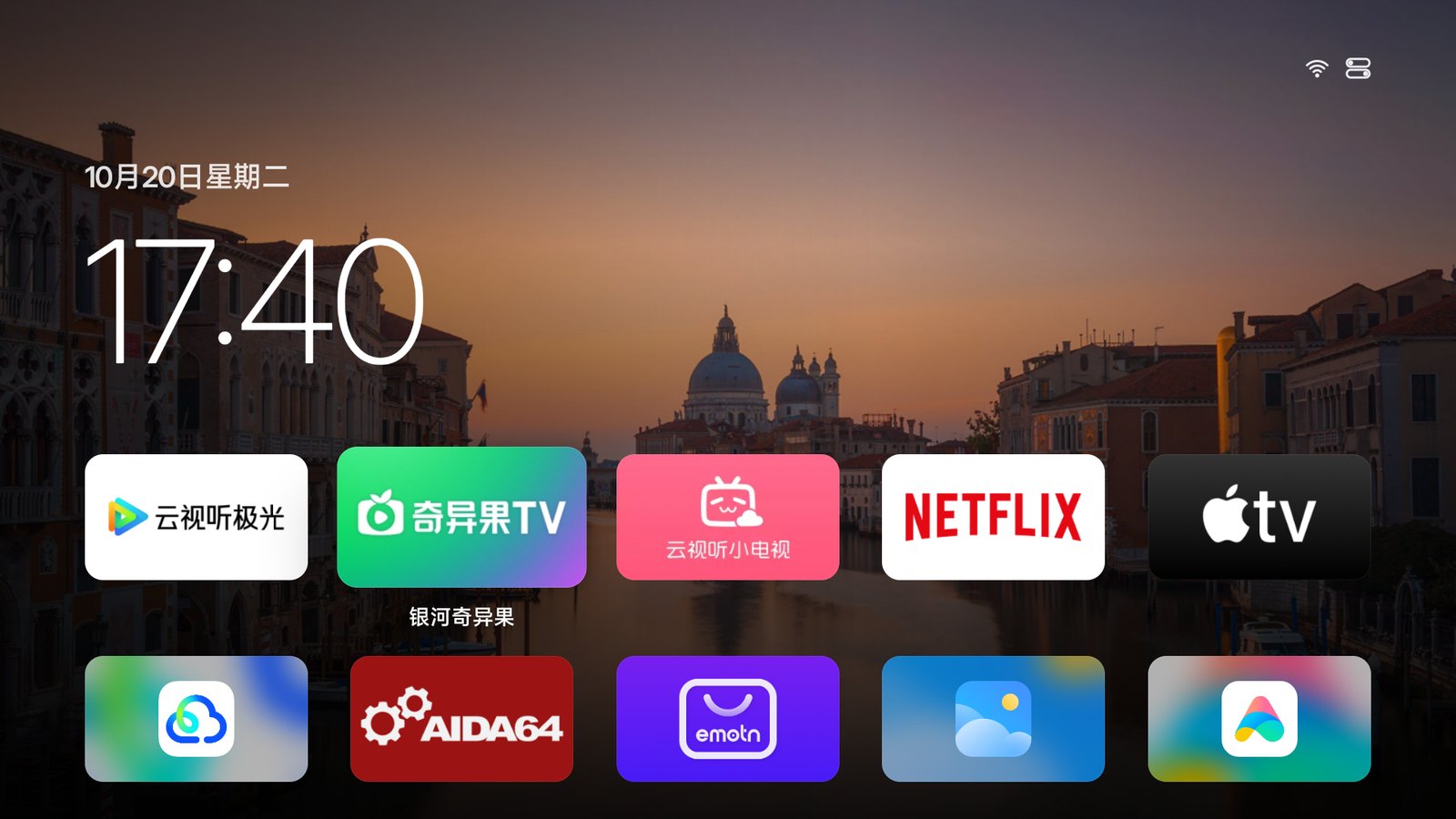
| The TV's stock home screen | With Aerial |
|---|---|
 |
|
Features
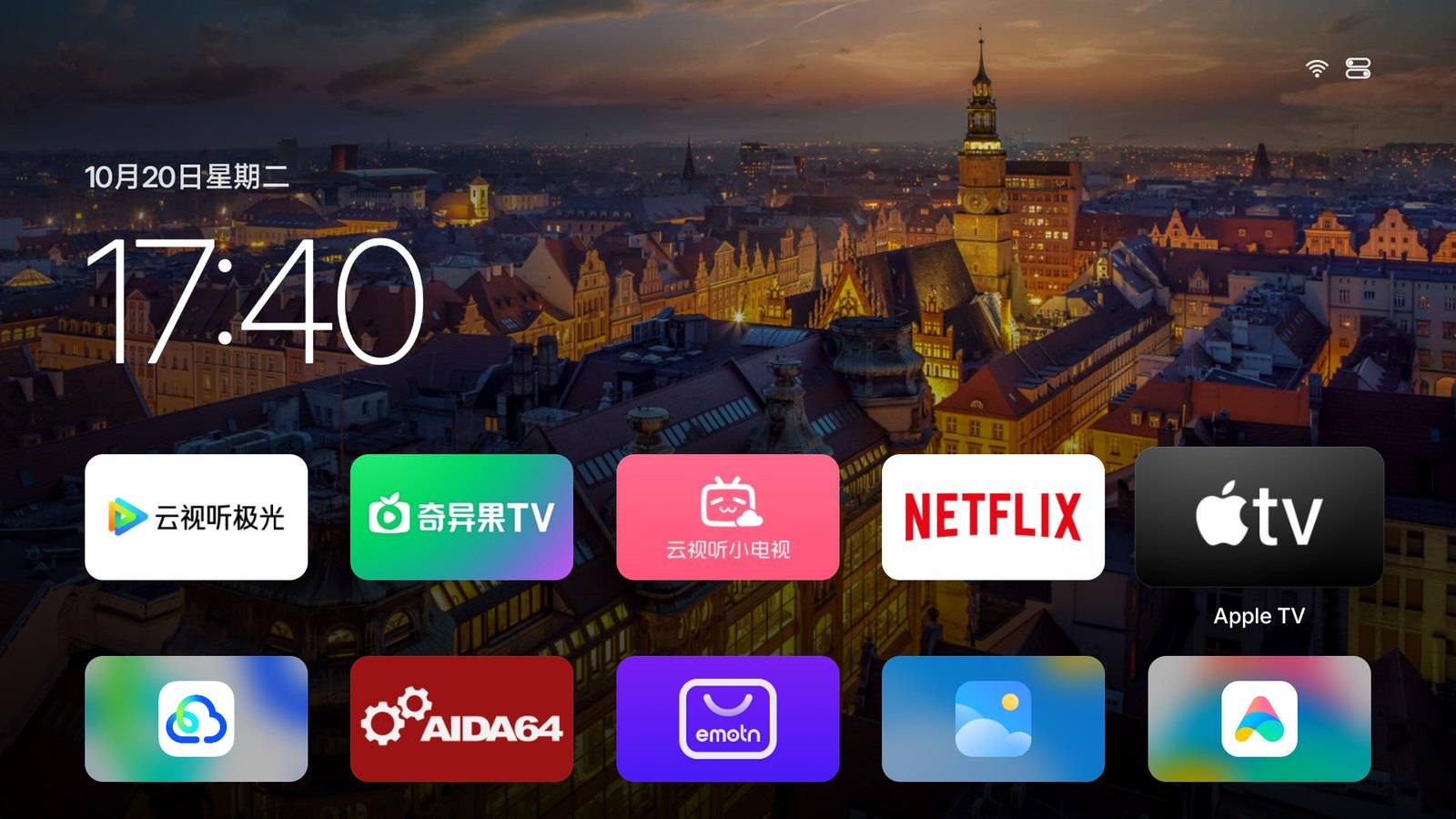
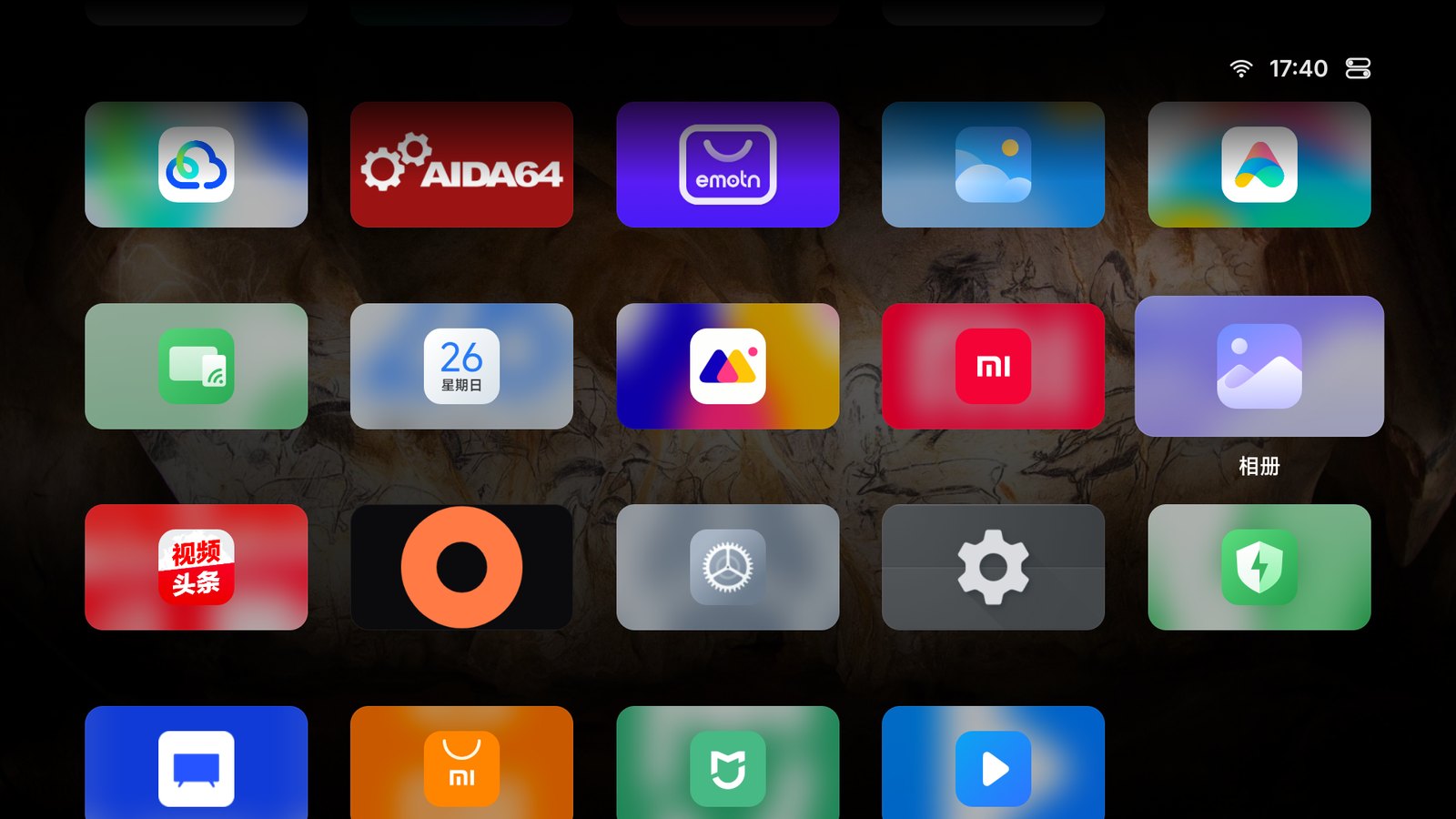
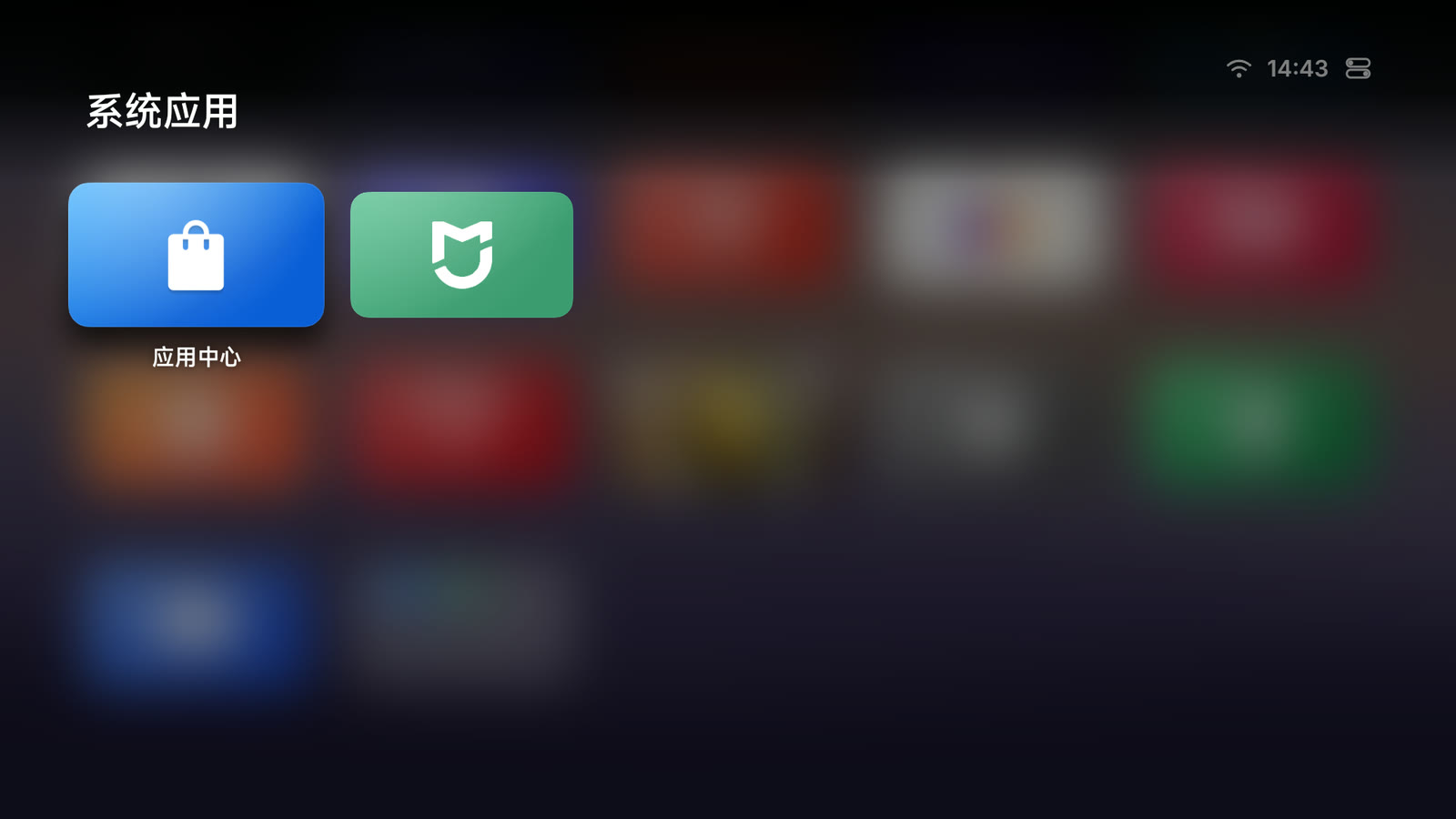
- Home: your favorite apps in one row on a glass shelf at the bottom, every app below it. Hidden system apps like Xiaomi's App Store and Mi Home show up too.
- Organize: hold OK (or press Menu) to move an app, put it in a folder, hide it, uninstall it, or have the TV open it at power on and wake. An HDMI input pinned to Home can say what is plugged in (Apple TV, PlayStation, Switch, Xbox, a computer...) and take its icon, or a name you type on your phone.
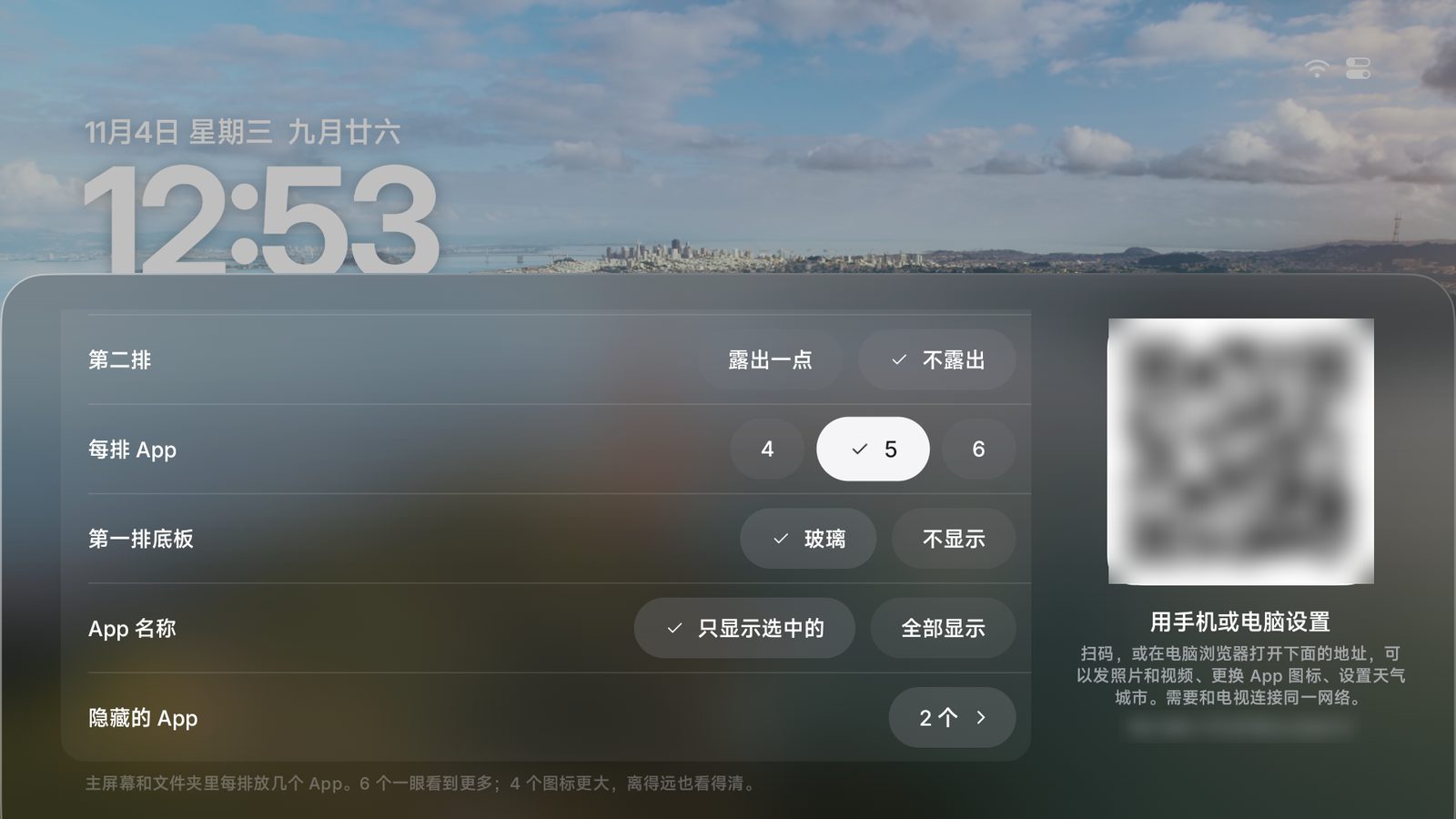
- Arrange from your phone: scan the code on the TV and your phone shows Home as the TV lays it out. Drag tiles into place; tap one to rename it, change its icon, put it in a folder or hide it; add HDMI and other inputs to Home.
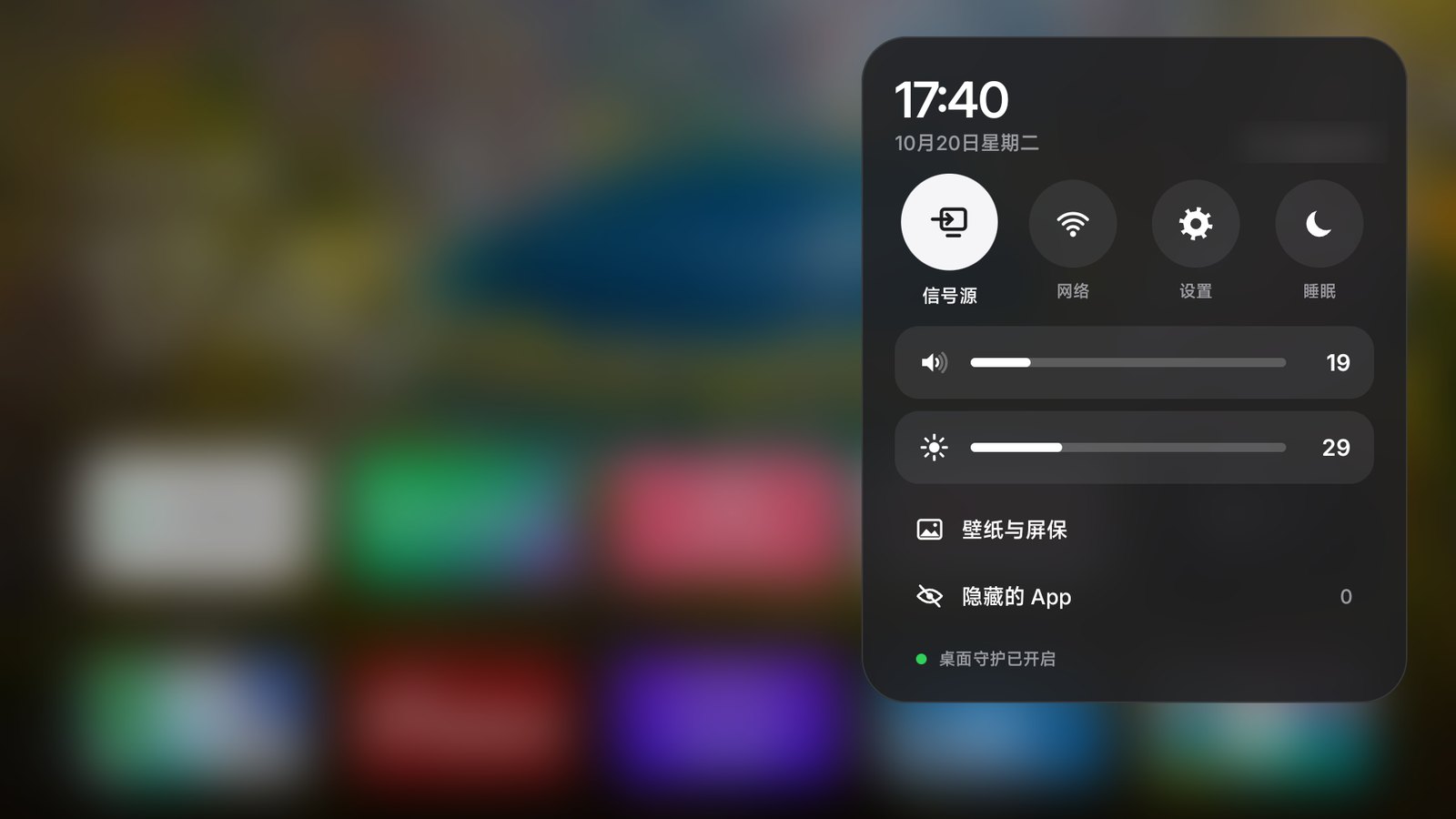
- Control Center: press Up from the top row to the top right. Inputs, network, settings, volume, brightness and Personalize.
- Screensaver: Apple TV's 114 aerial films, in 4K or 4K Dolby Vision where the TV supports it, your photos, a clock, or local videos sent from your phone (guide, Chinese).
- Wallpaper: Bing's photo of the day, fourteen built-ins, photos and videos you upload by scanning a code with your phone, or aerial films that play behind the apps after ten still seconds on Home and stop on the frame showing at any key.
- Personalize: four, five or six apps a row, one or two rows, clock size and corner, app names, focus style and key sounds.

Install
No root, no system apps touched, and you can undo it. Your computer and TV need to be on the same network.
1. Turn on ADB debugging
The menus on Chinese firmware are in Chinese; their names are in brackets.
| TV | How |
|---|---|
| Xiaomi / Redmi | Settings (设置) → About (关于) → press Model (产品型号) until developer mode is on, then Settings → Account & Security (账号与安全): turn on ADB debugging (ADB 调试) and Install unknown apps (安装未知来源的应用) |
| TCL / FFALCON | Settings (设置) → About (关于) → Device info (本机信息), quickly press Up Down Left Right, then turn on ADB under More (更多) |
| Haier / MOOKA | Press Source on the TV itself, then Left Left Up Right on the remote; in the factory menu turn on ADB 调试开关 and change nothing else |
| OPPO (S1 included) | Settings (设置) → System (系统) → About (关于本机) → Model (设备型号), press Up Up Right Right, then OK. Then Settings → System → Developer options (开发者选项): turn on USB debugging (USB 调试). The IP address is at the bottom of Settings → Network → the connected network |
| Other Android TVs | Settings → Device Preferences → About → press Build 7 times, then turn on USB debugging in Developer options |
The TV's IP address is under Settings → Network → the connected network. The first time you connect, a TV with a USB debugging switch asks whether to allow debugging: choose Always allow. TVs that only offer Wireless debugging show no such prompt; see the next paragraph.
TVs that only offer Wireless debugging (no USB/network debugging toggle) on Android 11 and later pair before connecting (such as Sony BRAVIA on Android 14; #747): these TVs have no plain port, so adb connect <IP>:5555 alone does not work. On the TV open Settings → System → Developer options → Wireless debugging → Pair device with pairing code, then enter the IP:port from the pairing screen and the 6-digit code on the computer:
adb pair 192.168.1.20:37115   # the port on the TV's pairing screen (example; use the TV's)
# when it asks for the pairing code, type the 6 digits shown on the TV
adb connect 192.168.1.20:39201   # the other IP:port, on the main Wireless debugging screen (example)
Then install as usual. To use plain <TV-IP>:5555 from now on, run adb tcpip 5555 once connected; a computer that has paired does not pair again. install.sh and the agent in the install guide walk through this step. Some TCL firmwares (Q10M, Q10L, Crane 6 Ultra and similar) have no pairing-code entry at all; there, authorize once over a USB cable as in the by-brand guide below.
A more detailed guide by brand, including TVs that cannot open ADB, is in docs/devices/adb-by-brand.md (Chinese).
2. Install
With an agent (recommended): paste this into an agent that can run commands on your computer (Claude Code, Codex, WorkBuddy, Trae, Cursor, Doubao for desktop…):
Please install Aerial, an open-source home screen for Android TV, on my TV, and make it the home screen the TV starts into.
TV IP address: <TV-IP>
Keep ADB debugging on: yes

The install guide is here: https://aerial.qust.me/en/agent.md
(If you can't open it, use https://raw.githubusercontent.com/pengchujin/aerial-tv/main/site/en/agent.md)

Read the whole guide before you start. Then run the commands yourself on my computer; don't just tell me the steps. Tell me when I need to do something on the TV.
At the end, paste the raw output of these commands from the "Check" section, not just "it worked":
- adb shell "cmd package resolve-activity --brief -a android.intent.action.MAIN -c android.intent.category.HOME"
- adb shell settings get secure enabled_accessibility_services
- adb shell "dumpsys window | grep mCurrentFocus" after pressing Home
Phone apps and web chats, including Doubao on a phone, only tell you the steps; they can't run anything. Use a desktop build that can (Doubao for desktop or Doubao Work, WorkBuddy, Qwen for desktop, Trae, Claude Code, Codex…). When the agent says it's done, check that the mCurrentFocus output it pastes includes app.orchard.tv.
USB drive (no computer): copy an APK to a USB drive and open it with the TV's file manager.
| Download | For |
|---|---|
| aerial-standard.apk | Android 5.0 and later; try this first |
| aerial-guard.apk | when standard is refused because the TV won't install home-screen apps |
| aerial-lite.apk | Android 4.0-4.4 (see Aerial Lite below) |
Then press Home: if Android asks which app to use, choose Aerial, then Always, and you're done (stock Android TV usually works this way). If Home goes straight back to the old launcher without asking (most Chinese-brand TVs), open Aerial from the app list; it shows "Make Aerial Your Home Screen", whose entries open the TV's settings for the home guard (Accessibility) and notification access. If the TV's settings don't have them, Aerial works only as an ordinary app; to take over Home, run the command below or hand it to an agent once (it installs over, settings stay).
Without a computer: users have installed Aerial with the phone apps Beetle ADB (甲壳虫 ADB 助手) and Super Xiaoai (超级小爱); we haven't tested each one. The steps are the same as the Windows ones above; once it's installed, run the check from a computer if you can (see Check).
One command (macOS / Linux):
curl -fsSL https://aerial.qust.me/install.sh | KEEP_ADB=1 TV=192.168.1.20 bash
On a TV that only offers Wireless debugging (step 1), export ADB_PAIR=<pairing-screen IP:port> ADB_CODE=<6-digit code> ADB_CONNECT=<main-screen IP:port> before running that command; one with no pairing-code entry (TCL Q10M, Q10L, Crane 6 Ultra and similar) first follows the by-brand guide, authorizing once over a USB cable and running adb tcpip 5555, then runs the command as usual.
By hand: download aerial-standard.apk. On a TV that only offers Wireless debugging (step 1), do one of these first, then run the commands:
- With a pairing-code entry (Sony BRAVIA on Android 14 and similar): pair as in step 1 and run
adb tcpip 5555once connected, so the first line of the commands is 5555; without that, use the IP:port from the main Wireless debugging screen on the first line; the rest is the same. - Without a pairing-code entry (TCL Q10M, Q10L, Crane 6 Ultra and similar): follow the by-brand guide to connect the TV to a computer with a USB cable, then run
adb tcpip 5555once authorized; until then, the first line'sadb connect <TV-IP>:5555does not work.
adb connect 192.168.1.20:5555
adb install -r aerial-standard.apk
adb shell pm grant app.orchard.tv android.permission.WRITE_SECURE_SETTINGS
adb shell cmd notification allow_listener app.orchard.tv/app.orchard.tv.guard.RevivalListener
adb shell appops set app.orchard.tv SYSTEM_ALERT_WINDOW allow
adb shell am start -n app.orchard.tv/.MainActivity
adb shell cmd package compile -m speed -f app.orchard.tv
The last line makes Aerial smoother on the TV: run it about 5 seconds after Aerial shows, and it takes some tens of seconds. Without it, Aerial is only compiled at its next update from Control Center.
On Windows, use an agent, or follow the Windows steps in the install guide.
Updating: from 1.32, Control Center shows New Version when there is one; choose Download and Install there and confirm in the TV's own installer (checked on Xiaomi and TCL). Aerial comes back afterwards with every setting kept. On TVs that do not let apps install apps, updating means running the install command again: the update page has a QR code that opens this TV's command on a phone, ready to copy or to hand to an agent. 1.31 and earlier have no such button, so this once, run the install command again.
Android 4.0–4.4: Aerial Lite (beta)
TVs and boxes on Android 4.0–4.4 cannot run the full app (its UI framework needs Android 5.0), so there is a separate Aerial Lite: package app.orchard.tv.lite, looking the same as the full app.
Lite is at its first release (1.0), a beta. It was tested on Android 4.0.4 / 4.4.4 emulators and on newer Xiaomi and TCL TVs, not yet on a real 4.x TV, and may still have many small problems. It is for Android 4.0–4.4 only; on Android 5.0 and later use the full app above. Report problems with the device support form, with Lite in the title.
One command (macOS / Linux): the same command as the full app; the script installs Lite by itself on an Android 4.x TV. To ask for it:
curl -fsSL https://aerial.qust.me/install.sh | TV=192.168.1.20 bash -s lite
By hand: download aerial-lite.apk, then:
adb connect 192.168.1.20:5555
adb install -r aerial-lite.apk
adb shell pm grant app.orchard.tv.lite android.permission.WRITE_SECURE_SETTINGS   # for brightness; Android 4.0 refuses it, which is fine
adb shell am start -n app.orchard.tv.lite/.HomeActivity
USB drive: copy aerial-lite.apk to a drive and open it with the TV's file manager.
Afterwards: press Home on the remote; when Android asks which app to use, choose Aerial Lite, then Always. If no question comes and the old launcher opens, the firmware keeps Home for its own launcher: open Lite from the app list.
Differences from the full app: no Home Guard (accessibility takeover), so Home and boot depend on Android's default home; no aerial wallpaper, My Videos wallpaper, input tiles (4.x has no TV input framework; the Inputs button opens the TV's own input panel) or in-app updates (update by installing again; settings are kept). The aerial screensaver, photos and the daily picture, clocks, folders, the press-and-hold menu, Control Center, Personalize and the phone page are all there. More in docs/LITE.md (Chinese).
Undo: on the TV, Settings → Apps → Aerial Lite → Clear defaults, then press Home and pick the old launcher; or uninstall it: adb uninstall app.orchard.tv.lite (the one command's bash -s restore --uninstall removes it too).
Undo
curl -fsSL https://aerial.qust.me/install.sh | TV=192.168.1.20 bash -s restore
Add --uninstall (bash -s restore --uninstall) to remove Aerial as well. Without bash (Windows), the adb commands one by one are under Undo in the install guide.
To have an AI do it (it needs to run commands on a computer), paste this:
Please follow the "Undo" section of https://aerial.qust.me/en/agent.md to give my TV (IP address: <TV-IP>) its original home screen back, without uninstalling Aerial.
Run the commands yourself on my computer, and at the end paste the raw output of settings get secure enabled_accessibility_services and of dumpsys window | grep mCurrentFocus after pressing Home.
Troubleshooting
Will it work on my TV? See Supported TVs below.
Installed only the APK from a USB stick: from 1.32 Aerial has an icon in the TV's app list and, when opened, shows how to make it the Home screen. With the APK alone, Home, power-on and wake still go to the old launcher; run the command above or hand it to an agent once more (it installs over, settings stay).
TCL shows a 多屏互动 prompt: press Right, then OK, to choose 同意 (Agree).
Skyworth:
adb installfails withINSTALL_FAILED_USER_RESTRICTED: runadb shell settings put global verifier_verify_adb_installs 0, then install again (from a user's report; see the agent guide).The firmware won't install home-screen apps: add
-s guardto the end of the command, or use aerial-guard.apk.What
KEEP_ADB=1does: Xiaomi turns ADB off after standby; with it, Aerial turns it back on so you can update later.Do my apps, subscriptions, Xiaoai, account and cable TV stay? Yes. Aerial only replaces the home screen. The old home screen is in the app list (Xiaomi Video and PatchWall open from the 桌面 tile), and Xiaoai, the Xiaomi account and cable TV work as before. A boot ad comes from the firmware and stays.
How it stays your home screen
Most TVs sold in China only accept their own home screen and clear third-party apps in standby. So Aerial uses an accessibility service to switch back whenever the stock home screen appears (it only looks at which window is in front, never at what's on screen), and a notification listener to get the system to restart it after a kill (it reads no notifications). Old Xiaomi sets on Android 6 report no window changes from their home screen, so there the guard reads the system's usage stats; it also knows the home screens some Coocaa and Skyworth firmware start in their own way. Stock Android TV needs none of this: Aerial is simply the default home screen.
Supported TVs
✅ works ⚠️ works with limits ❌ can't take over yet. Mostly from user reports; the linked notes (Chinese) have details.
| Brand | Models | System | Status |
|---|---|---|---|
| Xiaomi / Redmi | MiTV-MFTR0 (Redmi X65 2026), MFFU0, MTSU0 (S65 Mini LED 2026) | Android 14 | ✅ In daily use (MFTR0, MFFU0, MTSU0) |
| Xiaomi / Redmi | MiTV-ASTR0 (Redmi A Pro 75, HyperOS 2) | Android 11 | ✅ Home, reboot, standby wake, volume and brightness work (#1042) |
| Xiaomi | MiTV-ASTP0, ASTP1, NSOP0, MFTP0 | Android 9 | ✅ MFTP0 takes 30–60 s to come back after the system clears it (notes) |
| Xiaomi | Mi TV 4 / 4A / 4X / 3S, Mi Box 4 | Android 6 | ✅ From 1.43; Home takes a few seconds to return to Aerial (notes) |
| Xiaomi | Mi TV 2S (MIUITV 1.3.33) | Android 5.1 | ✅ Full app installed from USB; with Home Guard turned on from Control Center, Home, power cycle and standby wake return to Aerial (#1237) |
| Xiaomi | Mi TV 2 (MiTV2-49) | Android 4.3 | ❌ Aerial Lite installs and runs, but the system opens Xiaomi's launcher by component on Home, so it cannot be the home screen (#770) |
| Huawei | M330 box | Android 4.4 | ❌ Aerial Lite installs, but the firmware sets its own launcher back as the default at every boot (#850) |
| Xiaomi (Fengmi) | Ultraman series projector | Android 9 | ✅ (notes) |
| TCL | MT5879 (China), 98T8H | Android 11 | ✅ In daily use (notes; 98T8H: #803) |
| TCL | Q9L Pro | Android 14 | ⚠️ ADB over a USB cable only; allow Aerial to auto-start in the TV manager; inputs switch from 1.77 on (#792) |
| TCL | 65V8E (tc8000 ay30a2) | Android 11 | ✅ After a power cut the stock launcher shows for 6–8 s first (#1137) |
| Thunderbird | 75S78A Plus (FFALCON T966D5) | Android 14 | ❌ The firmware clears accessibility about once a minute, so Home cannot be taken over; boot_app_componentname boots into Aerial (notes) |
| Thunderbird | He 6 2027, 55" (T966D5 / AU01) | Android 14 | ⚠️ guard flavor; with boot_app_componentname set to Aerial it booted into Aerial with the guard running; one reboot tried (#1185) |
| TCL | 75V2 (m7221) | Android 8 | ✅ Starts straight into Aerial, no root (notes) |
| TCL / FFALCON | 60A730U, 55V2 Pro (x32a0), 65Q10E and Crane 6 (m7642), 75S365C, 75Q10L | Android 5.1–14 | ✅ 60A730U only takes the guard build; 55V2 Pro needs setprop persist.tcl.debug.installapk 1 before adb installs (#620) |
| FFALCON | FF55S515D-E674 (tcl_m7642) | Android 9 | ✅ guard installed through Multi-screen Interaction; Home works. After reboot and screen-on, stock Home appears before Aerial; wake sometimes briefly shows stock Home too (observations and limits) |
| FFALCON | 55S595C Ultra, Crane 6 2025 Ultra | Android 11+ | ❌ Installs, can't take over Home (notes) |
| Sony | A80J (China), BRAVIA VH1 | Android 10 / 12 | ✅ |
| Sony | BRAVIA 4K VH2 | not given | ✅ (#1193) |
| Sony | KD55X7000D (China) | Android 8 | ✅ Brightness only in the TV's own settings (#757) |
| Skyworth / Coocaa | K3 Pro, 75A7D | Android 11 | ✅ 75A7D inputs work from 1.45; at power-on Coocaa's launcher shows for 3–6 s, which the reporter removed by changing firmware properties (#894) |
| Skyworth / Coocaa | 65G60, 8R134 / 8R145, aigc models (C10 projector, P60, 7T863) | Android 8–11 | ⚠️ Boots into Coocaa's home first, or takes 20–30 s to come back after the system clears it (notes) |
| Skyworth / Coocaa | 5S21 (50K2, 7626K2), 5S05 (60U2), 8H66 H7 | Android 5.x | ⚠️ Aerial after boot and standby, but Home does not return to it; no inputs listed |
| Skyworth / Coocaa | 8H83 M6 (Hi3751V500) | Android 4.4 | ❌ Aerial Lite installs and runs, but the firmware opens its own launcher by component on Home and at power-on, and its chooser lists no third-party launcher (#903) |
| Skyworth / Coocaa | 8H57_H5 | Android 5.1 | ⚠️ Spins for a dozen seconds at boot before Aerial (#785) |
| Skyworth | 1AA46_D4 (T963) | Android 9 | ✅ (#796) |
| Skyworth | 43H30 (1MC02, MT5862) | Android 9 | ✅ On a cold boot the stock launcher shows for 1–2 s; the backlight is set only in the TV's own picture settings (#1192) |
| Skyworth | 7T641, 7T634_P3H, 75A6E, 55A5F Pro (8R702), 8R721_A6FP | Android 13 | ❌ Black screen, or no window focus and stopped by the system (#864, #839) |
| Skyworth | Xiaopai P3 (Q5001 / cupid-p2) box | Android 10 | ⚠️ Needs a renamed package to take over Home; boot broadcasts are all blocked (notes) |
| Panasonic | TH-55HX560C (built by Skyworth) | Android 8 | ⚠️ No inputs listed |
| Konka | KKTV U86V9, 2861 | Android 9 | ✅ U86V9 brightness does not work (notes) |
| Haier | L55F5 (LRM9633, AliOS) | Android 13 | ✅ Guard build: Home and waking from standby (#1131) |
| Konka | Android TV 551 (Hi3751V551) | Android 5.1.1 | ✅ Boots straight into Aerial once it is chosen under Konka's Settings → General → Shortcuts → Boot to; Home Guard takes Home; the firmware has no cmd (#1089) |
| LeTV | Super4 X55 (f608) | Android 6 | ✅ Installs, starts at boot, takes over Home (#510) |
| LeTV | Super3 X65 (X65-168CQ) | Android 5.0.1 | ⚠️ Installs and draws; the firmware kills third-party launchers on Home, so takeover is unreliable (notes) |
| Hisense / Vidda | VIDAA models | Android 5–14 | ⚠️ Home works, most boot into Hisense's home first; VIDAA C1 projector can't be taken over (notes) |
| Hisense | 65E52D | Android 8 | ✅ Boots straight into Aerial (#672) |
| Hisense | 75E3F (VIDAA_TV, n62016) | Android 9 | ✅ Boots straight into Aerial (#847) |
| Hisense | E5Q Pro | Android 11 | ✅ (#790) |
| Hisense | 85U7G-PRO (MT9652) | Android 9 | ✅ After installing the APK, the first Home press offers Aerial; pick it and "Always", and the TV boots into Aerial without ADB (#886) |
| Hisense | VIDAA_TV (MSD6A348) | Android 4.4 | ✅ Aerial Lite from a USB drive; pick it with "Always" at the Home prompt; no brightness (#769) |
| Hisense | LED47K600X3D (VIDAA_TV, MT5880) | Android 4.0.4 | ⚠️ Aerial Lite installs and boots straight in; the remote's Home, APP and VOD keys open Hisense's own screens through a private path Aerial cannot catch (#913) |
| Hisense | VIDAA_TV (MT9603 / mt5873) | Android 11 | ✅ Boot, Home, HDMI and wake all land on Aerial (#1266) |
| Hisense | VIDAA_TV (HZ55E3D-J, Hi3751V551) | Android 7 | ✅ The standard build from a USB drive works (#1298) |
| Vidda | 65V1R-Pro | Android 14 | ✅ Home, boot, wake, inputs, brightness and the screensaver work (#1295) |
| Xiaomi | MiTV-MTTP0 (low RAM) | Android 9 | ✅ Home, boot, wake and inputs pass; a few seconds back to Aerial when memory is tight (#1285) |
| Sharp | LCD-50SU671A | Android 6 | ✅ Needs QuickShortcutMaker to open ADB |
| Changhong | CHiQ 43Q5T (ZLS70Hi5) | — | ❌ ADB connects but never asks to authorize, and there is no accessibility setting, so Home can't be taken over; installed from a USB drive it works as a plain app (#1262) |
| OPPO | K9 | Android 9 | ⚠️ Needs a renamed package (notes) |
| XGIMI | Z7X, m7642 | Android 9 | ✅ Z7X needs a third-party tool to open ADB (notes) |
| XGIMI | Z9X 4K Bright (goat_elegant) | Android 13 | ⚠️ Limited test on 1.76: first launch, UID app-op and the front after reboot; boot screen and standby not yet (notes) |
| XGIMI | Lamp L1 (m7642, pig_chivalrous) | Android 9 | ✅ The default Home is lost at boot; the reporter's two-rule fix is in the notes (#767) |
| XGIMI | Z6X Gen 4 (XK03U / ironman / m7221) | Android 8 | ⚠️ HDMI 1 listing and switching verified; video output not tested (notes) |
| XGIMI | H3, m7221 | Android 8 | ✅ Needs a third-party tool to open ADB; boot handover and screensaver match Z7X (notes) |
| OBE | X7, X7D projectors | Android 9 / 5.1 | ✅ Home inside HDMI can go to the Apple TV's home screen (notes) |
| OBE | OBE_R3Ultra high-brightness projector (MT5879) | Android 11 | ✅ Developer options show only "USB debugging", and turning it on opens ADB on port 5555; Home first goes to the firmware's Youku launcher, the guard brings Aerial back about 13 s later (notes) |
| Tencent Aurora box | 6 / 6SE / 7S | Android 10 / 14 | ✅ 6 works; ⚠️ 7S stays on the stock home at boot (notes) |
| Dangbei | Box Max1, H5, HAQU K2 (Dangbei OS) | Android 9 | ✅ |
| Dangbei | H3S box (RK3566) | Android 11 | ⚠️ The firmware stops third-party apps on Home; Aerial comes back after 7–12 s (#849) |
| Dangbei | Box Max1 (DBBOX5C) | Android 11 | ⚠️ Like the H3S, the firmware stops third-party apps on Home; Aerial comes back after about 10 s (#1245) |
| Dangbei | F3 projector | Android 6 | ⚠️ Everything works on firmware V2.1.5.2 (#1145); later firmware refuses third-party launchers and has no accessibility service (#789) |
| China Mobile | CM101s box (Hi3798MV100) | Android 4.4.2 | ✅ Aerial Lite, installed with the one-line command (#1052) |
| JMGO | S621 | Android 13 | ❌ The firmware refuses writes to the accessibility setting; Home cannot be taken over (#793) |
| Epson | DTP9733 projector | Android 11 | ✅ |
| ZHIYING / RIGAL | HS350 projector (HiSilicon, YunOS) | Android 9 | ⚠️ The firmware stops apps sent to the background; Home from another app takes 10–30 s back to Aerial; installed without the script it needs two grants (#853) |
| Other boxes | CM311-1 (modified ATV), PPTV K55U27, HK1 Box (S905X3) | Android 9 | ✅ HK1 Box: set Aerial as the default home (#838) |
| Phicomm | T1 box (S912) | Android 7.1.2 | ✅ Moving down from the first row into all apps stutters a little; Personalize → Effects → Smooth helps (#876) |
- Android 4.0–4.4: Aerial Lite (first release, a beta).
- Not supported: LG webOS, Samsung Tizen, Huawei Vision (HarmonyOS), and Android older than 4.0.
- Can't open ADB: old LeTV sets, Honor Vision, old Konka models (no version number to tap).
- Slow or low-memory TVs: from 1.48 Aerial picks Lite effects on its own (solid panels, no highlights); you can also choose it in Personalize → Effects.
Installed, but something is off? Help adapt Aerial to your TV
Home goes back to the old launcher, standby or a restart ends there, an input opens the wrong port, the brightness slider does nothing. Pick one:
1. Hand it to an agent (easiest): send this to an agent that can run commands on your computer. It tests the TV, fixes on the spot what it can (input numbers, say), and writes a report for you to read before it is posted.
Please adapt Aerial to my TV, following https://aerial.qust.me/en/adapt.md
TV IP: <tv-ip>
What is wrong: <e.g. Home goes back to the old launcher / HDMI 2 opens HDMI 1 / ends on the old launcher after standby>

Read the whole guide first, then run the commands on my computer yourself instead of listing them.
Ask me before a standby test or restarting the TV; do not uninstall or disable any system app.
Show me the finished report, and post it to GitHub only once I agree.
2. Send it from your phone: Control Center → Personalize, scan the QR code, and at the bottom of the phone page choose Report a Problem → Show Diagnostics → Report on GitHub. The model and the version fill the device support form, and the diagnostics are copied for you to paste.
On a computer you can also run curl -fsSL https://aerial.qust.me/tools/report.sh | TV=<tv-ip> bash (reads only) and curl -fsSL https://aerial.qust.me/tools/selftest.sh | TV=<tv-ip> bash (presses Home, opens the settings, checks that Aerial comes back) and paste both into the form. The diagnostics hold no accounts, addresses, Wi-Fi names or app lists. If your TV just works, tell others with the works-on-my-TV form.
Development
Needs JDK 17 and Android SDK 36.
./gradlew assembleStandardRelease assembleGuardRelease
BUILD=1 KEEP_ADB=1 TV=<TV-IP> tools/install.sh
See ARCHITECTURE.md for the code, HANDOFF.md for the current state and rules, and docs/devices/ for notes on each TV.
License
MIT. The Inter font is under the SIL Open Font License. The list of Chinese cities for the weather is from GeoNames (CC BY 4.0), the weather from Open-Meteo.
Aerial is an independent open-source project, not affiliated with Apple, Xiaomi, TCL or any other company. The aerial films belong to Apple and play from Apple's servers; the photo of the day comes from Bing.
Explore related projects
codecrafters-io/build-your-own-x
Master programming by recreating your favorite technologies from scratch.
562,060 starspublic-apis/public-apis
A collective list of free APIs
498,459 starsmorluto/rea
Reverse engineer anything with agents, from app behavior down to native binaries.
454,615 starsopenclaw/openclaw
The AI that really does things. Any OS. Any Platform. The lobster way. 🦞
394,407 stars