
p-arndt/hop has 30 GitHub stars and 3 forks. GitHot measured 0 stars in 24 hours. Last checked 2026-11-15 04:50 UTC. Last push 2026-11-10.
What you can do
- 🖥️ Embedded SSH shells - Real terminals in a pane: a pure-Go SSH client (x/crypto/ssh) feeding a real VT emulator (x/vt). Agent or private-key auth, resize, cursor, the lot.
- 🔑 2FA and passwords - A card appears the moment the host asks. Nothing is stored, and one prompt per host covers everything riding that connection.
- 🗂️ Multiple shells per host - S opens a second channel on the connection you already have — no new handshake, no second auth.
- 📁 SFTP file browser - f browses the remote filesystem over that same connection. Download with d, open locally with o.
Measured star growth
- in 24h
- 0
- in 7 days
- Collecting history
- in 15 days
- Collecting history
- in 1 month
- Collecting history
Net star changes over overlapping periods, not daily totals. Missing measurements are left blank. Stars measure attention, not software quality.
About
Hop from server to server without ever leaving your terminal.
Developer ToolsREADME.md
Original

hop
Hop from server to server without ever leaving your terminal.
One keypress and you're in a shell. One more and you're browsing its files. One more and you're editing one on the box, in a tab, beside all the others. Then hop to the next host and everything you left behind is still exactly where you left it.
No new windows. No re-authenticating. No hunting for that one shell you had open.


Docs · Install · Quick start · Keys · Development · Roadmap
[!NOTE] hop is in early development. Things may break, change, or behave in ways they shouldn't. If you hit a bug, have an idea, or something just feels off, open an issue! Feedback at this stage is genuinely the most useful thing you can contribute. 🙌
🎬 What it looks like
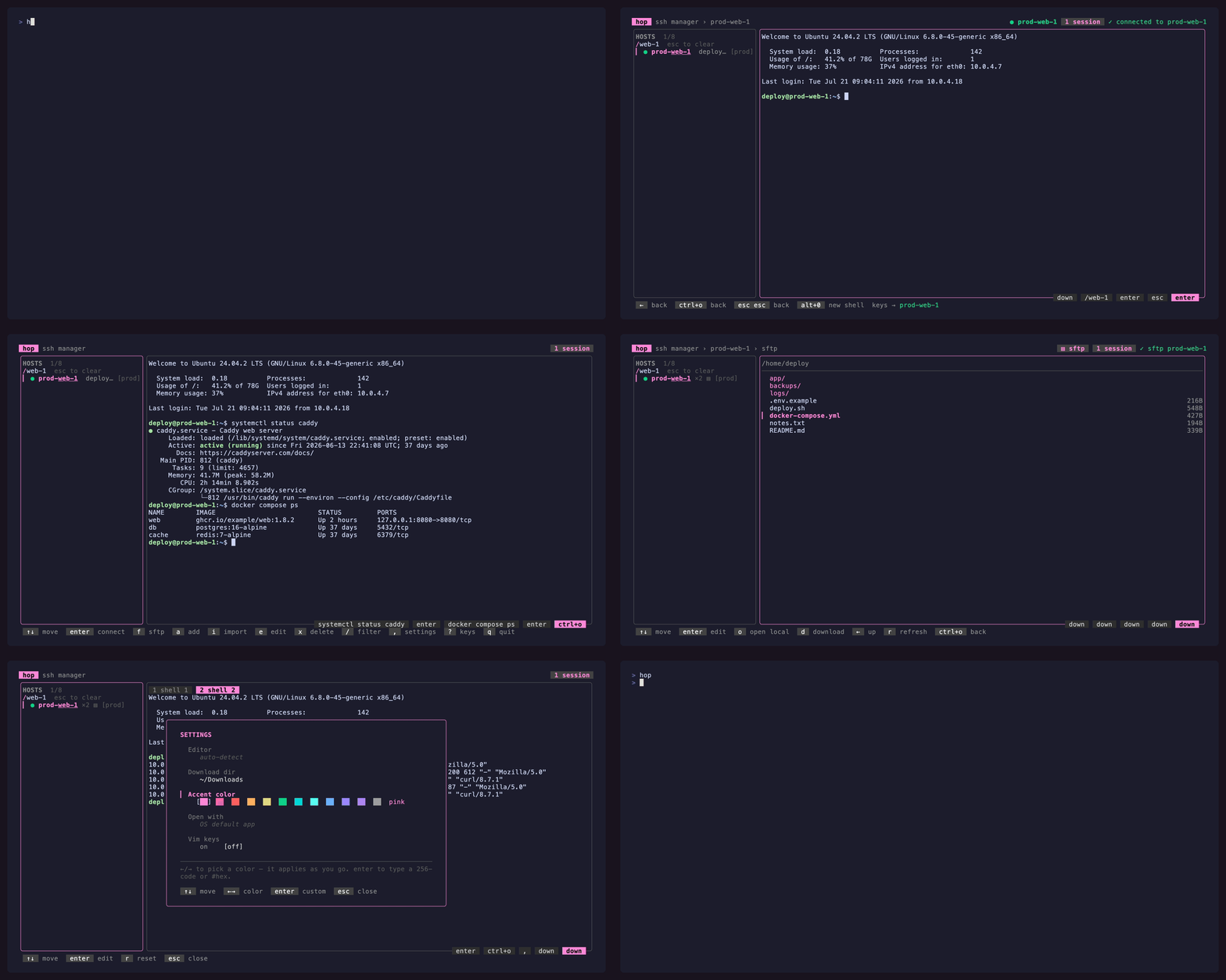
Keys are shown bottom-right as they're pressed. ● connected · ◐ connecting ·
○ idle · ×2 two shells open · ▤ SFTP browser open · ⇄2 two tunnels running
hop is a terminal UI over your SSH fleet. It holds one connection per host and opens everything else as extra channels on that same connection: more shells, an SFTP browser, an editor running on the remote box, and any tunnels you defined. Nothing is a new window, nothing re-authenticates, and leaving a pane never tears down what is inside it.
A status bar above the footer always tells you where you are and where your keystrokes are going — the host, the mode, the directory or file, and the machine behind the alias. That is the single most disorienting thing about a TUI that embeds other people's programs, so it gets permanent screen space, directly above the keys that act on it.
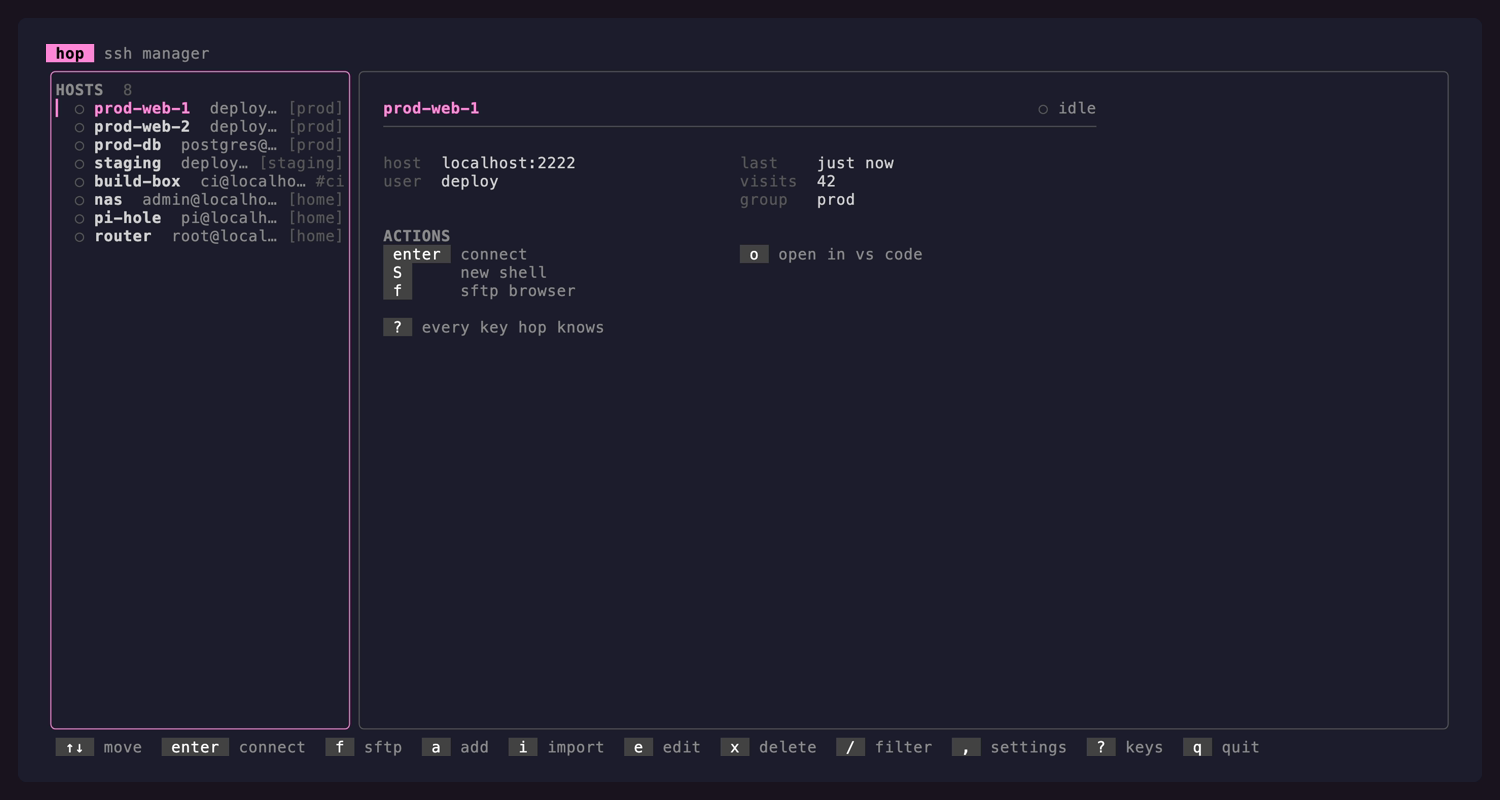 The host list. Status dot, group, and what enter would do to the host under the cursor.
|
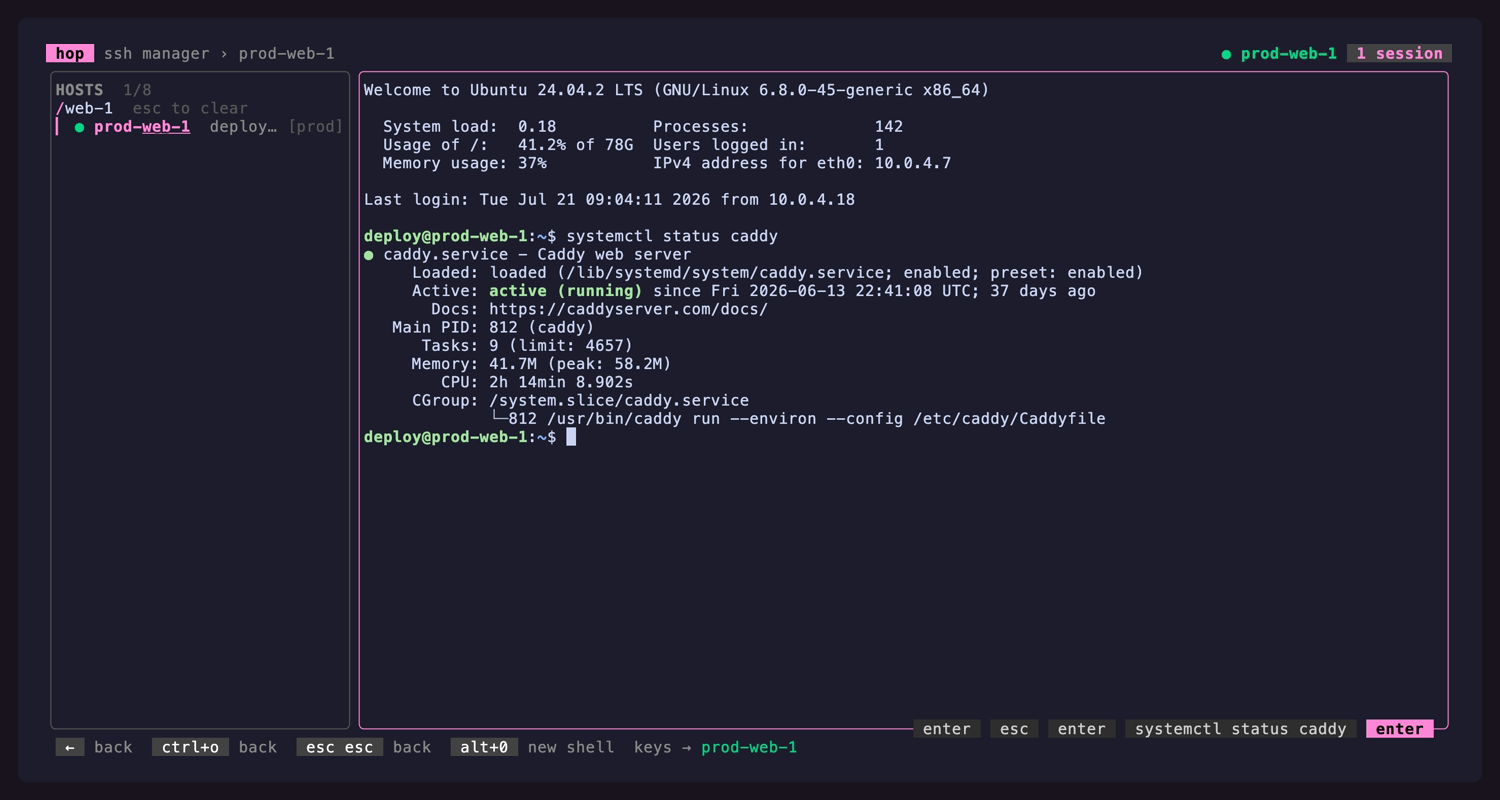 A shell. A real terminal in the pane; the footer shows the ways back out. |
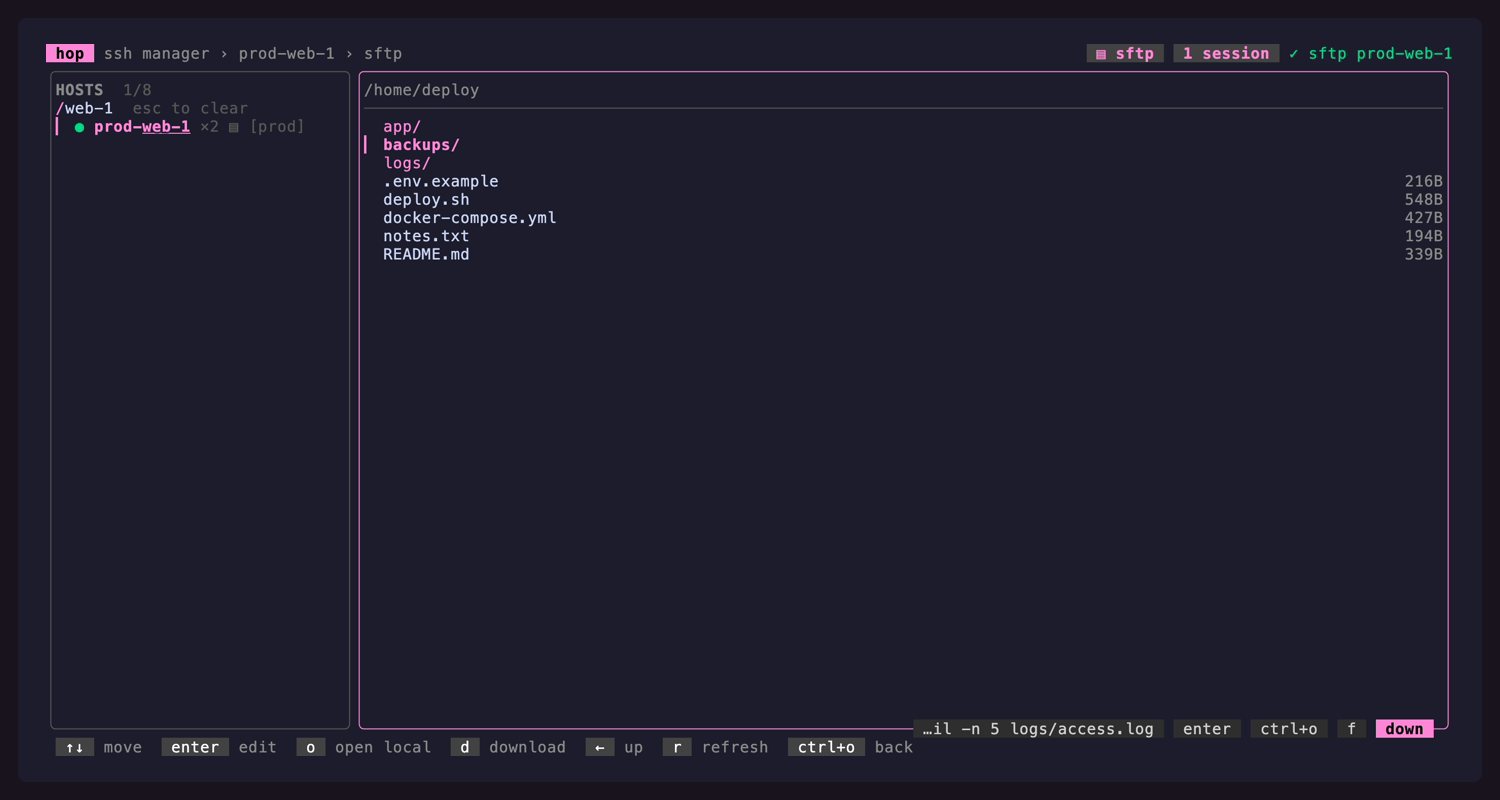 The SFTP browser. f, over the connection that's already open.
|
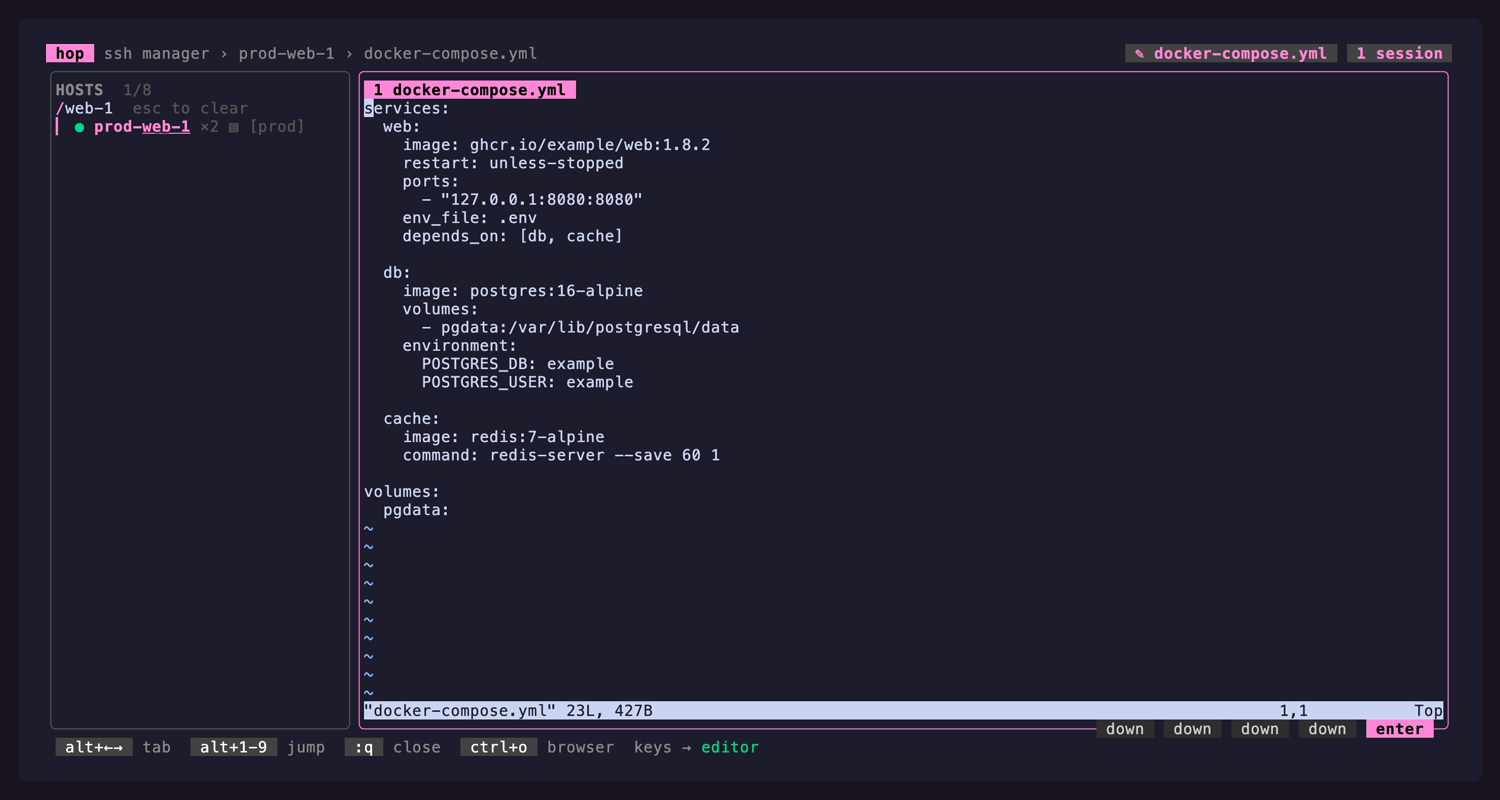 A remote editor tab. enter on a file runs the editor on the server, so :w writes the real file.
|
More stills: two shells on one connection, settings, the keys card
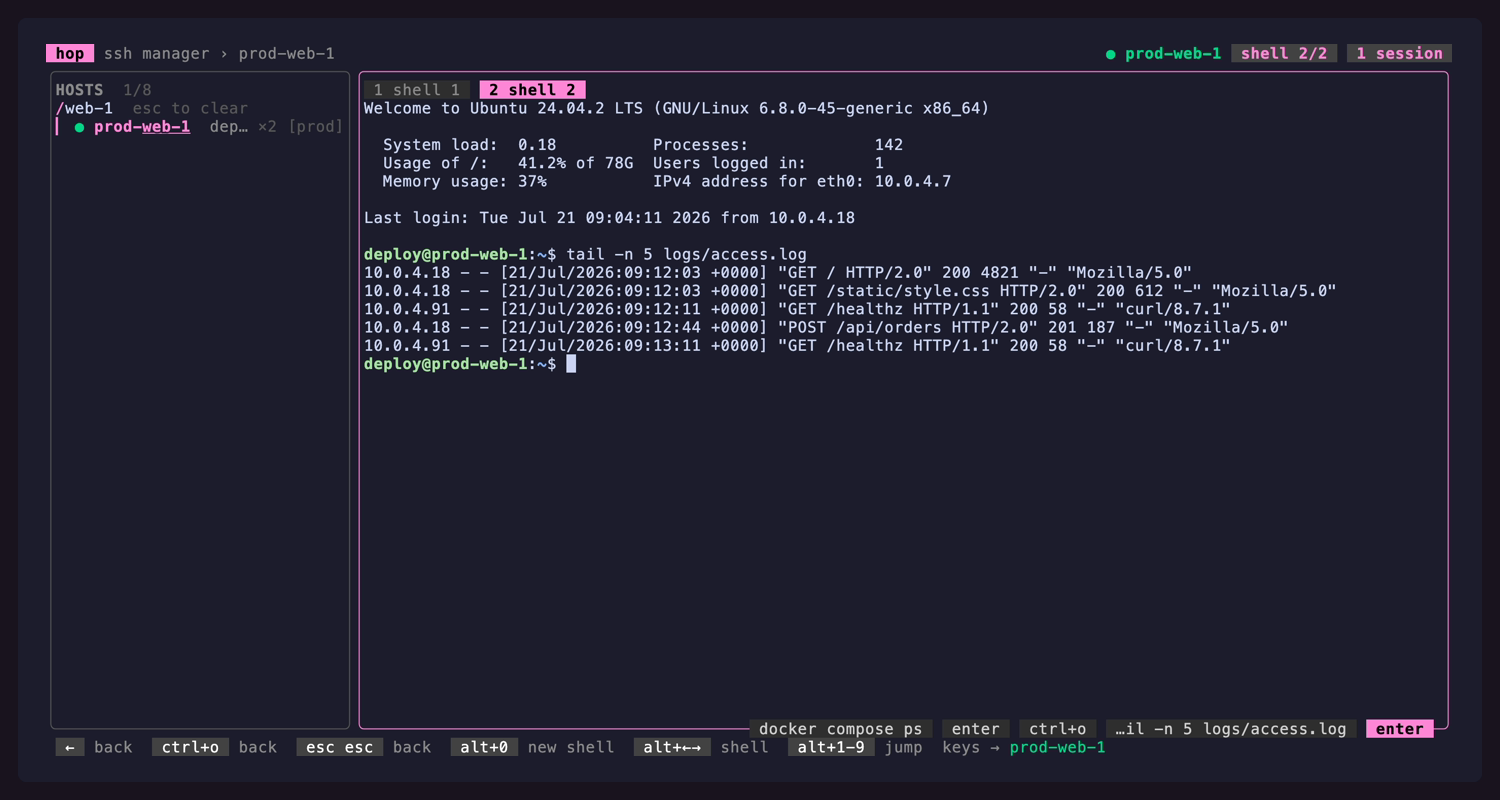 Two shells, one connection. S (or ctrl+o 0) opens another channel, no second handshake.
|
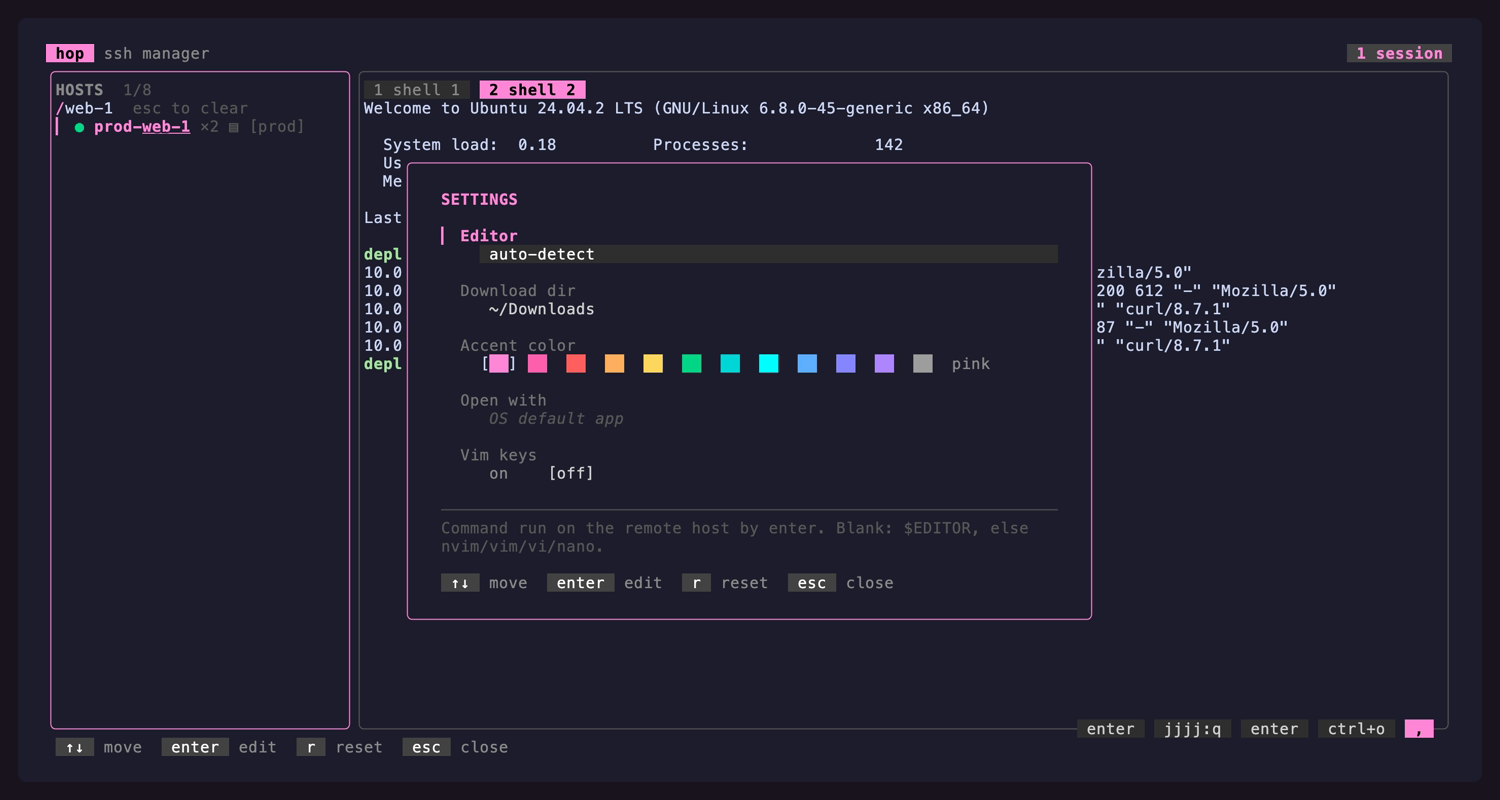 Settings. ,. The accent is a swatch strip that recolours hop as you walk it.
|
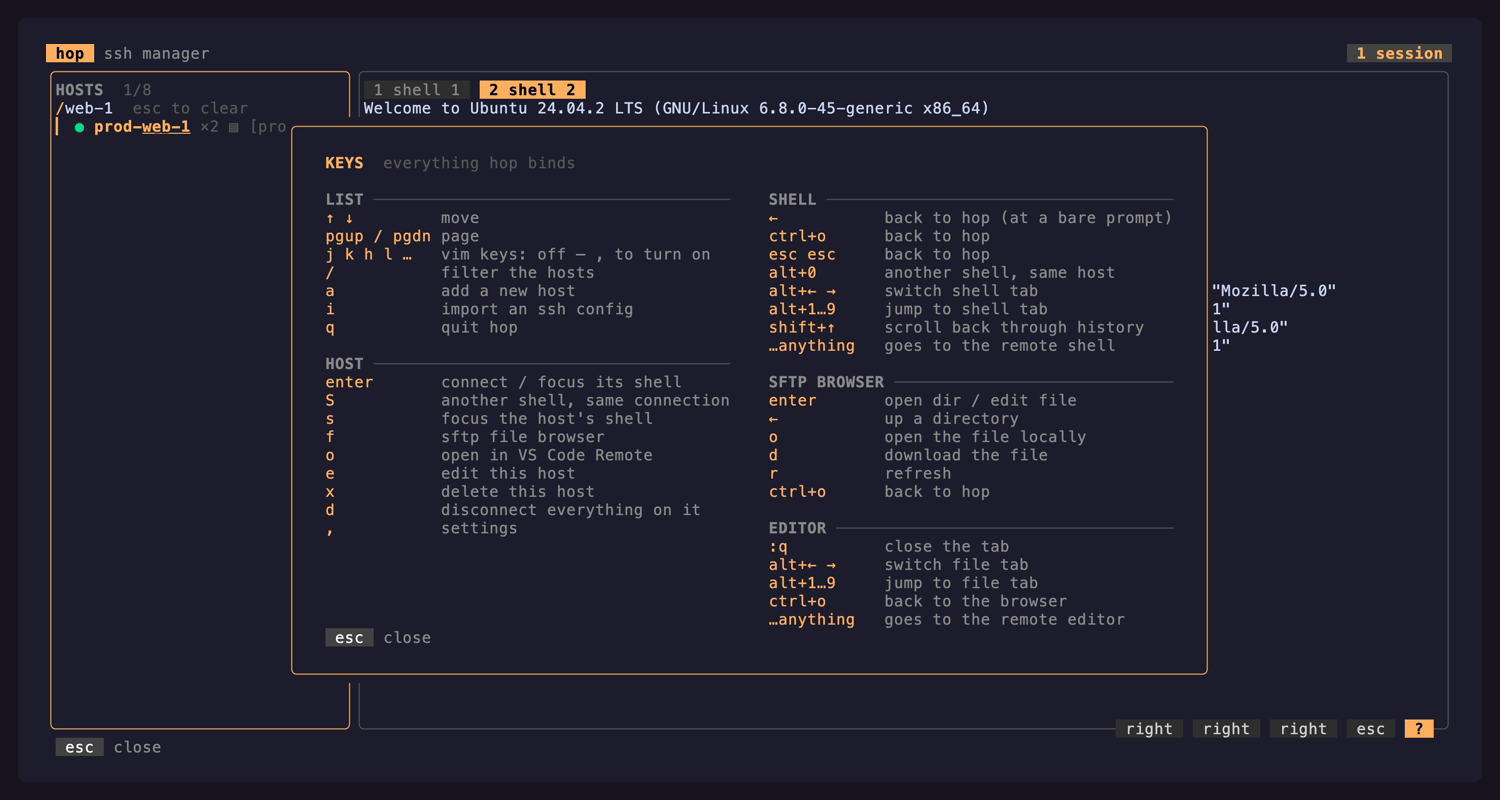 Every key hop binds. ?. It lists the keyboard you actually have, with vim motions included only if you turned them on.
|
Everything in the recording is invented: it runs against a throwaway SSH server
(tools/demoserver) with a HOME of its own, so just demo re-records it anywhere without
exposing anything.
✨ Features
| 🖥️ Embedded SSH shells | Real terminals in a pane: a pure-Go SSH client (x/crypto/ssh) feeding a real VT emulator (x/vt). Agent or private-key auth, resize, cursor, the lot. |
| 🔑 2FA and passwords | A card appears the moment the host asks. Nothing is stored, and one prompt per host covers everything riding that connection. |
| 🗂️ Multiple shells per host | S opens a second channel on the connection you already have — no new handshake, no second auth. |
| 📁 SFTP file browser | f browses the remote filesystem over that same connection. Download with d, open locally with o. |
| ⇄ Local & remote tunnels | Define forwards per host with T, start and stop them with t. Imported from your SSH config, restored on reconnect. |
| 🛰️ ProxyCommand & ProxyJump | Bastions and brokers (aws ssm, cloudflared, gcloud) work exactly as your SSH config describes them. |
| ✎ Remote editor tabs | enter on a file runs $EDITOR on the server in a tab. No download — :w writes the real file. |
| 📂 VS Code where you are | ctrl+o c opens VS Code Remote in the directory the shell is standing in, tracked over OSC 7. |
| 🏠 A directory to land in | Give a host a default directory and every session on it starts there. |
| ⇅ Scrollback | shift+↑ pauses a shell into its history, with vim-ish paging. |
| 🔁 Reconnect after a drop | Drops are noticed, the last screen is kept, and r puts the shells, browser and tunnels back. |
| 🔐 Honest host keys | An unknown key aborts the dial and shows a fingerprint card. A mismatch is always a hard error. |
| 📥 SSH config import | i syncs hosts from ~/.ssh/config — a re-import refreshes, hand-added hosts are left alone. |
| 🔎 Fuzzy find | / filters as you type, with the matched characters picked out so a surprising hit explains itself. |
| 🖱️ Mouse | Wheel, click and drag-to-copy everywhere; remote programs that want the pointer get it verbatim. |
| 📋 Copy and paste | Bracketed paste (even on Windows), drag to copy, and remote yanks (OSC 52) land on your clipboard. |
| ⚙️ Live settings | , — editor, download dir, accent colour, vim keys, mouse, remote clipboard. Applied on the spot. |
| 🎯 Frecency ordering | The hosts you actually use float to the top of the list. |
| 🪟 Cross-platform | Static, dependency-free binaries for Windows, macOS and Linux (amd64 + arm64). No cgo, no libc, no runtime. |
| ⌨️ Opt-in vim keys | Off by default. Flip one switch and the motions appear everywhere at once. |
The longer version of a few of these
2FA. The dial waits inside the handshake rather than restarting — a one-time code is only good once. One prompt per host, since shells, SFTP, editors and tunnels ride the same connection.
ProxyCommand. The command runs without a shell: a line needing one is refused with a
clear error, so an imported config cannot smuggle in sh -c. %h %p %r %n are
expanded. A ProxyJump may name another hop host by alias and borrows its user, port and key.
OSC 7. hop installs the prompt hook into bash/zsh itself — one line typed at the first prompt, then wiped from the pane, so the session looks untouched. Nothing is typed into a shell that already emits OSC 7, or while a full-screen program owns the screen. Where no directory can be learned, the key still opens the host in its default directory and says so.
Reconnect. Drops are found with keepalive probes rather than silence, so a suspended laptop or a dead VPN does not leave a pane quietly frozen.
📦 Install
One line, either platform. The script picks the archive for your OS and CPU, verifies its
checksum, drops hop on your PATH and prints where it went.
# macOS / Linux -> /usr/local/bin, or ~/.local/bin when that is not writable
curl -fsSL https://raw.githubusercontent.com/p-arndt/hop/main/scripts/install.sh | sh
# Windows -> %LOCALAPPDATA%\Programs\hop, added to your user PATH
irm https://raw.githubusercontent.com/p-arndt/hop/main/scripts/install.ps1 | iex
Both take the same options — a specific release, a directory of your own:
sh scripts/install.sh --version 0.11.0 --dir ~/bin
.\scripts\install.ps1 -Version 0.11.0 -Dir C:\tools\bin -NoModifyPath
$HOP_INSTALL_DIR / $env:HOP_INSTALL_DIR sets the directory too. On unix the script never
edits a shell profile: if the directory is not on your PATH it prints the one line to add.
On Windows it appends to the user PATH in the registry unless you pass -NoModifyPath, so
a new terminal has hop.
Prefer to do it by hand? Grab the archive from the
latest release, unpack it and move the
binary onto your PATH. Every release ships a hop_<version>_checksums.txt for
sha256sum -c.
From source
Needs Go 1.26+ and optionally just ≥ 1.39.
git clone https://github.com/p-arndt/hop.git && cd hop
just build          # -> ./hop   (or: go build -o hop .)
just build-release  # stripped + version-stamped
just install        # build it, then put it on your PATH
just install is the same installer with --from-source / -FromSource: it builds the
checkout, stamps it with VERSION and the current commit, and installs it exactly where the
downloading path would have.
Updating
hop self-update replaces the binary in place, wherever the installer put it — see
Update.
Staying current
hop check-update   # is there a newer release?
hop self-update    # download it, verify its checksum, swap this binary
self-update fetches the archive for your platform from the latest GitHub release, checks
its SHA-256 against that release's checksums.txt, and replaces the running binary
atomically. On Windows the old hop.exe is renamed aside and swept up the next time hop
starts. Source builds (version = dev) are refused: there is nothing to compare them against.
[!NOTE] hop also checks once a day in the background and mentions a newer version in the footer and on the CLI.
HOP_NO_UPDATE_CHECK=1turns that off; the two commands above still work.
🚀 Quick start
hop # launch the TUI
On a first run with no hosts, hop offers to import ~/.ssh/config for you: one enter and
your list is full. Then, in the TUI: ↑/↓ to move, enter to connect, ctrl+o
o to come back out. That is the whole model.
The CLI
For when you are already in a shell.
| Command | What it does |
|---|---|
hop |
launch the TUI |
hop import [path] |
sync hosts from ~/.ssh/config, or from another file |
hop add web1 [email protected]:2222 |
add a host by alias and target |
hop list |
print alias user@host:port |
hop check-update |
is a newer release out? |
hop self-update |
upgrade this binary in place |
hop version |
print the version |
Where things live
| What | Path |
|---|---|
| Hosts | ~/.ssh/hop.config (OpenSSH config syntax, hand-editable) |
| Settings, plus host tags, pins and visit counts | <config dir>/hop/config.json (plain JSON, hand-editable) |
| Update check cache | <config dir>/hop/update-check.json (last check + latest version seen) |
| Known hosts | your usual ~/.ssh/known_hosts |
| Platform | <config dir> |
|---|---|
| Windows | %AppData%\hop\ |
| macOS | ~/Library/Application Support/hop/ |
| Linux | ~/.config/hop/ |
hop keeps its hosts in an OpenSSH config file of its own and adds a single Include hop.config line to the top of your ~/.ssh/config. Every host you save in hop is
therefore a host ssh, scp and rsync can reach by the same alias, and a host you
write into ~/.ssh/hop.config by hand shows up in hop. hop rewrites that file when you
add, edit or remove a host, so comments inside it are not preserved — hosts you want hop
to leave alone belong in ~/.ssh/config itself.
Anything OpenSSH has no keyword for — tags, groups, pin order, how often you connect — is
hop's own preference about a host, so it sits under the hosts key of config.json
alongside the rest of your settings, out of ~/.ssh entirely. Losing that key costs your
pins and ordering, never a host.
A missing or malformed config file starts hop on defaults rather than refusing to start.
Upgrading from a version that kept its hosts in SQLite? The first start converts
<config dir>/hop/hop.db into the files above and leaves the database behind as
hop.db.bak. Nothing deletes it.
⌨️ Keys
Every mode returns to the sidebar — a double esc inside 400 ms from any
pane, the browser or an editor, or ctrl+o o behind the leader. The cursor lands on
where you were, and esc in the sidebar goes straight back there. esc never quits
hop: q or ctrl+c in the sidebar does.
One row along the bottom says where you are and what to press. On the left, the crumb
names the place — the host, the tab, and the thing it is at: the directory a shell is
standing in, the file an editor tab holds, the listing the browser shows. A message such as
connected takes that side for the few seconds it is up. On the right is the key legend,
and it is deliberately short: it names the keys the mode cannot be worked without, adds more
as the window gets wider, and leaves the full table to ? (the key card), which
opens on the section for the mode you are in.
| Mode | You're here when | Who owns your keystrokes | Read next |
|---|---|---|---|
| Navigation | the sidebar has the keyboard (the default) | hop | Sidebar keys · SSH config import · Host keys |
| Terminal | you connected with enter or s |
the remote shell | Shells · Scrollback |
| Browsing | you opened the SFTP browser with f |
hop | File browser · Editor tabs |
Nothing here has to be memorised first. space opens the action menu on the
host under the cursor and ctrl+k the palette for whatever mode you are in — both list
what is possible and the key that does it, and how much hop keeps on screen without being
asked is one setting (see Guidance).
Everything else works in all of them: the sidebar beside every tab, the settings popover, the tunnels, the mouse and the optional vim keys.
Two rules explain most of the keyboard:
- In a pane and in the browser,
ctrl+ois hop's leader. It does nothing on its own and it is on no clock — it opens a menu in the footer and waits.ctrl+oogoes to the sidebar. - Inside a pane, everything else is the remote's. hop reserves as few keys as it can, because every one it takes is one the shell or editor no longer gets.
The host list
| Key | Action |
|---|---|
↓ ↑ |
move — over the hosts and the tabs of an opened-out host alike |
pgdn pgup |
a full page down / up |
enter → |
go there: on a tab, that tab; on a host, back to where you were on it — the same tab, file or panel — connecting first if it is not |
→ |
open the host out into its tabs; on an open host, step into them |
← |
from a tab, back up to its host; on an open host, fold it up |
esc |
give the keyboard back to where it was, with nothing changed |
shift+b |
hide the sidebar, giving its width to the content — or dock it again |
ctrl+o |
the leader, as in a pane — ctrl+o space for go to, ctrl+o → for the next host |
s |
focus the existing session for this host |
S |
open another shell on this host, alongside the ones already open |
1 … 9 |
go straight to that tab of the host under the cursor |
f |
open the SFTP browser |
t |
start all defined tunnels, or stop them when any are running |
T |
manage this host's tunnel definitions |
o |
open the host in VS Code Remote, in the directory its shell is standing in |
d |
disconnect the session |
r |
reconnect a session whose connection dropped, reopening what it held |
a e x |
add / edit / delete a host (delete asks first) |
x on a tab row |
close that tab: the files tab and a shell go at once, an editor asks first since unsaved changes would be lost |
p |
pin the host to the PINNED section at the top, or unpin it |
shift+k shift+j |
move a pinned host up / down inside that section |
i |
import hosts from an OpenSSH config (~/.ssh/config by default) |
/ |
filter hosts (enter applies, esc clears) |
space |
the action menu for this host — everything above, with its key beside it |
ctrl+k |
the palette: every action, searchable |
, ? |
settings / the keys card |
ctrl+g |
hand the mouse to your terminal (and take it back) |
q ctrl+c |
quit |
esc never quits: a second one straight after the first is the same esc, and with no
host in front there is nowhere to go back to, so it does nothing.
With vim keys on, j/k move, l opens a host out as → does, and h
folds it up as ← does.
Actions — the menu and the palette
Two keys reach everything hop can do without knowing a single binding, and both of them show the key beside every line — so using them is how you stop needing them.
| Key | What it opens |
|---|---|
space |
the action menu for the host under the cursor, anchored to its row |
ctrl+k |
the palette: everything this mode can do, searchable |
ctrl+o ctrl+k |
the palette from inside a shell or an editor tab |
The menu is also a right-click on a host: the click stands the cursor on it and opens the menu in one gesture.
The menu is about the thing under the cursor. It lists only what that host can take
right now — connect on an idle host, back to where you were on a live one, reconnect and
reopen on one whose connection dropped, unpin it on a pinned one. ↑/↓ move,
enter runs, esc closes and decides nothing.
The palette is about the mode you are in. In the host list it holds the host's actions
and then hop's own; in the file browser it holds the browser's; in a
shell or an editor tab it holds the chords behind the
leader — which is the keyboard hardest to remember, and so the one it is worth
most for. Type to narrow it: the search matches the label and the key, so a
half-remembered ctrl+g finds the mouse toggle just as sft finds the browser.
Guidance — how much hop keeps on screen
The first time hop starts it asks one question: how much of its keyboard to keep on screen. Three answers, and every key works in all three — the profile changes what is shown, never what a key does.
| Profile | What you get |
|---|---|
keys |
the short footer legend and nothing else |
hybrid |
the legend, the extra keys a wide window has room for, and the host's actions on the details card |
guided |
all of that, plus hop's own keys spelled out beside the host's, and the way to the palette held in the footer where truncation cannot reach it |
hybrid is the default, and the one an escape from that first question picks. Change it
any time with , → Guidance. An install that already had a config file is never
asked: it keeps working exactly as it did, on hybrid.
Inside a shell
| Key | Action |
|---|---|
esc esc |
the sidebar, cursor on this shell (two presses within 400 ms) |
ctrl+o o |
the sidebar, sending nothing to the shell |
shift+→ shift+← |
next / previous tab on this host (wraps) |
ctrl+o 1 … 9 |
go straight to that tab, without leaving the pane |
ctrl+o 0 |
open another shell on this host, without leaving the pane |
ctrl+o c |
open this directory in VS Code Remote |
shift+↑ shift+pgup |
scroll back into the pane's history |
ctrl+g |
hand the mouse to your terminal (and take it back) |
alt+0, alt+←/alt+→, alt+1…alt+9 |
aliases for the above, where your terminal sends them |
| everything else | sent to the remote shell |
Several shells on one host
S in the sidebar, or ctrl+o 0 from inside the pane, opens another shell on a
host you are already connected to. It is a second channel on the connection hop already
holds — no new handshake, no second authentication — and it appears as another tab under
its host in the sidebar. The new shell arrives focused, at the full size of the
content area, the same as the first.
Type exit to close a shell: its tab goes away, the rest keep running. When the last one
exits, the connection is done and the host goes back to idle in the sidebar — unless its SFTP
browser, an editor tab or a tunnel is still open on it, which keeps the connection alive.
d still tears down the whole host at once.
The cursor
The pane draws the cursor itself — the emulator hands hop cells, not a cursor — and draws
the one the remote asked for: a block, an underline or a bar (DECSCUSR, what
vim switches between as you enter and leave insert mode), and no cursor at all while the
program has it hidden (DECTCEM), the way a full-screen program hides it while it paints.
A bar has no half-cell to stand in, so it is drawn as the thinnest glyph there is in place
of the character; a full reset, and a program leaving the alternate screen, put the block
back rather than leaving its shape behind.
Blinking is the one part that is yours: it is a clock hop has to run, so it is off until
, → Cursor blink asks for it, and even then a cursor the remote asked to stand
still does.
The leader — ctrl+o
ctrl+o inside a pane has no effect of its own, and no timeout. It opens the leader,
the footer becomes the menu, and hop waits as long as you take:
after ctrl+o |
|
|---|---|
o |
the sidebar, cursor on where you are — what a double esc does |
1 … 9 |
that tab of this host, counted as the sidebar lists them |
→ ← |
the next / previous open host, on its last place (l / h too) |
0 |
another shell on this host |
f |
the files tab — from a shell, at the shell's directory; the open browser moves there |
c |
this directory in VS Code Remote |
j |
show / hide the terminal panel under the files — pressed inside it, hides it |
t |
the tree: from an editor, into the tree box; from the tree, hides it; hidden, shows it again with the keyboard in it |
s |
this host's last shell |
b |
hide / show the sidebar beside the content |
space |
go to: everything open on every host, then every host — type to narrow, enter lands exactly there |
tab |
back to the last host, on the tab it was showing — press it again to come back |
ctrl+k |
the palette — this pane's chords, searchable |
? |
the key card |
| anything else | closes the leader and does nothing |
f and c follow the directory the shell reports as you cd. A shell that has not
reported one (a login shell hop could not hook, or one still starting) leaves f opening
the browser where it would anyway, and the status line says so.
A key that names no chord is swallowed, not passed to the remote: while the leader is
open hop has the keyboard, and a program that received the tail of an abandoned chord would
act on a key you were not typing at it. The leader also outranks ctrl+g, which is otherwise
held in every mode.
Getting back to anything. ctrl+o space raises go to over whatever you are
in. With nothing typed it is a tree: every open host with what is open on it under it —
each shell tab with its directory, the browser, each editor tab by path, the terminal panel,
its tunnels — numbered as ctrl+o 1 … 9 count them, then the hosts with nothing
open. The cursor starts on the place you were in before this one, so ctrl+o space
enter goes back there. Typing flattens it into one list, most recently used first,
narrowed by host, path or name the way / narrows the sidebar. enter lands exactly on
the row: that shell tab, that file, the panel. A host row lands where you last were on that
host, connects one that has no session, and reconnects one that dropped; esc closes the
card and changes nothing. ctrl+o tab is alt-tab for hosts: it goes back to the host
you were on before this one, on the tab you left it on, and a second press comes back.
ctrl+o → and ctrl+o ← step along the open hosts in the sidebar's order. The
file browser opens go to with p.
The file browser
| Key | Action |
|---|---|
↓ ↑ |
move |
pgdn pgup |
a full page down / up |
enter → |
expand a directory, or open a file in an editor tab |
o |
open the file in the local OS default app (GUI) |
d |
download the file to ~/Downloads |
u |
upload a local file into this directory |
R |
rename the entry |
x |
delete the entry |
m |
make a directory here |
s |
sort by name / size / modified |
space |
mark the entry and step down — mark a run by holding it |
a |
mark / unmark everything in this directory |
t |
make the directory under the cursor the target |
c |
copy what is marked into the target |
v |
move what is marked into the target |
tab |
focus the content pane |
\ |
open the file beside the current one, not as another tab (ctrl+\ closes the split again) |
S |
the terminal panel in the directory under the cursor — a running one cds there |
` |
show / hide the terminal panel under the files |
+ (=) - |
a taller / shorter terminal panel |
← backspace |
collapse, or step out to the parent |
r |
refresh the listing |
p |
go to: any tab, file or host |
shift+→ shift+← |
next / previous tab on this host |
ctrl+k |
the palette: everything the browser can do, searchable |
, |
settings |
? |
the key card |
ctrl+t |
move the tree between the sidebar and the content area |
ctrl+o |
the leader, as in a shell |
esc esc |
the sidebar (two presses within 400 ms) |
q |
close the files tab — open files stay, and with nothing else open the connection goes too |
With vim keys on the browser keeps the whole motion set (the host list only the
step keys): j/k, gg, G, H/M/L, ctrl+d/ctrl+u,
ctrl+f, plus l to descend and h to back out.
Anything that needs an answer — a name to rename to, a local path to upload, a yes before
an overwrite — asks on the status line, and while the question is up every key is its
answer: a , typed into a filename is a comma, not the settings popover. enter
answers, esc cancels, ctrl+u clears the line.
Marks and the target
Every file operation is plural. space marks the entry and steps down, so a run of files
is marked by holding it; a takes the whole directory. With nothing marked, an operation
falls back to the entry under the cursor, which is why the single-file keys above still read
the way they always did. Marks are keyed by absolute path and survive a refresh, so one
inside a collapsed directory is still marked — the footer always names the total, so it
cannot quietly follow you around.
Copying and moving need somewhere to go, and that somewhere is the target: t pins the
directory under the cursor, the tree draws it in green, and c and v send the marked
entries there. Nothing is ever typed as a path, and both ends stay on screen — that is what
the tree column buys that a single listing could not.
Both ask before they destroy anything, as d and u already do: a name already taken
in the target is a confirmed overwrite for c — the question names the files, since one
answer covers all of them — and for v a refusal, because a move cannot clear the way
without a recursive remote delete, so it says so before it starts rather than failing
halfway through the batch. Anything in the selection that already lives in the target is
simply skipped, and the outcome says how many, so a count short of what you marked explains
itself.
A batch stops at the first failure and says where it stopped: delete b: permission denied — 1 of 4 done, 2 skipped. The marks stay up, so the same keystroke retries what is left.
Transfers run off the UI, so a large file no longer freezes the browser — the status line
becomes a progress line until it lands, counting 3/7 · name.txt through a batch. Deleting
asks first, and so does overwriting a file that is already in your download directory.
The browser is the files tab. Where the window has room for the sidebar, the
tree lives there, in a box under the hosts, and the content area beside it previews the file
under the cursor — the first 64 KiB of it, read on demand, with directories, binaries and
anything larger described rather than read. On an editor tab the same tree box stays under
the hosts beside the open file, and tab and ctrl+o t pass the keyboard between
the two. Below 94 columns there is no docked sidebar, and the files tab draws the tree across
the content area instead.
Editor tabs
enter on a file opens it in an editor inside hop, in the content area, with its path
above it. The tree stays on screen in the sidebar, under the hosts, and every open
file is a tab under its host there.
| Key | Action |
|---|---|
shift+→ shift+← |
next / previous tab (wraps) |
ctrl+o 1 … 9 |
go straight to that tab, without leaving |
ctrl+o o |
the sidebar |
:q (i.e. quit the editor) |
close the tab |
ctrl+o t |
into the tree, without closing anything — again from there hides the tree box (alt+t where your terminal sends it) |
ctrl+o s |
this host's last shell |
ctrl+o j |
show / hide the terminal panel under the files |
ctrl+o + / ctrl+o - |
size the terminal panel: after the first, + - ↑ ↓ keep going until any other key — or drag its top edge |
ctrl+\ |
close the split, keeping the file you are reading |
ctrl+t |
hide / show the tree box — the file keeps its size either way |
esc esc |
the sidebar, cursor on this file (two presses within 400 ms) |
alt+←/alt+→, alt+h/alt+l, alt+1…alt+9 |
aliases, where your terminal sends them |
| everything else | sent to the remote editor |
How it works
The editor runs on the remote host, not locally: hop opens a second SSH channel on the
connection it already has and runs ${EDITOR:-vi} <file> on a pty, then renders that pty in
a pane exactly as it renders a remote shell. There is no download and no copy — you are
editing the real file, and :w writes straight back to the server.
If the remote $EDITOR is unset (it usually is over SSH, since the rc-file that sets it is
never sourced for a non-interactive command), hop probes the remote PATH for nvim,
vim, vi, then nano, falling back to vi — POSIX requires it to exist.
Tabs are independent editor processes, so leaving with a double esc keeps them all
running: come back and every file is where you left it, cursor included.
Two files side by side
\ in the browser opens the file **beside** the current one instead of behind it,
splitting the content area into two halves, each with its file's path above it.
tab/ctrl+o t pass the keyboard between tree and content; shift+→/shift+←
cycle the tabs of whichever half has it. The same file is never shown in both halves — asking for one that is already
open just focuses the half it is in. A content area too narrow to give each half a readable
22 columns declines the split rather than drawing two unreadable ones.
ctrl+\ folds the split back to one box, keeping whichever file the half you were in was
showing — it is the counterpart to \, and it closes the split, not the file: every tab
stays open and every editor keeps running. Closing the last tab in a half folds the split
back too, but that is the long way round.
Editing locally instead
o is the escape hatch for files a terminal editor is no good for — a PDF, an image. It
downloads the file to a scratch directory under the system temp dir and hands that copy to
the desktop (start on Windows, open on macOS, xdg-open elsewhere), returning
immediately so hop stays usable. Unlike enter, this edits a local copy: nothing is
written back to the remote host. d downloads without opening anything.
Tunnels
Forwards are defined per host and ride the connection hop already holds, so a tunnel costs no extra handshake and no second authentication.
| Key | Where | Action |
|---|---|---|
t |
the host list | start every defined tunnel, or stop them all when any are running |
T |
the host list | open this host's tunnel manager |
↑ ↓ |
the manager | select a definition |
enter space |
the manager | start or stop the selected one |
a e x |
the manager | add / edit / delete a definition |
t |
the manager | close the card and start or stop the whole set |
esc |
the manager | close |
A definition is a direction (local or remote), a bind address and port, and the host
and port to reach on the far side. LocalForward and RemoteForward lines are picked up by
the SSH config import, so the forwards you already have keep working. Editing a
running definition stops the old one on save, and a reconnect puts the set that
was running back up.
The sidebar shows ⇄ 2 tunnels under a host that has two up, and enter on that line
opens its manager.
When a connection drops
Drops are found with keepalive probes rather than silence, so a suspended laptop or a dead VPN does not leave a pane quietly frozen.
| Key | Action |
|---|---|
r enter |
reconnect: dial again and reopen what was open |
d x |
drop the session — the pane goes, the host is idle again |
? |
the key card |
esc q |
the sidebar, leaving the pane on screen |
ctrl+o |
the leader: the other tabs and hosts are still a chord away |
The pane keeps the last screen the host drew, under a banner saying what happened, so the command that was running is still there to read. Nothing is forwarded to the far end, because there is no far end.
Shell tabs, the browser's directory and the running tunnels come back on reconnect. Editor tabs do not — an editor holds a buffer, and reopening the file on a fresh pty would look like nothing was lost — and the status says how many were left behind.
📖 KEYBINDINGS.md is the full reference, including the vim
motions, the settings popover, the mouse, and why each reserved chord is reserved.
The same thing, prettier and searchable, is at
p-arndt.github.io/hop — both are generated from
docs/*.md by just docs.
🛠️ Development
just            # list recipes
just run list   # go run . list
just build      # dev binary
just install    # build from source onto your PATH (scripts/install.sh|.ps1)
just test       # go test ./...
just test-e2e   # + the Docker 2FA end-to-end tests (needs Docker)
just vet
just fmt        # gofmt -w .
just ci         # fmt-check + vet + test (what CI runs)
just docs       # regenerate index.html, README.md and KEYBINDINGS.md from docs/
just demo       # re-record assets/demo.gif + the stills (needs vhs)
How the docs, the demo, the tests and the release are put together
The docs. docs/*.md is the only source for the website, the README and the keybinding
reference; tools/docsgen renders all three, and just ci fails if a generated file is out
of date. Sections carry frontmatter saying where they belong, and a handful of fenced
directives (:::cards, :::why, :::figure) cover the layouts markdown has no syntax for —
each with a plain-markdown lowering, so the same section reads well on GitHub.
The justfile is deliberately universal: recipe bodies are plain commands that run under
both sh and PowerShell, and the two that need real shell logic (fmt-check, clean) are
split with [unix] / [windows] attributes.
The demo. just demo records the GIF and the stills on this page. scripts/demo.mjs
builds hop, points HOME at a throwaway directory with a seeded host database, and starts
tools/demoserver — a loopback-only SSH server that invents everything on screen: a fake
shell with a table of canned command output, an in-memory filesystem over SFTP, and a fake
vi. The keypress overlay in the corner is hop's own, compiled in only under -tags hopdemo
(internal/tui/keycast.go), so a released binary does not carry it.
Testing. Headless tests drive the real Bubble Tea model with real keystrokes against
in-process Go SSH/SFTP servers and temp-file stores — see internal/tui/hostmgmt_test.go,
TestEmbeddedRoundTrip, TestSFTPRoundTrip. CI runs vet + test + build on a Windows /
Linux / macOS matrix, because the agent transport and the local-open handler are
per-platform: a single-OS run cannot tell whether the others still compile.
The 2FA end-to-end tests. An in-process server that answers whatever you tell it to
proves nothing about real two-factor auth, so internal/dockerenv brings up Ubuntu with the
real openssh-server and libpam-google-authenticator, listening four ways: code alone,
hardened publickey,keyboard-interactive, password-then-code, and both offered as
alternatives. The tests compute TOTP codes the way a phone does and log in, with wrong and
expired codes as negative controls. Opt in with just test-e2e; without HOP_DOCKER_E2E=1
they skip.
Releasing.
just release          # patch bump: stamps VERSION, commits, tags, pushes
just release minor    # or major, or an explicit 1.0.0
The tag push triggers the release workflow: it gates on the three-OS test matrix, then
cross-compiles all six targets (windows/linux/darwin × amd64/arm64) from one Linux runner,
with checksums and a git-cliff changelog. Windows gets a .zip, everything else a .tar.gz
so the exec bit survives.
🗺️ Roadmap
Shipped: embedded shells · multi-shell tabs · SFTP browser · remote editor tabs · scrollback · tunnels · ProxyCommand/ProxyJump · 2FA · reconnect · mouse · copy and paste · host management · host-key confirmation · SSH config import · live settings · uploads and file ops · async transfers · cross-platform releases.
Next up:
| 💓 Health panel | Per-host reachability, latency, uptime and disk, shown like VS Code's connection status. |
| 📂 Whole directories | Recursive upload and download, and more than one transfer at a time. |
| 🏷️ Groups & tags | Section the list by group, filter by tag, pin favourites. |
| 📐 Narrow terminals | Narrow-terminal layouts and cursor-style fidelity. |
The living version, with far more detail on each item, is TODO.md.
🙏 Built with
Bubble Tea · Lip Gloss · x/vt · x/crypto/ssh · pkg/sftp · sahilm/fuzzy · skeema/knownhosts