
onlyutkarsh/git-config-user-profiles
onlyutkarsh/git-config-user-profiles has 26 GitHub stars and 12 forks. GitHot measured 0 stars in 24 hours. Last checked 2026-11-15 01:29 UTC. Last push 2026-08-24.
What you can do
- Easy profile management - create, edit, delete, and validate profiles from the status bar or Command Palette
- Private per-repo selections - stored in your user settings, never in .vscode/settings.json, so selections aren't shared with your team
- Auto profile matching - automatically selects the profile matching the repo's existing git config (can be disabled)
- Multi-folder & monorepo support - detects the right git repository based on the active file
Measured star growth
- in 24h
- 0
- in 7 days
- Collecting history
- in 15 days
- Collecting history
- in 1 month
- Collecting history
Net star changes over overlapping periods, not daily totals. Missing measurements are left blank. Stars measure attention, not software quality.
About
A Visual Studio Code extension to define multiple git config user profiles and switch them easily using status bar
Developer ToolsREADME.md
OriginalGit Config User Profiles
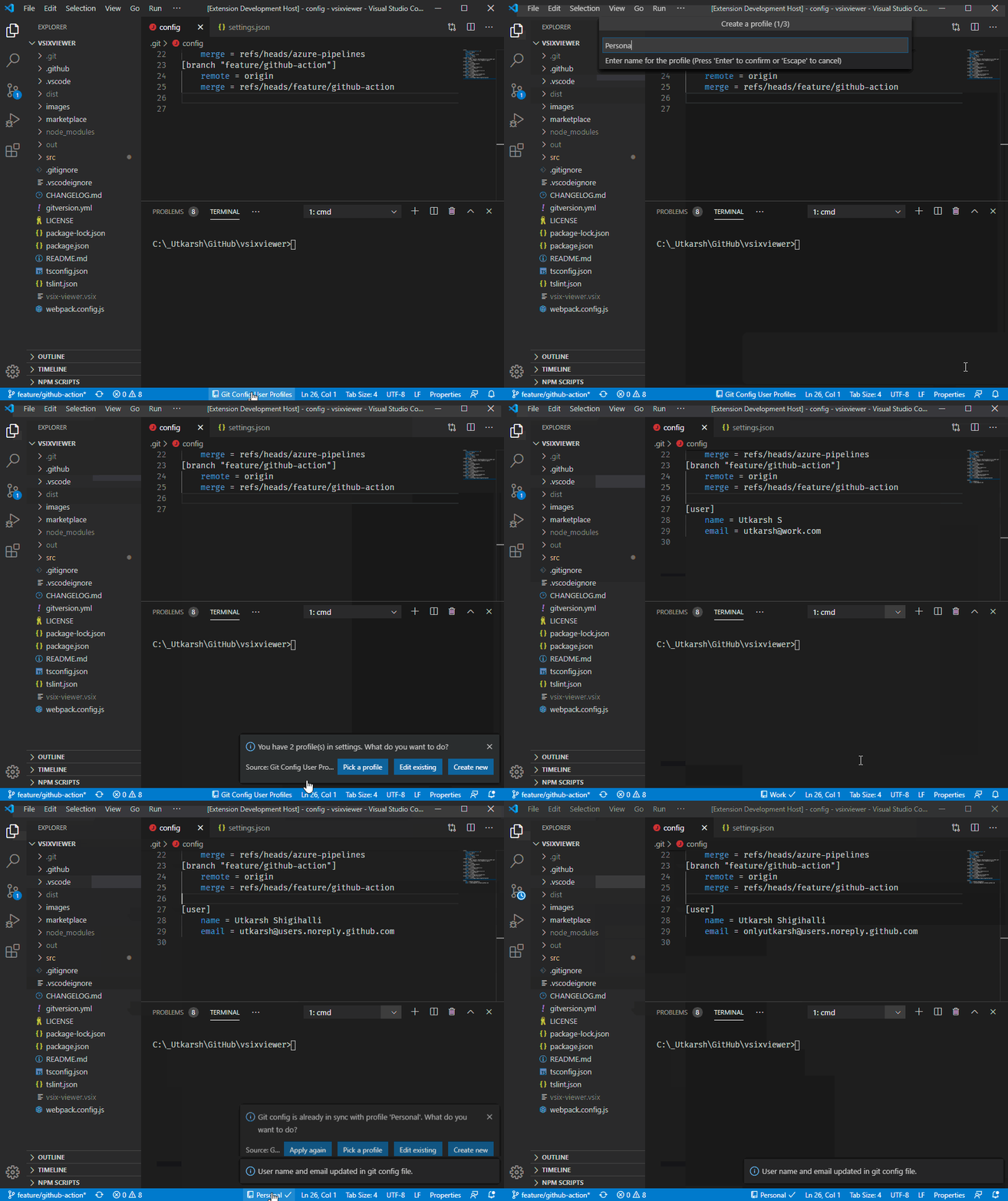
Ever wanted to use different username and email for commits at work vs. personal repositories? This extension lets you define named profiles (username, email, signing key) and switch or apply them per repository, right from the status bar.
Features
- Easy profile management - create, edit, delete, and validate profiles from the status bar or Command Palette
- Private per-repo selections - stored in your user settings, never in
.vscode/settings.json, so selections aren't shared with your team - Auto profile matching - automatically selects the profile matching the repo's existing git config (can be disabled)
- Multi-folder & monorepo support - detects the right git repository based on the active file
- Visual sync indicators - status bar warns when the repo's git config differs from the selected profile; hover for a side-by-side diff (username, email, signing key)
- Per-repository commit signing - profiles can set
signingKey,commit.gpgSign, andgpg.format - Customizable status bar -
full/compactformat,left/rightalignment, show always or only in git repos - Optional form-based UI - enable with
"gitConfigUser.useUIToEdit": trueto create/edit/delete profiles via a panel instead of step-by-step dialogs
Quick Start
Create a profile - click
Git Config Profilesin the status bar (or runGit Config User Profiles: Create a profilefrom the Command Palette). Profiles are stored in global user settings, available across all workspaces but private to you.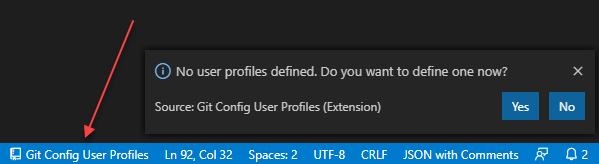
Pick a profile - click the status bar item and choose
Pick a profile.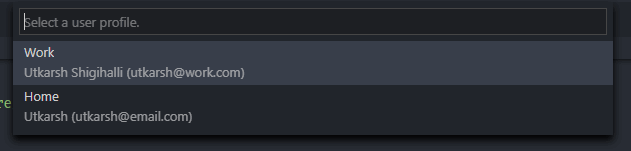
Apply it - if the repo is out of sync (warning icon), click the profile name in the status bar and choose
Yes, applyto write the profile's username/email/signing settings to the repo's local git config. The warning disappears once in sync.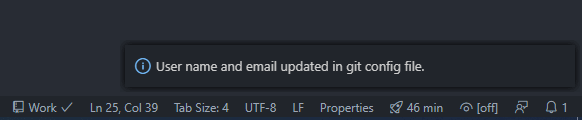
Tip: When the extension loads, it matches the repo's git config against your profiles and selects the matching one automatically. Disable this via
gitConfigUser.selectMatchedProfileAutomatically.
Commands
All commands are available from the Command Palette - type git config user profiles or gcup.
| Command | What it does |
|---|---|
| Create / Edit / Delete a profile | Manage your profiles (step-by-step dialog or form UI) |
| Pick a profile | Select and optionally apply a profile to the current repo |
| Cycle to Next Profile | Apply the next profile in your list - great when bound to a shortcut |
| Validate Profile | Check username/email format and that git accepts the values |
| Show Extension Status | Explains why the status bar is hidden or showing a warning |
Example keybinding for cycling profiles (keybindings.json):
{
  "key": "cmd+alt+g",
  "command": "git-config-user-profiles.cycleUserProfile"
}
Settings
| Setting | Default | Description |
|---|---|---|
gitConfigUser.statusBarFormat |
full |
full shows repo + profile; compact shows only the profile |
gitConfigUser.statusBarAlignment |
right |
left or right position in the status bar |
gitConfigUser.statusBarVisibility |
always |
always or git-repos-only |
gitConfigUser.selectMatchedProfileAutomatically |
true |
Auto-select the profile matching the repo's git config |
gitConfigUser.useUIToEdit |
false |
Use the form-based UI for create/edit/delete |
Commit Signing Behavior
A profile's signing fields (signingKey, commitGpgSign, gpgFormat) are written to the repository's local git config when the profile is applied. Fields left empty on the profile remove the local override, so the repo falls back to your global Git settings.
Sync checking is strict: a repo is only "in sync" when its local values match the profile (or the global value for fields the profile leaves empty). If a repo needs a different signing key than your global config, set that key on the profile itself or re-apply the repo's key after switching.
Where Is Data Stored?
- Profiles → global user settings (
gitConfigUser.profiles) - private to you, available in all workspaces, and synced via VS Code Settings Sync. - Repo ↔ profile selections → global user settings, keyed by workspace path (
gitConfigUser.workspaceProfileSelections) - private per developer, so teammates can each pick their own profile for the same project. - Selections from older versions (
.vscode/settings.jsonor workspace settings) are migrated automatically on first load - no action needed.
Issues and Feature Requests
Found a bug or have a suggestion? Please file an issue on GitHub.