
nilaoda/TSCutter.GUI
nilaoda/TSCutter.GUI has 82 GitHub stars and 10 forks. GitHot measured 0 stars in 24 hours and +5 in 7 days. Last checked 2026-11-15 04:32 UTC. Last push 2026-11-01.
Measured star growth
- in 24h
- 0
- in 7 days
- +5
- in 15 days
- Collecting history
- in 1 month
- Collecting history
Net star changes over overlapping periods, not daily totals. Missing measurements are left blank. Stars measure attention, not software quality.
About
TSCutter.GUI is a cross-platform MPEG-TS editing and diagnostic toolkit.
Creative & MediaREADME.md
Original

TSCutter.GUI is a cross-platform video editing and MPEG-TS diagnostic toolkit. It supports keyframe-based TS/M2TS cutting and MP4/MKV remux exports, along with stream inspection, extraction, filtering, structural editing, repair, merging, and packet analysis, without re-encoding the original audio or video.
TSCutter.GUI is in public Beta. Download the latest release and report problems through GitHub Issues. The software is still under development and may contain bugs.
Features
Editing workflow
- Keyframe-accurate cutting: Preview and navigate nearby keyframes or jump to a specific time before marking clip boundaries.
- Continuous playback: Play with sound from the displayed frame, pause to inspect the exact frame, play the selected clip to its end, and control preview volume and mute with Space as the play/pause shortcut. Frames shown during playback are not treated as clip boundaries; marking snaps to the compatible keyframe and shows the aligned frame.
- Keyframe overview and frame search: Browse keyframe thumbnails, manage saved frame templates, and search the video for similar images.
- Zoomable timeline: Continuously zoom, pan, or return to a full-file overview for accurate navigation in long recordings.
- Multiple clip management: Create and edit several clip ranges, view their positions on the timeline, and compare duration and estimated size.
- Clip labels and output names: Give clips names, notes, and colors; retain them in projects and queued exports. Configure a filename template with a live preview.
- Editing projects: Save the current source, clip ranges, timeline view, and cross-file export queue in a
.tscutfile for later editing. Projects can reopen recordings that have grown since saving. - Program and video track selection: Switch previews in files with multiple programs or video tracks. Keyframe overviews, thumbnail sheets, and frame searches follow the selected track. Multi-program TS exports can preserve all programs or keep only the current program. The selection area also appears when embedded subtitles are available.
- Embedded subtitle preview: Select text or bitmap subtitles in MP4, MKV and TS. ASS styles, animations and MKV font attachments are supported. Subtitles follow the displayed frame when seeking, zooming or panning. Preview loads a local window with a 30-second lookback and reloads after seeking outside it; earlier long-running subtitles may be omitted. Export tracks remain controlled by export settings.
- HDR to SDR preview mapping: Map HDR10/PQ, HLG and Dolby Vision Profile 5 to SDR, with GPU acceleration during playback and CPU fallback. Temporarily toggle mapping and hardware/software decoding in the status bar; Settings stores defaults. Mapping applies to previews and captured images; audio and video are not re-encoded on export.
- Flexible output: Save one clip immediately, add clips to a batch export queue, or merge multiple selected clips into one file.
- Export without transcoding: Copy the original compressed audio and video packets.
- Frame capture and media information: Save or copy the current preview frame and inspect the opened file's stream information.
- Image navigator: Locate the visible region of a zoomed image with a floating overview in the main preview and thumbnail sheets. Click or drag to navigate; disable it in Settings.
- High-resolution thumbnail sheets: Generate configurable N×M contact sheets up to 12,000 pixels wide, preview them with zoom and pan, and export PNG or JPEG images with timestamps and labeled video, audio, and subtitle metadata, including language and HDR, HLG, or Dolby Vision indicators. Choose a dark, light, or custom background with automatic text contrast.
- DVD / Blu-ray preview: Open DVD-Video and unencrypted Blu-ray sources from ISO images or disc folders (
VIDEO_TS/BDMV), choose a title or playlist, navigate across its files, and preview VOB or PGS subtitles. Cut without re-encoding, defaulting to VOB for DVD and M2TS for Blu-ray; MP4/MKV remain available for compatible tracks. DVD CSS protection is supported where the runtime can handle it. Lossless export rejects playlist joins that enter a clip inside a GOP. Disc M2TS output is remuxed with timestamps rebuilt for the exported timeline. Playlists whose stream layout changes between PlayItems have not been validated; track selection reflects the streams detected when opening the title. Disc menus, protected Blu-ray discs and saving disc sources in projects are not supported. Standalone VOB does not carry the IFO subtitle palette; use MKV to preserve subtitle colors in one file. - General video preview: Open MP4, MKV, MOV, WebM, and other FFmpeg-supported video files for preview, seeking, screenshots, and media information. MP4/MOV and MKV/WebM inputs can be exported to MP4 or MKV; other non-TS formats are preview-only.
Merging clips from one TS file joins timestamps and continuity counters, completes boundary audio PES packets, and handles AC-3/E-AC-3 frames spanning PES boundaries. Audio/video is not re-encoded, and existing transport errors inside retained segments are preserved.
MP4 / MKV remux editing and merging
- Choose the output container and retained tracks in MP4 / MKV export settings. Track order, language, titles, and default/forced flags follow the source.
- Export individual clips or batches, or merge selected ranges from one source. Overlapping selected clips are combined once.
- Video cuts use keyframes and include the marked end frame; audio cuts use compressed packet boundaries. Compatible text subtitles, including MP4 mov_text and MKV ASS, and chapters are trimmed and retimed. MKV also supports PGS bitmap subtitles, restoring the picture active at each cut and clearing it at the end. MKV attachments and MP4 cover art can be retained.
- Copy compressed audio/video and codec configuration, preserving container-supported color, HDR static data, and Dolby Vision configuration. Dynamic metadata in the bitstream travels with the packets.
- Check codec and track compatibility, with clear errors when content cannot be safely cut or merged.
MP4/MKV export does not re-encode audio/video, but is not byte-for-byte lossless. Container structures, timestamps, and metadata are rewritten, so file hashes and sizes change. Metadata fields depend on the output container. MP4 exports retaining cover art use standard metadata fields; other MP4 exports can write custom metadata. Fast MKV text subtitle seeking is enabled by default and reads from about 30 seconds before each cut. Earlier text subtitles spanning the cut may be omitted; disable this option in export settings to retain them. PGS subtitles separately restore their required display state. Failed or cancelled exports preserve existing destinations and remove temporary output.
Media muxing
Open Tools → Merge and Mux → Media Muxer to combine tracks from video, audio and subtitle files. Select tracks, drag them into output order, and edit their names, language codes, default/forced flags and time offsets. Output supports MKV, MP4, TS and M2TS without re-encoding audio or video. HEVC MP4 outputs use hvc1, or dvh1 when Dolby Vision is signaled, while preserving in-band decoder parameters. Optimize for web playback is available for MP4 and off by default; it moves the index to the beginning and requires an additional move of data within the output file when finishing.
Positive offsets delay a track; negative offsets advance it, like FFmpeg -itsoffset. The output container handles timestamps before zero: MP4 uses an edit list to skip leading content, while MKV and TS/M2TS may shift the timeline. Stop at the shortest track is off by default; enable it to stop at the earliest audio/video end after offsets, and optionally include subtitles. Cover art and attachments are ignored. Cuts follow compressed packet boundaries; subtitle display durations are clipped to the end. Tracks without duration information require an initial packet read to determine their end. Compatible subtitle tracks are copied. Other text subtitles are automatically converted to mov_text for MP4 or SRT for MKV, with the conversion and possible style loss shown before starting. Bitmap subtitles are not converted to text; unsupported tracks must be deselected or use another container. Subtitle conversion requires an FFmpeg runtime with mov_text and SRT encoders enabled. TS/M2TS does not preserve track names or default/forced flags. Failed or cancelled operations retain an existing destination and remove the temporary output. Errors include the muxing stage and expandable FFmpeg diagnostics.
TS tools
- TS Raw Stream Cutter: Extract a byte or packet range directly from a TS file.
- TS Quick Check: Scan for synchronization loss, TEI/continuity/PES errors, PCR/PTS/DTS issues, A/V drift, bitrate changes, and export a text report.
- TS Packet Viewer: Inspect 188-byte TS or 192-byte M2TS packets, navigate by packet number, offset, or PID, and link parsed fields to highlighted Hex bytes. M2TS arrival headers and timestamps are also shown.
- TS Elementary Stream Extractor: Select one or more tracks and export their raw video, audio, subtitle, or data payload after removing TS and PES encapsulation.
- TS Stream Filter: Keep selected PIDs or split selected services while rebuilding the required program and service tables.
- TS Stream Editor: Remove tracks or services, remap identifiers and PIDs, and edit service or language metadata while preserving the original encoded media.
- TS Timeline Repair: Analyze and safely correct supported PCR and timestamp discontinuities without hiding transport or packet-loss errors.
- TS Multi-source Repair: Compare compatible recordings of the same feed and time period, then use healthy packet, PES, or elementary-stream data to repair damaged regions and long gaps where safe.
- TS Binary Merge: Append ordered TS segments, remove byte-identical overlaps, or merge overlapping recordings from the same source when only TS continuity counters differ.
Lossless clipping supports 188-byte TS and 192-byte M2TS based on the actual packet layout. M2TS defaults to .m2ts output and retains arrival headers. Quick checks (including batch checks), raw cutting, packet viewing, service splitting, and ES extraction also support M2TS. Timeline repair, stream filtering, stream editing, multi-source repair, and TS binary merge currently require 188-byte TS; unsupported packet sizes are reported explicitly.
General
- Multi-platform support: Available for Windows, Linux, and macOS.
- Multilingual interface: English, Simplified Chinese, and Traditional Chinese.
- Desktop themes: Windows Classic, XP, 7, 8, 10, and 11 styles, with independent light and dark palettes and automatic switching; on macOS a macOS appearance additionally uses the native title bar.
- Independent tool windows: Open multiple tools or scans at the same time for comparison.
- Bounded resource usage: Large-file tools use streaming or on-demand reads instead of loading complete media files into memory.
FFmpeg Runtime
Official release packages bundle the required FFmpeg 9.0.2 shared libraries. End users do not need to install FFmpeg manually.
Bundled runtime source: nilaoda/FFmpegSharedLibraries.
macOS: If the app is blocked by quarantine, run
xattr -dr com.apple.quarantine TSCutter.GUI.app.
Preview
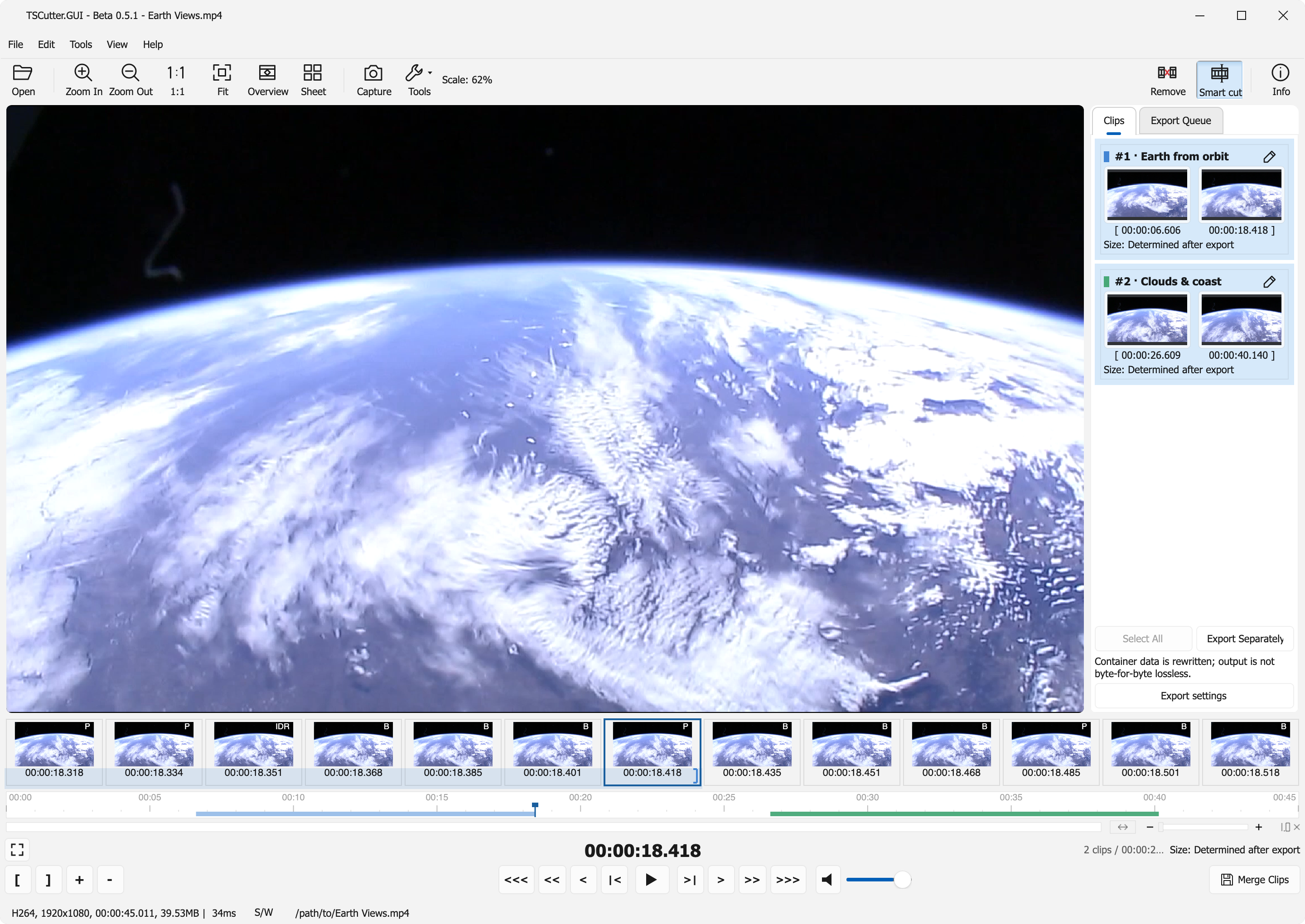
Preview footage: NASA, Earth Views from the ISS – No Music. See media source and usage notes.
Desktop themes
Six Windows-inspired theme families are available on Windows, Linux, and macOS, with light and dark palettes.
On macOS, all themes provide the system menu bar, while Windows theme families also retain their in-window menu bars.
On macOS an additional macOS appearance keeps native traffic lights, corners and shadow, blends the title into the top of the content, and moves menus to the system menu bar while keeping the Fluent control palette. It is listed in the theme menu only on macOS.
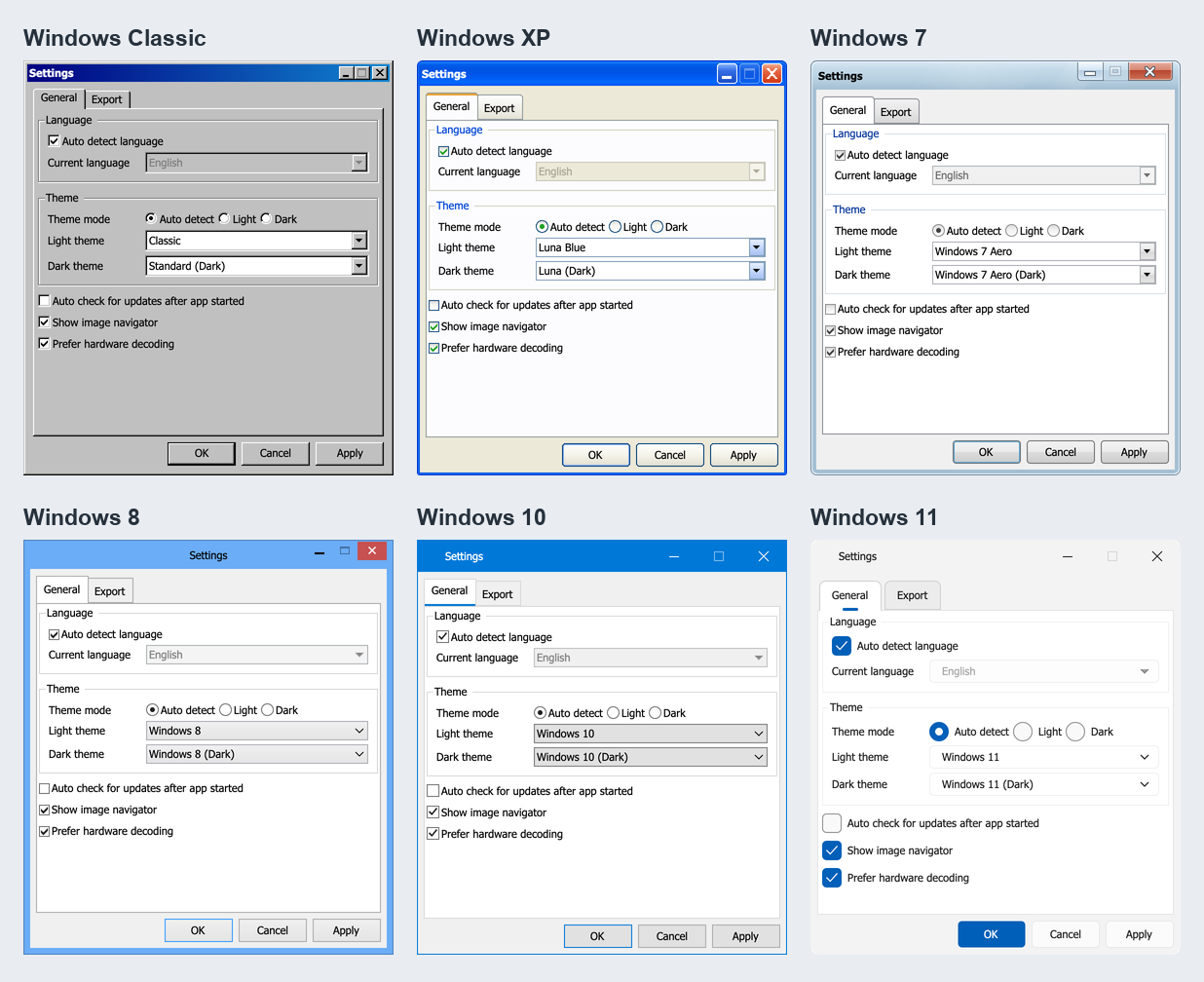
Use View → Theme to switch families. In Tools → Settings, choose light and dark palettes independently and select Auto detect to follow the system appearance. XP offers Luna Blue, Silver, and Olive Green; Classic includes additional color schemes.
Usage
Main editor
- Launch the application.
- Open a TS, M2TS, MP4 or MKV file, or drag it into the main window.
- Navigate or zoom the timeline, add a clip, and mark its start and end points.
- Save the current clip, add it to the export queue, or select multiple clips and merge them.
- Use the File menu to save a
.tscutproject and reopen it later to restore clips and queued exports. A growing source is accepted when verification of its saved portion succeeds.
Files with multiple programs, video tracks, or embedded subtitles show selectors above the preview. Subtitles are off by default and loaded in the background when selected; they can be changed or switched off at any time. After confirmation, switching the program or video track clears current clips and undo history; queued tasks retain their original program and track choices. For multi-program TS, “Export current program only” keeps all tracks in the selected program and applies to saving, merging, and newly queued tasks. New projects use version 4 and can read version 1, 2 and 3 projects; older app versions cannot open new projects.
Playback
Use the play button or Space to play from the displayed frame and again to pause on the exact frame. Pausing retains the playback state for direct resume. Seeking within the same file reuses the input, decoders and audio device while clearing old buffered data; starting at a new position still requires keyframe preroll. The audio button and slider control preview volume only; they never affect exports. Right-click the play button and choose Play selected clip to play within its saved boundaries and pause at the end.
Choose View → Full-screen Playback, click the full-screen button, or double-click the video to enter full screen. F11 toggles full screen; macOS also supports Control + Command + F. Press Esc to return to the editor. Playback continues through the transition, and the previous window state and preview transform are restored on exit. The playback controls fade out after three seconds of inactivity while playing and remain visible while paused. Moving the pointer reveals them again; the progress bar supports seeking with the same keyframe navigation rules.
Multi-track audio can be selected above the preview. The first decodable track is selected by default; unsupported tracks remain visible but disabled. Changing audio tracks during playback resumes from the displayed position and retains the selected clip’s end boundary.
Playback renders every frame in display order on its own session and uses the default audio device at 1× speed. Audio is downmixed to 48 kHz stereo; files whose audio track has no decoder in the runtime (such as AV3A) play silently with a status hint, and files without audio use the wall clock. Selected subtitles are read ahead sequentially during playback, with unchanged rendered images reused. Frames shown during playback may be P or B frames: marking a boundary while paused after playback snaps to the nearest compatible keyframe at or before the displayed frame and shows the aligned frame before recording it, preserving the existing export boundaries. Ordinary single-clip TS/M2TS exports with all programs retained and no table patching remain byte-for-byte copies; remuxing and merged exports retain their existing processing rules. Timeline drags and thumbnail clicks keep the playing state — playback resumes from the new position only if it was running. DVD and Blu-ray titles also support playback.
Playback uses the GPU for YUV conversion, scaling and HDR mapping when supported, and automatically falls back to CPU conversion otherwise. This works with software decoding too. On macOS, compatible progressive VideoToolbox NV12/P010 frames use IOSurface directly, without pixel readback or upload. Other hardware frames use YUV readback and GPU upload; CPU deinterlacing still requires readback. Navigation previews and captures use the same color mapping on the CPU.
During playback, the status bar shows presentation FPS, capped at the source frame rate. Green means decoding and display keep up without dropping frames; yellow indicates reduced fluency, and red means the slower rate is below 70% of the source frame rate. Values use a roughly two-second rolling window, allowing for the window’s one-frame counting uncertainty.
Use Playback performance test… in the toolbar’s Tools dropdown to test the current file, track, position, and preview settings. Tools → Analyze and Inspect → Playback performance test… in the menu bar always asks for another file. The tool shows live FPS while measuring decoding, CPU frame conversion, and playback through the active rendering path separately. The playback row identifies CPU, GPU upload, or direct GPU presentation; choose a physical output size to compare the available headroom against the source frame rate. Tests are short, play silently, and pause main-window playback while running. Results indicate performance for the tested section and settings, rather than guaranteeing smooth playback throughout the file.
When decoding falls behind, playback keeps showing the latest available frame and can resume at a later keyframe to catch up to the clock.
Preview options
In Tools → Settings, choose the default HDR to SDR mapping and hardware decoding preferences for newly opened files. The status bar temporarily overrides these preferences for the current file.
- The SDR mapping control appears only when an HDR frame is detected. The selected mapping is also used when opening keyframe overviews, thumbnail sheets, and frame searches.
- H/W / S/W shows the current decoding mode. Switching is available on Windows and macOS when the current video and device support hardware decoding; the control is disabled when hardware decoding is unavailable or has failed and fallen back to software.
- Mapping and decoder switches preserve the displayed frame and clip boundaries.
Clip labels and output filenames
Click the pencil icon on a clip card to edit its name, notes, and color. Changes support undo/redo. Timeline bars use the assigned color, with names and notes in the hover tooltip. Adding a clip to the queue takes a snapshot of its labels and boundaries.
In Tools → Settings → Export, set the filename template used by single-clip saves, individual batch exports, and newly queued clips. The default is {source}_({start}-{end}); merged output keeps its separate filename suggestion.
| Placeholder | Value |
|---|---|
{source} |
Source filename without extension |
{name} |
Clip name, or clip001 when empty (using that clip's index) |
{index} |
Current position in the clip list, padded to 3 digits |
{start}, {end} |
Start/end time, such as 00.00.10.000; an unset end uses the video duration |
For example, {source}_{index}_{name} produces Recording_001_Opening.ts. The selected TS/M2TS/MP4/MKV extension is added automatically. Unsafe filename characters are replaced; batch exports append _2, _3, etc. to avoid duplicate names and existing files. The template setting applies to future exports; queued output paths stay as chosen.
Independent TS tools
Open any utility directly from the Tools menu. Each tool opens in its own window and prompts for the required source file or files; no file needs to be loaded in the main editor first.
Documentation
Design notes for the TS tools are available in docs. Source layout and namespace conventions are described in src/README.md.
Thanks
This project is inspired by an excellent editing software called VidePub.
License
This project is licensed under the GPL-3.0 License.