
nico2sh/kimun
nico2sh/kimun has 64 GitHub stars and 5 forks. GitHot measured 0 stars in 24 hours. Last checked 2026-11-15 06:35 UTC. Last push 2026-11-13.
What you can do
- Search: Kimün indexes your Markdown files into a local SQLite database. You can run full-text, structured, and fuzzy search on the index.
- Semantic search and Ask (optional): The companion Kimün server finds notes by meaning. It also answers questions from your own notes (RAG). It uses local embeddings. You choose a local or a cloud LLM.
- Links: You can use [[wikilinks]] and standard Markdown links. Backlinks show an interactive preview.
- AI and MCP: Kimün has an MCP (Model Context Protocol) server and LLM tools. An AI model, for example Claude Code, can read your notes, run daily reviews, and update journals.
Measured star growth
- in 24h
- 0
- in 7 days
- Collecting history
- in 15 days
- Collecting history
- in 1 month
- Collecting history
Net star changes over overlapping periods, not daily totals. Missing measurements are left blank. Stars measure attention, not software quality.
About
Simple note taking, powerful search, AI ready
ProductivityREADME.md
Original
Kimün
Simple note-taking. Fast, expressive search. AI-ready.



Kimün (Mapudungun): Knowledge, learning, or wisdom.
Kimün is a terminal notes application. It is fast, it includes the tools you need, and it focuses on simple use and good search. It is local-first, so you own the notes.
Kimün does not try to be an all-in-one life-management tool or a second brain (some of us struggle with a single brain already!). It is a small local vault for your terminal. Your notes are plain Markdown files, so Kimün works next to tools like Obsidian, Logseq, and QOwnNotes. It gives you a fast TUI and CLI for the same notes.
Kimün is in heavy development. A new version can break your configuration file or your custom themes. If the app does not start after an update, remove your configuration file. Kimün then creates a new one.
Quick Start
You need two commands to start taking notes.
- Install Kimün on macOS or Linux:
curl -fsSL https://kimun.2co.dev/install.sh | sh
- Run it:
kimun
On the first launch, Kimün shows a setup screen. Choose a folder for your notes. Then you can start to write.
- Press
Ctrl+Kto search. - Press
Ctrl+Wto write a quick note. - Type in the search field of the file browser to filter notes or to create a new note.
The server is optional. It adds search by meaning and Ask, which answers questions from your own notes. Kimün works without it, but it has no semantic search and no Ask. To install the server and start it at login, run this command:
curl -fsSL https://kimun.2co.dev/install-server.sh | sh -s -- --service
Then open Preferences (Ctrl+,), go to Server, and enter http://localhost:7573. When the server starts for the first time, it downloads its embedding model. The download is a few hundred MB, so wait a minute.
For Homebrew, Cargo, or Docker (server only), see Installation.
Documentation
The documentation site has user guides, setup steps, and integration tips.
Key Features
- Search: Kimün indexes your Markdown files into a local SQLite database. You can run full-text, structured, and fuzzy search on the index.
- Semantic search and Ask (optional): The companion Kimün server finds notes by meaning. It also answers questions from your own notes (RAG). It uses local embeddings. You choose a local or a cloud LLM.
- Links: You can use
[[wikilinks]]and standard Markdown links. Backlinks show an interactive preview. - AI and MCP: Kimün has an MCP (Model Context Protocol) server and LLM tools. An AI model, for example Claude Code, can read your notes, run daily reviews, and update journals.
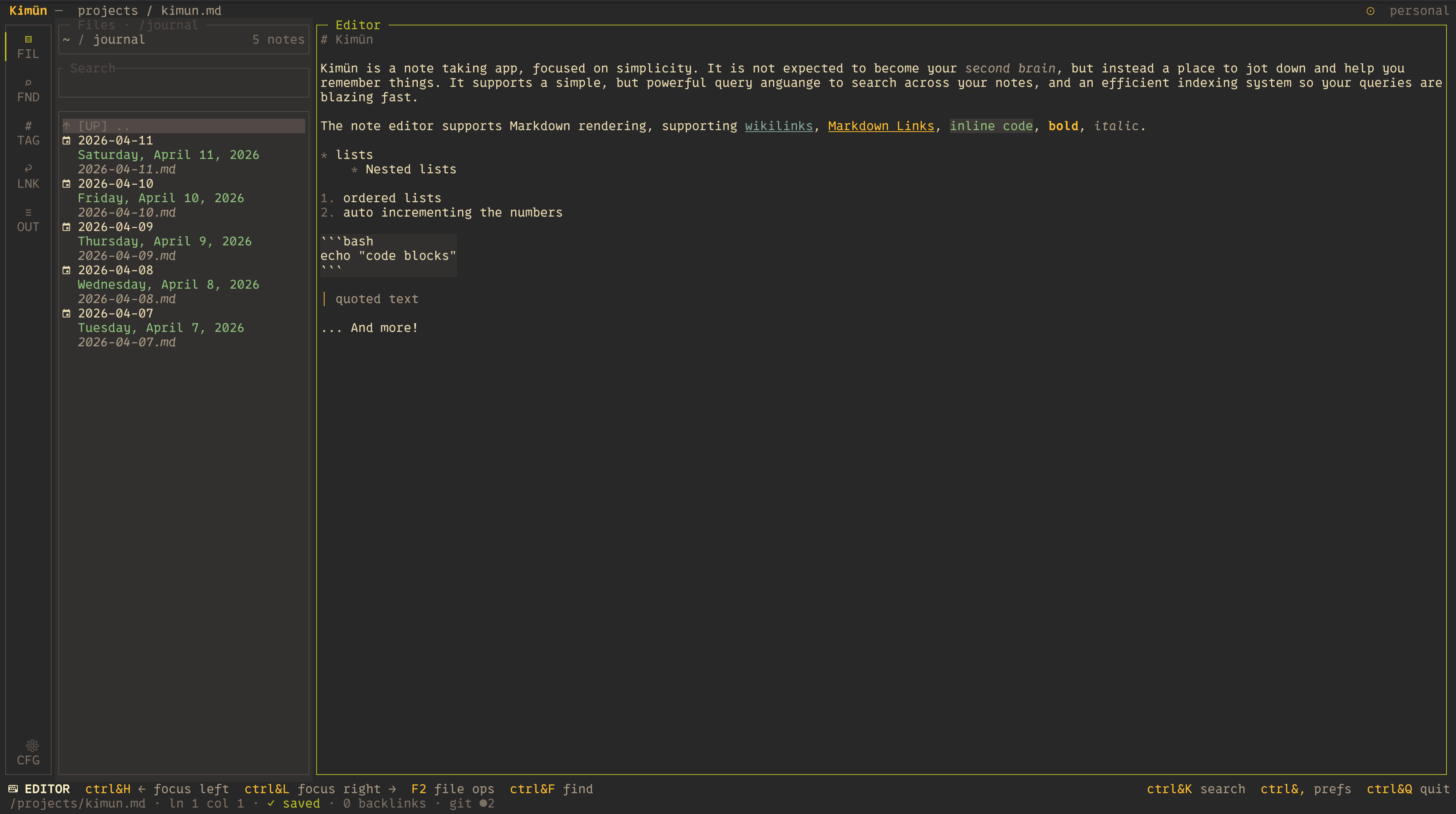
- Two interfaces: The TUI (terminal user interface) lets you write, browse workspaces, and preview files. The CLI (command line interface) works in scripts. You can pipe output, log entries from cron jobs, and process entries with
jqand shell tools. - Workspaces: A workspace is one independent vault. You can keep separate contexts, for example
PersonalandWork. - Vim: You can use
HJKLand other Vim keys in two ways. The built-in Vim emulation has motions, Visual mode, and Replace mode. The embedded Neovim mode uses your own Neovim configuration. Because the Vim emulation works better, use it if you can.
How the TUI looks
Installation
Install script (macOS and Linux)
curl -fsSL https://kimun.2co.dev/install.sh | sh
The script installs the latest release into ~/.local/bin. To change the folder, set KIMUN_INSTALL_DIR. The script also turns on in-app self-update. It verifies the SHA-256 of the download before it installs. The script installs both apps: the terminal app (kimun) and the desktop app (kimun-gui). On a Linux machine with no display, it skips the desktop app. To install only one app, add -s -- --tui or -s -- --gui after sh.
To read the script before you run it, use these commands:
curl -fsSLO https://kimun.2co.dev/install.sh && less install.sh && sh install.sh
Direct download
These links always give the newest stable release. The file names have no version, so the links never change. See the Downloads page for all files, including the terminal app, and for how to check a download.
| Desktop app | File |
|---|---|
| macOS, Apple silicon | kimun-gui-macos-arm64.dmg |
| macOS, Intel | kimun-gui-macos-x64.dmg |
| Windows, x64 | kimun-gui-windows-x64.zip |
| Linux, x64 | kimun-gui-linux-x64.tar.gz |
| Linux, arm64 | kimun-gui-linux-arm64.tar.gz |
Homebrew (macOS and Linux)
brew tap nico2sh/kimun
brew install kimun
Cargo (Rust)
cargo install kimun-notes
Try It Out
The example/ directory has ready-made workspaces. They contain linked personal and work notes, journals, and inboxes. Clone the repository and start Kimün in the sample workspace:
kimun --config ./example/config.toml
TUI Keyboard Shortcuts
| Shortcut | Action |
|---|---|
| Ctrl + K | Global fuzzy search (like Telescope) |
| Ctrl + N | Follow [[wikilink]] under cursor |
| Ctrl + G | Leader gateway (for example, Ctrl + G then l b opens Backlinks) |
| Ctrl + E | Open the file browser drawer |
| Ctrl + T | Toggle the sidebar drawer |
| Ctrl + W | Quick Note: write a thought to your inbox |
| F5 | Switch Workspaces (for example, toggle Personal / Work) |
Automation with the CLI and AI (MCP)
CLI
The CLI works in shell pipelines. These two commands show the idea:
# Quick log to your daily journal from a shell workflow
echo "Finished deploy script successfully" | kimun journal append

# Search your notes structurally
kimun search "refactoring" --json | jq '.[].path'
Model Context Protocol (MCP) and LLMs
The Kimün MCP server lets an AI agent, for example Claude Code, view, update, and query your notes. You can use it in these ways:
- Ask an LLM to read the journal logs of one week and list the action items.
- Give an agent your notes as context for brainstorming.
- Ask an AI tool to suggest notes that are related but not linked.
To set up the MCP server, read the documentation. This command adds it to Claude Code. You run it one time:
# Claude Code (one-time setup)
claude mcp add kimun -- kimun mcp
You can also use skills. Copy the skills into the skills directory of your agent tool:
# Copy the skill to your Claude skills directory
cp -r skills/kimun-cli ~/.claude/skills
The /skills directory has more prompt definitions.
Semantic Search and Ask (RAG Server)
The optional Kimün server adds two functions to the TUI. Semantic search finds notes by meaning. Ask answers a question from your notes and cites the sources. The server never reads your disk, because Kimün only pushes data to it. You can deploy it anywhere, and one server can host many vaults. It can run fully local with embedded SQLite and local embeddings. For question answering, you can add an LLM: Claude, OpenAI, Gemini, Mistral, or a local OpenAI-compatible endpoint.
# Install script (Linux, macOS Apple Silicon). Run it again to update.
curl -fsSL https://kimun.2co.dev/install-server.sh | sh

# Run with working local defaults (SQLite + local embedder)
kimun-server --default-config
The server is also available as a Docker image (ghcr.io/nico2sh/kimun-server) and with cargo install. The server README explains both.
To connect Kimün to the server, open Preferences, go to Server, and enter the URL. You can also set kimun_server_url = "http://localhost:7573" in the [global] section of your configuration file. The server README and the documentation site have more details.
Contributing
You can send a bug fix, an improvement to the SQLite indexing or the text layout, or an LLM prompt template or skill.
- Fork the repository.
- Create your feature branch (
git checkout -b feature/amazing-idea). - Commit your changes (
git commit -m 'feat: Add amazing feature'). - Push to the branch (
git push origin feature/amazing-idea). - Open a Pull Request.
Credits
Kimün uses these projects and libraries, and took ideas from them:
- UI: Ratatui.
- Search: Nucleo for fuzzy matching, and ignore for directory walking.
- Editor integration: nvim-rs for Neovim synchronization.
- Inspiration: Obsidian, Logseq, and QOwnNotes.