
nexusjuan12/Nostalgiavision
nexusjuan12/Nostalgiavision has 75 GitHub stars and 8 forks. GitHot measured 0 stars in 24 hours and +1 in 7 days. Last checked 2026-11-16 22:02 UTC. Last push 2026-11-06.
Measured star growth
- in 24h
- 0
- in 7 days
- +1
- in 15 days
- Collecting history
- in 1 month
- Collecting history
Net star changes over overlapping periods, not daily totals. Missing measurements are left blank. Stars measure attention, not software quality.
About
Self-hosted retro TV experience powered by your Plex media server. Generates a live rolling TV schedule from your personal media library with a classic EPG program guide, automatic playback, and channel surfing — runs in any browser on Windows or Linux.
Self-hostedREADME.md
OriginalNostalgiaVision
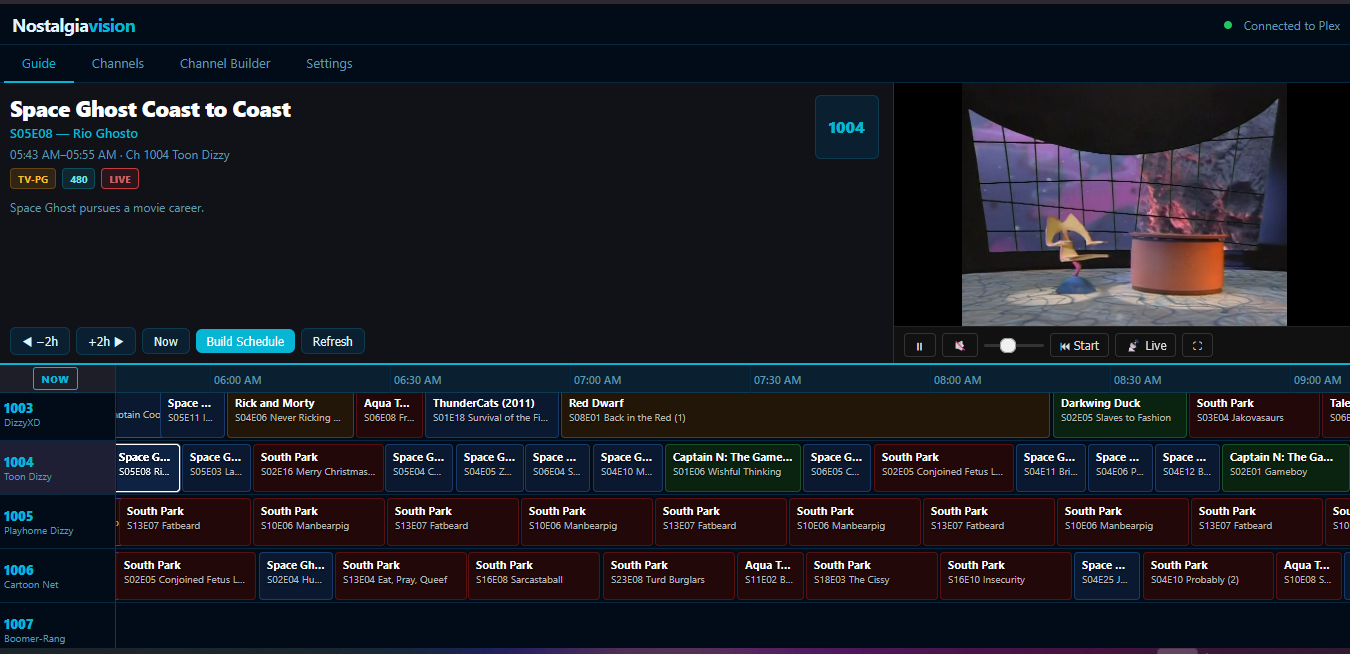
A self-hosted, retro TV experience powered by your Plex media server. NostalgiaVision turns your personal media library into a live TV broadcast — complete with a scrollable program guide, channel surfing, live preview, and automatic scheduling.
Built with Python, runs on Windows and Linux, and opens in any modern web browser — no app install required.
What it does
NostalgiaVision generates a rolling multi-day TV schedule from your Plex library and presents it as a classic electronic program guide (EPG). Content plays back through your browser as a live stream, advancing automatically from one program to the next — no clicking required.
- Browse the guide grid, click a program, and watch it from the live position
- Leave it running and it behaves like a real TV channel — programs roll over automatically
- Color-coded program blocks by content rating (G, PG, TV-14, TV-MA, NR)
- Retro "We'll Be Right Back" overlay during genuine schedule gaps
- Six UI themes selectable from Settings
Quick start
# Install dependencies
pip install -r requirements.txt

# Create your config from the example
cp config.example.json config.json
# Edit config.json and add your Plex URL and token

# Launch
python start.py
Then open http://localhost:5000 — the browser opens automatically.
Run with Docker
cp .env.example .env     # then set PLEX_URL, PLEX_TOKEN and LIBRARY_IDS (all optional)
mkdir -p data          # or create the directory chosen by DATA_PATH
docker compose up -d --build
Then open http://localhost:5000. No config.json is needed: Plex settings come from environment variables (via .env, or your shell), or you can leave them blank and fill in the Settings page instead. Everything the app stores — the SQLite library cache, schedules, channel logos, and a config.json written by the Settings page — lives in ./data, which is mounted into the container, so it survives rebuilds.
| Variable | Description |
|---|---|
PLEX_URL |
Base URL of your Plex server |
PLEX_TOKEN |
Plex authentication token |
LIBRARY_IDS |
Library section IDs to sync, comma separated (e.g. 1,2); pre-selected in Settings → Libraries |
SCHEDULE_DAYS_AHEAD |
Days of schedule to generate (default 3) |
PUBLIC_URL |
Base URL written into the IPTV playlist and guide |
DATA_PATH |
Compose only: persistent host directory (default ./data); create it with ownership matching APP_UID / APP_GID |
NOSTALGIAVISION_DATA |
Native Python: runtime directory for SQLite and uploaded logos (default ./data); Docker sets /app/data |
NOSTALGIAVISION_CONFIG |
Path to runtime config; Docker sets /app/data/config.json |
HOST_PORT |
Compose only: port to publish on the host (default 5000) |
Notes:
- Environment variables take precedence over
config.json, and are never written to it. WhilePLEX_URL/PLEX_TOKENare set, the Settings page refuses to change them — change them in.envand rundocker compose up -dagain. - Setting
LIBRARY_IDSpre-selects those libraries; you still run Sync Selected and Build Schedule Now (or callPOST /api/syncwith{}to sync the configured libraries). - Host and port don't need configuring: the container always listens on
0.0.0.0:5000regardless ofconfig.json. - Already have a
config.json? Copy it todata/config.jsonand it will be used (variables still override it). PLEX_URLmust be reachable from the container, which is what streams from Plex on your behalf — browsers only ever talk to NostalgiaVision. Use the server's LAN address, notlocalhost(inside the container that means the container itself).- The container runs as UID/GID 1000. If your user differs, set
APP_UID/APP_GIDwhen building so./datastays writable. - Logs:
docker compose logs -f· Stop:docker compose down
Reverse proxy under a subpath
Nostalgiavision can be served at a URL such as https://example.com/ntv/.
Set PUBLIC_URL=https://example.com/ntv (or public_url in config.json),
including the subpath. This supplies the externally reachable scheme, host and prefix
for feed, artwork and absolute HLS segment URLs. Keep the trailing slash when
opening the web UI and have the proxy strip /ntv/
before forwarding requests to Flask. For nginx:
location = /ntv { return 301 /ntv/; }

location /ntv/ {
    proxy_pass http://127.0.0.1:5000/;
    proxy_set_header Host $host;
    proxy_set_header X-Forwarded-Proto $scheme;
    proxy_buffering off;
    proxy_read_timeout 1h;
}
The trailing slash on proxy_pass is significant: it forwards /ntv/api/guide
to Flask as /api/guide. A WSGI mount that sets SCRIPT_NAME=/ntv is also
supported. Forwarded headers are not trusted automatically; configure PUBLIC_URL
when a proxy strips the prefix or changes the host/scheme.
First-time setup
- Settings → Plex Connection — enter your Plex server URL (e.g.
http://192.168.1.100:32400) and your Plex token. - Settings → Library Sync — select your TV/movie libraries and click Sync Selected. This caches your library locally in SQLite.
- Settings → Build Schedule Now — generates a rolling schedule for all channels.
- Switch to the Guide tab to start watching.
Re-run Build Schedule Now after every sync to pick up new content.
Features
Program guide
- Scrollable EPG grid with current and upcoming programs per channel
- Program blocks color-coded by content rating
- Live "now playing" indicator with progress bar on the current program
- Keyboard navigation — arrow keys move between channels and programs (useful for remote controls)
Playback
- HLS live stream via your Plex server, seeking to the current position automatically
- Playback is streamed through NostalgiaVision (
/plex/hls/…,/plex/part/…), which adds the Plex token server-side — the token never appears in a URL, page or API response the browser sees. Only those two Plex path prefixes are exposed, not the rest of the Plex API - Auto-advances to the next program when the current one ends
- "We'll Be Right Back" overlay for genuine gaps between scheduled programs
- Volume, mute, seek-to-live, fullscreen, and play-from-start controls
Channels
- 72 predefined channels — content matched from your library by genre, network, keyword, rating, or collection
- Custom channel builder — filter by any combination of those criteria
- Show/hide individual channels to keep the guide clean
- Per-channel logo upload
Scheduling
- 4 algorithms: Random, Cyclic Shuffle (by season), Block Shuffle, Block Cyclic
- Back-to-back scheduling — no artificial padding or gaps between episodes
- Schedule rebuilds cleanly after a library sync (stale programs are replaced)
- 3-day rolling window (configurable)
Appearance
- Six built-in themes: Midnight, CRT Green, Amber, Ocean, Rose, Mono
- Theme persists across sessions via localStorage
Jellyfin / IPTV (M3U tuner + XMLTV guide)
NostalgiaVision can act as a live-TV tuner for Jellyfin (or any IPTV client such as VLC or Kodi):
| URL | What it is |
|---|---|
http://<host>:5000/iptv/channels.m3u |
M3U playlist — one entry per visible channel that has programming scheduled |
http://<host>:5000/iptv/guide.xml |
XMLTV guide for the scheduled programs (channel ids match the playlist's tvg-id) |
http://<host>:5000/iptv/stream/<number>.ts |
Continuous MPEG-TS stream for one channel |
The same two URLs are shown under Settings → Jellyfin / IPTV.
In Jellyfin: Dashboard → Live TV → add an M3U Tuner with the playlist URL, then add an XMLTV TV guide data provider with the guide URL. Map channels if Jellyfin doesn't do it automatically. Use this machine's LAN address (not localhost) when Jellyfin runs elsewhere — or set public_url in config.json so the playlist always contains the right address.
How streaming works. When a client tunes a channel, NostalgiaVision looks up what is airing right now, starts ffmpeg on that file at the correct offset, and rolls straight into the next program when it ends — so the stream never ends the way a single Plex playback would. Every program is re-encoded to the same H.264/AAC format (1280×720 by default) to help clients follow transitions between mixed sources (AVI, MKV, SD, 1080p…). Client buffering and source codecs can still affect transitions. Details worth knowing:
- ffmpeg must be installed and on
PATH(the Docker image includes it). The playlist and guide work without it; only the streams need it. - Channels share one ffmpeg process however many clients are watching, and it shuts down ~10 seconds after the last viewer leaves. Each watched channel costs software transcoding CPU time. Cost depends on CPU, source codecs, resolution and encoder preset; benchmark your hardware before enabling many simultaneous channels.
- A program change starts a new ffmpeg process; opening and probing the next source can cause a brief interruption. Its duration depends on the source and host.
- During a gap in the schedule — or if a file can't be played — the stream airs the test-pattern slate rather than disconnecting.
- Media is read from Plex as the original file. ffmpeg never sees the Plex token: a command line is visible to every local user (
ps,docker top), so ffmpeg reads through a small loopback-only gateway (media_proxy.py) that adds the token itself. What shows up inpsis onlyhttp://127.0.0.1:<port>/<signature>/<path>; the signature changes on every restart, covers just that one file, and the gateway refuses anything it didn't sign. Clients of the feed only ever see NostalgiaVision URLs. - Who is watching: the Activity tab lists every live connection — channel, what is airing, and each viewer's address, client (User-Agent), time connected and data sent (
GET /api/activityreturns the same as JSON). Connects and disconnects are also logged. Because NostalgiaVision reads the raw file from Plex, these streams do not appear in Plex's dashboard, and Jellyfin relays one connection per channel, so a Jellyfin viewer appears here as the Jellyfin server's address rather than as the person watching. - The schedule does not extend itself. Once it runs out, channels drop out of the playlist and viewers see the slate. For an unattended tuner, rebuild periodically — e.g. a daily cron job:
curl -X POST -H 'Content-Type: application/json' -d '{}' http://localhost:5000/api/schedule/build(a rebuild regenerates everything that hasn't aired yet, so Jellyfin's guide will pick up the new lineup on its next refresh).
The optional public_url and iptv settings are listed under Configuration.
Media source and access
Plex remains the media source. Library discovery, metadata and original media files come from your configured Plex Media Server. Jellyfin can consume NostalgiaVision's M3U playlist and XMLTV guide as a Live TV tuner; this does not add Jellyfin library sync or make Jellyfin a source backend.
Use a trusted network only. The web UI, management API, feeds and media routes have no application authentication. Hiding the Plex token does not authenticate viewers: anyone who can reach this app can watch its media and change settings. Keep it on a trusted LAN or private VPN. Public access needs an authentication layer that covers feeds and media as well as the UI, or feed authentication implemented in the application. Never publish the port directly to the Internet.
Runtime config.json, databases, uploaded logos and .env are intentionally ignored
and excluded from Docker builds. Copy the sanitized examples for a new installation.
Existing tracked state was removed without rewriting Git history; historical copies
remain in old commits. Rotate any real credentials previously committed. Back up
runtime state separately and protect .env and config file permissions.
Project structure
nostalgiavision/
├── app.py           # Flask web server + REST API
├── channels.py      # 72 predefined channel configs
├── scheduler.py     # Schedule generation (4 algorithms)
├── library_sync.py  # Plex → SQLite content sync
├── plex_client.py   # Plex HTTP API wrapper
├── iptv.py          # M3U playlist + XMLTV guide builders
├── streamer.py      # ffmpeg relay: schedule → continuous MPEG-TS per channel
├── media_proxy.py   # loopback gateway so ffmpeg reads Plex media without the token
├── database.py      # SQLite layer (content cache + EPG)
├── start.py         # Entry point
├── config.json      # Runtime config (Plex URL, token, etc.)
├── data/            # SQLite database (auto-created)
├── image/           # Static assets (logos, screenshots)
└── templates/
    └── index.html   # Single-page web UI
Configuration
Outside Docker, config.json is required — copy config.example.json, fill in your Plex URL and token, and the app will use it on every start. (The Docker image doesn't need one; see Run with Docker.) Available options:
{
  "plex_url": "http://192.168.1.100:32400",
  "plex_token": "your-token-here",
  "library_ids": ["1", "2"],
  "schedule_days_ahead": 3,
  "port": 5000,
  "host": "0.0.0.0",
  "public_url": "",
  "iptv": {
    "resolution": "1280x720",
    "video_bitrate": "3000k",
    "audio_bitrate": "128k",
    "preset": "veryfast",
    "ffmpeg_path": "ffmpeg"
  }
}
The last two keys only matter for the Jellyfin / IPTV feed and can be left out.
| Key | Default | Description |
|---|---|---|
plex_url |
— | Base URL of your Plex Media Server |
plex_token |
— | Plex authentication token |
library_ids |
[] |
Library section IDs to sync (found in Settings → Libraries) |
schedule_days_ahead |
3 |
How many days of schedule to generate |
port |
5000 |
Port the web UI listens on |
host |
0.0.0.0 |
Bind address (0.0.0.0 = accessible on the network) |
public_url |
(blank — taken from the request) | Address clients should use in the IPTV playlist, guide and stream links, e.g. http://192.168.1.50:5000. Set it when Jellyfin reaches this app by a different address than your browser does (Docker, reverse proxy). Also settable as PUBLIC_URL |
iptv.resolution |
1280x720 |
Size every IPTV stream is encoded to (WIDTHxHEIGHT) |
iptv.video_bitrate |
3000k |
IPTV video bitrate |
iptv.audio_bitrate |
128k |
IPTV audio bitrate |
iptv.preset |
veryfast |
x264 speed preset — faster means less CPU but lower quality at the same bitrate |
iptv.ffmpeg_path |
ffmpeg |
ffmpeg binary to use if it isn't on PATH |
Finding your Plex token
- Sign in to Plex Web
- Open any media item → ⋮ menu → Get Info → View XML
- Copy the
X-Plex-Tokenvalue from the URL bar
Or follow the official guide: https://support.plex.tv/articles/204059436-finding-an-authentication-token-x-plex-token/
Channel matching
Each predefined channel filters your library using one or more of:
| Filter | Example |
|---|---|
| Genre | Animation, Horror, Documentary |
| Network / Studio | HBO, Disney, Cartoon Network |
| Keyword | Matched against title and show title |
| Content rating | TV-PG, TV-MA, PG-13 |
| Collection | Plex collection names |
Channels with no matching content show nothing in the guide — use Hide on the Channels tab to remove them from view.
Tests
python -m unittest discover -s tests -v
Install the requirements first. With ffmpeg and ffprobe available, tests generate
small synthetic clips and exercise program transitions, late joining, media proxying
and relay cleanup. Without them, media tests are skipped. Tests use temporary SQLite
databases and a fake Plex server; they do not verify a real Plex/Jellyfin installation.