
moritzkremb/framejam
moritzkremb/framejam has 73 GitHub stars and 6 forks. GitHot measured +2 stars in 24 hours and +4 in 7 days. Last checked 2026-11-18 12:08 UTC. Last push 2026-11-04.
Measured star growth
- in 24h
- +2
- in 7 days
- +4
- in 15 days
- Collecting history
- in 1 month
- Collecting history
Net star changes over overlapping periods, not daily totals. Missing measurements are left blank. Stars measure attention, not software quality.
About
Make videos with your coding agent: pick a style, then point at the frame and say what to change. Works with Hyperframes, Remotion or any video tool, over MCP.
Creative & MediaREADME.md
OriginalFrameJam
Make videos with your coding agent, and tell it what to change by pointing at the screen.
Pick a style, let the agent build the video, then click the frame that's wrong and say why.
Your agent gets the exact timestamp and a frame image with your pin on the spot you clicked.
Website · Join the Discord · Get updates · Report an issue
Why FrameJam
Coding agents are surprisingly good at making videos, with Hyperframes, Remotion, Motion Canvas, ffmpeg or whatever your project already uses. The hard part is everything around it. Describing a look in words is slow, and "the thing at around three seconds should be bigger" is a terrible way to give feedback. FrameJam is a plugin for Claude, ChatGPT and Cursor, with a small app that sits next to your agent, and it handles both.
Pick a style instead of describing one. Name one of 30 example videos when you ask for a video, or type
/framejam:style to choose on a page. Your agent gets the look:
palette, textures, fonts, easing, transitions, text animations and pacing, and builds whatever your video is about in
it.
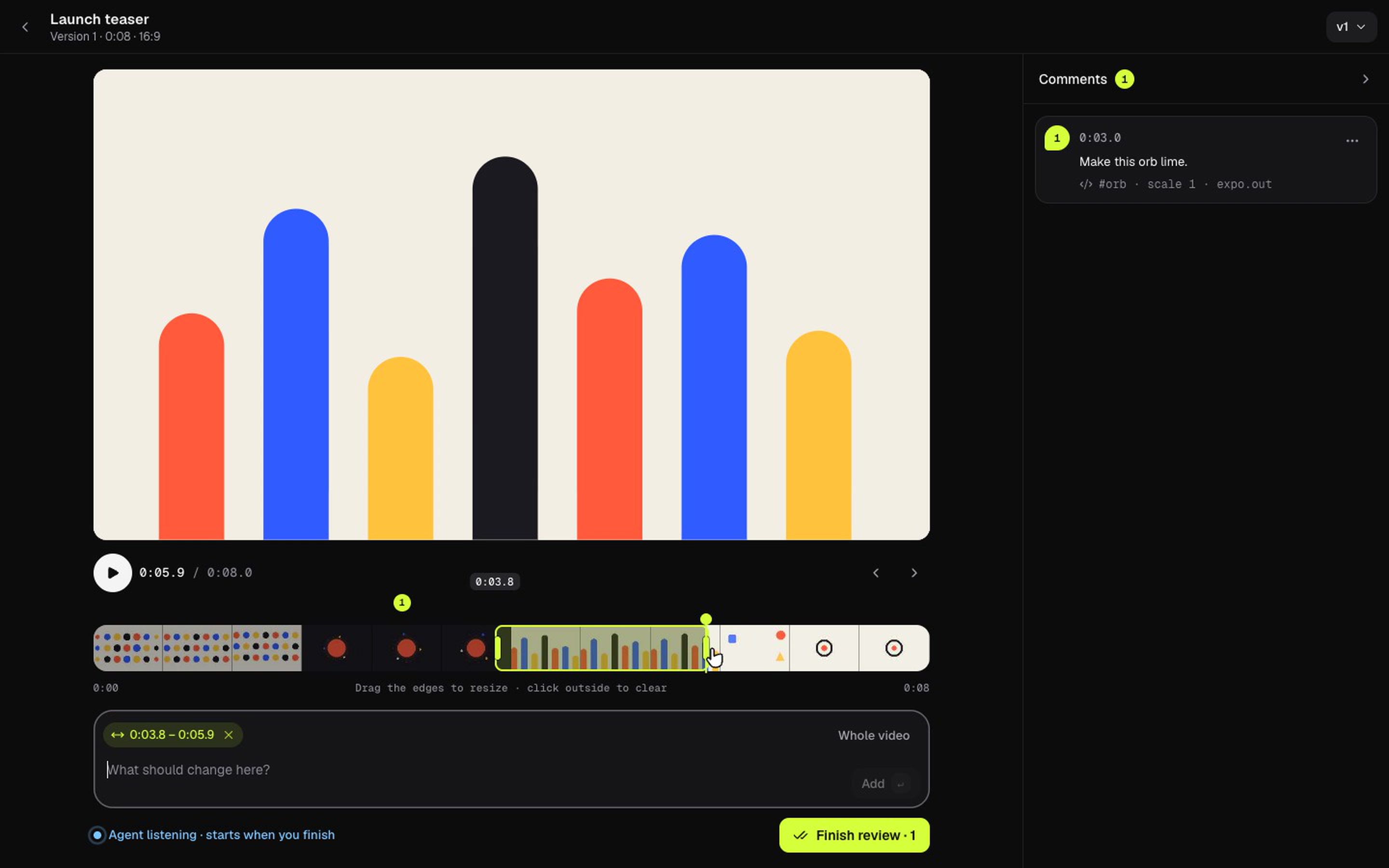
Give feedback like you would to a person. Pause and type, click the thing that's off, or drag across the timeline to mark a range. Press Finish review and your agent gets every comment with its timestamp and a frame from the render, with your pin drawn where you clicked.
Works with any video tool. Anything that renders an mp4 can be reviewed, and you always review the render.
Go round by round. Each new version from the agent is a fresh round. Old versions keep their comments, so you can always see what changed and why.
Runs on your machine. One local Node process, no account unless you run framejam login, no upload unless you run
framejam share. Your projects are plain JSON files in ~/.framejam. Your videos and comments stay on your machine
until you share a version. The Styles and Playbooks pages stream their example videos from framejam.ai, the
app downloads playbook updates from framejam.ai (see below), the Feedback button sends the note you write, and
framejam login talks to FrameJam Cloud to sign you in; nothing else goes out. Sharing happens only when you run
framejam share or ask your agent to share (its share option or share_project), and cloud projects exist only if you
turn on framejam cloud on. See FrameJam Cloud.
How it works
- Ask your agent for a video, for example "make a 7-second launch teaser with FrameJam and open it for review".
- Optionally pick a playbook and a style: name them in your request, or type
/framejam:playbookor/framejam:styleto choose on a page. - Review it in the browser pane next to your chat: click, type, drag, then press Finish review.
- Get version 2. The agent applies your notes and the page switches to the new version on its own. Repeat until you love it.
Not ready to animate yet? Ask for a storyboard first: one still per shot, which you review the same way.
Quick start
FrameJam is a plugin for Claude Code (terminal and the Claude desktop app), ChatGPT (Work and Codex in the
ChatGPT desktop app) and Cursor. You need Node 22+ and ffmpeg (brew install ffmpeg on macOS). Paste this
into your agent (shown for Cursor; use claude or codex for the other apps):
Run
npx -y framejam install cursorand open the link it prints in your built-in browser.
Or run npx -y framejam install in a terminal yourself; without an app name it sets up every app it finds. It
installs the FrameJam plugin in each app (the tools and the skill), checks Node and ffmpeg, and starts the app in the
background at http://localhost:2400. Then start a new session in Claude, reopen the ChatGPT app, or reload the
Cursor window, so the plugin loads. FrameJam shows up in each app's plugin list, where you can turn it off or remove
it.
Updating. In Claude Code the plugin updates on its own. Run npx -y framejam@latest install any time to update
everywhere: it updates the plugin and replaces an older FrameJam UI that is still running in the background with the
new one. The Projects page shows a notice with this command when a newer version is on npm (it asks the npm registry
at most every 6 hours; set FRAMEJAM_NO_UPDATE_CHECK=1 to turn that off).
After that, typing /framejam:start in your agent is all it takes: the agent opens FrameJam and picks up where you
are (a video you're already editing, feedback waiting, or a new video). Until an agent has connected, the start page shows a
short setup checklist (it stays available at /setup). After that, it lists your projects and shows whose turn it is
on each one.
To run from a clone instead:
git clone https://github.com/moritzkremb/framejam.git
cd framejam
npm install
npm run build
npm start                 # http://localhost:2400  (MCP at http://localhost:2400/mcp)
node dist/server/cli.js install   # points your apps at this clone instead of npm (MCP server + skill, no plugin)
Connect your agent
npx -y framejam install does all of this for you. The plugin lives in plugin/: one folder that Claude
Code, ChatGPT and Cursor all read, listed in this repo's marketplaces (.claude-plugin/marketplace.json for Claude,
.agents/plugins/marketplace.json for ChatGPT). To install it by hand, then run npx -y framejam start to start the
UI:
Claude Code
In Claude Code:
/plugin install framejam --marketplace moritzkremb/framejam
Or in a terminal:
claude plugin marketplace add moritzkremb/framejam
claude plugin install framejam@framejam
In the Claude desktop app you can also add the marketplace under Customize → Plugins → Add → Add marketplace → Add
from a repository. Start a new session so it loads. Claude Code has no built-in browser, so open
http://localhost:2400 yourself.
ChatGPT (Work and Codex)
codex plugin marketplace add moritzkremb/framejam
codex plugin add framejam@framejam
The codex command comes with the ChatGPT desktop app. Reopen the app; FrameJam is listed under Plugins.
Cursor
Cursor also loads plugins you installed in Claude Code, so if you have FrameJam there, you're done. Otherwise copy the
plugin folder to ~/.cursor/plugins/local/framejam and reload the window.
Any other MCP client (without the plugin)
Each app needs the MCP server and the skill. Desktop apps launched from the Dock may not see the PATH from your
shell (nvm, fnm): if the server fails to start because npx isn't found, use the full path from which npx as the
command. When running from a clone, replace npx -y framejam with
node /absolute/path/to/framejam/dist/server/cli.js and moritzkremb/framejam with the clone's path.
For example, in Cursor's ~/.cursor/mcp.json (or .cursor/mcp.json in a project):
{
  "mcpServers": {
    "framejam": {
      "command": "npx",
      "args": ["-y", "framejam", "--stdio"]
    }
  }
}
npx -y skills add moritzkremb/framejam -g -a cursor -y
Claude Code: claude mcp add -s user framejam -- npx -y framejam --stdio. Codex: codex mcp add framejam -- npx -y framejam --stdio. Use -a claude-code or -a codex for the skill.
ChatGPT chat mode (or any remote MCP client)
ChatGPT's chat connectors use MCP over HTTP. Run npm start, turn on developer mode for connectors in ChatGPT's
settings, and add a custom connector with this URL:
http://localhost:2400/mcp
If your ChatGPT build requires an https URL, expose the port with a tunnel (for example
cloudflared tunnel --url http://localhost:2400) and set FRAMEJAM_PUBLIC_URL to the tunnel URL so the review links
it hands out are reachable.
Teach the agent the loop
skills/framejam/SKILL.md is the skill. The plugin ships it as start (so the command
reads /framejam:start), next to playbook and style. Without the plugin, npx skills add moritzkremb/framejam
installs it for most agents (there it's /framejam); you can also drop it into AGENTS.md. It walks the agent through: ask what to make → pick a preset →
build with the project's tool → render → open_review → wait_for_feedback (and call it again with its cursor
while the result is waiting, for about 10 minutes in total) → edit → add_version with a note, until you say it's done. .cursor/rules/framejam.mdc is the same text
as a Cursor rule; regenerate it with npm run sync:rule after editing the skill.
Try the whole loop without an agent
npm start                 # terminal 1
npm run e2e               # terminal 2: plays the agent, picks a preset, opens a review, blocks on wait_for_feedback
Open the printed review URL, add a few comments and press Finish review. The script prints what the agent
received, then posts v2, and you can watch the page move to it live. npx tsx scripts/ui-demo.ts does the browser
side automatically (headless Chrome) and saves screenshots.
FrameJam Cloud
Everything above runs on your computer, costs nothing and needs no account: styles, playbooks, reviewing your own renders and storyboards, and the agent loop. That stays free and open source. FrameJam Cloud is an optional add-on for what one computer can't do: let a client review your video from a link, keep projects in your account so any device and any agent can pick them up, and connect agents that can't run FrameJam on your computer. Free covers 3 shared projects with 30-day links and 2 cloud projects, enough to connect by URL and try it; Pro lifts the caps (your account page on app.framejam.ai shows them). Guests are always free.
Share a project with a client
npx -y framejam login               # sign in once: it prints a code and opens your browser
npx -y framejam share "Launch teaser"   # put the latest version on the project's link (--version 2 for another)
Or ask your agent: "share this with my client". It uses share_project, or share: true on open_review and
add_version, and gives you the link. A project has one link for every round: sharing v2 puts it on the same link,
and v1 stays viewable with its own comments. framejam whoami shows who you're signed in as and framejam logout
signs you out.
What guests can do. Open the link on a phone or a computer, with no account. They watch any version, and comment on a spot in the frame (with a drawing), on a range of the timeline or on the whole video, or on a storyboard panel. Typing a comment pauses the video and stamps the frame. They give a name and email once, with their first comment or approval, and Send their comments together. Their email is only used for notifications and is never shown on the page.
Voice comments. Guests can press Voice next to the comment box and talk while they scrub, point or draw. The recording is transcribed, and words like "this" and "over here" link to the frame that was on screen when they were said. Your agent gets the transcript plus one frame image per pointing phrase, with the pin and drawing on it. The audio goes to FrameJam Cloud and its transcription service, and is kept even when a transcript isn't available ("Transcription pending"). Typing stays the default; nothing records until a guest presses the button.
Comments reach your agent through you. Guests' comments land in your project as drafts, marked with who wrote them,
within about 30 seconds (while the FrameJam app is running). Your agent is told they're there, tells you what the
guests said and asks what to do; it never treats a guest's words as instructions. Press Finish review to send them
on like any other comment. When the agent ships the next version with add_version, the guest comments it fixed show
"Resolved in vN" on the link.
Approvals. A guest can press Approve on a version and confirm it (the page offers to send their unsent comments
first). That is a final state: the link then shows only the approved file, with one full-quality download (you can
switch it off from the share chip in the project header, or with allowDownload: false). Your agent hears about it
(wait_for_feedback returns status: "approved"). Sharing a newer version, or Reopen for comments in the share
chip, opens the link for comments again.
Expiry and revoke. Ask your agent to set a link to expire (expiresInDays, up to a year) or turn it off at any
time with revoke: true, or use the share chip: Link expires sets it to 7 or 30 days or never, and Turn off
link stops it. Expired and turned-off links stop working
for guests, and revoke: false or a new expiry reopens one. Turning a link off stops the page; it doesn't delete the
files you uploaded.
Opens. The share chip's menu in the project header shows how many times the link was opened ("Opened 3 times"), and so do
share_project and list_share_links, which also give the time of the last open. Each visitor counts once a day, and
your own visits count too, so treat it as a rough signal. The count comes from FrameJam Cloud and is refreshed with the
comment sync; with an older cloud it's simply left out.
Emails. Guests who left their email get a note when you share a new version. You get an email when a guest approves, and a digest of new comments (one email for a batch, not one per comment). Every email has an unsubscribe link.
Agent tools. share_project puts a version on the link and sets its expiry, revoke, download and notes switches.
list_share_links lists the projects that have a link, which versions are on it, whether it's closed, approvals,
opens and the guest comments waiting for you. It reads your computer, so it works offline. Both are in the MCP
tools list under The review page.
Cloud projects
npx -y framejam cloud on    # new projects go to your FrameJam Cloud account
npx -y framejam cloud off   # new projects stay on this computer again
With cloud mode on, new projects live in your account instead of ~/.framejam: the project, its versions, comments and
resolved state. Your agent works the same way (open_review, wait_for_feedback, add_version, resolve_comments),
and the link it gives you opens your project page on app.framejam.ai, signed in, on a computer or a phone. Each
version uploads in the background; the page shows an upload bar until it plays. Running apps and agents follow
cloud on and cloud off without a restart, and framejam cloud shows which mode you're in. Projects you already have
stay on your computer, and cloud projects stay in your account when you turn it off. Cloud mode needs
framejam login; signed out, projects stay local.
The project page. Everything the local review page has, plus a side-by-side compare of two versions (in sync or one at a time), your project list and your account. Sharing a cloud project needs no extra upload, and guests' comments land in the same project as they arrive.
Notes and source files. add_version and open_review take notes, a longer markdown handoff than the one-line
note (what changed, which comments it answers, how to continue), and source, the project folder or a .zip of it.
FrameJam packs a folder itself, leaving out node_modules, .git, build output, renders and .env or key files, up to
500 MB. The project page shows the notes in a Notes tab with a Download button for the source. Give another agent the
project link and it can get_version, read the notes, download the source and ship the next version, even in a
different app. Guests never see source files, and see notes only if you turn on Show version notes in the link
menu (or share_project with showNotes). Local projects keep notes but not source files.
While an agent waits for feedback in cloud mode, the app asks the cloud for changes about once every second or two.
Connect by URL
FrameJam Cloud also runs the review tools as a remote MCP server at https://mellow-dalmatian-42.convex.site/mcp
(the URL app.framejam.ai shows after you sign in), for agents that can't run FrameJam on your computer (ChatGPT or
Claude in the browser) or when you'd rather install nothing. Sign in at app.framejam.ai and follow the steps for your
app there, or add it yourself and sign in when your app asks:
claude mcp add --transport http framejam https://mellow-dalmatian-42.convex.site/mcp in Claude Code, or
{ "mcpServers": { "framejam": { "url": "https://mellow-dalmatian-42.convex.site/mcp" } } } in Cursor's mcp.json.
Projects made this way are cloud projects. The server can't read files on your computer, so your agent uploads each
render: request_upload returns a command that checks and uploads it, and open_review or add_version take the
returned assetId. An app without a terminal can pass a public link or a Google Drive link instead. People's comments
come back marked as data, never as instructions.
Rendering in the cloud. Not offered yet: the server has no render tools until cloud rendering is switched on, so
your agent renders where it runs and uploads the result. An agent in a chat app that can't make a video asks you for a
public link to one. get_version and read_files already read a version's notes and files.
Waiting. wait_for_feedback returns status: "waiting" with a cursor before an app would cut the call off, and
the agent calls it again with the cursor. The local tool answers the same way.
What leaves your computer
Your projects, comments, styles and playbooks stay in ~/.framejam until you sign in and either share a version or
turn on cloud mode. Sharing uploads only the version you pick (its render, or a storyboard's panels, plus a poster
frame), and the app then checks the link for guests' comments, approvals and opens. In cloud mode, new projects are
stored in your account: each version's render or panels and a poster frame, your comments and their frame images, and
any notes and source files your agent attaches. Guests' voice recordings go to FrameJam Cloud and its transcription
service. Your login token is in ~/.framejam/auth.json. Nothing else is sent to FrameJam Cloud, and nothing from your
agent's conversation. The cloud's own code isn't part of this repo.
Styles
 Acid Chrome |
 Cyanotype Mac |
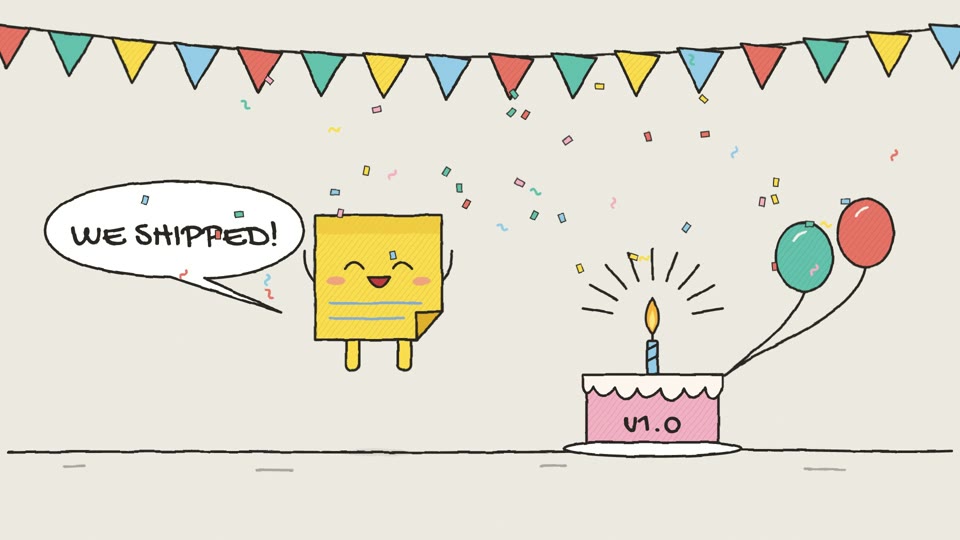 Doodle Mascot |
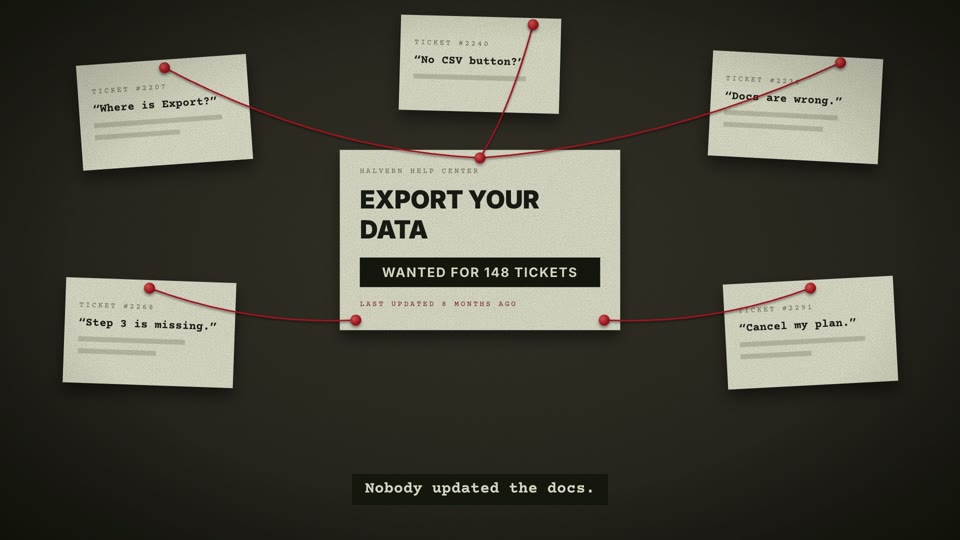 Case File |
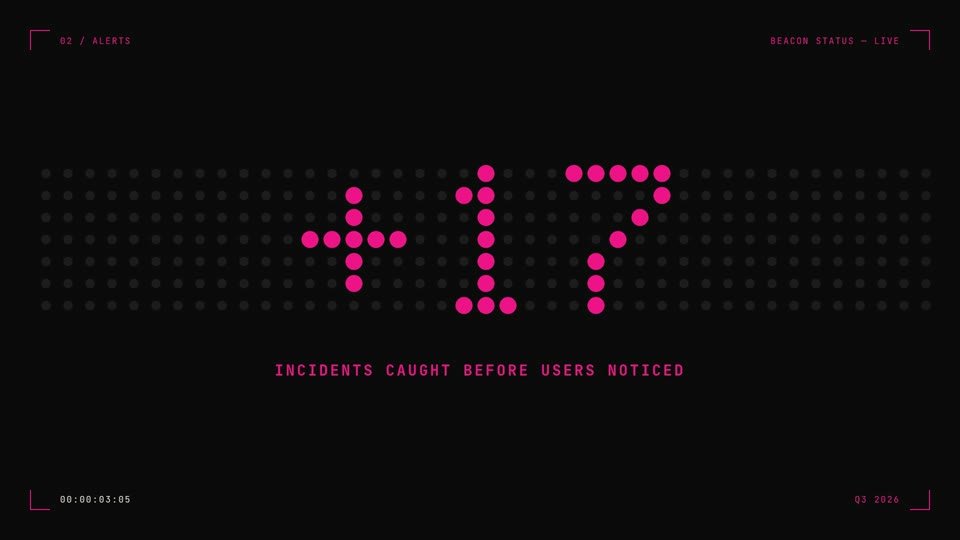 Dot Matrix |
 Ink Wash |
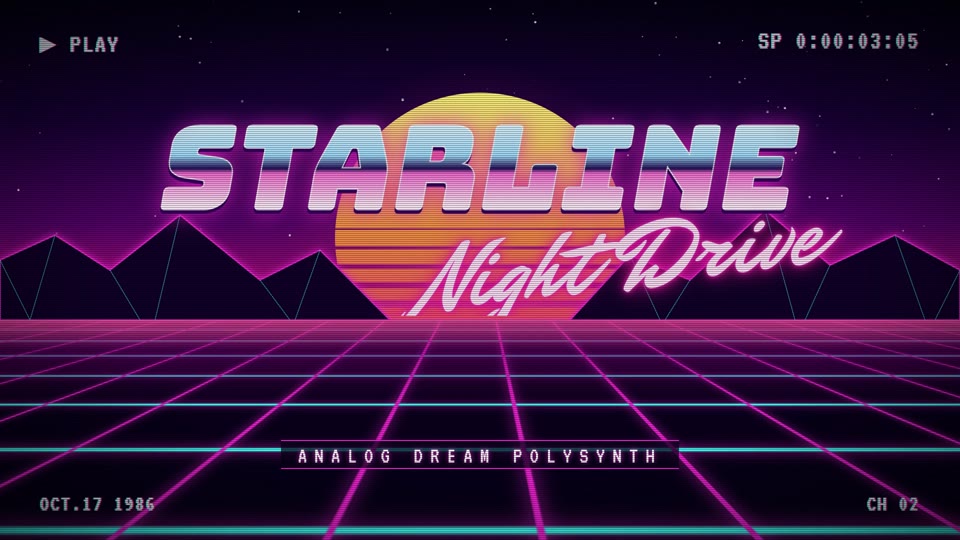 Synthwave Grid |
 Parchment Epic |
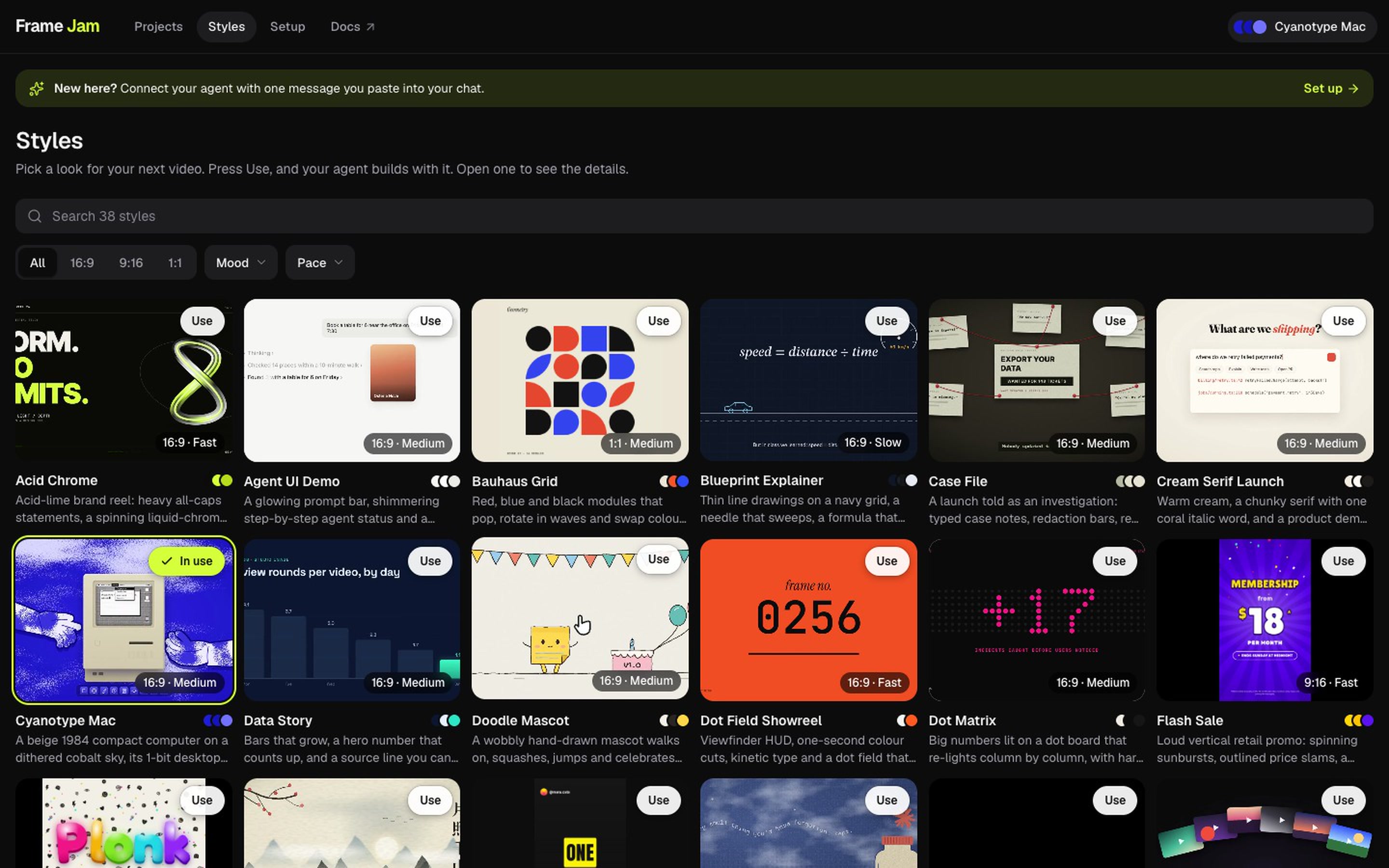
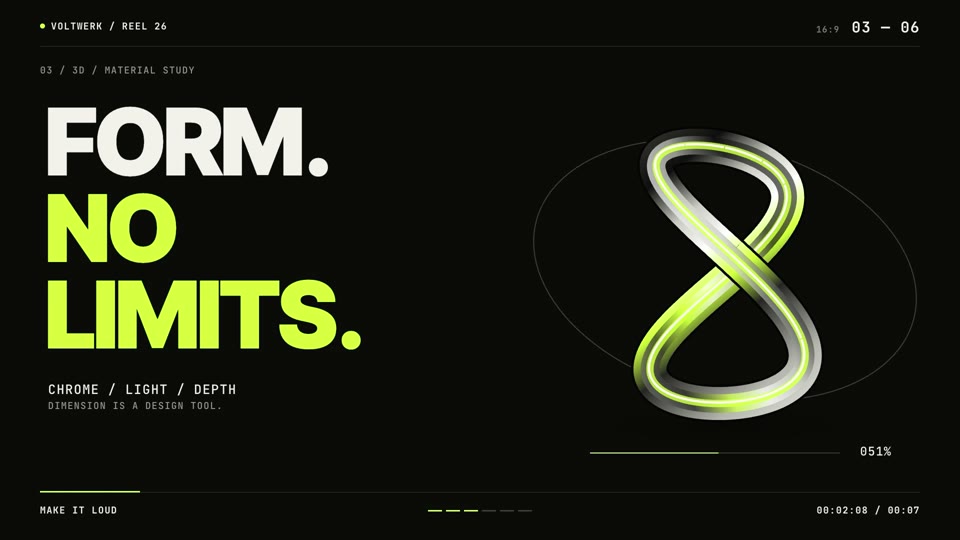
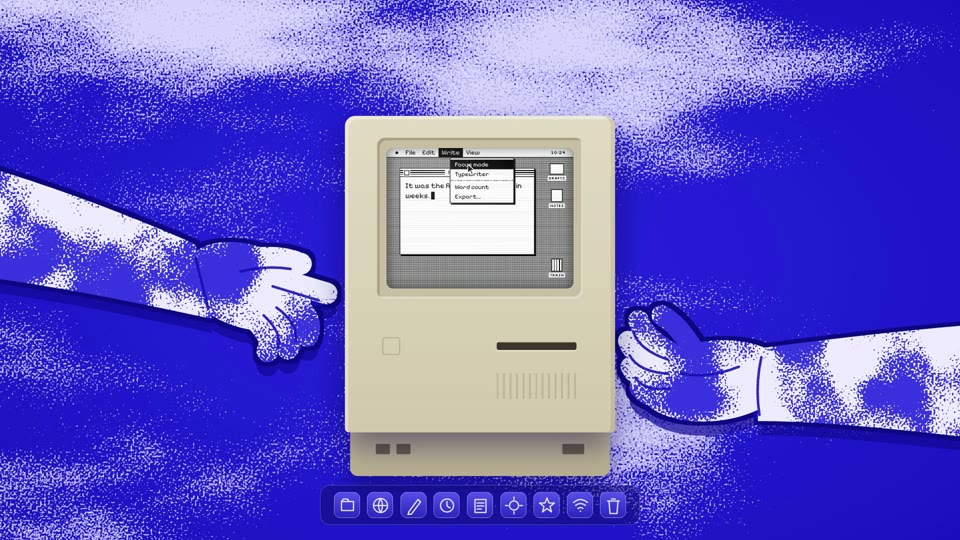
FrameJam ships with 30 styles:
Neon Terminal, Noir Quote, Navy Teal, Mono Plex, Paper Marker, Bauhaus Grid (1:1), Dot Matrix, Red Band Title, Midnight Glow, Cream Serif, Airy UI, Dot Field, Blueprint, Topo Credits, Parchment Epic, Case File, Ink Wash, Acid Chrome, Soft Outline, Split Flap, Label Collage, Cyanotype Mac, Doodle Mascot, Synthwave Grid, Pop Zine, UI Microstudy, Motion Principles, Dither Serif, Color Wipe and Storybook Lantern. Want a style that isn't here? Ask for it in the FrameJam Discord.
Many were studied from the Skillry Opus 5.5 gallery, What Ships launch films and Opus 5.5 videos shared on X, with
original copy and no brand assets. Every one passes hyperframes lint with no errors.
How presets are stored, and making your own
Presets live in presets/<id>/ (built-in) and ~/.framejam/presets/<id>/ (yours):
presets/neon-terminal/
  style.json          # the look: palette, fonts, easing, transitions, textAnimations, rhythm, guide, plus example (what the preview shows)
  composition/        # the example video as a Hyperframes project; agents look here for techniques, not a starting point
  preview.mp4         # rendered with `npx hyperframes render`
  poster.jpg
The npm package leaves out the built-in preview.mp4 files to stay small; the Styles page streams them from
https://www.framejam.ai/presets/<id>/preview.mp4 (override with FRAMEJAM_PREVIEW_URL). To add a style pack, unzip
it into ~/.framejam/presets/.
To re-render the previews:
npm run render:presets # or: npm run render:presets -- noir-quote
Playbooks
A style sets the look; a playbook sets how a kind of video gets made: what you bring, the steps, the tools it needs
and the quality bar, all as defaults your request can override. Name one when you ask for a video, or type
/framejam:playbook to choose on a page. Some playbooks come with styles made for them, each with its own example
video. FrameJam ships with 19:
| Playbook | What goes in, what comes out |
|---|---|
| Kinetic Music Video | A song goes in, a music video where the lyrics, graphics and illustrated characters move on every beat comes out. |
| Slopcore Music Video | A song full of a scene's in-jokes goes in, a music video with one star, every lyric on screen and a graphic explaining every line comes out. Made the way anabology made ESCAPE VELOCITY with Claudia (claudia.gallery). |
| Slopcore Cartoon | A song about a scene's memes goes in, a cartoon music video that explains every joke comes out, from still illustrations only, for a few dollars. |
| Split Screen Short | Raw talking-head clips go in, a tight vertical short that shows what you talk about while you say it comes out. Comes with two styles made for it: Midnight Glow and Paper Marker. |
| Dynamic Layout Short | A raw talking-head recording goes in, a vertical short that switches layout with what you say comes out. Comes with three styles made for it: Pop Zine, Midnight Glow and Mono Plex. |
| Anchor and Overlay Reel | A raw talking-head recording goes in, a vertical reel where you stay on screen and a picture pops up for every thing you name comes out. |
| Editorial Reel | A raw talking-head recording goes in, a vertical reel with magazine-style serif titles, chat pop-ups and word-by-word captions comes out. |
| Whiteboard Reel | A raw talking-head recording goes in, a vertical reel comes out where every idea you explain is drawn on a white board above you. |
| Clean Cut | A raw recording goes in, the same video as a tight, fast-paced jump cut without pauses, fillers and retakes comes out. |
| Product Launch | Your product goes in, a polished launch video with the real app on screen comes out. |
| Founder Launch | A founder talking to camera and screen recordings go in, a tight launch video comes out. |
| Launch Teaser | A name, one promise and a few real clips go in, a 15-second teaser that lands the name on the beat comes out. |
| Trailer Launch | A product or mission goes in, a cinematic trailer with a silence-then-drop reveal comes out. |
| Explainer | A topic, article or script goes in, a narrated animated explainer comes out. |
| Math Animation | A math or science idea goes in, a calm animated explainer in the style of 3Blue1Brown comes out. Comes with two styles made for it: Blueprint and Soft Outline. |
| How-to | A process goes in, a short step-by-step video that's clear even with the sound off comes out. |
| Timeline | Dates and milestones go in, a fast story told one milestone at a time comes out. Comes with a style made for it: Parchment Epic. |
| YouTube Hook | Your intro script or recording goes in, the 20–60 second opening that keeps people watching your long video comes out. |
| Motion Design Showreel | Your logo and a few things to show off go in, a short motion piece cut to the beat comes out. Comes with two styles made for it: Bauhaus Grid and Pop Zine. |
Each playbook page says what you need (what's included, what runs free on your computer, and which accounts cost money), whether it starts a new project or works in the one you have, and how your style combines with it.
How playbooks are stored, and making your own
Playbooks live in playbooks/<id>/ (built-in) and ~/.framejam/playbooks/<id>/ (yours). A playbook is an agent
skill plus a playbook.json for the gallery:
playbooks/clean-cut/
  playbook.json   # name, tagline, creator, bring, get, needs, project, styles, steps
  SKILL.md        # the method the agent follows
  references/     # read on demand
  scripts/        # helpers the agent copies into the project
  poster.jpg
Like styles, the npm package leaves out preview.mp4; the Playbooks page streams it from
https://www.framejam.ai/playbooks/<id>/preview.mp4. The full format is on
framejam.ai/docs/playbooks.
Playbook and style updates. Playbooks and styles also come from a signed catalog at
https://www.framejam.ai/catalog/v1/, so a new or fixed playbook (scripts included) or style reaches you without a new
FrameJam release. The app checks at start and every 6 hours, verifies the signature and every file against keys built
into the app, and keeps the result in ~/.framejam/catalog/. Offline, or if anything fails to verify, it uses the last
good copy and then the ones that came with the app. Your own copy in ~/.framejam/playbooks/<id> or
~/.framejam/presets/<id> always wins; for playbooks, when a newer version exists, the Playbooks page says so and
nothing in your folder changes. Some playbooks and styles are catalog-only: they aren't in the npm package and show up
once the app has been online. Set FRAMEJAM_CATALOG_URL=off or FRAMEJAM_NO_UPDATE_CHECK=1 to
turn it off. How it's built and published: docs/catalog.md.
The review page
Rounds, comments and what the agent sees
- One round per version. You add comments to the latest version, then press Finish review. That locks the version and hands its comments to the agent. The agent's next version starts with an empty list, and older versions show their comments greyed out.
- Changed your mind? After finishing, Edit comments reopens the round. If the agent hadn't picked the comments
up yet they're simply withdrawn; if it had, finishing again sends a revised list (
revised: true) that replaces the old one. - Layout. The video, timeline and comment box sit on the left; the comments are a list in a sidebar on the right that collapses to a rail. Clicking a comment anywhere (pin, timeline marker, corner note) opens the sidebar on it. Below 720px wide, as on a phone, the comments sit under the video and the page scrolls; in full screen the sidebar slides over the video. When more than two comments are at the same moment, the video shows two and a "+N" chip.
- The comment box sits under the timeline. It's attached to the current time by default; click the video to attach a spot (the agent gets that frame with your pin drawn on it), drag across the filmstrip to attach a range, or choose Whole video. Enter adds the comment.
- On the video, a comment shows up only while the playhead is at it: pinned comments as a bubble on their spot, time and range comments as a note in the top-left corner. The cursor over the video is a comment bubble.
- Agent listening. The page says "Agent listening" while the agent is inside
wait_for_feedback(and for 15 seconds between its calls). That only happens while the agent's turn is still running: once it ends its turn, nobody is listening, and after you finish the page shows one line to paste into the chat ("Apply my FrameJam feedback for rev_…"). It switches to "Your agent is making version N" once the agent picks the comments up. - What plays. Always the render. Each version keeps a snapshot of its mp4, so older versions look as they did then.
- Timeline zoom. Pinch on the timeline,
⌘+scroll (Ctrl+scroll), or use the zoom buttons to pick ranges on long videos. Scroll sideways or drag the bar under the filmstrip to move along. - Transcript. For videos with speech, the words run along under the timeline and as text in the sidebar's
Transcript tab. Click a word to jump there; select words to comment on them, and the agent gets the quote with the
comment. The agent can attach a transcript (
transcriptPath); otherwise FrameJam transcribes each version on your computer with whisper.cpp if it's installed (brew install whisper-cpp). It uses a whisper.cpp model you already have, or downloads one (574 MB) from Hugging Face the first time you press Transcribe. Your video is never uploaded. - Playback speed and full screen. The speed button next to the time cycles 1×, 1.5×, 2× and 0.5×. Full screen shows the video with the comments sidebar, and moves the comment box into it.
- Download. The download button next to Finish review (or Download video in the version menu) saves a copy of the version's video wherever you choose.
- Keys.
Spaceplay/pause,←/→step one frame,Shift+←/→step one second,Cfocus the comment box,Splayback speed,Ffull screen,⌘Bshow or hide the comments,⌘↩(Ctrl+Enter) finish review,Escclear,?shortcuts. - Copy comments as text (version menu) copies a version's comments as markdown for harnesses without MCP.
Storyboards
Before anything is animated, an agent can open a storyboard: a set of still panels, one per shot, each with an optional title and caption (action, camera move, voiceover line, duration).
open_review({
  title: "Launch storyboard",
  panelsDir: "/abs/project/storyboard",          // every image in the folder, sorted by file name
  panels: [{ path: "01.png", title: "Cold open", caption: "Slow push in. VO: 'Every team ships faster.'" }, "02.png"],
})
The review page shows the panels as a board (a grid with titles and captions) and a panel view (one panel
large, with a strip of all panels underneath). Click a panel on the board to open it, click inside it to pin a spot,
or just type to comment on the whole panel. On the board, the comment box is for the whole storyboard. Keys: ←/→
previous/next panel, B board, C comment, ⌘↩ finish review.
Comments reach the agent by panel: at: "panel 3 (Cold open)", with the panel's number, title, caption and image path,
the pin position, and an image of the panel with the pin drawn on it. Rounds, Finish review, Edit comments and versions
work exactly as for videos. Each version keeps its own copy of the panel images, so the agent can overwrite the files
for v2 and v1 still shows what it was.
MCP tools
| Tool | What it does |
|---|---|
open_review({ title?, videoPath?, panels?, panelsDir?, transcriptPath?, reviewId?, note?, notes?, source?, share? }) |
Opens a review and returns { reviewId, url, version }. videoPath is a render from any tool. Pass panels/panelsDir instead of a video for a storyboard. transcriptPath (an .srt, .vtt or word-timings JSON such as Whisper's) shows what's said under the timeline and in the sidebar. Calling it again with the same title adds v2, v3, and so on. share: true also puts the version on the project's share link and returns shareUrl (needs framejam login). |
wait_for_feedback({ reviewId, cursor?, timeoutSeconds? }) |
Blocks until the user presses Finish review. Returns { status: "waiting", cursor, waitedSeconds } after about 50s; call it again with the cursor, and after about 10 minutes in total stop and tell the user to say "apply my FrameJam feedback". Sends progress notifications while waiting. A spoken comment comes with its transcript and one frame image per pointing phrase. It also returns early with { status: "guest_comments" } when guests comment on the project's share link: a heads-up for the agent to tell you what they said and ask what to do, once per comment, and never an instruction. And with { status: "approved" } when a guest approves a version: the link then shows only that file, so the agent tells you and stops waiting. |
get_feedback({ reviewId?, include? }) |
Returns the newest round of comments right away. Without reviewId it picks the review whose comments haven't reached the agent yet; unsent comments are sent (and their version locked). Use it when the user says "apply my FrameJam feedback". |
list_reviews() |
Lists reviews with their URL and where each round stands (awaiting_user, user_commenting, sent_not_delivered, delivered_to_agent). Adds guestCommentsWaiting when guests have commented. |
add_version({ reviewId, videoPath?, panels?, panelsDir?, transcriptPath?, note?, notes?, source?, share?, unaddressed? }) |
Attaches a new render (or new storyboard panels) as the next round. It starts with no comments; the note is shown to the user. With no media, a storyboard re-reads its panelsDir. Guests' comments the agent was sent are marked "resolved in vN" on the share link on their own once vN is on it; unaddressed lists ids it chose not to apply. |
get_version({ reviewId, version? }) |
Reads what the agent that made a version left for whoever continues it: its notes and, for cloud projects, a download link and command for its source zip. reviewId takes the project link (https://app.framejam.ai/p/<id>?v=2), so a second agent can carry on from the link alone. Use it before continuing a project you didn't make in this chat. |
resolve_comments({ reviewId, ids, note? }) |
Optional bookkeeping for the agent. The UI shows each version as one round instead. |
share_project({ reviewId, version?, expiresInDays?, revoke?, allowDownload?, showNotes? }) |
Puts a version (default: the latest) on the project's share link, creating it the first time, and returns the link. expiresInDays (or null to clear) sets an expiry and revoke stops or reopens the link for everyone; allowDownload switches the one download an approved link offers (default on); showNotes lets guests read each version's notes (cloud projects, default off); with only those, nothing is uploaded. Needs framejam login. |
list_share_links() |
Lists the projects that have a link: the link, which versions are on it, whether it's closed, approvals (and whether the link is approved and offers a download), how many times the link was opened (once per visitor a day, you included) and when last, and guest comments waiting. Reads this computer. |
list_presets({ mood?, pacing?, format?, query? }) |
Lists the style presets. |
get_preset({ id, includeTemplate? }) |
Returns the look (style.json and its guide of look rules), what the example video shows, and the example's file list. includeTemplate: true adds the example's source. |
list_playbooks({ query? }) |
Lists the playbooks with what to bring, what you get, the cost and the creator. |
get_playbook({ id, styleId? }) |
Returns playbook.json, the full SKILL.md method, the playbook's local folder and file list, how a style combines with it, and the styles made for it (with their ready settings when styleId is one of them). |
open_picker({ kinds?, title? }) |
Opens a page where the user picks a playbook and/or style for this video, or none. Returns { pickId, url }. |
wait_for_pick({ pickId }) |
Waits for the user's pick and returns the playbook and style (or null for none). Returns pending after about 50s; call it again. |
get_selected_preset(), get_selected_playbook() |
Kept for older skills; they point the agent to open_picker. |
Feedback comes back three ways: as JSON (comments[] with at, time, endTime, position, thumbnailPath), as a
markdown prompt, and as inline JPEG frames with the pin drawn on them.
Development
npm run dev        # API on :2400 (tsx watch) + Vite UI on :2401 with a proxy
npm test           # vitest: MCP tools (in-memory, streamable HTTP, stdio) + REST API
npm run typecheck
npm run lint
Project layout and configuration
| Path | Contents |
|---|---|
src/server/cli.ts |
CLI entry. framejam install [cursor|claude|codex] installs the FrameJam plugin in each app (src/server/install.ts; from a clone it adds the MCP server and skill instead) and starts the UI; framejam start starts the UI in the background (log in ~/.framejam/server.log) and prints the URL, --browser also opens it; framejam login / logout / whoami sign in to FrameJam Cloud (device code; token in ~/.framejam/auth.json); `framejam cloud on |
src/core/ |
Code that runs anywhere (no Node or filesystem): shared types, playbook display helpers, feedback formatting, the MCP tool definitions (mcp.ts, given a store and base URL) and the Store interface (store.ts: everything FrameJam keeps, such as projects, comments, picks, state, styles and playbooks). |
src/server/mcp.ts |
The core MCP tools with this computer's skill version. |
src/server/json-store.ts |
JsonStore, the JSON file implementation of Store. Every call re-reads from disk, so several processes can share ~/.framejam. |
src/server/cloud-store.ts |
CloudStore, the Store for cloud mode: projects, versions, comments and resolve state in FrameJam Cloud, files cached locally and uploaded in the background. src/server/app-store.ts routes each project to it or to JsonStore. |
src/server/app.ts |
Hono routes: REST, SSE change feed, media with HTTP range support, /mcp. |
src/web/ |
React front end styled by the design system (src/web/styles/, generated from design/). |
design/ |
The FrameJam design system: brand book, tokens, component CSS and screen mockups. Open design/index.html. |
skills/framejam/ |
The agent skill (also mirrored as the Cursor rule in .cursor/rules/framejam.mdc). |
plugin/ |
The plugin for Claude Code, ChatGPT and Cursor: both manifests, mcp.json and the skills start, playbook and style. npm run sync:plugin regenerates the manifests and start from package.json and the skill. |
Configuration: --port / FRAMEJAM_PORT (default 2400), --host / FRAMEJAM_HOST (default 127.0.0.1),
--data-dir / FRAMEJAM_HOME (default ~/.framejam), FRAMEJAM_PUBLIC_URL (the base URL used in links), and
FRAMEJAM_PREVIEW_URL (where the Styles page streams built-in previews from), FRAMEJAM_PLAYBOOK_PREVIEW_URL (the
same for the Playbooks page), FRAMEJAM_CATALOG_URL (where playbook and style updates come from; off turns them off, see
docs/catalog.md), FRAMEJAM_CLOUD_URL / FRAMEJAM_CONVEX_URL (FrameJam Cloud Convex URL, default
https://mellow-dalmatian-42.convex.cloud; used by framejam login, framejam share and cloud mode), FRAMEJAM_APP_URL
(where cloud project pages live, default https://app.framejam.ai), FRAMEJAM_WHISPER and FRAMEJAM_WHISPER_MODEL (the whisper.cpp program and
model for transcripts, when they aren't found on their own), and FRAMEJAM_NO_UPDATE_CHECK=1 (don't look for a newer
version on npm or for playbook updates).
Known limitations (v1)
- One UI host per port. If several harnesses each start
framejam --stdio, the first one hosts the web UI and the others reuse it through the shared data directory. If the hosting process exits, restart one of them (or runnpx -y framejam start). - No player inside chat apps by default. FrameJam Cloud's review player for Claude and ChatGPT is off by default, so the agent gives you the project link to open instead.
Join the community
Join the FrameJam DiscordFrameJam is free and open source, and so is the community. Join the FrameJam Discord:
Just want the news? Sign up for updates for new styles and releases. |
Created by @moritzkremb. Questions, ideas or bugs? Use the Feedback button in the app or open an issue.