
mike-s-zaugg/VisualAudioOverlay
mike-s-zaugg/VisualAudioOverlay has 29 GitHub stars and 7 forks. GitHot measured 0 stars in 24 hours. Last checked 2026-11-15 02:06 UTC. Last push 2026-11-11.
What you can do
- Directional radar overlay. Transparent, always-on-top, click-through. Arcs fade in and out in the direction of each sound.
- Per-application capture. Pick a single program (your game) so other apps like Discord voice chat are ignored. Uses the Windows WASAPI process-loopback API; pick All (system audio) to capture everything as before.
- Game-specific presets. Built-in frequency band-pass filters (CS2, Valorant, Fortnite, and more) isolate footsteps and ignore useless low-end rumble.
- Mono output for single-sided listeners. Optionally play a mono down-mix of the game to your headphones so you hear everything through your working ear, while the overlay still shows full left/right direction. This replaces the Windows "mono audio" setting (which would otherwise blind the overlay). Needs a one-time virtual-cable setup; see Mono output.
Measured star growth
- in 24h
- 0
- in 7 days
- Collecting history
- in 15 days
- Collecting history
- in 1 month
- Collecting history
Net star changes over overlapping periods, not daily totals. Missing measurements are left blank. Stars measure attention, not software quality.
About
An accessibility overlay that turns in-game sound into a real-time visual radar, built for gamers with single-sided deafness (SSD) or hearing loss.
Creative & MediaREADME.md
OriginalVisual Audio Overlay
See what you can't hear.
An accessibility overlay that turns in-game sound into a real-time visual radar,
built for gamers with single-sided deafness (SSD) or hearing loss.




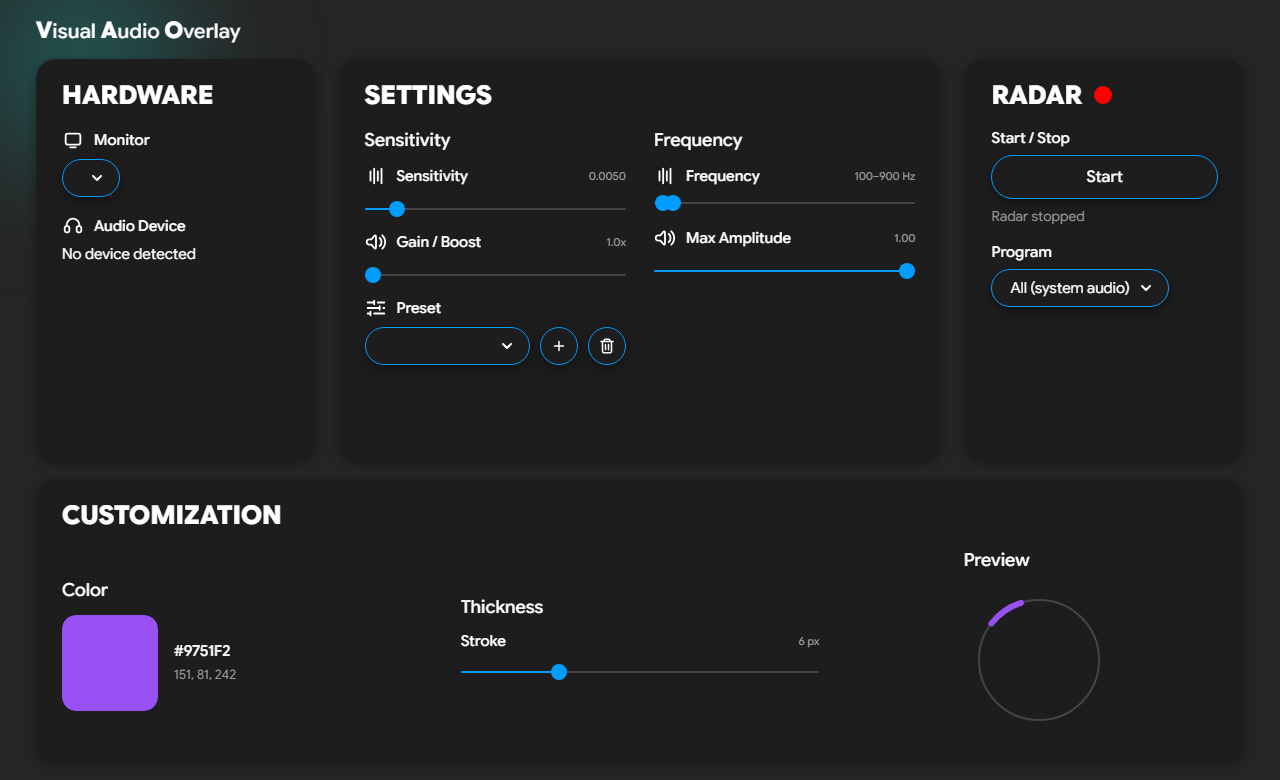
What it is
Visual Audio Overlay listens to your PC's audio and draws a sleek, transparent, Fortnite-style circular radar on top of your game. When a sound happens, an arc lights up in the direction it came from, so you can see footsteps, gunshots, reloads, and ability cues the instant they play.
It runs as a two-part app: a control panel you keep on a second monitor, and the radar overlay that floats over your game on your main screen.
Who it's for
- Players with single-sided deafness or hearing loss who lose directional audio.
- Anyone gaming with one earbud in, or in a quiet household, who still wants positional awareness.
- Competitive players who want footsteps and other key cues filtered out from background noise.
Features
- Directional radar overlay. Transparent, always-on-top, click-through. Arcs fade in and out in the direction of each sound.
- Per-application capture. Pick a single program (your game) so other apps like Discord voice chat are ignored. Uses the Windows WASAPI process-loopback API; pick All (system audio) to capture everything as before.
- Game-specific presets. Built-in frequency band-pass filters (CS2, Valorant, Fortnite, and more) isolate footsteps and ignore useless low-end rumble.
- Mono output for single-sided listeners. Optionally play a mono down-mix of the game to your headphones so you hear everything through your working ear, while the overlay still shows full left/right direction. This replaces the Windows "mono audio" setting (which would otherwise blind the overlay). Needs a one-time virtual-cable setup; see Mono output.
- Smart audio boost. Amplifies quiet, distant sounds so faint cues still register.
- Stereo and surround. Full 360 degree direction (quad, 5.1 and 7.1, including the side speakers) when Windows sees the output device as surround; otherwise left/right. Choose the device to listen to under Audio Device.
- Saveable presets. Store a full per-game setup - sensitivities, filters, the captured program, monitor, mono output, and radar look - and switch in one click.
- Full customization. Pick the radar's accent color and line thickness, with a live preview that matches exactly what shows up in game.
- Non-intrusive by design. It does not inject into game memory or modify any game files. It simply reads the standard Windows audio output (WASAPI loopback).
How it works
The app captures your system's audio output (the same signal going to your headphones) and analyzes the balance between channels to estimate the direction of each sound. That direction is drawn as an arc on the radar. Because it only reads audio you are already playing, there is no interaction with the game itself.
Note on detection range: full 360 degree detection needs an output device that Windows sees as 5.1 or 7.1 (Sound settings, speaker setup). Many "7.1" headsets present themselves to Windows as stereo, and a stereo device can only resolve left vs. right. You can choose which device the radar listens to under Audio Device. Per-app capture is always stereo; pick All (system audio) for 360 degrees.
Getting started (from source)
git clone https://github.com/mike-s-zaugg/VisualAudioOverlay.git
cd VisualAudioOverlay
pip install -r requirements.txt
python main.py
Requires Windows 10 (build 19041+) and Python 3.10+.
Quick start
- Launch the app and pick your Monitor (where the radar appears).
- Choose a Preset that matches your game, or tune Sensitivity, Gain, and the Frequency range yourself.
- Set your radar Color and Thickness in Customization.
- (Optional) In the Radar panel, pick a Program to capture only that game's audio. Leave it on All (system audio) to capture everything. The program must already be playing sound to appear in the list.
- Hit Start in the Radar panel. The overlay appears on your selected monitor.
Mono output (single-sided listeners)
If you are deaf or hard of hearing in one ear, you normally have to switch on the Windows "mono audio" setting to avoid missing sounds panned to your bad side. But that setting sums left and right together before the radar can read them, so the overlay loses all sense of direction. Mono Output solves this: the app keeps Windows in stereo (so the overlay still works) and produces the mono mix itself.
To hear that mono mix without also hearing the game's original stereo at the same time, the game's audio has to be routed away from your headphones and into a virtual audio cable, which the app then reads. We use VB-CABLE for this.
One-time setup:
- In the Mono Output switch (Hardware panel), turn it on. If VB-CABLE isn't installed, click Install VB-CABLE, approve the prompt, and reboot.
- In Windows Settings > System > Sound > Volume mixer (App volume and device preferences), set your game's Output to CABLE Input.
- Back in the app, pick your real headphones as the Mono Output device, choose your game under Program, and hit Start.
Mono Output uses VB-CABLE, a product of VB-Audio Software (www.vb-cable.com). VB-CABLE is donationware - donations are welcome. See THIRD-PARTY-NOTICES.md.
Build a standalone .exe
pip install pyinstaller
pyinstaller AudioRadar.spec
The build bundles the full UI, icons, and font, so the executable runs offline
with no extra setup. Output lands in dist/.
If a one-file build shows a blank window (a known QtWebEngine quirk), use a one-directory build instead.
Roadmap
- Editable presets saved to disk.
- Haptic output. Drive ButtKicker-style shakers from the strongest audio cue.
Project layout
| File | Role |
|---|---|
main.py |
App entry. Hosts the control panel and overlay, exposes the JS/Python bridge. |
audio_capture.py |
Captures loopback audio, band-pass filters it, computes direction + intensity. |
process_loopback.py |
Per-application capture via the WASAPI process-loopback API, plus enumeration of programs with audio. |
overlay.py |
The transparent, click-through radar window. |
dashboard_v2/ |
The control-panel UI (HTML/CSS/JS, icons, bundled font). |
Support
Visual Audio Overlay is free. If it helps you, you can support development here:
Disclaimer
This tool reads only standard Windows audio output and does not read or modify game memory or files. It is intended as an accessibility aid. Anti-cheat policies vary between games, so use it at your own discretion.
AI Usage
I want to publicly tell how I used AI in this code. The UI was 100% made by myself. I have used Claude Code for some logic and to help me with decisions. Most of my code is pushed through it.
Contributing
Contributions are welcome. Bug reports, fixes, and new features all help. Please read CONTRIBUTING.md before opening a pull request, and see SECURITY.md for how to report vulnerabilities.
Good first issues to pick up: mono audio output for single-sided listeners and a Linux port.
License
Copyright (c) 2026 Mike Zaugg.
This project is source-available, not open source. It is licensed under the Functional Source License, Version 1.1, MIT Future License (FSL-1.1-MIT). In short: you are free to use, modify, and contribute to the code for any purpose except building a competing product. Each release automatically becomes available under the permissive MIT license two years after it ships.
See the LICENSE for the full terms.