
marty-mcgee/threed-garden
marty-mcgee/threed-garden has 42 GitHub stars and 4 forks. GitHot measured 0 stars in 24 hours and 0 in 7 days. Last checked 2026-11-25 04:05 UTC. Last push 2026-11-24.
What you can do
- HTML and SEO Settings. Super Admins manage App-wide metadata, and Project owners can save Project-specific overrides. Learn retains its route-specific description. See the release record for released scope and subsequent unreleased refinements.
- Clearer Admin navigation and creation buttons. An explicit Module hierarchy, Add User navigation, consistent Add + entity sidebar labels, and distinct current-page highlighting make common tasks easier to find. Creation buttons across Admin Module pages use green styling; sidebar links retain their ordinary navigation styling.
- App Settings for Module identity. Super Admins choose shared colors and Lucide icons for App Modules. Connected Admin headers, sidebar items, and fixed record icons use those saved settings. Personal appearance, navigation visibility, and per-user sidebar expansion remain separate preferences.
- Users and account management. Sign up and sign in through the App's NextAuth integration. Ordinary accounts manage their own content as Admins; Super Admins manage Users and global Settings. Users CRUD supports creation, profile/role editing, and soft deletion that retains records while blocking account access.
Measured star growth
- in 24h
- 0
- in 7 days
- 0
- in 15 days
- Collecting history
- in 1 month
- Collecting history
Net star changes over overlapping periods, not daily totals. Missing measurements are left blank. Stars measure attention, not software quality.
About
🥕 Interactive 3D design, characters, physic simulations, multimedia. Built with TypeScript, React, Next.js, Three.js, React-Three, Physics, Postgres, Drizzle ORM.
Web & AppsREADME.md
Original🥕 ThreeD App
Plan your space. Build your world. Bring it to life.
ThreeD App is an open-source workspace for planning spaces and creating interactive 3D experiences. Draw a building, arrange a garden, organize reusable Models, and explore your Project through linked plans, maps, and 3D views.
The application is developed in the ThreeD Garden repository and is available at threedgarden.com. Characters, supported physical interactions, and Multimedia help bring your Projects to life.


🎮 Explore the demo · 📚 Learn ThreeD · 🚀 Create your first Project · 💻 Run locally
Latest features · Why build with ThreeD App? · Structural basics · Modules
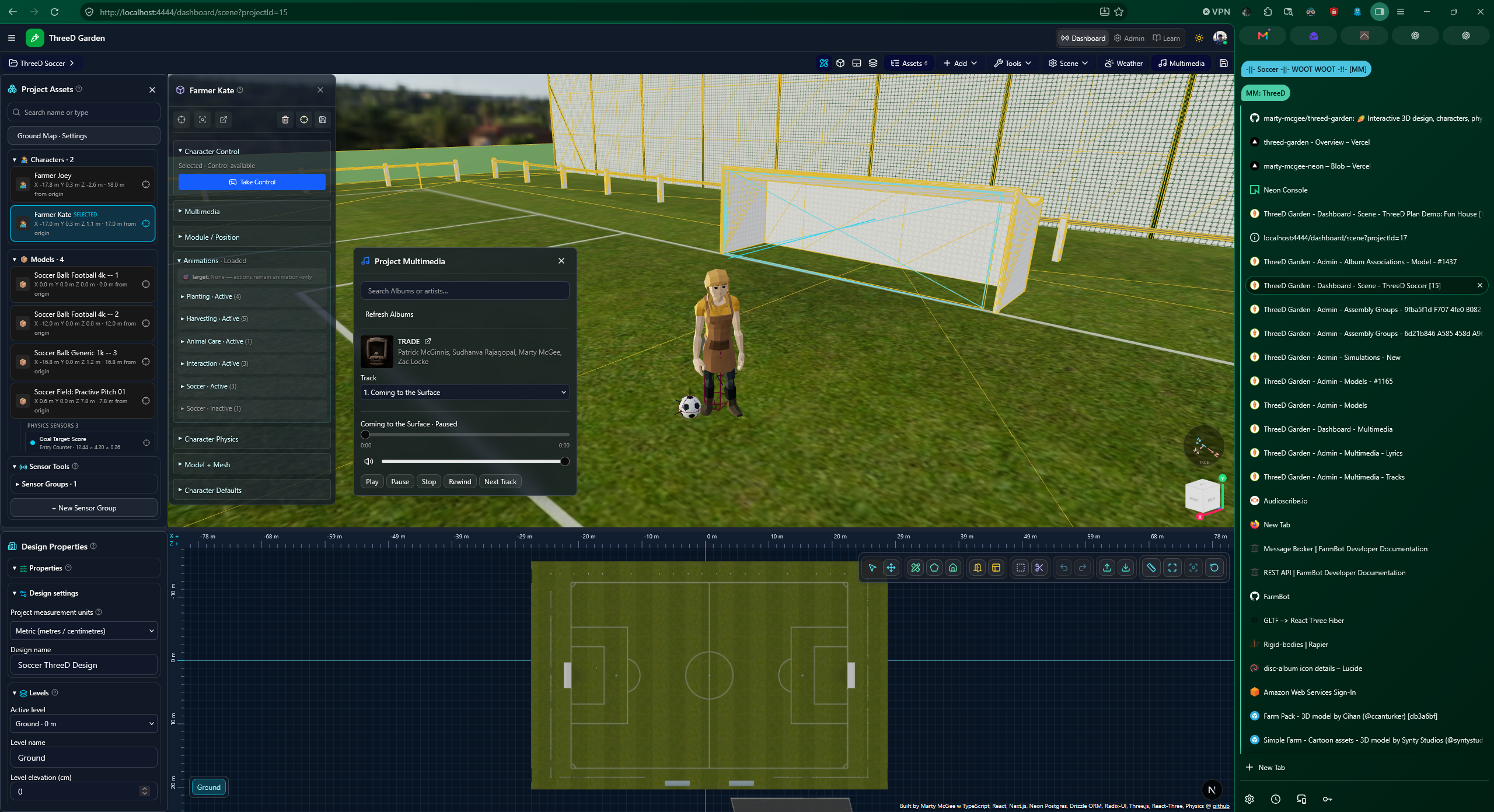
Captured November 5, 2026 in the local ThreeD App: explore a soccer Project with Character controls, Project Multimedia, and linked 3D Scene and 2D Design views.
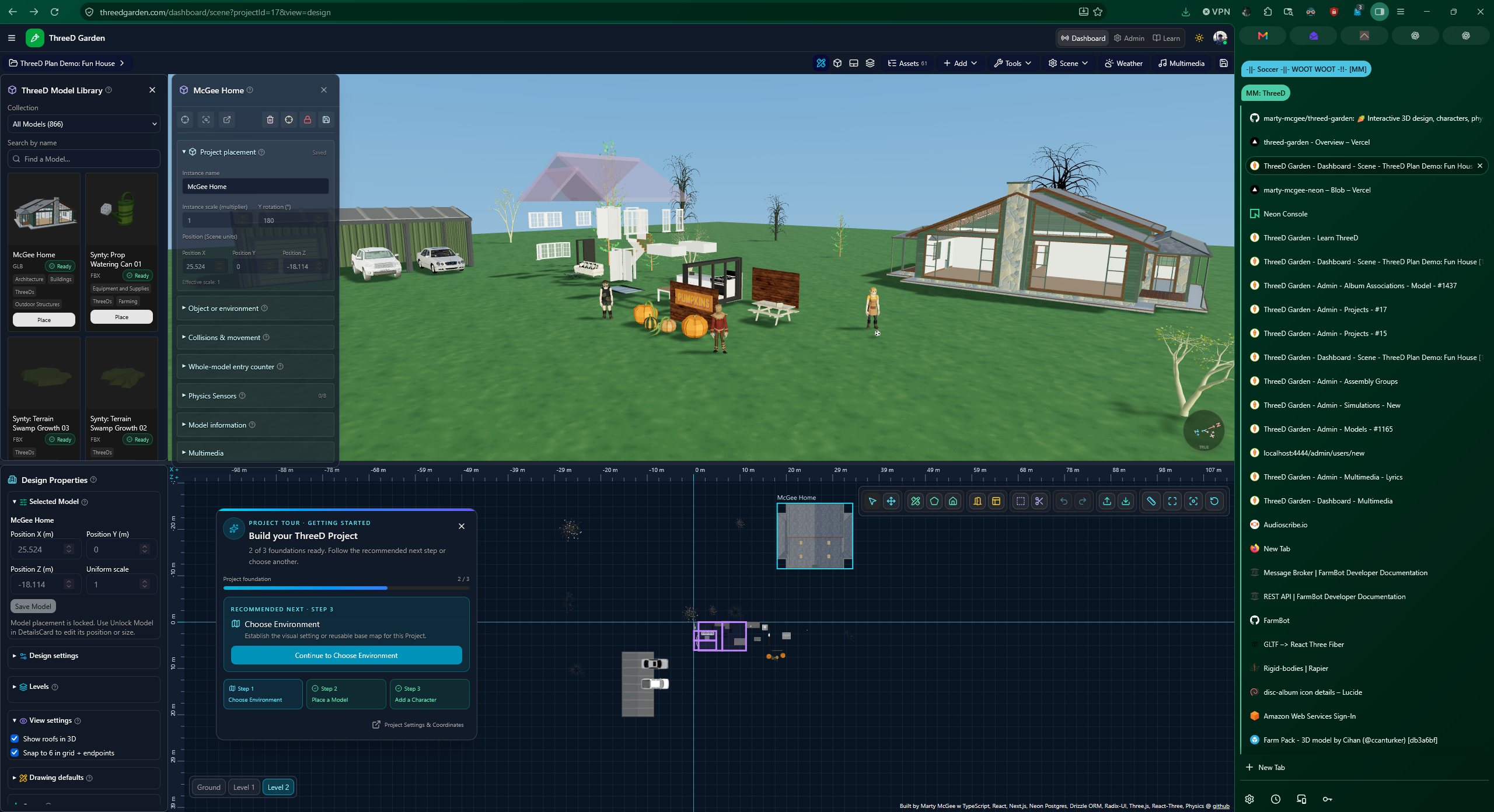
ThreeD App v0.30.2, captured November 2, 2026: browse reusable Models, inspect a locked placement, and work with a linked 3D Scene and 2D Design plan.
Latest features
Developer-confirmed production release: v0.32.1. Recent releases bring a more consistent Admin experience, account management, shared App styling, and richer content workflows:
HTML and SEO Settings. Super Admins manage App-wide metadata, and Project owners can save Project-specific overrides. Learn retains its route-specific description. See the release record for released scope and subsequent unreleased refinements.
Clearer Admin navigation and creation buttons. An explicit Module hierarchy, Add User navigation, consistent Add + entity sidebar labels, and distinct current-page highlighting make common tasks easier to find. Creation buttons across Admin Module pages use green styling; sidebar links retain their ordinary navigation styling.
App Settings for Module identity. Super Admins choose shared colors and Lucide icons for App Modules. Connected Admin headers, sidebar items, and fixed record icons use those saved settings. Personal appearance, navigation visibility, and per-user sidebar expansion remain separate preferences.
Users and account management. Sign up and sign in through the App's NextAuth integration. Ordinary accounts manage their own content as Admins; Super Admins manage Users and global Settings. Users CRUD supports creation, profile/role editing, and soft deletion that retains records while blocking account access.
Lyrics and connected Multimedia. Create independent Lyrics records, associate them with owned Projects, Albums, and Tracks, and display eligible Lyrics in the Admin Track player, Dashboard Albums, and Home featured player. Linked relationship badges make related records easier to navigate.
Improved Model workflows. Organize Files and Materials in the Model editor, inspect embedded GLB/GLTF images, register selected images as reusable assets, and export Model top-view PNGs for the Design plan. URL-backed filters help return to the same Admin asset list.
Project-centered Design. Inspect architectural summaries in Admin, edit supported plans in the Project workspace, and save architecture, placements, and supported view state through Project Save/load.
See release history for detailed scope and validation, and current context for implementation status and remaining acceptance work.
Why build with ThreeD App?
ThreeD App gives developers a working application around an interactive 3D workspace: authenticated accounts, editable content, database schemas, APIs, asset management, and reusable interface components. It is a useful starting point for a spatial planning tool, interactive learning experience, asset catalog, or domain-specific visualization.
| Developer need | What the repository provides |
|---|---|
| Build a product around 3D content | A Next.js application with Admin CRUD, Project workflows, reusable Models, and a browser Scene, ready to study and adapt together. |
| Keep plans, maps, and 3D views connected | A Project-owned workspace with shared assets, selection, architecture, and explicit Save/load across supported views. |
| Extend a domain without guessing where code belongs | TypeScript contracts, Drizzle schemas, server services, API routes, and domain components organized under established owners. |
| Reuse interaction and presentation patterns | shadcn/ui components, theme support, configurable Module icons/colors, green creation buttons, and existing loading, error, draft, and Save/Discard flows. |
| Add behavior to reusable assets | Model/File/Texture relationships, animation libraries, separate Character controllers, and supported Simulation Actions and Results. |
| Check changes before involving live systems | A focused validation runner and offline fixtures for ownership, persistence boundaries, UI state, assets, and Scene behavior. |
| Customize and distribute the application | MIT-licensed application code. Third-party assets retain their own licenses. |
Start with one existing Module as a reference, follow its schema-to-service-to-UI path, and extend the smallest relevant boundary. The architecture guide, data model, and API guide provide deeper context.
👥 Who is ThreeD for?
These are starting points for exploring the App, rather than claims of established customer deployments.
| For… | Explore… |
|---|---|
| 🌿 Landscape designers and garden planners | Arrange a proposed outdoor space and explain it through plans and 3D views |
| 🏡 People exploring building concepts | Sketch supported architecture and inspect it alongside placed Models |
| 🧩 Product suppliers and content creators | Organize reusable assets and present them in a configured Scene |
| 🎓 Educators and learners | Explore Characters, supported physical interactions, and captured Simulation Results |
| 💻 Developers and open-source contributors | Extend a React, TypeScript, and Three.js application with documented module boundaries |
✨ What can you create?
| Your goal | Start with |
|---|---|
| 🏡 Sketch a building and inspect it in 3D | Design — walls, floors, openings, levels, and roofs |
| 🌱 Arrange a garden or farm scene | Projects — Beds, Plantings, Models, and geographic context |
| 🧩 Organize and reuse 3D assets | Models — Files, Textures, Categories, and previews |
| 🚶 Explore an animated world | Characters — animation mappings, movement, and supported Actions |
| ⚽ Run an interactive example | Simulations — supported Actions, Sensors, and captured Results |
| 🎵 Browse and play content | Multimedia — Albums, Tracks, Lyrics, Media, Links, and Speech |
🎮 Try ThreeD
Start with the website demo to explore the experience, or use Learn ThreeD for guided instructions.
For an editable Project, follow this first-session path:
- Follow Getting started to sign in and create or open a Project.
- Choose Design to draw supported architecture, or inspect the Project's existing content.
- Browse the Model Library, inspect an eligible Model, and place an instance.
- Switch between 3D, Design, 2D, and Combined views to inspect the same Project.
- Use Project Save, then reopen the Project to review the saved content.
Creation, editing, and saving require the appropriate access. Public viewing and interactive behavior depend on the Project and its configured content; do not assume a visitor demo saves your changes. See the Dashboard guide for workflow details.
💡 Project ideas
| Example | What to combine | Explore the workflow |
|---|---|---|
| 🌱 Landscape concept | Beds, Plantings, reusable Models, and geographic context | Projects and maps |
| 🏡 Building concept | Editable architecture, placed Models, and linked plan/3D views | Design and Architecture |
| 🧩 Product scene | An organized asset collection and selected Project placements | Models and Files |
| ⚽ Interactive lesson | A compatible Character, ball, supported Simulation, and observations | Physics and Simulations |
| 🎵 Content collection | Albums, artwork, audio/video, and related Links | Multimedia |
These are suggested uses of the existing modules. The screenshots illustrate the App at their capture dates, not verified customer deliveries.
Supporting illustration: how reusable Models connect to Project views
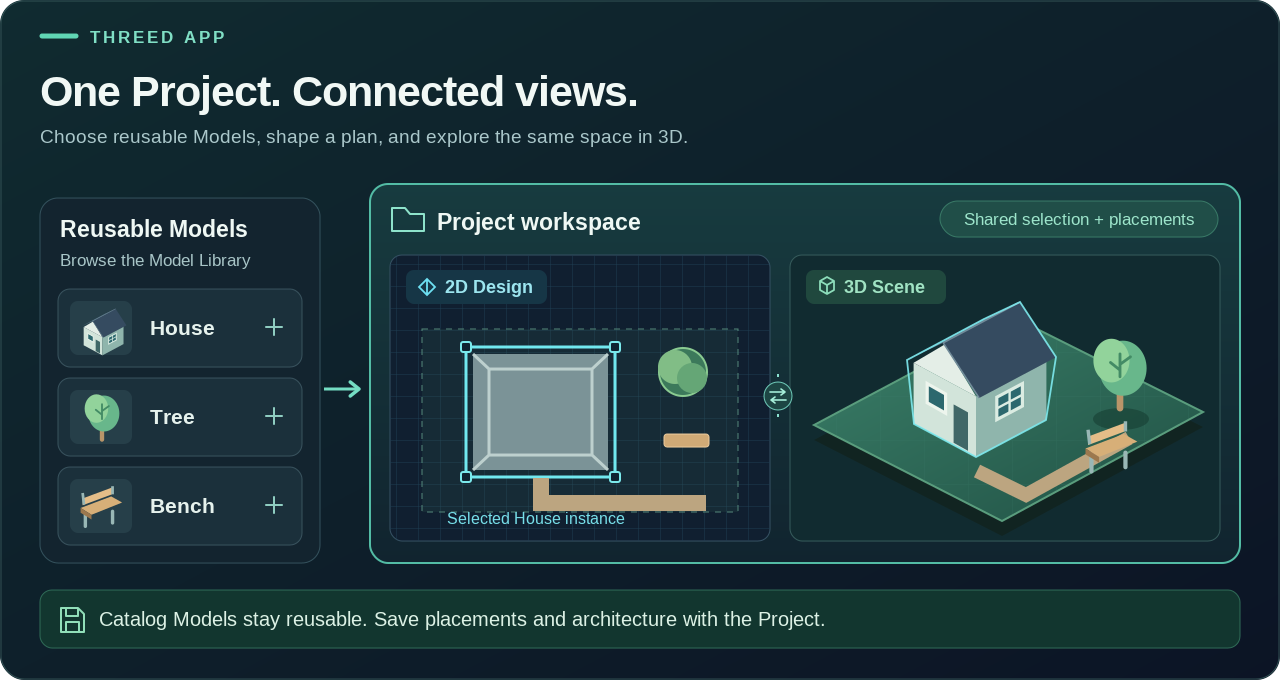
A conceptual workflow: place reusable Models into a Project, design in 2D, and explore the same workspace in 3D.
More supporting illustrations: Model placements, Assembly Groups and Project Save.
Structural basics
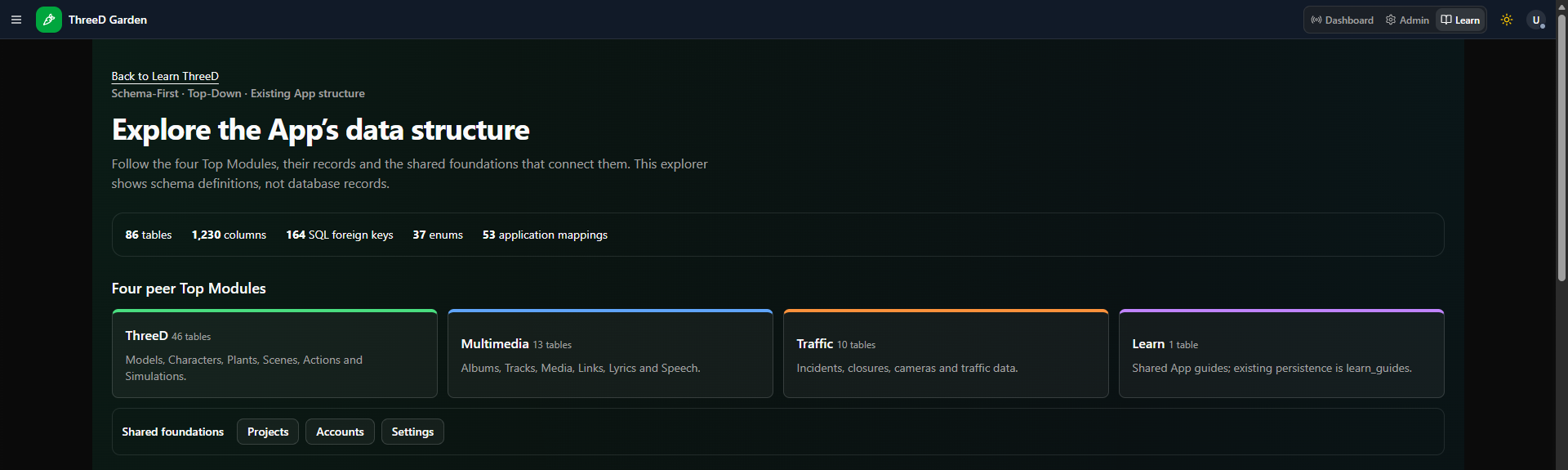
Captured November 3, 2026: Learn’s Data Structure explorer shows the existing Module hierarchy and local schema declarations.
Supporting illustration: the four peer Top Modules
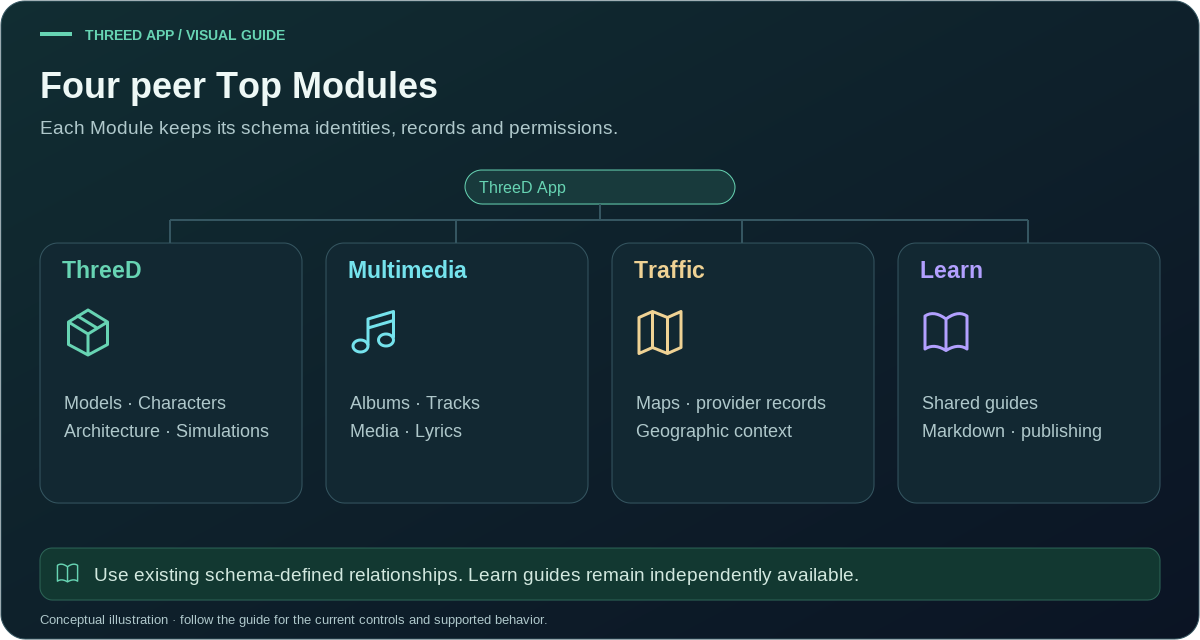
Conceptual illustration: Four peer Top Modules use the existing schema-defined relationships.
A Project is the workspace boundary. Reusable Models, Characters, garden records, and other content are managed in their Modules, then assigned or placed in Projects. Design architecture belongs to its Project. A catalog Model and a placed Model instance have separate identities.
| Surface or layer | Responsibility |
|---|---|
| Home and Learn | Public introduction, demo, featured content, and guided workflows. |
| Admin | Create and manage records, configure Projects, prepare assets, and administer authorized account/settings operations. |
| Dashboard | Open Projects, use the Scene and maps, browse Multimedia, and explore configured data. The main Scene route is /dashboard/scene. |
| API and services | Validate requests, enforce authentication and ownership, and coordinate persistence and integrations. |
| Database and storage | Drizzle defines relational data in Postgres; existing Blob/S3 integrations handle their respective assets and media. |
Repository layout
src/
  app/
    admin/             Admin pages and layouts
    dashboard/         Project workspace and discovery pages
    api/               Server API routes
    auth/              Sign-in and signup pages
    learn/             Guided learning pages
  components/
    admin/             Module CRUD and shared Admin presentation
    map/               Active Scene, maps, and DetailsCard
    threed/            Specialized ThreeD and Design components
    multimedia/        Shared content and playback components
    settings/          Global and personal Settings providers/UI
    ui/                Shared shadcn/ui components
  libraries/
    auth/              NextAuth and App account creation
    drizzle/           Drizzle CLI configuration
    schema/            Drizzle schemas and relationships
    services/          Domain logic and integration boundaries
    db/                Database client
    config/            Typed configuration and Module definitions
    stores/            Shared client state
    types/             Shared TypeScript contracts
    scripts/           Validation, import, and maintenance tools
public/                Public static assets
docs/                  User guides, developer contracts, and releases
Where to extend the App
- Add or evolve a Module: for record-owning Modules, begin with the schema under
src/libraries/schema, follow the services and API routes, then connect Admin and Dashboard consumers. ThreeD Module Learn demonstrates shared Super Admin content with public reading, while other Modules retain their established ownership. Connect route, navigation and Module appearance identity as well. Preserve server-side ownership checks and review database changes separately. - Change Admin presentation: reuse AdminWorkspaceHeader, the navigation configuration, Module appearance definitions, and the shared Button. Creation buttons use the green
successvariant; sidebar entries use ordinary navigation styling. - Extend the Project workspace: start with the Scene page, UnifiedMapView, and ThreeDScene. Use the existing Project snapshot transaction for supported Save/load changes.
- Add an integration: follow its domain service boundary. The provider-neutral ThreeD MQTT layer and separate FarmBot adapter illustrate how transport and provider behavior stay separate.
- Validate a change: inspect
src/libraries/scripts/validate.mjs, run the relevant focused tasks, and use the validation guide for broader checks.
The active Scene keeps one Canvas/Rapier world during normal editing, with stable Runtime Marker owners. GardenCharacter and EcctrlCharacter retain separate movement paths. Those boundaries let UI and data work evolve while preserving the owners of rendering, physics, and animation resources.
🧭 Explore the modules
🌍 Projects · 📐 Design · 🧩 Models · 🏗 Builder · 🚶 Characters · ⚽ Simulations · 🌱 Garden and FarmBot · 🎵 Multimedia · 🚦 Traffic · 📚 Learn · ⚙ Admin
🌍 Projects, Scenes, and Maps
A Project brings enabled modules and assigned assets into a shared workspace. Use Dashboard to compose and explore; use Admin to manage reusable records and configuration.
- Switch between 3D, Design, 2D, and Combined views of the active Project.
- Place and inspect Models, Characters, Beds, Plantings, and FarmBots.
- Use Project Assets and Layers to find content and manage visibility.
- Open a Model's DetailsCard for supported placement, appearance, movement, and inspection controls.
- Save supported Project content and workspace state through the existing Project Save/load workflow.
- Work with geographic maps and Ground Map settings alongside the Scene.
Learn more: Dashboard guide · Ground Maps · Scene controls
📐 Design and Architecture
Draw a flat plan and see its corresponding architecture in the Project's 3D Scene. Save the architectural content with your Project and reopen it for further editing.
- Walls and floors: draw, select, reposition, and edit dimensions.
- Doors and windows: place hosted openings and adjust supported dimensions and sill settings.
- Named levels: organize architecture by elevation and control supported level visibility.
- Roofs: create supported flat, shed, and gable forms, with cutouts and skylights.
- Drawing controls: snapping, pan/zoom, rulers, measurements, and Undo/Redo.
- Appearance: supported Design transparency and calibrated Model top-view images.
- Portable plans: import and export validated architectural JSON; merge imported architecture or replace the Project's architecture.
- Project integration: architectural entries in Project Assets, linked selection, and shared Project Save/load.
Project measurement preferences support Imperial and Metric presentation. See Current scope for architectural boundaries.
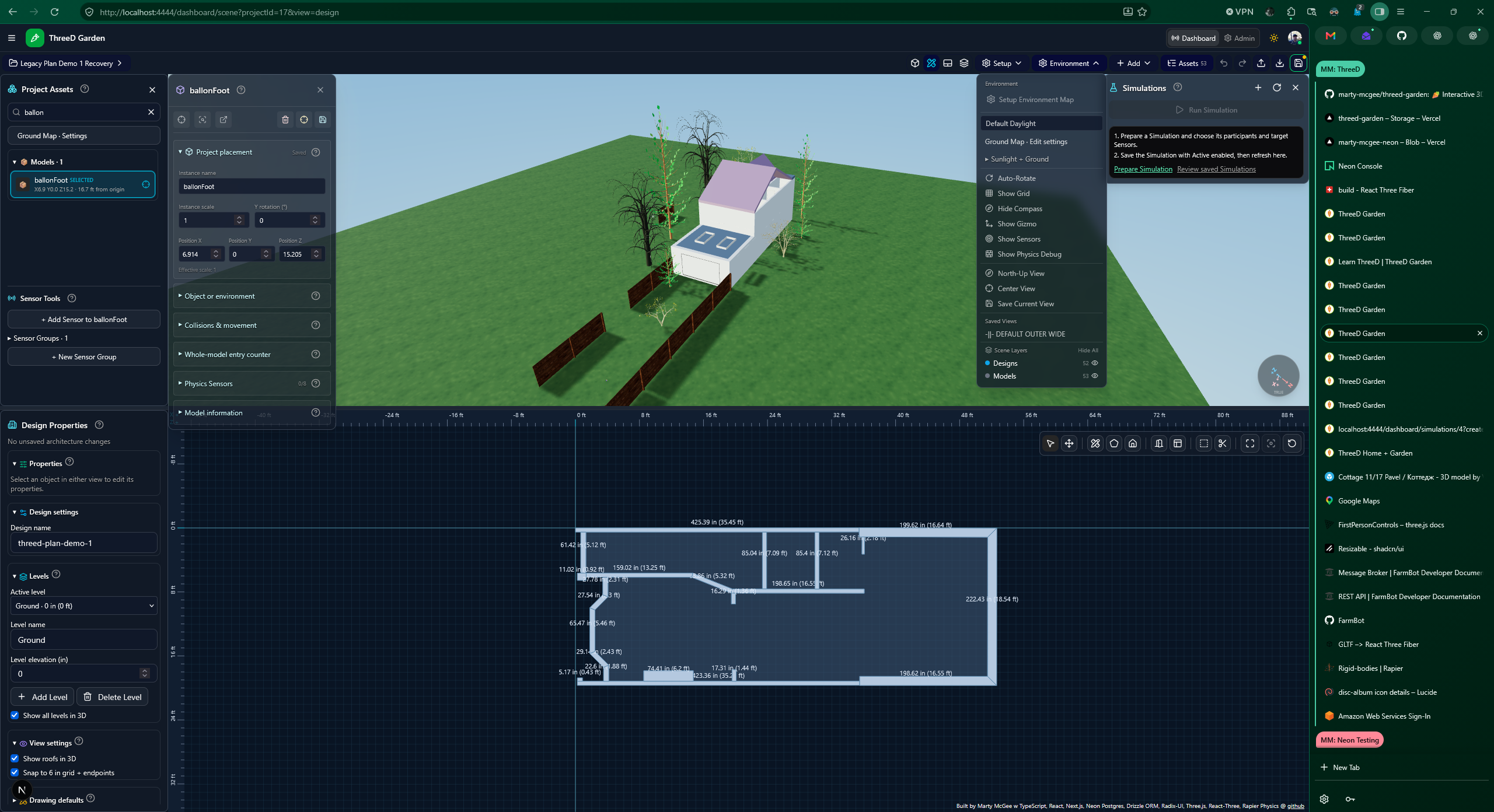
Architectural content and reusable Models share a Project workspace. This repository screenshot documents an earlier interface checkpoint; current controls may differ.
Learn more: ThreeD Designs · Architecture capabilities and planned extensions
🧩 Models, Files, and Textures
Supporting illustration: Model Files, Materials and preview images
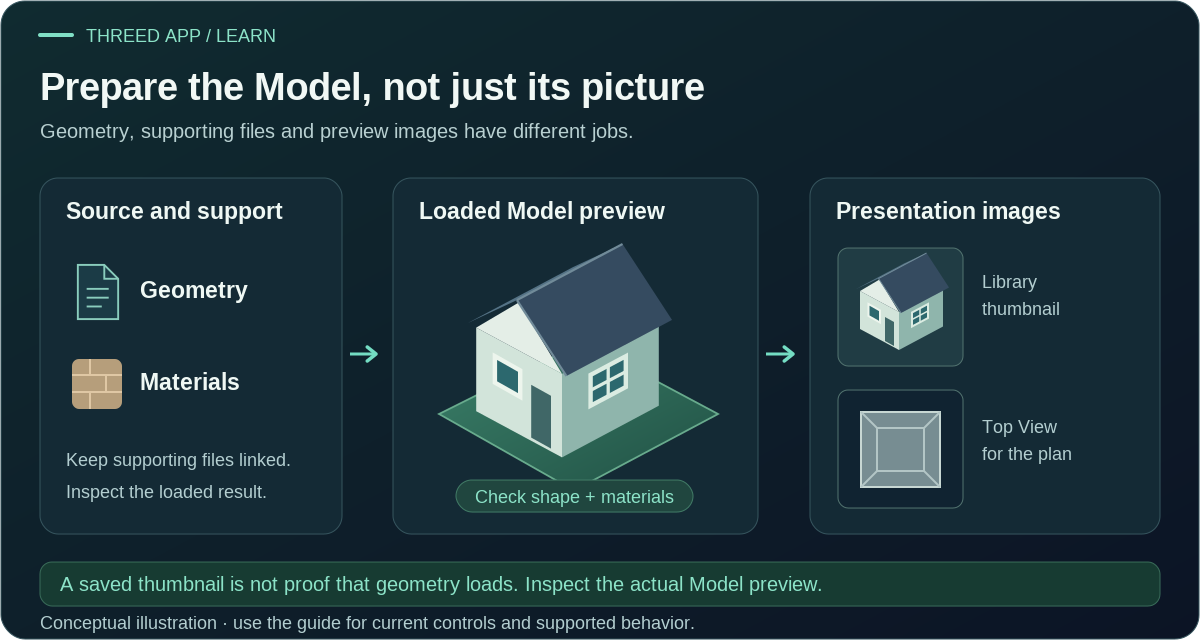
Conceptual illustration: Inspect the actual loaded Model as well as its saved files and images.
Keep reusable Models separate from the instances placed in your Projects.
- Import supported FBX, GLB, GLTF, and OBJ/MTL assets.
- Manage primary geometry and supporting Model Files.
- Review dependency/readiness information and inspect individual assets in previews.
- Organize Models with hierarchical Categories and supported bulk operations.
- Assign reusable Textures, including supported base-color, normal, roughness, metallic, occlusion, and emissive channels.
- Use preview Fit/Reset and supported transparent PNG captures.
- Add owned Model top-view PNGs for calibrated representation in the Design plan.
- Inspect embedded GLB/GLTF images and explicitly register selected images as owned Texture/File assets.
- Inspect a reusable asset in the Library, then place an instance into a Project.
Check file readiness and previews before placing imported assets. Compatibility depends on source geometry, rigs, materials, and available dependencies.
Learn more: Model administration · Model runtime API · OBJ/MTL import
🏗 Model Builder
Generate the supported parametric Cottage using editable dimensions and a repeatable generation recipe.
- Adjust dimensions and generate a preview.
- Produce Cottage geometry with procedural PBR textures and transparent glazing.
- Download supported GLB and generation-manifest outputs or capture a preview image.
- Use Save as New Model to save a new Model with its associated Files and Textures.
- Review and activate the resulting Model before placing it through a Project Library.
Saving creates a new Model. Activate it, then place it in a Project through the Library. The Builder guide records export paths and remaining acceptance work.
Learn more: Model Builder guide
🚶 Characters, Animations, and Actions
Bring Scenes to life with supported rigged Models, assigned animations, and interactive controls.
- Preview Character assets and configure animation mappings.
- Use supported idle, walk, run, turning, and task animations where compatible clips exist.
- Take or release control through DetailsCard; supported controlled Characters use WASD movement.
- Let configured Characters move autonomously.
- Trigger supported Actions such as Water and Pick Fruit when their prerequisites are met.
- Inspect placement, physics, Sensors, and available Actions through the existing interface.
Animation previews and world-changing Actions have different responsibilities. Available behavior depends on the Character, mappings, targets, and runtime support.
Learn more: Character guide · Animation library · User controls
⚽ Physics, Sensors, Scenarios, and Simulations
Combine supported physical interactions with explicit plans, execution, and observation.
| Feature set | Role |
|---|---|
| Physics | Runtime collisions and supported movement/interactions |
| Sensors | Configured observations, contacts, and counters |
| Scenarios | Plans and guidance — Open Scenario |
| Simulations | Execute supported Actions — Run Simulation |
| Results | Captured execution and Sensor observations for review |
Playable soccer exercises Character movement, targeted kicks, ball interaction, and goal-related measurements. Simulation definitions are managed in Admin; supported execution takes place in the Project Scene. Captured Results remain separate from editable definitions.
Execution is limited to the Actions implemented by the Project runner. See Current scope and the Simulation guide for boundaries.
Learn more: Simulation guide · Physics and Sensors
🌱 Garden Planning and FarmBot
Build a garden context using Plants, Beds, Plantings, and related records, then bring assigned assets into a Project.
- Manage garden records, tasks, watering information, and harvest records through supported Admin workflows.
- Arrange supported Beds and Plantings in the Project workspace.
- Reuse FarmBot component Models and compose local Assembly drafts with relative transforms and JSON import/export.
- Configure owner-scoped FarmBot connections and inspect read-only status, timestamps, and device position.
- Present relevant FarmBot observations in the Scene, DetailsCard, and Scenario guidance.
Physical FarmBot commands remain disabled. Read-only connectivity and simulated Actions do not authorize movement, watering, or other hardware commands.
Learn more: Admin guide · FarmBot integration · Read-only MQTT worker
🎵 Multimedia
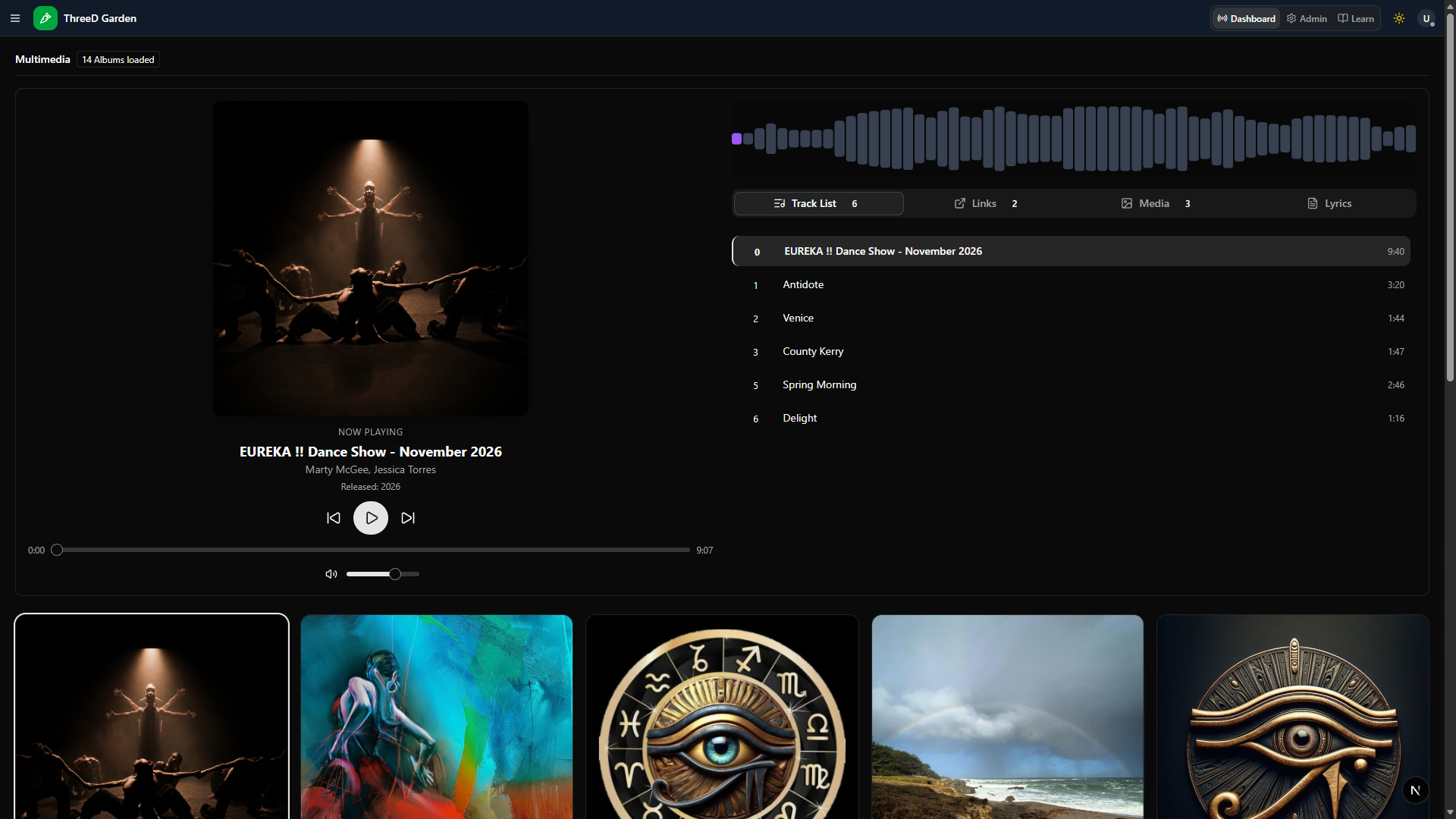
Captured November 3, 2026: Dashboard Multimedia displays a real Album and its available Tracks, Links, Media and Lyrics tabs. Playback is paused.
Supporting illustration: Project Album selection and playback
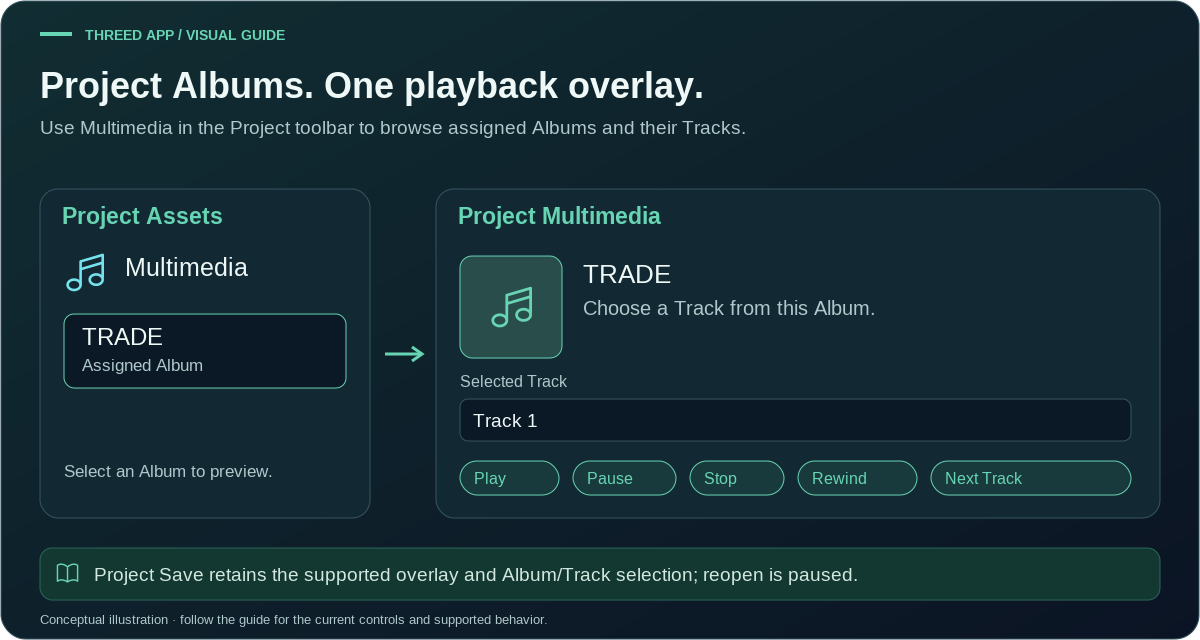
Conceptual illustration: Project Assets and the Multimedia overlay share Album and Track selection.
Browse a content library and use the shared Dashboard Player for supported audio and video.
- Albums: organize collections, artwork, and related content.
- Tracks: browse ordered content and open direct Album/Track URLs.
- Lyrics: manage independent records with optional Project, Album, and Track associations; show eligible Lyrics alongside public playback and owned Track details.
- Media: view supported audio/video attachments with responsive cards and retry feedback.
- Links: associate related destinations with content.
- Speech: manage supported Speech content and publishing workflows.
- Playback: shared Player, artwork, supported waveform presentation, and browser-history navigation without automatic playback on restoration.
Admin provides content management; Dashboard provides discovery and playback. File visibility and delivery follow existing authorization. Playback depends on browser codec support and media availability.
Learn more: Dashboard Multimedia · Lyrics workflow · Multimedia administration
🚦 Traffic and Geographic Information
Explore the combined Traffic map/list interface and focused provider pages.
- Supported source views include CHP, Caltrans, CalFire, and Bay Area 511.
- Toggle sources and inspect returned records on maps and lists.
- Select a list item to focus its marker, or a marker to reveal its corresponding item.
- Review source-specific loading and availability feedback.
Coverage and freshness depend on the upstream providers and configured integrations.
Learn more: Dashboard guide
📚 Learn
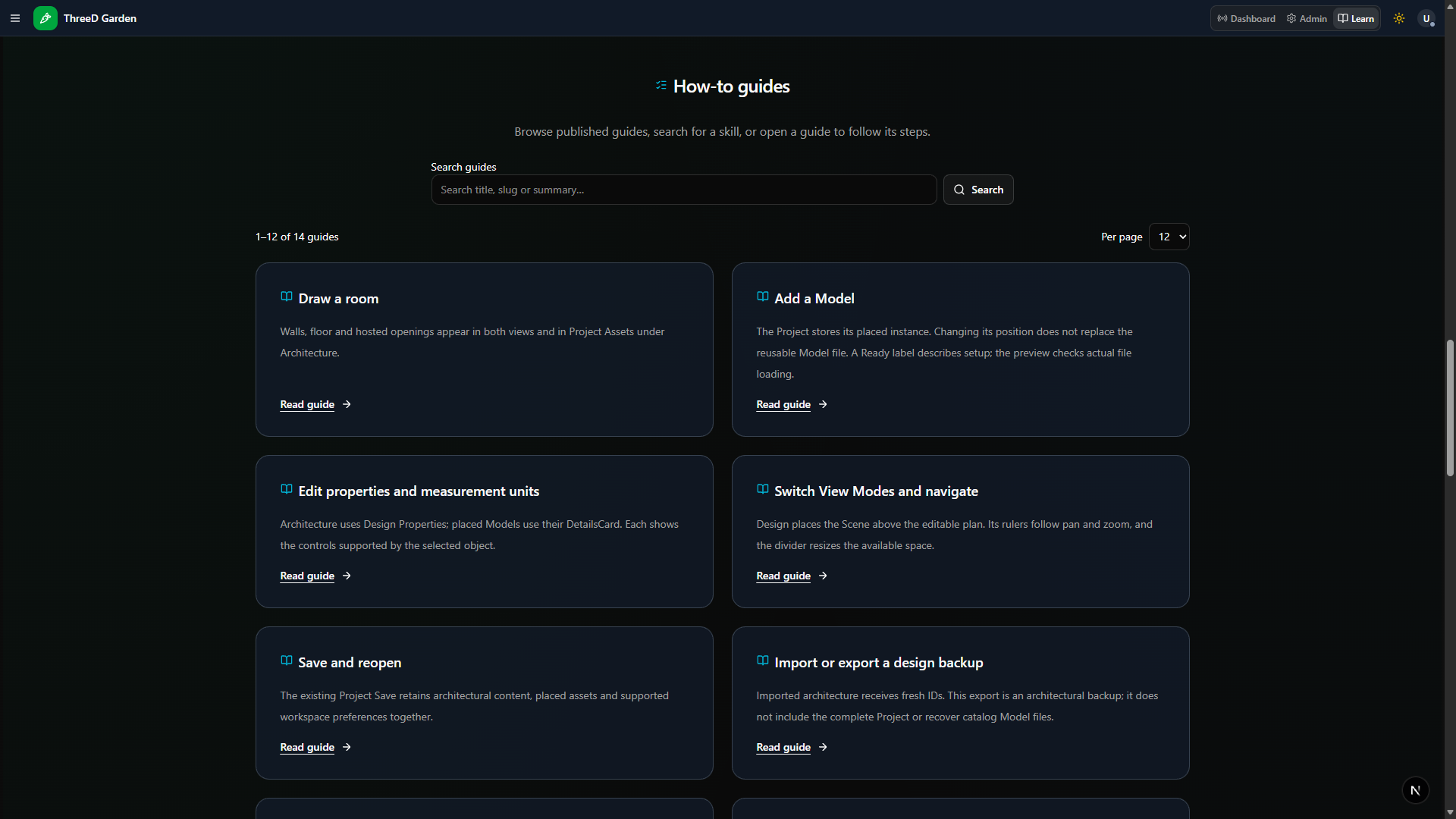
Captured November 3, 2026: the public Learn guide library presents published instructions with search and paging.
ThreeD Module Learn provides public, task-based guides for Projects, Design, Models, Characters, Simulations, Multimedia, Users and Settings. Its v0.29.0 implementation adds shared Markdown records, Super Admin CRUD, preview and explicit publishing. Import Starter Guides adds the fourteen existing how-tos as editable database records without overwriting existing slugs. Each starter links to the fuller Markdown documentation.
Super Admins use Learn > All Guides and Add Guide to manage content. Public visitors use Learn ThreeD from the App menu to read Active and Published guides. Learn has its own Module icon/color in App Settings and needs no Project assignment. See Learn setup and authoring for the scoped SQL prerequisite and import workflow; v0.29.0 release record tracks validation and release status.
Learn more: Getting Started · Documentation index · App Settings
⚙ Administration and Workspace Settings
Manage reusable content in Admin, then work with assigned content in Dashboard. Shared headers, compact forms, related-record links, filters, and Save/Discard flows provide a consistent foundation across Modules.
- Content administration: configure Projects, manage reusable records, activate eligible assets, and assign them to their intended Projects.
- Users: Super Admins can add accounts, edit profiles and roles, and soft-delete eligible accounts. Self-deletion, removal of the last active Super Admin, and deletion of Users who own content are blocked. Deleted accounts retain their records and cannot authenticate or use a session.
- Authentication: NextAuth owns authentication and sessions; ThreeD App owns new-account defaults. Ordinary Users are Admins of their own content. Super Admin authority covers global Settings and Users management; it does not grant blanket ownership of other Users' private content.
- App styling rules: creation action buttons are green, while sidebar creation links retain ordinary navigation styling. The current page has a distinct highlight. Module identity colors and icons remain configurable through App Settings.
Global and personal Settings
| Scope | What it controls |
|---|---|
| Global Module appearance | Shared colors and Lucide icons for Users, Projects, ThreeD and its sub-Modules, Multimedia, Traffic, and Learn. Only active Super Admins can save these changes. Connected headers, navigation, and record icons consume the saved values. |
| Account preferences | Theme, main Module visibility, and supported Dashboard menu links. Hiding a navigation item changes presentation, not authorization. |
| Per-user browser preferences | Admin sidebar expansion and the main Settings disclosure sections, with cross-tab synchronization. |
| Browser-local appearance | Scene panels, Project Header/button appearance, and Model preview export dimensions. These have their own persistence scope. |
Global appearance controls provide previews, Save, Discard, Restore defaults, and Reload. Conflicting saves are rejected and failed drafts remain available. Other sessions receive saved styles when the App reloads. Status indicators and individual Layer colors retain their own meaning.
For a new installation, follow the Super Admin bootstrap guide and review the Users release prerequisites. Existing installations must check their applied schema state before using the accompanying SQL.
Learn more: Admin guide · Global and personal settings
🔎 Current scope
ThreeD is actively developed. Use the current context for acceptance evidence and known limitations, and the release history for version-specific changes.
- Concept design: supported architectural tools are intended for exploring and presenting spaces. Construction-ready CAD deliverables are not established. Advanced roof joins, stairs, annotations, and other extensions have separate scopes.
- Asset compatibility: supported file formats do not guarantee that every third-party asset, rig, or material will work. Review dependencies and previews.
- Actions and Results: animation previews, world Actions, and Simulation execution are distinct. Captured Results describe supported browser-scene execution and observations.
- Hardware: physical FarmBot commands remain disabled; current connectivity is read-only.
- Access and delivery: Project editing, public visibility, and file delivery follow their existing access rules. Team collaboration, confidential asset hosting, and website embedding should not be assumed.
- Runtime: 3D rendering depends on the browser and graphics hardware. Multimedia playback also depends on codec support and available files.
- Images: README screenshots show the interface at their capture dates and may differ from current controls.
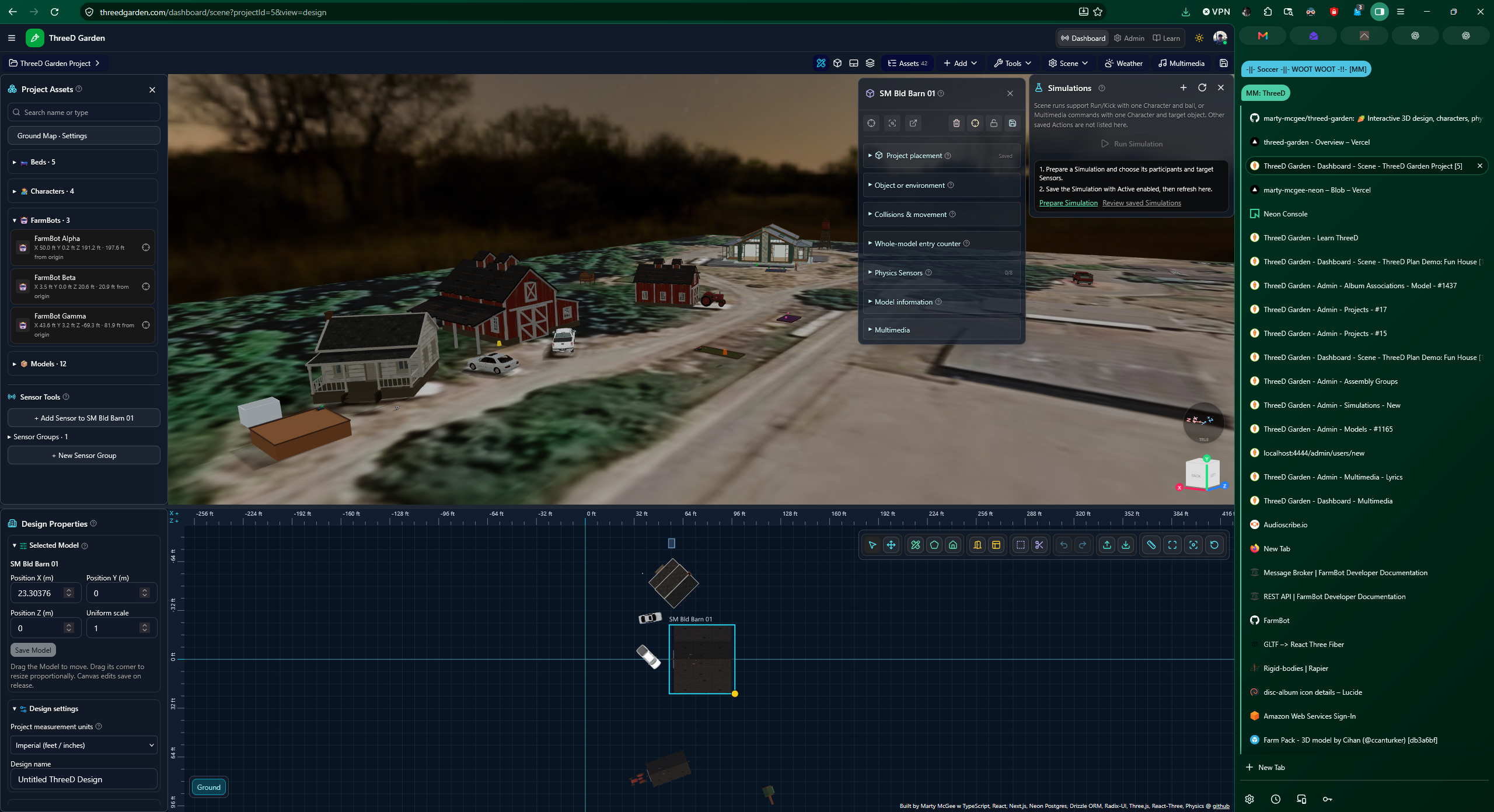
ThreeD App v0.30.2, captured November 2, 2026: the ThreeD Garden Project combines reusable Models, garden assets, and linked 3D and 2D Design views.
📚 Learn and explore
| For… | Start here |
|---|---|
| New visitors | Learn ThreeD · Getting started |
| Project creators | Dashboard · Controls |
| Content managers | Admin · Models |
| Developers | Architecture · Data model · API |
| Contributors and coding agents | Working instructions · Task checklists |
🛠 Technology
| Layer | Tools |
|---|---|
| 🟦 Application | Next.js · React · TypeScript |
| 🟪 3D rendering | Three.js · React Three Fiber · Drei |
| 🟧 Movement and physics | Rapier · Ecctrl |
| 🟩 Maps and persistence | Leaflet · Neon Postgres · Drizzle ORM |
| 🎨 Interface | Tailwind CSS · shadcn/ui · Radix UI |
| 🔐 Authentication | Auth.js / NextAuth |
| ☁ Asset integrations | Vercel Blob · AWS S3 |
| 🤖 Device status | MQTT and FarmBot integration |
💻 Run locally
Use Node.js 24 and npm 11.6.2, matching .nvmrc and package.json. Follow Local development to configure the required environment and database first.
npm install --global [email protected]
npm ci
npm run dev
Open localhost:4444. The main Scene route is /dashboard/scene. npm start is also a development-server command; use npm run next:start to serve an existing production build. Coding agents must leave Developer servers and their active installation untouched; see AGENTS.md.
Checks and production build
npm run typecheck -- --incremental false
npm run validate -- ci
npm run build
See the validation guide for task-specific and isolated checks, and the deployment guide for production setup. Database generation and live schema operations are documented separately in the database workflow.
🤝 Contribute and follow development
The latest Developer-confirmed production release is v0.32.1. See release history for version-specific scope and checks, and current context for active work and known limitations.
Have a reproducible bug or a focused feature idea? Open an issue. Before contributing, review the contribution workflow, existing ownership boundaries, and applicable checks.
Designers, suppliers, educators, and developers can help shape future work by describing a concrete use case in GitHub Discussions. Explain the outcome you need and the workflow you have tried; use Issues for reproducible bugs and focused feature requests. Keep confidential customer information out of public posts.
The legacy-v0.17 branch and repository migration record preserve the original project history.
⚖ License
Application code is licensed under the MIT License. Third-party Models, textures, audio, video, and other assets may carry separate licenses; check their individual terms before reuse.
Explore related projects
Loading…