
martonpaulo/windowhop
martonpaulo/windowhop has 28 GitHub stars and 1 forks. GitHot measured 0 stars in 24 hours. Last checked 2026-11-15 11:59 UTC. Last push 2026-11-02.
Measured star growth
- in 24h
- 0
- in 7 days
- Collecting history
- in 15 days
- Collecting history
- in 1 month
- Collecting history
Net star changes over overlapping periods, not daily totals. Missing measurements are left blank. Stars measure attention, not software quality.
About
Switch between windows, not just apps. Fast, native macOS window switcher with large app icons or live previews — free, GPL, no telemetry.
ProductivityREADME.md
Original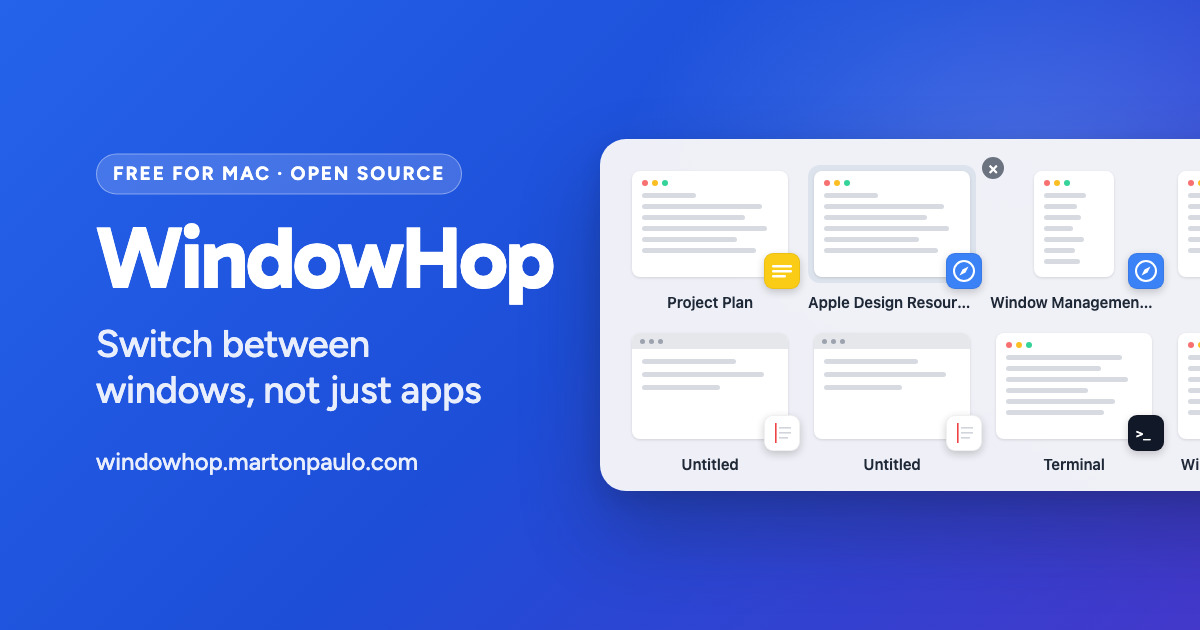
WindowHop
Switch between windows, not just apps. Fast, native macOS window switcher with large app icons or live previews — free, GPL, no telemetry.
Download WindowHop · Website · Help





Why WindowHop
On a Mac, ⌘ Tab switches between apps. When you have three browser windows or four terminals open, you still have to find the right window after that.
WindowHop gives every window its own tile. Hold ⌘, press Tab until the window you want is selected, and release. You land on that exact window, also when it is on another Space or another display.
- One tile per window. A window with ten tabs is one tile, not ten.
- Two looks. Large app icons (the default), or live previews of each window.
- Safe. If WindowHop is not running, ⌘ Tab works as it always did.
- Private. No account, no tracking. Previews stay in memory and are never saved or sent.
- Free and open source under GPL-3.0.
Requirements
- A Mac with Apple silicon (M1 or later)
- macOS 26 or later
Install
- Download
WindowHop-<version>.dmgfrom the latest release. - Open the file and drag WindowHop to the Applications folder.
- Open WindowHop from Applications. It is signed and notarized by Apple.
- WindowHop asks for Accessibility permission. Choose Open System Settings and turn on WindowHop. It needs this permission to see your windows and switch to them.
With Homebrew instead, in Terminal:
brew install --cask martonpaulo/tap/windowhop
Then open WindowHop from Applications and allow Accessibility (step 4).
Already installed from the disk image? Run
brew install --cask --adopt martonpaulo/tap/windowhop so Homebrew manages the app you
have. It keeps the app and its settings; the installed version must match the cask's, so
update WindowHop first if it is older.
That is all. WindowHop updates itself: it checks for new versions and asks before it installs one.
Use it
Hold ⌘ and press Tab. The switcher shows your windows, with the previous window selected. Press Tab again to move, then release ⌘ to switch.
| Keys | What they do |
|---|---|
| ⌘ Tab | Open the switcher and select the previous window |
| Tab or → | Next window |
| ⇧ Tab or ← | Previous window |
| Release ⌘, or Return | Switch to the selected window |
| Esc | Close the switcher and stay where you are |
| Delete | Close the selected window (WindowHop asks first) |
| ⌘ , | Open Settings |
| Click a tile | Switch to that window |
Do not want to hold a key? Press ⌥ Tab. The switcher stays open until you choose a window with Return, Space or a click, or close it with Esc. You can change both shortcuts in Settings → Shortcuts.
Settings
To open Settings, press ⌘ , while the switcher is open, or open WindowHop again from Applications. Settings has four panes:
- General: turn WindowHop on or off, open it at login, show it in the menu bar or the Dock, and see whether Accessibility is allowed.
- Shortcuts: the switcher shortcut (⌘ Tab), the Open WindowHop shortcut (⌥ Tab), a short delay before the switcher appears, and the keys you can use in it.
- Switcher: App Icons or Window Previews, tab counts, which windows to list (other Spaces, other displays, minimized windows, hidden apps, Picture in Picture), and the display the switcher opens on.
- About: the version, updates, and links to the website and to this repository.
Restore Defaults… in General puts every setting back to its default.
Window Previews
App Icons, the default, needs no other permission. To see a small picture of each window instead, choose Window Previews in Settings → Switcher. macOS then asks for Screen Recording permission.
WindowHop takes the pictures only while the switcher is open. It keeps them in memory, and never saves them to disk or sends them anywhere. If you stay on one window for a moment (3 seconds by default), WindowHop shows a larger picture of it. The real window does not move until you choose it.
Check that it works
Hold ⌘ and press Tab. If you see WindowHop's switcher with one tile per window, it works. If you see Apple's app switcher instead, read the next section.
When something does not work
- ⌘ Tab shows Apple's switcher. WindowHop is not open, is turned off in Settings → General, or does not have Accessibility permission. When WindowHop cannot answer, the Mac's own switcher does. A password field also sends ⌘ Tab to Apple's switcher until you leave that field.
- A window is missing. Minimized windows, windows of hidden apps and Picture in Picture windows are not listed by default. Turn them on in Settings → Switcher. A window on another Space appears after you visit that Space once while WindowHop is running.
- Previews stay grey. Screen Recording is not allowed. Use the button in the switcher or in Settings → Switcher, turn on WindowHop in System Settings, then come back.
- The Accessibility switch does not stay on. Remove WindowHop from System Settings → Privacy & Security → Accessibility, make sure WindowHop is in Applications, open it from there, and allow it again.
Still stuck? Report an issue, or use Report an Issue… in Settings → About, which fills in your versions for you.
Privacy
WindowHop has no account, no analytics and no advertising. The only thing it sends over the internet is the update check. You can read every line of the code in this repository.
Limitations
- Windows on a Space you have not visited since WindowHop started are not listed yet. This is because WindowHop uses only public Apple interfaces.
- Tab counts appear only for apps that use the standard macOS tabs.
- WindowHop does not search window titles, arrange windows, or open apps.
- English only.
Uninstall
- Quit WindowHop: choose Quit WindowHop… in Settings → General.
- Move WindowHop from Applications to the Trash, or, if you installed it with Homebrew, run
brew uninstall --zap --cask windowhop, which also removes its settings. - Optional: remove WindowHop from System Settings → Privacy & Security → Accessibility and Screen Recording.
For developers
Build instructions, commands, the release process and the project rules are in
CONTRIBUTING.md. The documentation for each part of the code is in
docs/, and CHANGELOG.md lists every version.
License and credits
GPL-3.0 © 2026 Marton Paulo.
WindowHop is derived from AltTab by Louis Pontoise
(lwouis) and contributors, base tag v10.12.0 (317a485b), with its history kept.
UPSTREAM.md has the details.