
marcimastro98/Xenon has 121 GitHub stars and 16 forks. GitHot measured 0 stars in 24 hours. Last checked 2026-11-15 15:47 UTC. Last push 2026-11-15.
Measured star growth
- in 24h
- 0
- in 7 days
- Update delayed
- in 15 days
- Update delayed
- in 1 month
- Update delayed
Net star changes over overlapping periods, not daily totals. Missing measurements are left blank. Stars measure attention, not software quality.
About
A 100% local all-in-one dashboard for any screen, tablet or phone. Windows, with macOS and Linux in beta. System monitor, media and mic, a voice AI that can build dashboard pages for you, a Stream Deck style grid, RGB lighting, and Twitch/OBS control. Free and source-available, no account, no telemetry.
Self-hostedREADME.md
Original
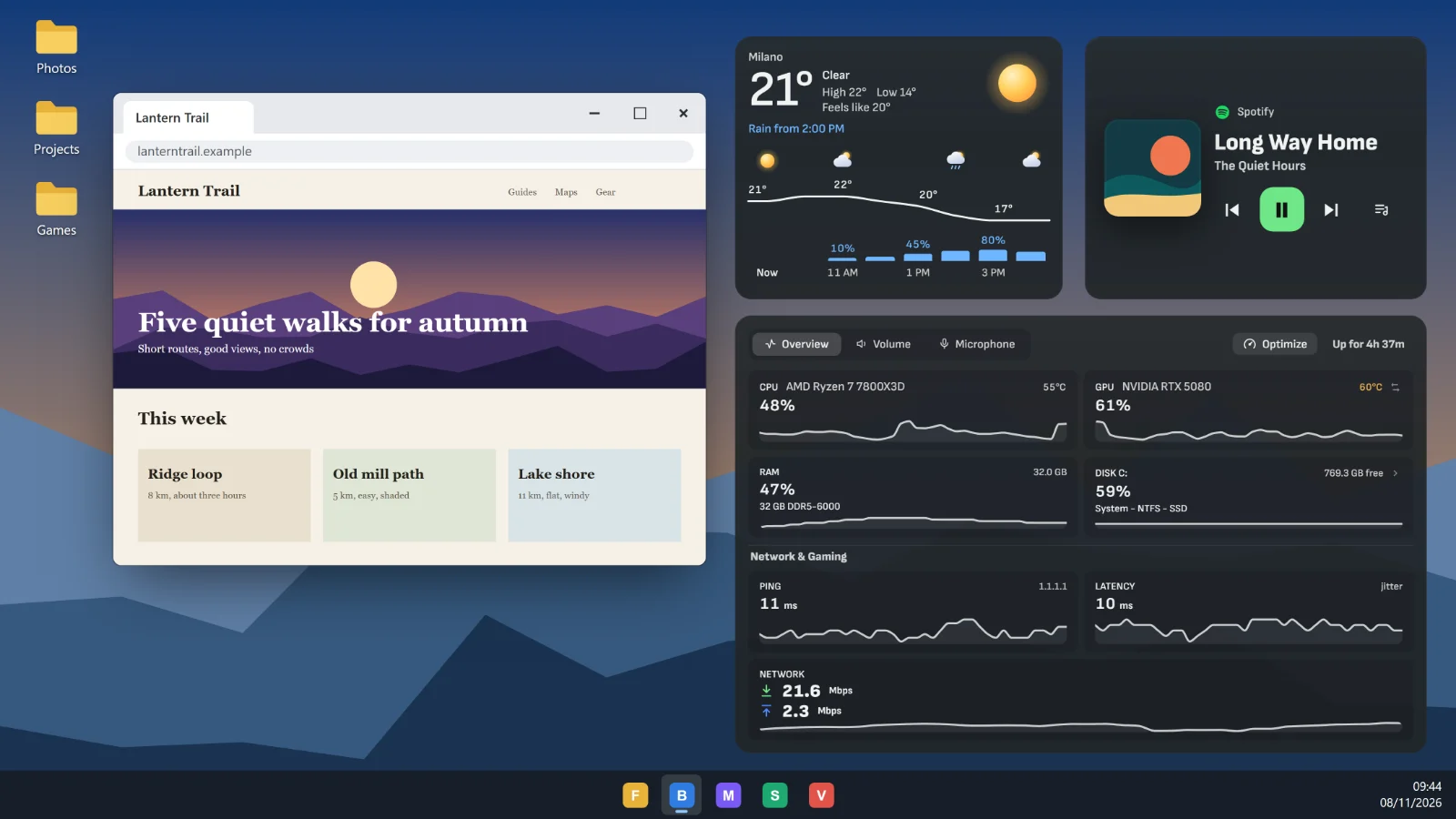
Free widgets for your PC, on any screen.
Temperatures, FPS, music, calendar and touch keys on your desktop, over your games, on a spare monitor, a tablet or a phone.


Try it in your browser with nothing to install, look through the catalog, or come and say hello on Discord.
New in 5.0: a new look, widgets on your main screen, and Bit.
Download the installer, run it, and press Complete setup when the app asks. If Windows warns you about the file, this explains why and how to check it yourself.
Every screen you have
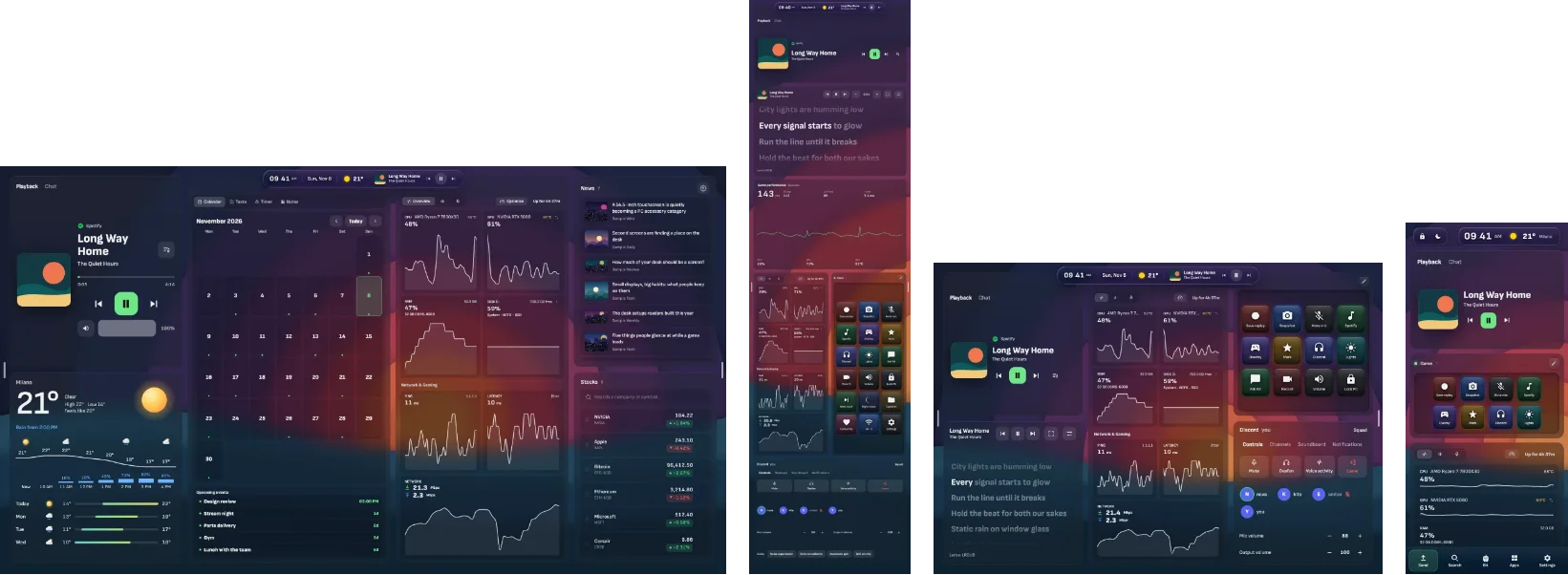
The same widgets rearrange themselves for each shape. Above, left to right: a spare monitor, a Xeneon Edge standing upright, a tablet and a phone.
The monitor you already have. Widgets sit right on it: on the desktop under your windows, or over your game. No second screen needed. Alt+Shift+X opens the Xenon menu.
A spare monitor or a touchscreen. Xenon opens full screen on the one you pick, with no browser. Touch it mid-game and the game keeps its focus.
A phone or a tablet (beta). It pairs with a code on your home network, with no account and no app to install. The phone guide shows how.
CORSAIR Xeneon Edge. Xenon was first designed around this 14.5" touchscreen, and it runs on it without iCUE. You do not need one.
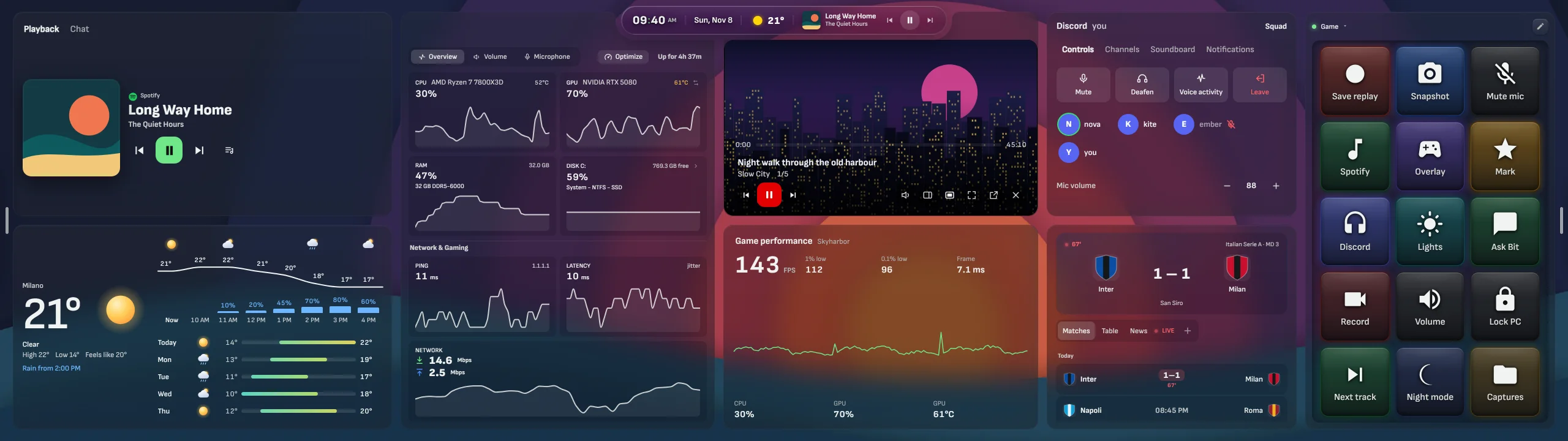
What do you want on your screen?
47 widgets built in, plus the community catalog. Here are eight; the full list has Discord, Twitch, YouTube, weather, football, news and the rest.
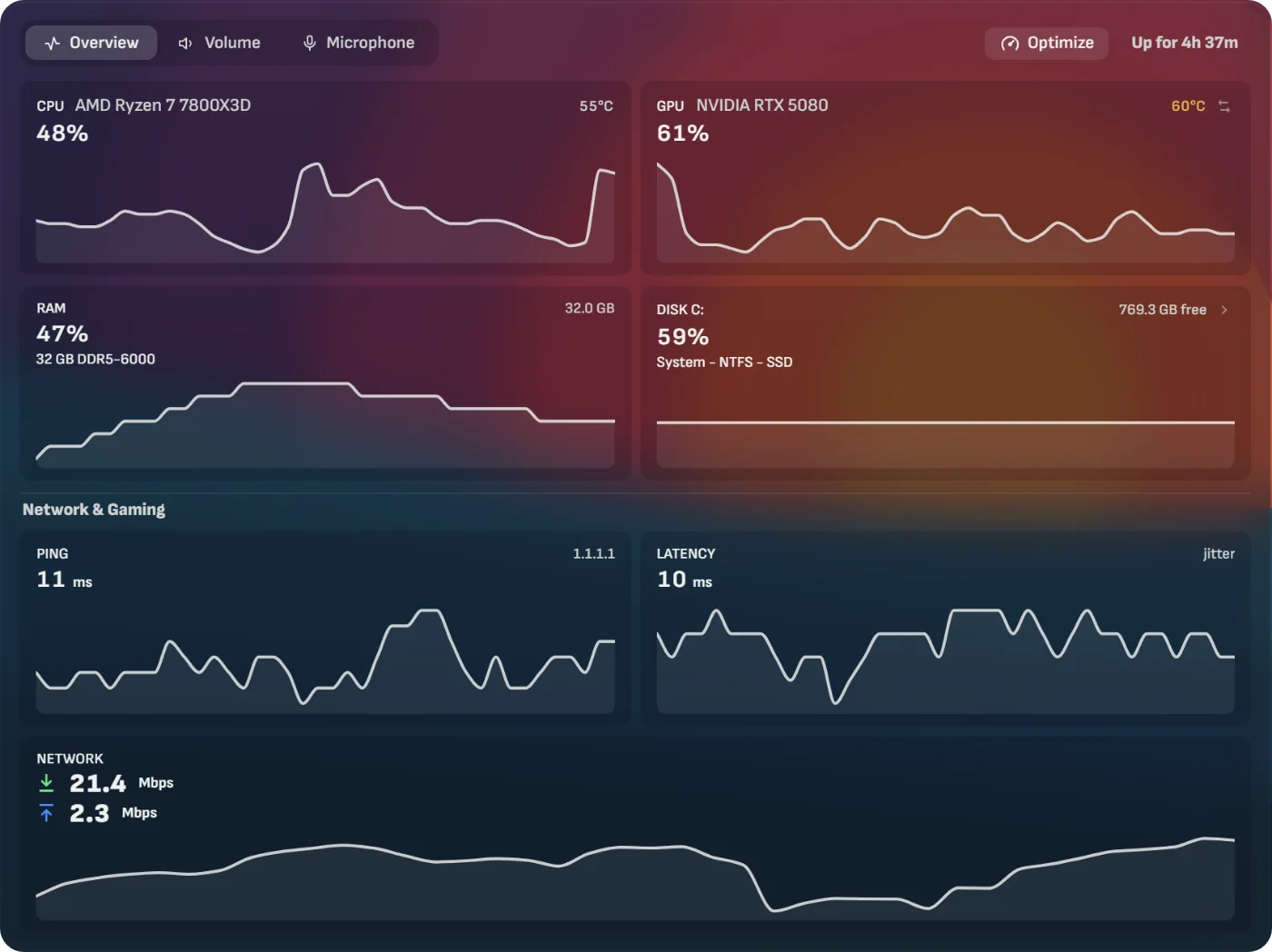 CPU and GPU Load and temperatures, memory, disks, network, ping and frame rate. |
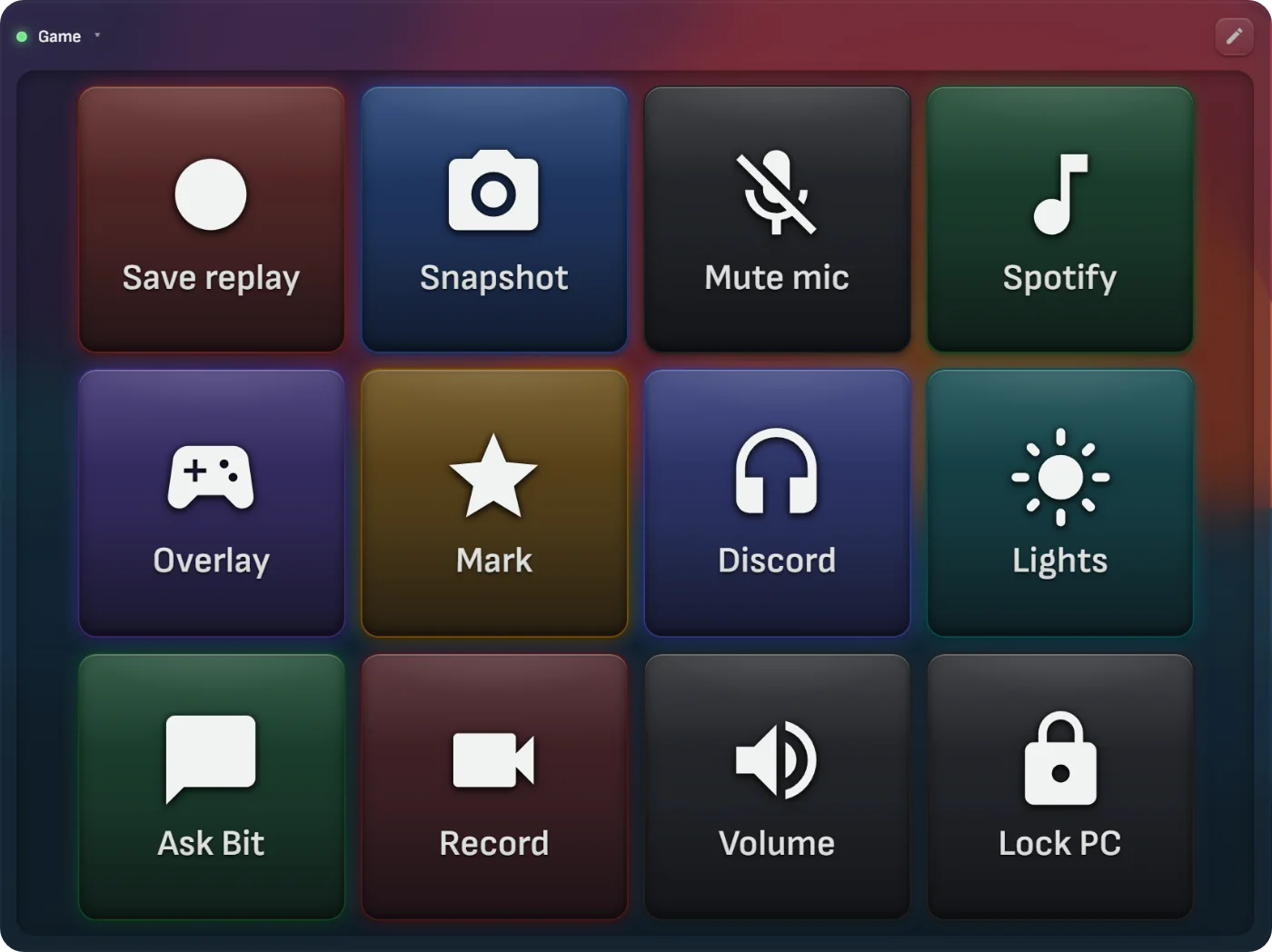 Deck Touch keys for apps, shortcuts, media, OBS, Discord, Home Assistant and macros. |
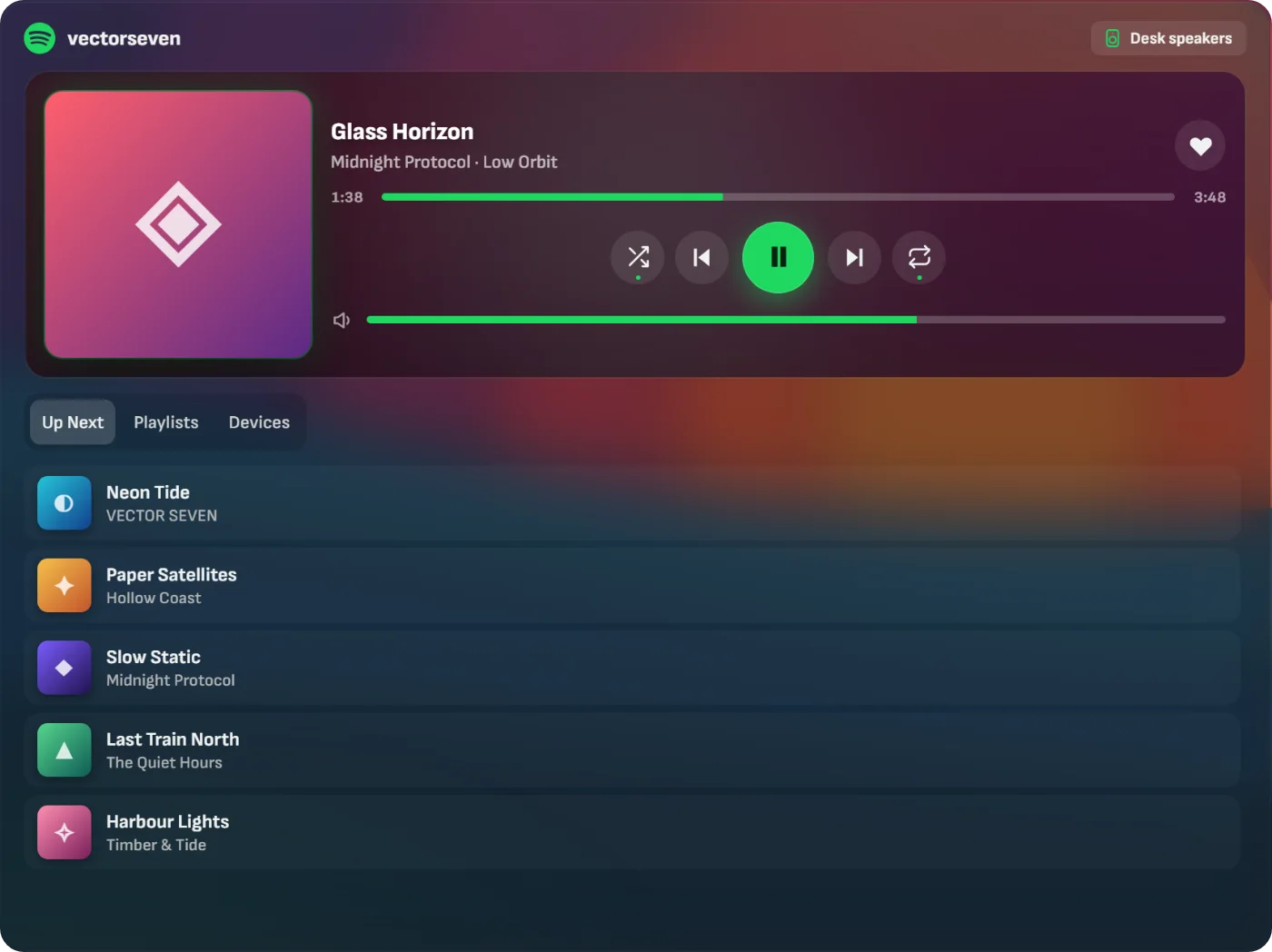 Spotify Track, queue, playlists and Connect devices. Controlling playback needs Premium. |
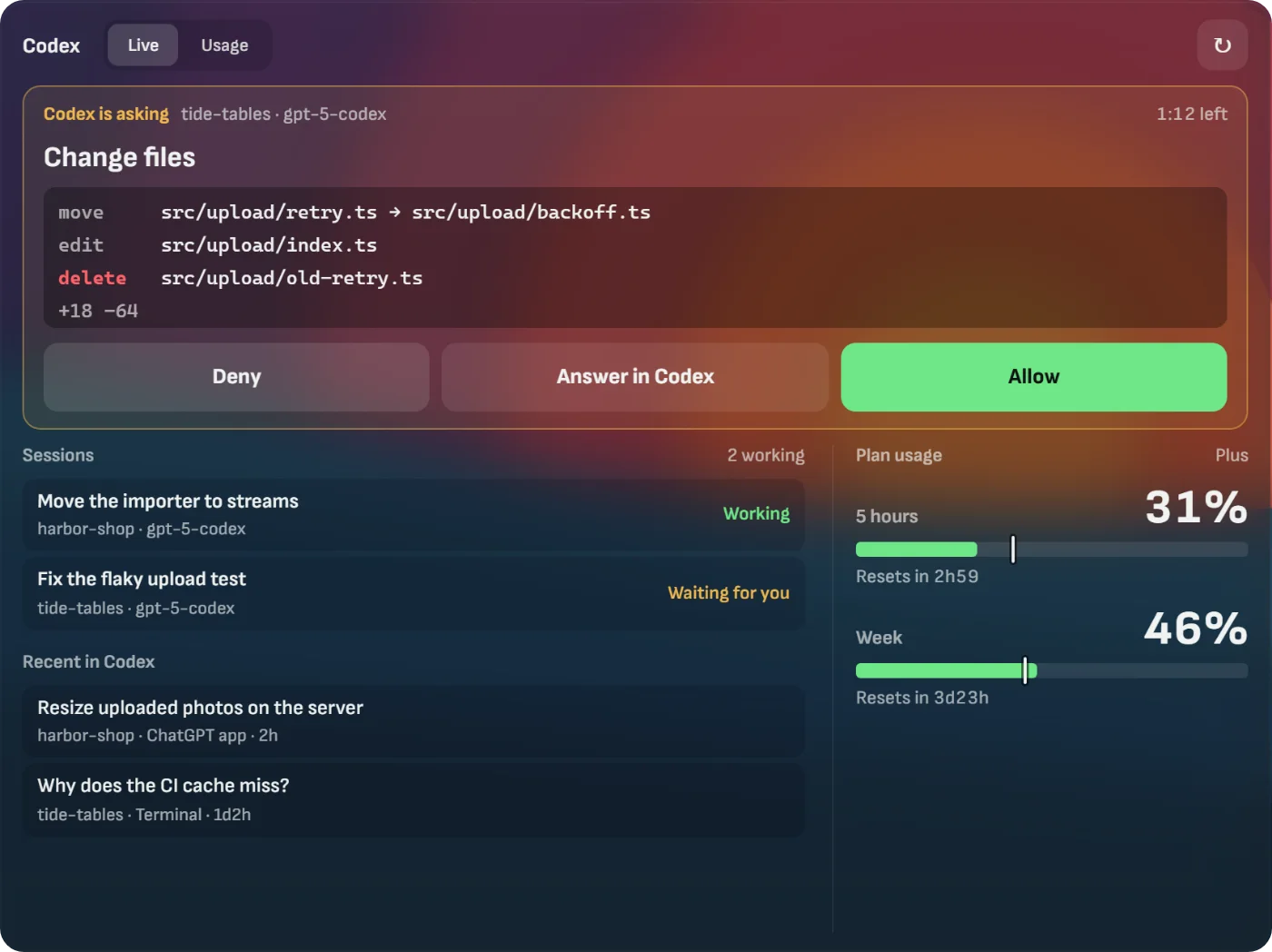 Claude Code and Codex Sessions, usage limits and permission requests you answer with a tap. |
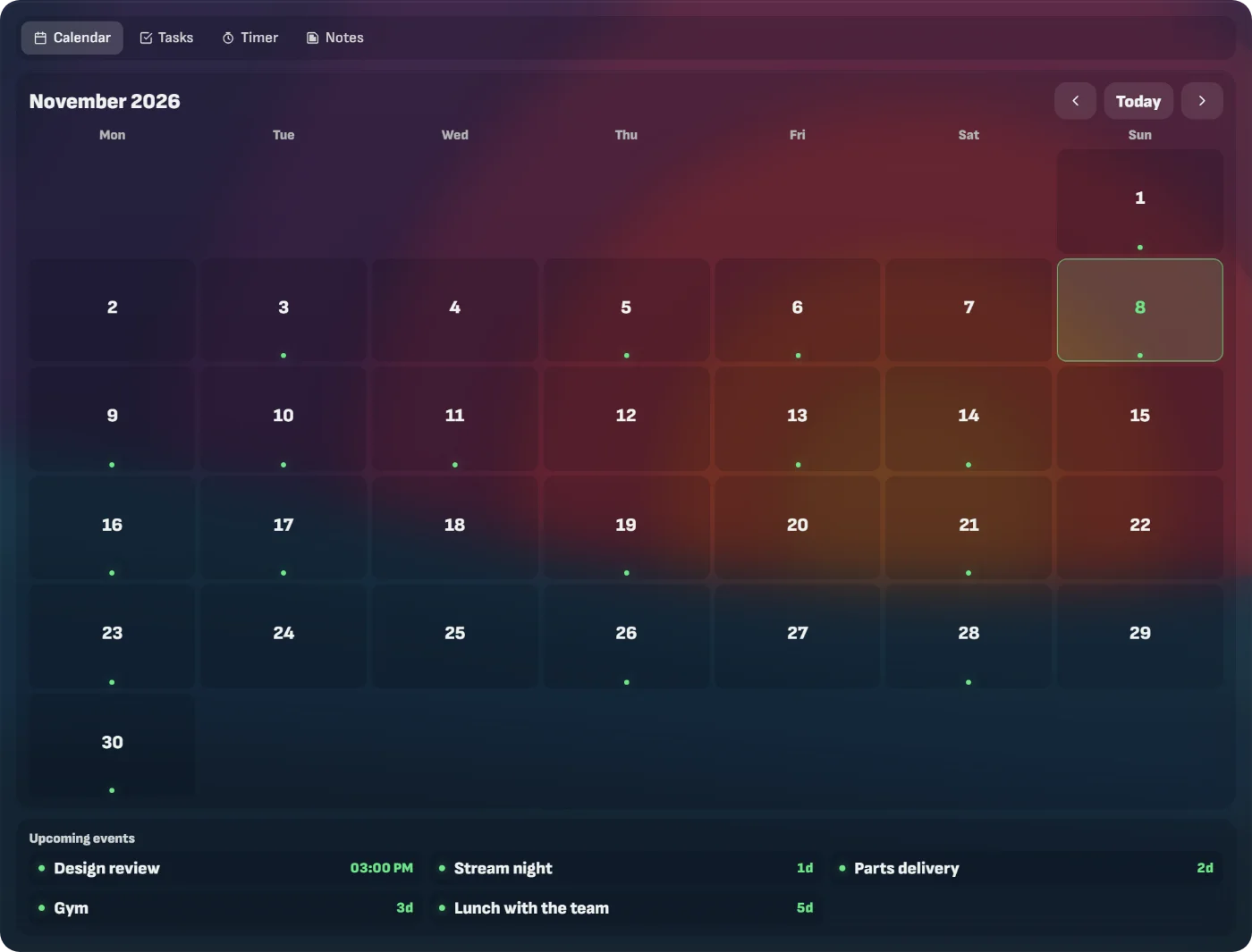 Calendar Month view and events from Google, Outlook or an .ics link. |
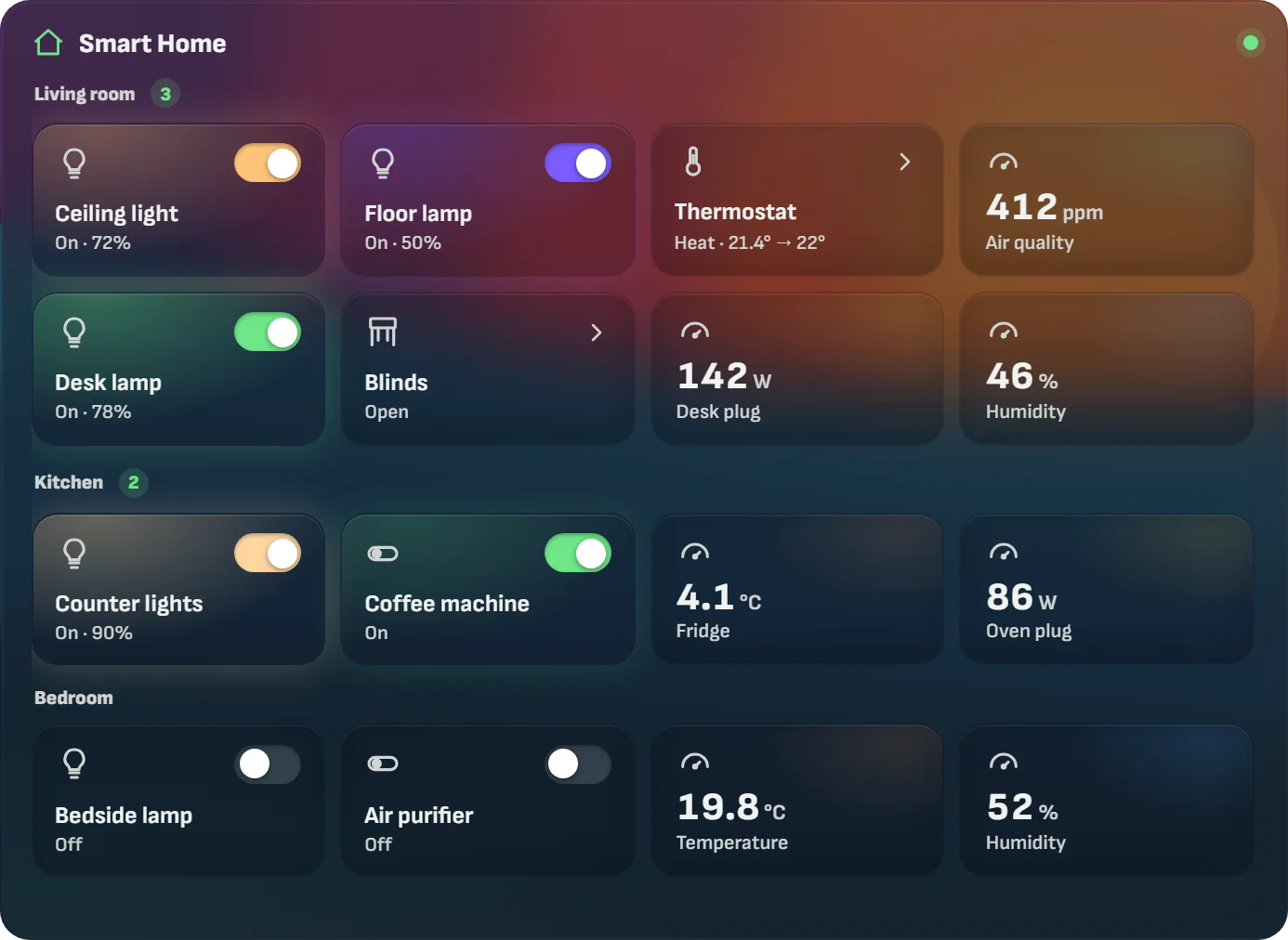 Smart Home Your Home Assistant devices room by room: lights, scenes and sensors. |
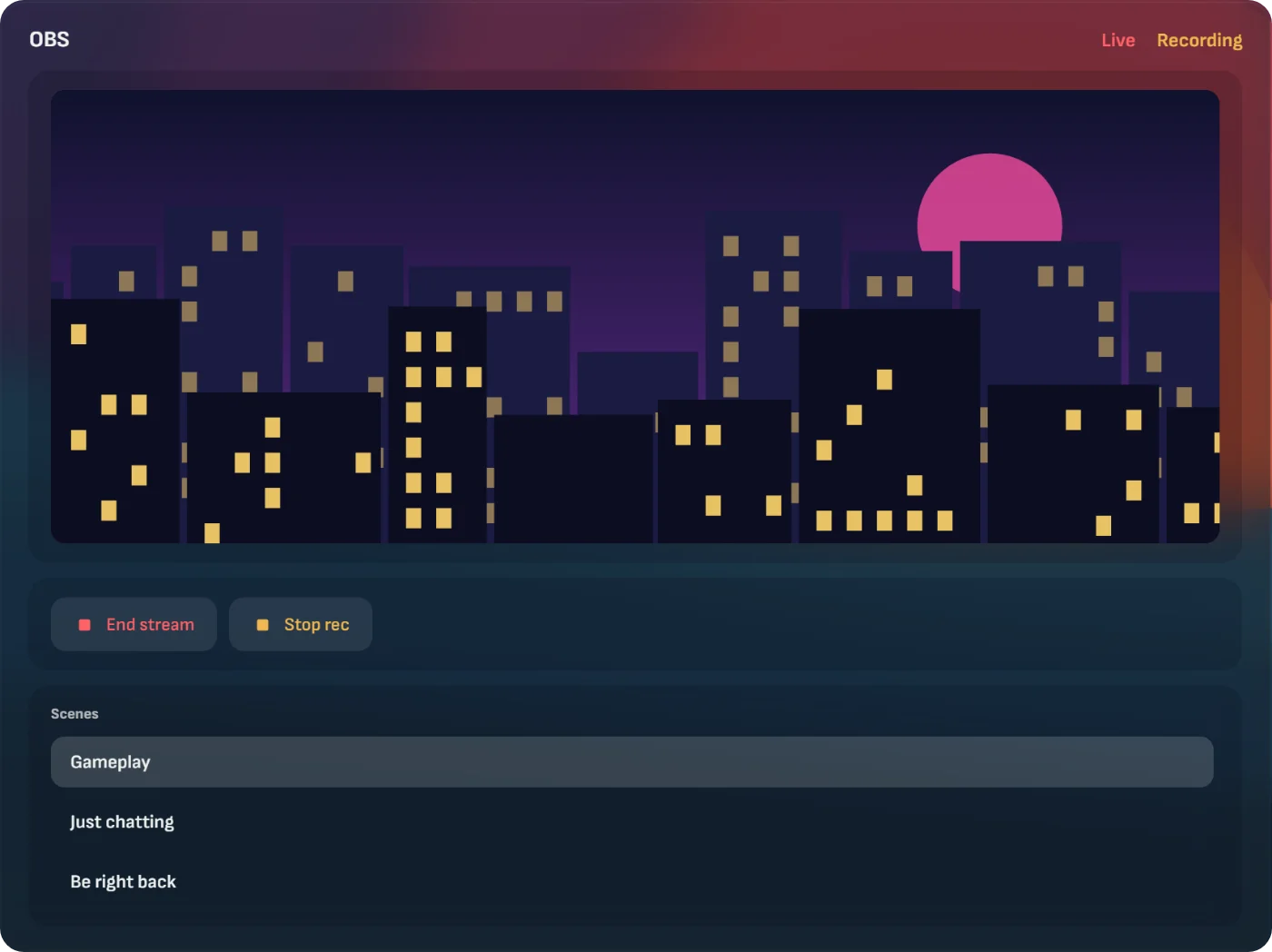 OBS Preview, stream, recording, scenes and audio. |
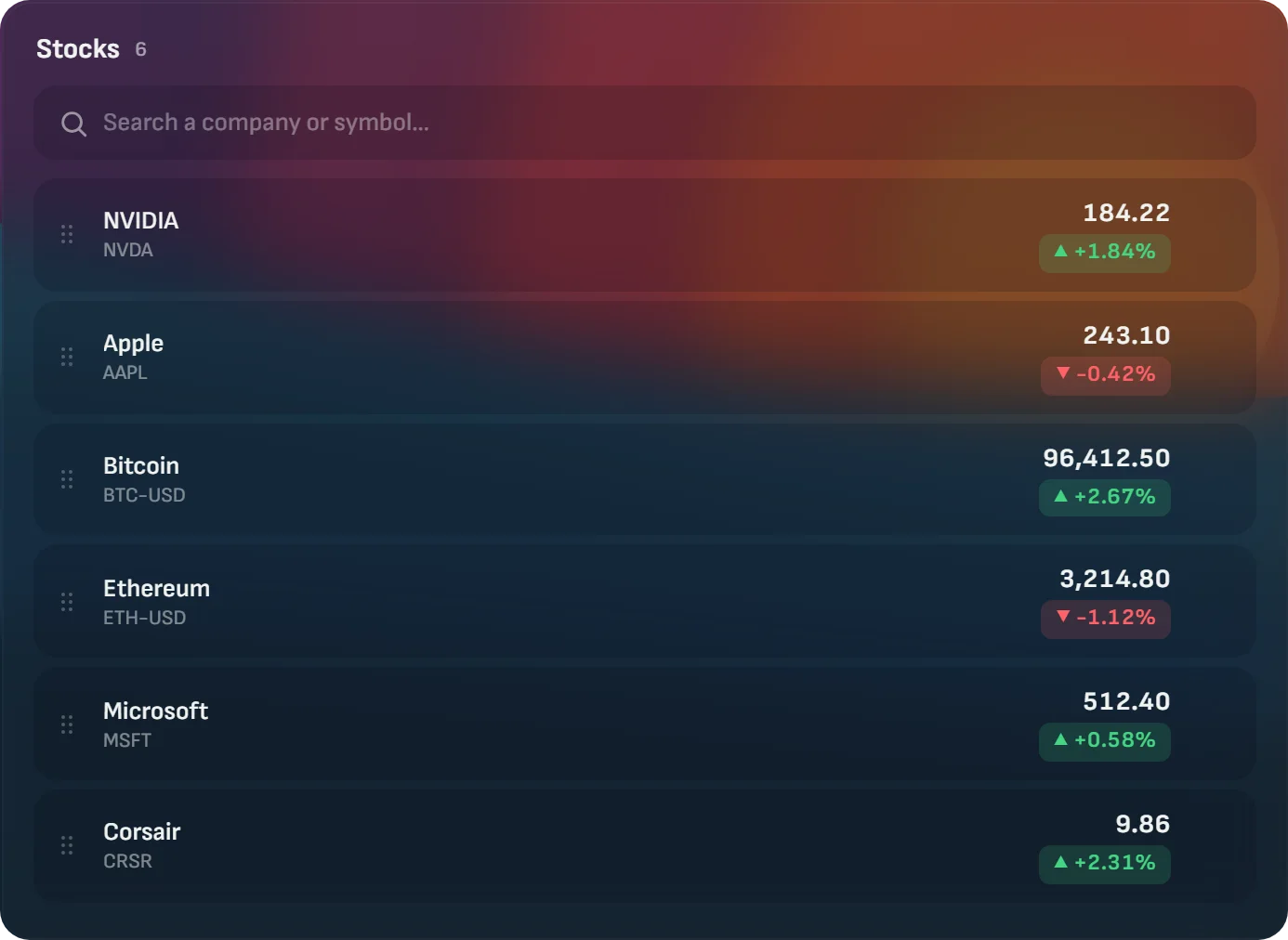 Stocks Stocks, indexes, crypto and currencies, with a chart for each symbol. |
FPS and Instant Replay
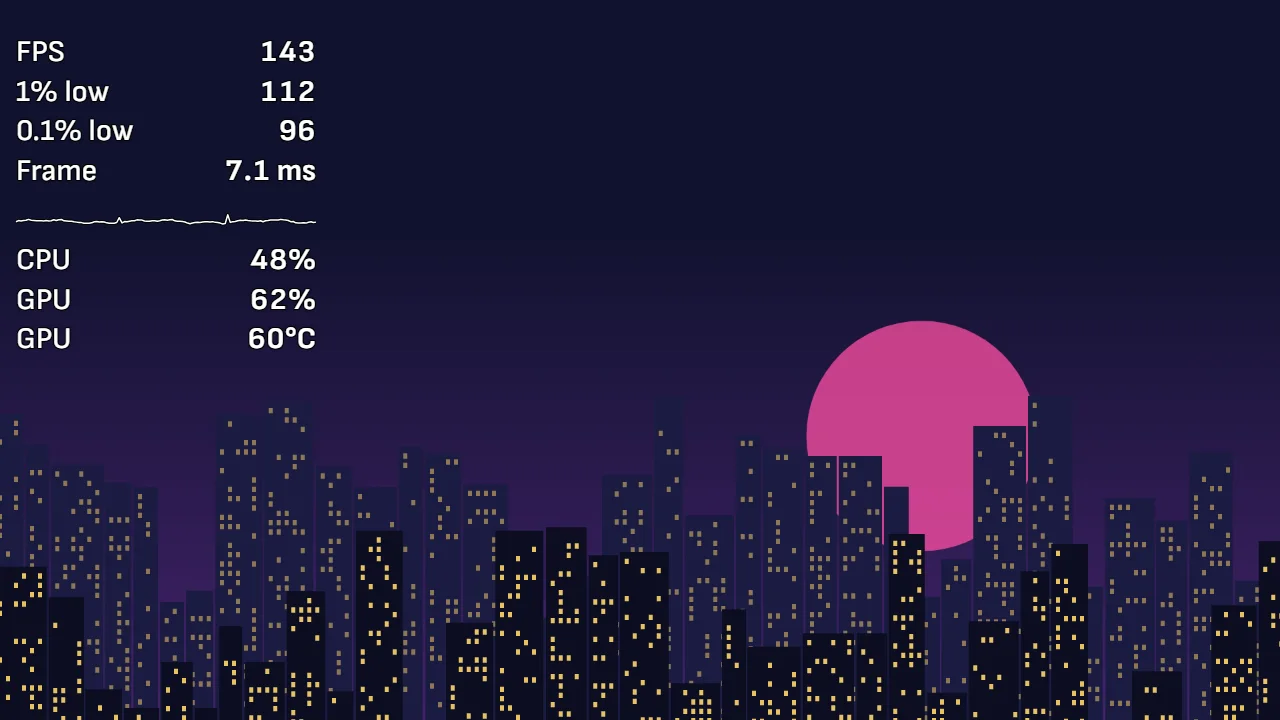
A game made up for this page. The overlay is the real one.
FPS, 1% and 0.1% lows and frame time for any game, on any GPU brand, on Windows. Xenon never injects code into the game. It compares each game with the time before and gives a plain answer to "why does it stutter?".
Ctrl+Shift+F10 saves the last seconds, as many as you choose. Trim them, export 9:16 and send them to your phone. What works where lists macOS and Linux.
Bit
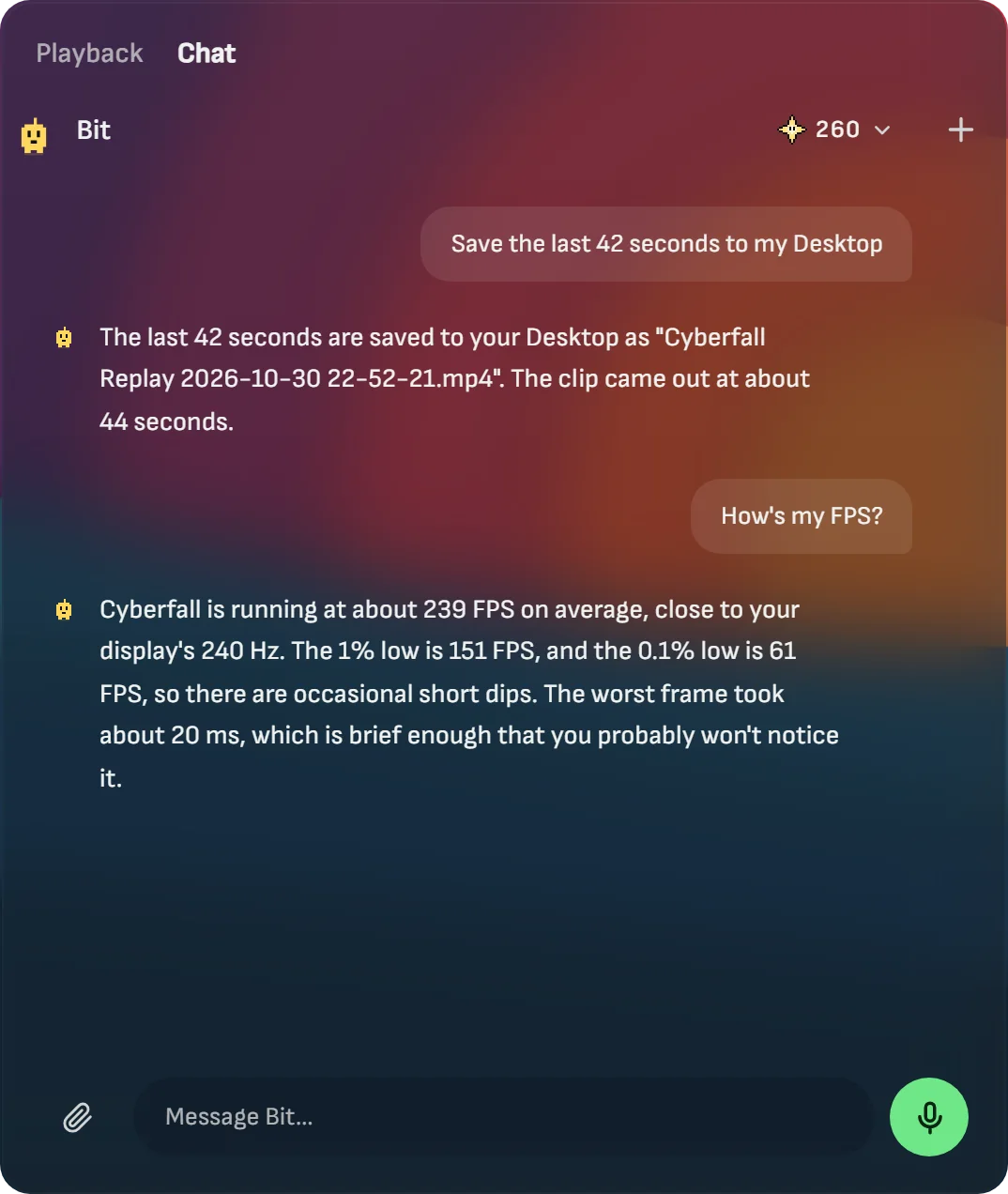
The assistant inside Xenon, by voice or by text. Say "Hey Bit" and ask out loud: "Put the weather on my desktop", "Why is my game stuttering?", "Start a 25 minute timer", "Copy the text on my screen".
It works with Gemini, OpenAI, Anthropic or a local model through Ollama, with Claude Code and Codex on your own subscription, or with Sparks, Xenon's credits, with no key to set up.
Bit is also the little pixel guardian in the corner. It watches your habits and roasts you, kindly, into drinking some water and standing up now and then.
Catalog
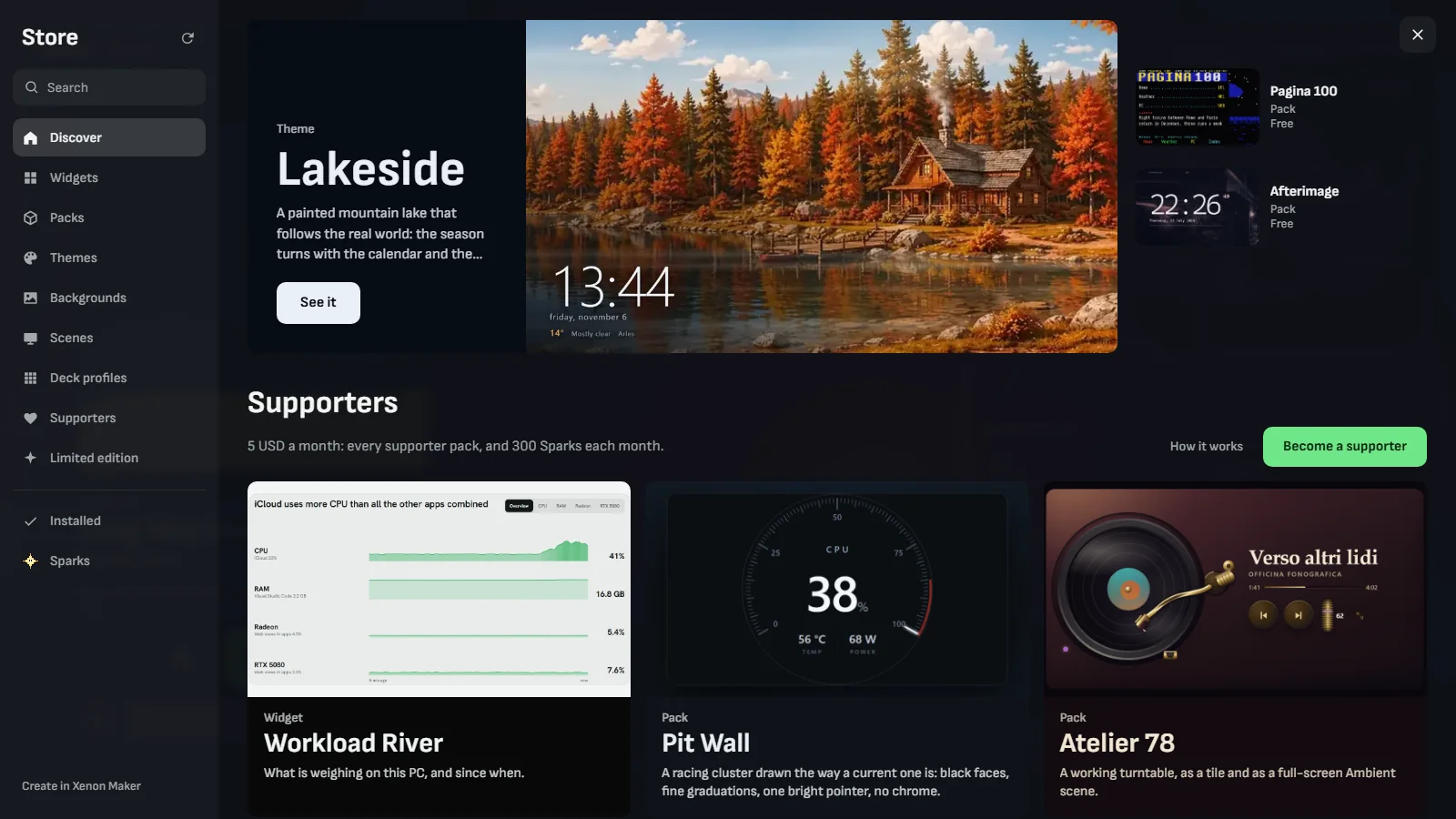
Themes, widgets and scenes made by the community, installed from inside the app. Supporters get new ones every month.
Xenon Maker
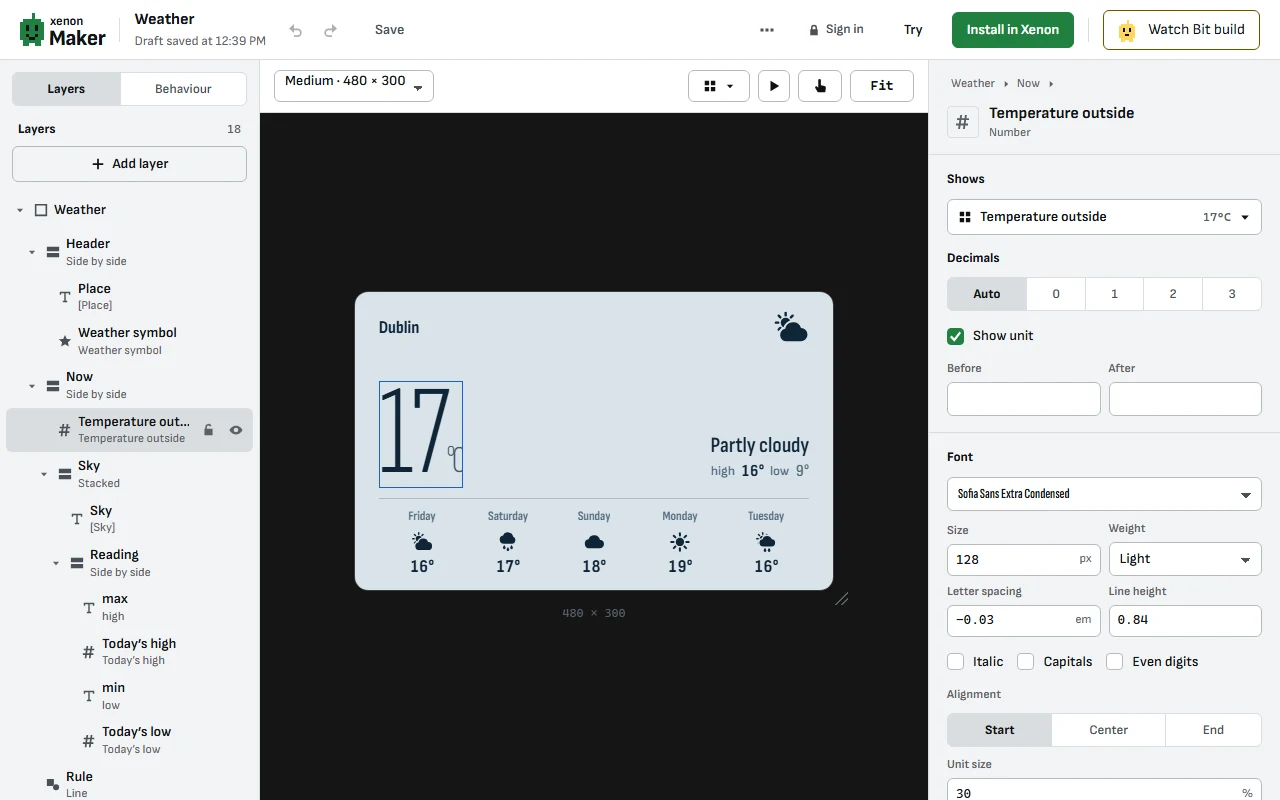
Build widgets and themes with no code, in the browser. Bit makes them with you. If you would rather write code, there is a Widget SDK, and xenon-mcp lets Claude Code or Codex install and test a widget for you.
What's inside
FEATURES.md is the full guide, with pictures.
- Your PC: CPU, GPU, memory, disks and network, history and screen time, fans, energy, batteries, file search, disk space, app switcher, a live browser in a tile, a virtual second screen.
- Games: FPS and frame times, screenshots, recording and Instant Replay, Performance Mode.
- Music and sound: what's playing in any app, volume per app, microphone, Spotify, Discord voice.
- Your day: calendar, tasks, timers, notes, weather, stocks, football, news, notifications, incoming calls, Vitals.
- Streaming: Twitch, YouTube, OBS, Streamer.bot and Wave Link.
- Home: Home Assistant, UniFi cameras, RGB lighting through iCUE, Govee, LIFX, WLED, Hue and Nanoleaf.
- Coding: Claude Code, Codex, ChatGPT, Developer cleanup for supporters.
- Phone: the dashboard on your phone (beta), calls and messages over Bluetooth (Windows, beta), file transfer, Remote PC control.
- Make it yours: layout mode and pages, Deck, Ambient scenes, top bar, share and import, 11 languages.
It runs on Windows, and on macOS and Linux in beta. Platform support says what works where.
Privacy
No account. Settings, notes, files and sensor readings stay on your PC. Xenon goes online for the update check and for the features that need it, such as weather, artwork, lyrics, the catalog, or a cloud AI if you pick one.
It has three anonymous counters: one with the update check, one that adds 1 to a creation's install count, and one that counts, once a day, how many times each feature ran and failed. On a new install they start on, and you can turn each one off in Settings → General → Updates. None carries an identifier. The privacy page lists every call.
Installation
Xenon runs as a small local Node.js server on http://127.0.0.1:3030/. The native Xenon app shows it full-screen on whichever display you pick, with no browser and no iCUE needed. It also works in any browser, on your phone once paired, and can alternatively be embedded in iCUE as an iFrame.
Step 1: Run the installer (once)
Windows
Option A: one-click setup (recommended)
- Download Xenon-Setup-x64.exe. That link always serves the newest version.
- Double-click it. It installs the native Xenon app, which opens by itself.
- The app needs the dashboard engine behind it, so on first launch it waits a few seconds, finds nothing there, and offers a Complete setup button. Press it: a window opens and installs the rest, showing you what it's doing (the download is verified against the project's signing key before anything runs). It takes a few minutes and only happens once.
- If Windows asks permission, click Yes (admin rights unlock the hardware temperature sensors and the reserved touchscreen gesture).
Xenon is also on the Microsoft Store, for Windows 10 and 11. It installs the same signed Windows installer, and after that Xenon updates itself to the newest release like any other install.
The setup deliberately installs nothing behind your back: it never starts a hidden install of its own. See If Windows blocks the download, or flags Xenon as a virus for why that matters.
Option B: classic install (advanced, or if you prefer iCUE or a browser only)
- Download the Source code (zip) from Releases and extract it (right-click → Extract All) into a folder you keep, such as
C:\Xenon. Double-clicking the zip only shows you the contents; running the installer from that window installs into a Windows temporary folder that gets deleted later. The installer detects this and moves itself to a permanent folder, but extracting first is the clean way. - Open the extracted folder and double-click
INSTALL.bat. - If Windows asks permission, click Yes.
The extracted folder carries one installer per platform, so there is nothing to go hunting for:
INSTALL.bat(Windows),INSTALL.command(macOS: double-click it in Finder),INSTALL.sh(Linux:./INSTALL.sh). Each has itsUNINSTALLtwin beside it. They all end up in the same place; only the way your system prefers to launch a script differs.
The Complete setup button in Option A and INSTALL.bat in Option B run the same installer. It automatically:
- installs Node.js LTS if missing;
- installs FFmpeg if missing (so MP4 backgrounds can be converted for iCUE);
- installs LibreHardwareMonitor and PawnIO (CPU/disk temperature sensors);
- downloads PresentMon into
server/presentmon/(real in-game FPS counter); - registers a silent per-logon startup task so the engine starts every time you sign in (and retries anything that failed to download, with a clear component checklist at the end);
- installs the native app if it isn't already on the PC (ensuring the WebView2 runtime), and sets it to open at login;
- starts the engine and opens
http://127.0.0.1:3030/so you can confirm it works.
Gray or empty screen in the app? That means the dashboard engine isn't installed or running. Leave the app open: after a few seconds it offers the Complete setup button, which installs or repairs it. If the button says Xenon is already installed and the screen still doesn't come up, restart your PC: the engine starts on sign-in. Running
INSTALL.batagain repairs it too. (Re-runningXenon-Setup-x64.exeonly reinstalls the app itself, not the engine.)
Where the setup writes down what it did:
%LOCALAPPDATA%\Xenon\setup.log(the run before it is kept assetup.log.1). Both the Complete setup button andINSTALL.batappend to it, including the elevated part that runs in its own window and closes as soon as it finishes. If setup fails, or the app folder ends up holding onlyxenon-native.exe,uninstall.exeandwindows\, that file says which step never ran. Attach it to a bug report. It goes away with the uninstaller.
The installer does not download the free local-AI components (Ollama / Whisper), so first-time setup stays fast. You set those up on demand from Settings → Bit only if you switch to the local provider. See FEATURES.md.
If Windows blocks the download, or flags Xenon as a virus
You may see SmartScreen refuse to run the setup, your browser cancel the download as "malicious", or Defender quarantine Xenon-Setup-x64.exe or xenon-native.exe. Two different things can be behind it, and the name of the detection tells you which one you are looking at.
A name ending in !cl, such as Trojan:Win32/Sonbokli.A!cl. The suffix means the verdict came from Defender's cloud machine-learning model rather than from a signature matching known malware. What that model weighs most is reputation. Since version 4.11.9 the Windows downloads are signed, so Windows shows a verified publisher, but Microsoft grants reputation over time, and a file few people have downloaded yet starts low.
A plain name with no suffix, such as Trojan:Win32/Vigorf.A. This is a generic behavioural signature, so the reasoning above does not apply to it, and it is worth being straight about what Defender is reacting to. The setup carries a PowerShell script inside it: the backend installer. When you choose Complete setup in the app, that script downloads an archive from GitHub, verifies its signature before unpacking anything, and registers the task that starts the dashboard when you sign in. It also installs LibreHardwareMonitor and the PawnIO driver, which are what read CPU and disk temperatures. None of it happens behind your back: the setup itself only installs the app, and the script runs in a console window you can read and stop. But compressed into one sentence, "an installer carrying a script that downloads code and installs a kernel driver" is also an accurate description of a dropper, and a generic signature has no way to tell the two apart.
Two things are worth knowing about that last part. Those temperature components are installed through winget, so their binaries come from their own developers through Microsoft's package manager, not from this project. And PawnIO is the signed replacement for WinRing0, the driver behind most of the older hardware-monitoring false positives. Xenon has never shipped WinRing0 and never will.
Neither explanation is proof, so check the file yourself. Every release ships a SHA256SUMS file signed with the project's Ed25519 key. Compare the hash of what you downloaded:
Get-FileHash .\Xenon-Setup-x64.exe -Algorithm SHA256
If it matches the Xenon-Setup-x64.exe line in that release's SHA256SUMS, the file is byte-for-byte the one GitHub Actions built from the public source at that tag. You can also paste the file into VirusTotal: a handful of engines flagging it while the rest come back clean is the signature of a reputation problem, not of malware. To see the signature, right-click the installer, choose Properties and open the Digital Signatures tab. Even on a signed file, either kind of detection can come and go release by release.
To install it anyway:
- Browser blocked the download: open your downloads list (
Ctrl+J) and choose Keep / Keep anyway on the cancelled file. - Defender already quarantined it: open Windows Security → Virus & threat protection → Protection history, find the Xenon entry, and choose Actions → Restore.
- Add an exclusion so it isn't re-quarantined mid-install, or later while it runs (Virus & threat protection → Manage settings → Exclusions → Add an exclusion → Folder) for both of the folders Xenon uses:
%LOCALAPPDATA%\Xenon(the app) and%LOCALAPPDATA%\Programs\Xenon(the dashboard engine). - SmartScreen warning on launch: click More info, then Run anyway.
Please also report it to Microsoft. It's a two-minute form at microsoft.com/wdsi/filesubmission: pick Home customer and Incorrectly detected as malware. Reports from real users carry weight and get the detection pulled for everyone, usually within a few days.
Only ever do the above for a file you downloaded from this repository's Releases page and whose hash you checked. Turning off a warning is exactly what actual malware wants you to do: the hash is what tells the two situations apart.
If Xenon simply will not start: Smart App Control
Smart App Control is a different gatekeeper from the one above, and none of the steps in the previous section affect it. If Xenon refuses to run and you never saw a Defender detection at all, open Windows Security → App & browser control → Smart App Control and check whether it is on.
Smart App Control asks a Microsoft cloud service first. When the service has no confident answer it lets an app with a valid signature run and blocks an unsigned one (Microsoft's page). A Defender exclusion does not change its answer, and there is no way to allow one app while leaving it on.
The Windows downloads are signed since version 4.11.9, so first try the latest release with Smart App Control still on. If it still refuses, you can turn it off on that same page.
Read this before you turn it off. Microsoft says recent Windows updates let you turn Smart App Control back on without a clean installation. On an older Windows, off stayed off until you reset or reinstalled the PC.
If Xenon closes on its own while you are using it
The window disappears mid-session with no message, no error and nothing left on screen. Two completely different things look identical from the outside, so the app now writes down which one it was.
Open the tray menu → Open crash log. It is a plain text file with one line per event, at %APPDATA%\com.marcimastro98.xenon\crash.log on Windows, in ~/Library/Application Support/com.marcimastro98.xenon/ on macOS and in ~/.config/com.marcimastro98.xenon/ on Linux:
[2026-08-18T19:27:04Z] v4.11.4 launched windows
[2026-08-18T21:02:11Z] v4.11.4 exited clean shutdown
A launched line followed by a PANIC line. The app itself failed, and the line names the thread and the exact source line it failed on. Paste it into the Discord or a bug report: with that one line the fix is usually quick. A failure inside one of the background watchers (the display watchdog, the cursor and focus guards) no longer closes the app either: it is recorded, the watcher restarts, and the window stays where it is.
A launched line with nothing after it at all. Nothing inside the app decided to stop, so something outside it ended the process. On Windows that is almost always your antivirus quarantining xenon-native.exe while it is running. Open Windows Security → Virus & threat protection → Protection history and look for an entry timed to the moment the window vanished. That is the same false positive as the one above, just caught mid-session instead of during the download, and it is fixed the same way:
- Restore the quarantined file from Protection history.
- Exclude both folders in Manage settings → Exclusions → Add an exclusion → Folder. Xenon lives in two of them:
%LOCALAPPDATA%\Xenon(the app) and%LOCALAPPDATA%\Programs\Xenon(the dashboard engine). Excluding only the first leaves the half that runs all day unprotected from the same detection. - Report it at microsoft.com/wdsi/filesubmission: Home customer, Incorrectly detected as malware. That is the only step that helps everyone else too.
Turning your antivirus off is not on that list on purpose: an exclusion for a file whose hash you checked is a decision about one program, and switching off real-time protection is a decision about every program you will run this week.
macOS
Beta. The dashboard, the widgets, the Store and the integrations are the same as on Windows. What still differs is the part that reads the machine itself, and the table below says exactly what works where. If something misbehaves, the Discord is where it gets fixed fastest.
Universal build: one download for both Apple Silicon and Intel.
- Download Xenon-macOS-universal.dmg and drag Xenon to Applications.
- Open it. The first launch has no dashboard behind it yet, so it offers to set one up in a Terminal window you can read and stop. The download is checked against the project's signing key before anything is extracted.
- Let it finish. Xenon installs itself under
~/Library/Application Support/Xenon, registers a login agent so it starts with you, and the app window comes alive.
Notarized since 5.0. The app is signed with an Apple Developer ID and notarized by Apple, so macOS only asks once whether to open an app downloaded from the internet. If it says instead that it cannot check Xenon, that copy is older than 5.0: download the latest .dmg.
Give Xenon Full Disk Access once
The Trash and most of ~/Library/Caches sit behind a permission macOS grants per app. Without it the Disk widget and search still work, but they cannot see those folders. A folder macOS refuses to list looks exactly like an empty one, so nothing reports an error. On the Mac this was measured on, the Trash alone was 2.4 GB the cleanup could not offer and the disk map was under-reporting by 15 GB.
- System Settings → Privacy & Security → Full Disk Access
- Click +, choose Xenon in Applications, and make sure its switch is on
- Quit Xenon (menu bar or ⌘Q) and open it again: the permission is read at launch
You give it to Xenon, not to Node: the app starts the dashboard itself precisely so one grant under a name you recognise covers it, instead of handing the same access to an interpreter that runs every other script on your machine.
Until 4.11.3 this had to be redone after every update, and now it does not. macOS ties the permission to the app's code signature. Xenon used to be ad-hoc signed, which gives every build a different identity, so each release silently looked like a different app. The grant stopped applying with no error anywhere, and a permission dialog for the Desktop, Documents, Downloads, Photos and Music came up every time the index ran. Xenon is now signed with its own certificate, which stays the same across releases, so the grant survives updates. The 4.11.3 update itself resets it one last time, because that is the release where the identity changes; grant it again there and it holds from then on.
If Xenon is listed but the permission is clearly not working, select it, press −, and add it again with +. That rewrites the entry against the app currently on disk. Xenon now notices this state by itself and says so on the dashboard rather than leaving you to guess.
The 5.0 update resets it once more. 5.0 is signed with an Apple Developer ID instead of the project's own certificate, so macOS may ask again for Full Disk Access, Accessibility, Screen Recording and the other permissions you had given. Grant them again once and they hold from then on.
macOS needs Node.js and will say so if it is missing. The optional tools below each light up one thing, and Xenon tells you which are absent instead of failing later:
brew install node                      # required
brew install vladkens/tap/macmon       # fallback for temperature and GPU load (the companion reads them without it)
brew install switchaudio-osx           # switching the output device
brew install ffmpeg                    # voice input and spoken replies
Prefer no app? Download the Source code (zip) from Releases, extract it, and double-click INSTALL.command in the folder. You get the same dashboard with no kiosk window. From a terminal, ./INSTALL.sh is the same thing.
Linux
Beta. Same as macOS above: the dashboard and everything on it is identical, and what differs is the part that reads the machine. The table below is the exact list.
Two ways, same result.
- The app: download Xenon-Linux-x86_64.AppImage (
chmod +xit and run it) or Xenon-Linux-x86_64.deb. Like macOS, the first launch offers to set the dashboard up in a terminal window, verifying the download before extracting it. The package deliberately does not install it for you: everything it would create belongs to one user account, and a package installs as root for the whole machine. - Browser only: download the Source code (zip) from Releases, extract it, and run
./INSTALL.shin the folder.
The installer registers a systemd --user service so Xenon starts when you log in, and falls back to an XDG autostart entry where there is no user manager (saying so, including that the fallback has no crash-restart). It also lists the optional tools you do not have:
sudo apt install nodejs npm unzip      # required
sudo apt install wireplumber           # volume, microphone and the per-app mixer
sudo apt install wmctrl xdotool x11-utils   # the open-applications widget (X11 sessions)
sudo apt install ffmpeg                # voice input and spoken replies
If your desktop has no terminal emulator at all, the app cannot show you the installer. Run
./INSTALL.shfrom an extracted source zip instead.
Step 2: Use it
The native Xenon app (recommended): Nothing to configure: on Windows the installer already put the Xenon app on your PC and set it to open at login (on macOS and Linux the app is the thing you installed in Step 1). It opens by itself, with no browser and no iCUE, with game-safe touch and a system-tray icon (show / hide / restart / exit). If it isn't on screen right now, launch Xenon from the Start menu or the tray icon.
The first time, it asks one question: How do you want to use Xenon? It shows the screens it can see, with the answer it recommends already selected: dashboard and widgets, widgets only, dashboard only, or the dashboard on your phone. Change it any time from the Xenon menu (Alt+Shift+X) or by asking Bit. Settings → Display picks the screen.
In a browser (any monitor, touch or not):
Just open http://127.0.0.1:3030/.
Via iCUE (alternative, if you would rather keep the dashboard inside iCUE):
Open CORSAIR iCUE.
On your iCUE dashboard, add an iFrame widget.
Paste this tag and save:
<iframe src="http://127.0.0.1:3030/" width="100%" height="100%" frameborder="0"></iframe>Size XL is recommended. (Inside iCUE, touch still moves your mouse cursor. Only the native app has game-safe touch.)
Every time you start your PC after that
Nothing. The engine starts automatically when you log in and the native app reopens itself on its display: the dashboard is live before you even settle in. (Using iCUE instead? It remembers your layout too.)
To remove Xenon on Windows, open Settings → Apps → Installed apps, find Xenon and press Uninstall, the same as any other program. The entry is registered by the installer from 4.11.8 on; on an older install, and on macOS and Linux, use the uninstaller in the folder instead: double-click UNINSTALL.bat on Windows or UNINSTALL.command on macOS, and run ./UNINSTALL.sh on Linux. All three ask once, then take the whole thing with them: the app, the startup entry, the local server, your data and the install folder. Add --keep-data (-KeepData on Windows) to keep your settings, layouts and notes, or --dry-run to see what would go without changing anything.
Updating
Xenon updates itself. When a new release is out, Xenon shows an update prompt. One tap downloads it (signature-verified), installs the engine first and then the app, shows real progress, and restores your previous version if anything goes wrong. Your data, layouts and settings are always preserved, and leftover files from old versions are cleaned up. No manual downloads needed. Widgets from the Store update themselves too, a day or more after a new version is published, and only when it asks for no new permissions; anything that does is left for you to approve. One switch in Settings turns it off.
Requirements
- Windows 10 or 11 (x64), macOS 11+ (Apple Silicon or Intel) or Linux (x64)
- Node.js LTS: installed automatically by the setup
Everything below is the Windows list. On macOS and Linux the equivalents are installed with brew / your package manager and are all optional except Node.js; the installer names the ones you are missing and what each would light up (see Installation).
- FFmpeg: installed automatically; used for MP4 → WebM background conversion
- LibreHardwareMonitor + PawnIO: installed automatically; CPU/disk temperatures (degrades gracefully if absent)
- PresentMon: downloaded automatically; real in-game FPS (falls back to a DWM reading if unavailable)
- NirCmd: bundled; used for screen capture (what Bit sees)
- SoundVolumeView: bundled (NirSoft freeware, unmodified); audio device control
Optional:
- A free Gemini API key for Bit in the cloud. Everything else works without it.
- Ollama + Whisper.cpp for the free local AI provider: set up on demand from Settings.
- Sunshine + Tailscale for Remote Control: installed for you when you opt in; you use Moonlight on your phone. (Windows only: see the platform table.)
nvidia-smiis auto-detected for NVIDIA GPU usage/temperature.
On Linux, specifically: everything below is optional, and the dashboard tells you which tile each one lights up. Run npm run doctor to see what your machine is missing.
x11-utils(xprop): the app switcher and game-mode detection.- MangoHud: in-game FPS. Launch the game with it (
mangohud %command%); Xenon configures the rest. playerctl: makes the now-playing tile update instantly instead of once a second. Without it Xenon reads the same data itself over D-Bus.wmctrl: lets the app switcher focus and close windows, not just list them.dbus-monitor(part ofdbus): mirroring desktop notifications.nvidia-smifor NVIDIA cards. AMD and Intel need nothing.
Platform support
Windows is where Xenon started and is the most complete. macOS and Linux are beta, and they run the same dashboard, the same widgets, the same Store and the same integrations: what differs is only the part that reads or drives the machine itself, where each platform gets its own tools and a few Windows features have no equivalent yet.
Anything unavailable is hidden, not offered and then failed: a Deck key that cannot work on your system does not appear in the editor, and a tile with no data source says so.
| Windows | macOS | Linux | |
|---|---|---|---|
| Dashboard, tiles, themes, presets, widget Store & SDK | ✅ | ✅ | ✅ |
| Native full-screen app | ✅ | ✅ | ✅ |
| Starts at login, updates itself | ✅ | ✅ | ✅ |
| CPU, RAM, disks, network | ✅ | ✅ | ✅ |
| CPU/GPU temperature and GPU load | ✅ | ✅ ⁸ | ✅ ¹ |
| Fan speeds | ✅ | No | ✅ ⁹ |
| System volume, microphone mute | ✅ | ✅ | ✅ |
| Per-app volume mixer | ✅ | No | ✅ |
| Now playing + media keys | ✅ | ✅ | ✅ ² |
| Open apps / app switcher | ✅ | ✅ ³ | X11 only ¹¹ |
| Deck: open app, file or site, run a script, lock | ✅ | ✅ | ✅ |
| Global search hotkey | ✅ | ✅ ³ | GNOME ¹² |
| Type text, move windows | ✅ | No | No ¹⁴ |
| Bit, chat and actions (cloud and local) | ✅ | ✅ | ✅ |
| Talking to it: voice input, screen vision | ✅ | ✅ | X11 only ⁴ |
| "Hey Bit" wake word | ✅ | ✅ ⁵ | ✅ ⁵ |
| Network lighting (WLED, Hue, Nanoleaf, OpenRGB) | ✅ | ✅ | ✅ |
| CORSAIR iCUE lighting | ✅ | No | No |
| Streaming, Spotify, Discord, Home Assistant, Claude Code, OpenAI Codex | ✅ | ✅ | ✅ |
| In-game FPS counter | ✅ | No | ✅ ¹³ |
| Widgets on your screen, Xenon menu | ✅ | Beta | Beta ²² |
| Screenshots, video recording, gallery | ✅ | Beta | Beta ²² |
| Instant Replay | ✅ | Beta | Beta ²² |
| 1% lows, benchmark, "why does it stutter?" | ✅ | No | No |
| Game mode (auto-pauses effects while playing) | ✅ | ✅ ³ | ✅ ¹⁶ |
| Mirroring desktop notifications | ✅ | No | ✅ ⁶ |
| Tapping a notification opens its app | ✅ | No | ✅ ⁶ |
| Incoming-call card (ring + silence + open the app) | ✅ | Discord only ¹⁸ | ✅ ⁶ |
| Answering a call from the dashboard | ✅ | Discord only ¹⁹ | ✅ ²⁰ |
| Living Index, PC search, disk cleanup | ✅ | ✅ ²¹ | ✅ ¹⁰ |
| Embedded browser tile | ✅ | ✅ ⁷ | ✅ ⁷ |
| Phone as a second screen (QR pairing) | ✅ | ✅ | ✅ |
| Secure access away from home (Tailscale + HTTPS) | ✅ | ✅ ¹⁷ | ✅ ¹⁷ |
| Push notifications to your phone | ✅ | ✅ ¹⁷ | ✅ ¹⁷ |
| Second screen (virtual monitor) | ✅ | No | No ¹⁵ |
| Remote PC control (Sunshine) | ✅ | No | No ¹⁵ |
¹ NVIDIA needs nvidia-smi; AMD is read from the kernel directly and needs nothing. Intel has no load counter a normal process may read, so the figure comes from how much of each interval the GPU spent out of its deepest sleep state: a real, responsive measurement, but a broader one than execution-unit utilisation, so it reads higher than nvidia-smi would for the same work. Intel temperature is reported only by chips that publish a sensor (recent discrete cards do; most integrated ones do not).
² Linux reads MPRIS over D-Bus. Nothing to install: it talks to the bus with busctl, which ships with systemd, the same systemd Xenon already uses to start at login. If playerctl happens to be installed it is preferred, because it pushes changes instead of being polled, so the tile updates the instant a track does.
³ Uses the Xenon Helper, a small companion the installer fetches. Without it the app switcher falls back to scripting, which asks for permission once per application, and the hotkey is not offered.
⁴ Voice input needs ffmpeg with PulseAudio or ALSA. Screen vision uses X11 capture; under Wayland it is refused rather than guessed, because capturing there goes through a permission portal rather than an ffmpeg input.
⁵ Needs the free local Whisper installed (Settings → Bit), same as on Windows, and a microphone ffmpeg can open.
⁶ Linux reads the freedesktop notification bus, which needs dbus-monitor (part of the standard dbus package).
⁷ Needs a Chromium-based browser installed (Edge, Chrome, Chromium or Brave); the tile drives it over the DevTools protocol.
⁸ The Xenon Helper reads the thermal sensors and the graphics load directly, with nothing to install and no administrator password. Without the companion, macmon on PATH is the fallback; without either, both read "--".
⁹ Linux reads every tachometer the kernel publishes under /sys/class/hwmon, with nothing to install and no elevation. Coverage depends on the chip having a driver: laptops are usually covered, and most desktop boards are once lm_sensors has loaded the right module.
¹⁰ Linux indexes the folders you choose in Node itself, with no companion: search, the disk map and its categories all come from that one walk, and cleanup moves files to your desktop's Trash via the freedesktop specification. Content search (the part Windows Search provides) has no equivalent, so results match on file names.
¹¹ Reading the window list needs only xprop (the x11-utils package). wmctrl is required only to focus or close a window from the tile. Under a Wayland session the list covers apps running through Xwayland; native Wayland windows are absent because Wayland has no protocol that lets a background app enumerate them, by design.
¹² Global shortcuts belong to the desktop on Linux: X11's key grabs are invisible to a Wayland session, and Wayland deliberately offers no way for a background app to claim a key. So Xenon registers a real GNOME custom shortcut, the same one Settings → Keyboard writes: you can see it, edit it and delete it there, named Xenon Search. A combination another shortcut already owns is reported as taken instead of silently overwritten. On other desktops the shortcut is not registered and Settings shows the one-line command to bind by hand.
¹³ Through MangoHud, and only for games launched with it (mangohud %command% as a Steam launch option, or mangohud ./game). This is not a limitation of the port. Linux exposes no per-process frame counter: under Wayland each client presents to the compositor on its own, and the GPU's own counters are per-card, not per-application, so a game's frame rate cannot be read without the game's cooperation. Install MangoHud from your package manager; Xenon configures its logging and reads it from there.
¹⁴ Sending synthetic keystrokes is refused by design under Wayland, which is what most current desktops run. On an X11 session it would be possible via xdotool; that path is not shipped because it could not be tested here, and shipping input injection unverified is worse than not offering it.
¹⁵ Both are built on Windows-only foundations rather than merely untested: Second screen needs a Windows Indirect Display Driver to create the virtual monitor, and Remote control installs and supervises Sunshine and Tailscale as Windows services through winget and UAC. Neither panel is shown on macOS or Linux: they are hidden rather than offered and then failed.
¹⁶ Linux reads the focused window from the window manager's own properties with xprop, which Xwayland maintains for X11 clients too, and games are almost always X11 clients (Proton and Wine render through Xwayland, and SDL2 still defaults to the X11 driver), so this keeps working on a GNOME or KDE Wayland session for exactly the applications game mode cares about. On sway and Hyprland their IPC is used instead. When the focused window is a native Wayland one, Xenon reports that it cannot see it rather than reusing the last window it could: a stale reading would leave game mode stuck on after you quit.
¹⁷ Works, with one manual step. The door itself is the same everywhere (the same Tailscale CLI, the same certificate, the same TLS listener), but Xenon can only install Tailscale for you on Windows, through winget. On macOS and Linux you install it once yourself (brew install tailscale, or your package manager) and Xenon does the rest: sign-in, the certificate, and bringing the door up. On Linux, tailscale also has to be allowed to take orders from your user account (sudo tailscale set --operator=$USER, once), and the panel prints that exact line if it is needed rather than failing.
¹⁸ macOS gives no application a way to read another app's notifications, so the ring can only come from an app that reports it directly. Discord does, over its local RPC connection, so Discord calls ring on a Mac exactly as they do everywhere else. Teams, Zoom and mirrored phone calls do not raise a card there.
¹⁹ Discord calls are answered outright over its RPC connection, as on the other two systems. Teams, Zoom and phone calls never ring on a Mac (see ¹⁸), so there is nothing of theirs to answer.
²⁰ Discord is answered outright over its RPC connection. Teams and Zoom are answered the way you would by hand: Xenon brings their window to the front and presses the shortcut each app documents. Pressing a shortcut into another window needs xdotool on an X11 session, or ydotool on Wayland, which forbids one application from typing into another by design. Without either, Discord calls are still answered (that path is a network call, not a keystroke) and everything else rings and offers to open the app.
²¹ Through the Xenon Helper, which holds the index for the folders you choose and moves what you clean to the Trash, so a cleanup can be undone from there. The Trash and most of ~/Library/Caches are only visible once Xenon has Full Disk Access. Search matches file names: content search, the part Windows Search provides, is not offered on a Mac.
²² Linux uses the tools of your desktop, so what you get depends on the session and on what is installed. Widgets on the screen need X11 with a compositor, or KDE Plasma, Sway or Hyprland with gtk-layer-shell; not GNOME with Wayland. Capture uses the screenshot and recording tools of your desktop (for example maim or grim, and ffmpeg). Settings shows only what works on your PC and says why for the rest. macOS and Linux have not been tried on real hardware yet.
macOS and Linux support is new. It is written against each platform's documented behaviour and covered by unit tests, but it has had far less real-world use than the Windows build. If something misbehaves, please open an issue or say so on Discord.
If a tile is empty and you want to know why, run npm run doctor from the install folder. It reads your machine the way Xenon does and prints, line by line, what works, what is simply absent (a sensor your hardware does not expose: the tile shows -- and that is expected), and what is actually broken. It changes nothing: it starts no server, installs nothing and touches no setting. Adding -- --capture ./caps also saves the raw output of each tool, which is exactly what to attach to a bug report.
Background videos in iCUE
iCUE's embedded WebView can reject some MP4 files even when they play fine in Chrome. Xenon handles this for you:
Upload JPG, PNG, WebP, GIF, MP4, or WebM from Settings → Background (up to 200 MB).
When you upload an MP4, the server converts it to WebM (VP8, 30 FPS) when FFmpeg is available.
If you run the server manually without FFmpeg, install it once:
winget install --id Gyan.FFmpeg.Essentials --exact --source winget --accept-package-agreements --accept-source-agreementsThen restart the server and re-upload the MP4. (Existing uploads are not converted retroactively.)
Troubleshooting
nodenot recognised: install Node.js LTS and reopen your terminal.- Port 3030 already in use: close any other instance, or change the port in
server/server.js. - No CPU temperature: rerun
INSTALL.batand accept the admin prompt so it can install LibreHardwareMonitor/PawnIO and register the elevated startup task. - Mic mute does nothing on first launch: wait a second or two; the device cache populates right after startup.
- Defender quarantined Xenon, or the download was blocked: a false positive, either a signed build whose reputation is still building (since 4.11.9 the Windows downloads are signed, and SmartScreen grants reputation over time), or a generic signature reacting to an installer that downloads what it installs. See If Windows blocks the download, or flags Xenon as a virus for how to tell which, verify the file, and restore it.
- Nothing happens when you launch Xenon, and Defender never said anything: on Windows 11 this is usually Smart App Control, which is separate from your antivirus and is not affected by an exclusion. See If Xenon simply will not start: Smart App Control.
- "Can not find script file …\server\open-dashboard.vbs" every time you sign in, but Xenon starts anyway: that is the optional "open the dashboard in your browser at logon" task, pointing at a launcher that is no longer where it was: the install moved, or an antivirus quarantined the
.vbs. Xenon now repoints or removes that task the next time the engine starts, so the box stops after one more sign-in. To clear it by hand: Task Scheduler → Task Scheduler Library → Xenon Edge Dashboard → Delete, or in PowerShellUnregister-ScheduledTask -TaskName 'Xenon Edge Dashboard' -Confirm:$false. If the script was quarantined, Protection history has it, and restoring it plus the folder exclusions above brings the feature back. - Windows says one version and Xenon says another: the setup
.exeinstalls the app; the dashboard engine behind it is a separate piece. Before 4.11.8 the setup left an engine that was already there untouched, whatever version it was, so Apps & features could read one version ahead of the dashboard. Either update from inside Xenon, or download the release's source zip and run itsINSTALL.bat, which always replaces the engine. From 4.11.8 the setup updates an engine that is behind it. - You installed Xenon twice and the setup keeps “succeeding” without changing anything:
INSTALL.batinstalls wherever you extracted the zip, while the setup.exealways installs into%LOCALAPPDATA%\\Programs\\Xenon, so using both leaves two copies on the PC and only one of them can hold port 3030. From 4.11.8 the setup spots the other one, names its folder, stops it and takes over; before that it reported success while the older copy went on serving the dashboard. Remove the copy you don't want with its ownUNINSTALL.bat. - You deleted the Xenon folder by hand, and now every sign-in shows “Can not find script file …\server\start-hidden.vbs” (or …\open-dashboard.vbs): the two logon entries live in Task Scheduler, outside the folder, so deleting the folder leaves them firing at scripts that are no longer there. Remove them: Task Scheduler → Task Scheduler Library, delete Xenon Edge Widget and, if it is there, Xenon Edge Dashboard. In PowerShell:
Unregister-ScheduledTask -TaskName 'Xenon Edge Widget' -Confirm:$false; Unregister-ScheduledTask -TaskName 'Xenon Edge Dashboard' -Confirm:$false. Uninstalling from Settings → Apps → Installed apps (or withUNINSTALL.bat) takes both with it, which is why that is the route to use. - The app stays on “Xenon isn't finished installing”, the setup reports every component OK, and reinstalling changes nothing: the files are fine; it is the engine that is not starting. Open
%LOCALAPPDATA%\Xenon\server.log: from 4.11.9 the launcher writes there when it cannot find anode.exeto start, which happens when Node.js is installed somewhere unusual (a second drive, a portable copy) and is not on thePATHthat Windows hands the startup task. Installing Node.js LTS from nodejs.org and runningINSTALL.batagain fixes it, as does adding the folder that holds yournode.exetoPATHand signing out and back in. Ifserver.logis empty too, the launcher itself never ran: check that the task Xenon Edge Widget is enabled under Task Manager → Startup apps. - Xenon closes on its own after a while: the tray menu's Open crash log tells you whether the app stopped itself (a
PANICline, worth reporting) or something outside it killed the process, which on Windows is usually antivirus quarantining it mid-session. See If Xenon closes on its own while you are using it.
Documentation
- FEATURES.md: the complete feature guide, with pictures.
- DEVELOPER.md: developer quick start, HTTP API, file layout, and architecture.
- docs/THEME_SYSTEM.md: semantic theme roles, contrast, per-widget overrides, and import/export.
- docs/WIDGET_SDK.md: build your own Xenon widget: package format, sandbox, and the bridge protocol.
- packages/mcp:
xenon-mcp, the MCP server that lets Claude Code, Codex or any MCP client build, install and test widgets on your dashboard. - CHANGELOG.md: full version history.
- docs/streaming-setup.md: Twitch & YouTube connection guide.
Support
Found a bug? Open a Bug Report with your system and its version, what you did and what happened, and any error text from INSTALL.bat. For anything that went wrong while installing, attach %LOCALAPPDATA%\Xenon\setup.log.
Have an idea? Open a Feature Request. All feedback is welcome.
If this saved you some time: Xenon is free and made by one developer, with no ads and no investors. Supporters pay for the code-signing certificate, the domain and the servers, and get a new supporter-only drop of themes and widgets every month, the Supporter role on Discord and their name in the Hall of supporters.
| What you get | |
|---|---|
| 5 USD a month | Drops every month while you stay, as a monthly membership. You can cancel any time. |
| 50 USD a year | Twelve months of drops for the price of ten, plus a theme built for you, one request a month, as a yearly membership. It renews each year until you stop it. |
| 25 USD once | Five months of drops, paid once: choose 5 coffees on the page. Nothing renews by itself. |
Only one month? 5 USD once, with nothing to cancel. A payment under 5 USD is a plain tip: it opens nothing and brings no Sparks.
Try the supporter drops free for 7 days, once per PC, with no card.
Every plan also brings 300 Sparks a month, Xenon's credits, and unlocks Lyrics and Developer cleanup inside Xenon. The monthly Sparks do not carry over. From Xenon 5.0.0 anyone can buy more in the Store, under Sparks: packs of 500, 1050 or 2200 for 5, 10 or 20 USD, and the Sparks you buy never expire.

Your code arrives by email within a minute of the payment; paste it once in Settings → Support Xenon and the drops unlock in the Store.
A note on AI assistance
This project was built with AI assistance throughout: architecture, code, debugging and documentation. Every feature was designed, tested, and iterated on hands-on: the ideas, product direction, and every decision about what ships are mine. AI was a tool, not the author.
License
Custom non-commercial license. © 2026 Marcello Mastroeni (marcimastro98). All rights reserved.
Xenon is free for personal, non-commercial use, and you're welcome to read, run, and modify it for yourself. What is not allowed without the author's written permission: selling or monetizing it, integrating it into a commercial product, redistributing or repackaging it as your own work, or using the Xenon name and branding for another product. Any permitted fork or redistribution must keep attribution to the original author. See LICENSE for the full terms.
Want to use it commercially? Ask: the answer is often yes, with conditions. Email [email protected] or bring it up on the Discord. "Not allowed by default" is not the same as "never", and there is no way to find that out if nobody says it.
Includes SoundVolumeView © Nir Sofer (freeware, redistributed unmodified).