
man15h/tellyscope
man15h/tellyscope has 1,734 GitHub stars and 92 forks. GitHot measured +49 stars in 24 hours. Last checked 2026-11-08 07:43 UTC. Last push 2026-11-02.
Debloat your Android TV, install apps, browse and transfer files on it, all from your phone. Just 3 MB, no tracking, no root, no PC.
Measured star growth
- in 24h
- +49
- in 7 days
- Update delayed
- in 15 days
- Update delayed
- in 1 month
- Update delayed
Net star changes over overlapping periods, not daily totals. Missing measurements are left blank. Stars measure attention, not software quality.
README.md
Original Tellyscope
Debloat your Android TV, install apps, and browse and transfer files on it, all from your phone. No root, no PC.







Google Play (testing)
Tellyscope is in closed testing on Google Play. Join the testers group, accept the test, then install it from Play. Play keeps this build updated, so it has no in-app update check, and it doesn't download launchers from GitHub.
1. Join the group → 2. Accept the test → 3. Install from Play
 |
 |
 |
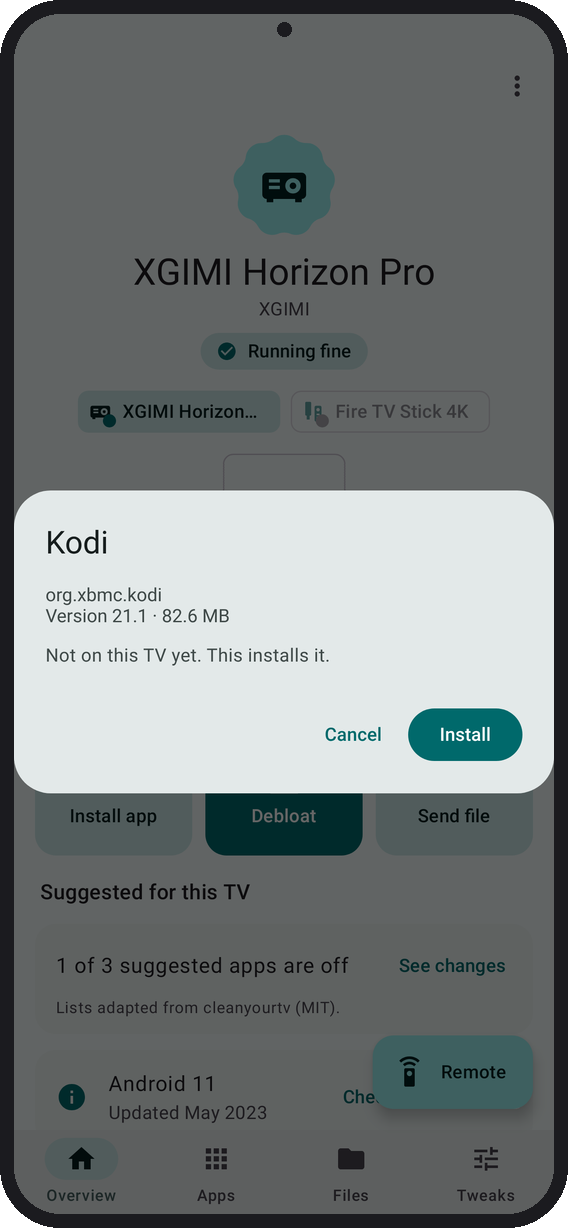 |
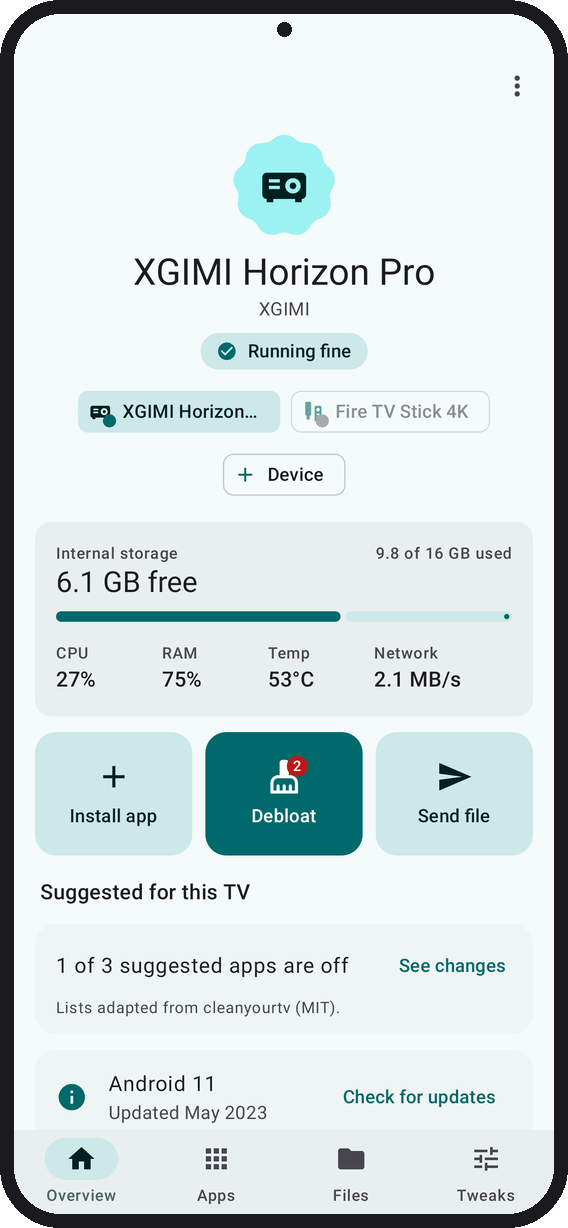
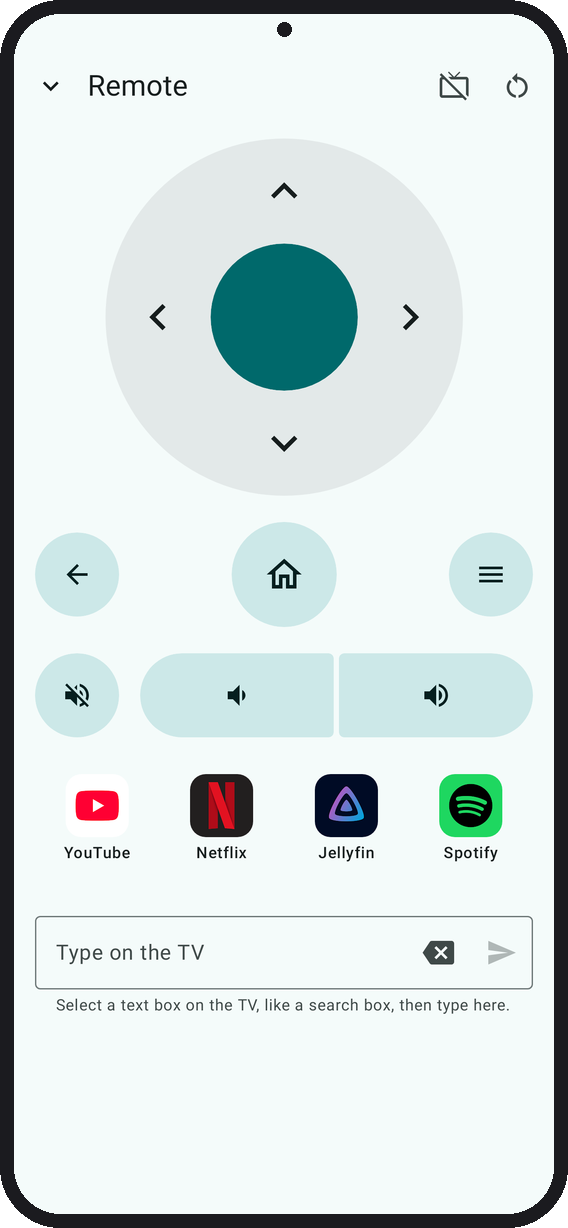
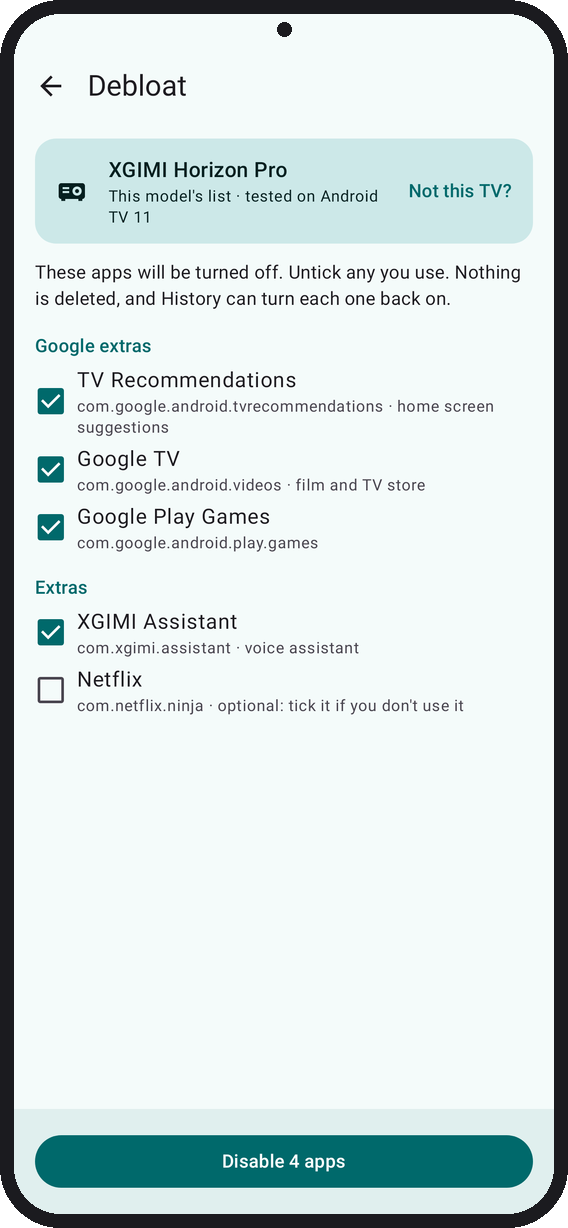
| Your TV at a glance | Control the TV from your phone | Review every app Debloat turns off | Install apps |
 |
 |
 |
 |
| Send files to the TV | Block ads, tweak the TV, add a launcher | Make a launcher Home | Advanced monitor: the TV at a glance |
 |
 |
 |
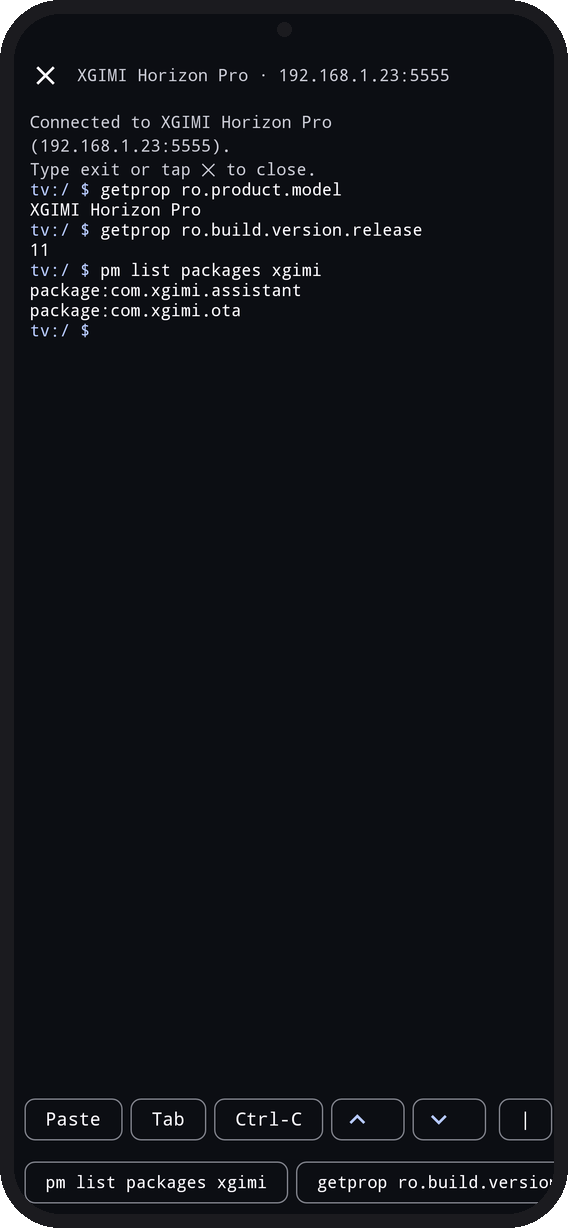 |
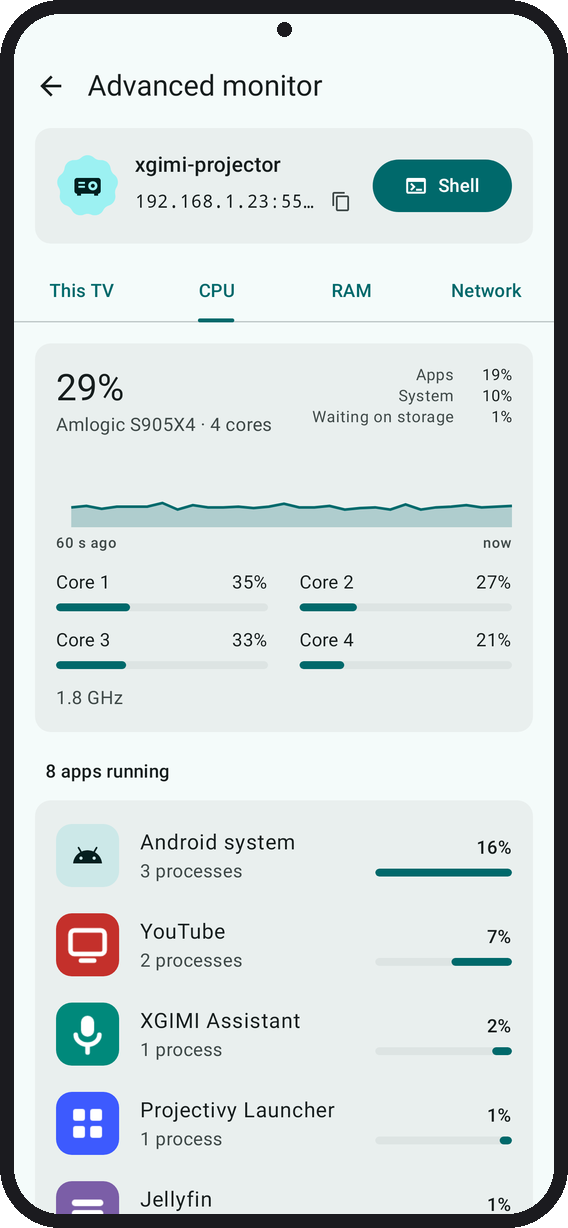
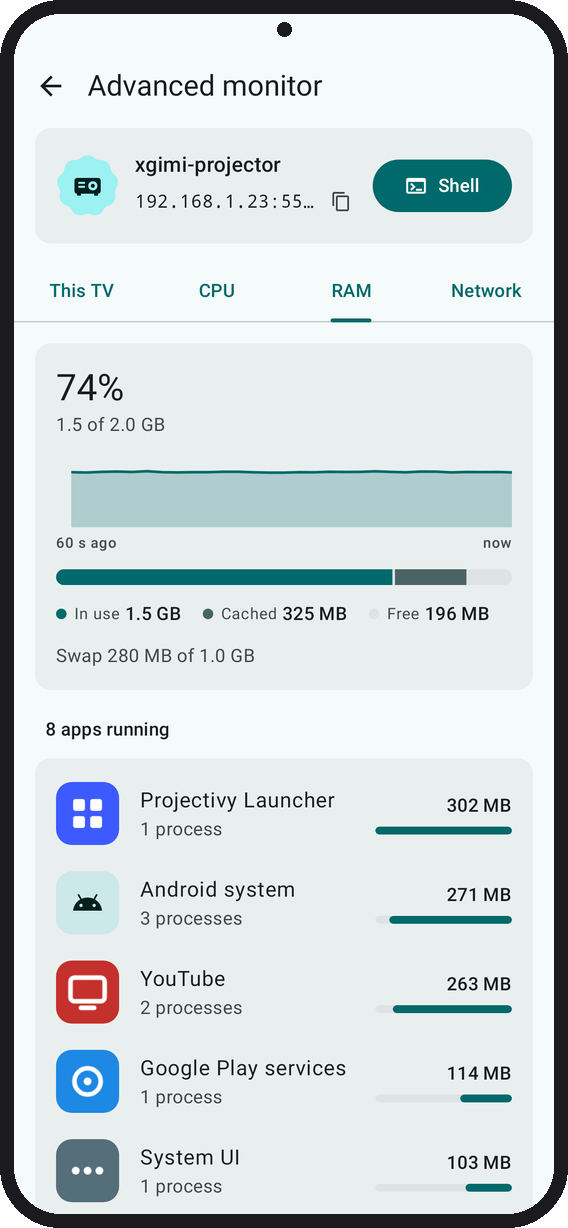
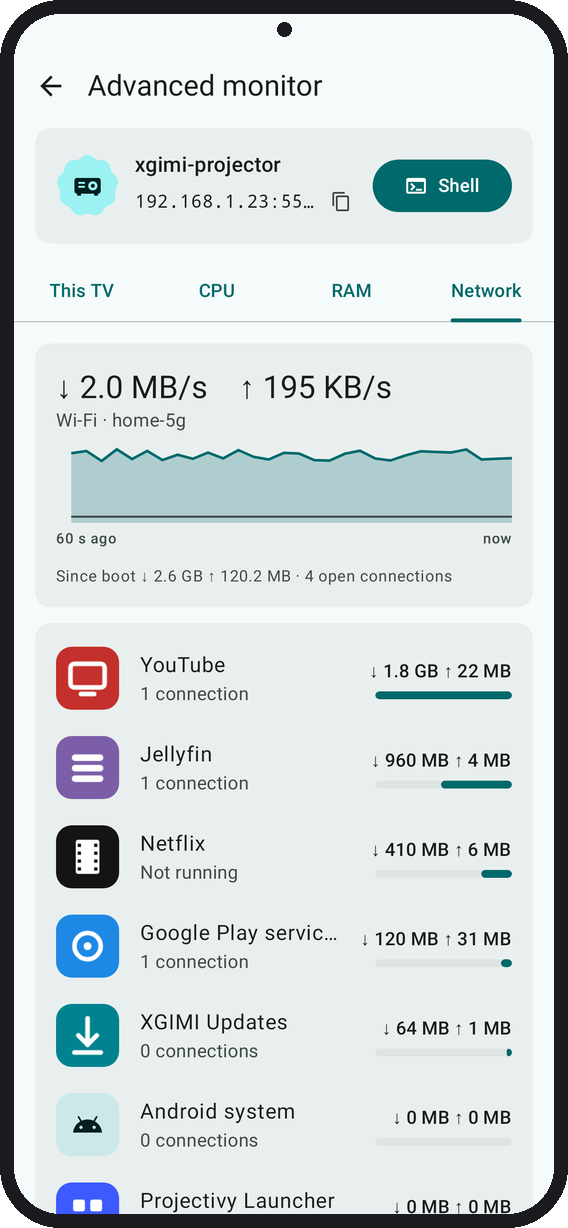
| What is using the CPU | What is using the RAM | What is using the network | A shell on the TV |
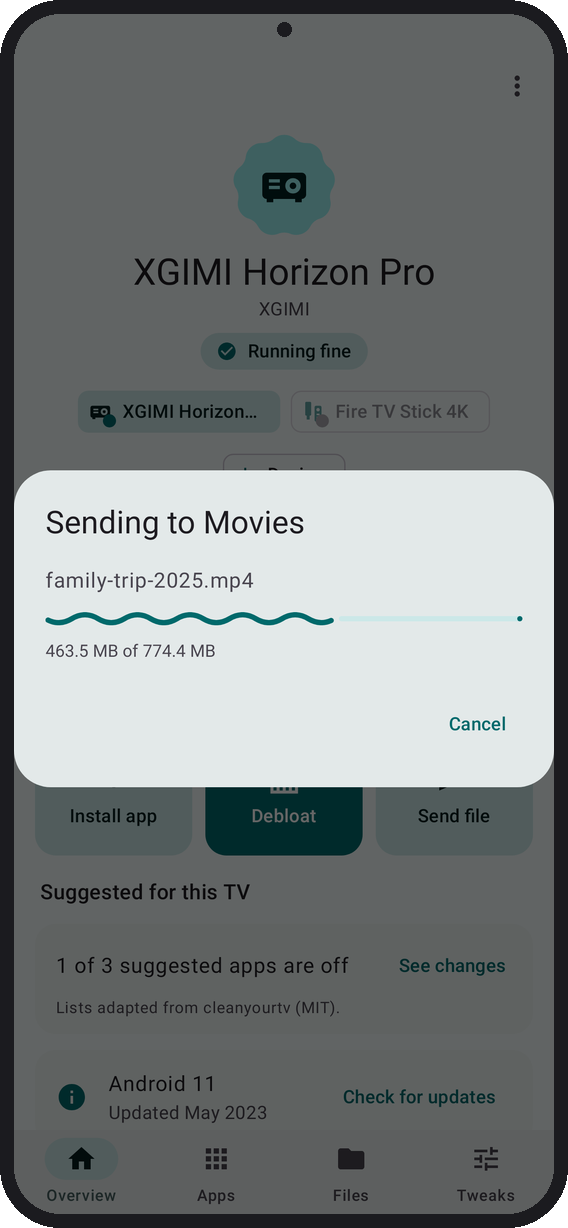
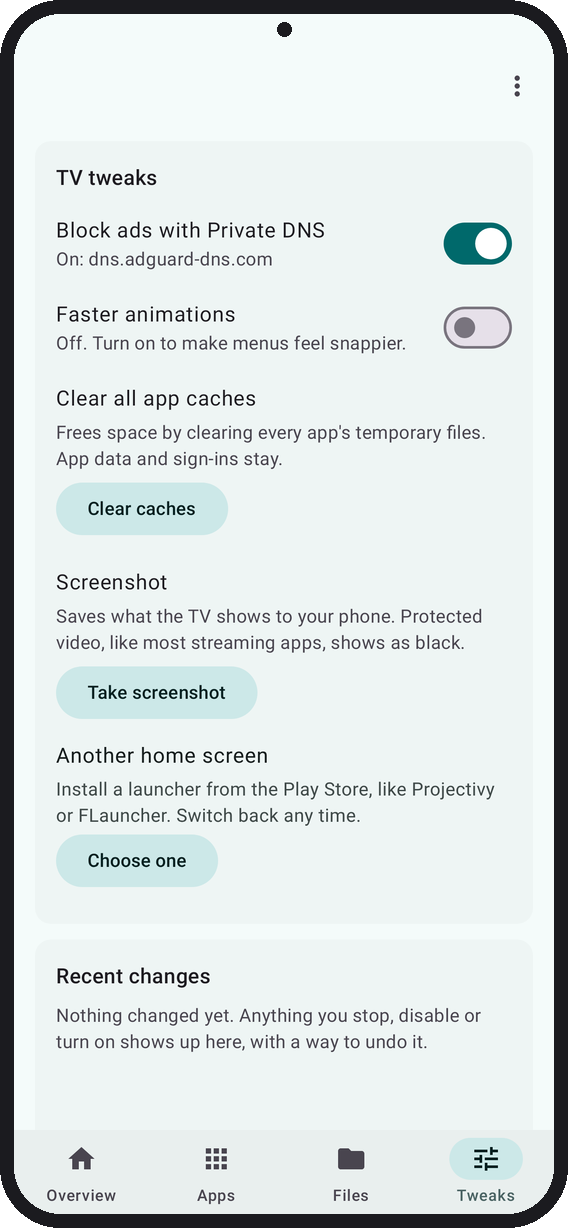
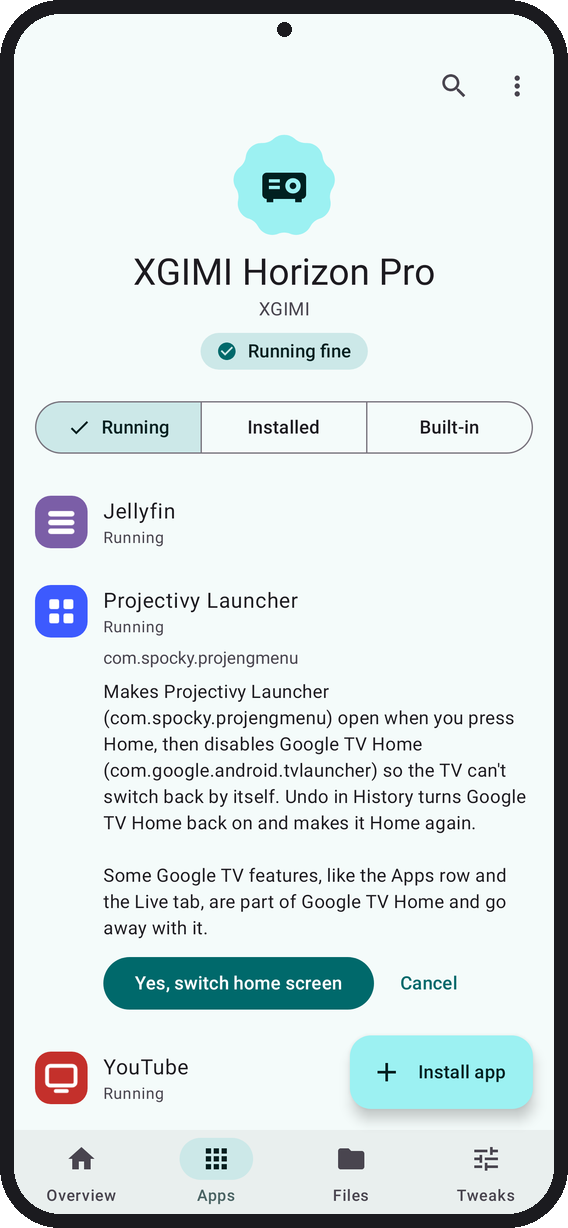
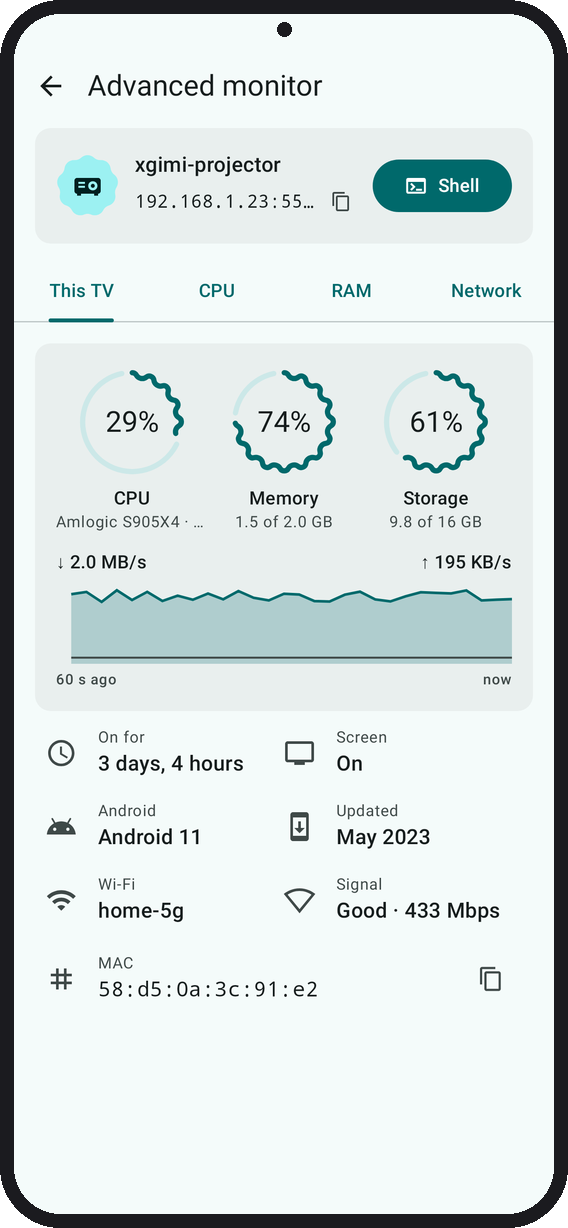
Rendered from the app's screenshot tests with sample data. The Install dialog is drawn to match the app.
What it does
Tellyscope talks to your Android TV, Google TV, NVIDIA Shield or Fire TV over Wi-Fi using ADB, the debugging protocol developers use. Tested on Fire TV (Fire OS 8); over HDMI its volume is fixed, so mute and volume are grayed out there. NVIDIA Shield hasn't been tested on real hardware yet.
- Connect. Finds TVs on your Wi-Fi, looking again every 10 seconds or when you tap Rescan, or add one by IP. Works with network debugging and with Android 11+ wireless debugging and its pairing code. TVs reconnect by themselves.
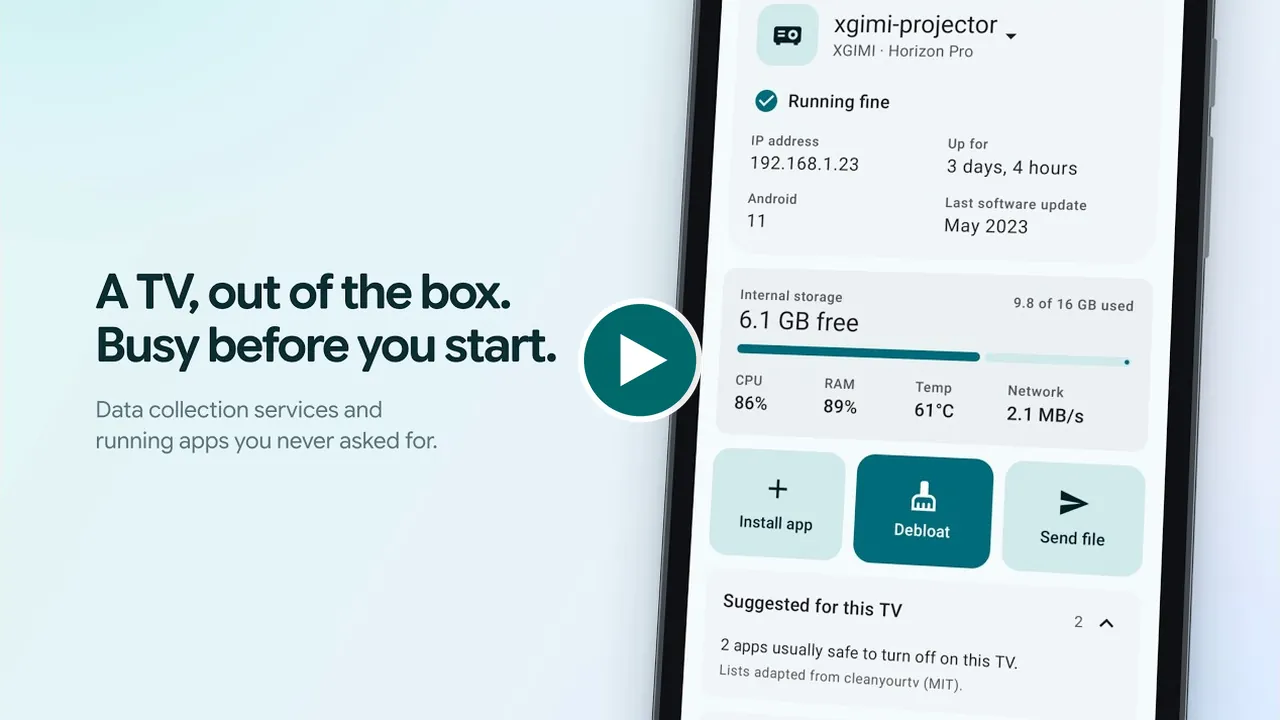
- See how it's doing. Free space, CPU, RAM and network speed, plus what's paired or plugged in. Advanced monitor has four tabs: This TV, then CPU, RAM and Network by app, with processes, connections and data used.
- Shell. In Advanced monitor: run any
adb shellcommand on the TV. Anything that changes the TV asks first. - Debloat. Matches your TV to one of 330+ tested lists (adapted from cleanyourtv, kept in tellyscope-devices) and shows every app it will turn off before it does. Untick anything you use, or a whole group from its heading, then watch each app turn off. No list for your model? Pick from the maker's lists, or by hand.
- Apps. See what's running and what's on the TV. Open or stop any app, turn off the ones the TV came with (and back on any time), and uninstall the ones you added yourself.
- Install apps. From an APK, split APKs or an
.apks/.xapk/.apkmbundle on your phone; the picker opens in Downloads and shows only apps. It says first whether it's new, an update or an older version. - A better home screen. Install Projectivy, FLauncher, AT4K or Monet and make it Home. Android TV installs it from the TV's Play Store, or it can be downloaded directly from its developer's GitHub releases after a warning (FLauncher from a community fork that keeps it updated). Fire TV has no Play Store, so Tellyscope downloads Projectivy from its developer's GitHub releases. The Play Store build of Tellyscope downloads nothing from GitHub: on Fire TV you download Projectivy in the TV's browser and pick the file. Switch between launchers, or back to the TV's own, from the Home screen card in Tweaks; only the TV's own is ever turned off. A launcher's accessibility service turns on only if you say yes. Signatures: see what the lists can't do.
- Send files. To and from the TV's Download and Movies folders.
- Remote. D-pad, or a touchpad from ⋮ (swipe to move, tap for OK), Back, Home, Menu, mute and volume, typing on the TV, buttons that open Netflix, YouTube, Plex and 20 more streaming apps (hold one to pick up to three), restart the TV, and Screen off for music with the picture off (Android 13 or older).
- Reset TV. In ⋮: turn the TV back to how it shipped, with one Undo. Preinstalled apps come back on, uninstalled ones too, and the TV's own launcher is Home again; apps the maker shipped off stay off.
- Tweaks. Block ads with Private DNS, faster animations, clear caches, take a screenshot.
- Who has access. See every computer the TV allows over ADB, remove all but this phone, and answer the TV's "Allow debugging?" prompt from your phone.
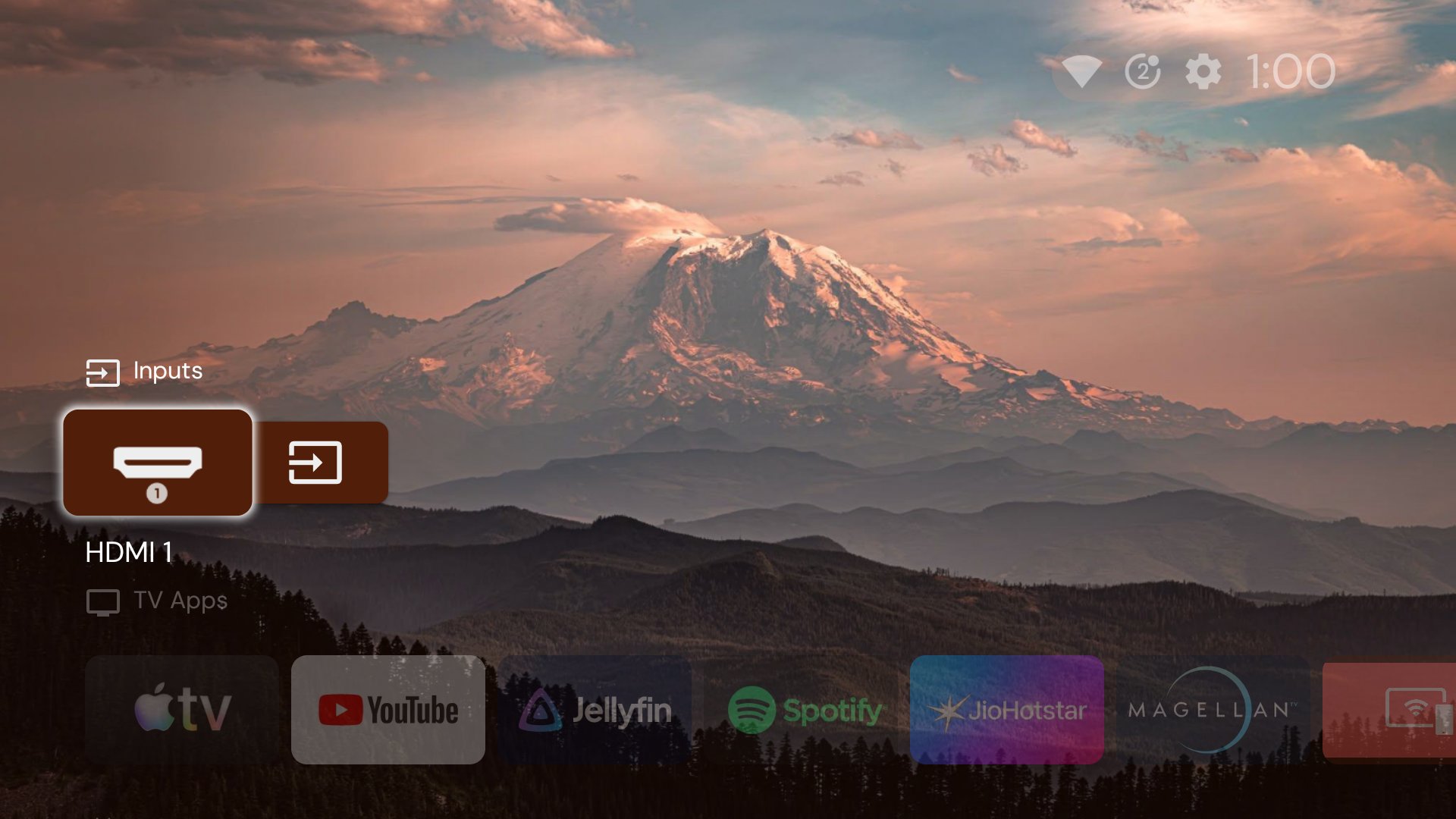
A TV after Tellyscope.
Languages
English, Español, 简体中文, 日本語, Русский and हिन्दी.
- Tellyscope follows your phone's language. On Android 13 or newer you can also pick one just for Tellyscope in Settings → Apps → Tellyscope → Language.
- The translations are machine-made. Corrections are welcome as a PR to
app/src/main/res/values-<lang>/strings.xml.
Safety rules
Debloating a TV can break it if done carelessly. Tellyscope keeps to these rules, and contributions must too:
- Disable, never uninstall, what came with the TV. Built-in apps get
pm disable-user, which Undo orpm enablereverses. Uninstall is offered only for apps you installed (pm list packages -3), after a confirm. Tellyscope never runspm uninstall --user 0. - Record before changing. Before its first change on a TV, Tellyscope notes which apps were already off. Every change goes into that TV's History with an Undo (except uninstalls and Shell commands), and Restore everything turns back on only what Tellyscope turned off.
- Protected list. Apps the TV needs to boot, update, stay on Wi-Fi, show web pages, show its home screen or take input can't be stopped or disabled, with no override. A TV's list can only add warnings, never remove protection, and packages only one maker's TVs have are protected from tellyscope-devices'
protected.json(see what the lists can't do). When you switch home screens, the old launcher is turned off only after Home is checked to open the new one. - You see it first. Every change names the apps it touches and asks before it runs.
- No root, no exploits. Only what ADB allows on a stock TV.
- Nothing left on the TV. Two small helpers run from
/data/local/tmp: one reads app names and icons and is deleted at once, the other runs the Remote and is deleted when the Remote closes. - Private. No ads, tracking or accounts. The only internet requests fetch the shared lists, and in the GitHub build also check for a new version every 30 minutes, which you can turn off in Settings, and download Projectivy from its developer's GitHub releases when you ask for it. The Play Store build has no update check and downloads nothing from GitHub. Everything else stays on your Wi-Fi, except the DNS lookup of each TV's name during the scan.
The shared lists
Tellyscope downloads two sets of public lists from GitHub, so they can change without an app release. Both histories are public.
- Debloat lists, extra protected apps and the Remote's streaming logos, from tellyscope-devices. Your own lists replace these, and only these.
- Launchers, app names and streaming services, from this repository's
data/onmain, where changes are reviewed alongside the app's code.
What the lists can't do:
- Remove protection. The built-in protected list always wins, and
protected.jsoncan only add to it. - Choose an APK to install without a signature. Which launcher APK may be installed, where it downloads from and who must have signed it come only from
data/launchers.json, anddata/is signed by the maintainer. Your own lists can't change them. Ifdata/fails its signature check, Tellyscope shows the list and its signer and asks before installing anything from it. - Turn on an accessibility service, unless
data/passes its signature check. Onlydata/launchers.jsonnames the launchers that may have one, so your own lists can't, and whiledata/fails its check none can.
Get it
- GitHub Releases: download
Tellyscope-<version>.apkand open it on your phone.-alphapre-releases are test builds that install next to the regular app. - Google Play (testing): follow the steps at the top of this page.
- Obtainium or Orion Store: tap the badge above on your phone for automatic updates.
You need a phone on Android 8.0 or newer, on the same Wi-Fi as the TV.
Setting up your TV
- On the TV, open About in Settings and press OK on Build (Fire TV: your device's name) 7 times.
- In Developer options, turn on USB debugging (Fire TV: ADB debugging), and Network debugging or Wireless debugging if your TV lists it.
- Open Tellyscope, pick your TV's brand under Add your TV, and tap Connect when your TV shows up. The app shows the exact menu names for your brand.
- On the TV, check the key matches the one Tellyscope shows, tick Always allow from this computer and press Allow. With wireless debugging, type the 6-digit pairing code instead.
From the community
Videos other people have made about Tellyscope.
- De-Bloat and Block Ads on Your Google TV With These Two Apps! by Shane Craig
- This FREE App Cleans Up Your Firestick — NO PC Needed! by TechDoctorUK
Made a video or written a post about Tellyscope? Open an issue with the link and we'll add it here.
Building
Modules: :app (the phone app, Kotlin and Jetpack Compose), :adb (pure Kotlin ADB library on Kadb), app/src/helper (the on-TV label helper) and :cli (a desktop smoke test, not shipped). You need JDK 25 and the Android SDK with platform 37.
./gradlew build          # assemble, unit tests and lint
./gradlew :app:installGithubDebug
There are two builds of the same app, as Gradle flavors: github, the APK on GitHub releases, and play, the Play Store's. The update check and the Projectivy download live in app/src/github only, with stubs in app/src/play, and every Play build fails if its code names api.github.com. What differs on screen checks BuildConfig.PLAY. Unit tests run on the github build.
Contributing
See CONTRIBUTING.md. If you have an Android TV, a device report helps even if nothing worked.
Why the name?
In Wallace & Gromit's 2002 short The Tellyscope, Wallace builds a contraption so he can change the channel without leaving his armchair.
Star History
License
GNU General Public License v3.0. Third-party credits are in NOTICE.
Explore related projects
trimstray/the-book-of-secret-knowledge
A collection of inspiring lists, manuals, cheatsheets, blogs, hacks, one-liners, cli/web tools and more.
256,904 starsHack-with-Github/Awesome-Hacking
A collection of various awesome lists for hackers, pentesters and security researchers
124,920 starsswisskyrepo/PayloadsAllTheThings
A list of useful payloads and bypass for Web Application Security and Pentest/CTF
82,475 starscaddyserver/caddy
Fast and extensible multi-platform HTTP/1-2-3 web server with automatic HTTPS
78,878 stars