
mahdiarfrm/conterm
mahdiarfrm/conterm has 76 GitHub stars and 5 forks. GitHot measured 0 stars in 24 hours. Last checked 2026-11-16 02:47 UTC. Last push 2026-11-09.
Measured star growth
- in 24h
- 0
- in 7 days
- Update delayed
- in 15 days
- Update delayed
- in 1 month
- Update delayed
Net star changes over overlapping periods, not daily totals. Missing measurements are left blank. Stars measure attention, not software quality.
About
A modern macOS terminal built on libghostty
Developer ToolsREADME.md
Original


Download · Website · Report a bug
Conterm is a native macOS terminal built on
Ghostty's engine. It adds a ⌘K
command palette, vertical tabs and tab groups, widgets, notifications, a
command center for AI coding agents like Claude Code, Codex and opencode,
and live overviews of your SSH hosts, Kubernetes clusters, and containers.
Conterm is an independent frontend built on libghostty. It is not affiliated with, endorsed by, or sponsored by the Ghostty project. The terminal engine (rendering, parsing, fonts, themes, shell integration) is Ghostty's, MIT-licensed; Conterm adds the macOS app around it. Full third-party notices are in NOTICE.md.
https://github.com/user-attachments/assets/afbe93e9-9741-46d3-9eef-1c7b0d62ab64
At a glance
- Split panes, top or sidebar tabs, tab groups, and full session restore.
⌘Ksearches commands, shell and clipboard history, SSH hosts, files, notes and every open pane.- Claude Code, Codex and opencode report ready / thinking / needs you per pane, with a command center for all of them and a review of what each changed.
- Host, Kubernetes, container, Ansible and Terraform overviews built from the commands you already run.
- Orbit maps your sessions and fleet; routines repeat work across hosts.
- A Liquid Drop interface, with the flat Classic style one click away.
Contents
- Install
- Updating
- Features
- Keyboard shortcuts
- Configuration
- Backup & restore
- Privacy
- Building from source
- How it fits together
- License
Install
Download the latest .dmg from the
Releases page, open it,
and drag Conterm.app into Applications.
First launch: Conterm is ad-hoc signed (open source, not notarized
through a paid Apple Developer account), so the first launch needs one step:
right-click Conterm.app → Open → Open. If macOS still refuses:
xattr -dr com.apple.quarantine /Applications/Conterm.app
macOS may then ask for access to folders like Documents or Downloads — that's your shell and its tools (git, kubectl, claude) reading files there, which is what a terminal does. Approve once; the grant survives updates.
Requirements
- macOS 14 (Sonoma) or later — tested through macOS 26 (Tahoe).
- Apple Silicon (M1 or later). Intel is untested.
- Liquid Glass / blur chrome requires macOS 26; on 14–15 the app is fully functional with plain chrome.
Updating
Conterm checks GitHub for new releases at launch and once a day while running, and shows an update pill in the toolbar when one is available — click it to install and relaunch. You can also trigger it from Conterm → Check for Updates or Settings → Config, and turn the automatic check off there.
Features
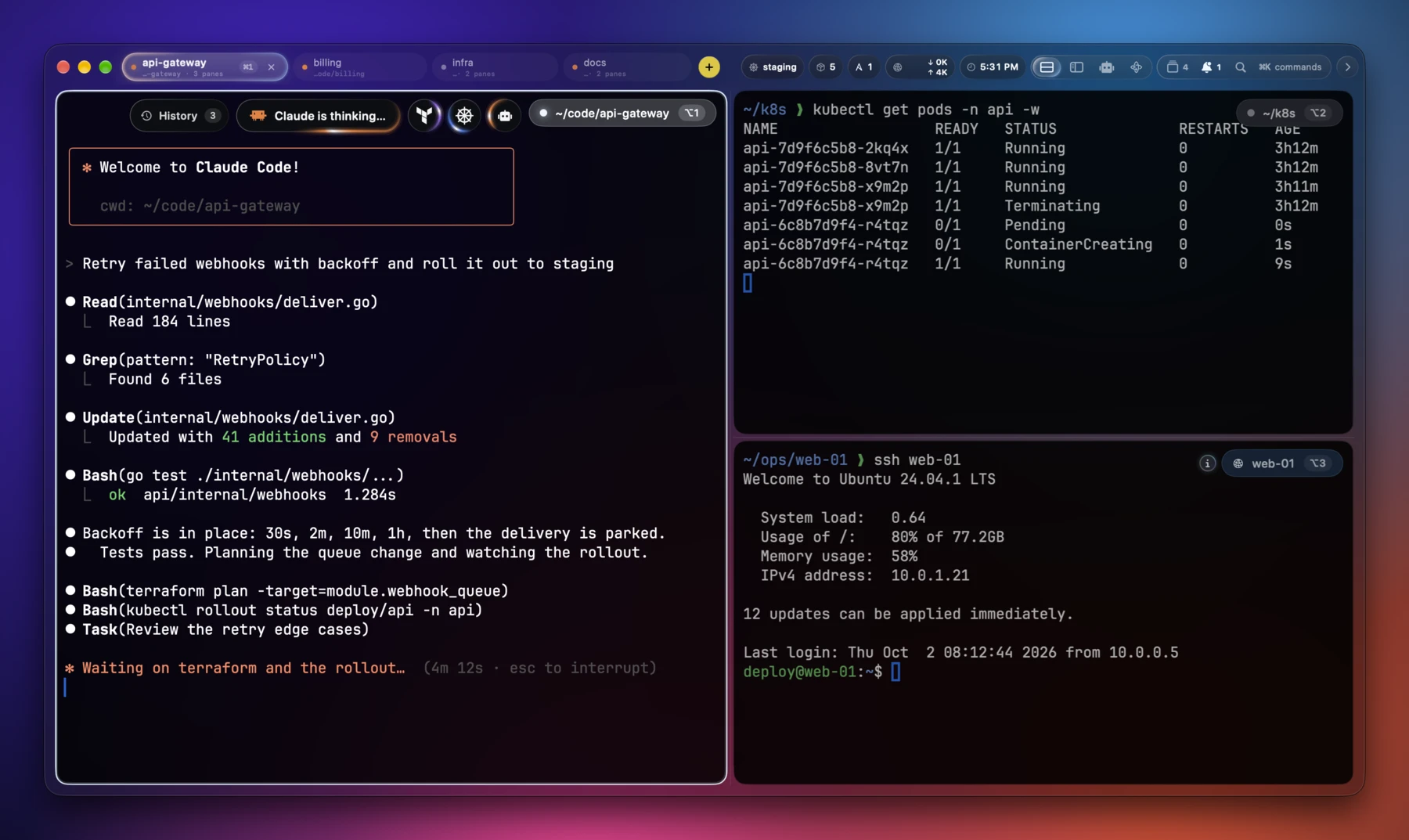
Panes, tabs & sessions
- Recursive split panes —
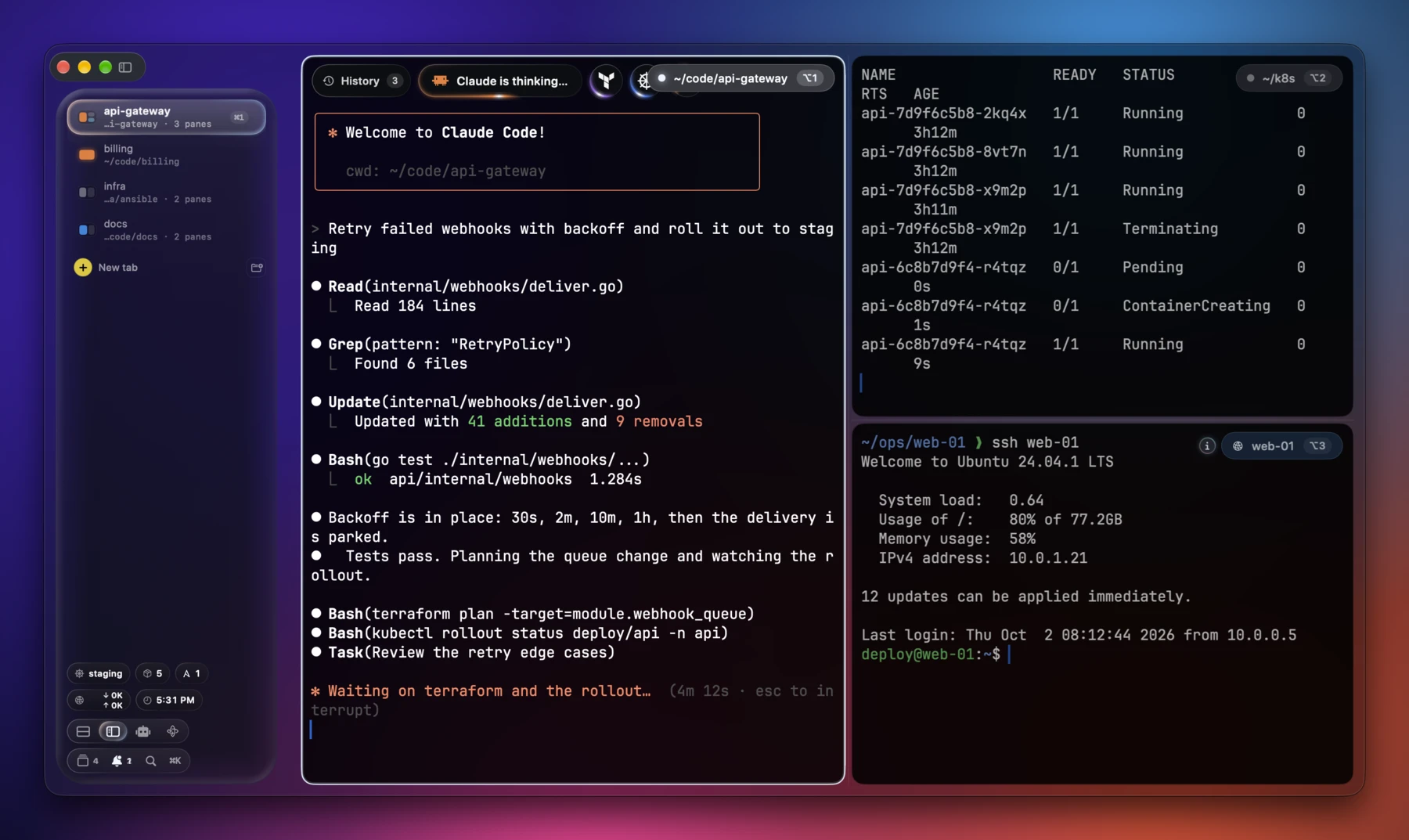
⌘Dsplits right,⌘⇧Dsplits down, to any depth. Drag the dividers to resize; focus any pane by number with⌥1–⌥9. - Tabs, top or sidebar — move the tab bar to a left sidebar; it can auto-hide and slide back in when the cursor reaches the left edge.
- Tab groups — color-coded groups with inline rename, reordering, and a live list of every tab in each group; in the sidebar they fold into collapsible folders.
- Session restore — every window, tab, pane, split, and working directory comes back exactly where you left it on relaunch.
- File drops & image paste — drag a file or image onto a pane to insert
its shell-quoted path at the cursor;
⌘Vwith an image on the clipboard (browser "Copy Image", screenshot tools) pastes the same way, so agents like Claude Code can read it. Drop or paste on an SSH pane and it's uploaded instead —scpto the remote working directory, a badge on the pane while it transfers, and the remote path typed at the prompt. - Find in scrollback (
⌘F) — the terminal's own search engine highlights every match and centers the one you step to (⌘G/⌘⇧G;⌘Esearches the selection). Panes running Claude Code add a Conversation scope over the session transcript — the only way to search a fullscreen session, whose conversation never touches scrollback — and can hand the query to Claude Code's own transcript search.
Command palette (⌘K)
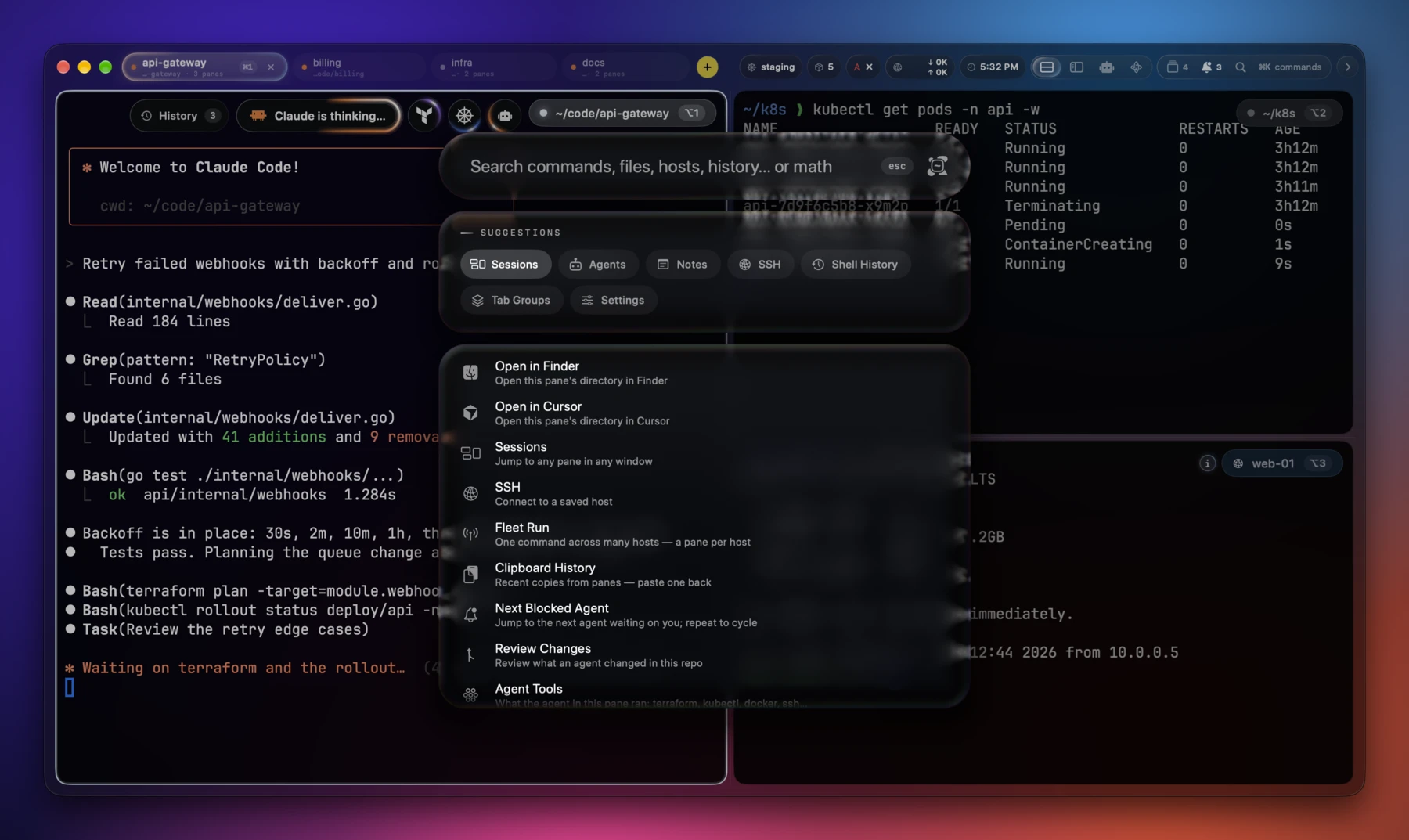
One search over everything:
- A single query reaches app commands, shell history (re-run any zsh/bash
command), clipboard history (recent copies from panes — session-only,
never written to disk), your
~/.ssh/confighosts (withIncludesupport), the active pane's recently modified files, built-in notes, and every open pane across every window. - A live calculator in the search bar — arithmetic,
0x/0b/0oliterals, re-basing (255 in hex), and unit conversions across data sizes, time, length, mass, volume, and temperature. - A suggestion tray under the search bar: five picks ranked by how often and how recently you use them.
- Tab-group management, quick "open this directory in Finder / Cursor", and reorder or hide commands from Settings → Palette.
Agent-aware
- Status pills — a per-pane pill shows when
Claude Code,
Codex or
opencode is ready, thinking, or needs you, with
a notification center for what finished while you were away. Hooks are
installed non-destructively (Claude's in
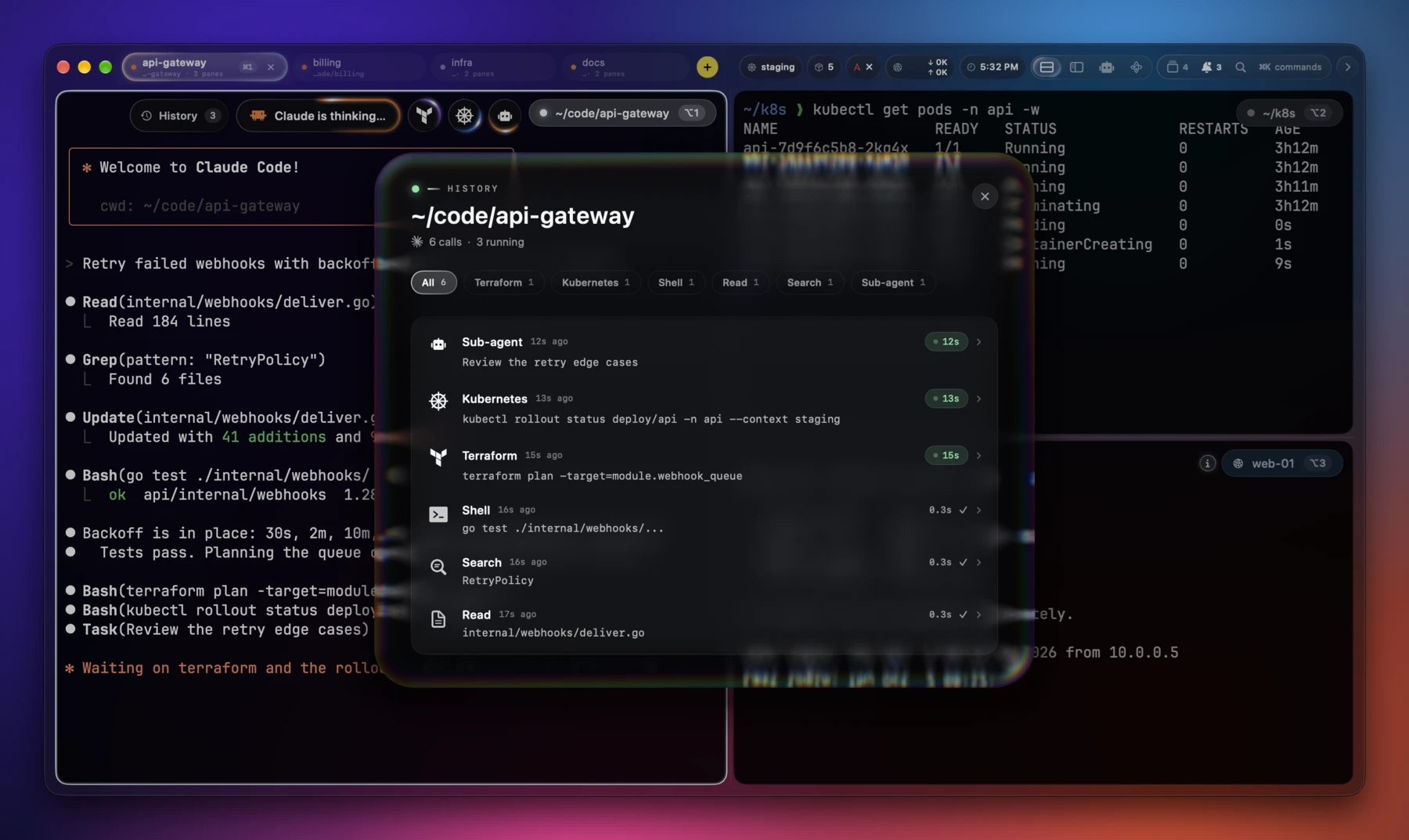
~/.claude/settings.json, Codex's in~/.codex/hooks.json; both run one script). - Tool bubbles — whatever Claude or Codex is doing pops up beside the pill as a monochrome bubble, one per kind in flight, its ring sweeping in that kind's colour: terraform, ansible, kubectl, helm, docker, ssh, git, gh, plain shell, reading and editing files, searching code, web search and fetch, sub-agents, task lists, skills, MCP tools. The cluster stays centred as bubbles come and go; finished calls fold into a glass History capsule at the pane's top-left. Click either for each call's command, duration, verdict and output; an Agent Tools palette command opens the same record for the focused pane.
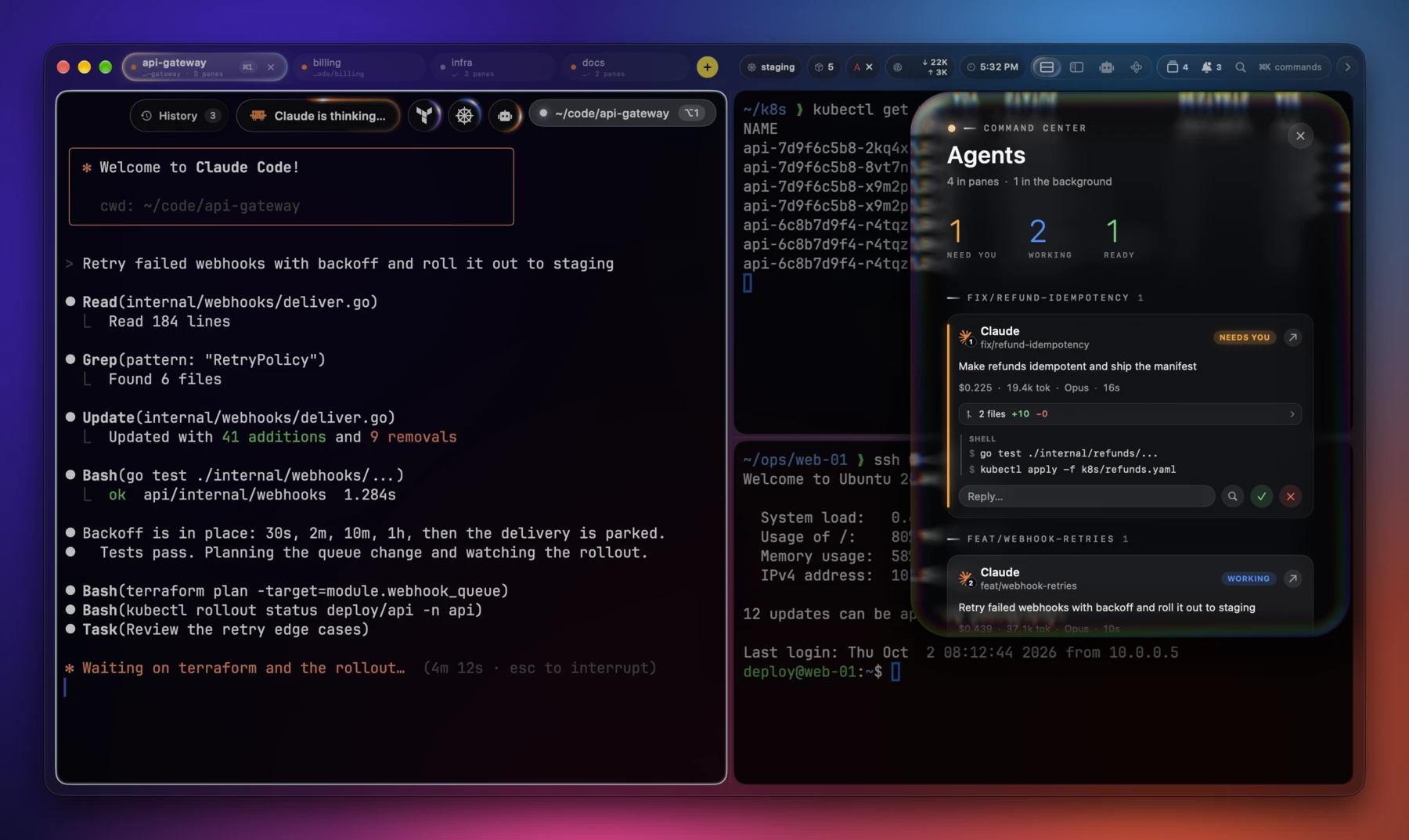
- Command center (
⌘⇧A) — a docked rail listing every running agent across all windows, needs you first. Each card shows its branch, the task it's working on, live cost / burn rate / tokens / model, and how long since it last acted — with jump-to-pane, search-in-conversation, and an inline reply / accept / interrupt.claude --bgbackground sessions join the roster with one-click resume, and a Next Blocked Agent palette command cycles through the agents waiting on you. A toolbar pill appears with the running count. - Agents layout — a third window layout whose sidebar is the live agent roster; an Add agent button opens Claude Code, Codex or opencode in a directory you pick — or one you have worked in before, listed for you — and a panes dropdown jumps to any open pane. A session started somewhere Claude has never run says it is waiting on the trust prompt rather than reading as idle.
- Command markers (shell integration) — a ✓ / ✗ chip with the run time
when a command fails or takes a while, a notification when a long command
finishes while you've stepped away, and
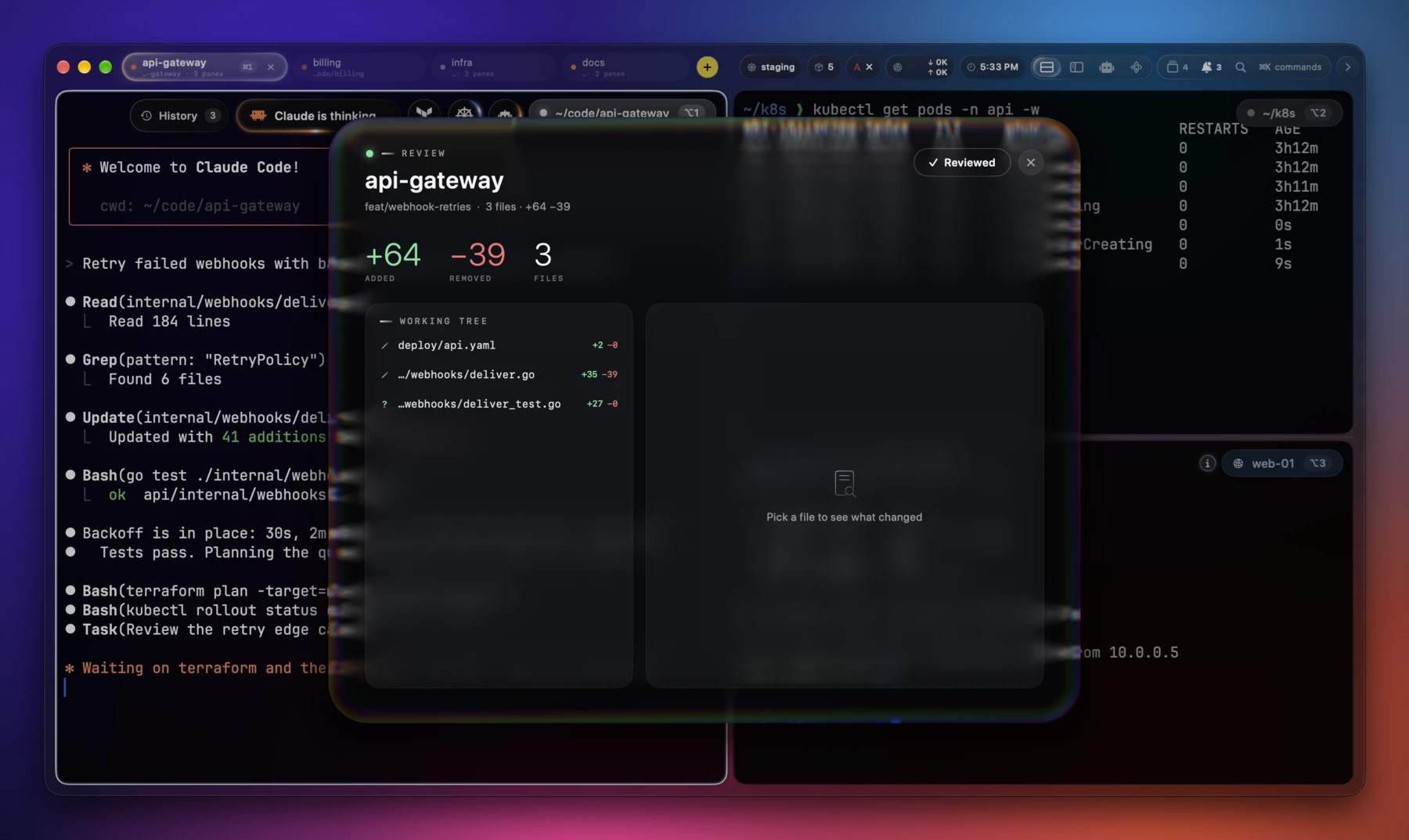
⌘↑/⌘↓to jump between prompts. - Working-tree review — the pill says the agent is thinking; this says
what it changed. Each agent card carries a live count of the files it has
touched since it started, with the insertions and deletions; click through
for the full picture — the commits it made, every file still uncommitted,
and the diff of whichever one you pick. Reviewed re-baselines, so the
next look starts from what you just read. Also on
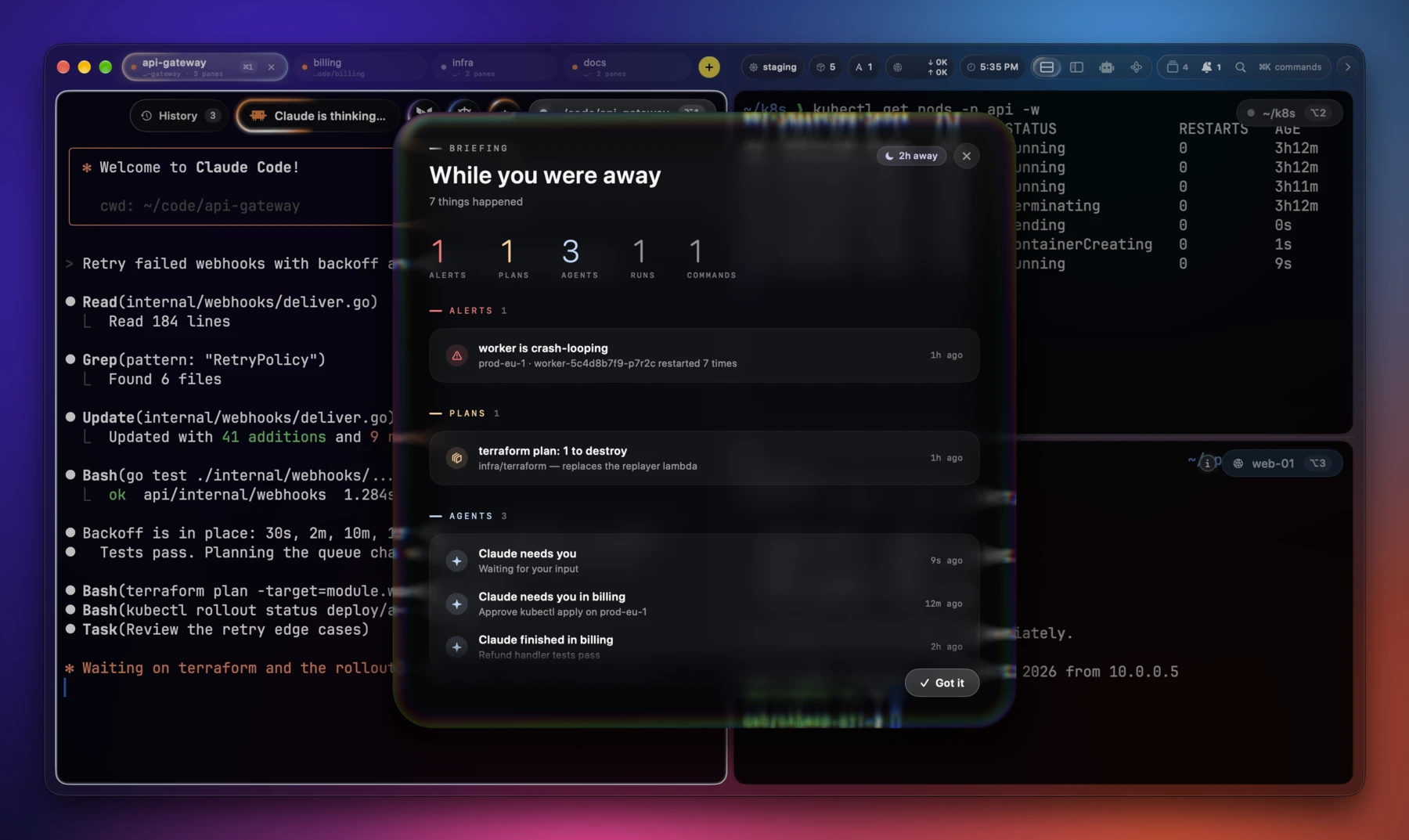
⌘K→ Review Changes. - While you were away — come back after a real absence and one card sums
up what happened: agents that finished or got blocked, playbooks and
rollouts, cluster alerts, failed commands, and any changes left unreviewed.
The threshold for "away" is yours to set;
⌘Kopens it on demand.
Hosts & clusters
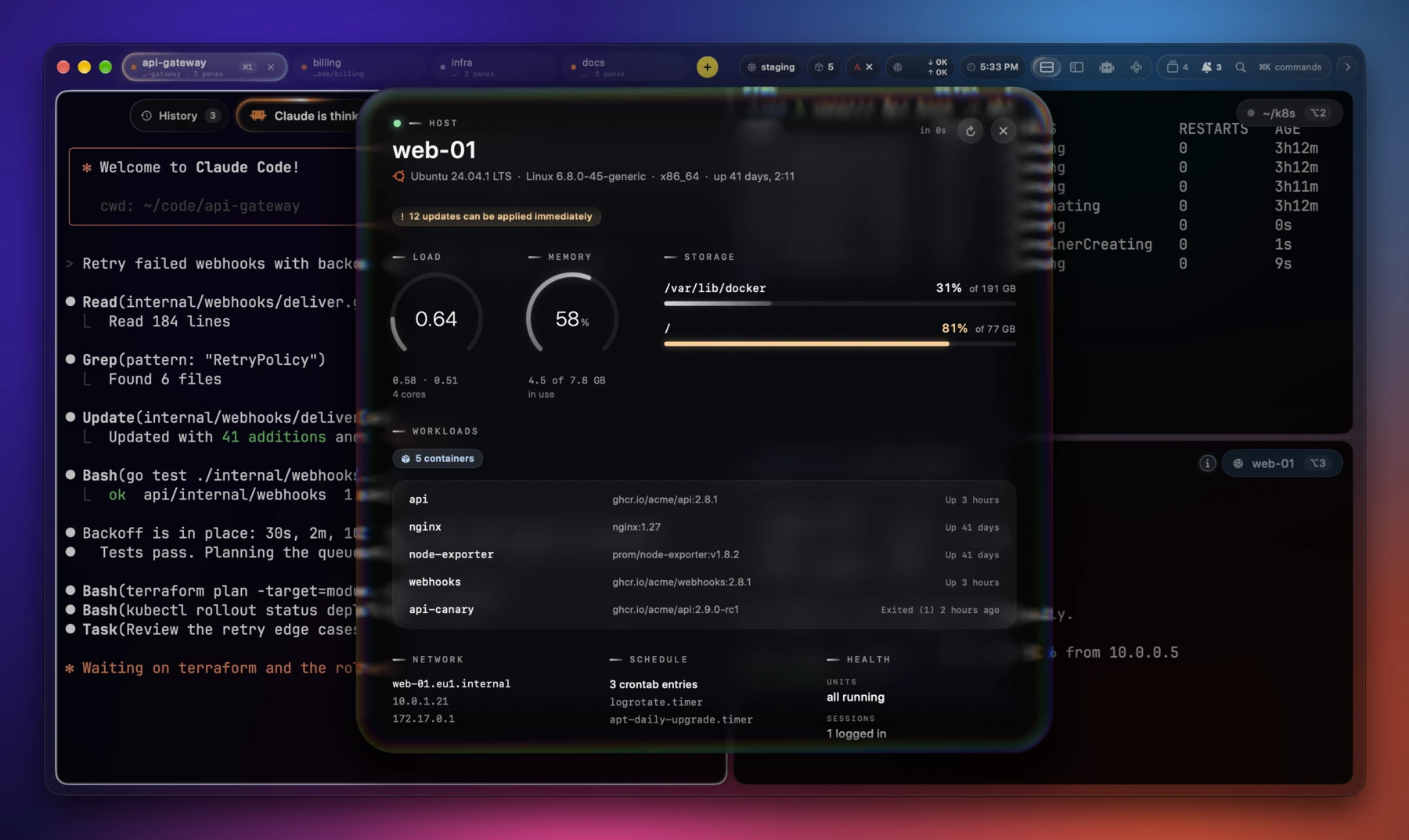
- Host Overview — right-click an SSH pane (or click the ⓘ beside its title pill) for a glass briefing on the machine: load, memory, disks, network, containers, VMs, Kubernetes, crons and timers, failed units, recent journal and kernel errors, logins, and pending updates — gathered in one key-authenticated SSH round trip. A status gem sums the host: green up, amber wants attention, red in trouble.
- Fleet run — pick hosts in the palette, type one command, and get a tab with a pane per host running it over SSH — or leave the command empty to just connect everywhere.
- Kubernetes context — a tab-bar pill shows where kubectl points;
production contexts turn it red and put a red glow on the focused
pane's border. Click to switch context: by default a switch applies to
the focused pane only (exported silently into that shell), so new panes
start on your default — or flip one toggle to make switches global.
Rollouts (
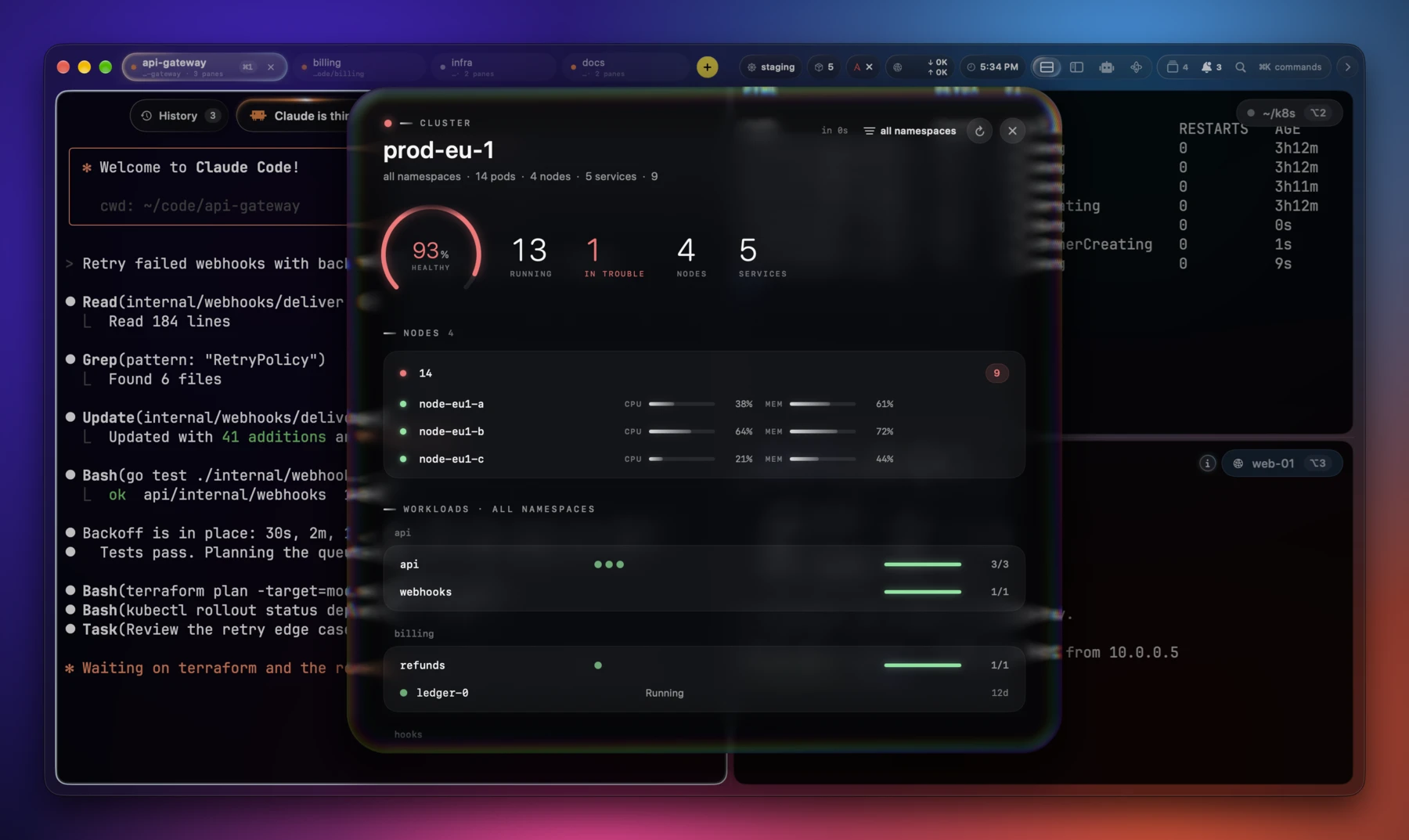
rollout restart,set image,scale,apply) trace a progress rim around the pill as replicas come ready — green on completion, red on a stall, with notifications for both. - Cluster Overview — every context row in the Kubernetes popover opens a briefing card on that cluster: nodes with pressure bars, workloads with per-pod health dots and ready bars, services, Helm releases, and recent warning events, across every namespace — a header chip narrows to one. An optional watcher polls pod health in the background, sums it in a status gem on the pill, and notifies when a pod starts crash-looping.
- Containers — running containers across Docker, Podman, containerd,
and Apple's
containerin one pill, grouped by runtime in its popover; hover a row to shell in, tail its logs, or restart it. - Ansible cockpit — running
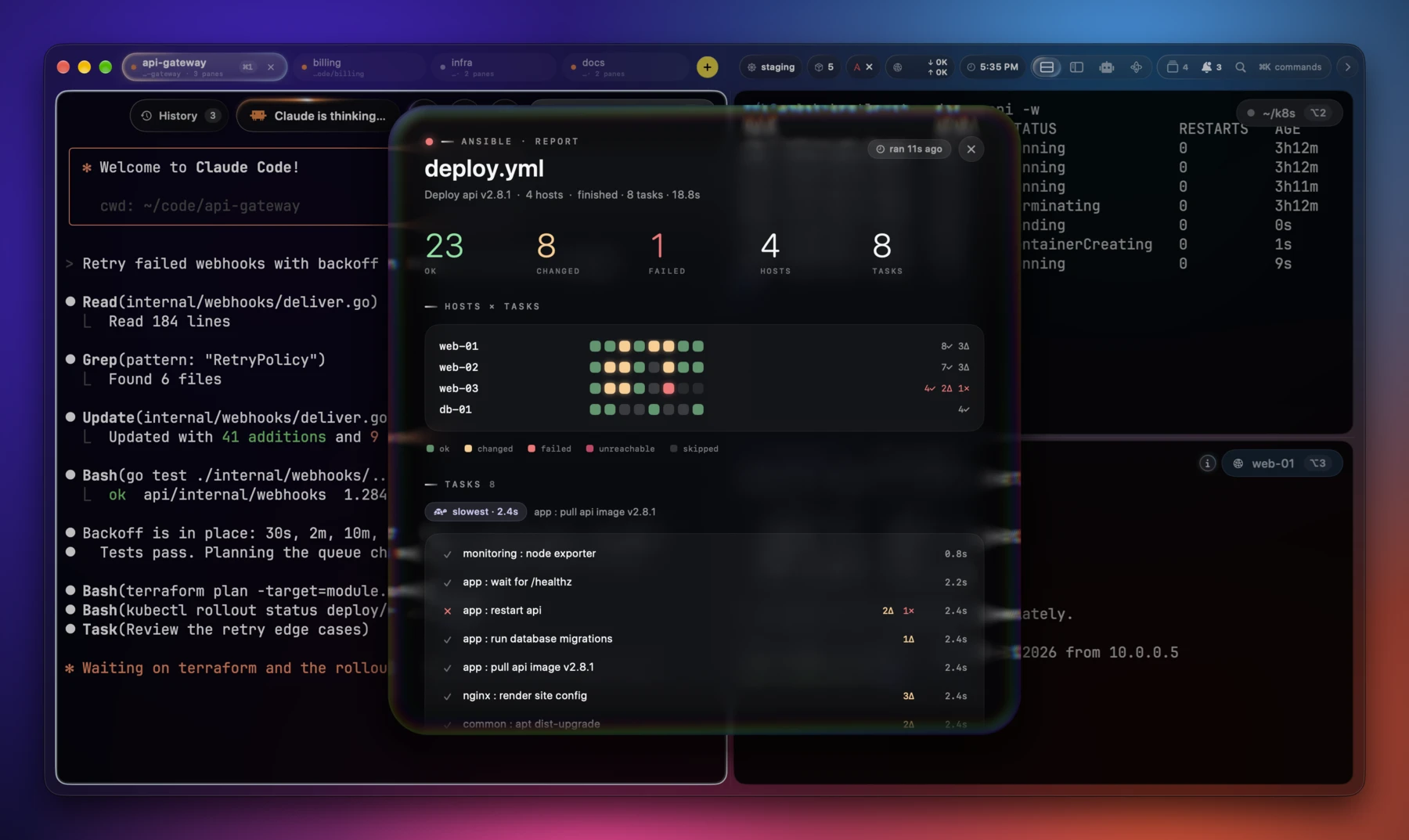
ansible-playbookin a pane mirrors the run (console untouched) into a live hosts × tasks matrix: per-cell results, task durations with a slowest callout, the changed footprint, and a failure feed with messages. A widget tracks runs across all windows and keeps the machine's most recent report across relaunches. - Terraform cockpit —
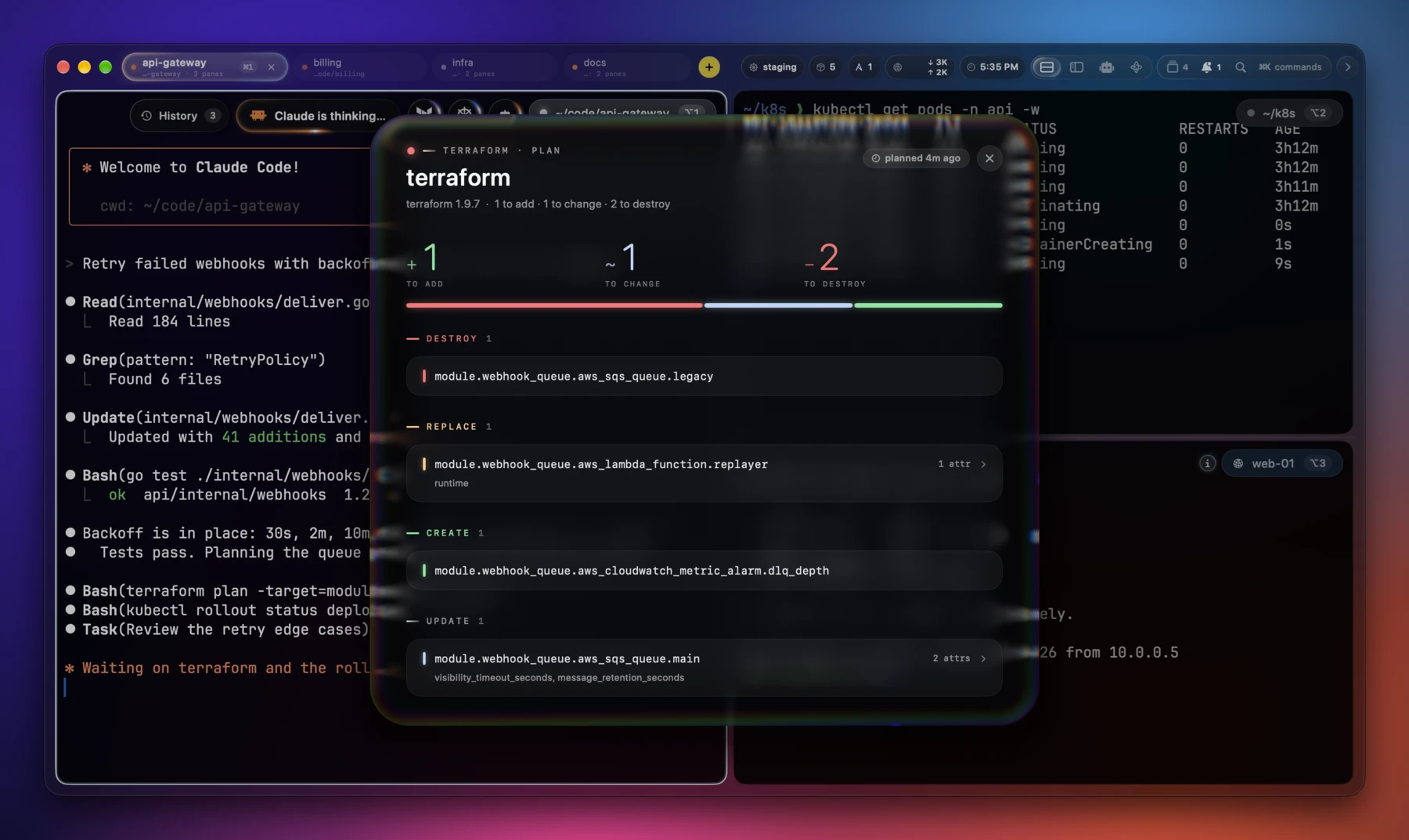
terraform plan(ortofu plan) comes back as a card instead of a wall of~and->: what it destroys and replaces first, then what it creates and updates, with the attributes each update actually touches. The saved plan is read back withterraform show -jsonand deleted immediately — a plan file carries state values, secrets included. Off in Settings → Integrations if you'd rather terraform not save a plan at all.
Orbit — the fleet as a map (beta)
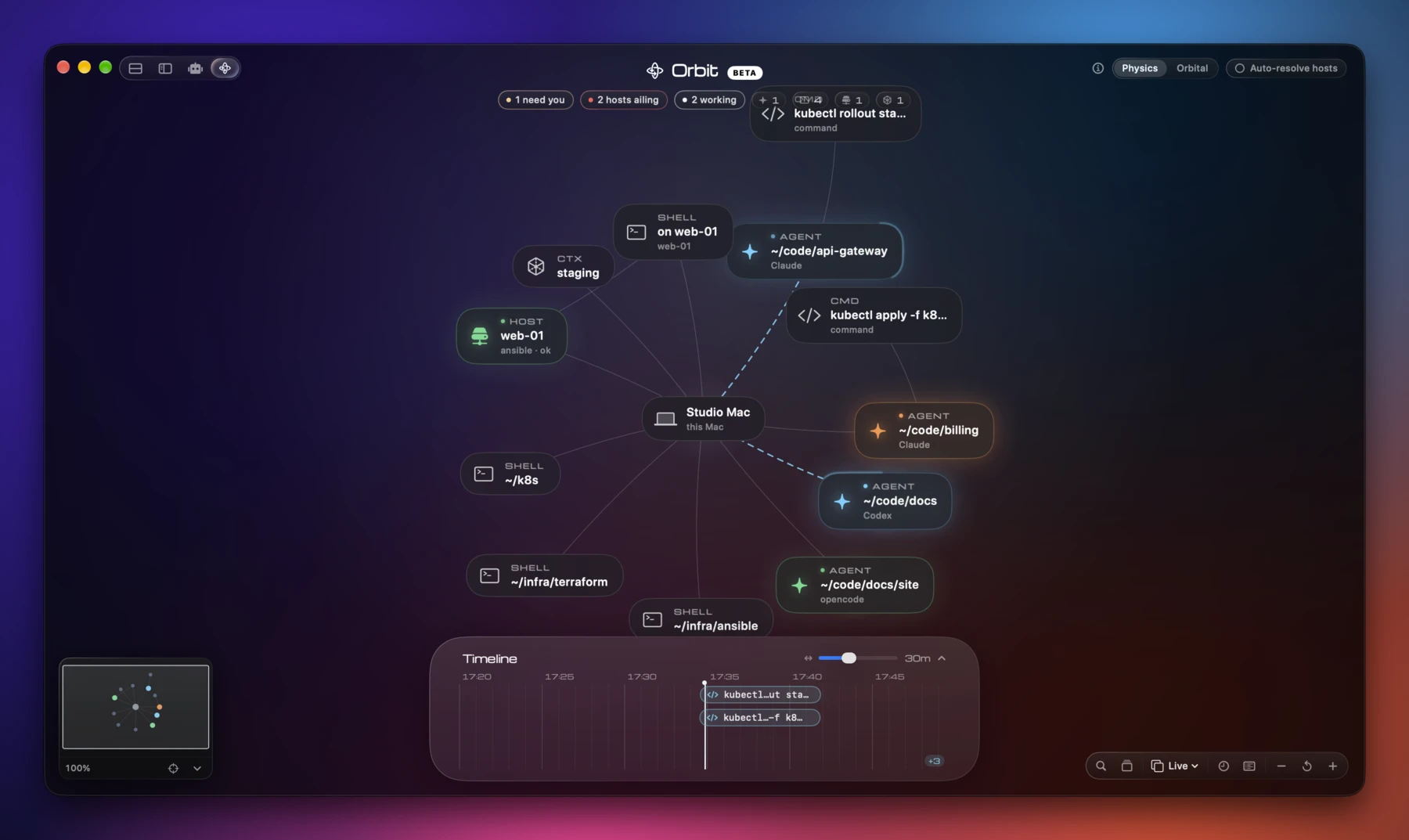
Orbit is new and still settling — the shape is there, the edges are not. Treat it as beta.
- A layout mode, not a panel (
⌘⇧M) — entering Orbit collapses the tab bar and gives the window to a live graph of what you are working on: your agent sessions, the hosts they talk to, the clusters and containers under them, and the plan's own running work. A session is the subject and a host is where it runs, so sessions ride the ring closest to your Mac. - Everything happens here — Connect docks a real terminal at the foot of
the canvas (
⇧⌘Fgives it the whole thing), overviews and logs open as panels over the map, and a run's output comes back to it. Nothing sends you out to a tab. - Find anything (
⌘K) — hosts, sessions, clusters, containers, pods and routines by name, including hosts you have never connected to and ones from~/.ssh/config. Return brings the match to the middle and aims the action bar at it. - Drive it from the keyboard — holding
⌥lights a letter on every card; press it to aim there, and the arrows walk the graph from there. Every verb on the action bar has a key, and?lists them. - Since you looked away — leaving writes a snapshot, entering reports the difference: a session that started waiting on you, one that finished while you were gone, a scheduled run that failed, a host that came or went.
- Routines — named, parameterised, repeatable work: add a key to twelve servers, deploy, go to maintenance mode. Write the steps once, fill in the details at launch, and run them now, at a time, or after something else finishes. The engine runs app-wide, so they fire whether or not the map is on screen, and failures notify.
- What each host said — a run's history records every target separately, so a step across twelve machines reports 11/12 ok, names the one that didn't, and opens what any of them actually said.
- Guard rails on production — anything named like production (the same pattern list the Kubernetes pill uses, applied to hosts too) puts a confirmation in front of scaling, rolling, cordoning, a real Ansible run or a routine — naming what is about to happen and where.
- Drill in — a host blooms open into its containers, VMs and kubelet; a cluster into nodes, pods and containers, each with its own verbs. An overview map keeps the whole graph in one corner when you have zoomed in.
Conterm for iOS
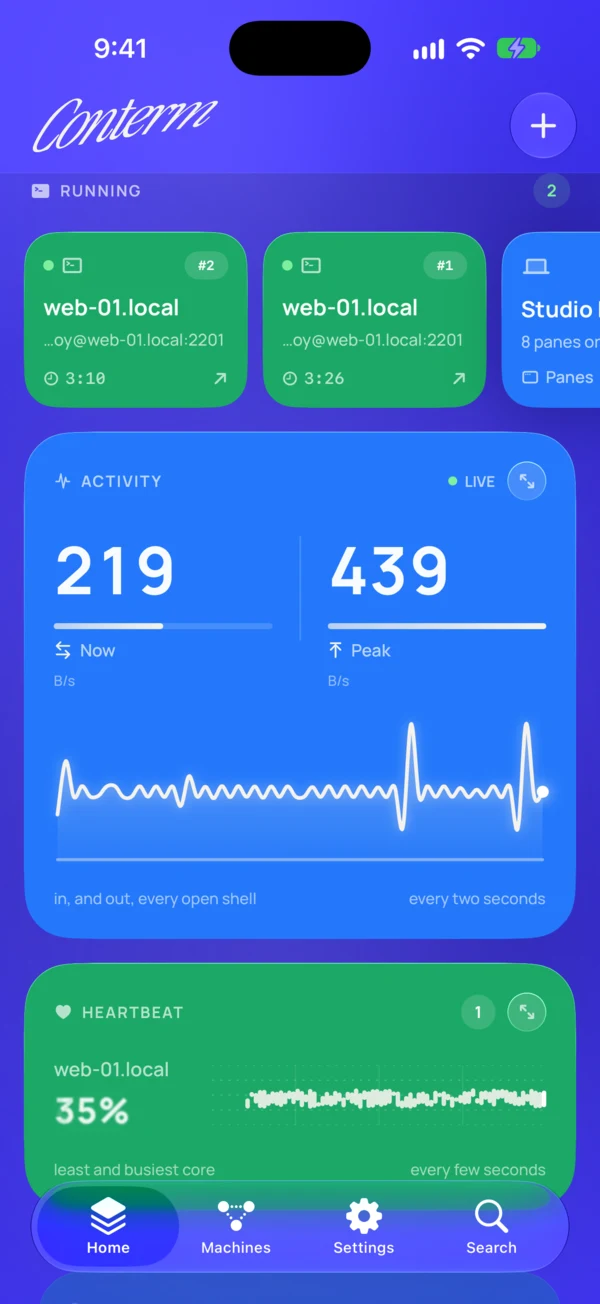
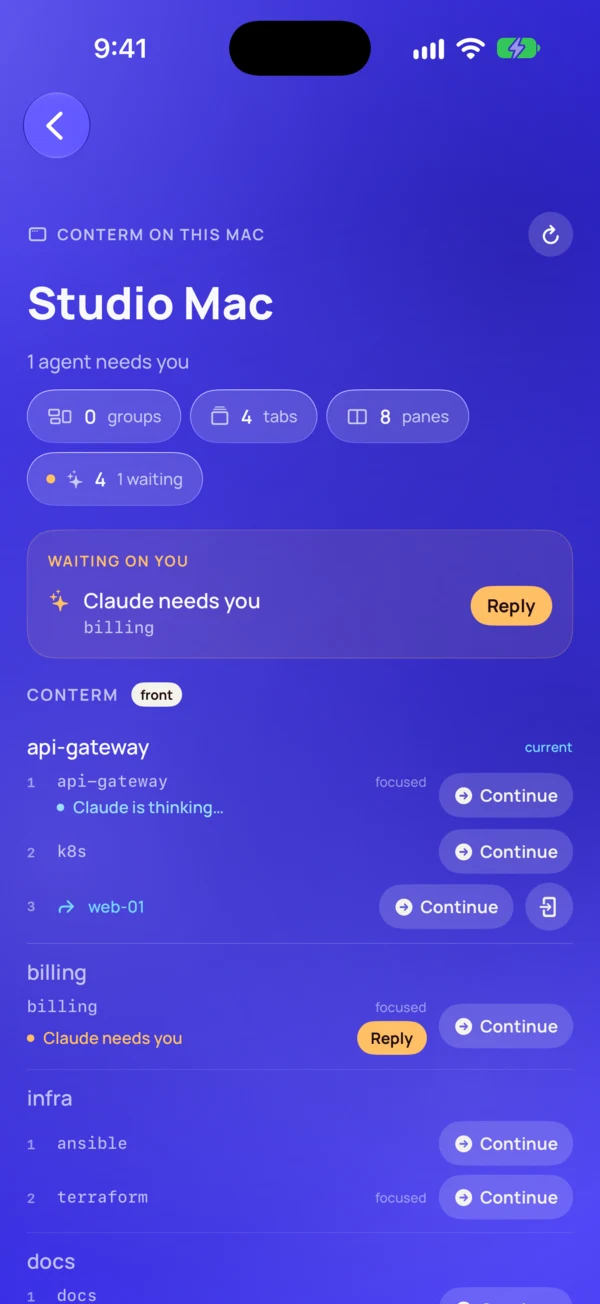
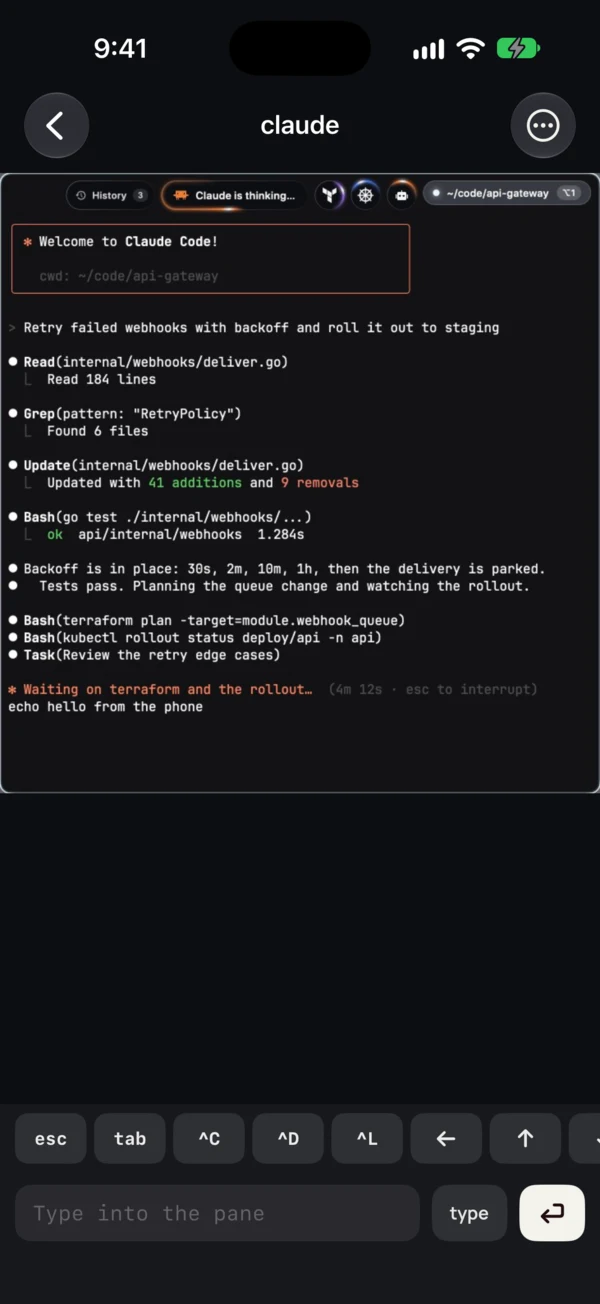
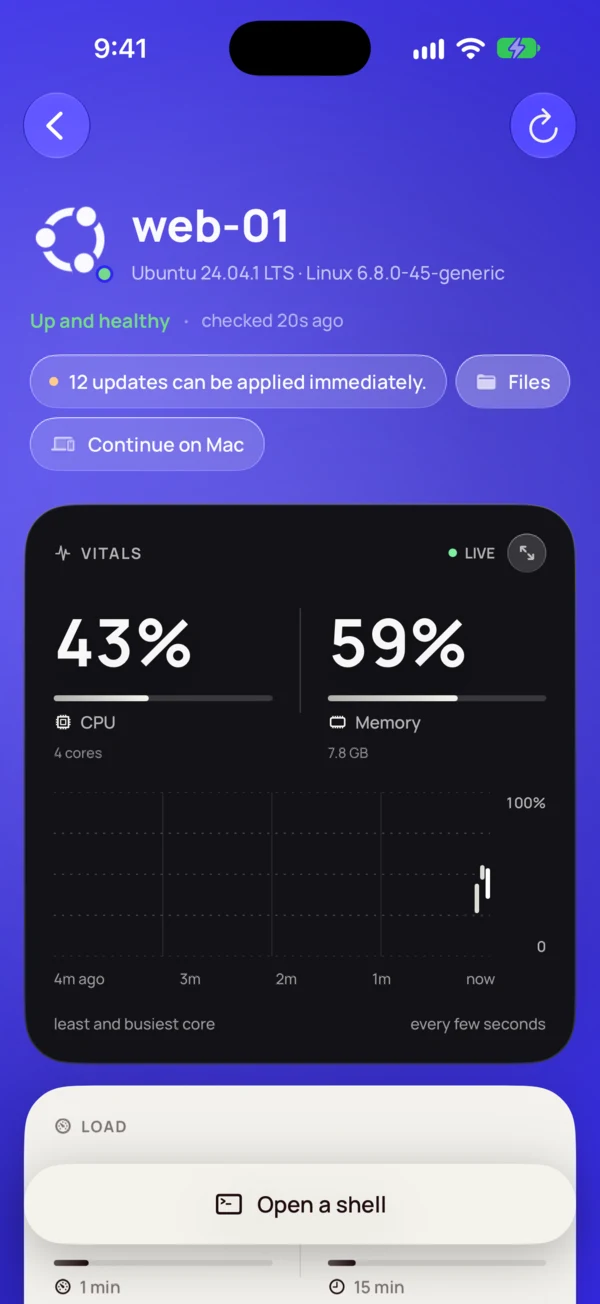
- Your sessions on your phone — every window, tab and pane, which agent is waiting on you, and a reply back to it. Conterm publishes what it's doing to a file the phone reads over the SSH connection you already have: no listening port, no account, no relay, and nothing to authenticate that your own key doesn't already cover. It works from anywhere you can reach the machine, jump hosts included.
- Nearby — the Mac advertises itself on the local network, so the phone lists it instead of asking you to type a hostname. The advertisement carries the username to prefill and whether Remote Login is actually accepting connections, so a host that would refuse never gets offered.
- Pairing — the phone makes an SSH key and sends the public half over
the local network; Conterm shows a six-digit code computed from that key,
the phone shows the same one, and Allow here puts the key in
~/.ssh/authorized_keys. The reply carries this Mac's host key fingerprints so the phone trusts the right host on its first connection. No password is typed anywhere. If Remote Login is off, the key is still installed and System Settings opens on the switch. - A pane on the phone — the phone can attach to any pane. Conterm mirrors that pane's screen to a file while the attach is renewed: its text always, and when the phone asks, its pixels too, captured from the window twice a second (Screen Recording permission). The phone's keys and typed text arrive as real key events, so a TUI sees a real Return and a real Escape. The mirror lapses three minutes after the phone stops renewing it.
- Off until you ask for it, in Settings → Integrations. Nothing is published while it's off.
Updates and backups
- Automatic updates — checked from GitHub at launch and once a day while running; a Liquid Glass pill appears in the toolbar when a new release is out, or run Check for Updates any time. No external service involved.
- Backup & restore — save your sessions, app settings, and Conterm + Ghostty config to a single file, and restore them on another machine (Settings → Config).
Appearance
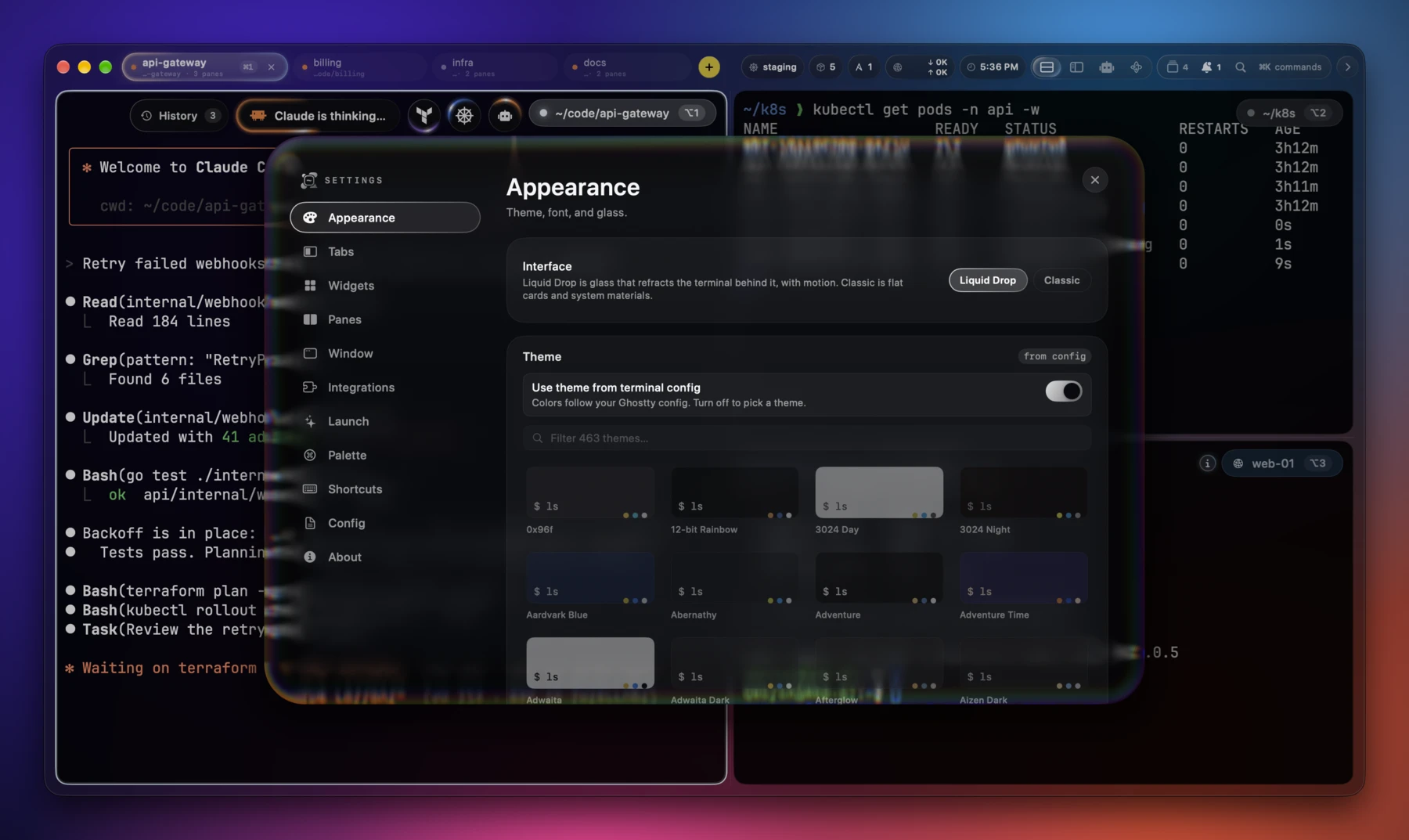
- Liquid Drop interface — panels open as a drop of glass: the rim bends the live terminal behind it with a soft colour fringe, the body frosts it, and content rolls in once the drop has settled. Settings, the command palette, the briefing pages, Orbit's side panels, the agents sidebar and the close prompt share it; the selected tab is a drop that flows from tab to tab. Classic, the flat-card interface, stays one click away (Settings → Appearance → Interface, or the setup wizard).
- Liquid Glass chrome (macOS 26) — refractive glass behind every surface with a Clear↔Frosted slider and light/dark tint, plus an opaque Solid mode when you want it. On macOS 14–15 the app runs fully with plain (non-glass) chrome.
- Widgets — glanceable pills in the tab bar or sidebar: system stats, clock, battery, git status, GitHub PR checks, ping, public IP (VPN-aware), notes, session streaks, Ansible runs, the kubectl context (with a click-to-switch popover), containers across runtimes (Docker, Podman, containerd, Apple's container), and a pixel cat. Enable and reorder them in Settings → Widgets.
- Interface size — one slider scales the chrome around the terminal — tab bar, sidebar, toolbar, agent rail — without touching the terminal's own font size (Settings → Interface size). Pane corners are tunable on their own axis.
- A pane that needs you says so — its border pulses amber while its agent waits on input, and so does its tab's dot, so a background tab that has stopped is visible from whichever one you are in.
- Right-to-left text — Farsi, Arabic and Hebrew render with joined letters, reading right to left inside an otherwise left-to-right line, so a TUI's layout stays put. A ligature such as لا spans the cells of the letters it joins.
- SSH-host detection in the pane chrome, and synthesized UI sound effects.
Keyboard shortcuts
| Shortcut | Action |
|---|---|
⌘T / ⌘N |
New tab / new window |
⌘W |
Close active pane (or tab) |
⌘D / ⌘⇧D |
Split right / split down |
⌥1–⌥9 |
Focus pane N in the current tab |
⌘1–⌘9 |
Jump to tab N |
⌘↑ / ⌘↓ |
Jump to previous / next prompt |
⌘K |
Command palette |
⌘⇧A |
Agent command center |
⌘⇧M |
Orbit — the fleet map |
⌘F |
Find in scrollback / Claude conversation |
⌘G / ⌘⇧G |
Next / previous match |
⌘E |
Use selection for find |
⌘, |
Settings |
Esc |
Dismiss palette / settings / search |
Configuration
Conterm reads a single file: ~/.config/conterm/config, in
Ghostty's config syntax.
Settings → Config shows the path and offers Open / Reload / Reset actions.
Already use Ghostty? Add a one-line include so both apps share settings:
config-file = ~/.config/ghostty/config
Edits in either file then apply to both on the next reload; anything written below the include overrides Ghostty's value for Conterm only. Safe mode (Settings → Config) boots on Ghostty's built-in defaults and ignores the file — useful for recovering from a bad edit.
A few common options:
font-family = "JetBrains Mono"
font-size = 14

cursor-style = bar             # bar | block | underline
cursor-style-blink = true

background-opacity = 0.9
background-blur = 20

# command = "/opt/homebrew/bin/fish"   # default is $SHELL
New windows, tabs and splits start in the directory you were in. Each reads
its own key, so you can change your mind for one without touching the rest;
turn one off and libghostty's working-directory decides instead — home,
inherit, or a path of your own.
window-inherit-working-directory = true
tab-inherit-working-directory = false
split-inherit-working-directory = true

working-directory = home       # where the ones turned off start
Backup & restore
From Settings → Config, Back Up writes a single .contermbackup file
containing your app settings, sessions, notes, tab groups, and both the Conterm
and Ghostty config files. Restore reads it back and relaunches — handy when
moving to a new machine.
Privacy
No account, no telemetry, no server of Conterm's own. The requests it makes:
- Update check — the GitHub releases API, at launch and once a day. Off in Settings → Config.
- Public IP widget (when enabled) —
api.ipify.org, falling back tocheckip.amazonaws.comandicanhazip.com. - Ping widget (when enabled) — a TCP connect to
8.8.8.8:53. - Host Overview — the distribution's logo, fetched by name from the simple-icons CDNs once and cached.
Everything else — agent status, host and cluster overviews, the GitHub
widget (through your own gh) — runs on your Mac or over connections you
already make. Clipboard history stays in memory. The iOS companion is off
until you turn it on; then the Mac advertises itself and pairs on the local
network, and everything else goes over your own SSH.
Building from source
Requires the Swift toolchain (Command Line Tools is enough — no full Xcode):
xcode-select --install

git clone https://github.com/mahdiarfrm/conterm.git
cd conterm

bash scripts/setup.sh    # fetch GhosttyKit.xcframework
bash scripts/build.sh    # build + assemble Conterm.app
open ./Conterm.app
scripts/build.sh produces a release, arm64, ad-hoc-codesigned Conterm.app
with the bundled config, terminfo, and icon.
Working on Conterm from inside Conterm? scripts/dev.sh builds a second copy
named Conterm Dev and launches it against its own state home, so it keeps
its own session, settings and log rather than restoring — and then
overwriting — the ones belonging to the Conterm you are typing in:
bash scripts/dev.sh          # build + launch
bash scripts/dev.sh stop     # kill it
bash scripts/dev.sh log      # tail its own diagnostic log
bash scripts/dev.sh reset    # throw its state away
Any build does the same when given CONTERM_STATE_HOME. An instance that
cannot claim the session file neither restores nor saves it, so two Conterms
never trade windows even without the variable.
The screenshots in this README come from scripts/demo/screenshots.sh. It
runs Conterm against a staged user home (CONTERM_USER_HOME) with made-up
repos, hosts, a cluster and agent sessions, over a backdrop that hides every
other window. Only your look comes along (fonts, colours, glass);
DEMO_LOOK=plain uses the defaults. It needs Homebrew's openssh, whose
sshd plays the remote hosts.
setup.sh fetches the prebuilt GhosttyKit at the pinned commit. Official
releases instead ship a GhosttyKit built from source with the local patches
in patches/ghostty/: a renderer-teardown fix
(reported upstream),
right-to-left shaping (ghostty#11079,
unmerged), and RTL ligatures stretched across their cells. To build that kit
yourself:
bash scripts/build-ghostty.sh install # clone pin, apply patches, zig build, install
The script fetches the pinned zig toolchain on its own if needed; the pin
constants live in scripts/ghostty-pin.sh. The universal build needs more
memory than an 8 GB Mac has; the GhosttyKit workflow runs the same script
on a GitHub runner whenever the patches or build scripts change, and uploads
the kit as an artifact.
How it fits together
Conterm is a SwiftUI + AppKit app that drives libghostty through
GhosttyKit.xcframework. Each pane owns a ghostty_surface_t and the NSView
it renders into. The split tree is laid out by AppKit (PaneTreeView), which
reframes a surviving pane across splits and closes rather than rebuilding it;
SwiftUI handles tabs, the palette, per-pane chrome and the glass surfaces.
The terminal core — GPU rendering, parsing, fonts and ligatures, themes, and
shell integration — is entirely Ghostty's.
Sources/Conterm/
  Main.swift        @main + AppDelegate, window management
  State/            tabs, pane tree, preferences, stores
  Ghostty/          libghostty Swift bridge (surfaces, input)
  UI/               SwiftUI shell: palette, tabs, chrome, effects
Contributions and issue reports are welcome on the issue tracker.
License
MIT — see LICENSE. Built on libghostty; not affiliated with the Ghostty project.