
linzzzzzz/openclip
linzzzzzz/openclip has 578 GitHub stars and 73 forks. GitHot measured 0 stars in 24 hours and -1 in 7 days. Last checked 2026-11-09 11:28 UTC. Last push 2026-08-24.
OpenClip - AI-powered highlight extraction for long videos (AI 驱动的长视频精彩时刻提取工具)
Measured star growth
- in 24h
- 0
- in 7 days
- -1
- in 15 days
- Update delayed
- in 1 month
- Update delayed
Net star changes over overlapping periods, not daily totals. Missing measurements are left blank. Stars measure attention, not software quality.
README_EN.md
Original

English | 简体中文
A lightweight automated video processing pipeline that identifies and extracts the most engaging moments from long-form videos (especially talk-to-camera and livestream recordings). Uses AI-powered analysis to find highlights, generates clips, and adds titles and covers.
🎯 What It Does
Give it a video URL or local file, and it handles the full pipeline: Download → Transcribe → Split → AI Analysis → Clip Generation → Titles and Covers — outputting the most engaging moments. Great for quickly extracting highlights from long livestreams or videos.
💡 How is it different from AutoClip? See the comparison section to learn about OpenClip's lightweight design philosophy.
📢 News
- 2026-05-20:
- Added clip length presets: Streamlit and CLI now support
Auto (30s-3m),30s-60s,60s-90s,90s-3m, and3m-5m
- Added clip length presets: Streamlit and CLI now support
- 2026-04-23:
- Added a post-processing
Clip Editorfor per-clip boundary, subtitle, and cover-title adjustments, with support for speed-based rerendering - Added an in-browser
File Uploadentry in Streamlit so local videos can be uploaded directly to create processing jobs; supports LAN/shared-machine mode - Watch the walkthrough video for the full workflow
- Added a post-processing
- 2026-04-19:
- Added
--deep-optimize/ Streamlit “Deep Optimize” mode: after candidate highlight aggregation, OpenClip runs extra AI review, boundary repair, and re-review steps to improve clip boundaries and standalone quality. See With--deep-optimize
- Added
- 2026-04-04:
- Added a
custom_openaiprovider with configurableLLM ModelandLLM Base URLin both Streamlit and CLI, so OpenClip can target local or self-hosted OpenAI-compatible endpoints - Added Paraformer support for Chinese ASR, with local ASR automatically routing Chinese audio to Paraformer
- Added a
- 2026-03-30:
- Added default-on clip boundary refinement to make highlight clip starts and ends feel more natural and reduce abrupt cuts
- Added Streamlit UI support for one-click job creation for multi-part Bilibili videos, background job retry, and cancelling pending jobs after restart, thanks to @xenoamess
- 2026-03-25:
- Added Cookie Guidance and a clearer Streamlit
Cookie Mode; for remote videos, tryNo cookies→Browser cookies→Cookies filein that order
- Added Cookie Guidance and a clearer Streamlit
Older updates
- 2026-03-24:
- Added GLM (ZhipuAI) and MiniMax as LLM providers — OpenClip now supports Qwen, OpenRouter, GLM, MiniMax, and
custom_openai
- Added GLM (ZhipuAI) and MiniMax as LLM providers — OpenClip now supports Qwen, OpenRouter, GLM, MiniMax, and
- 2026-03-11:
- OpenClip is now on skills.sh — install it as an Agent Skill via
npx skills add https://github.com/linzzzzzz/openclip --skill video-clip-extractorand let your agent invoke it from any directory
- OpenClip is now on skills.sh — install it as an Agent Skill via
- 2026-03-08:
- Added
--user-intentargument — tell the AI what you're looking for in natural language (e.g.--user-intent "moments about AI risks"); steers clip selection and ranking at both the per-part and aggregation stages
- Added
- 2026-03-04:
- Git History Notice: A mistaken attempt to reduce GitHub repo size caused the git history to be rewritten. Sorry for the inconvenience. Existing users need to run
git fetch origin && git reset --hard origin/mainto sync with the latest history - Added subtitle burning — use
--burn-subtitlesto hard-burn SRT subtitles into clip videos; optionally add--subtitle-translation "Simplified Chinese"to burn bilingual subtitles (requires ffmpeg with libass) - Switched OpenRouter default model from openrouter/free to stepfun/step-3.5-flash:free
- Git History Notice: A mistaken attempt to reduce GitHub repo size caused the git history to be rewritten. Sorry for the inconvenience. Existing users need to run
- 2026-03-01:
- Streamlit interface now supports background job processing and concurrent video processing
- Added speaker identification (Preview) — use
--speaker-referencesto automatically label speakers by name in transcripts for interviews, panels, and podcasts - Improved AI prompts to reduce timestamp format confusion (e.g.,
00:01:55vs01:55:00)
- 2025-02-26:
- Switched default Qwen model from legacy qwen-turbo to qwen3.6-plus
- Improved AI prompts to reduce timestamp hallucination and enhance title quality
🎬 Demos
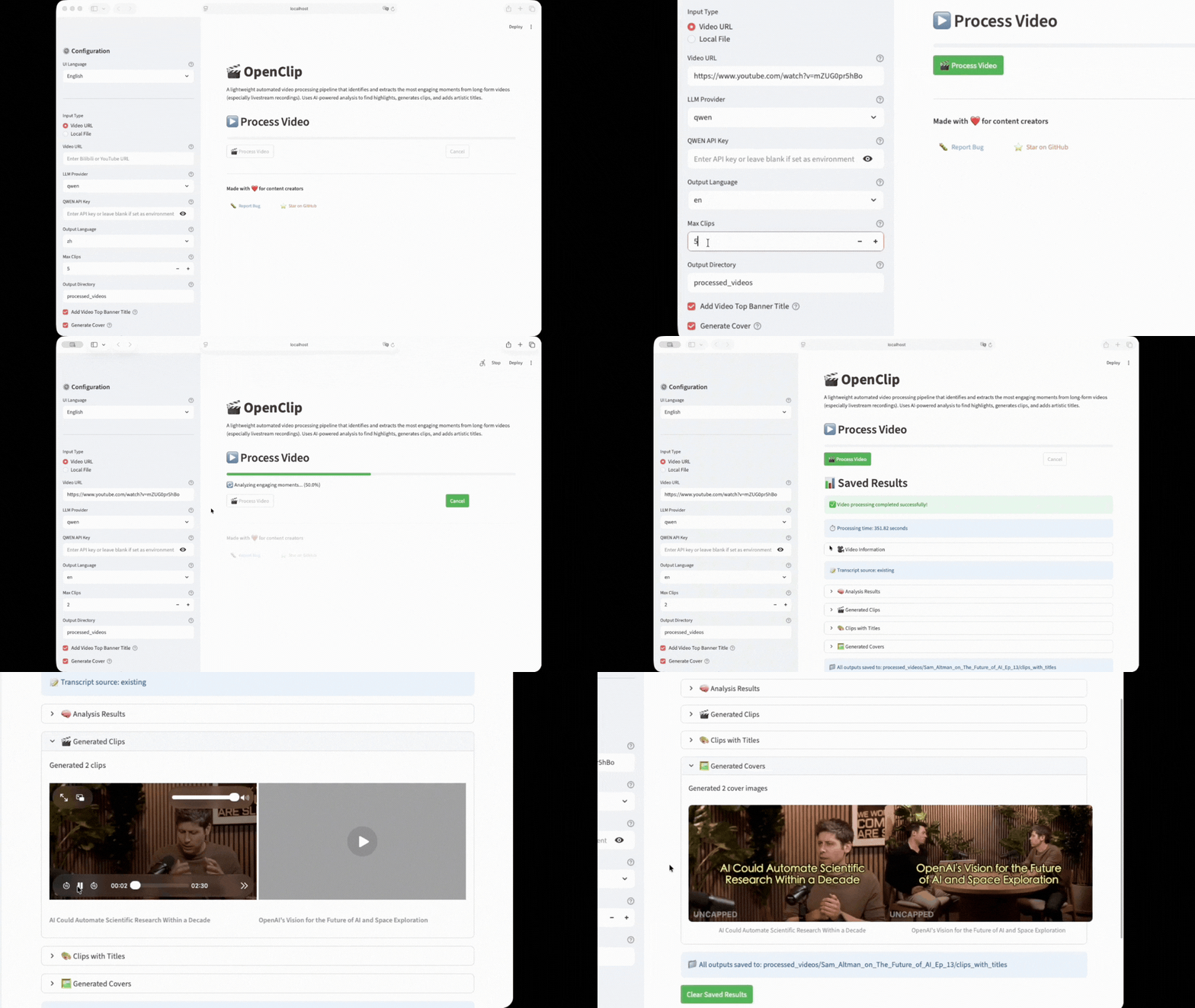
Web UI Demo
Agent Skills Demo
✨ Features
- Flexible Input: Bilibili/YouTube URLs or local video files
- Smart Transcription: Uses platform subtitles when available; local ASR auto-routes by language, using Whisper for English and Paraformer for Chinese
- Speaker Identification (Preview): automatically identifies who is speaking and labels transcripts with real names — great for interviews, panels, debates, and podcasts
- AI Analysis: Identifies engaging moments based on content, interaction, and entertainment value; supports
--user-intentto focus the AI on what you care about - Clip Generation: Extracts the most engaging moments as standalone video clips, automatically generating subtitle files, titles, and cover images
- Subtitle Burning (optional): Hard-burns SRT subtitles into the video frame; optionally translates to a target language via the selected LLM provider and burns both tracks as bilingual subtitles
- Background Context: Optionally add background information (e.g., streamer names) for better analysis
- Triple Interface Support: Streamlit web interface, Agent Skills, and command-line interface for different user needs
- Agent Skills: Built-in Claude Code and TRAE agent skills for processing videos with natural language
📋 Prerequisites
Manual Installation
uv (Python package manager) - Installation guide
FFmpeg - For video processing
- macOS:
brew install ffmpeg - Ubuntu:
sudo apt install ffmpeg - Windows: Download from ffmpeg.org
- macOS:
Deno or Node (optional, may be needed for YouTube downloads) - Improves YouTube download reliability. OpenClip auto-detects and uses them; if you mainly process YouTube videos, especially with cookies, installing one is recommended
- For installation instructions, see yt-dlp's official EJS guide: Step 1: Install a supported JavaScript runtime
Need bilingual subtitle burning? Click for libass-enabled install instructions
The default installs above do not include libass:
- macOS:
brew tap homebrew-ffmpeg/ffmpeg && brew install homebrew-ffmpeg/ffmpeg/ffmpeg(replaces existing ffmpeg) - Ubuntu:
sudo add-apt-repository ppa:savoury1/ffmpeg4 && sudo apt install ffmpeg - Windows: Download the full build from gyan.dev
LLM API Key / Endpoint Config (choose one)
- Qwen API Key - Get your key from Alibaba Cloud (uses qwen3.6-plus model by default)
- OpenRouter API Key - Get your key from OpenRouter (uses stepfun/step-3.5-flash:free model by default)
- GLM API Key - Get your key from ZhipuAI (uses glm-4.7 model by default)
- MiniMax API Key - Get your key from MiniMax (uses MiniMax-M2.7 model by default)
- Custom OpenAI-compatible endpoint - Requires a reachable OpenAI-compatible chat completions endpoint plus
CUSTOM_OPENAI_BASE_URLandCUSTOM_OPENAI_MODEL;CUSTOM_OPENAI_API_KEYis optional
Firefox Browser (optional) - For more stable Bilibili video downloads
HuggingFace Token (optional, for speaker identification) - Get from huggingface.co/settings/tokens and accept the pyannote model agreement
Managed by uv
The following are installed automatically when you run uv sync:
- Python 3.11+ - Downloaded by uv if not already available
- yt-dlp - For downloading videos from Bilibili, YouTube, etc.
- Whisper - For speech-to-text transcription
- Other Python dependencies (moviepy, streamlit, etc.)
Optional extras:
uv sync --extra paraformer- Installs runtime dependencies for local Chinese ASR via Paraformeruv sync --extra speakers- Installs WhisperX dependencies for speaker identification
🚀 Quick Start
1. Clone and Setup
# Clone the repository
git clone https://github.com/linzzzzzz/openclip.git
cd openclip

# Install dependencies with uv
uv sync
🈶 Enable Paraformer For Local Chinese ASR (Optional)
Local ASR routes automatically by language: English uses Whisper and Chinese prefers Paraformer. To enable Paraformer, install the extra dependencies:
uv sync --extra paraformer
OpenClip uses the bundled helper by default: third_party/funasr-paraformer. You normally do not need to set PARAFORMER_PROJECT_DIR; set it only if your helper checkout lives outside the repo:
export PARAFORMER_PROJECT_DIR=/path/to/funasr-paraformer
If the Paraformer dependencies or helper are unavailable, OpenClip automatically falls back to Whisper.
2. Set API Key (for AI features)
Set the environment variables for your chosen LLM provider (configure at least one provider):
export QWEN_API_KEY=your_api_key_here        # Qwen (Alibaba)
export OPENROUTER_API_KEY=your_api_key_here   # OpenRouter
export GLM_API_KEY=your_api_key_here          # GLM / ZhipuAI (bigmodel.cn, China endpoint)
export MINIMAX_API_KEY=your_api_key_here      # MiniMax (minimaxi.com, China endpoint)
export CUSTOM_OPENAI_API_KEY=your_api_key_here # custom_openai, optional
export CUSTOM_OPENAI_BASE_URL=http://127.0.0.1:8000/v1
export CUSTOM_OPENAI_MODEL=Qwen/Qwen2.5-7B-Instruct
Notes:
custom_openaiis useful for LM Studio, vLLM, One API, New API, or any other OpenAI-compatible serviceCUSTOM_OPENAI_BASE_URLcan be either an API root such as.../v1or a full/chat/completionsendpoint- Leave
CUSTOM_OPENAI_API_KEYempty if your compatible endpoint does not require Bearer authentication CUSTOM_OPENAI_MAX_TOKENS(default8192) andCUSTOM_OPENAI_TIMEOUT(default240, seconds) can be raised for slower local/self-hosted models (e.g. Ollama, LM Studio) whose thinking/reasoning output can exceed the cloud-oriented defaults- The Streamlit sidebar lets you override
LLM ModelandLLM Base URLper provider; the CLI equivalents are--llm-modeland--llm-base-url
3. Run the Pipeline
Option A: Using Streamlit Web Interface
Start Streamlit app:
uv run python -m streamlit run streamlit_app.py
Once the app starts, open your browser and visit the displayed URL (typically http://localhost:8501).
LAN/shared-machine mode
To access Streamlit from another device on the same network and make "Open in Editor" show a reachable Clip Editor link:
export OPENCLIP_EDITOR_BASE_URL=http://HOST_LAN_IP:8765
# Optional: explicitly set the editor service bind address and port
export OPENCLIP_EDITOR_HOST=0.0.0.0
export OPENCLIP_EDITOR_PORT=8765

uv run python -m streamlit run streamlit_app.py --server.address 0.0.0.0 --server.port 8501
On macOS, find the host machine's LAN IP with:
ipconfig getifaddr en0
Open http://HOST_LAN_IP:8501 from another device on the same network. Clip Editor project URLs look like http://HOST_LAN_IP:8765/projects/PROJECT_ID.
In LAN mode, "Open in Editor" shows an "Open Clip Editor" link in Streamlit instead of opening a browser tab on the server machine. If the link does not open, make sure both devices are on the same network and that firewall rules allow access to ports 8501 and 8765.
Usage Flow:
- Select input type (Video URL or Local File) in the sidebar
- Configure processing options (
LLM provider,LLM Model,LLM Base URL, cookie mode, etc.) - Click "Process Video" button to start processing
- View real-time progress and final results
- Preview generated clips and covers in the results section
If you choose custom_openai, fill in both LLM Model and LLM Base URL in the sidebar. Leave API Key empty if your endpoint does not require authentication.
Advantages: No need to remember command-line parameters, provides visual operation interface, suitable for all users.
🔄 Concurrent Processing & Background Jobs
The Streamlit interface supports background job processing and concurrent video processing:
Background Job Processing:
- Video processing runs in the background, you can close the browser
- Jobs are persisted, reopen the page to continue viewing
- Each job runs independently without interference
Concurrent Video Processing:
- Click "Process Video" to start the first job → automatically tracked
- Open a new tab to start the second job → independently tracked in the new tab
- Each tab can track different jobs independently
Watch Progress Feature:
- Click "👁️ Watch Progress" button on job cards to switch tracking
- "✓ Watching" indicator shows which job is currently being tracked
- Real-time progress updates and current processing step
Job Management:
- View all job statuses (processing, completed, failed)
- Cancel running jobs
- Delete completed or failed jobs
- View job details (creation time, processing duration, etc.)
Option B: Using AI Agent Skills
If you use Claude Code, TRAE, Cursor, or any other agent that supports skills, you can process videos using natural language without manually typing commands:
"Extract highlights from this video: https://www.bilibili.com/video/BV1234567890"
"Process ~/Downloads/livestream.mp4 with English as output language"
The agent automatically handles the full pipeline: setup, downloading, transcription, analysis, clip generation, and title styling.
Choose your install method:
| Scenario | What to do |
|---|---|
| Already cloned this repo | Nothing — the skill is active automatically when your agent is opened inside the repo directory |
| Want the skill globally (any directory, any project) | npx skills add https://github.com/linzzzzzz/openclip --skill video-clip-extractor -g |
| Want the skill in one specific project folder | Run npx skills add https://github.com/linzzzzzz/openclip --skill video-clip-extractor from that folder |
The skill definition is in .claude/skills/video-clip-extractor/.
Option C: Using Command Line Interface
# Process a Bilibili video
uv run python video_orchestrator.py "https://www.bilibili.com/video/BV1234567890"

# Process a YouTube video
uv run python video_orchestrator.py "https://www.youtube.com/watch?v=dQw4w9WgXcQ"

# Process a local video
uv run python video_orchestrator.py "/path/to/video.mp4"
To use existing subtitles, place the
.srtfile in the same directory with the same filename (e.g.video.mp4→video.srt).
🎙️ Speaker Identification (Optional, Preview)
⚠️ Preview feature: Speaker identification is in preview. Behavior and interface may change in future releases.
🐢 Performance note: Speaker diarization relies on pyannote models and can be slow on CPU (may take several minutes for longer videos). A GPU environment will significantly speed this up.
For interviews, panels, debates, podcasts, and any multi-speaker video. When enabled, each line in the transcript is prefixed with the speaker's name, e.g. [Host] Welcome to today's show. This gives the AI richer context during highlight analysis — making it better at identifying the most engaging exchanges between specific speakers, rather than treating all speech as undifferentiated.
Step 1: Install extra dependencies
uv sync --extra speakers
Step 2: Set your HuggingFace Token
export HUGGINGFACE_TOKEN=hf_your_token_here
And accept the pyannote model agreement on HuggingFace.
Step 3: Extract reference audio
Cut a short clip of each speaker from your video (10–30 seconds, single speaker, clean audio):
uv run python tools/extract_reference.py VIDEO START END "references/Name.wav"

# Examples
uv run python tools/extract_reference.py interview.mp4 00:01:23 00:01:50 "references/Host.wav"
uv run python tools/extract_reference.py interview.mp4 00:03:10 00:03:40 "references/Guest.wav"
Step 4: Run
uv run python video_orchestrator.py --speaker-references references/ "VIDEO_URL_OR_PATH"
🔤 Subtitle Burning (Optional)
Hard-burns SRT subtitle files into the video frame so subtitles are always visible regardless of the player. Supports burning the original SRT only, or translating via the selected LLM provider and burning both tracks as bilingual subtitles. Speaker tags (e.g. [Sam Altman]) are automatically stripped from the on-screen display.
Prerequisite: ffmpeg must include libass (see install instructions above)
Burn original subtitles only:
uv run python video_orchestrator.py --burn-subtitles "VIDEO_URL"
Burn original + translated subtitles:
uv run python video_orchestrator.py \
  --burn-subtitles \
  --subtitle-translation "Simplified Chinese" \
  "VIDEO_URL"
Output goes to clips_post_processed/. The original language appears at the bottom, the translation appears just above it.
🍪 Cookie Guidance
Remote video downloads sometimes hit login checks, bot protection, or platform restrictions. OpenClip supports three modes:
No cookies: try the simplest public-access path firstBrowser cookies: use the logged-in session from your local browserCookies file: use an exported Netscape-formatcookies.txt
Recommended order:
- Start with
No cookies - If you see login/auth/bot-check errors such as
not a botorLOGIN_REQUIRED, tryBrowser cookies - If browser cookies are still unreliable, try
Cookies file
YouTube note:
- For YouTube, if you use cookies, you will very likely also need a JavaScript runtime such as Deno or Node; otherwise yt-dlp may expose incomplete formats or fail to download. See Prerequisites for installation guidance
CLI equivalents:
- Pass no cookie-related flags
- Use
--browser chrome(or the browser you actually use) - Use
--cookies /path/to/cookies.txt
Note:
- Only use cookies when account access is actually needed, keep download volume/rate reasonable, or consider using a throwaway account
Exporting a cookies file:
- If you need to generate a
cookies.txt, see the official yt-dlp guide: Exporting YouTube cookies - Although the guide is titled for YouTube, the exported Netscape-format
cookies.txtalso works for both YouTube and Bilibili in OpenClip
📖 CLI Arguments
| Argument | Description | Default |
|---|---|---|
VIDEO_URL_OR_PATH |
Video URL or local file path (positional) | Required |
-o, --output |
Custom output directory | processed_videos |
--llm-provider |
LLM provider (qwen, openrouter, glm, minimax, or custom_openai) |
qwen |
--llm-model |
Override the model name used by the selected provider; typically required for custom_openai |
Provider default |
--llm-base-url |
Override the OpenAI-compatible chat completions URL used by the selected provider; typically required for custom_openai |
Provider default |
--language |
Output language (zh or en) |
zh |
--browser |
Browser for cookies (chrome/firefox/edge/safari); only used when explicitly provided |
None |
--cookies |
Path to a Netscape-format cookies.txt file; takes precedence over --browser |
None |
--js-runtime |
JavaScript runtime strategy for YouTube downloads only (auto/deno/node/none) |
auto |
--js-runtime-path |
Path to the JavaScript runtime executable for YouTube only (advanced) | None |
--force-whisper |
Force local ASR transcription (ignore platform subtitles); English uses Whisper and Chinese uses Paraformer | Off |
--use-background |
Use background info for analysis | Off |
--normalize-boundaries / --no-normalize-boundaries |
Align clip starts and ends to nearby subtitle boundaries during clip generation; prefers sentence boundaries first and subtitle-gap pauses second. Enabled by default, disable with --no-normalize-boundaries |
On |
--deep-optimize |
Run the deeper clip review and refinement workflow to improve boundaries and standalone quality, at the cost of slower processing. See With --deep-optimize |
Off |
--user-intent |
Natural language description of what you're looking for (e.g. "moments about AI risks"); steers LLM clip selection and ranking |
None |
--max-clips |
Maximum number of highlight clips | 5 |
--clip-length |
Target clip length preset: auto, 30_60, 60_90, 90_180, 180_300, corresponding to Auto (30s-3m), 30s-60s, 60s-90s, 90s-3m, and 3m-5m; only affects engaging_moments mode |
auto |
--title-style |
Title artistic style (see list below) | fire_flame |
--title-font-size |
Font size preset for artistic titles. Options: small(30px), medium(40px), large(50px), xlarge(60px) (default: medium=40px) | medium |
--cover-text-location |
Cover text position (top/upper_middle/bottom/center) |
center |
--cover-fill-color |
Cover text fill color (yellow/red/white/cyan/green/orange/pink/purple/gold/silver) |
yellow |
--cover-outline-color |
Cover text outline color (yellow/red/white/cyan/green/orange/pink/purple/gold/silver/black) |
black |
--speaker-references |
Directory of reference audio clips for speaker name mapping (Preview). Filename stem becomes the speaker name (e.g. references/Host.wav). Requires uv sync --extra speakers and HUGGINGFACE_TOKEN |
None |
--skip-transcript |
Skip transcript generation (use existing transcript files) | Off |
--skip-download |
Skip download, use existing video | Off |
--skip-analysis |
Skip analysis, use existing results | Off |
--skip-clips |
Don't generate clips | Off |
--add-titles |
Add artistic titles to clips | Off |
--skip-cover |
Don't generate cover images | Off |
--burn-subtitles |
Hard-burn SRT subtitles into clips, output to clips_post_processed/ (requires ffmpeg with libass) |
Off |
--subtitle-translation |
Translate subtitles to this language before burning (e.g. "Simplified Chinese"); requires --burn-subtitles |
None |
-f, --filename |
Custom output filename template | None |
-v, --verbose |
Enable verbose logging | Off |
--debug |
Enable debug mode (export full LLM prompts) | Off |
🎨 Title Artistic Styles
| Style | Effect |
|---|---|
fire_flame |
Fire flame effect (default) |
gradient_3d |
Gradient 3D effect |
neon_glow |
Neon glow effect |
metallic_gold |
Metallic gold effect |
rainbow_3d |
Rainbow 3D effect |
crystal_ice |
Crystal ice effect |
metallic_silver |
Metallic silver effect |
glowing_plasma |
Glowing plasma effect |
stone_carved |
Stone carved effect |
glass_transparent |
Glass transparent effect |
🔍 Command Line Examples
Process a Bilibili video with background info and neon glow style title:
uv run python video_orchestrator.py \
  --title-style neon_glow \
  --use-background \
  "https://www.bilibili.com/video/BV1wT6GBBEPp"
Analysis only, no clip generation:
uv run python video_orchestrator.py --skip-clips "VIDEO_URL"
Speaker identification (Preview):
uv run python video_orchestrator.py \
  --speaker-references references/ \
  "interview.mp4"
Skip download, reprocess existing video:
uv run python video_orchestrator.py --skip-download --title-style crystal_ice "VIDEO_URL"
Use a custom OpenAI-compatible endpoint:
uv run python video_orchestrator.py \
  --llm-provider custom_openai \
  --llm-model Qwen/Qwen2.5-7B-Instruct \
  --llm-base-url http://127.0.0.1:8000/v1 \
  "VIDEO_URL"
📁 Output Structure
After processing, the output directory is structured as follows:
processed_videos/{video_name}/
├── downloads/                # Original video, subtitles, and metadata
├── splits/                   # Split parts and AI analysis results
├── clips/                    # Generated highlight clips, subtitles, summary, and cover images
│   ├── rank_01_xxx.mp4
│   ├── rank_01_xxx.srt
│   ├── engaging_moments_summary.md
│   └── cover_rank_01_xxx.jpg
└── clips_post_processed/     # Post-processed clips (--add-titles and/or --burn-subtitles)
    ├── rank_01_xxx.mp4
    └── ...
🎨 Customization
Adding Background Information
Create or edit prompts/background/background.md to provide context about streamers, nicknames, or recurring themes:
# Background Information

## Streamer Information
- Main streamer: 旭旭宝宝 (Xu Xu Bao Bao)
- Nickname: 宝哥 (Bao Ge)
- Game: Dungeon Fighter Online (DNF)

## Common Terms
- 增幅: Equipment enhancement
- 鉴定: Item appraisal
Then use the --use-background flag:
uv run python video_orchestrator.py --use-background "VIDEO_URL"
Customizing Analysis Prompts
Edit prompt templates in prompts/:
engaging_moments_part_requirement.md- Analysis criteria for each partengaging_moments_agg_requirement.md- Aggregation criteria for top moments
Steer Selection with Natural Language
You can also use --user-intent to tell OpenClip what kinds of moments to prioritize, for example:
moments about AI risksthe most controversial exchangeshigh-energy moments suited for short-form clips
This does not hard-filter the output to one topic, but it does influence candidate prioritization and final ranking.
🔧 Workflow
OpenClip first finds candidate highlight clips, then generates subtitles, clips, covers, and optional post-processing outputs. The default mode is faster; turning on --deep-optimize adds extra AI review and boundary refinement to trade more time and tokens for better clip quality.
Default flow
Input (URL or File)
    ↓
Download/Validate Video
    ↓
Extract/Generate Transcript
    ↓
Check Duration → Split if >20 min
    ↓
AI Analysis (per part)
    ↓
Aggregate Candidate Highlights
    ↓
Generate Clips
    ↓
Post-processing (optional)
  ├── Add Artistic Titles (--add-titles)
  └── Burn Subtitles (--burn-subtitles [--subtitle-translation LANG])
    ↓
Generate Cover Images
    ↓
Output Ready
With --deep-optimize
After the candidate highlight aggregation step, OpenClip adds an extra AI review stage:
- checks whether each candidate works as a standalone clip
- attempts boundary repair when needed
- re-reviews repaired clips
- then performs final selection and export
Default flow
Aggregate Candidate Highlights
   ↓
Generate Clips

With --deep-optimize
Aggregate Candidate Highlights
   ↓
judge (standalone review)
   ↓
repair (boundary repair when needed)
   ↓
rejudge (post-repair review)
   ↓
Generate Clips
This usually produces clips with cleaner boundaries and more complete context.
Tradeoffs
- higher latency and higher token usage
- for a video around 60 minutes long, the extra latency is typically about 3 to 6 minutes; the token increase depends on how many candidate clips are reviewed and whether repair and re-review are triggered
- turn it on when clip quality matters more than speed and cost
- leave it off when throughput and cost matter more
🐛 Troubleshooting
Download fails
Cause:
- yt-dlp is too old. YouTube changes frequently, so try refreshing it with
uv lock --upgrade-package yt-dlp && uv sync. - Cookie/authentication issues. In Streamlit, switch
Cookie ModetoBrowser cookiesorCookies file. In CLI, use--browser chromeor--cookies /path/to/cookies.txt. - YouTube reports
Sign in to confirm you're not a botorLOGIN_REQUIRED. This usually means cookies are required for this request. - If YouTube only exposes image/storyboard formats or reports
Requested format is not available, OpenClip will auto-trydeno/nodeas a JS runtime. If needed, install one and pass--js-runtime node --js-runtime-path /path/to/nodeexplicitly.
No clips generated
Cause: Missing LLM credentials / endpoint config or analysis failed. Check echo $QWEN_API_KEY, echo $OPENROUTER_API_KEY, echo $GLM_API_KEY, echo $MINIMAX_API_KEY, or verify CUSTOM_OPENAI_BASE_URL / CUSTOM_OPENAI_MODEL are set, then confirm the analysis files exist.
FFmpeg errors
Cause: FFmpeg not installed or not in PATH. Run ffmpeg -version to check, install if missing (macOS: brew install ffmpeg).
Memory issues
Cause: Very long video. Try --max-duration 10 for shorter splits, or process without --add-titles to reduce memory usage.
Speaker identification not working
WhisperX not found: Run uv sync --extra speakers to install the extra dependencies.
HuggingFace Token error: Check echo $HUGGINGFACE_TOKEN is set, and confirm you have accepted the pyannote model agreement on HuggingFace.
Speakers not matched (showing SPEAKER_XX instead of names): The reference audio similarity is below the threshold (default 0.7). Try a longer, cleaner reference clip (10–30 seconds recommended) with only one speaker throughout.
Chinese text not displaying
Cause: Missing Chinese fonts. OpenClip auto-detects common CJK fonts on macOS (STHeiti, PingFang), Windows (SimSun, Microsoft YaHei), and Linux (Noto / WenQuanYi / Source Han). If none are available, it now reports a clear missing-font error instead of silently rendering broken text. On Linux, install fonts-noto-cjk, fonts-wqy-zenhei, or adobe-source-han-sans-otc-fonts.
Chinese subtitles appear in Traditional Chinese
Suggestion: Whisper can sometimes output Traditional Chinese. First follow the earlier Paraformer local Chinese ASR setup; Chinese audio will prefer Paraformer, which usually produces more stable Simplified Chinese subtitles.
🔄 Comparison with AutoClip
OpenClip is inspired by AutoClip but takes a different approach:
| Feature | OpenClip | AutoClip |
|---|---|---|
| Code Size | ~5K lines | ~2M lines (with frontend deps) |
| Dependencies | Python + FFmpeg | Docker + Redis + PostgreSQL + Celery |
| Customization | Editable prompt templates | Configuration files |
| Interface | Web UI + Agent Skills + Command-line | Web UI |
| Deployment | uv sync and go |
Docker containerized |
OpenClip Features: Lightweight (5K lines), fast startup, customizable prompts, 10 title styles, easy to maintain and extend
Thanks to AutoClip for their contributions to video automation.
🤝 Contributing
PRs welcome! We aim to keep the codebase lightweight and readable:
Areas for improvement
- Improved AI analysis prompts
- Performance optimizations
- Multimodal analysis
- Support for more video platforms
- Additional language support
📞 Support
For issues or questions:
- Review error messages in console output
- Test with a short video first
- Open an issue on GitHub
- Join our Discord community for discussions
⭐ Enjoying OpenClip?
If this project has been helpful to you, please consider giving us a Star on GitHub! ⭐
Your support motivates us to keep improving!
📄 License
This project is licensed under the MIT License - see the LICENSE file for details
Explore related projects
affaan-m/ECC
The agent harness performance optimization system. Skills, instincts, memory, security, and research-first development for Claude Code, Codex, Opencode, Cursor and beyond.
300,313 starsNousResearch/hermes-agent
The agent that grows with you
262,134 starsmultica-ai/andrej-karpathy-skills
A single CLAUDE.md file to improve Claude Code behavior, derived from Andrej Karpathy's observations on LLM coding pitfalls.
231,460 starsfirecrawl/firecrawl
Supercharge your AI agents with data from the web and beyond. Building the library for superintelligence. 🔥
200,178 stars