
larszu/cable-planner
larszu/cable-planner has 27 GitHub stars and 2 forks. GitHot measured 0 stars in 24 hours. Last checked 2026-11-15 18:32 UTC. Last push 2026-11-14.
Measured star growth
- in 24h
- 0
- in 7 days
- Update delayed
- in 15 days
- Update delayed
- in 1 month
- Update delayed
Net star changes over overlapping periods, not daily totals. Missing measurements are left blank. Stars measure attention, not software quality.
About
Broadcast & AV cable planning app for macOS, Windows and web: draw the signal flow, get real cable lengths, patch lists, BOM and QR labels, ATEM multiviewer and Blackmagic Videohub routing. Offline-first Electron + React.
Web & AppsREADME.md
Original

LZ Cable Planner
Broadcast and AV cable planning for macOS and Windows.
Draw the signal flow, get real cable lengths, and hand over every list the build day needs.


User manual:
English (PDF) ·
Deutsch (PDF)
Read online: manual.en.md · handbuch.de.md
Why LZ Cable Planner
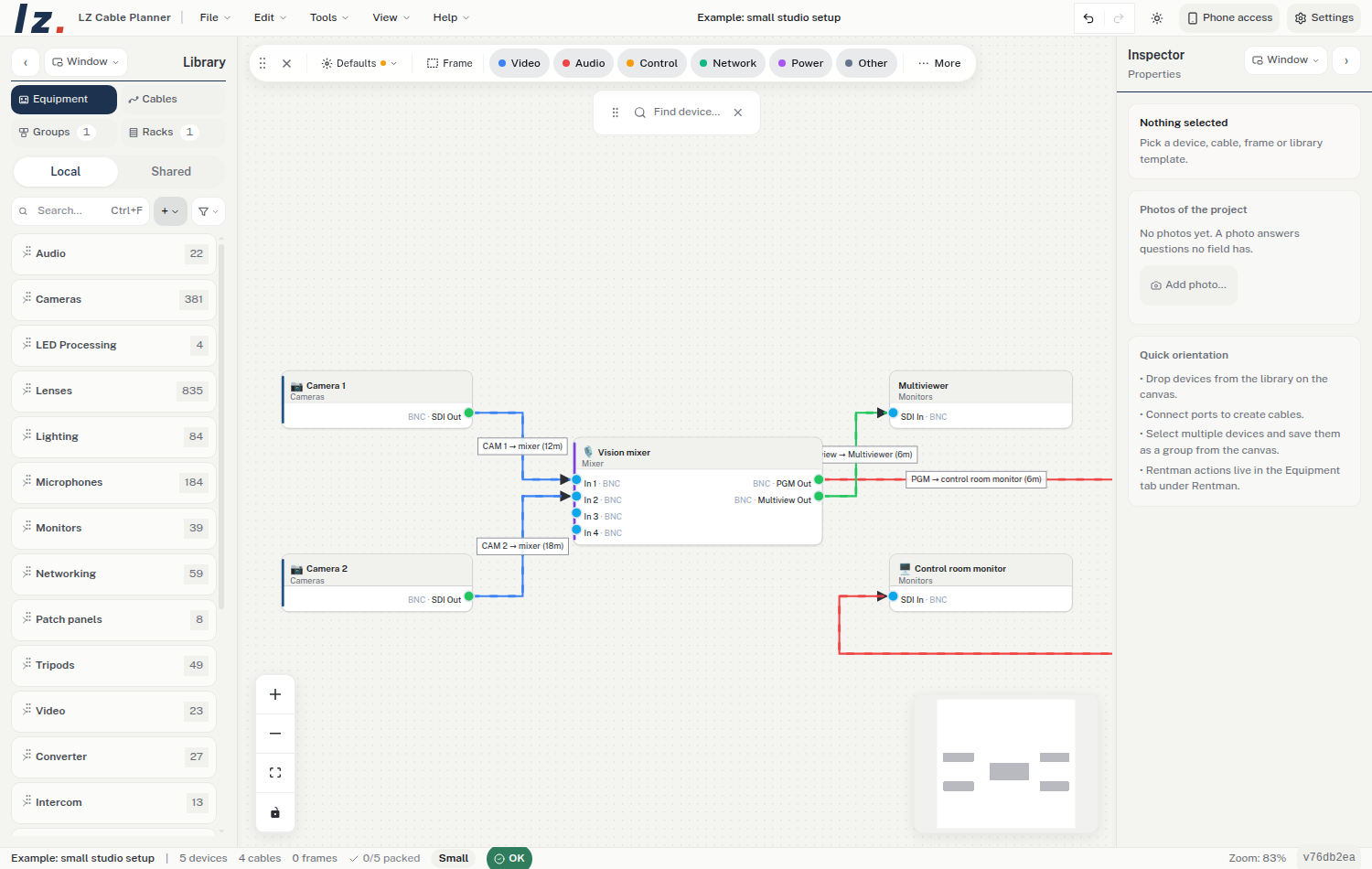
- Plan in signal flow, not in drawings. Devices with real ports from 2,000+ catalogue entries, each linked to its manufacturer datasheet — including projectors (Barco, Christie, Panasonic, Epson, Fujifilm), PixelHue and PIXERA media servers, and the rental inventory of LANG AG. "Controlled via" in the properties panel lists the documented control protocols (serial with pinout, baud and network-bridge setup, or IP with port); values the manufacturer does not publish are marked as such. A new cable starts with the type and length of the last cable drawn between the same connectors; its name stays empty and the label shows the type. A cable runs from an output to an input, whichever end you start at; input to input or output to output is still created, with a note in the cable dialog; network ports and patch panel sockets work both ways. Library categories can have subcategories (Audio → Lautsprecher). The plan check tests the amplifier load per channel from impedance and power data.
- Real cable lengths. Put the floor plan under the canvas, calibrate it, and lengths follow the drawn route — split into the stock lengths you own. The plan can be an image or a PDF (pick the page), cropped to the part you need, and each floor can carry its own plan. GDTF/MVR import brings in fixtures with DMX modes, connectors and addresses from a lighting plan.
- Rooms, floors, risers, 3D. Every cable end reads floor · room · device · port; the signal path shows the whole chain through plates and house runs. A room carries a room number and an address; with an address set, the inspector shows an OpenStreetMap map (no API key; offline it falls back to a link that opens the map in the browser). Right-click a room → Reassign identifiers numbers its devices by kind and room (CAM 101, MIX 201); short names set by hand stay. Floor boxes come from the library (Floor boxes) and connect like a wall panel: socket on top, house run below. In Building 3D they lie on the floor, and every device or floor box can be dragged there; the move lands on the canvas. See inside opens the walls and ceiling, and every device carries a sign with its short name that faces the camera. Under Single cables each cable is a tube in its signal colour with its catalogue diameter; click it, then the floor or a wall, to route it through the room — the length along that route is what the length estimate and the BOM use.
- Every list for the build day. Pull list, patch list, termination list, BOM, patch sheets, faceplates, acceptance record, QR labels — one report editor, preview equals export. The installation handover hands every list out three ways from the same table: CSV as backup, a laid-out PDF with bookmarks and a linked table of contents, and an Excel workbook with styled header, column widths, frozen header row and filters.
- Connectors as parts, not names. A cable end can carry a connector from the connector catalogue (part number, manufacturer, poles, gender, datasheet); its assembly — contacts per pole chosen by conductor size, locks — lands in the BOM, so the small parts are on the order.
- Does it still fit the duct? Give cables an outer diameter (per cable type or per cable) and a pathway a duct size: the cable shows the packed cross-section of its pathway, bundle diameter and fill against the NEC limit, and the plan check warns when a pathway is over it.
- Wire to pin. Each cable carries its pinout — wire, pin at both ends, signal — taken from a standard (XLR3 per AES14, DMX512, RJ45 T568A/B) and free to deviate, and prints an assembly sheet per connector end.
- What was on that loom. Braided sleeve, corrugated conduit, cloth tape and heat shrink per section of a cable, drawn along the route and counted with length in the BOM.
- Patch panel labels. The network analysis prints label strips for every patch panel at 1:1 (RJ45 24-port, blocks of 12, D-series 16) showing the device behind each port, exports them for Brother P-touch or Dymo, and checks panels against the rack builder: panel not in a rack, empty panel, uneven front/rear, cable on a blank, switch port bypassing the panel.
- Drum micing in a few clicks. Pick a technique preset (minimal, Glyn Johns, Recorderman, full close-mic) and a subsnake size: channels are patched to the subsnake in order, with patch list and cable-end labels (P-touch/Dymo CSV) ready to export.
- Projection & display calculator. Screen size from diagonal and aspect, mounting height, throw distance from throw ratio, lens shift (datasheet convention, ±50 % = lens at the image edge) and viewing distances (THX 36°, SMPTE 30°, 6 × image height) — with a dimensioned 2D side/front plan and a 3D view. LED-wall resolution from pixel pitch in the same dialog.
- Control at the device. ATEM multiviewer and audio, Videohub routing
(also typed as a quick patch like
i1o4o7, live with read-back), PTZ cameras through the LZ Camera Bridge (joystick, presets, the shots planned in MultiCam driven and stored in the head, one offset on site, live picture and a video wall), and Green-GO intercom channels live over OSC — each in the properties of the device it belongs to, not in a separate tool. ATEM input names can follow the Videohub routing: when a hub output that is cabled to an ATEM input is switched, the input takes the name of the routed source. - Scopes at the device. Waveform, vectorscope, parade and histogram (LZ Scopes) live from a device's RTSP, RTMP, SRT, HLS or MJPEG stream: Scopes next to the stream in the properties, Measure signal on a cable, Compare scopes for a selection of cameras, an optional live waveform under the device (off by default). Test patterns borderless on a screen of this computer, from the display in the plan. Desktop app with ffmpeg installed.
- Live view at the device. Live view next to a stream in the properties, and Live in the preview tile under the device on the canvas, play the stream while they are open and show whether the device answers (connecting, live with size and frame rate, or why not). Desktop app: RTSP, RTMP, SRT, HLS and MJPEG in the local network, through ffmpeg. Browser: HLS where the browser plays it natively, MJPEG and WebRTC (WHEP); an https page cannot load an http stream, and the view says so.
- Wireless channels. Per channel: transmitter, capsule, manufacturer band (Sennheiser ew G4 and EW-D, ranges from the spec sheets), frequency and occupied bandwidth; the carrier-spacing check takes the bandwidth into account. Pick a country to open its frequency table (Germany: BNetzA Vfg. 37/2026 and SRD) and see which channels fall outside it. Export the list as CSV or print it / save as PDF.
- LED walls. Panel types, grid, weight, power and sending-card ports per wall, a numbered pixel map, and the source crop: enter a source resolution (1920 × 1080 by default) and get the centred X, width, Y and height to type into the processor so the source fills the wall undistorted; tap a value to copy it. The crop idea follows LedCropCalc.
- Documents. Tools → Documents… keeps datasheets, test reports, quotes and configuration files with the project, in a folder beside it. Each file belongs to the installation, a cable, a device, a device type or a room, carries tags, and PDFs and images have a preview. The status bar counts them; the attachment index goes into the handover.
- On site. Phones join by QR code, tick off work and send photos back into the plan. Photos attach to a single device or to its device type (shown on every device of that type), to a room, or to a mark in the plan that opens the photo on click; adding one to a device asks whether it also applies to the type. Each photo carries a caption and its date, and the photo documentation (by room, device and cable) goes into the handover.
- Together. Live co-editing over WebRTC, optional cloud copy with revisions, a shared device library across the planner suite.
- Cable by voice. The Voice button in the canvas toolbar takes a sentence such as "SDI 1 from the ATEM to the NEC in the foyer" or „Kamera 2 auf den Mischer, Eingang 2" (German and English, several cables separated by a full stop). It is matched offline against the device, port and room names in the plan — typos like "Foxer" still find the foyer — and shown as a preview first: ambiguous devices and ports are picked from a list, an occupied input is only replaced when ticked. When no cable fits both connectors (SDI to HDMI), Insert converter is pre-ticked: a matching converter from the library, or a generic one with exactly those two connectors, is placed between the devices and cabled on both sides. A device the plan does not have yet ("the projector") is offered from the library and placed on Connect. Devices, converters and cables are one undo step. In the desktop app, speak through system dictation into the text field (macOS: press Fn twice, Windows: Win+H); the microphone button appears only in browsers whose speech recognition works.
- Complete a plan from documents. AI plan generation (command palette
or menu) takes block diagrams, IP lists, bills of material, floor plans and
other
.cableplanfiles by drag & drop — PDF, Excel, CSV, images. The selected AI provider (Settings → AI) reads them together with the open plan and proposes only what is missing: new rooms, devices with ports, IP addresses and serial numbers, cables. Empty fields of existing devices are filled; a value that differs from the plan is listed as a warning and the plan's value is kept. Rooms grow to fit their new devices and the rooms below move down with their contents. Everything shows as a preview first and goes in as one undo step; each new device and cable names the document it came from. Without documents the dialog builds a new system from a plain-language description. - AI without the cloud. Settings → AI → Local (Ollama) sends every AI
request to an Ollama server on your machine or in
your network (port 11434) instead of Gemini, Claude or OpenAI: no key, no
cost, no data leaving the network, no web search. Default model
gemma4:26b(gemma4:e4bin the economical mode); any model fromollama listcan be entered. For the browser version, start Ollama withOLLAMA_ORIGINS=https://larszu.github.io. - Ask Claude. A local MCP server answers questions about the open plan.
With write access switched on, Claude can build a system without touching
the UI: library devices (
search_library,add_device), custom devices from port groups (create_device), cables one by one or in batches (connect_ports,connect_many— exact port names, input to input refused, reversed pairs flipped, occupied inputs only withreplace), rack heights and racks (set_rack_units,arrange_rack), device fields from a customer list — IP, subnet mask, management VLAN, serial number, notes — one by one or in batches (set_device,set_devices; credentials stay in the UI), rooms and floors (list_locations,list_floors,create_location,set_location,delete_location,place_in_location,create_floor,set_floor; room number and address included; an ambiguous room name is refused), and a check against a cable list (verify_cabling). Each write call is one undo step. - Connecting Claude. Settings → MCP starts the server on
http://127.0.0.1:4187/mcp(port changeable there; if it is busy, a random one is used and the tab says so). The on/off and write switches are remembered across restarts, so a client set up once keeps working. The tab copies the readyclaude mcp add --transport http cable-planner … --header "Authorization: Bearer …"command, amcpServersJSON block, and acurlcall for sessions that cannot load a new server:curl -s http://127.0.0.1:4187/mcp -H "Authorization: Bearer <token>" -H "Content-Type: application/json" -H "Accept: application/json, text/event-stream" -d '{"jsonrpc":"2.0","id":1,"method":"tools/list"}'(tools/callwith{"name":…,"arguments":…}works the same way). - Offline first. One JSON file per project, secrets in the OS keychain.
- Calm by default. One single-line toolbar over the plan: defaults, frame, selection tools and the layer chips (with the cable count per layer, double click to solo); everything else sits under More. Devices are neutral cards with their colour as a thin edge.
- One way in. The first start asks once what you plan (show, fixed install, rental — optional, it only switches the matching modules on) and offers a new project, the example project or opening a file. A five-step tour follows; it stays under Help.
- Find any function.
Ctrl/⌘+Kopens the command palette: every tool and dialog with a one-line description, found by title, description or synonym in English and German (label or Etikett finds the QR labels). - Shortcuts at a glance. Press
?(or Help → Keyboard shortcuts) for a virtual keyboard — QWERTZ in German, QWERTY otherwise, ⌘/⇧ on a Mac — with every assigned key highlighted; hover or click a key to see its actions. Keys reassigned in Settings → Hotkeys show up here as assigned. The list view stays one click away. - Light and dark. A neutral interface with the brand blue as the only accent. Auto follows the system; Light and Dark are one click away with the theme button in the header, in Settings → Appearance or the View menu, and the choice is kept.
Screenshots
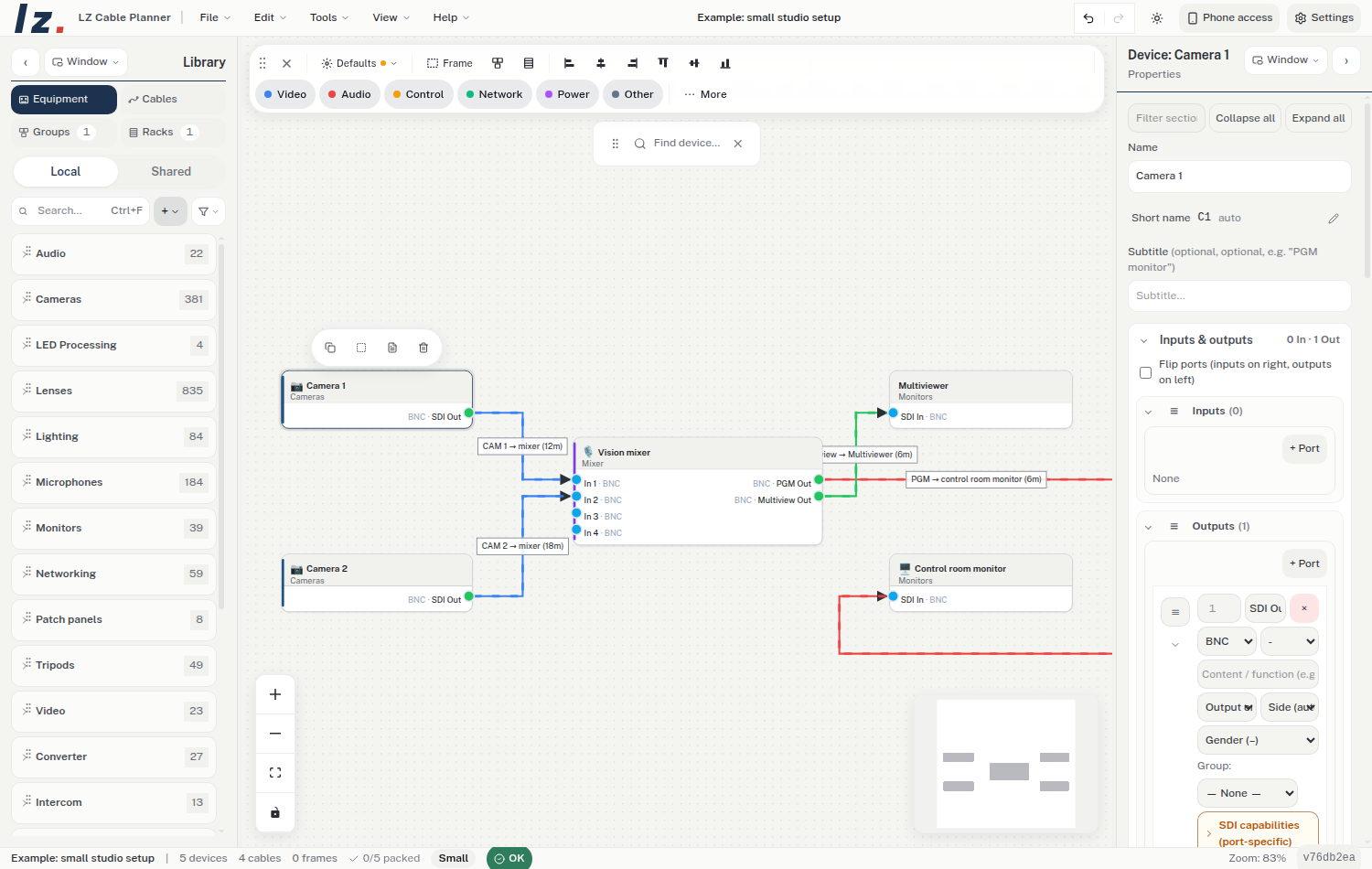 Device properties |
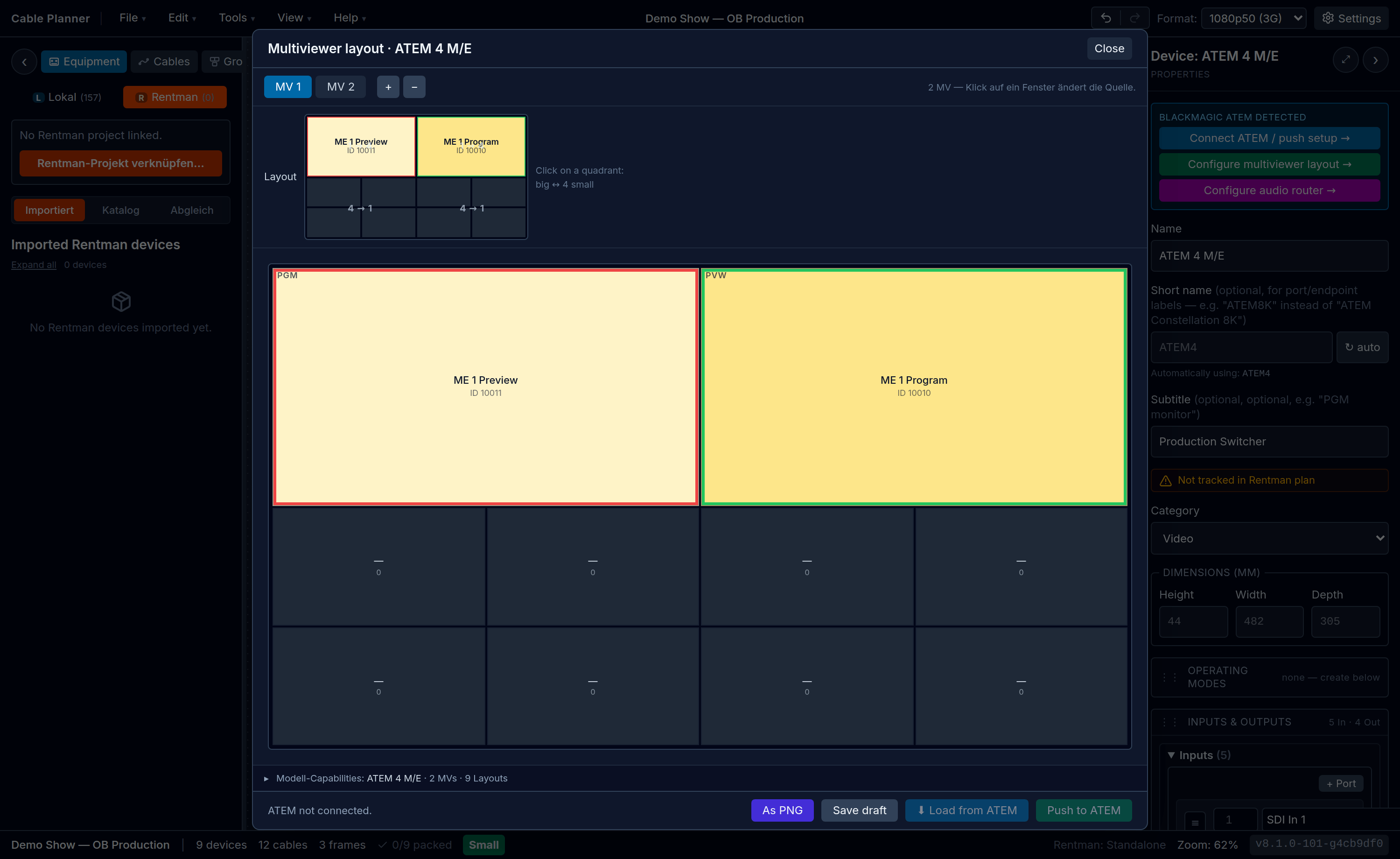 ATEM multiviewer |
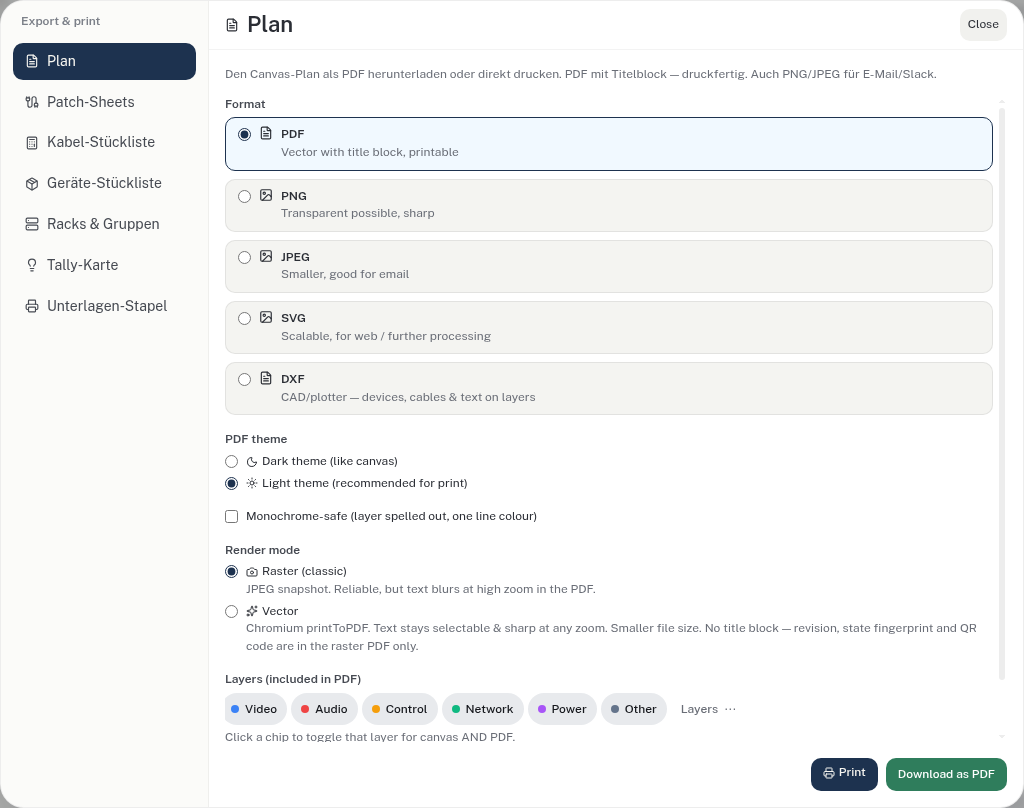 Export & print |
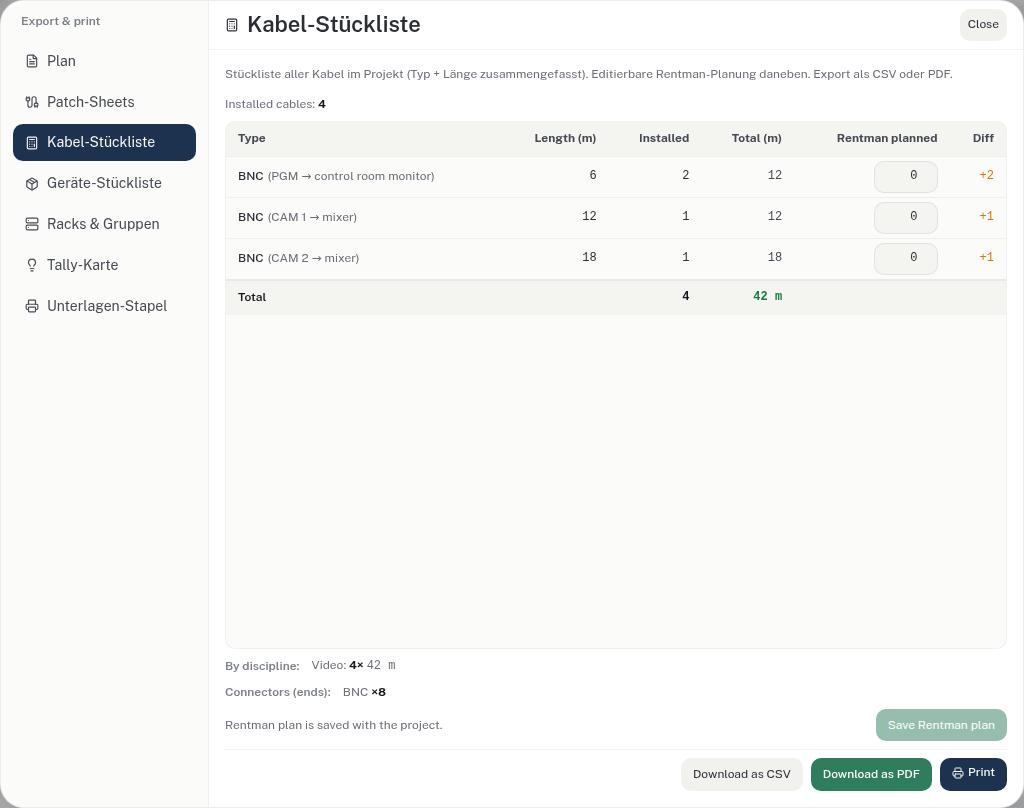 Cable bill of materials |
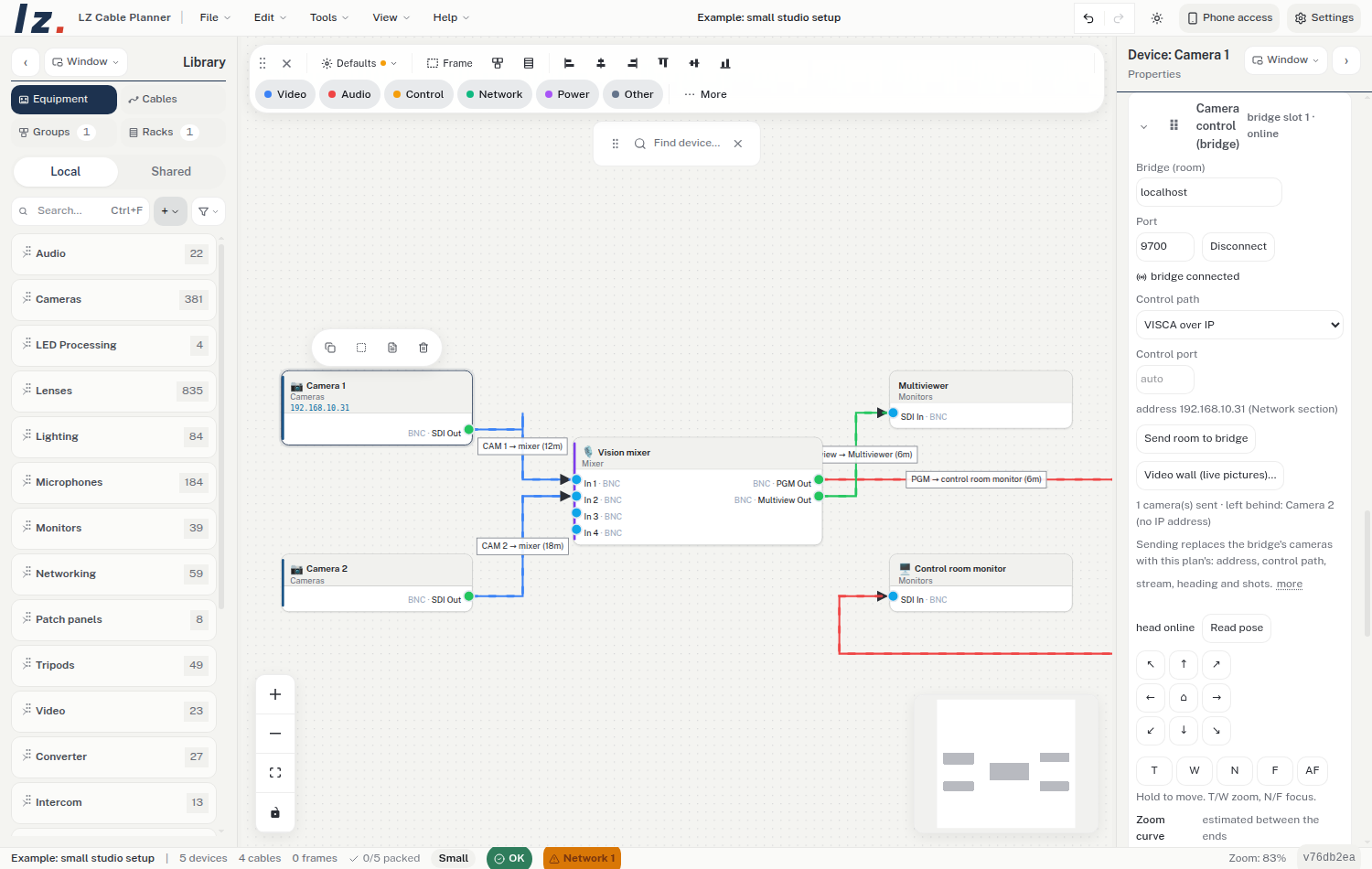 Camera control at the device |
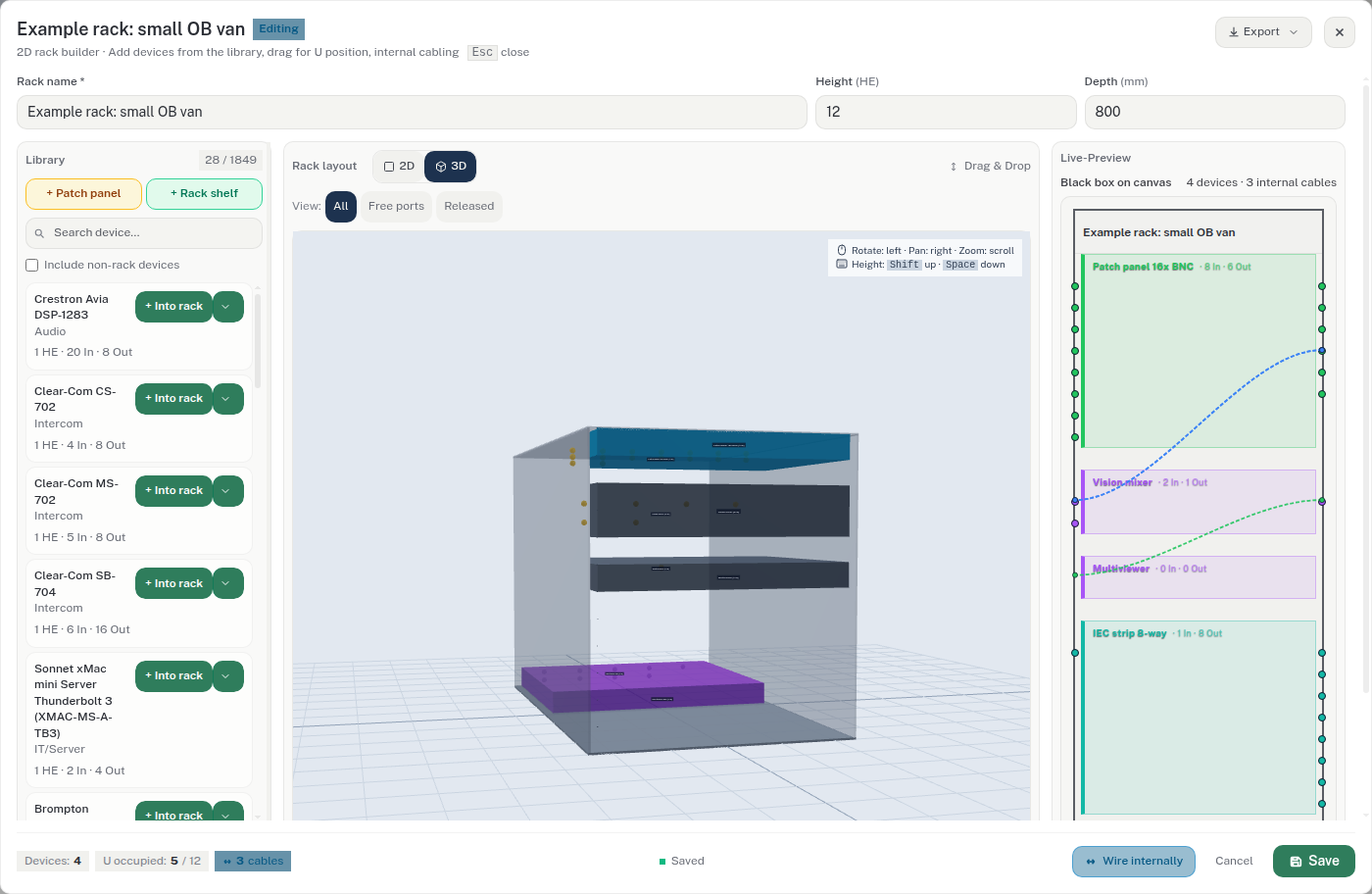 Rack in 3D |
How it compares
| LZ Cable Planner | WireCAD | D-Tools SI | Visio / draw.io | |
|---|---|---|---|---|
| Price | Free to use | ~$1,500–4,500 | $1,000s / yr | Subscription / free |
| Platforms | macOS + Windows + web | Windows | Windows + SQL Server | Windows / web |
| File format | JSON, git-diffable | Proprietary | Proprietary | VSDX / XML |
| Broadcast-aware (connectors, BOM, patch sheets) | Yes | Yes | Partial | No |
| ATEM / Videohub | Yes | No | No | No |
| PTZ presets from the plan, Green-GO live | Yes | No | No | No |
Full comparison: docs/comparison.html.
Build from source
Requires Node.js 20+.
npm install
npm run dev     # Electron with hot reload
npm test        # vitest + guards
npm run build   # renderer, main, preload
npm run dist    # installers for macOS / Windows
npm run perf:leerlauf  # idle CPU on a 300-device/500-cable plan (CP_URL, CP_CHROME)
AI and review tools (none of them needs a key when a local Ollama runs):
npm run uebersetzung:check   # every t('key','English') has a German entry (CI gate)
npm run uebersetzen          # fill missing German entries with a local model, placeholders checked
node scripts/uebersetzer/luecken.mjs --pruefen 50   # chrF of a model on 50 existing entries first
npm run sicherheit:check     # Semgrep, severity ERROR (CI job `sicherheit`, needs semgrep)
node scripts/issues/triage.mjs --tage 14            # possible duplicate issues (TF-IDF), --ki for labels
node --experimental-strip-types --import ./scripts/register-endungen.mjs \
  scripts/ki-bench/lauf.mjs --modelle lokal:gemma4:26b,claude:claude-haiku-5-5
                             # port answers of each model vs. 12 datasheet-checked catalog devices
Endpoints and keys are read from the environment (UEBERSETZER_URL/_MODELL/_KEY,
KI_URL/_MODELL/_KEY, OLLAMA_URL, ANTHROPIC_API_KEY, OPENAI_API_KEY,
OPENROUTER_API_KEY); each script's header lists its options.
In a worktree, symlinking the main checkout's node_modules is enough:
vitest.config.ts allows the resolved link target, so ?url imports (zxing
wasm) load. Tests use at most half the CPU cores and a 60 s timeout, so several
worktrees can run npm test at once.
LZ Scopes is vendored under src/renderer/vendor/lz-scopes/
(VENDOR.md). Update it with
npm run scopes:sync -- --upstream ../lz-scopes; npm run scopes:check
reports drift from the commit pinned in VENDOR.md (CI job scopes). A daily
workflow (scopes-sync.yml) syncs to upstream main on the branch
chore/lz-scopes-sync, runs the gates and reports in the issue
“lz-scopes: Vendor nachziehen”.
Contributing, maintainer notes and conventions: CONTRIBUTING.md.
Architecture: docs/architecture.md. Everything else in
docs/: docs/README.md.
Built with Electron, React 19, TypeScript, React Flow, three.js, Zustand and Vite.
Author & support
Built and maintained by Lars Zumpe — Lars Zumpe Medienproduktion. If the planner saves you time on your next show: PayPal. Donations are optional; the app stays free to use.
License
Proprietär — © 2026 Lars Zumpe, alle Rechte vorbehalten. Nutzung der veröffentlichten Builds ist kostenlos; Weiterverbreitung und abgeleitete Werke sind es nicht. Siehe LICENSE. Not open source: the code is public to read.
Die gebündelten Fremdpakete behalten ihre eigenen Lizenzen; deren Texte und
Copyright-Hinweise stehen vollständig in
THIRD-PARTY-LICENSES.md (erzeugt von
scripts/generate-notices.mjs aus dem Produktions-Dependency-Baum).