
kittipongint/cursor-lingo
kittipongint/cursor-lingo has 39 GitHub stars and 4 forks. GitHot measured +1 stars in 24 hours. Last checked 2026-11-15 05:12 UTC. Last push 2026-10-30.
What you can do
- 4 styles (Color · Light · Dark · Dot), 3 sizes, and a thin border you can turn off.
- Show mode: Always, or Only when switching (pops up for about a second, then fades out).
- Spotlight (⌃⌥H on macOS, Ctrl+Alt+H on Windows), after cursor-highlight: the screen dims except for a circle around the pointer with a turning rainbow ring. It stays click-through, so you keep working.
- Zoom (⌃⌥Z / Ctrl+Alt+Z): the circle magnifies what is under the pointer. ⌃⌥= and ⌃⌥− (Ctrl+Alt+= / −) zoom in and out, from 1.5× to 8×.
Measured star growth
- in 24h
- +1
- in 7 days
- Collecting history
- in 15 days
- Collecting history
- in 1 month
- Collecting history
Net star changes over overlapping periods, not daily totals. Missing measurements are left blank. Stars measure attention, not software quality.
About
Shows your keyboard input language (EN/TH/JA…) next to the mouse pointer, and can auto-fix words typed in the wrong layout (EN ⇄ TH). Tiny, native, private. macOS + Windows.
ProductivityREADME.md
Original
CursorLingo
English · ภาษาไทย
See your current keyboard language right at the mouse pointer, so you never type a whole sentence in the wrong language again.
Tiny, native, and private. Runs on macOS and Windows.

Features
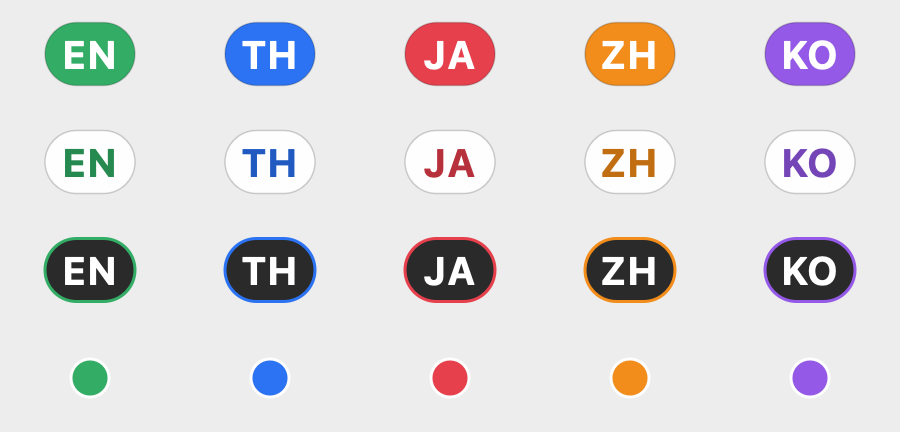
- Badge at the pointer shows
EN,TH,JA,ZH,KO… for any input language, each in its own color. - 4 styles (Color · Light · Dark · Dot), 3 sizes, and a thin border you can turn off.
- Show mode: Always, or Only when switching (pops up for about a second, then fades out).
- Per language: pick its color, or hide its badge (for example, show the badge only when you're not in English). Settings lists only the keyboards you added to your system.
- Presentation tools for screen sharing and recordings. Use them alone or together; every click sends out a ripple in the current language's color.
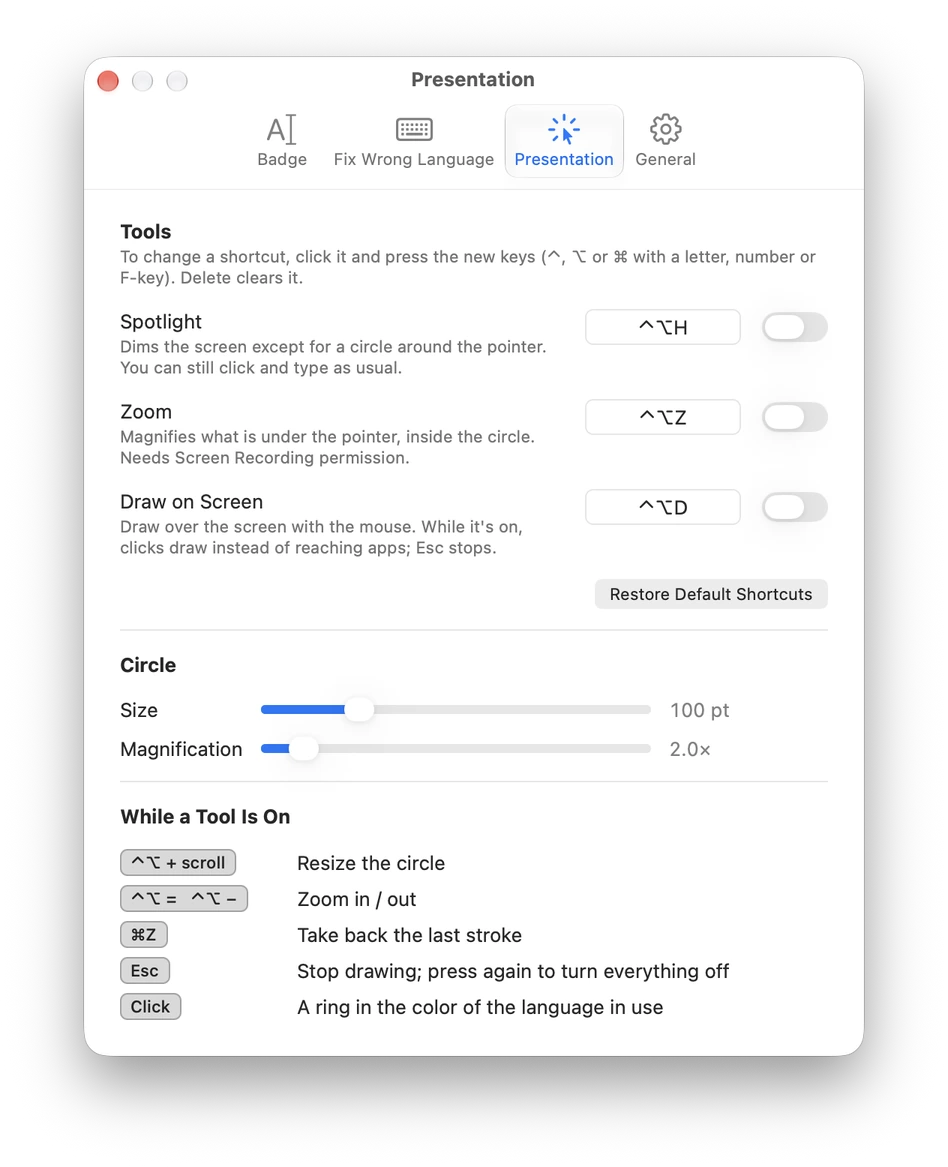
- Spotlight (⌃⌥H on macOS, Ctrl+Alt+H on Windows), after cursor-highlight: the screen dims except for a circle around the pointer with a turning rainbow ring. It stays click-through, so you keep working.
- Zoom (⌃⌥Z / Ctrl+Alt+Z): the circle magnifies what is under the pointer. ⌃⌥= and ⌃⌥− (Ctrl+Alt+= / −) zoom in and out, from 1.5× to 8×.
- Draw on screen (⌃⌥D / Ctrl+Alt+D): draw with the mouse; ⌘Z / Ctrl+Z takes back the last stroke. While drawing, clicks go to the pen.
- Hold ⌃⌥ / Ctrl+Alt and scroll to resize the circle. Esc stops drawing first, then turns everything off.
- Change the three tools' shortcuts in Settings → Presentation.
- Spotlight and drawing need no permissions, and neither does zoom on Windows. Zoom on macOS needs Screen Recording, because it has to see the screen; macOS asks the first time you turn zoom on, and recent versions ask again every so often, as they do for every app that records the screen.
- Remember language per app (optional). Each app gets back the layout you last used in it, e.g. English in your editor and Thai in your chat app.
- One Settings window with four tabs: Badge, Fix Wrong Language, Presentation and General. The menu-bar or tray menu keeps the everyday things: the presentation tools and the fix mode.
- Open automatically when you log in, switched on in Settings.
- English or Thai, following your system language, or picked under Language / ภาษา.
- Click-through. The badge never steals clicks or focus.
- Auto-fix wrong language (optional, off by default). Typed
l;ylfu;yoouhgikinstead ofสวัสดีวันนี้เรา, orะ้รหinstead ofthis? CursorLingo re-types the word and switches the layout for you. English ⇄ Thai. See Auto-fix. - Private. No network, no telemetry. Keystrokes are only observed if you turn Auto-fix on, and then only the current and the last word are kept in memory, plus the personal word list you teach it with double Shift.
- Light on resources. It's event-driven, with no polling timers on macOS.

▶ Presentation tools in HD (MP4)
| macOS | Windows | |
|---|---|---|
| Tech | Swift + AppKit, single file | C++ / Win32 + GDI, single file, static exe |
| Pointer tracking | NSEvent global mouse monitor |
Low-level mouse hook (coalesced) |
| Language source | kTISNotifySelectedKeyboardInputSourceChanged |
GetKeyboardLayout of focused thread |
| Memory | ~16 MB physical footprint | ~3 MB private, under 1 MB working set |
| Idle CPU | 0 % (no wake-ups) | ~0 % (one coalesced 200 ms check) |
| Mouse moving | ~5–7 % while it never stops | ~0.2 % while it never stops |
| Settings | Settings window, from the menu-bar icon | Settings window, from the tray icon |
Measured on an Apple Silicon Mac (the same with the spotlight on or off) and on an Intel Core i7 PC with Windows 11, as a share of one CPU core; how, and the numbers for each tool, are in tests/performance.md. The Windows tray icon itself shows the current language code. The badge also hides automatically while a full-screen app or game is in front.
Install
macOS (12 Monterey or later, Apple Silicon and Intel)
Download CursorLingo-macOS.zip from Releases, unzip it, move CursorLingo.app to Applications, and double-click it. Releases from v1.1.4 on are signed with a Developer ID and notarized by Apple, so they open without warnings.
The badge needs no permissions. Input Monitoring and Accessibility are only needed for Auto-fix, and Screen Recording only for the presentation zoom.
Or build from source (needs the Xcode Command Line Tools):
git clone https://github.com/kittipongint/cursor-lingo.git && cd cursor-lingo && ./install.sh
If your keychain has a Developer ID Application certificate, install.sh signs with it, so macOS keeps CursorLingo's permissions across rebuilds. To notarize a build yourself, see macos/notarize.sh.
Turn on Auto-fix on macOS
Open Settings… → Fix Wrong Language (or the Fix Wrong Language (EN ⇄ TH) submenu in the menu bar) and choose Automatic (or Double Shift Only). The status line under the modes shows what is still missing.
Input Monitoring: allow CursorLingo when macOS asks, or click Open Privacy Settings… next to the status line and turn CursorLingo on under Privacy & Security → Input Monitoring.
Accessibility: do the same under Privacy & Security → Accessibility. If CursorLingo is not listed, click + and choose Applications → CursorLingo.
Quit CursorLingo and open it again. The app reads these permissions when it starts.
The status line should now say Active. Test it: on the English layout type
l;ylfuand press Space; it becomes สวัสดี.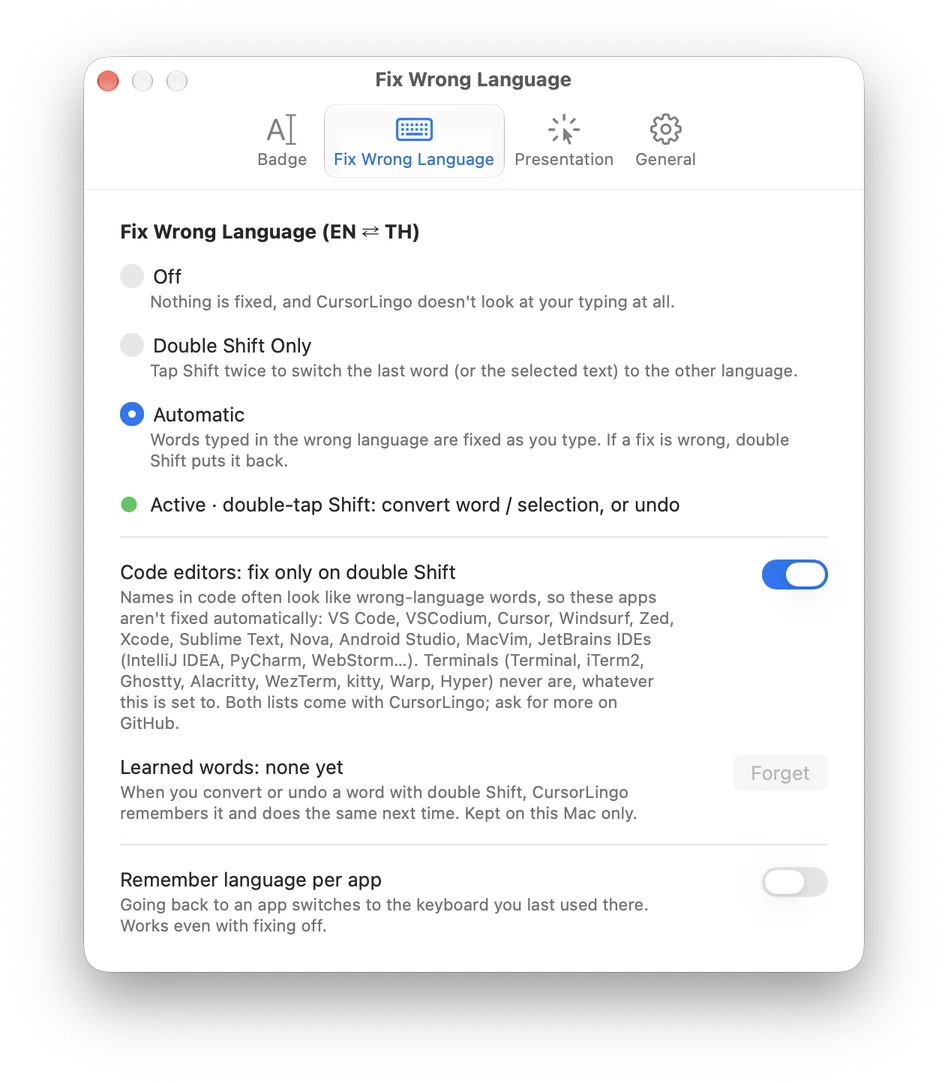
You only do this once: updates keep the permissions.
Upgrading from v1.1.3 or older? Those builds were only ad-hoc signed, so macOS treats v1.1.4 as a new app. Grant the permissions one last time: in both Input Monitoring and Accessibility, select the old CursorLingo, click −, add the new one with +, and reopen the app. If it still says Needs … permission, clear the old entries and let macOS ask again:
tccutil reset Accessibility io.github.cursorlingo
tccutil reset ListenEvent io.github.cursorlingo
Then reopen CursorLingo, set Fix Wrong Language to Off and back on. (Builds from source signed ad-hoc behave like the old releases: macOS asks again after every rebuild.)
Windows 10 / 11 (x64)
From Releases, pick one. Neither needs administrator rights.
- Installer (recommended):
CursorLingo-Windows-x64-Setup.exe. Installs for your user only, to%LOCALAPPDATA%\Programs\CursorLingo(like VS Code's user installer), adds a Start Menu shortcut, can start CursorLingo with Windows, and appears in Settings → Apps → Installed apps, where you can uninstall it. Uninstalling also removes its settings. - Portable:
CursorLingo-Windows-x64-Portable.zip. Unzip anywhere (Desktop, USB stick, ...) and runCursorLingo.exe. Settings stay in theCursorLingo.ininext to it, so the whole folder moves with you. To remove it, quit and delete the folder.
Settings are plain files (%APPDATA%\CursorLingo for the installed app, the folder itself for the portable one), and opening CursorLingo automatically is a shortcut in your Startup folder. The only registry entry is the one the installer adds so Windows lists the app under Installed apps; the portable version writes none.
SmartScreen warning. The files are not code-signed, so Windows may show "Windows protected your PC" the first time. Either:
- Before opening: right-click the downloaded file → Properties → tick Unblock → OK.
- Or when it appears: click More info → Run anyway. Windows remembers this for that file.
Each new version is a new file to SmartScreen, so expect this once per update.
Or build from source with Visual Studio 2022 or Build Tools + CMake:
windows\build.bat
To build the installer too, install Inno Setup 6 and run iscc windows\CursorLingo.iss (it writes build\CursorLingo-Windows-x64-Setup.exe). Without it, windows\install.ps1 does a scripted per-user install of a build.
You can also cross-compile with MinGW-w64:
x86_64-w64-mingw32-windres windows/CursorLingo.rc -O coff -o res.o
x86_64-w64-mingw32-g++ -std=c++17 -Os -municode -mwindows -static windows/CursorLingo.cpp res.o \
  -o CursorLingo.exe -luser32 -lgdi32 -lshell32 -ladvapi32 -lshcore -lwtsapi32 -lole32 -luuid -lcomctl32 -lcomdlg32 -lmsimg32 -s
Auto-fix wrong language
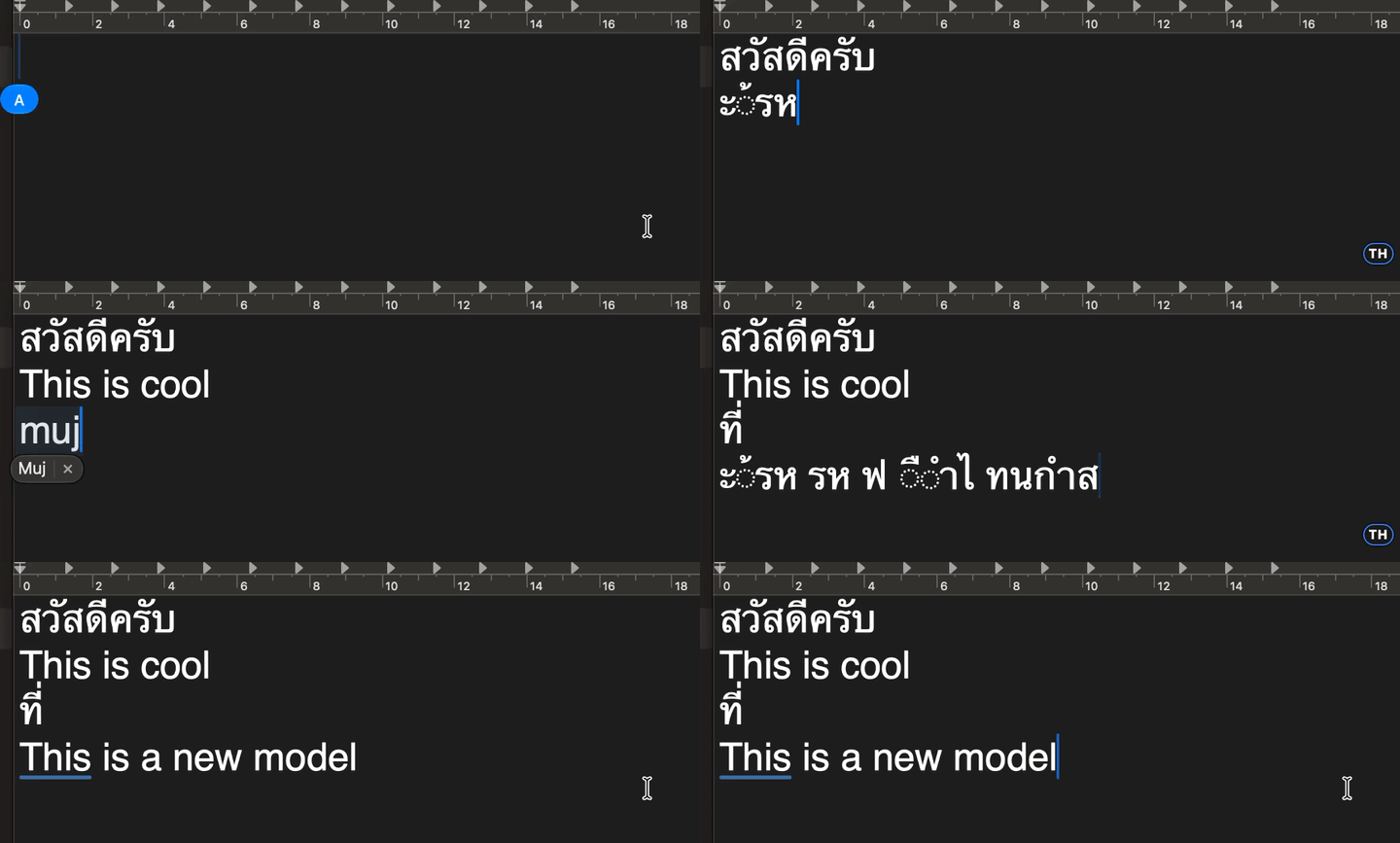
① Thai typed on the English layout → fixed while typing ·
② English typed on the Thai layout → fixed at Space ·
③ muj + double Shift → ที่ ·
④ select a line + double Shift → converted
In Settings → Fix Wrong Language (or the menu), choose Automatic. When you finish a word with Space, and it looks like gibberish in the current layout but like a real word in the other one, CursorLingo erases it, types it again from the same keys, and switches the layout so you can keep going. Long Thai runs typed without spaces are fixed after a few characters.
Choose how much it does. Fix Wrong Language (EN ⇄ TH) has three modes:
- Off: nothing is watched; only the badge runs.
- Double Shift Only: nothing changes by itself. Words and selections are converted only when you double-tap Shift.
- Automatic: words are fixed as you type, and double Shift still converts or undoes.
In the same tab, Code editors: fix only on double Shift (on by default) applies to Automatic. In VS Code, Cursor, Zed, Xcode, JetBrains IDEs, Sublime Text, Visual Studio and similar editors, variable names and keywords can look like gibberish, so words are only converted when you ask.
Personal word list. Every word you convert or undo with double Shift is remembered, on this computer only, so you teach CursorLingo your own words, names and slang. The tab shows how many it has learned, and Forget clears them. Words typed without double Shift are never saved.
Remember language per app (in the same tab, off by default) switches to the layout you last used in an app whenever it comes to the front. It needs no special permission and works without Auto-fix.
It keeps working after sleep, closing the lid, locking the screen or switching users: CursorLingo re-arms its keyboard listener and forgets the half-typed word, so nothing stale is "fixed" after you wake the computer.
Double-tap Shift to convert by hand, or to undo:
- Right after an automatic fix, double Shift puts the word back the way you typed it, switches the layout back, and remembers to leave that word alone.
- On any other word (the one you're typing, or the last one), double Shift converts it to the other layout. Words that are also real words in the other language, such as
ที่=mujorทำไม=mew, are not fixed automatically at first, so this is the quick way to fix them. CursorLingo learns from it: the next time you type that word in that layout, it is fixed by itself. - Select text and double-tap Shift to convert the whole selection (several words or lines). Each character is read back through the other layout; the direction follows the script that dominates (mostly Thai → English, otherwise English → Thai), and anything that isn't on the keyboard (spaces, new lines, emoji) is kept. On macOS the selection is read through Accessibility; apps that don't expose it, and all Windows apps, use a quick copy/paste, after which your clipboard is restored. Terminals are skipped.
- Without a selection it works on the current or last word only, and only if you haven't clicked, used a shortcut or switched apps since. It doesn't add entries to the app's undo history. Note that JetBrains IDEs also use double Shift (Search Everywhere).
How it decides. A key press is a physical key, and every physical key produces one character in each layout. A word typed in the wrong layout is therefore the right text seen through the wrong key map. For each word, CursorLingo computes both readings and converts only when:
- the reading on screen is implausible for its language, and
- the other reading is plausible for its language.
English plausibility uses a letter-trigram model (real words are cheap; Thai typed on a Latin layout is full of impossible sequences and punctuation keys such as ; ' , . inside words). Thai plausibility uses Thai orthography: a word can't start with a tone mark or trailing vowel, vowels sit on consonants, a leading vowel needs a consonant after it, and so on. English typed on the Thai layout breaks these rules almost immediately. Very short words, numbers, paths, URLs, e-mail addresses and code-like words are never touched, because precision matters more than recall.
On a sample of real English and Thai words, correct text was wrongly changed in fewer than 1 in 1,000 cases, and about 80 % of wrong-layout words were fixed. Words it is unsure about are left alone.
Privacy and permissions.
- Off by default. The keyboard hook / event tap only exists while the option is on.
- Only the current and the last word are kept, in memory. The one thing saved is your personal word list (words you converted or undid with double Shift), in the app's preferences on this computer; Forget in Settings clears it. Nothing is logged or sent anywhere.
- macOS needs Input Monitoring and Accessibility (see Turn on Auto-fix on macOS). Secure input (password fields) and Terminal apps are skipped.
- Windows needs no special rights, but cannot see windows running as administrator. Classic password boxes and consoles are skipped.
- Only the stock US-English and Thai (Kedmanee) layouts are supported; other layouts are left alone.
Usage
macOS
The menu-bar icon shows the current input language, the Presentation tools, Fix Wrong Language (EN ⇄ TH) and its status, Settings… (⌘,) and Quit. Settings… has four tabs:
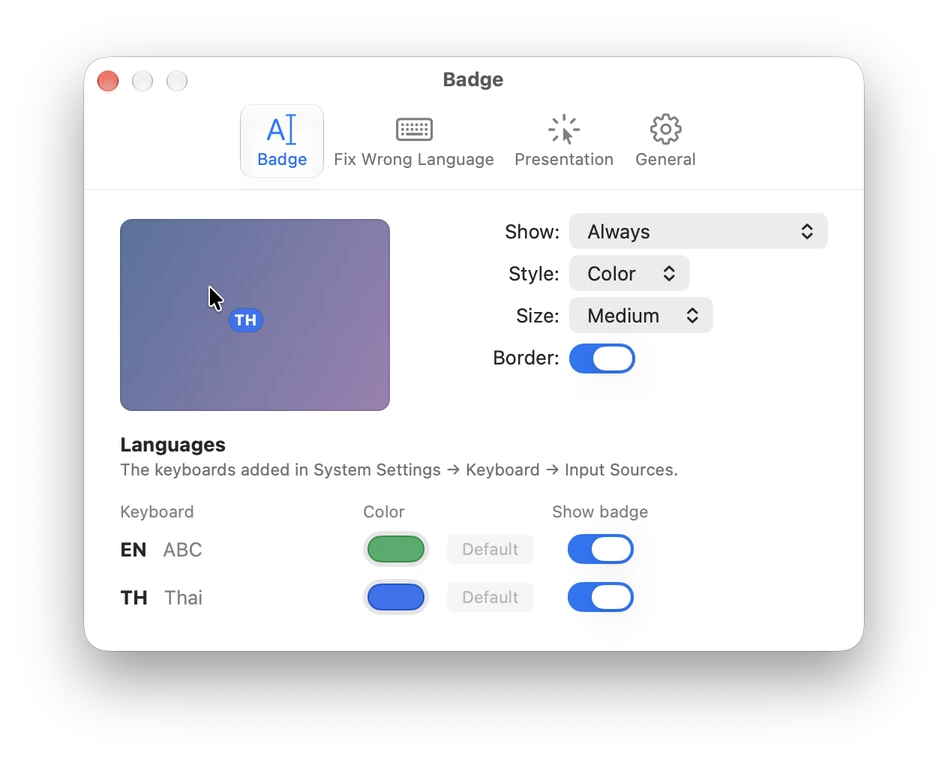
- Badge: a live preview of the badge next to the pointer; Show, Style, Size and Border; and one row per keyboard you added in System Settings → Keyboard → Input Sources (no other languages), where you pick its color or hide its badge.
- Fix Wrong Language: the mode and its status, Code editors: fix only on double Shift, learned words (Forget clears them), and Remember language per app.
- Presentation: turn Spotlight, Zoom and Draw on Screen on or off, change their shortcuts, set the circle size and magnification, and a reminder of the keys that work while a tool is on.
- General: Open at login, the Language / ภาษา of the menu and window, Report… (opens the GitHub issue form; nothing you typed is attached), the version, and ways to support CursorLingo.
The window stays on top of other windows, so you can try a setting out in another app while it's open.
Windows
Click the tray icon for the current input language, the Presentation tools, Fix Wrong Language (EN ⇄ TH), Settings… and Quit. Settings… has the same four tabs as on macOS:
- Badge: the live preview, Show, Style, Size and Border, and one row per keyboard added in Windows Settings → Time & language → Language & region, to pick its color or hide its badge.
- Fix Wrong Language: the mode, Code editors: fix only on double Shift, forget learned words, and Remember language per app.
- Presentation: turn Spotlight, Zoom and Draw on Screen on or off, change their shortcuts, and set the circle size and magnification.
- General: Open CursorLingo automatically (the Microsoft Store version opens Windows' Startup apps page instead), the Language / ภาษา of the menu and window, Report… (opens the GitHub issue form; nothing you typed is attached), the version, and ways to support CursorLingo.
Uninstall
- macOS:
./uninstall.sh, or quit the app and delete it. Turn off Open at login (Settings → General) first. - Windows: installed: Settings → Apps → Installed apps → CursorLingo → Uninstall (removes its settings too). Portable: turn off Open CursorLingo automatically (Settings → General), quit, and delete the folder.
Project layout
core/      layoutfix.h (wrong-layout detector, shared) · en_model.inc (generated) · C interface for Swift
macos/     CursorLingo.swift · Info.plist · build.sh (universal binary)
windows/   CursorLingo.cpp · CursorLingo.rc · manifest · CMakeLists.txt · build.bat · CursorLingo.iss (installer) · msix/ (Microsoft Store package) · install.ps1
tests/     layoutfix_test.cpp · cases.tsv (real-world fix / keep cases; add yours)
assets/    AppIcon.png / .icns / .ico, screenshots
tools/     make-icon.swift (vector icon generator) · make-demo.swift · make-presentation-demo.swift (README animations) · ai-icon.sh (optional AI icon) · gen-en-model.py
The icon is drawn in code by tools/make-icon.swift, and the demo animations by tools/make-demo.swift and tools/make-presentation-demo.swift (for example swiftc -O tools/make-demo.swift -o /tmp/make-demo && /tmp/make-demo; run from the repository root). To try an AI-generated icon, run OPENAI_API_KEY=… ./tools/ai-icon.sh.
Privacy
CursorLingo collects nothing and makes no network connections. The full policy is in PRIVACY.md.
Contributing
Found a word that was fixed wrongly, or not fixed? That's the most useful report there is: use the wrong-fix form, or add a line to tests/cases.tsv and open a pull request. CONTRIBUTING.md explains how to test a word, build both apps, and the privacy rules every change follows. Security or privacy problems: see SECURITY.md.
Support
CursorLingo is free and made in spare time. If it helps you, a ⭐ on GitHub, a share with friends, or a coffee keeps it going:
- Ko-fi: ko-fi.com/kintstudio
- PromptPay (Thailand): 080-478-2843, or scan the code with a Thai banking app and type any amount.
Both are also in the app, under Settings → General.
Related projects
- RightLang, a long-standing Thai tool for fixing text typed in the wrong layout.