
kailiang0120/monaw has 86 GitHub stars and 5 forks. GitHot measured 0 stars in 24 hours. Last checked 2026-11-15 16:12 UTC. Last push 2026-11-12.
What you can do
- Work with files and code - Read and edit project files, run shell commands, and give each conversation its own workspace and AGENTS.md instructions. Review Git-tracked changes and Undo from the Changes page.
- Use your browser and desktop - Automate Chrome through the Monaw extension and interact with Windows apps. Browser automation · Computer use
- Choose your model - Connect an OpenAI API key, sign in with your ChatGPT account, or use a Google Gemini API key. Switch providers and models from the chat composer.
- Keep context across tasks - Save global preferences and workspace memory, and steer or stop an active task. Memory guide
Measured star growth
- in 24h
- 0
- in 7 days
- Update delayed
- in 15 days
- Update delayed
- in 1 month
- Update delayed
Net star changes over overlapping periods, not daily totals. Missing measurements are left blank. Stars measure attention, not software quality.
About
Open-source AI desktop assistant for Windows with computer use, browser automation, MCP tools, local memory, and scheduled tasks. Supports ChatGPT, OpenAI, and Google Gemini.
AIREADME.md
Original

Monaw Agent
Your AI assistant for files, browsers, and Windows apps.
Work with your projects, automate everyday tasks, and connect your tools through one desktop chat.
Open source. Local storage. Your choice of model.





Download for Windows (.exe) · Getting started · Documentation · Development · Report an issue
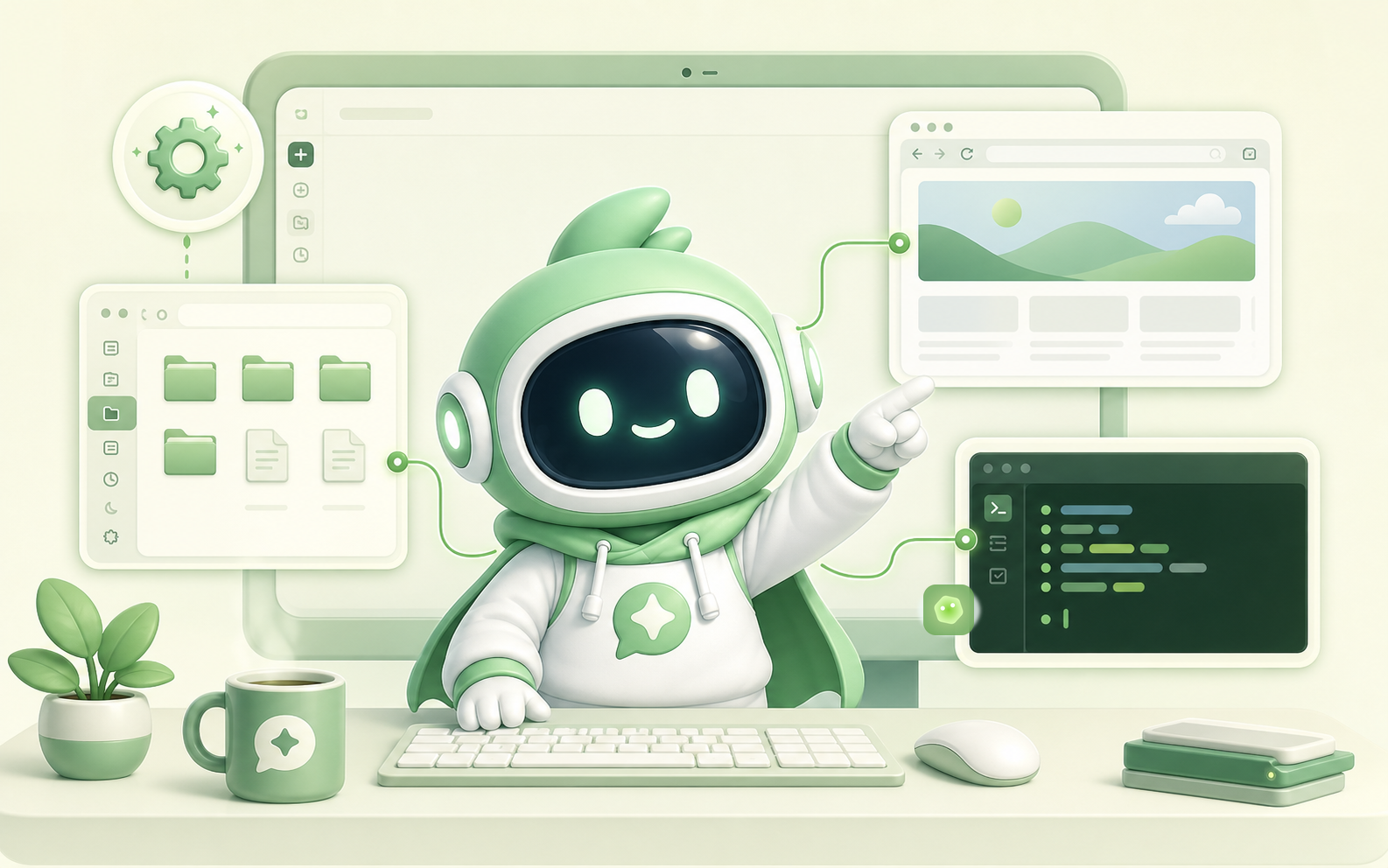
From project files to browser tasks and desktop workflows. Illustration of Monaw's capabilities.
What you can do
| Capability | What it means for you |
|---|---|
| Work with files and code | Read and edit project files, run shell commands, and give each conversation its own workspace and AGENTS.md instructions. Review Git-tracked changes and Undo from the Changes page. |
| Use your browser and desktop | Automate Chrome through the Monaw extension and interact with Windows apps. Browser automation · Computer use |
| Choose your model | Connect an OpenAI API key, sign in with your ChatGPT account, or use a Google Gemini API key. Switch providers and models from the chat composer. |
| Keep context across tasks | Save global preferences and workspace memory, and steer or stop an active task. Memory guide |
| Connect and automate | Add MCP tools, schedule tasks, and optionally send tasks through Telegram. MCP · Scheduling · Telegram |
| Control how actions run | Choose Default, Full Access, Auto Review, or Custom permissions, with separate sandbox settings. Permissions · Sandboxing |
Monaw runs on your PC. Chat history, settings, memory, and artifacts are stored locally; model requests go to your selected provider. The desktop app is available for Windows 10 and 11 (x64).
Install for Windows
Download the latest Windows installer — no Python, Node.js, Git, or source checkout required.
- Open the latest release and download
Monaw-Setup-<version>-x64.exefrom Assets. - Check its SHA-256 checksum against the release notes, then run the installer. See the installation guide for the command and unsigned-installer instructions.
- Open Monaw from the Windows Start menu and follow Getting started below.
You need Windows 10 or 11 (64-bit), an internet connection for model access, and a supported model connection. Google Chrome 125+ is needed for browser automation; Docker Desktop is optional for isolated shell execution.
The installer is currently unsigned. Monaw checks for updates in the background; open Settings > About to check manually and restart to install an available update. See the installation guide for upgrades, backups, and uninstalling. macOS and Linux builds are not available.
Getting started
1. Connect a model
Open Settings > Connections and choose how you want to connect. Then select the provider, model, and reasoning effort in the chat composer.
| Connection | Setup |
|---|---|
| ChatGPT account | Choose Continue with ChatGPT and complete sign-in. Uses your ChatGPT plan, separately from API-key billing. |
| OpenAI API | Save your OpenAI API key. Uses your OpenAI API account. |
| Google Gemini API | Save your Google API key. Uses your Google API account. |
Configure connections in the app; no .env editing is required. Voice input needs an OpenAI or Google API key, even when chat uses a ChatGPT account.
2. Choose a workspace and permissions
Click Default workspace above the message box to choose the folder Monaw should work in. Choose Default, Full Access, Auto Review, or Custom permissions in Settings or the composer. See permissions for how approvals work; sandbox settings are configured separately.
3. Try a first task
Use Get started in a new chat to check your connection, workspace, and permissions. Try a request such as:
Look through this workspace and summarize what the project does without changing any files.
You can steer or stop Monaw while it works. For browser tasks, set up the Monaw Chrome extension under Settings > Browser.
Optional integrations
| Service | Used for | Configuration |
|---|---|---|
| Tavily API | Web search. | Tavily API key in Settings > Connections. |
| Telegram Bot API | Remote task input and results. | Bot token and allowed users/chats in Settings. |
| MCP servers | Additional local or remote tools. | Settings > Tools > MCP; supports stdio and Streamable HTTP. |
Browser profiles and allowed domains are configured under Settings > Browser. See the documentation for memory, scheduling, Telegram, and other workflows.
Workspaces, Memory, and Local Data
Each conversation can use its own project folder. Chats without a selected project get a separate folder under Documents\monaw\YYYY-MM-DD\chat-<id> (using your Windows Documents location, including redirection). The saved workspace determines relative file paths, command locations, and project AGENTS.md instructions. Change it while the agent is idle, or reset it to that chat's default folder. Existing chats keep their saved workspace.
Memory has two scopes: global for your preferences and workspace for project context. Manage it under Settings > Identity. See the memory guide.
Your data lives under %USERPROFILE%\.monaw by default, separately from the installed app. This includes conversations, settings, memory, logs, and artifacts. Saved provider keys and the Telegram token are encrypted using Windows data protection. Your Chrome profile stays in Chrome's own folder.
Use Settings > Storage to inspect and manage local data. See operations for backups, data-folder overrides, retention, and security details.
Troubleshooting
| Problem | What to do |
|---|---|
| Windows warns about the installer | The installer is unsigned. Check the release checksum and follow the installation guide. |
| The installed app does not start | Check %USERPROFILE%\.monaw\runtime\backend.log and the startup troubleshooting guide. |
| Browser automation cannot connect | Check the extension status in Settings > Browser and that it is enabled at chrome://extensions. See browser automation. |
| You need to report a problem | Prepare a report under Settings > Observability > Support report, review it, and attach it to a GitHub issue. |
For source setup and launcher errors, see development troubleshooting.
Development
Run from source to change Monaw or try work that has not shipped in a release. The installed Windows app opens directly from the Start menu; the batch files below belong to a source checkout.
Set up the source checkout
You need Windows 10 or 11, Git, and an internet connection. setup.bat can install missing uv and a supported Node.js LTS through Windows Package Manager (winget); uv installs the pinned Python 3.11 runtime. If winget is unavailable, install uv and Node.js manually first.
git clone https://github.com/kailiang0120/monaw.git
cd monaw
.\setup.bat
When setup completes, launch the development app:
.\start.bat
| Script | When to use it | What it does |
|---|---|---|
| setup.bat | First setup, or after dependencies change. | Closes running Monaw processes from this checkout, syncs backend/.venv from uv.lock, and runs npm ci in frontend. |
| start.bat | Each time you run the source checkout. | Starts Vite and Electron, waits for the local backend to be ready, and exits after successful startup. |
Supported Node.js versions are 20.19+ within 20.x, 22.13+ within 22.x, and 24.x, with npm. Setup and launch enforce the policy in frontend/package.json.
Checks and packaging
Run backend and frontend checks together from the repository root:
.\scripts\verify.ps1
Build the Windows installer:
.\scripts\package-windows.ps1
The installer is written to frontend/release/Monaw-Setup-<version>-x64.exe. See packaging for build options and release checks.
For separate frontend and backend commands, manual dependency setup, and the module map, see the development guide.
Development troubleshooting
| Problem | What to check |
|---|---|
| Setup fails | %USERPROFILE%\.monaw\runtime\setup\setup.log; confirm Git and winget are available, or install uv and Node.js manually. |
| Source app does not open | Run setup.bat again if dependencies changed; check runtime\launcher\vite.log and runtime\launcher\electron.log under the Monaw data folder. |
| Backend dependencies are missing | Run uv sync --locked inside backend; check runtime\backend.log under the Monaw data folder. |
| Node engine or frontend dependency errors | Install a supported Node.js version, then run npm ci inside frontend. |
| A development port is occupied | Check Vite port 5275 and backend port 8435; the launcher reports conflicts. |
For a custom uv installation, set AGENT_UV_PATH to the full path of uv.exe before launching from source.
Technology Stack
| Layer | Technologies and role |
|---|---|
| Desktop | Electron hosts the application, manages the backend, and provides a restricted preload/IPC bridge. |
| Interface | React 18, TypeScript, Vite, and Tailwind CSS provide chat, settings, workspace selection, and task controls. |
| Backend | Python 3.11, FastAPI, Uvicorn, and Pydantic implement the local HTTP API, validation, and streamed events. |
| Agent orchestration | A custom Python runtime and turn loop assemble prompts, call models, authorize actions, execute tools, and process observations. Skills and the tool registry expose capabilities to the model. |
| Model clients | OpenAI Python SDK (with an API key or a ChatGPT sign-in) and Google GenAI SDK provide the model connection routes. |
| Browser and desktop automation | The Monaw Chrome extension controls the user's Chrome profile; Scrapling fetches pages. pywinauto, pywin32, and mss support Windows controls and screenshots. |
| Tool integrations | The MCP Python SDK connects built-in and user-configured MCP servers. |
| Storage and credentials | SQLite stores conversations, runs, and app state. Markdown stores global and workspace memory. Electron safeStorage encrypts saved provider keys and the Telegram token using the OS. |
| Dependencies and tests | uv manages Python and its lockfile; npm manages the frontend. Checks use pytest, Vitest, Node's test runner, and TypeScript. |
Architecture
Monaw has an Electron desktop frontend and a local Python backend. Electron manages the backend process, session authentication, and encrypted credentials. The React UI sends HTTP requests to FastAPI and receives progress, tool activity, and responses through Server-Sent Events (SSE).
Explore the system architecture and agent runtime
System Architecture
%%{init: {"theme": "base", "fontFamily": "Arial", "themeVariables": {"fontSize": "16px", "primaryTextColor": "#172c40", "lineColor": "#64748b", "edgeLabelBackground": "#ffffff", "clusterBkg": "#f8fafc", "clusterBorder": "#cbd5e1"}, "flowchart": {"curve": "basis", "nodeSpacing": 28, "rankSpacing": 55, "padding": 18}}}%%
flowchart TB
  accTitle: Monaw system architecture
  accDescr: Electron manages a local FastAPI backend. The shared agent runtime uses context management, permission-controlled skills, MCP tools and local persistence. Configured model providers, web services and Telegram are external connections.

  subgraph PC["WINDOWS PC / LOCAL APPLICATION"]
    direction TB
    subgraph DESKTOP["DESKTOP EXPERIENCE"]
      direction LR
      UI("<b>React + TypeScript</b><br/>Chat / attachments / steering<br/>Settings / schedules / workspaces")
      MAIN("<b>Electron main + preload</b><br/>Backend lifecycle / session tokens<br/>OS-encrypted credential vault")
      UI <-->|IPC| MAIN
    end

    subgraph BACKEND["PYTHON BACKEND / SHARED CONTROL PLANE"]
      direction TB
      API("<b>FastAPI</b><br/>Authenticated localhost API<br/>HTTP requests + SSE events")
      RUN("<b>Agent runtime</b><br/>Turn loop / model client / run state<br/>Conversation workspace + AGENTS.md")
      CONTEXT("<b>Memory + context</b><br/>History / retrieval / compaction<br/>Live context-budget management")
      GATE("<b>Execution controls</b><br/>Permissions / approvals<br/>Access grants / tool policies")
      REGISTRY("<b>Skill + tool registry</b><br/>Built-in and user skills<br/>Tool discovery + reflected MCP schemas")
      JOBS("<b>Task scheduler</b><br/>Recurring + one-time runs")
      TG("<b>Telegram bridge</b><br/>Optional remote task entry")
      STORE[("<b>Local Monaw data</b><br/>SQLite conversations / runs / traces<br/>Settings / Markdown memory / artifacts")]

      API --> RUN
      JOBS --> RUN
      TG --> RUN
      RUN <--> CONTEXT
      RUN -->|Requested actions| GATE
      GATE -->|Authorized calls| REGISTRY
    end

    subgraph TOOLS["EXECUTION / AUTOMATION"]
      direction LR
      FILES("<b>Files + shell</b><br/>Selected project workspace<br/>Shell sandbox / optional Docker")
      APPS("<b>Windows computer use</b><br/>Screenshots / accessibility<br/>Mouse + keyboard control")
      MCP("<b>MCP bridge</b><br/>Built-in browser server<br/>Custom stdio + HTTP servers")
      WEB("<b>Web tools</b><br/>Scrapling page fetch<br/>Tavily search")
      CHROME[("<b>Your Chrome profile</b><br/>Existing logins + bookmarks")]
      MCP -->|Monaw extension| CHROME
    end

    DESKTOP <-->|Authenticated HTTP / SSE| BACKEND
    BACKEND -->|Authorized tool dispatch| TOOLS
    FILES ~~~ APPS ~~~ MCP ~~~ WEB
    CONTEXT <--> STORE
    RUN -.->|History + checkpoints + tool ledger| STORE
    JOBS <--> STORE
  end

  subgraph SERVICES["CONFIGURED EXTERNAL CONNECTIONS"]
    direction LR
    MODELS("<b>Model providers</b><br/>OpenAI API / ChatGPT plan<br/>Google Gemini API")
    REMOTE("<b>Connected services</b><br/>Websites / search / remote MCP")
    BOT("<b>Telegram Bot API</b><br/>Messages + run results")
  end

  PC <-->|Model and integration requests / responses| SERVICES
  MODELS ~~~ REMOTE ~~~ BOT

  classDef desktop fill:#eff6ff,stroke:#3b82f6,color:#1e3a8a,stroke-width:2px
  classDef agent fill:#172c40,stroke:#172c40,color:#ffffff,stroke-width:2px
  classDef runtime fill:#ecfdf5,stroke:#10b981,color:#064e3b,stroke-width:2px
  classDef tools fill:#f5f3ff,stroke:#8b5cf6,color:#4c1d95,stroke-width:2px
  classDef local fill:#fff7ed,stroke:#f59e0b,color:#78350f,stroke-width:2px
  classDef external fill:#f1f5f9,stroke:#94a3b8,color:#334155,stroke-width:1.5px
  class UI,MAIN desktop
  class RUN agent
  class API,CONTEXT,GATE,REGISTRY,JOBS,TG runtime
  class FILES,APPS,MCP,WEB tools
  class STORE,CHROME local
  class MODELS,REMOTE,BOT external
  style PC fill:#f8fafc,stroke:#cbd5e1,stroke-width:2px
  style DESKTOP fill:#f0f6ff,stroke:#bfdbfe
  style BACKEND fill:#f0fdf8,stroke:#a7f3d0
  style TOOLS fill:#faf7ff,stroke:#ddd6fe
  style SERVICES fill:#f8fafc,stroke:#cbd5e1,stroke-dasharray:6 4
Electron handles startup, credentials, and the authentication bridge; the React renderer calls FastAPI directly. Desktop chat, scheduled runs, and Telegram all enter the same agent runtime. Solid arrows show calls or data exchange; dashed arrows show lifecycle and persistence.
Agent Design
The agent repeats update context → fit context → call model → authorize → execute → observe. Observations feed the next iteration. A complete answer exits from the model stage; denied actions return feedback without execution, and pending approvals wait for resolution.

| Alongside the loop | What happens |
|---|---|
| Context and tool discovery | The runtime combines workspace AGENTS.md, skill instructions, history, attachments, and retrieved memory. Tool search can expose deferred schemas for later model calls. |
| Authorization | Default, Full Access, Auto Review, and Custom modes determine action handling. Pending approvals or access grants wait for resolution; blocked actions return feedback, and repeated denials can pause the turn. |
| Execution | Compatible tool calls can overlap. Workers enforce timeouts, cooperative cancellation, and resource conflict checks. Shell commands use the configured sandbox policy; Chrome automation goes through the Monaw extension on the user's own profile. |
| User control and recovery | Steering enters at model or tool boundaries. Stop, exhausted budgets, or failures can end or pause a turn; history, checkpoints, and the tool ledger support recovery. A message may use 5 million model tokens by default (Settings > Model): Monaw says so at 80% and pauses at the limit until you continue. |
| Persistence and observability | Conversation history, results, run status, usage, latency, and failure evidence are recorded locally. Progress and tool events stream back to the caller. |
See docs/development.md for the module map and implementation details.
Documentation
| Topic | Guide |
|---|---|
| Architecture, modules, and testing | Development |
| Browser and Windows automation | Browser automation / Computer use |
| Memory and workspaces | Memory |
| Tool integrations and remote tasks | MCP / Telegram / Scheduling |
| Action approval and execution isolation | Permissions / Sandboxing |
| Runtime operations and HTTP endpoints | Operations / API reference |
| Windows installer: install, upgrade, build | Installation / Packaging |
| Planned work | Roadmap |
This repository is intended for cloning, local use, and code review. External contributions are not being accepted yet.
License
Apache License 2.0. See LICENSE.