
joe-re/sql-language-server
joe-re/sql-language-server has 778 GitHub stars and 69 forks. GitHot measured 0 stars in 24 hours. Last checked 2026-11-08 23:22 UTC. Last push 2026-09-28.
SQL Language Server
Measured star growth
- in 24h
- 0
- in 7 days
- Update delayed
- in 15 days
- Update delayed
- in 1 month
- Update delayed
Net star changes over overlapping periods, not daily totals. Missing measurements are left blank. Stars measure attention, not software quality.
README.md
OriginalSQL Language Server

The SQL Language Server offers autocompletion, error/warning notifications, and other editor support. It includes a linting feature, an SQL parser, and a Visual Studio Code extension. It supports MySQL, PostgreSQL, and SQLite3 databases.
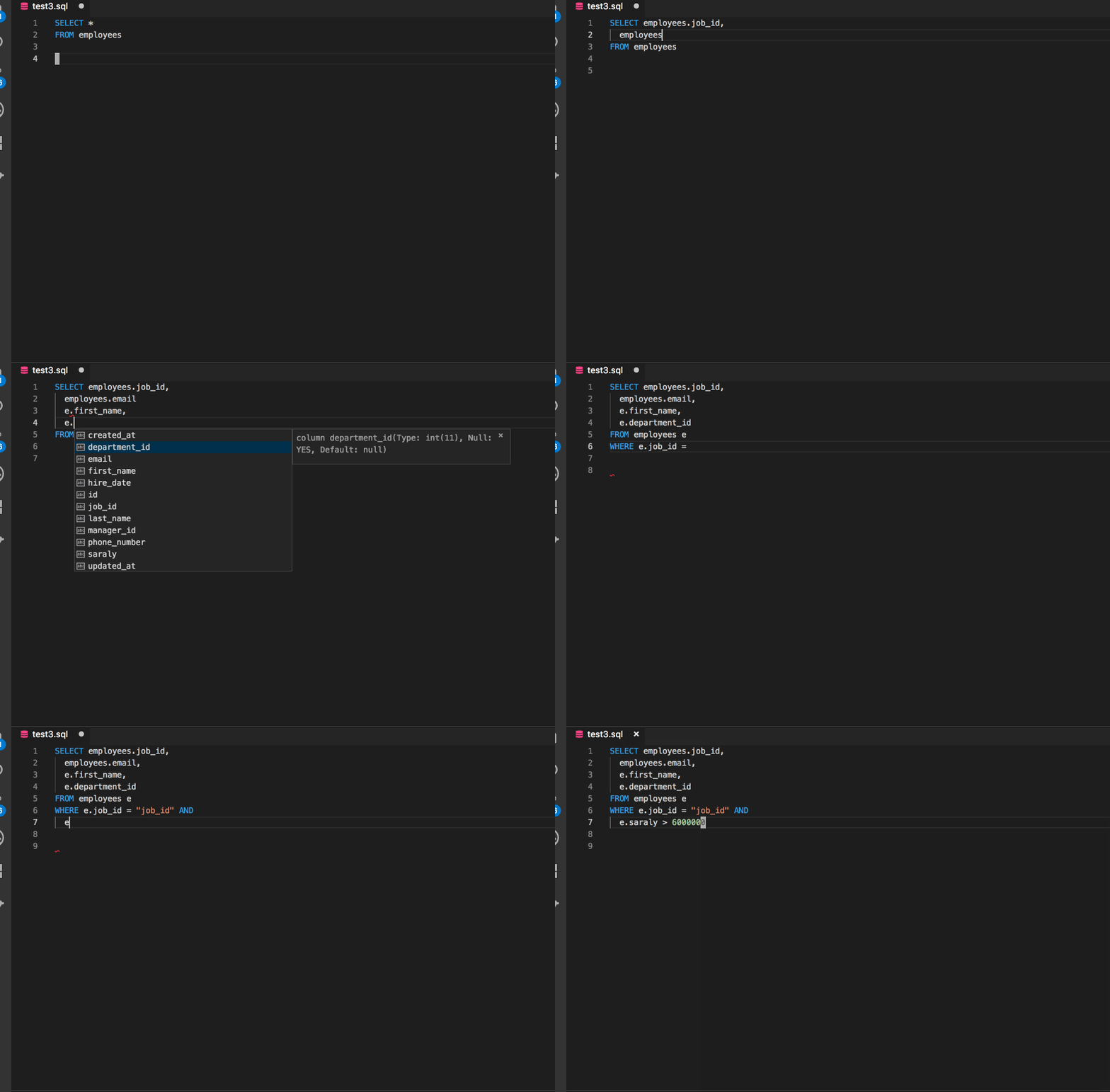
Packages
- sql-language-server: Autocompletion and notification of warnings and errors GitHub link
- sqlint: Linting GitHub link
- VSC extension: Github link
- SQL parser: Github link
Supported DB
- MySQL
- PostgreSQL
- SQLite3
Installation & How to setup
Visual Studio Code
Install the VSC extension.
Other Editors
Install one of the following. They provide the sql-language-server and sqlint commands.
Homebrew (macOS / Linux):
brew install joe-re/tap/sql-language-serverA standalone executable that does not need Node.js: download the archive for your platform (macOS arm64 / x64, Linux x64 / arm64, Windows x64) from GitHub Releases and put the executables on your
PATH.checksums.txthas the SHA-256 of each archive.npm (Node.js 22.13+ or 24+):
npm i -g sql-language-server
Editors start the server with sql-language-server up --method stdio.
Neovim
LanguageClient-neovim
Add the following to the init.vim file (.vimrc):
let g:LanguageClient_serverCommands = {
    \ 'sql': ['sql-language-server', 'up', '--method', 'stdio'],
    \ }
nvim-lsp
Run the following command and reference the nvim-lsp documentation for more information.
:LspInstall sqlls
Monaco Editor (monaco-languageclient)
See the example to use the Monaco Editor to develop sql-language-server.
Follow the development section section to check Mocaco Editor working.
Usage
CLI
$ sql-language-server up [options] run sql-language-server
Options
  --version      Show version number                                   [boolean]
  --help         Show help                                             [boolean]
  --method, -m  What use to communicate with sql language server
                   [string] [choices: "stdio", "node-ipc"] [default: "node-ipc"]
  --debug, -d    Enable debug logging                 [boolean] [default: false]
- Example
$ sql-language-server up --method stdio
Configuration
There are two ways to use configuration files.
- Set personal configuration file (
~/.config/sql-language-server/.sqllsrc.json) - Set project configuration file on your project root (
${YOUR_PROJECT}/.sqllsrc.json) - Use workspace/configuration according to LSP specification
Example for personal configuration file
- Examples
{
  "connections": [
    {
      "name": "sql-language-server",
      "adapter": "mysql",
      "host": "localhost",
      "port": 3307,
      "user": "username",
      "password": "password",
      "database": "mysql-development",
      "projectPaths": ["/Users/joe-re/src/sql-language-server"],
      "ssh": {
        "user": "ubuntu",
        "remoteHost": "ec2-xxx-xxx-xxx-xxx.ap-southeast-1.compute.amazonaws.com",
        "dbHost": "127.0.0.1",
        "port": 3306,
        "identityFile": "~/.ssh/id_rsa",
        "passphrase": "123456"
      }
    },
    {
      "name": "postgres-project",
      "adapter": "postgres",
      "host": "localhost",
      "port": 5432,
      "user": "postgres",
      "password": "pg_pass",
      "database": "pg_test",
      "projectPaths": ["/Users/joe-re/src/postgres_project"]
    },
    {
      "name": "sqlite3-project",
      "adapter": "sqlite3",
      "filename": "/Users/joe-re/src/sql-language-server/packages/server/test.sqlite3",
      "projectPaths": ["/Users/joe-re/src/sqlite2_project"]
    }
  ]
}
Please restart sql-language-server process after creating .sqllsrc.json.
Connection parameters
| Key | Description | value | required | default |
|---|---|---|---|---|
| name | Connection name(free-form text) | true | ||
| adapter | Database type | "mysql" or "postgres" or "sqlite3" or "bigquery" | true | |
| host | Database host | string | false | |
| port | Database port | string | false | mysql:3306, postgres:5432 |
| user | Database user | string | false | mysql:"root", postgres:"postgres" |
| password | Database password | string | false | |
| database | Database name | string | false | |
| filename | Database filename(only for sqlite3) | string | false | |
| projectPaths | Project path that you want to apply(if you don't set it configuration will not apply automatically when lsp's started up) | string[] | false | [] |
| ssh | Settings for port fowarding | *see below SSH section | false |
SSH
| Key | Description | value | required | default |
|---|---|---|---|---|
| remoteHost | The host address you want to connect to | string | true | |
| remotePort | Port number of the server for ssh | number | false | 22 |
| user | User name on the server | string | false | |
| dbHost | Database host on the server | string | false | 127.0.0.1 |
| dbPort | Database port on the server | number | false | mysql:3306, postgres:5432 |
| identityFile | Identity file for ssh | string | false | ~/.ssh/config/id_rsa |
| passphrase | Passphrase to allow to use identity file | string | false |
Personal configuration file
The personal configuration file is located at ~/.config/sql-language-server/.sqllsrc.json. When the SQL Language Server starts, it will try to read this file.
Project configuration file
The project configuration file is located at ${YOUR_PROJECT_ROOT}/.sqllsrc.json. This file has the same settings as the personal configuration file, with a few exceptions:
- The connection property is specified directly, rather than as an array.
- The project path does not need to be set. If it is set, it will be ignored.
- The project configuration file is merged with the personal configuration file, if it exists.
Here is an example project configuration file for a PostgreSQL database:
{
  "name": "postgres-project",
  "adapter": "postgres",
  "host": "localhost",
  "port": 5432,
  "user": "postgres",
  "database": "pg_test"
}
If you have also set a personal configuration, the project configuration and personal configure will be merged if they have the same name.
Personal configuration example:
{
  "connections": [{
    "name": "postgres-project",
    "password": "password",
    "ssh": {
      "user": "ubuntu",
      "remoteHost": "ec2-xxx-xxx-xxx-xxx.ap-southeast-1.compute.amazonaws.com",
      "dbHost": "127.0.0.1",
      "port": 5432,
      "identityFile": "~/.ssh/id_rsa",
      "passphrase": "123456"
    }
  }]
}
It will merge them as follows:
{
  "name": "postgres-project",
  "adapter": "postgres",
  "host": "localhost",
  "port": 5432,
  "user": "postgres",
  "database": "pg_test",
  "password": "password",
  "ssh": {
    "user": "ubuntu",
    "remoteHost": "ec2-xxx-xxx-xxx-xxx.ap-southeast-1.compute.amazonaws.com",
    "dbHost": "127.0.0.1",
    "port": 5432,
    "identityFile": "~/.ssh/id_rsa",
    "passphrase": "123456"
  }
}
Workspace configuration for sql-language-server
Parameters of workspace configuration
connections: This parameter is the same as the connections parameter in the personal configuration file. It allows you to specify the connections for your workspace.lint: This parameter is the same as the configuration of sqlint. It allows you to configure the linting rules for your workspace.
Example of workspace configuration
~/.config/nvim/coc-settings.json
{
  "languageserver": {
    "sql": {
      "command": "sql-language-server",
      "args": ["up", "--method", "stdio"],
      "filetypes": ["sql"],
      "settings": {
        "sqlLanguageServer": {
          "connections": [
            {
              "name": "mysql_project",
              "adapter": "mysql",
              "host": "127.0.0.1",
              "port": 3306,
              "user": "sqlls",
              "password": "sqlls",
              "database": "mysql_db",
              "projectPaths": ["/Users/joe_re/src/MysqlProject"],
              "ssh": {
                "user": "ubuntu",
                "remoteHost": "xxx-xx-xxx-xxx-xxx.ap-southeast-1.compute.amazonaws.com",
                "dbHost": "127.0.0.1",
                "port": 3306
              }
            }
          ],
          "lint": {
            "rules": {
              "align-column-to-the-first": "error",
              "column-new-line": "error",
              "linebreak-after-clause-keyword": "off",
              "reserved-word-case": ["error", "upper"],
              "space-surrounding-operators": "error",
              "where-clause-new-line": "error",
              "align-where-clause-to-the-first": "error"
            }
          }
        }
      }
    }
  }
}
- VS Code workspace setting
"settings": {
  "sqlLanguageServer.connections": [
    {
      "name": "mysql_project",
      "adapter": "mysql",
      "host": "127.0.0.1",
      "port": 3306,
      "user": "sqlls",
      "password": "sqlls",
      "database": "mysql_db",
      "projectPaths": ["/Users/joe_re/src/MysqlProject"],
      "ssh": {
        "user": "ubuntu",
        "remoteHost": "xxx-xx-xxx-xxx-xxx.ap-southeast-1.compute.amazonaws.com",
        "dbHost": "127.0.0.1",
        "port": 3306
      }
    }
  ],
  "sqlLanguageServer.lint": {
    "rules": {
      "align-column-to-the-first": "off",
      "column-new-line": "error",
      "linebreak-after-clause-keyword": "error",
      "reserved-word-case": ["error", "upper"],
      "space-surrounding-operators": "error",
      "where-clause-new-line": "error",
      "align-where-clause-to-the-first": "error",
    }
  }
}
Inject environment variables
${env:VARIABLE_NAME} syntax allows you to replace configuration value with an environment variable.
This is useful if you don't want to store the value in the configuration file.
Example
{
  "adapter": "mysql",
  "host": "localhost",
  "port": 3307,
  "user": "username",
  "password": "${env:DB_PASSWORD}",
  "database": "mysql-development",
  "ssh": {
    "user": "ubuntu",
    "remoteHost": "ec2-xxx-xxx-xxx-xxx.ap-southeast-1.compute.amazonaws.com",
    "dbHost": "127.0.0.1",
    "port": 3306,
    "identityFile": "~/.ssh/id_rsa",
    "passphrase": "${env:SSH_PASSPHRASE}"
  }
}
Switch database connection
If you have multiple connection entries in your personal config file, you can switch the database connection.
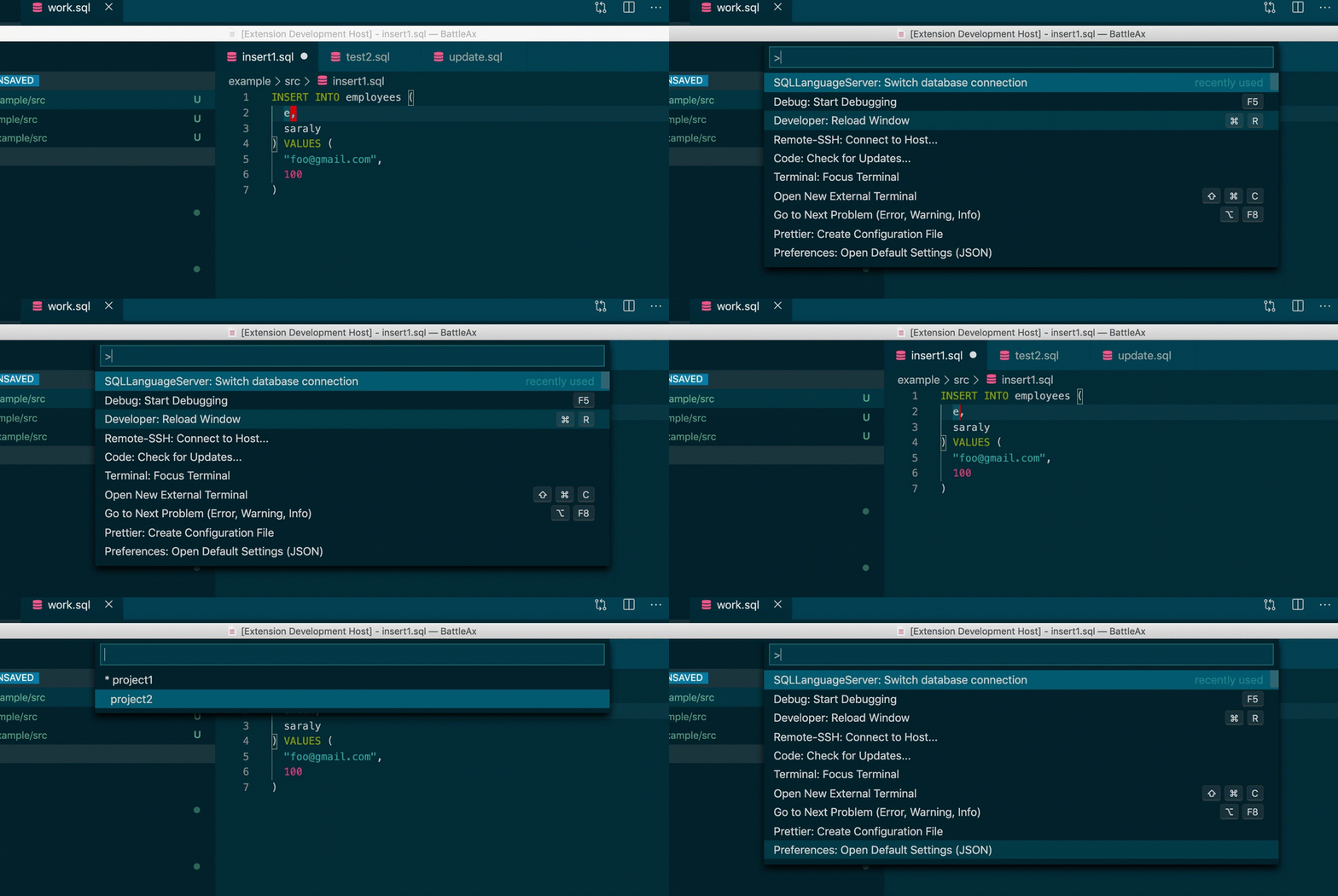
VSC extension provides Switch database connection command.
Raw RPC param:
method: workspace/executeCommand
command: switchDataBaseConnection
arguments: string(project name)
SQLite3 Notes
The sqlite3 adapter uses the built-in node:sqlite module, so no native module needs to be built.
It requires Node.js 22.13+ (or 24+), or VS Code 1.101+ when using the VS Code extension.
Databases are opened read-only.
Linting
You can use lint rules provided by sqlint to ensure your SQL code follows best practices and avoid potential errors. Refer to the sqlint configuraton documentation to learn how to use and configure the linter to match your use case.
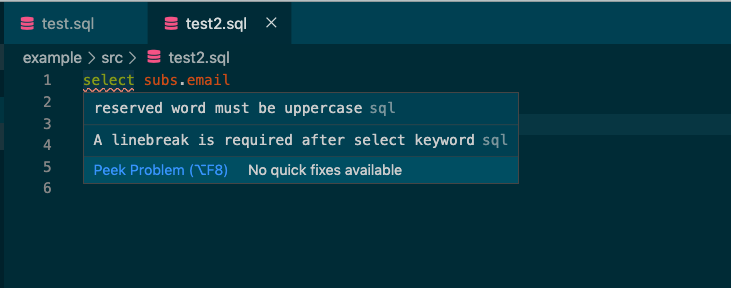
You can also use sqlint to automatically fix any problems it can identify in your code.
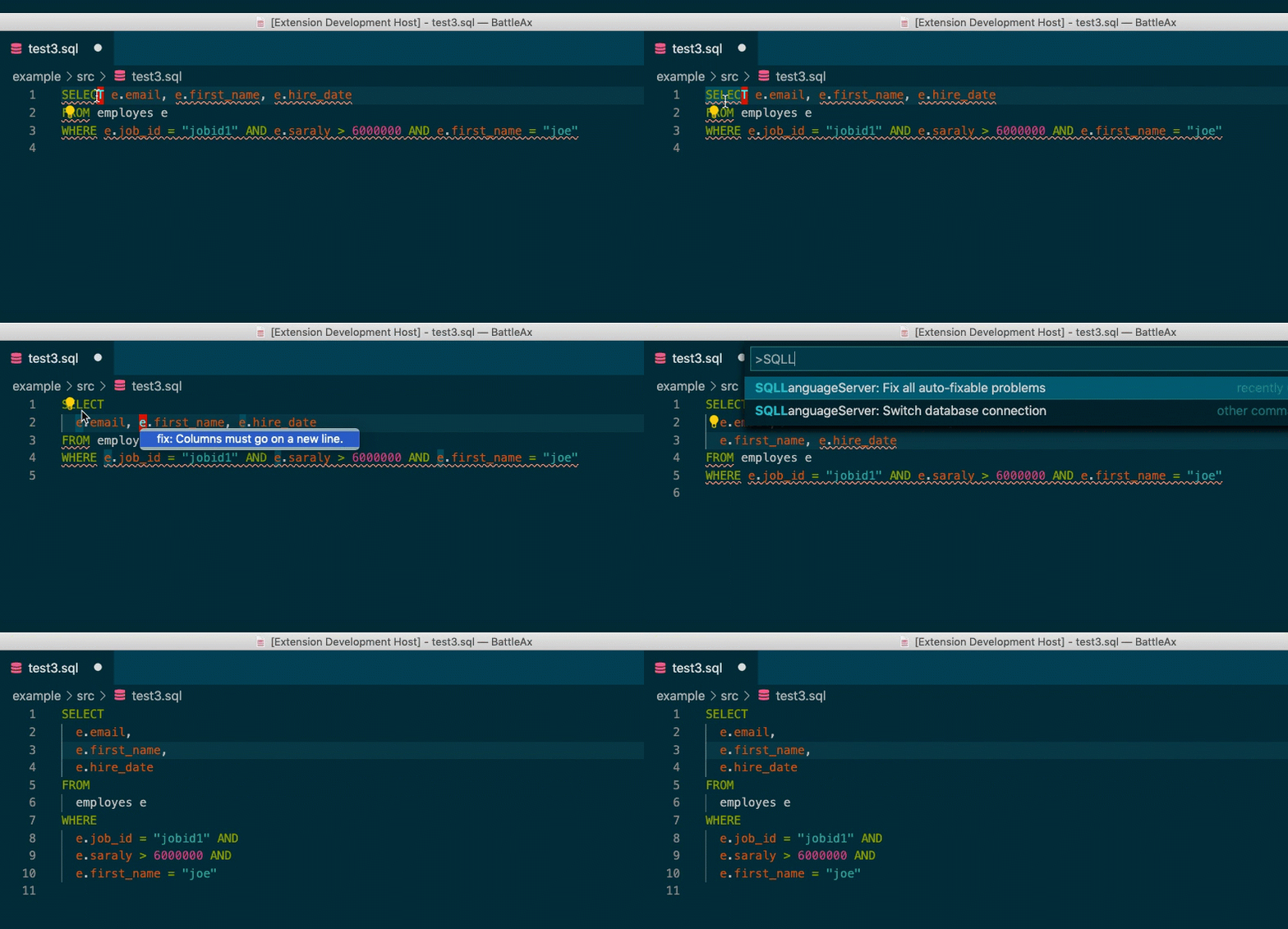
Raw RPC param:
method: workspace/executeCommand
command: fixAllFixableProblems
arguments: string(document uri)
Contributing to sql-language-server
Bug Reports and Feature Requests
If you have any questions, problems or suggestions for improvements, feel free to create a new issue on GitHub Issues. You can also start a discussion there about new rules for SQLint.
Development
Code contributions are always appreciated, so feel free to fork the repo and submit pull requests.
Development environment
pnpm dev builds sqlint and the server in watch mode and starts the monaco-editor example on http://localhost:3000:
$ pnpm install
$ pnpm --filter sql-lsp-monaco-editor-example setup:sqlite
$ pnpm dev
To try postgres and mysql as well, use Docker Compose. The sample schema in example/monaco_editor/db/init.sql is loaded automatically.
$ docker compose up
Running tests
Node.js 22.13+ and pnpm are required (corepack enable sets up the pnpm version pinned in package.json).
$ pnpm install
$ pnpm npm:prepublish        # build sqlint and the server
$ pnpm lint && pnpm typecheck
$ pnpm test:parser && pnpm test:sqlint && pnpm test:server
Database integration tests run only when connection URLs are given:
$ SQLLS_TEST_POSTGRES=postgres://user:[email protected]:5432/db \
  SQLLS_TEST_MYSQL=mysql://user:[email protected]:3306/db \
  pnpm --filter sql-language-server test:db
The VS Code extension is tested end to end by launching VS Code (downloaded into packages/client/.vscode-test).
Set VSCODE_VERSION to test a specific version (default: stable).
$ pnpm test:vscode
$ pnpm vscode:package        # build the .vsix
Explore related projects
Asabeneh/30-Days-Of-Python
The 30 Days of Python programming challenge is a step-by-step guide to learn the Python programming language in 30 days. This challenge may take more than 100 days. Follow your own pace. These videos may help too: https://www.youtube.com/channel/UC7PNRuno1rzYPb1xLa4yktw
78,423 starsgrafana/grafana
The open and composable observability and data visualization platform. Visualize metrics, logs, and traces from multiple sources like Prometheus, Loki, Elasticsearch, InfluxDB, Postgres and many more.
77,790 starsredis/redis
For developers, who are building real-time data-driven applications, Redis is the preferred, fastest, and most feature-rich cache, data structure server, and document and vector query engine.
77,309 starsapache/superset
Apache Superset is a Data Visualization and Data Exploration Platform
75,455 stars