
jhammant/maccap
jhammant/maccap has 32 GitHub stars and 4 forks. GitHot measured 0 stars in 24 hours. Last checked 2026-11-15 05:37 UTC. Last push 2026-11-07.
Measured star growth
- in 24h
- 0
- in 7 days
- Collecting history
- in 15 days
- Collecting history
- in 1 month
- Collecting history
Net star changes over overlapping periods, not daily totals. Missing measurements are left blank. Stars measure attention, not software quality.
About
Call notes on your own Mac: records calls with no bot and no cloud, live on-device notes, Claude Code follow-ups. Only record people who have said yes.
SecurityREADME.md
OriginalMacCap
Call notes on your own Mac: no bot joins the call and nothing goes to the cloud.
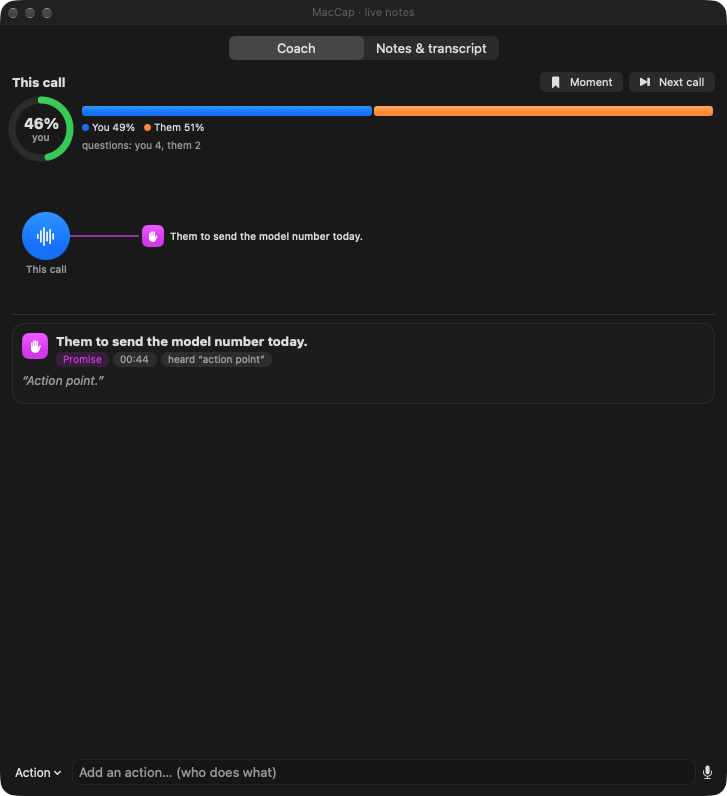
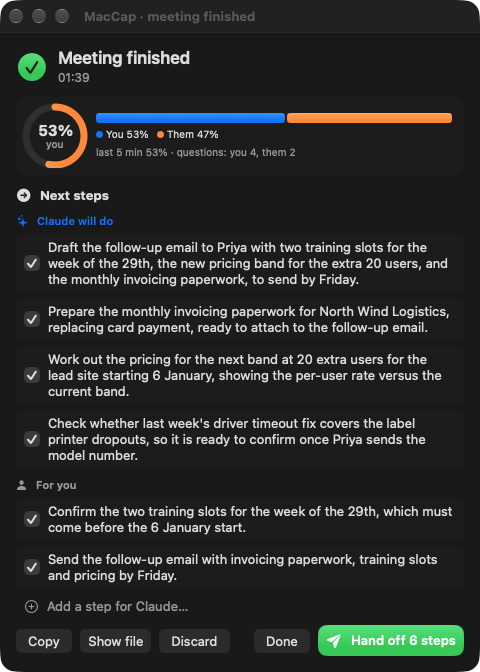
Meeting recorders join your call as a guest, upload the audio and charge per seat. MacCap is a menu-bar app that records the call where it already is, on your Mac. While the call is on, it shows a live transcript, notes and your talk time. When the call ends, it lists the next steps. With Claude Code, it splits them into what Claude can draft for you and what only you can do.
[!IMPORTANT] Only record people who have said yes. MacCap doesn't join the call, so nobody else gets a notice from it. Telling them is up to you. Ask everyone before you record. In many places recording a call without consent is against the law, and some places need every person on the call to agree. MacCap asks you to agree to this before it records anything. Its menu and its "Recording" notification copy a short consent message you can paste into the call's chat. See Recording with permission.
| During the call | When it ends, with Claude Code |
|---|---|
 |
 |
What it does
- Records calls on its own. It starts when Zoom, Meet, Teams, Slack, FaceTime, WhatsApp, Webex or Discord uses the microphone, and also when you answer an iPhone call on the Mac. It stops 45 s after the call ends.
- Keeps you and them apart. Each call is one stereo
.m4a: your microphone on the left channel and everyone else on the right. Transcripts know who is speaking without guessing. - Takes live notes on the Mac (macOS 26+). Apple's on-device speech model writes the transcript, and an on-device model (or your own local LLM) writes the key points, questions and actions every minute.
- Coaches you. It shows your share of the talking, the questions each side asked, and a nudge when you've talked for too long.
- Hands off the follow-ups. When the call ends you get next steps to tick. With Claude Code they split into what Claude can draft and what only you can do. Hand off writes the drafts (emails, messages, outlines) into one file. Nothing is sent.
- Plugs into your own tools. Any program can follow the call as JSON lines and send cards back, for example who someone is, from your CRM. Orbital/Taxi is one example.
Try it without a call
Nobody needs to be recorded to see it work. The demo plays a made-up call between "you" and Priya from a made-up company into the real windows, using your Mac's built-in voices:
python3 scripts/demo-call.py                              # writes demo-call.m4a (90 s)
build/MacCap.app/Contents/MacOS/MacCap demo demo-call.m4a # live window, then meeting finished
The demo records nothing and saves nothing to your recordings folder.
--speed 2 plays it twice as fast. This is that call:

Install
You need an Apple silicon Mac with macOS 15 or later (macOS 26 for live notes and the demo).
- Download: the latest release
has
MacCap-<version>.dmg, signed with a Developer ID and notarized by Apple. Drag MacCap to Applications, thenbrew install ffmpeg. - Homebrew:
brew trust jhammant/tap && brew install --cask jhammant/tap/maccap(brings ffmpeg too).
Build from source
You also need the Xcode command-line tools (xcode-select --install) and
ffmpeg (brew install ffmpeg).
git clone https://github.com/jhammant/maccap.git && cd maccap
./build.sh test       # build, then run the self-tests (no microphone needed)
./build.sh install    # copy to /Applications/MacCap.app
open /Applications/MacCap.app
macOS ties the Microphone and System Audio Recording permissions to the app's
signature. Set MACCAP_SIGN_IDENTITY to your signing identity (in your
environment or in an uncommitted build.local.env) and you only click Allow
once. Ad-hoc builds ask again after every rebuild. MACCAP_BUNDLE_ID changes
the bundle ID (default io.maccap.MacCap).
Recording with permission
MacCap records two things: what your microphone hears and what your Mac plays. Nothing joins the call, so the other people won't see a recording notice unless you give them one.
- At first launch MacCap asks you to agree to record only people who have said yes. Until you agree it records nothing: no automatic recordings, and Start recording now asks first.
- Copy consent message (in the menu, and the button on the "Recording"
notification) puts this on the clipboard for the call's chat: "Before we
start: I'd like to record this call so I can take notes. The recording stays
on my Mac. Is everyone OK with that?" Set your own with
consent_messageinconfig.json. - If someone says no: Stop and skip this call stops recording. The
audio so far goes to
audio/skipped/, so delete it there. Pause auto-record stops automatic recording for calls you shouldn't record. - Recordings stay on your Mac under
~/.maccap, readable only by you. MacCap never uploads them. Claude Code, an assist or a notes endpoint only get what you configure them to get. - Screen sharing: MacCap's windows ask to be left out of screenshots and shared screens. Not every app honours that, so share one window rather than your whole screen until you've checked yours.
The law differs from place to place, and when a call crosses borders it can depend on where each person is. If you're not sure, ask everyone, every time.
How it works
flowchart LR
    call["Call app uses the mic<br/>Zoom · Meet · Teams · FaceTime"] --> rec["MacCap starts recording"]
    rec --> mic["Microphone<br/>(you, left)"]
    rec --> sys["System audio tap<br/>(them, right)"]
    mic --> file["Stereo .m4a + JSON sidecar<br/>crash-safe segments"]
    sys --> file
    mic --> stt["On-device transcription<br/>Apple SpeechTranscriber"]
    sys --> stt
    stt --> live["Live window<br/>transcript · notes · coach"]
    stt -. "JSON lines" .-> assist["assist_command<br/>e.g. Orbital/Taxi"]
    assist -. cards .-> live
    live --> done["Meeting finished<br/>next steps to tick"]
    done -. final_notes_command .-> claude1["Claude Code<br/>who does what"]
    done -. followup_command .-> claude2["Claude Code<br/>drafts, never sent"]
Why two channels
Keeping you and them apart makes speaker labelling much easier: the left channel is always you, so a diarizer only has to separate the other side. Both channels share one host-time timeline, so they stay aligned for hours.
How it captures
- System audio: a Core Audio process tap (macOS 14.2+) behind a private,
tap-only aggregate device. It hears audio that ScreenCaptureKit cannot, such
as FaceTime (
avconferenced) and iPhone calls (callservicesd). - Microphone: AVAudioEngine on the default input, downmixed to mono.
- Crash-safe: while recording, each side is written as AAC ADTS segments, which survive a crash or power loss. On the next launch, unfinished sessions are finalized automatically.
- Safeguards:
- AirPods: the sample rate is read live, and checked against the real frame rate every 10 s. This catches a Bluetooth headset switching to 16 kHz mid-call.
- Denied permission: if the other side stays silent for about a minute while you are talking, MacCap tells you. A denied System Audio permission records silence rather than failing, so this is the only sign of it.
Use
Open MacCap.app. It sits in the menu bar and:
- starts recording 4 s after a call app starts using the microphone, and stops 45 s after the call ends
- offers Start recording now for anything else (manual recordings never stop on their own)
- offers Stop and skip this call, which keeps the audio in
audio/skipped/but leaves it out of the main folder - offers Copy consent message, Pause auto-record, Start at login and Open recordings folder
The first recording asks for Microphone and System Audio Recording access. Grant both to MacCap itself. If you run it from a terminal, macOS asks on behalf of the terminal instead, so always go through the app bundle:
open -W -n -a MacCap.app --args record --seconds 20   # test recording
MacCap.app/Contents/MacOS/MacCap callers               # who is using audio now
MacCap.app/Contents/MacOS/MacCap finalize-pending      # save unfinished sessions
With Claude Code
integrations/claude-code has one script for
both after-call steps. Add this to ~/.maccap/config.json, changing the path
to where you cloned MacCap:
{
  "final_notes_command": ["/usr/bin/python3", "/path/to/maccap/integrations/claude-code/maccap_claude.py", "final-notes"],
  "followup_command": ["/usr/bin/python3", "/path/to/maccap/integrations/claude-code/maccap_claude.py", "follow-up"]
}
- When the call ends, Claude reads the whole transcript and rewrites the next steps: up to four it can do (each one a draft for you to approve), up to two only you can do, and what the other side promised.
- Hand off sends the ticked steps back to Claude, which writes each draft
into one Markdown file under
~/.maccap/follow-ups/. The window shows "4 drafts ready" with an Open link.
Claude runs with claude -p and no tools, so it can only write text: it
can't send, post or change anything. You need Claude Code installed and logged
in. Set MACCAP_CLAUDE_MODEL to use a model other than Sonnet.
With Orbital/Taxi
integrations/orbital-taxi is a call assist
that looks up the people and companies said on the call in
Orbital, through its Taxi semantic layer, and shows
them as cards while you talk. The lookups are TaxiQL templates in a config
file, so they follow your own schema, whether the facts live in a CRM, a
database or an API:
"…Priya Shah from Northwind Logistics…"  →  find { Person(PersonName == "Priya Shah") }   →  person card
                                         →  find { Company(CompanyName == "Northwind…") } →  company card
It's one Python file with no dependencies and no language model, so the same call always gives the same cards. Its README covers setup and adapting the templates.
Live notes
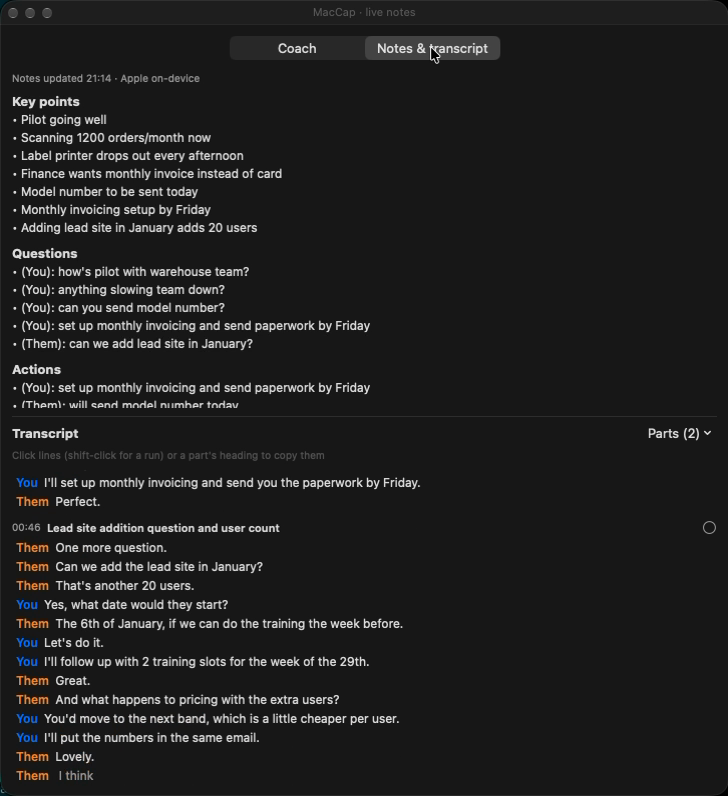
On macOS 26 or later, a small floating window opens while a call is
recorded. It shows a live transcript (You = your microphone, Them = the call)
and, every minute, notes in three parts: key points, questions, and actions
(who promised what). When the call ends the notes are saved next to the
recording as <name>.notes.md, with the transcript under them.
- Transcription: Apple's on-device SpeechTranscriber, one per side. Nothing is sent anywhere. The speech model for your language downloads once if it isn't installed.
- Echo: on a speakerphone your microphone also hears the call. A line from your side that repeats what the call side said at the same moment is left out.
- Notes model: Apple's on-device model by default (no setup; it sees the
most recent ~1,500 words). For better notes, point
notes_model_urlat any OpenAI-compatible endpoint, such as LM Studio or Ollama on your Mac. For a local reasoning model (Qwen 3), MacCap turns thinking off so updates take seconds, not minutes. - Parts of the call: the same model splits the transcript into parts as the call goes ("Introductions", "Volumes and pricing", "Next steps"), shown as headings in the transcript, in the Parts menu to jump to one, and in the saved transcript. Only the part still open is looked at again, so the parts already closed never move and a long call costs no more per update.
- Picking lines: click lines in the transcript (shift-click for a run) or a part's heading to pick the whole part. With a call assist, Help with these or Ask about these lines… sends them (and the whole call as background) and the answer comes up in the Assist tab; without one, Copy.
- The window: menu → Show live notes while recording. Untick Open live notes when recording to keep it closed. It asks screen sharing to leave it out, but not every app honours that, so share a window rather than your whole screen until you have checked yours.
- Try it without a call:
MacCap demo FILE.m4a(see Try it without a call).MacCap notes FILE.m4areplays a recording through the same pipeline and prints the transcript and notes, andrecord --seconds N --notestakes live notes during a test recording.
If live notes fail, the window and the log say why. The recording carries on regardless.
Notes only grow during a call: each update is merged into what is there, so
an action noted early stays in the list. With notes_model_url set, Apple's
model answers any update that endpoint can't (LM Studio not running).
Moments, actions and the next call
- Moment (button or Control-Option-M): the last minute or so becomes one
line (who does what, by when) from the notes model, as a card and a ticked
next step. Saying a phrase like "action point", "I'll follow up" or "I'll
send you" marks one by itself, unticked (
moment_phrases;[]turns it off). - Typed: the box at the bottom adds an Action or a Note, or (with an assist) asks it a question.
- Said: Control-Option-A (or the mic button), say the action, press it again. MacCap hears your microphone directly, so mute yourself in the call app first if the others shouldn't hear it.
- Next call (button, menu or Control-Option-N): saves this call and starts recording the next at once, for back-to-back calls in the same app. Its meeting-finished window waits until the next call ends. Stop recording now stays stopped until the call app lets go of the mic.
Cards open on a click when they have more to show (detail, a long body,
a link); a click on the map opens its card.
Coach
The window's Coach tab shows who has done the talking: your share as a ring (green while balanced, orange, then red past the limit), everyone as one bar, the questions each side asked and your longest unbroken stretch. A short "yes, go on" from them doesn't end your turn; silence does. It is measured from the transcribed lines, so it is a guide, not a stopwatch.
A nudge appears as a card when you have talked for 90 s without a break
(coach_monologue_seconds), done 65% of the last five minutes' talking
(coach_talk_share), or asked nothing for eight minutes. Each nudge shows at
most every five minutes and never two within two minutes. "coach": false
turns it off. Talk time is saved with the notes.
Call assist
Point assist_command at a program (absolute path, then its arguments) and it
follows the call: the Coach tab becomes Assist, with cards it sends (who
someone is, an answer, something to watch for), a map of what the call brought
up, a Help me answer button, a question box, and Control-Option-H from any
app ("assist_hotkey": false turns that off). MacCap knows nothing about
where cards come from; the program gets the call as JSON lines on stdin and
answers on stdout:
| MacCap sends | Fields |
|---|---|
start |
v (1), started_at, session_dir, apps |
line |
stem (mic or system), speaker, text, start, end (seconds from the start) |
ask |
id, question, at, transcript (the call so far, so it can be asked about anything said), topics; focus (+ part) when it is about lines you picked; follows + thread when it follows up an answer |
help |
id, at, transcript (the call so far), topics, and focus + part when you picked lines (part: the title, if you picked a whole part) |
moment |
id, at, transcript (the last minute), auto (a phrase marked it) |
action |
id, text, at (one you typed or said) |
end |
(stdin then closes; 5 s to finish) |
| The program sends | Fields |
|---|---|
card |
id, kind (brief, person, company, answer, watchout, commitment, question, screen, coach, note), title, optional chips, quote, body, detail (shown when opened), link (an Open button), source, at, state (looking, ready, failed), pinned, action (next_call adds a Start next call button) |
remove |
id |
status |
text |
context |
title, workspace (shown at the top) |
speaker |
stem, start, end, name: who was talking then; the transcript uses the name |
topics is the parts of the call so far, [{"start": 130.0, "title": "Priya's volumes"}]; focus is the picked lines as [mm:ss] Who: words.
Every answer card has a Follow up button. A follow-up is an ask with
follows (the id of the answer it follows) and thread, the questions and
answers so far in that thread, oldest first: [{"question": "Ideas so far", "answer": "…"}]. If the first answer was about picked lines, so is the
follow-up (focus again). The card answering it is shown inside the first
answer's card, under the answers before it.
Sending a card with an ask or help request's id answers it. A card's
body and detail are Markdown (bullets, numbered lists, ### headings,
quotes, code, bold, italic, links); answer cards are always shown whole,
other cards open on a click when they are long. Lines it
can't read are logged and skipped; if it stops, the call is still recorded.
Cards are saved with the notes. MacCap notes FILE.m4a --help-me --ask "…"
replays a recording through it (--follow-up "…" then follows that answer up).
Speakers call assist names enrolled voices on the call side live and can chain an existing assist with --then.
Meeting finished
When a call with live notes is saved, a window opens with how the talking went
and the next steps the notes found, all ticked: edit them, untick, add your
own. Copy notes puts a Markdown recap on the clipboard. Set
followup_command and Hand off sends the ticked steps to it: the meeting
as one JSON object on stdin (type meeting_finished, title,
started_at, duration_seconds, apps, recording, notes_file,
key_points, open_questions, next_steps, talk). The last line it prints
may be JSON {"status": "...", "url": "..."}; the window shows the status and
an Open link. "meeting_finished": false turns the window off.
Set final_notes_command and the window's next steps, key points and open
questions are rewritten from the whole call once it ends: the program gets
the same JSON with type final_notes and the full transcript, and prints
one JSON object:
{
  "ai_steps": ["Draft the follow-up email to Priya with the pricing bands."],
  "your_steps": ["Confirm the two training slots."],
  "waiting_on": ["Priya will send the printer model."],
  "key_points": ["Volumes are up to 1,200 orders a month."],
  "open_questions": ["Does the lower rate apply to every user?"],
  "model": "Claude Code (sonnet)"
}
ai_steps show under Claude will do and your_steps under For you;
waiting_on is listed apart and never handed off. A reply with only
next_steps is read as your own steps. Steps you added during the call stay;
if you have already edited the list, the new steps are added unticked. If the
program fails or prints nothing, the live notes' steps are used.
Files
Everything lives under ~/.maccap (override with MACCAP_HOME). All files
are owner-only.
| Path | What |
|---|---|
audio/YYYYMMDD HHMMSS-<id>.m4a |
the stereo recording (Voice Memos naming) |
audio/…maccap.json |
sidecar: apps, channels, offsets, health, route |
audio/…notes.md |
live notes and transcript from the call (macOS 26+) |
sessions/<stamp>-<id>/ |
raw ADTS segments and session.json (kept) |
config.json |
optional settings (below) |
maccap.log |
log |
config.json (every key optional):
{
  "audio_dir": "~/Recordings/calls",
  "extra_allowlist": ["com.example.MyCallApp"],
  "start_after_seconds": 4,
  "stop_after_quiet_seconds": 45,
  "narrow_tap_to_call_apps": false,
  "ffmpeg_path": "/opt/homebrew/bin/ffmpeg",
  "live_notes": true,
  "live_notes_locale": "en_GB",
  "notes_interval_seconds": 60,
  "notes_model_url": "http://localhost:1234/v1",
  "notes_model": "qwen/qwen3.6-27b",
  "notes_model_api_key_env": "MY_NOTES_API_KEY",
  "coach_talk_share": 0.65,
  "coach_monologue_seconds": 90,
  "assist_command": ["/usr/local/bin/my-call-assist", "--verbose"],
  "followup_command": ["/usr/local/bin/my-follow-ups"],
  "final_notes_command": ["/usr/local/bin/my-final-notes"],
  "consent_message": "Mind if I record this call for my notes? It stays on my Mac."
}
allowlist replaces the built-in list of call apps; extra_allowlist adds to
it. Entries match a bundle-ID prefix or a process name.
narrow_tap_to_call_apps (macOS 26+) records only the call apps instead of all
system audio. It is off until it has been proven on real calls.
Credits
The process tap, the shared stem timeline and the remote-silence detector are
adapted from Minutes (MIT, © 2026 Mat
Silverstein). See THIRD_PARTY_NOTICES.md.
License
MIT. See LICENSE.