
jackchuka/dutix
jackchuka/dutix has 36 GitHub stars and 2 forks. GitHot measured 0 stars in 24 hours. Last checked 2026-11-12 17:09 UTC. Last push 2026-11-11.
Set default apps, migrate file associations, and manage handlers on macOS
What you can do
- 🎯 Set default applications for file extensions, UTIs, and URL schemes
- 🔄 Migrate all file associations from one app to another
- 📦 Export your defaults to a file and apply it on another Mac (e.g. from dotfiles)
- 📋 List and inspect installed applications and their capabilities
Measured star growth
- in 24h
- 0
- in 7 days
- Collecting history
- in 15 days
- Collecting history
- in 1 month
- Collecting history
Net star changes over overlapping periods, not daily totals. Missing measurements are left blank. Stars measure attention, not software quality.
README.md
Originaldutix


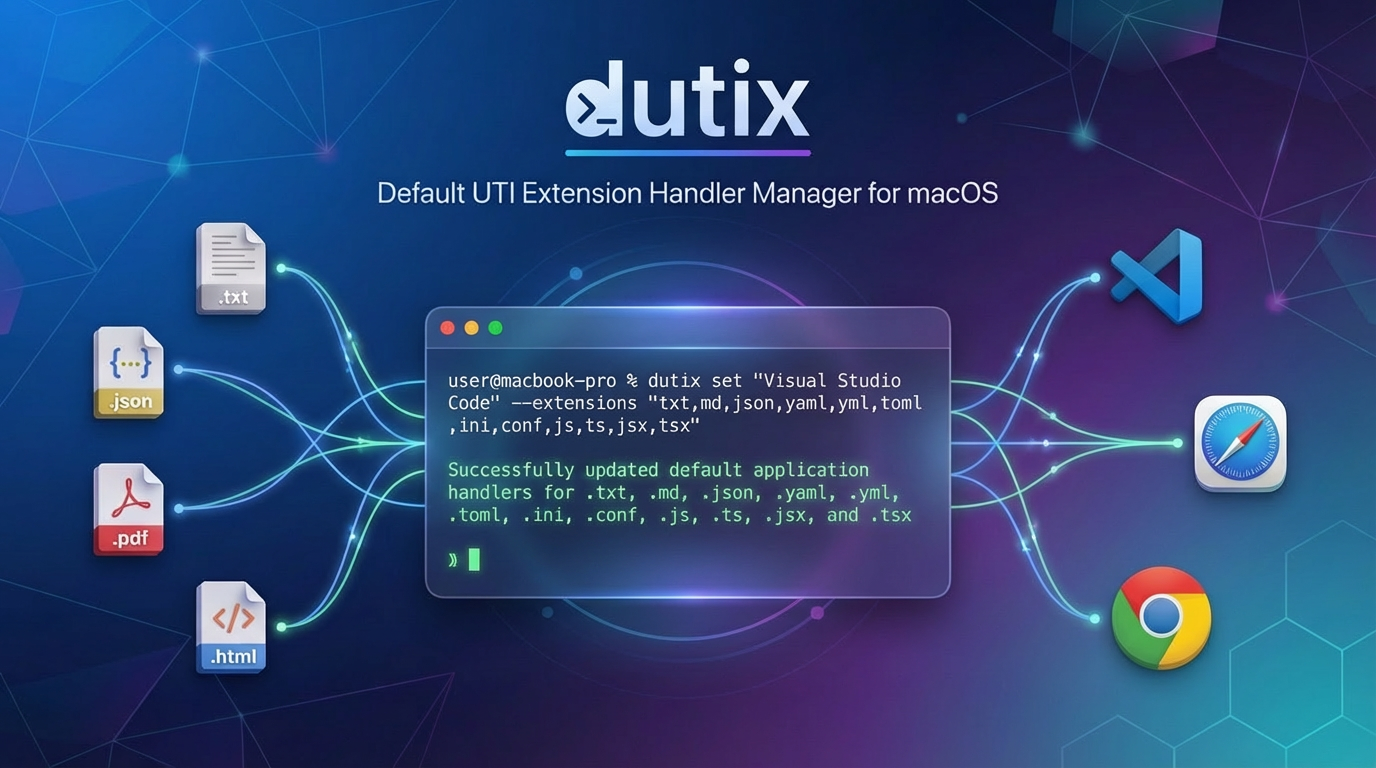
dutix (Default UTI eXtension handler manager) is a command-line tool for managing default application handlers for file types, UTIs (Uniform Type Identifiers), and URL schemes on macOS.
Features
- 🎯 Set default applications for file extensions, UTIs, and URL schemes
- 🔄 Migrate all file associations from one app to another
- 📦 Export your defaults to a file and apply it on another Mac (e.g. from dotfiles)
- 📋 List and inspect installed applications and their capabilities
- 🔍 Query current default handlers for any file type or URL scheme
- 🛡️ Safe operations with preview, confirmation, and dry-run modes
- 📊 Multiple output formats (table, JSON, YAML)
- 🚀 Fast native macOS integration

Requirements
- macOS 12.0 (Monterey) or later
- Go 1.27 or later (for building from source)
Installation
Homebrew
brew install jackchuka/tap/dutix
From Source
# Go install
go install github.com/jackchuka/dutix/cmd/dutix@latest

# Clone and build
git clone https://github.com/jackchuka/dutix.git
cd dutix
go build -o dutix ./cmd/dutix/
Quick Start
# Set VS Code as default for text files
dutix set "Visual Studio Code" --extensions txt,md,json

# Check what handles .txt files
dutix targets show txt

# Migrate all file associations from one app to another
dutix apps migrate TextEdit "Visual Studio Code"

# List all installed applications
dutix apps list
Usage
Global Flags
Available on all commands:
| Flag | Short | Description |
|---|---|---|
--debug |
— | Enable debug logging |
--quiet |
-q |
Suppress non-essential output |
--output |
-o |
Output format: table, json, or yaml |
Commands
dutix set <app> [flags]
Set default application for file extensions, UTIs, or URL schemes.
<app> can be an application name (or a substring of its name or path), a bundle identifier, or a path to an .app bundle. See Specifying the application.
Flags:
--extensions- Comma-separated file extensions (e.g.,txt,md,json)--utis- Comma-separated UTI identifiers (e.g.,public.plain-text)--schemes- Comma-separated URL schemes (e.g.,http,https)--dry-run- Preview changes without applying--yes- Skip confirmation prompt--prune-others- After applying, unregister other copies with the same bundle ID so defaults resolve to this one
Examples:
# Set default for file extensions
dutix set "Visual Studio Code" --extensions txt,md,json

# Set default for URL schemes
dutix set Safari --schemes http,https

# Preview changes first
dutix set TextEdit --extensions txt --dry-run

# Skip confirmation
dutix set Finder --extensions zip,tar --yes

# By bundle ID or bundle path
dutix set com.microsoft.VSCode --extensions md
dutix set ~/Applications/Foo.app --extensions md --prune-others
dutix apps list [flags]
List all installed applications.
Flags:
--filter- Filter by name or path (case-insensitive)
Examples:
# List all applications
dutix apps list

# Find specific app
dutix apps list --filter "Visual"

# JSON output
dutix apps list --output json
dutix apps show <app>
Show detailed information about an application including supported file types and UTIs, and every registered copy of its bundle ID, starting with the one LaunchServices prefers.
Examples:
dutix apps show "Visual Studio Code"
dutix apps show Safari --output json
dutix apps show com.apple.TextEdit
dutix apps show ~/Applications/Foo.app
dutix apps migrate <from-app> <to-app> [flags]
Migrate all file type associations from one application to another.
Flags:
--dry-run- Preview migration without applying changes--yes- Skip confirmation prompt--prune-others- Same as fordutix set, applied to<to-app>
Examples:
# Preview migration
dutix apps migrate TextEdit "Visual Studio Code" --dry-run

# Migrate with confirmation
dutix apps migrate TextEdit "Visual Studio Code"

# Auto-migrate without prompts
dutix apps migrate "Old App" "New App" --yes
dutix targets show <target>
Show current default handler for a file extension, UTI, or URL scheme.
The command automatically detects the target type:
- Extensions:
txt,json,pdf - UTIs:
public.plain-text,public.json - Schemes:
http,https,mailto
Examples:
# Check file extension
dutix targets show txt

# Check UTI
dutix targets show public.plain-text

# Check URL scheme
dutix targets show http
dutix targets list [pattern]
List file extensions discovered across all installed applications, along with the UTI each extension resolves to and the current default application for that UTI.
An optional pattern filters extensions by case-insensitive substring.
Examples:
# List all discovered extensions
dutix targets list

# Filter by substring
dutix targets list txt

# Machine-readable output
dutix targets list --output json --quiet
dutix export [flags]
Write the current default applications as a defaults file to stdout, for dutix apply to restore.
Without target flags, it exports the defaults you chose: the overrides stored in LaunchServices, as set in Finder ("Change All"), System Settings, or dutix. URL schemes and UTIs that only one installed app can handle are left out, since apps claim those for themselves. Overrides for apps that aren't installed are left out too.
Flags:
--extensions,--utis,--schemes- Export the current default of these targets instead--all- Include URL schemes and UTIs that only one installed app can handle
Examples:
# Save your defaults
dutix export > defaults.yaml

# Current defaults of specific targets
dutix export --extensions md,txt --schemes http,https
The file lists apps by bundle ID, with their names as comments:
version: 1
defaults:
  com.google.Chrome: # Google Chrome
    utis: [public.html]
    schemes: [http, https]
  com.microsoft.VSCode: # Visual Studio Code
    extensions: [md, tf]
Apps can also be given by bundle path or name, as on the command line. A target can be listed under one app only.
dutix apply <file> [flags]
Set the default applications listed in a defaults file. Use - to read it from stdin.
Targets that already have the right default are skipped, so applying the same file again changes nothing. Apps that aren't installed are skipped with a warning. If an app name matches several apps, or the file is invalid, nothing is changed.
Flags:
--dry-run- Preview changes without applying--yes- Skip confirmation prompt
Examples:
dutix apply defaults.yaml --dry-run
dutix apply defaults.yaml --yes
dutix version
Display version information including git commit and build date.
dutix version
Common Use Cases
Keeping Defaults in Dotfiles
# Once, on your current Mac
dutix export > ~/dotfiles/default-apps.yaml

# In your setup script on a new Mac, after installing the apps
dutix apply ~/dotfiles/default-apps.yaml --yes
Setting Up a New Code Editor
# Set VS Code as default for common development files
dutix set "Visual Studio Code" --extensions \
  "txt,md,json,yaml,yml,toml,ini,conf,\
  js,ts,jsx,tsx,mjs,\
  py,rb,go,rs,java,c,cpp,h,hpp,\
  html,css,scss,sass"

# Preview first with dry-run
dutix set "VS Code" --extensions txt,md --dry-run
Switching from One App to Another
# Migrate everything from TextEdit to VS Code
dutix apps migrate TextEdit "Visual Studio Code"

# Preview the migration first
dutix apps migrate Safari Chrome --dry-run
Setting Default Web Browser
# Set Safari as default browser
dutix set Safari --schemes http,ftp,ftps

# Set Chrome
dutix set "Google Chrome" --schemes http
Checking Current Defaults
# What opens .txt files?
dutix targets show txt

# What opens HTTP links?
dutix targets show http

# Get JSON output for scripting
dutix targets show txt --output json --quiet
Finding App Capabilities
# See what file types an app supports
dutix apps show "Visual Studio Code"

# Find apps by name
dutix apps list --filter code

# Get machine-readable output
dutix apps show Safari --output json
Specifying the application
Every command that takes an application (set, apps show, apps migrate) resolves it the same way:
- Bundle path: an argument containing
/, starting with~, or ending in.app. dutix expands~and~user, makes the path absolute, and resolves symlinks. A symlinked bundle therefore resolves to the real bundle it points to, which is the path LaunchServices records. The bundle is used even if it isn't in/Applicationsand the app scan doesn't list it. If a path starting with/,~,./or../doesn't exist, dutix stops with an error and does not guess. Other arguments that don't exist as paths, such asUtilities/Terminalor a bareFoo.app, fall back to the other two forms. - Bundle ID, e.g.
com.microsoft.VSCode. This resolves to the copy LaunchServices currently prefers. - Name: a case-insensitive substring of an app's name or path, as before.
When several copies share a bundle ID
macOS stores defaults by bundle ID, not by path. When several registered copies share a bundle ID, defaults and file opens resolve to the copy with the highest CFBundleVersion. The version is compared component by component as numbers. Ties are broken by path order. A copy you didn't pick can therefore end up handling your files, even right after dutix set.
However <app> is given, dutix set and dutix apps migrate do the following:
- Registration: if the app isn't registered with LaunchServices yet, it is registered before applying (
LSRegisterURL). --prune-others: after applying, every other registered copy of the bundle ID is unregistered (lsregister -u), so the chosen copy wins. The preview lists the copies that will be removed.- Warnings: dutix warns before and after applying if another copy still outranks the given path.
dutix set ~/Applications/Foo.app --extensions md,txt --prune-others --yes
A target is unchanged when its current default is already the app's bundle ID, even if a different copy currently opens it, for example after a rebuild that only moved the app to a new path. dutix then doesn't set it again, so macOS 26.4+ shows no confirmation dialog, and the plan marks it "unchanged (same bundle ID)" with a note naming the copy that currently opens it. Registering and --prune-others still run, which makes the chosen copy the one that opens it.
Pruning happens after applying, not before, because LaunchServices saves registration changes some seconds after they're made, and setting a default by extension restarts lsd, which drops unsaved changes. Measured on macOS 27.2, unregistering right after that restart is saved. Pass all of an app's targets in one dutix set call: a second call for the same app within a few seconds can restart lsd again before the first call's pruning is saved.
An unregistered copy that is still on disk may be registered again later, so run the command again if defaults drift. Use dutix apps show <path> to see which copy defaults resolve to. LaunchServices ignores apps in temporary directories (/tmp, /private/var/folders), so paths there can't win.
Output Formats
Table (Default)
Human-readable formatted tables:
dutix apps list
JSON
Machine-parseable JSON output:
dutix apps list --output json
dutix targets show txt --output json | jq -r '.data.default_app'
Every command prints one document to stdout: the command's data, an error, or both (for example, a set report in which some items failed). Keys are snake_case, and api_version changes only when the schema changes incompatibly. Errors are also printed to stderr.
{
  "api_version": 1,
  "command": "targets show",
  "data": {
    "target": { "kind": "extension", "identifier": "txt" },
    "default_app": "/System/Applications/TextEdit.app",
    "resolved_utis": ["public.plain-text"],
    "available_apps": ["/System/Applications/TextEdit.app"]
  }
}
{
  "api_version": 1,
  "command": "apps show",
  "error": {
    "code": "not_found",
    "exit_code": 3,
    "message": "application not found: Foo"
  }
}
error.code is one of error, usage, not_found, ambiguous, or apply_failed, matching the exit code.
YAML
Structured YAML output, with the same document as JSON:
dutix apps show "Visual Studio Code" --output yaml
Exit Codes
| Code | Meaning |
|---|---|
0 |
Success, including changes declined in the confirmation dialog |
1 |
Other error |
2 |
Invalid arguments or flags |
3 |
No application matches the argument |
4 |
Several applications match the argument |
5 |
Some changes failed to apply or did not take effect (set, apps migrate) |
Development
Project Structure
dutix/
├── cmd/dutix/           # Application entry point
├── internal/
│   ├── cli/            # CLI commands and subcommands
│   ├── domain/         # Business logic (planner, applier)
│   ├── formatter/      # Output formatters (table, JSON, YAML)
│   ├── logger/         # Logging utilities
│   └── macos/          # macOS bridge layer
All macOS access goes through macos-apphandlers-bridge; see AGENTS.md for the layering rules.
Build Commands
export CGO_ENABLED=1

# Build
go build -o dutix ./cmd/dutix/

# Test
go test ./...

# Lint
golangci-lint run ./...

# Generate mocks
go generate ./...
How It Works
dutix relies on macos-apphandlers-bridge to interface with macOS AppKit APIs for querying and setting default application handlers.
The tool uses a four-phase approach:
- Plan - Resolves targets and queries current defaults
- Preview - Shows what will change before applying
- Apply - Makes the changes to system defaults
- Verify - Reads each default back and reports the item as failed if macOS did not apply it
Known Limitations
- Some system-protected defaults (like http) may require user confirmation in System Settings
- Changes to certain defaults may not be reflected immediately in all applications
- Requires running as the logged-in user (not sandboxed)
- Some system-internal UTIs are automatically filtered out during migration
public.htmlUTI cannot be set programmatically and is automatically skipped- Extensions not declared by any installed application resolve to dynamic (
dyn.*) UTIs. dutix sets these by extension, writing the same LaunchServices entry as Finder's "Get Info → Open with → Change All…" and restartinglsd. This entry format is undocumented by Apple and may change in future macOS releases. Passing adyn.*UTI directly via--utisis skipped; use--extensionsinstead - A default set by extension only applies while no installed app declares that extension. Once an app declares it (e.g. installing an editor that exports a type for
.tf), macOS resolves the extension to that app's UTI and ignores the extension-based default; rundutix setagain to set the new UTI
License
Contributing
Contributions welcome! See AGENTS.md for the architecture and development guidelines.
Credits
Inspired by:
- duti - Command-line default handler manager
Built with:
- Cobra - CLI framework
- tablewriter - Table formatting
- macos-apphandlers-bridge - macOS integration
Explore related projects
codecrafters-io/build-your-own-x
Master programming by recreating your favorite technologies from scratch.
562,133 starspublic-apis/public-apis
A collective list of free APIs
498,518 starsmorluto/rea
Reverse engineer anything with agents, from app behavior down to native binaries.
455,121 starsopenclaw/openclaw
The AI that really does things. Any OS. Any Platform. The lobster way. 🦞
394,408 stars