
imu-useful/hi-shell
imu-useful/hi-shell has 11 GitHub stars and 0 forks. GitHot measured 0 stars in 24 hours and +2 in 7 days. Last checked 2026-11-09 12:33 UTC. Last push 2026-11-06.
Material 3 Expressive desktop shell for Hyprland, built on Quickshell — Claude AI, live wallpaper theming, widgets, animations everywhere. English & Russian.
What you can do
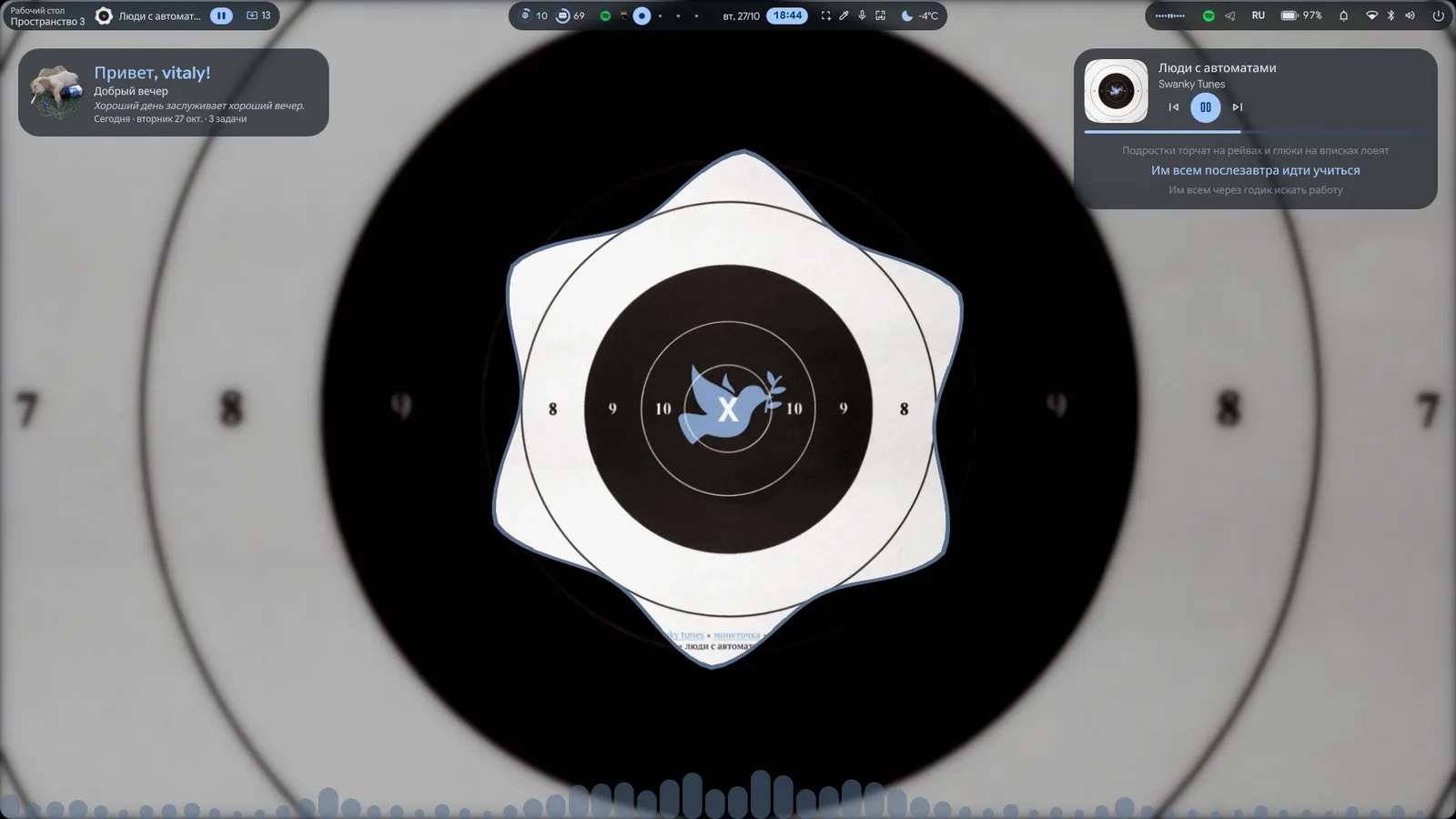
- 🧭 Bar - Configurable widgets (left / center / right), any screen edge, Hug / Float / Islands / M3 styles, hover popups for media, resources, weather, battery and updates, a live audio spectrum
- 🚀 App launcher - Apps and settings, plus prefixes: = calculator (a plain "12*(3+4)" or "10+5=" is answered too, without the prefix), > run a command, < keybinds, : emoji, ; clipboard (images with a preview), / settings
- ✨ AI - Quick palette (Super+Y) and a full chat in the left sidebar: streamed answers, code blocks with copy buttons, model picker, token / cost usage, saved chats. Works with Claude (through the claude CLI) and other AI services: OpenRouter (the free models included), OpenAI, Gemini, Groq, DeepSeek, Mistral, a local Ollama, or any OpenAI-compatible server
- 🪟 Overlays - Workspace overview with a tile and icon per window (drag windows between workspaces), session screen, polkit dialog, region screenshot / OCR / recording (with system sound or the microphone), optional dock, rounded screen corners
Measured star growth
- in 24h
- 0
- in 7 days
- +2
- in 15 days
- Update delayed
- in 1 month
- Update delayed
Net star changes over overlapping periods, not daily totals. Missing measurements are left blank. Stars measure attention, not software quality.
README.md
Original👋 hi-shell
A Material 3 Expressive desktop shell for Hyprland — with AI built in.
Built on Quickshell. Colors from your wallpaper, animations everywhere, English and Russian.






Install · Screenshots · Shortcuts · Configuration · Troubleshooting · Community
Features
| 🧭 Bar | Configurable widgets (left / center / right), any screen edge, Hug / Float / Islands / M3 styles, hover popups for media, resources, weather, battery and updates, a live audio spectrum |
| 🚀 App launcher | Apps and settings, plus prefixes: = calculator (a plain "12*(3+4)" or "10+5=" is answered too, without the prefix), > run a command, < keybinds, : emoji, ; clipboard (images with a preview), / settings |
| ✨ AI | Quick palette (Super+Y) and a full chat in the left sidebar: streamed answers, code blocks with copy buttons, model picker, token / cost usage, saved chats. Works with Claude (through the claude CLI) and other AI services: OpenRouter (the free models included), OpenAI, Gemini, Groq, DeepSeek, Mistral, a local Ollama, or any OpenAI-compatible server |
| 🪟 Overlays | Workspace overview with a tile and icon per window (drag windows between workspaces), session screen, polkit dialog, region screenshot / OCR / recording (with system sound or the microphone), optional dock, rounded screen corners |
| ⬅️ Left sidebar | Greeting, now playing with synced lyrics (and the cover blurred behind it, appearance.coverBackdrop, off in Settings → Interface), weather, AI chat, translator, clipboard history with image thumbnails |
| 🎯 Focus Mode | Sessions with a minimal bar, Pomodoro cycles, blocked apps and sites, profiles, statistics and achievements |
| ⏱️ Screen time | How long each app had the focus, per day and for the week; a daily limit per app with a notification when its time runs out (Settings → Screen time), and a desktop card for today |
| ⏳ Wait Mode | A cover for the person while an AI works on the machine: a player or the wallpaper, keyboard and mouse shut out, no sleeping, Esc three times to exit; automation can still see and click what's underneath |
| 🔋 Power saving | One switch turns off animations, blur, transparency, the visualizer and the dancing frame, and puts them back when it's turned off |
| ➡️ Right sidebar | Quick toggles (Android-style pills or classic buttons, editable), volume / brightness / mic, Wi-Fi and Bluetooth pages, per-app volume, notification center, calendar, to-do, focus / stopwatch / countdown timers |
| 🖼️ Desktop | Shape clock, big clock, weather, resources, calendar, media with lyrics (click or drag its progress bar to seek), greeting, to-do, notes, world clock, timers, user card, image frame; audio visualizer; drag-to-place edit mode |
| 🎨 Theming | Wallpaper picker (local folders, Wallhaven, Unsplash), live wallpapers (video, gif), Material 3 palette from the wallpaper via matugen, scheme variants, light / dark / auto, shaped wallpaper frame |
| ⚙️ Settings | Every option in a settings app, Hyprland displays / gaps / blur / input included, searchable from the launcher |
| 🌍 Languages | English and Russian: the whole interface, dates and plural forms |
| 👋 Welcome & presets | A first-run setup, and presets that save your config, wallpaper and colors to one shareable file |
Animations run everywhere, yet the shell idles at about 1% CPU: hidden panels and disabled widgets aren't created, and the audio spectrum is drawn by a single shader.
Screenshots
 |
 |
| App launcher — apps, settings, calculator, emoji, clipboard | Right sidebar — quick toggles, sliders, notifications |
 |
 |
| Settings — every option, searchable from the launcher | AI palette — ask anything, answers stream in |
 |
 |
| Wallpapers — local and online, scheme, mode, 28 frames | Display mode — duplicate or extend to a second screen |
 |
 |
| First-run welcome — language, look and shortcuts | Session screen — lock, log out, suspend, reboot, power off |
 |
 |
| Desktop edit mode — drag, scale and stretch widgets | Wait Mode — a locked screen with the player and the queue |
Requirements
Arch Linux + Hyprland 0.56+ (the integration file uses the Lua config).
| Package | Used for |
|---|---|
quickshell-git (AUR) |
the shell itself (0.3+, with the Hyprland, Pipewire, Bluetooth and Networking modules) |
matugen |
Material 3 colors from the wallpaper |
python |
services/theme_updater.py and the other helper scripts (stdlib only, no pip packages) |
python-fonttools (optional) |
a ~160 KB copy of the icon font with just the icons the shell uses (services/icon_font.py), instead of the full 15 MB one in memory |
polkit |
pkexec: asks for your password when a Focus Mode session starts blocking sites |
wtype |
types Ctrl+W into a browser window to close a tab on a blocked site (Focus Mode) |
ttf-material-symbols-variable-git (AUR) |
icons (Material Symbols Rounded) |
pipewire, wireplumber |
volume control |
networkmanager |
Wi-Fi toggle |
bluez |
Bluetooth toggle |
upower |
battery status |
brightnessctl, ddcutil (optional) |
brightness of the built-in panel / external monitors |
pacman-contrib, yay or paru (optional) |
update count |
libnotify |
battery warnings (notify-send) |
hyprsunset |
night light (uses a running hyprsunset daemon, or starts one) |
cliphist, translate-shell |
clipboard history and translator in the left sidebar |
grim, slurp, wl-clipboard, hyprpicker, cava (optional) |
bar utility buttons and visualizer |
imagemagick, curl |
wallpaper thumbnails and downloads |
libqalculate (qalc) |
launcher calculator |
tesseract, tesseract-data-eng, tesseract-data-rus (+ other languages), wf-recorder |
region OCR and screen recording |
ffmpeg, qt6-multimedia-ffmpeg |
live (video) wallpapers: playing them and taking a frame for the palette and thumbnails |
hyprlock |
lock screen (hi-shell's Lock runs it) |
| Claude Code (optional) | the AI chat with Claude (claude must be on PATH and signed in); the other AI services need only their API key |
paru -S quickshell-git matugen python ttf-material-symbols-variable-git
npm install -g @anthropic-ai/claude-code   # then run `claude` once to sign in
Installation
Quick install
git clone https://github.com/imu-useful/hi-shell.git ~/hi-shell
~/hi-shell/install.sh
or without cloning first (the repo goes to ~/.local/share/hi-shell/repo):
bash -c "$(curl -fsSL https://raw.githubusercontent.com/imu-useful/hi-shell/main/install.sh)"
That line works in bash, zsh and fish (fish has no <(...), so the usual bash <(curl ...) fails there).
The installer first shows what it can install (packages, the Hyprland hook, the fish / kitty / fastfetch / btop / Dolphin configs, optional apps, starting the shell):
type the numbers to switch parts on or off, Enter to continue. Then it asks before every action ("Should I ...?"):
y yes, n no, a yes for all the rest.
It also asks where updates come from: release (the latest tagged release, tested and changes less often, the default) or git (the latest main, the newest features, may break now and then). --channel=git or --channel=release answers it up front; you can switch later in Settings → About → Updates (update.channel in the config).
The installer:
- installs the packages above with
pacmanand, for the AUR ones,paruoryay(asks first;--no-depsskips it) - links the repo to
~/.config/quickshell/hi-shell - copies the folder
hypr/hi-shell/to~/.config/hypr/hi-shell/(yours to edit) and loads it from your Hyprland config —~/.config/hypr/custom/execs.luaon illogical-impulse dots,~/.config/hypr/hyprland.luaotherwise (one marked line, with a backup of the file; an earlier install's line is moved to the folder) - starts the shell and warns about other bars or notification daemons that are still running
The optional apps (all off by default): Zen Browser, Telegram, Vesktop, osu!lazer, Steam (needs [multilib]), Spotify and Neovim.
Each one goes through pacman if a configured repository has it, otherwise through paru / yay.
Options: --yes (no menu and no questions: installs everything except the optional apps), --with-apps (those too), --no-deps, --no-start, --no-dots, --channel=git|release. Then tap Super.
NixOS
The installer runs on NixOS too, but it doesn't install packages there: it prints the nixpkgs names of what hi-shell
needs (matugen, quickshell, hyprlock, ffmpeg, ...). Add them to environment.systemPackages in your
configuration and run nixos-rebuild switch, then run install.sh again for the config files. Things that are
different there: the Updates widget is off (updates come with nixos-rebuild), and Focus Mode's site blocking runs
the helper with /run/current-system/sw/bin/python3. Optional apps are not installed by the installer; add them to
your configuration yourself. Only the Arch path is tested so far.
Update
~/.config/quickshell/hi-shell/update.sh
Gets the latest version from where you chose at install: on git it pulls main (git pull --ff-only), on release
it moves to the latest tagged release (v*). Your local changes are never overwritten. It shows what's new,
restarts the shell and reloads Hyprland when the keybinds changed.
Uninstall
~/.config/quickshell/hi-shell/uninstall.sh            # keeps your settings and presets
~/.config/quickshell/hi-shell/uninstall.sh --purge    # also deletes settings, state and cache (asks first)
Stops the shell, removes the line from your Hyprland config and the link. Packages stay installed.
Manual installation
Clone the repo and link it where Quickshell looks for configs:
git clone https://github.com/imu-useful/hi-shell.git ~/hi-shell
mkdir -p ~/.config/quickshell
ln -s ~/hi-shell ~/.config/quickshell/hi-shell
Copy the Hyprland integration (autostart, keybinds, window and layer rules) next to your Hyprland config and load it from there, e.g. from
~/.config/hypr/custom/execs.luaon illogical-impulse orhyprland.luaotherwise:cp -r ~/hi-shell/hypr/hi-shell ~/.config/hypr/hi-shelldofile(os.getenv("HOME") .. "/.config/hypr/hi-shell/init.lua")It starts
qs -c hi-shellwhen Hyprland starts. To run it now without logging out:hyprctl reload && qs -c hi-shell -dCheck
hyprctl configerrorsis empty and tap Super.
Usage
| Shortcut | Action |
|---|---|
| Super (tap) or Super+Space | App launcher |
| Super+Y | AI palette |
| Super+U | Right sidebar (also the system icons on the bar) |
| Super+Escape | Settings |
| Super+Tab | Workspace overview |
| Alt+Tab | Switch windows: hold Alt, Tab / Shift+Tab through recent windows (with previews), release to switch; a quick tap goes to the previous window |
| Super+Shift+S | Region screenshot / OCR / recording (also the bar's screenshot button) |
Screenshot of the focused screen (saved to ~/Pictures/Screenshots and copied) |
|
| Ctrl+Print | Screenshot of a region or window (saved and copied) |
| Super+Shift+X | Copy text from a region (OCR) |
| Super+Shift+T | Translate text from a region (OCR into the sidebar translator) |
| Super+Shift+R | Record a region (press again to stop) |
| Super+V | Clipboard history, images too with thumbnails and a preview of the selected one (Enter copies); pin an entry to keep it when the history is cleared (right-click for Pin / Delete) |
| Super+. | Emoji picker |
| Ctrl+Alt+Delete | Session screen |
Display key (Fn+F10 on Lenovo, XF86Display) |
Display mode: this screen only, duplicate, extend left / right, second screen only; press again for the next, Enter to apply |
| bar power button | Session screen (lock, log out, suspend, reboot, power off) |
| Super+R | Wallpaper picker |
| Super+Z | Left sidebar (also left click on the bar's ✦ button; right click opens the launcher) |
| click the clock | Calendar popup |
| click the system icons | Right sidebar (scroll there to change the volume) |
| right click the empty part of the bar | Bar settings |
| right click a notification | Dismiss it (a popup or one in the notification center; swiping it sideways works too) |
| right click the desktop | Edit desktop widgets (the toolbar can be dragged by its title out of the way): drag them (edges and centers snap to other widgets and the screen, with guide lines), resize them (corner = size, right edge = width), drag the wallpaper frame (it snaps to the screen edges, center and the widgets; its corner resizes it, double click = normal size), toggle them in the toolbar; Esc or Done to finish |
| hover a bar widget | Details popup (media controls, resources, weather forecast, battery, updates) |
| click the weather in the bar | Weather details: the current conditions, the next 24 hours and the 7 days (refresh button inside); qs -c hi-shell ipc call weatherDetails toggle |
| scroll | Every slider (volume, brightness, mic, app volumes, track position, settings); on the bar: system icons = volume, battery = brightness, media = player volume, keyboard layout = switch, workspaces = previous / next; the calendar scrolls through months |
Change the keys in ~/.config/hypr/hi-shell/keybinds.lua (the other files in that folder hold the startup, window and layer rules; update.sh keeps your edits and leaves a new version of a changed file as <name>.lua.new; turn on Settings → Hyprland → "Keep my Hyprland files on update", hyprland.keepFiles in the config, and updates don't touch that folder at all, they only list what changed upstream). Every panel can also be toggled over IPC, e.g. for your own binds or scripts:
qs -c hi-shell ipc call launcher toggle       # also: ai, sidebarRight, calendar
qs -c hi-shell ipc call appgrid toggle         # the full-screen list of every app (also the dock's first button)
qs -c hi-shell ipc call sidebarRight openTab todo     # notifications, calendar, todo, timers
qs -c hi-shell ipc call sidebarRight openPage wifi    # bluetooth, audio
qs -c hi-shell ipc call todo add "Buy milk"           # list
qs -c hi-shell ipc call sidebarLeft openTab claude    # home, claude, translator, clipboard
qs -c hi-shell ipc call ai ask "What's a good name for a cat?"
qs -c hi-shell ipc call claude chats                 # deleteChat <id>, newChat
qs -c hi-shell ipc call desktop toggleEdit            # edit, done, resetLayout
qs -c hi-shell ipc call launcher search "=2+2"        # open the launcher with text typed
qs -c hi-shell ipc call region screenshot             # ocr, translate, record, stop, cancel, fullscreen
qs -c hi-shell ipc call session lock                  # logout, suspend, hibernate, reboot, poweroff, toggleScreen
qs -c hi-shell ipc call overview toggle
qs -c hi-shell ipc call switcher next                # prev, commit, cancel (Alt+Tab)
qs -c hi-shell ipc call bar toggle                   # show, hide
qs -c hi-shell ipc call display set mirror           # internal, left, right, external; toggle, next (the display key)
qs -c hi-shell ipc call settings open hyprland        # toggle, close; pages: quick general bar desktop interface services hyprland about
qs -c hi-shell ipc call focus settings               # Focus Mode settings window; openTab timer|wallpaper|lists|profiles|todo|exit, profile <id>, current
qs -c hi-shell ipc call focus start                  # Focus Mode session with the active profile; stop (Manual mode only), abort (emergency), status, addTask <text>
# Focus Mode blocks sites through /etc/hosts (services/focus_hosts.py via pkexec, backup in /etc/hosts.hi-shell.bak);
# a leftover block after a crash is removed at the next start, or by hand: pkexec python3 services/focus_hosts.py restore
qs -c hi-shell ipc call focusStats summary           # focus time, tasks, streak, achievements; resetTour (show the introduction again)
qs -c hi-shell ipc call mpris playPause       # next, previous
qs -c hi-shell ipc call brightness increment  # decrement, set <percent>
qs -c hi-shell ipc call notifications toggleDnd   # clear, list, dismiss <uid>
qs -c hi-shell ipc call weather refresh
qs -c hi-shell ipc call updates refresh       # count
qs -c hi-shell ipc call tray list             # item ids for tray.hidden
qs -c hi-shell ipc call presets save "Autumn"         # load <path>, list
qs -c hi-shell ipc call welcome open                  # the first-run welcome again
Configuration
Use the settings panel (Super+Escape), or edit ~/.config/hi-shell/config.json (created with
the defaults on first start; edits apply live). The Hyprland page applies changes at once and keeps them in
~/.config/hi-shell/hyprland.lua, which overrides.lua loads at startup; "Reset Hyprland overrides" removes them.
A new resolution, orientation or scale for a monitor is tried first: a "Keep these display settings?" card counts down
15 seconds and puts the old settings back (Revert, Esc or no answer); only Keep saves them.
Sections:
language:auto(from$LANG),enorruappearance: fonts, transparency, animation speed (0disables animations), matugenscheme,autoModewallpapers: folders, download folder,unsplashKey/wallhavenKey, desktopframeshape,frameDance(the frame turns and pulses to the music)bar:position(top, bottom, left, right),style(hug, float, islands, m3), height, margin, and the widget listsleft/center/right. Widgets:launcher,workspaces,activeWindow,media,resources,clock,weather,tray,systemIcons,notifications,utilButtons,networkSpeed,battery,updates,keyboardLayout,power,visualizer(needscava),divider. Per-widget options:bar.workspaces,bar.clock,bar.media,bar.resources,bar.utilButtons,bar.updates;bar.media.spinArtspins the cover art like a record while playing (on by default)sidebar:quickToggles.style(android, classic) andquickToggles.shown(order; also editable with the ✎ button in the sidebar), night light temperaturedesktop:clockSeconds(seconds in the big digital clock),focusMode(with windows open: sharp wallpaper, widgets and frame hidden; on by default),coverMode(the playing track's cover instead of the wallpaper, colors included; also a quick toggle andqs -c hi-shell ipc call coverMode toggle), draw thewallpaper, showwidgets,monitorfor them (empty = first screen),layout(written by edit mode),worldClocks(IANA zones),imagefor the image frame, bottomvisualizerai.model: claude CLI model alias (empty = CLI default,opus,sonnet,haiku; also the picker in the chat)- Autostart (Settings → Autostart): lists every plain
hl.exec_cmd("…")line of your Hyprland files (any.luaunder~/.config/hypr, insidehl.on("hyprland.start", …)or at the top level) and of~/.config/hi-shell/exec.lua, where the commands you add there go (loaded from the generated~/.config/hi-shell/hyprland.lua). A command can be changed, switched off (the line is commented out), deleted or run now; a file's first change keeps a copy as<name>.backup-hi-shell-autostart. Commands built from variables or spread over lines aren't listed; a file that is a symlink (NixOS, stow) or can't be written is shown but locked; Windows line endings and non-UTF-8 files are kept as they were; a mistake in a hand-editedexec.luais reported by a notification and doesn't stop the rest of the config ai.enabled:falseturns the AI off (no AI tab in the left sidebar, no palette on Super+Y); the welcome screen asks, and Settings → General → AI chat → Enable AI switches itai.provider:claude(the CLI) or a provider id:openrouter,openai,gemini,groq,deepseek,mistral,ollama,custom(the first chip in the chat's header switches it, so do Settings → General → AI chat);ai.keys,ai.models,ai.urls: the API key, the chosen model and the server address per provider id (the model is picked from the provider's own list in the chat;ollamaandcustomtake an address,customany OpenAI-compatible…/v1)translator: target language and the quick-pick listclipboard.watch: startwl-paste --watch cliphist storewith the shell (skipped if already running)weather:city(orlatitude/longitude; empty = locate by IP, which a VPN will skew),imperial, refresh intervalbattery: low / critical thresholds and warning notificationsnotifications: default popup timeout, history sizeupdates: check interval, include AUR (viayayorparu)tray.hidden: tray item ids to hidedock: enabled (off by default), apps button (a full-screen list of every app), position (bottom, top, left, right), auto-hide, show on an empty workspace, magnify (and its amount), icon size, gap, corner radius, edge margin, window dots, running apps, pinned app idscapture: OCR languages (auto= every installed tesseract language, or e.g.eng+rus);recordSoundfor screen recordings:off,system(what plays through the speakers) ormic(also the buttons under the mode switcher in Record mode)appearance.screenCorners: rounded screen corner radius (0 = off)appearance.contextMenu:material(the shell's own Material You menus for the tray, default),caelestia(the same menus in the look of caelestia's shell: compact pill rows, a Back pill under a submenu) orstandard(the system's menus); also in Settings › Interfaceapps.terminal: terminal for terminal apps and the system upgrade
Terminal configs
install.sh offers hi-shell's configs from dots/ one by one (an existing file is kept as <file>.backup-<date>;
--no-dots skips them):
- fish (
dots/fish/config.fish): no greeting, starship prompt with transient past prompts, zoxide ascd, fzf (Ctrl+R history, Ctrl+T files, Alt+C directories), eza forls/ll/la/lt, bat forcat, git abbreviations (gs,ga,gc,gp,gd,gl),upto update the system,hsforqs -c hi-shell,mkcdandextract, fastfetch when a terminal window opens. Each tool is optional. - kitty (
dots/kitty/kitty.conf): JetBrainsMono Nerd Font, padding, slight transparency (Hyprland blurs behind), beam cursor with a trail, fish as the shell, rounded tabs on top, Ctrl+C copies a selection (else interrupts), Ctrl+F searches the scrollback, Ctrl+Shift+Enter / \ / - split, Ctrl+plus / minus / 0 zoom. - fastfetch (
dots/fastfetch/config.jsonc): the Arch logo and system / hardware info grouped with Nerd icons (OS, kernel, packages, Hyprland, the hi-shell version, terminal, font, CPU, GPU, memory and disk bars, battery, display, uptime). The fish config shows it when a terminal window opens (not in nested shells or over ssh);set -U hi_greeting offturns that off. - btop (
dots/btop/btop.conf): thehi-shelltheme, which follows the wallpaper like the terminal does:services/TerminalColors.qmlwrites~/.config/btop/themes/hi-shell.theme(once~/.config/btopexists) and open btops reload it. The terminal's own translucent background stays. To keep your own btop.conf, just setcolor_theme = "hi-shell"in it. - Dolphin: the installer sets Google Sans Flex (the shell's font) as the file list font in all three view modes by
writing only those keys of
dolphinrc(kwriteconfig6, the file is backed up first). The font has to be installed. Menus and the sidebar use the Qt platform theme's font, which is global for Qt apps, so it isn't touched.
Terminal colors follow the wallpaper: services/TerminalColors.qml writes ~/.local/state/hi-shell/terminal/
(sequences.txt with the 16 ANSI colors, text, background and cursor, colors.fish for syntax highlighting and
kitty-theme.conf with kitty's tab bar and borders too), recolors the terminals already open and reloads kitty when
the palette changes.
Lock screen
hi-shell locks with hyprlock, using a lock screen it generates from its own look in
~/.config/hi-shell/hyprlock.conf: the current wallpaper blurred, a big clock in the palette's primary color, the date
and a greeting in the interface language, your avatar (~/.face), a Material password field, now playing, battery and
keyboard layout. It follows wallpaper, palette, font and language changes.
Settings › Lock screen chooses what shows: the clock, date, greeting, avatar, now playing, battery, keyboard layout and
the Caps Lock hint can each be switched off. The clock has its own size and format (date syntax, e.g. %I:%M %p), and
the wallpaper can be turned off, blurred and dimmed. The password field is always shown. Settings are in
~/.config/hi-shell/config.json under lock.
Lock from the session menu or qs -c hi-shell ipc call session lock; for idle and suspend, point hypridle at it:
$lock_cmd = pidof hyprlock || hyprlock -c ~/.config/hi-shell/hyprlock.conf || hyprlock
Power saving
Settings › Quick › Power saving mode turns off what costs the most CPU and GPU: animations, Hyprland's blur, panel
transparency, the audio visualizer, the dancing wallpaper frame and cover mode. Weather is checked every hour instead of
every few minutes. The values it changes are kept in ~/.config/hi-shell/config.json (powerSaving), so turning the mode
off restores them, also after a restart. It's switched on by hand only.
Spotify
Shuffle and repeat buttons appear in the left sidebar's player for players that support them (Spotify does); from a
terminal: qs -c hi-shell ipc call mpris shuffle and ... mpris repeat.
The queue comes from Spotify's Web API and needs a one-time setup:
- At developer.spotify.com/dashboard create an app (Web API) with the
redirect URI
http://127.0.0.1:8888/callback. - Put its Client ID into Settings › Services › Spotify. Only the Client ID is used: sign-in is PKCE, so the client secret is never needed or stored.
- In the player's queue button (visible while Spotify plays), choose Connect Spotify. The browser opens to sign in; if it can't, the link is shown to copy.
The queue shows what is playing and what's next, with a search to add tracks. It comes from Spotify's servers, which
know what plays only while the Spotify app reports it: after a track change the answer can lag a few seconds (it's asked
again), and if the app stops reporting (a network or VPN problem) the queue is hidden with a note instead of showing
the queue of another track. The token is kept in
~/.local/state/hi-shell/spotify-token.json (mode 600); Disconnect deletes it. The Web API only lets you read and add
to the queue, so tracks can't be removed or reordered here, managing the queue needs Spotify Premium, and there is no
public API for Jam or DJ.
Wait Mode
A screen for you while an AI (or any automation) works on the machine: it hides everything and shuts you out so you
can't interrupt, while screenshots, ydotool, wtype and hyprctl keep working for the automation. It is a separate
Quickshell instance (wait-mode/) run as a systemd user unit, so restarting hi-shell doesn't touch it.
~/.config/quickshell/hi-shell/wait-mode/wait-mode.sh start     # cover the screens
~/.config/quickshell/hi-shell/wait-mode/wait-mode.sh stop      # end it
~/.config/quickshell/hi-shell/wait-mode/wait-mode.sh status    # locked / bypass, Esc presses, music, binds
From hi-shell: the Wait Mode tile of the right sidebar (hidden by default: open the sidebar's tile editor, the pencil,
and add it) starts and stops it, and so does qs -c hi-shell ipc call waitmode start|stop|toggle|status.
- The cover: the player that is playing (cover, title, artist, a progress bar, shuffle / back / play-pause / forward / repeat buttons, and Spotify's queue when hi-shell is signed in to Spotify), or the wallpaper in a frame with "Wait Mode" when nothing plays. Those five are the only buttons that work on the cover. Colors, wallpaper and language come from hi-shell.
- Shut out: the overlay takes the keyboard and the pointer, and Hyprland's key binds are off (the empty
hi-waitsubmap inhypr/hi-shell/wait-mode.lua, so reload Hyprland after updating:update.shdoes). Not even a Super tap opens the launcher. The machine doesn't sleep or dim. - Exit: press Esc three times (within a few seconds of each other). If the cover itself ever fails,
Ctrl+Alt+Shift+Esc stops it, and so does
systemctl --user stop hi-wait-modefrom a terminal or another TTY. However it ends, even a crash, systemd puts the key binds back. - Notifications show on top of the cover.
- For the AI: the compositor can't tell a person's keyboard from
ydotool's virtual one, so the AI asks for a bypass instead:wait-mode.sh bypass on [seconds]makes the cover invisible and click-through and gives the keyboard back, so screenshots show the windows underneath and clicks and typing reach them. It comes back by itself after the seconds (30 by default, at most 300) or withbypass off. Key binds stay off during a bypass. (qs -p wait-mode ipc call waitmode bypass true 60does the same;HI_WAIT_NO_MUSIC=1shows the no-music cover while music plays, to try it out.)
Focus Mode
A focus session: a minimal bar, Pomodoro cycles, and the apps and sites that distract you blocked. Open the settings from
the launcher (type focus) or from the arrow on the Focus Mode tile in the right sidebar. Start begins a session
with the active profile; qs -c hi-shell ipc call focus start does the same.
- Profiles: Study and Work are built in; add your own with a name and an icon. Each one keeps its Pomodoro timer, its wallpaper, its block or allow lists and its exit condition. Tasks come from the shell's to-do list.
- Zen mode: the bar keeps workspaces, system icons and the clock, with the session's timer next to the clock. Desktop widgets, animations, blur and cover mode are off during a session. Settings, the left sidebar and the wallpaper picker are locked; they say so instead of opening.
- Pomodoro: focus periods, short breaks, and a long break after the last cycle. A notification marks each change. Nothing is blocked during breaks.
- Held notifications: during a focus period the ordinary notifications don't pop up. They stay in the history, and when
the break (or the session's end) starts, one summary says what came in ("Telegram 3 · Почта 2"). Critical ones and the
shell's own messages still show. Settings → Focus → Timer has the switch (
notifications.holdInFocus). - Breathing on breaks: a 16-second box pattern (in, hold, out, hold). The bar's cue says which step it is, and the
shaped wallpaper frame swells and shrinks with it. Off with the power saving, or with the switch in Settings → Focus →
Timer (
focus.breathing). - Exit: Manual has a Stop button. Timer has none and ends after the last focus period. Tasks has none and ends
when the tasks picked for the session are done (a Tasks session can't start without one). From a terminal,
qs -c hi-shell ipc call focus abortends any session. - Apps: blacklisted apps are closed as they open, with their background processes. A whitelist closes every other app. The launcher and the dock don't start a blocked app. A blocked app is closed about a second or two after it opens, so its window can flash for a moment; the launcher and dock are the only paths that stop it before it opens.
- Sites: blacklisted sites go into
/etc/hostsfor the session. The first session that blocks sites asks for your password (pkexec). A backup is kept in/etc/hosts.hi-shell.bak; the block is lifted at breaks and removed when the session ends. A block left behind by a crash is removed at the next start, or by hand:pkexec python3 services/focus_hosts.py restore. - Statistics: focus time and finished tasks per session, the streak, and achievements. The introduction can be shown again from the Statistics tab.
Known limitations of site blocking:
- HTTPS sites show the browser's connection error, not the Focus Mode page. A blocked site's HTTPS address
(
https://youtube.com) gets nothing from hi-shell, so Firefox shows "Unable to connect". Only plainhttp://visits get the Focus Mode page, and only when the browser actually uses HTTP. Browsers use HTTPS for many big sites all the time: Firefox has youtube.com built in as HTTPS-only (HSTS), so for it the page never appears even when you typehttp://. A site that is HTTP-only (likeexample.com) shows the page. Showing it on HTTPS would need a certificate for every blocked site, which hi-shell doesn't install. - Browsers with their own DNS over HTTPS skip
/etc/hosts. Firefox and Zen with DNS over HTTPS enabled resolve names themselves. For those, hi-shell closes browser tabs whose title names a blocked site, so the block works, but a page whose title mentions a blocked site can be closed too. - Whitelist mode doesn't limit sites.
/etc/hostscan only block listed names, not allow a few. Sites are unrestricted in whitelist mode; the Lists tab says so.
Notifications
hi-shell is a notification daemon. Only one daemon can run at a time: while another one
(illogical-impulse's qs -c ii, mako, dunst, ...) is running, hi-shell waits and takes over once it exits.
History is kept in ~/.local/state/hi-shell/notifications.json.
With no notifications, the notification center has a game to play, chosen in Settings → Interface → Sidebars → Game
(sidebar.game: dino, snake or minesweeper):
- Dino, Chrome's T-rex: click it to play (Space / Up / click to jump, Down to duck); the best score is kept in
~/.local/state/hi-shell/dino.txt. - Snake: click to start, arrows / WASD turn (or click beside the head to turn towards the click); walls and your tail
are deadly, it speeds up as it eats; the best score is in
snake.txtthere. - Minesweeper: left click opens a square (on a number with all its flags placed, it opens the rest around it), right
click flags; the first click is always safe, the face starts a new game; the best winning time is in
minesweeper.txt.
Popups appear in the corner next to the bar: click a popup for the app's default action (or to expand it), use its buttons or inline reply, swipe it sideways or press × to dismiss. Hovering pauses its timeout. The bell in the bar shows the unread count: left click marks all read, right click toggles do not disturb (critical notifications still show).
Volume, mic mute, brightness and keyboard layout changes show a short indicator under the bar, whatever
made the change (keys, wpctl, brightnessctl, ...).
Wallpapers & theming
hi-shell draws the wallpaper itself (desktop layer) and generates the Material 3 palette from it with matugen. Open the picker with Super+R or the wallpaper button on the bar:
- Local: every image in
wallpapers.directories(default~/Pictures/Wallpapers), with thumbnails cached in~/.cache/hi-shell/thumbnails(the first scan of a big folder takes a minute; the grid fills in as it goes) - Live wallpapers: videos (mp4, webm, mkv, mov, avi, ...) and gifs in those folders show up in the grid with a play badge
and play on the desktop (also inside the frame). They pause while a window covers the desktop and with power saving, have
no sound, and Settings → Desktop → "Play live wallpapers" turns them into their still picture. The palette, the lock
screen and wait mode use a frame of the video (cached by
services/stills.py). Needsffmpegandqt6-multimedia-ffmpeg - Online: Wallhaven search with a minimum resolution (1080p / 2K / 4K) and paging; picks are downloaded to
wallpapers.downloadDirectory. Unsplash appears too oncewallpapers.unsplashKeyis set (free key from unsplash.com/developers) - Random, matugen scheme (Tonal Spot, Content, Expressive, Fidelity, Fruit Salad, Monochrome, Neutral, Rainbow, Vibrant), Light / Dark / Auto (auto = light between sunrise and sunset), transparency, and a frame: the wallpaper inside a Material shape over a blurred copy of itself
The current wallpaper is kept in ~/.local/state/hi-shell/wallpaper.txt, the palette in
~/.local/state/hi-shell/colors.json. Dark / light also sets GTK's color-scheme (appearance.gtkColorScheme).
qs -c hi-shell ipc call wallpaper set ~/Pictures/wall.png    # random, get, toggleSelector
qs -c hi-shell ipc call theme setMode light                  # toggleMode, setScheme expressive, update
Language
The interface is in English or Russian: Settings → General → Language, or "language" in the config.
auto picks Russian when $LANG starts with ru. Dates, month and day names follow the chosen language too.
Translations live in translations/<code>.json, keyed by the English text. Plural forms are arrays
(["%1 задача", "%1 задачи", "%1 задач"]). To add a language, copy ru.json, translate the values and add the
code to available in common/Translation.qml.
Welcome & presets
On the first start a short welcome sets the language, wallpaper, light / dark mode and bar style, shows the main
shortcuts and lists optional programs that are missing. It won't show again (the marker is
~/.local/state/hi-shell/welcome-done); to see it again, tap your avatar in Settings five times, or run
qs -c hi-shell ipc call welcome open.
A preset is one .tar.gz with your config, wallpaper and color scheme. Save and apply them in Settings → About;
they're kept in ~/.local/share/hi-shell/presets. Presets leave out API keys, your location and the monitor layout,
and applying one keeps yours. The wallpaper is copied to ~/Pictures/Wallpapers/presets unless you already have
the same file.
Troubleshooting
- A black desktop and no bar, while the panels and Settings open (and
qs -c hi-shell ipc call bar statuslooks normal): seen with Hyprland 0.57.0 on an old Intel GPU (HD Graphics 4000, which Hyprland runs on GLES 3.0): its layers on Background and Top drew nothing. Hyprland 0.56.2 worked; it wasn't the shell (an older shell version showed the same), the Vulkan / OpenGL choice or the blur. If you see the same, check withhyprctl versionand try an older Hyprland, and report it to Hyprland. - Logs: run
qs -c hi-shellin a terminal, orqs -c hi-shell logfor a running instance. - Rendering:
run.sh(what Hyprland starts) uses Vulkan when a Vulkan driver is installed, which costs less CPU per frame than OpenGL. To use OpenGL:qs -c hi-shell kill; QSG_RHI_BACKEND=opengl ~/.config/quickshell/hi-shell/run.sh -d. - Developing: start with
HI_SHELL_DEV=1 qs -c hi-shellto reload on file changes (off by default: the current Quickshell build can crash while reloading). - Screen doesn't lock on idle: if your
hypridle.confcame with illogical-impulse, itslock_cmd(hyprctl dispatch global quickshell:lock & pidof qs quickshell hyprlock || hyprlock) never starts hyprlock while hi-shell runs. Use thelock_cmdfrom Lock screen. - Two bars: illogical-impulse starts its own shell (
qs -c ii). Remove that line from~/.config/hypr/hyprland/execs.luaif you want hi-shell alone. - Shortcuts do nothing: another bind may already use the key — check
hyprctl binds. - No icons: install
ttf-material-symbols-variable-gitand runfc-cache -f. - AI palette says
claudewas not found: Hyprland's environment must haveclaudeonPATH(e.g.~/.local/bin); set it in your Hyprland env config and log in again.
Layout
shell.qml            entry point
modules/             Bar, Desktop, DesktopVisualizer, DisplayMode, Settings, Welcome, WindowSwitcher, WallpaperSelector, Overview, SessionScreen, PolkitDialog, RegionSelector, Dock, Launcher, AIWidget, SidebarLeft, SidebarRight, CalendarPopup, NotificationPopups, OnScreenDisplay (+ subcomponents)
common/              singletons (Config, Appearance, Colors, Theme, ShellState, Translation, Paths)
common/widgets/      widget kit (StyledText, MaterialIcon, Card, Chip, SegmentedButton, M3Switch, ListRow,
                     StyledPopup, StyledFlickable, PanelLoader, Spectrum, animations, buttons, slider)
common/widgets/shaders/  spectrum.frag, dimming.frag (+ compiled .qsb) for the audio spectrum and the region selector
common/shapes/       Material 3 Expressive shapes (MaterialShape, ShapeImage) with morphing
services/            QML services (Mpris, Weather, Battery, Brightness, NetworkSpeed, Notifications, Tray,
                     Updates, SystemStats, Calendar, Presets) and scripts: theme_updater.py (matugen), presets.py
translations/        interface translations (ru.json)
hypr/hi-shell.lua    a stub for configs that still load the old single file (it loads the folder below)
hypr/hi-shell/       Hyprland autostart, keybinds, Super tap, window and layer rules, Wait Mode submap (installed to ~/.config/hypr/hi-shell)
run.sh               start the shell (Vulkan rendering when available)
install.sh           install packages, link the repo, hook into Hyprland, offer the configs in dots/
dots/                terminal configs (fish, kitty, fastfetch, btop)
update.sh            pull and restart
uninstall.sh         unhook and unlink (--purge: settings too)
Community
Questions, screenshots of your setup, ideas and bug reports — join the Telegram chat: t.me/hi_shell
Bugs can also go to GitHub issues.
License
GPL-2.0 — see LICENSE.
Explore related projects
ytdl-org/youtube-dl
Command-line program to download videos from YouTube.com and other video sites
141,500 starsexcalidraw/excalidraw
Virtual whiteboard for sketching hand-drawn like diagrams
135,396 starsgodotengine/godot
Godot Engine – Multi-platform 2D and 3D game engine
119,840 starsmrdoob/three.js
JavaScript 3D Library.
117,905 stars