
ilgnefz/once_power
ilgnefz/once_power has 1,112 GitHub stars and 49 forks. GitHot measured +2 stars in 24 hours. Last checked 2026-11-09 10:13 UTC. Last push 2026-10-19.
All-in-One Desktop Tool for Batch Rename & Organization, Built with Flutter
Measured star growth
- in 24h
- +2
- in 7 days
- Update delayed
- in 15 days
- Update delayed
- in 1 month
- Update delayed
Net star changes over overlapping periods, not daily totals. Missing measurements are left blank. Stars measure attention, not software quality.
README-EN.md
Original
简体中文 | English
OncePower is a desktop tool that combines batch file renaming and file organization into one. Users can perform advanced matching and modification of file names without learning regular expressions. The software was originally developed to batch rename images, so it has a special feature for images and videos - View Mode - to preview images and videos.
Language and Platform Support
- 中文 (Chinese), English
- Windows (supports Windows 10 and above), Linux
Quick Start
Table of Contents: Basic Operations, Replace and Reserve Modes, CSV File Naming, Modify File Date, Advance Mode, Organize Mode
[!Tip]
Due to the difficulty of recording GIFs, only dynamic diagrams in Chinese are available. If you do not understand, you can open the software and refer to the pictures to learn and use them
Basic Operations
Add Files
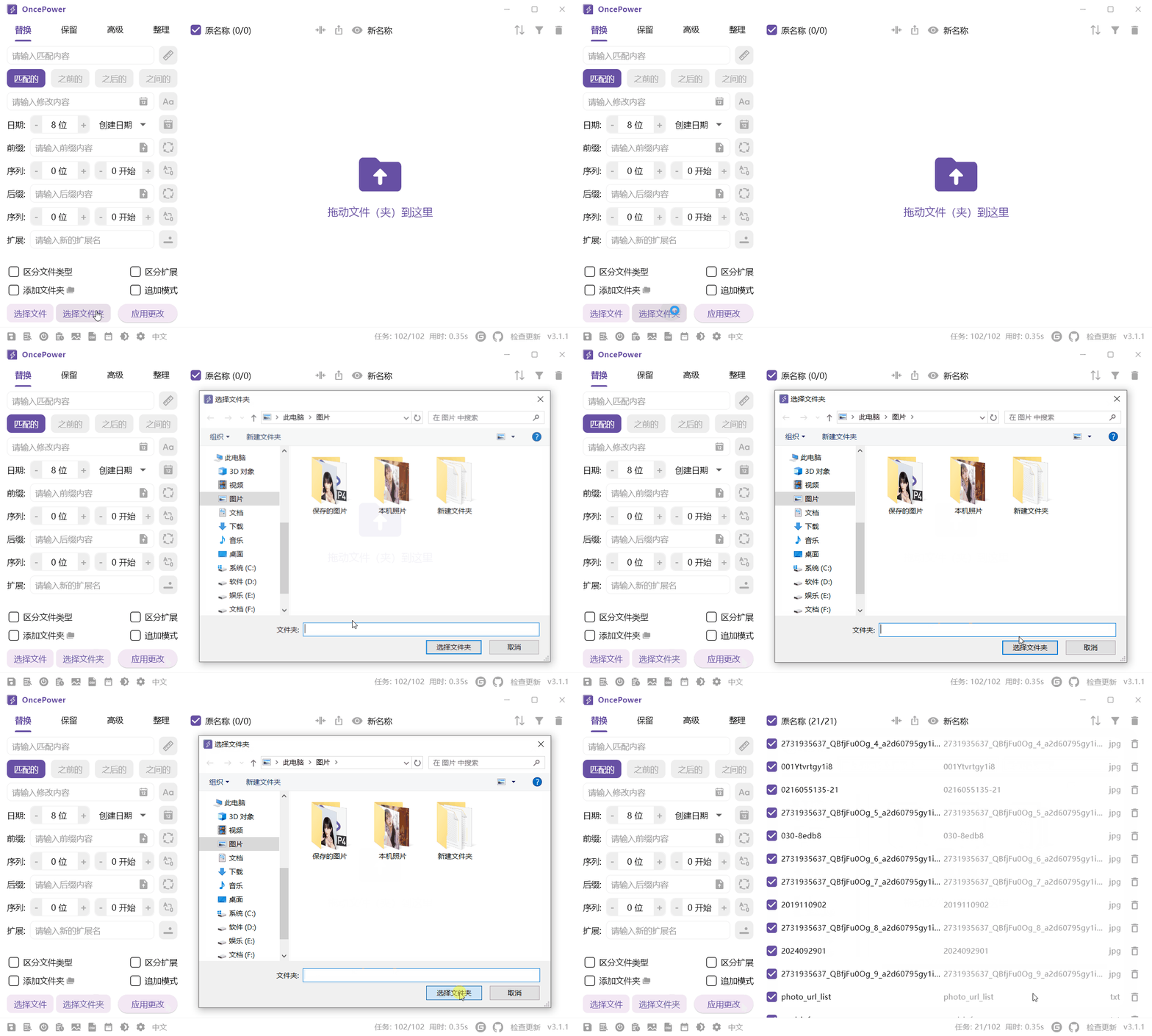
Add files via the button in the bottom left corner, or by dragging files directly into the software
Add Folders
By default, when selecting a folder, only the files under the folder are added

When "Add Folder" is selected, if a folder is added, the folder itself is added

Add an icon button next to the folder to add subfolders within the folder (excluding the folder itself)

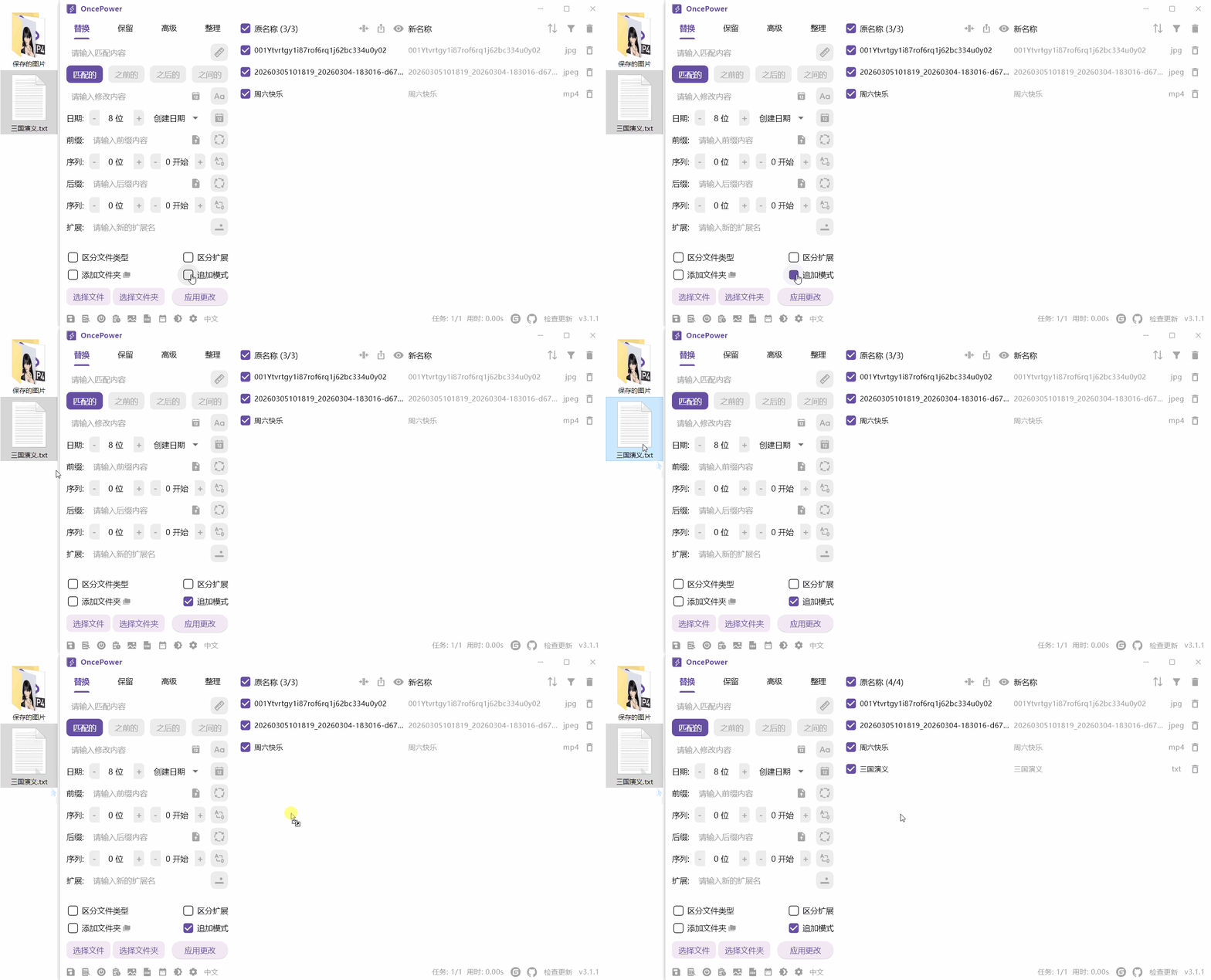
Append Mode
If Append Mode is not selected, newly added files will replace the original files
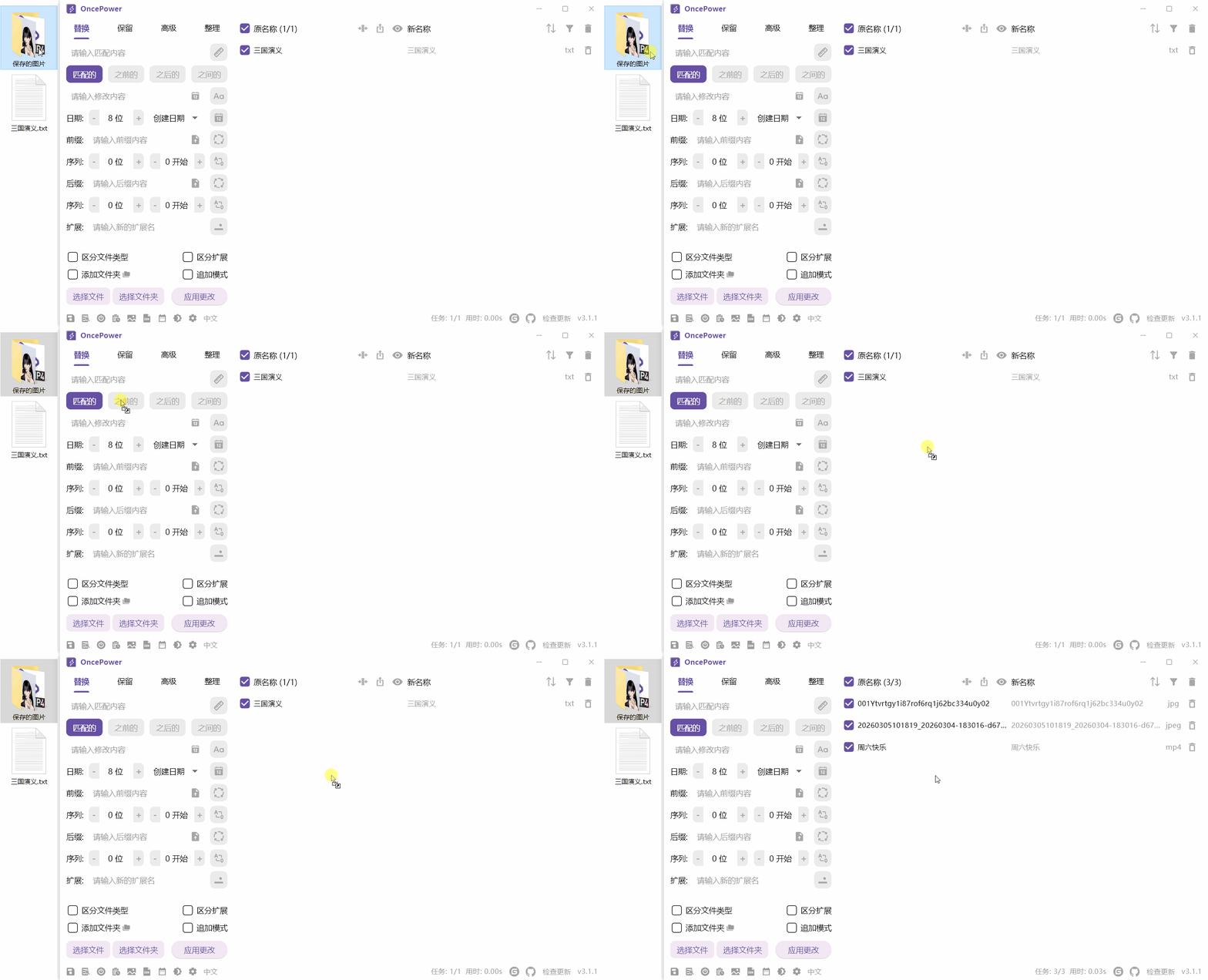
If Append Mode is selected, the previous files will not be removed
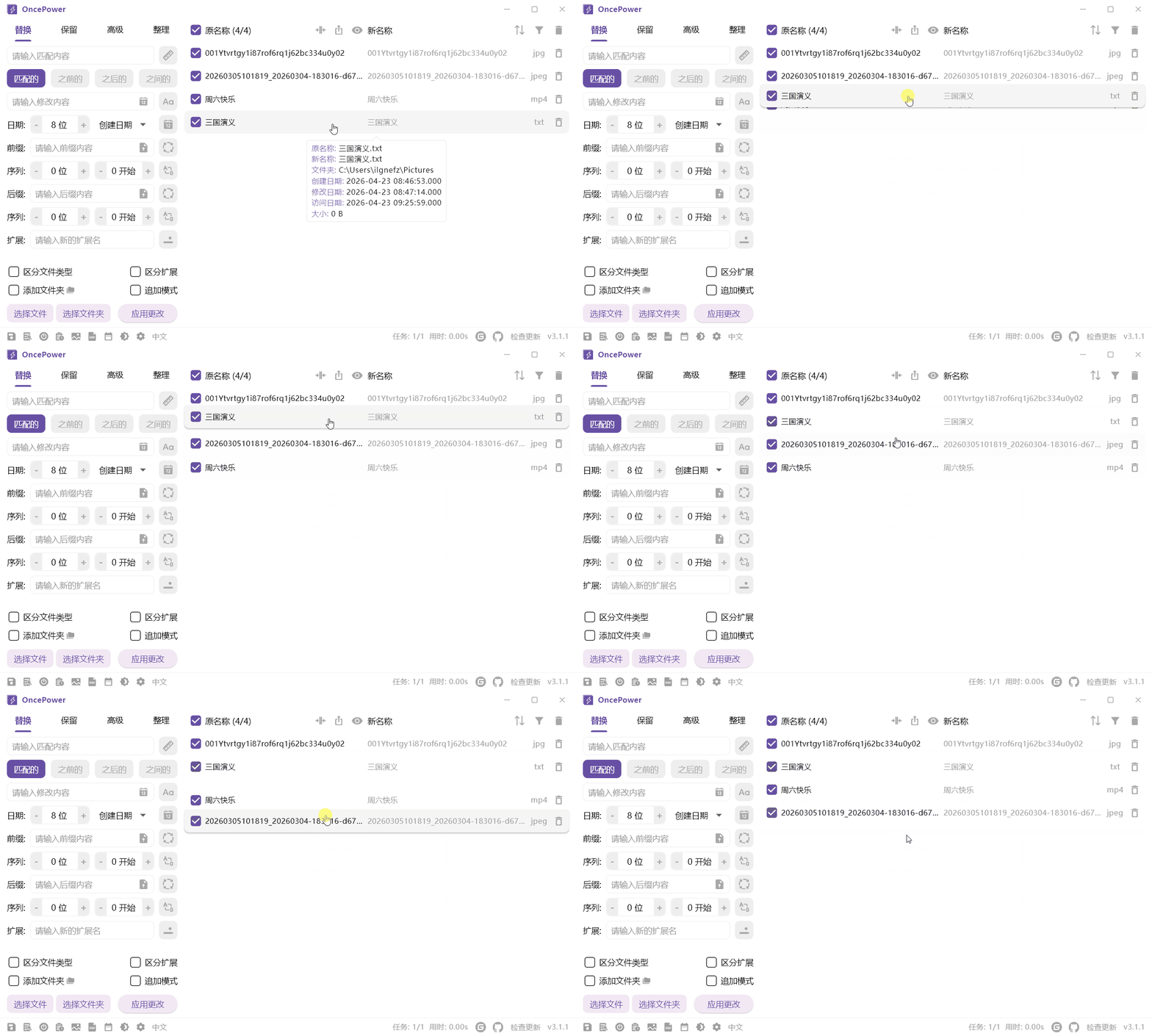
List Operations
You can quickly adjust the position of files by dragging list items
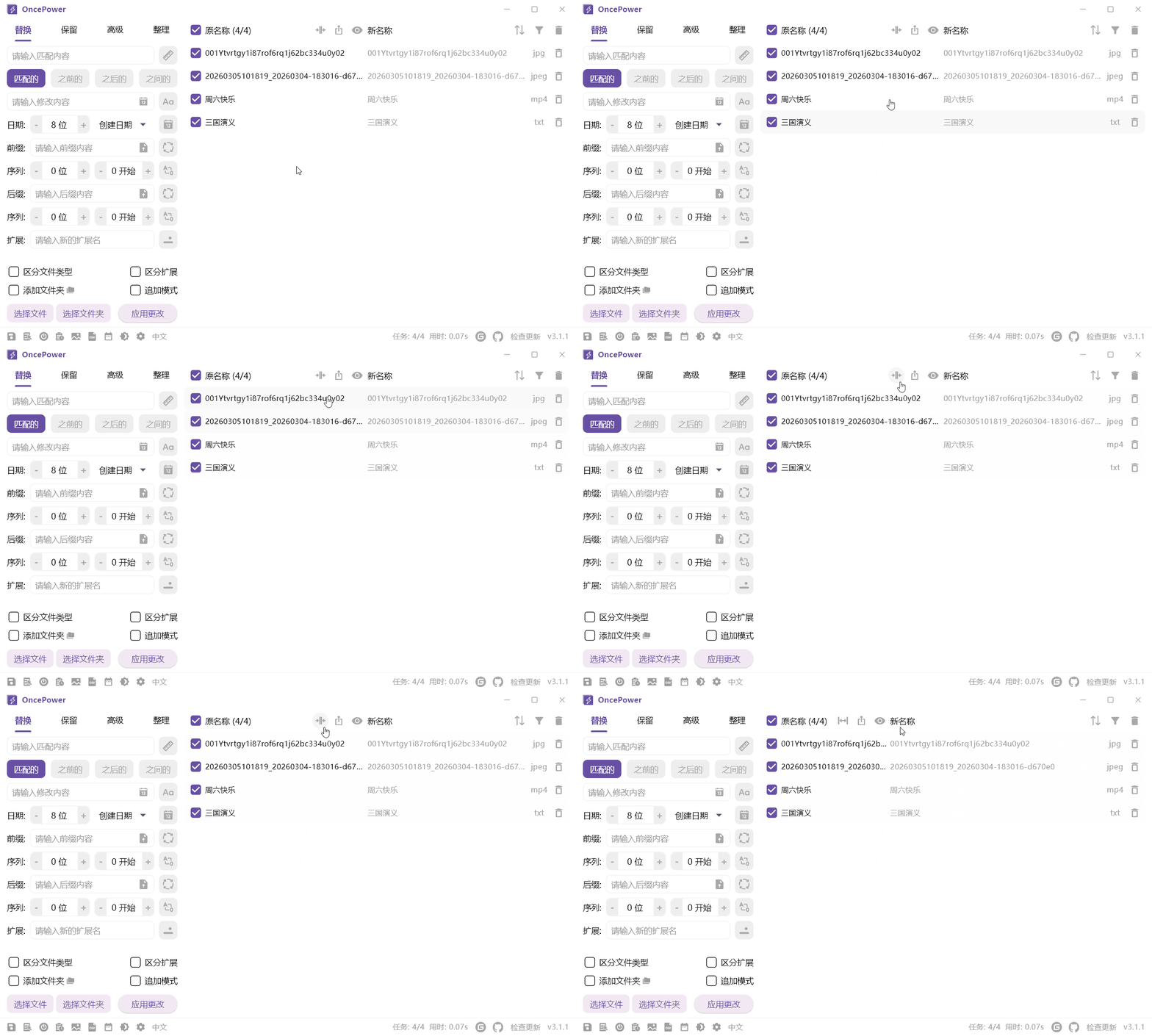
Collapse Original Names
If you feel the original names are too wide, you can collapse the width of the original name display
Export File Names
You can also export the names of files in the list. The exported format is CSV, with commas at the end
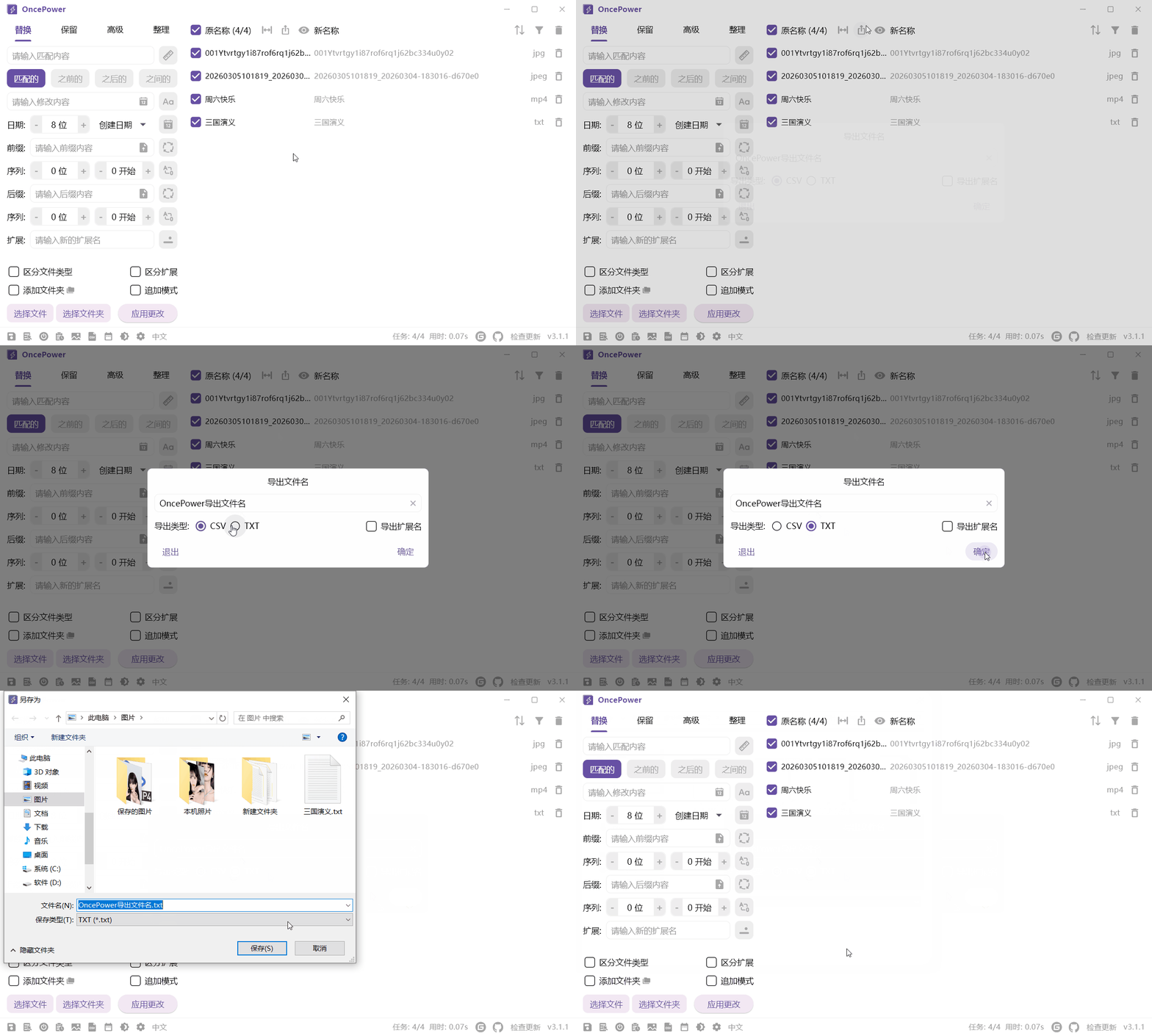
The exported file can be edited and then used to batch rename files by uploading the CSV file
List Item Right-Click Menu
If there are many items in the list, you can quickly move to the beginning or end via the right-click menu
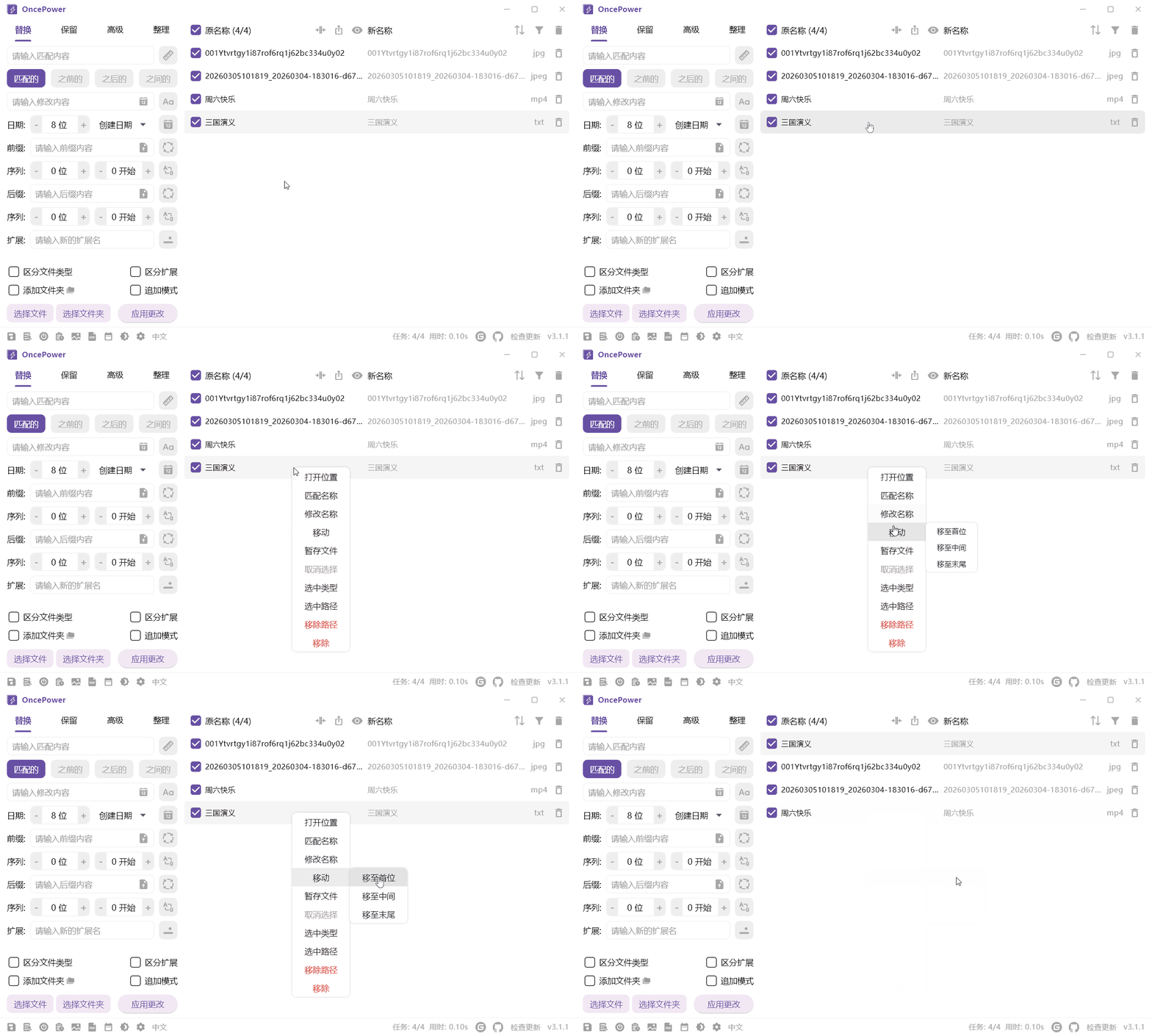
The right-click menu varies depending on the mode. You can experiment with each option yourself
View Mode
Click the icon button at the bottom to enable image and video preview. This feature will remove other types of files

You can double-click to preview large images

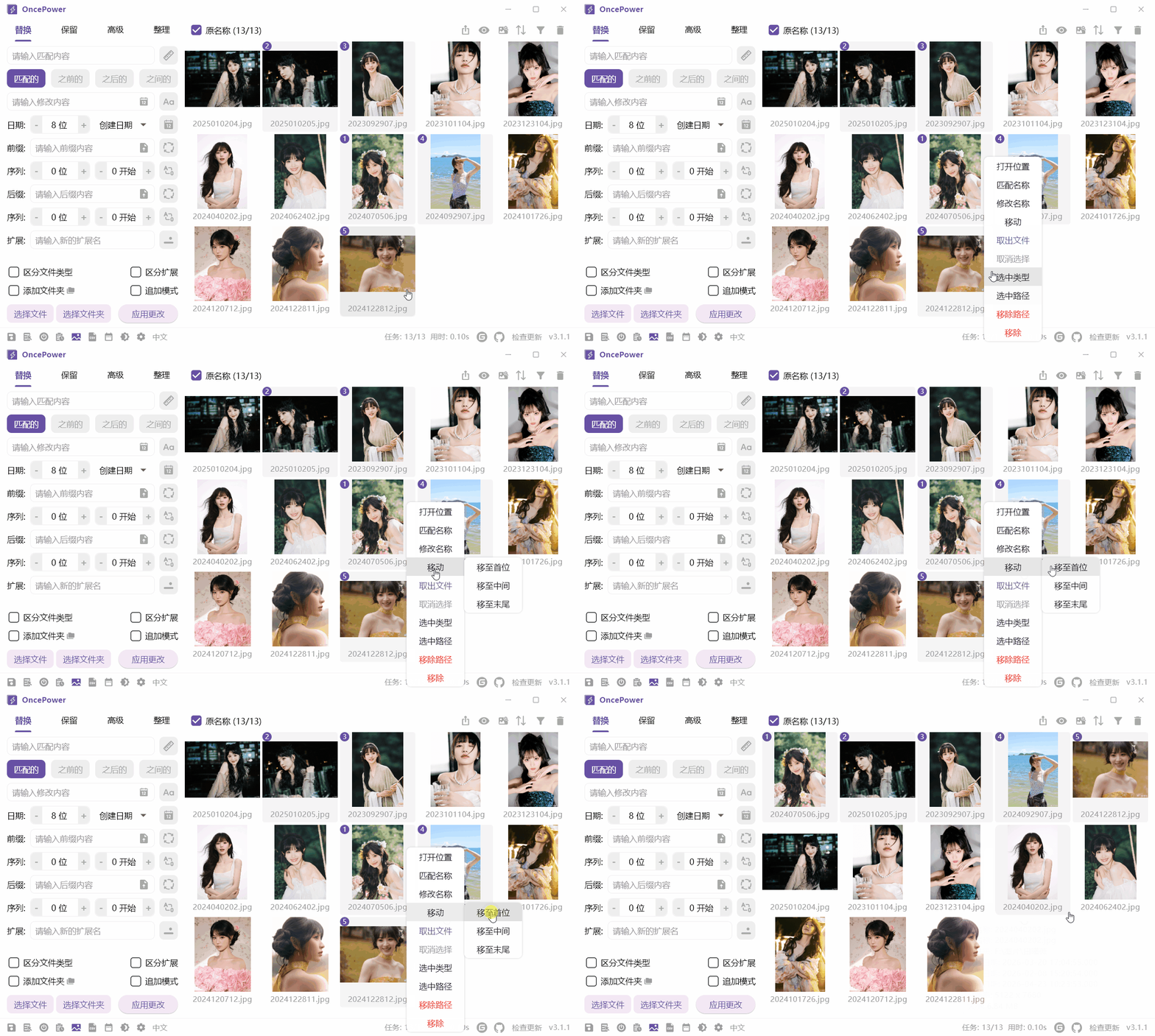
Multi-Select
You can use Ctrl and Shift with left mouse button to multi-select items in the list
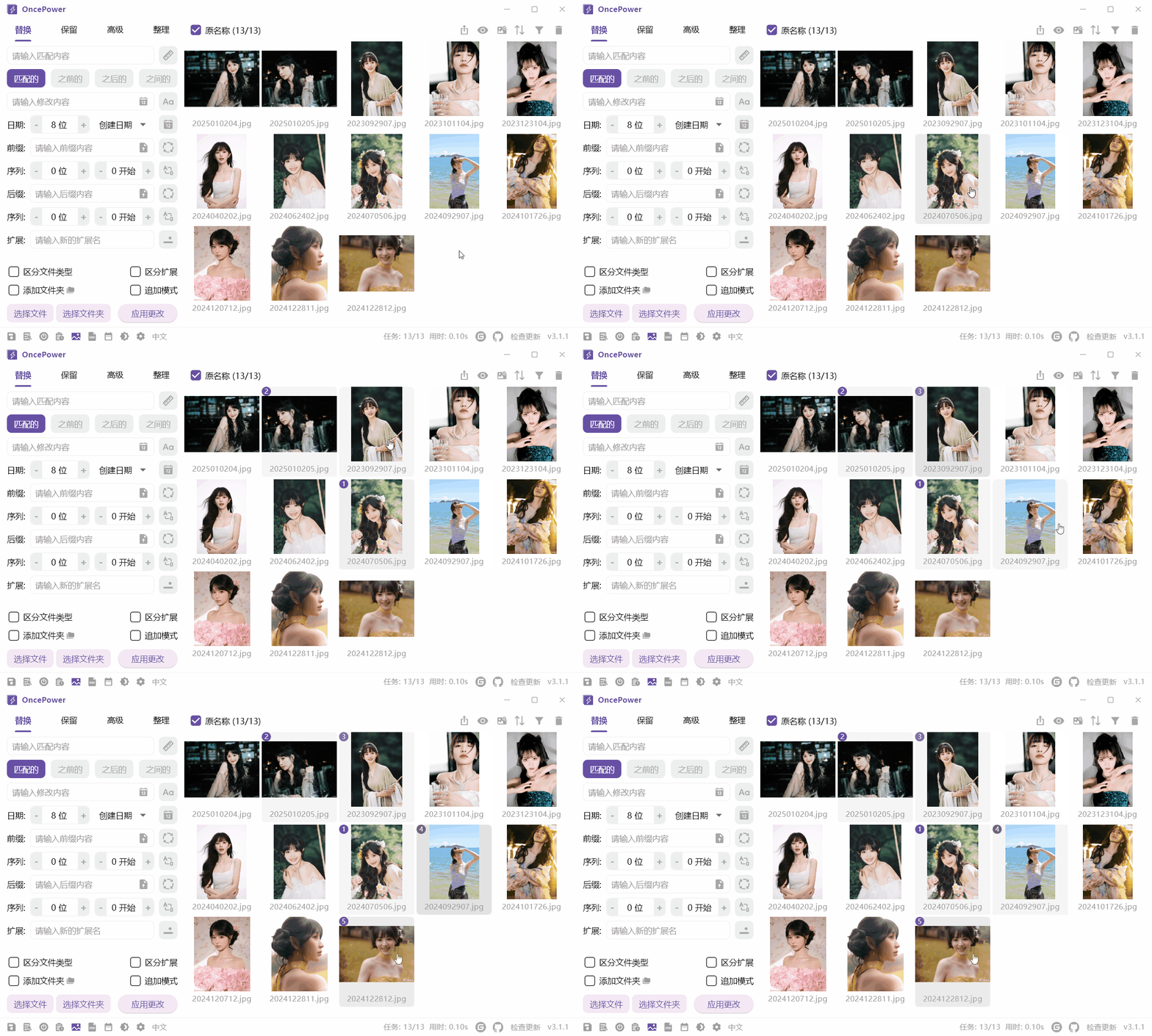
Selected files will have serial numbers in the top left corner. You can quickly sort images by moving them via the right-click menu
Stash Files
Since there is no feature to drag multiple files at once, a stash feature has been added
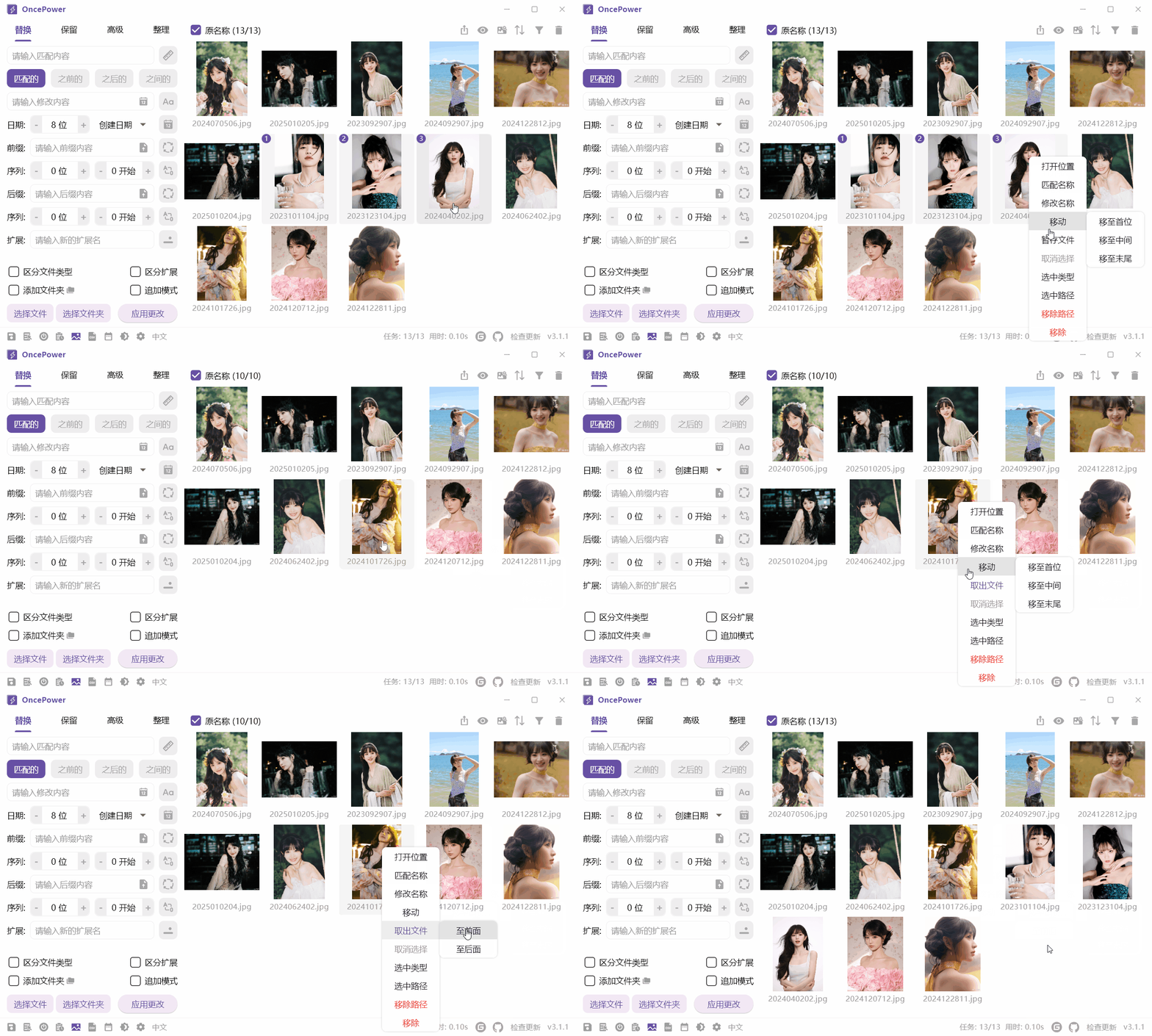
Groups
Groups are only available in Advance Mode and Organize Mode
You can apply different naming effects to files in different groups via group mode
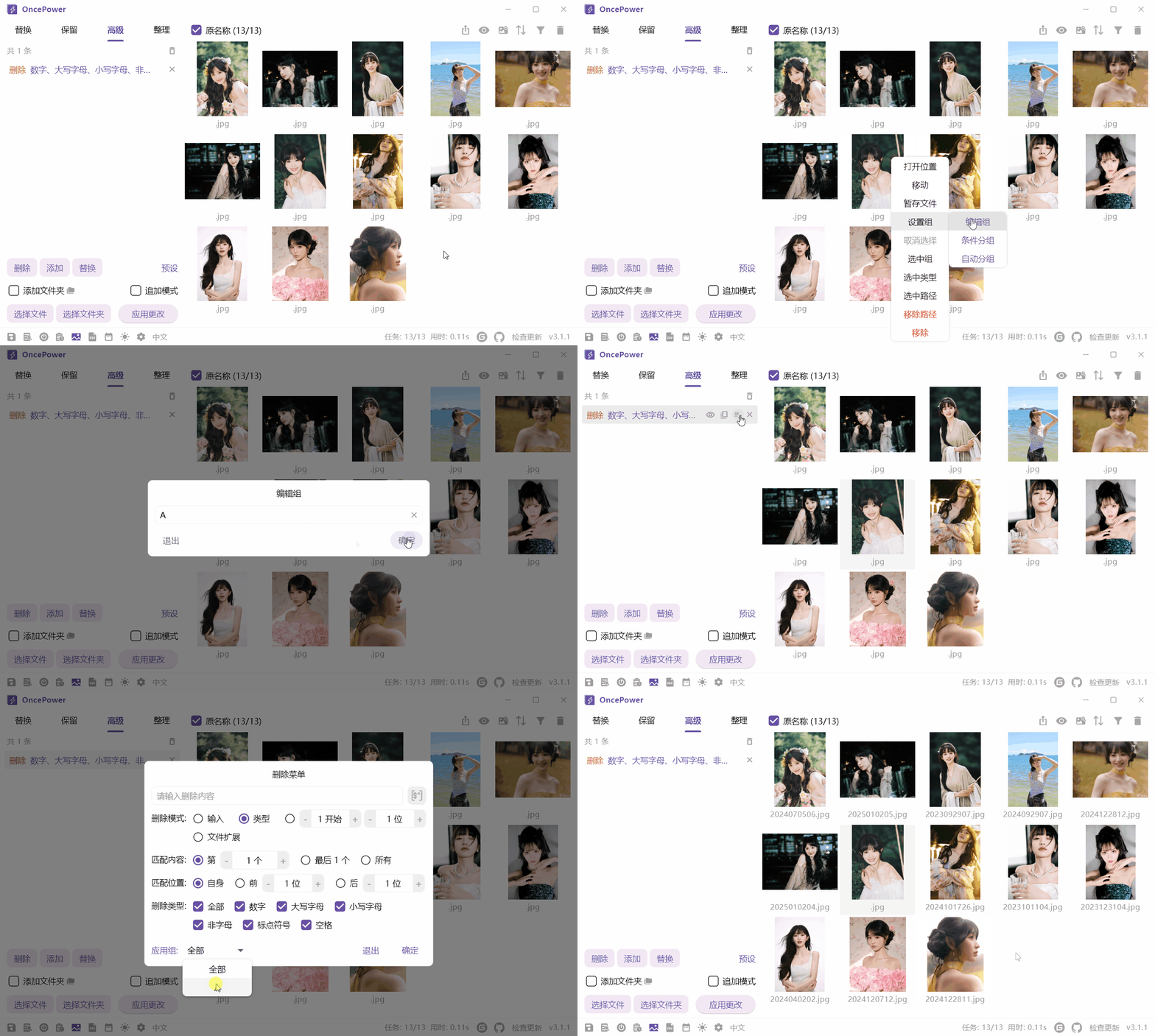
Toggle Display List
By default, all files in the list are displayed. If you only want to show files with new names or without new names, you can toggle via left and right mouse buttons
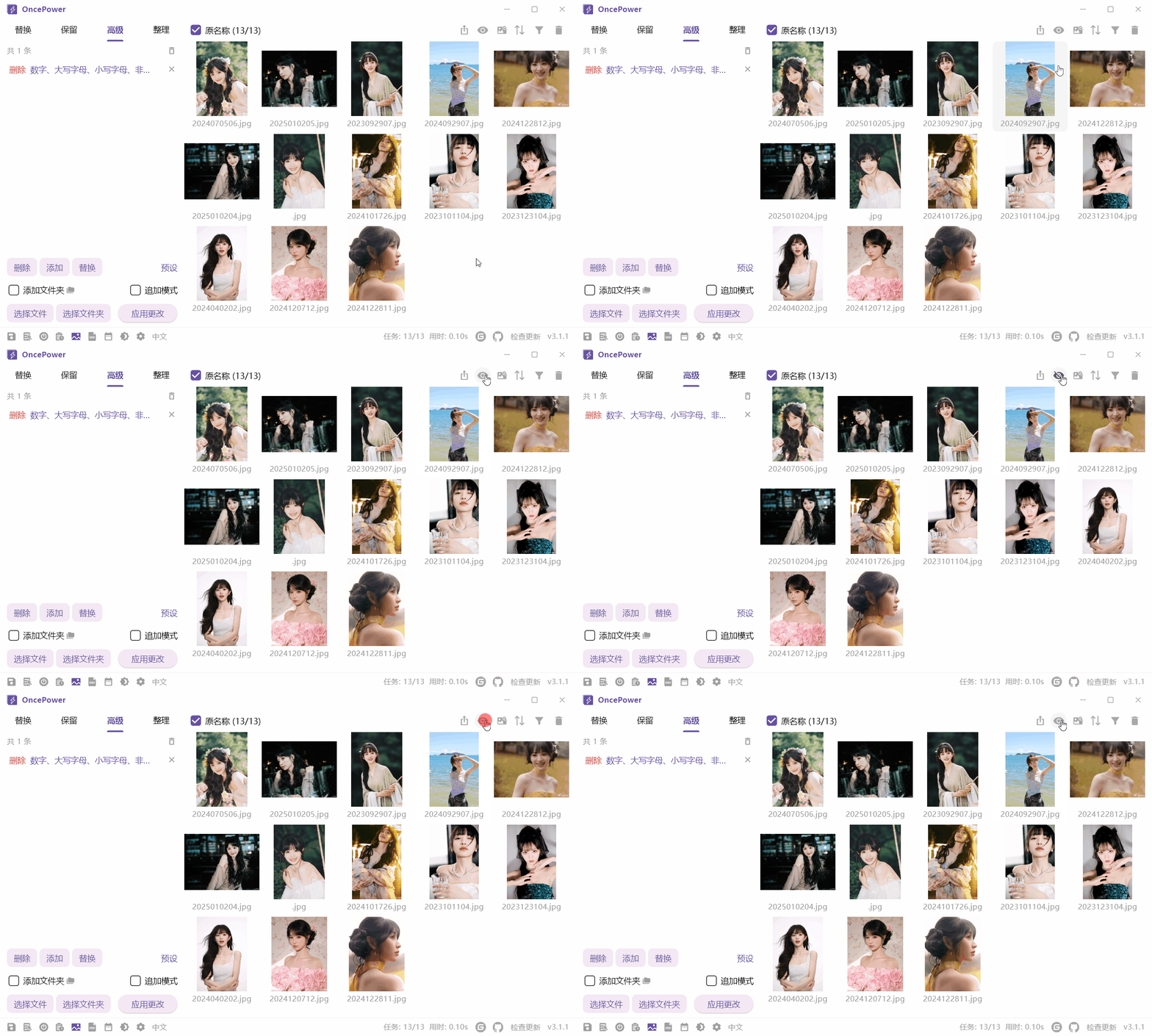
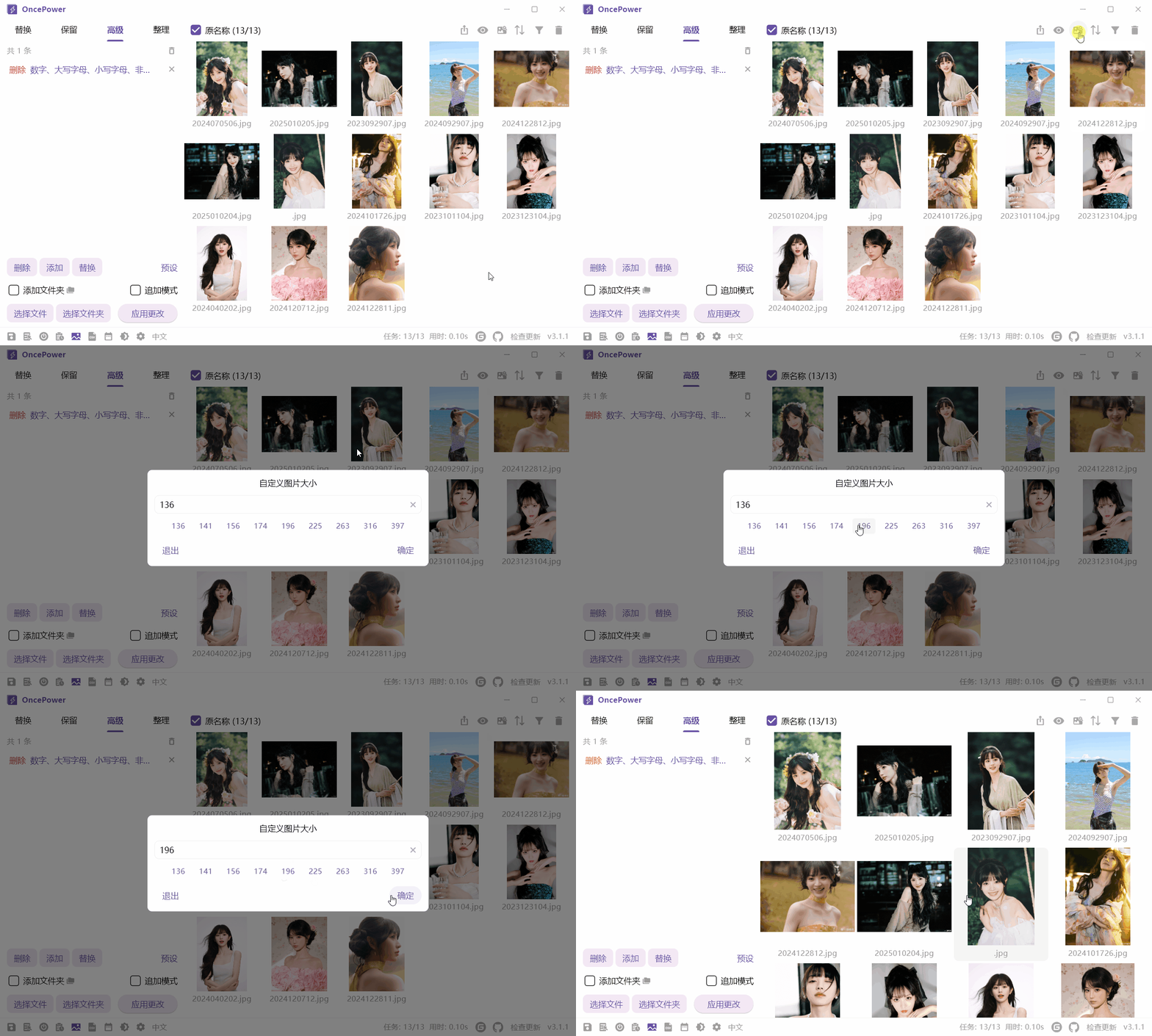
Change Image Display Size
If you are viewing preview images on a high-resolution screen and feel the images are too small, you can long-press the icon button in the top right corner of View Mode to change the width of the image display
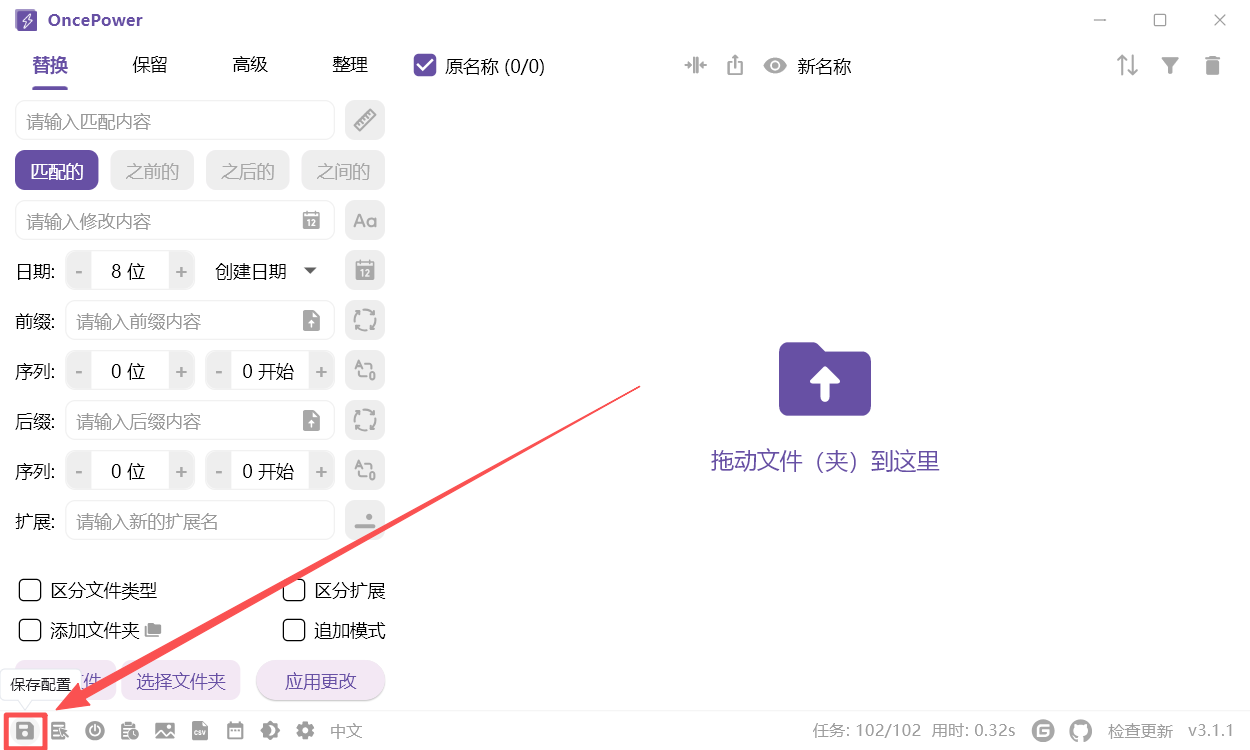
Save Configuration
By default, the software does not save any changes made by the user except for settings. When enabled, it can store the values of most input contents in each mode for direct use next time
System Right-Click Menu
Click the right-click menu icon button at the bottom

When enabled, you can add files via the right-click menu in File Explorer

Due to Windows system limitations, only one file path can be passed at a time. This feature can only select folders when the program is not running. You can use it with the "Start on Boot" button next to it. Of course, if you want to pass multiple file or folder paths, you can place a shortcut to this software in the "Send To" folder, so you can also pass multiple files without starting the software.
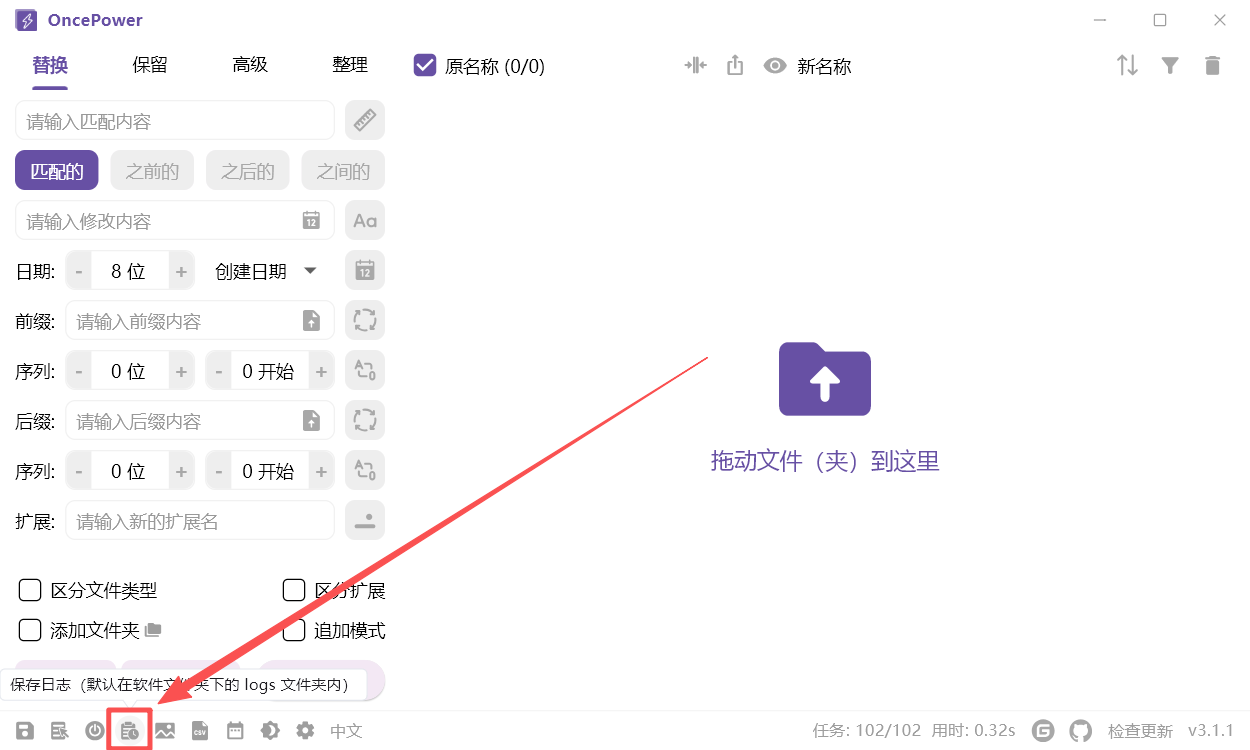
Save Logs
Click the Save Logs button at the bottom. When enabled, it will save data before and after renaming. The files will be saved in the logs folder under the software directory
Replace and Reserve Modes
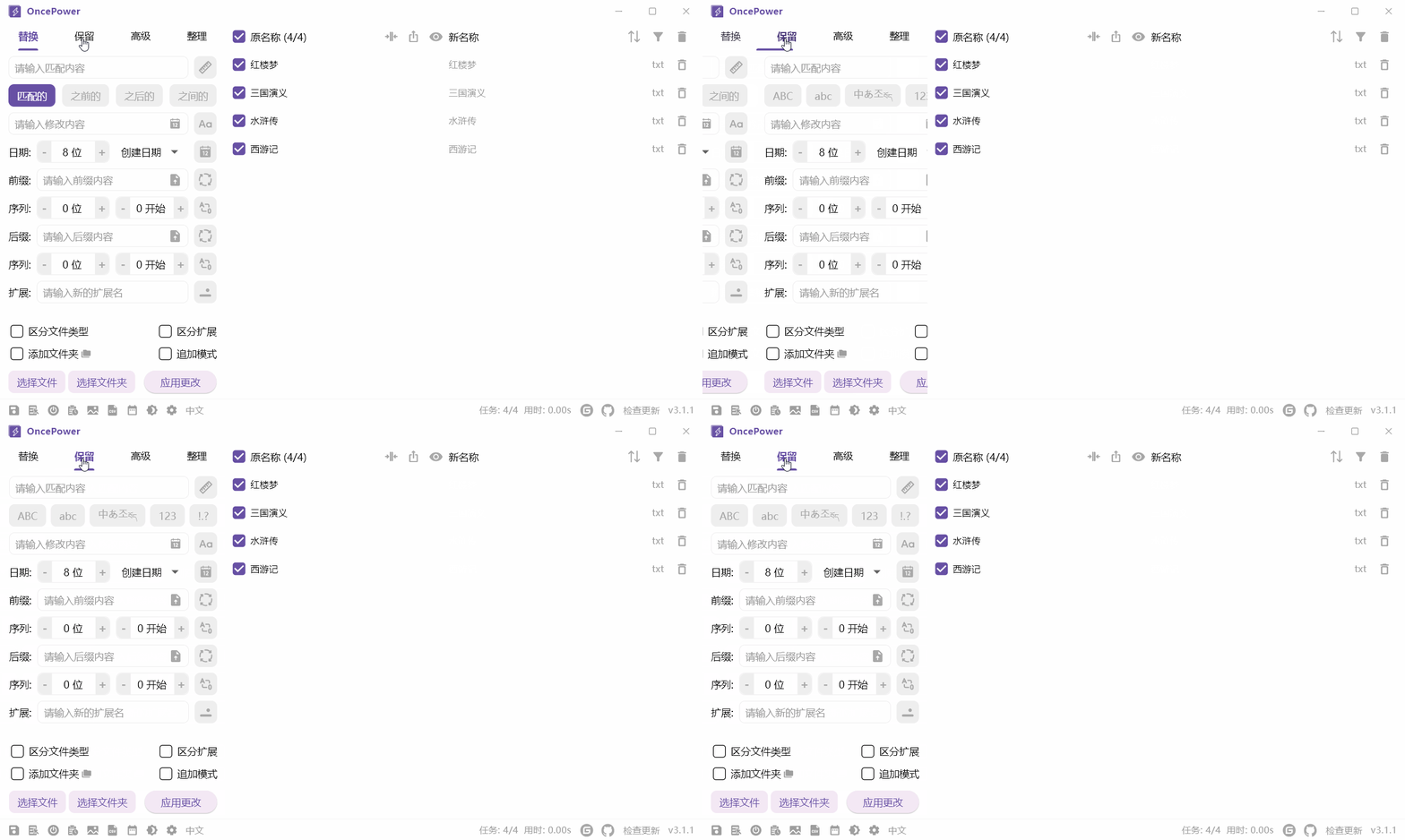
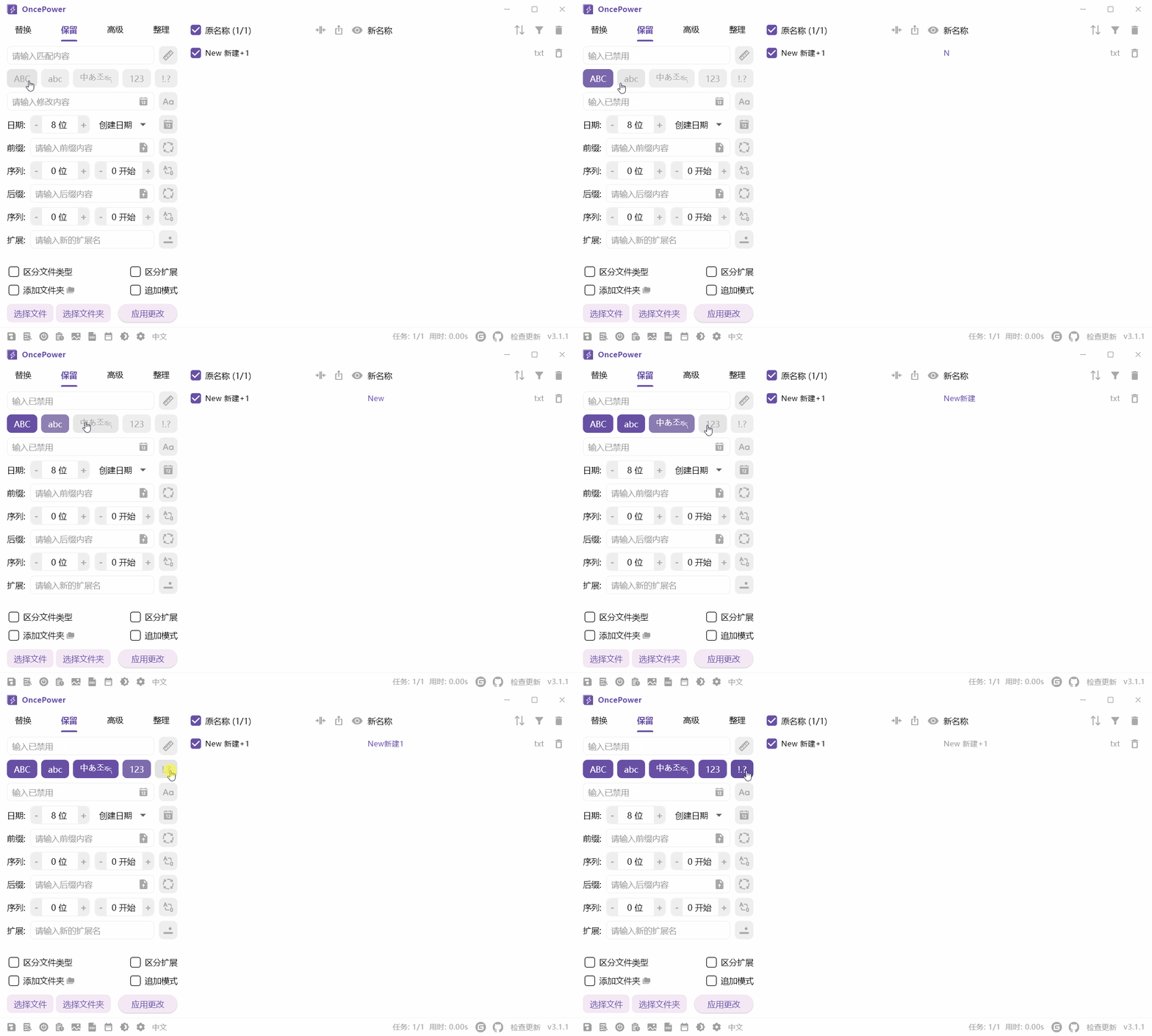
Main Differences Between Replace and Reserve Modes
Default State
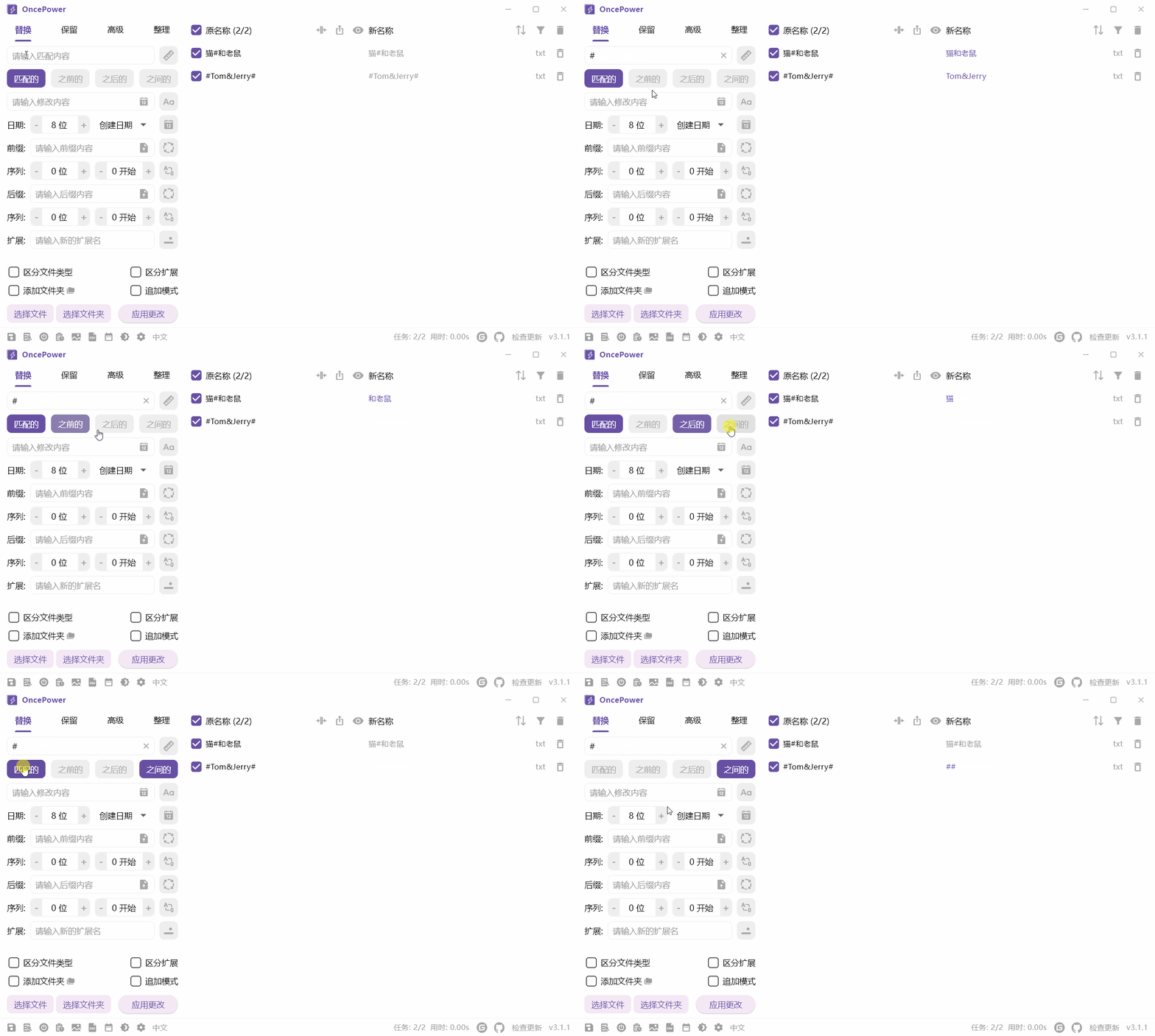
Match Content
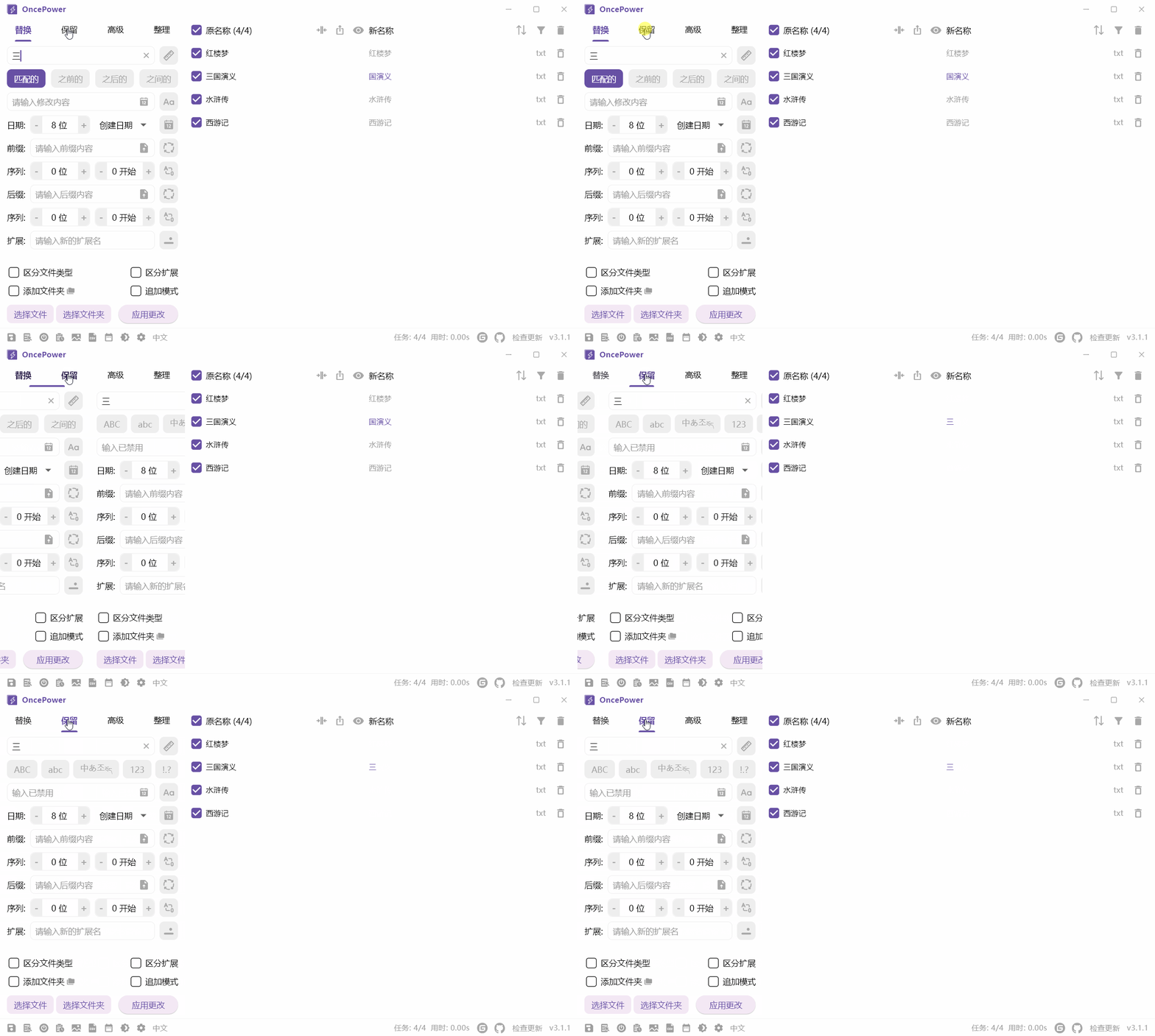
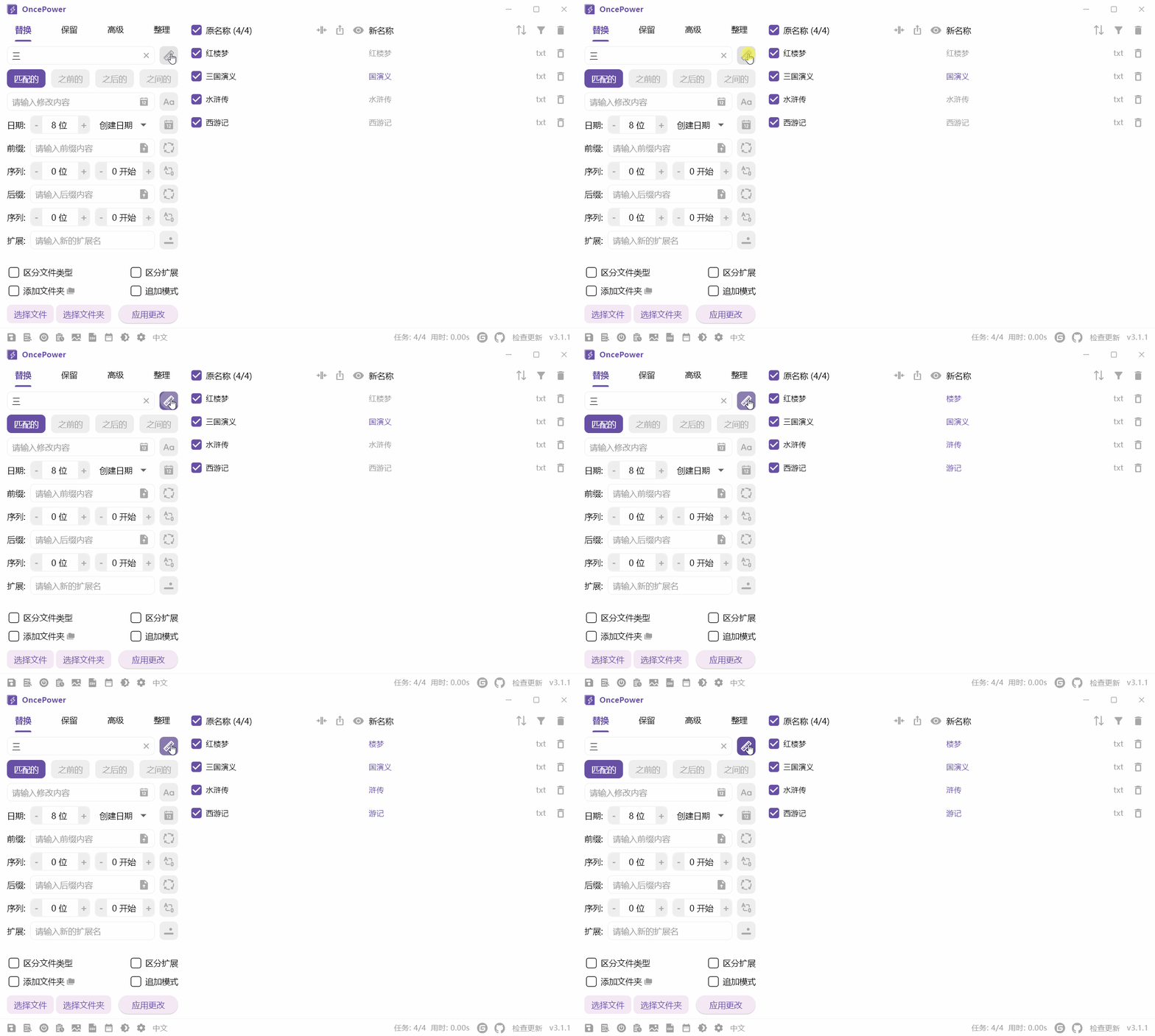
When the button to the right of the match input box is lit, it becomes match length:
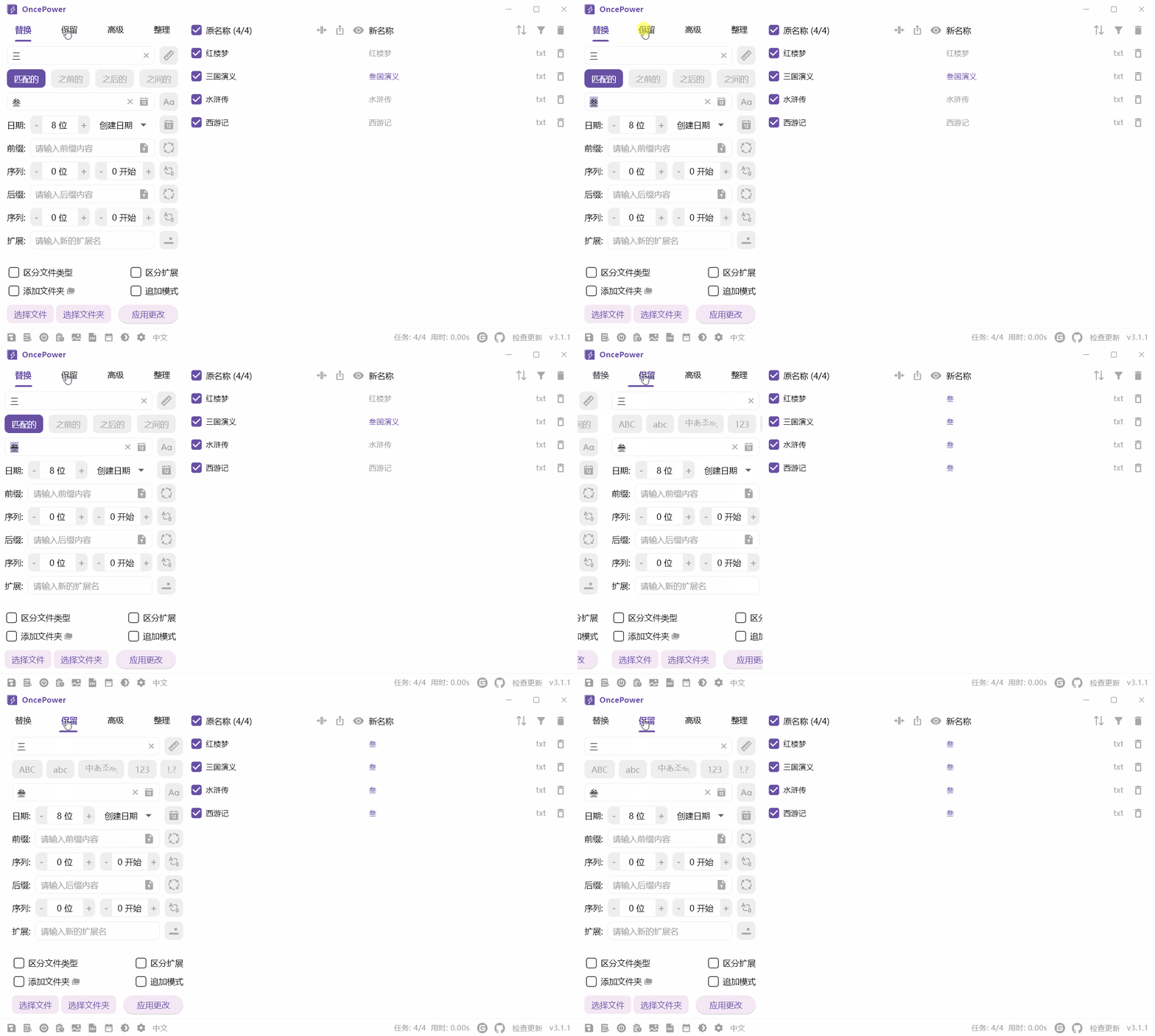
Modify Content
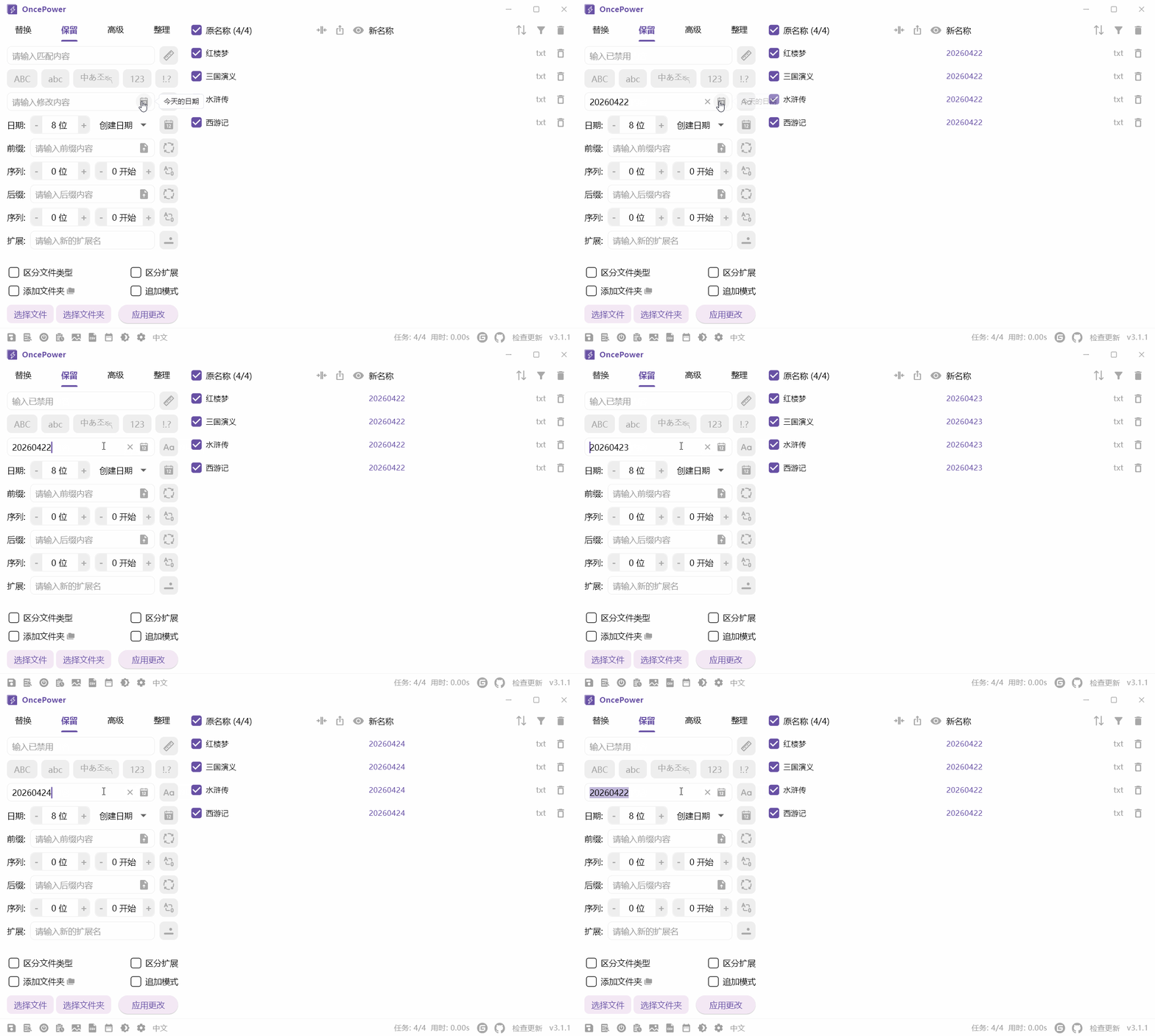
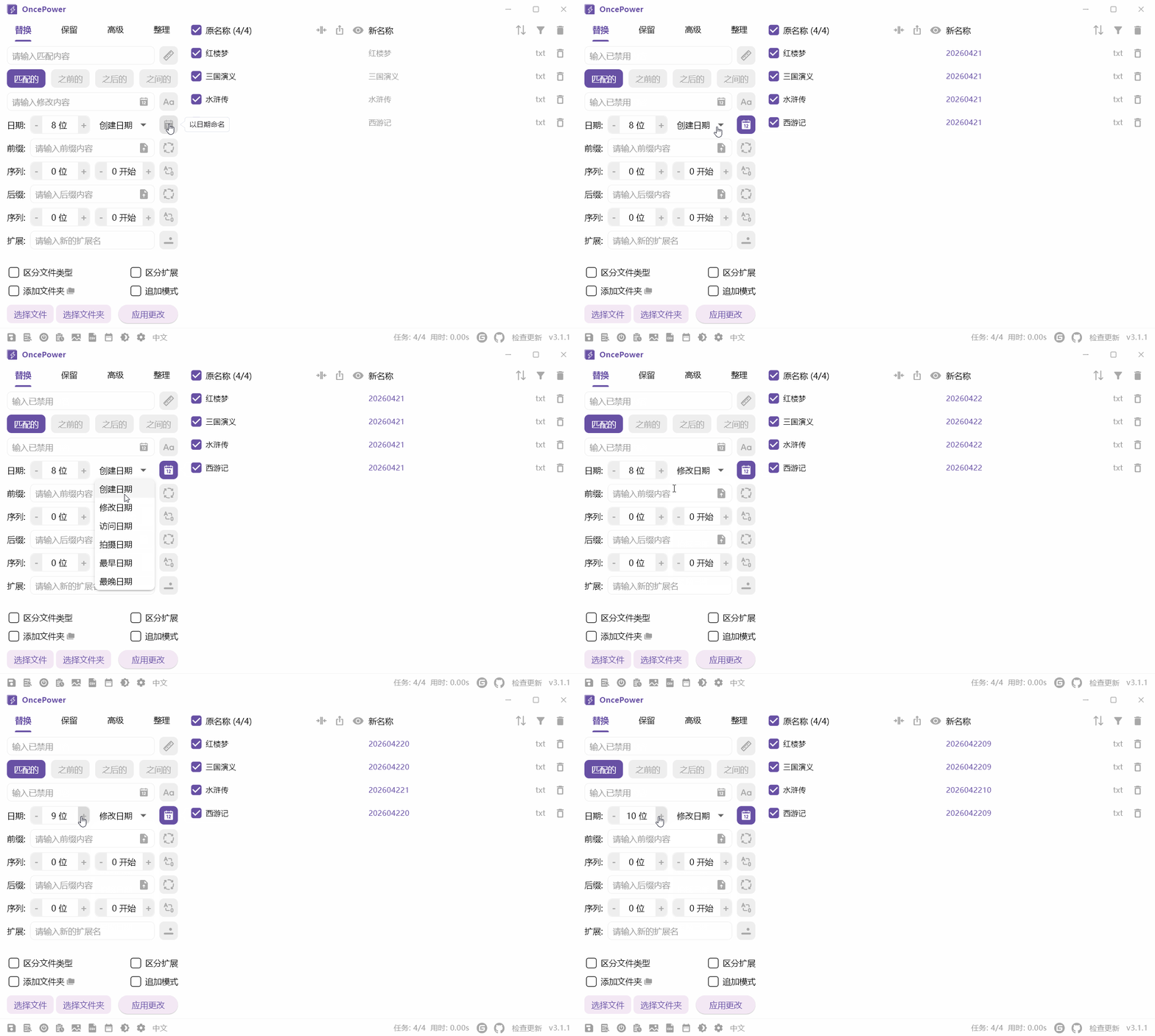
There is a date button in the modify input box. Clicking it will automatically fill in today's date. You can also use the up and down keys to adjust the date (the adjustment is for numbers, so 20260401 minus 1 becomes 20260400):
When the button to the right of the modify input box is lit, it becomes case-insensitive:
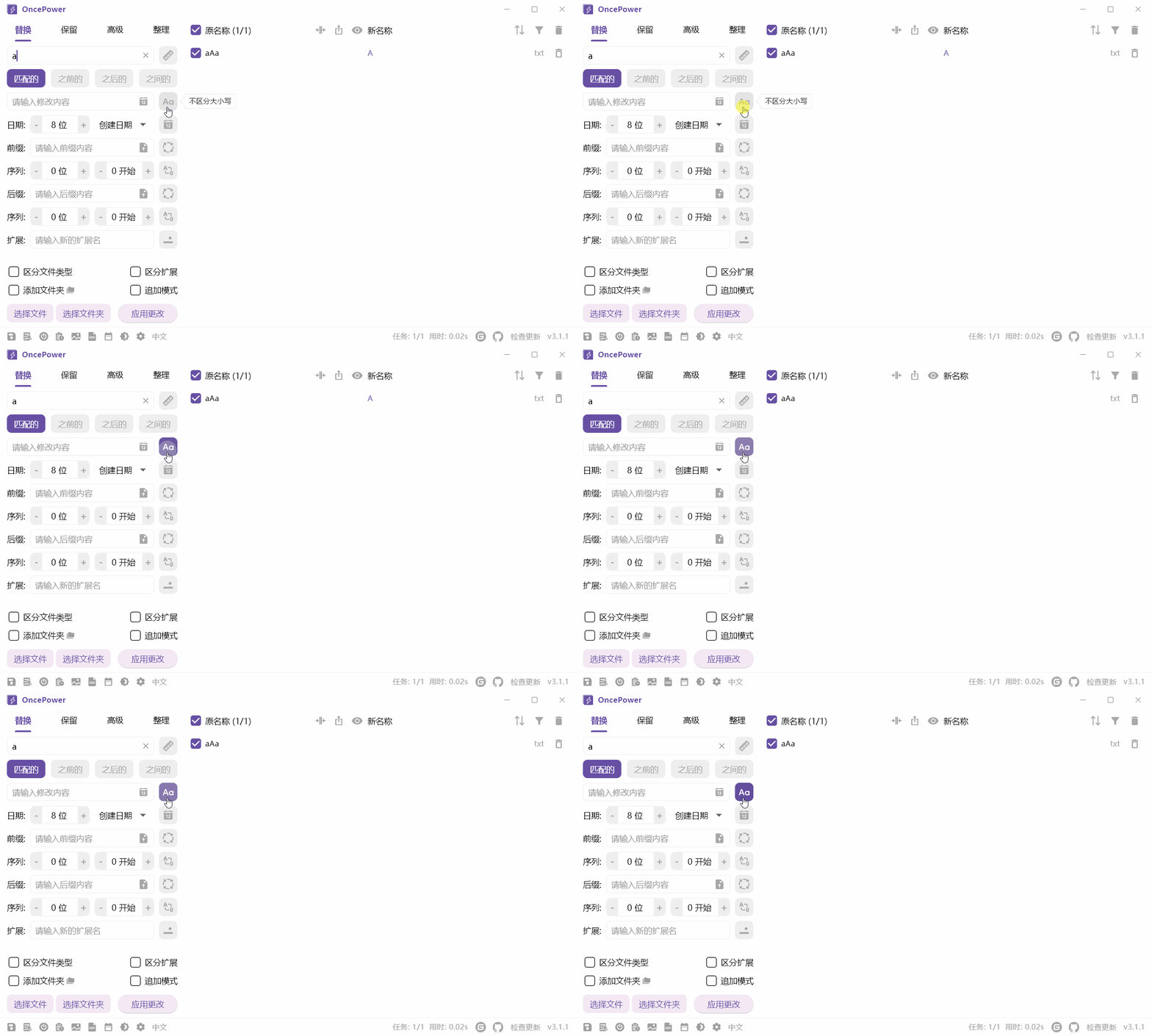
Replace Mode Match Features
Reserve Mode Match Features
Date Naming
Click the rightmost button of the date item to rename using file date
Prefix and Suffix
Via input

Via file upload

You can also directly edit the content uploaded from the file (this will not change the file itself)

The same operation applies to suffixes
Sequence

The same operation applies to suffix sequences
Extension
Batch modify file extensions

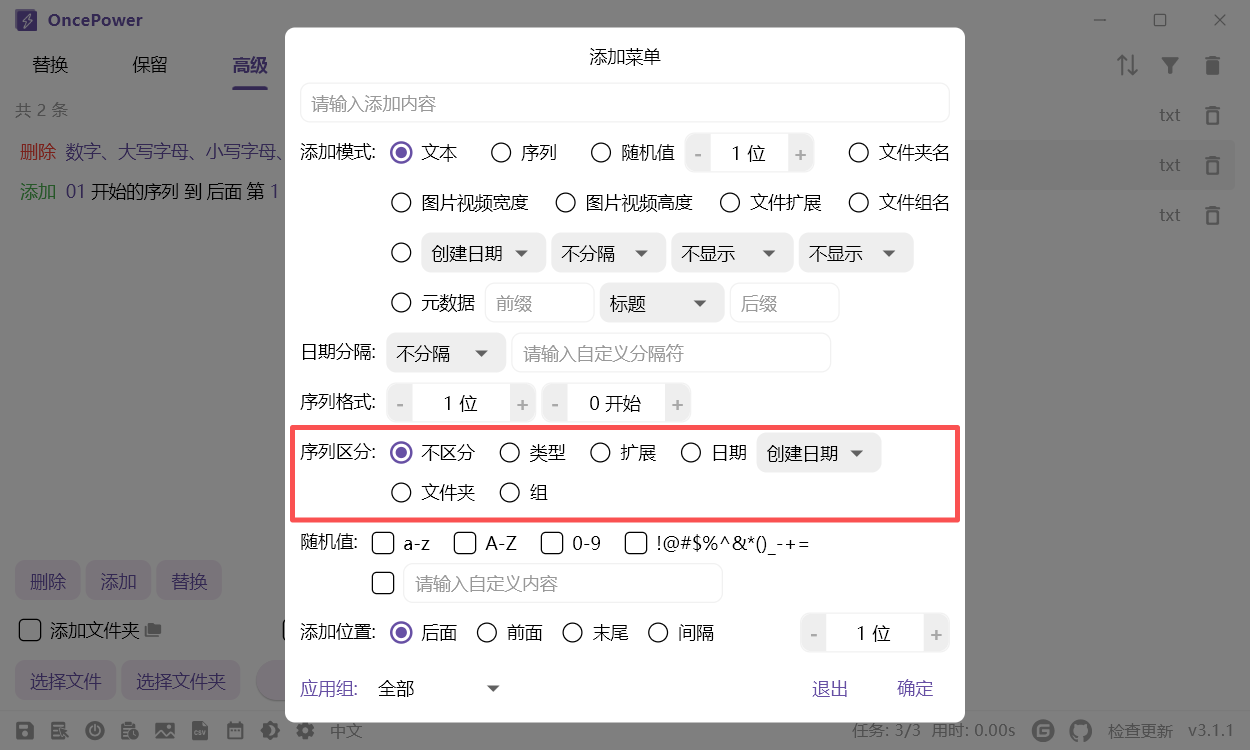
Distinction Options
Add sequences by category

If using date naming, files with the same date will be added as a sequence group, and sequences will be added by file type and extension
CSV File Naming
Click the Upload CSV File button at the bottom to upload CSV files, or TXT files in CSV format, or log files generated by this software to batch rename files

Modify File Date
Click the Modify Date button at the bottom

If an interval value other than 0 is selected, the date will be incremented or decremented according to the file order
Advance Mode
Delete
Text

You can also delete the Nth matched value

You can also perform more detailed matching and deletion based on the following options
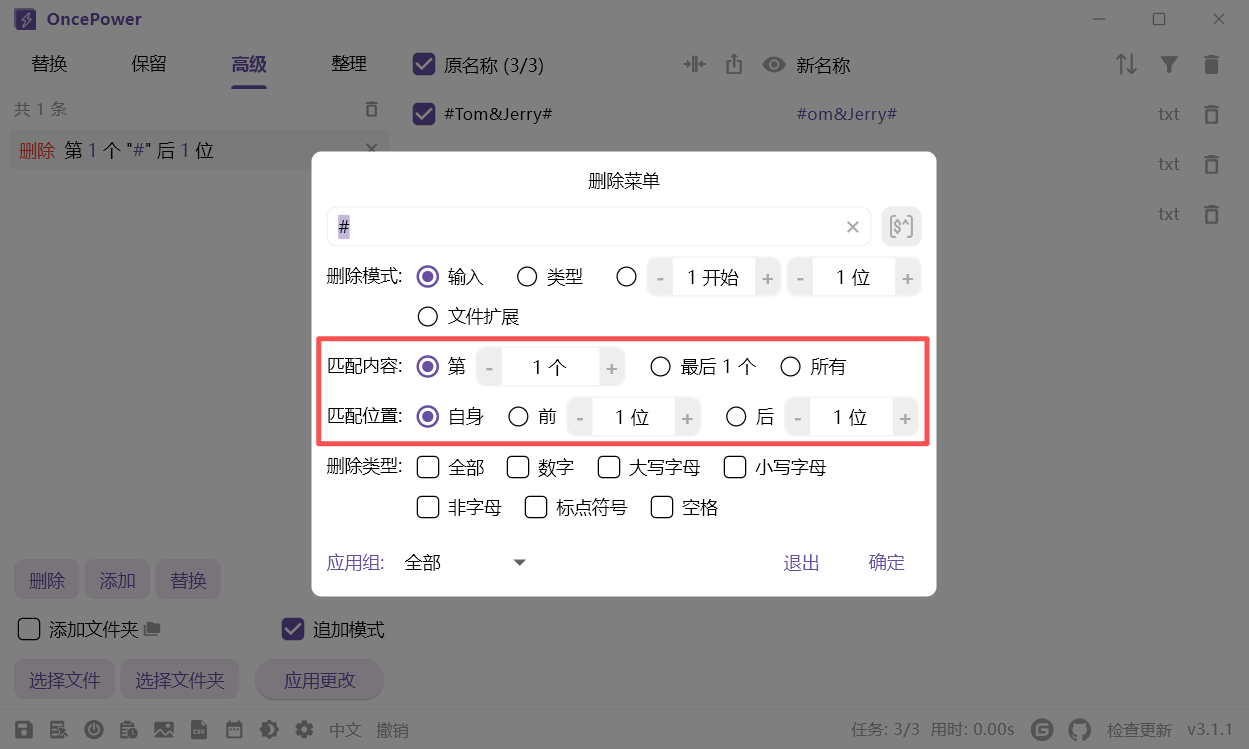
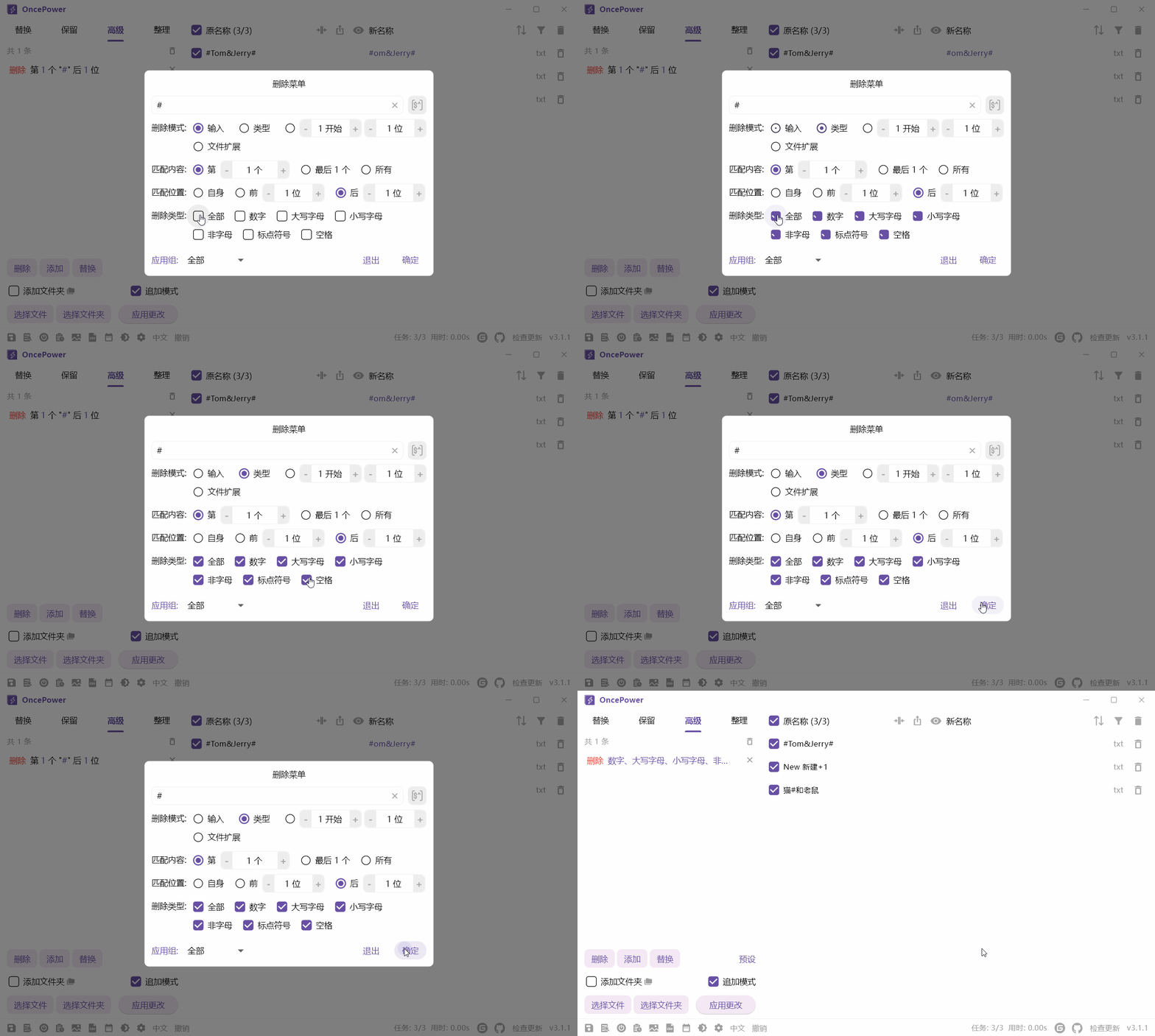
Type
You can also delete specific types without entering anything
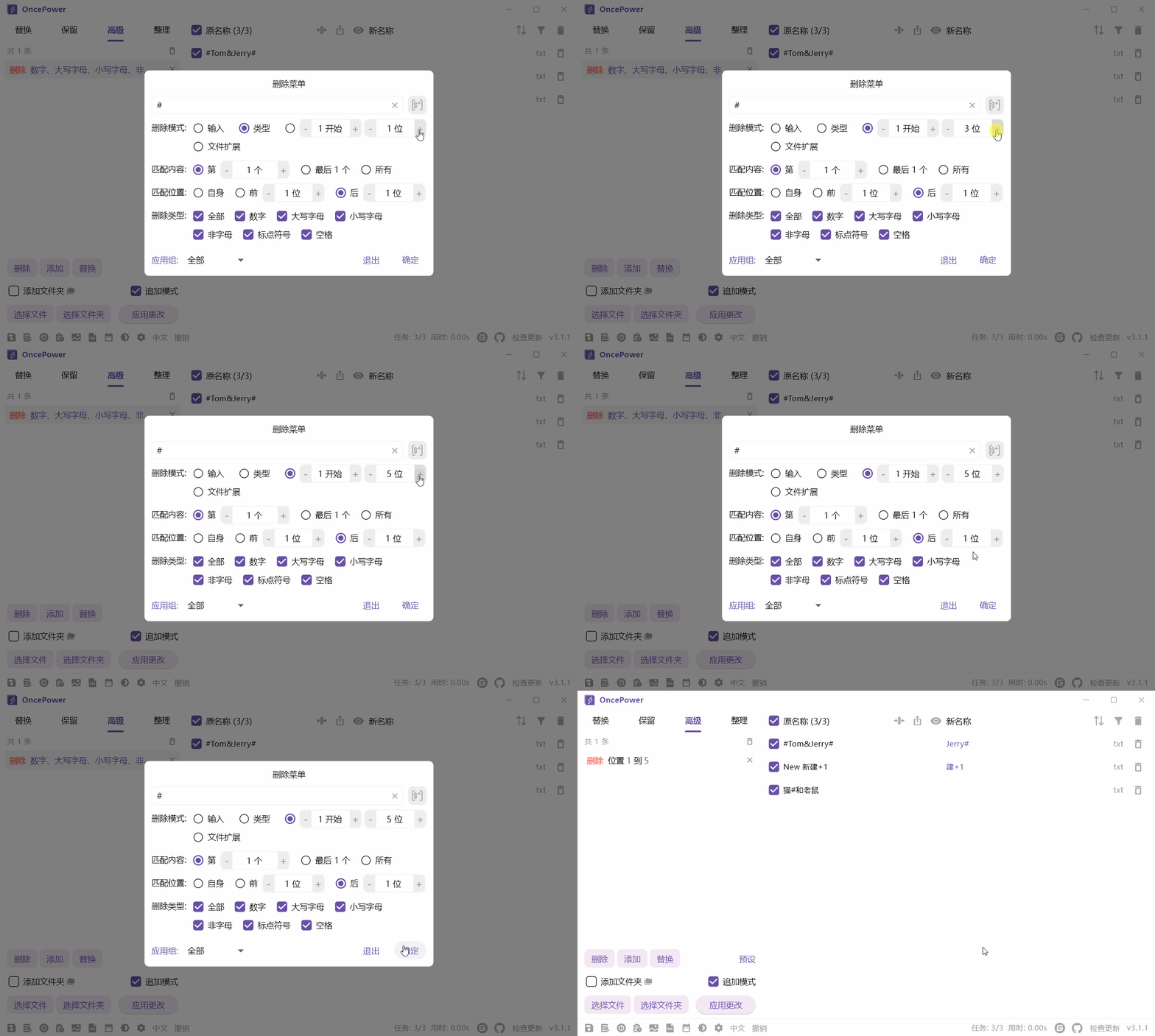
Position
Delete content at a specified position
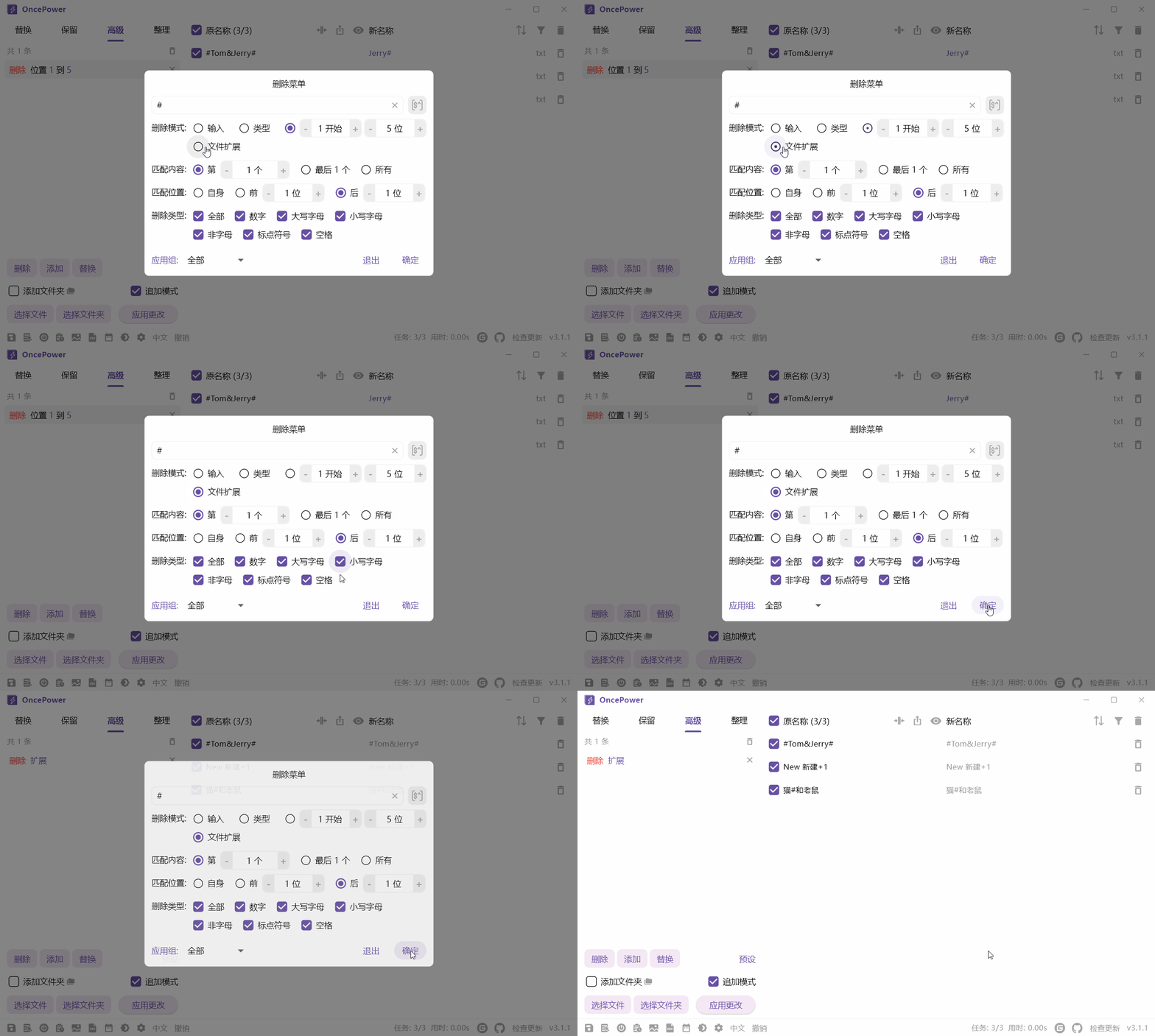
Extension
You can also delete file extensions
Add
Text
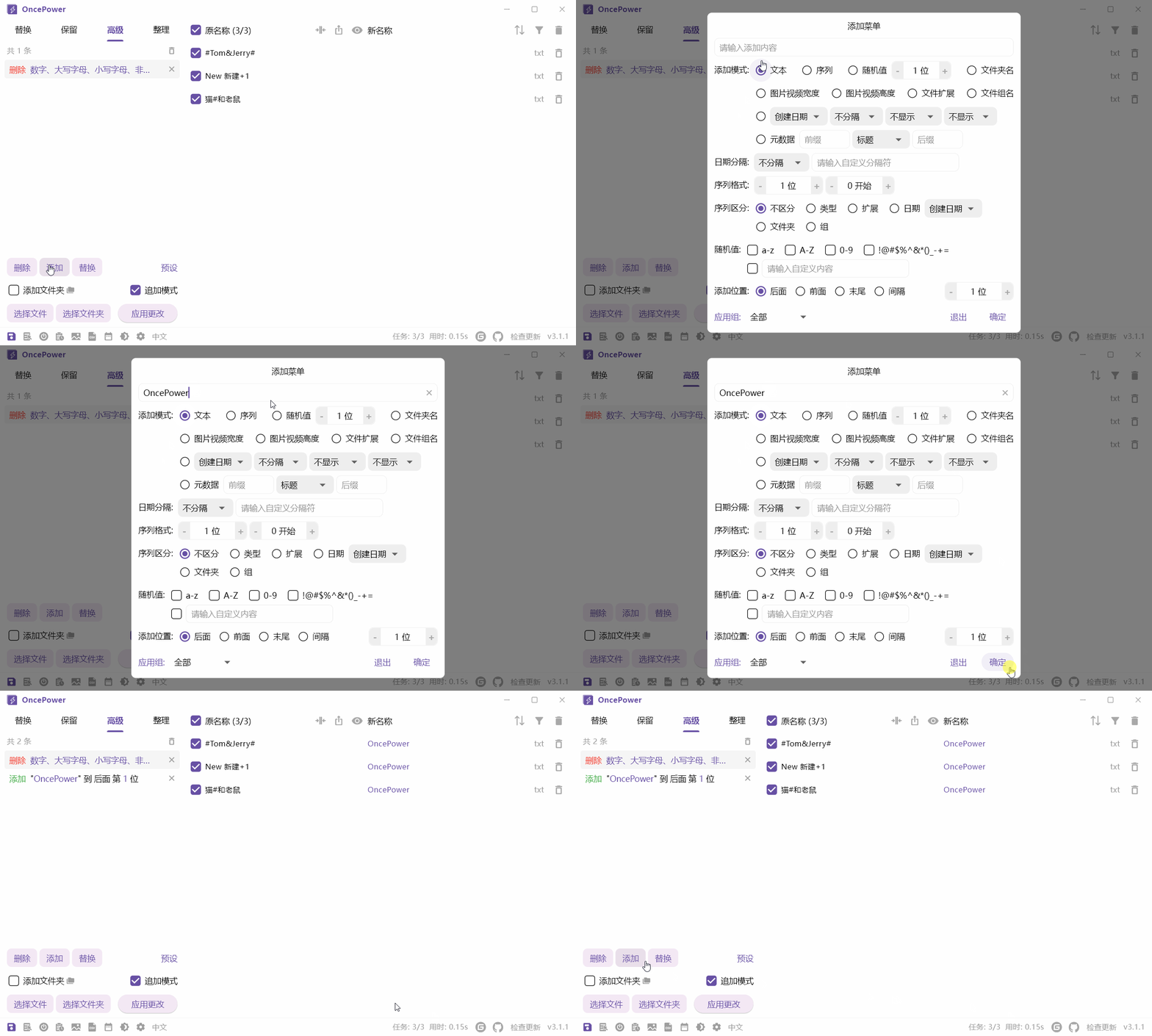
Sequence
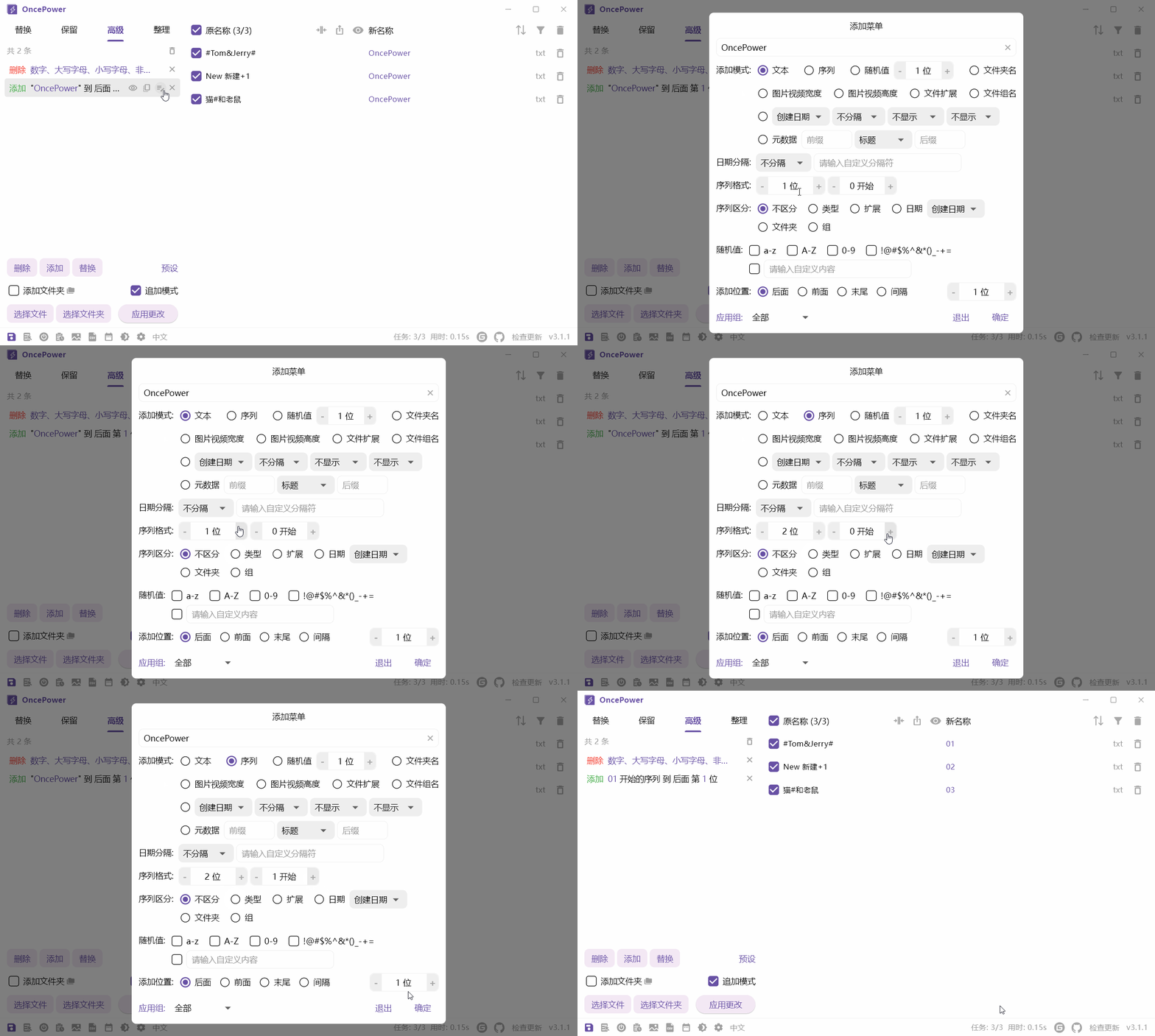
Advance Mode has more precise sequence control than Replace and Reserve modes
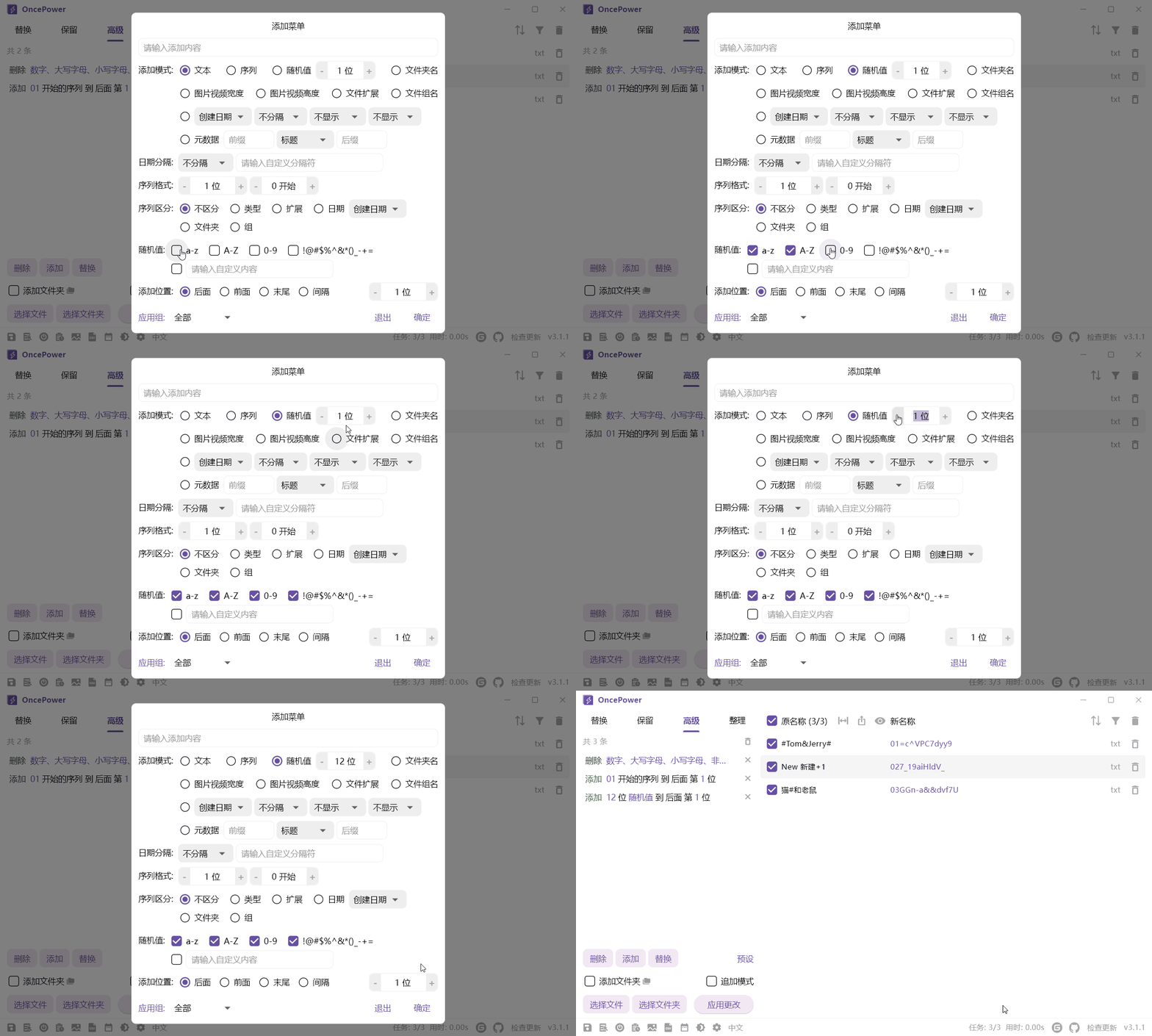
Random Number
Other
There are other types that can be added, which will not be demonstrated here
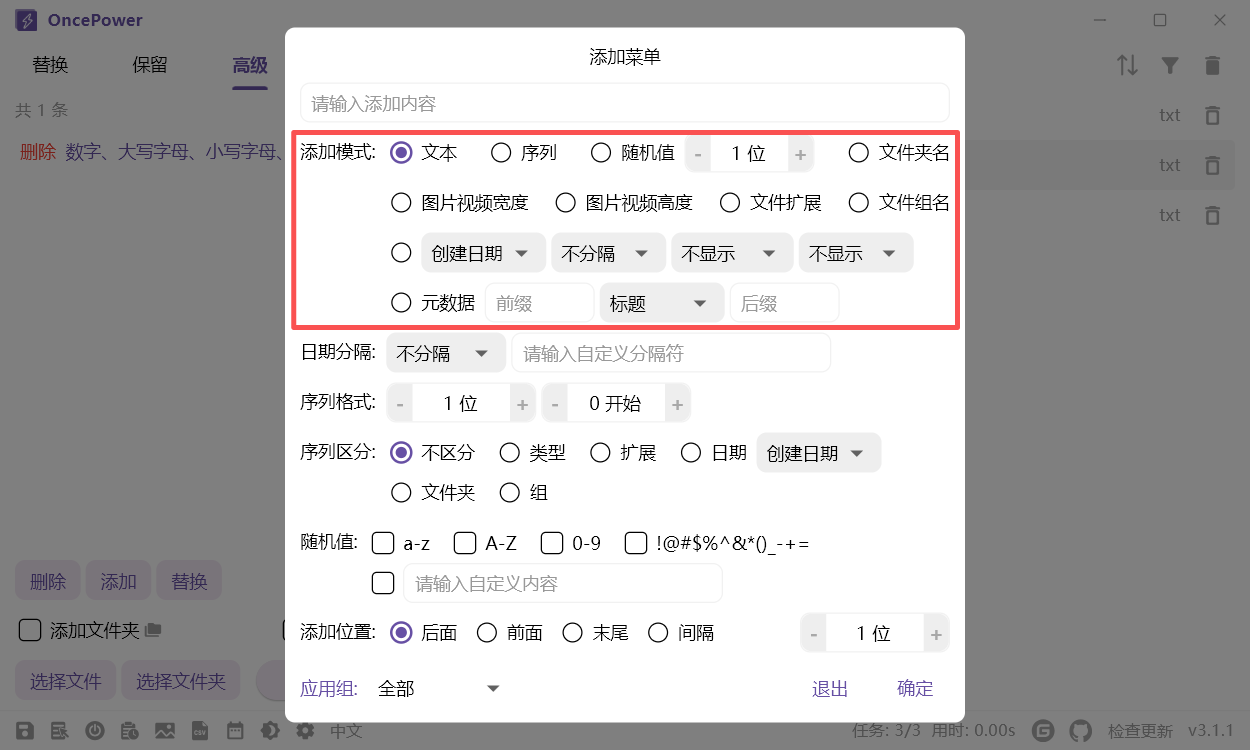
Add Position
There is also an option to add position at the bottom, which controls the position of the condition content through the number input box on the far right
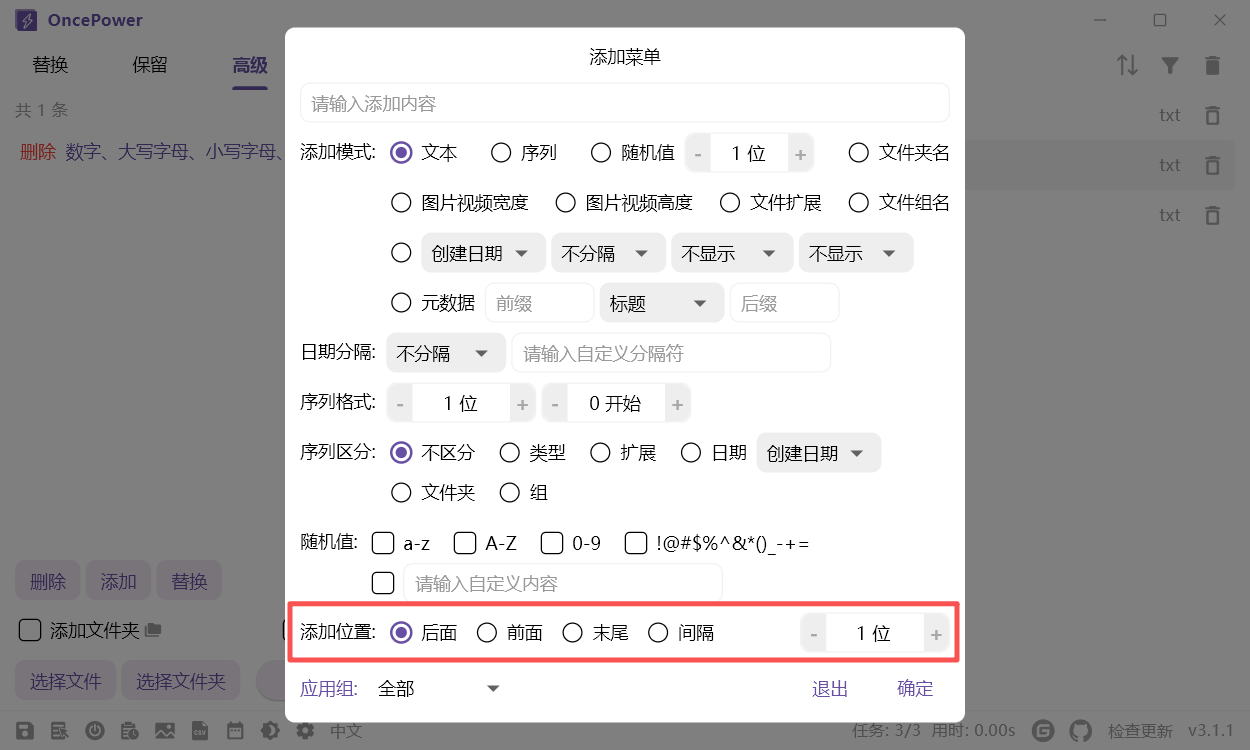
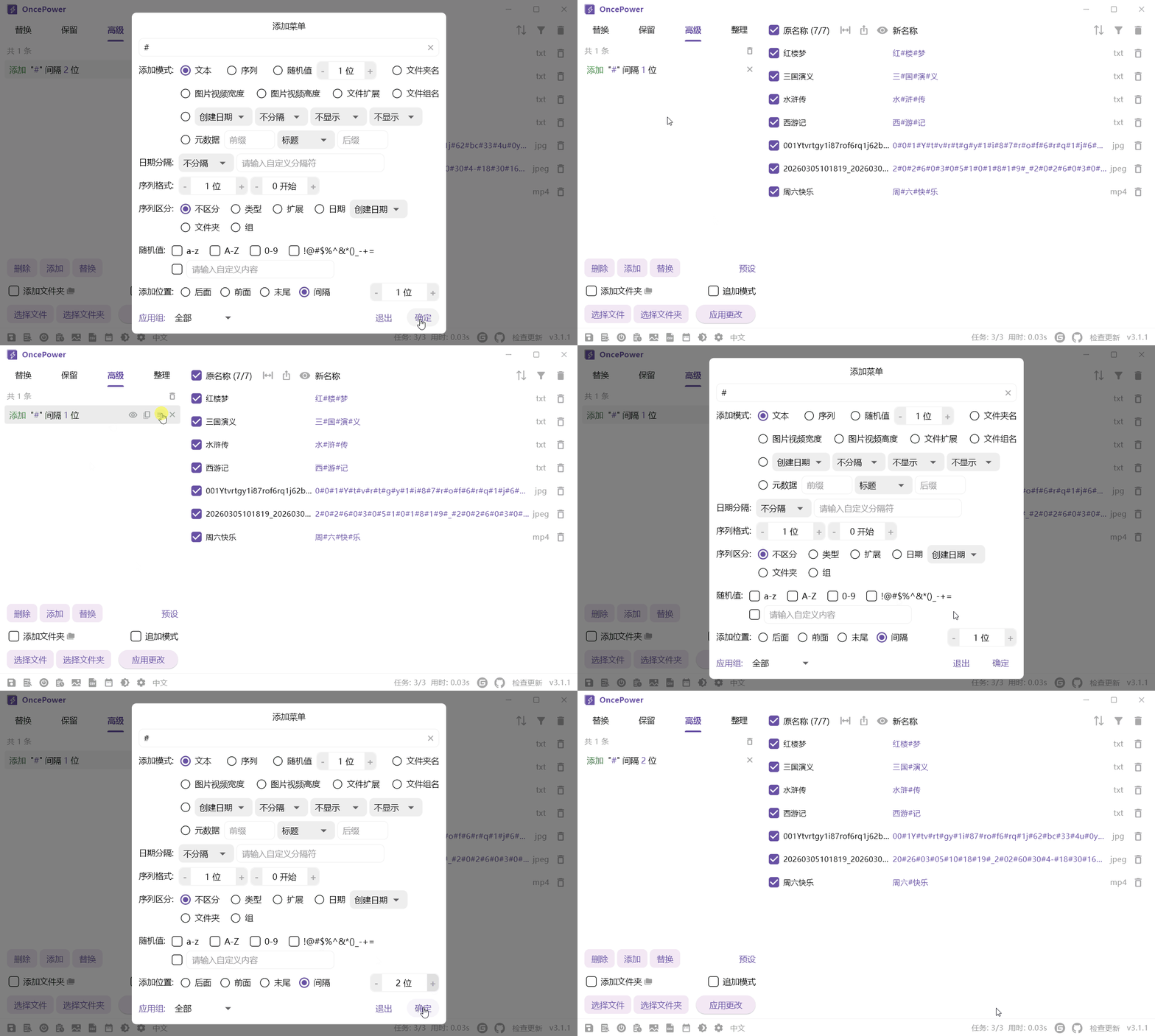
The "After" and "Before" options will not be demonstrated here. Let's focus on the "End" and "Interval" options:
- End: The input content will be added to the end of the file extension. The value in the input box on the right does not affect the position added to the extension
- Interval:
Replace
Normal
Same as Replace Mode, so it will not be demonstrated here. The only difference is that the two buttons on the right are used to match regular expressions and match extensions respectively
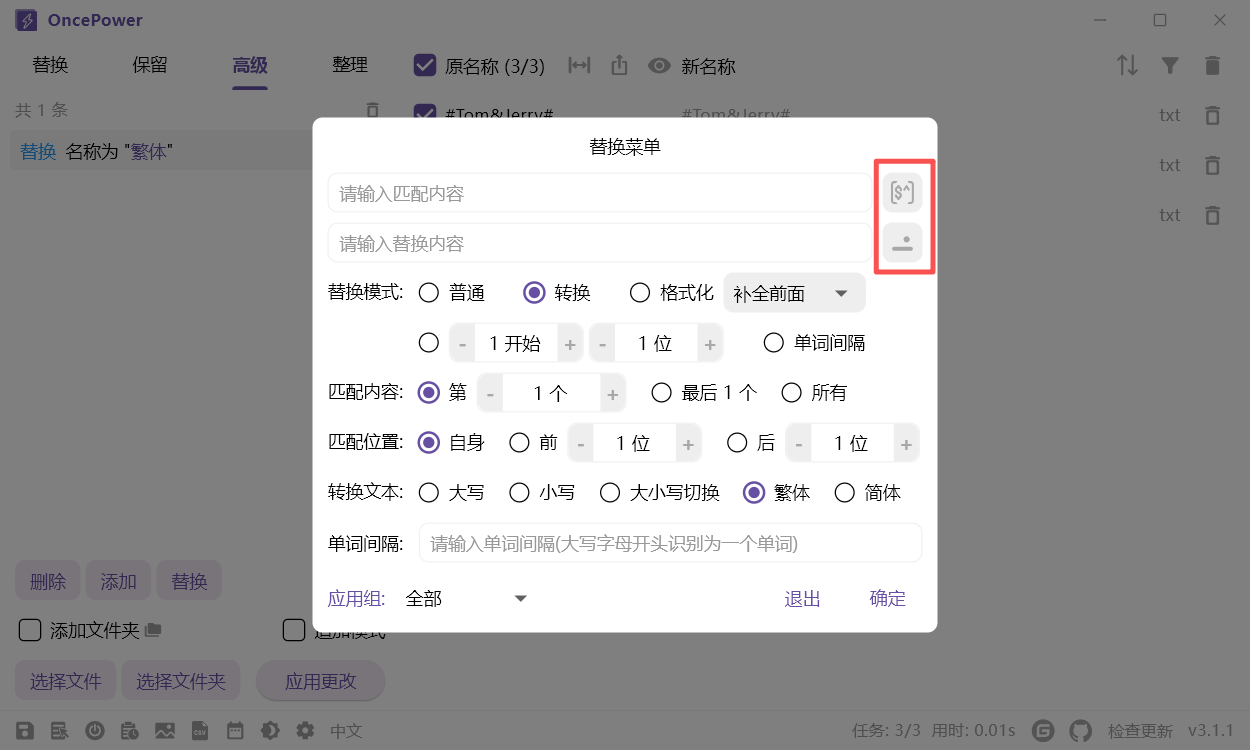
Convert
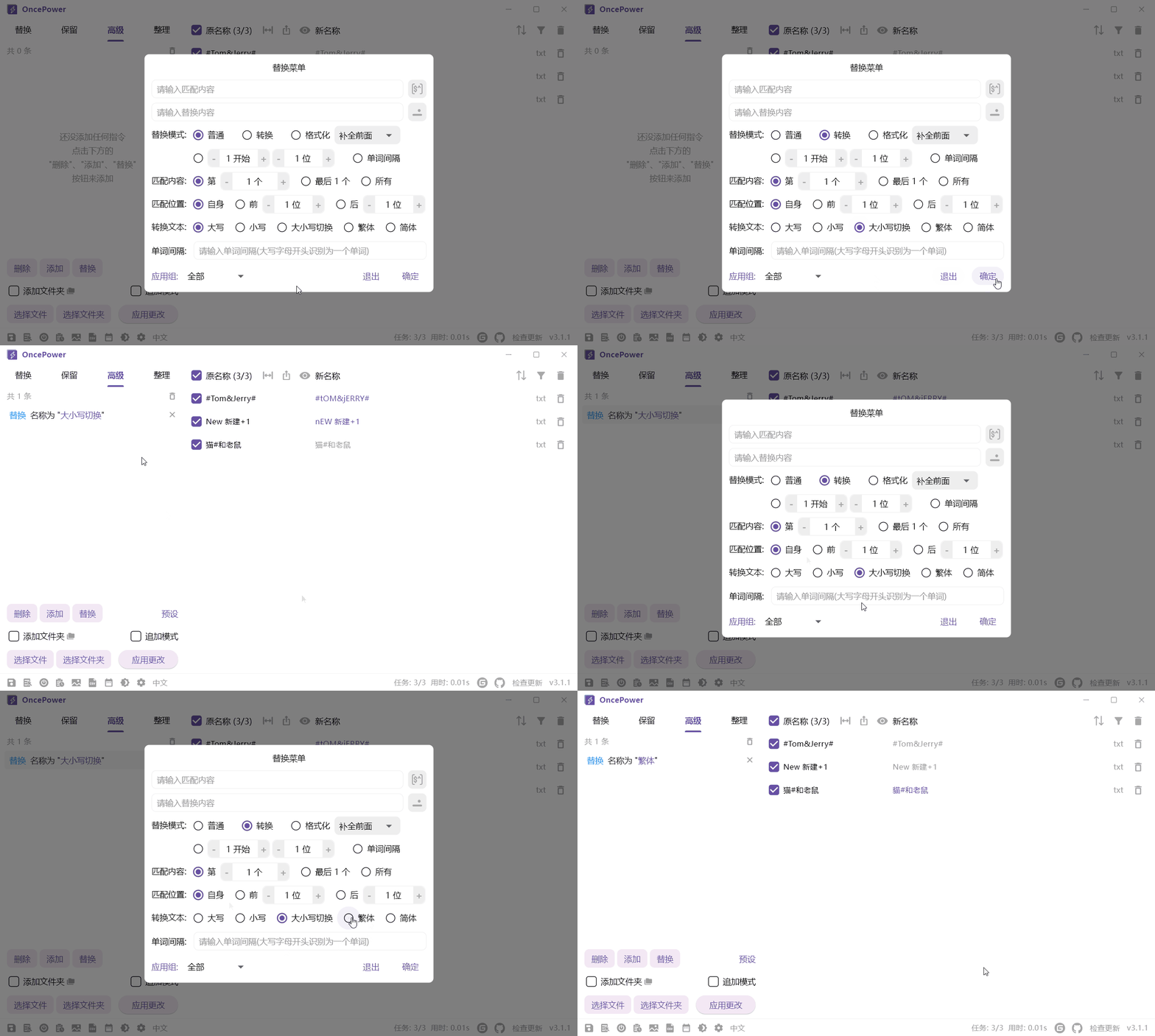
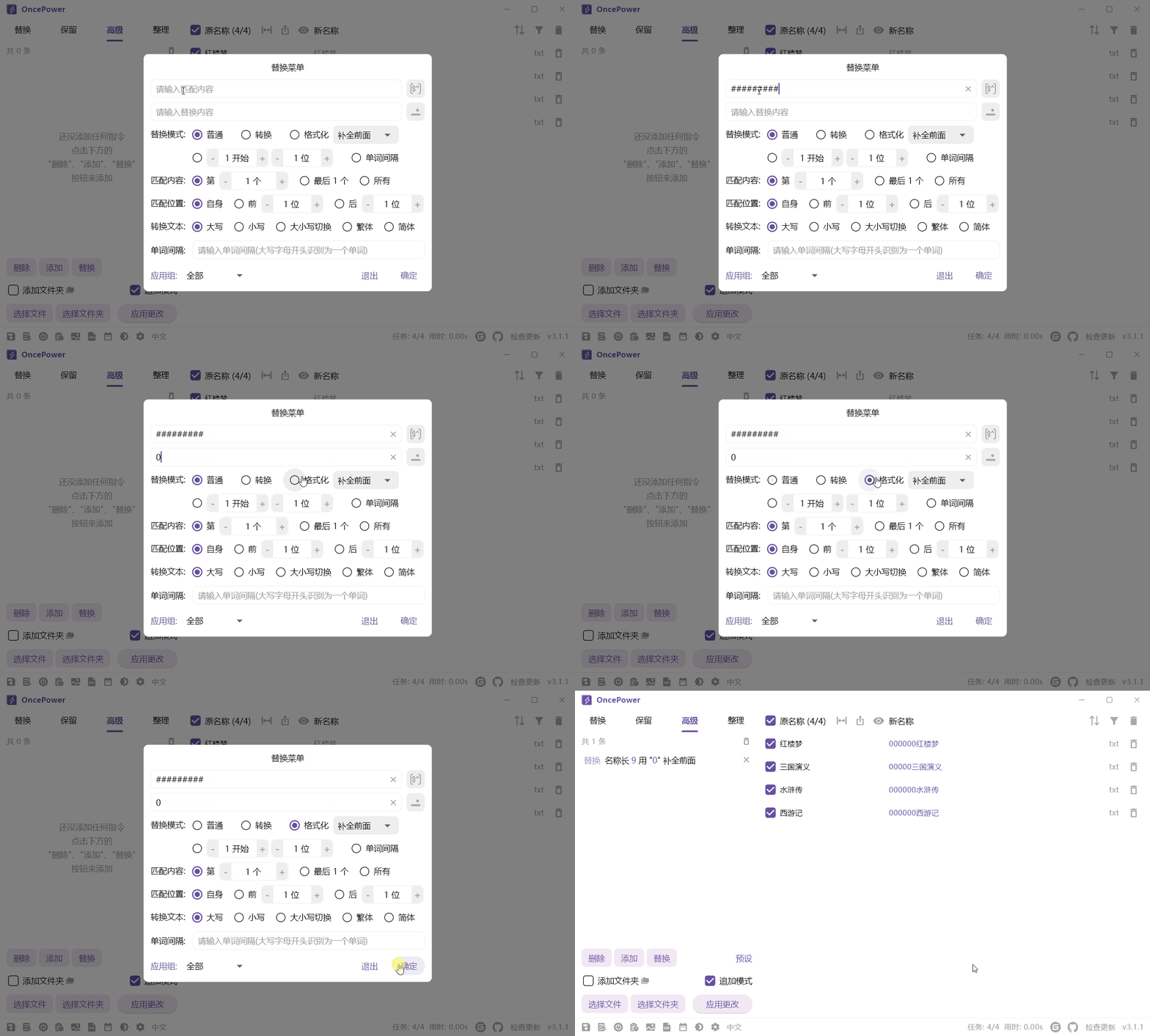
Format
When Format is selected, if the matched content is not a number, it will be converted to the length of each name
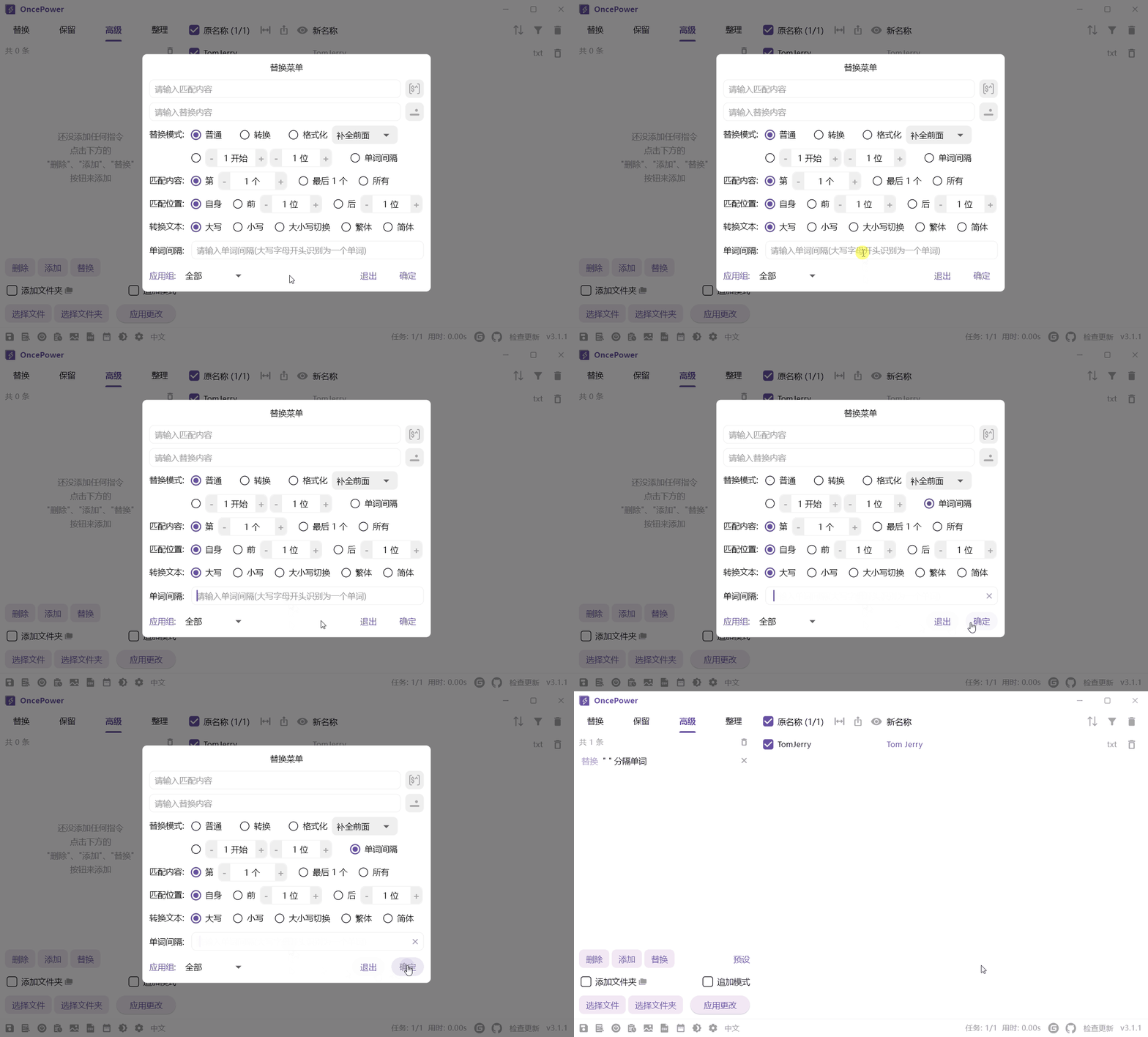
Word Interval
Automatically separate words. Due to technical limitations, separation can only be done via capitalization at the beginning
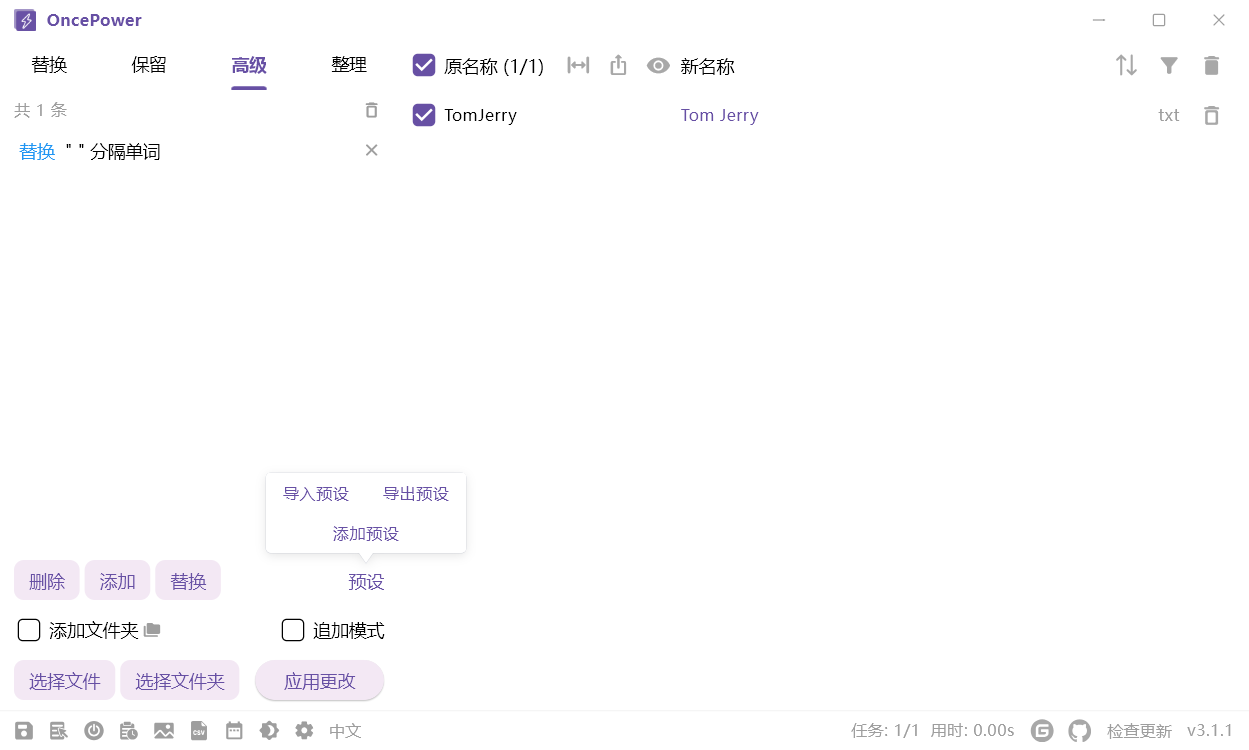
Preset
You can store commonly used instruction groups as presets for easy use next time. You can also import and export stored presets. The preset list can be operated in batches via the right-click menu just like the file list, which will not be demonstrated here
Organize Mode
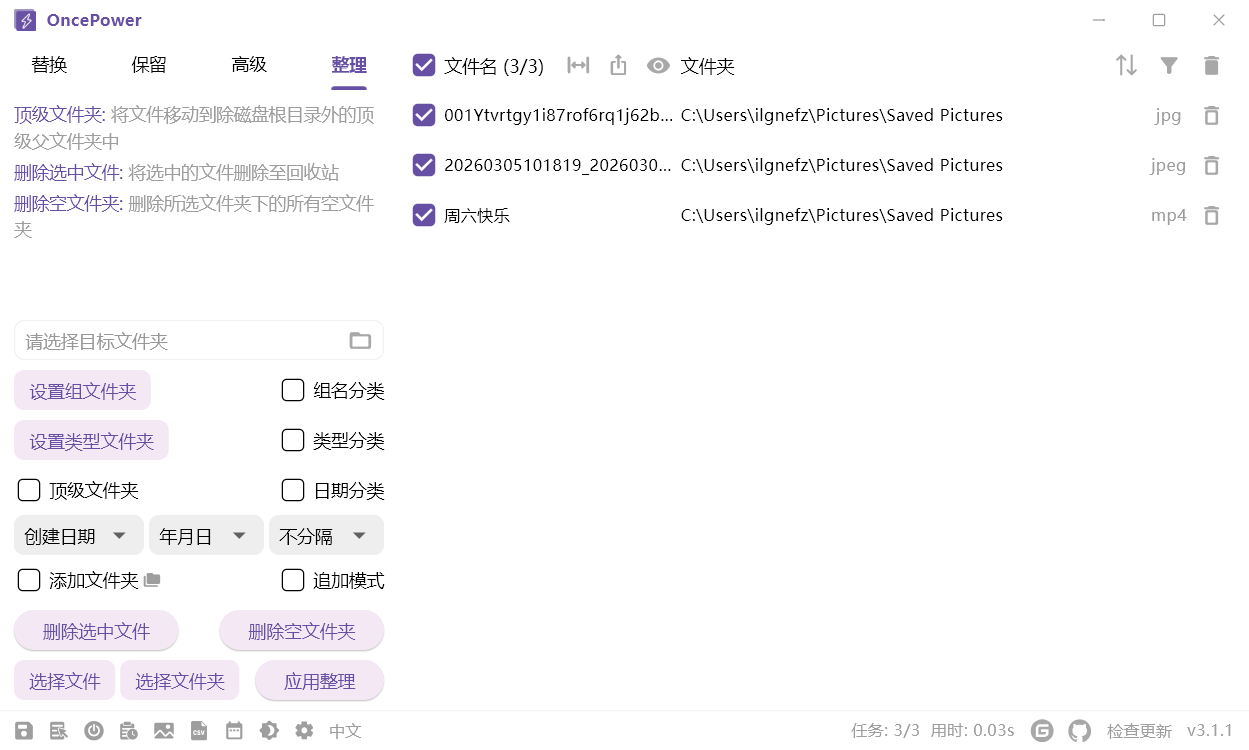
Sometimes after renaming files, we need to move them to other folders. This is where Organize Mode comes in. It has the following move options:
- Default: Move all selected files to the target folder
- Group Name Classification: Set different folders for different groups via the Set Group Folder button
- Type Classification: Set different folders for different types of files via the Set Type Folder button
- Date Classification: Classify files by date and create folders named after dates
- Top Folder, Delete Selected Files, Delete Empty Folders have explanations in the software
LICENSE
Explore related projects
codecrafters-io/build-your-own-x
Master programming by recreating your favorite technologies from scratch.
561,398 starspublic-apis/public-apis
A collective list of free APIs
497,679 starsmorluto/rea
Reverse engineer anything with agents, from app behavior down to native binaries.
447,495 starsopenclaw/openclaw
The AI that really does things. Any OS. Any Platform. The lobster way. 🦞
394,261 stars