
ihtisham1211/native-tv
ihtisham1211/native-tv has 47 GitHub stars and 5 forks. GitHot measured 0 stars in 24 hours. Last checked 2026-11-15 15:39 UTC. Last push 2026-11-13.
What you can do
- Control without the cloud. D-pad, typing into the TV's text fields, volume, playback keys, app launcher, picture presets, sound output routing, power and reboot, from any browser.
- Remote button remapping. Point Netflix, Prime Video, Guide, the colour keys and other shortcut buttons at any app, an HDMI input or Live TV; it survives reboots.
- Home Assistant and MQTT. The TV appears as one device through MQTT Discovery, with controls, telemetry and remote button events. The topics work for any MQTT client.
- Debloat and home screen cleanup. Install apps from the Homebrew Channel catalogue, uninstall LG apps, disable background services (the list), hide built-in apps from the launcher, and on webOS 9 strip LG's Home screen down to apps and inputs.
Measured star growth
- in 24h
- 0
- in 7 days
- Update delayed
- in 15 days
- Update delayed
- in 1 month
- Update delayed
Net star changes over overlapping periods, not daily totals. Missing measurements are left blank. Stars measure attention, not software quality.
About
Open-source dashboard, privacy controls and Home Assistant MQTT bridge for rooted LG webOS TVs: turn off ACR and ads, debloat apps, protect OLED panels, remap the remote.
SecurityREADME.md
Original
Native Tv
Your TV, your rules.
An open-source dashboard, privacy toolkit and Home Assistant bridge for rooted LG webOS TVs.






Documentation · Install · Tested TVs · Home Assistant · Issues · Support the project
Native Tv is a server that runs directly on a rooted LG webOS TV. It gives the TV a live browser dashboard for any phone or computer, a native app on the TV itself, and an MQTT bridge for Home Assistant and other smart-home software.
Use it to control an LG OLED or LCD TV without the cloud, see and switch off what LG's ACR (Live Plus), ad tracking and data agreements collect, block LG's ad and telemetry servers, debloat apps and background services, remap the remote's buttons, protect an OLED panel from burn-in with panel care and an OLED-friendly TV theme, and read the TV's hardware telemetry.
Native Tv grew out of Glasshouse by Rory Gallagher and is now its own project: the server is a C++ daemon with no Node on the TV, and the TV has a native app in Google TV's design. It supports webOS 4 and later; Glasshouse covers webOS 2 and 3.
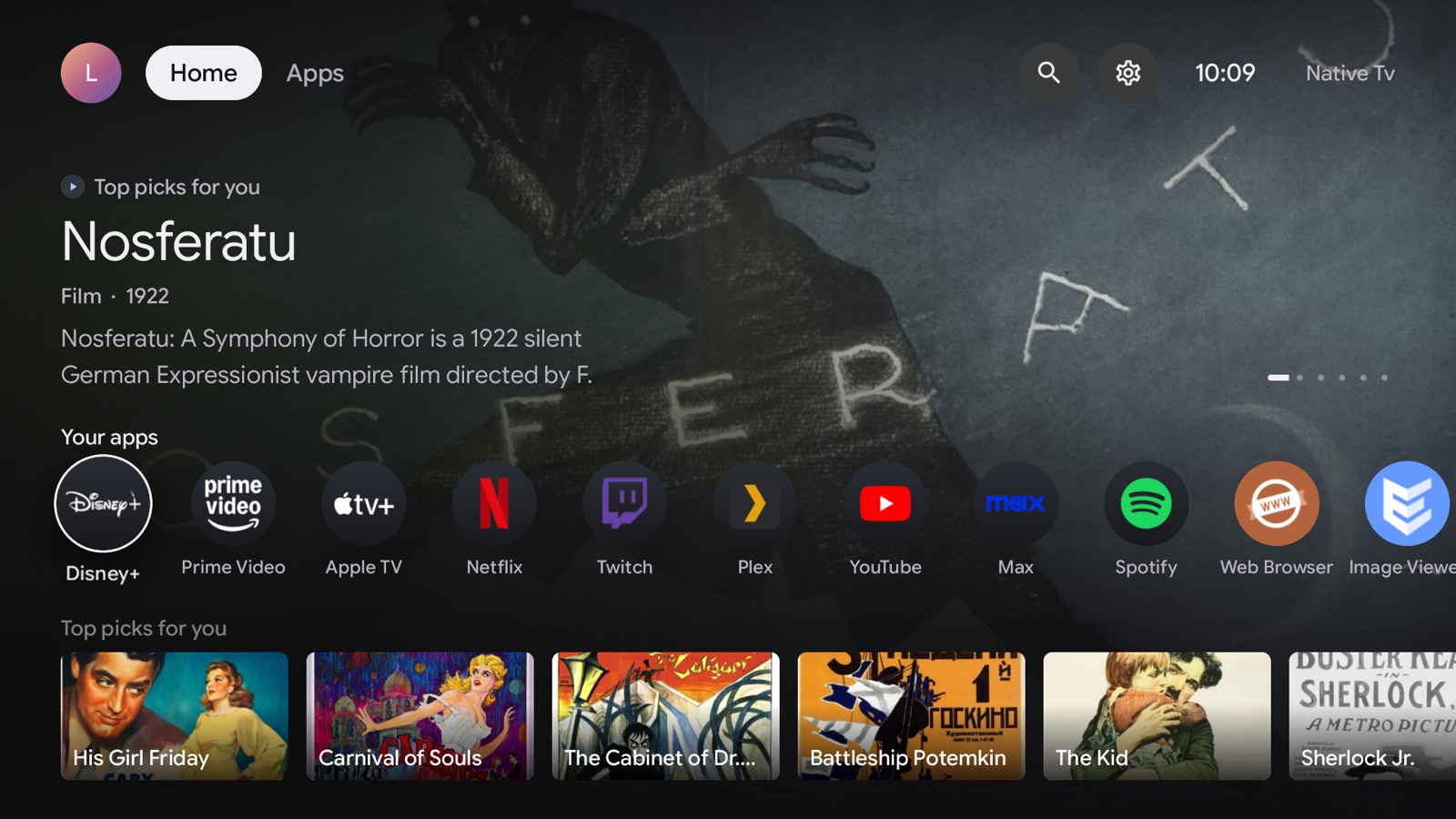
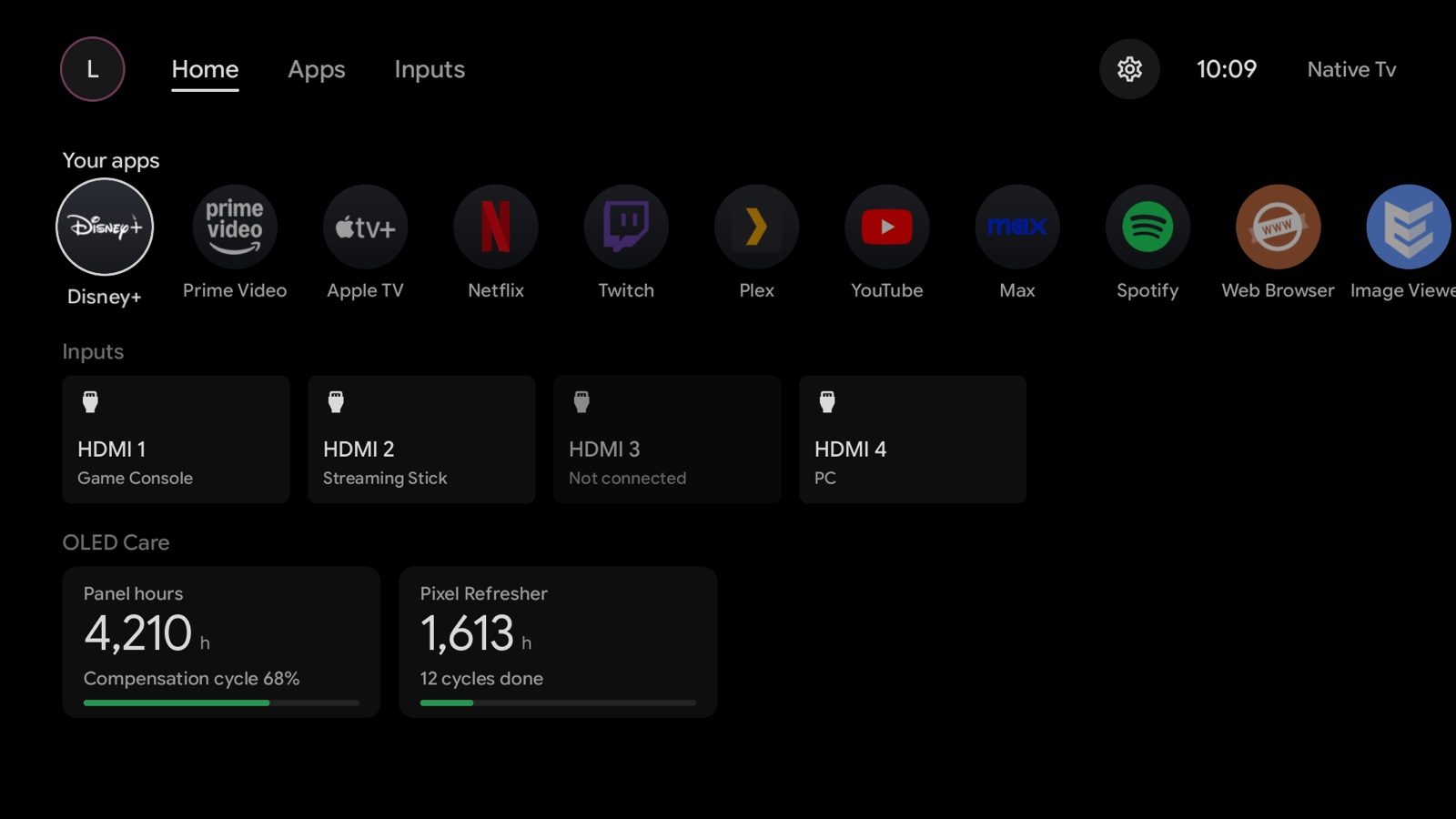
The TV app in its two themes: Google TV, the default, and OLED Care, for OLED panels. Rendered by the TV app against a webOS emulator, not photographed on a TV; the HDMI inputs and the panel figures are sample values.
[!NOTE]
The TV belongs to its owner.
Native Tv is for owners who do not want a network-connected appliance used as a platform for advertising, telemetry and vendor-controlled experiences. It brings control, visibility and automation back to the device: ways to remove ads, withdraw from agreements and services that monetise the owner's data, and a simpler TV, with customisation and local smart-home integration.
Native Tv itself is local and transparent, and needs no cloud service. It collects no data, shows no ads and has no dark patterns.
Features
- Control and automation
- Control without the cloud. D-pad, typing into the TV's text fields, volume, playback keys, app launcher, picture presets, sound output routing, power and reboot, from any browser.
- Remote button remapping. Point Netflix, Prime Video, Guide, the colour keys and other shortcut buttons at any app, an HDMI input or Live TV; it survives reboots.
- Home Assistant and MQTT. The TV appears as one device through MQTT Discovery, with controls, telemetry and remote button events. The topics work for any MQTT client.
- Privacy and cleanup
- Privacy: see what the TV collects, and switch it off. Whether LG's content-recognition engine is running, the advertising identifier and every recorded data agreement, most of them switchable; an on-TV blocker for LG's ad and telemetry endpoints, with its list for a router, Pi-hole or AdGuard Home; a switch for the two diagnostics services that upload to LG. What LG's ACR does.
- Debloat and home screen cleanup. Install apps from the Homebrew Channel catalogue, uninstall LG apps, disable background services (the list), hide built-in apps from the launcher, and on webOS 9 strip LG's Home screen down to apps and inputs.
- Admin PIN. A four-digit PIN, asked in the TV's first-run setup, guards installing and removing apps, SSH keys, restoring a backup and power actions, on the TV and in the dashboard.
- OLED care and power
- OLED care. Panel hours, compensation cycle progress, Pixel Refresher scheduling and failure alerts, and switches for screen shift, logo dimming, ASBL and Global Stress Reduction, normally reachable only from the service menu.
- Power and standby. Keep the TV on the network while it is off, Quick Boot, Wake-on-LAN, Always Ready, the On and Off timers, and a switch that blocks LG's firmware updates, which can take root access away.
- Volume ceiling. A maximum volume that holds whoever sets it, a lower limit at night and a start-up volume.
- Switch off when idle. The TV switches itself off after 15 minutes to eight hours with no key press, no change and nothing playing, with a toast a minute before; an HDMI input is never switched off.
- On the TV
- A native TV app. A C++ and OpenGL ES client after Google TV's design puts the same readings and controls on the TV, driven by the remote, and offers Native Tv Home as a replacement home screen. It draws on the GPU at 60 frames a second with no browser behind it (how smooth it is).
- TV themes. Google TV, Apple TV (a glass bar and landscape app tiles that lift), or OLED Care for OLED panels: true black, dimmed icons, a focus ring and a layout that moves a few pixels. OLED Care's Home shows the apps, the inputs and the panel's hours, with no film picks, and an OLED panel is offered it once.
- Game mode. On TVs with LG's Game Optimizer, a game's frame rate in large type while the source uses VRR, beside the Optimizer's settings.
- Screen savers and the service menu. A clock, starfield, fireworks or the TV's own readings in place of LG's screen saver; LG's engineering menu opened from a browser, with no service remote, and unlocked where newer firmware cuts it down.
- Monitoring and maintenance
- Monitoring. SoC temperature, per-core CPU load, memory, swap, Wi-Fi signal and throughput; Prometheus metrics and syslog forwarding.
- TV report. The versions, model and which readings the TV answered, with nothing private in them, to paste into an issue.
- Update notice. The Server tab says when a newer release is out, with its notes, package and SHA-256, and opens the Homebrew Channel on the TV to install it. The TV contacts GitHub only on request, or once a day if switched on.
- Backup and logs. LG's sound, device, HDMI and ad settings and Native Tv's own, saved to a file or once a day and restored on the same TV or another; the System, Native Tv and kernel logs in one searchable timeline in the browser, with no SSH, and private details hidden when copied or exported.
- The dashboard
- Install as an app. A web app manifest and icons let a phone or computer put the dashboard on the home screen or in the app list; where the browser allows one, a service worker shows a retry page when the TV is off.
- English and Spanish. The dashboard follows the browser's language, with a Language setting on the Server tab, and shows the TV's own messages in it too. The Spanish is partly machine-translated and open to review by native speakers.
Screenshots
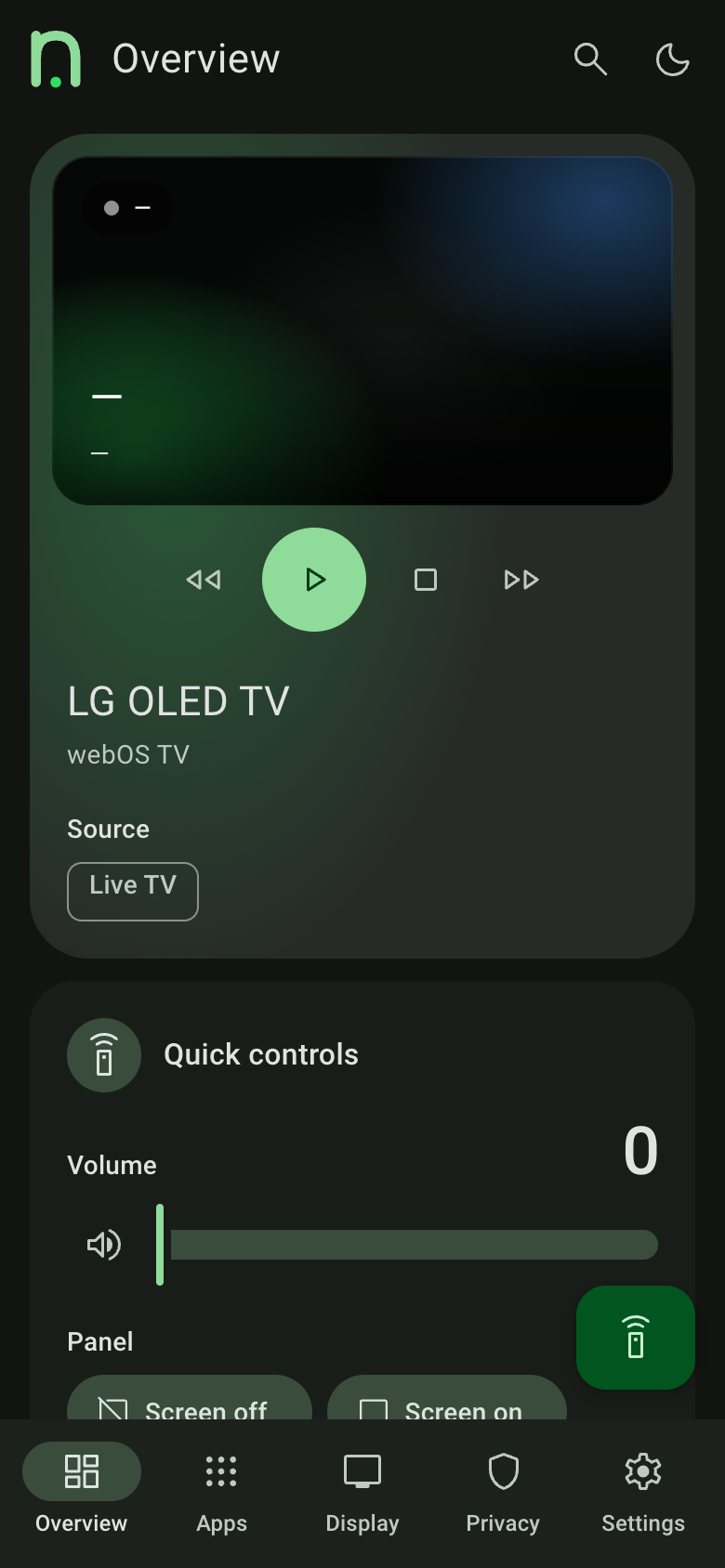
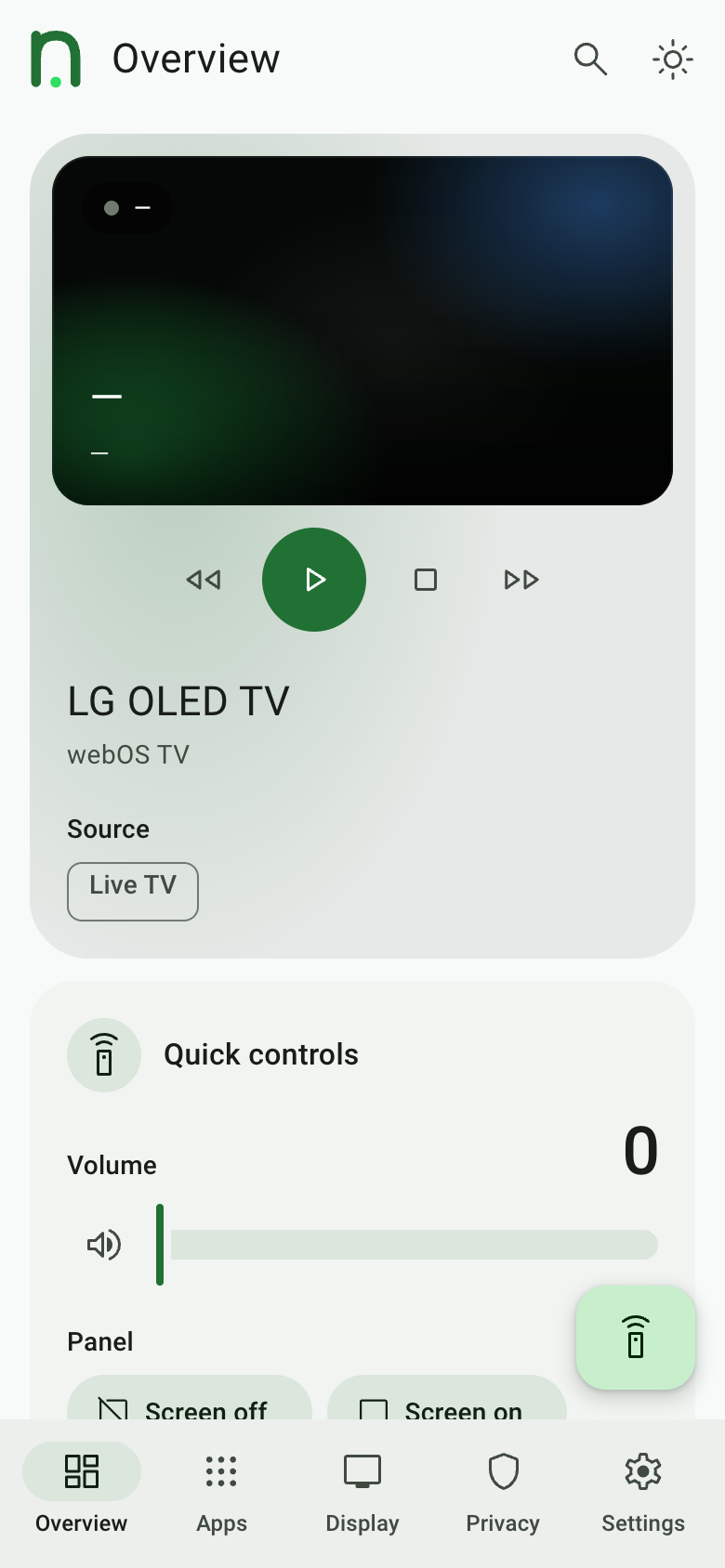
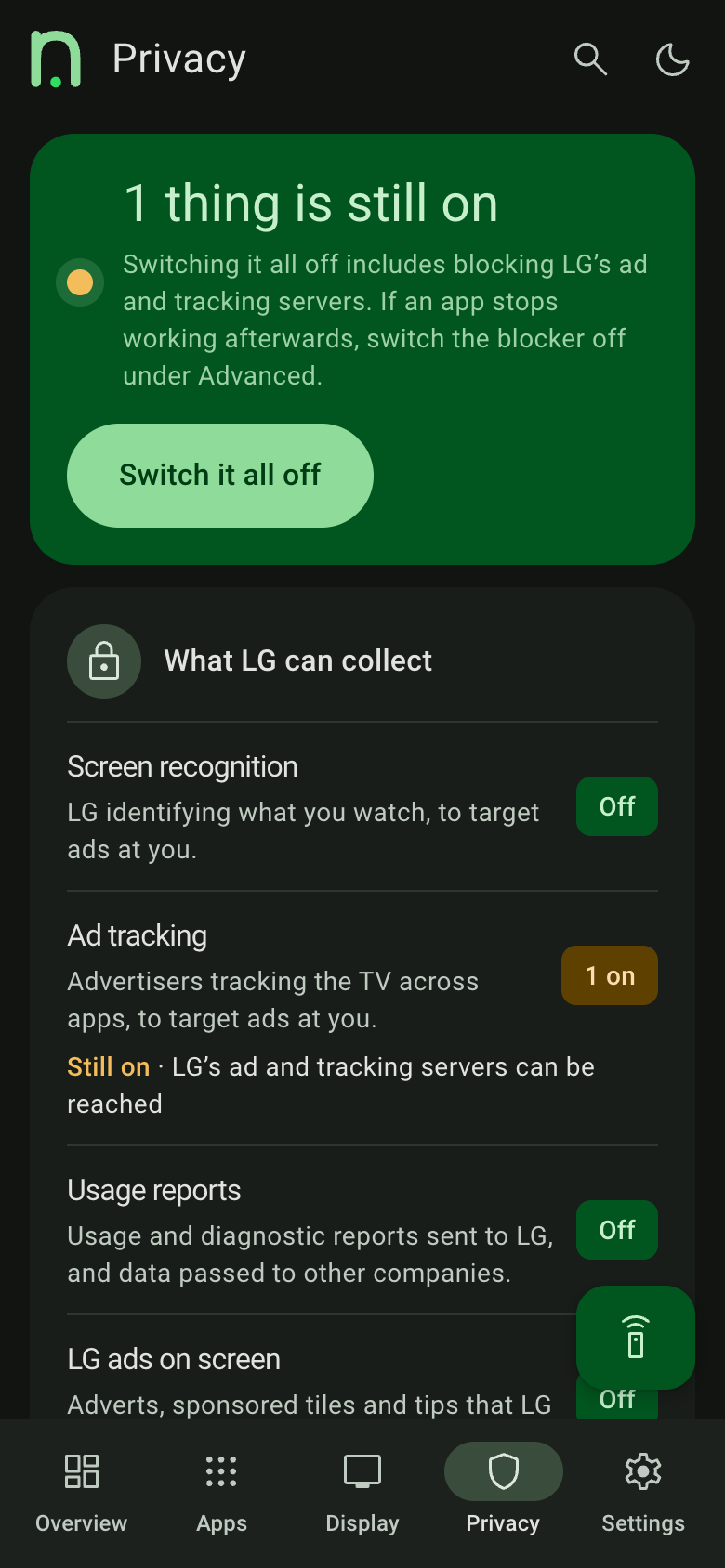
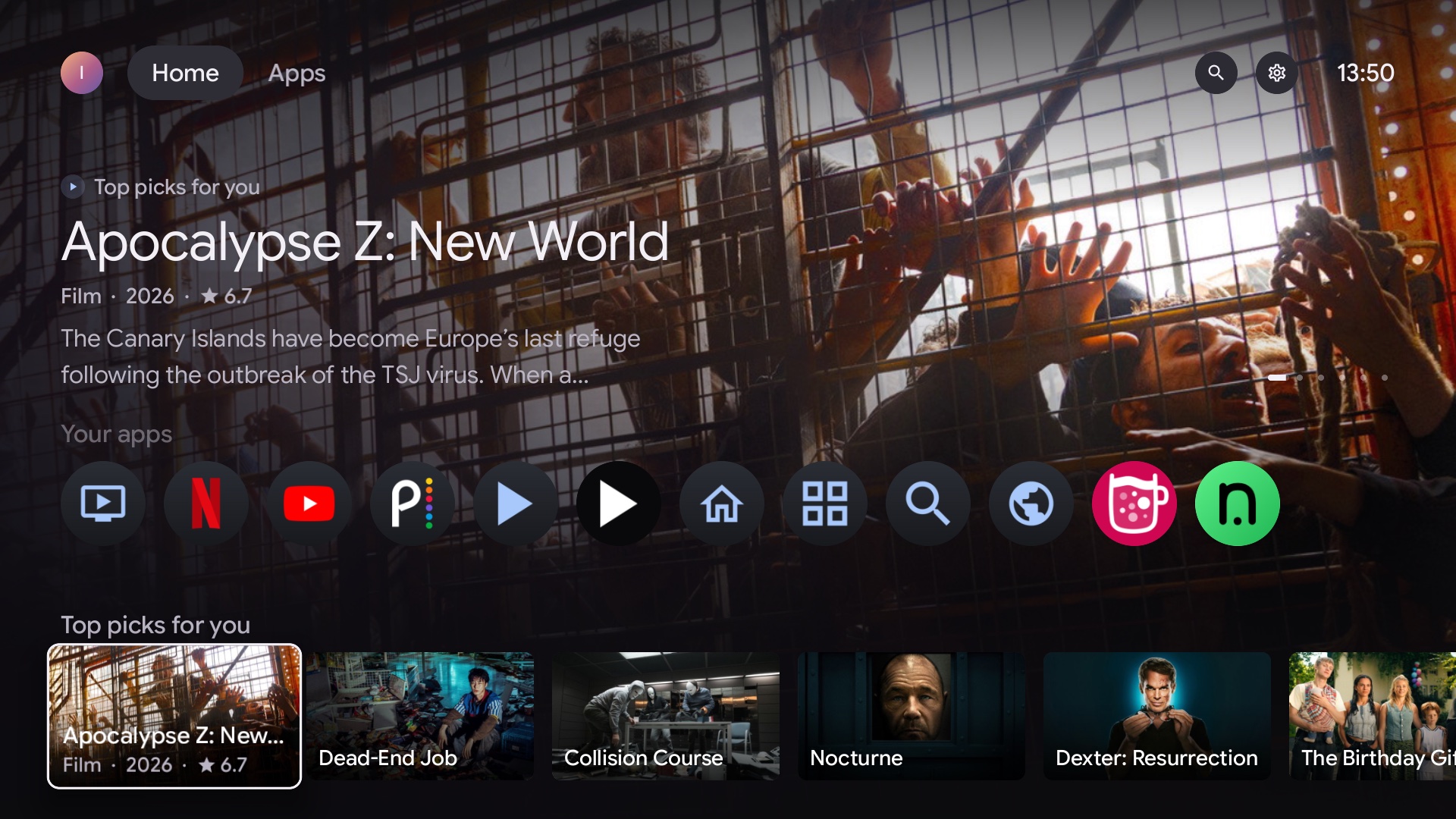
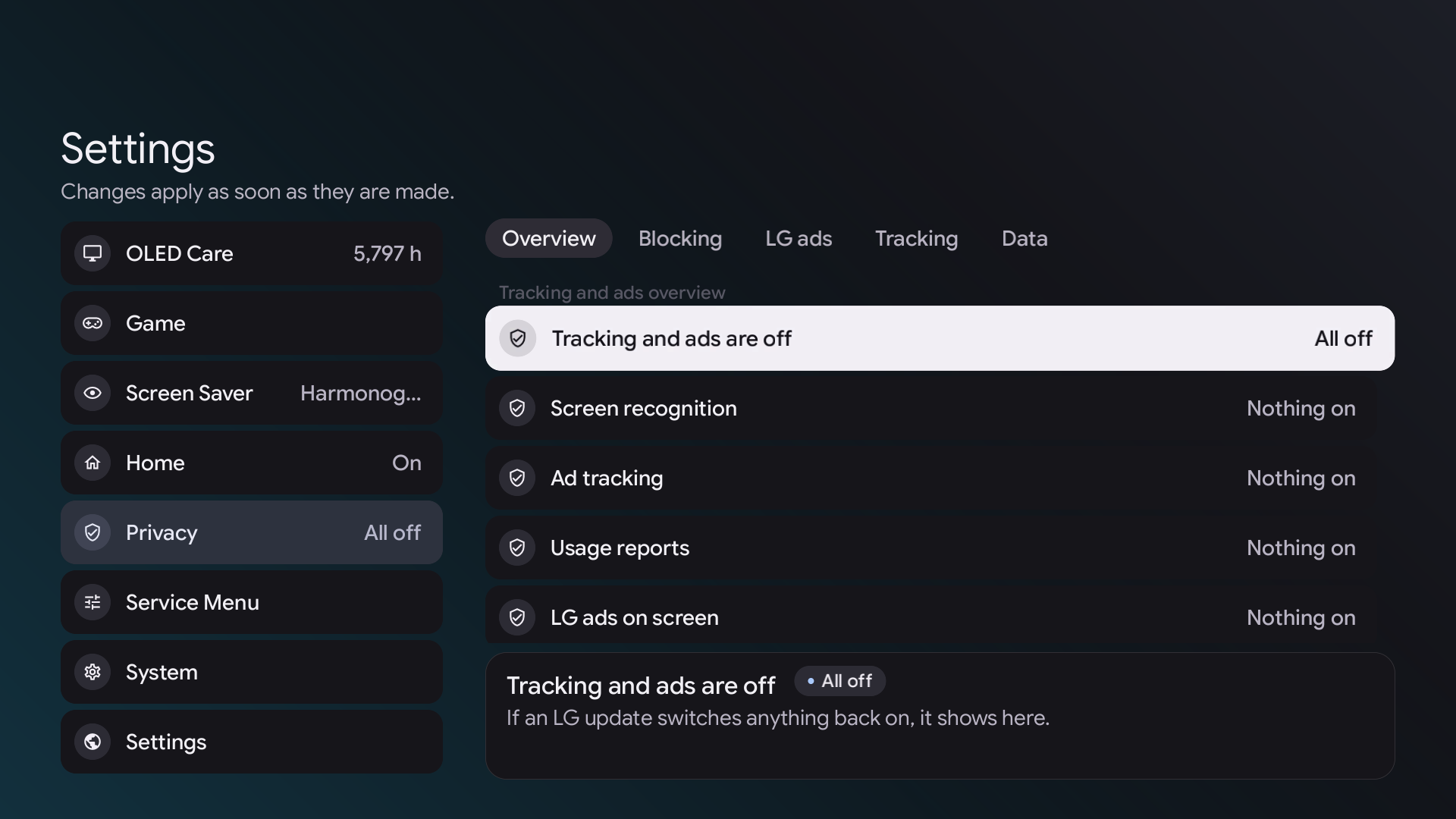
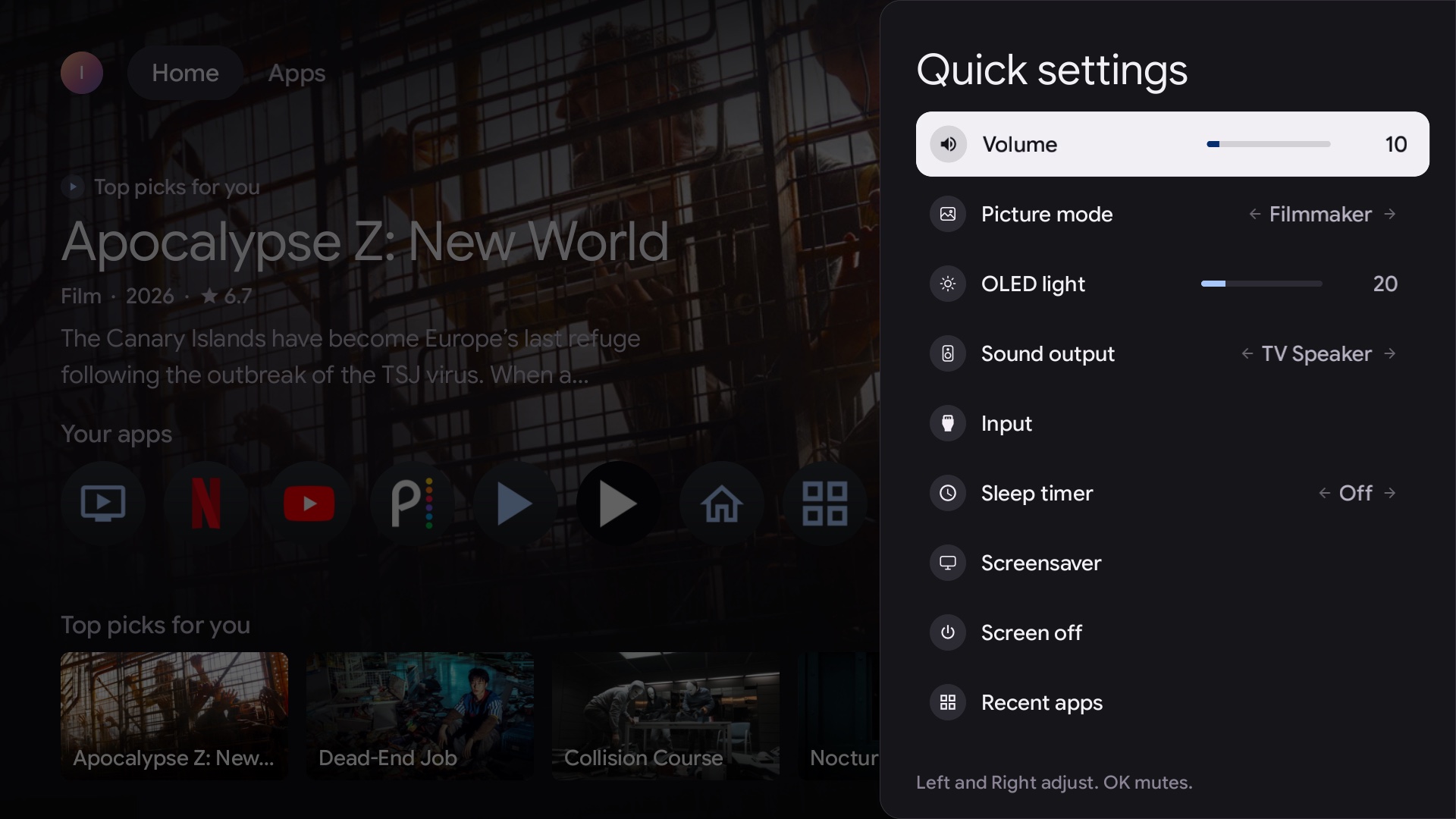
The dashboard shots come from the repository's TV emulator, so the readings are stand-in values. The TV app shots are captured on a real TV.
Compatibility
| webOS | 4 and later. webOS 2.2 and 3.x ran the earlier Node release and are not supported by the native server |
| Verified with this server | LG B3 (OLED65B3PUA), webOS 10.3.2. Other models and versions are untried |
| Reports from the earlier release | 48 TVs across 33 series, 2015 to 2026 models, webOS 2.2 to 11 (the table) |
| Panels | OLED (panel wear telemetry, burn-in controls and the OLED Care TV theme) and LCD (the OLED Care tab hides itself; the theme can still be chosen) |
| Access | Rooted, with the Homebrew Channel; SSH or telnet |
LG names its versions two ways; webOS version numbers gives both.
Native Tv running on a model that is not listed? A TV report with the model and webOS version adds it to the table.
Install
Native Tv installs from a release package, with no build, or from a computer on the same network as the TV that builds it and installs it over SSH, or over the Homebrew Channel's telnet when no SSH key is set up. The TV needs no internet access.
Install a release (no build)
- Root the TV and install the Homebrew Channel. Native Tv does not root the TV.
- Download
io.github.ihtisham1211.nativetv_<version>_all.ipk(about 12 MB) from the latest release. - Install it on the TV with webOS Dev Manager or
ares-install. - Open the Native Tv app on the TV. It sets the server up and opens the dashboard, and the first run starts the setup wizard.
Build and install from source
The computer needs Git, Bash, Python 3, CMake, pkg-config, Ninja or make and the webOSbrew native SDK, which is built for macOS (Apple silicon and Intel) and arm64 Linux only. The installation guide has the commands that download the SDK.
- Root the TV and install the Homebrew Channel. Native Tv does not root the TV.
- Clone this repository on the computer:
git clone https://github.com/ihtisham1211/native-tv.git && cd native-tv. - Build the ARM server and TV app with the SDK:
python3 native-tv/build.py --sdk /path/to/arm-webos-linux-gnueabi_sdk-buildroot. It says what to install if the computer lacks a tool. - Run
native-tv/lifecycle/deploy.sh <tv-ip>from the repository root. - Open
http://<tv-ip>:8080/in a browser.
The installation guide has the details and troubleshooting.
Try the dashboard without a TV
The emulator serves the dashboard at http://localhost:8080/ with stand-in readings. It needs Node.js on the computer, and a host build, which needs a C++ compiler, CMake, pkg-config, json-c and libcurl (what to install); the TV runs no Node.
python3 native-tv/build.py --service-only
node scripts/emulate-tv.js --open
Install with an AI assistant
An AI coding assistant with a shell on a computer on the TV's network (Claude Code, Codex and the like) can run the install above. Give it the TV's address and this prompt:
Install Native Tv on my rooted LG TV at
<tv-ip>. Follow the "Install with an AI assistant" section of the README at https://github.com/ihtisham1211/native-tv, and ask me before doing anything it does not list.
Instructions for the assistant. Ask the owner first: the TV's IP address (Settings → Network on the TV); whether the TV is already rooted with the Homebrew Channel (if not, stop: rooting is not part of this install); and whether a 150 MB SDK download is fine. The deploy logs in as root with the computer's SSH key, and otherwise falls back to the Homebrew Channel's telnet, which has to be switched on in that app's settings. It never prompts for a password, so do not ask for one. A key outside the default location goes in ~/.config/nativetv/deploy.env as NATIVETV_SSH_KEY=<path>.
Check the computer.
uname -smmust sayDarwin arm64,Darwin x86_64orLinux aarch64, because the SDK has no other build; on any other computer, stop and tell the owner. Install what is missing with the owner's OK.uname -sm for t in git python3 bash curl tar bzip2 file; do command -v "$t" >/dev/null || echo "missing: $t"; doneClone the repository:
git clone https://github.com/ihtisham1211/native-tv.git && cd native-tv.Get the SDK the project's CI builds with, unless the owner already has a relocated one:
platform=$(uname -s | tr '[:upper:]' '[:lower:]')-$(uname -m)
mkdir -p ~/webos-sdk
curl -fsSL "https://github.com/webosbrew/native-toolchain/releases/download/webos-d7ed7ee.6/arm-webos-linux-gnueabi_sdk-buildroot_$platform.tar.bz2" | tar -xj -C ~/webos-sdk
~/webos-sdk/arm-webos-linux-gnueabi_sdk-buildroot/relocate-sdk.sh
Build the ARM server and TV app. The first command lists what the computer lacks (CMake, pkg-config, Ninja or make) with the install command for macOS and Debian/Ubuntu: run it with the owner's OK. Leave out
--service-onlyfrom the second: it skips the TV app, which the deploy packages too.python3 native-tv/build.py --check --sdk ~/webos-sdk/arm-webos-linux-gnueabi_sdk-buildroot python3 native-tv/build.py --sdk ~/webos-sdk/arm-webos-linux-gnueabi_sdk-buildrootDeploy from the repository root. A first install also adds the Native Tv tile to the TV's home screen;
--no-appleaves the home screen alone. The install worked when the output ends withdone - open http://<tv-ip>:8080/. OnNothing was installed, run it once more and check the TV is on.native-tv/lifecycle/deploy.sh <tv-ip>When SSH works,
ssh root@<tv-ip> /var/lib/tvweb/tvwebctl statusshows whether the server is running, and/var/lib/tvweb/tvweb.logon the TV says why it is not.Give the owner the dashboard address. The Admin PIN, who can reach the dashboard and Home Assistant are the owner's to choose, in the TV app's Settings or the dashboard. Say that the dashboard has no login by default (Security), and that the two optional API keys are theirs to get: do not create accounts for them.
Rules for the assistant:
- Do only what is listed here. Do not reboot the TV, change its settings or switch on anything labelled experimental unless the owner asks.
- Never print or commit the access token, the MQTT password or an API key in
/var/lib/tvweb/config.jsonon the TV. - Never forward port 8080 to the internet.
- If a step fails twice, stop and show the owner the output. Do not edit
deploy.shor try another install route. - To undo the install, follow updating and uninstalling exactly.
API keys
Installing and running Native Tv needs no account or key: the dashboard, the TV app, the privacy tools and the Home Assistant bridge all work without one. (The MQTT bridge needs the broker's address and, if it has one, a username and password.) Two optional keys switch on rows of titles in Native Tv Home, which is experimental:
| Key | What it adds | Where it goes |
|---|---|---|
| TMDB API key | The film and series rows: titles, posters, details and trailers. Without it Home shows only what is on the TV | The browser dashboard: Apps, Native Tv Home tab, Films and series (or "tmdbKey" in config.json) |
| YouTube Data API key | The Trending on YouTube row | The same tab, Trending on YouTube (or "youtubeKey" in config.json) |
The TV app has no field for either key. The Native Tv Home tab (http://<tv-ip>:8080/?tab=home) appears only on TVs where Native Tv Home is offered: webOS 9 and 10, and webOS 11 once "allowExperimentalHome": true is set.
Get a TMDB key (free):
- Create an account at themoviedb.org and confirm the email address.
- Open Settings, API, request an API key and answer the short form about how it will be used.
- Copy the API Key, which is 32 letters and digits. Do not copy the long API Read Access Token: Native Tv refuses it.
- Paste the key into Films and series on the dashboard's Native Tv Home tab and save it. It stays on the TV and is never shown again; Remove deletes it.
Get a YouTube Data API key (free):
- In the Google Cloud console, create a project or pick one.
- Under APIs & Services, Library, enable YouTube Data API v3.
- Under APIs & Services, Credentials, choose Create credentials, then API key. Restricting the key to the YouTube Data API v3 is optional.
- Paste the key into Trending on YouTube on the dashboard's Native Tv Home tab, below Films and series, and save it. Or add
"youtubeKey": "<the key>"to/var/lib/tvweb/config.jsonon the TV, or tonative-tv/lifecycle/config.jsonbefore the first deploy: the server reads the file again when it changes, so no restart is needed.
This product uses the TMDB API but is not endorsed or certified by TMDB. Native Tv Home has the details of what is fetched and when.
Security
The dashboard has no authentication by default, for frictionless control from any phone or browser on a trusted local network. Never expose port 8080 directly to the internet (do not port-forward). Security covers the token, closing the port to the network, and MQTT. Vulnerabilities are reported as set out in SECURITY.md.
FAQ
How is ACR (Live Plus) turned off on an LG TV? The Privacy tab shows whether LG's content-recognition engine is running and switches it off, with the advertising identifier, ad tracking and the data agreements recorded on the TV. What LG's ACR does sets out what it samples and which controls act on it.
Does Native Tv root the TV? No. The TV has to be rooted first, and Native Tv installs through the Homebrew Channel's SSH or telnet access.
Does it need a cloud account or internet access on the TV? No. It runs on the TV, serves the dashboard on the local network, collects no data and shows no ads.
How does it connect an LG TV to Home Assistant? Through an MQTT broker. The TV publishes itself with MQTT Discovery as one device with its controls and telemetry, and the remote's buttons can fire automations. Setup and the entity list are in the docs.
Does it work on LCD and non-OLED LG TVs? Yes. The dashboard, controls and telemetry work on LCD panels; the OLED Care tab hides itself, and the OLED Care theme can be chosen on any TV.
Is there an OLED-friendly theme, and does it prevent burn-in? Yes: OLED Care, chosen in Settings, TV theme on the TV or on the dashboard's Server tab. It is true black with dimmed icons, a thin focus ring and a layout that moves a few pixels each minute, and its Home shows the apps, the inputs and the panel's hours with no film picks. Measured on the rendered screens, it puts about 70% less light on the panel than the default Google TV theme. That lowers the load on the panel, but it cannot promise there is no burn-in; the OLED care tab has the panel's own protections. The TV theme describes it. It has been checked in the client's tests and an emulator, not yet on a real TV.
Is the TV app smooth, or does it lag like a slow home screen? It is a native OpenGL ES client, not a web page, and it draws at the display's 60 Hz. On an LG B3 with the processor busy (load average about 32) its frames arrive 15 to 18 ms apart, against 16.7 ms ideal. How it stays smooth lists the reasons and the measurement.
Is the dashboard available in Spanish?
Yes. It follows the browser's language, and the Language setting on the Server tab, or /?lang=es, changes it. The TV's messages the dashboard shows are translated too. The TV app and the pages the TV's own browser shows are English only for now. Much of the Spanish is machine-translated, and corrections are welcome.
Can the dashboard be installed as an app on a phone?
Yes. It is an installable web app (PWA): add it to the home screen from the browser's menu. On the TV's plain http:// address a browser skips the service worker, so the page has its manifest and icons only; behind HTTPS, Chrome offers a full install. Install as an app has the details.
What does it change on the TV? What it changes on the TV lists every change and how each is undone. The read-only system partition is left untouched.
Documentation
- Installing, tested TVs and updating and uninstalling
- The dashboard, tab by tab, and the TV app
- Home Assistant, Prometheus and syslog
- Security and what it changes on the TV
- Internals and TV research
The pages are built from docs/, so they can also be read there.
Contributing
Native Tv is MIT-licensed and open to contributions. Contributing explains how to build, test and open a pull request. Bugs and ideas go in the issues. Everyone taking part follows the Code of Conduct.
Support the project
Native Tv is free and MIT-licensed. If it is useful, buy me a coffee or use the Sponsor button at the top of this repository. Starring the repository, reporting a TV that works or does not, and contributing also help. More on the support page.
Disclaimer
Use this software at your own risk.
- Root access and hardware. This runs custom software with
rootprivileges on an embedded TV OS. It is designed to be lightweight and to leave the read-only rootfs untouched, but the author accepts no responsibility for damage, bootloops, bricked devices, voided warranties, data loss or panel issues. - Power and control commands. Reboot, power off, screen blanking and Pixel Refresher scheduling issue low-level
luna-sendcalls. Understand what each does before using it. - Trademarks. An independent, unofficial community project, not affiliated with or endorsed by LG Electronics. webOS is a trademark of LG Electronics.
- Third-party components. Fonts, icons and libraries keep their own licences, listed in THIRD-PARTY-NOTICES.md.
License
MIT. See LICENSE.
Credits
Native Tv grew out of Glasshouse by Rory Gallagher, released under the MIT licence; his copyright notice is kept in LICENSE. The dashboard's Spanish reuses Glasshouse's translations, which are also MIT. Bundled third-party work, with its licence (THIRD-PARTY-NOTICES.md has the texts):
- CivetWeb: the HTTP server (MIT)
- json-c: JSON, from the webOSbrew SDK (MIT)
- NanoSVG: SVG rendering on the TV (zlib)
- QR Code generator by Project Nayuki: the QR codes (MIT)
- StevenBlack/hosts: the advertising hosts reviewed for the blocker (MIT)
- Roboto and Google Sans Flex: fonts (Apache-2.0, OFL-1.1)
- Material Design Icons and Material Symbols: icons (Apache-2.0)
- Dashboard Icons: the brand logos of the app icons (Apache-2.0)