
ifer47/markeron
ifer47/markeron has 1,206 GitHub stars and 82 forks. GitHot measured +3 stars in 24 hours and +11 in 15 days. Last checked 2026-11-09 10:48 UTC. Last push 2026-10-08.
Lightweight (~1.5 MB) open-source screen annotation with click-through mode and keyboard-first shortcuts. For demos, teaching, meetings & screen recording. Windows, macOS.
What you can do
- Lightweight & fast — ~1.5 MB installer (Rust + Canvas), minimal memory; runs quietly in the system tray (no extra daemons or telemetry)
- Annotate anywhere — draw over any app, including the taskbar
- 11 tools — select, pen, highlighter, laser, arrow, rectangle, ellipse, line, eraser, text, stamp
- Marquee batch edit — press V for Select: box/click select, group drag, Delete to remove
Measured star growth
- in 24h
- +3
- in 7 days
- Update delayed
- in 15 days
- +11
- in 1 month
- Update delayed
Net star changes over overlapping periods, not daily totals. Missing measurements are left blank. Stars measure attention, not software quality.
README.md
Original
MarkerOn







Lightweight screen annotation tool (~1.5 MB) — press a hotkey (keyboard-first) to instantly draw, highlight, and annotate anywhere on your desktop. Built for demos, teaching, meetings, and screen recording.Free & open source. If MarkerOn saves you time in demos, teaching, or meetings, sponsor on Afdian — every contribution helps keep the project maintained.
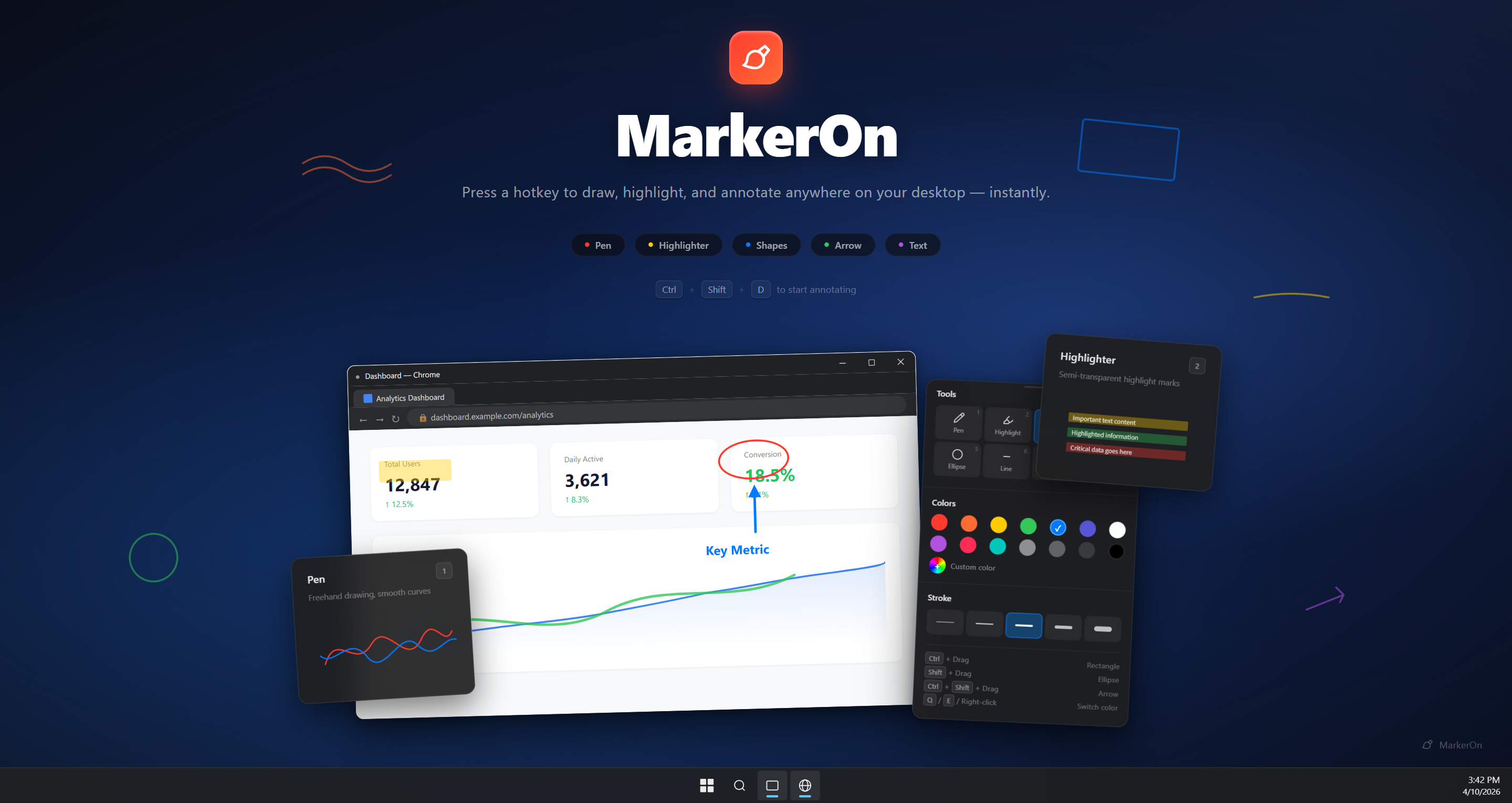
Contents: Download · Quick Start · Features · Shortcuts · Feedback · Development
Download




Download Latest Release — pick the installer for your platform from the assets list. Windows also ships a portable zip (*_x64_portable.zip): extract and run — config stays under data\ next to the exe (no AppData).
Windows users can also install the Microsoft Store version with WinGet:
winget install --id 9N6623X973JV --source msstore
Official downloads are GitHub Releases and Microsoft Store. Third-party mirrors may be outdated or repackaged.
Quick Start
- Install and launch — MarkerOn runs in the system tray; no window appears.
- Enter annotation mode — press Ctrl + Shift + D (Command + Shift + D on macOS).
- Draw, then click through — use number keys and V (Select) for tools; press X to interact with apps below while keeping annotations visible; press Esc to exit.
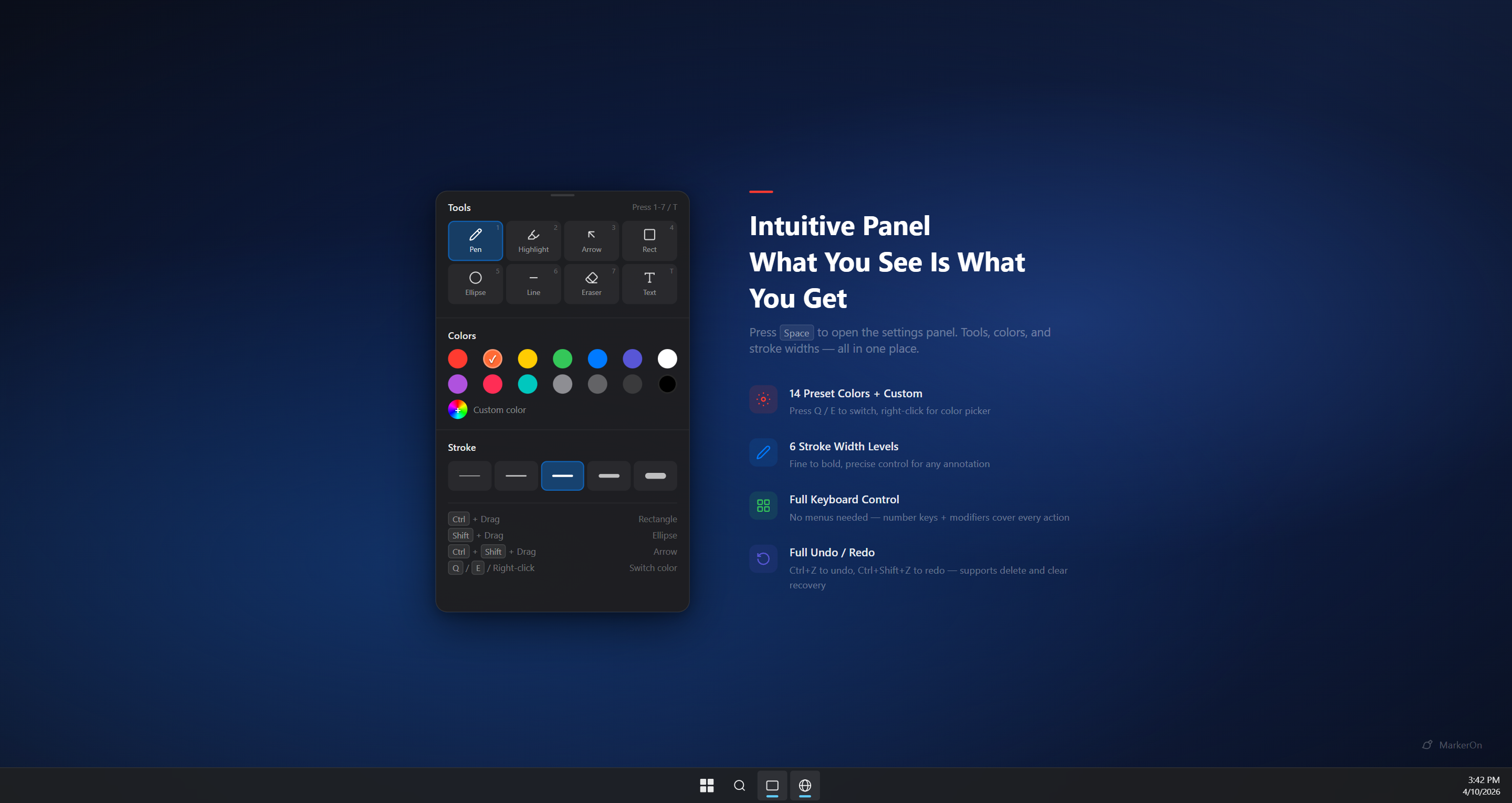
New here? Press Space for the toolbar. See Keyboard Shortcuts for the full list.
Features
- Lightweight & fast — ~1.5 MB installer (Rust + Canvas), minimal memory; runs quietly in the system tray (no extra daemons or telemetry)
- Annotate anywhere — draw over any app, including the taskbar
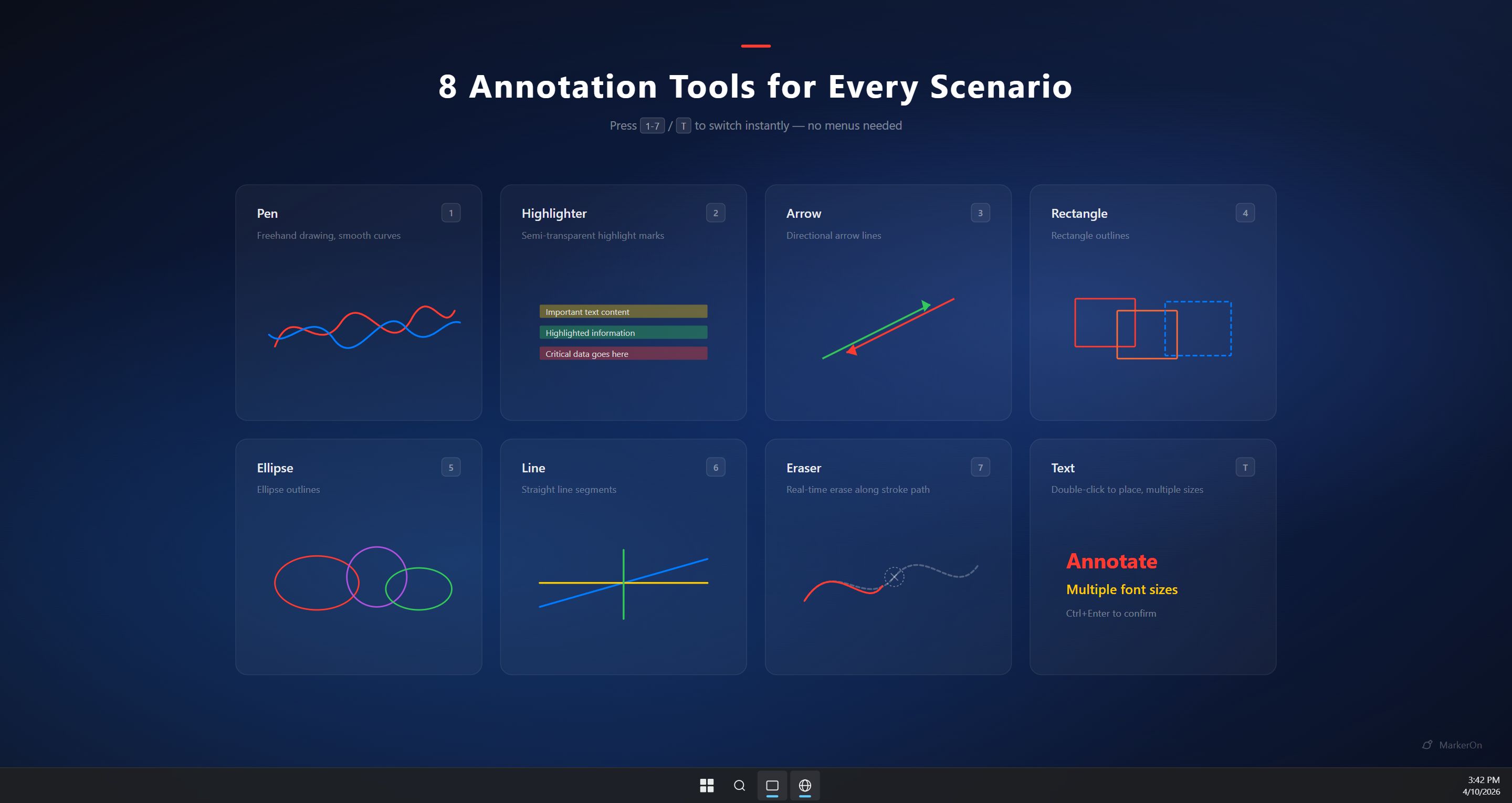
- 11 tools — select, pen, highlighter, laser, arrow, rectangle, ellipse, line, eraser, text, stamp
- Marquee batch edit — press V for Select: box/click select, group drag, Delete to remove
- Flexible toolbar — press Space to toggle, or enable always-on in Settings; compact panel with Expand for full options, undo, copy, and whiteboard actions in-panel; independent floating window with drawing / click-through toggles
- Click-through mode — interact with apps below while staying in the session; toggle via toolbar buttons, Ctrl+Shift+X (global), or X while drawing; disabled in whiteboard mode
- Full keyboard control — every action has a shortcut, no menus needed
- Preserve drawings — enable Keep after exit under Whiteboard & content to resume on re-enter
- Whiteboard mode — set default entry to whiteboard, or press W to toggle; content rules are in Whiteboard & content settings
- Whiteboard copy — copy the whiteboard as an image with Ctrl/Command + C
|
|
Keyboard Shortcuts
On macOS, use Command (⌘) in place of Ctrl, and Option (⌥) in place of Alt.
Global Shortcuts
| Action | Windows | macOS |
|---|---|---|
| Toggle annotation mode | Ctrl + Shift + D | Command + Shift + D |
| Clear all annotations | Ctrl + Shift + C | Command + Shift + C |
| Toggle click-through mode | Ctrl + Shift + X | Command + Shift + X |
Tool Switching
| Key | Tool | Key | Tool |
|---|---|---|---|
| V | Select | 5 | Ellipse |
| 1 | Pen | 6 | Line |
| 2 | Highlighter | 7 | Eraser |
| 3 | Arrow | 8 | Laser |
| 4 | Rectangle | T | Text |
| N | Stamp |
Common Actions
| Action | Windows | macOS |
|---|---|---|
| Toolbar (toggle) | Space | Space |
| Delete selection | Delete / Backspace | Delete / Backspace |
| Click-through (while drawing) | X | X |
| Cycle eraser mode (stroke / object) | 7 again while eraser selected | 7 again while eraser selected |
| Toolbar always-on / layout | Settings → General | Settings → General |
| Copy screen / whiteboard | Ctrl + C | Command + C |
| Whiteboard toggle | W | W |
| Undo / Redo | Ctrl + Z / Y | Command + Z / Y |
| Stroke width | Ctrl + Scroll | Command + Scroll (pen, laser & shapes share; highlighter/eraser/text separate) |
| Exit | Esc | Esc |
All shortcuts
Drawing with Modifier Keys
| Draws | Windows | macOS |
|---|---|---|
| Current tool (default: pen) | Drag | Drag |
| Line | Alt + Drag | Option + Drag |
| Rectangle | Ctrl + Drag | Command + Drag |
| Square | Ctrl + Alt + Drag | Command + Option + Drag |
| Ellipse | Shift + Drag | Shift + Drag |
| Circle | Shift + Alt + Drag | Shift + Option + Drag |
| Arrow | Ctrl + Shift + Drag | Command + Shift + Drag |
Edit & Move
| Action | Effect |
|---|---|
| Select tool (V) | Marquee or click to select; drag selection as a group; Delete / Backspace to remove; Esc clears selection |
| Element dragging | In General settings: Off / Hover drag / Hold Ctrl to drag |
| Double-click existing text | Re-enter edit mode for that text |
| Double-click empty area in T mode | Create a new text input at cursor position |
Color Switching
| Action | Effect |
|---|---|
| Q / E | Previous / Next color |
| Right-click | Hold to erase; release restores the previous tool |
Other
| Action | Windows | macOS |
|---|---|---|
| Redo (alt) | Ctrl + Shift + Z | Command + Shift + Z |
Advanced settings
In Settings → General (toolbar display, click-through, and stroke width — see Features):
- Whiteboard & content — default entry (screen / whiteboard), keep after exit, keep on W toggle
- Element dragging — off, hover to drag, or hold Ctrl/Command to drag (disabled while eraser is selected)
- Eraser mode — stroke (local erase) or object (delete whole elements); with eraser selected, press 7 again (or click the toolbar eraser again) to switch
- Angle snap step — snap interval for straight lines drawn with Alt
- Auto start — launch the app automatically at system startup
Feedback & Issues
- Bug reports: Settings → Diagnostics → export a report, then open a GitHub Issue
- Privacy: PRIVACY.md
Development
See CONTRIBUTING.md for prerequisites, setup, and the full workflow. Stack: Tauri v2 · Vue 3 · Vite · TypeScript · Canvas API
Explore related projects
n8n-io/n8n
Fair-code workflow automation platform with native AI capabilities. Combine visual building with custom code, self-host or cloud, 400+ integrations.
209,932 starslanggenius/dify
Build Agentic workflows, RAG pipelines, with rich AI model and tool support on one collaborative workspace. Deploy on cloud, VPC, or self-hosted, so teams move from prototype to production without rebuilding the stack.
160,773 starsmicrosoft/PowerToys
Microsoft PowerToys is a collection of utilities that supercharge productivity and customization on Windows
140,755 starsstablyai/orca
Orca is the place for working with a fleet of agents (e.g. Grok Bot, Claude Code). Run any coding agent with your own subscription. Available on desktop, mobile and remote runtime.
120,376 stars