homielab/timemate
homielab/timemate has 29 GitHub stars and 1 forks. GitHot measured 0 stars in 24 hours and 0 in 7 days. Last checked 2026-11-14 10:33 UTC. Last push 2026-11-05.
What you can do
- Sounds: Pick the alarm that plays when a focus session ends and, separately, the sound for the end of a break (until you choose one it follows the alarm), or None for silence — in Settings → Alerts & Sound, with a preview button and a shared volume.
- VoiceOver: The duration and cycle steppers are named ("Focus minutes", "Cycles"…), the cycle dots read as "2 of 4 focus sessions done" and the progress ring says how much of the session is left. Each Settings section title is a heading, so the rotor jumps between sections, and the break screen window is named "Break".
- Skip: moves on to the next session. A Focus session skipped before half of it has passed does not count towards the long break and is not recorded; one skipped later counts and is recorded in the history with the time it ran; skipping a break changes nothing in the count. Skipping a session that hasn't started only moves to the next one, without starting it.
- Keep Mac Awake: Prevents your Mac from going to sleep during active focus sessions.
Measured star growth
- in 24h
- 0
- in 7 days
- 0
- in 15 days
- Collecting history
- in 1 month
- Collecting history
Net star changes over overlapping periods, not daily totals. Missing measurements are left blank. Stars measure attention, not software quality.
About
TimeMate is a Pomodoro timer that lives in your menu bar. It helps you focus on your work and remember to take breaks.
ProductivityREADME.md
OriginalTimeMate
A lightweight, menu bar Pomodoro timer for macOS
Official Website • Report Issue • Support Project
Overview
TimeMate is a clean, focused macOS application built around the Pomodoro Technique. Operating entirely from your menu bar, TimeMate helps you maintain deep focus and manage work-rest cycles without cluttering your desktop or Dock.
By alternating focused work sprints (e.g., 25 minutes) with short breaks (5 minutes) and scheduled long breaks, TimeMate promotes sustained concentration while preventing mental fatigue.
Key Features
- Menu Bar Integration: Access your timer instantly from the macOS menu bar with zero desktop clutter. Right-click (or Control-click) the menu bar item for a quick menu: Start/Pause, Skip, Reset, Settings… and Quit. VoiceOver reads the item with the session and the time remaining, e.g. "TimeMate, Focus, 12 minutes, 34 seconds remaining". Hovering the item shows the same text as a tooltip, in every menu bar style. Settings → Appearance → Menu bar time picks "12:34", minutes only ("13m", for crowded menu bars) or icon only; the old
hideMenuBarTimedefault is read once to pick the initial choice and then left untouched. - Automated Workflow: Seamlessly cycles between Focus, Short Break, and Long Break sessions. A long break comes after every 2–8 focus sessions (default 4); "Auto-start breaks", "Auto-start focus" and "Auto-start on launch" keep the timer going without clicks. The cycle starts over on a fresh day: when you press Start or Continue Work (or open the app) with the timer idle and the last session began or ended more than 4 hours ago, or on an earlier day and more than an hour ago, it begins again at focus with no sessions counted, so last night's pomodoros don't give you a long break first thing in the morning, while a short break across midnight keeps the cycle. A running session keeps its cycle; a session paused that long (e.g. paused at 5 pm, resumed the next morning) keeps the time it has left but resumes on a fresh cycle.
- Custom Session Durations: Set any focus or break length from 1 to 180 minutes (e.g. 50/10 or 90-minute deep work) by typing it or with the stepper; an idle timer shows the new length right away. Cycles (focus sessions before a long break) go from 2 to 8. A length or cycle count outside these ranges, left by an older version or set with
defaults write, is saved back in range when TimeMate starts and when Settings opens. - Session Label: Type what you're working on in the "What are you working on?" field under the cycle dots (focus sessions only). It is saved with each focus session you complete, as it was when the session started; a session started without a label takes the one you type while it runs, and once a session has a label, edits apply from the next session (the field's tooltip says which) (a
labelinsession-history.json), shown as the first line of the "session complete" notification, and kept until you change it, also across relaunches and Reset All Settings. Leave it empty for no label. Press Return to leave the field so Space starts/pauses again. - Subtle Notifications: Receive gentle alerts when sessions complete without disruptive alarms. The banner shows even while TimeMate is in front, plays only your chosen alarm sound, says what comes next ("Next: Short Break · 5 min", or "… started" with auto-start), and has Start Next / Skip buttons (no Start Next when the next session starts by itself, and only Start Next when a break ends and focus waits); clicking the banner opens the popover. Only the latest one stays in Notification Center, and it goes away once you start, skip, reset or restart, so its buttons never act on a later session. It also arrives when TimeMate crashed or was force quit before the end of a session or is late (the Mac slept, App Nap): the notification is scheduled for the session's end and the on-time one replaces it, so each session notifies once; pausing, stopping, skipping or resetting cancels it. It is time-sensitive, so it still shows while a Focus mode or Do Not Disturb is on; turn off "Break through Focus" in Settings → Alerts & Sound to let Focus hide it.
- Sounds: Pick the alarm that plays when a focus session ends and, separately, the sound for the end of a break (until you choose one it follows the alarm), or None for silence — in Settings → Alerts & Sound, with a preview button and a shared volume.
- VoiceOver: The duration and cycle steppers are named ("Focus minutes", "Cycles"…), the cycle dots read as "2 of 4 focus sessions done" and the progress ring says how much of the session is left. Each Settings section title is a heading, so the rotor jumps between sections, and the break screen window is named "Break".
- Full-Screen Break Overlay: Optional immersive break screen that encourages taking genuine rest. The animation runs only on the screen you work on, stays still when Reduce Motion is on, and VoiceOver announces the break and its end and reads its countdown, once even with several screens. Every screen shows the same relaxation tip for the whole break. Need more rest? +5 min lengthens the break (and the popover's +5 min button lengthens a running or paused focus session, which the history records at its longer length); not a good moment? Postpone it by 1, 3 or 5 minutes and it comes back on its own. The Skip button (and Esc twice) works after a delay you set in Settings → Alerts & Sound (0–30 s, default 5 s); until then the global shortcuts, the menu bar menu, the notification and Shortcuts can't skip or pause the break either. While the app in front is full screen (a presentation, a video) the break screen waits until you leave it; turn that off in the same section. Turn on Wait during calls and video there too and it also waits while another app keeps the display awake, as Zoom, Meet, Teams and screen sharing do in a normal window (a video playing counts as well, so it is off by default); the notification still arrives.
- Statistics: See how many pomodoros and focus minutes you completed today. Settings → Statistics shows the last 7 days (pomodoros and focus minutes per day, read day by day by VoiceOver) or, with the 7 days / 30 days switch (remembered), the last 30 days as a compact bar strip (hovering a column, or VoiceOver, gives its day, pomodoros, minutes and whether it met the goal); below it By label (focus time per session label: the five longest, then Other and No label), By hour (focus minutes per hour of the day as 24 small columns, a session over the hour split between both, with "Most focused: 9 – 10 AM", or "09:00 – 10:00" on a 24-hour clock; hours without focus are skipped by VoiceOver), the period's total, the daily average (focus minutes per day from your first day with data, empty days included), the best day (most pomodoros, the latest one on a tie; both hidden when the period is empty) and the change against the same number of days before (pomodoros, percent, minutes; hidden when there is nothing to compare with or your history doesn't cover that whole earlier period). Export CSV… saves the chosen period, one row per day, as
date,pomodoros,minutes(dates as Gregorianyyyy-MM-ddwhatever your system calendar), and Export all (90 days)… saves every kept day the same way; the file name says the period (TimeMate-statistics-7d-<date>.csv,-30d-,-all-); Export sessions CSV… saves one row per completed session of the last 90 days asstart,end,kind,minutes,label(ISO 8601 times,startwhen the session began, so a paused session spans more than itsminutes, kindfocus/short_break/long_break, your session label quoted, with a leading'only when a spreadsheet would run it as a formula: it starts with=, or with+,-or@followed by a digit,(, another sign, or a name followed by a digit,(,|or!(=SUM(1),-1+1,+ 1+1,@A1,-cmd|…; spaces after the sign don't count); plain numbers and words such as+5,-researchor@Acmestay as typed). Completed sessions are kept for 90 days in a local JSON file (~/Library/Containers/<bundle id>/Data/Library/Application Support/<bundle id>/session-history.json) and can be cleared from Settings → Statistics; Undo Last Session there deletes only the focus session recorded last (it names its label, time and minutes and asks first; disabled when there is none). If that file can't be read, or holds sessions this version can't read (for example from a newer version), it is kept assession-history.corrupt-<date>.json(the latest one only) instead of being overwritten; Reset Statistics deletes that backup too. - Daily Goal: Set how many pomodoros you want to finish each day (Settings → Statistics → Daily goal, 1–24, off by default). The popover then shows "Today: 3/8 pomodoros · 75 min" with a small progress bar, the last 7 days mark each day (the 30-day strip colours them green) you met the goal and count them ("Goal reached on 4 of 7 days"), the CSV export adds a
goal_reachedcolumn (1/0), and a notification tells you once a day when the session that reaches the goal ends (if notifications are on), also when it ended while the Mac slept or TimeMate was closed (then on wake or at the next launch). Settings → Statistics also shows your streak: the days in a row that met the goal, counted back from today, also beyond the 90 kept days (when old sessions are dropped, their streak is kept insession-history-streak.jsonnext to the history file); a today that is not done yet does not break it. Turn on Weekends don't break the streak if you only work on weekdays: a day that misses the goal on the weekend, always Saturday and Sunday whatever weekend your region uses, is then skipped (one that meets it still counts), and the streak counts within the 90 kept days only. Below it, "Best: 12 days in the last 90 days" shows your longest streak within the kept history when it beats the current one. The current goal applies to every past day, because the goal is not saved per day. A session that runs past midnight (23:50 → 00:15) counts for the day it ends in Today, the goal, the streak and the daily CSV; By hour still splits it by its real hours. - Skip: moves on to the next session. A Focus session skipped before half of it has passed does not count towards the long break and is not recorded; one skipped later counts and is recorded in the history with the time it ran; skipping a break changes nothing in the count. Skipping a session that hasn't started only moves to the next one, without starting it.
- Global Keyboard Shortcuts: Start/pause with ⌃⌥P and skip the current session with ⌃⌥S from any app. A Reset shortcut (⌃⌥R, off by default) starts the current session over, like Reset in the popover, and an Add 5 Minutes shortcut (⌃⌥E, off by default) extends the running or paused session like +5 min. Record your own combination (it must include ⌃ or ⌘; combinations another turned-on action uses and ⌘ alone with a letter, digit or symbol (⌘S, ⌘C, …) is refused because apps use it, so add ⌃ or ⌥; a turned-off shortcut frees its combination) or turn each shortcut off in Settings → Keyboard Shortcuts. A shortcut another app holds is tried again when TimeMate comes to the front. No Accessibility permission needed.
- Popover keys: with the popover open, Space starts/pauses (not while typing in a duration or label field), ⌘, toggles Settings, ⌘→ skips and ⌘R resets. Restart asks before discarding a running session or the focus sessions already done in the cycle; Reset (button, ⌘R or the menu bar menu) asks before discarding a focus session that ran past half, with Record and Reset (saves the time it ran in the history) or Reset Without Recording. The Reset shortcut and the Shortcuts action can't ask, so they record such a session, like Skip. While the break screen's Skip delay runs, Reset (shortcut, Shortcuts action, menu bar menu) does nothing, like Skip and Pause.
- Shortcuts & Siri: Automate TimeMate with the Shortcuts app — Start Timer, Start Focus (starts focus even when the timer sits on a break that has not started; a running or paused session just goes on; set Minutes (1–180) for a one-off length, e.g. a 15-minute session, without changing the Focus duration in Settings — the session counts in the cycle, Today and the daily goal like any other), Start Focus with Label (the same, and fills "What are you working on?" before a new session starts; the label picker suggests the labels of your last 90 days and takes a new one you type), Add Time (1–60 minutes to the running or paused session; returns the minutes added, 0 when none, and says "Added 5 minutes", "Already at the 180-minute limit", or "No session to extend" when nothing is running), Pause Timer, Skip Session, Reset Timer (Start, Start Focus, Pause, Skip and Reset answer with the timer's state afterwards, e.g. "Short Break, not started, 1 min") and Get Timer Status (says which session is running, e.g. "Focus, running, 12 min left", and returns a Timer Status with State (Not Started, Running, Paused), Session (Focus, Short Break, Long Break), Minutes Left, Seconds Left, Label, Focus Session in Cycle and Focus Sessions per Cycle) and Get Today's Progress (says e.g. "Today: 3 of 8 pomodoros, 75 minutes", plus ". Streak: 4 days" when you have one, and returns Today's Progress with Pomodoros, Focus Minutes, Daily goal (0 when off), Goal Reached and Streak Days). Pick a field with Get Details of to branch, e.g. only during a break or once the goal is reached; used directly, the result still reads as the minutes left or the pomodoros done. Use them to turn on a Focus mode when a session starts, or ask Siri "Start TimeMate", "Start a focus session in TimeMate" or "Add time in TimeMate".
- Pause on Sleep or Lock: Turn on Settings → Automation → "Pause when the Mac sleeps or the screen locks" (off by default) and a running focus session pauses when the Mac sleeps, the display turns off or the screen locks. It stays paused until you resume it, so closing the lid for lunch doesn't count as a pomodoro. Turn on Resume when I'm back under it (off by default) and a session paused this way continues a couple of seconds after you unlock the screen or wake the Mac; a session you paused yourself stays paused, and one paused for over four hours (or since another day) waits for Resume, which starts a new cycle. Focus sessions only: a break keeps running while the Mac sleeps or is locked, so locking in the middle of a break doesn't stop it — it still ends on time, and on unlock the break screen comes back while it runs or the cycle moves on as usual once it's over (a break long past its end waits for you instead of ringing). With the setting off, nothing changes. Reset All Settings keeps a running session.
- Auto-pause When Away: Settings → Automation → "Auto-pause when I'm away" (Off, 3, 5 or 10 minutes; off by default). When you leave the desk without locking, a running focus session pauses once the Mac has had no keyboard, mouse or trackpad input for that long, and the minutes away go back on the clock, so History and statistics only count time at the desk. With Resume when I'm back on, it continues a couple of seconds after you touch the keyboard, mouse or trackpad (or unlock the screen). Breaks keep running. While another app keeps the display awake (a Zoom or Teams call, a video playing), the session keeps running, since you are watching, not away. Keep-awake utilities (caffeinate, Amphetamine, KeepingYouAwake, Lungo, Caffeine, Theine) don't stop auto-pause. Any other app that keeps the display awake all the time (a media player, a kiosk or presentation app) stops auto-pause from ever kicking in while it runs. Needs no Accessibility permission.
- Survives Quit & Updates: Quitting TimeMate (Quit, an update, logging out or shutting down) pauses a running session or break with the time it has left, and the pomodoro count is kept; press Start to go on. Changing the language or Reset All Settings restarts TimeMate without pausing: a running session keeps running. Time TimeMate wasn't running doesn't count in your statistics, streak or daily goal. A paused session stays paused; a pause from yesterday or longer than 4 hours starts a new cycle. Only after a crash or force quit does a running session keep counting from when it should end: if it ended while TimeMate was closed it still counts, and if that was more than 5 minutes ago the next session waits for you to press Start instead of opening the break screen. Sleep is different: a session runs on while the Mac sleeps, unless "Pause on Sleep or Lock" is on.
- Keep Mac Awake: Prevents your Mac from going to sleep during active focus sessions.
- Customizable Interface: Control dock icon visibility, notification preferences, and overlay behavior; pick the app language (System Default, English or Vietnamese; takes effect after restarting the app), a background color (popover text and controls switch to dark or light to stay readable on it) and whether the window stays on top ("Keep window on top").
- Multilingual Support: Available in both English and Vietnamese.
- Native & Efficient: Built specifically for macOS with minimal system resource usage. The countdown ticks every second only while you can see it; with the menu bar time hidden and the popover closed, TimeMate wakes just once when the session ends (once a minute with minutes only). Starting at login stays quiet (no popover, no stolen focus) unless you turn on "Show timer when started at login"; "Today" rolls over at midnight and setting the clock never changes a running session's length.
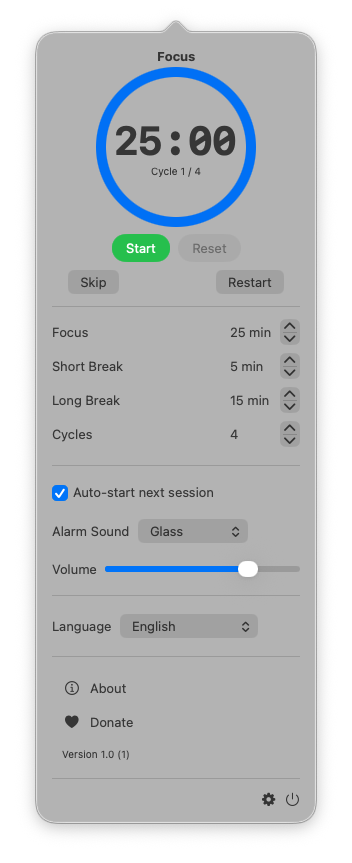
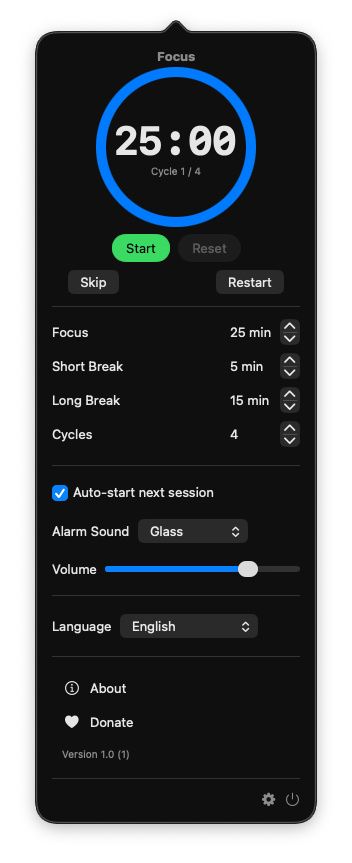
Screenshots
Requirements & Building
Requirements
- macOS 13.5 or later
- Xcode 26 or later to build from source (the app icon uses the Icon Composer
AppIcon.iconformat) - Swift Package Manager fetches the one dependency, Lottie (break-screen animation), on first build
Building from Source
- Clone the repository:
git clone https://github.com/homielab/timemate.git - Open the Xcode project:
open src/TimeMate.xcodeproj - Build and run the project (
Cmd + R) in Xcode, or build from the command line:xcodebuild -project src/TimeMate.xcodeproj -scheme TimeMate -configuration Debug \ -derivedDataPath build/DerivedData build
Running the Tests
The timer, statistics, notifications and break screen are covered by unit tests in the TimeMateTests target:
xcodebuild -project src/TimeMate.xcodeproj -scheme TimeMate -configuration Debug \
  -derivedDataPath build/DerivedData test
Or press Cmd + U in Xcode. To run one test class, add -only-testing:TimeMateTests/<ClassName>
(for example -only-testing:TimeMateTests/SessionSequenceTests).
Tests live in src/TimeMateTests/, one <Type>Tests.swift per type. The tests never wait for real
time. The PomodoroTimer tests (PomodoroTimer*Tests.swift) subclass TimerTestCase, which gives
each test a fake wall clock and uptime clock (currentTime, currentUptime), isolated user
defaults, an in-memory SessionHistory, and helpers: makeTimer, relaunch(after:) (simulates a
quit and relaunch), makeAlertTimer, drainMainQueue, and waitUntil(timeout:), which polls a
condition instead of sleeping for a fixed time. Move the clock forward and call handleTick()
rather than waiting a second. Put new logic in a pure type with the clock and defaults passed in,
as SessionSequence does, so it needs no timer to test. Every PomodoroTimer( in a test passes
playSound: (a real NSSound hangs the test run without a GUI session); AlarmSoundTests checks
it.
Debug builds run session minutes as seconds (PomodoroTimer.seconds(forMinutes:), PomodoroTimer+Settings.swift): a 25 minute focus session lasts 25 seconds, so you can try the whole cycle quickly. Release builds use real minutes.
Debug builds sign with src/TimeMate/TimeMateDebug.entitlements (no extra capabilities), so they build with any development team. Release builds use src/TimeMate/TimeMate.entitlements, which adds the Time Sensitive Notifications entitlement: the App ID needs that capability enabled in the Apple Developer portal.
Code Style
The code is formatted with swift-format (settings in
.swift-format: 2-space indent, 100 columns). Check it with:
swift format lint --strict -r src/TimeMate src/TimeMateTests
CI runs it with --strict, so any finding fails the build; run the same command with --strict before you commit.
Continuous Integration
.github/workflows/test.yml runs on every pull request and push to main (GitHub's macos-26
runner with Xcode 26): the swift-format check above, then the build and the unit tests with the
same xcodebuild command as in Running the Tests, signed ad hoc
(CODE_SIGN_IDENTITY="-" CODE_SIGNING_REQUIRED=NO) because CI has no Apple Development
certificate. The tests include a check that en.lproj and vi.lproj have the same strings with the
same format specifiers (%@, %d, %lld…), so a new string must be added to both languages.
Texts with a count that needs singular and plural forms ("1 pomodoro" / "2 pomodoros") go in
Localizable.stringsdict of both languages instead of Localizable.strings (Vietnamese only
needs the other form); the same check covers them. Shortcuts reads the titles, descriptions,
summaries, parameter prompts and result names in Intents.swift and IntentEntities.swift from
Localizable.strings with the English text as the key (\(\.$label) becomes ${label}); IntentStringsTests fails when one is missing, so
a reworded description needs its key changed in both languages.
Project Layout
Sources are in src/TimeMate/:
PomodoroTimer.swift— the timer state machine;TimerSnapshot.swift— the session it saves in user defaults to restore after a relaunch;SettingsKey.swift— all user-defaults keys. The rules that need no timer are pure and unit-tested:SessionSequence.swift(next session, long-break count, what happens when a session ends, "+5 min" and "Postpone"),TimerRestorePlan.swift(what to do with the saved session at launch),SleepPausePolicy.swift(pause on sleep or lock, resume when back) andIdlePausePolicy.swift(auto-pause when away),DisplayAwakeProbe.swift(another app keeps the display awake).AppDelegate.swift— app start-up and the popover; it wires the status item, the global shortcuts (HotKeyManager.swift;HotKeyMessage.swifttells why one did nothing), the break screen, keep-awake and notification responses.StatusItemController.swiftowns the status item, its right-click menu (StatusItemMenu.swift) and its VoiceOver label (StatusItemPolicy.swift);MenuBarView.swiftdraws it fromMenuBarModel.swift, which publishes only what the menu bar shows (one update per tick), in the style chosen inMenuBarTimeStyle.swift.LaunchBehavior.swiftdecides whether the popover opens at launch (not at login);TickMode.swiftdecides whether the timer ticks every second or only at the session's end.ContentView.swift— the popover; its parts are inViews/(TimerDisplayView,ControlButtonsView).Settings/— one file per settings section (DurationsSection,AlertsSection, …), shared building blocks inSettingsComponents.swift, the list of sections inSettingsView.swift;Settings/LoginItemState.swiftdecides what the Start at Login switch shows (pure, unit-tested) andLoginItemResetturns it off on Reset All Settings.KeyboardLayout.swift— the character the current keyboard layout types for a key, so shortcut labels match the user's keys.FocusReturn.swift— gives the keyboard back to the previous app when the break screen or popover closes, and fits the popover's settings to the screen (unit-tested).DefaultsObserver.swift— the one listener forUserDefaultschanges; it calls back only when one of the keys it is given changes (unit-tested).BreakOverlay*.swiftandBreakSkipCountdown.swift— the full-screen break screen;BreakOverlayRules.swiftdecides when it shows and what a double Esc does,OverlayPolicy.swiftholds it back while a full-screen app is in front or, as an option, whileDisplayAwakeProbe.swiftsees a call or video (unit-tested).Intents.swift— Shortcuts actions (App Intents) and Siri phrases; they drive the sharedPomodoroTimer.sharedthroughTimerIntentActions(unit-tested). Vietnamese phrases are invi.lproj/AppShortcuts.strings.IntentEntities.swiftholds what Get Timer Status and Get Today's Progress return (App Entities and App Enums) and the label Start Focus with Label takes, with its suggestions from the history.PrivacyInfo.xcprivacy— the App Store privacy manifest (no tracking or collected data; required-reason APIs: user defaults, system uptime). Declare any new required-reason API there.AlarmSound.swift— which sound plays when a session ends ("None", the alarm, the break-end sound) and playing it; a sound that fails to load is logged (unit-tested).- Pure, unit-tested helpers by topic:
- History and statistics:
SessionHistory.swift(JSON file, completed sessions, 90 days),GoalStreakCarry.swift(goal streak of the trimmed days),SessionStatistics.swift(days, periods, streak, CSV),StatisticsText.swift(localized texts, plural forms),DailyGoal.swift(goal and streak display),TodaySummary.swift(the popover's "Today" line),AppLocale.swift(app language with the system region and 12/24-hour clock for dates and numbers). - Sessions:
SessionCycle.swift(cycle dots, stale-cycle rule, VoiceOver clock),SessionDuration.swift(typed minutes),SessionLabel.swiftandViews/SessionLabelField.swift("What are you working on?" and its Recent labels menu),SessionNotification.swift(the "session complete" notification and its actions),AutoStart.swift(auto-start rules),SessionType+Style.swift(color and icon per session). - Popover:
PopoverTimerModel.swift(what the popover observes),PopoverShortcuts.swift(keys and the Restart confirmation),PopoverMotion.swift(its animations, off with Reduce Motion). - System:
SleepPreventer.swift(keep Mac awake),AppLanguage.swift(in-app language, About link),RelaxationTips.swift(break screen tips),Color+Hex.swiftandExtensions.swift(helpers andSettingsReset).
- History and statistics:
PomodoroTimer+Settings.swift,+Notifications.swift,+ScreenLock.swift,+Idle.swift— the parts ofPomodoroTimerthat react to settings changes, send notifications, pause on sleep or lock, and pause when the user is away (system idle time, injected in tests).TimeMateApp.swift— the SwiftUI entry point;TimeMate.entitlementsandTimeMateDebug.entitlements— Release and Debug entitlements.Log.swift—os.Loggercategories (app,history); use them instead ofprint.
Feedback & Contributions
Contributions, bug reports, and feature requests are welcome. Feel free to open an issue or submit a pull request on the GitHub repository.
Support
If you find TimeMate helpful and would like to support its ongoing development, consider buying a coffee: