
hankscafe/omnibus
hankscafe/omnibus has 95 GitHub stars and 12 forks. GitHot measured 0 stars in 24 hours and +1 in 7 days. Last checked 2026-11-17 03:30 UTC. Last push 2026-11-13.
What you can do
- Specials (Community!): A one-shot that belongs with a series ("Absolute Batman: Ark-M") attaches as a Special beside Annuals and Collected Editions: its own section on the series page, files named after its own volume, out of the run's issue count. Contributed by CaptainEpix in #259 (#255).
- "Leave It as Its Own Series" Sticks (Community!): A trade you keep as its own series stays in its own folder under collected-edition names, shows once on the parent's shelf, and the choice survives a rebuild. Contributed by CaptainEpix in #254 (#239).
- Your ComicInfo.xml, Left Intact (Community!): An embed merges into the file's existing ComicInfo.xml, so ComicRack's page table and every tag Omnibus doesn't model survive (#232 by dissentingd, #227). With Write metadata to ComicInfo.xml off, syncs, matches, follows and attaches leave your archives alone (#251).
- ComicVine Search, Whole Again: Since late October ComicVine's search has returned stripped results, so every result showed "Other", "0 issues" and a blank cover. Omnibus fills them back in from ComicVine's volume data.
Measured star growth
- in 24h
- 0
- in 7 days
- +1
- in 15 days
- Collecting history
- in 1 month
- Collecting history
Net star changes over overlapping periods, not daily totals. Missing measurements are left blank. Stars measure attention, not software quality.
About
Omnibus - A self-hosted comic book and manga manager. Automate downloads, sync rich metadata, and read your collection from anywhere. Your Universe. Organized.
Self-hostedREADME.md
OriginalOmnibus

The ultimate all-in-one, self-hosted comic book and manga app.





Omnibus is the ultimate all-in-one, self-hosted web application built specifically for the comic book and manga community. It seamlessly bridges the gap between discovering, requesting, downloading, managing, and reading your digital collection.
I am not a programmer, but I was inspired to "vibe-code" this project after discovering ReadMeABook on Reddit.
Self-hosting audiobooks, eBooks, and comic books has always presented a challenge for me: how do you seamlessly handle user requests, find the files, and automatically add them to a library? Having a system like AudioBookShelf for managing metadata and streaming media is fantastic, but getting the files into the system and handling user requests usually meant manual searching or relying on a disjointed mix of auto-downloaders.
After using ReadMeABook, I wanted a similar solution specifically tailored for comics. Comic indexers and tracking sites can be notoriously tricky due to inconsistent naming conventions and release formats (e.g., single issues vs. volumes vs. massive character collections). Using ReadMeABook's clean aesthetic as a starting point, I used AI to help build a comic-focused equivalent. What started as a simple request tool eventually evolved into a full-fledged library manager, metadata indexer, and web reader.
Built with Next.js 15, Tailwind v4, Prisma, a dedicated high-performance Rust engine, and a zero-config SQLite database (with optional PostgreSQL for large libraries), Omnibus is designed to be lightweight, performant, and responsive across all your devices. Whether you are managing a massive archive of .cbz files, hunting down missing issues of your favorite run, or just looking for a clean, distraction-free web reader, Omnibus brings your entire comic universe under one roof.
While I know AI-assisted ("vibe-coded") projects can sometimes be met with skepticism, I genuinely enjoyed the process of watching this come together into a highly usable tool. If you run into issues, have suggestions, or want to contribute, please let me know! I gladly welcome any help or insights to make Omnibus even better.
New to Omnibus? Installation takes you from nothing to the Setup Wizard in five steps.
Recent Highlights (November 2026)
The last several releases added a lot. The biggest things to be aware of:
- Requests That Close Themselves: A request closes once its issue is in your library, however it got there — the Smart Matcher closes it in any waiting state, and the Series Monitor closes a parked request whose issue you already own instead of downloading it a second time. What can't be tied to a series gets Mark completed in Request Management, and the requester is told. A search or download that is still running never reopens a request you cancelled or completed.
- Why a Request Is Stuck: A search that found nothing is Not Found Yet and names what each source did ("GetComics: nothing found · Prowlarr: 12 results, none matched"), a released issue with no date is Awaiting Date, and a stall's, a review's or a blocked import's reason stays on the request. Every request list names its statuses the same way, and Request Management filters by every one of them (#263).
- Specials (Community!): A one-shot that belongs with a series ("Absolute Batman: Ark-M") attaches as a Special beside Annuals and Collected Editions: its own section on the series page, files named after its own volume, out of the run's issue count. Contributed by CaptainEpix in #259 (#255).
- "Leave It as Its Own Series" Sticks (Community!): A trade you keep as its own series stays in its own folder under collected-edition names, shows once on the parent's shelf, and the choice survives a rebuild. Contributed by CaptainEpix in #254 (#239).
- Your ComicInfo.xml, Left Intact (Community!): An embed merges into the file's existing
ComicInfo.xml, so ComicRack's page table and every tag Omnibus doesn't model survive (#232 by dissentingd, #227). With Write metadata to ComicInfo.xml off, syncs, matches, follows and attaches leave your archives alone (#251). - Reading Lists at Scale: Hundreds of lists open fast, and every list shows where you are in it: "N / M read", read and in-progress badges, Continue at the first entry you haven't finished, and Hide read (#252, #253). CBL imports link by the ComicVine ids the list carries, so a missing entry links itself once the issue arrives.
- ComicVine Search, Whole Again: Since late October ComicVine's search has returned stripped results, so every result showed "Other", "0 issues" and a blank cover. Omnibus fills them back in from ComicVine's volume data.
- One Folder Can't Be Both: When the unmatched folder is the watched folder, or inside it, the watched-folder sweep stops before it touches a file and System Health says what to change — a setup that renamed files on every sweep, and deleted them on 1.4.8 and earlier (#261).
- Fits the Screen: The admin dashboard's GetComics buttons, the library cards' hover actions and For Your Library's Monitor button no longer run off or crush on narrow screens (#260).
- Requests That Close on What Reached Your Library (Community!): A request remembers which issue it's for, so a pack is downloaded once instead of again on every monitor cycle. A pack handed to the watched folder leaves its requests at Importing until the sweep reports what landed — Completed with the "available" alert when the issue is in your library, Needs Review (with its own alert) when it went to /unmatched — and a Smart Matcher match closes it with the same alert. Built by realAbitbol in #246, #247, #248 and #249 (#240).
- The Request You're Waiting On Goes First: Scheduled jobs never wait behind a search backlog, and searches go in order of who is waiting — a single issue someone asked for, then whole-series requests and imports, then the Series Monitor's own searches — so a request made right after a monitor run starts within a search or two.
- Downloads That Arrive Whole: A cut-off download resumes from the exact byte it stopped at, a corrupt one moves on to the next hoster, and an archive that can't be read is never imported — the release is blocked and the request searches again (#240).
- One Naming Rule, With Issue-Number Padding: Pick none, 2 or 3 digits under Settings → Library & Files → Issue Number Padding, and every way a comic arrives names it exactly as Standardize does — with the issue's own year, not the series' (#243, #244).
- A First Run That Knows What's Next: A five-step Installation, a First Steps guide, and a live setup checklist on Home — library folder, metadata key, comics, Discover — with the button that does each step (#245).
- Folder Paths Checked Before They Bite: A Windows path under Docker, a stray space, or a folder nothing is mounted at is turned away when you save it, with the fix named — and the engine never files comics where an update would delete them.
- New Installs Run Their Jobs: The library scan, metadata sync, Series Monitor, backups and Discover run on the schedule Admin → Jobs shows, without anyone pressing Save first.
- Paperback Reads Omnibus: Paperback for iPhone and iPad connects through its Komga sources — the Komga extension on Paperback 0.9, the built-in source on 0.8 — and Omnibus answers them with a Komga-compatible endpoint at
/komga, so you get series, covers, page streaming (CBZ and CBR) and search, and finished chapters sync back to On Deck once the source is linked as a tracker (setup, #206). - KOReader Sync, End to End (Community!): KOReader progress sync logs in for the first time (#213 by realAbitbol), lands on the page you stopped on instead of one page late, and finds its issue by KOReader's own checksum for books downloaded from Omnibus — no "Send document metadata" or "Use server filenames" needed (#211, #217).
- An OPDS Overhaul (Community!): Search the catalog from your reading app; a home screen with Continue Reading, Recently Added, On Deck and Libraries; streamed issues resume on the page you last read; every cover loads, local and custom ones included; feeds carry real authors and dates and publish the address you actually reached, proxy or not; and downloads keep the file's real type and name and can resume. Built largely by realAbitbol across #212, #234, #235 and #236.
- Metron, a Good Neighbor: Every Metron request follows Metron's published best practices — one client paced by Metron's own rate-limit headers, a 429 pauses everything instead of being retried, each install runs its scheduled jobs at its own time of day instead of all at once, the Series Monitor asks only for what changed, and covers and per-issue credits are fetched only where someone will see them. Sign in with a Metron API token (encrypted, never logged), and System Health shows Metron's real limits with live countdowns (#216).
{Imprint}Naming Token (Community!): File series under their publisher imprint —{Publisher}/{Imprint}/{Series} ({Year})puts The Sandman underDC Comics/Vertigo/— the same way in every import, rename and match. Contributed by CaptainEpix in #214.- Read Your Trades and Compendiums in the Browser: Collected editions you own get a Read/Resume button and their reading progress, and the web reader opens very large archives — files over 2 GB included, crop mode too — without loading them into memory (#215).
- Annuals, Polished: Attached annuals and collected editions get their credits and synopsis from their own volume, an attach rewrites the claimed files'
ComicInfo.xmlright away, and a series never wears its annual's cover in the library again (#237, #238). - Annuals Live With Their Series (Community!): An annual gets its own numbering, so "Batman Annual #1" never fights "Batman #1". Attach a provider's annual volume from the series page and its issues join the run — claimed by issue id, or by name for one-offs like "The Amazing Spider-Man '96 #001". Every attached row names its volume, a sort control orders the series by number or by release date (annuals fall in between the issues they were published among), and the Duplicate Resolver knows seven annual volumes' "#1"s are seven comics. Requested and field-tested across five rounds by anacronismo in #203.
- Collected Editions Get a Shelf: Attach a trade or omnibus volume to its series and its books sit on their own shelf, numbered in the order you want to read them. A trade the provider doesn't know can be attached by name alone — from the Smart Matcher's Attach to Series or from the shelf — and Standardize keeps its books named after the edition.
- A Trade You Own Counts Everywhere: Each collected book has a Covers field, prefilled from ComicVine's "Collects #1-6" line and hand-editable. Issues covered by a trade you own leave Missing on the series page, hide in Missing Issues behind a toggle, and drop out of Discover's "Request Missing", volume requests, and the monitor's automatic asks.
- Missing Issues, Front and Center: A linkable Missing Issues view for the whole library — a door on the front page and one in the library toolbar — with Request on every card and "Request all shown" for whatever you've filtered to.
- For Your Library: The front page's new shelf reads the writers and characters across the series you own and suggests series you don't have, each card saying who it's there for. Monitor adds one straight to Missing Issues; Not interested hides it, with undo.
- Smart Matcher, Sharpened: Ignore sticks, the bulk mapping table shows each bound issue's cover, auto-scan suggestions are scored by name with the year only breaking ties, and two series can never share a folder — when a match would land in another series' folder you choose: attach it there as a collected edition, or give it a folder name of its own.
- Half-Issues Are One Issue: ComicVine's "13½" and your file's "13.5" no longer split into a missing row and a present one — and an existing split heals the next time you open the series (#205).
- Session Expiry That Sends You to Sign In: An expired session lands you on the sign-in page with a note saying why, and signing back in returns you to where you were — no more "Unauthorized Access" dead-ends (#204).
- Admin Controls: A self-registration toggle in Access & Security (manual account creation stays), and user-submitted issue reports arrive as a notification event on every channel you've set up.
- Your Files Come First in the Smart Matcher (Community!): Opening Search Match or Edit Metadata now reads the item's own metadata before asking a provider — a loose file's
ComicInfo.xml, a folder's scanned data plus itsseries.json, freshly re-read. The editor pre-fills from your files with provenance badges showing where each value came from, provider data fills empty fields only via an explicit button, and files carrying a ComicVine/Metron id (dedicated tags, a Web URL, a ComicTagger/Mylar fingerprint, orseries.json) resolve their exact series — and issue — by themselves. Design shaped by CapitanoNemo78's feedback across #199. - Keep or Replace — Curation Survives Accept: The match editor's new data mode defaults to "Keep my data, fill gaps": your files' metadata lands on the series and locks against provider syncs, even if you never open the editor at all. "Replace with provider data" is explicit and warns that it rewrites
ComicInfo.xmland regeneratesseries.jsonbefore you choose it. (#199) - Per-Issue Metadata Editing (Community!): Every issue opens the full tabbed editor with fifteen new per-issue fields — inker/editor/translator credits (inks finally split from pencils across every provider), tags, story-arc number, alternates, GTIN, notes, scan info, review, community rating, main character, and a tri-state Black & White. Issue values win over series defaults, embed into each file's
ComicInfo.xml, and survive a wipe-and-rescan. Concept and prototype by CapitanoNemo78 in #199. - Tag Credits From the Reader: Admins get a Tag button in the reader — accumulate writers, artists, characters, and more as you spot them mid-read; everything saves in one write when you close the comic, with an honest report of whether the file itself was updated. (#199)
- Smarter Download Matching: Requesting Batman (2011) no longer downloads Batman '66 — numeric words like the '66 count as part of a series name, bulk packs face the same sibling-series guard as single issues, and packs are date-checked against the series' own start year. (#202)
- Follow Your Series & The Updates Feed: Every user can follow the series they care about — a bell button lives on the series page, library cards, the bulk-selection bar, calendar entries, and the Recently Added shelf. New issues arriving in followed series show up in a personal Updates feed (day-grouped, with unread tracking), in a collapsible Updates section on your profile, and as a one-line summary in the header notification bell. Following is personal curation — it never touches monitoring or downloads — and requesting a series follows it automatically.
- My Pull List: The Release Calendar's new default tab shows upcoming releases for the series you follow — your personal pull list. The classic server-wide monitored view is unchanged, one tab over.
- Covers Load Light & Cache Hard: Library views request right-sized WebP thumbnails (a 3 MB stored cover arrives as ~120 KB), rendered once and cached on disk server-side with proper ETags — a next-day refresh is a handful of 304s instead of re-downloading every cover. OPDS cover responses are byte-for-byte unchanged.
- ComicInfo Defaults Everywhere (Community!): Set series-level defaults for the full ComicInfo tag set — imprint, age rating, language, credits, tags, and more — in a tabbed editor available in both the Smart Matcher and Edit Series Metadata. Values embed into
ComicInfo.xml, scans read them back (so a wipe-and-rescan restores everything), andseries.jsoncarries imprint and age rating. Built for libraries the providers don't cover — concept and prototype by CapitanoNemo78 in #199. - Search Match: Manually matching an item in the Smart Matcher now starts with a name search — type the series, pick from a results list with covers — instead of hunting a ComicVine/Metron ID. The exact-ID lookup is still there for admins, one click deeper. (#199)
- UMASK Support: Both containers honor the standard
UMASKenvironment variable (the *arr convention) so new library folders are writable on NAS/shared storage. Opt-in; unset keeps today's behavior. - Comic Panel-Frame Navigation (Community!): A comic-styled header redesign — the active page sits in a bold panel frame with an offset shadow, Admin lives in the avatar menu, and the whole button system picked up tactile press feedback and
prefers-reduced-motionsupport. Contributed by JoeJoeflyn in #186 — Omnibus' first merged community feature! - Page Manager: Preview any issue's pages on the series page, delete scanner junk or corrupted pages (CBR repack included), flag a bad page right from the reader mid-read, and sweep an entire series for flagged pages as a background job.
- Alphabet Jump Bar: A Plex-style floating #/A–Z rail on alphabetically-sorted libraries — jump straight to a letter, watch the rail track your position as you scroll, with letters that have nothing under your current filters dimmed.
- Cloudflare Downloads That Finish Themselves: The FlareSolverr path was rebuilt around the choreography that battle-tested download tools use — solver session reuse, streaming from the solver's landed URL, and partial-transfer resume — so GetComics links that used to fall to "manual download" now usually complete on their own.
- Manga Pipeline Hardening: Matching never demotes a manga series back to Comics, Standardize applies your manga naming pattern, series-name-aware parsing fixes "Kaiju No. 8"-style titles, per-issue covers self-heal instead of wearing volume-1 art everywhere, and completed series finish their metadata enrichment automatically even after a rate-limit interruption.
- One-Click Accept All: When the Smart Matcher's auto-scan matches everything, a single button applies every suggestion in one pass.
- Self-Describing Library (Local-First Ingest): Scans now read
series.json(Mylar format) and embeddedComicInfo.xml— including inside RAR archives — so a properly tagged library browses, builds its calendar, and even rebuilds itself into a fresh database with zero metadata-provider API calls.series.jsonexport is on by default (Omnibus never overwrites one it didn't create), and your files supply release dates, issue numbers, and covers directly. - Native CBR/RAR Reading: The Rust engine reads
.cbr/.rararchives directly — in the web reader and streamed to OPDS apps like Panels — so conversion to.cbzis now optional (the auto-converter remains on by default and recommended). - Smarter Matching: A configurable Match Confidence Mode (Trust / Confirm / Auto / Custom), plus an hourly budget-aware background sweep that keeps retrying unmatched series within the ComicVine rate limit — big imports finish matching themselves, and auto-matches surface in the admin notification bell.
- Request Lifecycle Self-Healing: Stalled downloads recover automatically, not-yet-available titles wait in a dedicated Awaiting-Release state (with per-request snooze) instead of counting as failures, and dead requests are swept back into the queue — no more deleting a request to make it retry.
- Manga Filtering, Everywhere: Manga detection (publisher lists, provider genres/concepts, AniList cross-reference,
ComicInfotags) now drives Discover visibility modes under both ComicVine and Metron, and a new "Allow Manga Requests" gate can keep manga out of the download pipeline entirely. - Search Quality: GetComics results show download sizes in interactive search, oversized files prefer third-party mirrors automatically, rate limits get real backoff handling, and undated scene releases can be accepted via an opt-in (dated releases always win).
- Metadata Response Cache (Opt-In): A shared ComicVine/Metron response cache (with admin-tunable freshness windows and a size cap) makes repeat lookups cost zero rate limit across both the app and the engine.
- Redesigned Settings: Settings are reorganized into 8 task-focused tabs, with per-tab unsaved-change indicators so you always know exactly where your unsaved edits live.
- Session Security: Inactivity auto-logout that actually fires — admins after 2 idle hours, users after 6 — with server-side enforcement, alongside encrypted credentials at rest.
- Hybrid Rust Engine & PostgreSQL: Performance-critical work (scanning, conversion, covers, downloads, matching) runs on a dedicated Rust engine, and larger libraries can run on PostgreSQL — SQLite stays the zero-config default. Engine concurrency is fully tunable from the UI. Migration path in UPGRADING.md.
- Manual File Upload: Drop comic files into your Watched or Unmatched folder straight from the browser — no server filesystem access required. Built to recover Cloudflare-gated downloads you had to fetch by hand.
Table of Contents
- Recent Highlights
- Installation (Docker)
- First Steps
- Features & Navigation
- Authentication & Security
- Homepage
- Library & Metadata
- Follows & The Updates Feed
- Manga Support
- Series Page
- Web Reader
- External Readers & OPDS Support
- Native e-Ink Sync (KOReader)
- Reading Lists
- Release Calendar
- User Profile & Preferences
- Custom Release Scoring & Formats
- Settings & Administration
- Additional Screenshots
- Metadata Sources, Licenses & Covers
- Acknowledgements
- Contributors
Installation (Docker)
Omnibus runs as three containers that start together with Docker Compose:
- the web app — the site you open in your browser;
- the Rust engine — the heavy lifting: library scans, CBR/CBZ conversion, downloads, metadata sync, and search;
- Redis — the background job queue.
The database is a single SQLite file in your config folder, so there is no database server to run. (Very large library? PostgreSQL is optional — see Choosing your database.)
Already running Omnibus? To update, run
docker compose pulland thendocker compose up -d. Coming from v1.1.x, or using QNAP Container Station? Read UPGRADING.md first.
Before you start
- Docker with Docker Compose on the machine that will run Omnibus. Docker Desktop (Windows/macOS) includes Compose; on Linux, follow Docker's install guide and check that
docker compose versionworks. - A free ComicVine API key — Omnibus' default source for covers, synopses, and issue lists. Create an account at comicvine.gamespot.com, then open comicvine.gamespot.com/api to see your key. (Metron.Cloud is an optional second source.) Both have their own terms of use; see Metadata Sources, Licenses & Covers.
- Optional — add them whenever you like: Prowlarr (indexer search), a download client (qBittorrent, SABnzbd, …), FlareSolverr. You don't need any of them to organize and read the comics you already have.
Step 1 — Make the folders
Pick a home for Omnibus on your server, for example:
omnibus/
├── docker-compose.yml   ← you'll create this in step 3
├── config/              ← database, logs, cache, backups (Omnibus fills this)
└── data/
    ├── comics/          ← your comic library — copy existing comics here
    └── downloads/       ← finished downloads land here
- Keep
config/on a disk in the server itself, not a network share — the SQLite database can be corrupted over SMB/NFS.data/can live on a NAS share. - Keep
comics/anddownloads/inside the onedata/folder so Omnibus moves files instantly instead of copying them. - Comics already somewhere else? Point the data mount (step 3) at the folder that holds them instead — e.g.
/mnt/media:/datawhen your comics are in/mnt/media/comics. - On Linux, the web container runs as user ID 1000, which must be able to write to
config/anddata/. Create the folders as your regular user rather than withsudo: a folder Docker creates for you is owned by root, and the web app can't create its database there. (sudo chown -R 1000:1000 config datafixes that.)
Step 2 — Make a secret
openssl rand -base64 48
Copy the output (any random string of 40+ characters works too). This is your NEXTAUTH_SECRET: it signs logins and encrypts the passwords and API keys Omnibus saves. Keep a copy somewhere safe — without it, those saved values can't be read and backups can't be restored.
Step 3 — Create docker-compose.yml
Save the file below as docker-compose.yml in your omnibus folder, then fill in the lines marked CHANGE ME:
| Setting | What to put there |
|---|---|
NEXTAUTH_URL |
The address you'll type into your browser: your server's IP and port 3000, e.g. http://192.168.1.50:3000 — no trailing slash. Behind a domain or reverse proxy? Use that address instead, e.g. https://omnibus.example.com. |
NEXTAUTH_SECRET |
Your secret from step 2 — in both the omnibus and omnibus-engine services. |
TZ |
Your timezone, e.g. Europe/London — in both services. |
volumes |
./config and ./data work as written when the folders sit next to this file; otherwise use full paths. Keep the two lines identical in both services. |
services:
  omnibus:
    image: ghcr.io/hankscafe/omnibus:latest
    container_name: omnibus
    restart: unless-stopped
    ports:
      - "3000:3000"
    depends_on:
      omnibus-redis:
        condition: service_healthy
      omnibus-engine:
        condition: service_started
    environment:
      # CHANGE ME: your timezone (the same value in the engine below)
      - TZ=America/New_York

      # CHANGE ME: the address you open Omnibus at. It must match exactly, with no trailing slash.
      # On your network: your server's IP and port (e.g. http://192.168.1.50:3000)
      # Behind a domain or reverse proxy: that address (e.g. https://omnibus.yourdomain.com)
      - NEXTAUTH_URL=http://YOUR-SERVER-IP:3000

      # CHANGE ME: paste your secret (generate one with: openssl rand -base64 48).
      # !!NOTE!! - It also encrypts the passwords and API keys Omnibus saves. !!DO NOT LOSE THIS!!
      # !!NOTE!! - Must be the SAME value as NEXTAUTH_SECRET in the omnibus-engine service below.
      - NEXTAUTH_SECRET=

      # --- ADVANCED SECURITY SETTINGS ---
      # By default, Omnibus requires an HTTPS connection to use the "Login As" (Impersonation) feature
      # to prevent session tokens from being intercepted over the network.
      # If you are running Omnibus on a secure, private home network (LAN) without SSL,
      # uncomment the line below to bypass this restriction at your own risk.
      # - ALLOW_INSECURE_IMPERSONATION=true

      # Everything below can stay as it is.

      # The background job queue (the omnibus-redis service below)
      - OMNIBUS_REDIS_URL=redis://omnibus-redis:6379/0

      # The Rust engine (the omnibus-engine service below). Scans, conversions, downloads,
      # metadata sync, and search all run there — without it those jobs fail with "fetch failed".
      - OMNIBUS_ENGINE_URL=http://omnibus-engine:8000

      # The database: a SQLite file in your config folder
      - DATABASE_URL=file:/config/omnibus.db

      # Folders inside the containers; they're created inside your config and data folders
      - OMNIBUS_CACHE_DIR=/config/cache
      - OMNIBUS_LOGS_DIR=/config/logs
      - OMNIBUS_BACKUPS_DIR=/config/backups
      - OMNIBUS_WATCHED_DIR=/data/watched
      - OMNIBUS_AWAITING_MATCH_DIR=/data/unmatched

      # OPTIONAL: default file-permission mask for everything Omnibus creates (the *arr convention).
      # On NAS/shared storage, new folders are otherwise 0755 and read-only for your other accounts.
      # 000 = world-writable (0777 folders), 002 = group-writable (0775). Also normalizes folders the
      # Smart Matcher relocates. Set the SAME value on the engine service below. Unset = no change.
      # - UMASK=002

    volumes:
      # <folder on your server>:<folder inside the container> — only ever change the LEFT side,
      # and keep these lines identical in the omnibus-engine service below.
      # Database, logs, cache, and backups. Local disk only, not a network share.
      - ./config:/config
      # Your comics and downloads (./data/comics, ./data/downloads). One mount = instant moves.
      - ./data:/data

      # Folders on separate drives? Replace the ./data line with one line per folder, all under
      # /data, and copy the same lines to the engine below. Moves between separate mounts are
      # copies, so they're slower. Watched and unmatched need two different folders: unmatched must
      # not be the watched folder or inside it, or watched-folder imports stop.
      # - /path/to/comics:/data/comics
      # - /path/to/manga:/data/manga
      # - /path/to/downloads:/data/downloads
      # - /path/to/watched:/data/watched
      # - /path/to/unmatched:/data/unmatched

  # --- Rust engine: the heavy lifting (required) ---
  # Library scans, CBR/CBZ conversion, downloads, metadata sync, search, and backups all run
  # here. The web app forwards those jobs to it over Docker's internal network.
  omnibus-engine:
    image: ghcr.io/hankscafe/omnibus-engine:latest
    container_name: omnibus-engine
    restart: unless-stopped
    environment:
      # CHANGE ME: the same timezone as the web app
      - TZ=America/New_York

      # CHANGE ME: the SAME secret as the web app's NEXTAUTH_SECRET above.
      # The engine refuses to start without a real secret.
      - NEXTAUTH_SECRET=

      # Everything below can stay as it is.

      # The same SQLite database file as the web app (via the shared /config volume)
      - DATABASE_URL=file:/config/omnibus.db
      - OMNIBUS_ENGINE_BIND=0.0.0.0:8000

      # The engine calls back to the web app to fire job-completion notifications.
      - OMNIBUS_NODE_URL=http://omnibus:3000

      # Identical to the web app so both containers resolve the same files
      - OMNIBUS_BACKUPS_DIR=/config/backups
      - OMNIBUS_CACHE_DIR=/config/cache
      - OMNIBUS_WATCHED_DIR=/data/watched
      - OMNIBUS_AWAITING_MATCH_DIR=/data/unmatched

      # OPTIONAL: match the web app's UMASK (see above) so both containers create files the same way.
      # - UMASK=002
    # No ports: only the web app talks to the engine, over Docker's internal network.
    # Publishing 8000 would expose the DB-/filesystem-mutating engine API to your LAN.
    volumes:
      # The SAME lines as the web app's volumes above: the engine reads and writes the same
      # database and comic files at the same paths.
      - ./config:/config
      - ./data:/data

  # --- Redis: the background job queue ---
  omnibus-redis:
    image: redis:7-alpine
    container_name: omnibus-redis
    restart: unless-stopped
    # No ports: only the web app talks to Redis, over Docker's internal network.
    healthcheck:
      test: ["CMD", "redis-cli", "ping"]
      interval: 5s
      timeout: 5s
      retries: 10
Using Portainer, Synology Container Manager, Unraid, or another web UI that takes a compose file? Paste the same file, but give the volumes full paths (e.g.
/volume1/docker/omnibus/config:/config) — some of those tools resolve./somewhere other than you'd expect.
This is the same stack as the repo's docker-compose.yml, written out with folder mounts instead of Docker-managed volumes. Use one or the other, not both.
Step 4 — Start it
From your omnibus folder:
docker compose up -d
(Older Docker installs spell it docker-compose up -d.) Then check that all three containers are running:
docker compose ps
omnibus, omnibus-engine, and omnibus-redis should all show Up; the first start can take a minute while the database is created. If one keeps restarting, its log says why — for example docker compose logs omnibus-engine. A missing NEXTAUTH_SECRET is the usual cause.
Step 5 — Run the Setup Wizard
Open your NEXTAUTH_URL in a browser. The wizard creates your admin account first, then asks for your ComicVine key. Every later step — indexers, download clients, hosters, network, users, filters, alerts, SSO — can be skipped with Next and set up any time in Admin → Settings.
On the Paths step (Storage Mappings), enter folders the way the containers see them — inside /data, not the folder names on your server. With the layout from step 1:
| Wizard field | Enter |
|---|---|
| Download Scan Root | /data/downloads |
| Library Folders → Path | /data/comics |
When you're done, the System Health card on the Admin page checks your setup — the engine connection, your ComicVine key, and whether the download folder is writable. Then head to First Steps.
Behind a reverse proxy or Cloudflare Tunnel?
Manual comic uploads are large requests, and proxies commonly cap request bodies:
- Cloudflare (including Tunnels): free and pro plans cap each request at ~100MB, and this cannot be raised. Omnibus v1.3+ automatically slices manual uploads into ~48MB chunks, so uploads of any size work through a tunnel. On older versions, upload from your LAN address instead.
- nginx / Nginx Proxy Manager:
client_max_body_sizedefaults to just 1MB. Addclient_max_body_size 2048m;(NPM: Edit Proxy Host → Advanced) so single-request uploads and other large calls aren't rejected with HTTP 413.
Omnibus' own upload limit is 2GB per file, adjustable with the OMNIBUS_MAX_UPLOAD_MB environment variable on the web container.
First Steps
Omnibus keeps your comic library organised, lets you read it, and can download new comics for you. You can only read comics that are in your library: the covers on the Home page are suggestions from ComicVine that you can request, not comics you have yet.
Read the comics you already have
- Copy a few comics (
.cbz,.cbr,.cb7,.zip,.rar,.epub) intodata/comics/, one folder per series — for exampledata/comics/DC Comics/Absolute Batman (2024)/. - Open Library and press Refresh. Omnibus scans the folder and adds each series with its covers and details. A series it can't identify on its own is waiting for you in Admin Dashboard → Smart Matcher.
- Open a series and press Read. Your place is saved as you read.
Library still empty? Check Admin → Settings → Library & Files → Root Library Folders: it should list /data/comics.
To read on a phone or tablet instead, see External Readers & OPDS Support.
Get new comics
- On Home, search for a series. Request Issue gets one issue; Request Series (shown as Request Missing once you own part of the series) gets every issue you don't have, and offers to monitor the series so new issues are fetched as they come out. A series page has a Monitor Series button too.
- Follow it in My Requests. A request from a user who isn't allowed to auto-approve waits for an admin first.
- When the download finishes, Omnibus moves it into your library and it shows up in Library.
Omnibus searches GetComics out of the box. Prowlarr, download clients (qBittorrent, SABnzbd, …) and FlareSolverr are optional and live in Admin → Settings.
Where your files go
With the folder layout from step 1:
| What | Folder on your server |
|---|---|
Your library, filed as Publisher/Series (Year)/ |
data/comics/ |
| Direct downloads while they arrive | data/downloads/GetComics/ |
| Torrent and usenet downloads | wherever your download client saves them (see below) |
| Packs being split into single issues | data/watched/ |
| Files Omnibus couldn't identify — match them in Smart Matcher | data/unmatched/ |
A download reached 100% but never shows up in Library?
The download finished, but Omnibus couldn't move it into your library. Open Admin → Logs and look for lines starting with [Importer] from around the time it finished:
- "No Library Path found for this import" — no library folder is set. Add
/data/comicsunder Admin → Settings → Library & Files → Root Library Folders. - "Permission denied" — Omnibus isn't allowed to write to the folder. On Linux the web container runs as user ID 1000:
sudo chown -R 1000:1000 data. - "Source file not found … Check Path Mappings!" (torrent / usenet) — your download client saved the file somewhere Omnibus can't see. Mount the downloads folder at the same path in both containers, or map it with the client's Settings button under Admin → Settings → Downloads.
The System Health card on the Admin Dashboard checks the first two for you.
Features & Navigation
Authentication & Security
The secure gateway to your personal comic universe. Omnibus ensures your collection remains private while offering a beautiful, welcoming entry point for you and your authorized users.
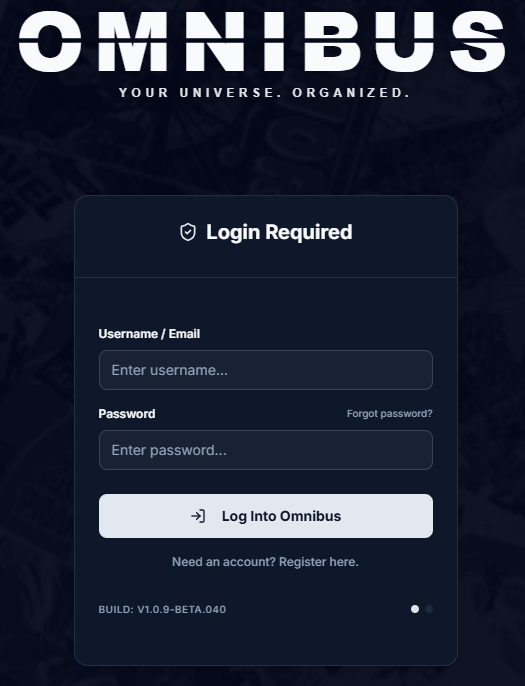
Login page.
- Secure Local Access: Powered by NextAuth, featuring industry-standard encrypted sessions to keep your server, database, and physical files completely safe from the public internet.
- Single Sign-On (SSO): Natively supports OpenID Connect (OIDC). Integrate directly with Authelia, Authentik, Keycloak, or Google for seamless user onboarding.
- Two-Factor Authentication (2FA): Users can secure their local accounts using TOTP authenticator apps (Google Authenticator, Authy, Bitwarden).
- Multi-User Gateway & Impersonation: Create independent accounts for friends and family. Admins can even temporarily "Impersonate" users to help troubleshoot their accounts.
- Active Session Management: Logged in on a public computer? Revoke all other active sessions directly from your profile settings.
- Inactivity Auto-Logout: Sessions expire after real inactivity — 2 hours for admins, 6 hours for regular users — enforced server-side. Background polling and open tabs don't count as activity; actually using the app does.
- Encrypted Credentials at Rest: All stored API keys, download-client passwords, and secrets are encrypted in the database using your
NEXTAUTH_SECRETas the master key. - First-Time Setup Detection: If the database is completely fresh and no administrator account exists yet, the login system intelligently redirects to the built-in Setup Wizard to help you configure your libraries.
Homepage
The Dashboard is the personalized nerve center of your collection. It dynamically updates based on the logged-in user to provide a tailored snapshot of their reading journey.
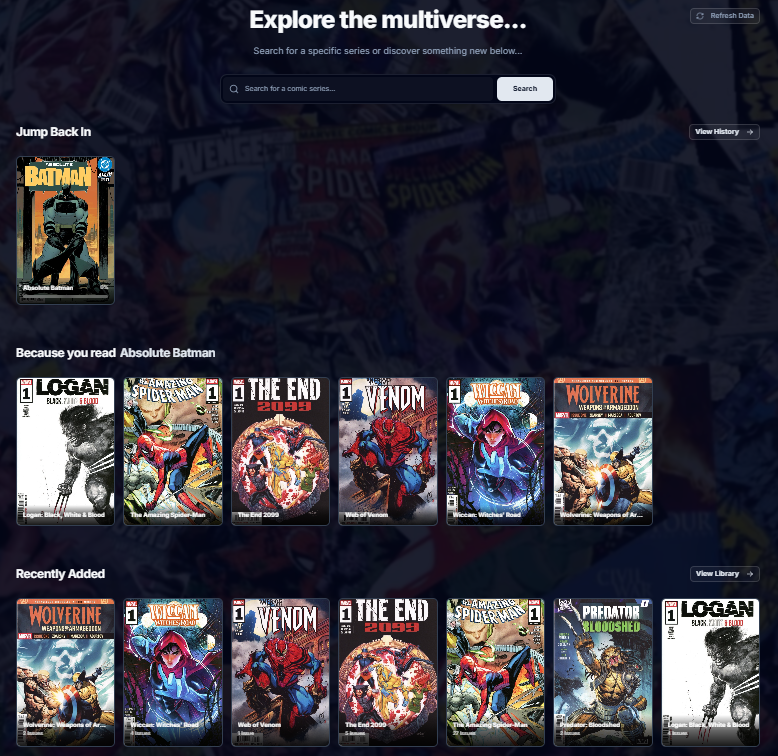
Discover page with the 'Popular Series' and 'New Releases' sections disabled, also shows 'Jump Back In', 'Because you read...', and 'Recently Added' sections
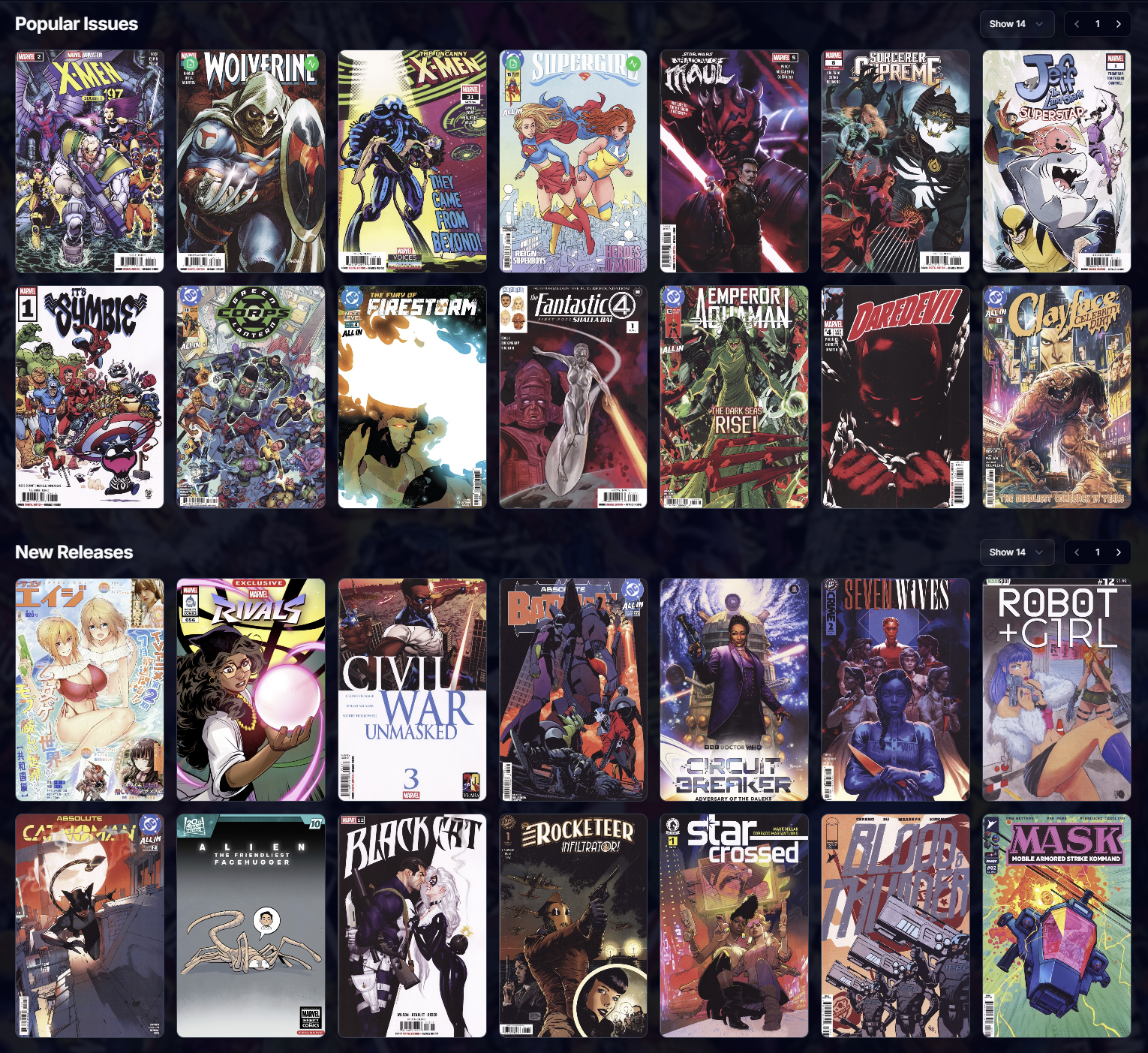
Homepage discovery section with Popular Issues and New Releases.
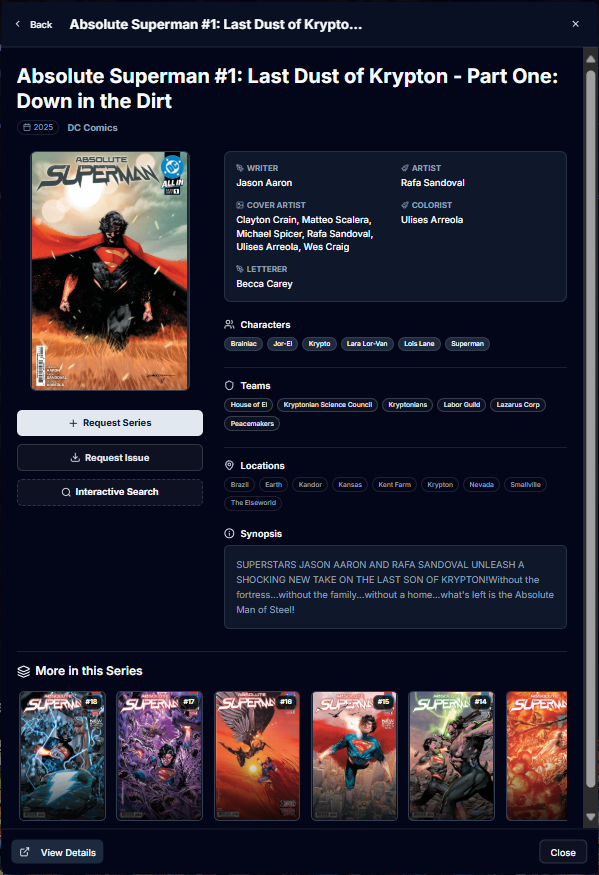
Series window when clicking issue/series from the discover sections.
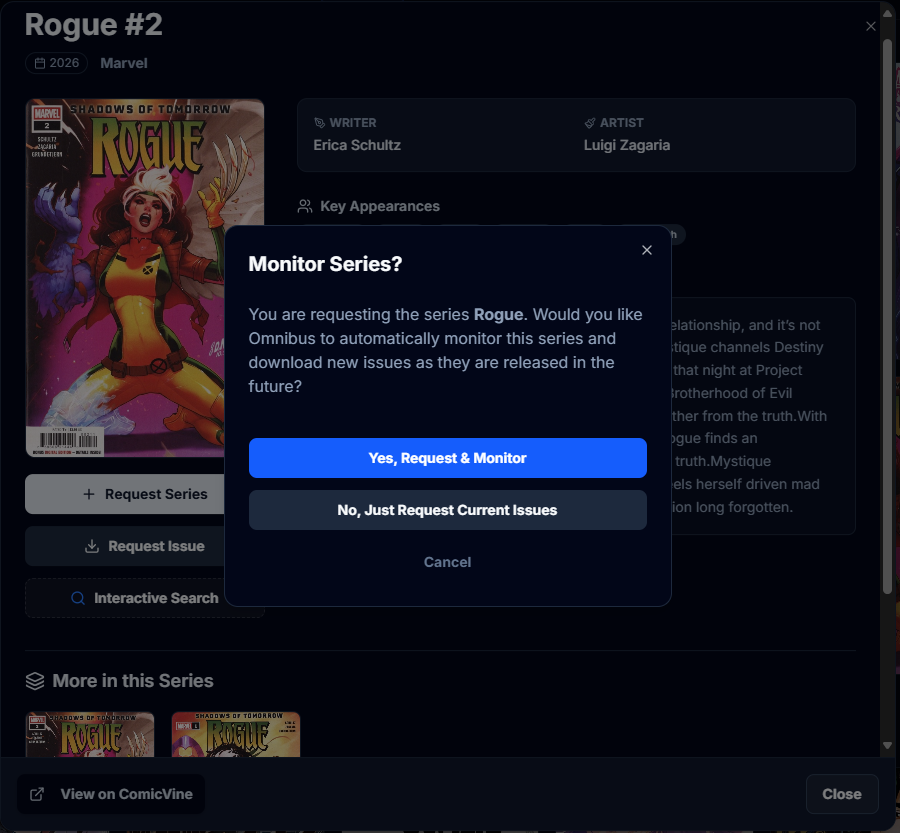
Users can choose to monitor the series when they are making a request so future releases to a series will be automatically downloaded.
- Responsive Design: A beautifully styled, mobile-first interface that provides a frictionless login experience whether you are on a smartphone, tablet, or desktop monitor.
- "Jump Back In" Shelf: A dynamically updated carousel that tracks your exact page in ongoing issues. Jump back into the action with a single click.
- "Recently Added" Section: A dynamically updated carousel that shows the 7 most recent series additions to the library with the ability to jump directly to that series page.
- "For Your Library" Shelf: Series you don't have, ranked from the writers and characters across the series you own — each card says who it's there for. Monitor adds one straight to Missing Issues; Not interested hides it (with undo). A full page with the seed creators and characters sits behind See All, and admins can rebuild it from the Jobs page.
- Missing Issues & Scan Library: A Missing Issues door beside Refresh Data opens the library-wide list of every tracked issue that isn't on disk, with Request on each card; admins also get an always-visible Scan library button above the alert stack.
- Discovery Feed: Browse auto-updating "New Releases" and "Popular Issues" pulled directly from the ComicVine or Metron API and cached for performance.
- Interactive Search: Search the external databases for any series or issue. View covers, publishers, and issue counts to ensure you are requesting exactly what you want.
- Color-Coded Badges: Omnibus uses a color-coded badge system on the Discover and Search grids to let you know exactly what is in your library and what the automated downloader is doing.
- Series & Volume Badges:
- 🟢 Monitored (Green with Activity/Pulse Icon): You own at least one issue of this series, AND Omnibus is actively monitoring it. Any newly released issues will be automatically downloaded in the background.
- 🔵 In Library (Blue with Library/Books Icon): You own at least one issue of this series, but it is currently unmonitored. Omnibus will not automatically download new issues, but you can still manually request missing ones.
- Individual Issue Badges:
- 🟢 In Library (Emerald Green with File-Check Icon): The physical file for this specific issue has been successfully downloaded and is sitting on your hard drive ready to read.
- Request Pipeline Badges:
- 🔵 Pending / Downloading (Blue with Download Icon): Omnibus has approved the request and is actively searching indexers or currently downloading the file to your server.
- 🟠 Requested (Orange with Clock Icon): You have requested this item. Omnibus has added it to the queue and is actively waiting to begin searching for a valid download source.
- 🟡 Pending Approval (Yellow with Clock Icon): You have requested this item, but your server requires an Admin to manually approve the request before the search begins.
- 🟣 Unreleased (Purple with Clock Icon): You have subscribed to an issue that hasn't been released to the public yet. Omnibus will download it when it drops.
- Series & Volume Badges:
- Smart Requests & Automation: Send requests directly to your download queue. Omnibus searches your enabled sources in the order you choose — GetComics, Anna's Archive, and your connected indexers (Prowlarr) — and grabs the first match (a direct download or a 3rd-party file hoster, based on your priority settings).
- Upcoming Release Tracking: Monitors your requested ongoing series for new weekly Wednesday releases and automatically grabs them as they are uploaded.
Library & Metadata
A meticulously organized, highly performant view of your physical files, built to handle massive, multi-terabyte collections smoothly.
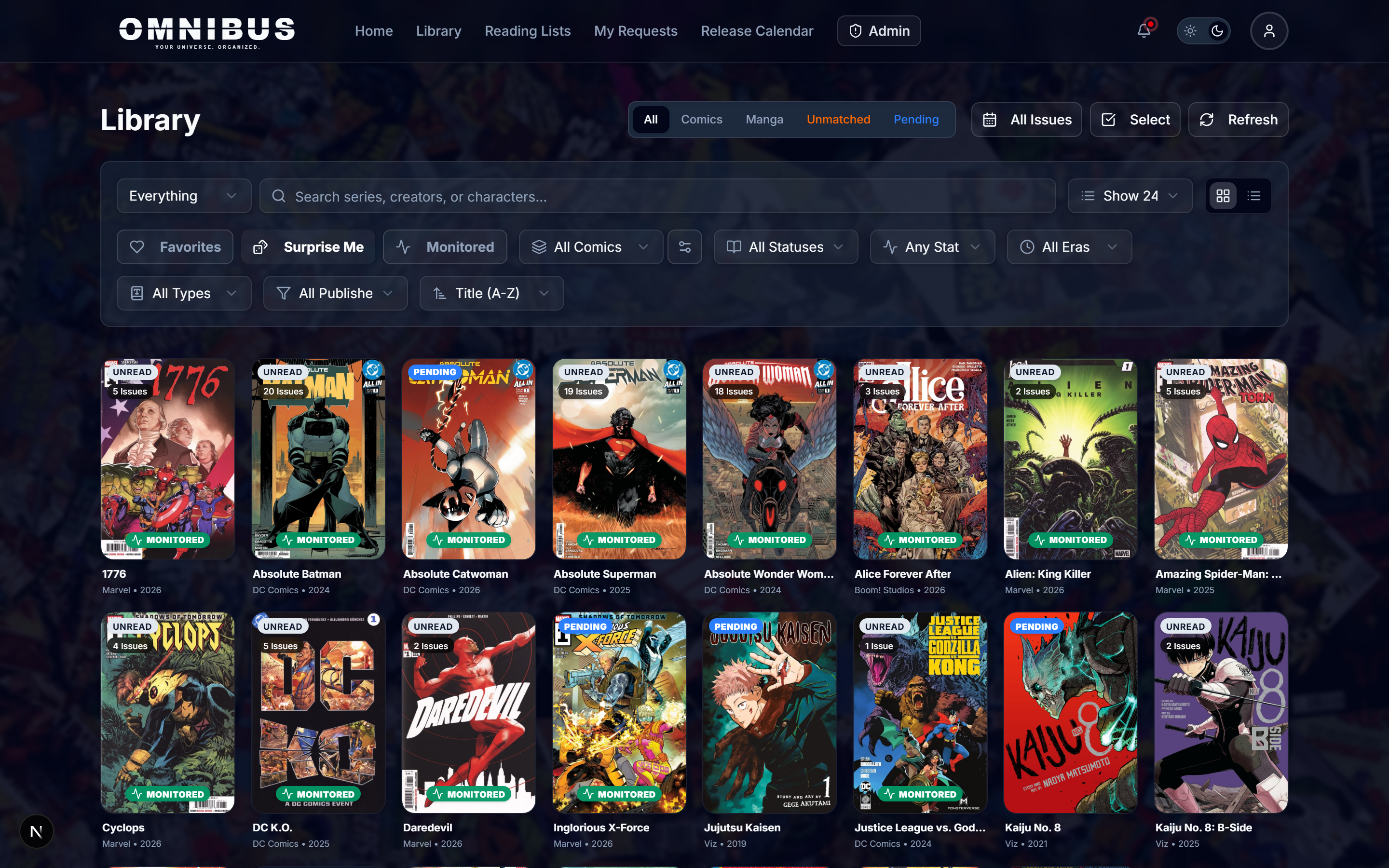
The library page which features infinite scrolling.
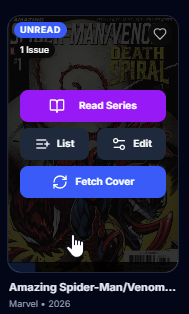
The library page action buttons.
- Embedded Metadata (ComicInfo.xml): Omnibus doesn't just read metadata—it writes it. Omnibus can automatically generate and embed standard
ComicInfo.xmlfiles directly into your.cbzarchives, ensuring your metadata travels with your files. Prefer your files untouched? Turn off Write metadata to ComicInfo.xml (Settings → Metadata) and no sync, match or scheduled job rewrites an archive; an individual edit can still write its own changes. - Self-Describing Library (series.json + Local-First Scans): Omnibus writes Mylar-format
series.jsonfiles to your series folders (on by default; it never overwrites aseries.jsonit didn't create, so curated Mylar libraries are safe) and reads them — plus embeddedComicInfo.xml, even inside RAR archives — during every scan. A properly tagged library gets its provider IDs, release dates, issue numbers, credits, and covers straight from the files: browsing, the calendar, and even a full rescan into a fresh database work with zero metadata-provider API calls. External readers like Komga and Kavita mapped to the same storage recognize your metadata instantly. - Dual Metadata Engines: Choose between ComicVine (default) or Metron.Cloud as your primary metadata source. Omnibus reads embedded ComicInfo.xml files inside your archives and seamlessly syncs with your selected provider to pull high-res covers, synopses, creator credits, and genres. (Note: Metron integration also powers the forward-looking Release Calendar!)
- Per-Issue Credits & Genres: Syncs capture writers, artists, characters, story arcs, and genres down to the individual issue. Metron users can opt in to a per-issue credit pass for the issues they own, budgeted against Metron's daily API quota and resumed across syncs; with it off, a series' Refresh Metadata offers to fetch them (showing how many Metron requests that takes), and opening an issue fetches its own.
- Provider Response Cache (Opt-In): A shared, database-backed cache for ComicVine/Metron responses with admin-tunable freshness windows and a size cap. Repeat lookups cost zero rate limit across both the app and the Rust engine, and an explicit "Refresh Metadata" always fetches live.
- In-App Metadata Editor: Edit series-level and per-issue metadata (title, year, publisher, summary, creators, and more) right in the browser. Changes can optionally be written straight back into each archive's
ComicInfo.xml, and a sync-lock keeps your manual edits from being overwritten by the next provider refresh. - ComicInfo Defaults (Full Tag Set): A tabbed editor — General / Credits / Story & Tags / Details — covers the complete ComicInfo schema: imprint, format, language, age rating, per-role credits, tags, story arcs, alternate series, community rating, black & white, and more. Available in both the Smart Matcher (set values at match time) and Edit Series Metadata (edit them any time after). Series-level values act as defaults: an issue's own provider or scanned data always wins, and the defaults fill the blanks. Scans read the tags back from files, so your values survive even a full database rebuild. Built for libraries the metadata providers don't cover.
- Series Groups, Imprints & Universes: Organize related runs with the
{SeriesGroup},{Imprint}, and{UniverseName}naming variables — for example,{Imprint}/{SeriesGroup}/{Series} ({Year})places an Absolute Batman run under its publisher imprint and umbrella.{Imprint}uses the series' imprint, filled from ComicInfo<Imprint>when blank; when no imprint is available, that folder tier is omitted. - One Naming Rule Everywhere: Downloads, the watched folder, the Smart Matcher, manual links and Standardize all name a file the same way, so a file never gets renamed just because it came in through a different door. Issue Number Padding (Settings → Library & Files) sets how
{Issue}is written — 3 digits (#001, the default), 2 digits (#01) or none (#1); decimals and letters keep their place (#001.5,#001A). Tokens work in any letter case, a year that isn't known is left out instead of printed as(0000), and the live previews show exactly the names Omnibus will write. - Cover Art Management: Omnibus extracts a cover from the first page of each archive, lets you choose your preferred cover source, and allows admins to upload a custom cover for any series (locked so automated syncs never overwrite it).
- Advanced Search Syntax: Use prefix modifiers in the search bar (e.g.,
character:"Spider-Man",team:"X-Men",arc:"Secret Wars") to pinpoint exact crossovers and appearances across your entire collection. - Multi-Library Routing: Map distinct folders for standard Comics and Manga. Omnibus automatically detects Manga based on publishers, AniList cross-referencing, and tags to route them to the correct directory.
- Automated File Standardization: Enforce clean, uniform file names across your entire server (e.g., [Publisher]/Series (Year)/Series - #Issue.cbz).
- "Watched" Folder Auto-Ingestion: Automate your library building by dropping loose
.cbz,.cbr,.zip, and.rarfiles into a designatedwatchedfolder. Omnibus runs a scheduled background job to detect these files, read theirComicInfo.xmlmetadata, convert legacy formats, standardize the filenames, and perfectly sort them into your main library. - "Awaiting Match" Drop Queue: If dropped files lack the necessary metadata for auto-ingestion, they are safely routed to an
unmatcheddirectory. Admins can review these loose files in the Smart Matcher UI, apply the correct metadata with one click, and seamlessly inject them into the main library. - Manual File Upload: No filesystem access to your server? Admins can upload single or multiple comic files directly from the browser into the Watched folder (auto-imported and matched) or the Unmatched folder (held for the Smart Matcher) — the easiest way to hand off files you downloaded by hand, including Cloudflare-gated releases.
- Deep Filtering & Sorting: Filter by Publisher, Genre, Format, Era (1980s, 1990s, etc.), and Read Status.
- Try the "Surprise Me" button for a randomized library shuffle when you don't know what to read!
- Smart Progress Badging: Visual overlay indicators on covers to instantly show reading progress bars and how many unread issues remain in a series.
- Issue Grid & List Modes: Toggle between a visual cover grid or a condensed list view to easily navigate massive collections.
- Alphabet Jump Bar: On alphabetical sorts, a Plex-style floating #/A–Z rail appears along the right edge. Letters with no series under your current filters are dimmed; click a live letter to jump the infinite-scrolling list straight there, and the rail highlights your position as you scroll.
Follows & The Updates Feed
Monitoring answers "what should the server download?" — following answers "what do I care about?" Every user curates their own slice of the library, and Omnibus keeps them posted as new issues land.
- Follow Anywhere: A bell button on the series page, library grid and list cards, the bulk-selection bar (follow/unfollow a whole selection at once), calendar entries, and the Recently Added shelf. Following is per-user and never touches monitoring or downloads.
- Auto-Follow on Request: Requesting a series follows it automatically — if you asked for it, you probably want to hear about it. Existing requests are backfilled as follows on first boot after upgrading.
- The Updates Feed: A personal page showing which issues arrived in your followed series over the last 30 days — grouped by day, same-day arrivals clustered per series, with unread dots and a persisted unread-only filter.
- Profile Updates Section: A collapsible section on your profile shows the latest arrivals at a glance with an unread badge, and links through to the full feed.
- Header Bell Summary: New arrivals light the notification bell with a single summary line — "N New Issues In Your Follows" — that clears once you visit the feed. A 40-chapter manga dump is one line, never forty.
Manga Support
Manga is a first-class citizen, not an afterthought. Omnibus detects it, shelves it, names it, and filters it — your call how much of it you want to see.
- Layered Detection: Series are identified as manga using a waterfall of signals: your configurable manga/western publisher lists, provider genres and concepts (ComicVine concepts, Metron's Manga genre), an AniList cross-reference with fuzzy year matching, and the
<Manga>tag insideComicInfo.xml. Once the scanner has made its call, that verdict sticks — requests and downloads reuse it instead of re-guessing. - Dedicated Manga Libraries & Naming: Flag any library as a Manga destination and detected manga routes there automatically, with its own file-naming pattern (e.g.
{Series} Vol. {Issue}) separate from your western comics. - Discover Visibility Modes: Show all manga, hide it entirely, or allow only specific publishers on the Discover page — and the filter works identically whether ComicVine or Metron is your primary source.
- Manga Request Gate: An "Allow Manga Requests" toggle can keep manga out of the download pipeline completely: when off, requests detected as manga are politely rejected before any automation fires. Library scans and series you already own are unaffected.
- Sticky Manga Identity & Smarter Parsing: Matching — smart or manual — never demotes a manga series back to Comics; once a series lives in a manga library, that verdict sticks. Filename parsing is series-name aware, so titles with numbers in the name ("Kaiju No. 8") parse their volume numbers correctly instead of colliding with the series title.
- Right-to-Left Reading: The web reader's RTL mode and vertical webtoon scrolling handle manga the way it's meant to be read, with preferences saved per series.
Series Page
The dedicated hub for an individual comic run or manga volume. This page aggregates all metadata, reading progress, and file management for a specific series into one beautiful layout.
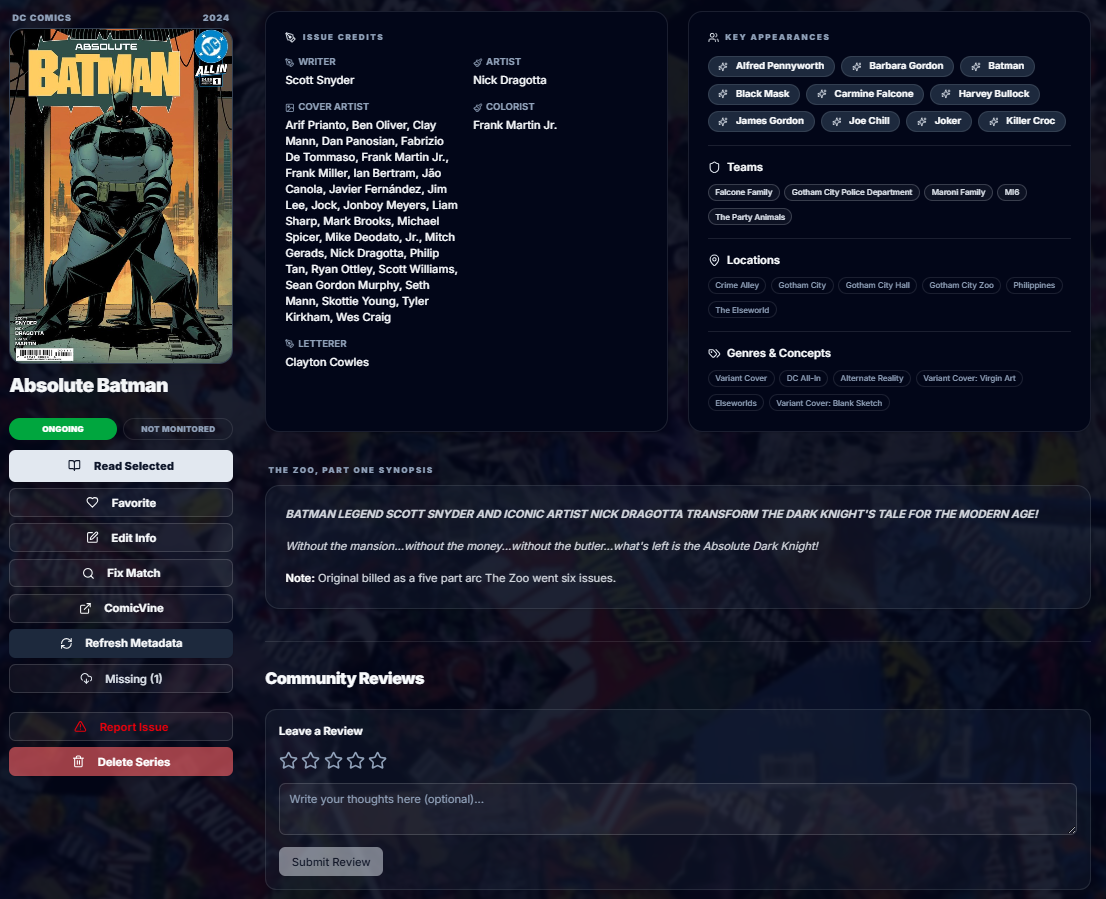
A series page showing a series that currently has all available issues.
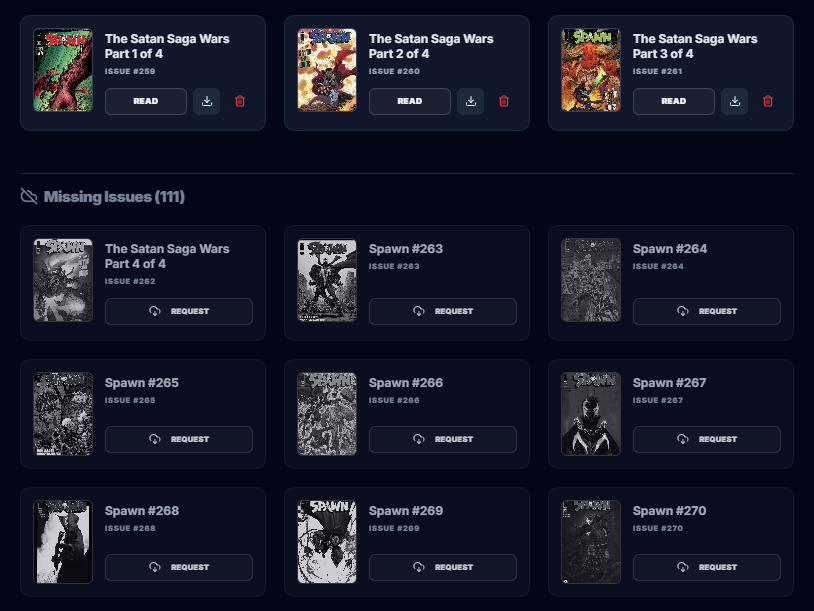
A series page with missing issues flagged, ready for a one-click "Request Missing".
- Hero Banner & Synopsis: A premium, visually striking header displaying high-resolution cover art, publisher logos, release years, and a full story synopsis.
- Interactive Metadata Badges: View detailed credits including Writers, Artists, Characters, Teams, Locations, Genres, and Story Arcs. Every badge is a clickable link that instantly filters your entire library for connected issues and crossovers!
- Dynamic Provider Button: A smart button that dynamically adapts to take users directly to the series page on either ComicVine or Metron, depending on which metadata source the series is linked to.
- "Read Next" Prompts: A smart action button that instantly opens the web reader to your exact saved page on the next unread issue in the run.
- Issue Grid & List Modes: Toggle between a visual cover grid or a condensed list view to easily navigate massive, 100+ issue runs.
- Individual Progress Tracking: Every issue displays its own distinct status (Unread, In Progress with a visual progress bar, or Read).
- Bulk Actions: Effortlessly manage your collection with one-click buttons to "Mark All as Read," "Refresh Metadata," or delete specific files right from the browser.
- Missing Issue Detection: Visually highlights gaps in your collection (e.g., if you have issues #1 and #3, it flags #2 as missing). Click "Request Missing" to queue them all up at once.
- Sorting Options: A sort control in the Downloaded Issues header orders the run by number, low to high or high to low, or by release date, oldest or newest first — where annuals fall into place between the issues they were published among. One choice, remembered across every series page.
- Annuals & Attached Volumes: Attach a provider's annual volume (search by name or paste the id) and its issues join the series in their own numbering — claimed by issue id, or by name for one-offs whose filenames carry the volume's name. Every attached row names its volume ("The Amazing Spider-Man '96 · Annual #1"), the attachment survives a wipe-and-rescan through
series.jsonand the files' ownComicInfo.xml, and the number stays yours to renumber for reading order. - Collected Editions Shelf: Trades and omnibuses attach the same way and sit on their own shelf, out of the run's issue count. Each book has a Covers field ("1-6, 8"), prefilled from the provider's "Collects" line; issues covered by a book you own move from Missing to a "Covered by" section. Books you own open straight into the reader with a Read/Resume button and their reading progress. A trade the provider doesn't know attaches by name alone, and Standardize names its books after the edition. A trade that's already in your library as its own series can stay that way: choose Leave it as its own series once and its books show on the shelf, while Standardize keeps them in their own folder, named as collected editions.
- Specials: A one-shot that belongs with a series but is neither an annual nor a trade ("Absolute Batman: Ark-M") attaches as a Special and gets its own section on the series page, out of the run's issue count and its Missing list. Its files are named after its own volume ("Absolute Batman Ark-M #001 (2026)"), a missing one is requested under that name, and it reads after the run and the annuals everywhere, Komga and OPDS included.
- Offline Downloading: Admins can grant users permission to download raw .cbz files directly from the browser for offline reading in third-party apps.
- Community Reviews & Ratings: Users can leave a 1-5 star rating and written review for any series. The series page aggregates these into a total community score, allowing users to share their thoughts and recommendations with others on the server.
- Issue Reporting System: Users can report broken files, incorrect metadata, or bad archives directly from the series page. Admins receive an alert and can resolve the issue, sending a direct inbox message back to the user upon completion.
- Page Manager: Open any issue's page strip to preview every page and delete scanner junk, ads, or corrupted pages — edits repack the archive safely, CBR included. Pages flagged by readers queue here for review, and a whole-series sweep can hunt flagged pages across an entire run as a background job.
Web Reader
A completely custom, zero-friction reading experience built natively into the browser. No external apps required.
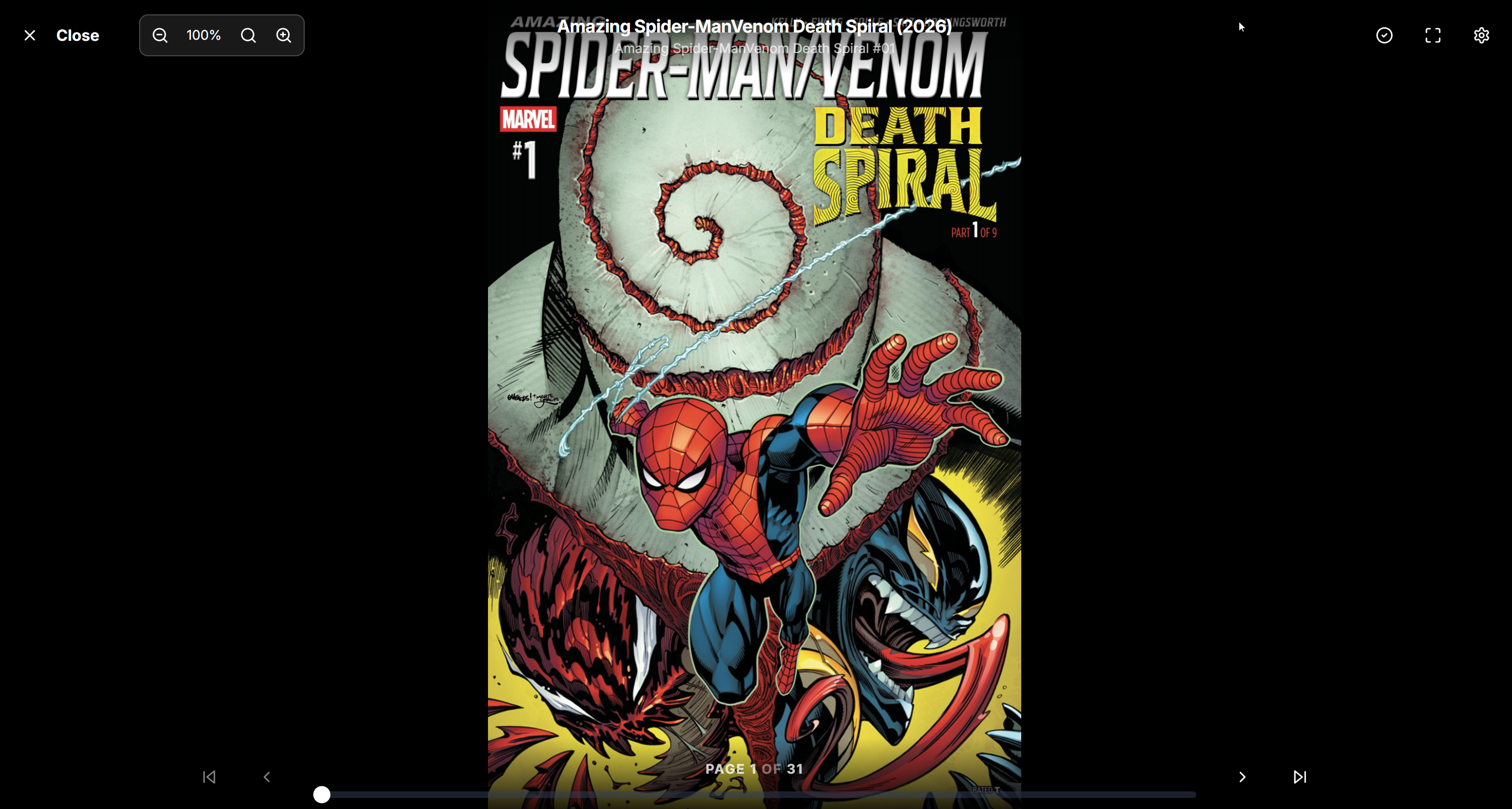
Reader page and controls.
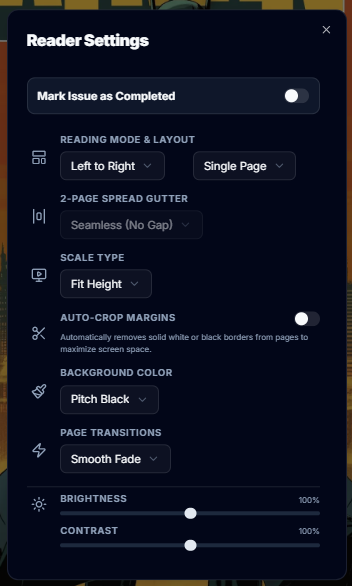
Reader page settings.
- Universal Format Support: Native, blazing-fast extraction and rendering for
.cbz,.epub, and.cbr/.rararchives — the Rust engine reads RAR directly, so legacy archives are readable the moment they land. The CBR→CBZ auto-converter stays on by default (CBZ reads fastest, works everywhere, and is required for metadata embedding), but it's now a choice, not a requirement. - Reading Directions: One-click toggles for Left-to-Right (Standard Comics), Right-to-Left (Manga), and continuous Vertical Scrolling (Webtoons).
- Dynamic Page Layouts: Single Page, Double Page, or "Double Page (No Cover)" to preserve correct spread alignments.
- Adjust the gutter gap between 2-page spreads (Seamless, Small, Large).
- Auto-Fit toggles: Fit to Width, Fit to Height, Screen, or Original Resolution.
- Smart Preloading: Silently caches the next several pages in the background so you never experience loading spinners while reading.
- Control Schemes: Fully mapped keyboard shortcuts for desktop readers (Arrow keys, Spacebar, F to Fullscreen), and intuitive tap/swipe zones for mobile and tablet users.
- Live Image Adjustments: Adjust brightness and contrast overlays independently of your device settings for late-night reading sessions.
- Flag Bad Pages: Spot a corrupted or junk page mid-read? Flag it without leaving the reader — flagged pages queue up for admin review in the series Page Manager.
- Pinch-to-Zoom & Per-Series Preferences: Pinch (or scroll-wheel) to zoom and pan high-detail pages, and save reading preferences — direction, layout, and fit — on a per-series basis so each title reopens exactly the way you like it.
- Progressive Web App (PWA) & Offline Reading: Install Omnibus to your home screen as a PWA. Users can click the "Offline" button in the Web Reader to silently cache an entire issue to their device's local storage, allowing them to read flawlessly without an active internet connection. Installed PWAs also get a dedicated refresh button in the header (iOS standalone apps have no pull-to-refresh).
External Readers & OPDS Support
Omnibus features a native OPDS 1.2 server with the Page Streaming Extension (PSE), allowing you to read your server's library directly in your favorite mobile and tablet apps without downloading the entire file first. Streaming covers .cbz and .cbr/.rar alike — RAR pages are served through the Rust engine, so Panels and friends can read your unconverted archives too.
The catalog's home screen has All Series, Continue Reading, Recently Added, On Deck and, when you can see more than one library, Libraries, and apps that support OPDS search can search it by series or issue title. Streaming apps that support it resume each issue on the page Omnibus last recorded for you - from the web reader, KOReader sync or Paperback. Downloads carry the file's real type and name, and interrupted downloads can resume.
Supported OPDS Apps:
- iOS / iPadOS: Panels, Chunky
- Android: Mihon, Tachiyomi, Moon+ Reader
How to Connect: For security, external apps do not use your main account password.
- Log into your Omnibus web dashboard and navigate to your Profile.
- Under Account Security, click Manage API Keys.
- Generate a new key for your specific device (e.g., "Panels on iPad").
- In your external reading app, add a new OPDS catalog:
- URL:
http://<your-omnibus-ip>:3000/api/opds - Username: Your Omnibus username
- Password: The API Key you just generated
- URL:
Paperback (iOS / iPadOS): Paperback doesn't read OPDS — its Komga sources do the talking — so Omnibus answers them with a Komga-compatible endpoint. On Paperback 0.9, install the Komga extension from the default extension repository; on Paperback 0.8, use the pre-installed Paperback source. Open the source's server settings and enter:
- Server URL (Base URL on the Komga extension):
http://<your-omnibus-ip>:3000/komga - Email / Username: Your Omnibus username
- Password: An API Key (generated the same way as above — never your account password)
Save the settings (on the 0.8 source, tap Try settings) to confirm the connection. Series, covers, page streaming (CBZ and CBR alike), search, and the Recently added / Recently updated shelves work right away. To send finished issues back to Omnibus, add the series to your Paperback Library and link the source as its tracker (from the series' tracking options). Paperback then reports each chapter you finish in the background; it counts on your Omnibus profile like one finished in the web reader, and On Deck offers the next issue. Paperback only reports finished chapters — never the page you're on — so a half-read issue doesn't appear in Continue Reading.
On Paperback 0.9 the pre-installed Paperback source can't be linked as a tracker ("Method
getMangaProgressis not implemented"), so it never syncs read status — use the Komga extension there.
Native e-Ink Sync (KOReader)
Omnibus acts as a master "save state" for your physical e-ink devices (Kobo, Kindle, Pocketbook). Using our custom KOReader sync endpoints, your eReader will automatically ping Omnibus every time you turn a page, and you can view your real-time progress right on your Omnibus Profile!
How to Configure KOReader:
- Create a new API key from Profile → Manage API Keys (or the admin API-key page). Keys created before KOReader sync support was added cannot be upgraded because their raw values are not stored; create a new key for sync.
- Connect your eReader to Wi-Fi and open the top KOReader menu.
- Navigate to Settings → Progress Sync → Custom sync server.
- Enter your Omnibus URL:
http://<your-omnibus-ip>:3000/api/koreader - Tap Login and use your Omnibus Username and the new Omnibus API Key as the password.
- Leave Document matching method on Binary (KOReader's default). Omnibus records each book's KOReader checksum when you download it - through the OPDS catalog or the web download button - so your progress lands on the right issue with no other KOReader settings, and resumes on the same page in the web reader.
- For books that reached your device some other way (copied from the library folder, say), enable Progress Sync → Send document metadata (off by default) so Omnibus can match them by filename; in KOReader's OPDS catalog settings, Use server filenames keeps the library's file names. With the Filename matching method, downloaded books also need Use server filenames. Without a match, KOReader device-to-device sync still works but the progress doesn't appear in Omnibus.
Reading Lists
Perfect for navigating the complex web of massive comic book crossover events or creating your own curated reading orders.
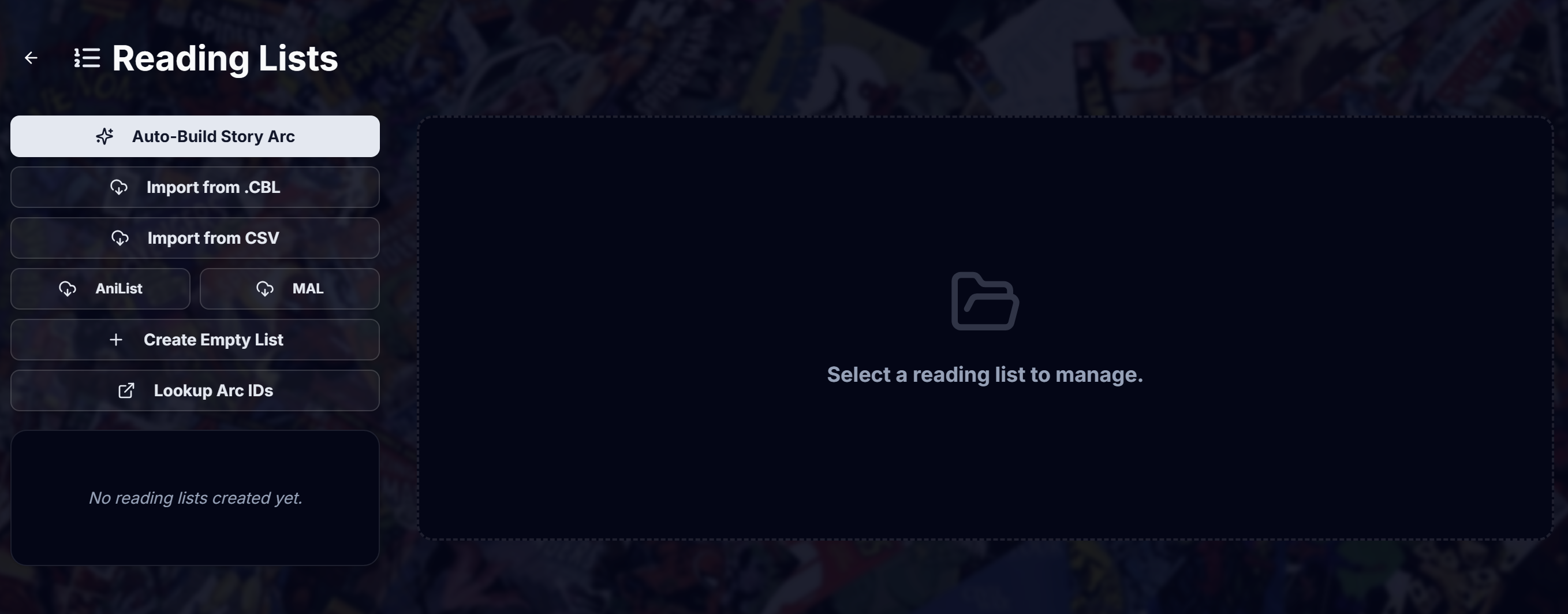
Reading lists page showing 2 story arcs added.
- List Creation & Management: Create lists directly from the dedicated Reading Lists page, or build them on the fly right from your Library by selecting multiple series at once. When creating from the library, you can instantly set the list name and description.
- Auto-Build Story Arcs: Input an Event ID (e.g., Marvel Civil War, Absolute Carnage), and Omnibus will instantly generate the complete official reading order and automatically link the physical files you already own!
- Global vs Private Lists: Curate private collections for yourself, or publish them globally for all users on the server. Admins can grant specific users the permission to create Global lists.
- Grouped Series View: Easily navigate massive crossover lists with the new collapsible Grouped View, which neatly organizes sequential issues under their parent series while preserving your exact custom reading order.
- Bulk Missing Requests: With one click, ask Omnibus to track down and download every issue you are missing from an entire event.
- Manual Drag-and-Drop: Easily reorder issues within your lists with a simple drag-and-drop interface.
- Where You Are in a List: Every list shows "N / M read", read and in-progress badges on its entries, and Continue, which opens the first entry you own and haven't finished. Hide read drops finished entries from the grouped view. Hundreds of lists open fast: the page loads only the list you open.
- CBL Import: Import from .CBL takes a reading-list file or its URL. Entries link by the ComicVine (or Metron) ids the list carries, and a missing entry keeps its id, so it links itself once the issue is in your library and its Request asks for the right volume.
- AniList & MyAnimeList (MAL): Enter your public username to fetch your Manga tracking lists (Reading, Completed, Plan to Read). Omnibus will bundle your downloaded volumes into unified reading orders.
- CSV Imports (LOCG / Goodreads): Export your pull list or collection from League of Comic Geeks (LOCG) or Goodreads as a
.csvfile. Omnibus will parse the rows, fuzzy-match the series names and issue numbers to your local files, and generate a customized reading order. - Auto-Request Missing: During any import, you can toggle Omnibus to automatically push missing issues or volumes directly to your download queue!
Release Calendar
A centralized hub to track upcoming comic and manga releases so you never miss an issue. The calendar is split into two powerful views to help you manage your existing collection and discover new ongoing runs.
- My Pull List (New Default): Your personal release calendar — upcoming releases for the series you follow, whether or not the server monitors them. Follow a series anywhere in the app and its releases appear here.
- Omnibus Tracked Series: A personalized calendar displaying upcoming releases specifically for the series you already own and monitor.
- Tracked Series: Automatically scans your monitored library items and groups upcoming issues by month and exact release day.
- Release-State Badges: Every entry advances through three states as time passes — 🟣 Unreleased (release date is in the future), 🟠 Released (it's out, but not in your library yet), and 🟢 In Library (the file has landed on your disk). Paging back through past weeks shows exactly what you caught and what you missed.
- Navigation: Features quick-action buttons to jump directly to the series page or read the most recent issues leading up to the new release.
- Global Pull List: Powered by the Metron.Cloud integration, this tab lets you browse a worldwide catalog of upcoming comic releases week by week.
- Navigation: Easily page forward and backward through upcoming weeks to see what publishers are dropping soon.
- One-Click Requests & Subscriptions: See a new series that looks interesting? You can click "Request Issue" to grab just that single book, or click "Request Series" to subscribe to it. Subscribing automatically tells Omnibus to monitor the series and download all future issues as they release.
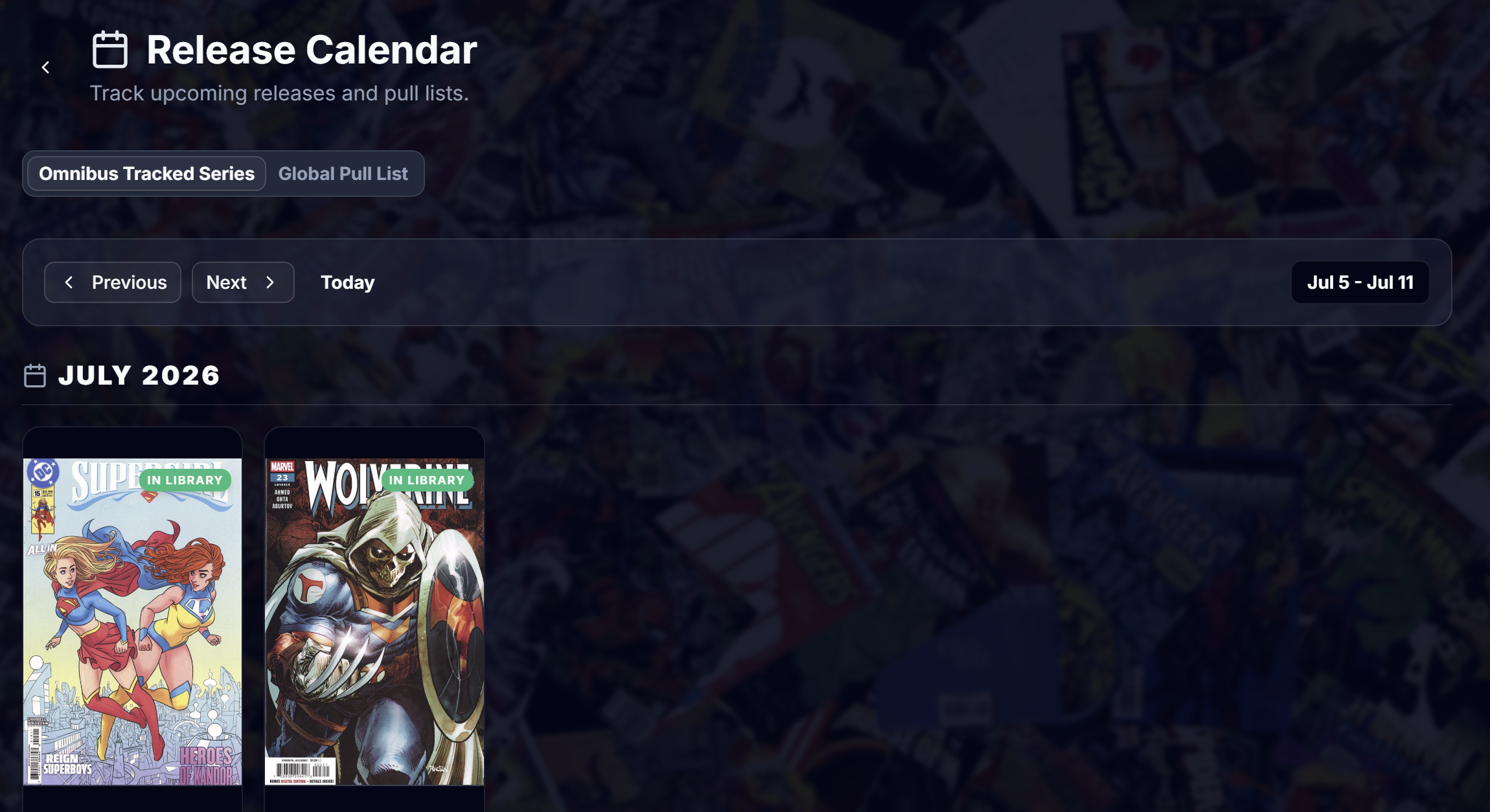
Omnibus Tracked Series section of the Release Calendar page.
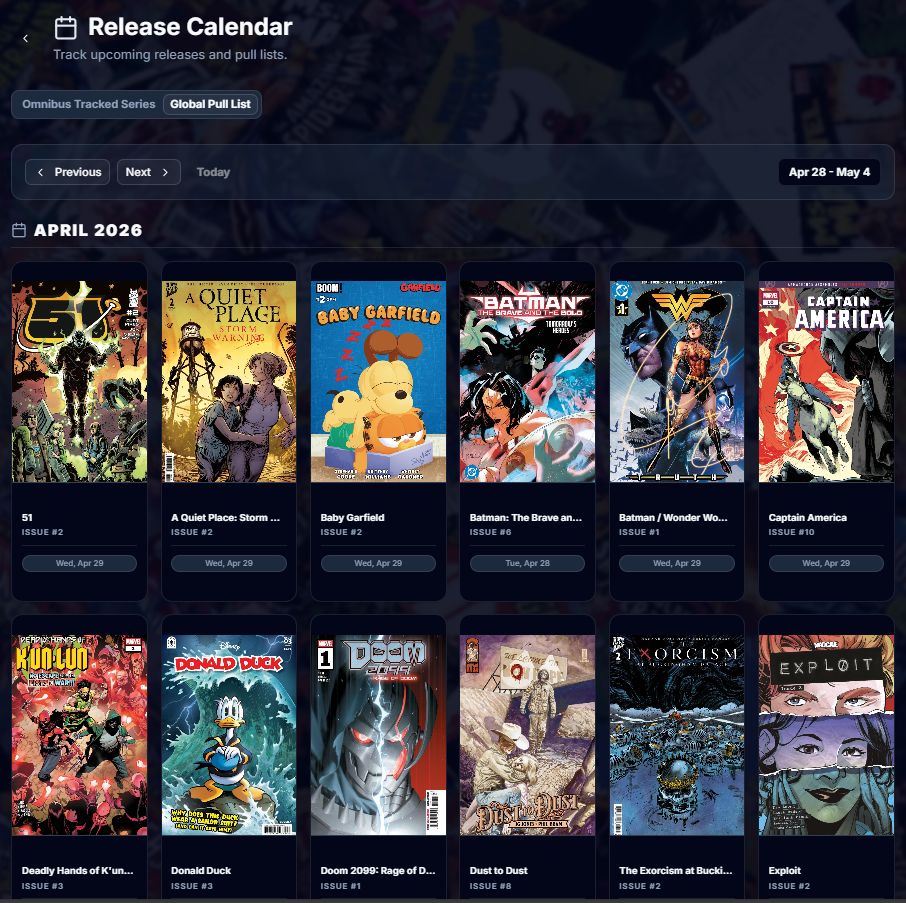
Global Pull List section of the Release Calendar page.
User Profile & Preferences
A personalized space for each user on your server to manage their identity, track their unique reading habits, and customize their Omnibus experience to fit their workflow.
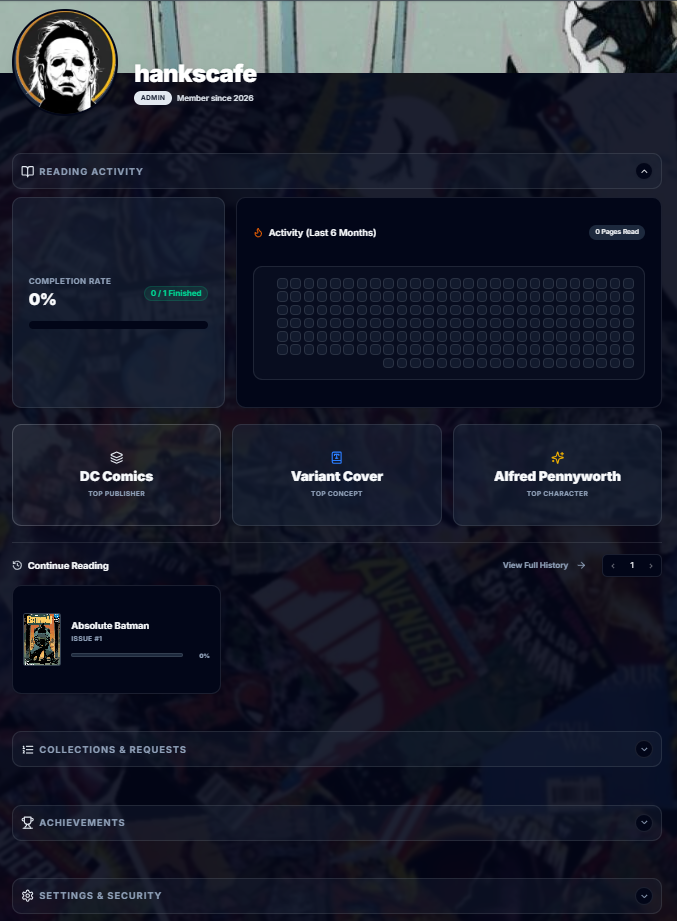
Users profile page showing customizable header and avatar as well as collapsable information sections.
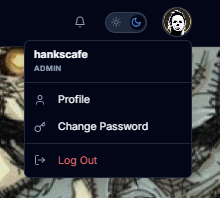
Users profile menu from header where you can log out or change password.
- Personal Identity: Customize your account by uploading a unique profile avatar and a custom hero banner for your user dashboard.
- Updates at a Glance: A collapsible Updates section surfaces the newest arrivals in your followed series right on your profile, with an unread badge and a doorway to the full Updates feed.
- Reading Statistics: Track your all-time reading habits. View your total issues read, estimated pages turned, and your most-read publishers or genres.
- UI Customization: Set your own personal theme preferences (Dark mode, Light mode, or System default) plus five comic-inspired color themes — Vigilante Red, Krypton Green, Mutant Yellow, Symbiote, and Speedster — that re-accent the entire interface. These settings are tied to your account and persist across any device you log into.
- Account Security: Safely update your password and view or revoke active login sessions across your different devices.
- Personal API Keys: Generate secure, user-specific API tokens to integrate your Omnibus reading progress with third-party trackers (like MyAnimeList, AniList, or custom scripts) without giving out Admin access.
- Trophies & Achievements: Unlock custom trophies and milestones based on your reading habits! Earn achievements for reading a certain number of comics, making requests, or exploring different publishers. Trophies are proudly displayed on your profile.
Custom Release Scoring & Formats
Take total control over which releases Omnibus chooses to download. By default, indexers often blindly grab the file with the highest seeders—even if it's a messy .cbr scene release. Omnibus's Custom Scoring engine solves this by teaching the automation to "think" like a comic collector, prioritizing file format and image quality over raw torrent swarm statistics.
How the Scoring Math Works:
- Base Score: Every release starts with a base score calculated by its swarm health:
Seeders + (Peers * 0.5). - Custom Modifiers: If a release title contains a defined keyword, points are added or subtracted from its base score. Omnibus will always automatically download the release with the highest final score.
Out-of-the-Box Default Rules:
- +500 points (
.cbz,cbz): Strongly prefers native, ready-to-read formats to bypass server-side archive conversions entirely. - +300 points (
(Digital),[Digital]): Prioritizes pristine, official publisher-grade rips over physical page scans. - +200 points (
webrip,web-dl): Favors high-quality web scrapes. - -400 points (
.cbr,.rar,vapi): Heavily penalizes messy scene releases that force your server to waste CPU power unpacking, converting, and repacking the archive.
Fully Customizable:
These rules are fully surfaced in the Settings UI, allowing administrators to modify them to suit their exact preferences. Love a specific release group? Add a rule like Term: "Zone-Empire" | Score: +1000 to make their releases practically unbeatable. Want to avoid translations? Add Term: "SPANISH" | Score: -5000 to aggressively drop them to the bottom of the priority list.
Settings & Administration
Complete, granular control over your instance, your users, and your underlying automation.
Settings are organized into 8 task-focused tabs — Metadata, Library & Files, Search & Indexers, Downloads, Discovery & Filtering, Notifications, Access & Security, and System — with per-tab unsaved-change indicators so you always know exactly which tab holds edits you haven't saved yet. Every setting lives in exactly one place; the Scheduled Jobs page shows read-only feature-state notes (with links to the owning tab) instead of duplicating toggles.
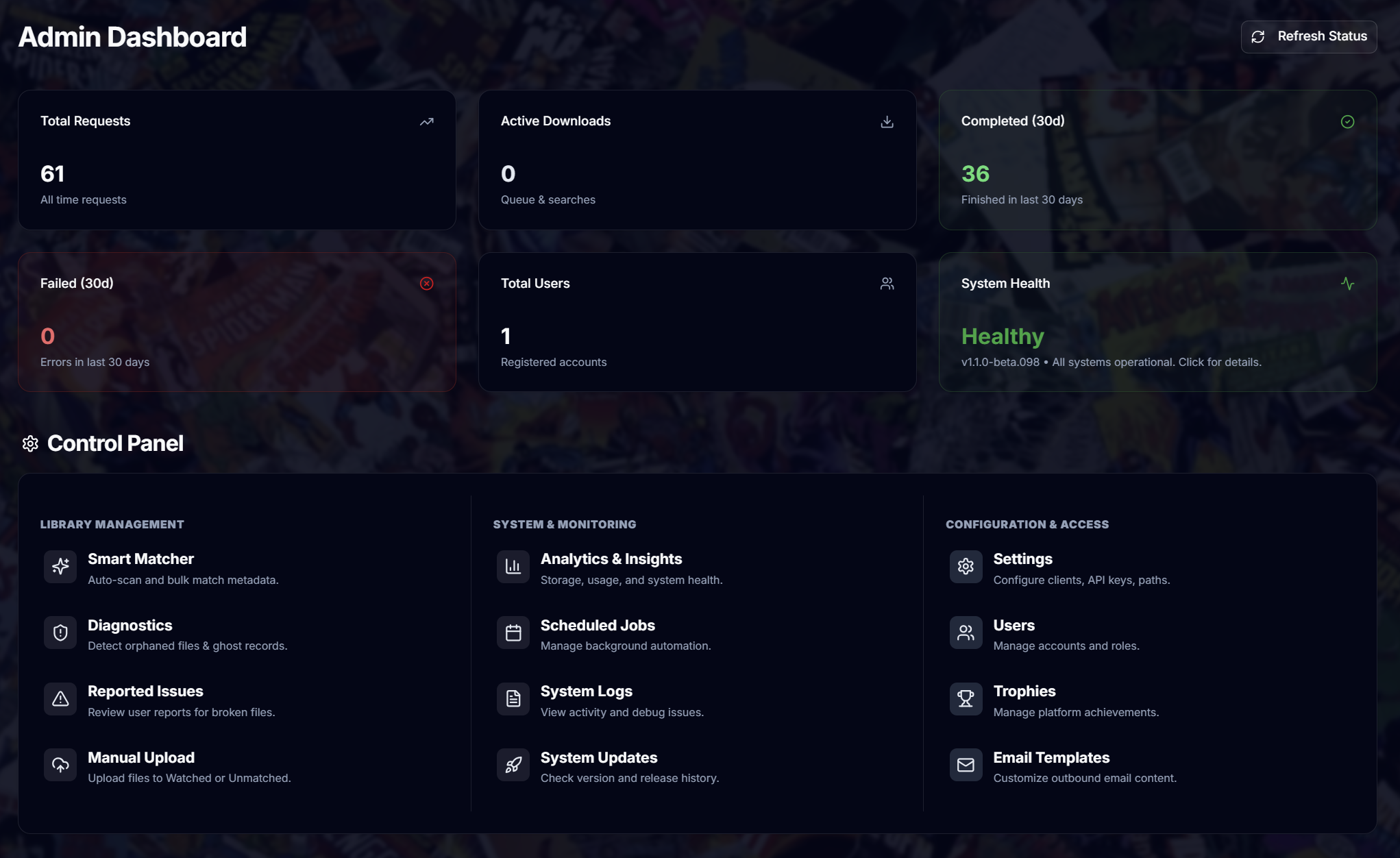
Admin page showing data cards and configuration pages.
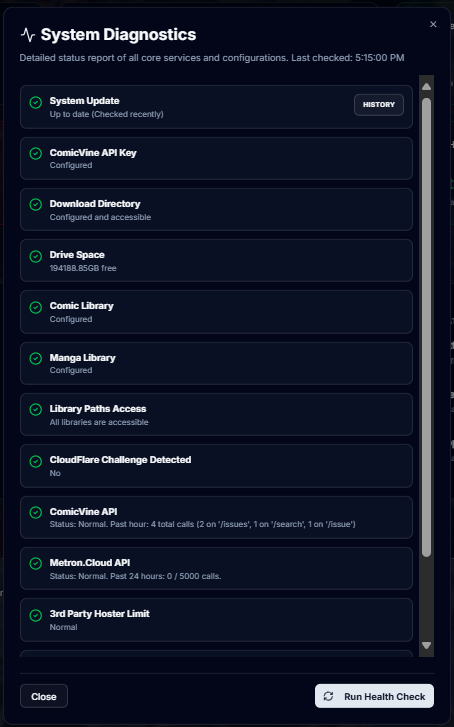
System Diagnostics modal
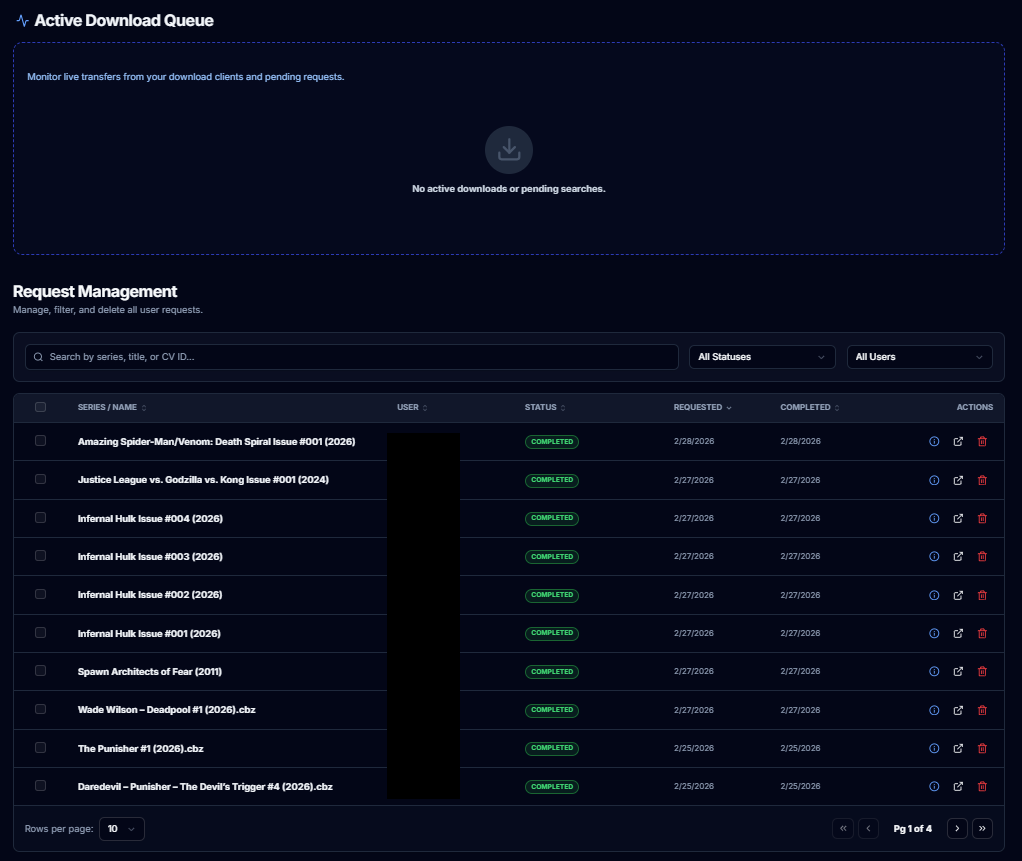
Admin page showing active downloads and request management sections.
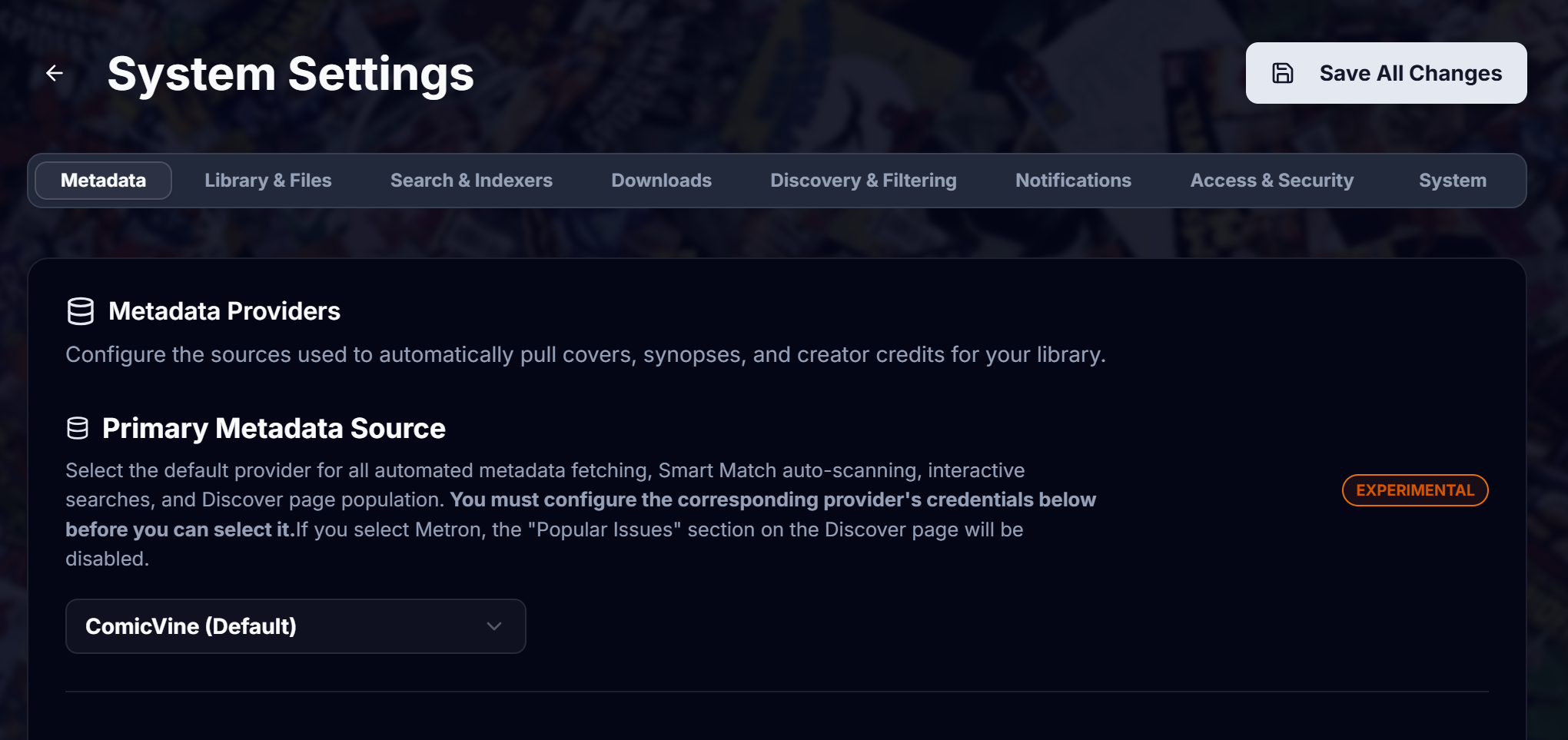
The System Settings page, organized into 8 task-focused tabs with per-tab unsaved-change indicators.
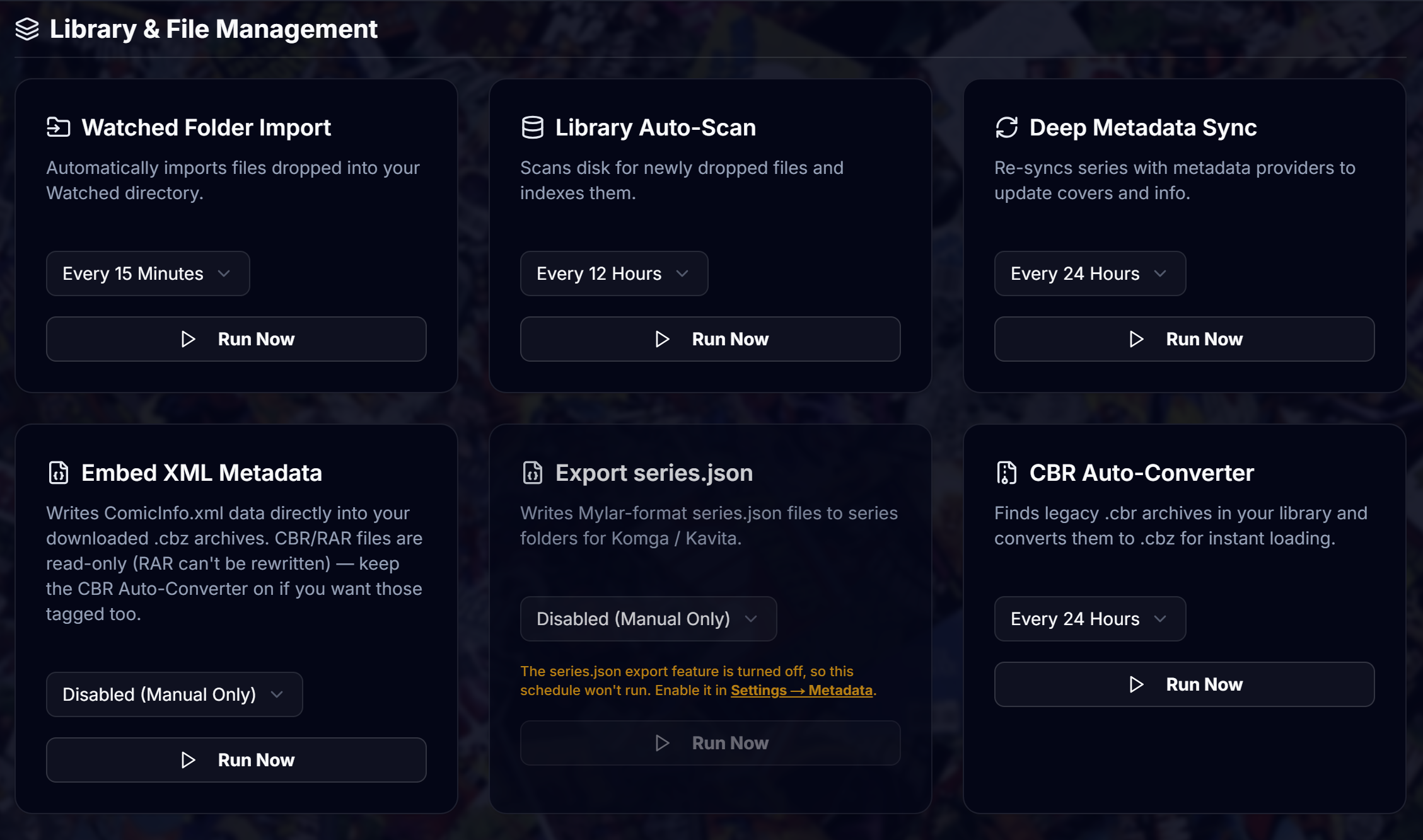
The Scheduled Jobs page — every background job's cadence in one place, with manual Run Now triggers.
- High-Performance Architecture: Built to handle massive terabyte-scale libraries. Features an optimized OPDS feed, asynchronous streaming cipher engines for backups, and B-Tree indexed database lookups.
- Download Client Integration: Connects seamlessly with qBittorrent, Deluge, SABnzbd, and NZBGet. Supports complex Docker remote-path mapping to ensure files move perfectly between containers.
- 3rd-Party File Hosters: Native support for bypassing landing pages and downloading directly from MediaFire, Mega, Pixeldrain, Rootz, Vikingfile, and Terabox. Supports injecting premium API keys/session cookies to bypass bandwidth limits.
- Anna's Archive Search Source: Search Anna's Archive (the shadow-library aggregator) as a first-class source alongside GetComics and your indexers. Use it in interactive search (no API key required — gated files drop to the manual queue) or prioritize it as an automated source (requires a premium API key plus a passing connection test). Includes a configurable mirror base URL with automatic failover as Anna's Archive rotates domains.
- Selectable Cloudflare Solver: Route requests through a FlareSolverr, Byparr, or Trawl container to seamlessly bypass Cloudflare protection (403 Forbidden errors) on sites like GetComics, with a configurable solve timeout. A built-in circuit breaker detects a wedged/unresponsive solver (pausing solve attempts and raising a health-panel alert with the fix) instead of silently grinding every download into the manual queue. The download pipeline drives the solver the way battle-tested tools do — reusing solver sessions, streaming from the solver's landed URL, and resuming partial transfers — so gated links that used to need hand-holding now usually finish on their own. When a link still stays gated, Omnibus holds it for manual download — and you can hand the file back via Manual File Upload. Run any of the three solvers as its own container and point the Cloudflare Solver URL in Settings at it.
- Smart Matcher: An AI-assisted tool that scans your "Unmatched" folders, queries your primary metadata provider (ComicVine or Metron), and suggests the correct linkage so you can clean up messy archives in seconds. If the auto-scan misses, Search Match lets you search the provider by name right in the matcher and pick the correct series from a results list — covers, publisher, year, and issue count included — with the classic exact-ID lookup one click deeper for admins who already have the ComicVine Volume ID or Metron Series ID. Includes bulk processing for whole folders at once, an inline metadata editor (Series Group / Universe, per-issue covers, and the full ComicInfo defaults tab set), archive-extracted cover previews, and overwrite-safety guards so a re-match never clobbers existing files. The matcher is file-first: your
ComicInfo.xml/series.jsonvalues pre-fill the editor with provenance badges, provider data fills empty fields only on request, file-carried ids auto-resolve the exact series, and a keep-or-replace choice (keep is the default) decides whether Accept preserves or rewrites your curation. And when an auto-scan matches everything, a one-click Accept All applies every suggestion in a single pass. Auto-scan suggestions are scored by name with the year only breaking ties (and say "not found" rather than guess), the bulk mapping table shows each bound issue's cover from one provider call, Ignore keeps an item the provider will never have out of the matcher and out of automatic matching (with a "Show ignored" toggle), Attach to Series files a trade the provider doesn't know under its series as a collected edition, and a match that would land in another series' folder stops to ask — attach it there as a collected edition, or give it a folder name of its own. - Match Confidence Modes & Background Sweep: Choose how much matching automation you trust — Trust (auto-accept confident matches, with a tunable similarity threshold), Confirm (file IDs auto, suggestions need approval), Auto (only near-exact name matches), or Custom (fully manual). An hourly, ComicVine-budget-aware background sweep keeps retrying unmatched series so large imports finish matching themselves instead of stalling at the rate-limit wall — successful auto-matches light up the admin notification bell and a results card on the Smart Match page.
- Request Lifecycle Self-Healing: Downloads that stall after repeated retries recover automatically, an issue no source has yet waits as Not Found Yet — and a released issue with no date as Awaiting Date — re-searched on a slow cadence, with per-request snooze, instead of counting as a failure, and a periodic sweep revives dead requests — you never have to delete a request just to make it retry. A pack handed to the watched folder shows Importing until the sweep reports what landed, and a request whose issue didn't arrive is marked Needs Review instead of being announced as available. A request closes once its issue is in your library, however it got there; Request Management shows why a request is stuck, and Mark completed closes one by hand and tells the requester.
- Search Quality Controls: GetComics results advertise their download size in interactive search; releases over 400MB automatically prefer third-party mirrors over GetComics' throttled servers (never excluded, just re-ordered); rate limits are respected with real backoff and a health-panel warning; and an opt-in accepts undated scene releases when nothing dated exists (a release with a matching year always wins). Bulk packs/collections can be allowed and even prioritized for faster library building.
- Deep Diagnostics Engine:
- Ghost Records: Find and purge database entries pointing to files you deleted outside of Omnibus.
- Orphaned Files: Find comic files sitting on your hard drive that Omnibus hasn't indexed, saving you wasted disk space.
- Archive Integrity: Scan your .cbz files to detect corrupted or incomplete zip archives.
- Duplicate Files: Detect duplicate issues across your entire library and surface them as a dashboard health alert so you can reclaim wasted space.
- Real-Time System Health Dashboard: A comprehensive, automated diagnostic engine that continuously monitors your server's vitals in the background. It proactively checks for:
- API & Network Blocks: Detects Cloudflare 403s (alerting you to use FlareSolverr) and monitors rate limits for ComicVine, Metron, and third-party hosters to gracefully pause and retry metadata syncing.
- Storage Safety: Calculates available drive space and actively prevents new downloads if your disk is critically full.
- System Configurations: Ensures all API keys are valid, library directories are accessible to the Docker container, and that no external client downloads are stalled due to incorrect remote-path mappings.
- Maintenance Warnings: Alerts you if database backups are out of date or if a new version of Omnibus is available on GitHub.
- Storage Analytics: A beautiful visual dashboard breaking down your storage usage by publisher, tracking user engagement, and highlighting "Inactive Series" that you might want to delete to free up space.
- Indexer Support: Plug in Prowlarr or Jackett to search dozens of trackers simultaneously, and use torznab IDs to prevent unwanted results.
- Queue & History Management: View active, pending, paused, and completed downloads with real-time progress bars, speeds, and ETA.
- Automated Post-Processing: Once a comic is downloaded, Omnibus automatically:
- Extracts the file (if necessary).
- Renames the file to your customized standard format.
- Moves it to the correct publisher/series directory on your NAS.
- Triggers a local library scan to make it instantly readable.
- User & Role Management: Create independent accounts for friends and family so everyone has their own reading progress.
- Admin or User roles
- Users can be assigned auto-approval permission and download permission
- Custom Trophy Engine: Admins can create custom milestones and achievements (e.g., "Read 50 Comics", "Explore 5 Publishers") with uploadable icons. Omnibus automatically evaluates and awards these trophies to users as they interact with the library.
- Library Path Mapping: Omnibus supports multiple libraries to easily map multiple root directories from your NAS (e.g., separate folders for
/comics,/manga, and/magazines). - WEBP Image Compression: Save massive amounts of disk space and radically improve Web Reader performance by enabling automatic WEBP compression. Omnibus can convert heavy JPEGs and PNGs to highly optimized WEBP files during CBR-to-CBZ conversions or bulk repacks.
- Engine Performance Tuning: Six UI-tunable concurrency knobs for the Rust engine — scan workers, convert workers, CPU cap, blocking threads, a memory ceiling, and database pool size — with safe auto-derived defaults. Perfect for keeping a NAS responsive during a terabyte-scale import, or letting a beefy server rip.
- Internal Page Repacking: A powerful admin tool to standardize the insides of your comic archives. Omnibus can extract an entire series, rename the internal image files sequentially (e.g., page_0001.jpg), compress them, and repack them into clean, standardized .cbz files.
- Alerts & Notifications:
- Push Notifications: Native support for Discord Webhooks, Telegram Bots, Pushover, and Apprise (supporting 80+ external services).
- SMTP Email Notifications: Send beautiful HTML emails for approvals, completed requests, and Weekly Digests.
- Custom Email Templates: A built-in code editor allows admins to customize the exact text and HTML layout of all outgoing automated emails using dynamic variables.
- API & Service Configuration: Securely plug in your ComicVine API keys, Metron API token, Indexer details, and Download Client URLs. (Create the Metron token on metron.cloud under Profile → API Tokens. Metron is retiring username and password sign-in for its API; they still work until then, and System Health reminds you to switch.)
- External API Integrations: Generate an API key to allow external applications (like Discord Bots or Dashboards) to fetch stats and interact with Omnibus securely. Includes a ready-made Homepage dashboard widget config exposing system health, library totals, monthly growth, and active downloads — plus a live in-app API tester.
- Safe Configuration: Dual-guard unsaved changes protection to ensure admins never accidentally lose their configuration progress.
- Scheduled Tasks (Cron): Configure how often Omnibus should scan your disk for new files, refresh metadata, embed ComicInfo.xml, export series.json, convert archives, back up the database, or check indexers for missing requested issues — each job with its own cadence and a manual "Run Now" trigger.
- Automated Backups & One-Click Restore: Scheduled, encrypted database backups on your chosen day and cadence, with a browser-based restore that merges a backup file straight back into a running instance.
- Live System Logs: A built-in log viewer to easily troubleshoot API limits, failed downloads, or matching errors.
Additional Screenshots
 |
 |
 |
 |
 |
 |
 |
 |
 |
 |
 |
 |
 |
 |
 |
 |
Metadata Sources, Licenses & Covers
Omnibus gets its metadata from two providers, each with its own terms. You use your own ComicVine key and your own Metron account, so their terms apply to you as their user.
ComicVine
- ComicVine's API is free for non-commercial use only; commercial use can get a key revoked.
- ComicVine asks apps to link back to it on any page that uses its data. Omnibus does this in the footer of every page.
- Its API page also asks apps not to edit its data or reproduce it on another medium. Omnibus lets you edit metadata and writes it into your own comic files (
ComicInfo.xml) for your library; if you share files or data beyond your own use, read ComicVine's terms first.
Metron
- Use your own Metron account with an API token (create one on metron.cloud under your profile; Metron is retiring password sign-in for its API). Never share one account between installs, and don't create extra accounts to get around the limits.
- Each account gets 20 requests a minute and 5,000 a day. Omnibus paces itself by Metron's own rate-limit headers, so a big sync just takes longer.
- Need a higher limit? A donation to Metron through Open Collective raises the daily limit of the account it's matched to, up to 25,000 requests a day. Use the email address confirmed on your Metron account, and don't contribute as Incognito, so the donation can be matched to it.
- Metron's data is licensed under CC BY-SA 4.0, and Omnibus credits it in the footer of every page. Omnibus also writes metadata into your comic files (
ComicInfo.xml,series.json): keeping them in your own library is fine, but if you share them publicly, the Metron data in them falls under the same license (credit Metron and share it under CC BY-SA 4.0).
Covers
- Cover images belong to their publishers and creators. Neither ComicVine's terms nor Metron's license covers them, and Metron's fair-use basis for hosting them doesn't extend to other apps. Omnibus downloads covers to show them in your library; whether that's allowed where you live is your call.
Metron's Using Metron in Commercial Software post has the details.
Acknowledgements
Omnibus stands on the shoulders of giants. This project was heavily inspired by and built with immense respect for the developers of the following incredible self-hosted applications:
- Kavita: For setting the gold standard in self-hosted reading and library management.
- Komga: For their incredible work in the digital comic management space.
- Kapowarr: For pioneering modern comic book request and download automation.
- Mylar3: The absolute titan of comic tracking and downloading that paved the way.
- ReadMeABook: For the beautiful UI/UX inspiration and demonstrating what a modern web reader can look like.
- ComicVine: For providing the API and metadata backbone that keeps our digital collections accurate and beautiful.
- Metron: For providing another source of metadata that has allowed for additional features (Release Calendar). Metron's data is licensed under CC BY-SA 4.0.
Contributors
Omnibus is built in the open, and it gets better every time someone sends a pull request, files a sharp bug report, or tests a fix against their own library. Thank you.
Code
- JoeJoeflyn — the comic panel-frame header navigation and app-wide button polish (#186), Omnibus' first merged community feature
- realAbitbol — OPDS feeds that publish the address your reader actually reached instead of the server's bind address (#212, reported in #210), and KOReader progress sync that logs in and works end to end for the first time (#213, reported in #211), downloads with the real file type, a correct filename and resumable Range requests (#234, reported in #219 and #220), standards-conforming OPDS feeds with real authors and dates (#235, reported in #218), OPDS search, Continue Reading / Recently Added / On Deck / Libraries sections and page-stream resume (#236, reported in #221), requests that remember which issue they're for, so a pack is downloaded once instead of again on every monitor cycle (#246, reported in #240), requests closed on what actually reached the library rather than on what was handed to the watched folder (#247, reported in #240), handed-over files recorded before they land, so a sweep never meets one it wasn't told about (#248, reported in #240), and scheduled jobs that no longer wait hours behind a backlog of searches (#249, reported in #240)
- CaptainEpix — the
{Imprint}naming token, which files a series under its publisher imprint the same way everywhere Omnibus names folders and files: imports, watched folders, the Smart Matcher and Standardize (#214, proposed in #207), a "Leave it as its own series" that sticks: a trade kept as its own series stays in its own folder under collected-edition names, its books show on the parent's Collected Editions shelf, and the choice survives a rebuild (#254, reported in #239), and Specials: a one-shot that belongs with a series attaches beside its annuals and collected editions, named after its own volume and kept out of the run's issue count (#259, proposed in #255) - dissentingd — Windows checkouts that build working images (#228, reported in #223), ComicVine's HTTP 420 burst limit handled as the rate limit it is at every call site (#242, from #227), every issue's file path following its series when a match relocates the folder (#230, reported in #225), a Smart Matcher sweep that reaches every unmatched series instead of stalling on the first hundred (#231, #250, reported in #226), book types read from a file's own
<Format>tag (#233, from #163), genres free of ComicVine's cover and variant tags (#241, from #227), and ComicInfo.xml embeds that keep ComicRack's page table and every other tag Omnibus doesn't model (#232, from #227)
Bug Hunters & Field Testers
Special thanks to the people whose reports and hands-on testing turned into real fixes and features:
- anacronismo — tracked down the cover-corruption bug and field-verified the repair tooling (#194, #196), kept the download and library pipelines honest with a string of sharp, log-attached reports (#197, #198, #200, #201, #202), then asked for Series-Annual Integration and field-tested it through five rounds (#203) and verified the half-issue fix (#205); in v1.4.6, the Series Monitor's same-name volume mix-up (#208), PixelDrain behind GetComics' redirect (#209), reading collected editions in the browser (#215) and the annual cover and metadata fixes (#237, #238); in v1.4.9, the issue years in downloaded file names (#243) and the issue-number padding setting (#244)
- bpepple — spotted from Metron's side the nightly burst every Omnibus install sent its servers at the same moment (#216), which became Metron best practices across the whole app
- jdcrensh — the hardlink import request (#222) whose investigation turned up a CBR conversion that could overwrite a CBZ you already had
- parkinsonanthony378-ui — the "lost understanding how to set up" report (#245) that rewrote the Installation guide and led to First Steps and the setup checklist
- conduit4731 — the metadata syncs that rewrote archives with ComicInfo.xml writing switched off (#251), and the reading-list reports behind fast-loading lists with read status and Continue (#252, #253)
- niddelicious — the admin dashboard buttons that ran off a phone screen (#260) and the Request Management filter that couldn't pick out cancelled requests (#263)
- matkozera — found three collected-edition bugs while building multi-trade attach (#257); the stray-safe pairing rule from #258 ships through #259
- Users from the Discord — a Paperback user who tested Omnibus' Paperback support on a real iPhone through several rounds (#206) and tracked down why read status never synced from Paperback 0.9; a Surface Pro user whose "mkdir 'C:'" error became the folder-path checks; and a newcomer whose stuck download shaped First Steps and the setup checklist
- robotshavehearts2 — three thorough write-ups from a manual-matching, trade-heavy library that became fourteen betas: the Ignore state, collected editions and their coverage, the Missing Issues view, the For Your Library shelf, the folder-collision guard and local-only trades
- de6oliveira-droid — the session-expiry report that turned the Smart Matcher's "Unauthorized Access" dead-end into a proper sign-in bounce (#204), and the watched-and-unmatched-on-one-folder report behind the same-folder guard (#261)
- BeepbopbeepityBop — the half-issue split, reported with a database analysis that nailed its exact shape (#205)
- CapitanoNemo78 — the request that became the Page Manager (#189), then the concepts and working prototypes behind the ComicInfo defaults editor, Search Match, the per-issue metadata editor, and the file-first matcher — four feedback rounds of #199, with same-day field testing throughout
- misleadingrhino — a dozen bug reports in the project's formative months
- lboyce — a wave of metadata reports, including the credits-wipe find (#179)
- brando2021x — the database-deadlock report behind the v1.3.1 hotfix (#195)
- colinrjrobbins, randrini, SamTanna, wpigoury — steady, detailed reports across multiple releases
- …and everyone else who has opened an issue, joined the Discord, or kicked the tires on a beta. It all counts.
AI Collaborators
True to its vibe-coded roots, Omnibus is built with heavy AI assistance: Claude (Anthropic) for code review, debugging, and refactoring, and Gemini as technical collaborator and project advisor.
Want to see your name here? Open an issue, send a PR, or come say hi in the Discord.