guluguludog-alt/clipo has 39 GitHub stars and 1 forks. GitHot measured 0 stars in 24 hours. Last checked 2026-11-17 04:33 UTC. Last push 2026-11-06.
What you can do
- Visual clipboard history: Supports text, links, articles, code, tables, images, files, audio, video, and 3D/model data.
- File transfer station: Temporarily keeps copied or dragged files available for pinning, dragging, pasting, and quick access.
- Quick AirDrop: Sends single records, multiple selected records, images, or files.
- AI search and processing: Supports semantic search, summarization, rewriting, translation, cleanup, comparison, and content generation.
Measured star growth
- in 24h
- 0
- in 7 days
- Collecting history
- in 15 days
- Collecting history
- in 1 month
- Collecting history
Net star changes over overlapping periods, not daily totals. Missing measurements are left blank. Stars measure attention, not software quality.
About
A free macOS productivity tool centered around a clipboard history panel, integrating clipboard management, screenshot tools, file transfer, Pomodoro timer, and other quick utilities.一款免费的 macOS 效率工具,以剪贴板历史面板为核心,集剪贴板管理、截图处理、文件中转、番茄钟等快速工具于一体。
ProductivityREADME.md
Original




If Clipo helps you, consider giving the project a star and opening an Issue or Pull Request.
Clipboard context is everything.
Clipo is a floating, AI-ready clipboard and file transfer hub for macOS. It turns copied text, links, images, files, rich text, tables, and code snippets into visual cards, bringing recall, search, paste, file transfer, AirDrop, and AI workflows into one fast panel.
More than a clipboard history list, Clipo is a local information hub that can appear at the bottom of the screen, along either edge, or near the pointer with middle-click. History is stored locally first, while AI features use a user-configured OpenAI-compatible endpoint.
This project is actively evolving. Some features may change, and this guide may be incomplete or contain errors.
Current source version: 1.3.2 (Build 45) · Requirement: macOS 15.0+
Features
- Visual clipboard history: Supports text, links, articles, code, tables, images, files, audio, video, and 3D/model data.
- File transfer station: Temporarily keeps copied or dragged files available for pinning, dragging, pasting, and quick access.
- Quick AirDrop: Sends single records, multiple selected records, images, or files.
- AI search and processing: Supports semantic search, summarization, rewriting, translation, cleanup, comparison, and content generation.
- Multiple paste methods: Normal paste, plain-text paste, merge paste, drag-and-drop paste, and middle-click paste.
- Flexible access: Open Clipo with shortcuts, screen edges, middle-click, near-mouse mode, or the menu bar.
- Tags and categories: Automatically classifies records and supports custom tags, filters, and similar-record search.
- Collections and Infinite Canvas: Group records and arrange them freely with connections, annotations, and export support.
- LAN Sync (Beta): Sync clipboard data between paired devices on the same local network.
- CLI and MCP: Access clipboard history, collections, and quick tools from terminals, scripts, or compatible local clients.
- Custom export and file slimming: Export to TXT, Markdown, HTML, JSON, CSV, XLSX, RTF, DOCX, or PDF, and compress images or PDFs.
- Smart Screenshot and editing: Capture screenshots, run OCR, translate, remove text, and edit images quickly.
- Sorting and batch operations: Sort newest-first, move multiple selected records to the front, and save several records to a folder.
- Web quick preview: Preview web pages in Clipo, see copy time, open links in the default browser, and release web resources when the preview closes.
- Local-first privacy: Keeps history local, stores API keys securely, and supports encrypted records.
- Storage management: Supports cache limits, old-record cleanup, pinned-item protection, and AI cleanup suggestions.
Interface Preview
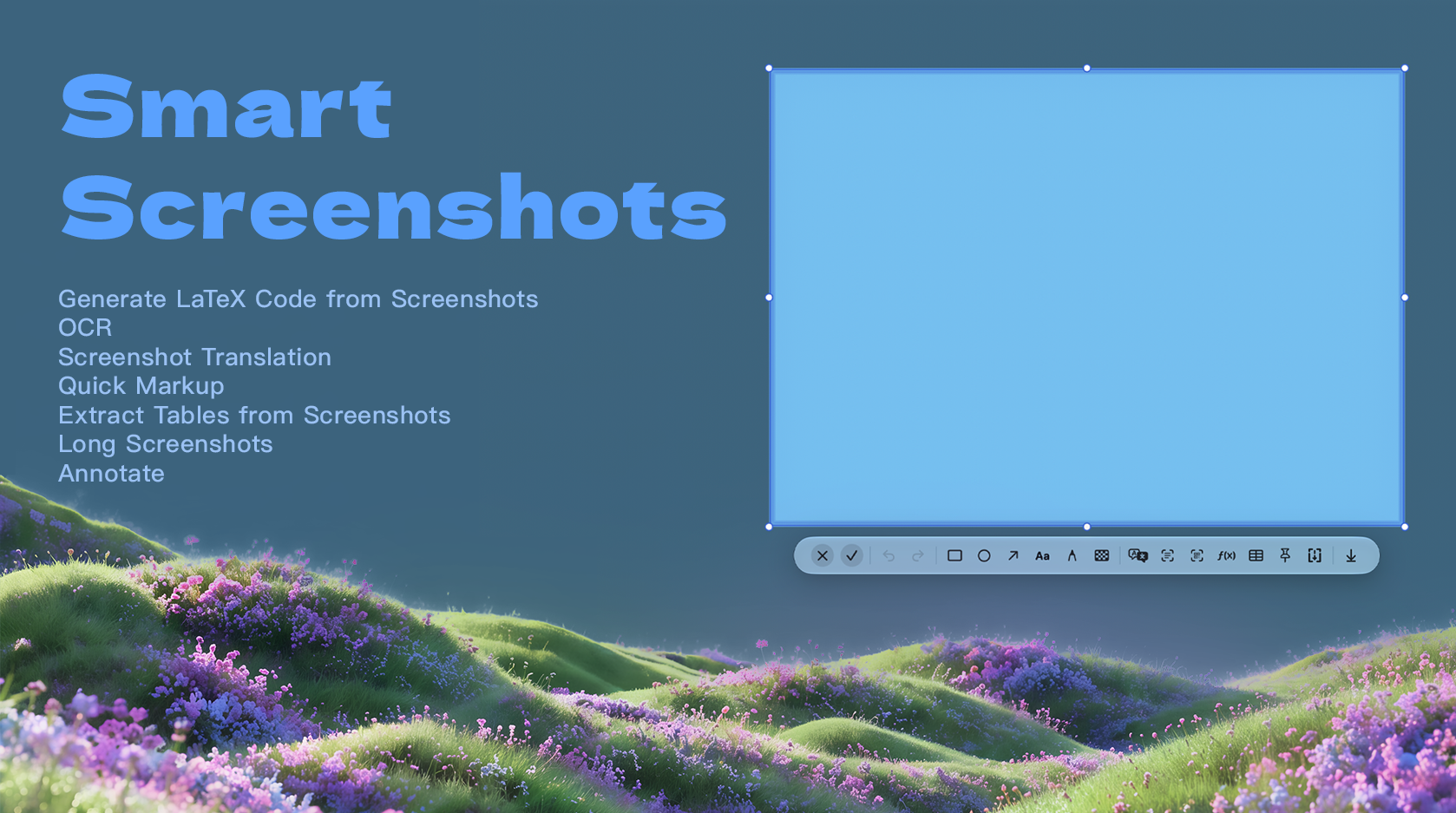
Smart Screenshots with OCR, translation, markup, table extraction, and long screenshots
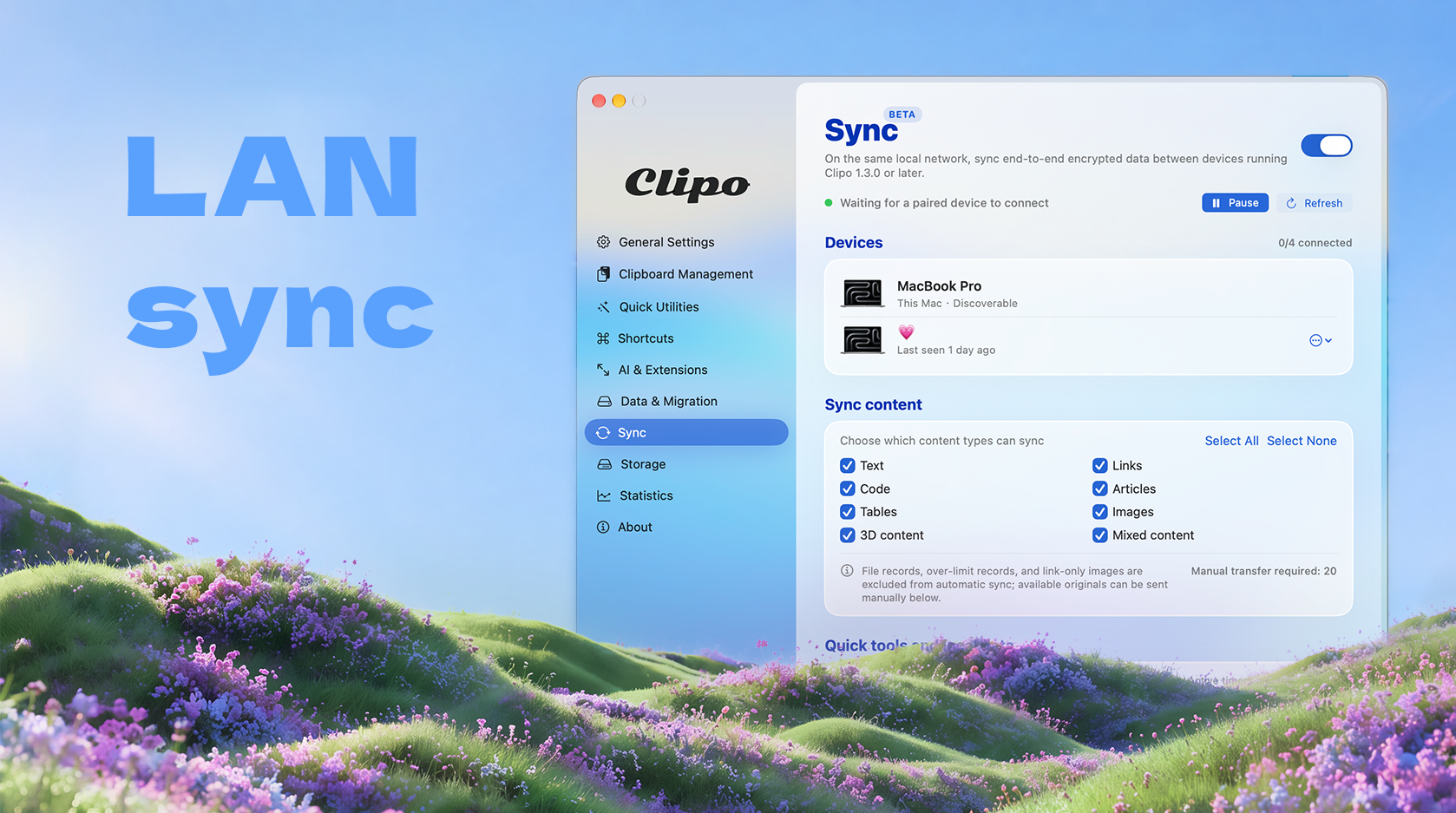
End-to-end encrypted clipboard synchronization over the local network

Pomodoro and stopwatch tools for focused work
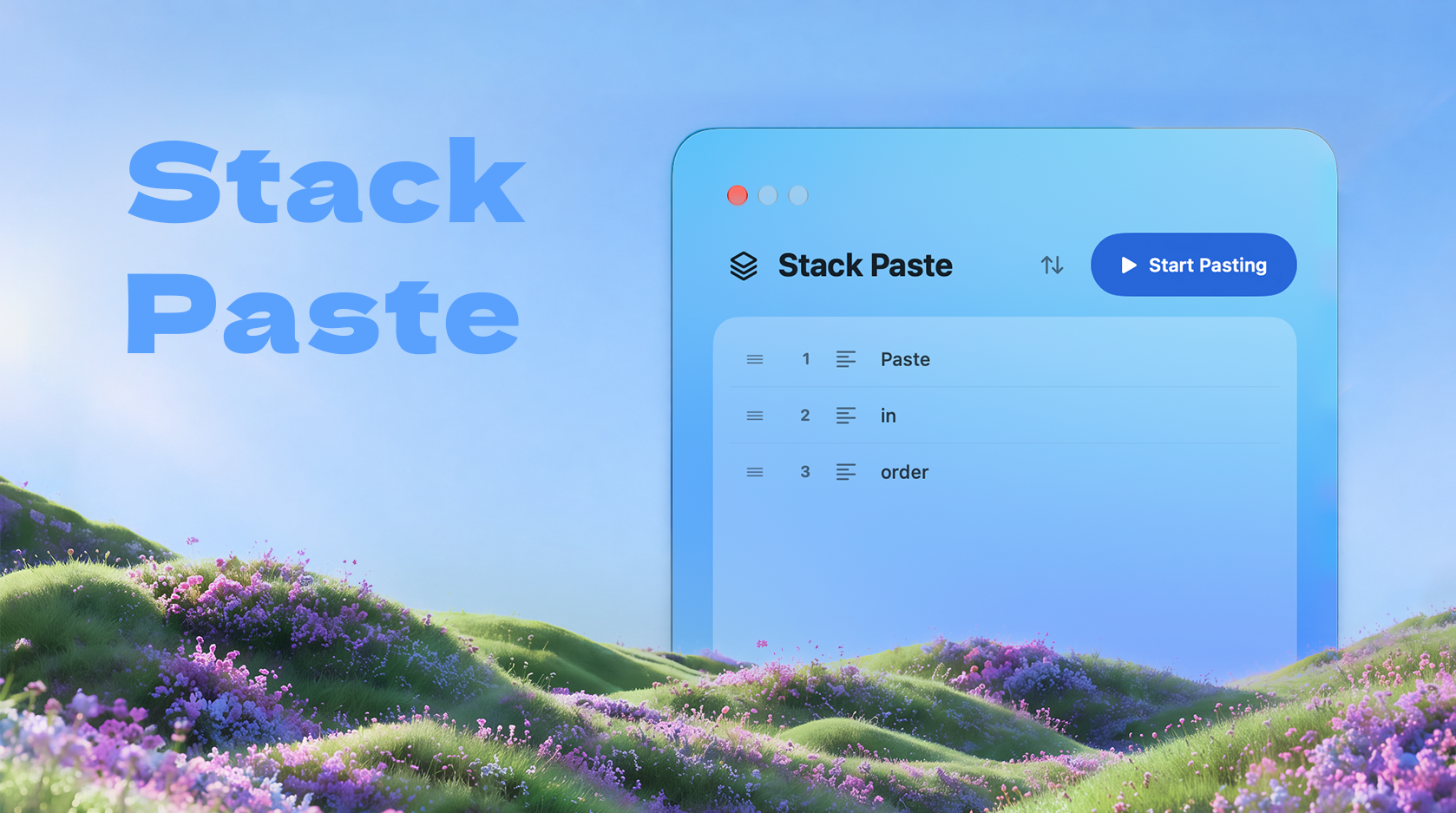
Collect copied items and paste them in sequence
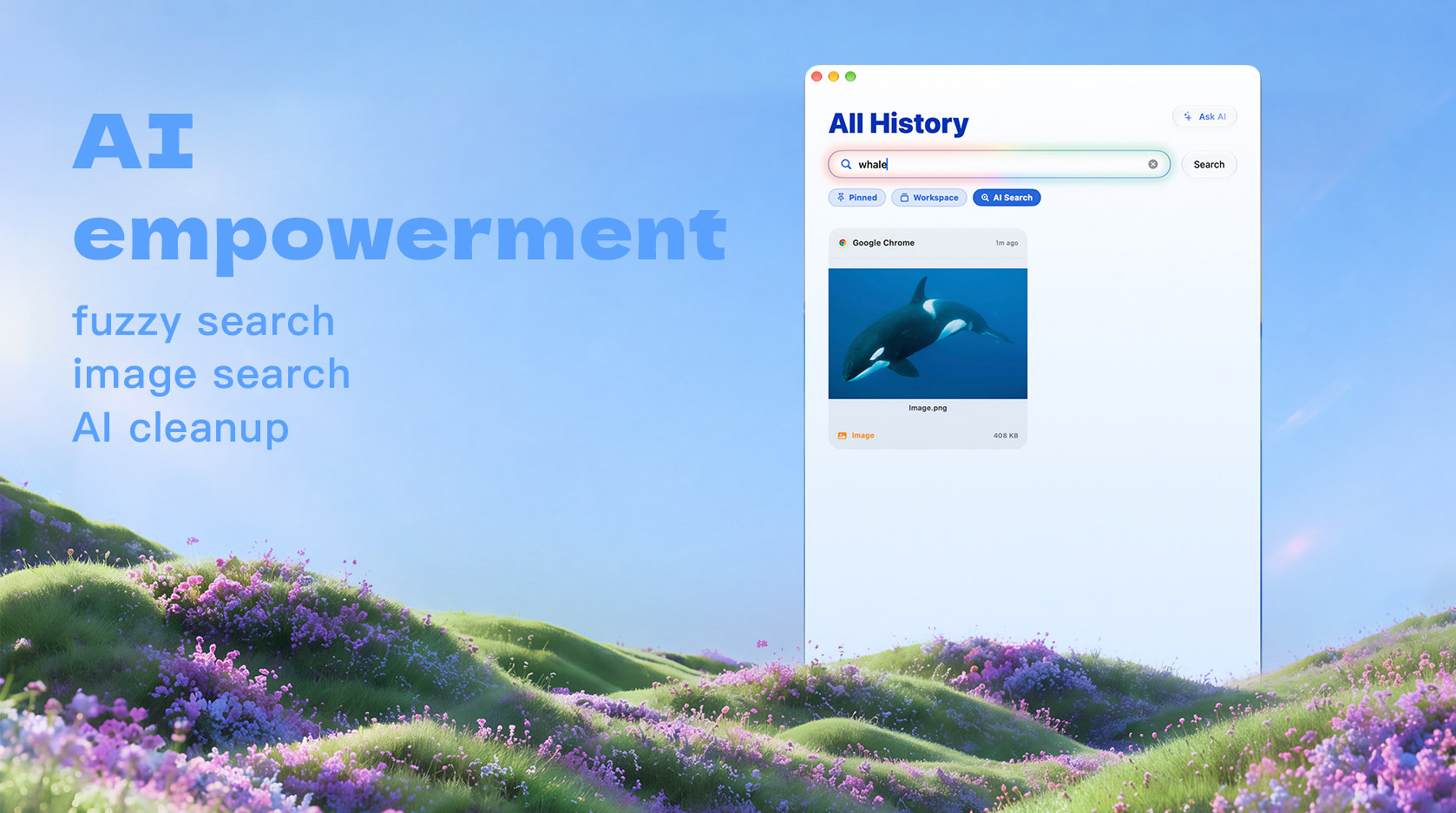
Fuzzy search, image search, and AI cleanup for clipboard history
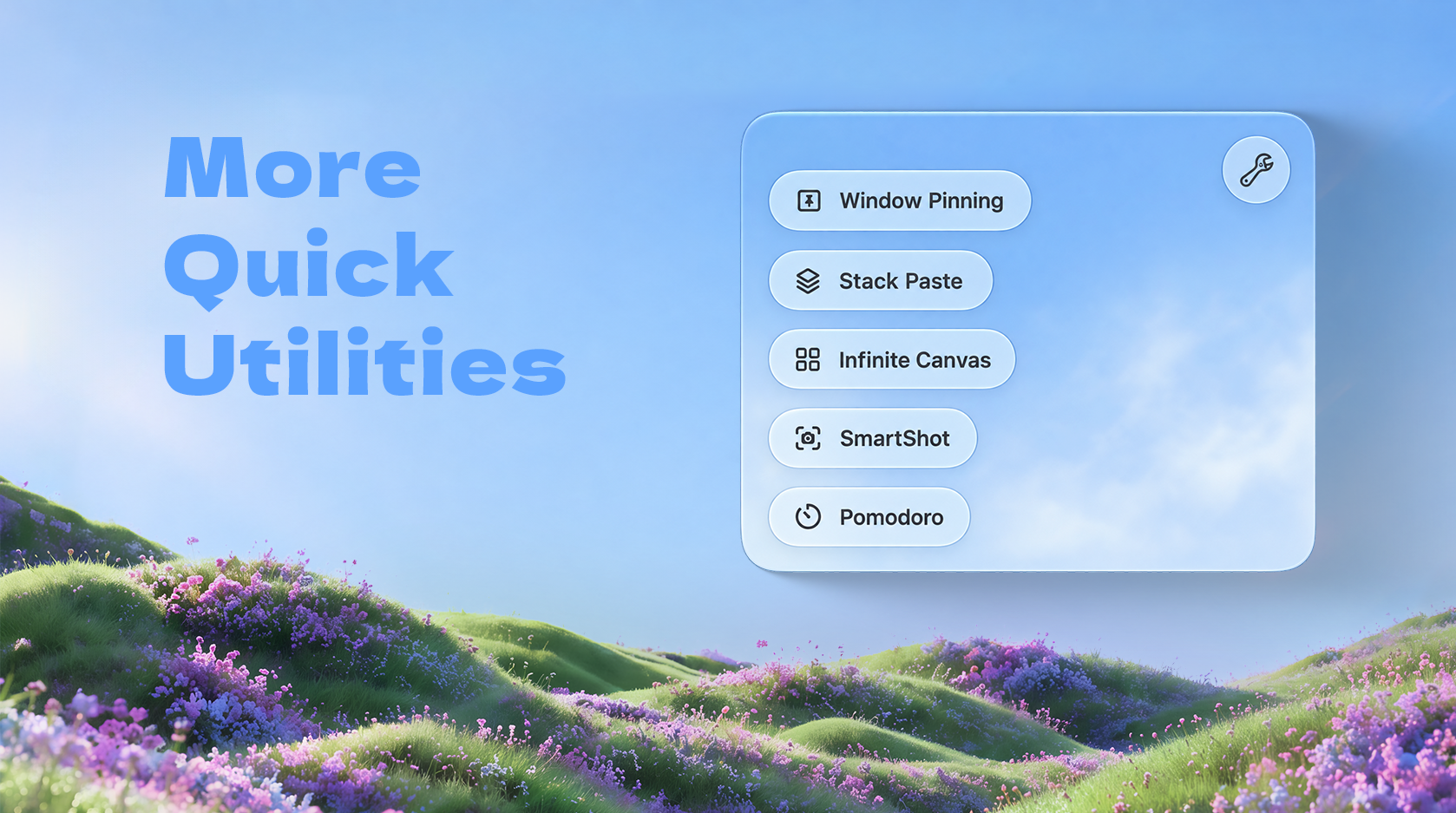
Window Pinning, Stack Paste, Infinite Canvas, SmartShot, and Pomodoro
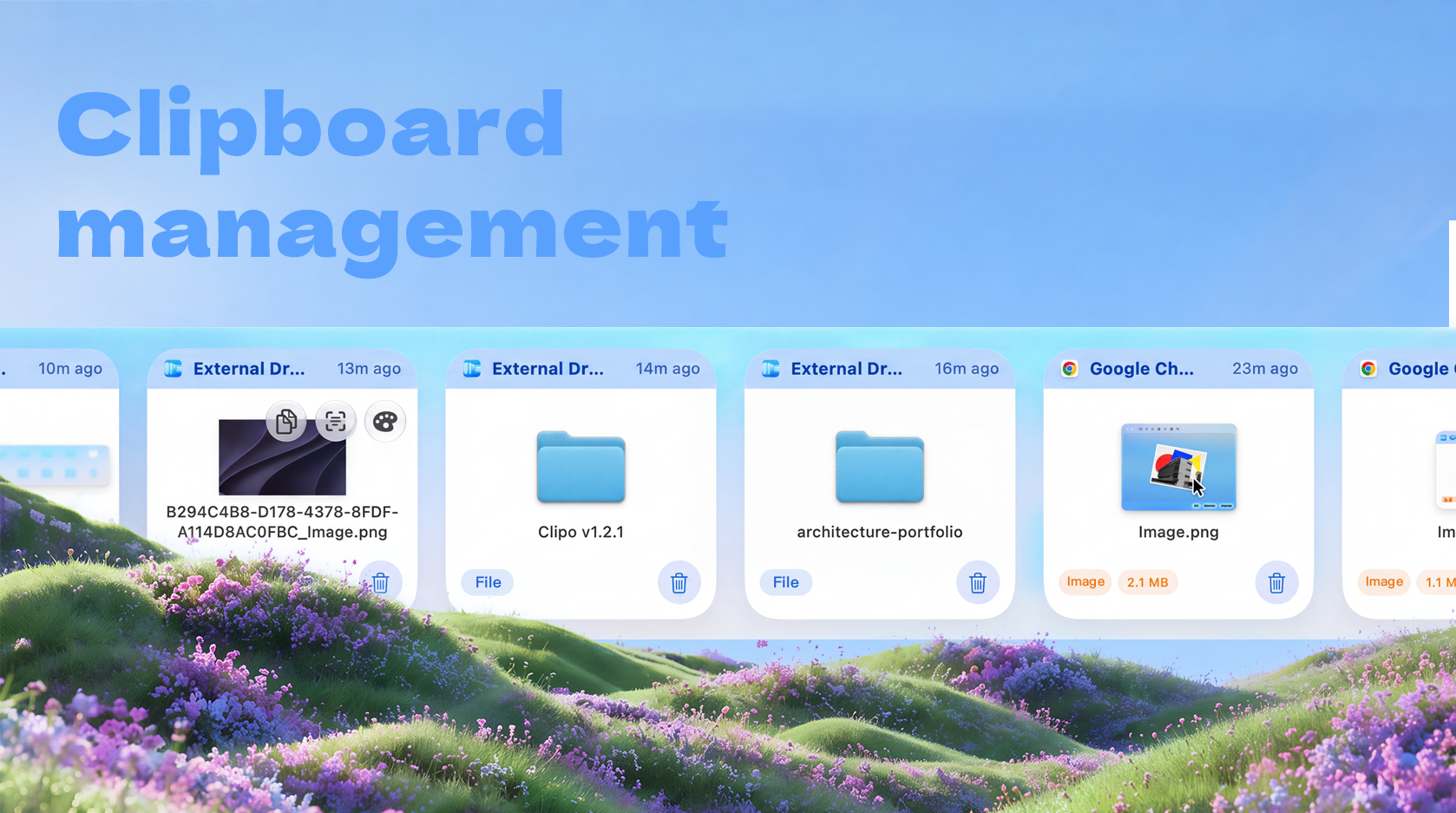
Browse and manage clipboard records as visual cards
Quick Start
Homebrew Installation
brew tap guluguludog-alt/clipo
brew trust guluguludog-alt/clipo
brew install --cask clipo
You can also download the latest version from the project Releases page.
Latest Updates
English
- History organization: The panel and More History context menus now include a two-level Sort menu. You can sort history from newest to oldest by copy time, or move one or multiple selected records to the front.
- Batch saving: Saving now supports multiple selected records. Clipo creates unique file names when necessary and reports missing or unavailable files without stopping the rest of the batch.
- Web quick preview: HTTP/HTTPS links can be previewed inside the quick preview window. The loading indicator has a stable size, the copy time is shown in the bottom bar, and an Open in Default Browser button sits beside AirDrop. Web views use a non-persistent data store, load only when needed, and are torn down when the preview closes.
- Collections and Infinite Canvas: Organize records into collections, open a collection canvas, arrange cards freely, add connections or annotations, and save or export the canvas when needed.
- LAN Sync (Beta): Pair Clipo devices on the same local network with a verification code, then choose whether to sync all existing content or new content only. Sync data is end-to-end encrypted.
- CLI and MCP: Enable the command-line tool or the local MCP server from settings to use clipboard history and collections from terminals, scripts, Codex, or other compatible local clients. Locked records are not exposed through MCP.
- More utilities: The latest source also includes custom export formats, image/PDF file slimming, Smart Screenshot OCR/translation, screenshot text editing, QR-code recognition, window pinning, and quick tools.
Quick Guides
English Quick Guide
English Version
1. What is Clipo?
Clipo is a modern macOS clipboard manager built around a floating liquid-glass panel. It keeps copied text, links, images, files, rich text, tables, code snippets, and other clipboard records in one place, then lets you recall, search, paste, pin, organize, transfer, AirDrop, or process them with AI.
Unlike a traditional clipboard history list, Clipo is designed as a quick-access information hub. It can stay at the bottom of the screen, appear from an edge panel, or open near your mouse. It also supports multiple paste workflows, drag-and-drop file transfer, quick AirDrop, AI search, AI cleanup, and local storage management.
2. Core Features at a Glance
| Area | What Clipo Does |
|---|---|
| Clipboard Management | Automatically captures clipboard history and displays it as visual cards. |
| File Transfer Station | Temporarily stores copied or dragged files for quick access, pinning, dragging, and pasting. |
| Quick AirDrop | Sends files, images, or selected clipboard records through AirDrop with fewer steps. |
| AI Extension | Searches, summarizes, edits, translates, cleans, and processes clipboard content using your own AI endpoint. |
| Storage Management | Sets cache limits, clears old records, and uses AI to identify invalid or unnecessary records. |
| Privacy & Security | Stores clipboard data locally; API keys use encrypted storage; sensitive records can be encrypted. |
| Flexible Access | Opens the panel by shortcut, screen edge, middle mouse button, or near-mouse mode. |
| Multiple Paste Methods | Supports normal paste, plain-text paste, merge paste, drag-and-drop paste, and middle-click paste. |
| Collections & Infinite Canvas | Groups related records and arranges them on a zoomable workspace. |
| LAN Sync (Beta) | Pairs devices on the same local network and syncs encrypted clipboard data. |
| CLI & MCP | Provides terminal, script, and compatible local-client access to permitted data. |
| Quick Preview | Previews web links, shows copy time, and hands links off to the default browser. |
| Export & File Slimming | Exports selected records to common formats and compresses supported images and PDFs. |
3. Clipboard Management
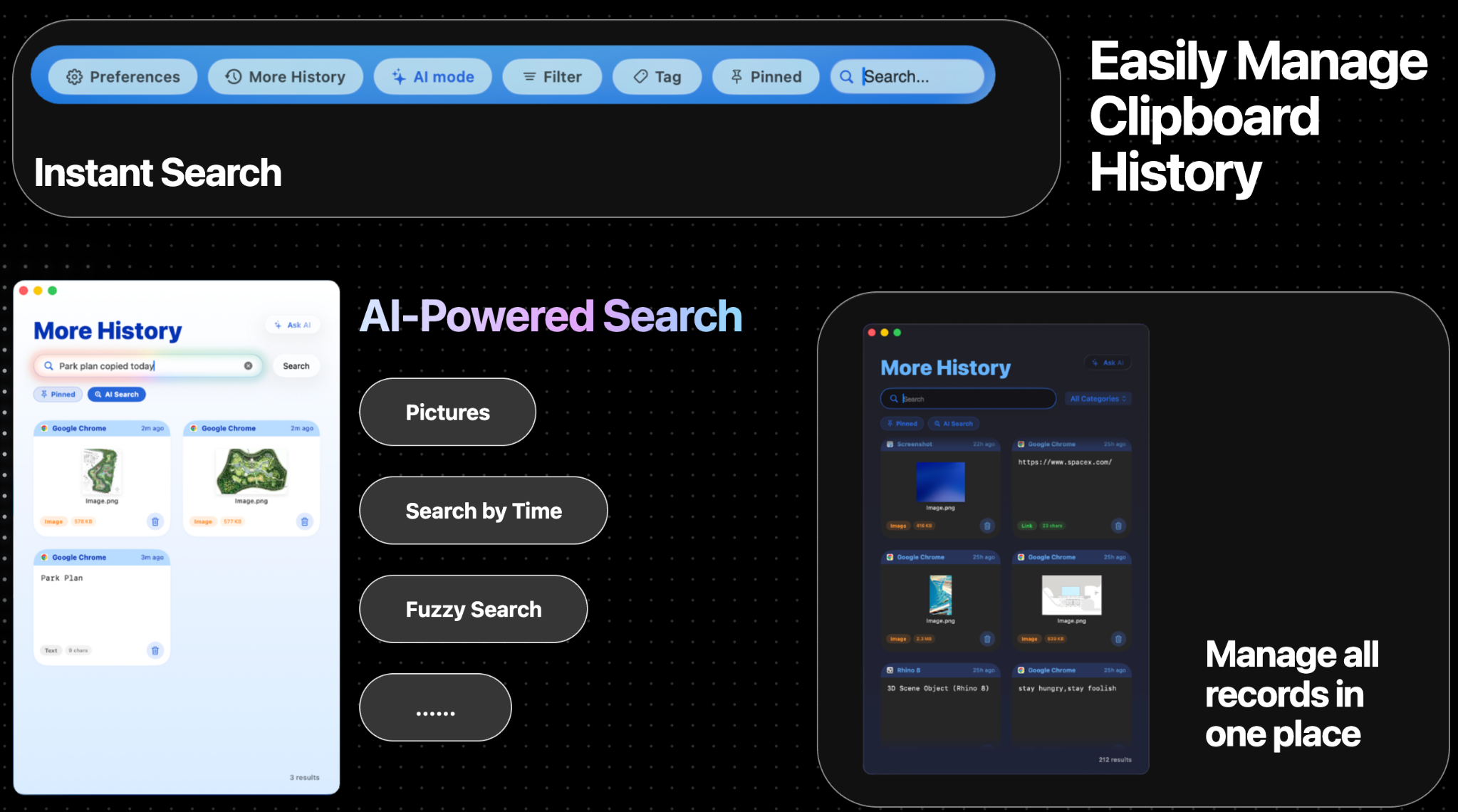
Clipo automatically monitors the macOS pasteboard and saves clipboard records as cards. Each card keeps useful context, including source app, copied time, content preview, type label, file size or character count, thumbnail, and app icon when available.
Supported record types include:
- Text, links, articles, code, tables, images, files, audio, video, 3D/model data, and general clipboard content.
- Rich text representations, plain text fallback, image thumbnails, original image data, and external file URLs.
- Source app information, timestamp, paste count, last pasted time, tags, and pinned status.
3.1 Visual Card Layout
Each clipboard item is shown as a card rather than a plain line of text. This makes it easier to distinguish screenshots, links, code, files, and text snippets at a glance.
A typical card can show:
- The source app, such as Chrome, WPS, Finder, or another app.
- Relative copy time, such as “Just now”, “2m ago”, or “24h ago”.
- A preview thumbnail for images and files.
- A category pill, such as Image, Link, Text, File, Code, Article, or Table.
- Size information, such as image size, file size, or text character count.
- Hover actions, delete button, pin menu, tag menu, encryption, AirDrop, and AI actions.
3.2 More History Window
The More History window gives you a full-screen style management view for all clipboard records. It is useful when you want to search deeply, browse large history collections, or manage many records at once.
You can use it to:
- Search clipboard records instantly.
- Search by category, app, content, time, or visual meaning.
- Filter by pinned items, tags, and record type.
- Review images and file cards in a larger grid.
- Delete unwanted records.
- Run AI-powered search for fuzzy or semantic queries.
3.3 Tags, Categories, and Similar Records
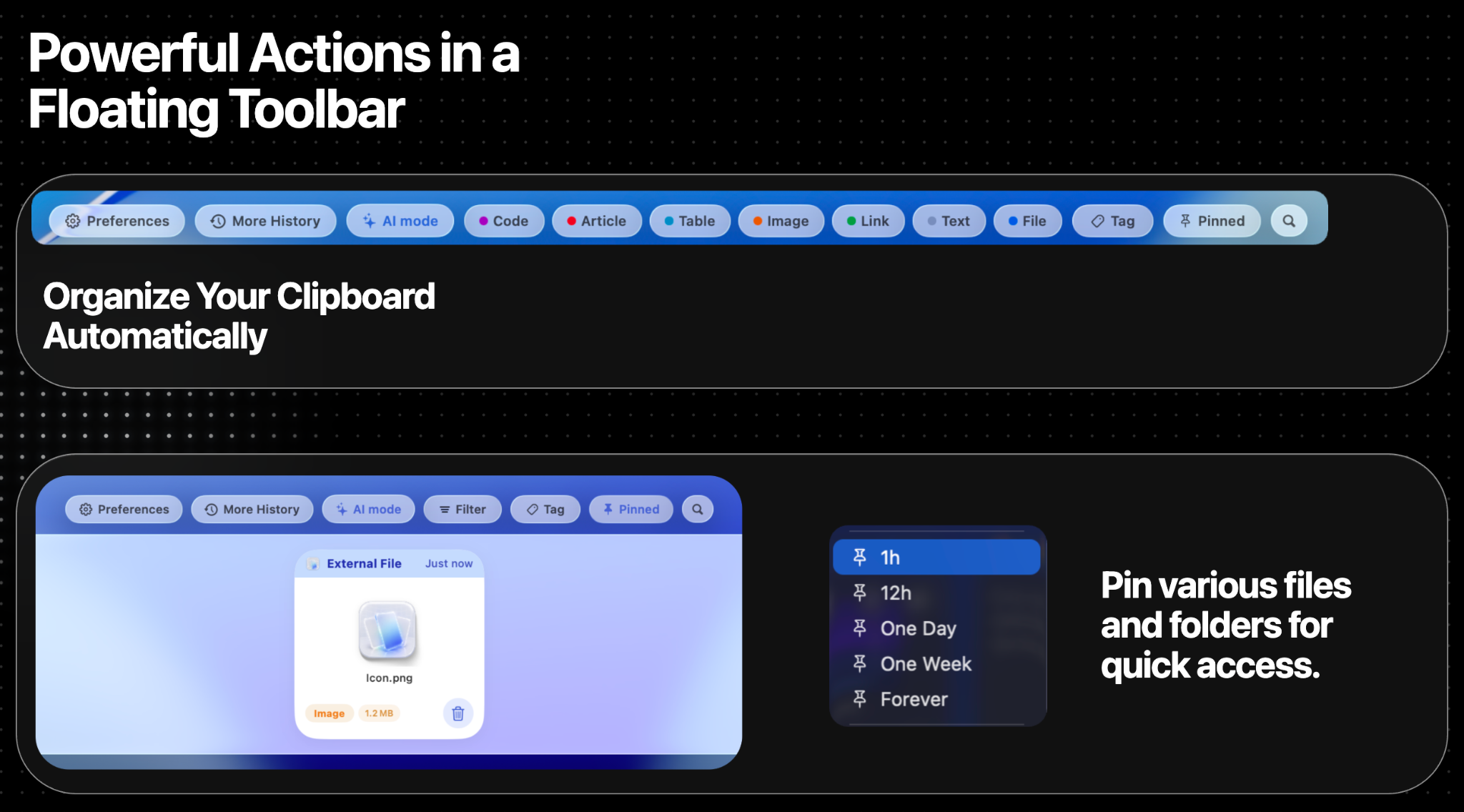
Clipo includes a floating toolbar for quick organization. You can filter by categories such as Code, Article, Table, Image, Link, Text, and File. You can also create tags and attach records to custom groups.
Useful organization tools include:
- Auto categories: Clipo classifies records into common clipboard types.
- Tags: Add custom tags for projects, clients, design references, or temporary tasks.
- Pinned records: Keep important items accessible for a set duration or forever.
- Find Similar Records: Locate clipboard items that are similar to a selected card.
- Multi-select: Select several cards for batch operations, deletion, merge paste, AI processing, or AirDrop.
3.4 Collections and Infinite Canvas
Collections provide a higher-level way to group related clipboard records. You can create a collection, add records to it, and optionally collect new records into the currently selected collection.
The Infinite Canvas view lets you arrange collection items freely instead of keeping them in a simple list. Depending on the workflow, you can connect cards, add annotations or shapes, zoom and pan around the workspace, and save or export the result.
3.5 Sort, Move to Front, and Batch Save
The context menu in both the main panel and More History includes a two-level Sort menu:
- Sort by Time: Sorts clipboard history from newest to oldest by copy time.
- Move to Front: Moves the selected card or all selected cards to the beginning of history.
Multi-select actions also support saving several records to a chosen folder. Clipo keeps the operation resilient by generating unique names and continuing when an individual source file is missing.
4. File Transfer Station
Clipo is not only a clipboard history app. It also works as a temporary file transfer station.
You can copy or drag files into Clipo, then quickly reuse them later without searching Finder again. This is especially useful for screenshots, icons, PDFs, design assets, documents, downloaded files, and files that need to be sent to multiple apps.
4.1 Pin Files and Folders for Quick Access
Files can be pinned for temporary or permanent access. Available pin durations include 1 hour, 3 hours, 12 hours, one day, one week, and forever.
Use pinned files when you need to:
- Keep a file ready while switching between apps.
- Reuse the same attachment in multiple conversations.
- Keep project assets available during a working session.
- Prevent important records from being removed during cleanup.
4.2 Drag & Drop Paste
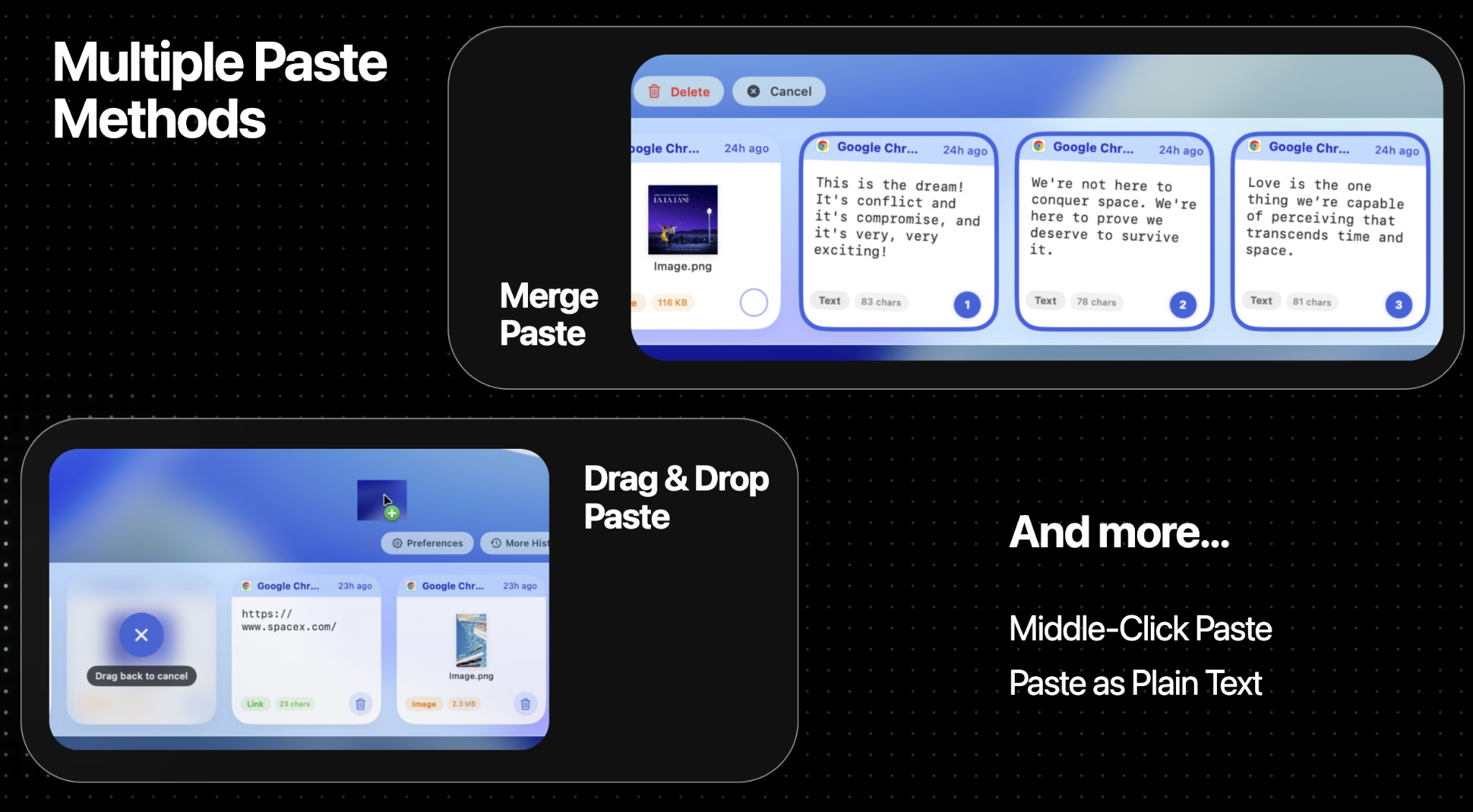
You can drag a file, image, or card from Clipo into another app. This is useful for apps that accept drag-and-drop upload or attachment workflows, such as chat tools, browsers, document editors, and AI upload boxes.
Typical workflow:
- Open the Clipo panel.
- Locate the file, image, or clipboard card.
- Drag it into the target app.
- Drop it into an upload area, document, chat box, or file field.
The app also supports drag-back cancellation, so you can cancel an accidental drag without changing your workflow.
4.3 Open in Finder and Open File
For file-based records, Clipo can open the file directly or reveal it in Finder. This makes it useful as a lightweight file launcher for recently copied or pinned items.
4.4 Custom Export and File Slimming
Custom Export lets you filter records by keyword, tags, categories, and time range, then export the selected content as TXT, Markdown, HTML, JSON, CSV, XLSX, RTF, DOCX, or PDF.
File Slimming is designed for image and PDF files. It provides light, balanced, and extreme compression profiles, reports the estimated or final size, and keeps the original file separate from the compressed output.
5. Quick AirDrop
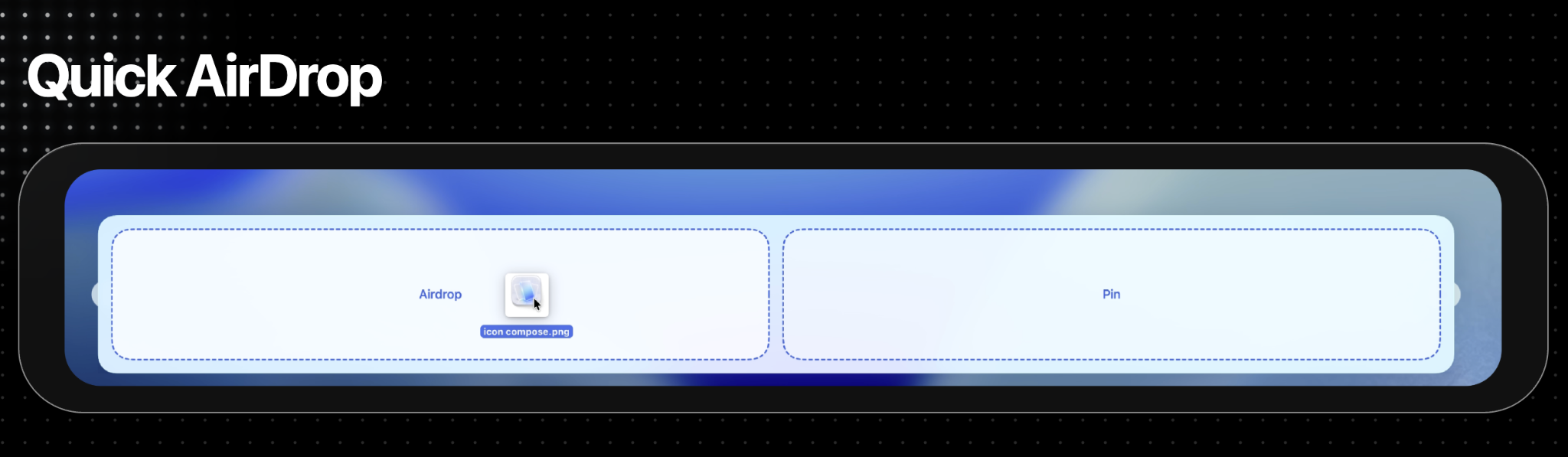
Clipo includes a quick AirDrop workflow for both clipboard records and external files.
You can AirDrop:
- A single clipboard item.
- Multiple selected records.
- Files dragged into the Clipo AirDrop area.
- Images or file records stored in history.
- Text content when a record can be shared as text.
5.1 How to Use Quick AirDrop
- Open the Clipo panel.
- Select or drag the item you want to send.
- Drop it into the AirDrop target area, or choose AirDrop from the card action menu.
- Select the nearby device in the macOS AirDrop sharing sheet.
This reduces the need to open Finder, locate a file, right-click, choose Share, then choose AirDrop manually.
5.2 AirDrop + Pin Drop Zone
Clipo’s external file utility area can expose two drop targets:
- AirDrop: Send the dragged file immediately through AirDrop.
- Pin: Store the dragged file in Clipo and pin it for quick reuse.
This turns the panel into a small transfer dock for daily file movement.
6. AI-Powered Clipboard Features
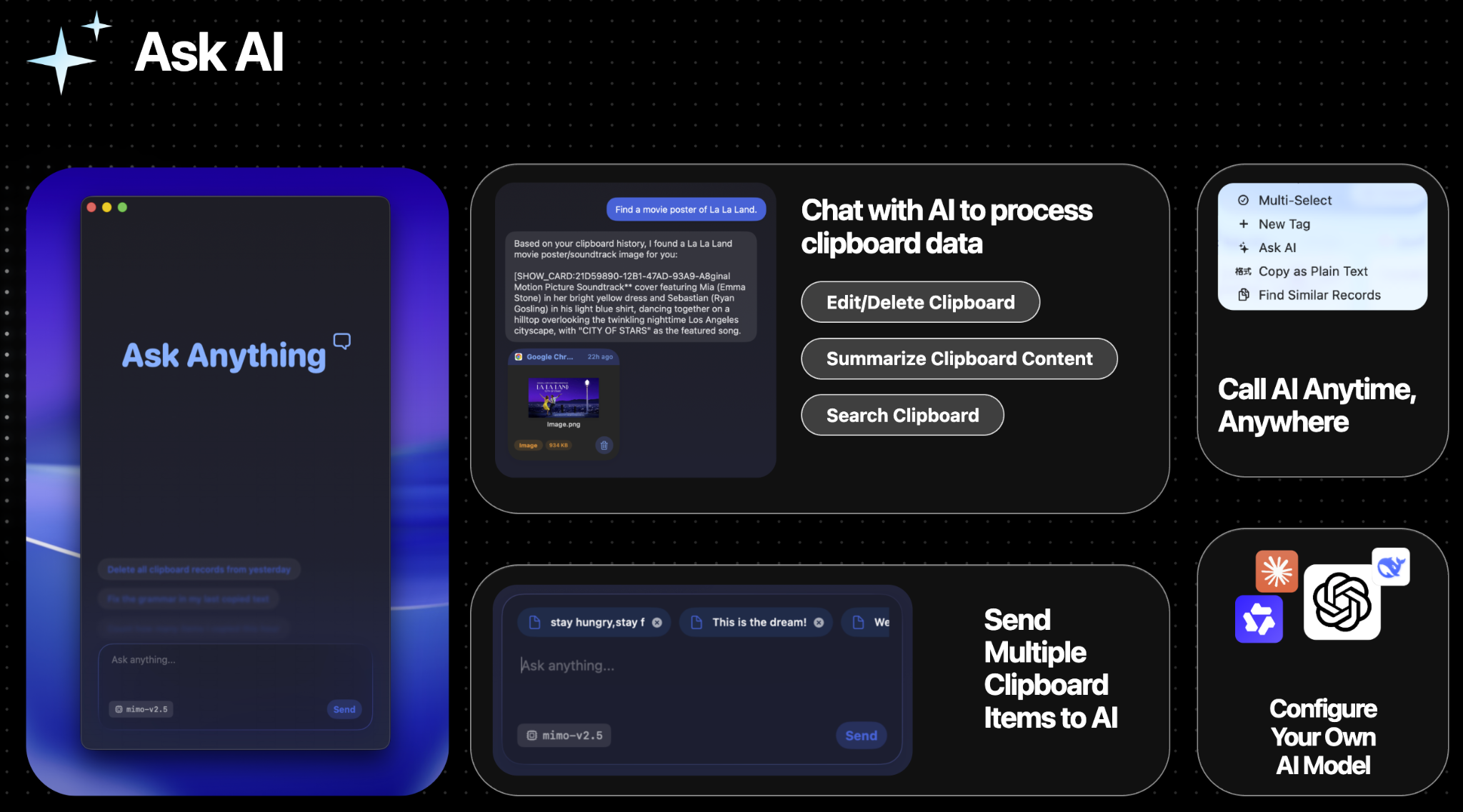
Clipo can connect to an OpenAI-compatible API endpoint. You can configure your own Base URL, API Key, and Model ID, then use AI to search, summarize, rewrite, translate, clean, or process clipboard records.
6.1 AI Search
AI search is useful when keyword search is not enough. You can ask natural-language questions such as:
- “Find the movie poster I copied yesterday.”
- “Show me the park plan image.”
- “Find links I copied today.”
- “Find the text about the architecture project.”
- “Search for the screenshot with a blue background.”
AI can search based on content relevance, semantic meaning, source app, copied time, and image descriptions when image indexing is enabled.
6.2 Ask AI About Clipboard Items
You can send one or multiple clipboard cards to the AI window and ask Clipo to process them.
Examples:
- Summarize a copied article.
- Rewrite a copied email professionally.
- Translate selected text.
- Format JSON or code snippets.
- Extract key points from notes.
- Compare several copied records.
- Generate a reply based on copied context.
6.3 Send Multiple Clipboard Items to AI
Clipo supports sending multiple selected items into the AI input area. This is useful when you want the model to combine information from several records, such as multiple quotes, screenshots, links, text fragments, or files.
6.4 AI Edit, Delete, and Clipboard Actions
Clipo can optionally allow AI to modify or delete clipboard records. This is controlled by a setting, so AI cannot change your history unless you enable that permission.
When enabled, AI can help with tasks such as:
- Delete specific records you ask it to remove.
- Modify text-based clipboard content.
- Show matching records as cards in the AI conversation.
- Clean up useless or duplicate content after your review.
6.5 AI Image Indexing
If your model supports vision, Clipo can generate image descriptions for image records. This makes visual clipboard history searchable by meaning instead of only by file name.
For example, you can search for:
- “the screenshot with a green map”
- “the blurry photo”
- “the blue icon image”
- “the La La Land poster”
6.6 CLI and MCP
Clipo includes an optional command-line tool for terminal and script workflows. The CLI can query clipboard status, read or set the current clipboard, list and search history, inspect or copy records, manage pinned items, work with collections, export records, open Clipo views, and run enabled tools.
Clipo also includes a local MCP server for compatible clients such as Codex. MCP access is explicitly enabled in settings, uses a stable per-user configuration path, and does not expose locked records.
7. Storage Space Management
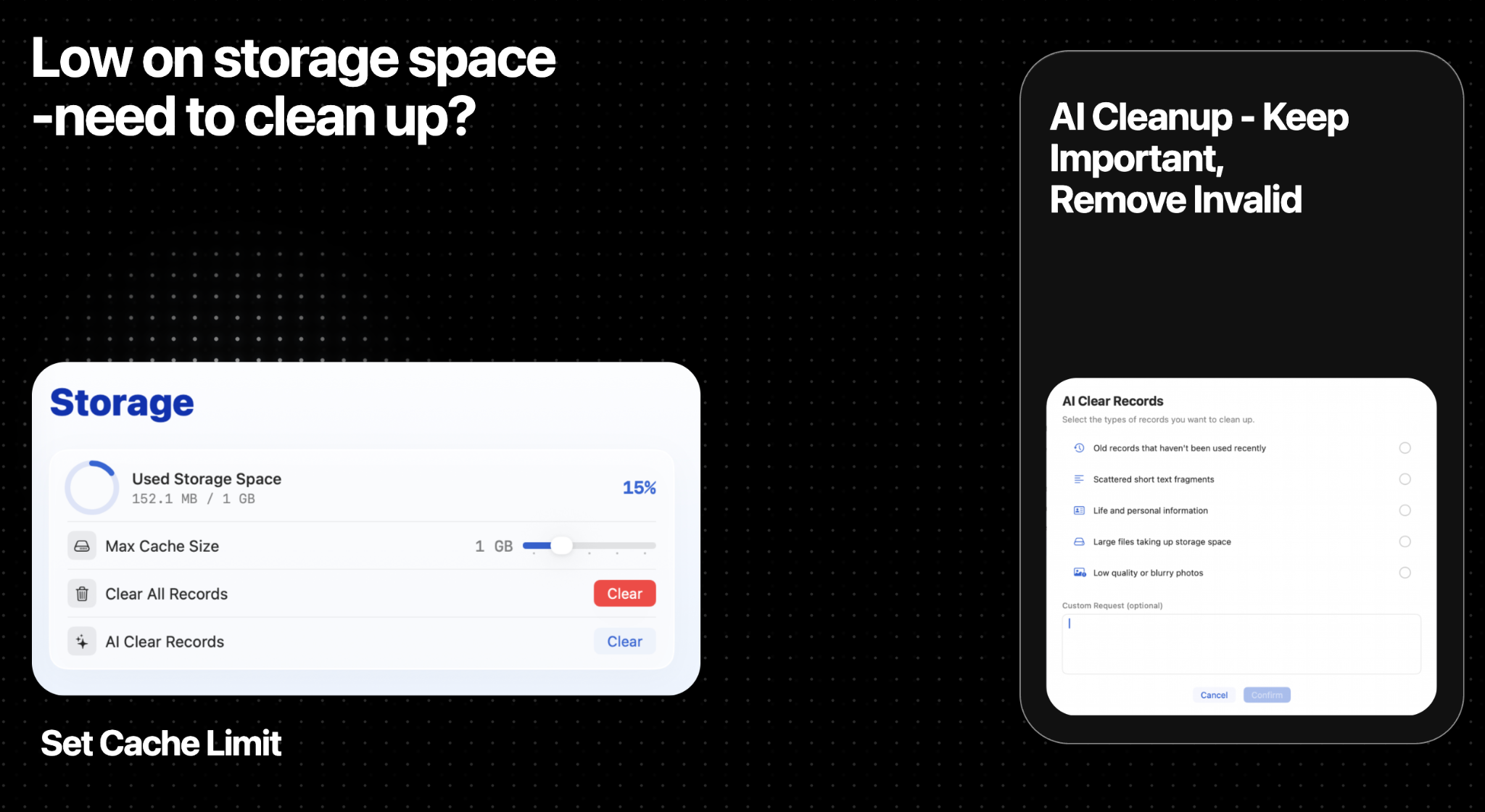
Clipo includes a storage page for controlling how much disk space clipboard history can use.
7.1 Cache Limit
You can set a maximum cache size. Available tiers include 500 MB, 1 GB, 2 GB, 5 GB, and 10 GB.
When storage usage exceeds the selected limit, Clipo can remove older records until usage falls below the limit. Pinned records can be protected depending on the cleanup option you choose.
7.2 Clear All Records
You can clear all clipboard records and temporary drag files. Clipo can also keep pinned records if you choose to preserve them.
7.3 AI Cleanup
AI Cleanup helps identify records that may no longer be useful.
Available cleanup criteria include:
- Old records that have not been used recently.
- Scattered short text fragments.
- Life and personal information.
- Large files taking up storage space.
- Low-quality or blurry photos.
- Duplicate or very similar records.
- Custom cleanup requests.
Clipo filters results first, then lets you review the selected records before deletion.
8. Privacy, Local Data, and Encryption
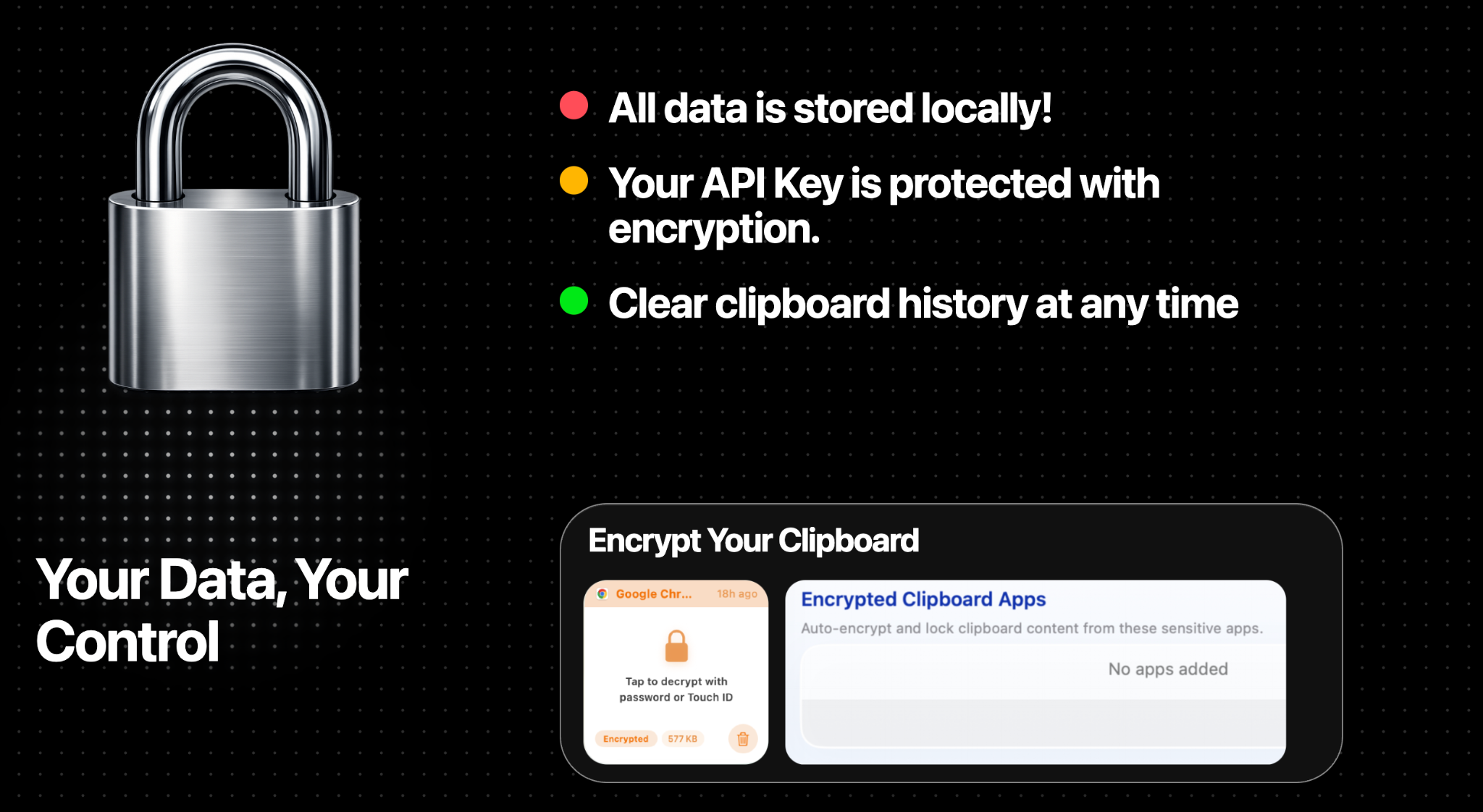
Clipo is designed around local-first clipboard storage.
8.1 Local Storage
Clipboard history is stored locally on your Mac. The app keeps its history and cache under the app’s local application support area.
8.2 API Key Protection
Your AI API key is stored through encrypted keychain-based storage rather than plain UserDefaults. The AI settings page uses a secure input field for the key.
8.3 Encrypted Clipboard Records
Clipo supports encrypted records. You can encrypt a card manually, or configure sensitive apps so clipboard records from those apps are automatically locked.
Encrypted records can require macOS authentication, such as password or Touch ID, before they are unlocked.
8.4 Exclusions
You can exclude specific apps from clipboard history capture. You can also exclude apps from middle-click panel activation to avoid conflicts in apps where middle click has another purpose.
9. Multiple Paste Methods
Clipo supports different paste workflows so you can choose the fastest method for each situation.
9.1 Normal Paste
Select a card and paste it into the frontmost app. Depending on your settings, the primary card action can be copy or paste.
9.2 Double-Click or Enter Paste
You can configure what happens when you double-click a card or press Enter on a selected card. Common choices include paste, copy, or other card actions.
9.3 Paste as Plain Text
Use Paste as Plain Text to remove formatting and paste only clean text. This is useful when copying from websites, PDFs, emails, or documents with unwanted styling.
9.4 Merge Paste
In multi-select mode, select several records and paste them together. This is useful for combining text snippets, links, notes, or multiple copied fragments into one output.
9.5 Drag & Drop Paste
Drag images, files, and cards into compatible apps or upload areas.
9.6 Middle-Click Paste
The middle mouse button workflow lets you summon the panel, hover/select a card, and paste quickly without moving through a full window workflow.
9.7 Quick Preview and Web Links
The quick preview window follows the selected record type. Text, images, files, and links use appropriate lightweight previews. For HTTP/HTTPS links, Clipo creates the WebKit view only after a short dwell, uses a non-persistent website data store, and stops loading when the preview is dismissed to reduce memory and network overhead.
The bottom bar shows the record’s copy time. For web records, Open in Default Browser is placed in the same toolbar row as AirDrop, so you can either inspect the page inside Clipo or hand it off to your normal browser.
10. Multiple Panel Opening Methods and Positions
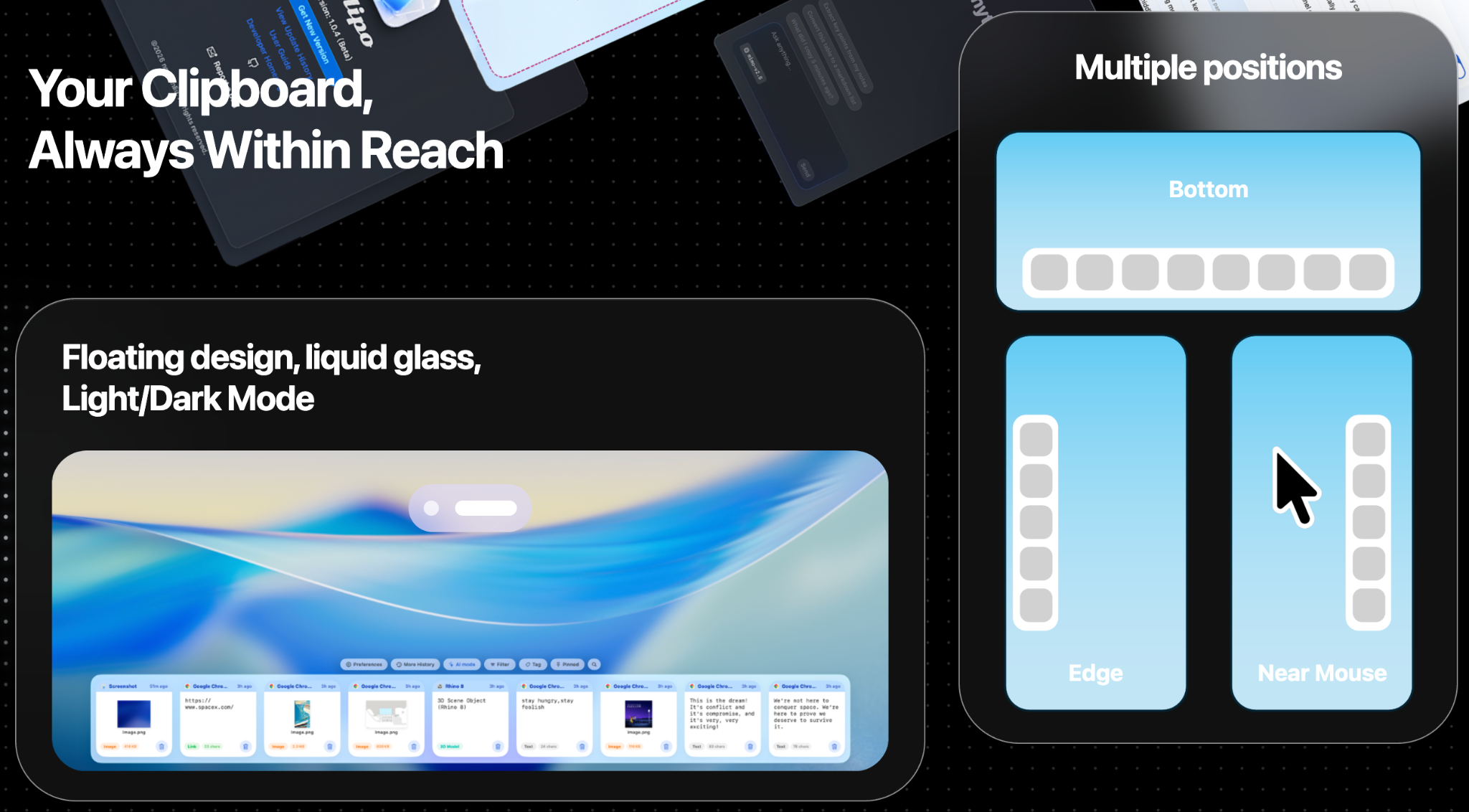
Clipo’s floating panel is designed to appear where it is most useful.
10.1 Panel Positions
Supported panel positions include:
- Bottom: A horizontal panel at the bottom of the screen.
- Left edge: A vertical panel along the left side.
- Right edge: A vertical panel along the right side.
- Near mouse: A quick-access layout near the pointer, especially useful with middle-click workflows.
10.2 Opening Methods
You can enable one or more ways to open Clipo:
- Shortcut key: Open the panel from anywhere.
- Screen edge: Move to a screen edge to reveal the side panel.
- Middle mouse button: Press or hold the middle mouse button to open a near-mouse panel.
- Menu bar access: Open settings, history, AI, and panel controls from the macOS menu bar icon.
10.3 Release-to-Close
Clipo can automatically close the panel when you release the shortcut key. This makes it feel like a quick command palette for clipboard actions.
When text input is active in the panel, the panel should stay open so you can finish typing. You can close it by pressing Esc, clicking outside, or pressing the shortcut again.
10.4 Remember Panel Mode
Clipo can remember the panel state and position after closing, so the next opening feels consistent with your last workflow.
11. Recommended Workflows
11.1 Quick Paste a Recent Item
- Copy anything from any app.
- Open Clipo with your shortcut.
- Select the card.
- Paste normally or as plain text.
11.2 Reuse Files Across Apps
- Copy or drag a file into Clipo.
- Pin it for 1 hour, 12 hours, one week, or forever.
- Drag it into chat, browser, document editor, or upload field when needed.
11.3 AirDrop a Recently Copied File
- Open the panel.
- Select the file record.
- Choose AirDrop or drop it into the AirDrop target.
- Pick the receiving device.
11.4 Search Old Clipboard Records with AI
- Open More History or AI mode.
- Type a natural-language query.
- Review the cards returned by AI.
- Paste, pin, tag, delete, or send them to AI for further processing.
11.5 Clean Storage Safely
- Open Storage settings.
- Review used space and cache limit.
- Use AI Cleanup or Clear All Records.
- Review AI-filtered records before deleting.
- Keep pinned records if they are important.
12. Settings Guide
| Setting | Purpose |
|---|---|
| Panel Position | Choose bottom, left, or right panel layout. |
| Panel Opening Method | Enable shortcut, screen edge, or middle mouse opening. |
| Release Key to Close | Automatically close the panel after releasing the shortcut. |
| Remember Panel Mode | Preserve the previous panel mode after closing. |
| Primary Card Action | Decide what happens when a card is committed. |
| Double-Click Card Action | Configure double-click behavior. |
| Storage Limit | Control maximum cache usage. |
| AI Provider | Use an OpenAI-compatible endpoint. |
| Base URL | Set your AI provider API base URL. |
| API Key | Store your key securely. |
| Model ID | Choose the model used for AI chat and search. |
| AI Readable Text/Image Records | Limit how much clipboard context AI can access. |
| Auto-Index Images | Generate image descriptions for visual search. |
| Allow AI Delete/Modify | Give AI permission to modify or delete records. |
| Encrypted Apps | Auto-lock clipboard content from sensitive apps. |
| Excluded Apps | Prevent selected apps from being recorded or avoid middle-click conflicts. |
| LAN Sync | Pair devices on the same local network and choose the initial sync scope. |
| Collections | Create and manage grouped clipboard workspaces. |
| Infinite Canvas | Arrange collection records on a zoomable canvas. |
| Command Line Tool | Install or remove the clipo command for terminal workflows. |
| MCP Server | Allow compatible local MCP clients to access permitted clipboard data. |
| Custom Export | Export filtered records to common document, data, and text formats. |
| File Slimming | Compress supported image and PDF files with selectable profiles. |
| Smart Screenshot | Capture, OCR, translate, and edit screenshot text. |
13. Tips
- Pin important files before clearing storage.
- Use tags for projects or clients.
- Use AI Search when you remember meaning but not exact keywords.
- Use Paste as Plain Text when copying from rich websites or PDFs.
- Use the AirDrop drop zone for fast device-to-device transfer.
- Keep AI readable limits reasonable if your history is very large.
- Use encrypted records for sensitive copied content.
- Use the Sort menu to restore a clear newest-first history or bring an active set of records to the front.
- Use batch save when archiving several records, and check the generated file names before sharing them.
- For links, use quick preview for a lightweight inspection and the browser button for full browsing.
中文版本
1. Clipo 是什么?
Clipo 是一款面向 macOS 的现代化剪贴板管理工具。它以悬浮式液态玻璃面板为核心,把你复制过的文字、链接、图片、文件、富文本、表格、代码片段等内容统一保存为可视化卡片,并支持快速搜索、调用、粘贴、固定、分类、文件中转、快捷 AirDrop 以及 AI 处理。
它不是一个简单的剪贴板历史列表,而是一个随手可调出的信息中转站。你可以把它放在屏幕底部、屏幕左右边缘,或者通过中键在鼠标附近快速打开。它还支持多种粘贴方式、拖拽上传、AI 语义搜索、AI 清理和本地存储空间管理。
2. 核心功能总览
| 功能模块 | 说明 |
|---|---|
| 剪贴板管理 | 自动记录剪贴板历史,并以卡片形式展示。 |
| 文件中转站 | 临时保存复制或拖入的文件,支持固定、拖拽、粘贴和快速调用。 |
| 快捷 AirDrop | 将文件、图片或选中的剪贴板记录快速通过 AirDrop 发送。 |
| AI 扩展 | 接入自定义 AI 模型,用于搜索、总结、改写、翻译、清理和处理剪贴板内容。 |
| 存储空间管理 | 设置缓存上限,清理历史记录,并用 AI 识别无效或冗余内容。 |
| 隐私与加密 | 数据本地保存,API Key 使用加密存储,敏感记录可单独加密。 |
| 多种打开方式 | 支持快捷键、屏幕边缘、中键、鼠标附近和菜单栏入口。 |
| 多种粘贴方式 | 支持普通粘贴、纯文本粘贴、合并粘贴、拖拽粘贴和中键粘贴。 |
| 集锦与无限画布 | 将相关记录分组,并在可缩放的工作区中自由排布。 |
| 局域网同步(Beta) | 配对同一局域网中的设备,同步加密后的剪贴板数据。 |
| CLI 与 MCP | 为终端、脚本和兼容的本地客户端提供授权数据访问能力。 |
| 快速预览 | 预览网页链接、显示复制时间,并将链接交给默认浏览器打开。 |
| 导出与文件瘦身 | 将选中记录导出为常见格式,并压缩支持的图片和 PDF。 |
3. 剪贴板管理
Clipo 会自动监听 macOS 剪贴板,并把新的复制内容保存为历史卡片。每张卡片会保留关键上下文,例如来源应用、复制时间、内容预览、类型标签、文件大小或字符数、缩略图和应用图标等。
支持的记录类型包括:
- 文本、链接、文章、代码、表格、图片、文件、音频、视频、3D/模型数据以及普通剪贴板内容。
- 富文本、纯文本备份、图片缩略图、原图数据和外部文件路径。
- 来源应用、复制时间、粘贴次数、上次粘贴时间、标签、固定状态等信息。
3.1 可视化卡片
Clipo 用卡片展示剪贴板,而不是一行行纯文本。这样你可以一眼区分截图、链接、代码、文件和文本片段。
一张卡片通常会显示:
- 来源应用,例如 Chrome、WPS、Finder 等。
- 相对时间,例如 Just now、2m ago、24h ago。
- 图片或文件缩略图。
- 类型标签,例如 Image、Link、Text、File、Code、Article、Table。
- 大小信息,例如图片大小、文件大小或文本字符数。
- 悬浮操作、删除、固定、标签、加密、AirDrop、AI 等快捷入口。
3.2 更多历史窗口
“More History” 窗口适合集中管理全部剪贴板记录。当历史很多、需要检索旧内容或批量整理时,可以进入这个大窗口。
你可以在这里:
- 即时搜索剪贴板记录。
- 按类别、应用、内容、时间或语义进行查找。
- 过滤固定项、标签和记录类型。
- 以更大的网格浏览图片和文件卡片。
- 删除无用记录。
- 使用 AI 进行模糊搜索和语义搜索。
3.3 标签、分类与相似记录
Clipo 顶部工具栏可以快速整理历史记录。你可以按 Code、Article、Table、Image、Link、Text、File 等类型过滤,也可以创建自定义标签。
常用整理能力包括:
- 自动分类:Clipo 会把记录归入常见剪贴板类型。
- 标签:为项目、客户、设计素材或临时任务添加自定义标签。
- 固定记录:把重要内容固定一段时间或永久固定。
- 查找相似记录:根据当前卡片查找相似内容。
- 多选模式:一次选择多个卡片,用于批量删除、合并粘贴、AI 处理或 AirDrop。
3.4 集锦与无限画布
集锦用于把相关的剪贴板记录放在同一个工作区中。你可以创建集锦、向其中添加记录,也可以在设置中让新复制的内容自动加入当前选中的集锦。
无限画布不再把记录限制在简单列表中,而是允许你自由排布集锦中的卡片。根据需要,你可以缩放和移动画布、连接卡片、添加文字或图形标注,并保存或导出结果。
3.5 排序、置于最前与批量保存
面板和完整历史的右键菜单都包含两级“排序”菜单:
- 按时间排序:按照复制时间从新到旧排列剪贴板历史。
- 置于最前:将当前选中的一条或多条记录移动到历史列表最前。
多选操作也支持将多条记录保存到指定文件夹。遇到同名文件时会自动生成不冲突的文件名;某条源文件不存在时,其余记录仍会继续处理。
4. 文件中转站
Clipo 不只是剪贴板历史工具,它也可以作为临时文件中转站。
你可以把复制过的文件或拖入的文件保存在 Clipo 中,之后不用再打开 Finder 查找,就能快速再次使用。它尤其适合截图、图标、PDF、设计素材、文档、下载文件,以及需要反复发送到不同应用的附件。
4.1 固定文件和文件夹
文件可以被临时或永久固定。可选固定时长包括 1 小时、3 小时、12 小时、一天、一周和永久。
适合固定的场景:
- 多个应用之间反复使用同一个文件。
- 在聊天或邮件中多次发送同一附件。
- 工作过程中临时保存项目素材。
- 清理历史记录时保护重要文件不被删除。
4.2 拖拽粘贴
你可以从 Clipo 中把文件、图片或卡片直接拖到其他应用中。对于支持拖拽上传或附件插入的应用,例如聊天工具、浏览器、文档编辑器和 AI 上传框,这会非常方便。
典型流程:
- 打开 Clipo 面板。
- 找到文件、图片或剪贴板卡片。
- 将其拖到目标应用。
- 放到上传区域、文档、聊天框或文件输入区域。
Clipo 还支持拖回取消,避免误拖后产生不必要的操作。
4.3 在 Finder 中显示与打开文件
对于文件类型记录,Clipo 可以直接打开文件,也可以在 Finder 中定位文件。这让它可以作为一个轻量的近期文件启动器。
4.4 自定义导出与文件瘦身
自定义导出支持按关键词、标签、类别和时间范围筛选记录,再将选中的内容导出为 TXT、Markdown、HTML、JSON、CSV、XLSX、RTF、DOCX 或 PDF。
文件瘦身主要面向图片和 PDF 文件,提供轻度、均衡和极限压缩档位,并显示预计或最终大小;压缩输出会与原文件分开保存。
5. 快捷 AirDrop
Clipo 内置快捷 AirDrop 工作流,既支持剪贴板记录,也支持外部拖入的文件。
你可以 AirDrop:
- 单个剪贴板项目。
- 多选后的多个记录。
- 拖入 Clipo AirDrop 区域的文件。
- 历史中的图片或文件卡片。
- 可分享为文本的剪贴板内容。
5.1 如何使用快捷 AirDrop
- 打开 Clipo 面板。
- 选择或拖入你想发送的内容。
- 将文件放到 AirDrop 区域,或从卡片菜单中选择 AirDrop。
- 在 macOS AirDrop 分享窗口中选择接收设备。
这样可以省去打开 Finder、定位文件、右键分享、再选择 AirDrop 的繁琐步骤。
5.2 AirDrop + 固定文件投放区
Clipo 的外部文件工具区可以提供两个投放目标:
- AirDrop:立即通过 AirDrop 发送文件。
- Pin:把文件保存到 Clipo 并固定,方便之后使用。
这让 Clipo 变成一个小型文件传输 Dock。
6. AI 剪贴板功能
Clipo 可以接入 OpenAI Compatible 类型的 API。你可以配置自己的 Base URL、API Key 和 Model ID,然后用 AI 搜索、总结、改写、翻译、清理或处理剪贴板内容。
6.1 AI 搜索
当普通关键词搜索不够用时,可以使用 AI 搜索。你可以直接输入自然语言,例如:
- “找到我昨天复制的电影海报。”
- “找一下那个公园平面图图片。”
- “显示今天复制过的链接。”
- “找到关于建筑项目的那段文字。”
- “搜索蓝色背景的截图。”
AI 可以结合内容相关性、语义、来源应用、复制时间以及图片索引说明来查找记录。
6.2 对剪贴板项目提问
你可以把一个或多个剪贴板卡片发送到 AI 窗口,让 AI 处理它们。
常见用法:
- 总结复制的文章。
- 把复制的邮件改写得更正式。
- 翻译选中的文本。
- 格式化 JSON 或代码片段。
- 提取笔记要点。
- 对比多个剪贴板记录。
- 根据复制内容生成回复。
6.3 发送多个剪贴板项目给 AI
Clipo 支持将多个选中的项目一起放入 AI 输入区。适合处理多段文字、多个截图、多个链接或多个文件,并让 AI 综合分析。
6.4 AI 编辑、删除与剪贴板操作
Clipo 可以选择性允许 AI 修改或删除剪贴板记录。这个权限需要你手动开启,所以 AI 默认不能随意更改历史。
开启后,AI 可以帮助你:
- 删除你指定的记录。
- 修改文本类剪贴板内容。
- 在对话中以卡片形式显示匹配记录。
- 根据你的要求清理无用或重复内容。
6.5 AI 图片索引
如果你配置的模型支持视觉能力,Clipo 可以为图片生成语义说明,让图片也能被自然语言搜索。
例如你可以搜索:
- “绿色地图截图”
- “模糊的照片”
- “蓝色图标图片”
- “La La Land 海报”
6.6 CLI 与 MCP
Clipo 提供可选的命令行工具,适合终端和脚本工作流。CLI 可以查询状态、读取或设置当前剪贴板、列出和搜索历史、查看或复制记录、管理固定项、操作集锦、导出记录、打开 Clipo 页面以及运行已启用的工具。
Clipo 还提供面向兼容客户端(例如 Codex)的本地 MCP 服务。MCP 需要在设置中明确启用,配置路径会随用户和应用升级保持稳定,并且不会暴露加密记录。
7. 存储空间管理
Clipo 提供存储页面,用于控制剪贴板历史占用的磁盘空间。
7.1 缓存上限
你可以设置最大缓存空间。常见档位包括 500 MB、1 GB、2 GB、5 GB 和 10 GB。
当实际使用空间超过上限时,Clipo 可以从较旧记录开始清理,直到低于设定上限。固定记录可以根据你的选择被保留。
7.2 清除全部记录
你可以清除所有剪贴板记录和临时拖拽文件,也可以选择保留固定项。
7.3 AI 清理
AI 清理可以帮助你找出可能不再有用的记录。
可选清理条件包括:
- 最近未使用的旧记录。
- 零散短文本片段。
- 生活和个人信息。
- 占用空间较大的文件。
- 低质量或模糊照片。
- 重复或非常相似的记录。
- 自定义清理需求。
Clipo 会先筛选结果,再让你确认后删除,不会直接跳过确认。
8. 隐私、本地数据与加密
Clipo 以本地优先为设计原则。
8.1 本地保存
剪贴板历史保存在你的 Mac 本地。应用会在本地 Application Support 目录中维护历史和缓存。
8.2 API Key 加密保护
AI API Key 通过加密的 Keychain 存储,而不是明文保存在 UserDefaults 中。设置界面也使用安全输入框显示 Key。
8.3 加密剪贴板记录
Clipo 支持对单个剪贴板项目进行加密,也可以把某些敏感应用加入加密列表,让这些应用产生的剪贴板记录自动锁定。
加密记录在解锁前需要通过 macOS 身份验证,例如密码或 Touch ID。
8.4 排除应用
你可以把某些应用排除在剪贴板记录之外,也可以单独排除中键面板,避免中键与特定软件快捷操作冲突。
9. 多种粘贴方式
Clipo 提供多种粘贴方式,让你根据不同场景选择最快的操作。
9.1 普通粘贴
选中一张卡片后,将其粘贴到当前前台应用中。你可以在设置中决定卡片的主要操作是复制还是粘贴。
9.2 双击或回车粘贴
你可以设置双击卡片或按下 Enter 时执行的行为,例如粘贴、复制或其他卡片操作。
9.3 纯文本粘贴
“Paste as Plain Text” 可以去除格式,只粘贴干净文本。适合从网页、PDF、邮件或文档中复制带格式内容时使用。
9.4 合并粘贴
在多选模式下,可以一次选中多条记录并合并粘贴。适合把多个文本片段、链接、笔记或复制内容合成一次输出。
9.5 拖拽粘贴
可以把图片、文件或卡片拖到支持拖拽的应用或上传区域中。
9.6 中键粘贴
中键工作流可以快速呼出面板,移动鼠标选择卡片,然后快速完成粘贴,非常适合高频调用剪贴板历史。
9.7 快速预览与网页链接
快速预览窗口会根据记录类型选择对应的轻量预览。对于 HTTP/HTTPS 网页链接,Clipo 会在短暂停留后才创建 WebKit 视图,使用非持久化网站数据存储,并在预览关闭时停止加载,以降低内存和网络开销。
底部栏会显示记录的复制时间。网页记录的“在默认浏览器中打开”按钮与 AirDrop 位于同一行,可以在 Clipo 内快速查看,也可以交给日常使用的浏览器继续浏览。
10. 多种面板打开方式与位置
Clipo 的悬浮面板可以出现在最适合当前操作的位置。
10.1 面板位置
支持的面板位置包括:
- Bottom / 底部:横向面板位于屏幕底部。
- Left edge / 左侧边缘:竖向面板位于屏幕左侧。
- Right edge / 右侧边缘:竖向面板位于屏幕右侧。
- Near Mouse / 鼠标附近:在指针附近快速出现,常用于中键打开方式。
10.2 打开方式
你可以启用一种或多种打开方式:
- 快捷键:在任何位置快速打开面板。
- 屏幕边缘:移动到屏幕边缘时呼出侧边面板。
- 鼠标中键:按下或按住中键,在鼠标附近打开面板。
- 菜单栏入口:通过 macOS 菜单栏图标打开设置、历史、AI 和面板控制项。
10.3 松开按键自动关闭
Clipo 可以在松开快捷键后自动关闭面板,让它像一个快速命令面板一样使用。
当面板内的搜索框或输入框正在输入时,面板应保持打开,避免用户输入被打断。此时可以通过 Esc、点击面板外区域或再次按快捷键关闭。
10.4 记住面板状态
Clipo 可以在关闭后记住面板位置和模式,下次打开时保持之前的使用状态。
11. 推荐使用流程
11.1 快速粘贴最近内容
- 在任意应用中复制内容。
- 用快捷键打开 Clipo。
- 选择对应卡片。
- 普通粘贴或纯文本粘贴。
11.2 在多个应用之间复用文件
- 复制文件或把文件拖入 Clipo。
- 固定 1 小时、12 小时、一周或永久。
- 需要时拖到聊天、浏览器、文档编辑器或上传框中。
11.3 AirDrop 最近复制的文件
- 打开面板。
- 选择文件记录。
- 选择 AirDrop 或拖到 AirDrop 区域。
- 选择接收设备。
11.4 用 AI 查找旧剪贴板
- 打开 More History 或 AI 模式。
- 输入自然语言搜索需求。
- 查看 AI 返回的卡片。
- 粘贴、固定、打标签、删除或继续交给 AI 处理。
11.5 安全清理存储空间
- 打开 Storage 设置。
- 查看已用空间和缓存上限。
- 使用 AI Cleanup 或 Clear All Records。
- 删除前检查 AI 筛选结果。
- 对重要项目选择保留固定项。
12. 设置说明
| 设置项 | 作用 |
|---|---|
| Panel Position | 选择底部、左侧或右侧面板布局。 |
| Panel Opening Method | 启用快捷键、屏幕边缘或中键打开。 |
| Release Key to Close | 松开快捷键后自动关闭面板。 |
| Remember Panel Mode | 关闭后保留上次面板模式。 |
| Primary Card Action | 设置卡片主要操作。 |
| Double-Click Card Action | 设置双击卡片时的行为。 |
| Storage Limit | 控制最大缓存占用。 |
| AI Provider | 使用 OpenAI Compatible 接口。 |
| Base URL | 设置 AI 服务的 API 地址。 |
| API Key | 安全保存你的 AI Key。 |
| Model ID | 选择 AI 聊天和搜索使用的模型。 |
| AI Readable Text/Image Records | 限制 AI 可读取的文本和图片历史数量。 |
| Auto-Index Images | 为图片生成语义描述,方便视觉搜索。 |
| Allow AI Delete/Modify | 允许 AI 修改或删除剪贴板记录。 |
| Encrypted Apps | 来自敏感应用的内容自动加密。 |
| Excluded Apps | 排除不想记录的应用,或避免中键冲突。 |
| LAN Sync | 配对同一局域网中的设备,并选择初始同步范围。 |
| Collections | 创建和管理剪贴板集锦工作区。 |
| Infinite Canvas | 在可缩放画布中自由排布集锦记录。 |
| Command Line Tool | 安装或移除终端使用的 clipo 命令。 |
| MCP Server | 允许兼容的本地 MCP 客户端访问授权的剪贴板数据。 |
| Custom Export | 将筛选后的记录导出为常见文档、数据和文本格式。 |
| File Slimming | 使用不同压缩档位处理支持的图片和 PDF 文件。 |
| Smart Screenshot | 截图、OCR、翻译和编辑截图文字。 |
13. 使用建议
- 清理存储前先固定重要文件。
- 用标签管理项目、客户或任务。
- 只记得大概含义时,用 AI 搜索比关键词更有效。
- 从网页或 PDF 复制内容时,优先使用纯文本粘贴。
- 需要快速跨设备发送文件时,使用 AirDrop 投放区。
- 历史记录很多时,适当限制 AI 可读取的记录数量。
- 对敏感内容使用加密记录或加密应用规则。
- 使用“排序”菜单恢复清晰的最新优先顺序,或将当前工作中的多条记录置于最前。
- 归档多条记录时使用批量保存,并在分享前检查自动生成的文件名。
- 网页链接可先用快速预览轻量查看,需要完整浏览时点击浏览器按钮。
最新更新
- 历史整理:面板和完整历史的右键菜单新增两级“排序”菜单,可按复制时间从新到旧排序,也可以将一条或多条选中记录置于历史列表最前。
- 批量保存:保存操作支持多选记录。遇到同名文件时会自动生成不冲突的文件名,单条记录缺失或不可用不会阻止其他记录继续保存。
- 网页快速预览:HTTP/HTTPS 链接可以在快速预览窗口内加载;菊花圈大小保持稳定,底部栏显示复制时间,右上角的“在默认浏览器中打开”按钮与 AirDrop 同行。网页使用非持久化数据存储,按需加载,关闭预览后及时停止加载并释放 WebView 资源。
- 集锦与无限画布:将记录整理到集锦,在画布中自由排布卡片、添加连线和标注,并按需要保存或导出。
- 局域网同步(Beta):在同一局域网中配对 Clipo 设备,通过验证码确认后选择同步全部已有内容或仅同步新内容;同步数据使用端到端加密。
- CLI 与 MCP:可在设置中启用命令行工具或本地 MCP 服务,从终端、脚本、Codex 或其他兼容客户端使用剪贴板历史和集锦;加密记录不会通过 MCP 暴露。
- 更多工具:最新源码还包含自定义导出、图片/PDF 文件瘦身、智能截图 OCR/翻译、截图文字编辑、二维码识别、窗口固定和快速工具等能力。
中文快速指南