
emilmsh/pdf-scholar
emilmsh/pdf-scholar has 34 GitHub stars and 3 forks. GitHot measured +1 stars in 24 hours. Last checked 2026-11-09 09:13 UTC. Last push 2026-11-02.
A PDF reader and annotator for Windows and macOS, built for research. Free, MIT-licensed, and offline unless you ask a question.
Measured star growth
- in 24h
- +1
- in 7 days
- Update delayed
- in 15 days
- Update delayed
- in 1 month
- Update delayed
Net star changes over overlapping periods, not daily totals. Missing measurements are left blank. Stars measure attention, not software quality.
README.md
Original

PDF Scholar
A PDF reader for research.
PDF Scholar is for documents you work through rather than skim: research articles, reports, books. The window is nearly all page. One slim toolbar holds the tools, the contents and assistant panels stay hidden until called, and the toolbar itself can be unpinned.
Four reading themes, and every file reopens where you stopped. Annotation starts from a menu at the selected text; every mark is listed in a panel beside the document, and comments can be shown in the margin or exported into one. A split view puts a figure or table beside the passage that discusses it. Cross-references preview where they are cited, and can be followed and returned from. The optional AI assistant answers from the open document and cites the passage behind each claim. Free, MIT-licensed, and offline unless you ask a question.
Runs on Windows and macOS, and as a browser extension for Edge and Chrome. A Linux build is in beta.
Download
Two ways to run it: the desktop app, or a browser extension that opens PDFs inside Edge or Chrome. Both use the same reader, annotator and assistant.
Desktop app (Windows)

⬇ Get PDF Scholar for Windows —
download PDF-Scholar-Setup-*.exe from the latest release and run it. Per-user install,
no admin rights. It registers as a PDF handler in Explorer and adds a "Recent" Jump List
to the taskbar. The installer carries both x64 and native arm64 builds and picks the
right one, so Windows-on-ARM machines run native rather than emulated. Everything works
offline. The AI features need your own API key (Anthropic, OpenAI, Azure OpenAI,
OpenRouter, Google Gemini, Grok, Mistral or Groq), any OpenAI-compatible endpoint, or a
local model via Ollama or LM Studio with no key at all — entered in the assistant
settings. A ChatGPT Plus/Pro sign-in works instead of a key.
No install allowed on your machine? Each release also carries a portable zip
(PDF-Scholar-*-portable-x64.zip, and an arm64 twin): extract it anywhere and run the
exe. Settings, recents and drafts live in a data folder beside it, so the folder moves
as a whole. It registers nothing, so it is not under "Open with" until you browse to it
once, and it reports new releases but cannot install them. AI keys are encrypted to the
Windows account that saved them and do not follow the folder to another machine.

⬇ Get PDF Scholar from the Microsoft Store — the same app as an MSIX package, x64 and arm64. The installer is updated more often.
Desktop app (macOS)
The build is not signed with an Apple Developer certificate — deliberate, the app
has zero recurring costs. Two consequences for both paths below: Gatekeeper needs one
xattr command per installed version, and the app cannot install its own updates. It
still checks for them and, when one appears, shows the command or the download link
that matches how you installed it.
With Homebrew — recommended, since brew upgrade then delivers
new versions:
brew install --cask emilmsh/tap/pdf-scholar
xattr -cr "/Applications/PDF Scholar.app"
The second line is the Gatekeeper step; repeat it after each brew upgrade.
By hand: download the .dmg from the
latest release —
-arm64 for Apple Silicon, -x64 for Intel. Drag PDF Scholar.app into
Applications (not straight from the disk image), run the same xattr command, and
open it. New versions come from the releases page.
If Gatekeeper says unverified developer rather than "damaged", Open Anyway under System Settings → Privacy & Security also works; the "damaged" variant has no such button, so use the command.
Built in CI on every release and tested on Apple hardware. If something misbehaves on your Mac, open an issue with what works and what breaks.
Desktop app (Linux) — beta
From the latest release:
- Ubuntu/Debian: the
.deb(recommended — it registers the PDF file association, and Ubuntu 24.04+'s AppArmor policy blocks parts of the AppImage sandbox). - Other distros: the
.AppImage—chmod +xand run. No libfuse2 needed.
Both auto-update in place.
The build comes from the same sources as the Windows one, in CI, but has never been run on a Linux machine: I develop on Windows and have no Linux hardware. The beta label is literal. If you run it, open an issue with your distro and what worked or broke.
Browser extension (Edge / Chrome)
The same viewer; each PDF opens as an ordinary browser tab instead of in the browser's built-in reader. Make the browser your default PDF app and a double-click in Explorer opens here too. To keep the browser's own handling of web PDFs — viewing or downloading them as you have set it — switch off "Open PDFs from the web here" in the gear menu; local files still open here.


⬇ Get it for Edge or for Chrome — one click, and updates arrive on their own. Store review takes time, so a listing can trail the newest release by a version or two.
By hand — to run a build newer than the stores carry:
- Download
pdf-scholar-extension.zipand unzip it; it unpacks to onepdf-scholar-extensionfolder. - Open
edge://extensionsorchrome://extensionsand turn on Developer mode. - Load unpacked → the
pdf-scholar-extensionfolder.
Either way, opening local files (the Explorer double-click) needs one more toggle: Allow access to file URLs on the extension's Details page. Only you can grant it, so the extension asks once.
See docs/BROWSER-EXTENSION.md for the architecture and
the desktop-vs-extension parity.
Features
Undistracted reading
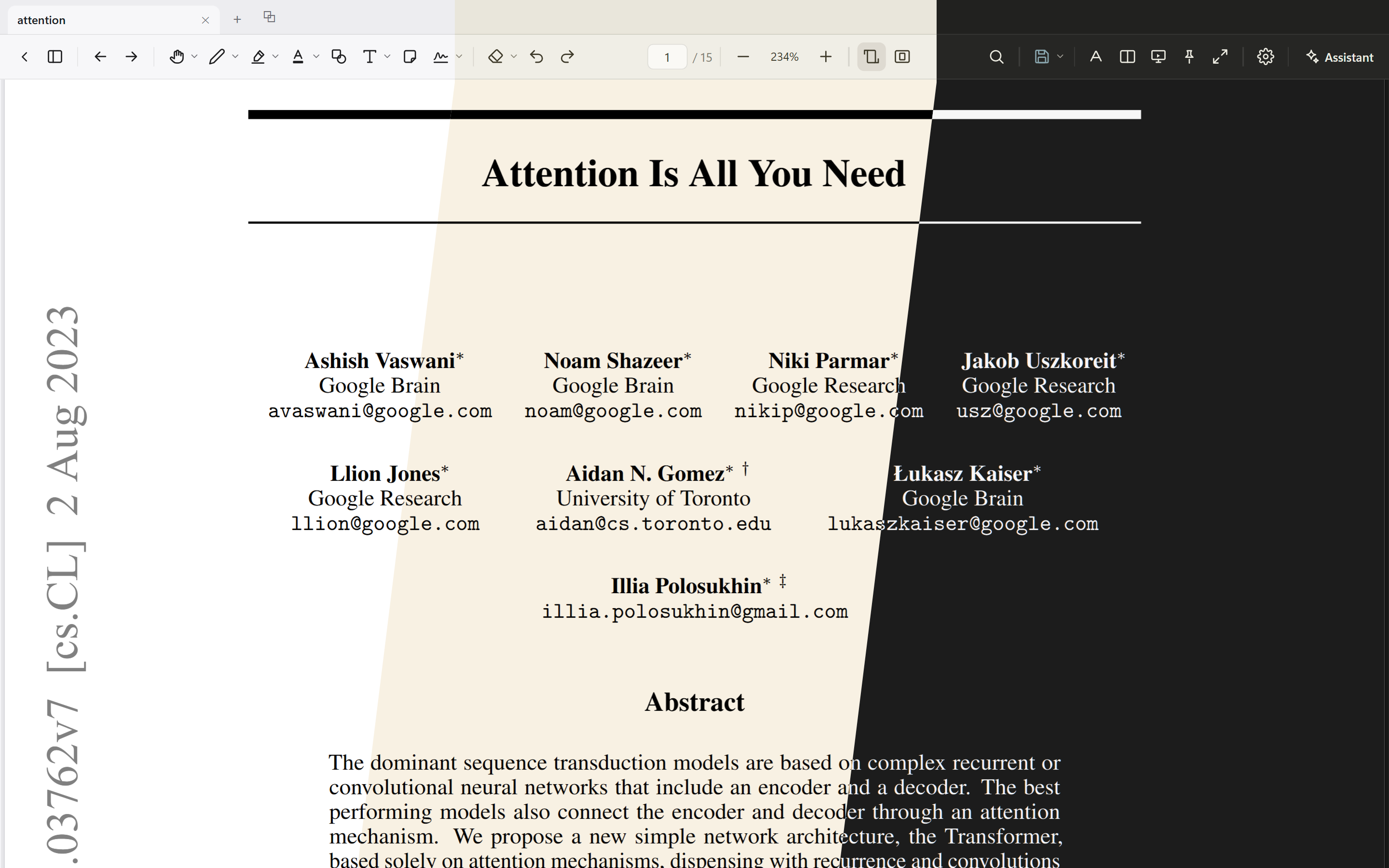
The frame at the top is one window in three of the four reading modes — the same page, the same moment. Tint sets the page on a light paper tone (here the classic Sepia cream); Night and Night+ are the two dark modes, the second with higher contrast.
- Smooth scrolling; zoom centres on the cursor or pinch point; one button toggles fit-width and whole-page (W)
- On Windows, PDF files get a document icon of their own in Explorer instead of the app logo. The settings menu offers quieter variants, with or without the app's mark, the logo, or your own .ico or square .png. In the extension the same menu sets the icon on the browser tab
- Four reading modes — Day, Tint, Night and Night+ — plus Auto, which follows the system setting. Tint is a light paper tone: Sepia cream, gray, green, blue or sand. Night has its own dark tones, or «White»: the page as printed, inside the dark chrome. Both take a strength slider (tint strength, or brightness for Night; 100 % is the standard look), and the toolbar and panels follow the tone. D cycles the modes
- Night can keep pictures in their original colours while the page inverts
- Copy a figure out of the page: "Copy image …" (right-click, or the save menu) outlines every picture in the document — click one to take it whole, or drag a box around a vector figure, a table or an equation. The capture is shown first, then copied to the clipboard or saved as PNG. A raster picture comes out at its own resolution, not its on-screen size
- Page rotation (Shift+R) and a two-page spread for wide layouts
- Page by page: one page — or one spread — at a time with space around it, turned by the wheel, a swipe or the arrow keys rather than scrolled; a zoomed-in page scrolls to its foot before it turns
- Presentation mode (P): one page at a time, full screen
- Unpin the toolbar (V) and the side panels go with it; each returns on hover at its window edge
- Table of contents, thumbnails and bookmarks (B) in one panel; the toolbar's page field jumps to a page number
- Internal links can be followed and returned from: back/forward (Alt+← / Alt+→, or the mouse side buttons) hold the history
- Internal links can be previewed where they are cited — citations, figures, tables and equations (see "Previews where you read")
- Reading positions and recent files are remembered. The library lists them as a list, or as a grid of first pages (three sizes) with how far you read each. Pin the ones you return to into a group of their own; remove the rest. Going back to the library closes nothing: open documents stay in the tab strip, and returning restores page, zoom and panels
- Several documents open in tabs or windows. Tabs can be pinned, and each window gets its tabs back at the next launch (a document is read only when its tab is shown). Ctrl+Shift+K, or "Duplicate tab" in the tab menu, opens a second tab on the same document; a mark made in either shows in both. A tab drags like a file: into another PDF Scholar window, or into anything that takes a PDF — an upload field, an e-mail, a chat, a folder — and along the bar to reorder. Ctrl+drag (Cmd on Mac) moves it inside the app instead: onto another window, or out onto the desktop for a window of its own ("Move to new window" in the tab menu does the same). A finger or pen always drags the in-app way
- Interface in Norwegian, English or Simplified Chinese; the choice also sets the AI prompts, exports and date formats. The Chinese is machine-translated from the English; corrections from native speakers are welcome as pull requests
Previews where you read
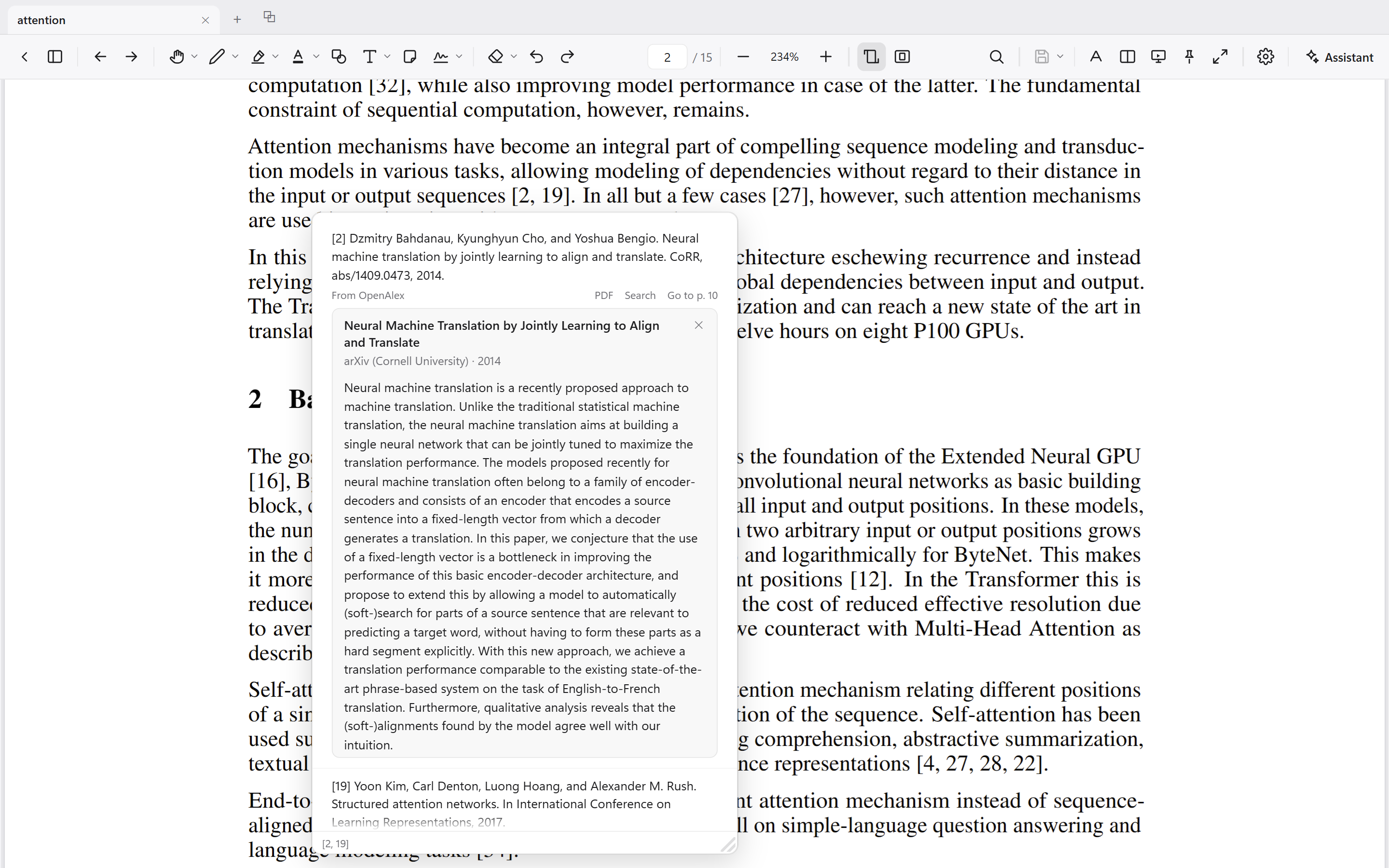
Rest the pointer on a citation, figure, table or equation reference and a preview of its target opens beside the text, without moving the page (long-press on a touchscreen). A citation shows its reference as text, as Zotero's reader does — selectable, its DOI and web links live — and a bracketed citation like «[3, 5–9]» lists every reference in it, whichever number the pointer rests on. Each has «Go to» for its place in the list (Ctrl+click: the other column). A figure, table or equation gets a window onto its page: scroll it, Ctrl+wheel to rescale, drag the corner to enlarge. Click inside to go there, Ctrl+click to open it in the other column.
- On a citation, one click fetches the cited paper's abstract from free scholarly databases (arXiv, Europe PMC, Crossref, OpenAlex) — no key, no account, and only on that click; each reference in a bracket has its own. It folds out under the reference. In the reference list itself, select an entry and choose «Abstract» in the selection menu
- Roughly two in three citations find an abstract; books, working papers and some paywalled journals often do not
- "Preview links" in the settings menu turns previews off, or sets how long the pointer rests before one opens
Two pages at once
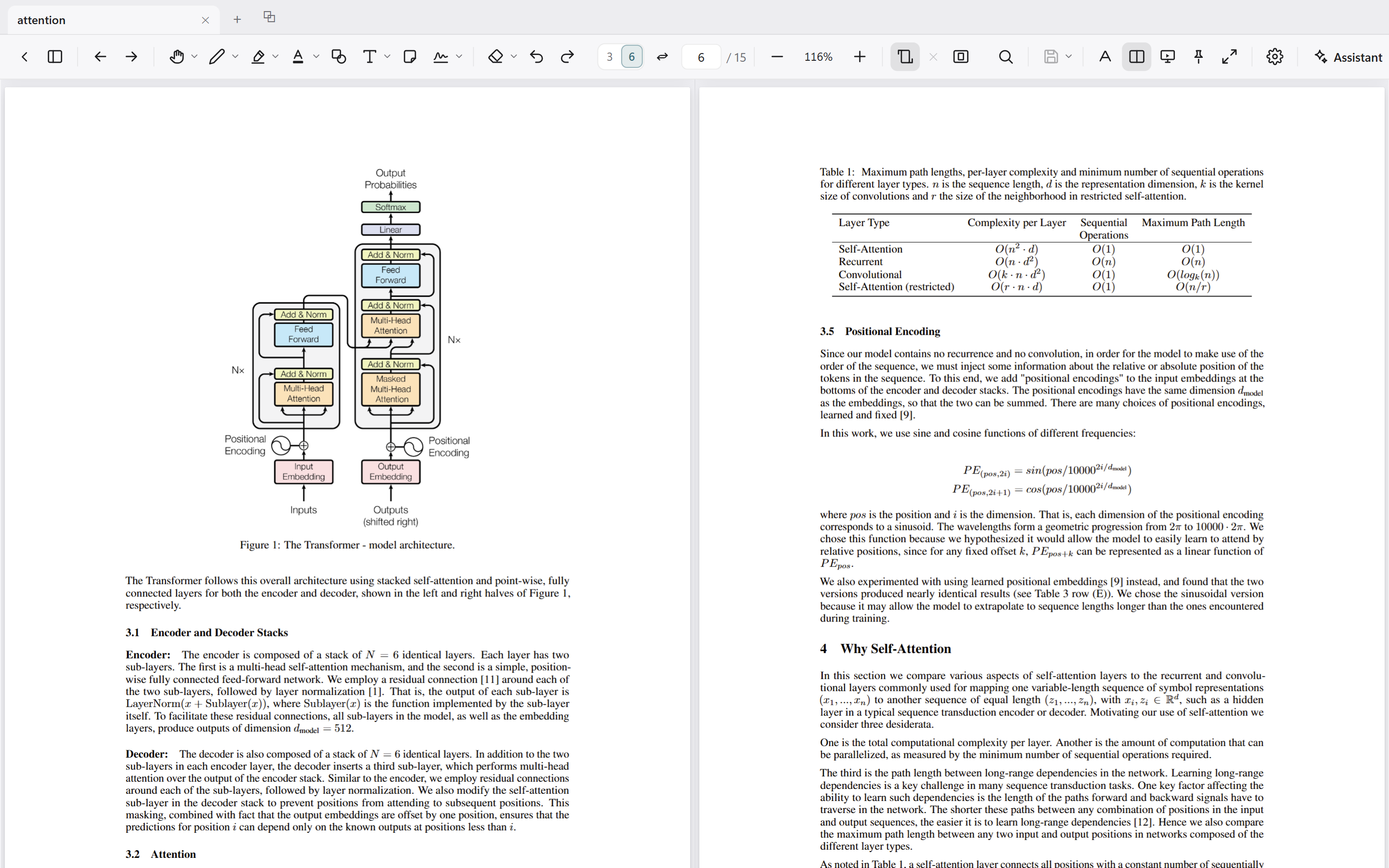
A table or figure often sits on one page and the text that discusses it on another. S opens a second column of the same document. The column can also hold another document: drag its tab into the view, pick it under "Open in split view" in the view menu ("Another file …" for one not yet open), right-click its tab, or drop a PDF on the column. Two papers can then be read and annotated side by side; Shift+S swaps the sides.
- Each column has its own page, zoom and rotation, so a landscape table can sit upright beside portrait text
- The toolbar's page and zoom controls drive the active column. Annotation, eraser and undo work in either; a mark lands in the document it is made in, and with one document open it shows in both columns
- Ctrl+click on an internal link opens its target in the other column. Search, the outline, the notes list and the assistant's citations move only the active column, and back/forward history is per column
- A dropped tab or file lands on the column it hits, or, with one column open, on the half the pointer is over. Putting a column's document into the other column (its tab dropped there, or "Open in split view" on its own tab or name) fills both columns with it
- The divider can be dragged. S reopens whatever the split held last, the other document included, at its side and width; a closed same-file column comes back at its page, zoom and width
- The two-page spread pauses while the view is split and returns when the document is shown alone
- Two windows on the same file share one draft and stay in sync
Annotating while you read
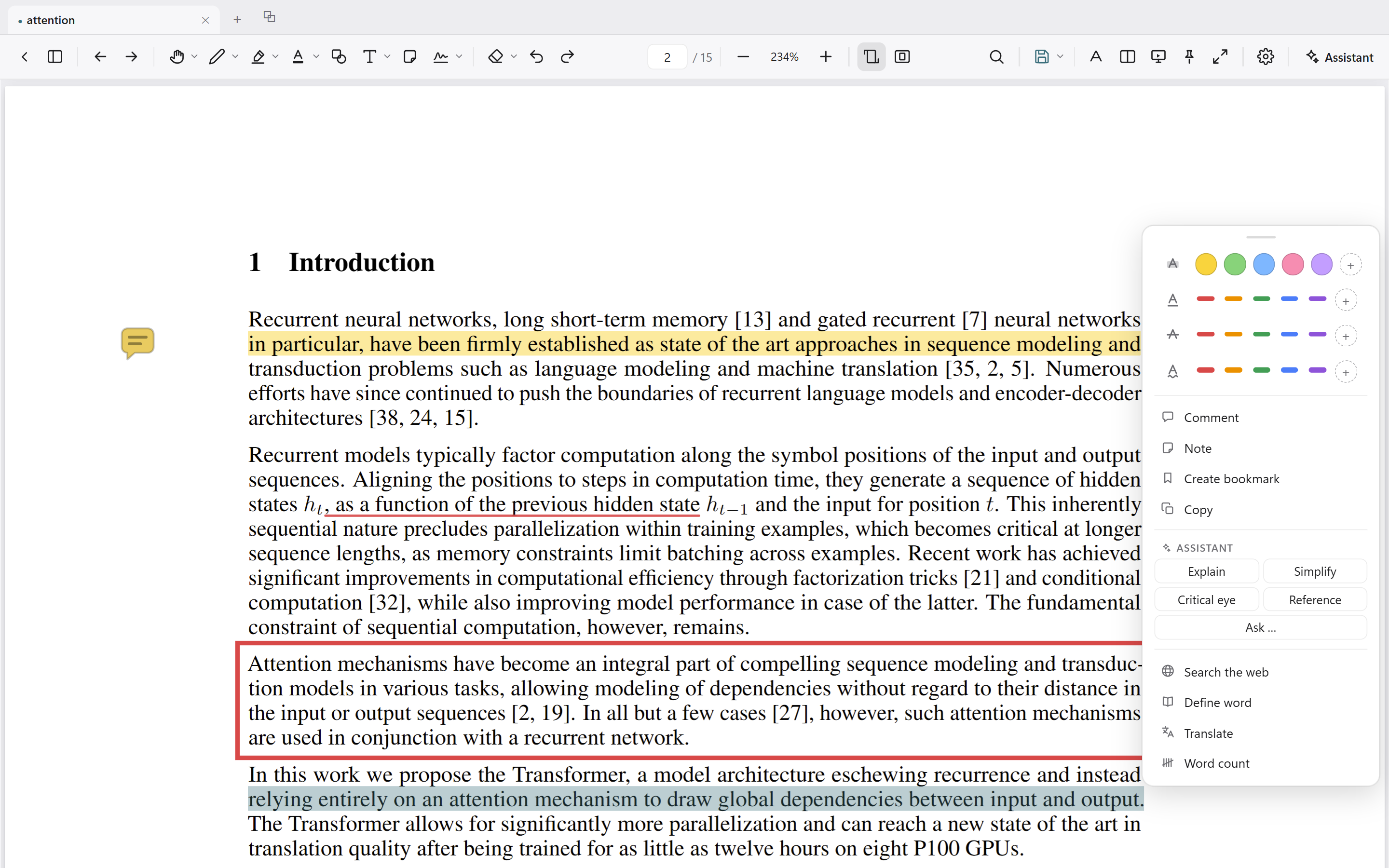
The tools appear at the text you select, and every mark is listed in a panel beside the document.
- Selecting text opens the annotation menu: highlight, underline, strikeout and squiggly, a comment or a note, copy, dictionary, translate, and the assistant's actions on the selection. The toolbar carries the same tools for marking several passages in a row
- The notes panel lists every annotation by page, with search and colour, type and comment filters. Comments are edited in the list, and a click goes to the mark. A summary, highlighted text included, exports to Word, Markdown or HTML
- Comments in the margin: one switch lays every note and comment out as a card beside the page, left or right, colour-keyed to its mark, with a leader line to its passage
- Margin export: a copy of the document with every page widened and the comments set in the new margin as ordinary PDF annotations, numbered at their anchors. The original is untouched
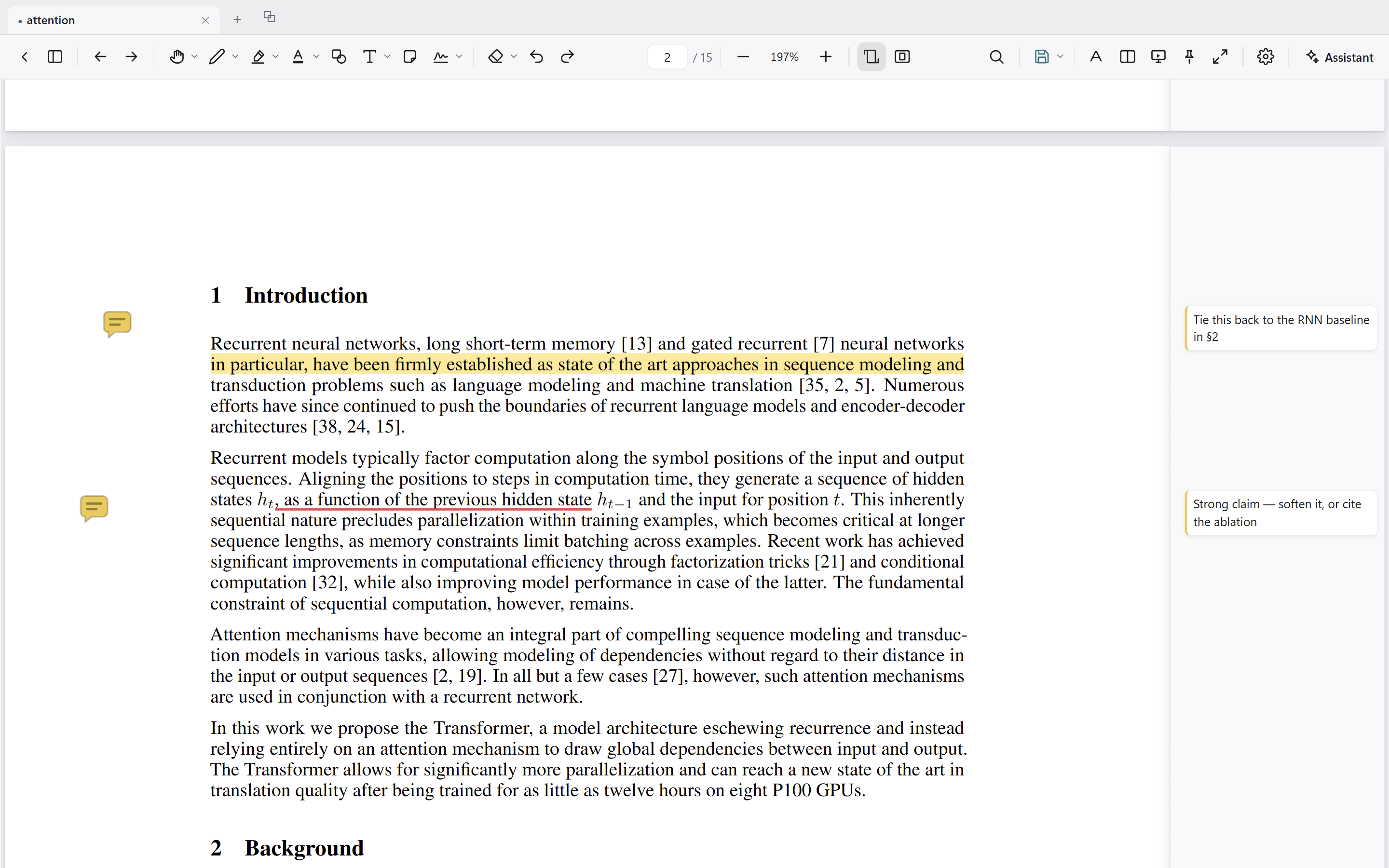
- Pen and marker with hold-to-straighten: hold still mid-stroke and the line straightens
- Shapes (rectangle, ellipse, line, arrow), draggable sticky notes, and free text typed on the page in the colour and size you pick
- With a stylus, the pen draws while a finger scrolls and zooms; pen pressure varies the line width (beta) and is kept in the saved file. A toggle in the tool menus hands drawing back to the finger
- The text tool uses the PDF standard typefaces — Helvetica, Times or Courier, bold and italic — and a size, chosen before typing or changed on an existing box. Nothing is embedded; the text stays searchable and renders the same in other readers
- A signature can be drawn once — mouse, pen or finger — or uploaded or pasted as an image, and stamped where needed. It is stored locally and saved as a standard stamp annotation. Placing a signature is not digitally signing a document. Where a file carries digital signatures, the app lists them and does not claim to verify them
- Password-protected documents open, can be annotated, and are saved with their protection intact
- Files attached to a document — a court filing's exhibits, a portfolio's files — are listed in the side panel and open or save from there; a paperclip on a page opens its file. Only document, data and media types open; anything that could run is saved, never launched. In the extension, attachments download instead
- Colour, thickness and opacity are set per tool and remembered; your own colours come from a colour wheel behind "+", in the selection menu and the toolbar's tool menus alike
- An optional name in settings fills the PDF author field on new annotations; left empty, they stay unsigned
- The eraser removes whole strokes, or can be set to remove any kind of annotation
- Any mark can be selected, moved, commented on and adjusted rather than redrawn: the ends of a highlight (snapping to whole words), or a corner of a shape, text box or drawing. Undo and redo cover everything (Ctrl+Z / Ctrl+Shift+Z)
- Edits are held in a draft until you save (Ctrl+S); closing prompts, and the draft survives a crash. What is saved is standard PDF annotations with appearance streams, which open in other readers. A guard warns before overwriting a file another program has changed
Search by words or by meaning
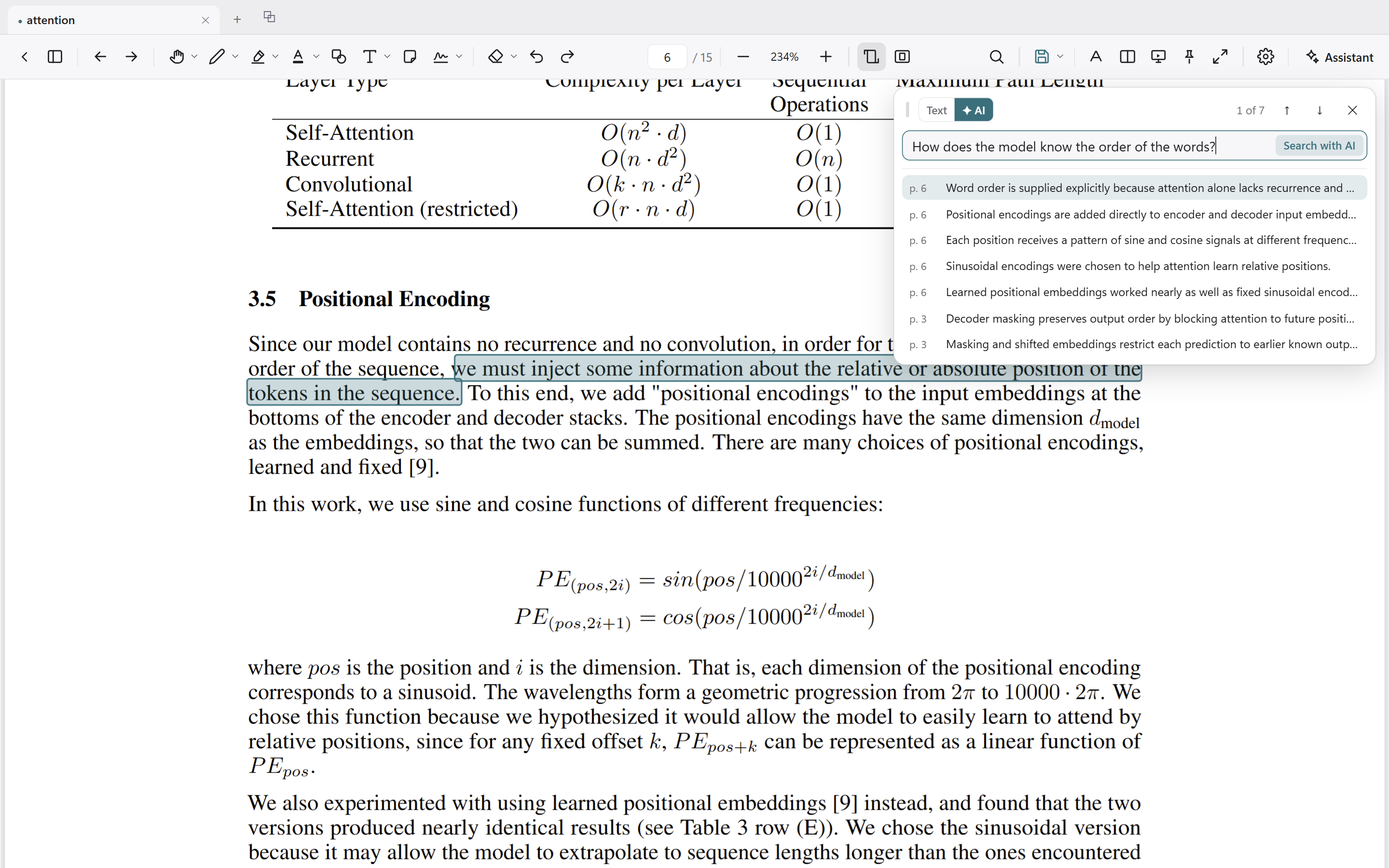
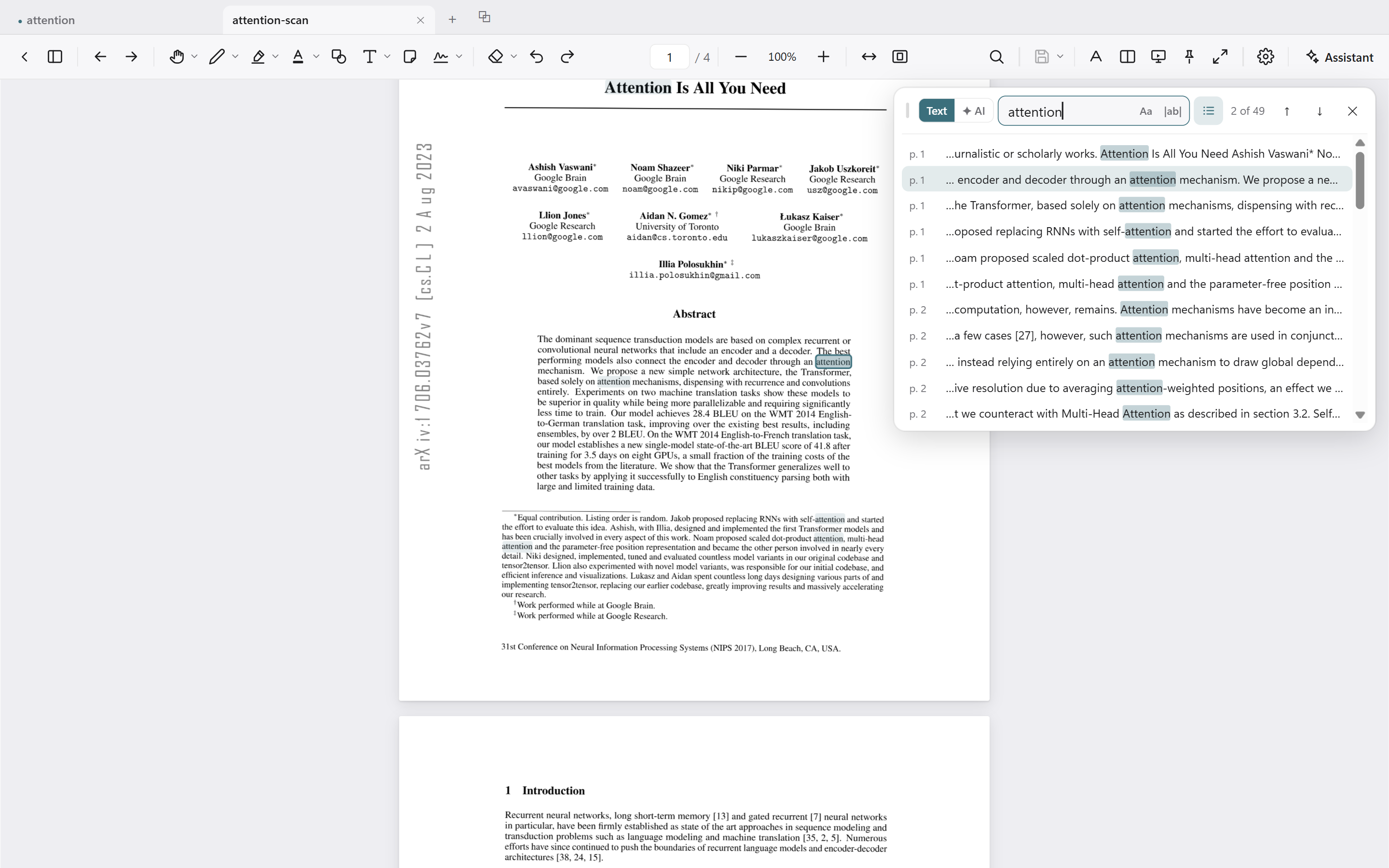
Both modes live in one search bar, a tab apart.
- By words (Ctrl+F): match case, whole word, a results list with excerpts, F3 / Shift+F3 between hits, and every match marked on the page. The list opens folded so the bar never covers the hit it points at; unfold it and the choice is remembered. The bar can be dragged aside
- By meaning: describe a topic in your own words and get the passages that discuss it, ranked (uses the assistant's key)
- Scanned pages are searched too: a page that is only a picture of text — a scan, a reprint, a photocopied chapter — is read by text recognition on your own computer. From then on its words can be found, selected, copied, marked and asked about like any other page's. The pages on screen are read first; a search reads the rest and shows hits as they come. Nothing is sent anywhere and nothing is written into the file. The read is not perfect; now and then two short words come out joined
- The selection menu also offers copy, web search, dictionary and translation. It can wait for a right-click instead of opening on its own, and has a compact form with the same choices at a third of the height
An assistant that cites its sources
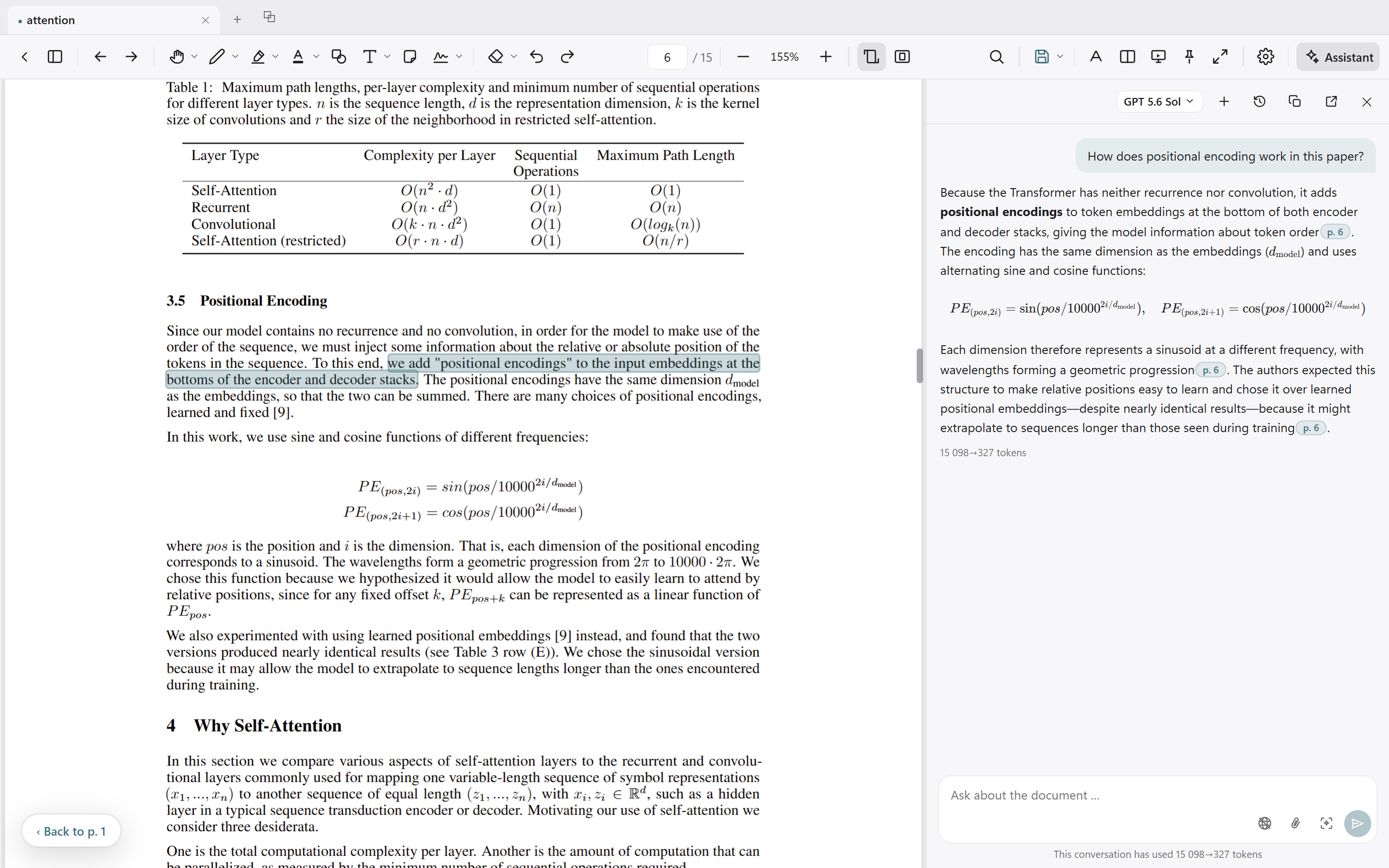
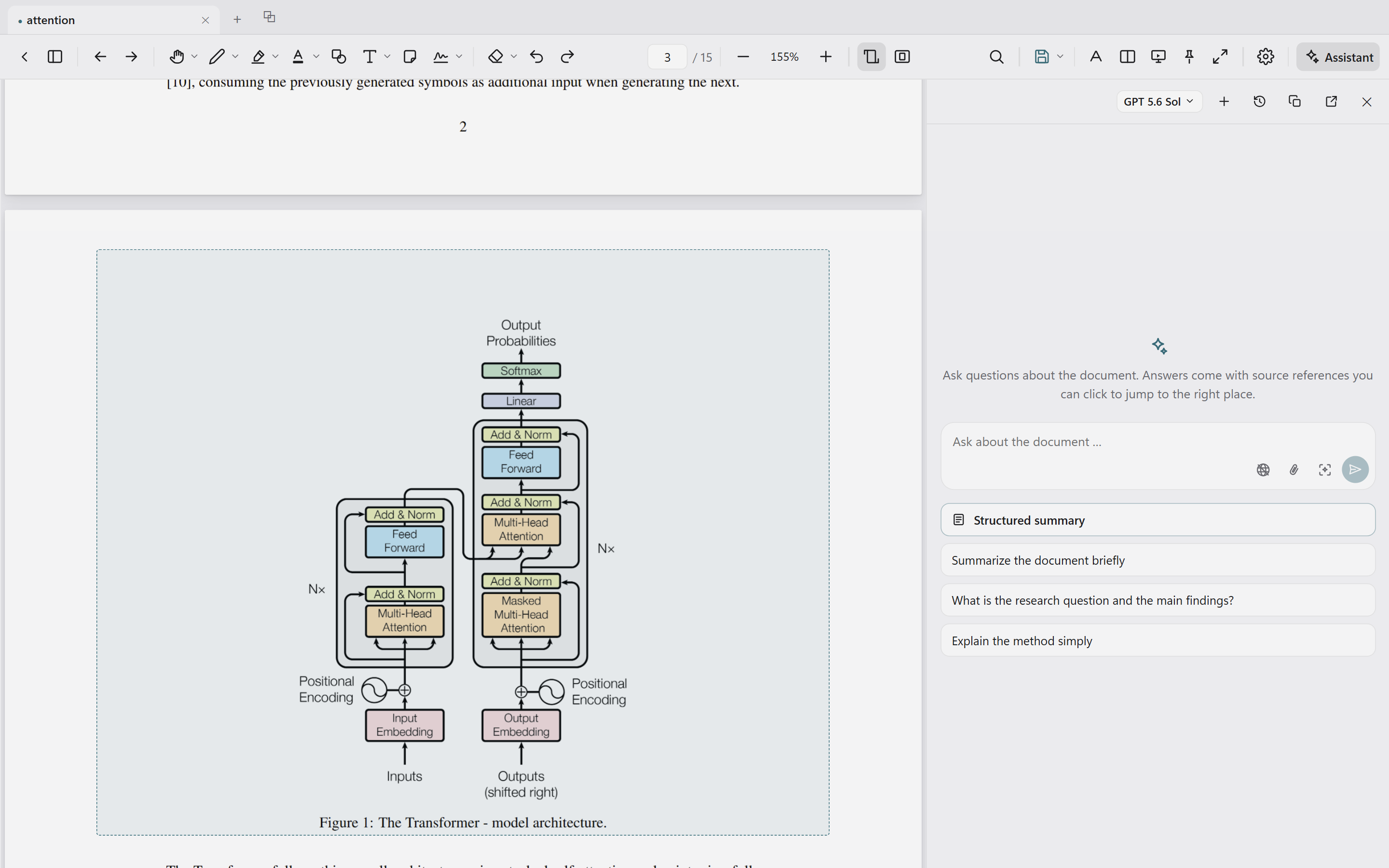
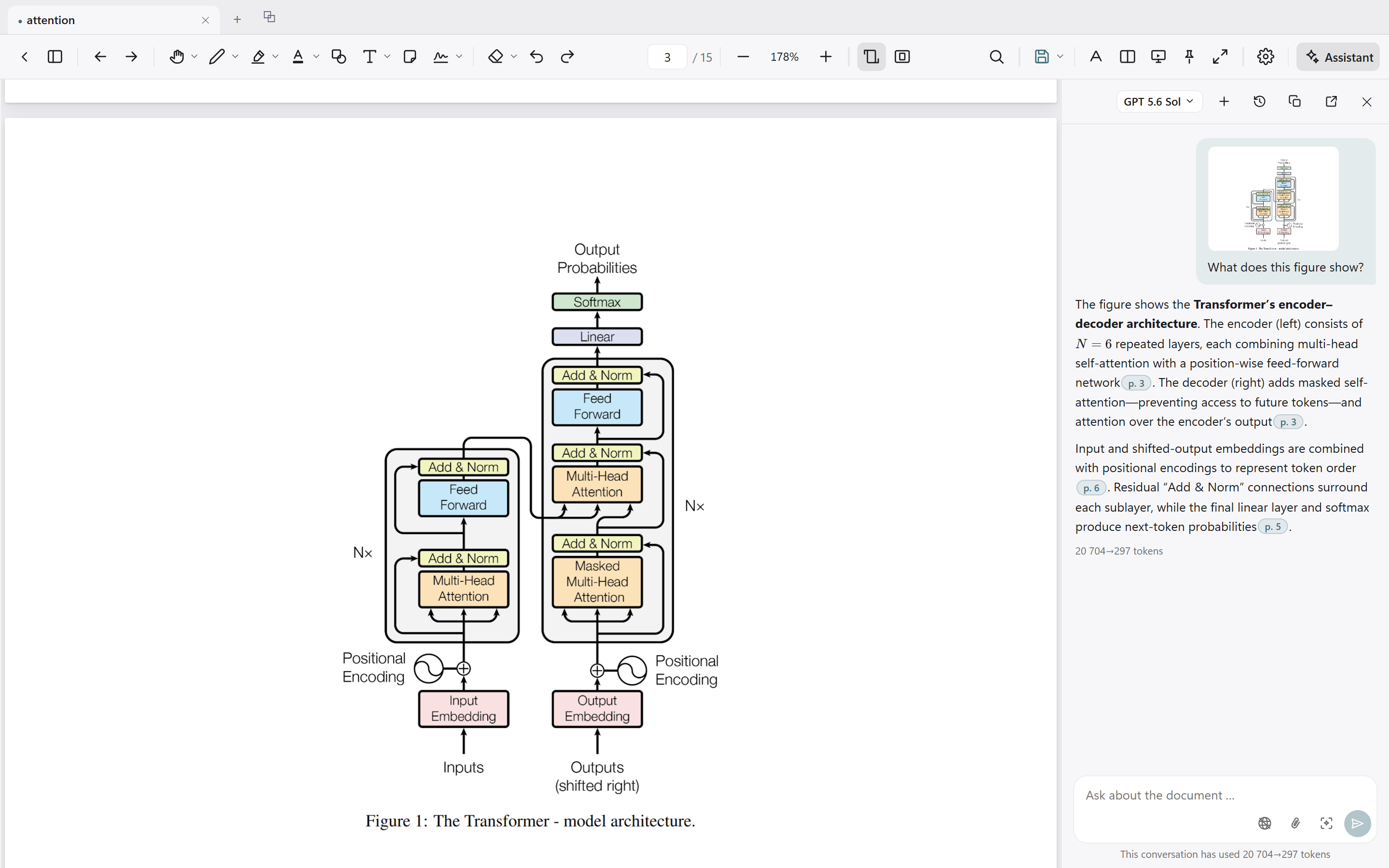
Optional, and it runs on your own API key — or on your ChatGPT plan. It answers from the open document, and each claim carries a reference; following one goes to the sentence it came from.
- Questions about a passage ("explain this simply", "what does this term mean here?"), or a structured article summary: research question, method, data, findings, limitations
- Questions about your own annotations: "summarize what I've highlighted"
- Context-menu actions on any selection: explain, simplify, critique, look up a cited reference, or a free-form question
- Explain a figure: drag a region around a chart or table and it lands in the chat as an attachment, staged until you press send. The one-click explain action in the selection menu is the exception and sends the crop as soon as it is drawn. Images can be pasted or attached the same way
- A scanned document is read the same way: the assistant gets the text recognised on your computer, with clickable citations, instead of only the pages you attach as images; the panel says so while the pages are being read
- Conversations are kept with their document. The library's Conversations view lists them across documents — searchable, sorted and filtered, each citation chip opening its passage — and an earlier conversation, about this paper or another, can be attached to a new question as context. A moved or renamed document keeps its conversations; old ones can be tidied in one go, and exported
- One paperclip in the composer attaches context to a question: an earlier conversation, an image, or a local file — a PDF or a text file (Markdown, CSV, JSON, LaTeX, BibTeX …) — whose text goes along as notes beside the document. A badge counts the attachments and the list shows them, each removable; the open document stays the only source the assistant cites
- The assistant can open in its own window, so the document keeps the whole screen or a second monitor carries the chat. A citation click still goes to the passage in the document's window, and raises it
- The answer text has its own size control (80–160 %), from the model menu or Ctrl+scroll over the panel, separate from the document's zoom
- Optional web search, off by default: switched on, the assistant searches when the question calls for it — outright or by implication — and never because the document says so (Anthropic and OpenAI keys). LaTeX in answers is rendered
- Providers: Anthropic (Claude, with native citations), OpenAI, Azure OpenAI, OpenRouter, Google Gemini, Grok (xAI), Mistral and Groq — one key field each — plus any OpenAI-compatible endpoint and local models via Ollama or LM Studio, which need no key. One menu holds every provider's models: a curated, verified list each, strongest first, with the provider's full live listing reachable by search. Requests go directly to the provider, with no server in between
- Your ChatGPT plan instead of a key: sign in with ChatGPT Plus or Pro in the desktop app (the browser extension uses that sign-in when the app is installed) and the assistant runs on the plan's allowance — GPT-6 Astra, Sol and Luna, no API bill. It is an unofficial route (the same sign-in Codex and opencode use, which OpenAI allows today but can close), and ChatGPT's terms apply rather than the API's, so your account's model-training setting decides. The API-key provider stays alongside
- Each answer reports the token count the provider billed, and the key settings link to the provider's console, where a spending cap can be set
Your notes in Claude, Codex and other AI tools
The desktop app can let an AI tool on your computer search what you noted across every paper: highlights with the words they mark, comments, notes, and your assistant conversations with the passages each answer cited. While you write, ask the tool what you noted about a method, and it looks it up without opening a PDF.
- Nothing to download. The MCP server is part of the desktop app. "AI tools" in the settings menu has one switch for Claude and one for Codex; turning it on writes PDF Scholar into that tool's own settings. In the ChatGPT app, ask in Codex: an ordinary ChatGPT chat runs in OpenAI's cloud and cannot reach a program on your computer
- Other tools that support MCP take one config entry, which "Copy setup" fills in with your paths (docs/MCP.md)
- A tool that cannot connect: "Copy for AI" in the Annotations tab copies the open document's notes and conversations as text, ready to paste. This also works in the browser extension
- Read-only: four tools (search, list papers, one paper's notes, one conversation). Tools never see the PDFs, images, file paths or folder names, and nothing from a password-protected document. The notes are kept up to date in the background as you annotate, and papers you marked up earlier are read in quietly once a tool is on
- Off until you turn a tool on, and the same switch takes it back. In the same dialog, each document has its own switch, and a whole folder (a client's, say) can be kept out
Shortcuts you can rebind
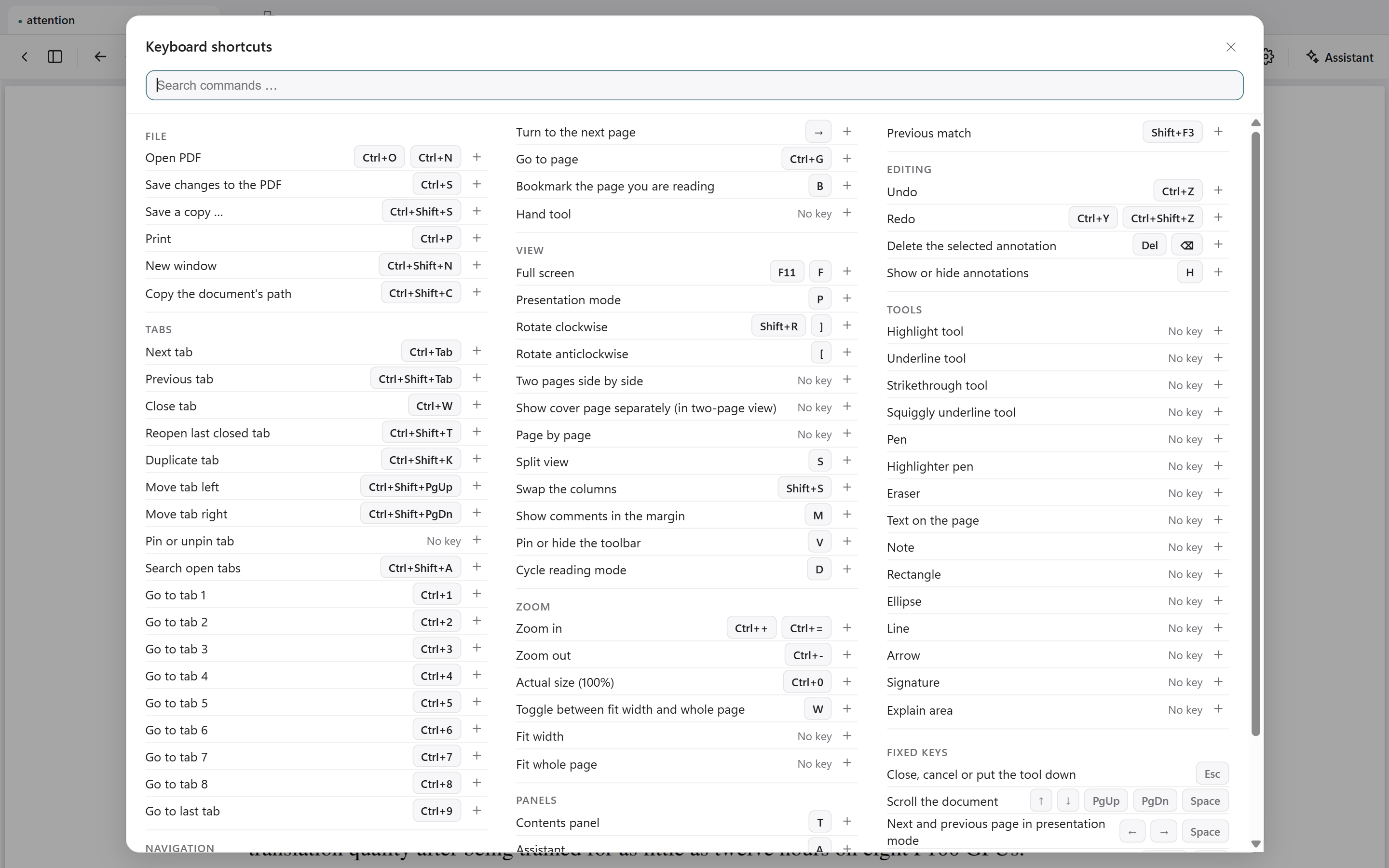
Every command is listed in one map — Settings → Keyboard shortcuts — grouped by task, with its keys beside it. Any shortcut can be rebound or reset, one or all at once; the keys in this README are the defaults.
Local by default
Reading, annotating and saving are local; the app runs without network access. Two lookups go online, each on a click: a document's reference from doi.org, and a cited paper's abstract from free scholarly databases (arXiv, Europe PMC, Crossref, OpenAlex). Only the DOI, or the one reference entry, is sent. Assistant requests go directly to the provider you chose, under your key and that provider's terms; there is no intermediary server, and with a local model (Ollama, LM Studio) your questions stay on the machine too.
An AI action sends document content — normally the whole text, an excerpt for very long documents — and several actions fire on one click. An AI access switch in the assistant's settings decides how far that goes. "Confirm before sharing" pauses the first request that takes a document to a provider in a session, naming the model and what is about to be attached, and lets follow-up questions about the same document pass; a new document or a new provider asks again. "Off" blocks every AI request in the transport layer, so a stored key cannot leak content by accident. An outside AI tool you turn on under "AI tools" reads your notes and conversations, and what it reads goes to that tool's provider, under that tool's terms. Its own switch takes that back.
The key is pasted once, in the assistant's settings, and goes into the platform's key store: DPAPI on Windows, Keychain on macOS, the system keyring on Linux. The browser extension has no key store to reach and instead encrypts the key under a key no script can read out. The settings panel names the case on your machine, and docs/PRIVACY.md has the per-platform detail. A spending cap in the provider's console is worth setting either way: no local storage can stop a program already running as you from asking for the key to be decrypted.
Working with Zotero
PDF Scholar works as an external reader for Zotero: under General → "Open PDFs using", choose PDF Scholar, and library PDFs open here. Saved marks are standard PDF annotations in the file itself, so Zotero's own reader shows them (read-only, with a lock icon), and File → "Import Annotations…" converts the highlights and underlines into native, editable Zotero annotations (text boxes and ink are not importable on Zotero's side). Importing moves them: Zotero strips the annotations from the file and keeps them in its database — its import dialog says so. If you keep reading in PDF Scholar, skip the import: the annotations stay in the file, Zotero's reader still shows them, and Zotero sync carries the annotated file to your other devices. Import when you want to edit them in Zotero or extract them into a note, and use File → "Export PDF…" if you later need a copy with them re-embedded.
A document in a Zotero library also gets a Zotero section in the save button's menu:
show the item in Zotero, or copy an in-text citation, a full reference or the BibTeX
entry. The style is a picker in that section — APA 7, Chicago (author-date or notes),
Harvard (Cite Them Right), IEEE, MLA 9, Nature or Vancouver, all shipped with Zotero —
and one choice serves every document. BibTeX comes from Zotero's built-in exporter, so
Better BibTeX is not needed; the citation key is Zotero's generated one, not a Better
BibTeX pinned key. Two fields are left out: file, which names the PDF's location on
your disk, and abstract, which belongs in the library rather than in a .bib file. The
metadata comes from Zotero's local API on your own machine — enable it once under
Settings → Advanced → "Allow other applications on this computer to communicate with
Zotero". Stored attachments are recognised by path alone, so "Show in Zotero" works for
them even with the API off. Linked attachments (a library kept in its own folder,
ZotFile-style) carry no item key in their path; they are matched by filename against the
library's attachment list through the same API, so their Zotero section appears while
Zotero runs with the API on.
A document outside your Zotero library can still be cited if it prints its DOI on the first pages or carries it in its metadata, as most published papers do. The save menu then shows a Reference section with the DOI and one row, "Fetch reference from doi.org". Clicking it fetches the item's metadata (the Crossref or DataCite record, the same data a citation manager imports) and turns it into an in-text citation, a reference in the chosen style and a BibTeX entry (for numeric styles like IEEE the in-text row stays empty, since the number depends on your bibliography's order). That click is the only time anything leaves your machine, and only the DOI is sent. When Zotero knows the document, its section takes precedence — your corrected metadata beats the publisher's deposit — so you never see two versions of one citation.
Development
npm install
npm run dev        # full Electron app with HMR
npm run dev:web    # renderer only, in a plain browser on :5199
npm run typecheck  # tsc for renderer, main/preload and the extension
npm run dist       # NSIS installer (Windows)
npm run build:ext  # browser-extension bundle → dist-extension/
npm run ext:local  # same build, mirrored into the folder your browser loaded unpacked
npm run test:windows  # two windows on one file, end to end (needs npm run build first)
npm run shoot         # drive the app into each documented state and photograph it
npm run check:shots   # which shipped screenshots predate the visual changes
npm run shoot and npm run test:windows drive the real desktop app over Chromium's
DevTools protocol, which Electron ships, so neither needs a browser-automation
dependency. Both run in a throwaway profile with factory defaults and leave your
recents, reading positions and theme alone.
Every shot asserts its state before capturing, so a renamed tooltip or a jump that
never happened fails the run instead of saving a wrong picture; shoot is a UI smoke
test as much as a camera. --list shows the shot names; pass names to run a subset. The
assistant shots replay an answer recorded once into docs/ai-fixtures/, so an ordinary
run needs no API key; only the provider call comes from disk, while the chips, the jump
to the cited sentence, the highlight and the snipped region run live. --with-ai calls
the real provider with your own key, and --record refreshes the recording.
Shots land in the gitignored docs/screenshots/_auto/; the images in this README are
picked by hand. npm run check:shots reports which shipped images predate the visual
changes since — see docs/RELEASE.md.
npm run test:windows opens a second window on the same file, annotates in both, saves
from one, and verifies the result with mupdf — a different PDF implementation, so it
cannot share a bug with our writer. It covers the overlay, the IPC, main's shared draft,
the reload in the other window, and the bytes on disk.
Architecture in short: pdf.js v6 renders, EmbedPDF (PDFium WASM) writes. The React
renderer draws annotations in its own overlay, not pdf.js's editor layer. The Electron
main process owns the annotation engine, the AI providers and the draft-based save
model. Every platform call goes through one interface (PdfxApi), so one renderer
serves the desktop app, the browser extension and the plain-browser dev preview. See
CLAUDE.md and docs/ROADMAP.md for the details and the road ahead.
Status
Actively developed, by someone who reads PDFs for a living. Installers are attached to
the GitHub releases, and
docs/PLATFORMS.md lists what each platform supports today.
Citing
If PDF Scholar was useful in your research, a citation is appreciated — use GitHub's
Cite this repository button, backed by CITATION.cff.
License
PDF Scholar is licensed under the MIT License. Every bundled component is permissively licensed: annotations are written by EmbedPDF's PDFium build (MIT / BSD-3-Clause), rendering by pdf.js (Apache-2.0), text on scanned pages by Tesseract through tesseract.js-core and its trained models (all Apache-2.0), plus Electron (MIT), React (MIT), the Anthropic SDK (MIT) and the Libertinus wordmark font (SIL OFL 1.1). Text boxes are set in the PDF standard fonts, which every reader already has — nothing is embedded in the documents you save. (mupdf, AGPL, is used only as a development-time test verifier and ships with no release build.)
Built by Emil Mathias Strøm Halseth, who reads PDFs for a living, with assistance from Claude Code. Logo by Elisabeth Walle.
Explore related projects
freeCodeCamp/freeCodeCamp
freeCodeCamp.org's open-source codebase and curriculum. Learn math, programming, and computer science for free.
458,826 starsdonnemartin/system-design-primer
Learn how to design large-scale systems. Prep for the system design interview. Includes Anki flashcards.
377,475 starsreact/react
The library for web and native user interfaces.
252,467 starsvuejs/vue
This is the repo for Vue 2. For Vue 3, go to https://github.com/vuejs/core
212,625 stars