
egorovsa/react-video-seek-slider
egorovsa/react-video-seek-slider has 43 GitHub stars and 16 forks. GitHot measured 0 stars in 24 hours. Last checked 2026-11-15 02:28 UTC. Last push 2026-11-09.
Measured star growth
- in 24h
- 0
- in 7 days
- Collecting history
- in 15 days
- Collecting history
- in 1 month
- Collecting history
Net star changes over overlapping periods, not daily totals. Missing measurements are left blank. Stars measure attention, not software quality.
About
YouTube-style video seek bar for React: chapters, sprite/WebVTT preview thumbnails, watch heatmap and touch support. Lightweight, zero dependencies.
Web & AppsREADME.md
Originalreact-video-seek-slider




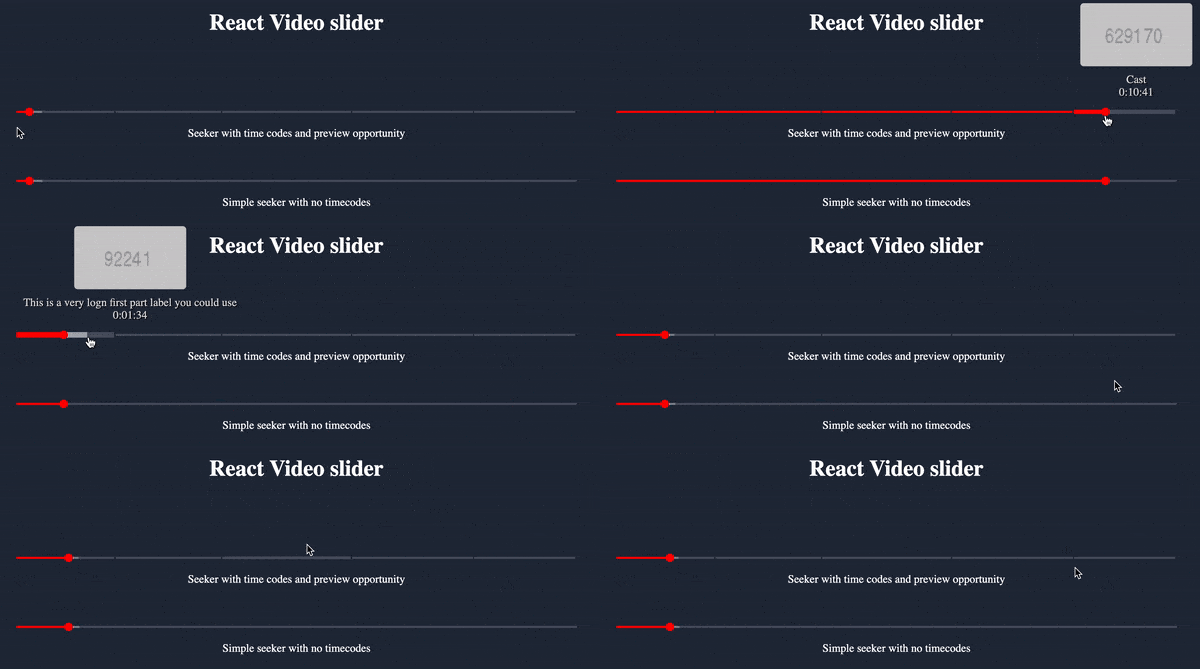
YouTube-style video seek bar for React: chapters, sprite/WebVTT preview thumbnails, watch heatmap and touch support. Lightweight, zero dependencies, written in TypeScript.
What's new in v9
- Preview thumbnails from sprite sheets described by a WebVTT file (
previewThumbnails), like on YouTube. The package ships a CLI that generates them with ffmpeg. - Watch heatmap above the track (
heatmap), like "Most replayed" on YouTube. - Seeking is built on Pointer Events with pointer capture: one code path for mouse, touch and pen, no global
windowlisteners. onChangealways calls the latest callback you pass (previously a stale one could be called untilmax,offsetor the track width changed).- The track width follows container resizes (
ResizeObserver). - The time code label is taken from the hovered position, so it is correct on touch devices as well.
- Seeking works correctly on horizontally scrolled pages.
- Dragging the slider no longer selects page text.
- Type declarations no longer include internal dev files.
Breaking changes from v8 -> v9
offset is now in milliseconds everywhere
Before v9 the hover tooltip treated offset as seconds, while onChange added it to offsetTime as milliseconds. Now both use milliseconds, like every other time prop.
If you passed offset in seconds, multiply it by 1000:
// v8
<VideoSeekSlider offset={10} ... />

// v9
<VideoSeekSlider offset={10000} ... />
onChange fires on press
onChange is now called as soon as the user presses the track, then on every move while dragging. In v8 a click without movement called it only on release. If you track seek events (analytics, network requests), expect calls on press.
Only the primary button seeks
Right and middle mouse buttons no longer move the thumb.
Pointer Events are required
The slider listens to pointerdown / pointermove / pointerup instead of mouse* / touch* events. All current browsers support them (Safari 13+). If your code stops propagation of pointer events above the slider, or relied on the slider's global mousemove / mouseup / touchmove listeners, review it.
Empty timeCodes renders a plain track
timeCodes={[]} used to render no track at all; now it renders the same track as without timeCodes.
What's new in v8
- It's now built with Vite.js and is available for both React versions: 18+ and 19+.
- No migration needed.
What's new in v6
- Added time codes and seeker preview fully like in youtube player!
- The codebase is completely refactored and optimized
Breaking changes from v5 -> v6
props names that are changed
progress->bufferTimehideSeekTimes->hideThumbTooltip
Breaking changes from v4 -> v5
All time values you pass to props like max, currentTime and progress now are in milliseconds instead of seconds.
onChange prop will also return time param in milliseconds as well.
How to install
npm i react-video-seek-slider
or
yarn add react-video-seek-slider
The package includes the CSS file, so you don't need to install any additional dependencies.
How to import
For TypeScript usage there is a index.d.ts
import { VideoSeekSlider } from 'react-video-seek-slider';
Also you have to import the CSS file:
import "react-video-seek-slider/styles.css"
Note: The styles are automatically generated and included in the package.
How to use
//JSX
const [currentTime, setCurrentTime] = useState(0);
/// .....
<VideoSeekSlider
  max={1152000}
  currentTime={currentTime}
  bufferTime={400000}
  onChange={setCurrentTime}
  secondsPrefix="00:00:"
  minutesPrefix="00:"
  timeCodes={[
    {
      fromMs: 0,
      description: 'Description label of the first part',
    },
    {
      fromMs: 130000,
      description: 'Description label of the last part',
    },
  ]}
/>;
Available component props
max(number, required) - video duration (in milliseconds)currentTime(number, required) - current video progress (in milliseconds)bufferTime(number) - Current buffer progress (in milliseconds)hideThumbTooltip(boolean) - hide hover seek time (Default: false)onChange((time:number, offsetTime:number)=>void, required) - script to be run when thumb change positionoffset(number, default:0) - offset in milliseconds, added to the displayed time and tooffsetTimeinonChangeminutesPrefix(string, default: '') - when video duration is less than an hour you can use time prefix like "0:" so the time tooltip will show e.g "0:25:23"secondsPrefix(string, default: '') - when video duration is less than one minute it's possible to use time prefix like "0:00:" and the time tooltip will show e.g "0:00:10"limitTimeTooltipBySides(boolean, default: true) - limit the time tooltip position inside of the slidertimeCodes(TimeCode[], default: undefined) - will divide slider into parts according to an array of timesgetPreviewScreenUrl((hoverTimeValue: number) => string, default: undefined) - the callback function is going to be called each time when a slider in hovered. It will pass a current hover mouse time and expect and preview image url to be returnedpreviewThumbnails(string | PreviewThumbnail[], default: undefined) - URL of a WebVTT thumbnails file, or already parsed thumbnails. Takes priority overgetPreviewScreenUrl, see Preview thumbnailsheatmap(number[], default: undefined) - watch intensity per equal part of the video, see Heatmap
TimeCode object
fromMs(number, required) - time stamp in milliseconds from where the part is startingdescription(string, required) - label that will appear on seeking tooltip
To use time codes you should provide to the component an array of timeCode objects according to scheme above. The very first part is always should start from fromMs=0. The other parts any valuer according to those places where you would like to slice a slider.
Preview thumbnails
Loading a separate image for every hovered millisecond is slow. Video players use sprite sheets instead: one image holds a grid of small frames, and a WebVTT file says which part of which image belongs to which time range:
WEBVTT

00:00:00.000 --> 00:00:05.000
sprite-001.jpg#xywh=0,0,160,66

00:00:05.000 --> 00:00:10.000
sprite-001.jpg#xywh=160,0,160,66
#xywh=x,y,width,height is the frame position inside the sprite in pixels. Without it the whole image is shown. Relative image paths are resolved against the VTT file URL.
Pass the VTT URL, the slider loads it once and preloads the sprite sheets on the first hover:
<VideoSeekSlider
  max={max}
  currentTime={currentTime}
  onChange={setCurrentTime}
  previewThumbnails="/videos/42/thumbnails.vtt"
/>
The VTT file and images must be reachable from the page (same origin or CORS enabled for the VTT file).
Generating thumbnails
The package includes a CLI that generates sprite sheets and the VTT file. It requires ffmpeg (ffmpeg and ffprobe in PATH):
npx react-video-seek-slider thumbnails video.mp4 public/videos/42
Options:
--interval(default: 5) - seconds between frames--width(default: 160) - frame width in pixels, the height follows the video aspect ratio--columns,--rows(default: 10) - grid size of one sprite sheet
A 12 minute video with the defaults gives 147 frames in two sprite sheets of about 360 KB in total. The input may also be a URL. Run it once per video, for example when the video is uploaded.
The same format is used by Video.js, JW Player and other players, so any existing thumbnails VTT works too.
PreviewThumbnail object
If you already have thumbnail data, pass an array instead of a URL:
fromMs(number, required) - start of the time range in millisecondstoMs(number, required) - end of the time range in millisecondsurl(string, required) - image URLx,y,width,height(number) - frame position inside the sprite sheet in pixels
parseThumbnailsVtt(vtt: string, baseUrl?: string) is exported as well, if you want to load and parse the VTT file yourself.
Heatmap
Shows how often each part of the video is watched, as a graph above the track while it is hovered:
<VideoSeekSlider
  max={max}
  currentTime={currentTime}
  onChange={setCurrentTime}
  heatmap={[120, 340, 180, 90, 75, 410, 260, 110]}
/>
Values are spread evenly over the whole video, and normalized by the maximum, so you can pass raw view counts.
The data has to come from your analytics: the slider only draws it. One way to collect it is to send the played ranges of each session (video.played) to your backend and count views per part of the video there.
Colors and size are CSS variables:
.ui-video-seek-slider {
  --vss-heatmap-height: 40px;
  --vss-heatmap-color: rgba(255, 255, 255, 0.25);
}
For development
just use:
$ npm i
$ npm run dev
open your browser http://localhost:3000
For Build
$ npm run build