
dai-hongtao/InkTime
dai-hongtao/InkTime has 671 GitHub stars and 107 forks. GitHot measured 0 stars in 24 hours. Last checked 2026-11-15 22:29 UTC. Last push 2026-07-30.
Measured star growth
- in 24h
- 0
- in 7 days
- Collecting history
- in 15 days
- Collecting history
- in 1 month
- Collecting history
Net star changes over overlapping periods, not daily totals. Missing measurements are left blank. Stars measure attention, not software quality.
About
InkTime 是一个可自托管的墨水屏电子相框。它用AI分析你的照片库,按值得回忆度打分,并按“历史上的今天”自动生成每日最具回忆价值的照片,让沉睡的记忆重新被看见。
Developer ToolsREADME.en.md
OriginalInkTime · E-Ink Memory Frame
中文 | English
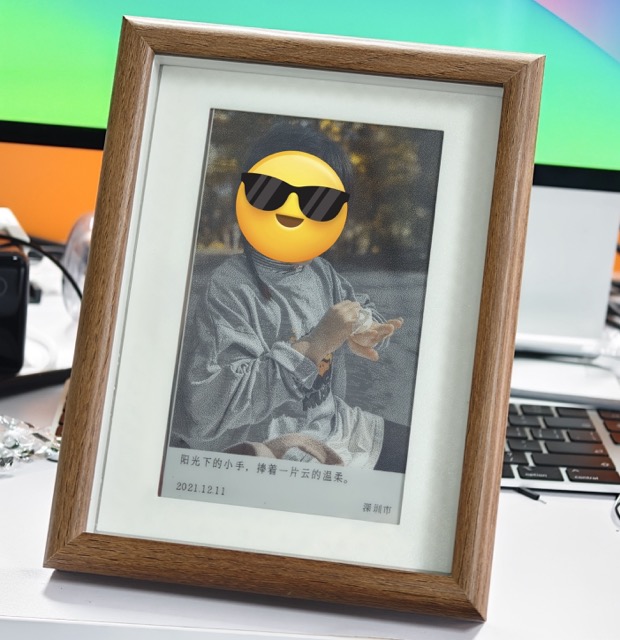
InkTime is an e-ink photo frame project that brings forgotten memories back from your photo library.
It does not show random photos, and it is not a simple chronological slideshow. Instead, it:
- Uses AI to understand what each photo is about
- Scores photos by "memory value" and visual quality
- Writes a short, spontaneous caption for each photo
- Picks the most meaningful photo from "on this day" every day
- Pushes it to an ESP32-powered e-ink display
Project Structure
InkTime has three main parts:
Photo analysis (Python)
Scan photo library -> call a vision model -> classify, score, and caption photos -> store results in a databaseImage rendering (Python)
Select high-scoring "on this day" photos from the database -> render.binfiles that the ESP32 can display directlyDownload and display (ESP32)
The ESP32 periodically downloads the.binfile from the server -> refreshes the e-ink screen -> enters deep sleep until the next wake-up
Setup
1. Python
Python 3.10+ is recommended.
Using a virtual environment is recommended:
python3 -m venv venv
source venv/bin/activate
pip install -r requirements.txt
2. Install exiftool (optional)
InkTime can run without exiftool, but it may not be able to extract complete GPS information from EXIF metadata.
exiftool is recommended for GPS metadata:
macOS (Homebrew): brew install exiftool
Linux: sudo apt-get install -y libimage-exiftool-perl
3. Configure config.py
cp config-example.py config.py
vi config.py
Required fields:
- Photo library path:
IMAGE_DIR - VLM API configuration:
API_CHANNELS
InkTime uses an OpenAI-compatible API endpoint. LM Studio and other compatible services are supported.
To reduce the risk of exposing private photos, change DOWNLOAD_KEY and use it as a random prefix in the ESP32 download path.
Also update the DAILY_PHOTO_PATH_PREFIX field in esp32/ink-display-7C-photo/ink-display-7C-photo.ino.
This is not encryption. It is only a simple path-based access token. For public deployment, use HTTPS, reverse-proxy authentication, or restrict access to your local network.
Analyze Photos
Before analyzing photos, make sure:
- LM Studio, or your cloud VLM service, is running
config.pyis configured correctly
Run:
python3 analyze_photos.py
The vision model will read and understand all files in your photo library, generating:
- Scene description
- Photo type
- Memory value / visual quality scores
- One-line caption
Photo data is stored in photos.db as a SQLite database.
You can edit the prompts in analyze_photos.py to adjust the model's scoring criteria and caption style.
The process is resumable. Photos that have already been processed will not be analyzed again, so you can process a large photo library across multiple runs.
Choose a model that fits your available compute. The author's qwen3-vl-30b setup already produces very solid captions.
Common options:
python3 analyze_photos.py -j 4
python3 analyze_photos.py --debug
python3 analyze_photos.py --cache
-j,--concurrency: Number of concurrent worker threads. Default is1. Increase it if your local model or API channels have enough throughput.--debug: Print request and response bodies when a request fails, useful for debugging API compatibility or response format issues.--cache: Reuse the previously cached photo file list. This avoids rescanning the photo library every time. Use it only during the initial full-library analysis; do not use it in production, otherwise newly added photos will not be discovered and deleted photos will not be removed from the database.
Render the Daily "On This Day" Photo for ESP32
Run:
python3 render_daily_photo.py
Start the ESP32 Download Server and Web UI
Run:
python3 server.py
Web UI, if enabled:
The server provides a simple visual frontend for reviewing processed photo descriptions and captions, and for previewing the simulated e-ink rendering result.
Open in your browser:
http://127.0.0.1:8765/review
After the project is working, it is recommended to disable the Web UI in config.py and keep only the ESP32 download endpoint enabled.
Server Deployment and Scheduled Task Example (optional)
Create a systemd service:
sudo vi /etc/systemd/system/inktime-server.service
Example, update the project path for your environment:
[Unit]
Description=InkTime Server
After=network.target

[Service]
Type=simple
# Change this to your project path
WorkingDirectory=/path/to/InkTime
ExecStart=/path/to/InkTime/venv/bin/python server.py
Restart=always
RestartSec=3
User=inktime
StandardOutput=journal
StandardError=journal

[Install]
WantedBy=multi-user.target
sudo systemctl daemon-reload
sudo systemctl enable inktime-server
sudo systemctl start inktime-server
Use crontab to automatically select and render the daily photo every morning:
chmod +x scripts/daily_render.sh
sudo -u inktime crontab -e
0 5 * * * /path/to/InkTime/scripts/daily_render.sh
Logs are available at logs/render.log.
ESP32 E-Ink Hardware
Hardware and Pins
MCU
This project uses the Espressif ESP32-S3-N8R8 module.
You can also use any off-the-shelf ESP32 development board. If you use a different board or module, make sure it has PSRAM enabled and at least 384K PSRAM available.
Display
This project uses a 7.3-inch four-color e-ink display, model EL073TS3 (49-pin), driven by the GxEPD2 library (GxEPD2_730c_GDEY073D46).
For other sizes or models, update the display constructor according to the hardware support list in GxEPD2.
E-Ink Adapter Board
This project uses the 49-pin seven-color EPD adapter board made by the Bilibili creator "记得带马扎".
Most 24-pin e-ink displays with SPI adapter boards should also be compatible.
Pin Definitions
The e-ink display communicates over SPI. The default pins are:
PIN_EPD_BUSY = 14PIN_EPD_RST = 13PIN_EPD_DC = 12PIN_EPD_CS = 11PIN_EPD_SCLK = 10PIN_EPD_DIN = 9
PCB Assembly
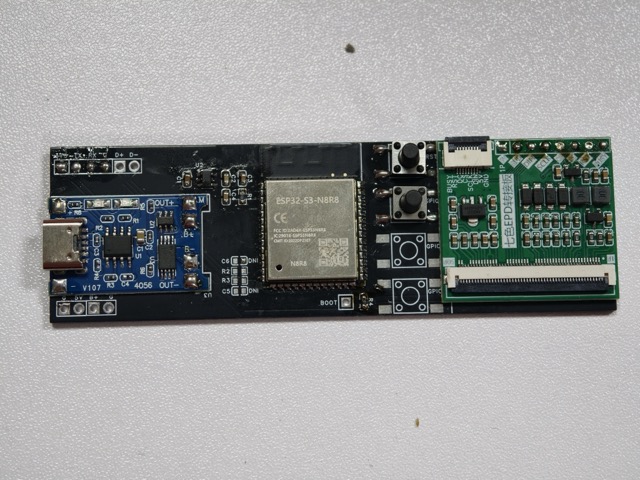
The schematic, BOM, and PCB fabrication files are in the esp32/pcb folder.
H1-H6 in the schematic are test pads and do not need real components soldered:
- H1: UART serial
- H2: USB
- H3: BOOT pin. Short this pin to GND before powering on when flashing firmware.
- H4: Connects to the EPD adapter board
- H5: 3.7V battery pads
- H6: 5V input test pads
UART flashing is recommended. R2, R3, C5, and C6 are used for USB; leave them unpopulated if USB is not needed.
SW1: RESET button. Pressing it restarts the device and downloads/displays the image once. It can also wake the device from long deep sleep.
SW2: Wi-Fi reset button. Hold SW2 and press SW1; after restart, the ESP32 clears NVS so Wi-Fi can be configured again.
SW3 / SW4: Reserved GPIOs for possible future features. Leave them unpopulated if not needed.
Example PCB:
Build and Flash
Arduino IDE is recommended.
- Install ESP32 Arduino Core.
- Select the ESP32-S3 board and enable PSRAM.
- Install dependencies:
GxEPD2
- Open and build/flash
esp32/ink-display-7C-photo/ink-display-7C-photo.ino.
Custom Fonts (optional)
To use a custom Chinese font, place it in resource/fonts/ and declare it in config.py.
First-Time Configuration
On startup, the device tries to read saved Wi-Fi credentials from NVS. If credentials are missing or Wi-Fi connection fails, it automatically enters AP configuration mode:
- The device starts an AP hotspot:
InkTime-xxxx - Default password:
12345678 - Connect to the AP and open the configuration page in a browser:
http://192.168.4.1/ - Configure Wi-Fi, server address, and scheduled update time, then save. The device will restart and enter the normal workflow.
Refresh and Sleep
- The device downloads the daily generated image from the server at the configured update time and refreshes the e-ink screen.
- After a successful refresh, it enters deep sleep until the next wake-up.
- If download times out, 60 seconds by default, it also enters long sleep to avoid abnormal battery drain.
- Press RESET at any time to force a restart and immediately download/refresh the image.
- Long-sleep standby current is below 1mA. With two 18650 cells and about 5000mAh capacity, battery life can reach roughly half a year.
Related Projects
ESP32 firmware depends on GxEPD2 © ZinggJM (GPL-3.0): https://github.com/ZinggJM/GxEPD2
If you distribute compiled firmware, please comply with GPL-3.0 as well.The offline Chinese city-name index in this project is built from GeoNames data:
GeoNames © GeoNames contributors, CC BY 4.0
https://www.geonames.org/