
d8349565/MultiTool-Office-Next
d8349565/MultiTool-Office-Next has 29 GitHub stars and 4 forks. GitHot measured +1 stars in 24 hours and +1 in 7 days. Last checked 2026-11-14 10:33 UTC. Last push 2026-11-06.
Measured star growth
- in 24h
- +1
- in 7 days
- +1
- in 15 days
- Collecting history
- in 1 month
- Collecting history
Net star changes over overlapping periods, not daily totals. Missing measurements are left blank. Stars measure attention, not software quality.
About
Free, open-source Windows desktop toolbox for local file search, document previews, OCR batch renaming, and an optional AI assistant.
ProductivityREADME.md
OriginalMultiTool Office Next
Find files, preview documents, and rename scans in one Windows desktop app.
MultiTool Office Next (MTO) is a free, open-source toolbox for column-based file browsing, local file search, document previews, and offline OCR batch renaming. Browsing, search, preview, and default OCR run on your PC without an app account or AI API key. An AI assistant and translation are available through services you choose to connect.
Download for Windows x64 · Quick start · Features · Report an issue


Current app and installer language: Simplified Chinese.
Installation
- Open the latest release.
- Download the Windows installer ending in
_x64-setup.exeand run it. You do not need the source-code ZIP. - Follow the installation wizard, then open MultiTool Office Next.
Requires Windows x64 and Microsoft Edge WebView2. The installer may download WebView2 if it is missing; OCR models are bundled with the installer. The app window uses the name MultiTool Office.
The app is free to use. Optional model, search, and scoring services may require provider accounts and paid API access. See the release notes for what the downloadable build includes; main may contain newer fixes.
Quick start
- Add a working folder: in the first-run setup or File Workspace (
文件工作区), choose添加工作目录and wait for local indexing. You can skip AI setup. - Find a file: press
Ctrl + Fand enter part of its filename. - Check its contents: hold
Ctrlwhile hovering over a result to preview it. Double-click to open it in the default application.
You can now browse folder levels, search your selected working folders, and preview files from one window.
Screenshots
Screenshots and GIFs come from existing app builds; some controls have changed in newer versions.
| Light mode | Dark mode |
|---|---|
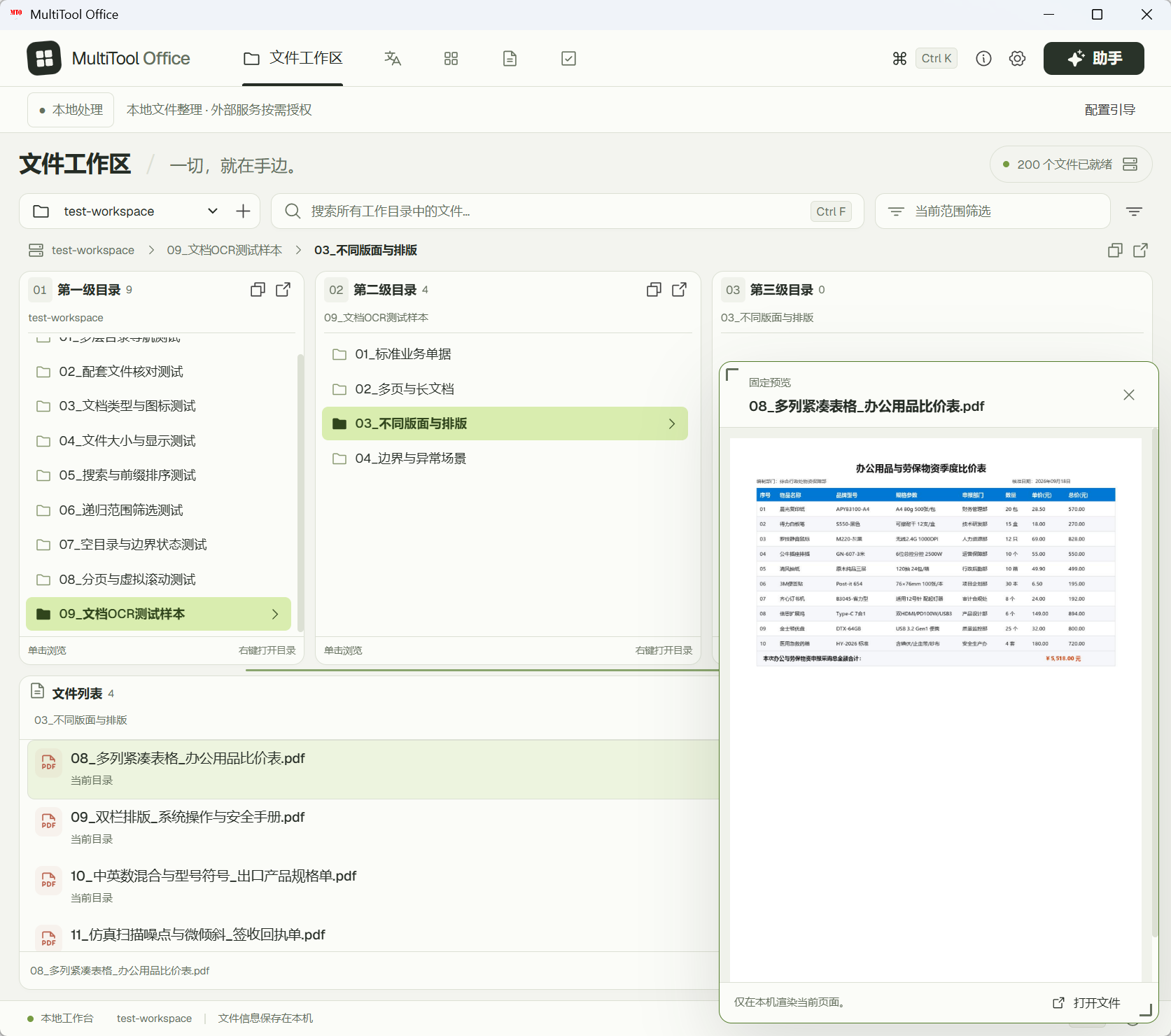 |
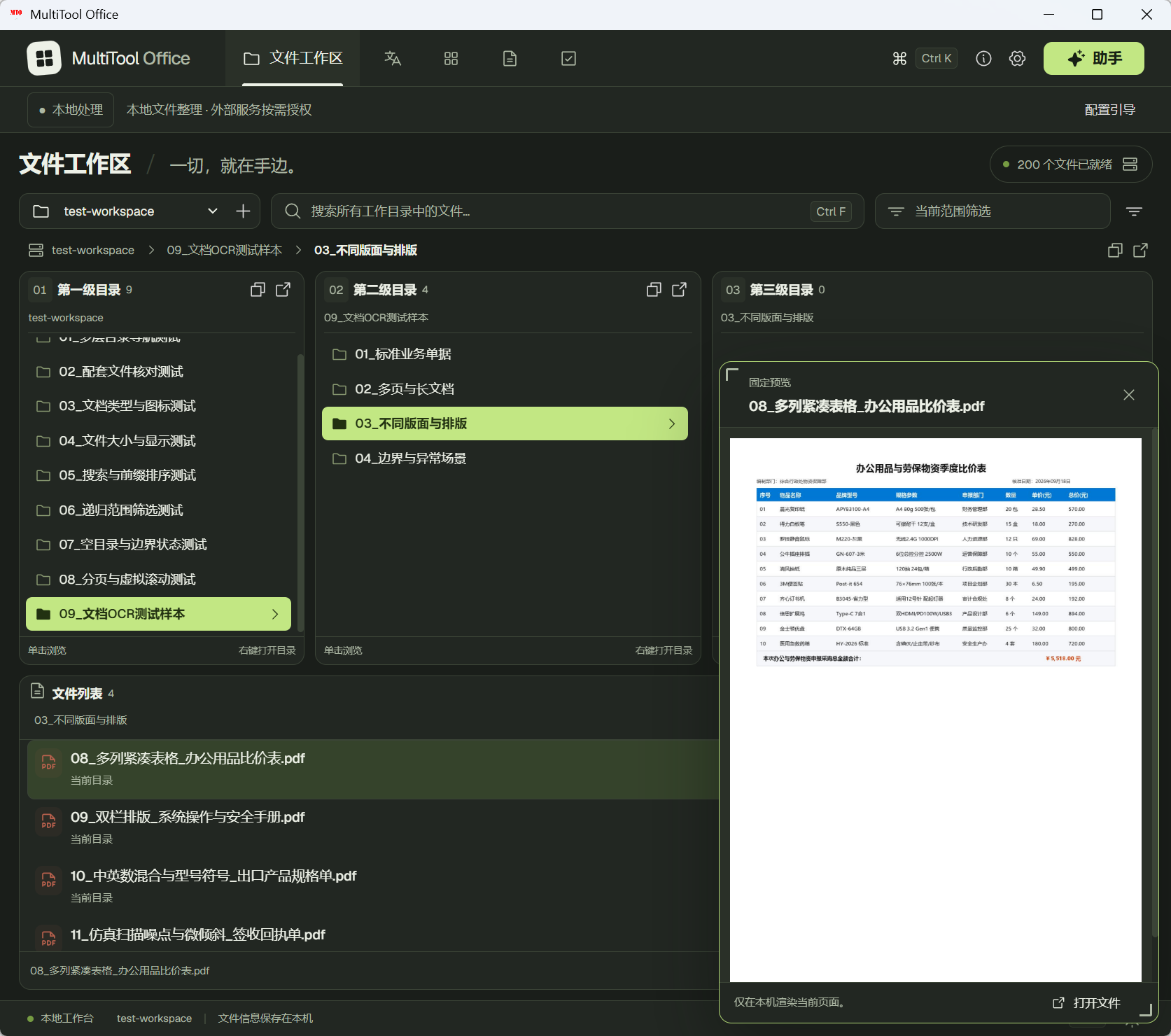 |
Features
File browsing and local search
Keep several folder levels visible while moving through project or client folders.
- Search filenames across your configured working folders; narrow results by file extension, modification date, or path.
- Filter folder names directly in the visible directory levels, within each level’s selected parent. The selected path stays visible; use × to clear the filter and restore the lists.
- Clear file-search keywords with × while retaining other filters.
- Copy names or paths, open files in their default applications, or reveal them in Windows File Explorer.
- Rename one file or folder using the selected-item action or
F2. Extensions are preserved by default. Edit the name and press Enter or confirm once; rename history supports persistent records and guarded undo.
Renaming is restricted to ordinary objects inside local working folders and never replaces an existing target. Identity and state checks use Windows file IDs, sizes, and timestamps, without reading document bodies. Case-only changes, links, protected objects, target paths over 240 UTF-16 units (including descendants), and folders exceeding 10,000 descendants are currently rejected. Uncertain interrupted operations require manual review. Running OCR tasks block renaming, and affected OCR results must be imported again.
The index stores filenames, paths, and other metadata. Search does not index document body text.
Watch file browsing and search
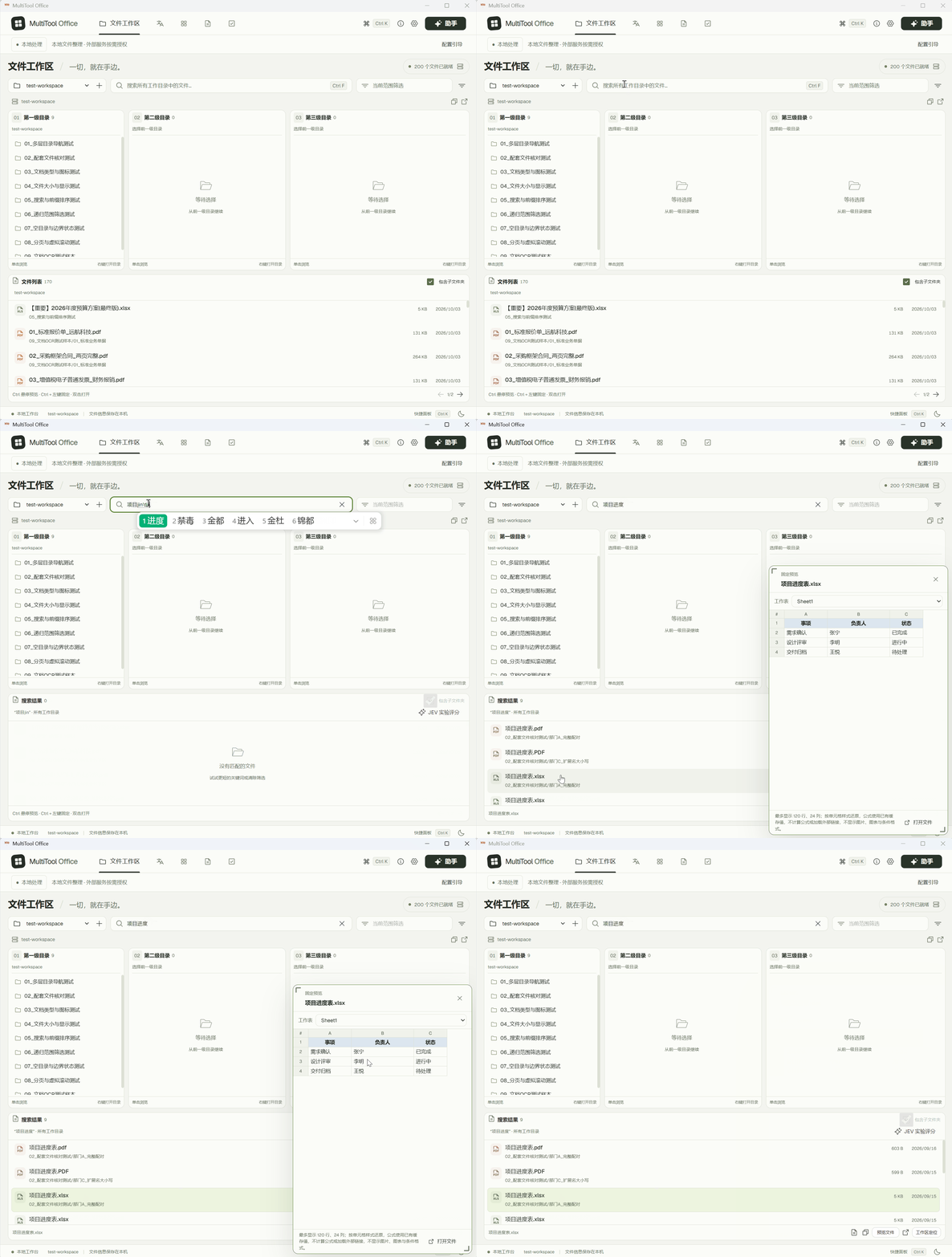
Local document previews
Hold Ctrl and hover to preview; use Ctrl + left-click or Ctrl + Enter to keep a preview open.
- Preview PDF, common image formats, text, Markdown, CSV, Word (
.docx), and Excel (.xlsx). - Turn PDF pages, switch Excel worksheets, and resize the preview window.
- Preview content stays local and is not automatically added to AI conversations. Macros, formulas, and scripts are not executed.
Word previews focus on text. Excel previews have row, column, and content limits and use cached formula values. Use the original application for complex layouts, charts, and editing.
Offline OCR and batch renaming
Import scanned PDFs or images, extract fields such as company, date, and document number, and assemble filenames using your rules.
Add files → match or select a profile → recognize and rename in one click → view the results.
- Local OCR supports label-based extraction, regular expressions, drawn regions, and date normalization.
- Match profiles per file using first-page keywords. Ambiguous matches or low-quality text stay available for review; change the profile and retry only the affected file.
- Reuse, import, and export profiles, or ask the optional AI service to draft one for review.
- Edit extracted values, inspect their sources, export results, and retry failed or interrupted items.
- The one-click action runs OCR and renames eligible files using the selected profiles, without another rename button or filename confirmation. Optional TXT / CSV / JSON export settings are retained. Uncertain results and errors are held for review; use the OCR-only action for the step-by-step flow.
- Invalid filename characters such as slashes are automatically replaced with underscores without requiring review. Extracted values and exports retain the original text; truncated names and uncertain recognition still require review.
- Renaming checks file state and naming conflicts, reports partial failures, and supports undo. Export an exceptions CSV and retry failed undo operations after resolving file locks or conflicts.
Renaming changes filenames, not document contents. Undo checks whether files have changed or their original names are already occupied. One-click tasks follow the selected profiles' naming rules; uncertain recognition results are held for review.
See the OCR profile and example guide (Chinese) for purchase contracts, quotations, delivery notes, and other forms.
Watch OCR extraction and batch renaming
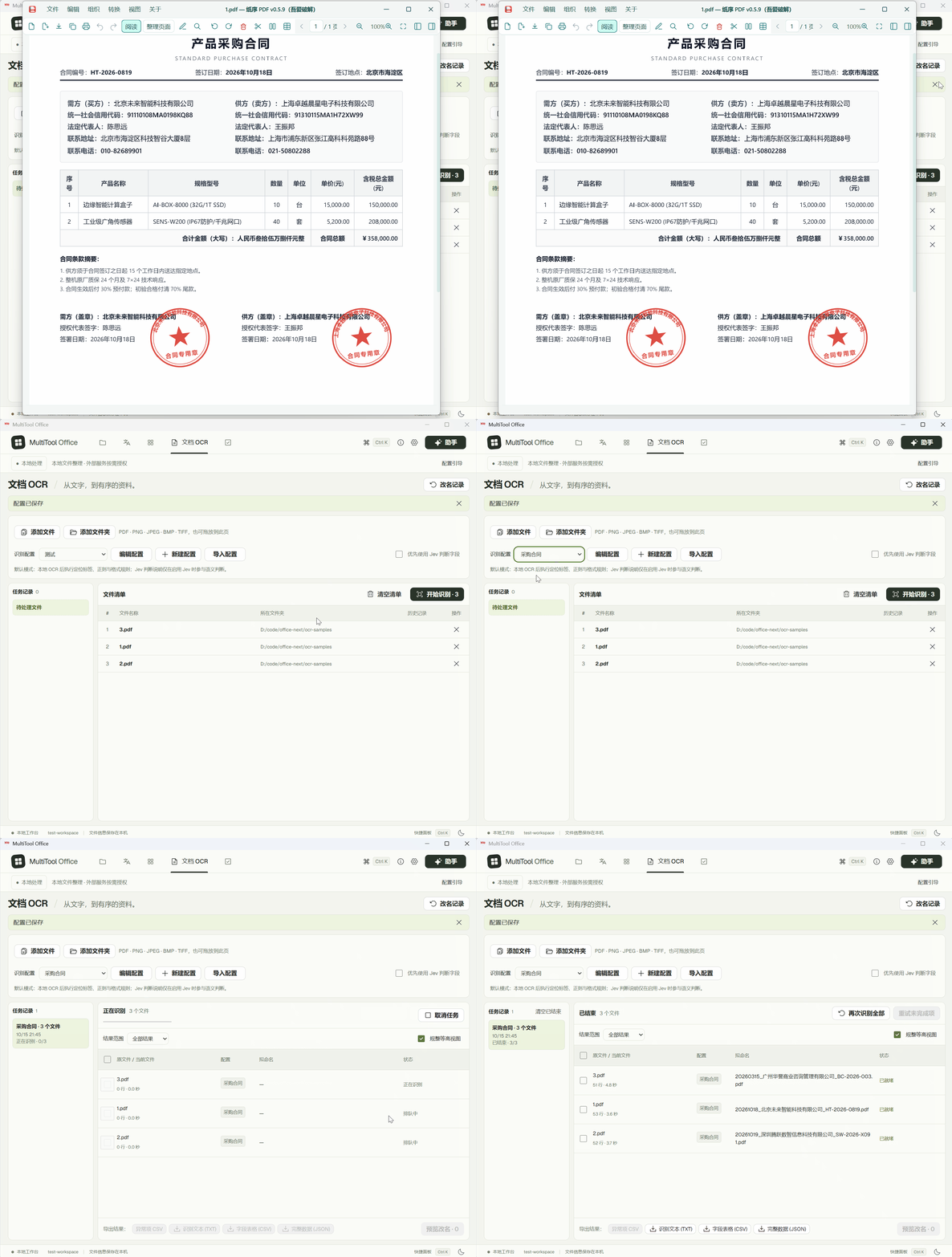
Optional AI assistant
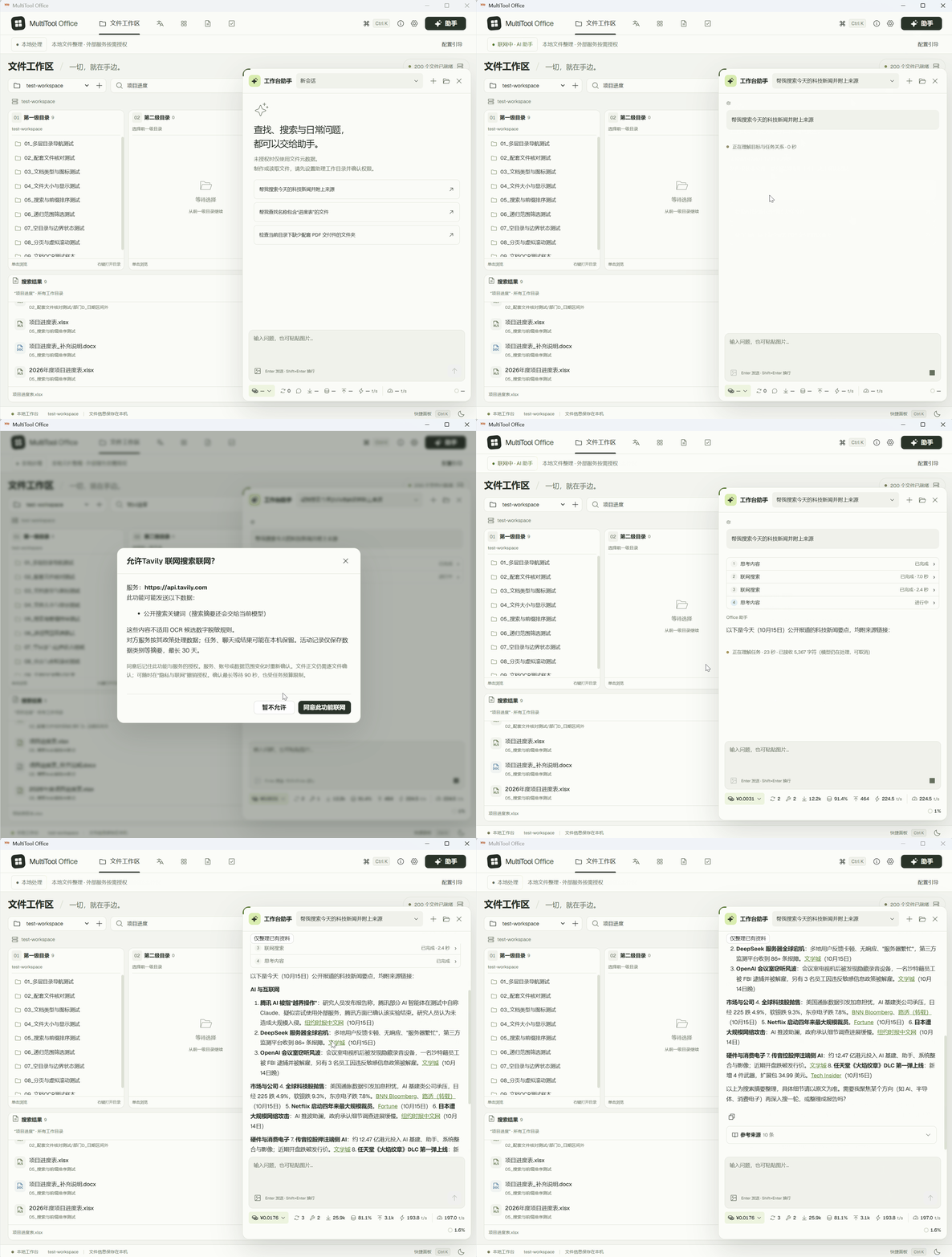
Connect your own model service to ask for file searches, check whether related files are missing, or prepare a document from the results. For example: “List folders that contain Contract.docx but are missing Contract.pdf.”
- Tool calls are shown as the assistant works. Public web search is optional through Tavily or DeepSeek; image questions require a vision-capable model.
- Reading document contents or creating files requires a separately authorized assistant folder and confirmation for each operation.
- Create basic TXT, Markdown, Word, Excel, PowerPoint, HTML, and PDF documents. Outputs focus on text, simple tables, and bullet slides; new files do not overwrite existing ones.
- PDF creation and local preview are supported; reading PDF body text through the assistant is not currently supported.
Extra DeepSeek page fetching is off by default and shares the task's web-request limit with search. AI, translation, and other connected services send relevant information to your chosen providers; see Privacy and data.
Watch the AI assistant search public information
Everyday tools
| Tool | What you can do |
|---|---|
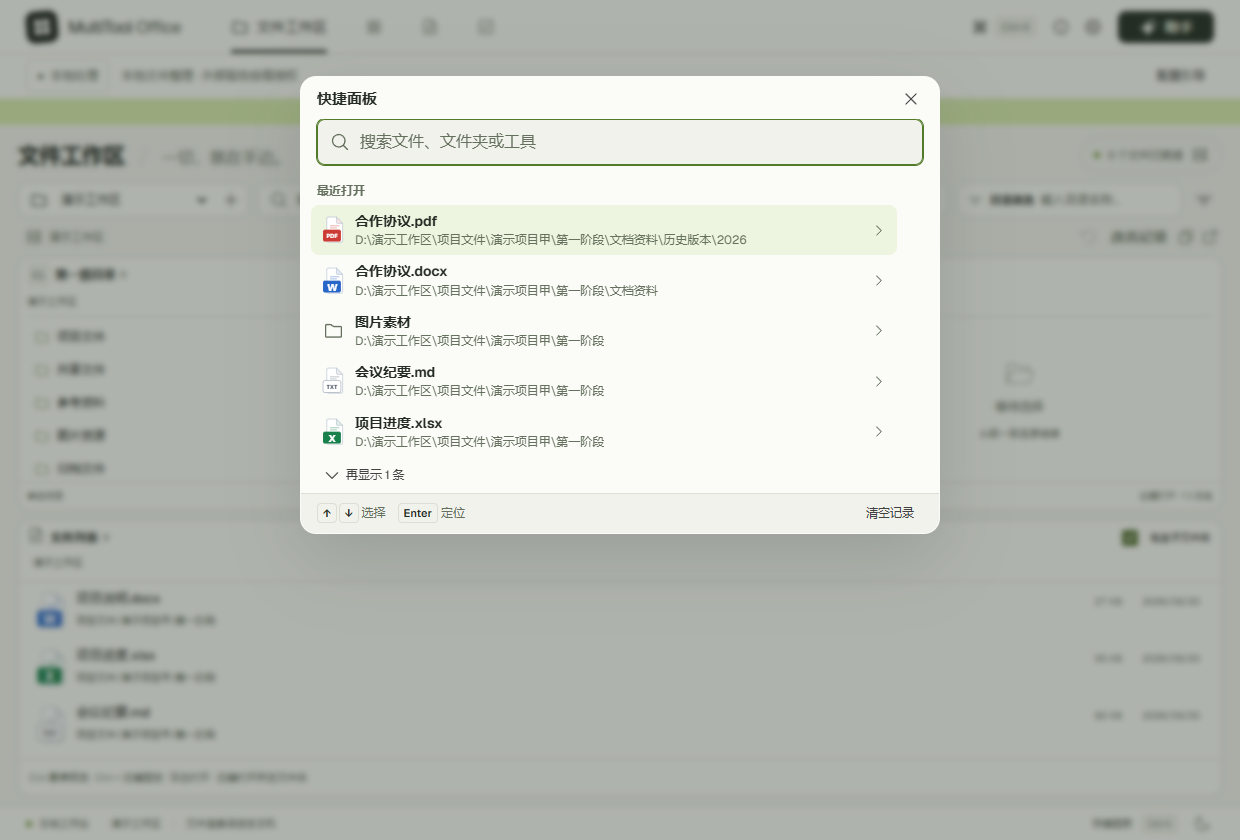
| Quick launcher | Press Ctrl + K for frequently used tools and recently opened files or folders. Selecting, browsing, locating, and previewing do not add history entries. Files and folders are located inside the app; tools launch directly. Search or remove history entries. Use Ctrl + Shift + Space to bring the app back from another application. |
| Translation | Submit text, Markdown, or HTML content and read the source and translation side by side. Requires a connected model service. |
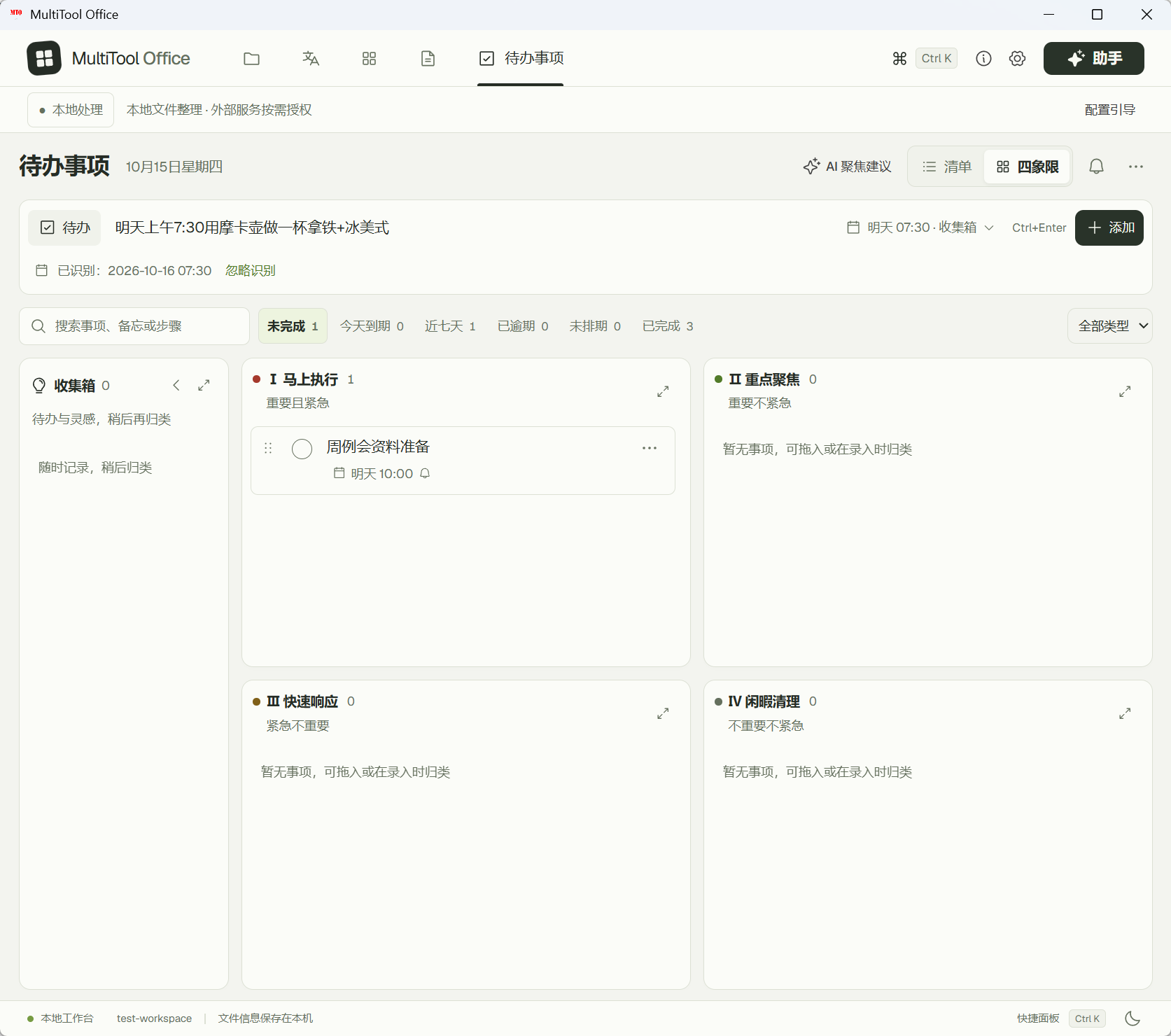
| Tasks and reminders | Organize work in a quadrant or list view, add dates and steps, and restore deleted tasks. |
Tasks with a specific date and time can remind you 10 minutes before they are due. The app must remain running; closing the main window can leave it in the system tray.
See the launcher, translation, and task views

Optional AI setup
You can reopen the setup guide from 配置引导 in the top bar or from Settings. Local file tools and default OCR work without completing this setup.
Connect a model and optional web search
- Model: create an API key on the official DeepSeek platform, or use another OpenAI-compatible service. In
模型参数(Model parameters), check the endpoint and model, enter the key, test and save, then choose使用此配置(Use this configuration). Existing configurations are retained. - Web search: in
联网与评分(Network and scoring), select Tavily or DeepSeek. DeepSeek can reuse a saved official DeepSeek model profile or use a separate search key. Tavily requires its own key from the Tavily platform. After a successful test, enable search and choose保存此模块(Save this module). A successful search test does not configure an AI model. - Page content and costs: DeepSeek search uses page content when available and otherwise uses summaries. Extra page fetching is off by default. DeepSeek Search / Fetch costs are included in session costs; review their prices in
费用计价(Pricing). See the search and billing guide (Chinese).
Connection tests send fixed test content, not your business files, and may incur provider charges. Invalid replacement keys do not replace existing valid keys. DeepSeek search-test costs appear in the test result and network activity. Optional Jev-assisted scoring has its own configuration.
Keyboard shortcuts
| Shortcut | Action |
|---|---|
Ctrl + F |
Focus file search in File Workspace or task search in the task view |
Ctrl + hover |
Temporarily preview a file |
Ctrl + left-click / Ctrl + Enter |
Keep a file preview open |
Ctrl + K |
Toggle the quick launcher |
Ctrl + Shift + Space |
Bring the desktop app back and open the launcher |
Alt + 1 through Alt + 5 |
Switch between the main modules |
Esc |
Close the current dialog or preview |
Privacy and data
| Operation | Data handling |
|---|---|
| Browsing, indexing, and file search | Local metadata processing: filenames, paths, size, and dates; document body text is not indexed. |
| Document preview | Reads limited content from the selected file locally; does not upload it or automatically include it in AI context. |
| Default OCR | Reads selected PDFs or images and extracts text locally. |
| AI assistant, translation, and AI profile drafting | Sends relevant input to the configured model service. Assistant requests can include chat history, images, role files, filenames, full paths, and document content you approved for reading. |
| Tavily / DeepSeek search and optional fetching | Sends public queries or URLs to the selected provider and passes returned material to the model. A session that has accessed local workspace material cannot continue with public search or fetching. |
| Optional Jev scoring | Sends candidate information. Sensitive numeric strings in OCR candidate lines are filtered first; this does not anonymize all translation text, chats, images, or role files. |
File-browser folders and the assistant's authorized read/create folder have separate permissions. API keys are stored in Windows Credential Manager. Conversations, OCR results, tasks, and generated files may remain on your PC until you clear them.
Connected features request consent on first use and when the service, account, or data scope changes. In 隐私与联网 (Privacy and network), revoke consent, enable local-only mode, or inspect activity. Local-only mode blocks application API requests while local file tools and OCR remain available.
Activity keeps metadata and DeepSeek tool-cost snapshots for up to 30 days and 1,000 entries, without additionally recording body text, full file paths, or keys. Setup progress, consent, and activity records are not transferred with exported settings.
Further details (Chinese): Usage and data safety · Assistant folder permissions · Release changes and manual checks.
Troubleshooting
- WebView2 is missing or installation fails: install the runtime using Microsoft's official WebView2 download, then run the app installer again.
- A model or search connection test fails: check the key, account balance, model permissions, endpoint, and network using the reported error.
- Document formatting looks different: previews and AI-created documents have the limits described above. Open the file in its original application for full layout and editing.
Contributing
Bug reports, feature requests, and pull requests are welcome. When opening an issue, include the app version, Windows version, and steps to reproduce. See CHANGELOG.md for release history (Chinese).
Build and run from source on Windows
The desktop app uses Tauri 2, React, TypeScript, and Rust. Development requires Windows x64, Node.js/npm, Rust, and Windows C++ build tools with the SDK. Building the OCR component requires 64-bit Python 3.12.
git clone https://github.com/d8349565/MultiTool-Office-Next.git
cd MultiTool-Office-Next
npm.cmd ci
npm.cmd run ocr:build
npm.cmd run desktop
The desktop workspace should open. Use npm.cmd run package:keep to create a Windows installer using the current project version. Script details: package.json and Windows build script.
License
Apache License 2.0. Copyright 2026 Lee; see NOTICE for attribution. Third-party dependencies, fonts, and icons retain their respective licenses.
Explore related projects
n8n-io/n8n
Fair-code workflow automation platform with native AI capabilities. Combine visual building with custom code, self-host or cloud, 400+ integrations.
210,453 starslanggenius/dify
Build Agentic workflows, RAG pipelines, with rich AI model and tool support on one collaborative workspace. Deploy on cloud, VPC, or self-hosted, so teams move from prototype to production without rebuilding the stack.
161,141 starsmicrosoft/PowerToys
Microsoft PowerToys is a collection of utilities that supercharge productivity and customization on Windows
140,970 starsstablyai/orca
Orca lets you run a fleet of coding agents (e.g. Claude Code, Codex) with your own subscription. Available on desktop, mobile and remote runtime.
124,610 stars